
Spire.Doc for .NET (338)
Children categories
In MS Word, a hyperlink is a clickable link that allows you to jump to a web page, a file, an email address, or even another location in the same document. It is undeniable that adding hyperlinks in Word documents is one of the most common operations in daily work, but there are times when you may also need to change the address or update the display text of an existing hyperlink. This article will demonstrate how to programmatically edit a hyperlink in a Word document using Spire.Doc for .NET.
Install Spire.Doc for .NET
To begin with, you need to add the DLL files included in the Spire.Doc for.NET package as references in your .NET project. The DLL files can be either downloaded from this link or installed via NuGet.
PM> Install-Package Spire.Doc
Edit a Hyperlink in a Word Document in C# and VB.NET
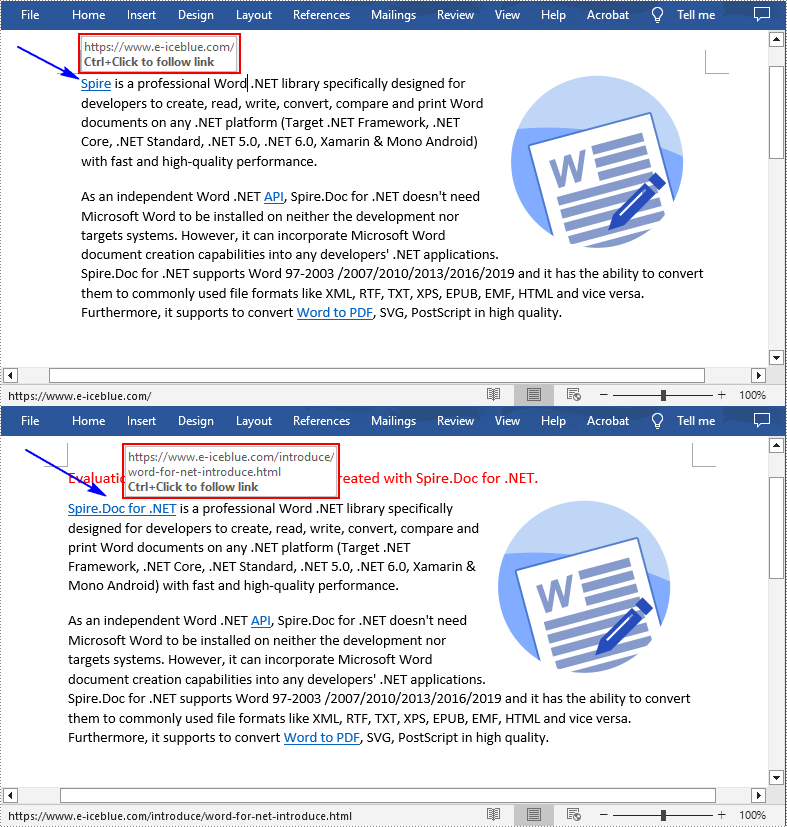
A hyperlink consists of two basic parts: the hyperlink address (URL) and its display text. With Spire.Doc for .NET, you are allowed to modify both the address and display text of an existing hyperlink using Field.Code and Field.FieldText properties. The detailed steps are as follows.
- Create a Document object.
- Load a sample Word document using Document.LoadFromFile() method.
- Create an object of List<Field>.
- Traverse through all body child objects of sections in the sample document to find all hyperlinks.
- Modify the address (URL) of a specified hyperlink using Field.Code property.
- Modify the display text of a specified hyperlink using Field.FieldText property.
- Save the document to another file using Document.SaveToFile() method.
- C#
- VB.NET
using Spire.Doc;
using Spire.Doc.Documents;
using Spire.Doc.Fields;
using System.Collections.Generic;

namespace ModifyHyperlink
{
    class Program
    {
        static void Main(string[] args)
        {
            //Create a Document object
            Document doc = new Document();

            //Load a sample Word document
            doc.LoadFromFile("Hyperlink.docx");

            //Create an object of List
            List<Field> hyperlinks = new List<Field>();

            //Loop through the items in the sections to find all hyperlinks
            foreach (Section section in doc.Sections)
            {
                foreach (DocumentObject sec in section.Body.ChildObjects)
                {
                    if (sec.DocumentObjectType == DocumentObjectType.Paragraph)
                    {
                        //Loop through all paragraphs in the sections
                        foreach (DocumentObject para in (sec as Paragraph).ChildObjects)
                        {
                            if (para.DocumentObjectType == DocumentObjectType.Field)
                            {
                                Field field = para as Field;

                                if (field.Type == FieldType.FieldHyperlink)
                                {
                                    hyperlinks.Add(field);
                                }
                            }
                        }
                    }
                }
            }
            //Modify the address (URL) of the first hyperlink
            hyperlinks[0].Code = "HYPERLINK \"" + "https://www.e-iceblue.com/Introduce/word-for-net-introduce.html" + "\"";

            //Modify the display text of the first hyperlink
            hyperlinks[0].FieldText = "Spire.Doc for .NET";

            //Save the result document
            doc.SaveToFile("EditHyperlinks.docx", FileFormat.Docx);
        }
    }
}
Apply for a Temporary License
If you'd like to remove the evaluation message from the generated documents, or to get rid of the function limitations, please request a 30-day trial license for yourself.
Hyperlinks can point to files, emails, websites, imagers or video when readers click on it. Hyperlinks are widely used in word document for it is very convenient to direct readers to related, useful content. By using Spire.Doc, developers can add hyperlinks, finding hyperlinks and modify hyperlinks. This article will show you how to find all the existing hyperlinks in a word document in C#.
Download and install Spire.Doc for .NET and then add Spire.Doc.dll as reference in the downloaded Bin folder though the below path: "..\Spire.Doc\Bin\NET4.0\ Spire.Doc.dll". Here comes to the details of how to finding hyperlinks in C#.
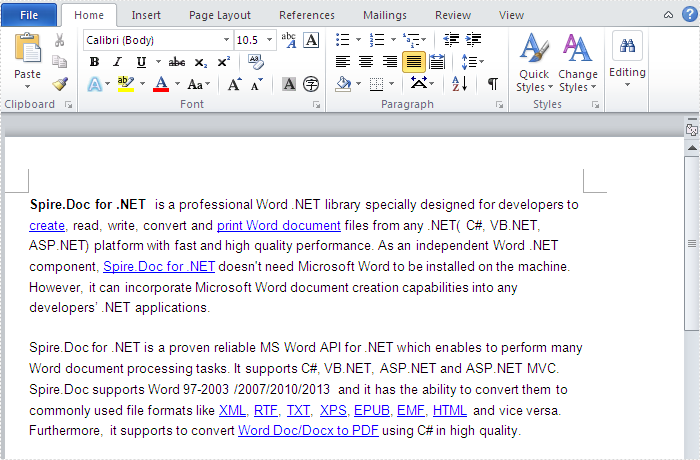
Firstly, view the word document which contains many hyperlinks:
Please check the code of how to find all the hyperlinks in word document:
using Spire.Doc;
using Spire.Doc.Documents;
using Spire.Doc.Fields;
using System.Collections.Generic;
using System.Drawing;
namespace FindHyperlink
{
    class Program
    {
        static void Main(string[] args)
        {
            Document doc = new Document();
            doc.LoadFromFile("Spire.docx");
            List hyperlinks = new List();
            foreach (Section section in doc.Sections)
            {
                foreach (DocumentObject sec in section.Body.ChildObjects)
                {
                    if (sec.DocumentObjectType == DocumentObjectType.Paragraph)
                    {
                        foreach (DocumentObject para in (sec as Paragraph).ChildObjects)
                        {
                            if (para.DocumentObjectType == DocumentObjectType.Field)
                            {
                                Field field = para as Field;

                                if (field.Type == FieldType.FieldHyperlink)
                                {
                                    hyperlinks.Add(field);
                                }

                            }
                        }
                    }
                }
            }
        }
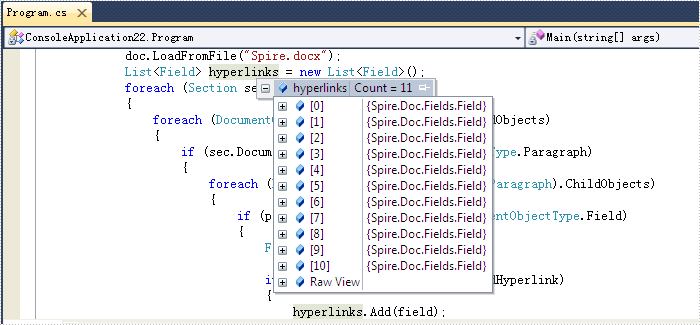
The effective screenshot of the finding hyperlinks:
In Word document, users can add new page break or remove existing page breaks. This sample shows how to remove page breaks from the word document by using Spire.Doc. Spire.Doc supports to remove the page breaks from the word document from the format of .docx, .doc, and RTF etc.
Firstly make sure Spire.Doc for .NET has been installed correctly and then add Spire.Doc.dll as reference in the downloaded Bin folder though the below path: ".. \Spire.Doc\Bin\NET4.0\ Spire.Doc.dll". Here comes to the details of how to remove page breaks in C#.
//Create a new word document and load from the file.
Document document = new Document();
document.LoadFromFile("sample.docx");

// Traverse every paragraph of the first section of the document
for (int j = 0; j < document.Sections[0].Paragraphs.Count; j++)
  {
   Paragraph p = document.Sections[0].Paragraphs[j];

// Traverse every child object of a paragraph
for (int i = 0; i < p.ChildObjects.Count; i++)
    {
     DocumentObject obj = p.ChildObjects[i];

//Find the page break object
 if (obj.DocumentObjectType == DocumentObjectType.Break)
    {
     Break b = obj as Break;

// Remove the page break object from paragraph
p.ChildObjects.Remove(b);

//save the document to file.
document.SaveToFile("result.docx");
Please check the effective screenshot:

Full codes:
using Spire.Doc;
using Spire.Doc.Documents;
namespace RemovePageBreak
{
    class Program
    {
        static void Main(string[] args)
        {
            Document document = new Document();
            document.LoadFromFile("sample.docx", FileFormat.Docx);
            for (int j = 0; j < document.Sections[0].Paragraphs.Count; j++)
            {
                Paragraph p = document.Sections[0].Paragraphs[j];
                for (int i = 0; i < p.ChildObjects.Count; i++)
                {
                    DocumentObject obj = p.ChildObjects[i];
                    if (obj.DocumentObjectType == DocumentObjectType.Break)
                    {
                        Break b = obj as Break;
                        p.ChildObjects.Remove(b);
                    }
                }
            }
            document.SaveToFile("result.docx", FileFormat.Docx);
            System.Diagnostics.Process.Start("result.docx");
        }
    }
}
