
Spire.Doc for .NET (338)
Children categories
Adding page numbers to your Word documents can enhance their organization and readability. Page numbers provide a convenient reference point for readers and make it easier to navigate through lengthy documents. Whether you're working on a report, thesis, or any other document, incorporating page numbers is a simple yet effective way to improve its overall structure and accessibility.
In this article, you will learn how to add page numbers to a Word document in C# by using the Spire.Doc for .NET library.
- Add Page Numbers to a Word Document
- Add Page Numbers to a Specific Section in a Word Document
- Add Different Page Numbers to Different Sections in a Word Document
Install Spire.Doc for .NET
To begin with, you need to add the DLL files included in the Spire.Doc for.NET package as references in your .NET project. The DLL files can be either downloaded from this link or installed via NuGet.
PM> Install-Package Spire.Doc
Add Page Numbers to a Word Document in C#
To achieve the dynamic addition of page numbers to a Word document, Spire.Doc for .NET offers a range of fields, including FieldPage, FieldNumPages, and FieldSectionPages. These fields act as placeholders for the current page number, total page count, and section page count, allowing you to customize and automate the display of page numbers in your document.
To incorporate these placeholders (usually in the header or footer section) within your Word document, you can utilize the Paragraph.AppendField() method.
The following steps outline how to add a FieldPage field and a FieldNumPages field in the footer, resulting in the display of "X/Y" format in the document.
- Create a Document object.
- Load a Word document from a specified file path.
- Get the first section using Document.Sections[index] property
- Get the footer of the first section using Section.HeadersFooters.Footer property.
- Add a paragraph to the footer using HeaderFooter.AddParagraph() method.
- Insert a FieldPage field, a FieldNumPages field and a "/" to the paragraph using Paragraph.AppendField() and Parargph.AppendText() methods.
- Save the document to a different Word file.
- C#
using Spire.Doc;
using Spire.Doc.Documents;
using System.Drawing;

namespace AddPageNumbersToDocument
{
    class Program
    {
        static void Main(string[] args)
        {
            // Create a Document object
            Document document = new Document();

            // Load a Word file
            document.LoadFromFile("C:\\Users\\Administrator\\Desktop\\Privacy Policy.docx");

            // Get the first section
            Section section = document.Sections[0];

            // Get the footer of the section
            HeaderFooter footer = section.HeadersFooters.Footer;

            // Add "page number / page count" to the footer
            Paragraph footerParagraph = footer.AddParagraph();
            footerParagraph.AppendField("page number", FieldType.FieldPage);
            footerParagraph.AppendText(" / ");
            footerParagraph.AppendField("page count", FieldType.FieldNumPages);
            footerParagraph.Format.HorizontalAlignment = HorizontalAlignment.Center;

            // Apply formatting to the page number
            ParagraphStyle style = new ParagraphStyle(document);
            style.CharacterFormat.Bold = true;
            style.CharacterFormat.FontName = "Times New Roman";
            style.CharacterFormat.FontSize = 18;
            style.CharacterFormat.TextColor = Color.Red;
            document.Styles.Add(style);
            footerParagraph.ApplyStyle(style);

            // Save the document
            document.SaveToFile("AddPageNumbersToDocument.docx");

            // Dispose resources
            document.Dispose();
        }
    }
}
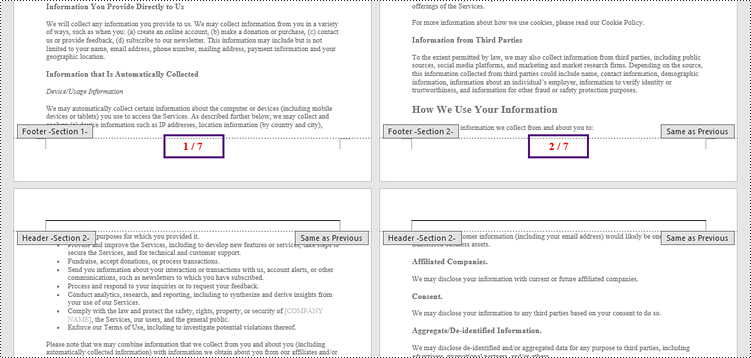
Add Page Numbers to a Specific Section in a Word Document in C#
By default, page numbers in the footer of a section are automatically linked to the previous section, ensuring a continuous display. However, if you wish to add page numbers to a specific section only, you need to unlink the subsequent section from the previous section and remove the content of the footers in the subsequent sections.
The following are the steps to add page numbers to a specific section in a Word document using Spire.Doc for .NET.
- Create a Document object.
- Load a Word document from a specified file path.
- Get a specific section using Document.Sections[index] property
- Get the footer of the section using Section.HeadersFooters.Footer property.
- Restart page numbering from 1 by setting Section.PageSetup.RestartPageNumbering property to true and Section.PageSetup.PageStartingNumber property to 1.
- Insert a FieldPage field, a FieldSectionPages field and a "/" to the footer using Paragraph.AppendField() and Parargph.AppendText() methods.
- Disable "Link to previous" by setting HeadersFooters.Footer.LinkToPrevious propety to false.
- Delete the content of the footers in the subsequent sections
- Save the document to a different Word file.
- C#
using Spire.Doc;
using Spire.Doc.Documents;
using System.Drawing;

namespace AddPageNumbersToSpecificSection
{
    class Program
    {
        static void Main(string[] args)
        {
            // Create a Document object
            Document document = new Document();

            // Load a Word file
            document.LoadFromFile("C:\\Users\\Administrator\\Desktop\\Privacy Policy.docx");

            // Get a specific section
            int sectionIndex = 1;
            Section section = document.Sections[sectionIndex];

            // Restart page numbering from 1
            section.PageSetup.RestartPageNumbering = true;
            section.PageSetup.PageStartingNumber = 1;

            // Get the footer of the section
            HeaderFooter footer = section.HeadersFooters.Footer;

            // Add "page number / page count" to the footer
            Paragraph footerParagraph = footer.AddParagraph();
            footerParagraph.AppendField("page number", FieldType.FieldPage);
            footerParagraph.AppendText(" / ");
            footerParagraph.AppendField("page count", FieldType.FieldSectionPages);
            footerParagraph.Format.HorizontalAlignment = HorizontalAlignment.Center;

            // Apply formatting to the page number
            ParagraphStyle style = new ParagraphStyle(document);
            style.CharacterFormat.Bold = true;
            style.CharacterFormat.FontName = "Times New Roman";
            style.CharacterFormat.FontSize = 18;
            style.CharacterFormat.TextColor = Color.Red;
            document.Styles.Add(style);
            footerParagraph.ApplyStyle(style);

            // Disable "Link to previous" in the subsequent section
            document.Sections[sectionIndex + 1].HeadersFooters.Footer.LinkToPrevious = false;

            // Delete the content of the footers in the subsequent sections
            for (int i = sectionIndex + 1; i < document.Sections.Count; i++)
            {
                document.Sections[i].HeadersFooters.Footer.ChildObjects.Clear();
                document.Sections[i].HeadersFooters.Footer.AddParagraph();
            }

            // Save the document
            document.SaveToFile("AddPageNumbersToSection.docx");

            // Dispose resources
            document.Dispose();
        }
    }
}
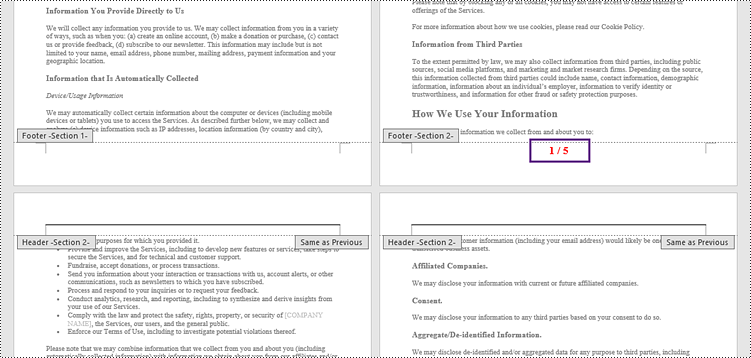
Add Different Page Numbers to Different Sections in a Word Document in C#
To ensure that different sections have distinct page numbers, you need to get each section in the document, add page numbers to them separately, and restart page numbering from 1 at the beginning of each section.
The following are detailed steps.
- Create a Document object.
- Load a Word document from a specified file path.
- Iterate through the sections in the document.
- Get a specific section using Document.Sections[index] property
- Get the footer of the section using Section.HeadersFooters.Footer property.
- Restart page numbering from 1 by setting Section.PageSetup.RestartPageNumbering property to true and Section.PageSetup.PageStartingNumber property to 1.
- Insert a FieldPage field, a FieldSectionPages field and a "/" to the footer using Paragraph.AppendField() and Parargph.AppendText() methods.
- Save the document to a different Word file.
- C#
using Spire.Doc;
using Spire.Doc.Documents;
using System.Drawing;

namespace AddDifferentPageNumbersToDifferentSections
{
    class Program
    {
        static void Main(string[] args)
        {
            // Create a Document object
            Document document = new Document();

            // Load a Word file
            document.LoadFromFile("C:\\Users\\Administrator\\Desktop\\Privacy Policy.docx");

            // Iterate through the sections in the document
            for (int i = 0; i < document.Sections.Count; i++)
            {
                // Get a specific section
                Section section = document.Sections[i];

                // Restart page numbering from 1
                section.PageSetup.RestartPageNumbering = true;
                section.PageSetup.PageStartingNumber = 1;

                // Get the footer of the section
                HeaderFooter footer = section.HeadersFooters.Footer;

                // Add "page number / page count" to the footer
                Paragraph footerParagraph = footer.AddParagraph();
                footerParagraph.AppendField("page number", FieldType.FieldPage);
                footerParagraph.AppendText(" / ");
                footerParagraph.AppendField("page count", FieldType.FieldSectionPages);
                footerParagraph.Format.HorizontalAlignment = HorizontalAlignment.Center;

                // Apply formatting to the page number
                ParagraphStyle style = new ParagraphStyle(document);
                style.CharacterFormat.Bold = true;
                style.CharacterFormat.FontName = "Times New Roman";
                style.CharacterFormat.FontSize = 18;
                style.CharacterFormat.TextColor = Color.Red;
                document.Styles.Add(style);
                footerParagraph.ApplyStyle(style);
            }

            // Save the document
            document.SaveToFile("AddDifferentPageNumbersToSections.docx");

            // Dispose resources
            document.Dispose();
        }
    }
}
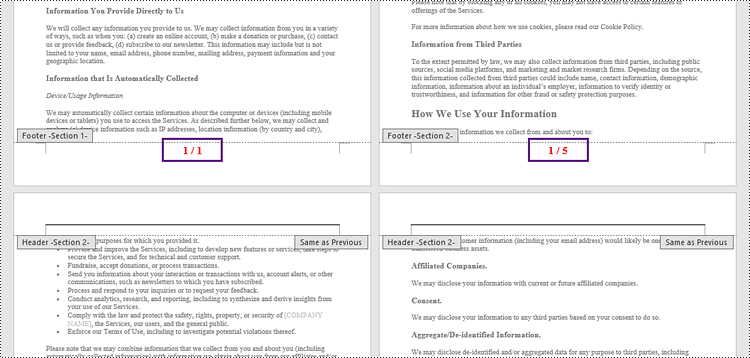
Apply for a Temporary License
If you'd like to remove the evaluation message from the generated documents, or to get rid of the function limitations, please request a 30-day trial license for yourself.
A table of contents, usually shorten as 'Contents' and abbreviated as TOC, is one of the most common function used in the professional documents. It gives readers clear and brief information of the document. This How To Guide for developers will explain the steps of create table of contents in C# with the help of a .NET word API Spire.Doc for .NET.
Firstly, view the screenshot of the table of contents created by the Spire.Doc in C#.

In this example, we call the method of AppendTOC to add the table of contents directly and use ApplyStyle to set the styles. Here comes to the steps of how to create TOC in C#.
Name Space we will use:
using Spire.Doc;
using Spire.Doc.Documents;
Step 1: Create a new document and add section and paragraph to the document.
Document doc = new Document();
Section section = doc.AddSection();
Paragraph para = section.AddParagraph();
Step 2: Add the Table of Contents and add the text that you want to appear in the table of contents.
para.AppendTOC(1, 3);
//Add a new paragraph to the section
Paragraph para1 = section.AddParagraph();
//Add text to the paragraph
para1.AppendText("Head1");
Step 3: Set the style for the paragraph.
para1.ApplyStyle(BuiltinStyle.Heading1);
Step 4: Add the second paragraph and set the style.
Paragraph para2 = section.AddParagraph();
para2.AppendText("Head2");
para2.ApplyStyle(BuiltinStyle.Heading2);
Step 5: Update the table of contents and save the document to file.
doc.UpdateTableOfContents();
doc.SaveToFile("CreateTableOfContent.docx", FileFormat.Docx);
Full codes:
using Spire.Doc;
using Spire.Doc.Documents;

namespace TableofContents
{
    class Program
    {
        static void Main(string[] args)
        {
            Document doc = new Document();
            Section section = doc.AddSection();
            Paragraph para = section.AddParagraph();

            para.AppendTOC(1, 3);
            Paragraph para1 = section.AddParagraph();
            para1.AppendText("Head1");

            para1.ApplyStyle(BuiltinStyle.Heading1);

            Paragraph para2 = section.AddParagraph();
            para2.AppendText("Head2");
            para2.ApplyStyle(BuiltinStyle.Heading2);

            doc.UpdateTableOfContents();
            doc.SaveToFile("CreateTableOfContent.docx", FileFormat.Docx);

        }
    }
}
In our daily work, we may have the requirement to add custom properties with fields to a Word document. As is shown in the following Word document, I have created three custom property fields for easily inserting or updating information.
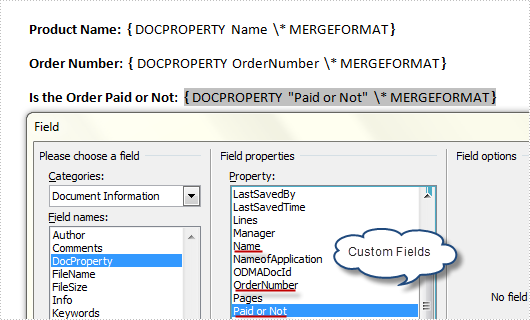
However, a custom property field may lose its value if we don’t want to use it any more, or a custom field might be created with wrong information, in such cases, we can choose to delete these fields manually and programmatically. In this article, I’ll introduce a C# and VB.NET solution to remove custom property fields using Spire.Doc.
Detailed Steps
Step 1: Create a new instance of Spire.Doc.Document class and load the sample file with specified path.
Document doc = new Document();
doc.LoadFromFile("FieldSample.docx", FileFormat.Docx);
Step 2: Get custom document properties object.
CustomDocumentProperties cdp = doc.CustomDocumentProperties;
Step 3: Use a for sentence and CustomDocumentProperties.Remove(string name) method to remove all custom property fields in the document.
for (int i = 0; i < cdp.Count; )
{
  cdp.Remove(cdp[i].Name);
}
doc.IsUpdateFields = true;
Step 4: Save the file.
doc.SaveToFile("Result.docx", FileFormat.Docx);
Output:
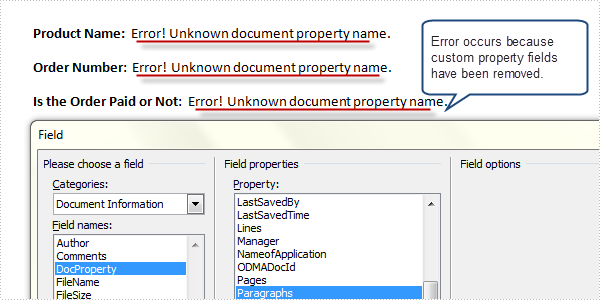
Full Code:
using Spire.Doc;
namespace RemoveProperties
{
    class Program
    {
        static void Main(string[] args)
        {
            Document doc = new Document();
            doc.LoadFromFile("FieldSample.docx", FileFormat.Docx);
            CustomDocumentProperties cdp = doc.CustomDocumentProperties;
            for (int i = 0; i < cdp.Count; )
            {
                cdp.Remove(cdp[i].Name);
            }
            doc.IsUpdateFields = true;
            doc.SaveToFile("Result.docx", FileFormat.Docx);
        }
    }
}
Imports Spire.Doc
Namespace RemoveProperties
	Class Program
		Private Shared Sub Main(args As String())
			Dim doc As New Document()
			doc.LoadFromFile("FieldSample.docx", FileFormat.Docx)
			Dim cdp As CustomDocumentProperties = doc.CustomDocumentProperties
			Dim i As Integer = 0
			While i < cdp.Count
				cdp.Remove(cdp(i).Name)
			End While
			doc.IsUpdateFields = True
			doc.SaveToFile("Result.docx", FileFormat.Docx)
		End Sub
	End Class
End Namespace
