
Program Guide (133)
Children categories
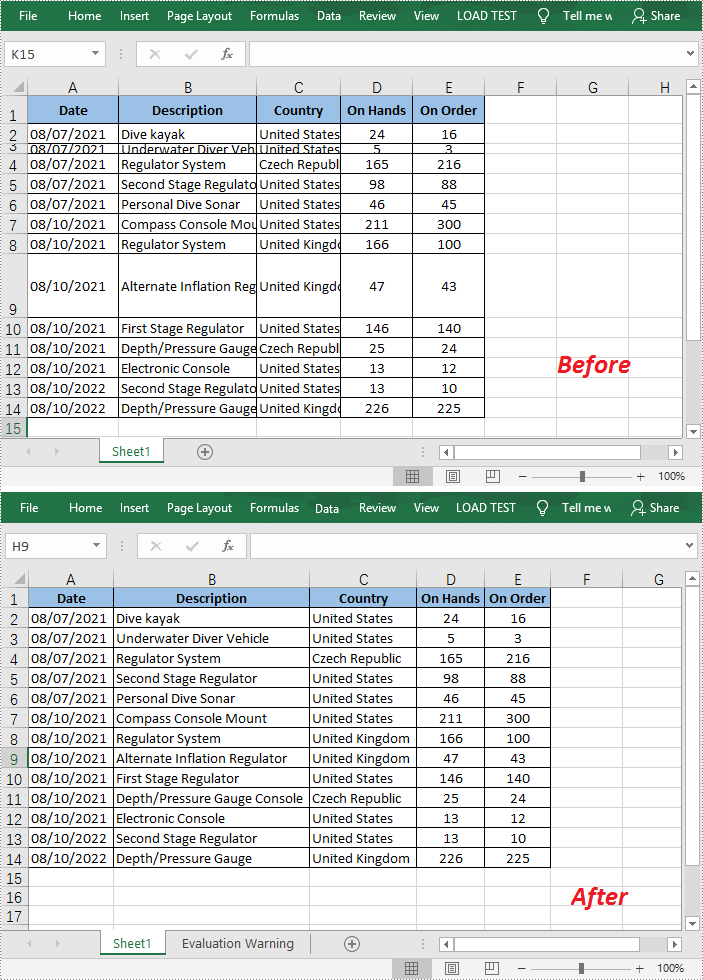
AutoFit is a very practical feature MS Excel offers to automatically resize cells to accommodate different sized data. With a single click, it makes all the data in a cell clearly visible without having to manually adjust the column width or row height. In this article, you will learn how to programmatically AutoFit the column width and row height in an Excel worksheet using Spire.XLS for Java.
Install Spire.XLS for Java
First, you're required to add the Spire.Xls.jar file as a dependency in your Java program. The JAR file can be downloaded from this link. If you use Maven, you can easily import the JAR file in your application by adding the following code to your project's pom.xml file.
<repositories>
    <repository>
        <id>com.e-iceblue</id>
        <name>e-iceblue</name>
        <url>https://repo.e-iceblue.com/nexus/content/groups/public/</url>
    </repository>
</repositories>
<dependencies>
    <dependency>
        <groupId>e-iceblue</groupId>
        <artifactId>spire.xls</artifactId>
        <version>16.8.4</version>
    </dependency>
</dependencies>
AutoFit Column Width and Row Height in Excel
The detailed steps are as follows.
- Create a Workbook object.
- Load a sample Excel document using Workbook.loadFromFile() method.
- Get a specified worksheet using Workbook.getWorksheets().get() method.
- Get the used range on the specified worksheet using Worksheet.getAllocatedRange() method.
- Autofit column width and row height in the range using CellRange.autoFitColumns() and CellRange.autoFitRows() methods.
- Save the document to another file using Workbook.saveToFile() method.
- Java
import com.spire.xls.*;

public class AutoFitColumn {
    public static void main(String[] args) {
        //Create a Workbook object
        Workbook workbook = new Workbook();

        //Load a sample Excel document
        workbook.loadFromFile("E:\\Files\\Test.xlsx");

        //Get the first worksheet
        Worksheet worksheet = workbook.getWorksheets().get(0);

        //AutoFit column width and row height
        worksheet.getAllocatedRange().autoFitColumns();
        worksheet.getAllocatedRange().autoFitRows();

        //Save the document
        workbook.saveToFile("AutoFitCell.xlsx", ExcelVersion.Version2013);
    }
}
Apply for a Temporary License
If you'd like to remove the evaluation message from the generated documents, or to get rid of the function limitations, please request a 30-day trial license for yourself.
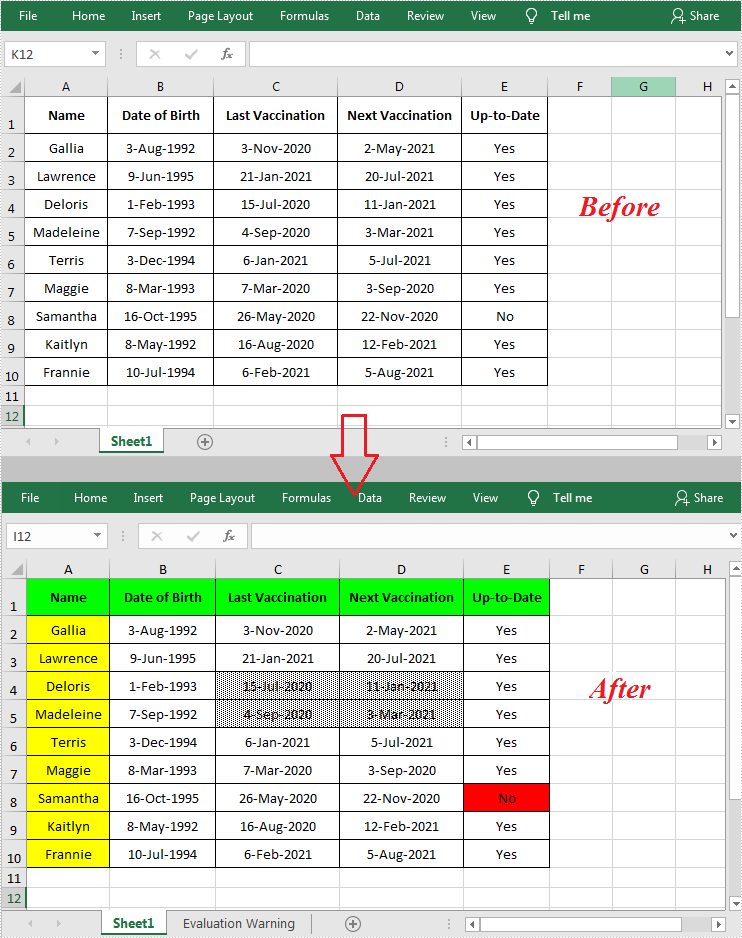
When working with an Excel document that contains a lot of data, setting color or pattern for selected cells can make it very easy for users to locate specific types of information. In Microsoft Excel, you can achieve this function by simply clicking the "Fill Color" button on the formatting toolbar. In this article, you will learn how to programmatically set background color and pattern style for a specified cell or cell range in Excel using Spire.XLS for Java.
Install Spire.XLS for Java
First, you're required to add the Spire.Xls.jar file as a dependency in your Java program. The JAR file can be downloaded from this link. If you use Maven, you can easily import the JAR file in your application by adding the following code to your project's pom.xml file.
<repositories>
    <repository>
        <id>com.e-iceblue</id>
        <name>e-iceblue</name>
        <url>https://repo.e-iceblue.com/nexus/content/groups/public/</url>
    </repository>
</repositories>
<dependencies>
    <dependency>
        <groupId>e-iceblue</groupId>
        <artifactId>spire.xls</artifactId>
        <version>16.8.4</version>
    </dependency>
</dependencies>
Set Background Color and Pattern for Excel Cells
The detailed steps are as follows.
- Create a Workbook object.
- Load a sample Excel document using Workbook.loadFromFile() method.
- Get a specified worksheet using Workbook.getWorksheets().get() method.
- Get a specified cell range using Worksheet.getRange().get() method.
- Set background color for the specified cell range using CellRange.getStyle().setColor() method.
- Set fill pattern style for the specified cell range using CellRange.getStyle().setFillPattern() method.
- Save the result to another file using Workbook.saveToFile() method.
- Java
import com.spire.xls.*;
import java.awt.*;

public class CellBackground {
    public static void main(String[] args) {
        //Create a Workbook object
        Workbook workbook = new Workbook();

        //Load a sample Excel document
        workbook.loadFromFile("C:\\Users\\Administrator\\Desktop\\data.xlsx");

        //Get the first worksheet
        Worksheet worksheet= workbook.getWorksheets().get(0);

        //Set background color for range "A1:E1" and "A2:A10"
        worksheet.getRange().get("A1:E1").getStyle().setColor(Color.green);
        worksheet.getRange().get("A2:A10").getStyle().setColor(Color.yellow);

        //Set background color for cell E8
        worksheet.getRange().get("E8").getStyle().setColor(Color.red);

        //Set fill pattern style for range "C4:D5"
        worksheet.getRange().get("C4:D5").getStyle().setFillPattern(ExcelPatternType.Percent25Gray);

        //Save the document
        workbook.saveToFile("CellBackground.xlsx", ExcelVersion.Version2013);
    }
}
Apply for a Temporary License
If you'd like to remove the evaluation message from the generated documents, or to get rid of the function limitations, please request a 30-day trial license for yourself.
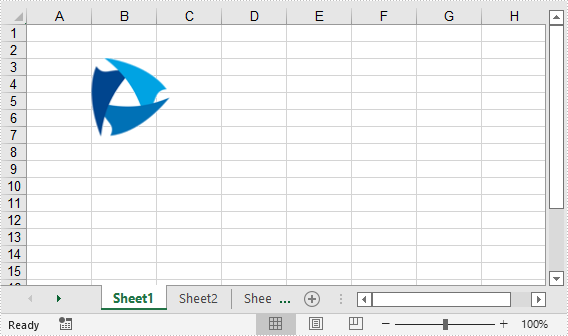
Images are visual representations of information. Adding images to our documents can help us express our thoughts in a simple and beautiful way. In this article, we will introduce how to insert images into Excel in Java using Spire.XLS for Java library.
Install Spire.XLS for Java
First of all, you're required to add the Spire.Xls.jar file as a dependency in your Java program. The JAR file can be downloaded from this link. If you use Maven, you can easily import the JAR file in your application by adding the following code to your project's pom.xml file.
<repositories>
    <repository>
        <id>com.e-iceblue</id>
        <name>e-iceblue</name>
        <url>https://repo.e-iceblue.com/nexus/content/groups/public/</url>
    </repository>
</repositories>
<dependencies>
    <dependency>
        <groupId>e-iceblue</groupId>
        <artifactId>spire.xls</artifactId>
        <version>16.8.4</version>
    </dependency>
</dependencies>
Insert Image from Disk into Excel in Java
The following are the steps to insert an image from disk into Excel:
- Initialize a Workbook instance
- Get the desired worksheet using Workbook.getWorksheets().get(sheetIndex) method.
- Insert an image into the worksheet using Worksheet.getPictures().add() method.
- Save the result file using Workbook.saveToFile() method.
- Java
import com.spire.xls.ExcelVersion;
import com.spire.xls.Workbook;
import com.spire.xls.Worksheet;

public class InsertImageFromDisk {
    public static void main(String[] args){
        //Initialize a Workbook instance
        Workbook workbook = new Workbook();
        //Get the first sheet
        Worksheet sheet = workbook.getWorksheets().get(0);

        //Insert an image into the worksheet
        sheet.getPictures().add(1, 1,"E:\\work\\sample.jpg");

        //Save the result file
        workbook.saveToFile("InsertImageFromDisk.xlsx", ExcelVersion.Version2016);
    }
}

Insert Web Image from a URL into Excel in Java
The following are the steps to insert a web image from a URL into an Excel worksheet:
- Initialize a Workbook instance.
- Get the desired worksheet using Workbook.getWorksheets().get(sheetIndex) method.
- Initialize a URL instance to get the image from the specified URL. Within the constructor of URL class, pass the image’s URL as a parameter.
- Read the image into a BufferedImage object using ImageIO.read() method.
- Insert the image into the worksheet using Worksheet.getPictures().add() method.
- Save the result file using Workbook.saveToFile() method.
- Java
import com.spire.xls.ExcelVersion;
import com.spire.xls.Workbook;
import com.spire.xls.Worksheet;

import javax.imageio.ImageIO;
import java.awt.image.BufferedImage;
import java.io.IOException;
import java.net.URL;

public class InsertWebImage {
    public static void main(String[] args) throws IOException {
        //Initialize a Workbook instance
        Workbook workbook = new Workbook();

        //Get the first worksheet
        Worksheet sheet = workbook.getWorksheets().get(0);

        //Initialize a URL instance to get the image from the specified URL
        URL url = new URL("https://www.e-iceblue.com/downloads/demo/Logo.png");
        //Read the image into a BufferedImage object
        BufferedImage bufferedImage = ImageIO.read(url);

        //Insert the image into the worksheet
        sheet.getPictures().add(3, 2, bufferedImage );

        //Save the result file
        workbook.saveToFile("InsertWebImage.xlsx", ExcelVersion.Version2016);
    }
}
Apply for a Temporary License
If you'd like to remove the evaluation message from the generated documents, or to get rid of the function limitations, please request a 30-day trial license for yourself.
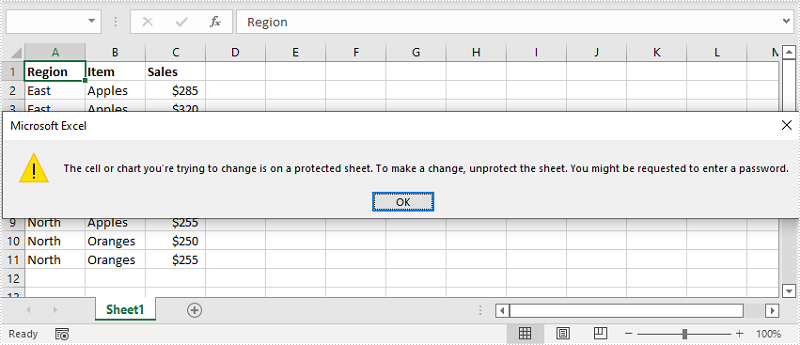
In Microsoft Excel, you can lock specific cells so that other users cannot make changes to the data or formulas within them. In this article, we will introduce how to lock cells in Excel programmatically in Java using Spire.XLS for Java library.
Install Spire.XLS for Java
First of all, you're required to add the Spire.Xls.jar file as a dependency in your Java program. The JAR file can be downloaded from this link. If you use Maven, you can easily import the JAR file in your application by adding the following code to your project's pom.xml file.
<repositories>
    <repository>
        <id>com.e-iceblue</id>
        <name>e-iceblue</name>
        <url>https://repo.e-iceblue.com/nexus/content/groups/public/</url>
    </repository>
</repositories>
<dependencies>
    <dependency>
        <groupId>e-iceblue</groupId>
        <artifactId>spire.xls</artifactId>
        <version>16.8.4</version>
    </dependency>
</dependencies>
Lock Specific Cells in Excel in Java
Normally, the locked option is enabled for all cells in a worksheet. Therefore, before locking a cell or range of cells, all cells must be unlocked. Keep in mind that locking cells doesn’t take effect until the worksheet is protected.
The following are the steps to lock specific cells in Excel:
- Create an instance of Workbook class.
- Load the Excel file using Workbook.loadFromFile() method.
- Get the desired worksheet using Workbook.getWorksheets().get(sheetIndex) method.
- Access the used range in the worksheet and then unlock all the cells in the range using XlsRange.getStyle().setLocked() method.
- Access specific cells and then lock them using XlsRange.getStyle().setLocked() method.
- Protect the worksheet using XlsWorksheetBase.protect() method.
- Save the result file using Workbook.saveToFile() method.
- Java
import com.spire.xls.*;

import java.util.EnumSet;

public class LockCells {
    public static void main(String []args){
        //Create a Workbook instance
        Workbook workbook = new Workbook();
        //Load an Excel file
        workbook.loadFromFile("Input.xlsx");

        //Get the first worksheet
        Worksheet sheet = workbook.getWorksheets().get(0);

        //Unlock all cells in the used range of the worksheet
        CellRange usedRange = sheet.getRange();
        usedRange.getStyle().setLocked(false);

        //Lock specific cells
        CellRange cells = sheet.getRange().get("A1:C3");
        cells.getStyle().setLocked(true);

        //Protect the worksheet with password
        sheet.protect("123456", EnumSet.of(SheetProtectionType.All));

        //Save the result file
        workbook.saveToFile("LockCells.xlsx", ExcelVersion.Version2016);
    }
}
Apply for a Temporary License
If you'd like to remove the evaluation message from the generated documents, or to get rid of the function limitations, please request a 30-day trial license for yourself.
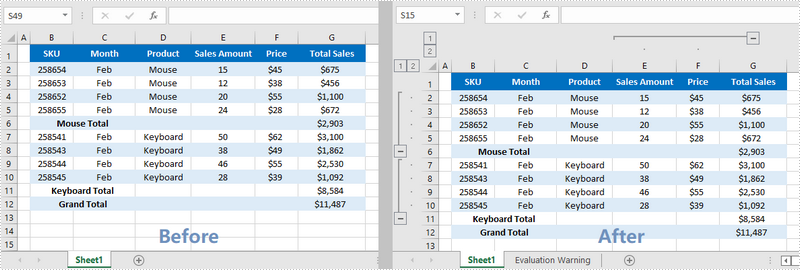
Worksheets with a lot of complex and detailed information are difficult to read and analyze. To create a more compact and understandable spreadsheet view, you can organize data in groups and collapse the rows with similar content.
This article demonstrates how to programmatically group or ungroup rows and columns in Excel using Spire.XLS for Java.
Install Spire.XLS for Java
First of all, you're required to add the Spire.Xls.jar file as a dependency in your Java program. The JAR file can be downloaded from this link. If you use Maven, you can easily import the JAR file in your application by adding the following code to your project's pom.xml file.
<repositories>
    <repository>
        <id>com.e-iceblue</id>
        <name>e-iceblue</name>
        <url>https://repo.e-iceblue.com/nexus/content/groups/public/</url>
    </repository>
</repositories>
<dependencies>
    <dependency>
        <groupId>e-iceblue</groupId>
        <artifactId>spire.xls</artifactId>
        <version>16.8.4</version>
    </dependency>
</dependencies>
Group Rows and Columns in Java
The following are the steps to group rows and columns using Spire.XLS for Java.
- Create a Workbook object.
- Load a sample Excel file using Workbook.loadFromFile() method.
- Get the specific sheet using Workbook.getWorksheets().get() method.
- Group rows using Worksheet.groupByRows() method.
- Group columns using Worksheet.groupByColumns() method.
- Save the result to another Excel file using Workbook.saveToFile() method.
- Java
import com.spire.xls.ExcelVersion;
import com.spire.xls.Workbook;
import com.spire.xls.Worksheet;

public class GroupRowsAndColumns {

    public static void main(String[] args) {

        //Create a Workbook object
        Workbook workbook = new Workbook();

        //Load a sample Excel file
        workbook.loadFromFile("C:\\Users\\Administrator\\Desktop\\sample.xlsx");

        //Get the first worksheet
        Worksheet sheet = workbook.getWorksheets().get(0);

        //Group rows
        sheet.groupByRows(2, 5, false);
        sheet.groupByRows(7, 10, false);

        //Group columns
        sheet.groupByColumns(5, 6, false);

        //Save to another Excel file
        workbook.saveToFile("GroupRowsAndColumns.xlsx", ExcelVersion.Version2016);
    }
}
Ungroup Rows and Columns in Java
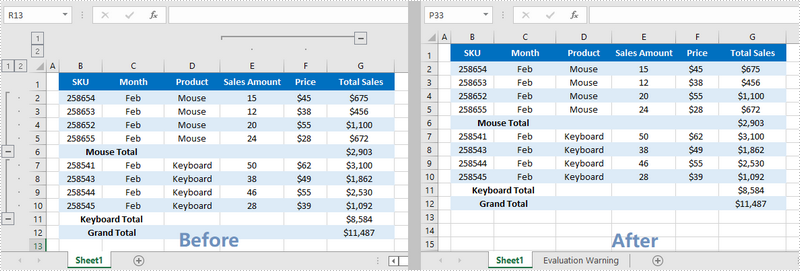
The following are the steps to ungroup rows and columns using Spire.XLS for Java.
- Create a Workbook object.
- Load a sample Excel file using Workbook.loadFromFile() method.
- Get the specific sheet using Workbook.getWorksheets().get() method.
- Ungroup rows using Worksheet.ungroupByRows() method.
- Ungroup columns using Worksheet.ungroupByColumns() method.
- Save the result to another Excel file using Workbook.saveToFile() method.
- Java
import com.spire.xls.ExcelVersion;
import com.spire.xls.Workbook;
import com.spire.xls.Worksheet;

public class UngroupRowsAndColumns {

    public static void main(String[] args) {

        //Create a Workbook object
        Workbook workbook = new Workbook();

        //Load a sample Excel file
        workbook.loadFromFile("C:\\Users\\Administrator\\Desktop\\ample.xlsx");

        //Get the first worksheet
        Worksheet sheet = workbook.getWorksheets().get(0);

        //Ungroup rows
        sheet.ungroupByRows(2, 5);
        sheet.ungroupByRows(7, 10);

        //Ungroup columns
        sheet.ungroupByColumns(5, 6);

        //Save to a different Excel file
        workbook.saveToFile("UngroupRowsAndColumns.xlsx", ExcelVersion.Version2016);
    }
}
Apply for a Temporary License
If you'd like to remove the evaluation message from the generated documents, or to get rid of the function limitations, please request a 30-day trial license for yourself.
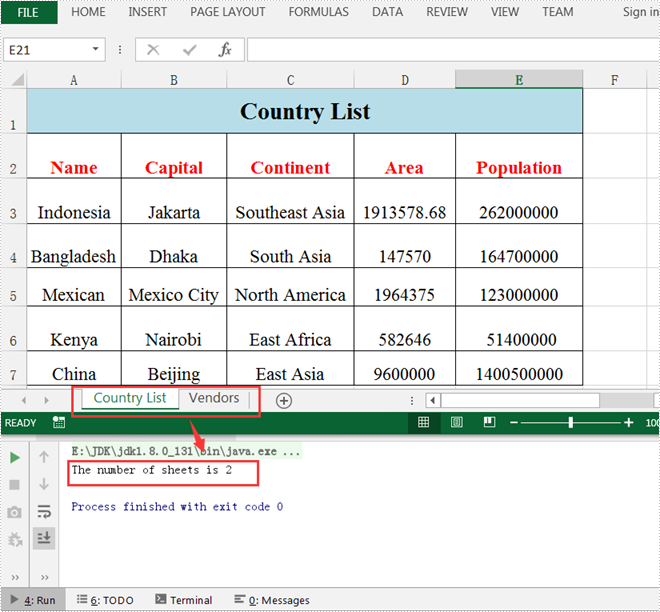
In Microsoft Excel, suppose a workbook contains lots of worksheets and you need to count them, you can use the Sheets Function, the Define Name Command or a simple VBA code to achieve it. Within this tutorial, I’ll show you how to programmatically count the number of worksheets in Excel using Spire.XLS for Java.
Install Spire.XLS for Java
First of all, you're required to add the Spire.Xls.jar file as a dependency in your Java program. The JAR file can be downloaded from this link. If you use Maven, you can easily import the JAR file in your application by adding the following code to your project's pom.xml file.
<repositories>
    <repository>
        <id>com.e-iceblue</id>
        <name>e-iceblue</name>
        <url>https://repo.e-iceblue.com/nexus/content/groups/public/</url>
    </repository>
</repositories>
<dependencies>
    <dependency>
        <groupId>e-iceblue</groupId>
        <artifactId>spire.xls</artifactId>
        <version>16.8.4</version>
    </dependency>
</dependencies>
Count the Number of Worksheets in Excel
Spire.XLS for Java supports counting the number of worksheets in Excel using the getCount() method provided by the IWorksheets interface. The following are detailed steps.
- Create a Workbook instance.
- Load a sample Excel document using Workbook.loadFromFile() method.
- Get a collection of worksheets using Workbook.getWorksheets() method and obtain the number of worksheets in the collection using the getCount() method.
- Java
import com.spire.xls.Workbook;

public class CountNumberOfWorsheets {
    public static void main(String[] args) {
        //Create a Workbook instance
        Workbook workbook = new Workbook();

        //Load a sample Excel file
        workbook.loadFromFile("C:\\Users\\Test1\\Desktop\\Sample.xlsx");

        //Get the number of worksheets
        int sheetCount=workbook.getWorksheets().getCount();

        //Output the result
        System.out.println("The number of sheets is "+sheetCount);
    }
}
Apply for a Temporary License
If you'd like to remove the evaluation message from the generated documents, or to get rid of the function limitations, please request a 30-day trial license for yourself.
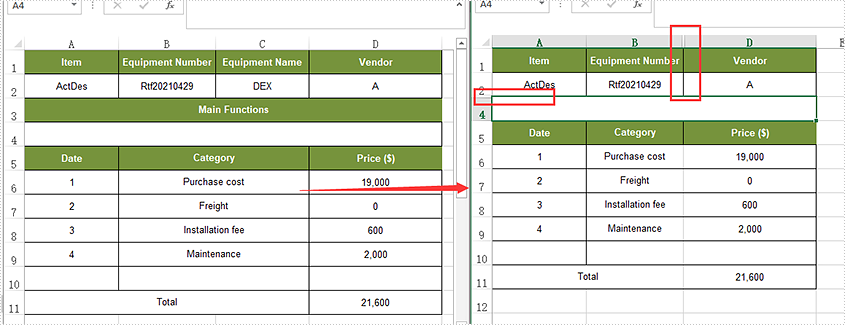
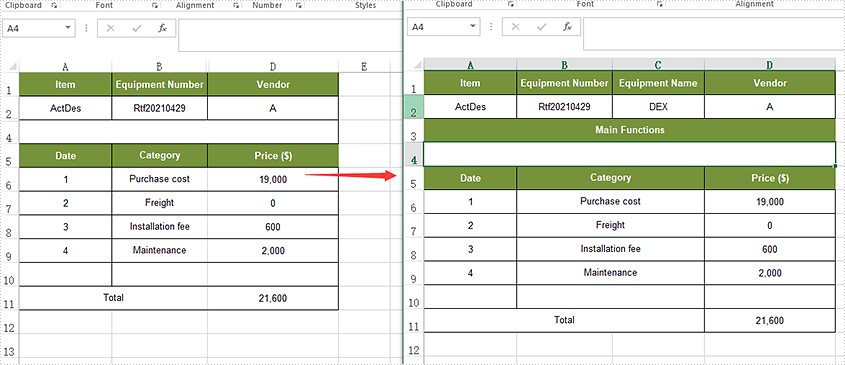
Sometimes we need to hide some rows and columns in Excel worksheets so that the data appears completely on one screen. At other times, we need to show all the hidden rows and columns to view the data completely. In this article, you will learn how to hide and show rows or columns in Excel in Java applications from the following four parts.
- Hide Excel Rows and Columns
- Show Hidden Rows and Columns in Excel
- Hide Multiple Rows and Columns
- Show All Hidden Rows and Columns
Install Spire.XLS for Java
First of all, you're required to add the Spire.Xls.jar file as a dependency in your Java program. The JAR file can be downloaded from this link. If you use Maven, you can easily import the JAR file in your application by adding the following code to your project's pom.xml file.
<repositories>
    <repository>
        <id>com.e-iceblue</id>
        <name>e-iceblue</name>
        <url>https://repo.e-iceblue.com/nexus/content/groups/public/</url>
    </repository>
</repositories>
<dependencies>
    <dependency>
        <groupId>e-iceblue</groupId>
        <artifactId>spire.xls</artifactId>
        <version>16.8.4</version>
    </dependency>
</dependencies>
Hide Rows and Columns
The detailed steps are listed as below.
- Create a Workbook instance and load a sample Excel document using Workbook.loadFromFile() method.
- Get a specified worksheet using Workbook.getWorksheets().get() method.
- Hide a specific column using Worksheet.hideColumn(int columnIndex)method.
- Hide a specific row using Worksheet.hideRow(int rowIndex) method.
- Save the document to file using Workbook.saveToFile() method.
- Java
import com.spire.xls.ExcelVersion;
import com.spire.xls.Workbook;
import com.spire.xls.Worksheet;


public class HideRowsColumns {
    public static void main(String[] args) throws Exception {

        //Load the sample document
        Workbook wb = new Workbook();
        wb.loadFromFile("Sample.xlsx ");

        //Get the first worksheet
        Worksheet sheet = wb.getWorksheets().get(0);

        //Hide the third column
        sheet.hideColumn(3);

        //Hide the third row
        sheet.hideRow(3);

        //Save the document
        wb.saveToFile("HideRowsColumns.xlsx", ExcelVersion.Version2016);
    }
}
Show Hidden Rows and Columns
- Create a Workbook instance and load a sample Excel document using Workbook.loadFromFile() method.
- Get a specified worksheet using Workbook.getWorksheets().get() method.
- Show a hidden column using Worksheet.showColumn(int columnIndex)method.
- Show a hidden row using Worksheet.showRow(int rowIndex) method.
- Save the document to file using Workbook.saveToFile() method.
- Java
import com.spire.xls.ExcelVersion;
import com.spire.xls.Workbook;
import com.spire.xls.Worksheet;


public class ShowRowsColumns {
    public static void main(String[] args) throws Exception {

        //Load the sample document
        Workbook wb = new Workbook();
        wb.loadFromFile("HideRowsColumns.xlsx ");

        //Get the first worksheet
        Worksheet sheet = wb.getWorksheets().get(0);

        //Unhide the third column
        sheet.showColumn(3);

        //Unhide the third row
        sheet.showRow(3);

        //Save the document
        wb.saveToFile("ShowRowsColumns.xlsx", ExcelVersion.Version2016);
    }
}
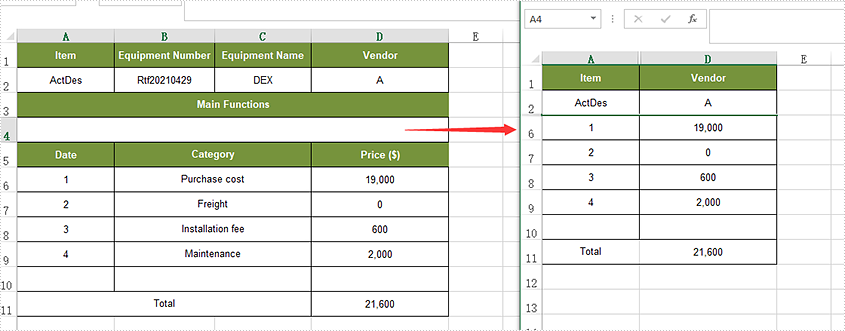
Hide Multiple Rows and Columns
- Create a Workbook instance and load a sample Excel document using Workbook.loadFromFile() method.
- Get a specified worksheet using Workbook.getWorksheets().get() method.
- Hide multiple columns using Worksheet.hideColumns(int columnIndex, int columnCount)method.
- Hide multiple rows using worksheet.hideRows(int rowIndex, int rowCount) method.
- Save the document to file using Workbook.saveToFile() method.
- Java
import com.spire.xls.ExcelVersion;
import com.spire.xls.Workbook;
import com.spire.xls.Worksheet;


public class HideMultiRowsColumns {
    public static void main(String[] args) throws Exception {

        //Load the sample document
        Workbook wb = new Workbook();
        wb.loadFromFile("Sample01.xlsx ");

        //Get the first worksheet
        Worksheet sheet = wb.getWorksheets().get(0);

        //Hide multiple columns
        sheet.hideColumns(2,2);

        //Hide multiple rows
        sheet.hideRows(3,3);

        //Save the document
        wb.saveToFile("HideMultiRowsColumns.xlsx", ExcelVersion.Version2016);
    }
}
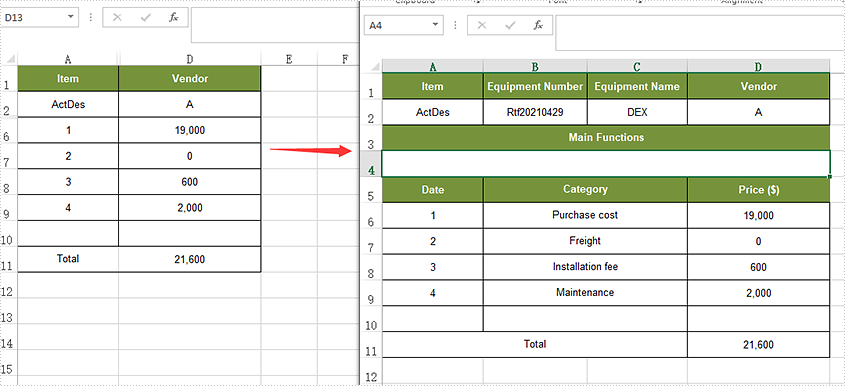
Show Multiple Rows and Columns
- Create a Workbook instance and load a sample Excel document using Workbook.loadFromFile() method.
- Get a specified worksheet using Workbook.getWorksheets().get() method.
- Loop through the rows and find the hidden rows using Worksheet.getRowIsHide() method.
- Show all hidden rows using Worksheet.showRow(i) method.
- Save the document to file using Workbook.saveToFile() method.
- Java
import com.spire.xls.ExcelVersion;
import com.spire.xls.Workbook;
import com.spire.xls.Worksheet;


public class ShowMultiRowsColumns {
    public static void main(String[] args) throws Exception {

        //Load the sample document
        Workbook wb = new Workbook();
        wb.loadFromFile("HideMultiRowsColumns.xlsx");

        //Get the first worksheet
        Worksheet sheet = wb.getWorksheets().get(0);

        //Traverse all the rows
        for (int i = 1; i <= sheet.getLastRow(); i++) {

                //detect if the row is hidden
                if (sheet.getRowIsHide(i)) {

                    //Show the hidden rows
                    sheet.showRow(i);
                }
            }

        //Traverse the columns and show all the hidden columns
        for (int j = 1; j <= sheet.getLastColumn(); j++) {
            if (sheet.getColumnIsHide(j)) {
                sheet.showColumn(j);
            }

            //Save the document
            wb.saveToFile("ShowMultiRowsColumns.xlsx", ExcelVersion.Version2016);
        }
    }
}
Apply for a Temporary License
If you'd like to remove the evaluation message from the generated documents, or to get rid of the function limitations, please request a 30-day trial license for yourself.
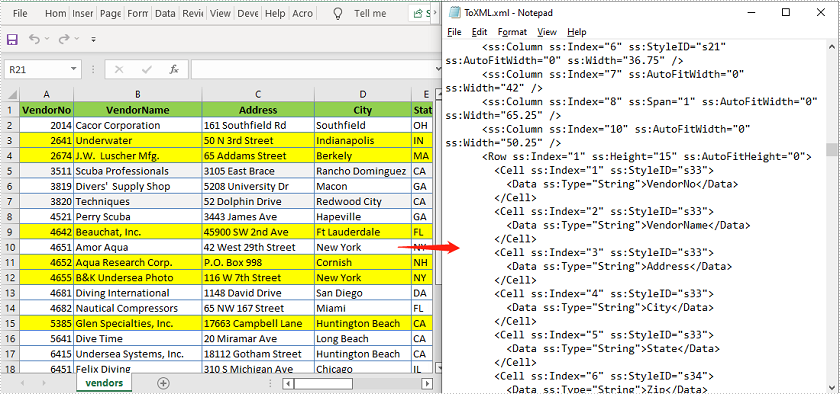
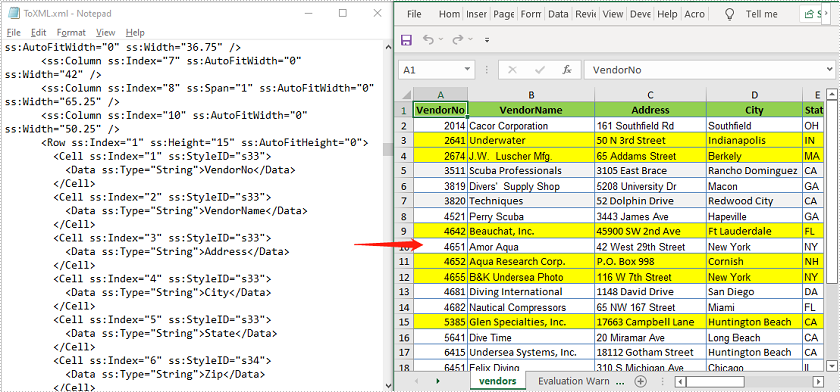
Office Open XML (also referred to as OOXML) is a zipped, XML-based format for Excel, Word and Presentation documents. Sometimes, you may need to convert an Excel file to Office Open XML in order to make it readable on various applications and platforms. Likewise, you might also want to convert Office Open XML to Excel for data calculations. In this article, you will learn how to Convert Excel to Office Open XML and vice versa in Java using Spire.XLS for Java library.
Install Spire.XLS for Java
First of all, you're required to add the Spire.Xls.jar file as a dependency in your Java program. The JAR file can be downloaded from this link. If you use Maven, you can easily import the JAR file in your application by adding the following code to your project's pom.xml file.
<repositories>
    <repository>
        <id>com.e-iceblue</id>
        <name>e-iceblue</name>
        <url>https://repo.e-iceblue.com/nexus/content/groups/public/</url>
    </repository>
</repositories>
<dependencies>
    <dependency>
        <groupId>e-iceblue</groupId>
        <artifactId>spire.xls</artifactId>
        <version>16.8.4</version>
    </dependency>
</dependencies>
Convert Excel to Office Open XML in Java
The following are the steps to convert an Excel file to Office Open XML:
- Create an instance of Workbook class.
- Load an Excel file using Workbook.loadFromFile() method.
- Call Workbook.saveAsXml() method to save the Excel file as Office Open XML.
- Java
import com.spire.xls.Workbook;

public class ExcelToOpenXML {
    public static void main(String []args){
        //Create a Workbook instance
        Workbook workbook = new Workbook();
        //Load an Excel file
        workbook.loadFromFile("Sample.xlsx");

        //Save as Office Open XML file format
        workbook.saveAsXml("ToXML.xml");
    }
}
Convert Office Open XML to Excel in Java
The following are the steps to convert an Office Open XML file to Excel:
- Create an instance of Workbook class.
- Load an Office Open XML file using Workbook.loadFromXml() file.
- Call Workbook.saveToFile() method to save the Office Open XML file as Excel.
- Java
import com.spire.xls.ExcelVersion;
import com.spire.xls.Workbook;

public class OpenXmlToExcel {
    public static void main(String []args){
        //Create an instance of Workbook class
        Workbook workbook = new Workbook();
        //Load an Office Open XML file
        workbook.loadFromXml("ToXML.xml");

        //Save as Excel XLSX file format
        workbook.saveToFile("ToExcel.xlsx", ExcelVersion.Version2016);
    }
}
Apply for a Temporary License
If you'd like to remove the evaluation message from the generated documents, or to get rid of the function limitations, please request a 30-day trial license for yourself.
Subtotal is a built-in function in Microsoft Excel that enables you to quickly calculate a range of data using a summary function, such as SUM, AVERAGE, COUNT, or MIN. This article will demonstrate how to add subtotals to a data range in Excel in Java using Spire.XLS for Java.
Install Spire.XLS for Java
First of all, you're required to add the Spire.Xls.jar file as a dependency in your Java program. The JAR file can be downloaded from this link. If you use Maven, you can easily import the JAR file in your application by adding the following code to your project's pom.xml file.
<repositories>
    <repository>
        <id>com.e-iceblue</id>
        <name>e-iceblue</name>
        <url>https://repo.e-iceblue.com/nexus/content/groups/public/</url>
    </repository>
</repositories>
<dependencies>
    <dependency>
        <groupId>e-iceblue</groupId>
        <artifactId>spire.xls</artifactId>
        <version>16.8.4</version>
    </dependency>
</dependencies>
Add Subtotals to a Data Range
The XlsWorksheet.subtotal() method is used to add subtotals to a data range. It accepts the following parameters:
- IXLSRange: the specific data range.
- int: the column index (zero-based) that you want to base the subtotals on.
- int[]: an array of column indexes (zero-based) on which the subtotals are calculated.
- SubtotalTypes: the function (SUM, AVERAGE etc.) used to calculate the subtotals.
- boolean: Indicates whether to replace existing subtotals.
- boolean: Indicates whether to insert page breaks between groups.
- boolean: Indicates whether to add summary rows below data.
The following are the steps to add subtotals to a data range:
- Create an instance of Workbook class.
- Load an Excel file using Workbook.loadFromFile() method.
- Get the desired worksheet using Workbook.getWorksheets().get() method.
- Access the range that you wish to subtotal using Worksheet.getCellRange() method.
- Add subtotals to the range using XlsWorksheet.subtotal() method.
- Save the result file using Workbook.saveToFile() method.
- Java
import com.spire.xls.*;

public class AddSubtotalsToDataRange {
    public static void main(String []args){

        //Create a Workbook instance
        Workbook workbook = new Workbook();
        //Load an Excel file
        workbook.loadFromFile("Report.xlsx");

        //Get the first worksheet
        Worksheet sheet = workbook.getWorksheets().get(0);

        //Access the range that contains data you wish to subtotal
        CellRange range = sheet.getCellRange("A2:C11");

        //Add subtotals to the range, the function is Sum and it will be applied to the 3rd column in the range
        sheet.subtotal(range, 0, new int[] { 2 }, SubtotalTypes.Sum, true, false, true);

        //Save the result file
        workbook.saveToFile("AddSubtotal.xlsx", ExcelVersion.Version2016);
        workbook.dispose();
    }
}

Apply for a Temporary License
If you'd like to remove the evaluation message from the generated documents, or to get rid of the function limitations, please request a 30-day trial license for yourself.
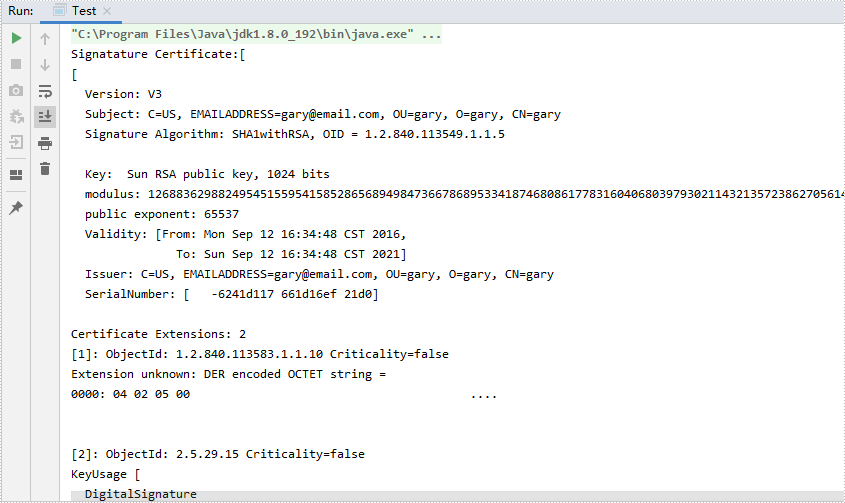
Spire.XLS for Java offers the Workbook.addDigitalSignature() method and the Workbook.removeAllDigitalSignatures() method to add and remove the Excel digital signatures. This article will show you how to detect if an Excel document has been signed or not, and retrieve information about digital signatures in Java applications.
Install Spire.XLS for Java
First of all, you're required to add the Spire.Xls.jar file as a dependency in your Java program. The JAR file can be downloaded from this link. If you use Maven, you can easily import the JAR file in your application by adding the following code to your project's pom.xml file.
<repositories>
    <repository>
        <id>com.e-iceblue</id>
        <name>e-iceblue</name>
        <url>https://repo.e-iceblue.com/nexus/content/groups/public/</url>
    </repository>
</repositories>
<dependencies>
    <dependency>
        <groupId>e-iceblue</groupId>
        <artifactId>spire.xls</artifactId>
        <version>16.8.4</version>
    </dependency>
</dependencies>
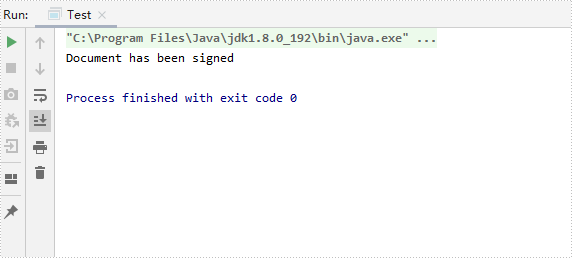
Detect if an Excel is Digitally Signed or Not
Spire.XLS for Java offers the Workbook.isDigitallySigned() method to check whether an Excel document is digitally signed or not.
- Create a Workbook instance and load a sample Excel document using Workbook.loadFromFile() method.
- Determine if the workbook is digitally signed by Workbook.isDigitallySigned() method.
- Print out the results.
- Java
import com.spire.xls.*;

public class Test {
    public static void main(String[] args) throws Exception {

        //Create a Workbook instance
        Workbook workbook = new Workbook();

        //Load an Excel document
        workbook.loadFromFile("Sample.xlsx");

        //Detect if an Excel Document is digitally signed or not
        Boolean signature = workbook.isDigitallySigned();

       //Print the results
       if (signature) {
            System.out.println("Document has been signed");
        }
         else
        {
            System.out.println("Document has not been signed");
        }

    }
}
Get the Digital Signature Details in Excel
The following are the steps to get the details of the digital signatures in an Excel document.
- Create a Workbook instance and load a sample Excel document using Workbook.loadFromFile() method.
- Get the collection of digital signatures using Workbook.getDigitalSignatures() method.
- Get the details of a specific digital signature using the methods under IDigitalSignature object.
- Java
import com.spire.xls.*;
import com.spire.xls.core.interfaces.IDigitalSignature;
import com.spire.xls.core.interfaces.IDigitalSignatures;

import java.security.PrivateKey;
import java.security.cert.X509Certificate;
import java.util.Date;

public class Test {
    public static void main(String[] args) throws Exception {

        //Create a Workbook instance
        Workbook workbook = new Workbook();

        //Load an Excel document
        workbook.loadFromFile("Sample01.xlsx");

        //Get the collection of digital signatures
        IDigitalSignatures signatures = workbook.getDigitalSignatures();

        //Get the details of digital signatures
        for (IDigitalSignature digitalSignature : (Iterable) signatures) {
            X509Certificate info = digitalSignature.getX509Certificate();
            PrivateKey privateKey = digitalSignature.getPrivateKey();
            String comment = digitalSignature.getComments();
            Date date = digitalSignature.getSignTime();

            //Print out the results of the Excel digital signature
            System.out.println("Signatature Certificate:" + info + "\n" +
                    "Signature Comment:" + comment + "\n" +
                    "Sign Date:" + date + "\n" +
                    "PrivateKey:" + privateKey + "\n");
        }
    }
}
Apply for a Temporary License
If you'd like to remove the evaluation message from the generated documents, or to get rid of the function limitations, please request a 30-day trial license for yourself.
