Program Guide (133)
Children categories
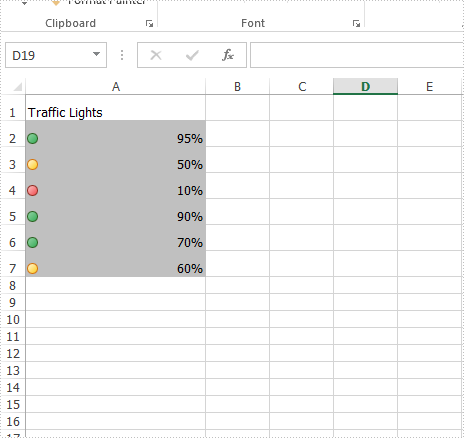
This article will demonstrate how to add the traffic lights icons in Java applications by using Spire.XLS for Java.
import com.spire.xls.*;
import com.spire.xls.core.IConditionalFormat;
import com.spire.xls.core.spreadsheet.collections.XlsConditionalFormats;

import java.awt.*;

public class setTrafficLightsIcons {
    public static void main(String[] args) {
        //Create a workbook
        Workbook workbook = new Workbook();

        //Add a worksheet
        Worksheet sheet = workbook.getWorksheets().get(0);

        //Add some data to the cell range and set the format for them
        sheet.getCellRange("A1").setText("Traffic Lights");
        sheet.getCellRange("A2").setNumberValue(0.95);
        sheet.getCellRange("A2").setNumberFormat("0%");
        sheet.getCellRange("A3").setNumberValue(0.5);
        sheet.getCellRange("A3").setNumberFormat("0%");
        sheet.getCellRange("A4").setNumberValue(0.1);
        sheet.getCellRange("A4").setNumberFormat("0%");
        sheet.getCellRange("A5").setNumberValue(0.9);
        sheet.getCellRange("A5").setNumberFormat("0%");
        sheet.getCellRange("A6").setNumberValue(0.7);
        sheet.getCellRange("A6").setNumberFormat("0%");
        sheet.getCellRange("A7").setNumberValue(0.6);
        sheet.getCellRange("A7").setNumberFormat("0%");

        //Set the height of row and width of column for Excel cell range
        sheet.getAllocatedRange().setRowHeight(20);
        sheet.getAllocatedRange().setColumnWidth(25);

        //Add a conditional formatting
        XlsConditionalFormats conditional = sheet.getConditionalFormats().add();
        conditional.addRange(sheet.getAllocatedRange());
        IConditionalFormat format1 = conditional.addCondition();

        //Add a conditional formatting of cell range and set its type to CellValue
        format1.setFormatType(ConditionalFormatType.CellValue);
        format1.setFirstFormula("300");
        format1.setOperator(ComparisonOperatorType.Less);
        format1.setFontColor(Color.black);
        format1.setBackColor(Color.lightGray);

        //Add a conditional formatting of cell range and set its type to IconSet
        conditional.addRange(sheet.getAllocatedRange());
        IConditionalFormat format = conditional.addCondition();
        format.setFormatType(ConditionalFormatType.IconSet);
        format.getIconSet().setIconSetType(IconSetType.ThreeTrafficLights1);

        //Save to file
        String result = "output/setTrafficLightsIcons_result.xlsx";
        workbook.saveToFile(result, ExcelVersion.Version2013);
    }
}
Effective screenshot of traffic lights icons on Excel worksheet:
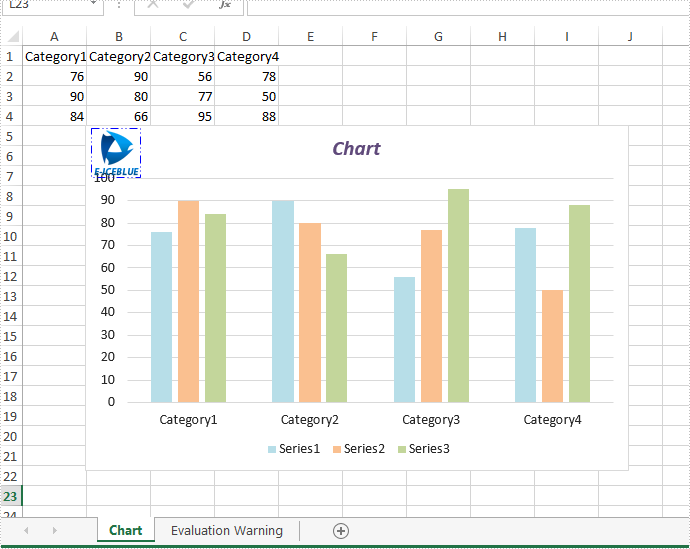
This article will introduce how to add a picture to Excel chart in java applications by using Spire.XLS for java.
import com.spire.xls.*;
import com.spire.xls.core.IPictureShape;
import com.spire.xls.core.IShape;
import java.awt.*;

public class addPictureToChart {
    public static void main(String[] args) {

        //Load the document from disk
        Workbook workbook = new Workbook();
        workbook.loadFromFile("Sample.xlsx");

        //get the first worksheet
        Worksheet sheet = workbook.getWorksheets().get(0);

        //get the first chart
        Chart chart = sheet.getCharts().get(0);

        //add the picture to chart and set its format
        IShape picture = chart.getShapes().addPicture("48.png");
        ((IPictureShape) picture).getLine().setDashStyle(ShapeDashLineStyleType.DashDotDot);
        ((IPictureShape) picture).getLine().setForeColor(Color.blue);

         //save the document
        String result = "output/AddPictureToChart.xlsx";
        workbook.saveToFile(result, ExcelVersion.Version2010);

    }
}
Effective screenshot after adding picture to Excel Chart:
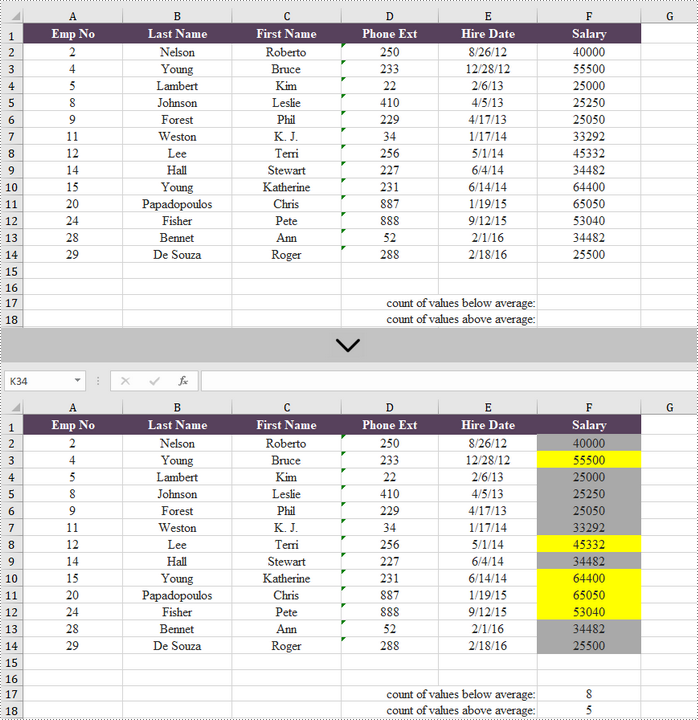
If you have a lot of data in Excel, finding the special values can be challenging. In this situation, you can use the conditional formatting to automatically highlight the cells that contain the value that meets certain criteria. This article introduces how to highlight values that are above or below the average using conditional formatting in Java, using Spire.XLS for Java.
Install Spire.XLS for Java
First, you're required to add the Spire.Xls.jar file as a dependency in your Java program. The JAR file can be downloaded from this link. If you use Maven, you can easily import the JAR file in your application by adding the following code to your project's pom.xml file.
<repositories>
    <repository>
        <id>com.e-iceblue</id>
        <name>e-iceblue</name>
        <url>https://repo.e-iceblue.com/nexus/content/groups/public/</url>
    </repository>
</repositories>
<dependencies>
    <dependency>
        <groupId>e-iceblue</groupId>
        <artifactId>spire.xls</artifactId>
        <version>16.8.4</version>
    </dependency>
</dependencies>
Highlight Values Above or Below Average Excel in Java
Below are the steps to highlight values above or below average in Excel using Spire.XLS for Java.
- Create a Workbook object.
- Load an Excel file using Workbook.loadFromFile() method.
- Get a specific worksheet from the workbook using Workbook.getWorksheets.get(index) method.
- Add a conditional formatting to the worksheet using Worksheet.getConditionalFormats().add() method and return an object of XlsConditionalFormats class.
- Set the cell range where the conditional formatting will be applied using XlsConditionalFormats.AddRange() method.
- Add an average condition using XlsConditionalFormats.addAverageCondition() method, specify the average type to above and change the background color of the cells that meet the condition to yellow.
- Add another average condition to change the background color of the cells that contain the value below average to light gray.
- Save the workbook to an Excel file using Workbook.saveToFile() method.
- Java
import com.spire.xls.AverageType;
import com.spire.xls.ExcelVersion;
import com.spire.xls.Workbook;
import com.spire.xls.Worksheet;
import com.spire.xls.core.IConditionalFormat;
import com.spire.xls.core.spreadsheet.collections.XlsConditionalFormats;

import java.awt.*;

public class HighlightValuesAboveAndBelowAverage {

    public static void main(String[] args) {

        //Create a Workbook object
        Workbook workbook = new Workbook();

        //Load an Excel file
        workbook.loadFromFile("C:\\Users\\Administrator\\Desktop\\sample.xlsx");

        //Get the first worksheet
        Worksheet sheet = workbook.getWorksheets().get(0);

        //Add a conditional format to the worksheet
        XlsConditionalFormats format = sheet.getConditionalFormats().add();

        //Set the range where the conditional format will be applied
        format.addRange(sheet.getRange().get("F2:F14"));

        //Add a condition to highlight values above average with yellow
        IConditionalFormat condition1 = format.addAverageCondition(AverageType.Above);
        condition1.setBackColor(Color.yellow);

        //Add a condition to highlight values below average with light gray
        IConditionalFormat condition2 = format.addAverageCondition(AverageType.Below);
        condition2.setBackColor(Color.lightGray);

        //Get the count of values below average
        sheet.getRange().get("F17").setFormula("=COUNTIF(F2:F14,\"<\"&AVERAGE(F2:F14))");

        //Get the count of values above average
        sheet.getRange().get("F18").setFormula("=COUNTIF(F2:F14,\">\"&AVERAGE(F2:F14))");

        //Save the workbook to an Excel file
        workbook.saveToFile("output/HighlightValues.xlsx", ExcelVersion.Version2016);
    }
}
Apply for a Temporary License
If you'd like to remove the evaluation message from the generated documents, or to get rid of the function limitations, please request a 30-day trial license for yourself.
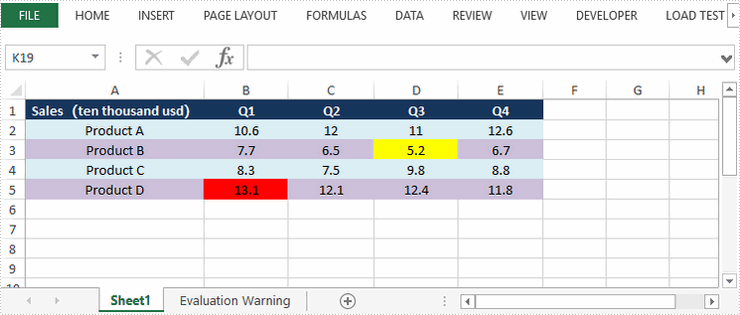
This article demonstrates how to highlight the highest and lowest value in a cell rang through conditional formatting. You can also highlight the top 5 or bottom 5 values by passing 5 to setRank() method in the code snippet below.
import com.spire.xls.*;
import com.spire.xls.core.IConditionalFormat;
import com.spire.xls.core.spreadsheet.collections.XlsConditionalFormats;

import java.awt.*;

public class HighlightTopBottom {
    public static void main(String[] args) {

        //Create a Workbook object
        Workbook workbook = new Workbook();

        //Load the sample Excel file
        workbook.loadFromFile("G:\\360MoveData\\Users\\Administrator\\Desktop\\sales report.xlsx");

        //Get the first worksheet
        Worksheet sheet = workbook.getWorksheets().get(0);

        //Add a conditional formatting and specify ranges
        XlsConditionalFormats conditional = sheet.getConditionalFormats().add();
        conditional.addRange(sheet.getCellRange("B2:E5"));

        //Apply conditional formatting to highlight the highest value
        IConditionalFormat format1 = conditional.addTopBottomCondition(TopBottomType.Top,1);
        format1.setBackColor(Color.red);

        //Apply conditional formatting to highlight the lowest value
        IConditionalFormat format2 = conditional.addTopBottomCondition(TopBottomType.Bottom,1)
        format2.setBackColor(Color.yellow);

        //Save the document
        workbook.saveToFile("output/HighestLowestValue.xlsx", ExcelVersion.Version2016);


    }
}
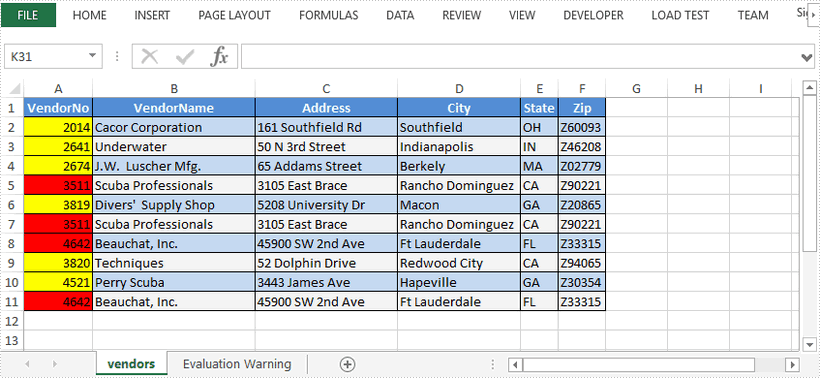
This article demonstrates how to highlight the duplicate and unique values in a selected range through conditional formatting using Spire.XLS for Java.
import com.spire.xls.*;
import com.spire.xls.core.IConditionalFormat;
import com.spire.xls.core.spreadsheet.collections.XlsConditionalFormats;

import java.awt.*;

public class HighlightDuplicates  {
    public static void main(String[] args) {
        //Create a Workbook instance
        Workbook workbook = new Workbook();

        //Load a sample Excel file
        workbook.loadFromFile("C:\\Users\\Administrator\\Desktop\\sample.xlsx");

        //Get the first worksheet
        Worksheet sheet = workbook.getWorksheets().get(0);

        //Add a conditional formatting and specify ranges
        XlsConditionalFormats conditional = sheet.getConditionalFormats().add();
        conditional.addRange(sheet.getCellRange("A2:A11"));

        //Use conditional formatting to highlight duplicate values with red
        IConditionalFormat format1 = conditional.addCondition();
        format1.setFormatType(ConditionalFormatType.DuplicateValues);
        format1.setBackColor(Color.red);

        //Use conditional formatting to highlight unique values with yellow
        IConditionalFormat format2 = conditional.addCondition();
        format2.setFormatType(ConditionalFormatType.UniqueValues);
        format2.setBackColor(Color.yellow);

        //Save the document
        workbook.saveToFile("HighlightDuplicates.xlsx", ExcelVersion.Version2016);
    }
}
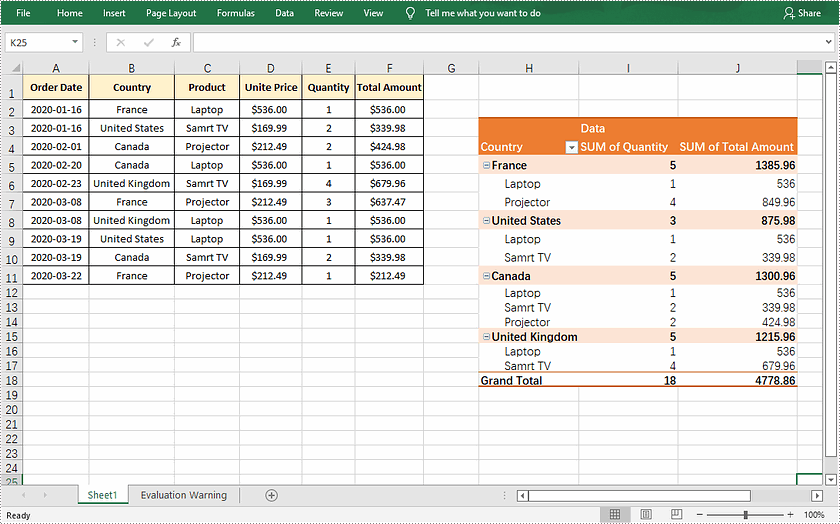
Pivot table is a powerful tool in Excel that supports categorizing, sorting, filtering, and summarizing data. It is often used in situations where data needs to be aggregated and analyzed for reporting. This article will demonstrate how to programmatically create a pivot table in Excel using Spire.XLS for Java.
Install Spire.XLS for Java
First, you're required to add the Spire.Xls.jar file as a dependency in your Java program. The JAR file can be downloaded from this link. If you use Maven, you can easily import the JAR file in your application by adding the following code to your project's pom.xml file.
<repositories>
    <repository>
        <id>com.e-iceblue</id>
        <name>e-iceblue</name>
        <url>https://repo.e-iceblue.com/nexus/content/groups/public/</url>
    </repository>
</repositories>
<dependencies>
    <dependency>
        <groupId>e-iceblue</groupId>
        <artifactId>spire.xls</artifactId>
        <version>16.8.4</version>
    </dependency>
</dependencies>
Create a Pivot Table in Excel
The detailed steps are as follows.
- Create a Workbook object.
- Load a sample Excel document using Workbook.loadFromFile() method.
- Get a specified worksheet using Workbook.getWorksheets().get() method.
- Select the data source range using Worksheet.getCellRange() method, and then create a PivotCache to save the data information using Workbook.getPivotCaches().add(CellRange range) method.
- Add a pivot table to the specified worksheet and set the location and cache of it using Worksheet.getPivotTables().add(java.lang.String name, CellRange location, PivotCache cache) method.
- Define row labels of the pivot table and then add fields to the data area to calculate data using PivotTable.getDataFields().add(IPivotField iField, java.lang.String name, SubtotalTypes subtotal) method.
- Set the pivot table style using PivotTable.setBuiltInStyle(PivotBuiltInStyles builtInStyle) method.
- Save the result document using Workbook.saveToFile() method.
- Java
import com.spire.xls.*;

public class CreatePivotTable {
    public static void main(String[] args)  {

        //Create a Workbook object
        Workbook workbook = new Workbook();

        //Load a sample Excel document
        workbook.loadFromFile("E:\\Files\\sample.xlsx");

        //Get the first worksheet
        Worksheet sheet = workbook.getWorksheets().get(0);

        //Select the data source range
        CellRange dataRange = sheet.getCellRange("B1:F11");
        PivotCache cache = workbook.getPivotCaches().add(dataRange);

        //Add a PivotTable to the worksheet and set the location and cache of it
        PivotTable pt = sheet.getPivotTables().add("Pivot Table", sheet.getCellRange("H3"), cache);

        //Define row labels
        PivotField pf=null;
        if (pt.getPivotFields().get("Country") instanceof PivotField){
            pf= (PivotField) pt.getPivotFields().get("Country");
        }
        pf.setAxis(AxisTypes.Row);

        PivotField pf2 =null;
        if (pt.getPivotFields().get("Product") instanceof PivotField){
            pf2= (PivotField) pt.getPivotFields().get("Product");
        }
        pf2.setAxis(AxisTypes.Row);

        //Add data fields to calculate data
        pt.getDataFields().add(pt.getPivotFields().get("Quantity"), "SUM of Quantity", SubtotalTypes.Sum);
        pt.getDataFields().add(pt.getPivotFields().get("Total Amount"), "SUM of Total Amount", SubtotalTypes.Sum);

        //Set pivot table style
        pt.setBuiltInStyle(PivotBuiltInStyles.PivotStyleMedium10);

        //Save the document
        workbook.saveToFile("CreatePivotTable.xlsx", ExcelVersion.Version2013);
    }
}
Apply for a Temporary License
If you'd like to remove the evaluation message from the generated documents, or to get rid of the function limitations, please request a 30-day trial license for yourself.
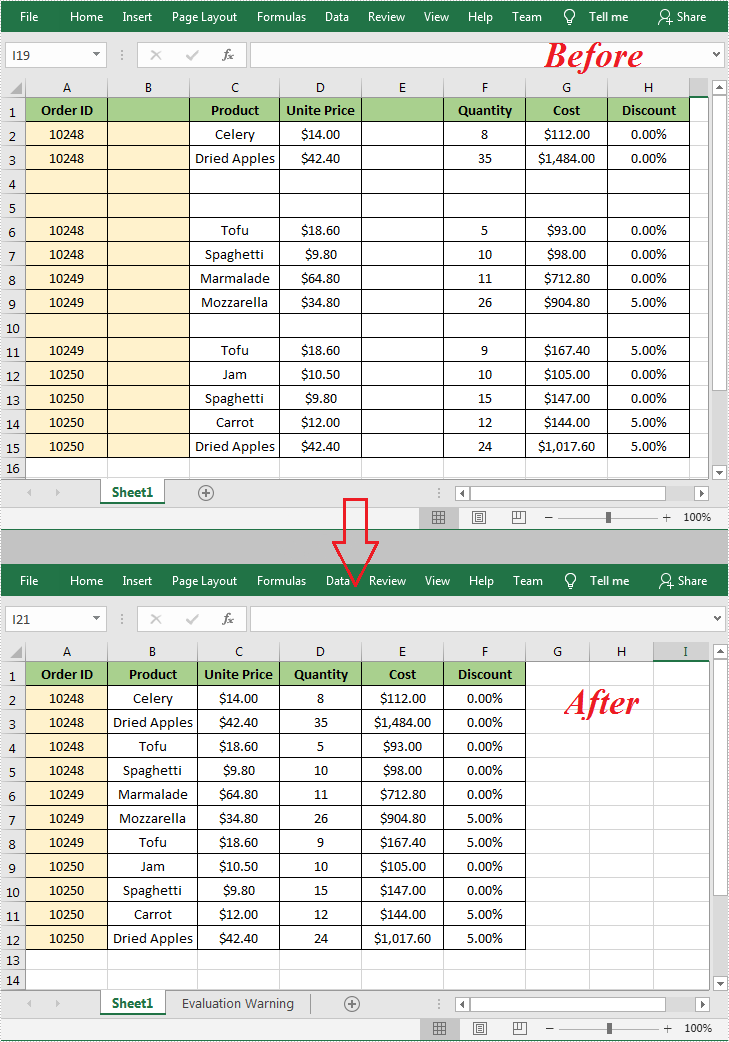
In Microsoft Excel, the blank rows or columns usually indicate the boundaries of data ranges. Therefore, if a blank row or blank column appears in the wrong place will prevent Excel from recognizing the data range correctly when applying some built-in features such as sorting, removing duplicates and subtotals. In such a case, you can delete the blank rows or columns to create a tidy dataset that fit for further processing and analysis. This article will introduce how to programmatically delete blank rows and columns in an Excel document using Spire.XLS for Java.
Install Spire.XLS for Java
First of all, you're required to add the Spire.Xls.jar file as a dependency in your Java program. The JAR file can be downloaded from this link. If you use Maven, you can easily import the JAR file in your application by adding the following code to your project's pom.xml file.
<repositories>
    <repository>
        <id>com.e-iceblue</id>
        <name>e-iceblue</name>
        <url>https://repo.e-iceblue.com/nexus/content/groups/public/</url>
    </repository>
</repositories>
<dependencies>
    <dependency>
        <groupId>e-iceblue</groupId>
        <artifactId>spire.xls</artifactId>
        <version>16.8.4</version>
    </dependency>
</dependencies>
Delete Blank Rows and Columns in Excel
The detailed steps are as follows.
- Create a Workbook object.
- Load a sample Excel document using Workbook.loadFromFile() method.
- Get a specified worksheet using Workbook.getWorksheets().get() method.
- Loop through all used rows in the specified worksheet and determine whether the row is blank using XlsRange.isBlank() method.
- Delete the blank rows using Worksheet.deleteRow() method.
- Loop through all used columns in the specified worksheet and determine whether the column is blank using XlsRange.isBlank() method.
- Delete the blank columns using Worksheet.deleteColumn() method.
- Save the result to another file using Workbook.saveToFile() method.
- Java
import com.spire.xls.ExcelVersion;
import com.spire.xls.Workbook;
import com.spire.xls.Worksheet;

public class DeleteBlankRowsAndColumns {

    public static void main(String[] args) {

        //Create a Workbook object.
        Workbook wb = new Workbook();

        //Load a sample Excel document
        wb.loadFromFile("sample.xlsx ");

        //Get the first worksheet
        Worksheet sheet = wb.getWorksheets().get(0);

        //Loop through all used rows
        for (int i = sheet.getLastRow(); i >= 1; i--)
        {
            //Detect if a row is blank
            if (sheet.getRows()[i-1].isBlank())
            {
                //Remove blank rows
                sheet.deleteRow(i);
            }
        }

        //Loop through all used columns
        for (int j = sheet.getLastColumn(); j >= 1; j--)
        {
            //Detect if a column is blank
            if (sheet.getColumns()[j-1].isBlank())
            {
                //Remove blank columns
                sheet.deleteColumn(j);
            }
        }

        //Save the document
        wb.saveToFile("DeleteBlankRowsAndColumns.xlsx", ExcelVersion.Version2016);
    }
}
Apply for a Temporary License
If you'd like to remove the evaluation message from the generated documents, or to get rid of the function limitations, please request a 30-day trial license for yourself.
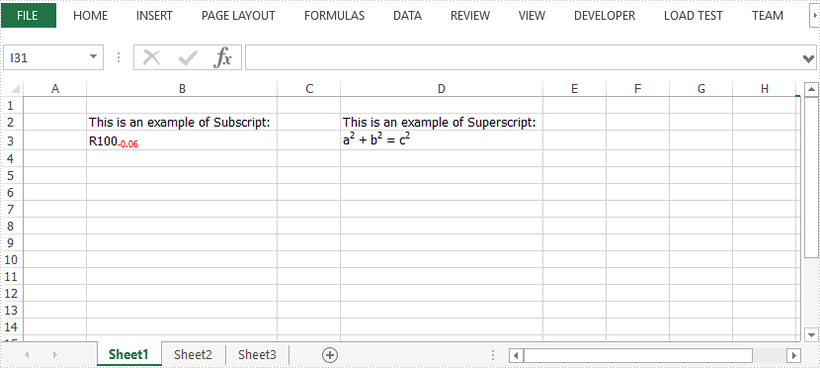
This article demonstrates how to insert subscript and superscript in an Excel document using Spire.XLS for Java.
import com.spire.xls.*;

import java.awt.*;

public class InsertSubscriptSuperscript {

    public static void main(String[] args) {

        //Create a Workbook instance
        Workbook workbook = new Workbook();

        //Get the first worksheet
        Worksheet sheet = workbook.getWorksheets().get(0);

        //Insert text to B2 and D2
        sheet.getCellRange("B2").setText("This is an example of Subscript:");
        sheet.getCellRange("D2").setText("This is an example of Superscript:");

        //Insert text to B3 and apply subscript effect
        CellRange range = sheet.getCellRange("B3");
        range.getRichText().setText("R100-0.06");
        ExcelFont font = workbook.createFont();
        font.isSubscript(true);
        font.setColor(Color.red);
        range.getRichText().setFont(4, 8, font);

        //Insert text to D3 and apply superscript effect
        range = sheet.getCellRange("D3");
        range.getRichText().setText("a2 + b2 = c2");
        font = workbook.createFont();
        font.isSuperscript(true);
        range.getRichText().setFont(1, 1, font);
        range.getRichText().setFont(6, 6, font);
        range.getRichText().setFont(11, 11, font);

        //Auto fit column width
        sheet.getAllocatedRange().autoFitColumns();

        //Save the docuemnt
        workbook.saveToFile("output/SubSuperScript.xlsx", ExcelVersion.Version2016);
    }
}
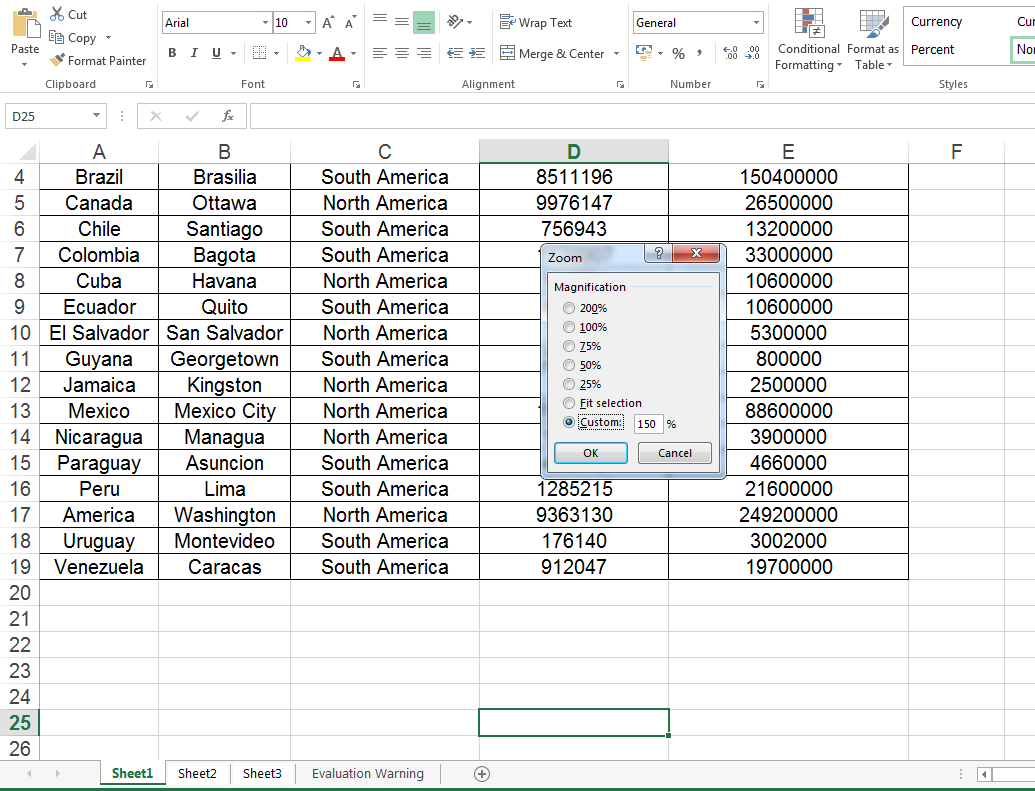
The excel zoom factor could help us to display the data on Excel worksheet clearly or completely. This article will demonstrate how to set the zoom factor on Excel work sheet in Java application by Spire.XLS for Java.
import com.spire.xls.*;

public class ZoomFactor{
    public static void main(String[] args) {

        //Create a workbook and load a file
        Workbook workbook = new Workbook();
        workbook.loadFromFile("Sample.xlsx");

        //Get the first worksheet
        Worksheet sheet = workbook.getWorksheets().get(0);

        //Set the zoom factor of the sheet to 150
        sheet.setZoom(150);

        //Save the Excel file
        workbook.saveToFile("Zoomfactor.xlsx", ExcelVersion.Version2010);
    }
}
Effective screenshot after setting the zoom factor of the sheet to 150.
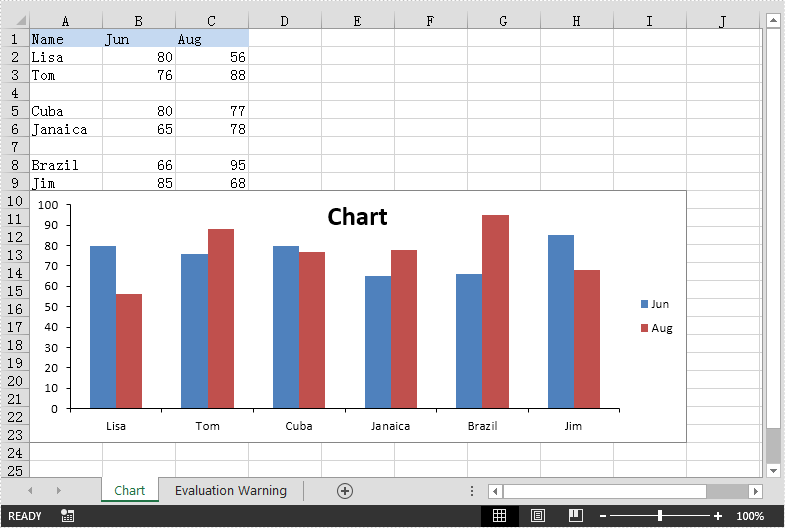
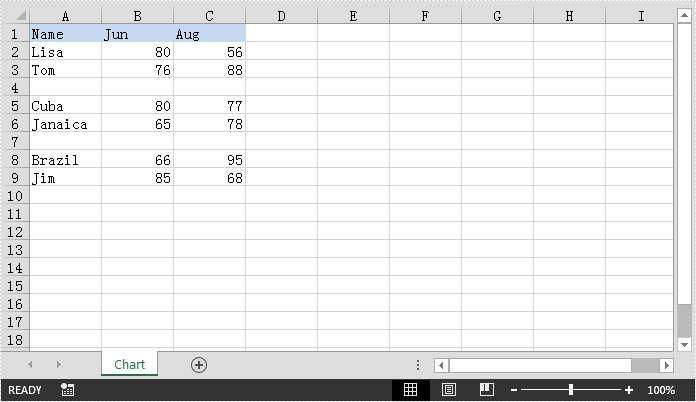
This article demonstrates how to create chart with non-contiguous data in Excel using Spire.XLS for Java.
The example Excel file:
import com.spire.xls.*;
import com.spire.xls.charts.ChartSerie;

import java.awt.*;

public class ChartWithNonContiguousData {
    public static void main(String[] args){
        //Create a Workbook instance
        Workbook workbook = new Workbook();
        //Load the Excel file
        workbook.loadFromFile("NonContiguousData.xlsx");

        //Get the first worksheet
        Worksheet sheet = workbook.getWorksheets().get(0);

        //Add a clustered column chart to the worksheet
        Chart chart = sheet.getCharts().add(ExcelChartType.ColumnClustered);
        chart.setSeriesDataFromRange(false);
        //Set chart position
        chart.setLeftColumn(1);
        chart.setTopRow(10);
        chart.setRightColumn(10);
        chart.setBottomRow(24);

        //Add a series to the chart
        ChartSerie cs1 = (ChartSerie)chart.getSeries().add();
        //Set series name
        cs1.setName(sheet.getCellRange("B1").getValue());
        //Set category labels for the series using non-contiguous data
        cs1.setCategoryLabels(sheet.getCellRange("A2:A3").addCombinedRange(sheet.getCellRange("A5:A6"))
.addCombinedRange(sheet.getCellRange("A8:A9")));
        //Set values for the series using non-contiguous data
        cs1.setValues(sheet.getCellRange("B2:B3").addCombinedRange(sheet.getCellRange("B5:B6"))
.addCombinedRange(sheet.getCellRange("B8:B9")));
        //Specify the series type
        cs1.setSerieType(ExcelChartType.ColumnClustered);

        //Add a series to the chart
        ChartSerie cs2 = (ChartSerie)chart.getSeries().add();
        //Set series name
        cs2.setName(sheet.getCellRange("C1").getValue());
        //Set category labels for the series using non-contiguous data
        cs2.setCategoryLabels(sheet.getCellRange("A2:A3").addCombinedRange(sheet.getCellRange("A5:A6"))
.addCombinedRange(sheet.getCellRange("A8:A9")));
        //Set values for the series using non-contiguous data
        cs2.setValues(sheet.getCellRange("C2:C3").addCombinedRange(sheet.getCellRange("C5:C6"))
.addCombinedRange(sheet.getCellRange("C8:C9")));
        //Specify the series type
        cs2.setSerieType(ExcelChartType.ColumnClustered);

        //Set chart title
        chart.setChartTitle("Chart");
        chart.getChartTitleArea().getFont().setSize(20);
        chart.getChartTitleArea().setColor(Color.black);

        chart.getPrimaryValueAxis().hasMajorGridLines(false);

        //Save the result file
        workbook.saveToFile("Chart.xlsx", ExcelVersion.Version2013);
    }
}
Output: