Program Guide (133)
Children categories
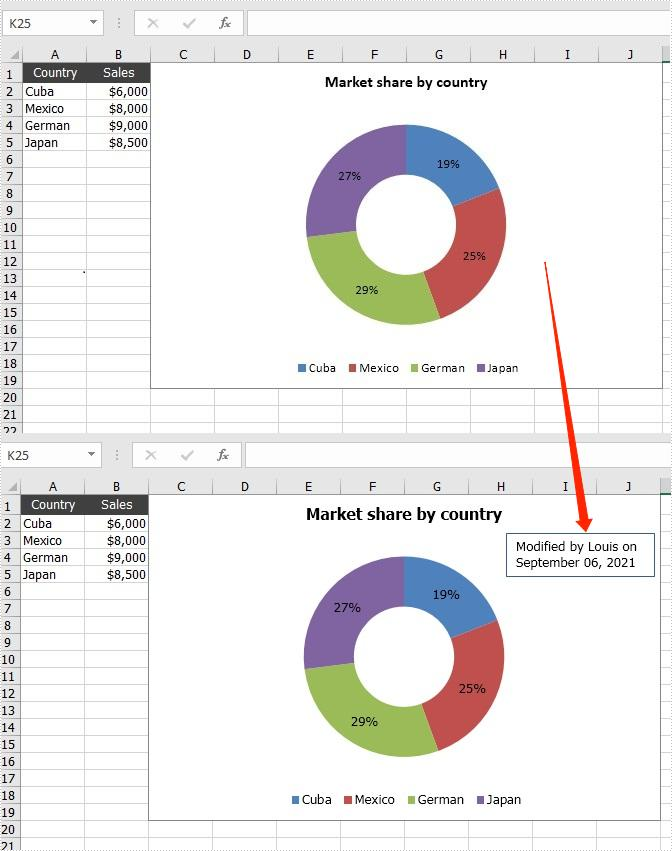
Text box allows people to enter text in it and move it arbitrarily. When dealing with the chart in Excel document, if the text description of the original chart is not specific enough, you can add additional information to the chart by adding text boxes to it. This article will introduce how to add a text box to a chart programmatically using Spire.XLS for Java.
Install Spire.XLS for Java
First of all, you're required to add the Spire.Xls.jar file as a dependency in your Java program. The JAR file can be downloaded from this link. If you use Maven, you can easily import the JAR file in your application by adding the following code to your project's pom.xml file.
<repositories>
    <repository>
        <id>com.e-iceblue</id>
        <name>e-iceblue</name>
        <url>https://repo.e-iceblue.com/nexus/content/groups/public/</url>
    </repository>
</repositories>
<dependencies>
    <dependency>
        <groupId>e-iceblue</groupId>
        <artifactId>spire.xls</artifactId>
        <version>16.8.4</version>
    </dependency>
</dependencies>
Add a Text Box to a Chart
The detailed steps are listed as below.
- Create a Workbook instance and load a sample Excel document using Workbook.loadFromFile() method.
- Get a specified worksheet using Workbook.getWorksheets().get() method.
- Get a specific chart using Worksheet.getCharts().get() method.
- Add a text box to the chart using Chart.getShapes().addTextBox() method, and then add text content in the text box using ITextBoxLinkShape.setText() method.
- Set the size and position of the added text box using the method offered by ITextBoxLinkShape interface.
- Save the document to file using Workbook.saveToFile() method.
- Java
import com.spire.xls.*;
import com.spire.xls.core.*;

public class addTextBoxToChart {
    public static void main(String[] args)throws Exception {
        //Create a Workbook instance
        Workbook workbook = new Workbook();

        //Load an Excel document
        workbook.loadFromFile("DoughnutChart.xlsx");

        //Get the first worksheet
        Worksheet sheet = workbook.getWorksheets().get(0);

        //Get the first chart
        Chart chart = sheet.getCharts().get(0);

        //Add a text box to the chart
        ITextBoxLinkShape textbox = chart.getShapes().addTextBox();
        textbox.setText("Modified by Louis on September 06, 2021");

        //Set the size and position of the text box
        textbox.setWidth(1100);
        textbox.setHeight(480);
        textbox.setLeft(2800);
        textbox.setTop(480);

        //Save the result file
        workbook.saveToFile("addTextBoxToChart.xlsx", ExcelVersion.Version2013);
    }
}
Apply for a Temporary License
If you'd like to remove the evaluation message from the generated documents, or to get rid of the function limitations, please request a 30-day trial license for yourself.
To extract values from an Excel document, you can copy and paste cell data. Alternatively, you can obtain it automatically by utilizing Java code, which will not only save time and improve efficiency, but ensure there will be no errors. In this tutorial, you will learn how to extract the value of a specified cell by its name using Spire.XLS for Java.
Install Spire.XLS for Java
First of all, you're required to add the Spire.Xls.jar file as a dependency in your Java program. The JAR file can be downloaded from this link. If you use Maven, you can easily import the JAR file in your application by adding the following code to your project's pom.xml file.
<repositories>
    <repository>
        <id>com.e-iceblue</id>
        <name>e-iceblue</name>
        <url>https://repo.e-iceblue.com/nexus/content/groups/public/</url>
    </repository>
</repositories>
<dependencies>
    <dependency>
        <groupId>e-iceblue</groupId>
        <artifactId>spire.xls</artifactId>
        <version>16.8.4</version>
    </dependency>
</dependencies>
Get Cell Values by Cell Names in Excel
Spire.XLS for Java offers Worksheet.getRange().get() method to specify a cell in Excel by its name, and CellRange.getValue() method to obtain the cell value. The detailed steps are listed as below.
- Create a Workbook instance.
- Load an Excel sample document using Workbook.loadFromFile() method.
- Get a specified worksheet using Workbook.getWorksheets().get() method.
- Get a specific cell by its name using Worksheet.getRange().get() method.
- Create a StringBulider instance.
- Obtain the cell value using CellRange.getValue() method, and then append the value to the StringBuilder instance using StringBuilder.append() method.
- Java
import com.spire.xls.*;

public class GetCellValue {
    public static void main(String[] args) {
        //Create a Workbook instance
        Workbook workbook = new Workbook();

        //Load an Excel sample document
        workbook.loadFromFile( "C:\\Users\\Test1\\Desktop\\sample.xlsx");

        //Get the first worksheet
        Worksheet sheet = workbook.getWorksheets().get(0);

        //Get the specified cell by its name
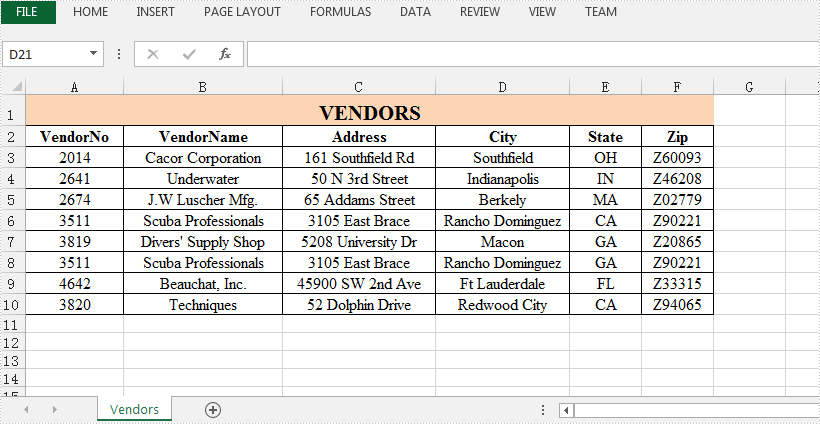
        CellRange cell = sheet.getRange().get("D6");

        //Create a StringBuilder instance
        StringBuilder content = new StringBuilder();

        //Get value of the cell "D6"
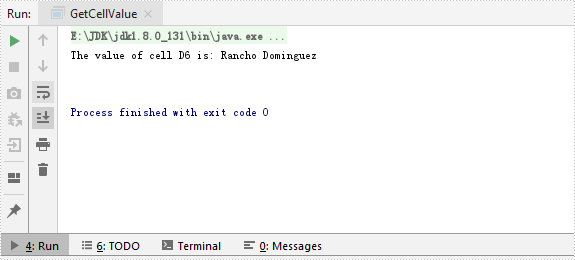
        content.append("The value of cell D6 is: " + cell.getValue()+"\n");

//Output the result
        System.out.println(content);
    }
}
The input Excel:
The output result:
Apply for a Temporary License
If you'd like to remove the evaluation message from the generated documents, or to get rid of the function limitations, please request a 30-day trial license for yourself.
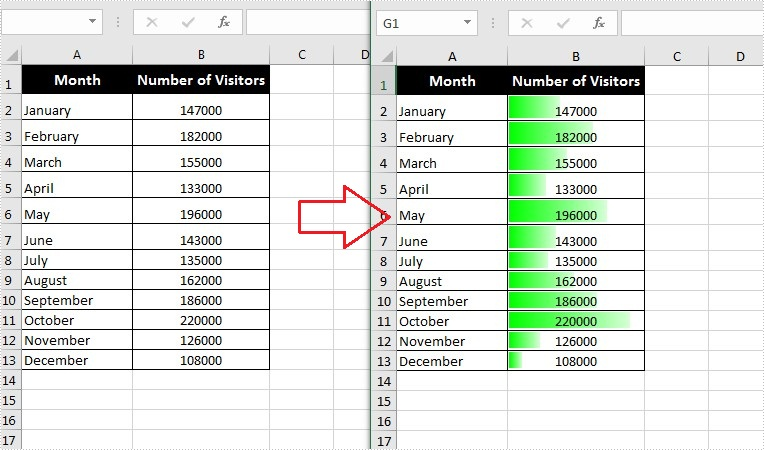
Data bars are a type of conditional formatting Microsoft Excel offers for visualizing the values in Excel cells. They can help you compare the values quickly because a cell with a longer bar represents a larger value, while a cell with a shorter bar represents a smaller value. This article will introduce how to add data bars in a range of cells using Spire.XLS for Java.
Install Spire.XLS for Java
First of all, you're required to add the Spire.Xls.jar file as a dependency in your Java program. The JAR file can be downloaded from this link. If you use Maven, you can easily import the JAR file in your application by adding the following code to your project's pom.xml file.
<repositories>
    <repository>
        <id>com.e-iceblue</id>
        <name>e-iceblue</name>
        <url>https://repo.e-iceblue.com/nexus/content/groups/public/</url>
    </repository>
</repositories>
<dependencies>
    <dependency>
        <groupId>e-iceblue</groupId>
        <artifactId>spire.xls</artifactId>
        <version>16.8.4</version>
    </dependency>
</dependencies>
Add Data Bars in Excel
The following are steps to add data bars in a range of Excel cells through conditional formatting:
- Create a Workbook instance.
- Load an Excel file using Workbook.loadFromFile() method.
- Get the worksheets collection using Workbook.getWorksheets() method, and then get the first worksheet using WorksheetsCollection.get() method.
- Get a specific cell range using Worksheet.getCellRange() method.
- Add a new conditional formatting to the cell range using ConditionalFormats. addCondition(), and then set the type of the new conditional formatting to DataBar using ConditionalFormatWrapper.setFormatType() method.
- Set the color of the data bar using DataBar.setBarColor() method.
- Save the document to another file using Workbook.saveToFile() method.
- Java
import com.spire.xls.*;
import com.spire.xls.core.IConditionalFormat;
import com.spire.xls.core.spreadsheet.collections.XlsConditionalFormats;

import java.awt.*;

public class applyDataBars {
    public static void main(String[] args) {
        //Create a Workbook instance
        Workbook workbook = new Workbook();

        //Load an Excel file
        workbook.loadFromFile("C:\\Users\\Administrator\\Desktop\\test.xlsx");

        //Get the first worksheet.
        Worksheet sheet = workbook.getWorksheets().get(0);

        //Add a conditional formatting and specify ranges
        XlsConditionalFormats conditional = sheet.getConditionalFormats().add();
        conditional.addRange(sheet.getCellRange("B2:B13"));

        //Add the conditional formatting of data bars
        IConditionalFormat format = conditional.addCondition();
        format.setFormatType( ConditionalFormatType.DataBar);

        //Set color for the data bars
        format.getDataBar().setBarColor( Color.GREEN);

        //Save to file
        workbook.saveToFile("ApplyDataBars.xlsx", ExcelVersion.Version2013);
    }
}
Apply for a Temporary License
If you'd like to remove the evaluation message from the generated documents, or to get rid of the function limitations, please request a 30-day trial license for yourself.
Comments in Excel are used to explain the contents in cells, or to offer reminders/notes to other users. Once a comment’s been added, Microsoft Excel allows users to show, hide, edit and delete the comments easily in a worksheet. This article will introduce how to edit existing comments as well as remove comments programmatically using Spire.XLS for Java.
Install Spire.XLS for Java
First of all, you're required to add the Spire.Xls.jar file as a dependency in your Java program. The JAR file can be downloaded from this link. If you use Maven, you can easily import the JAR file in your application by adding the following code to your project's pom.xml file.
<repositories>
    <repository>
        <id>com.e-iceblue</id>
        <name>e-iceblue</name>
        <url>https://repo.e-iceblue.com/nexus/content/groups/public/</url>
    </repository>
</repositories>
<dependencies>
    <dependency>
        <groupId>e-iceblue</groupId>
        <artifactId>spire.xls</artifactId>
        <version>16.8.4</version>
    </dependency>
</dependencies>
Edit Comments in Excel
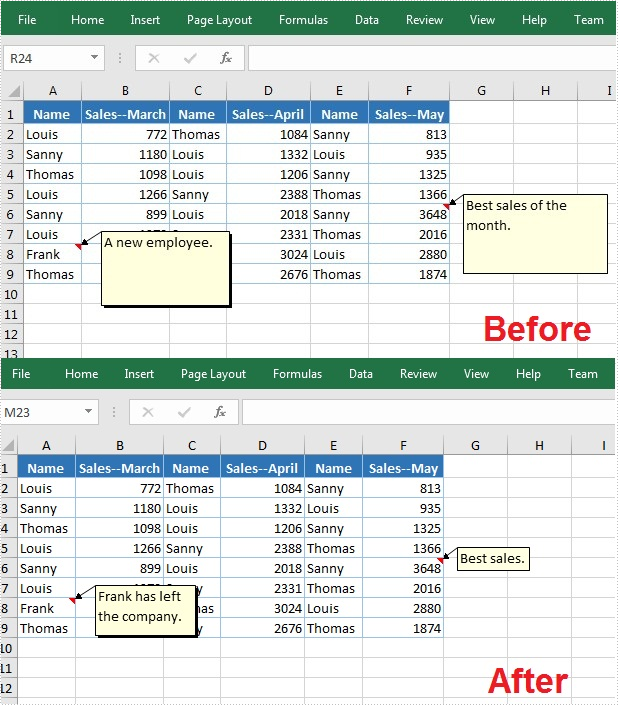
After adding comments to your Excel workbook, you may want to make changes to the added comments. The below table lists some of the core classes and methods used to get the existing comments and then set new text as well as formatting for the comments.
| Name | Description |
| ExcelCommentObject Class | Represents a comment in an Excel document. |
| CellRange.getComment() Method | Returns a comment object that represents a comment in a specific cell range. |
| ExcelCommentObject.setText() Method | Sets the comment text. |
| ExcelCommentObject.setHeight() Method | Sets height of a comment. |
| ExcelCommentObject.setWidth() Method | Sets width of a comment. |
| ExcelCommentObject.setAutoSize() Method | Sets whether the size of the specified object is changed automatically to fit text within its boundaries. |
The following are steps to edit comments in Excel:
- Create a Workbook instance.
- Load an Excel file using Workbook.loadFromFile() method.
- Get the first worksheet of the Excel file using WorksheetsCollection.get() method.
- Get a comment in a specific cell range using CellRange.getComment() method and then set new text and height/width or auto size for the existing comment using the methods offered by ExcelCommentObject class.
- Save the document to another file using Workbook.saveToFile() method.
- Java
import com.spire.xls.*;

public class ModifyComment {
    public static void main(String[] args) {

        //Create a Workbook instance
        Workbook wb = new Workbook();

        //Load an Excel file
        wb.loadFromFile("Comments.xlsx");

        //Get the first worksheet
        Worksheet sheet = wb.getWorksheets().get(0);

        //Get comments in specific cells and set new comments
        sheet.getRange().get("A8").getComment().setText("Frank has left the company.");
        sheet.getRange().get("F6").getComment().setText("Best sales.");

        //Set the height and width of the new comments
        sheet.getRange().get("A8").getComment().setHeight(50);
        sheet.getRange().get("A8").getComment().setWidth(100);
        sheet.getRange().get("F6").getComment().setAutoSize(true);

        //Save to file.
        wb.saveToFile("ModifyComment.xlsx",ExcelVersion.Version2013);
        wb.dispose();
    }
}
Remove Comments in Excel
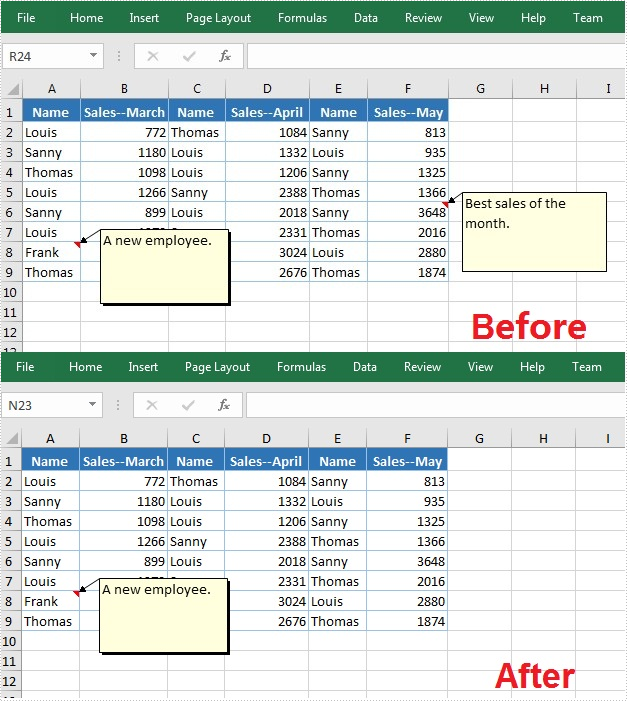
The following are steps to remove a comment in Excel:
- Create a Workbook instance.
- Load an Excel file using Workbook.loadFromFile() method.
- Get the first worksheet of the Excel file using WorksheetsCollection.get() method.
- Get a comment in a specific cell range using CellRange.getComment() method and then delete the comment using ExcelCommentObject.remove() method.
- Save the document to another file using Workbook.saveToFile() method.
- Java
import com.spire.xls.*;

public class DeleteComment {
    public static void main(String[] args) {

        //Create a Workbook instance
        Workbook wb = new Workbook();

        //Load an Excel file
        wb.loadFromFile("Comments.xlsx");

        //Get the first worksheet
        Worksheet sheet = wb.getWorksheets().get(0);

        //Get the comment in a specific cell and remove it
        sheet.getRange().get("F6").getComment().remove();

        //Save to file.
        wb.saveToFile("DeleteComment.xlsx", ExcelVersion.Version2013);
        wb.dispose();
    }
}
Apply for a Temporary License
If you'd like to remove the evaluation message from the generated documents, or to get rid of the function limitations, please request a 30-day trial license for yourself.
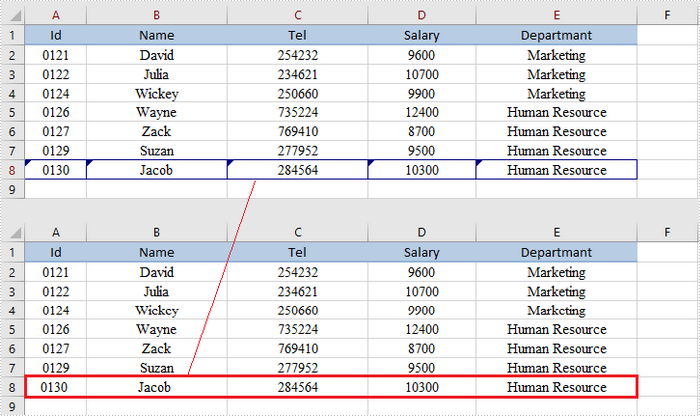
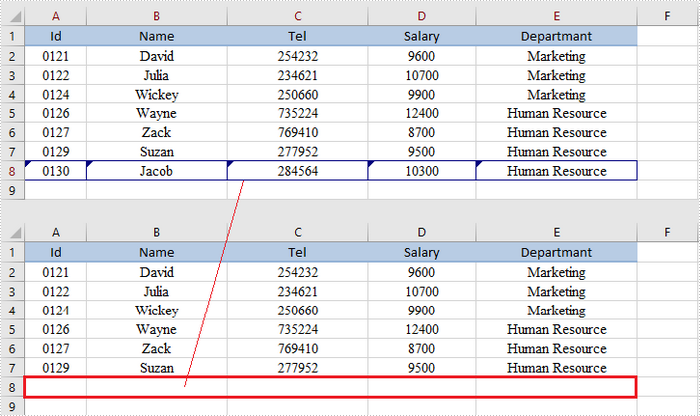
An Excel document with Track Changes turned on will let you know what changes have been made to the document since the author has saved it. If you have the full authority over the document, you can accept or reject each revision. This article covers how to accept or reject all tracked changes at once using Spire.XLS for Java.
Install Spire.XLS for Java
First of all, you're required to add the Spire.Xls.jar file as a dependency in your Java program. The JAR file can be downloaded from this link. If you use Maven, you can easily import the JAR file in your application by adding the following code to your project's pom.xml file.
<repositories>
    <repository>
        <id>com.e-iceblue</id>
        <name>e-iceblue</name>
        <url>https://repo.e-iceblue.com/nexus/content/groups/public/</url>
    </repository>
</repositories>
<dependencies>
    <dependency>
        <groupId>e-iceblue</groupId>
        <artifactId>spire.xls</artifactId>
        <version>16.8.4</version>
    </dependency>
</dependencies>
Accept Tracked Changes in a Workbook
To determine whether a workbook has tracked changes, use Workbook.hasTrackedChanegs() method. If yes, you can accept all changes at once using Workbook.acceptAllTrackedchanges() method. The following are the steps to accept tracked changes in an Excel workbook.
- Create a Workbook object.
- Load the sample Excel document using Workbook.loadFromFile() method.
- Determine if the workbook has tracked changes by Workbook.hasTrackedChanegs() method.
- Accept tracked changes using Workbook.acceptAllTrackedChanges() method.
- Save the document to another file using Workbook.saveToFile() method.
- Java
import com.spire.xls.FileFormat;
import com.spire.xls.Workbook;

public class AcceptTrackedChanges {

    public static void main(String[] args) {

        //Create a Workbook object
        Workbook wb = new Workbook();

        //Load the sample Excel file
        wb.loadFromFile("C:\\Users\\Administrator\\Desktop\\Employees.xlsx");

        //Determine if the workbook has tracked changes
        if (wb.hasTrackedChanges())
        {
            //Accept tracked changes in the workbook
            wb.acceptAllTrackedChanges();
        }

        //Save to file
        wb.saveToFile("output/AcceptChanges.xlsx", FileFormat.Version2013);
    }
}
Reject Tracked Changes in a Workbook
If the tracked changes have been proven to exist in a workbook, you can reject them using Workbook.rejectAllTrackedChanges() method. The following are the steps to achieve this.
- Create a Workbook object.
- Load the sample Excel document using Workbook.loadFromFile() method.
- Determine if the workbook has tracked changes by Workbook.hasTrackedChanegs() method.
- Reject all tracked changes using Workbook.rejectAllTrackedChanges() method.
- Save the document to another file using Workbook.saveToFile() method.
- Java
import com.spire.xls.FileFormat;
import com.spire.xls.Workbook;

public class RejectTrackedChanges {

    public static void main(String[] args) {

        //Create a Workbook object
        Workbook wb = new Workbook();

        //Load the sample Excel file
        wb.loadFromFile("C:\\Users\\Administrator\\Desktop\\Employees.xlsx");

        //Determine if the workbook has tracked changes
        if (wb.hasTrackedChanges())
        {
            //Reject tracked changes in the workbook
            wb.rejectAllTrackedChanges();
        }

        //Save to file
        wb.saveToFile("output/RejectChanges.xlsx", FileFormat.Version2013);
    }
}
Apply for a Temporary License
If you'd like to remove the evaluation message from the generated documents, or to get rid of the function limitations, please request a 30-day trial license for yourself.
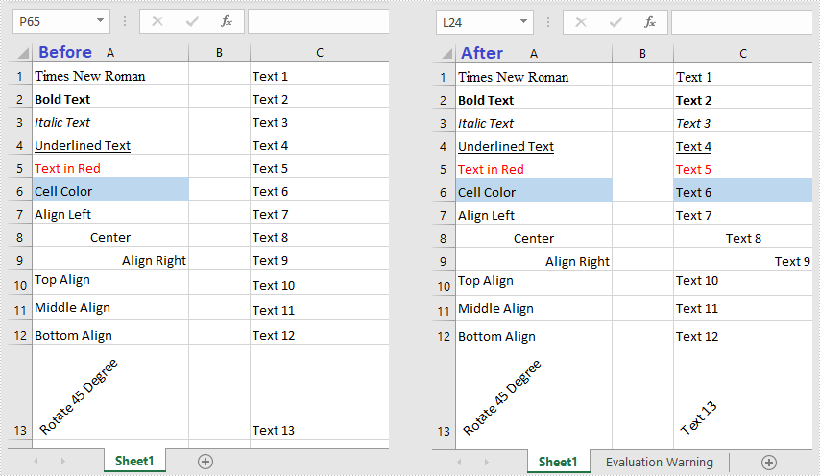
Spire.XLS for Java provides the getStyle() method and setStyle() method under the IXLSRange interface to get or set the style of a specific cell range. To copy formatting from one cell to another, get the style first and then apply it to another cell.
import com.spire.xls.ExcelVersion;
import com.spire.xls.Workbook;
import com.spire.xls.Worksheet;

public class CopyCellFormatting {
    public static void main(String[] args) {

        //Create a Workbook object
        Workbook workbook = new Workbook();

        //Load the sample Excel file
        workbook.loadFromFile("C:\\Users\\Administrator\\Desktop\\sample.xlsx");

        //Get the first worksheet
        Worksheet sheet = workbook.getWorksheets().get(0);

        //Get the number of rows used
        int rowCount = sheet.getRows().length;

        //Loop through the rows
        for (int i = 1; i < rowCount + 1; i++)
        {
            //Copy the formatting from a certain cell to another
            sheet.getRange().get(String.format("C%d",i)).setStyle(sheet.getRange().get(String.format("A%d",i)).getStyle());
        }

        //Save the result to file
        workbook.saveToFile("output/CopyFormatting.xlsx", ExcelVersion.Version2016);
    }
}
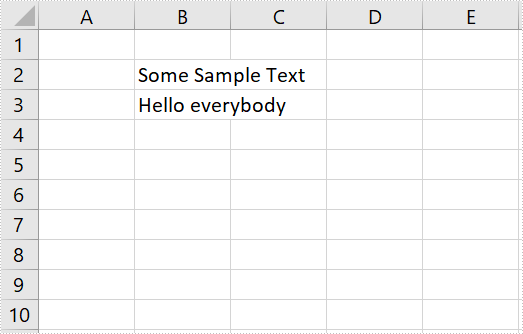
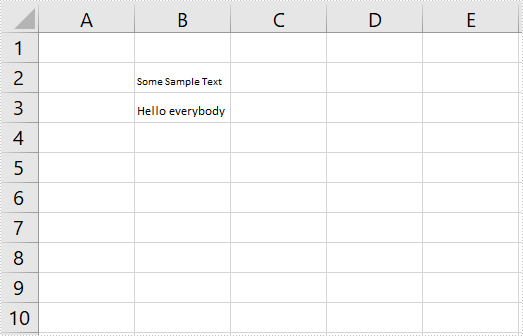
Spire.XLS for Java provides you with the ability to shrink text to fit in a cell by using the setShrinkToFit method of the CellStyleObject class. The setShrinkToFit method accepts the following parameter:
boolean: specify whether to shrink text to fit in a cell.
The following example shows how to shrink text to fit in a cell in Excel using Spire.XLS for Java.
import com.spire.xls.*;

public class ShrinkTextToFitInACell {
    public static void main(String []args) throws Exception {
        //Create a workbook instance
        Workbook workbook = new Workbook();

        //Load the Excel file
        workbook.loadFromFile("Sample.xlsx");

        //Get the first worksheet
        Worksheet sheet = workbook.getWorksheets().get(0);

        //Get the cell range to shrink text
        CellRange cell = sheet.getRange().get("B2:B3");

        //Enable “shrink to fit”
        cell.getCellStyle().setShrinkToFit(true);

        //Save the file
        workbook.saveToFile("ShrinkTextToFitInACell.xlsx", ExcelVersion.Version2013);
    }
}
The input Excel:
The output Excel:
In the process of manipulating Excel worksheets, sometimes you may encounter the situation where the text in a cell is so long that some of it is hidden. At this time, it’s recommended to wrap the extra-long text into multiple lines so you can see it all. This article will demonstrate how to programmatically wrap or unwrap text in Excel cells using Spire.XLS for Java.
Install Spire.XLS for Java
First of all, you're required to add the Spire.Xls.jar file as a dependency in your Java program. The JAR file can be downloaded from this link. If you use Maven, you can easily import the JAR file in your application by adding the following code to your project's pom.xml file.
<repositories>
    <repository>
        <id>com.e-iceblue</id>
        <name>e-iceblue</name>
        <url>https://repo.e-iceblue.com/nexus/content/groups/public/</url>
    </repository>
</repositories>
<dependencies>
    <dependency>
        <groupId>e-iceblue</groupId>
        <artifactId>spire.xls</artifactId>
        <version>16.8.4</version>
    </dependency>
</dependencies>
Wrap or Unwrap Text in Excel cells
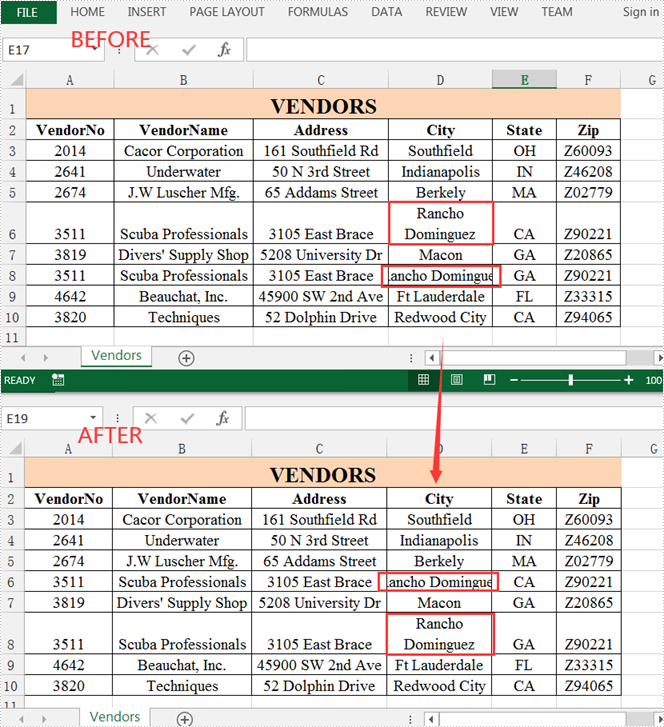
Spire.XLS for Java supports wrapping or unwrapping text in Excel cells using the setWrapText() method provided by the IStyle interface. Below are detailed steps for your reference.
- Create a Workbook instance.
- Load a sample Excel document using Workbook.loadFromFile() method.
- Get a specific worksheet of the document using Workbook.getWorksheets().get() method.
- Get a specific cell of the worksheet using Worksheet.getRange().get() method.
- Get the style of the specified cell using XlsRange.getStyle() method and set whether the text is wrapped or not using setWrapText() method provided by IStyle interface.
- Save the document to another file using Workbook.saveToFile() method.
- Java
import com.spire.xls.ExcelVersion;
import com.spire.xls.Workbook;
import com.spire.xls.Worksheet;

public class WrapOrUnwrapText {
    public static void main(String[] args) {
        //Create a Workbook instance
        Workbook workbook = new Workbook();
        //Load a sample Excel document
        workbook.loadFromFile("C:\\Users\\Test1\\Desktop\\sample.xlsx");

        //Get the first worksheet
        Worksheet sheet = workbook.getWorksheets().get(0);

        //Wrap text in the cell "D8"
        sheet.getRange().get("D8").getStyle().setWrapText(true);

        //Unwrap text in the cell "D6"
        sheet.getRange().get("D6").getStyle().setWrapText(false);

        //Save the document to another file
        workbook.saveToFile("output/WrapOrUnwrapText.xlsx", ExcelVersion.Version2013);
    }
}
Apply for a Temporary License
If you'd like to remove the evaluation message from the generated documents, or to get rid of the function limitations, please request a 30-day trial license for yourself.
Copying worksheet involves duplicating an existing worksheet within the same workbook or across different workbooks. This valuable feature enables developers to create an exact replica of the original worksheet effortlessly, including its structure, formatting, data, formulas, charts, and other objects without any mistake. It proves especially beneficial when dealing with extensive data files, as it significantly reduces time and effort required for backing up files and creating templates. In this article, we will introduce how to copy worksheets in Excel using Spire.XLS for Java. With this method, all the cell formats in the original Excel worksheets will be completely remained.
Install Spire.XLS for Java
First of all, you're required to add the Spire.Xls.jar file as a dependency in your Java program. The JAR file can be downloaded from this link. If you use Maven, you can easily import the JAR file in your application by adding the following code to your project's pom.xml file.
<repositories>
    <repository>
        <id>com.e-iceblue</id>
        <name>e-iceblue</name>
        <url>https://repo.e-iceblue.com/nexus/content/groups/public/</url>
    </repository>
</repositories>
<dependencies>
    <dependency>
        <groupId>e-iceblue</groupId>
        <artifactId>spire.xls</artifactId>
        <version>16.8.4</version>
    </dependency>
</dependencies>
Copy Worksheets between Workbooks
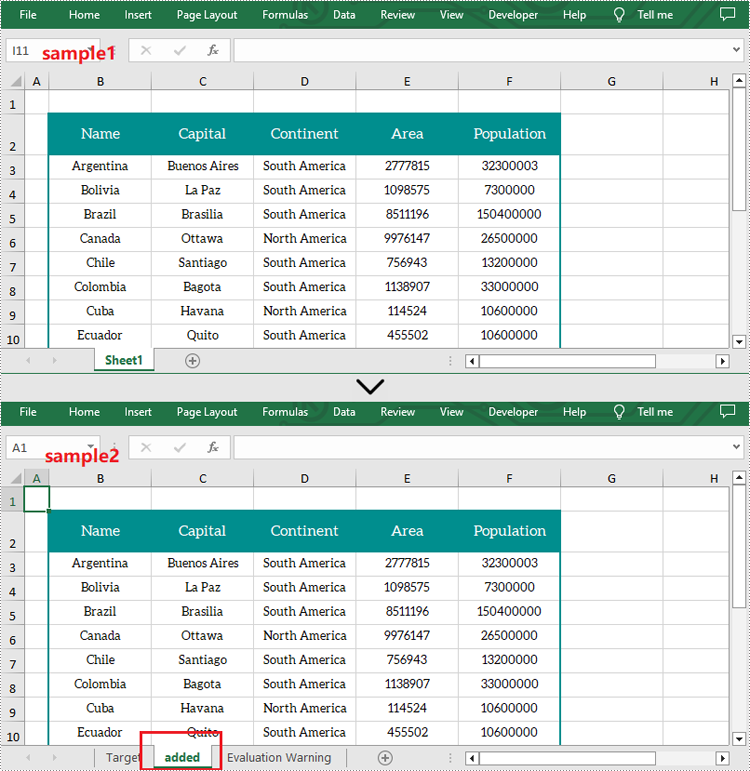
Spire.XLS for Java library allows you copy worksheets from one workbook to another file easily by using Worksheet.copyFrom() method. The following are detailed steps.
- Create a new Workbook object.
- Load the source Excel file from disk using Workbook.loadFromFile() method.
- Get the first worksheet of the source file by using Workbook.getWorksheets().get() method.
- Create an another Workbook object.
- Load the target file from disk using Workbook.loadFromFile() method.
- Add a new sheet to the target file using Workbook.getWorksheets().add() method.
- Copy the first worksheet of the source file to the new added sheet of the target file through Worksheet.copyFrom() method.
- Finally, specify the output path and save the target file using Workbook.saveToFile() method.
- Java
import com.spire.xls.*;

public class copyWorksheet {
    public static void main(String[] args) {

        //Create a Workbook
        Workbook sourceWorkbook = new Workbook();

        //Load the source Excel file from disk
        sourceWorkbook.loadFromFile("sample1.xlsx");

        //Get the first worksheet
        Worksheet srcWorksheet = sourceWorkbook.getWorksheets().get(0);

        //Create a another Workbook
        Workbook targetWorkbook = new Workbook();

        //Load the target Excel file from disk
        targetWorkbook.loadFromFile("sample2.xlsx");

        //Add a new worksheet
        Worksheet targetWorksheet = targetWorkbook.getWorksheets().add("added");

        //Copy the first worksheet of sample1 to the new added sheet of sample2
        targetWorksheet.copyFrom(srcWorksheet);

        //String for output file
        String outputFile = "output/CopyWorksheet.xlsx";

        //Save the result file
        targetWorkbook.saveToFile(outputFile, ExcelVersion.Version2013);
        sourceWorkbook.dispose();
        targetWorkbook.dispose();
    }
}
Copy Worksheets within Workbooks
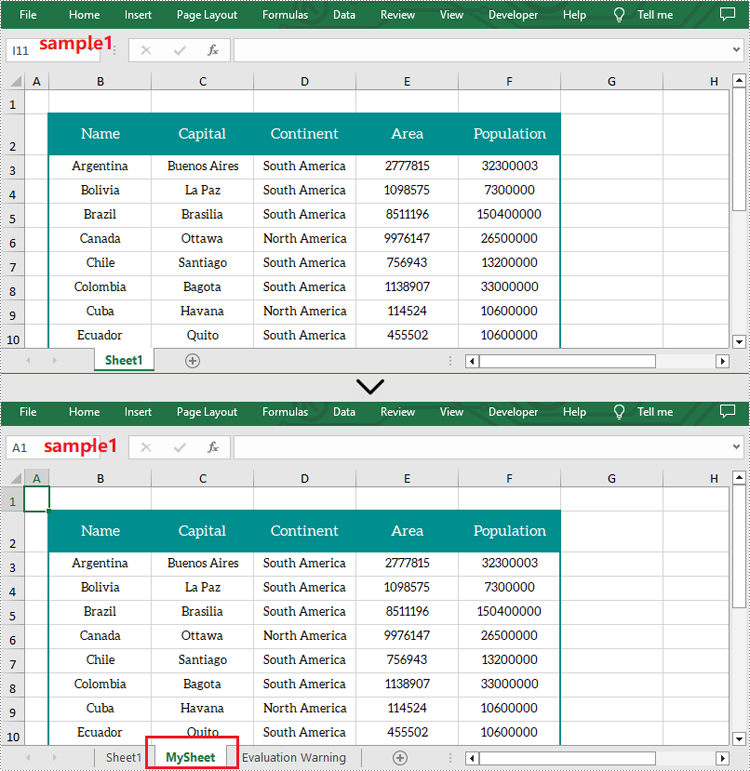
You can also copy a worksheet within the same workbook by adding a new worksheet to this workbook and then copying the desired sheet to the new one. The following are the steps to duplicate worksheets within an Excel workbook.
- Create a new Workbook object.
- Load the source Excel file from disk using Workbook.loadFromFile() method.
- Get the first worksheet by using Workbook.getWorksheets().get() method and add a new sheet called "MySheet" using Workbook.getWorksheets().add() method.
- Copy the first worksheet to the second one through Worksheet.copyFrom() method;
- Finally, specify the output path and save the result file using Workbook.saveToFile() method.
- Java
import com.spire.xls.*;

public class copySheetWithinWorkbook {
    public static void main(String[] args) {
        //Create a Workbook
        Workbook workbook = new Workbook();

        //Load the sample file from disk
        workbook.loadFromFile("sample1.xlsx");

        //Get the first sheet and add a new worksheet to this file
        Worksheet sheet = workbook.getWorksheets().get(0);
        Worksheet sheet1 = workbook.getWorksheets().add("MySheet");

        //Copy the first worksheet to the second one
        sheet1.copyFrom(sheet);

        //String for output file
        String result = "output/CopySheetWithinWorkbook.xlsx";

        //Save to file
        workbook.saveToFile(result, ExcelVersion.Version2013);
        workbook.dispose();
    }
}
Apply for a Temporary License
If you'd like to remove the evaluation message from the generated documents, or to get rid of the function limitations, please request a 30-day trial license for yourself.
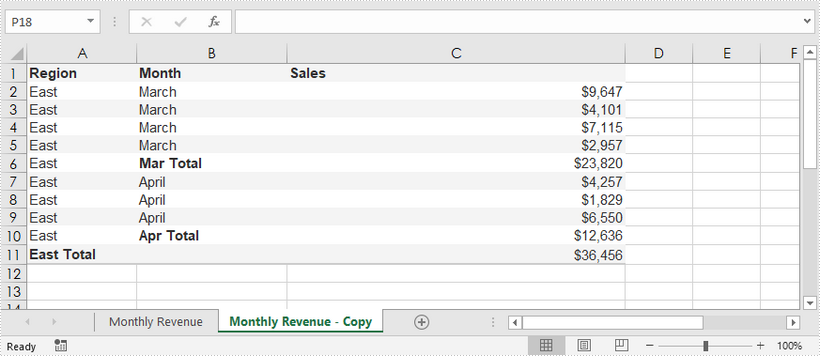
This article shows you how to duplicate a worksheet inside a workbook using Spire.XLS for Java.
import com.spire.xls.Workbook;
import com.spire.xls.Worksheet;

public class DuplicateSheetWithinWorkbook {
    public static void main(String[] args) {

        //Create a Workbook object
        Workbook workbook = new Workbook();

        //Load the sample Excel file
        workbook.loadFromFile("C:\\Users\\Administrator\\Desktop\\sample.xlsx");

        //Get the first worksheet
        Worksheet originalSheet = workbook.getWorksheets().get(0);

        //Add a new worksheet
        Worksheet newSheet = workbook.getWorksheets().add(originalSheet.getName()+" - Copy");

        //Copy the worksheet to new sheet
        newSheet.copyFrom(originalSheet);

        //Save to file
        workbook.saveToFile("DuplicateSheet.xlsx");
    }
}