
Program Guide (133)
Children categories
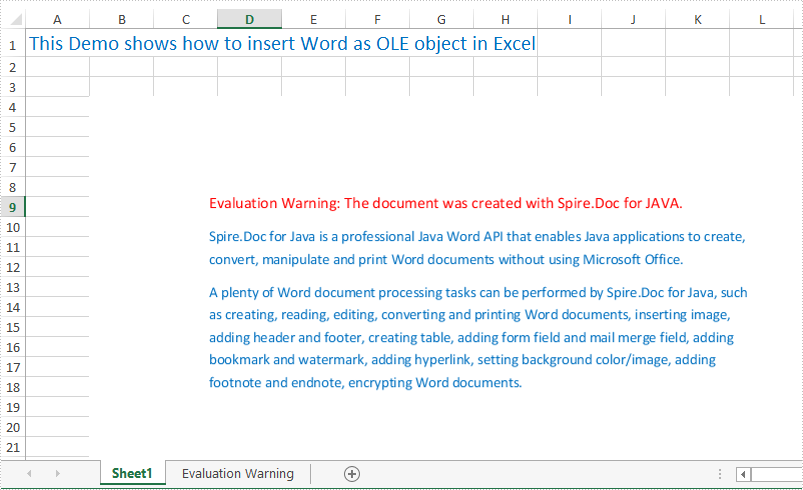
Spire.XLS for Java supports to insert Word, Excel, PowerPoint slide and PDF as linked object or embedded object into Excel Worksheet. This article will show you how to insert a Word document as an embedded object into Excel by using Spire.XLS for Java in Java applications.
import com.spire.xls.*;
import com.spire.xls.core.IOleObject;
import com.spire.doc.*;
import com.spire.doc.documents.ImageType;
import java.awt.image.BufferedImage;

public class insertOLEObjects {
    public static void main(String[] args) {
        String docFile = "Sample.docx";
        String outputFile = "output/insertOLEObjects_result.xlsx";

        //Load the Excel document
        Workbook workbook = new Workbook();
        workbook.loadFromFile("Sample.xlsx");
        //Get the first worksheet
        Worksheet worksheet = workbook.getWorksheets().get(0);

        //Generate image
        BufferedImage image = GenerateImage(docFile);
        //insert OLE object
        IOleObject oleObject = worksheet.getOleObjects().add(docFile, image, OleLinkType.Embed);
        oleObject.setLocation(worksheet.getCellRange("B4"));
        oleObject.setObjectType(OleObjectType.ExcelWorksheet);
        //Save the file
        workbook.saveToFile(outputFile, ExcelVersion.Version2010);
    }

    private static BufferedImage GenerateImage(String fileName) {

        //Load the sample word document
        Document document = new Document();
        document.loadFromFile(fileName);

        //Save the first page of word as an image
        BufferedImage image = document.saveToImages(0, ImageType.Bitmap);
        return image;
    }
}
Output:
Shapes in Excel are versatile graphical elements that enhance the visual representation of data within your spreadsheets. They include a variety of forms such as rectangles, circles, arrows, lines, and callouts, allowing users to create diagrams, flowcharts, and emphasis on specific data points.
Using shapes can help clarify complex information, guide the reader’s attention, and make presentations more engaging. Shapes can be customized in terms of size, color, and effects, providing flexibility in design.
In this article, you will learn how to insert, format and remove shapes in an Excel worksheet using Spire.XLS for Java.
- Insert Various Types of Shapes to Excel
- Apply Formatting to Shapes in Excel
- Remove Shapes from Excel
Install Spire.XLS for Java
First of all, you're required to add the Spire.Xls.jar file as a dependency in your Java program. The JAR file can be downloaded from this link. If you use Maven, you can easily import the JAR file in your application by adding the following code to your project's pom.xml file.
<repositories>
    <repository>
        <id>com.e-iceblue</id>
        <name>e-iceblue</name>
        <url>https://repo.e-iceblue.com/nexus/content/groups/public/</url>
    </repository>
</repositories>
<dependencies>
    <dependency>
        <groupId>e-iceblue</groupId>
        <artifactId>spire.xls</artifactId>
        <version>16.8.4</version>
    </dependency>
</dependencies>
Insert Various Types of Shapes to Excel
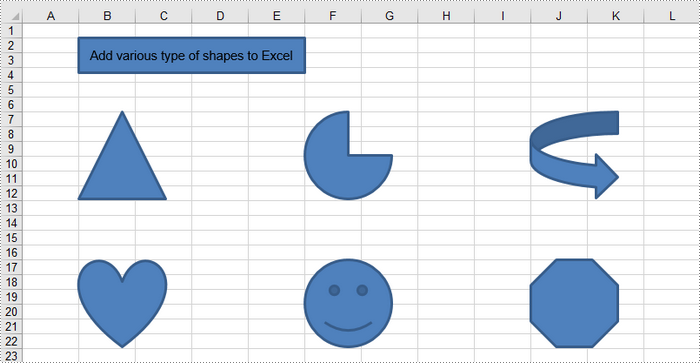
To add a shape to a worksheet, use the PrstGeomShapeCollection.addPrstGeomShape(int row, int column, int width, int height, com.spire.xls.PrstGeomShapeType shapeType) method. The first four parameters specify the shape's position and size, while the fifth parameter indicates the type of shape.
The steps to insert a shape of a certain type to a worksheet are as follows:
- Create a Workbook object.
- Get a specific worksheet using Workbook.getWorksheets().get() method.
- Add a shape to the worksheet using Worksheet.getPrstGeomShapes().addPrstGeomShape() method, specifying the location, size and type of the shape.
- Save the workbook to an Excel file using Workbook.saveToFile() method.
- Java
import com.spire.xls.*;
import com.spire.xls.core.IPrstGeomShape;

import java.io.IOException;

public class InsertShapes {

    public static void main(String[] args) throws IOException {

        // Create a Workbook object
        Workbook workbook = new Workbook();

        // Get the first worksheet
        Worksheet sheet = workbook.getWorksheets().get(0);

        // Add a rectangle
        IPrstGeomShape rectangle = sheet.getPrstGeomShapes().addPrstGeomShape(2, 2, 260, 40, PrstGeomShapeType.Rect);

        // Set text for the shape
        rectangle.setText("Add various type of shapes to Excel");
        rectangle.setTextVerticalAlignment(ExcelVerticalAlignment.MiddleCentered);

        // Add a triangle, a pie, a curved right arrow, a heart, a smile face, and an octagon to the worksheet
        sheet.getPrstGeomShapes().addPrstGeomShape(7, 2, 100, 100, PrstGeomShapeType.Triangle);
        sheet.getPrstGeomShapes().addPrstGeomShape(7, 6,100,100,PrstGeomShapeType.Pie);
        sheet.getPrstGeomShapes().addPrstGeomShape(7, 10, 100, 100, PrstGeomShapeType.CurvedRightArrow);

        sheet.getPrstGeomShapes().addPrstGeomShape(17, 2, 100, 100, PrstGeomShapeType.Heart);
        sheet.getPrstGeomShapes().addPrstGeomShape(17, 6, 100, 100, PrstGeomShapeType.SmileyFace);
        sheet.getPrstGeomShapes().addPrstGeomShape(17, 10, 100, 100, PrstGeomShapeType.Octagon);

        // Save the workbook to an Excel file
        workbook.saveToFile("output/InsertShapes.xlsx", ExcelVersion.Version2016);

        // Dispose resources
        workbook.dispose();
    }
}
Apply Formatting to Shapes in Excel
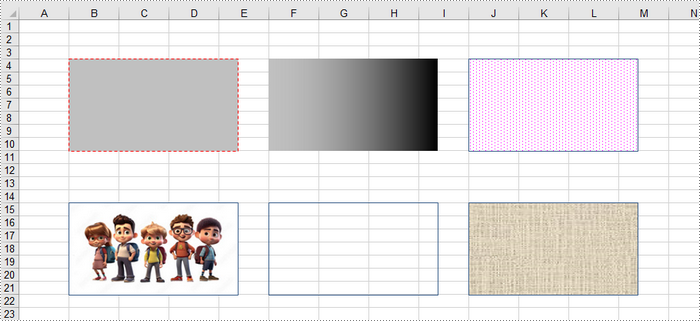
The example above demonstrates how to add various shapes with default formatting to a worksheet. To customize a shape's appearance, you can utilize the IShapeLineFormat, IShapeFill, and IShadow interfaces provided by Spire.XLS.
The steps to apply formatting to a shape in Excel are as follows:
- Create a Workbook object.
- Get a specific worksheet using Workbook.getWorksheets().get() method.
- Add a shape to the worksheet using Worksheet.getPrstGeomShapes().addPrstGeomShape() method, specifying the location, size and type of the shape.
- Get the IShapeLineFormat object using IShape.getLine() method.
- Set the line style, color, width and visibility using the methods under the IShapeLineFormat object.
- Get the IShapeFill object using IShape.getFill() method.
- Set the fill type, fill color, fill image, or fill pattern using the methods under the IShapeFill object.
- Save the workbook to an Excel file using Workbook.saveToFile() method.
- Java
import com.spire.xls.*;
import com.spire.xls.core.IPrstGeomShape;

import javax.imageio.ImageIO;
import java.awt.*;
import java.awt.image.BufferedImage;
import java.io.File;
import java.io.IOException;

public class ApplyFormattingToShapes {

    public static void main(String[] args) throws IOException {

        // Create a Workbook object
        Workbook workbook = new Workbook();

        // Get the first worksheet
        Worksheet sheet = workbook.getWorksheets().get(0);

        // Add the first rectangle to the worksheet
        IPrstGeomShape rectangle_one = sheet.getPrstGeomShapes().addPrstGeomShape(4, 2, 220, 120, PrstGeomShapeType.Rect);

        // Set the line style, width, and color
        rectangle_one.getLine().setDashStyle(ShapeDashLineStyleType.Dashed);
        rectangle_one.getLine().setWeight(1.0);
        rectangle_one.getLine().setForeColor(Color.RED);

        // Set the fill type and fore color
        rectangle_one.getFill().setFillType(ShapeFillType.SolidColor);
        rectangle_one.getFill().setForeColor(Color.lightGray);

        // Add the second rectangle and format the shape
        IPrstGeomShape rectangle_two = sheet.getPrstGeomShapes().addPrstGeomShape(4, 6, 220, 120, PrstGeomShapeType.Rect);
        rectangle_two.getLine().setVisible(false);
        rectangle_two.getFill().setFillType(ShapeFillType.Gradient);
        rectangle_two.getFill().setForeColor(Color.lightGray);
        rectangle_two.getFill().setGradientStyle(GradientStyleType.Vertical);

        // Add the third rectangle and format the shape
        IPrstGeomShape rectangle_three = sheet.getPrstGeomShapes().addPrstGeomShape(4, 10, 220, 120, PrstGeomShapeType.Rect);
        rectangle_three.getLine().setWeight(1.0);
        rectangle_three.getFill().setFillType(ShapeFillType.Pattern);
        rectangle_three.getFill().setPattern(GradientPatternType.Pat80Percent);
        rectangle_three.getFill().setForeColor(Color.white);
        rectangle_three.getFill().setBackColor(Color.magenta);

        // Add the fourth rectangle and format the shape
        IPrstGeomShape rectangle_four = sheet.getPrstGeomShapes().addPrstGeomShape(15, 2, 220, 120, PrstGeomShapeType.Rect);
        rectangle_four.getLine().setWeight(1.0);
        BufferedImage image = ImageIO.read(new File("C:\\Users\\Administrator\\Desktop\\cartoon.jpeg"));
        rectangle_four.getFill().customPicture(image,"myPicture");

        // Add the fifth rectangle and format the shape
        IPrstGeomShape rectangle_five = sheet.getPrstGeomShapes().addPrstGeomShape(15, 6, 220, 120, PrstGeomShapeType.Rect);
        rectangle_five.getLine().setWeight(1.0);
        rectangle_five.getFill().setFillType(ShapeFillType.NoFill);

        // Add the sixth rectangle and format the shape
        IPrstGeomShape rectangle_six = sheet.getPrstGeomShapes().addPrstGeomShape(15, 10, 220, 120, PrstGeomShapeType.Rect);
        rectangle_six.getLine().setWeight(1.0);
        rectangle_six.getFill().setFillType(ShapeFillType.Texture);
        rectangle_six.getFill().setTexture(GradientTextureType.Canvas);

        // Save the workbook to an Excel file
        workbook.saveToFile("output/FormatShapes.xlsx", ExcelVersion.Version2016);

        // Dispose resources
        workbook.dispose();
    }
}
Remove Shapes from Excel
The shapes in a worksheet can be retrieved by utilizing the Worksheet.getPrstGeomShapes() method. To remove a specific shape, call the PrstGeomShapeCollection.get(index).remove() method. If you want to remove all shapes, you can use a for loop to iterate through and delete them.
The steps to remove shapes in an Excel worksheet are as follows:
- Create a Workbook object.
- Load an Excel file using Workbook.loadFromFile() method.
- Get a specific worksheet using Workbook.getWorksheets().get() method.
- Get the shape collection using Worksheet.getPrstGeomShapes() method.
- Remove a specific shape using PrstGeomShapeCollection.get(index).remove() method.
- Save the workbook to an Excel file using Workbook.saveToFile() method.
- Java
import com.spire.xls.ExcelVersion;
import com.spire.xls.Workbook;
import com.spire.xls.Worksheet;
import com.spire.xls.core.spreadsheet.collections.PrstGeomShapeCollection;

public class RemoveShapesFromExcel {

    public static void main(String[] args) {

        // Create a Workbook object
        Workbook workbook = new Workbook();

        // Load an Excel file
        workbook.loadFromFile("C:\\Users\\Administrator\\Desktop\\Shapes.xlsx");

        // Get a specific worksheet
        Worksheet sheet = workbook.getWorksheets().get(0);

        // Get the shape collection from the worksheet
        PrstGeomShapeCollection shapes = sheet.getPrstGeomShapes();

        // Remove a specific shape
        shapes.get(1).remove();

         /*
         // Remove all shapes
         for (int i = sheet.getPrstGeomShapes().getCount()-1; i >= 0; i--)
         {
             sheet.getPrstGeomShapes().get(i).remove();
         }
         */

        // Save the workbook to an Excel file
        workbook.saveToFile("output/RemoveSpecificShape.xlsx", ExcelVersion.Version2013);

        // Dispose resources
        workbook.dispose();
    }
}
Apply for a Temporary License
If you'd like to remove the evaluation message from the generated documents, or to get rid of the function limitations, please request a 30-day trial license for yourself.
A digital signature is an electronic signature with encrypted information that helps verify the authenticity of messages, software and digital documents. They are commonly used in software distribution, financial transactions, contract management software, and other situations that require forgery or tampering detection. When generating an Excel report, you may need to add a digital signature to make it look more authentic and official. In this article, you will learn how to add or delete digital signatures in Excel in Java using Spire.XLS for Java.
Install Spire.XLS for Java
First of all, you're required to add the Spire.Xls.jar file as a dependency in your Java program. The JAR file can be downloaded from this link. If you use Maven, you can easily import the JAR file in your application by adding the following code to your project's pom.xml file.
<repositories>
    <repository>
        <id>com.e-iceblue</id>
        <name>e-iceblue</name>
        <url>https://repo.e-iceblue.com/nexus/content/groups/public/</url>
    </repository>
</repositories>
<dependencies>
    <dependency>
        <groupId>e-iceblue</groupId>
        <artifactId>spire.xls</artifactId>
        <version>16.8.4</version>
    </dependency>
</dependencies>
Add a Digital Signature to Excel in Java
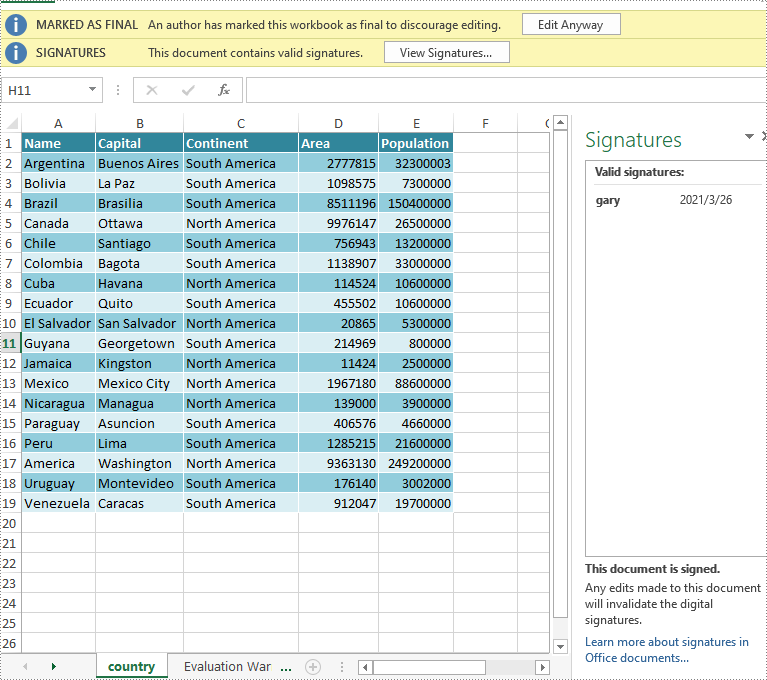
You can add a digital signature to protect the integrity of an Excel file. Once the digital signature is added, the file becomes read-only to discourage further editing. If someone makes changes to the file, the digital signature will become invalid immediately.
Spire.XLS for Java provides the addDigitalSignature method of Workbook class to add digital signatures to an Excel file. The detailed steps are as follows:
- Instantiate a Workbook instance.
- Load an Excel file using Workbook.loadFromFile() method.
- Instantiate a CertificateAndPrivateKey instance with the specified certificate (.pfx) file path and the password of the .pfx file.
- Add a digital signature to the file using Workbook.addDigitalSignature(CertificateAndPrivateKey, String, Date) method.
- Save the result file using Workbook.saveToFile() method.
- Java
import com.spire.xls.ExcelVersion;
import com.spire.xls.Workbook;
import com.spire.xls.digital.CertificateAndPrivateKey;

import java.util.Date;

public class AddDigitalSignature {
    public static void main(String []args) throws Exception {
        //Create a Workbook instance
        Workbook workbook=new Workbook();
        //Load an Excel file
        workbook.loadFromFile("Sample.xlsx");

        //Add a digital signature to the file
        CertificateAndPrivateKey cap = new CertificateAndPrivateKey("Test.pfx","e-iceblue");
        workbook.addDigitalSignature(cap, "e-iceblue",new Date());

        //Save the result file
        workbook.saveToFile("AddDigitalSignature.xlsx", ExcelVersion.Version2013);
    }
}
Delete Digital Signature from Excel in Java
Spire.XLS for Java provides the removeAllDigitalSignatures method of Workbook class for developers to remove digital signatures from an Excel file. The detailed steps are as follows:
- Initialize an instance of the Workbook class.
- Load an Excel file using Workbook.loadFromFile() method.
- Remove all digital signatures from the file using Workbook.removeAllDigitalSignatures() method.
- Save the result file using Workbook.saveToFile() method.
- Java
import com.spire.xls.ExcelVersion;
import com.spire.xls.Workbook;

public class DeleteDigitalSignature {
    public static void main(String []args) throws Exception {
        //Create a Workbook instance
        Workbook workbook = new Workbook();
        //Load an Excel file
        workbook.loadFromFile("AddDigitalSignature.xlsx");

        //Remove all digital signatures in the file
        workbook.removeAllDigitalSignatures();

        //Save the result file
        workbook.saveToFile("RemoveDigitalSignature.xlsx", ExcelVersion.Version2013);
    }
}
Apply for a Temporary License
If you'd like to remove the evaluation message from the generated documents, or to get rid of the function limitations, please request a 30-day trial license for yourself.
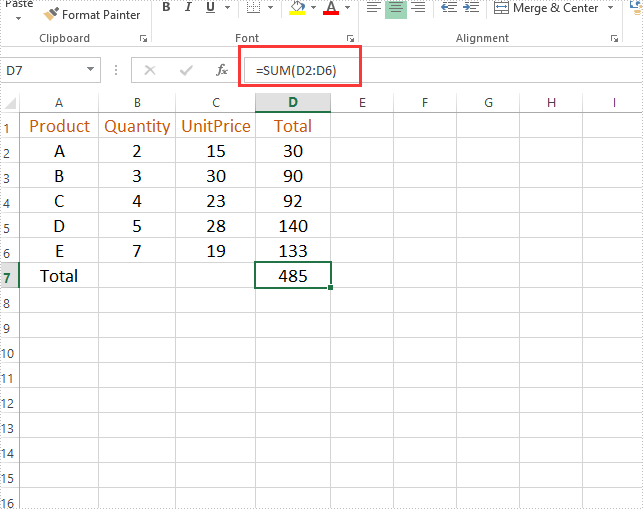
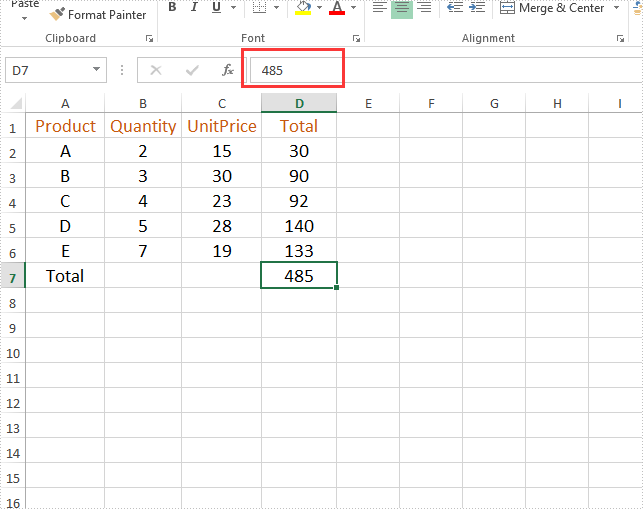
Java remove the formulas but keep the values on Excel worksheet
2021-02-20 05:39:06 Written by AdministratorThis article will demonstrate how to use Spire.XLS for Java to remove the formulas but keep the values on the Excel worksheet.
Firstly, view the original Excel:
String inputFile = "Sample.xlsx";
String outputFile="output/removeFormulasButKeepValues_result.xlsx";
//Create a workbook.
Workbook workbook = new Workbook();
//Load the file from disk.
workbook.loadFromFile(inputFile);
//Loop through worksheets.
for (Worksheet sheet : (Iterable<? extends Worksheet>) workbook.getWorksheets())
{
    //Loop through cells.
    for (CellRange cell : (Iterable<? extends CellRange>) sheet.getRange())
    {
        //If the cell contains formula, get the formula value, clear cell content, and then fill the formula value into the cell.
        if (cell.hasFormula())
        {
            Object value = cell.getFormulaValue();
            cell.clear(ExcelClearOptions.ClearContent);
            cell.setValue(value.toString());
        }
    }
}
//Save to file
workbook.saveToFile(outputFile, ExcelVersion.Version2013);
Output:
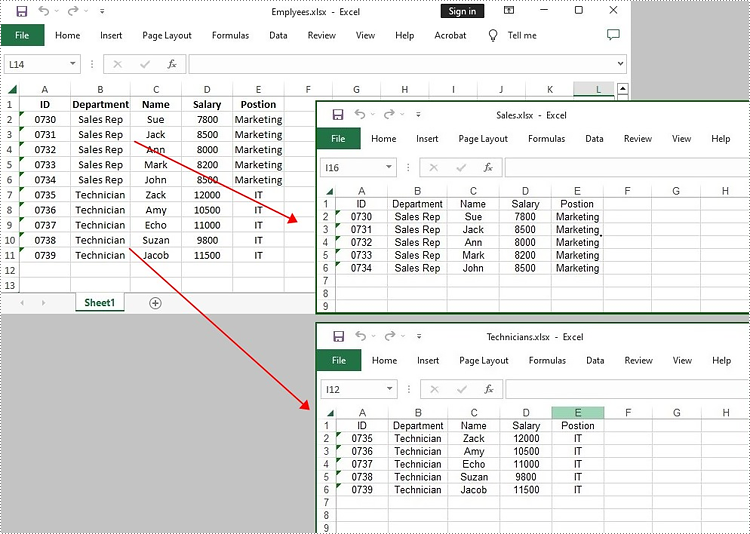
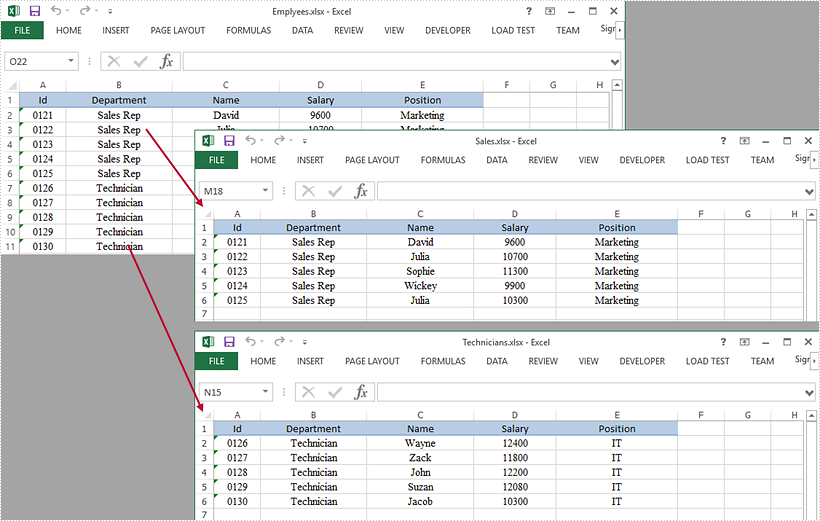
Splitting a worksheet can be beneficial when you have a large amount of data and want to organize it into separate files for easier management and sharing. By using this approach, you can organize and distribute your data in a more organized and structured manner. In this tutorial, we will demonstrate how to split a worksheet into multiple Excel documents by using Spire.XLS for Java.
Install Spire.XLS for Java
First of all, you're required to add the Spire.Xls.jar file as a dependency in your Java program. The JAR file can be downloaded from this link. If you use Maven, you can easily import the JAR file in your application by adding the following code to your project's pom.xml file.
<repositories>
    <repository>
        <id>com.e-iceblue</id>
        <name>e-iceblue</name>
        <url>https://repo.e-iceblue.com/nexus/content/groups/public/</url>
    </repository>
</repositories>
<dependencies>
    <dependency>
        <groupId>e-iceblue</groupId>
        <artifactId>spire.xls</artifactId>
        <version>16.8.4</version>
    </dependency>
</dependencies>
Split a Worksheet into Several Excel Files
Spire.XLS for Java provides powerful features that enable us to achieve this task efficiently. The specific steps are as follows.
- Create a Workbook object.
- Load a sample Excel file using Workbook.loadFromFile() method.
- Get the specific sheet using Workbook.getWorksheets().get() method.
- Get the header row and cell ranges using Worksheet.getCellRange() method.
- Create a new workbook and copy the header row and range 1 to the new workbook using Worksheet.copy(CellRange sourceRange, Worksheet worksheet, int destRow, int destColumn, boolean copyStyle, boolean updateRerence) method.
- Copy the column width from the original workbook to the new workbook using Workbook.getWorksheets().get(0).setColumnWidth() method.
- Save the new workbook to an Excel file using Workbook.saveToFile() method.
- Repeat the above operation to copy the header row and range 2 to another new workbook, and save it to another Excel file.
- Java
import com.spire.xls.CellRange;
        import com.spire.xls.ExcelVersion;
        import com.spire.xls.Workbook;
        import com.spire.xls.Worksheet;

public class SplitWorksheet {

    public static void main(String[] args) {

        //Create a Workbook object to load the original Excel document
        Workbook bookOriginal = new Workbook();
        bookOriginal.loadFromFile("C:\\Users\\Administrator\\Desktop\\Emplyees.xlsx");

        //Get the first worksheet
        Worksheet sheet = bookOriginal.getWorksheets().get(0);

        //Get the header row
        CellRange headerRow = sheet.getCellRange(1, 1, 1, 5);

        //Get two cell ranges
        CellRange range1 = sheet.getCellRange(2, 1, 6, 5);
        CellRange range2 = sheet.getCellRange(7, 1, 11, 5);

        //Create a new workbook
        Workbook newBook1 = new Workbook();

        //Copy the header row and range 1 to the new workbook
        sheet.copy(headerRow, newBook1.getWorksheets().get(0), 1, 1, true, false);
        sheet.copy(range1, newBook1.getWorksheets().get(0), 2, 1, true, false);

        //Copy the column width from the original workbook to the new workbook
        for (int i = 0; i < sheet.getLastColumn(); i++) {
            newBook1.getWorksheets().get(0).setColumnWidth(i + 1, sheet.getColumnWidth(i + 1));
        }

        //Save the new workbook to an Excel file
        newBook1.saveToFile("Sales.xlsx", ExcelVersion.Version2016);

        //Create another new workbook
        Workbook newBook2 = new Workbook();

        //Copy the header row and range 2 to the new workbook
        sheet.copy(headerRow, newBook2.getWorksheets().get(0), 1, 1, true, false);
        sheet.copy(range2, newBook2.getWorksheets().get(0), 2, 1, true, false);

        //Copy the column width from the original workbook to another new workbook
        for (int i = 0; i < sheet.getLastColumn(); i++) {
            newBook2.getWorksheets().get(0).setColumnWidth(i + 1, sheet.getColumnWidth(i + 1));
        }

        //Save it to another new Excel file
        newBook2.saveToFile("Technicians.xlsx", ExcelVersion.Version2016);
    }
}
Apply for a Temporary License
If you'd like to remove the evaluation message from the generated documents, or to get rid of the function limitations, please request a 30-day trial license for yourself.
This article demonstrates how to split a worksheet into several Excel documents by using Spire.XLS for Java.
import com.spire.xls.CellRange;
import com.spire.xls.ExcelVersion;
import com.spire.xls.Workbook;
import com.spire.xls.Worksheet;

public class SplitWorksheet {

    public static void main(String[] args) {

        //Create a Workbook object to load the original Excel document
        Workbook bookOriginal = new Workbook();
        bookOriginal.loadFromFile("C:\\Users\\Administrator\\Desktop\\Emplyees.xlsx");

        //Get the first worksheet
        Worksheet sheet = bookOriginal.getWorksheets().get(0);

        //Get the header row
        CellRange headerRow = sheet.getCellRange(1, 1, 1, 5);

        //Get two cell ranges
        CellRange range1 = sheet.getCellRange(2, 1, 6, 5);
        CellRange range2 = sheet.getCellRange(7, 1, 11, 5);

        //Create a new workbook
        Workbook newBook1 = new Workbook();

        //Copy the header row and range 1 to the new workbook
        sheet.copy(headerRow, newBook1.getWorksheets().get(0), 1, 1, true, false);
        sheet.copy(range1, newBook1.getWorksheets().get(0), 2, 1, true, false);

        //Copy the column width from the original workbook to the new workbook
        for (int i = 0; i < sheet.getLastColumn(); i++) {

            newBook1.getWorksheets().get(0).setColumnWidth(i + 1, sheet.getColumnWidth(i + 1));
        }

        //Save the new workbook to an Excel file
        newBook1.saveToFile("Sales.xlsx", ExcelVersion.Version2016);

        //Copy the header row and range 2 to another workbook, and save it to another Excel file
        Workbook newBook2 = new Workbook();
        sheet.copy(headerRow, newBook2.getWorksheets().get(0), 1, 1, true, false);
        sheet.copy(range2, newBook2.getWorksheets().get(0), 2, 1, true, false);
        for (int i = 0; i < sheet.getLastColumn(); i++) {

            newBook2.getWorksheets().get(0).setColumnWidth(i + 1, sheet.getColumnWidth(i + 1));
        }
        newBook2.saveToFile("Technicians.xlsx", ExcelVersion.Version2016);
    }
}
Add Trendline to Chart and Read Trendline Equation in Excel in Java
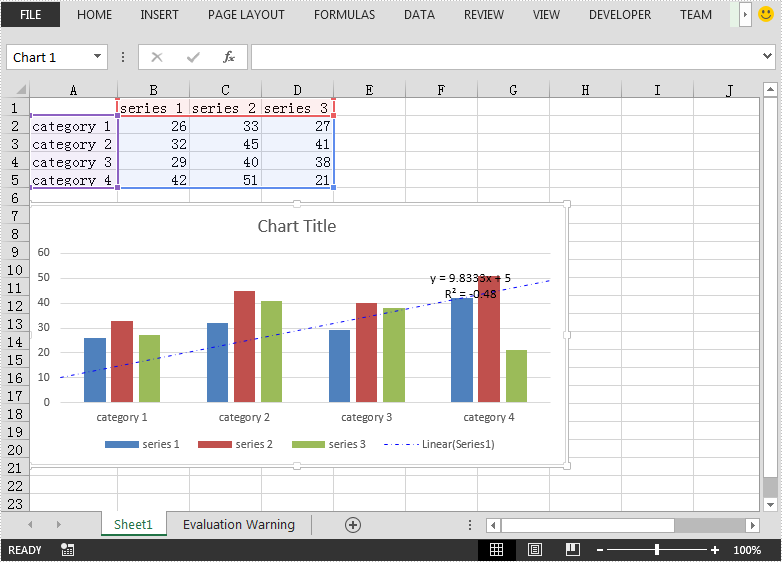
2020-11-17 08:12:33 Written by KoohjiThis article demonstrates how to add Trendline to an Excel chart and read the equation of the Trendline using Spire.XLS for Java.
Add Trendline
import com.spire.xls.*;
import com.spire.xls.core.IChartTrendLine;

import java.awt.*;

public class AddTrendline {
    public static void main(String[] args){
        //Create a Workbook instance
        Workbook workbook = new Workbook();
        //Load the Excel file
        workbook.loadFromFile("test.xlsx");

        //Get the first chart in the first worksheet
        Chart chart = workbook.getWorksheets().get(0).getCharts().get(0);

        //Add a Trendline to the first series of the chart
        IChartTrendLine trendLine = chart.getSeries().get(0).getTrendLines().add(TrendLineType.Linear);

        //Set Trendline name
        trendLine.setName("Linear(Series1)");
        //Set line type and color
        trendLine.getBorder().setPattern(ChartLinePatternType.DashDot);
        trendLine.getBorder().setColor(Color.blue);
        //Set forward and backward value
        trendLine.setForward(0.5);
        trendLine.setBackward(0.5);
        //Set intercept value
        trendLine.setIntercept(5);

        //Display equation on chart
        trendLine.setDisplayEquation(true);
        //Display R-Squared value on chart
        trendLine.setDisplayRSquared(true);

        //Save the result file
        workbook.saveToFile("AddTrendline.xlsx", ExcelVersion.Version2013);
    }
}
Read Trendline equation
import com.spire.xls.Chart;
import com.spire.xls.Workbook;
import com.spire.xls.core.IChartTrendLine;

public class ReadEquationOfTrendline {
    public static void main(String[] args){
        //Create a Workbook instance
        Workbook workbook = new Workbook();
        //Load the Excel file
        workbook.loadFromFile("AddTrendline.xlsx");

        //Get the first chart in the first worksheet
        Chart chart = workbook.getWorksheets().get(0).getCharts().get(0);

        //Read the equation of the first series of the chart
        IChartTrendLine trendLine = chart.getSeries().get(0).getTrendLines().get(0);
        String equation = trendLine.getFormula();
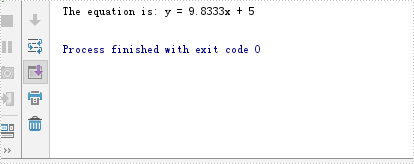
        System.out.println("The equation is: " + equation);
    }
}
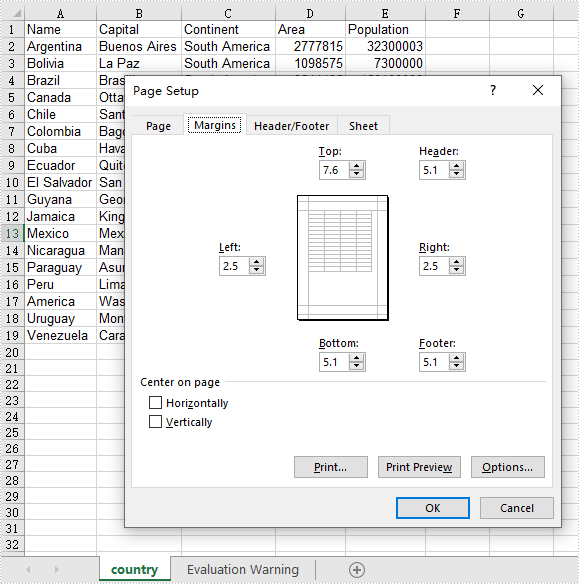
This article demonstrates how to set Excel page margins before printing the Excel worksheets in Java applications. By using Spire.XLS for Java, we could set top margin, bottom margin, left margin, right margin, header margin, and footer margin. Please note that the unit for margin is inch on Spire.XLS for Java while On Microsoft Excel, it is cm (1 inch=2.54 cm).
import com.spire.xls.*;

public class setMargins {
    public static void main(String[] args) {

        String outputFile="output/setMarginsOfExcel.xlsx";

        //Load the sample document from file
        Workbook workbook = new Workbook();
        workbook.loadFromFile("Sample.xlsx");

        //Get the first worksheet.
        Worksheet sheet = workbook.getWorksheets().get(0);

        //Get the PageSetup object of the first worksheet.
        PageSetup pageSetup = sheet.getPageSetup();

        //Set the page margins of bottom, left, right and top.
        pageSetup.setBottomMargin(2);
        pageSetup.setLeftMargin(1);
        pageSetup.setRightMargin(1);
        pageSetup.setTopMargin(3);

        //Set the margins of header and footer.
        pageSetup.setHeaderMarginInch(2);
        pageSetup.setFooterMarginInch(2);

        //Save to file.
        workbook.saveToFile(outputFile, ExcelVersion.Version2013);

    }
}
Output:
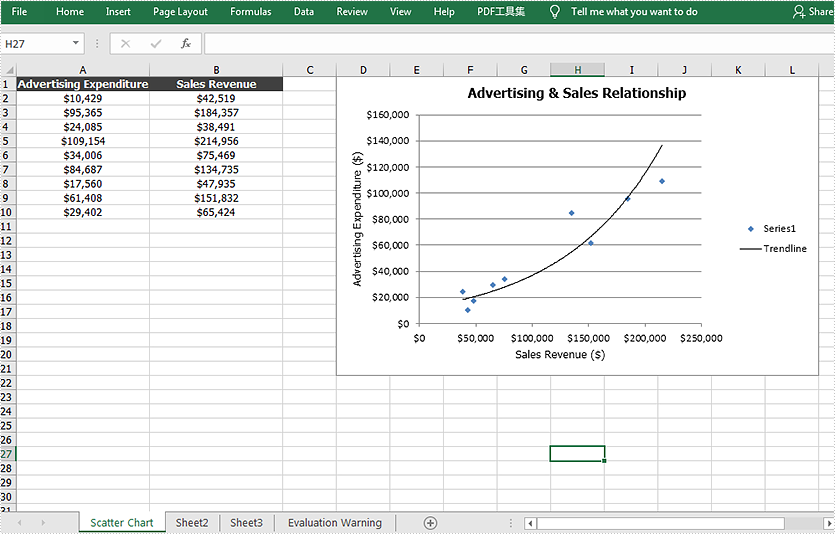
This article demonstrates how to create a scatter chart and add a trendline to it in an Excel document by using Spire.XLS for Java.
import com.spire.xls.*;
import com.spire.xls.core.IChartTrendLine;

import java.awt.*;

public class ScatterChart {
    public static void main(String[] args) {

        //Create a a Workbook object and get the first worksheet
        Workbook workbook = new Workbook();
        Worksheet sheet = workbook.getWorksheets().get(0);

        //Rename the first worksheet and set the column width
        sheet.getCellRange("A1:B1").setColumnWidth(22f);;
        sheet.setName("Scatter Chart");

        //Insert data
        sheet.getCellRange("A1").setValue("Advertising Expenditure");
        sheet.getCellRange("A2").setValue("10429");
        sheet.getCellRange("A3").setValue("95365");
        sheet.getCellRange("A4").setValue("24085");
        sheet.getCellRange("A5").setValue("109154");
        sheet.getCellRange("A6").setValue("34006");
        sheet.getCellRange("A7").setValue("84687");
        sheet.getCellRange("A8").setValue("17560");
        sheet.getCellRange("A9").setValue ("61408");
        sheet.getCellRange("A10").setValue ("29402");

        sheet.getCellRange("B1").setValue("Sales Revenue");
        sheet.getCellRange("B2").setValue ("42519");
        sheet.getCellRange("B3").setValue("184357");
        sheet.getCellRange("B4").setValue ("38491");
        sheet.getCellRange("B5").setValue ("214956");
        sheet.getCellRange("B6").setValue ("75469");
        sheet.getCellRange("B7").setValue ("134735");
        sheet.getCellRange("B8").setValue("47935");
        sheet.getCellRange("B9").setValue ("151832");
        sheet.getCellRange("B10").setValue ("65424");

        //Set cell style
        sheet.getCellRange("A1:B1").getStyle().getFont().isBold(true);
        sheet.getCellRange("A1:B1").getStyle().setColor(Color.darkGray);
        sheet.getCellRange("A1:B1").getCellStyle().getExcelFont().setColor(Color.white);
        sheet.getCellRange("A1:B10").getStyle().setHorizontalAlignment(HorizontalAlignType.Center);
        sheet.getCellRange("A2:B10").getCellStyle().setNumberFormat("\"$\"#,##0") ;


        //Create a scatter chart and set its data range
        Chart chart = sheet.getCharts().add(ExcelChartType.ScatterMarkers);
        chart.setDataRange(sheet.getCellRange("B2:B10"));
        chart.setSeriesDataFromRange(false);

        //Set position of the chart.
        chart.setLeftColumn(4);
        chart.setTopRow(1);
        chart.setRightColumn(13);
        chart.setBottomRow(22);

        //Set chart title and series data label
        chart.setChartTitle("Advertising & Sales Relationship");
        chart.getChartTitleArea().isBold(true);
        chart.getChartTitleArea().setSize(12);
        chart.getSeries().get(0).setCategoryLabels(sheet.getCellRange("B2:B10"));
        chart.getSeries().get(0).setValues(sheet.getCellRange("A2:A10"));

        //Add a trendline
        IChartTrendLine trendLine = chart.getSeries().get(0).getTrendLines().add(TrendLineType.Exponential);
        trendLine.setName("Trendline");

        //Set title of  the x and y axis
        chart.getPrimaryValueAxis().setTitle("Advertising Expenditure ($)");
        chart.getPrimaryCategoryAxis().setTitle("Sales Revenue ($)");

        //Save the document
        workbook.saveToFile("ScatterChart.xlsx",ExcelVersion.Version2010);
        workbook.dispose();
    }
}
When manipulating Excel data, the "Text to Columns" feature in MS Excel is a handy tool that allows users to separate text in a single cell into multiple columns. This functionality is extremely useful when dealing with data that imported in a less structured format. For Java developers, being able to replicate this operation programmatically can significantly enhance the automation of data processing tasks involving Excel spreadsheets.
This guide will walk you through how to utilize the Spire.XLS for Java library to split text into multiple columns in Excel in Java.
- Java Library for Working with Excel
- Step-by-Step Guide to Splitting Excel Text to Columns
- Handling Different Delimiters
Java Library for Working with Excel
The Spire.XLS for Java library is a practical solution for reading, writing and converting Excel XLS or XLSX files in Java. To start using it, you need to add the appropriate dependency. There are two common ways to import:
Method 1: Install via Maven
If you are using Maven, add the following to your pom.xml file:
<repositories>
    <repository>
        <id>com.e-iceblue</id>
        <name>e-iceblue</name>
        <url>https://repo.e-iceblue.com/nexus/content/groups/public/</url>
    </repository>
</repositories>
<dependencies>
    <dependency>
        <groupId>e-iceblue</groupId>
        <artifactId>spire.xls</artifactId>
        <version>16.8.4</version>
    </dependency>
</dependencies>
Method 2: Manual Installation
- Download Spire.XLS for Java package through the official website.
- Unzip it to get the Spire.Xls.jar file and then add the JAR file to your project.
Step-by-Step Guide to Splitting Excel Text to Columns
- Load Excel File and Access a Worksheet
Use the Workbook.loadFromFile() method to load the input Excel file, and then access the specific worksheet in it.
- Access Cells and Get Cell Data
Iterate through each row in the sheet. Access a specified cell and then get its text through the CellRange.getText() method.
- Split Text in Excel Cells
Use the String.split(String regex) method to split the cell text based on the specified delimiter (e.g., ",").
- Write the Split Text to Columns
Iterate through each split data and then write it into different columns.
- Save the Modified Excel File
Use the Workbook.saveToFile() method to save the modified Excel file.
Sample Java Code:
- Java
import com.spire.xls.*;

public class splitDataIntoMultipleColumns {
    public static void main(String[] args) {

        // Create a Workbook object
        Workbook workbook = new Workbook();

        // Load an Excel file
        workbook.loadFromFile("Data.xlsx");

        // Get the first worksheet
        Worksheet sheet = workbook.getWorksheets().get(0);

        // Iterate through each row in the worksheet
        for (int i = 0; i < sheet.getLastRow(); i++)
        {
            // Get the text of the first cell in the current row
            String text = sheet.getRange().get(i + 1, 1).getText();

            // Split the text by comma
            String[] splitText = text.split(",");

            // Iterate through each split data
            for (int j = 0; j < splitText.length; j++)
            {
                // Write the split data to different columns
                sheet.getRange().get(i + 1, j + 3).setText(splitText[j]);
            }
        }

        // Autofit column widths
        sheet.getAllocatedRange().autoFitColumns();

        // Save the result file
        workbook.saveToFile("SplitExcelData.xlsx", ExcelVersion.Version2016);
    }
}
Result File:
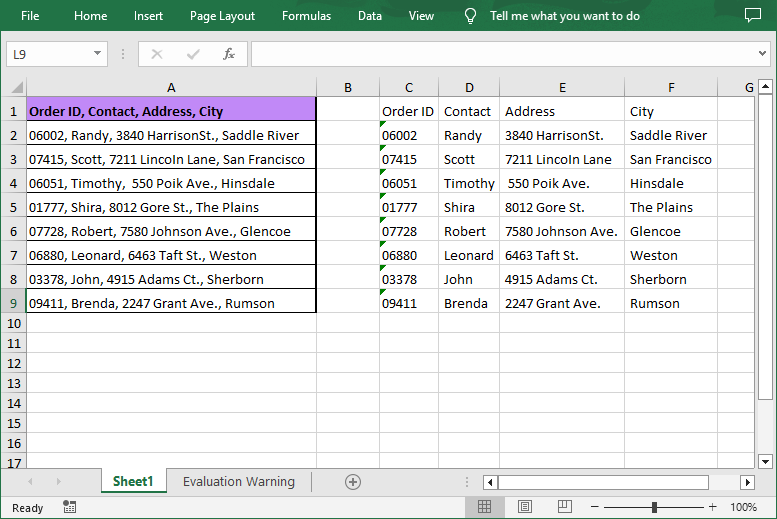
Handling Different Delimiters
To split text by other delimiters such as spaces, semicolons, or tabs, modify the regex in the split() method. Examples:
- Spaces: String.split(" ")
- Semicolons: String.split(";")
- Tabs: String.split("\t")
Conclusion
Splitting text into columns in Excel using Java is effortless with Spire.XLS for Java API. By automating this task, you can enhance productivity and ensure data consistency. Whether you’re processing user inputs, logs, or reports, this approach adapts to various delimiters and use cases.
Get a Free License
To fully experience the capabilities of Spire.XLS for Java without any evaluation limitations, you can request a free 30-day trial license.
