Merging Word documents is a common requirement in web applications — combining multiple contract attachments into a single document, appending supplementary content at the end of a report, or merging multi-chapter documents for output. Spire.Doc for JavaScript handles document merging entirely in the browser via WebAssembly, using a virtual file system (VFS) to manage input and output files — no backend server required.
This article covers two core features:
For installation and project setup, refer to Integrating Spire.Doc for JavaScript in a React Project. The examples below assume Spire.Doc is installed and the WebAssembly module is initialized.
Merge by Section
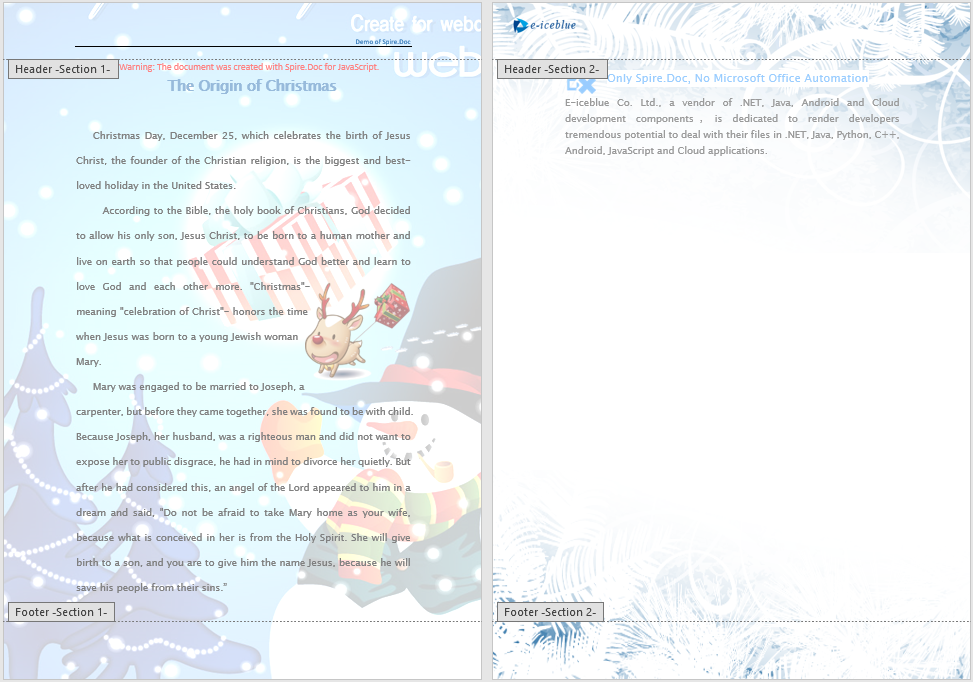
Merging by section follows a three-stage process: first, load font files and both Word documents into the WASM virtual file system via FetchFileToVFS; then instantiate Document to load the target and source documents, iterate through all sections of the source document, and clone each section to the target document using Sections.Add(section.Clone()); finally, read the merged file from VFS, wrap it as a Blob, and trigger a browser download. This approach preserves each section's independent structure — every section starts on a new page in the merged document.
function App() {
  const mergeBySection = async () => {
    // Get the Spire.Doc WASM module
    const docModule = window.wasmModule?.spiredoc;

    // Check if the module is ready
    if (!docModule) {
      alert('Spire.Doc is not ready yet');
      return;
    }

    const inputFileName1 = 'Template_Docx_1.docx';
    await window.spire.FetchFileToVFS(inputFileName1, '', `${process.env.PUBLIC_URL}data/`);
    const inputFileName2 = 'Template_Docx_2.docx';
    await window.spire.FetchFileToVFS(inputFileName2, '', `${process.env.PUBLIC_URL}data/`);

    // Load the target document
    const TarDoc = new docModule.Document();
    TarDoc.LoadFromFile(inputFileName1);

    // Load the source document
    const SouDoc = new docModule.Document();
    SouDoc.LoadFromFile(inputFileName2);

    // Clone all sections from the source document and append them to the target
    for (let i = 0; i < SouDoc.Sections.Count; i++) {
      let section = SouDoc.Sections.get_Item(i);
      TarDoc.Sections.Add(section.Clone());
    }

    // Define the output file name
    const outputFileName = 'MergeBySection_out.docx';

    // Save the merged document
    TarDoc.SaveToFile({ fileName: outputFileName, fileFormat: docModule.FileFormat.Docx2013 });

    // Read the merged file from VFS and trigger download
    const modifiedFileArray = window.dotnetRuntime.Module.FS.readFile(outputFileName);
    const blob = new Blob([modifiedFileArray], { type: 'application/vnd.openxmlformats-officedocument.wordprocessingml.document' });
    const url = URL.createObjectURL(blob);
    const a = document.createElement('a');
    a.href = url;
    a.download = outputFileName;
    a.click();
    URL.revokeObjectURL(url);

    // Release resources
    TarDoc.Dispose();
    SouDoc.Dispose();
  };

  return (
    <div style={{ textAlign: 'center', height: '300px' }}>
      <h1>Merge Word By Section</h1>
      <button onClick={mergeBySection}>
        Generate
      </button>
    </div>
  );
}

export default App;
Each section from the source document appears as an independent page in the merged document after section-by-section merging
Merge on Same Page
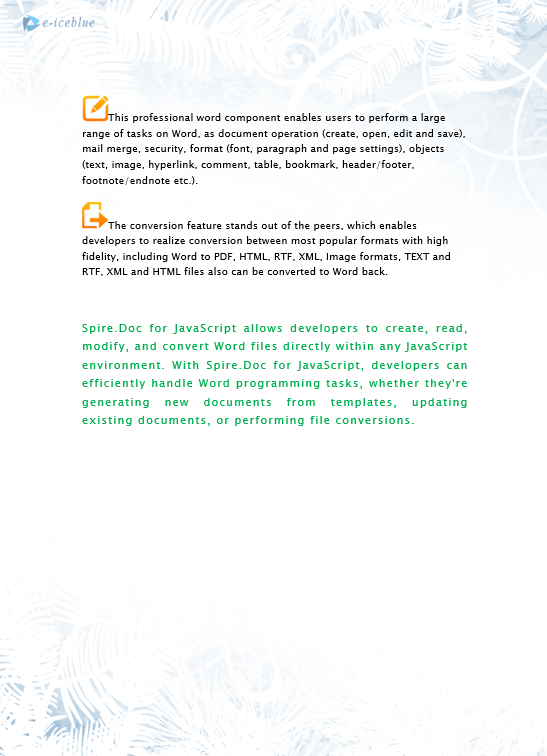
Unlike section-by-section merging, same-page merging does not create new sections from the source document. Instead, it clones individual document elements — paragraphs, tables, images, and other content — from the source and appends them to the same section of the target document. The process also has three stages: first, load font files and both Word documents into the WASM virtual file system via FetchFileToVFS; then load the target and source documents, iterate through Body.ChildObjects under each section of the source, and append each element to the target document's first section using ChildObjects.Add(obj.Clone()); finally, read the merged file from VFS, wrap it as a Blob, and trigger a browser download. This approach keeps content flowing continuously on the same page without introducing section breaks.
function App() {
  const mergeOnSamePage = async () => {
    // Get the Spire.Doc WASM module
    const docModule = window.wasmModule?.spiredoc;

    // Check if the module is ready
    if (!docModule) {
      alert('Spire.Doc is not ready yet');
      return;
    }

    const inputFileName1 = 'Template_Docx_1.docx';
    await window.spire.FetchFileToVFS(inputFileName1, '', `${process.env.PUBLIC_URL}data/`);
    const inputFileName2 = 'Template_Docx_2.docx';
    await window.spire.FetchFileToVFS(inputFileName2, '', `${process.env.PUBLIC_URL}data/`);

    // Load the target document
    const destinationDocument = new docModule.Document();
    destinationDocument.LoadFromFile(inputFileName1);

    let count = destinationDocument.Sections.Count;

    // Load the source document
    const doc = new docModule.Document();
    doc.LoadFromFile(inputFileName2);

    // Iterate through all content elements in the source document
    // and clone them into the first section of the target document
    for (let i = 0; i < doc.Sections.Count; i++) {
      let section = doc.Sections.get_Item(i);
      for (let j = 0; j < section.Body.ChildObjects.Count; j++) {
        let obj = section.Body.ChildObjects.get_Item(j);
        destinationDocument.Sections.get_Item(count-1).Body.ChildObjects.Add(obj.Clone());
      }
    }

    // Define the output file name
    const outputFileName = 'MergeOnSamePage_out.docx';

    // Save the merged document
    destinationDocument.SaveToFile({ fileName: outputFileName, fileFormat: docModule.FileFormat.Docx2013 });

    // Read the merged file from VFS and trigger download
    const modifiedFileArray = window.dotnetRuntime.Module.FS.readFile(outputFileName);
    const blob = new Blob([modifiedFileArray], { type: 'application/vnd.openxmlformats-officedocument.wordprocessingml.document' });
    const url = URL.createObjectURL(blob);
    const a = document.createElement('a');
    a.href = url;
    a.download = outputFileName;
    a.click();
    URL.revokeObjectURL(url);

    // Release resources
    destinationDocument.Dispose();
    doc.Dispose();
  };

  return (
    <div style={{ textAlign: 'center', height: '300px' }}>
      <h1>Merge On Same Page</h1>
      <button onClick={mergeOnSamePage}>
        Generate
      </button>
    </div>
  );
}

export default App;
Source content is appended continuously to the same section of the target document without page breaks after same-page merging
FAQ
Formatting issues after merging
Cause: Style definitions (fonts, sizes, paragraph styles) differ between the source and target documents, causing style conflicts after merging. When merging by section, each section retains its own style settings, but cross-section style references may be lost.
Solution: Preserve the source document's original formatting by setting KeepSameFormat before merging:
srcDoc.KeepSameFormat = true;
Merged document cannot be opened
Cause: The MIME type or file extension of the output file is incorrect, preventing the browser or Word from properly identifying the file format. Alternatively, resources may not have been released correctly after saving, leaving VFS file handles open.
Solution: Use the correct DOCX MIME type:
const blob = new Blob([data], {
  type: 'application/vnd.openxmlformats-officedocument.wordprocessingml.document'
});
Also ensure that Dispose() is called on each Document object after every merge operation to avoid WASM memory leaks.
Get a Free License
Spire.Doc for JavaScript offers a 30-day full-featured free trial license with no functional limitations. If you would like to remove the evaluation message from the output document, contact sales to apply for a temporary license.
