Comments are an indispensable feature in Word document collaboration, widely used for review, proofreading, and team discussion scenarios. Spire.Doc for JavaScript runs entirely in the browser via WebAssembly, using a virtual file system (VFS) to manage document files — no backend server or Microsoft Word installation required.
This article covers three core features:
For installation and project setup, refer to Integrating Spire.Doc for JavaScript in a React Project. The examples below assume Spire.Doc is installed and the WebAssembly module is initialized.
Add a Comment to Specific Text
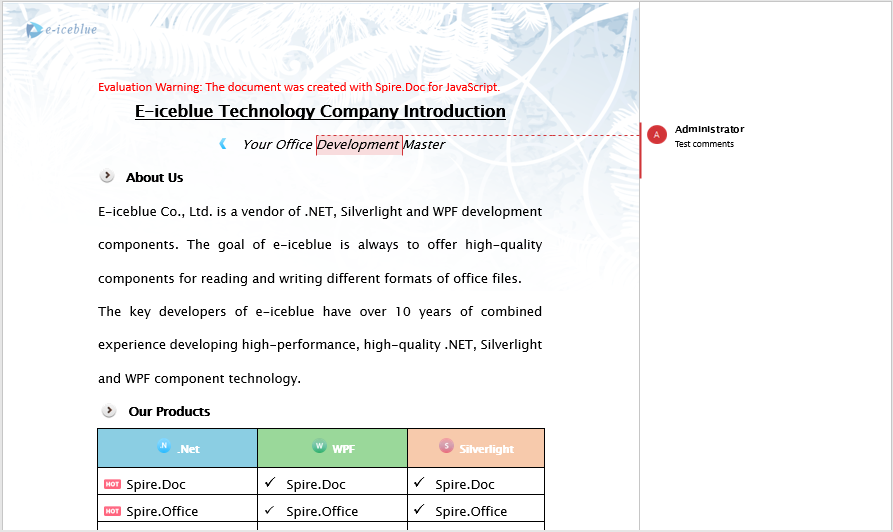
In real-world document review scenarios, we often need to add comments to a specific piece of text. The approach is: first, use the FindString method to locate the target text; then insert CommentMarkStart and CommentMarkEnd markers before and after the text; finally, add the Comment object to the paragraph, associating the comment with the specified text.
function App() {
  const AddCommentForSpecificText = async () => {
    // Get the Spire.Doc WASM module
    const docModule = window.wasmModule?.spiredoc;

    // Check if the module is ready
    if (!docModule) {
      alert('Spire.Doc is not ready yet');
      return;
    }

    // Load the target Word document into VFS
    const inputFileName = "CommentTemplate.docx";
    await window.spire.FetchFileToVFS(inputFileName, '', `${process.env.PUBLIC_URL}/data/`);

    // Create a Document instance and load the file
    let doc = new docModule.Document();
    doc.LoadFromFile(inputFileName);

    // Call the custom function to add a comment to the specified text
    InsertComments(doc, "Development", docModule);

    // Save the document
    const outputFileName = "AddCommentForSpecificText.docx";
    doc.SaveToFile({ fileName: outputFileName, fileFormat: docModule.FileFormat.Docx2013 });

    const modifiedFileArray = window.dotnetRuntime.Module.FS.readFile(outputFileName);
    const blob = new Blob([modifiedFileArray], { type: 'application/vnd.openxmlformats-officedocument.wordprocessingml.document' });

    // Release resources
    doc.Dispose();

    const url = URL.createObjectURL(blob);
    const a = document.createElement('a');
    a.href = url;
    a.download = outputFileName;
    a.click();
    URL.revokeObjectURL(url);
  };

  // Custom function: add a comment for the specified keyword
  function InsertComments(doc, keystring, wasmModule) {
      // Find the target string in the document
      let find = doc.FindString(keystring, false, true);

      // Create comment start and end markers
      let commentMarkStart = new wasmModule.CommentMark(doc, 1, wasmModule.CommentMarkType.CommentStart);
      let commentMarkEnd = new wasmModule.CommentMark(doc, 1, wasmModule.CommentMarkType.CommentEnd);

      // Create a comment object, set content and author
      let comment = new wasmModule.Comment(doc);
      comment.Body.AddParagraph().Text = "Test comments";
      comment.Format.Author = "Administrator";

      // Get the found text range and its containing paragraph
      let range = find.GetAsOneRange();
      let para = range.OwnerParagraph;

      // Get the index of the text range within the paragraph
      let index = para.ChildObjects.IndexOf(range);

      // Add the comment to the paragraph
      para.ChildObjects.Add(comment);

      // Insert comment start and end markers before and after the target text
      para.ChildObjects.Insert(index, commentMarkStart);
      para.ChildObjects.Insert(index + 2, commentMarkEnd);
  }

  return (
      <div style={{ textAlign: 'center', height: '300px' }}>
        <h1>Add Comment for Specific Text</h1>
        <button onClick={AddCommentForSpecificText}>
          Generate
        </button>
      </div>
    );
};

export default App;
With the code above, you can search for a specific keyword in the document, insert comment markers at its position, and accurately associate the comment with the target text.
Extract Comments from a Document
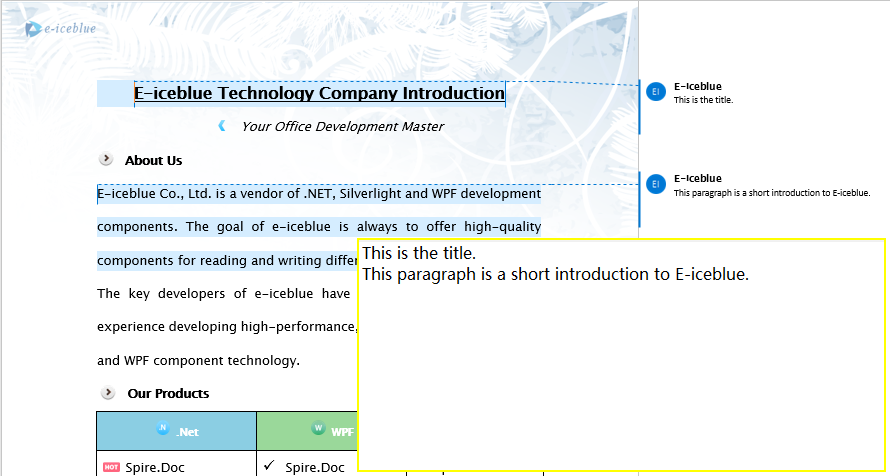
After a document has been reviewed by multiple people, it often contains numerous comments. Extracting these comments in bulk makes it easy to consolidate review feedback or perform further processing. Spire.Doc provides the Comments collection, which we can iterate through to read the text content of each comment and then export it as a text file.
function App() {
  const ExtractComment = async () => {
    // Get the Spire.Doc WASM module
    const docModule = window.wasmModule?.spiredoc;

    // Check if the module is ready
    if (!docModule) {
      alert('Spire.Doc is not ready yet');
      return;
    }

    // Load the target Word document into VFS
    const inputFileName = "CommentSample.docx";
    await window.spire.FetchFileToVFS(inputFileName, '', `${process.env.PUBLIC_URL}/data/`);

    // Create a Document instance and load the file
    let doc = new docModule.Document();
    doc.LoadFromFile(inputFileName);

    // Iterate through all comments and extract text content
    let stringB = [];
    for (let i = 0; i < doc.Comments.Count; i++) {
        let comment = doc.Comments.get_Item(i);
        for (let j = 0; j < comment.Body.Paragraphs.Count; j++) {
            let p = comment.Body.Paragraphs.get_Item(j);
            stringB.push(p.Text + "\n");
        }
    }

    // Save the extracted comment content as a text file
    const outputFileName = 'ExtractComment.txt';

    const blob = new Blob([stringB.toString()], { type: "text/plain;charset=utf-8" });

    // Release resources
    doc.Dispose();

    const url = URL.createObjectURL(blob);
    const a = document.createElement('a');
    a.href = url;
    a.download = outputFileName;
    a.click();
    URL.revokeObjectURL(url);
  };
  return (
      <div style={{ textAlign: 'center', height: '300px' }}>
        <h1>Extract Comments from Document</h1>
        <button onClick={ExtractComment}>
          Generate
        </button>
      </div>
    );
};

export default App;
The doc.Comments collection provides access to all comments in the document, and the text content of each comment is retrieved via comment.Body.Paragraphs. The extracted content can be saved as a plain text file for easy review or import into other systems.
Reply to and Modify Comments
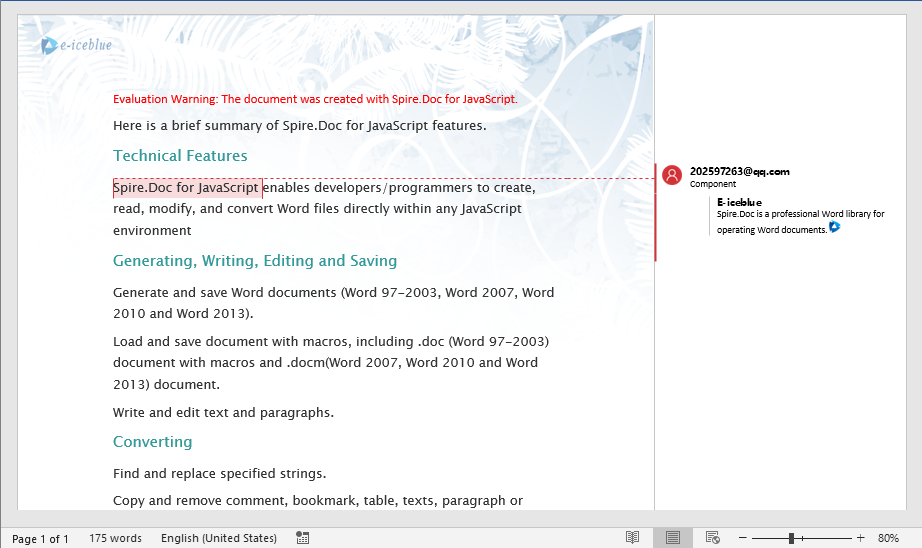
In team collaboration scenarios, replying to existing comments and modifying their content are common needs. Spire.Doc supports adding replies to comments via the ReplyToComment method, as well as modifying comment content or deleting unwanted comments. The following example demonstrates how to get the first comment in a document and add a reply containing an image.
function App() {
  const ReplyToComment = async () => {
    // Get the Spire.Doc WASM module
    const docModule = window.wasmModule?.spiredoc;

    // Check if the module is ready
    if (!docModule) {
      alert('Spire.Doc is not ready yet');
      return;
    }

    // Load the target document and image into VFS
    const inputFileName = "Comment.docx";
    await window.spire.FetchFileToVFS(inputFileName, '', `${process.env.PUBLIC_URL}/data/`);

    const imageFile = "logo.png";
    await window.spire.FetchFileToVFS(imageFile, '', `${process.env.PUBLIC_URL}/data/`);

    // Create a Document instance and load the file
    let doc = new docModule.Document();
    doc.LoadFromFile(inputFileName);

    // Get the first comment in the document
    let comment1 = doc.Comments.get_Item(0);

    // Create a reply comment, set author and content
    let replyComment1 = new docModule.Comment(doc);
    replyComment1.Format.Author = "E-iceblue";
    replyComment1.Body.AddParagraph().AppendText("Spire.Doc is a professional Word library for operating Word documents.");

    // Add the reply comment to the original comment
    comment1.ReplyToComment(replyComment1);

    // Load the image and insert it into the reply comment
    let docPicture = new docModule.DocPicture(doc);
    docPicture.LoadImage(imageFile);
    replyComment1.Body.Paragraphs.get_Item(0).ChildObjects.Add(docPicture);

    // Save the document
    const outputFileName = "ReplyToComment.docx";
    doc.SaveToFile({ fileName: outputFileName, fileFormat: docModule.FileFormat.Docx });

    const modifiedFileArray = window.dotnetRuntime.Module.FS.readFile(outputFileName);
    const blob = new Blob([modifiedFileArray], { type: 'application/vnd.openxmlformats-officedocument.wordprocessingml.document' });

    // Release resources
    doc.Dispose();

    const url = URL.createObjectURL(blob);
    const a = document.createElement('a');
    a.href = url;
    a.download = outputFileName;
    a.click();
    URL.revokeObjectURL(url);
  };
  return (
      <div style={{ textAlign: 'center', height: '300px' }}>
        <h1>Reply to Comment</h1>
        <button onClick={ReplyToComment}>
          Generate
        </button>
      </div>
    );
};

export default App;
In addition to replying to comments, you can delete a specific comment using the Comments.RemoveAt(index) method, or modify the text content of a comment using Body.Paragraphs.get_Item(0).Replace(...):
// Modify the content of the first comment
doc.Comments.get_Item(0).Body.Paragraphs.get_Item(0).Replace({ given: "original text", replace: "modified text", caseSensitive: false, wholeWord: false });

// Delete the second comment
doc.Comments.RemoveAt(1);
FAQ
Comments not displaying correctly in Word
Cause: The CommentMarkStart and CommentMarkEnd markers are inserted at incorrect positions, or the Comment object is not properly added to the paragraph. The start marker must be placed before the commented text, the end marker after it, and the Comment object itself must also be added to the same paragraph.
Solution: Ensure the correct sequence — first get the index of the target text, then insert CommentMarkStart, add the Comment to the paragraph, and finally insert CommentMarkEnd after the text.
Empty output when extracting comments
Cause: The document may contain no comments, or the comment content is stored in a nested structure. Additionally, if the document is loaded from an incorrect path or the file is not successfully loaded into VFS, comments cannot be read.
Solution: Check doc.Comments.Count before extraction to confirm it is greater than 0. Also ensure the document file is properly loaded via FetchFileToVFS:
await window.spire.FetchFileToVFS(
  'CommentSample.docx', '', `${process.env.PUBLIC_URL}/static/data/`
);
Original comment lost after replying
Cause: The ReplyToComment method should be called on the original comment. If the reply comment is mistakenly used as the caller, or the method is called multiple times causing reference confusion, the comment structure may become corrupted.
Solution: Always call ReplyToComment on the existing original comment object in the document, passing the newly created Comment object as the parameter:
// Correct: original comment calls ReplyToComment, new comment as parameter
existingComment.ReplyToComment(replyComment);
Get a Free License
If you want to remove the evaluation message from the result documents or eliminate functional limitations, please contact sales to obtain a 30-day temporary license.
