Word document variables (DocVariable) provide a lightweight field mechanism that lets you define placeholders in a document and dynamically populate or update their content through code. This approach is especially useful for template-based document generation, batch mail merges, and automated report output. Spire.Doc for JavaScript runs entirely in the browser via WebAssembly, using a virtual file system (VFS) to manage input and output files — no backend server required.
This article covers three core features:
For installation and project setup, refer to Integrating Spire.Doc for JavaScript in a React Project. The examples below assume Spire.Doc is installed and the WebAssembly module is initialized.
Add Document Variables
Adding document variables follows three main steps: first, load font files into the WASM virtual file system via FetchFileToVFS; then instantiate a Document, insert a DocVariable field in a paragraph, and assign a value to the variable using Variables.Add; finally, save the document, read the generated file from VFS, wrap it as a Blob, and trigger a browser download.
import React from 'react';

function App() {
  const addVariables = async () => {
    // Get the Spire.Doc WASM module
    const docModule = window.wasmModule?.spiredoc;

    // Check if the module is ready
    if (!docModule) {
      alert('Spire.Doc is not ready yet');
      return;
    }

    // Create a document object
    const doc = new docModule.Document();

    // Add a section
    const section = doc.AddSection();

    // Add a paragraph
    const paragraph = section.AddParagraph();

    // Insert a DocVariable field into the paragraph
    paragraph.AppendField("A1", docModule.FieldType.FieldDocVariable);

    // Assign a value to the variable
    doc.Variables.Add("A1", "12");

    // Update fields to display variable values
    doc.IsUpdateFields = true;

    // Define the output file name
    const outputFileName = "AddVariables_out.docx";

    // Save the document
    doc.SaveToFile({ fileName: outputFileName, fileFormat: docModule.FileFormat.Docx2013 });

    // Release resources
    doc.Dispose();

    const modifiedFileArray = window.dotnetRuntime.Module.FS.readFile(outputFileName);
    const blob = new Blob([modifiedFileArray], { type: 'application/vnd.openxmlformats-officedocument.wordprocessingml.document' });

    const url = URL.createObjectURL(blob);
    const a = document.createElement('a');
    a.href = url;
    a.download = outputFileName;
    a.click();
    URL.revokeObjectURL(url);
  };
  return (
      <div style={{ textAlign: 'center', height: '300px' }}>
        <h1>Add Document Variables</h1>
        <button onClick={addVariables}>
          Generate
        </button>
      </div>
    );
};

export default App;
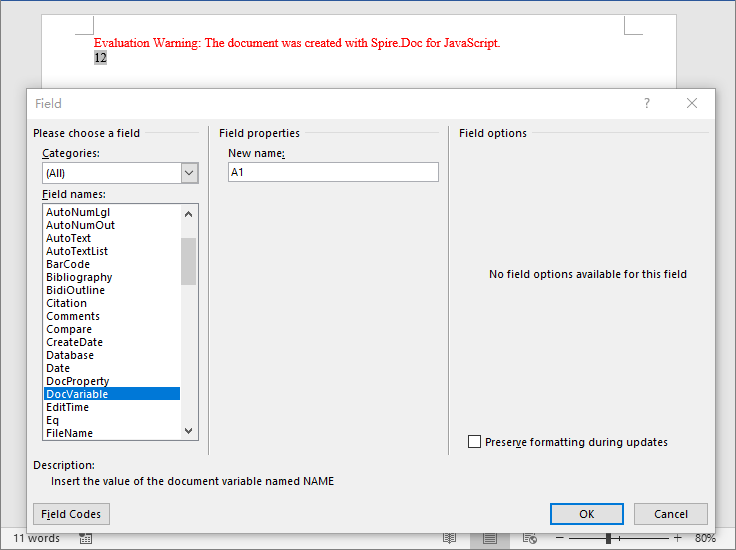
After adding variables via the Variables.Add method, the DocVariable fields in the document are replaced with the corresponding variable values.
Retrieve Document Variables
For Word template documents that already contain variables, you can retrieve variable information by index or by variable name. Spire.Doc provides multiple retrieval methods: getting the variable name and value by index, or getting the value directly by variable name.
import React from 'react';

function App() {
  const retrieveVariables = async () => {
    // Get the Spire.Doc WASM module
    const docModule = window.wasmModule?.spiredoc;

    // Check if the module is ready
    if (!docModule) {
      alert('Spire.Doc is not ready yet');
      return;
    }

    const inputFileName = 'Template_Docx_6.docx';
    await window.spire.FetchFileToVFS(inputFileName, '', `${process.env.PUBLIC_URL}/data/`);

    // Load the document
    const doc = new docModule.Document();
    doc.LoadFromFile(inputFileName);

    // Get variable name and value by index
    const nameByIndex = doc.Variables.GetNameByIndex(0);
    const valueByIndex = doc.Variables.GetValueByIndex(0);

    // Get value directly by variable name
    const valueByName = doc.Variables.get_Item("A1");

    // Iterate through all variables
    let stringBuilder = [];
    stringBuilder.push("This document has following variables:\n");
    for (let i = 0; i < doc.Variables.Count; i++) {
        let name = doc.Variables.GetNameByIndex(i);
        let value = doc.Variables.GetValueByIndex(i);
        stringBuilder.push("Name: " + name + ", " + "Value: " + value + "\n");
    }

    // Write the result to a text file
    const outputFileName = "RetrieveVariables_out.txt";
    window.dotnetRuntime.Module.FS.writeFile(outputFileName, stringBuilder.join(""));

    // Read the file from VFS and trigger download
    const modifiedFileArray = window.dotnetRuntime.Module.FS.readFile(outputFileName);
    const blob = new Blob([modifiedFileArray], { type: 'text/plain' });
    const url = URL.createObjectURL(blob);
    const a = document.createElement('a');
    a.href = url;
    a.download = outputFileName;
    a.click();
    URL.revokeObjectURL(url);
  };

  return (
    <div style={{ textAlign: 'center', height: '300px' }}>
      <h1>Retrieve Document Variables</h1>
      <button onClick={retrieveVariables}>
        Generate
      </button>
    </div>
  );
}

export default App;
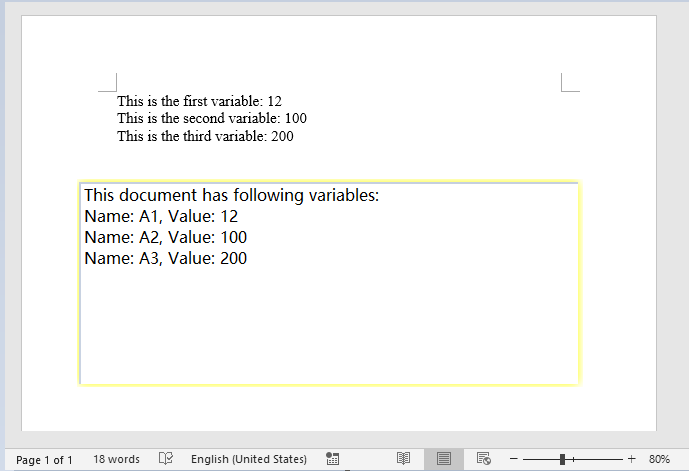
The retrieval result is output as a text file, clearly listing all variable names and their corresponding values in the document.
Remove Document Variables
When a template document contains variables that are no longer needed, you can remove them by name using the Variables.Remove method. After removal, set the IsUpdateFields property to update the fields, ensuring the generated document is clean and free of redundant data.
function App() {
  const removeVariables = async () => {
    // Get the Spire.Doc WASM module
    const docModule = window.wasmModule?.spiredoc;

    // Check if the module is ready
    if (!docModule) {
      alert('Spire.Doc is not ready yet');
      return;
    }
    const inputFileName = 'Template_Docx_6.docx';
    await window.spire.FetchFileToVFS(inputFileName, '', `${process.env.PUBLIC_URL}/data/`);

    // Load the document
    const doc = new docModule.Document();
    doc.LoadFromFile(inputFileName);

    // Remove variable by name
    doc.Variables.Remove("A1");

    let name = doc.Variables.GetNameByIndex(0);
    doc.Variables.Remove(name);

    doc.Variables.Remove(doc.Variables.GetNameByIndex(0));

    doc.IsUpdateFields = true;

    // Define the output file name
    const outputFileName = "RemoveVariables_out.docx";

    // Save the document
    doc.SaveToFile({ fileName: outputFileName, fileFormat: docModule.FileFormat.Docx2013 });

    // Read the file from VFS and trigger download
    const modifiedFileArray = window.dotnetRuntime.Module.FS.readFile(outputFileName);
    const blob = new Blob([modifiedFileArray], { type: 'application/vnd.openxmlformats-officedocument.wordprocessingml.document' });
    const url = URL.createObjectURL(blob);
    const a = document.createElement('a');
    a.href = url;
    a.download = outputFileName;
    a.click();
    URL.revokeObjectURL(url);
  };

  return (
    <div style={{ textAlign: 'center', height: '300px' }}>
      <h1>Remove Document Variables</h1>
      <button onClick={removeVariables}>
        Generate
      </button>
    </div>
  );
}

export default App;
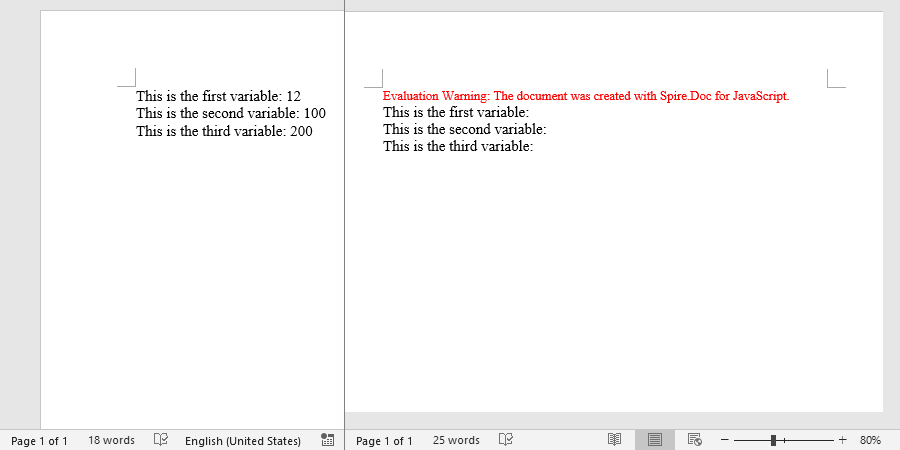
After removing variables, the target variables and their corresponding DocVariable fields are cleared from the generated document, resulting in cleaner content.
FAQ
Field codes still display instead of actual values after adding variables
Cause: After creating a DocVariable field, the document does not automatically update to show the variable value. If the IsUpdateFields property is not set, the field code text remains in the document.
Solution: Set IsUpdateFields to true before saving the document:
document.IsUpdateFields = true;
Getting a variable value by name returns empty
Cause: The variable name passed in does not match the actual variable name in the document (case or spelling mismatch), causing the lookup to fail.
Solution: First iterate through the document.Variables collection using GetNameByIndex to confirm the actual variable names in the document, then retrieve the value by the exact name:
for (let i = 0; i < document.Variables.Count; i++) {
    let name = document.Variables.GetNameByIndex(i);
    let value = document.Variables.GetValueByIndex(i);
    console.log("Name: " + name + ", Value: " + value);
}
Get a Free License
Spire.Doc for JavaScript offers a 30-day full-featured free trial license with no functional limitations. Apply here to evaluate before purchasing.
