Tables are core elements for organizing and presenting data in Word documents, and proper table layout directly impacts readability and professionalism. Spire.Doc for JavaScript runs entirely in the browser via WebAssembly, enabling you to auto-fit tables directly using a virtual file system (VFS) to manage fonts and files — no backend server required.
This article covers three core features:
For installation and project setup, refer to Integrating Spire.Doc for JavaScript in a React Project. The examples below assume Spire.Doc is installed and the WebAssembly module is initialized.
1. AutoFit to Contents
Auto-fitting a table to its contents involves three steps: first, load the font files and the target document into the WASM virtual file system via FetchFileToVFS; then instantiate a Document, load the file, retrieve the target table, and call AutoFit with the AutoFitToContents parameter; finally, save the document, read the generated file from VFS, wrap it as a Blob, and trigger a browser download.
function App() {
  const autoFitToContents = async () => {
    // Get the Spire.Doc WASM module
    const docModule = window.wasmModule?.spiredoc;

    // Check if the module is ready
    if (!docModule) {
      alert('Spire.Doc is not ready yet');
      return;
    }

    // Load fonts and the document file into VFS
    await window.spire.FetchFileToVFS('ARIALUNI.TTF', '/Library/Fonts/', `${process.env.PUBLIC_URL}/font/`);

    const inputFileName = 'TableSample.docx';
    await window.spire.FetchFileToVFS(inputFileName, '', `${process.env.PUBLIC_URL}/data/`);

    // Load the document
    const doc = new docModule.Document();
    doc.LoadFromFile(inputFileName);

    // Get the first table in the first section
    let section = doc.Sections.get_Item(0);
    let table = section.Tables.get_Item(0);

    // Auto-fit column widths based on cell content
    table.AutoFit(docModule.AutoFitBehaviorType.AutoFitToContents);

    // Define the output file name
    const outputFileName = "AutoFitToContents_output.docx";

    // Save the document
    doc.SaveToFile({ fileName: outputFileName, fileFormat: docModule.FileFormat.Docx2013 });

    // Release resources
    doc.Dispose();

    // Read the generated file from VFS and trigger download
    const modifiedFileArray = window.dotnetRuntime.Module.FS.readFile(outputFileName);
    const blob = new Blob([modifiedFileArray], { type: 'application/vnd.openxmlformats-officedocument.wordprocessingml.document' });
    const url = URL.createObjectURL(blob);
    const a = document.createElement('a');
    a.href = url;
    a.download = outputFileName;
    a.click();
    URL.revokeObjectURL(url);
  };

  return (
    <div style={{ textAlign: 'center', height: '300px' }}>
      <h1>AutoFit to Contents</h1>
      <button onClick={autoFitToContents}>
        Generate
      </button>
    </div>
  );
}

export default App;
After applying the AutoFitToContents mode, each column width shrinks to match the actual length of its cell content, resulting in a compact table with no extra whitespace.
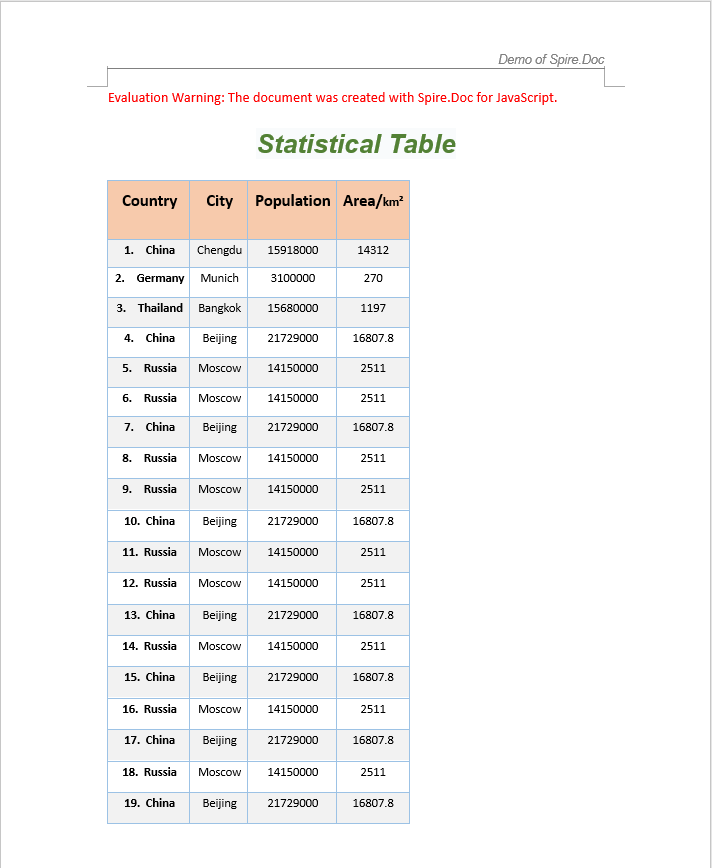
2. AutoFit to Window
Auto-fitting a table to the window allows the table width to adapt to the page width, which is ideal for scenarios where the table should fill the full page width.
function App() {
  const autoFitToWindow = async () => {
    // Get the Spire.Doc WASM module
    const docModule = window.wasmModule?.spiredoc;

    // Check if the module is ready
    if (!docModule) {
      alert('Spire.Doc is not ready yet');
      return;
    }

    // Load fonts and the document file into VFS
    await window.spire.FetchFileToVFS('ARIALUNI.TTF', '/Library/Fonts/', `${process.env.PUBLIC_URL}/font/`);

    const inputFileName = 'TableSample.docx';
    await window.spire.FetchFileToVFS(inputFileName, '', `${process.env.PUBLIC_URL}/data/`);

    // Load the document
    const doc = new docModule.Document();
    doc.LoadFromFile(inputFileName);

    // Get the first table in the first section
    let section = doc.Sections.get_Item(0);
    let table = section.Tables.get_Item(0);

    // Auto-fit the table to the page width
    table.AutoFit(docModule.AutoFitBehaviorType.AutoFitToWindow);

    // Define the output file name
    const outputFileName = "AutoFitToWindow_output.docx";

    // Save the document
    doc.SaveToFile({ fileName: outputFileName, fileFormat: docModule.FileFormat.Docx2013 });

    // Release resources
    doc.Dispose();

    // Read the generated file from VFS and trigger download
    const modifiedFileArray = window.dotnetRuntime.Module.FS.readFile(outputFileName);
    const blob = new Blob([modifiedFileArray], { type: 'application/vnd.openxmlformats-officedocument.wordprocessingml.document' });
    const url = URL.createObjectURL(blob);
    const a = document.createElement('a');
    a.href = url;
    a.download = outputFileName;
    a.click();
    URL.revokeObjectURL(url);
  };

  return (
    <div style={{ textAlign: 'center', height: '300px' }}>
      <h1>AutoFit to Window</h1>
      <button onClick={autoFitToWindow}>
        Generate
      </button>
    </div>
  );
}

export default App;
After applying the AutoFitToWindow mode, the table width expands to match the page width, with columns distributed proportionally.

3. Fixed Column Widths
When a table already has carefully designed column widths that should not change as content is added or removed, you can use the fixed column widths mode to prevent Word from automatically resizing columns.
function App() {
  const fixedColumnWidths = async () => {
    // Get the Spire.Doc WASM module
    const docModule = window.wasmModule?.spiredoc;

    // Check if the module is ready
    if (!docModule) {
      alert('Spire.Doc is not ready yet');
      return;
    }

    // Load fonts and the document file into VFS
    await window.spire.FetchFileToVFS('ARIALUNI.TTF', '/Library/Fonts/', `${process.env.PUBLIC_URL}/font/`);

    const inputFileName = 'TableSample.docx';
    await window.spire.FetchFileToVFS(inputFileName, '', `${process.env.PUBLIC_URL}/data/`);

    // Load the document
    const doc = new docModule.Document();
    doc.LoadFromFile(inputFileName);

    // Get the first table in the first section
    let section = doc.Sections.get_Item(0);
    let table = section.Tables.get_Item(0);

    // Fix column widths to prevent auto-resizing
    table.AutoFit(docModule.AutoFitBehaviorType.FixedColumnWidths);

    // Define the output file name
    const outputFileName = "FixedColumnWidths_output.docx";

    // Save the document
    doc.SaveToFile({ fileName: outputFileName, fileFormat: docModule.FileFormat.Docx2013 });

    // Release resources
    doc.Dispose();

    // Read the generated file from VFS and trigger download
    const modifiedFileArray = window.dotnetRuntime.Module.FS.readFile(outputFileName);
    const blob = new Blob([modifiedFileArray], { type: 'application/vnd.openxmlformats-officedocument.wordprocessingml.document' });
    const url = URL.createObjectURL(blob);
    const a = document.createElement('a');
    a.href = url;
    a.download = outputFileName;
    a.click();
    URL.revokeObjectURL(url);
  };

  return (
    <div style={{ textAlign: 'center', height: '300px' }}>
      <h1>Fixed Column Widths</h1>
      <button onClick={fixedColumnWidths}>
        Generate
      </button>
    </div>
  );
}

export default App;
With fixed column widths enabled, the column sizes remain unchanged regardless of changes to cell content, ensuring consistent layout.

FAQ
AutoFit method does not change the table layout
Cause: The parameter type passed to the AutoFit method is incorrect, or the table is locked and does not allow layout adjustments.
Solution: Ensure you use the correct AutoFitBehaviorType enum value:
// AutoFit to contents
table.AutoFit(docModule.AutoFitBehaviorType.AutoFitToContents);

// AutoFit to window
table.AutoFit(docModule.AutoFitBehaviorType.AutoFitToWindow);

// Fixed column widths
table.AutoFit(docModule.AutoFitBehaviorType.FixedColumnWidths);
Index out of range when accessing a table
Cause: The document does not contain a section or table at the specified index. Indexing starts from 0, but the document may have no corresponding object.
Solution: Check the section and table counts before accessing them:
if (document.Sections.Count > 0 && document.Sections.get_Item(0).Tables.Count > 0) {
  let section = document.Sections.get_Item(0);
  let table = section.Tables.get_Item(0);
  table.AutoFit(docModule.AutoFitBehaviorType.AutoFitToContents);
}
Get a Free License
Spire.Doc for JavaScript offers a 30-day full-featured free trial license with no functional limitations. Apply here to evaluate before purchasing.
