Footnotes are a commonly used annotation tool in Word documents, allowing you to add supplementary explanations or citation references at the bottom of each page. Spire.Doc for JavaScript runs entirely in the browser via WebAssembly, enabling you to insert, format, and remove footnotes directly using a virtual file system (VFS) to manage fonts and files — no backend server required.
This article covers three core features:
For installation and project setup, refer to Integrating Spire.Doc for JavaScript in a React Project. The examples below assume Spire.Doc is installed and the WebAssembly module is initialized.
1. Insert Footnotes
Inserting footnotes is a fundamental operation for adding annotations to a document — ideal for defining specific terms, citing sources, or providing supplementary explanations. Spire.Doc for JavaScript uses the AppendFootnote method to create footnotes and gives developers precise control over three aspects: where the footnote is inserted relative to the target text, the textual content displayed in the footnote body at the bottom of the page, and the visual style of the superscript footnote marker.
function App() {
  const insertFootnote = async () => {
    // Get the Spire.Doc WASM module
    const wasmModule = window.wasmModule?.spiredoc;

    // Check if the module is ready
    if (!wasmModule) {
      alert('Spire.Doc is not ready yet');
      return;
    }

    const inputFileName = 'SampleB_2.docx';
    await window.spire.FetchFileToVFS(inputFileName, '', `${process.env.PUBLIC_URL}/data/`);

    // Load the document
    const doc = new wasmModule.Document();
    doc.LoadFromFile(inputFileName);

    // Find the first matching string in the document
    let selection = doc.FindString("Spire.Doc", false, true);

    // Get the TextRange of the matched text
    let textRange = selection.GetAsOneRange();

    // Get the paragraph that contains the matched text
    let paragraph = textRange.OwnerParagraph;

    // Get the index position of the TextRange in the paragraph
    let index = paragraph.ChildObjects.IndexOf(textRange);

    // Append a footnote to the paragraph
    let footnote = paragraph.AppendFootnote({ type: wasmModule.FootnoteType.Footnote });

    // Insert the footnote after the matched text
    paragraph.ChildObjects.Insert(index + 1, footnote);

    // Add content to the footnote text body
    textRange = footnote.TextBody.AddParagraph().AppendText("Welcome to evaluate Spire.Doc");

    // Set the font format of the footnote content
    textRange.CharacterFormat.FontName = "Arial Black";
    textRange.CharacterFormat.FontSize = 10;
    textRange.CharacterFormat.TextColor = wasmModule.Color.get_DarkGray();

    // Set the format of the footnote marker (superscript number)
    footnote.MarkerCharacterFormat.FontName = "Calibri";
    footnote.MarkerCharacterFormat.FontSize = 12;
    footnote.MarkerCharacterFormat.Bold = true;
    footnote.MarkerCharacterFormat.TextColor = wasmModule.Color.get_DarkGreen();

    // Define the output file name
    const outputFileName = "InsertFootnote.docx";

    // Save the document
    doc.SaveToFile({ fileName: outputFileName, fileFormat: wasmModule.FileFormat.Docx2013 });

    // Release resources
    doc.Dispose();

    // Read the generated file from VFS and trigger download
    const modifiedFileArray = window.dotnetRuntime.Module.FS.readFile(outputFileName);
    const blob = new Blob([modifiedFileArray], { type: 'application/vnd.openxmlformats-officedocument.wordprocessingml.document' });
    const url = URL.createObjectURL(blob);
    const a = document.createElement('a');
    a.href = url;
    a.download = outputFileName;
    a.click();
    URL.revokeObjectURL(url);
  };

  return (
    <div style={{ textAlign: 'center', height: '300px' }}>
      <h1>Insert Footnotes</h1>
      <button onClick={insertFootnote}>
        Generate
      </button>
    </div>
  );
}

export default App;
After inserting a footnote via the AppendFootnote method, the annotation content appears at the bottom of the page, and a superscript footnote marker appears next to the corresponding text in the body.

2. Set Footnote Position and Number Format
By default, Word footnotes use Arabic numerals (1, 2, 3...) and restart at the beginning of each page's bottom area. However, academic papers, technical manuals, and publications with strict formatting guidelines often require different numbering schemes — such as letters or Roman numerals — and may need footnotes to be grouped at the end of each section rather than at the page bottom. Spire.Doc for JavaScript provides the FootnoteOptions object to give developers per-section control over the number format, restart rule, and display position, making it easy to comply with a wide range of typographic standards.
function App() {
  const setFootnoteFormat = async () => {
    // Get the Spire.Doc WASM module
    const wasmModule = window.wasmModule?.spiredoc;

    // Check if the module is ready
    if (!wasmModule) {
      alert('Spire.Doc is not ready yet');
      return;
    }

    // Load fonts and the document file into VFS
    await window.spire.FetchFileToVFS('ARIALUNI.TTF', '/Library/Fonts/', `${process.env.PUBLIC_URL}/font/`);
    const inputFileName = 'Footnote.docx';
    await window.spire.FetchFileToVFS(inputFileName, '', `${process.env.PUBLIC_URL}/data/`);

    // Load the document
    const doc = new wasmModule.Document();
    doc.LoadFromFile(inputFileName);

    // Get the first section
    let sec = doc.Sections.get_Item(0);

    // Set footnote number format to uppercase letters
    sec.FootnoteOptions.NumberFormat = wasmModule.FootnoteNumberFormat.UpperCaseLetter;

    // Set footnote restart rule to restart per page
    sec.FootnoteOptions.RestartRule = wasmModule.FootnoteRestartRule.RestartPage;

    // Set footnote position to the end of the section
    sec.FootnoteOptions.Position = wasmModule.FootnotePosition.PrintAsEndOfSection;

    // Define the output file name
    const outputFileName = "SetPositionAndNumberFormat.docx";

    // Save the document
    doc.SaveToFile({ fileName: outputFileName, fileFormat: wasmModule.FileFormat.Docx2013 });

    // Release resources
    doc.Dispose();

    // Read the generated file from VFS and trigger download
    const modifiedFileArray = window.dotnetRuntime.Module.FS.readFile(outputFileName);
    const blob = new Blob([modifiedFileArray], { type: 'application/vnd.openxmlformats-officedocument.wordprocessingml.document' });
    const url = URL.createObjectURL(blob);
    const a = document.createElement('a');
    a.href = url;
    a.download = outputFileName;
    a.click();
    URL.revokeObjectURL(url);
  };

  return (
    <div style={{ textAlign: 'center', height: '300px' }}>
      <h1>Set Footnote Format</h1>
      <button onClick={setFootnoteFormat}>
        Generate
      </button>
    </div>
  );
}

export default App;
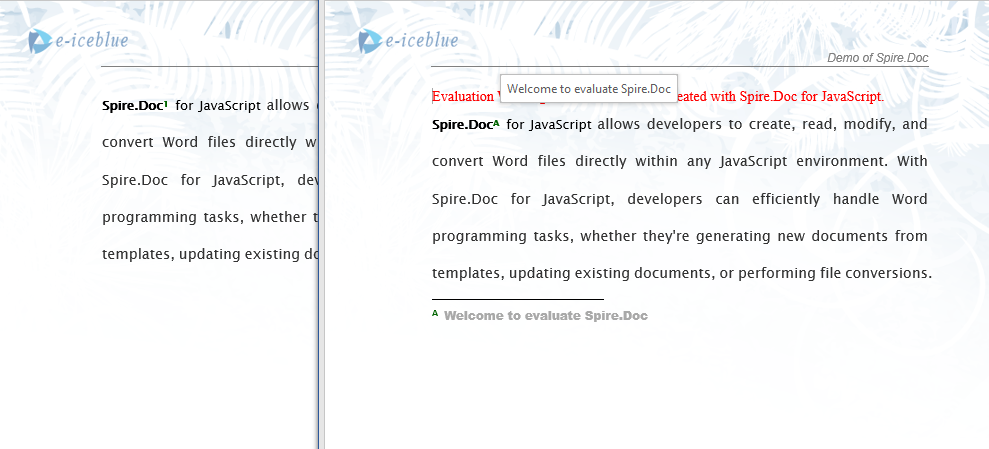
After modifying the number format and position through the FootnoteOptions object, the footnotes in the document are reorganized according to the specified style. For example, setting NumberFormat to UpperCaseLetter (A, B, C...) and Position to PrintAsEndOfSection is well suited for appendices or chapter-based documents where footnotes should appear collectively at each section's end. Setting RestartRule to RestartPage ensures that footnote numbering resets on every page, preventing the counter from growing too large across long documents. Since these settings apply per section, different chapters or sections within the same document can each have their own footnote rules — a valuable feature for multi-chapter or collaborative authoring workflows.
3. Remove Footnotes
After multiple rounds of review or content updates, some footnotes may become obsolete or need to be removed. Spire.Doc for JavaScript handles this by iterating through all paragraphs in each section, checking every child object with instanceof to detect Footnote instances, and calling RemoveAt to delete them from the paragraph's child object collection. This paragraph-by-paragraph traversal approach reliably locates footnotes anywhere in the document without requiring prior knowledge of specific page numbers or index offsets.
function App() {
  const removeFootnote = async () => {
    // Get the Spire.Doc WASM module
    const wasmModule = window.wasmModule?.spiredoc;

    // Check if the module is ready
    if (!wasmModule) {
      alert('Spire.Doc is not ready yet');
      return;
    }

    // Load fonts and the document file into VFS
    await window.spire.FetchFileToVFS('ARIALUNI.TTF', '/Library/Fonts/', `${process.env.PUBLIC_URL}/font/`);
    const inputFileName = 'Footnote.docx';
    await window.spire.FetchFileToVFS(inputFileName, '', `${process.env.PUBLIC_URL}/data/`);

    // Load the document
    const doc = new wasmModule.Document();
    doc.LoadFromFile(inputFileName);

    // Get the first section
    let section = doc.Sections.get_Item(0);

    // Traverse all paragraphs in the section to find and remove footnotes
    for (let p = 0; p < section.Paragraphs.Count; p++) {
      let para = section.Paragraphs.get_Item(p);
      let index = -1;

      // Check if each child object in the paragraph is a footnote
      for (let i = 0, cnt = para.ChildObjects.Count; i < cnt; i++) {
        let pBase = para.ChildObjects.get_Item(i);
        if (pBase instanceof wasmModule.Footnote) {
          index = i;
          break;
        }
      }

      // If a footnote is found, remove it from the paragraph
      if (index > -1) {
        para.ChildObjects.RemoveAt(index);
      }
    }

    // Define the output file name
    const outputFileName = "RemoveFootnote.docx";

    // Save the document
    doc.SaveToFile({ fileName: outputFileName, fileFormat: wasmModule.FileFormat.Docx2013 });

    // Release resources
    doc.Dispose();

    // Read the generated file from VFS and trigger download
    const modifiedFileArray = window.dotnetRuntime.Module.FS.readFile(outputFileName);
    const blob = new Blob([modifiedFileArray], { type: 'application/vnd.openxmlformats-officedocument.wordprocessingml.document' });
    const url = URL.createObjectURL(blob);
    const a = document.createElement('a');
    a.href = url;
    a.download = outputFileName;
    a.click();
    URL.revokeObjectURL(url);
  };

  return (
    <div style={{ textAlign: 'center', height: '300px' }}>
      <h1>Remove Footnotes</h1>
      <button onClick={removeFootnote}>
        Generate
      </button>
    </div>
  );
}

export default App;
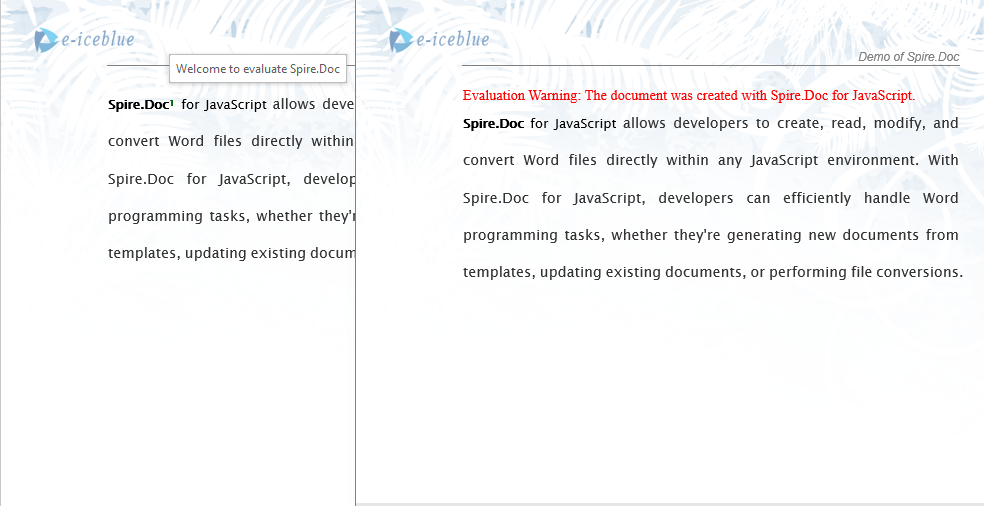
After removing footnotes, both the superscript markers in the body text and the annotation content at the page bottom are cleared, while the main text remains unaffected.
FAQ
Inserted footnote does not appear at the expected position
Cause: The footnote was appended to the paragraph but was not inserted into the correct child object order via the Insert method, causing the footnote marker to appear at the end of the paragraph instead of after the target text.
Solution: Use ChildObjects.IndexOf to get the index position of the target text, then use the Insert method to place the footnote after that position:
let index = paragraph.ChildObjects.IndexOf(textRange);
paragraph.ChildObjects.Insert(index + 1, footnote);
Footnote number format changes do not take effect
Cause: The footnote number format was set on the wrong section, or the document contains multiple sections but only the first section was modified.
Solution: Identify the section that contains the target footnotes and set the number format for each section that has footnotes:
for (let i = 0; i < document.Sections.Count; i++) {
  let sec = document.Sections.get_Item(i);
  sec.FootnoteOptions.NumberFormat = wasmModule.FootnoteNumberFormat.UpperCaseLetter;
}
Get a Free License
Spire.Doc for JavaScript offers a 30-day full-featured free trial license with no functional limitations. Apply here to evaluate before purchasing.
