In document management systems, splitting Word documents is a common requirement — separating merged multi-chapter documents into independent files by section breaks, or dividing long documents into shorter ones by page breaks. Spire.Doc for JavaScript performs document splitting directly in the browser via WebAssembly, using a virtual file system (VFS) to manage input and output files — no backend server required.
This article covers two core features:
For installation and project setup, refer to Integrating Spire.Doc for JavaScript in a React Project. The examples below assume Spire.Doc is installed and the WebAssembly module is initialized.
Split by Section Break
Section breaks in a Word document separate different chapters or page layouts. Each section can have its own headers, footers, page numbering, and page setup. Splitting by section breaks is the most common and stable approach, ideal for restoring merged multi-chapter documents back into independent files.
The core workflow consists of three stages: first, load the font files and the target Word file into the WASM virtual file system; then instantiate a Document, load the file, iterate through all sections, and clone each section into a new Document object via Section.Clone(); finally, package the split files into a ZIP archive and trigger a browser download.
function App() {
  const splitBySectionBreak = async () => {
    // Get the Spire.Doc WASM module
    const docModule = window.wasmModule?.spiredoc;

    // Check if the module is ready
    if (!docModule) {
      alert('Spire.Doc is not ready yet');
      return;
    }

    const inputFileName = 'Template_Docx_4.docx';
    await window.spire.FetchFileToVFS(inputFileName, '', `${process.env.PUBLIC_URL}data/`);

    // Create output directory
    let outputDir = 'output/';
    window.dotnetRuntime.Module.FS.mkdirTree(outputDir);

    // Load the document
    const doc = new docModule.Document();
    doc.LoadFromFile(inputFileName);

    // Iterate through each section and clone into independent documents
    for (let i = 0; i < doc.Sections.Count; i++) {
      const newWord = new docModule.Document();
      newWord.Sections.Add(doc.Sections.get_Item(i).Clone());
      newWord.SaveToFile({
        fileName: outputDir + `Section-${i}.docx`,
        fileFormat: docModule.FileFormat.Docx2013
      });
      newWord.Dispose();
    }
    doc.Dispose();

    // Read output files from VFS and package into ZIP for download
    const JSZip = require('jszip');
    const zip = new JSZip();
    let items = window.dotnetRuntime.Module.FS.readdir(outputDir);
    items = items.filter(item => item !== '.' && item !== '..');
    for (const item of items) {
      const fileData = window.dotnetRuntime.Module.FS.readFile(outputDir + item);
      zip.file(item, fileData);
    }
    const zipBlob = await zip.generateAsync({ type: 'blob' });
    const url = URL.createObjectURL(zipBlob);
    const a = document.createElement('a');
    a.href = url;
    a.download = 'SplitBySectionBreak.zip';
    a.click();
    URL.revokeObjectURL(url);
  };

  return (
    <div style={{ textAlign: 'center', height: '300px' }}>
      <h1>Split Word Document By Section Break</h1>
      <button onClick={splitBySectionBreak}>Generate</button>
    </div>
  );
}

export default App;
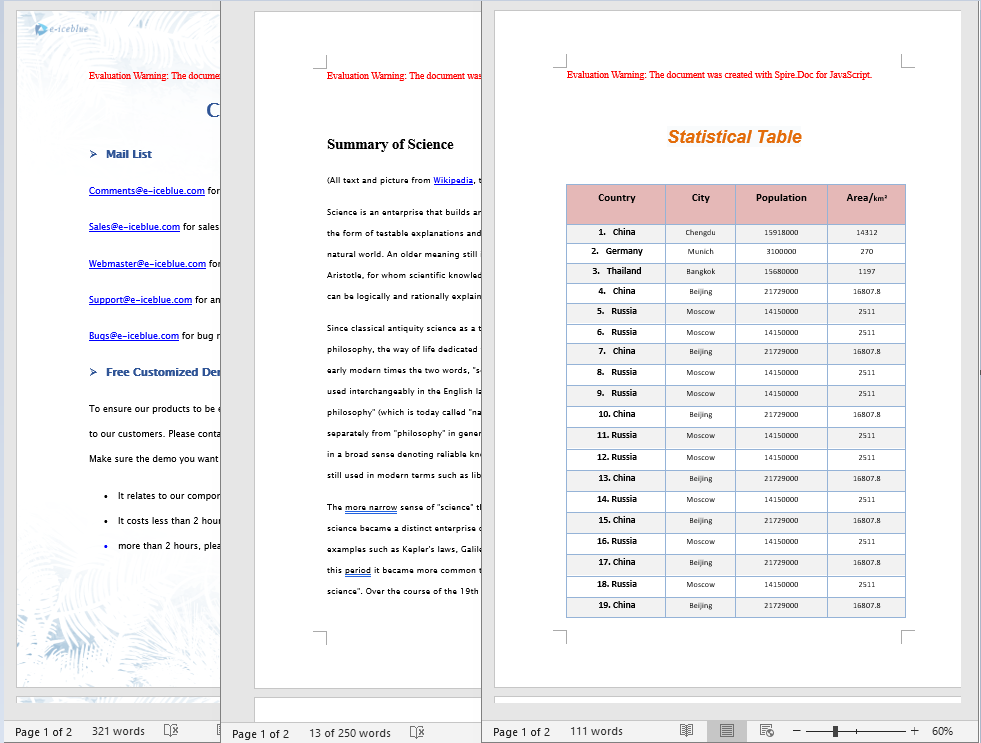
Independent Word documents generated after splitting by section break
Split by Page Break
Page breaks are manual or automatic pagination markers inserted within a document. Splitting by page breaks is suitable for dividing long documents by page, saving each page's content as an independent document — commonly used for report pagination, contract clause splitting, and similar scenarios.
Unlike splitting by section breaks, page breaks reside at the child-object level within paragraphs. This requires traversing the document's sections, paragraphs, and paragraph child objects layer by layer to detect Break elements with the PageBreak type. When splitting, you also need to clone the original document's styles and themes using methods such as CloneDefaultStyleTo, CloneThemesTo, and CloneCompatibilityTo to ensure the split documents retain full formatting.
function App() {
  const splitByPageBreak = async () => {
    // Get the Spire.Doc WASM module
    const docModule = window.wasmModule?.spiredoc;

    // Check if the module is ready
    if (!docModule) {
      alert('Spire.Doc is not ready yet');
      return;
    }

    const inputFileName = 'SplitWordFileByPageBreak.docx';
    await window.spire.FetchFileToVFS(inputFileName, '', `${process.env.PUBLIC_URL}data/`);

    // Create output directory
    let outputDir = 'output/';
    window.dotnetRuntime.Module.FS.mkdirTree(outputDir);

    // Load the original document
    const original = new docModule.Document();
    original.LoadFromFile(inputFileName);

    // Create a new document and clone styles and themes
    let newWord = new docModule.Document();
    let section = newWord.AddSection();
    original.CloneDefaultStyleTo(newWord);
    original.CloneThemesTo(newWord);
    original.CloneCompatibilityTo(newWord);

    let index = 0;

    // Iterate through all sections
    for (let i = 0; i < original.Sections.Count; i++) {
      let sec = original.Sections.get_Item(i);

      // Iterate through all child objects in the section (paragraphs, tables, etc.)
      for (let j = 0; j < sec.Body.ChildObjects.Count; j++) {
        let obj = sec.Body.ChildObjects.get_Item(j);

        if (obj instanceof docModule.Paragraph) {
          let para = obj;
          sec.CloneSectionPropertiesTo(section);
          section.Body.ChildObjects.Add(para.Clone());

          // Detect page breaks within paragraph child objects
          for (let k = 0; k < para.ChildObjects.Count; k++) {
            let parobj = para.ChildObjects.get_Item(k);
            if (parobj instanceof docModule.Break &&
                parobj.BreakType === docModule.BreakType.PageBreak) {

              let breakIndex = para.ChildObjects.IndexOf(parobj);

              // Remove the page break from the paragraph
              section.Body.LastParagraph.ChildObjects.RemoveAt(breakIndex);

              // Save the current document
              newWord.SaveToFile({
                fileName: outputDir + `Page-${index}.docx`,
                fileFormat: docModule.FileFormat.Docx2013
              });
              index++;

              // Create a new document to continue
              newWord = new docModule.Document();
              section = newWord.AddSection();
              original.CloneDefaultStyleTo(newWord);
              original.CloneThemesTo(newWord);
              original.CloneCompatibilityTo(newWord);
              sec.CloneSectionPropertiesTo(section);

              // Handle remaining content after the page break
              section.Body.ChildObjects.Add(para.Clone());
              if (section.Paragraphs.get_Item(0).ChildObjects.Count === 0) {
                section.Body.ChildObjects.RemoveAt(0);
              } else {
                while (breakIndex >= 0) {
                  section.Paragraphs.get_Item(0).ChildObjects.RemoveAt(breakIndex);
                  breakIndex--;
                }
              }
            }
          }
        }

        if (obj instanceof docModule.Table) {
          section.Body.ChildObjects.Add(obj.Clone());
        }
      }
    }

    // Save the last document
    newWord.SaveToFile({
      fileName: outputDir + `Page-${index}.docx`,
      fileFormat: docModule.FileFormat.Docx2013
    });

    original.Dispose();
    newWord.Dispose();

    // Package into ZIP for download
    const JSZip = require('jszip');
    const zip = new JSZip();
    let items = window.dotnetRuntime.Module.FS.readdir(outputDir);
    items = items.filter(item => item !== '.' && item !== '..');
    for (const item of items) {
      const fileData = window.dotnetRuntime.Module.FS.readFile(outputDir + item);
      zip.file(item, fileData);
    }
    const zipBlob = await zip.generateAsync({ type: 'blob' });
    const url = URL.createObjectURL(zipBlob);
    const a = document.createElement('a');
    a.href = url;
    a.download = 'SplitByPageBreak.zip';
    a.click();
    URL.revokeObjectURL(url);
  };

  return (
    <div style={{ textAlign: 'center', height: '300px' }}>
      <h1>Split Word Document By Page Break</h1>
      <button onClick={splitByPageBreak}>Generate</button>
    </div>
  );
}

export default App;
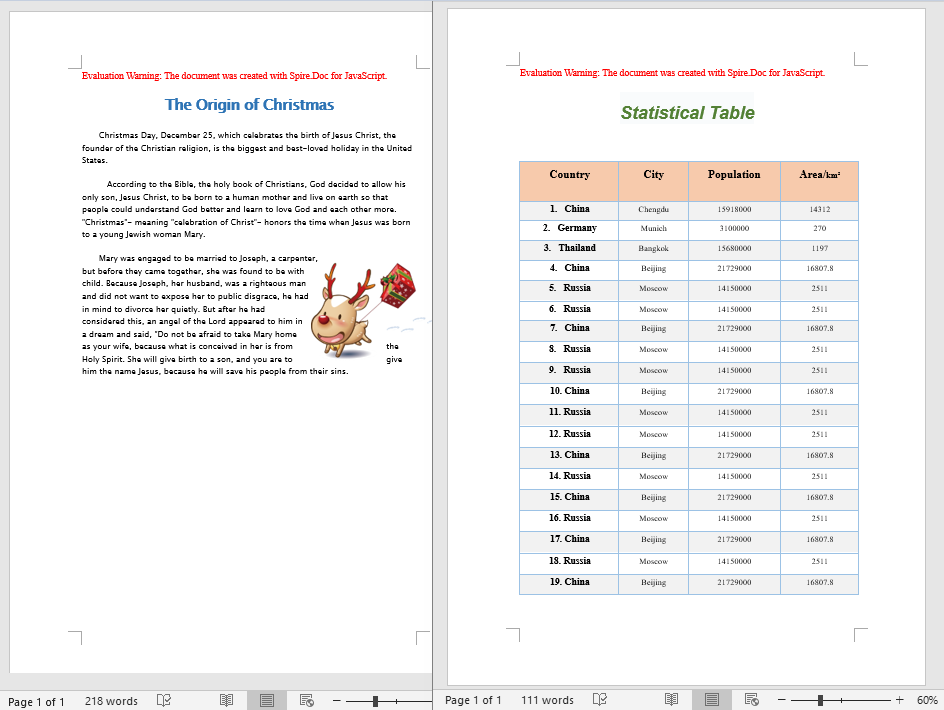
Word documents generated after splitting by page break
FAQ
Split document formatting differs from the original
Cause: When splitting by page break, only the paragraph content is cloned without also cloning the original document's styles, themes, and section properties. This causes the split documents to lose formatting information such as fonts, colors, and page setup.
Solution: After creating a new document, clone the original document's styles and themes using the following methods:
original.CloneDefaultStyleTo(newWord);
original.CloneThemesTo(newWord);
original.CloneCompatibilityTo(newWord);
sec.CloneSectionPropertiesTo(section);
Page break cannot be detected
Cause: Page breaks reside within paragraph child objects and are identified via the BreakType enumeration. If the traversal hierarchy is incorrect, or the instanceof check is not used to determine the object type, the page break may not be properly recognized.
Solution: Ensure detection follows the order: Paragraph.ChildObjects → instanceof Break → BreakType == BreakType.PageBreak:
for (let k = 0; k < para.ChildObjects.Count; k++) {
  let parobj = para.ChildObjects.get_Item(k);
  if (parobj instanceof docModule.Break &&
      parobj.BreakType === docModule.BreakType.PageBreak) {
    // Page break found
  }
}
Get a Free License
Spire.Doc for JavaScript offers a 30-day full-featured free trial license with no functional limitations. Apply here to evaluate before purchasing.
