Co-editing lets multiple users open the same document at the same time, with everyone's changes visible to everyone else, without sending files back and forth or merging manually. Spire.OfficeJS has co-editing built in: with the right page configuration, two browser tabs or two users can join the same editing session. This article uses Word as an example. It first explains how co-editing works and what it requires, then walks through the key configuration piece by piece, and finally gives a complete runnable example.
How Co-editing Works
The following diagram and steps explain how co-editing works in Spire.OfficeJS.
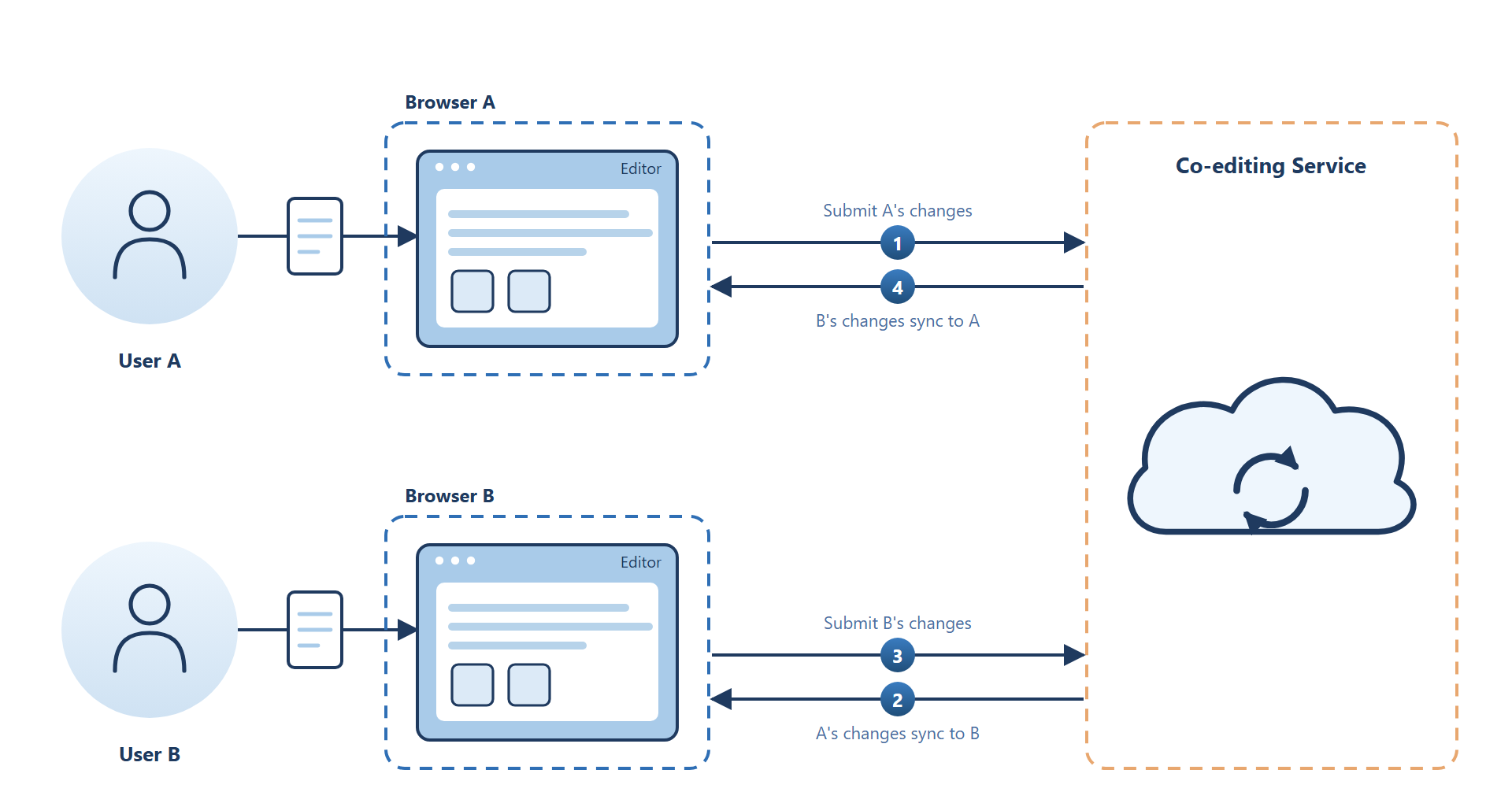
- User 1 and User 2 open the document with the same co-editing identifier (that is, the same
fileInfo.primary). - User 1 edits the document.
- The editor reports the changes to the co-authoring service (the service that
coAuthorUrlpoints to). - The co-authoring service distributes the changes to User 2's editor.
- User 2's editor applies the changes, so the same content appears on both screens.
The key point: the same co-editing session must use the same primary. In addition, you need to connect to an Office Server (see Prerequisites for Co-editing); everything else is configuration and state management built around these two things.
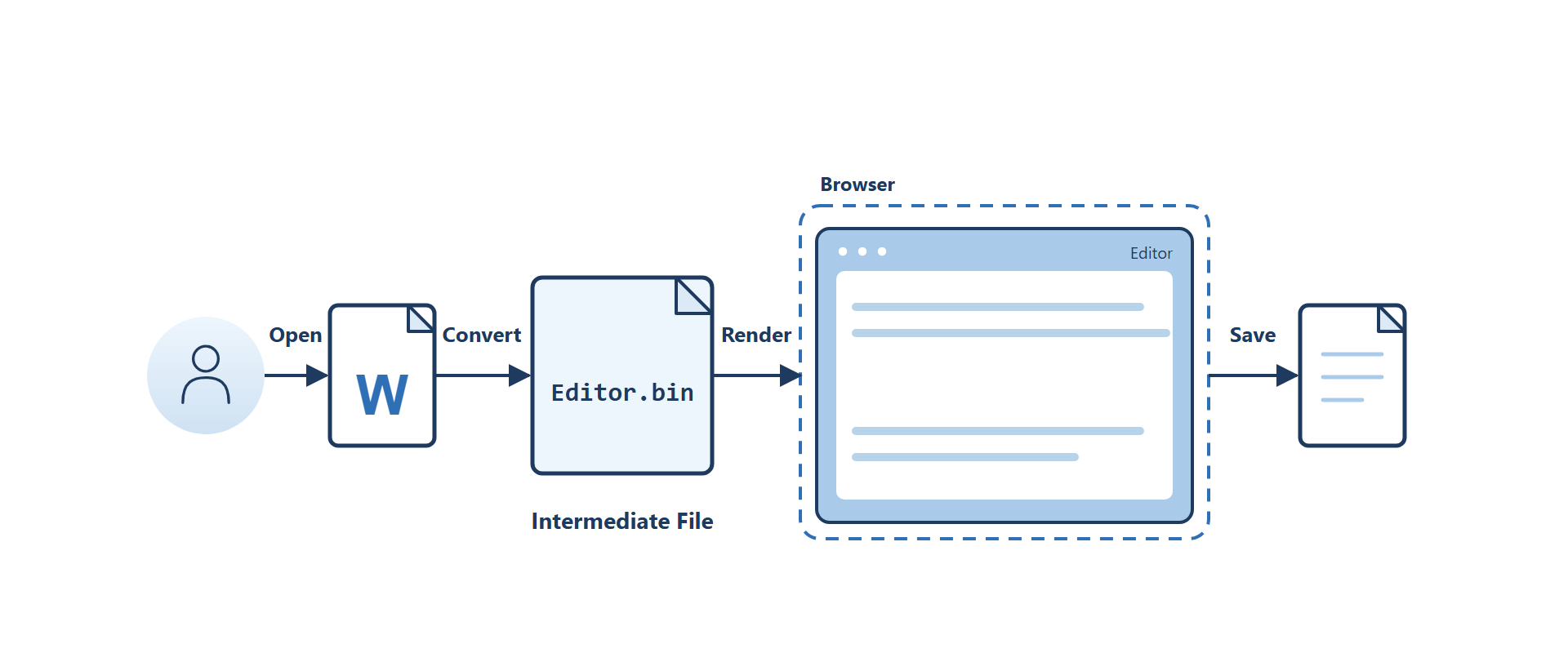
Many people assume when they first encounter online editing that the browser edits the Word file on the server directly. That is not the case. Spire.OfficeJS edits an internal cached editing file (Editor.bin), not the original Word file:
Prerequisites for Co-editing
Co-editing does not "just work" once you embed the editor in a page. For two users to join the same co-editing session and see each other's changes, two conditions must both hold:
- The same primary:
fileInfo.primaryis not an ordinary "file ID" but the identity of the current co-editing version. Make surefileInfo.primaryis the same (for how it works and how it is generated, see The Co-editing Identifier: fileInfo.primary). - Connect to an Office Server: the editor needs to connect to an Office Server (either locally started or remotely deployed) and use
coAuthorUrlto specify its address (see The Co-authoring Service Address: coAuthorUrl).
Both are required: with different primary values you get two separate sessions. Without a co-authoring service, changes have no channel to be distributed through.
The simplest way to verify: open the page in two tabs using the same fileInfo.primary but different user.id values. As long as primary matches, they join the same co-editing session — effectively "co-editing with yourself".
Tip
If you want some people to take part in co-editing in read-only mode, set their editorAttrs.canEdit to false. In fast mode they can still see other people's changes in real time but cannot edit, which suits observation, demonstration, or approval scenarios.
The Co-editing Identifier: fileInfo.primary
fileInfo.primary is the sole basis on which Spire.OfficeJS decides "is this the same document being co-edited?" All participants must use the same value to join the same co-editing session.
Generation and Reuse
- It must be supplied explicitly by the page and stay stable for the same session. If left empty, Spire.OfficeJS generates a random one, and each user gets a different value every time they open the page, so the sessions end up independent and unsynchronized.
- Character set: a randomly generated value consists of lowercase letters and digits and is about 20 characters long.
- Do not reuse: one "editing session" of a document corresponds to one
primary; a new round of editing should use a new value.
After a save completes, it is recommended to use a new primary the next time the document is opened: this isolates the "saved content" from "a new round of co-editing" and keeps the cache, version, and new changes of the previous session from mixing together. If you keep reusing an old value for repeated editing, content rollbacks or synchronization anomalies are easy to run into.
When you rotate primary, also point sourceUrl at the file saved in this round (usually the file address obtained from onSave). Otherwise, the first open with the new primary re-downloads and converts the old original file, and the content you just saved is lost.
Fast Mode and Strict Mode
Spire.OfficeJS provides two co-editing modes: fast mode and strict mode. You switch between them in the UI via "Review → Editing Mode" or "File → Advanced Settings → Co-editing Mode". Both let multiple people join the same session; the difference is when changes are synchronized and who triggers the save: fast mode syncs as you edit, while strict mode lets everyone edit their own copy and merges only on save.
Fast Mode (Default)
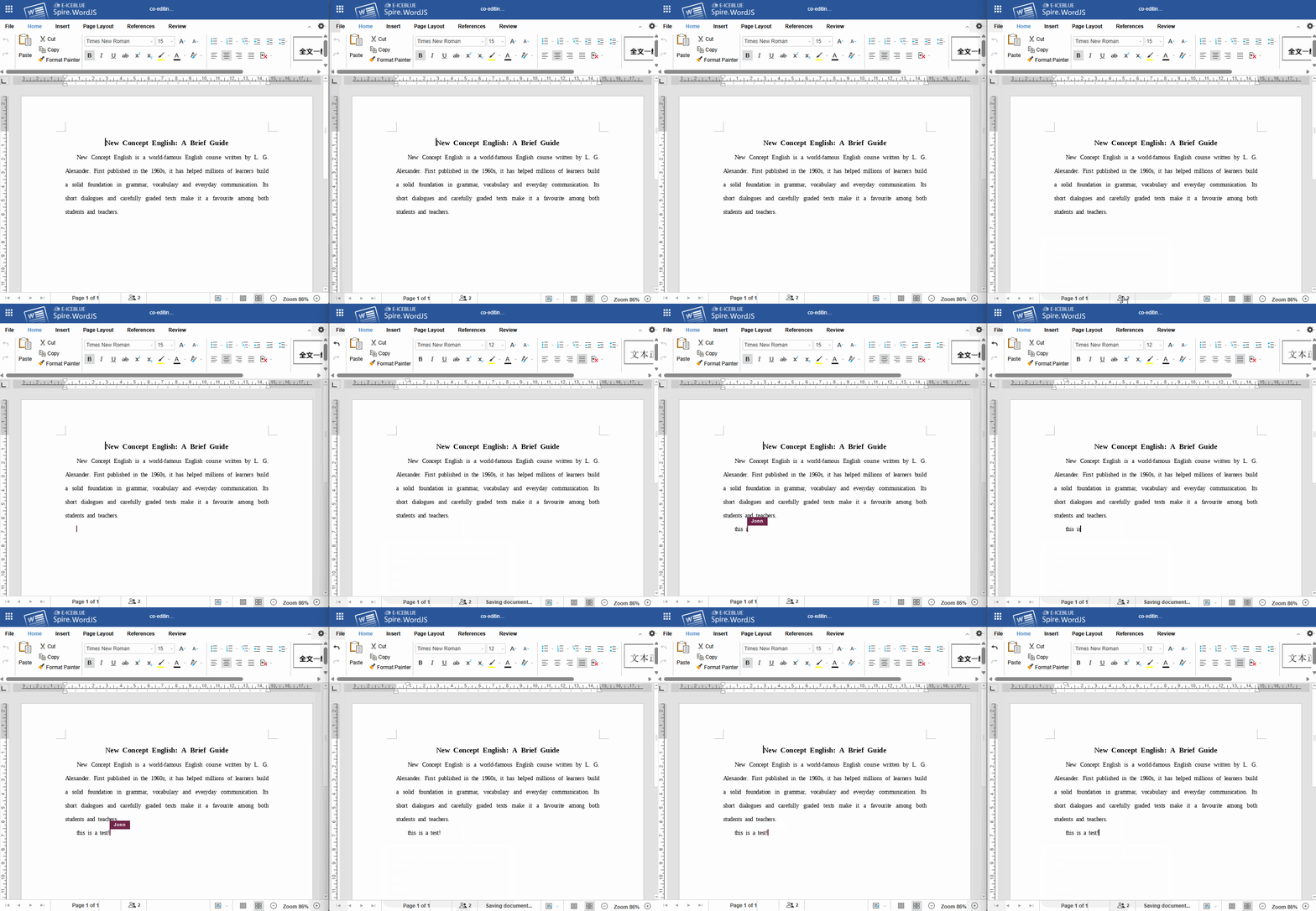
In fast mode, anyone's changes are broadcast to all participants in real time: text, cursor position, and selections are immediately visible with no need to save. Before editing a region (a paragraph, a cell, etc.), the editor first acquires a block lock on that region; others see the region as occupied until editing finishes or the lock is released.
Strict Mode
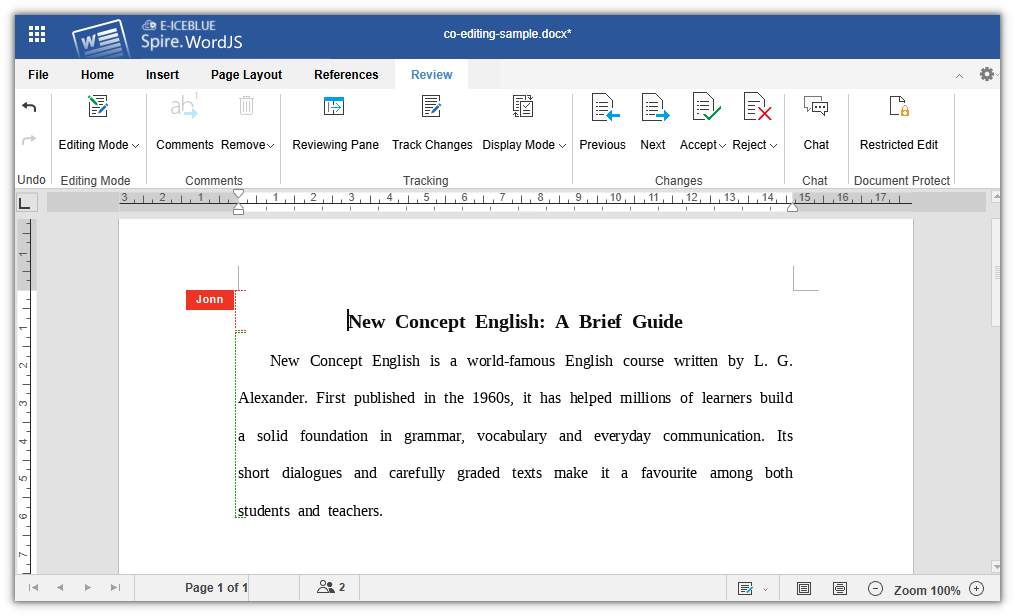
In strict mode, everyone edits in their own isolated copy but still belongs to the same co-editing session: other people's changes stay hidden until saved, and regions edited by multiple people at the same time are marked with dashed lines in different colors. Only after you click "Save" is the whole document submitted to the co-authoring service for merging.
Comparison of the Two Modes
| Dimension | Fast Mode (Default) | Strict Mode |
|---|---|---|
| Change visibility | Broadcast in real time; other people's cursors and changes are immediately visible | Isolated; neither side sees the other's changes before saving |
| Saving | Automatic sync (no manual save needed) | Syncs only after you click "Save" manually |
| Undo / Redo | Unavailable | Available |
| Notification of others' changes | None (already seen in real time) | Click Save and reload |
| Suitable for | Multiple people making small, high-frequency collaborative edits | Large edits, isolated review, concerns about accidental overwrites |
Configuring the Default Mode
Controlled by two switches under user.customization.public.common:
user: {
  customization: {
    public: {
      common: {
        CollaborationModeIsFast: true,  // Enter fast mode on open
        CollaborationModeOnlyFast: false
      }
    }
  }
}
CollaborationModeIsFast: the initial mode when the document opens.truemeans fast mode,falsemeans strict mode. Fast mode is the default.CollaborationModeOnlyFast: when set totrue, locks fast mode; the strict option in "Co-editing Mode" is disabled and users cannot switch to strict mode. Suits scenarios that require everyone to always share changes in real time.
The Co-authoring Service Address: coAuthorUrl
coAuthorUrl points to the editor service that provides co-authoring capability (the Office Server) and must be configured explicitly. It is configured under editorAttrs.serverless; an example:
editorAttrs: {
  useWebAssemblyDoc: true,
  serverless: {
    useServerless: true,
    baseUrl: 'https://LocalExample:3000',    // Address of the front-end resources (web directory)
    coAuthorUrl: 'https://LocalExample:8000' // Co-authoring service (Office Server) address
  }
}
Note the distinction between the three kinds of addresses: the load address of SpireCloudEditor.js and baseUrl only determine where the front-end resources are loaded from; they are not the co-authoring service address. coAuthorUrl must point to an Office Server reachable by the browser; otherwise co-editing cannot work either.
Quick Start: Two People Editing the Same Document
This section assembles the preceding content into a minimal runnable page: just replace the script address, service address, document address, user information, and save handling.
Page Structure
Place a container div on the page, then include the Spire.OfficeJS editor script:
<div id="editor"></div>

<!-- The editor script is served by your Spire.OfficeJS service -->
<script src="https://LocalExample:3000/web/editors/spireapi/SpireCloudEditor.js"></script>
Initialization Configuration
<script>
  // Co-editing session primary: same document, same co-editing session — must be identical for all users
  const DOC_PRIMARY = 'a1b2c3d4e5f6g7h8i9j0';

  // Current user: id must be unique and stable; name is the display name during collaboration
  const currentUser = {
    id: 'user-1001',
    name: 'John Doe'
  };

  const config = {
    fileAttrs: {
      fileInfo: {
        name: 'project-plan.docx',
        ext: 'docx',
        primary: DOC_PRIMARY // Co-editing session primary
      },
      sourceUrl: 'https://your-file-host/files/project-plan.docx'
    },
    user: {
      id: currentUser.id,
      name: currentUser.name,
      customization: {
        public: {
          common: {
            CollaborationModeIsFast: true, // Enter fast mode on open
            CollaborationModeOnlyFast: false
          }
        }
      }
    },
    editorAttrs: {
      useWebAssemblyDoc: true,
      serverless: {
        useServerless: true,
        baseUrl: 'https://LocalExample:3000',    // Address of the front-end resources (web directory)
        coAuthorUrl: 'https://LocalExample:8000' // Co-authoring service (Office Server) address
      },
      editorMode: 'edit',
      editorType: 'document',
      editorWidth: '100%',
      editorHeight: '800px',
      viewLanguage: 'zh',
      canEdit: true,
      canReview: true,
      canComment: true,
      canChat: true,
      events: {
        // Handle the save in the page: event.data[1] is the File object of the current document
        onSave: function (event) {
          const fileName = event.data[0];
          const file = event.data[1];

          const form = new FormData();
          form.append('file', file, fileName);
          form.append('primary', DOC_PRIMARY);
          fetch('https://your-file-host/save-file', {
            method: 'POST',
            body: form
          });
        }
      }
    }
  };

  new SpireCloudEditor.OpenApi('editor', config);
</script>
FAQ
Both Users Open the Page but Changes Do Not Sync
Troubleshoot in this order:
- Whether
fileAttrs.fileInfo.primaryis the same. Differentprimaryvalues lead to two independent sessions; even ifsourceUrlis exactly the same, they will not sync. - Whether an Office Server is configured and connected.
editorAttrs.serverless.coAuthorUrlmust point to an Office Server reachable by the browser: either started locally (for examplehttp://127.0.0.1:8000) or deployed remotely. If it is missing or misconfigured, co-editing fails (see The Co-authoring Service Address: coAuthorUrl). sourceUrlonly takes effect on the first open or a cache miss. Once the sameprimaryhits the cache, it is no longer read. To switch files, updatesourceUrland use a newprimaryat the same time.
The "Co-editing Mode" Entry Is Missing
The entry requires editorMode: 'edit'.
Cannot Undo / Redo in Fast Mode
This is by design in fast mode: changes are broadcast in real time and synced automatically, so they cannot be rolled back from a single client. If you need an undo history, switch to strict mode, edit in the isolated copy, and then save.
Co-editing Breaks or Content Rolls Back After Saving
It is most likely that an old primary was reused. After a save completes (onSave has received the file), the next time you open the document you should use a new primary and point sourceUrl at the saved file; do not keep using the old value of a completed save for a new session.
