Embed 3D Interactive Graphics into PDF Document in C#/VB.NET
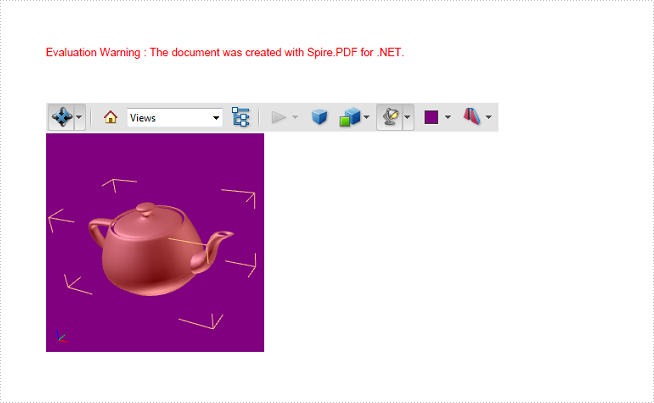
Universal 3D (U3D) is a compressed file format for 3D computer graphic data. 3D modules in U3D format can be inserted into PDF documents and interactively visualized by Acrobat Reader. This article presents how to embed a pre-created U3D file into a PDF document using Spire.PDF in C#, VB.NET.
Main Steps:
Step 1: Initialize a new object of PdfDocuemnt, and add a blank page to the PDF document.
PdfDocument doc = new PdfDocument();
PdfPageBase page = doc.Pages.Add();
Step 2: Draw a rectangle on the page to define the canvas area for the 3D file.
Rectangle rt = new Rectangle(0, 80, 200, 200);
Step 3: Initialize a new object of Pdf3DAnnotation, load the .u3d file as 3D annotation.
Pdf3DAnnotation annotation = new Pdf3DAnnotation(rt, "teapot.u3d");
annotation.Activation = new Pdf3DActivation();
annotation.Activation.ActivationMode = Pdf3DActivationMode.PageOpen;
Step 4: Define a 3D view mode.
Pdf3DView View= new Pdf3DView();
View.Background = new Pdf3DBackground(new PdfRGBColor(Color.Purple
));
View.ViewNodeName = "test";
View.RenderMode = new Pdf3DRendermode(Pdf3DRenderStyle.Solid);
View.InternalName = "test";
View.LightingScheme = new Pdf3DLighting();
View.LightingScheme.Style = Pdf3DLightingStyle.Day;
Step 5: Set the 3D view mode for the annotation.
annotation.Views.Add(View);
Step 6: Add the annotation to PDF.
page.Annotations.Add(annotation);
Step 7: Save the file.
doc.SaveToFile("Create3DPdf.pdf", FileFormat.PDF);
Output:
Full Code:
using Spire.Pdf;
using Spire.Pdf.Annotations;
using Spire.Pdf.Graphics;
using System.Drawing;

namespace Embed3DInteractiveGraphics
{
    class Program
    {
        static void Main(string[] args)
        {
            PdfDocument doc = new PdfDocument();
            PdfPageBase page = doc.Pages.Add();

            Rectangle rt = new Rectangle(0, 80, 200, 200);
            Pdf3DAnnotation annotation = new Pdf3DAnnotation(rt, "teapot.u3d");
            annotation.Activation = new Pdf3DActivation();
            annotation.Activation.ActivationMode = Pdf3DActivationMode.PageOpen;
            Pdf3DView View= new Pdf3DView();
            View.Background = new Pdf3DBackground(new PdfRGBColor(Color.Purple));
            View.ViewNodeName = "test";
            View.RenderMode = new Pdf3DRendermode(Pdf3DRenderStyle.Solid);
            View.InternalName = "test";
            View.LightingScheme = new Pdf3DLighting();
            View.LightingScheme.Style = Pdf3DLightingStyle.Day;
            annotation.Views.Add(View);

            page.Annotations.Add(annotation);
            doc.SaveToFile("Create3DPdf.pdf", FileFormat.PDF);
        }
    }
}
Imports Spire.Pdf
Imports Spire.Pdf.Annotations
Imports Spire.Pdf.Graphics
Imports System.Drawing

Namespace Embed3DInteractiveGraphics
	Class Program
		Private Shared Sub Main(args As String())
			Dim doc As New PdfDocument()
			Dim page As PdfPageBase = doc.Pages.Add()

			Dim rt As New Rectangle(0, 80, 200, 200)
			Dim annotation As New Pdf3DAnnotation(rt, "teapot.u3d")
			annotation.Activation = New Pdf3DActivation()
			annotation.Activation.ActivationMode = Pdf3DActivationMode.PageOpen
			Dim View As New Pdf3DView()
			View.Background = New Pdf3DBackground(New PdfRGBColor(Color.Purple))
			View.ViewNodeName = "test"
			View.RenderMode = New Pdf3DRendermode(Pdf3DRenderStyle.Solid)
			View.InternalName = "test"
			View.LightingScheme = New Pdf3DLighting()
			View.LightingScheme.Style = Pdf3DLightingStyle.Day
			annotation.Views.Add(View)

			page.AnnotationsWidget.Add(annotation)
			doc.SaveToFile("Create3DPdf.pdf", FileFormat.PDF)
		End Sub
	End Class
End Namespace
How to format cells with borders in conditional formatting
Using conditional formatting in Excel, we could highlight interesting cells, emphasize unusual values and visualize data with Data Bars, Color Scales and Icon Sets based on criteria. In the two articles Alternate Row Colors in Excel with Conditional Formatting and Apply Conditional Formatting to a Data Range, we have introduce the method to set fill, font, data bars, color scales and icon sets in conditional formatting using Spire.XLS. This article is going to introduce the method to format cells with borders in conditional formatting.
Note: before start, please download the latest version of Spire.XLS and add the .dll in the bin folder as the reference of Visual Studio.
Step 1: Create a new workbook and add sample data.
            Workbook workbook = new Workbook();
            Worksheet sheet = workbook.Worksheets[0];

            sheet.Range["A1"].Value = "Name/Subject";
            sheet.Range["A2"].Value = "Tom";
            sheet.Range["A3"].Value = "Sam";
            sheet.Range["A4"].Value = "Tina";
            sheet.Range["A5"].Value = "Nancy";
            sheet.Range["A6"].Value = "James";
            sheet.Range["A7"].Value = "Victor";
            sheet.Range["B1"].Value = "Math";
            sheet.Range["C1"].Value = "French";
            sheet.Range["D1"].Value = "English";
            sheet.Range["E1"].Value = "Physics";
            sheet.Range["B2"].NumberValue = 56;
            sheet.Range["B3"].NumberValue = 73;
            sheet.Range["B4"].NumberValue = 75;
            sheet.Range["B5"].NumberValue = 89;
            sheet.Range["B6"].NumberValue = 65;
            sheet.Range["B7"].NumberValue = 90;
            sheet.Range["C2"].NumberValue = 78;
            sheet.Range["C3"].NumberValue = 99;
            sheet.Range["C4"].NumberValue = 86;
            sheet.Range["C5"].NumberValue = 45;
            sheet.Range["C6"].NumberValue = 70;
            sheet.Range["C7"].NumberValue = 83;
            sheet.Range["D2"].NumberValue = 79;
            sheet.Range["D3"].NumberValue = 70;
            sheet.Range["D4"].NumberValue = 90;
            sheet.Range["D5"].NumberValue = 87;
            sheet.Range["D6"].NumberValue = 56;
            sheet.Range["D7"].NumberValue = 78;
            sheet.Range["E2"].NumberValue = 65;
            sheet.Range["E3"].NumberValue = 55;
            sheet.Range["E4"].NumberValue = 100;
            sheet.Range["E5"].NumberValue = 85;
            sheet.Range["E6"].NumberValue = 60;
            sheet.Range["E7"].NumberValue = 75;

            sheet.AllocatedRange.RowHeight = 17;
            sheet.AllocatedRange.ColumnWidth = 17;
            sheet.AllocatedRange.VerticalAlignment = VerticalAlignType.Center;
            sheet.AllocatedRange.HorizontalAlignment = HorizontalAlignType.Center;
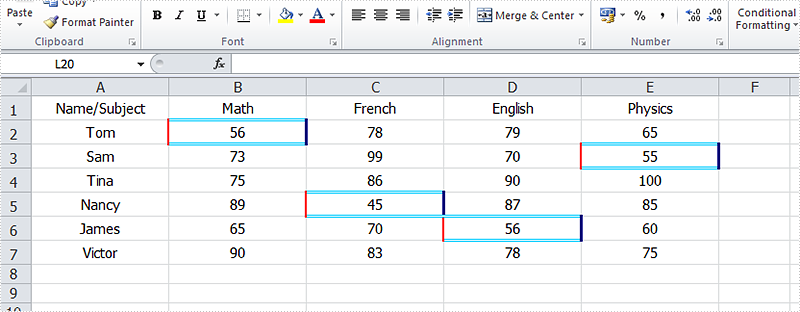
Step 2: Set the formatting rule using formula. Here the rule is the number values less than 60.
XlsConditionalFormats xcfs1 = sheet.ConditionalFormats.Add();
xcfs1.AddRange(sheet.Range["B2:E7"]);
IConditionalFormat format1 = xcfs1.AddCondition();
format1.FormatType = ConditionalFormatType.CellValue;
format1.FirstFormula = "60";
format1.Operator = ComparisonOperatorType.Less;
Step 3: Set border colors and styles for cells that match the condition.
            format1.LeftBorderColor = Color.Red;
            format1.RightBorderColor = Color.DarkBlue;
            format1.TopBorderColor = Color.DeepSkyBlue;
            format1.BottomBorderColor = Color.DeepSkyBlue;

            format1.LeftBorderStyle = LineStyleType.Medium;
            format1.RightBorderStyle = LineStyleType.Thick;
            format1.TopBorderStyle = LineStyleType.Double;
            format1.BottomBorderStyle = LineStyleType.Double;
Step 4: Save the document and launch to see effects.
            workbook.SaveToFile("sample.xlsx", ExcelVersion.Version2010);
            System.Diagnostics.Process.Start("sample.xlsx");
Effects:
Full Codes:
using Spire.Xls;
using Spire.Xls.Core;
using Spire.Xls.Core.Spreadsheet.Collections;
using System.Drawing;

namespace ApplyConditionalFormatting
{
    class Program
    {
        static void Main(string[] args)
        {
            Workbook workbook = new Workbook();
            Worksheet sheet = workbook.Worksheets[0];

            sheet.Range["A1"].Value = "Name/Subject";
            sheet.Range["A2"].Value = "Tom";
            sheet.Range["A3"].Value = "Sam";
            sheet.Range["A4"].Value = "Tina";
            sheet.Range["A5"].Value = "Nancy";
            sheet.Range["A6"].Value = "James";
            sheet.Range["A7"].Value = "Victor";
            sheet.Range["B1"].Value = "Math";
            sheet.Range["C1"].Value = "French";
            sheet.Range["D1"].Value = "English";
            sheet.Range["E1"].Value = "Physics";
            sheet.Range["B2"].NumberValue = 56;
            sheet.Range["B3"].NumberValue = 73;
            sheet.Range["B4"].NumberValue = 75;
            sheet.Range["B5"].NumberValue = 89;
            sheet.Range["B6"].NumberValue = 65;
            sheet.Range["B7"].NumberValue = 90;
            sheet.Range["C2"].NumberValue = 78;
            sheet.Range["C3"].NumberValue = 99;
            sheet.Range["C4"].NumberValue = 86;
            sheet.Range["C5"].NumberValue = 45;
            sheet.Range["C6"].NumberValue = 70;
            sheet.Range["C7"].NumberValue = 83;
            sheet.Range["D2"].NumberValue = 79;
            sheet.Range["D3"].NumberValue = 70;
            sheet.Range["D4"].NumberValue = 90;
            sheet.Range["D5"].NumberValue = 87;
            sheet.Range["D6"].NumberValue = 56;
            sheet.Range["D7"].NumberValue = 78;
            sheet.Range["E2"].NumberValue = 65;
            sheet.Range["E3"].NumberValue = 55;
            sheet.Range["E4"].NumberValue = 100;
            sheet.Range["E5"].NumberValue = 85;
            sheet.Range["E6"].NumberValue = 60;
            sheet.Range["E7"].NumberValue = 75;

            sheet.AllocatedRange.RowHeight = 17;
            sheet.AllocatedRange.ColumnWidth = 17;
            sheet.AllocatedRange.VerticalAlignment = VerticalAlignType.Center;
            sheet.AllocatedRange.HorizontalAlignment = HorizontalAlignType.Center;

            // Apply conditional formatting to the score range (B2:E7)
            XlsConditionalFormats xcfs1 = sheet.ConditionalFormats.Add();
            xcfs1.AddRange(sheet.Range["B2:E7"]);

            // Highlight cells with scores less than 60 using custom borders
            IConditionalFormat format1 = xcfs1.AddCondition();
            format1.FormatType = ConditionalFormatType.CellValue; // Compare cell values
            format1.FirstFormula = "60";
            format1.Operator = ComparisonOperatorType.Less;

            // Set border colors
            format1.LeftBorderColor = Color.Red;
            format1.RightBorderColor = Color.DarkBlue;
            format1.TopBorderColor = Color.DeepSkyBlue;
            format1.BottomBorderColor = Color.DeepSkyBlue;

            // Set border styles
            format1.LeftBorderStyle = LineStyleType.Medium;
            format1.RightBorderStyle = LineStyleType.Thick;
            format1.TopBorderStyle = LineStyleType.Double;
            format1.BottomBorderStyle = LineStyleType.Double;

            workbook.SaveToFile("sample.xlsx", ExcelVersion.Version2010);
            System.Diagnostics.Process.Start("sample.xlsx");
        }
    }
}
Only convert visible or hidden worksheet to image in C#
Spire.XLS supports to convert the whole excel workbook into Image, PDF, HTML and other files formats; it also supports to hide or show the worksheet in C#. When we have hidden worksheet in the excel files, developers can also use Spire.XLS to only convert the visible or hidden excel worksheets to other file formats by judge the property of WorksheetVisibility. This article will show you how to only convert visible or hidden worksheet to image in C#.
Here comes to the steps:
Step 1: Create a new document and load from file.
Workbook book = new Workbook();
book.LoadFromFile("sample.xlsx", ExcelVersion.Version2010);
Step 2: Traverse every worksheet in the excel file.
foreach (Spire.Xls.Worksheet ws2 in book.Worksheets)
Step 3: Call the property of WorksheetVisibility to judge visible or hidden excel worksheet.
//only converts the visible sheet
if (ws2.Visibility == WorksheetVisibility.Visible)
//only converts the hidden sheet
if (ws2.Visibility == WorksheetVisibility.Hidden)
Step 4: Use SaveToImage to convert Excel worksheet to Image.
ws2.SaveToImage("result.jpg");
Effective screenshots:
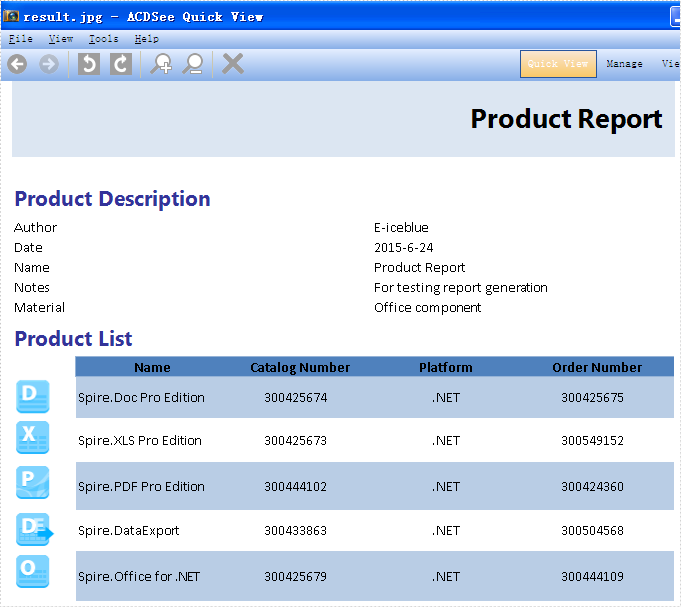
Only convert the visible worksheet to Image in .jpg format.
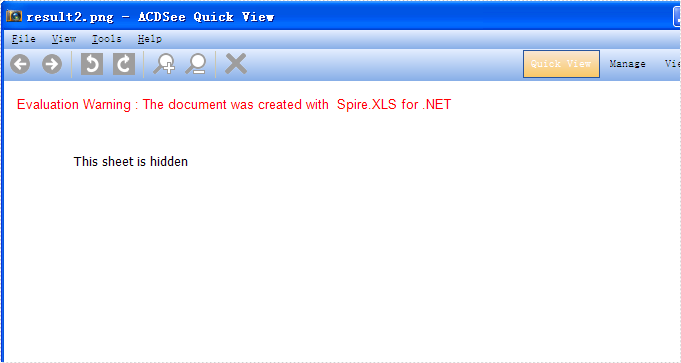
Only convert the hidden worksheet to Image in .png format.
Full codes:
using Spire.Xls;

namespace ConsoleTest
{
    class Program
    {
        static void Main(string[] args)
        {
            Workbook book = new Workbook();
            book.LoadFromFile("sample.xlsx", ExcelVersion.Version2010);

            foreach (Spire.Xls.Worksheet ws2 in book.Worksheets)
            {
                //only convert the visible sheet
                if (ws2.Visibility == WorksheetVisibility.Visible)
                    ////only convert the hidden sheet
                    //if (ws2.Visibility == WorksheetVisibility.Hidden)
                    ws2.SaveToImage("result.jpg");
            }
        }
    }
}
How to add line numbers in C#
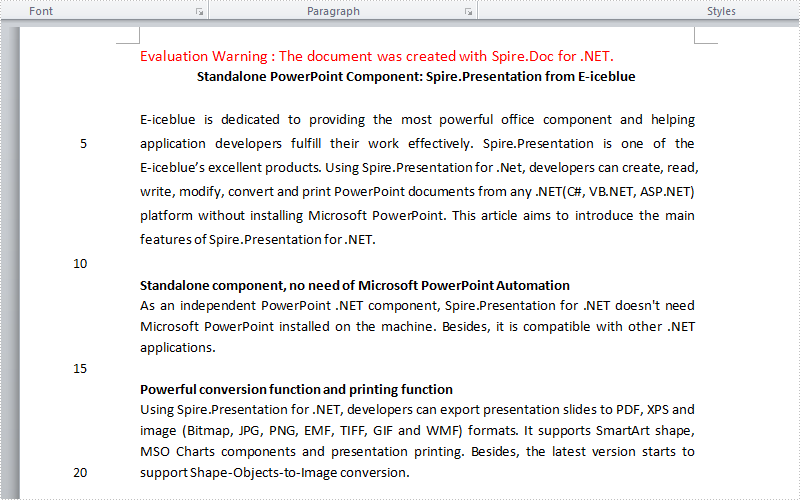
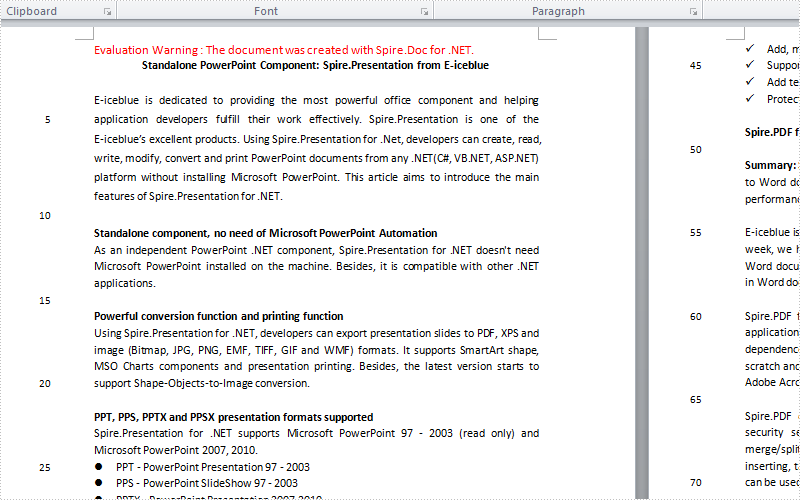
Line numbers is used to display the number of lines counted automatically by Word next to each line of text. It's very useful when we need to refer to specific lines in a document such as contract or legal papers. Line numbers function in word allows us to set the start value, the number interval, the distance from text and the numbering mode of line numbers. Using Spire.Doc, we could achieve all of features mentioned above. This article is going to introduce how to add line numbers in C# using Spire.Doc.
Note: Before start, please download the latest version of Spire.Doc and add Spire.Doc .dll in the bin folder as the reference of visual studio.
Step 1: Load the sample document which only has text.
Document document = new Document();
document.LoadFromFile("T.docx");
Step 2: Set the start value of the line numbers.
document.Sections[0].PageSetup.LineNumberingStartValue = 1;
Step 3: Set the interval between displayed numbers.
document.Sections[0].PageSetup.LineNumberingStep = 6;
Step 4: Set the distance between line numbers and text.
document.Sections[0].PageSetup.LineNumberingDistanceFromText = 40f;
Step 5: Set the numbering mode of line numbers. Here we have four choices: None, Continuous, RestartPage and RestartSection.
document.Sections[0].PageSetup.LineNumberingRestartMode = LineNumberingRestartMode.Continuous;
Step 6: Save the document and launch to see effects.
 document.SaveToFile("result.docx",FileFormat.Docx2013);
System.Diagnostics.Process.Start("result.docx");
Effects:
Single Page:
Continuous Page:
Full Codes:
using System;
using System.Collections.Generic;
using System.Linq;
using System.Text;
using Spire.Doc;

namespace How_to_add_line_numbering
{
    class Program
    {
        static void Main(string[] args)
        {
            Document document = new Document();
            document.LoadFromFile("T.docx");

            document.Sections[0].PageSetup.LineNumberingStartValue = 1;
            document.Sections[0].PageSetup.LineNumberingStep = 6;
            document.Sections[0].PageSetup.LineNumberingDistanceFromText = 40f;
            document.Sections[0].PageSetup.LineNumberingRestartMode = LineNumberingRestartMode.Continuous;

             document.SaveToFile("result.docx",FileFormat.Docx2013);
            System.Diagnostics.Process.Start("result.docx");
        }
    }
}
C#/VB.NET: Change Security Permissions of PDF Documents
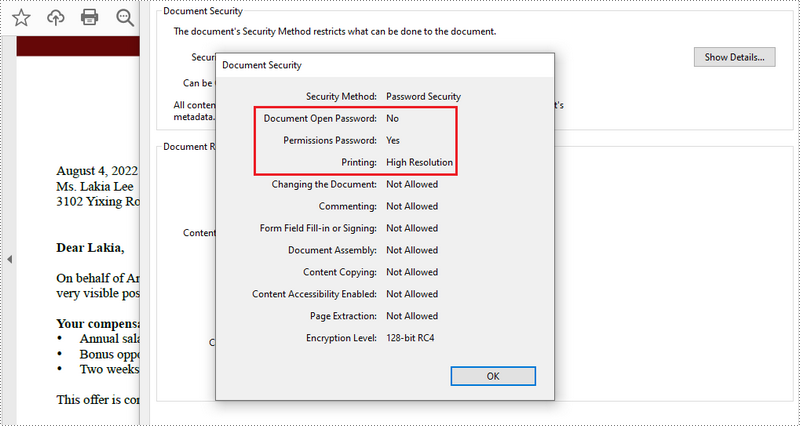
When you protect your PDF documents with passwords you can optionally specify a set of permissions. The permissions determine how users can interact with the file. For example, you can apply permissions to your document to prohibit the user from printing or using cut and paste operations. This article demonstrates how to change security permissions of PDF documents using Spire.PDF for .NET in C# and VB.NET.
Install Spire.PDF for .NET
To begin with, you need to add the DLL files included in the Spire.PDF for.NET package as references in your .NET project. The DLL files can be either downloaded from this link or installed via NuGet.
PM> Install-Package Spire.PDF
Change Security Permissions of a PDF Document
The following are the steps to apply security permissions to a PDF document using Spire.PDF for .NET.
- Create a PdfDocument object.
- Load a sample PDF file using PdfDocument.LoadFileFile() method.
- Specify open password and permission password. The open password can be set to empty so that the generated document will not require a password to open.
- Encrypt the document with the open password and permission password, and set the security permissions using PdfDocument.Security.Encypt() method. This method takes PdfPermissionsFlags enumeration as a parameter, which defines user access permissions for an encrypted document.
- Save the document to another PDF file using PdfDocument.SaveToFile() method.
- C#
- VB.NET
using Spire.Pdf;
using Spire.Pdf.Security;

namespace ChangeSecurityPermission
{
    class Program
    {
        static void Main(string[] args)
        {
            //Create a PdfDocument object
            PdfDocument doc = new PdfDocument();

            //Load a sample PDF file
            doc.LoadFromFile(@"C:\Users\Administrator\Desktop\sample.pdf");

            //Specify open password
            string openPsd = string.Empty;

            //Specify permission password
            string permissionPsd = "e-iceblue";

            //Encrypt the document with open password and permission password, and set the permissions and encryption key size
            PdfSecurityPolicy securityPolicy = new PdfPasswordSecurityPolicy(openPsd, permissionPsd);

            // Set the encryption algorithm to AES 128-bit
            securityPolicy.EncryptionAlgorithm = PdfEncryptionAlgorithm.AES_128;

            // Allow printing of the document
            securityPolicy.DocumentPrivilege.AllowPrint = true;

            // Allow filling form fields in the document
            securityPolicy.DocumentPrivilege.AllowFillFormFields = true;

            doc.Encrypt(securityPolicy);

            //Save the document to another PDF file
            doc.SaveToFile("SecurityPermissions.pdf");
        }
    }
}
Apply for a Temporary License
If you'd like to remove the evaluation message from the generated documents, or to get rid of the function limitations, please request a 30-day trial license for yourself.
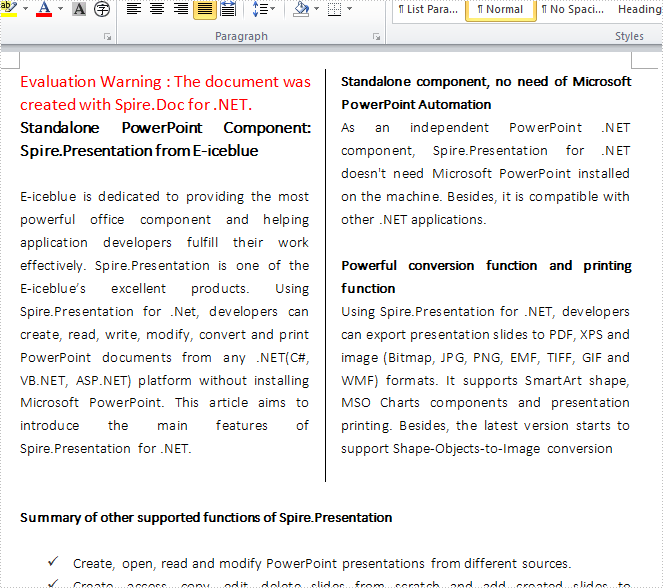
How to split text into two columns and add line between them
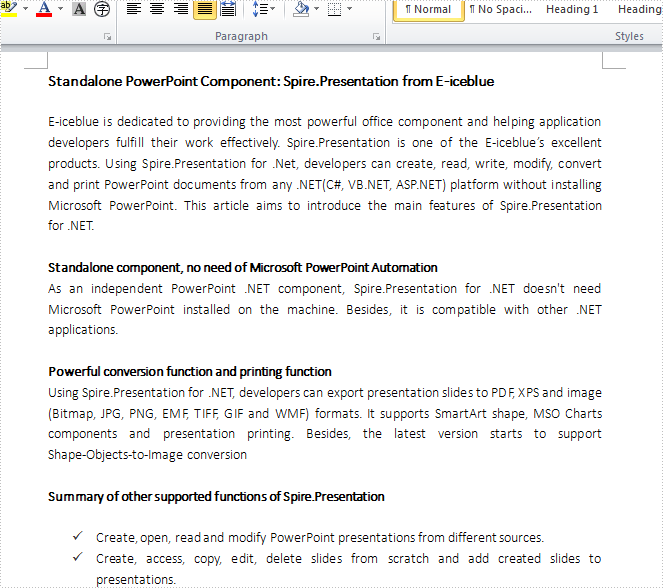
Columns are widely used to set page layout, for which could split text into two or more columns so that the text could flow from one column to the next on the same page. Using Spire.Doc, we could achieve this feature and add a line between columns at the same time. This article is going to introduce how to split text into two columns and add line between them.
Note: please download the latest version of Spire.Doc and add Spire.Doc .dll as reference of Visual Studio.
Step 1: Create a new document and load from file
Document document = new Document();
document.LoadFromFile("S.docx");
Step 2: Add a column to section one, set the width of columns and the spacing between columns. Here we set width as 100f and spacing as 20f.
document.Sections[0].AddColumn(100f, 20f);
Step 3: Add a line between the two columns
document.Sections[0].PageSetup.ColumnsLineBetween = true;
Step 4: Save the document and launch to see effects
document.SaveToFile("result.docx",FileFormat.Docx2013);
System.Diagnostics.Process.Start("result.docx");
Before adding the columns:
Effects:
Full Code:
using System;
using System.Collections.Generic;
using System.Linq;
using System.Text;
using Spire.Doc;

namespace Column
{
    class Program
    {
        static void Main(string[] args)
        {
            Document document = new Document();

            document.LoadFromFile("S.docx");

            document.Sections[0].AddColumn(100f, 20f);

            document.Sections[0].PageSetup.ColumnsLineBetween = true;

            document.SaveToFile("result.docx",FileFormat.Docx2013);
            System.Diagnostics.Process.Start("result.docx");

        }
    }
}
How to convert Excel worksheet to EMF image in C#
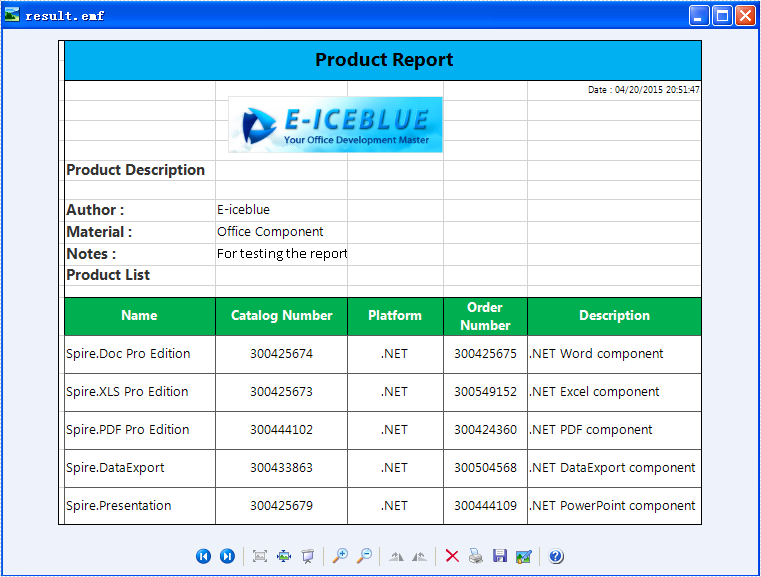
Spire.XLS has powerful functions to export Excel worksheets into different image file formats. In the previous articles, we have already shown you how to convert Excel worksheets into BMP, PNG, GIF, JPG, JPEG, TIFF. Now Spire.XLS newly starts to support exporting Excel worksheet into EMF image. With the help of Spire.XLS, you only need three lines of codes to finish the conversion function.
Make sure Spire.XLS (Version 7.6.43 or above) has been installed correctly and then add Spire.xls.dll as reference in the downloaded Bin folder though the below path: "..\Spire.Xls\Bin\NET4.0\ Spire. Xls.dll". Here comes to the details of how to convert excel worksheet to EMF image.
Step 1: Create an excel document and load the document from file.
Workbook workbook = new Workbook();
workbook.LoadFromFile("XLS2.xlsx");
Step 2: Get the first worksheet in excel workbook.
Worksheet sheet = workbook.Worksheets[0];
Step 3: Save excel worksheet into EMF image.
sheet.ToEMFStream(stream, 1, 1, 19, 6, EmfType.EmfPlusDual);
Effective screenshot:
Full codes:
using Spire.Xls;
using System.Drawing.Imaging;
using System.IO;

namespace XLStoEMF
{
    class Program
    {
        static void Main(string[] args)
        {
            Workbook workbook = new Workbook();
            workbook.LoadFromFile("XLS2.xlsx");

            Worksheet sheet = workbook.Worksheets[0];

            MemoryStream stream = new MemoryStream();
            sheet.ToEMFStream(stream, 1, 1, 19, 6, EmfType.EmfPlusDual);

            File.WriteAllBytes("result.emf", stream.ToArray());
        }
    }
}
How to Convert Selected Range of Cells to PDF in C#, VB.NET
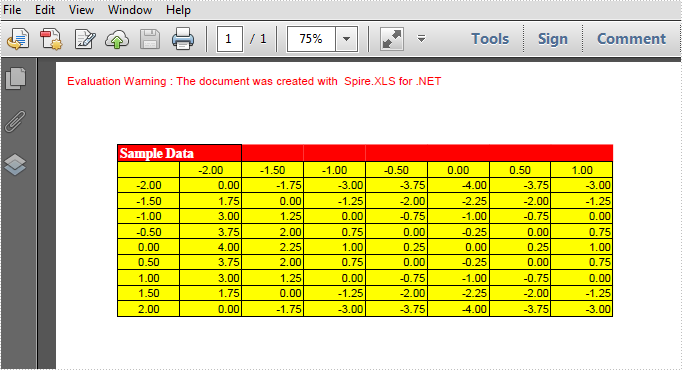
Using Spire.XLS, programmers are able to save the whole worksheet as PDF by calling the method SaveToPdf(). However, you may only want to save or export a part of worksheet as PDF. Since Spire.XLS doesn't provide a method to directly convert a range of cells to PDF, we can copy the selected ranges to a new worksheet and then save it as PDF file. This method seems complex, but it is still efficient with Spire.XLS.
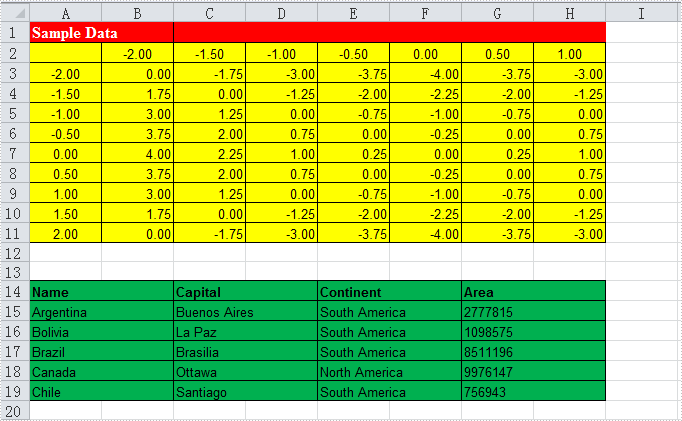
Look at the test file below, we only want the cells from A1 to H11 converted as PDF. We will firstly create a new blank worksheet, copy the selected range to the new sheet using CellRange.Copy() method, then convert the new sheet as PDF.
Code Snippet:
Step 1: Create a new workbook and load the test file.
Workbook workbook = new Workbook();
workbook.LoadFromFile("test.xlsx", ExcelVersion.Version2010);
Step 2: Add a new worksheet to workbook.
workbook.Worksheets.Add("newsheet");
Step 3: Copy the selected range from where it stores to the new worksheet.
workbook.Worksheets[0].Range["A1:H11"].Copy(workbook.Worksheets[1].Range["A1:H11"]);
Step 4: Convert the new worksheet to PDF.
workbook.Worksheets[1].SaveToPdf("result.pdf");
Result:
Full Code:
using Spire.Xls;
namespace Convert
{
    class Program
    {
        static void Main(string[] args)
        {
            Workbook workbook = new Workbook();
            workbook.LoadFromFile("test.xlsx", ExcelVersion.Version2010);
            // add a new sheet to workbook
            workbook.Worksheets.Add("newsheet");
            //Copy your area to new sheet.
            workbook.Worksheets[0].Range["A1:H11"].Copy(workbook.Worksheets[1].Range["A1:H11"]);
            //convert new sheet to pdf
            workbook.Worksheets[1].SaveToPdf("result.pdf");

        }
    }
}
Imports Spire.Xls
Namespace Convert
	Class Program
		Private Shared Sub Main(args As String())
			Dim workbook As New Workbook()
			workbook.LoadFromFile("test.xlsx", ExcelVersion.Version2010)
			' add a new sheet to workbook
			workbook.Worksheets.Add("newsheet")
			'Copy your area to new sheet.
			workbook.Worksheets(0).Range("A1:H11").Copy(workbook.Worksheets(1).Range("A1:H11"))
			'convert new sheet to pdf
			workbook.Worksheets(1).SaveToPdf("result.pdf")

		End Sub

	End Class
End Namespace
How to Apply Conditional Formatting to a Data Range in C#
Conditional formatting in Microsoft Excel has a number of presets that enables users to apply predefined formatting such as colors, icons and data bars, to a range of cells based on the value of the cell or the value of a formula. Conditional formatting usually reveals the data trends or highlights the data that meets one or more formulas.
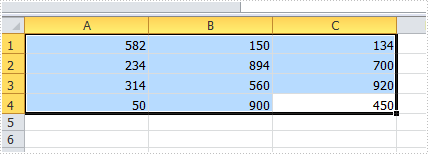
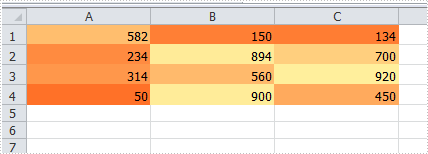
In this article, I made an example to explain how these conditional formatting types can be achieved programmatically using Spire.XLS in C#. First of all, let's see the worksheet that contains a group of data in selected range as below, we’d like see which cells’ value is bigger than 800. In order to quickly figure out similar things like this, we can create a conditional formatting rule by formula: “If the value is bigger than 800, color the cell with Red” to highlight the qualified cells.
Code Snippet for Creating Conditional Formatting Rules:
Step 1: Create a worksheet and insert data to cell range from A1 to C4.
Workbook workbook = new Workbook();
Worksheet sheet = workbook.Worksheets[0];

sheet.Range["A1"].NumberValue = 582;
sheet.Range["A2"].NumberValue = 234;
sheet.Range["A3"].NumberValue = 314;
sheet.Range["A4"].NumberValue = 50;
sheet.Range["B1"].NumberValue = 150;
sheet.Range["B2"].NumberValue = 894;
sheet.Range["B3"].NumberValue = 560;
sheet.Range["B4"].NumberValue = 900;
sheet.Range["C1"].NumberValue = 134;
sheet.Range["C2"].NumberValue = 700;
sheet.Range["C3"].NumberValue = 920;
sheet.Range["C4"].NumberValue = 450;
sheet.AllocatedRange.RowHeight = 15;
sheet.AllocatedRange.ColumnWidth = 17;
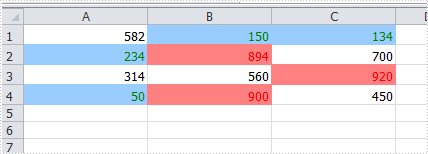
Step 2: To highlight cells based on their values, we create two conditional formatting rules: one for cells greater than 800, and another for cells less than 300.
XlsConditionalFormats xcfs1 = sheet.ConditionalFormats.Add();
xcfs1.AddRange(sheet.AllocatedRange);

IConditionalFormat cf1 = xcfs1.AddCondition();
cf1.FormatType = ConditionalFormatType.CellValue;
cf1.FirstFormula = "800";
cf1.Operator = ComparisonOperatorType.Greater;
cf1.FontColor = Color.Red;
cf1.BackColor = Color.LightSalmon;

Apply Data Bars:
IConditionalFormat cf3 = xcfs1.AddCondition();
cf3.FormatType = ConditionalFormatType.DataBar;
cf3.DataBar.BarColor = Color.CadetBlue;

Apply Icon Sets:
IConditionalFormat cf4 = xcfs1.AddCondition();
cf4.FormatType = ConditionalFormatType.IconSet;

Apply Color Scales:
IConditionalFormat cf5 = xcfs1.AddCondition();
cf5.FormatType = ConditionalFormatType.ColorScale;
Step 3: Save and launch the file
workbook.SaveToFile("sample.xlsx", ExcelVersion.Version2010);
System.Diagnostics.Process.Start("sample.xlsx");
Result:
The cells with value bigger than 800 and smaller than 300, have been highlighted with defined text color and background color.
Apply the Other Three Conditional Formatting Types:
Spire.XLS also supports applying some other conditional formatting types which were predefined in MS Excel. Use the following code snippets to get more formatting effects.
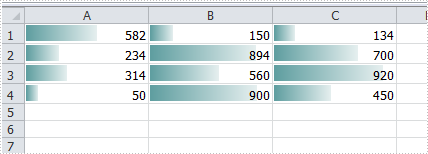
Apply Data Bars:
ConditionalFormatWrapper format = sheet.AllocatedRange.ConditionalFormats.AddCondition();
format.FormatType = ConditionalFormatType.DataBar;
format.DataBar.BarColor = Color.CadetBlue;
Apply Icon Sets:
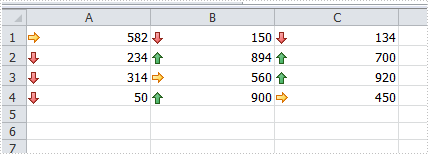
ConditionalFormatWrapper format = sheet.AllocatedRange.ConditionalFormats.AddCondition();
format.FormatType = ConditionalFormatType.IconSet;
Apply Color Scales:
ConditionalFormatWrapper format = sheet.AllocatedRange.ConditionalFormats.AddCondition();
format.FormatType = ConditionalFormatType.ColorScale;
Full Code:
using Spire.Xls;
using Spire.Xls.Core;
using Spire.Xls.Core.Spreadsheet.Collections;
using System.Drawing;

namespace ApplyConditionalFormatting
{
    class Program
    {
        static void Main(string[] args)
        {
            // Create a new workbook and get the first worksheet
            Workbook workbook = new Workbook();
            Worksheet sheet = workbook.Worksheets[0];

            // Populate sample data in cells A1:C4
            sheet.Range["A1"].NumberValue = 582;
            sheet.Range["A2"].NumberValue = 234;
            sheet.Range["A3"].NumberValue = 314;
            sheet.Range["A4"].NumberValue = 50;
            sheet.Range["B1"].NumberValue = 150;
            sheet.Range["B2"].NumberValue = 894;
            sheet.Range["B3"].NumberValue = 560;
            sheet.Range["B4"].NumberValue = 900;
            sheet.Range["C1"].NumberValue = 134;
            sheet.Range["C2"].NumberValue = 700;
            sheet.Range["C3"].NumberValue = 920;
            sheet.Range["C4"].NumberValue = 450;
            sheet.AllocatedRange.RowHeight = 15;
            sheet.AllocatedRange.ColumnWidth = 17;

            // Create a conditional formatting rule set applied to the entire used range
            XlsConditionalFormats xcfs1 = sheet.ConditionalFormats.Add();
            xcfs1.AddRange(sheet.AllocatedRange);

            // Rule 1: Highlight cells with values greater than 800 in red text and light salmon background
            IConditionalFormat cf1 = xcfs1.AddCondition();
            cf1.FormatType = ConditionalFormatType.CellValue;
            cf1.FirstFormula = "800";
            cf1.Operator = ComparisonOperatorType.Greater;
            cf1.FontColor = Color.Red;
            cf1.BackColor = Color.LightSalmon;

            // Rule 2: Highlight cells with values less than 300 in green text and light blue background
            IConditionalFormat cf2 = xcfs1.AddCondition();
            cf2.FormatType = ConditionalFormatType.CellValue;
            cf2.FirstFormula = "300";
            cf2.Operator = ComparisonOperatorType.Less;
            cf2.FontColor = Color.Green;
            cf2.BackColor = Color.LightBlue;

            //// Rule 3: Add data bars
            //IConditionalFormat cf3 = xcfs1.AddCondition();
            //cf3.FormatType = ConditionalFormatType.DataBar;
            //cf3.DataBar.BarColor = Color.CadetBlue;

            //// Rule 4: Apply icon set
            //IConditionalFormat cf4 = xcfs1.AddCondition();
            //cf4.FormatType = ConditionalFormatType.IconSet;

            //// Rule 5: Apply color scale
            //IConditionalFormat cf5 = xcfs1.AddCondition();
            //cf5.FormatType = ConditionalFormatType.ColorScale;

            workbook.SaveToFile("sample.xlsx", ExcelVersion.Version2010);
            System.Diagnostics.Process.Start("sample.xlsx");
        }
    }
}
C#/VB.NET: Extract Attachments from PDF
PDF attachments allow users to see more details on a particular point by visiting attachments inside the PDF. Basically, there are two types of attachments in PDF: document level attachment and annotation attachment. Below are the differences between them.
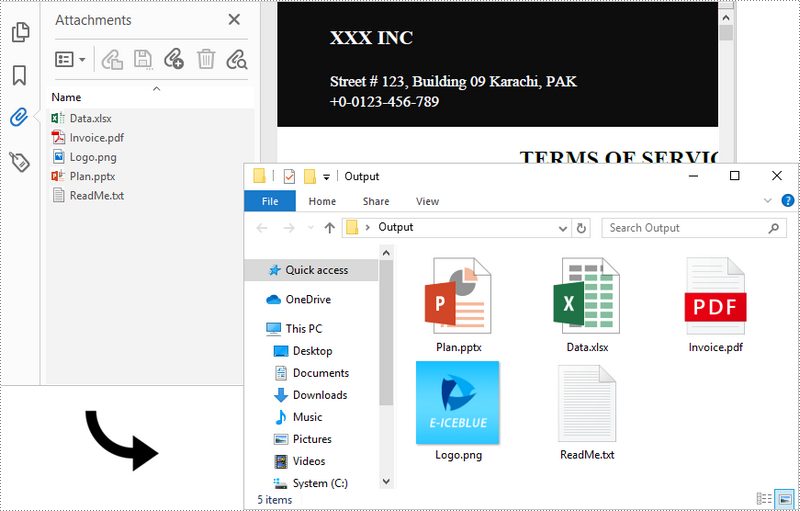
- Document Level Attachment (represented by PdfAttachment class): A file attached to a PDF at the document level won't appear on a page, but only appear in the PDF reader's "Attachments" panel.
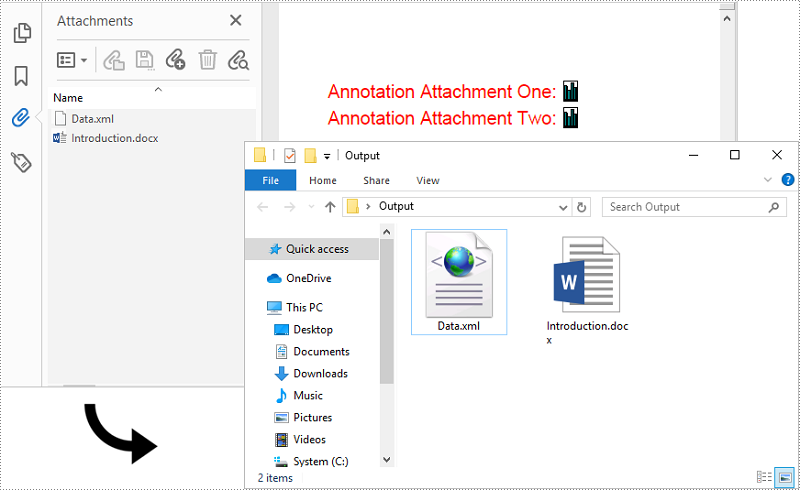
- Annotation Attachment (represented by PdfAttachmentAnnotation class): A file that is attached to a specific position of a page. Annotation attachments are shown as a paper clip icon on the page; reviewers can double-click the icon to open the file.
In this article, you will learn how to extract these two kinds of attachments from a PDF document in C# and VB.NET using Spire.PDF for .NET.
Install Spire.PDF for .NET
To begin with, you need to add the DLL files included in the Spire.PDF for.NET package as references in your .NET project. The DLL files can be either downloaded from this link or installed via NuGet.
PM> Install-Package Spire.PDF
Extract Attachments from PDF in C# and VB.NET
The document level attachments of a PDF document can be obtained through PdfDocument.Attachments property. The following steps illustrate how to extract all document level attachments from a PDF document and save them to a local folder.
- Create a PdfDocument object.
- Load a PDF file using PdfDocument.LoadFromFile() method.
- Get the attachment collection from the document through PdfDocument.Attachments property.
- Get the data of a specific attachment through PdfAttachment.Data property.
- Write the data to a file and save to a specified folder.
- C#
- VB.NET
using Spire.Pdf;
using Spire.Pdf.Attachments;
using System.Net.Mail;

namespace ExtractAttachments
{
    class Program
    {
        static void Main(string[] args)
        {
            //Create a PdfDocument object
            PdfDocument doc = new PdfDocument();

            //Load a PDF file that contains attachments
            doc.LoadFromFile("C:\\Users\\Administrator\\Desktop\\Attachments.pdf");

            //Get the attachment collection of the PDF document
            PdfAttachmentCollection attachments = doc.Attachments;

            //Specific output folder path
            string outputFolder = "C:\\Users\\Administrator\\Desktop\\output\\";

            //Loop through the collection
            for (int i = 0; i < attachments.Count; i++)
            {
	          //Write attachment to a file
                File.WriteAllBytes(outputFolder + attachments[i].FileName, attachments[i].Data);
            }
        }
    }
}
Extract Annotation Attachments from PDF in C# and VB.NET
Annotation attachment is a page-based element. To get annotations from a specific page, use PdfPageBase.AnnotationsV2 property. After that, you’ll need to determine if a specific annotation is an annotation attachment. The follows are the steps to extract annotation attachments from a PDF document and save them to a local folder.
- Create a PdfDocument object.
- Load a PDF file using PdfDocument.LoadFromFile() method.
- Get a specific page from the document through PdfDocument.Pages[] property.
- Get the annotation collection from the page through PdfPageBase.AnnotationsV2 property.
- Determine if a specific annotation is an instance of PdfFileAttachmentAnnotation. If yes, write the annotation attachment to a file and save it to a specified folder.
- C#
- VB.NET
using Spire.Pdf;
using Spire.Pdf.Interactive.Annotations;

namespace ExtractAnnotationAttachments
{
    class Program
    {
        static void Main(string[] args)
        {
            //Create a PdfDocument object
            PdfDocument doc = new PdfDocument();

            //Load a PDF file that contains attachments
            doc.LoadFromFile("C:\\Users\\Administrator\\Desktop\\AnnotationAttachments.pdf");

            //Specific output folder path
            string outputFolder = "C:\\Users\\Administrator\\Desktop\\Output\\";

            //Loop through the pages
            for (int i = 0; i < doc.Pages.Count; i++)
            {
                //Get the annotation collection
                PdfAnnotationCollection collection = doc.Pages[i].AnnotationsV2;

                //Loop through the annotations
                for (int j = 0; j < collection.Count; j++)
                {
                    //Determine if an annotation is an instance of PdfFileAttachmentAnnotation
                    if (collection[j] is PdfFileAttachmentAnnotation)
                    {
                        //Write annotation attachment to a file
                        PdfFileAttachmentAnnotation attachmentAnnotation = (PdfFileAttachmentAnnotation)collection[j];
                        PdfFileSpecification fileSpecification = attachmentAnnotation.FileSpecification;
                        String fileName = Path.GetFileName(fileSpecification.FileName);
                        byte[] data = fileSpecification.EmbeddedFile.Data;
                        File.WriteAllBytes(outputFolder + fileName, data);
                    }
                }
            }
        }
    }
}
Apply for a Temporary License
If you'd like to remove the evaluation message from the generated documents, or to get rid of the function limitations, please request a 30-day trial license for yourself.