Add Image Header/Footer in C#
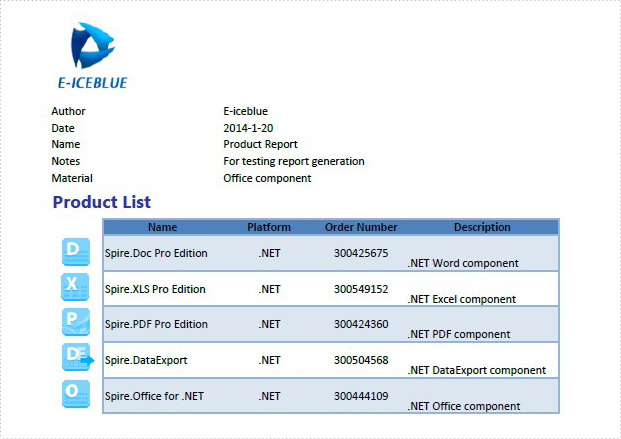
Excel header and footer gives additional information of a spreadsheet. And it can be in text and image. We have already shows you the text header and footer in excel worksheet, this guide focuses on introducing how to insert image header and footer for Excel files in C# by using Spire.XLS for .NET.
Firstly, Download Spire.XLS for .NET (or Spire.Office for .NET) and install it on your system. The Spire.XLS installation is clean, professional and wrapped up in a MSI installer.
Then, adds Spire.XLS.dll as reference in the downloaded Bin folder thought the below path: "..\Spire.XLS\Bin\NET4.0\ Spire.XLS.dll".
Now it comes to the details of how to add image header and footer in C#:
Step 1: Create a new excel document and load from the file.
Workbook workbook = new Workbook();
workbook.LoadFromFile(@"..\..\XLS1.xlsx");
Step 2: Get a first worksheet.
Worksheet sheet = workbook.Worksheets[0];
Step 3: Load the image and set header and footer style.
Image image = Image.FromFile(@"..\..\logo.png");

//Set Header format
sheet.PageSetup.LeftHeaderImage = image;
sheet.PageSetup.LeftHeader = "&G";

//Set Footer format
sheet.PageSetup.CenterFooterImage = image;
sheet.PageSetup.CenterFooter = "&G";
Step 4: Save the document to file.
workbook.SaveToFile(@"..\..\result.xlsx", ExcelVersion.Version2010);
Effected screenshot:
The full codes:
using Spire.Xls;
using System.Drawing;
namespace AddImageHeaderandFooter
{
    class Program
    {
        static void Main(string[] args)
        {
            Workbook workbook = new Workbook();
            workbook.LoadFromFile(@"..\..\XLS1.xlsx");
            Worksheet sheet = workbook.Worksheets[0];
            Image image = Image.FromFile(@"..\..\logo.png");

            sheet.PageSetup.LeftHeaderImage = image;
            sheet.PageSetup.LeftHeader = "&G";

            sheet.PageSetup.CenterFooterImage = image;
            sheet.PageSetup.CenterFooter = "&G";

            workbook.SaveToFile(@"..\..\result.xlsx", ExcelVersion.Version2010);
        }
    }
}
C#/VB.NET: Set Text Alignment and Orientation in Excel
Text alignment and orientation are essential formatting features in Excel that allow you to position and orient text within cells according to your specific needs. By adjusting text alignment and orientation, you can enhance the readability and aesthetics of your spreadsheet. In this article, we will explain how to set text alignment and orientation in Excel in C# and VB.NET using Spire.XLS for .NET.
Install Spire.XLS for .NET
To begin with, you need to add the DLL files included in the Spire.XLS for.NET package as references in your .NET project. The DLL files can be either downloaded from this link or installed via NuGet.
PM> Install-Package Spire.XLS
Set Text Alignment and Orientation in Excel in C# and VB.NET
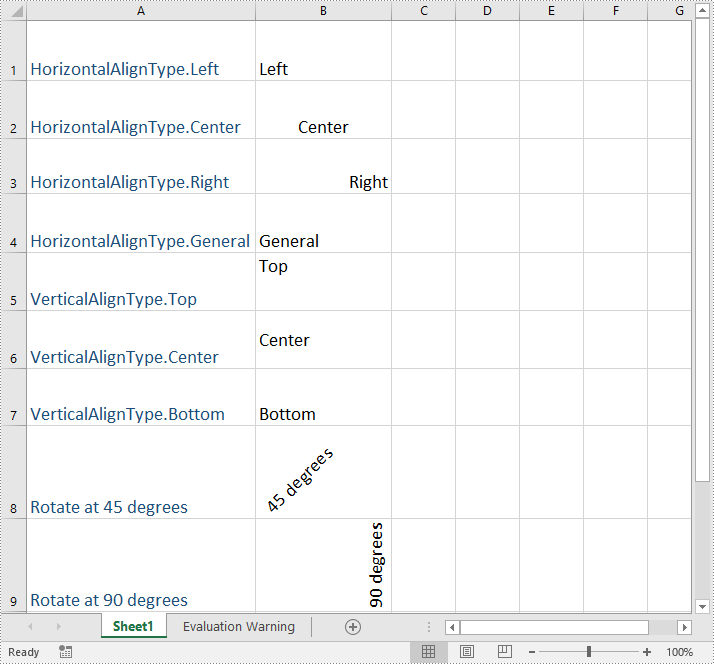
You can set the horizontal or vertical alignment of text in individual cells or a range of cells using the CellRange.Style.HorizontalAlignment or CellRange.Style.VerticalAlignment properties. In addition, you are also able to change the orientation of text by assigning a rotation value to the corresponding cell or cells using the CellRange.Style.Rotation property. The detailed steps are as follows:
- Create a Workbook object.
- Load an Excel file using Workbook.LoadFromFile() method.
- Get a specific worksheet using Workbook.Worksheets[int index] property.
- Access specific cells in the worksheet using Worksheet.Range[string name] property and then set the horizontal alignment of text in them using CellRange.Style.HorizontalAlignment property.
- Access specific cells in the worksheet using Worksheet.Range[string name] property and then set the vertical alignment of text in them using CellRange.Style.VerticalAlignment property.
- Access specific cells in the worksheet using Worksheet.Range[string name] property and then change their text orientation using CellRange.Style.Rotation property.
- Save the result file using Workbook.SaveToFile() method.
- C#
- VB.NET
using Spire.Xls;

namespace TextAlignmentAndRotation
{
    internal class Program
    {
        static void Main(string[] args)
        {
            //Create a Workbook object
            Workbook workbook = new Workbook();

            //Load an Excel file
            workbook.LoadFromFile(@"Sample.xlsx");

            //Get the first worksheet
            Worksheet sheet = workbook.Worksheets[0];

            //Set the horizontal alignment for text in a specific cell to Left
            sheet.Range["B1"].Style.HorizontalAlignment = HorizontalAlignType.Left;

            //Set the horizontal alignment for text in a specific cell to Center
            sheet.Range["B2"].Style.HorizontalAlignment = HorizontalAlignType.Center;

            //Set the horizontal alignment for text in a specific cell to Right
            sheet.Range["B3"].Style.HorizontalAlignment = HorizontalAlignType.Right;

            //Set the horizontal alignment for text in a specific cell to General
            sheet.Range["B4"].Style.HorizontalAlignment = HorizontalAlignType.General;

            //Set the vertical alignment for text in a specific cell to Top
            sheet.Range["B5"].Style.VerticalAlignment = VerticalAlignType.Top;

            //Set the vertical alignment for text in a specific cell to Center
            sheet.Range["B6"].Style.VerticalAlignment = VerticalAlignType.Center;

            //Set the vertical alignment for text in a specific cell to Bottom
            sheet.Range["B7"].Style.VerticalAlignment = VerticalAlignType.Bottom;

            //Change the text orientation in specific cells by assigning a rotation value
            sheet.Range["B8"].Style.Rotation = 45;
            sheet.Range["B9"].Style.Rotation = 90;

            //Set the row height for specific cells
            sheet.Range["B8:C9"].RowHeight = 70;

            //Save the result file
            workbook.SaveToFile("TextAlignmentAndOrientation.xlsx", ExcelVersion.Version2016);
            workbook.Dispose();
        }
    }
}
Apply for a Temporary License
If you'd like to remove the evaluation message from the generated documents, or to get rid of the function limitations, please request a 30-day trial license for yourself.
C#: Apply Shading to Word Paragraphs or Text
Shading is a powerful feature in MS Word that adds a background color to specified text or paragraphs in a document. This not only enhances the visual appeal of the document, but also helps to differentiate between different sections and makes the content more readable. In this article, you will learn how to apply shading to a paragraph or text in Word in C# using Spire.Doc for .NET.
Install Spire.Doc for .NET
To begin with, you need to add the DLL files included in the Spire.Doc for.NET package as references in your .NET project. The DLL files can be either downloaded from this link or installed via NuGet.
PM> Install-Package Spire.Doc
Apply Paragraph Shading in Word in C#
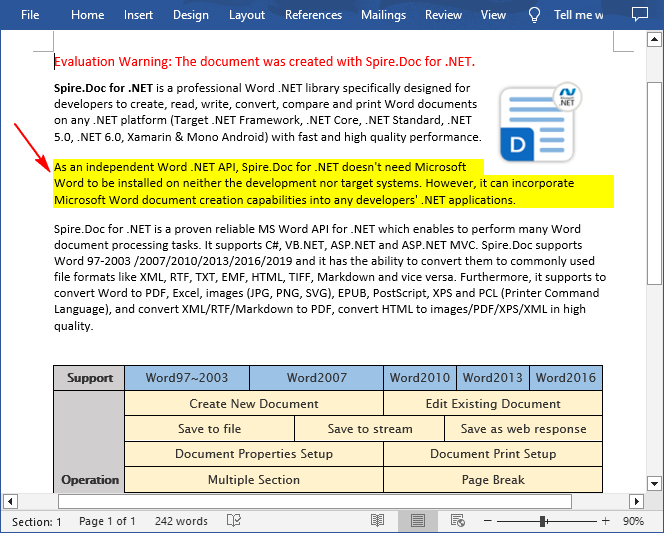
Spire.Doc for .NET provides developers with the Paragraph.Format.BackColor property to apply a background color to a specified paragraph in Word. The following are the detailed steps:
- Create a Document instance.
- Load a Word document using Document.LoadFromFile() method.
- Get a specified section using Document.Sections[] property.
- Get a specified paragraph using Section.Paragraphs[] property.
- Set a background color for the paragraph using Paragraph.Format.BackColor property.
- Save the result document using Document.SaveToFile() method.
- C#
using Spire.Doc;
using Spire.Doc.Documents;
using System.Drawing;

namespace WordParagrahShade
{
    class Program
    {
        static void Main(string[] args)
        {
            // Create a Document instance
            Document document = new Document();

            // Load a Word document
            document.LoadFromFile("Sample.docx");

            // Get the first section
            Section section = document.Sections[0];

            // Get the second paragraph
            Paragraph paragaph = section.Paragraphs[1];

            // Set a background color for the paragraph
            paragaph.Format.BackColor = Color.Yellow;

            // Save the result document
            document.SaveToFile("ParagraphBackground.docx", FileFormat.Docx);
        }
    }
}
Apply Shading to Specified Text in Word in C#
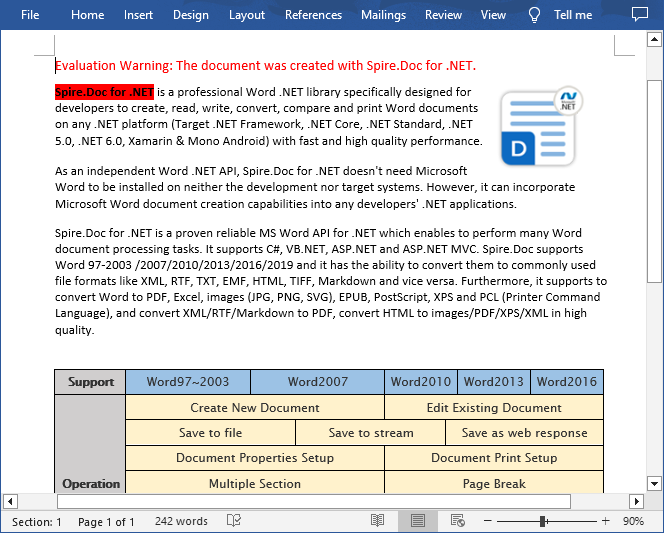
If you only need to apply shading to specified text, you can first find the specific text through the Paragraph.Find() method, get its text range and then set a background color for the text range through the TextRange.CharacterFormat.TextBackgroundColor property. The following are the detailed steps:
- Create a Document instance.
- Load a Word document using Document.LoadFromFile() method.
- Get a specified section using Document.Sections[] property.
- Get a specified paragraph using Section.Paragraphs[] property.
- Find a specified text in the paragraph Paragraph.Find() method.
- Get the text range of the found text using TextSelection.GetAsOneRange() method.
- Set a background color for the text range using TextRange.CharacterFormat.TextBackgroundColor property.
- Save the document using Document.SaveToFile() method.
- C#
using Spire.Doc;
using Spire.Doc.Documents;
using Spire.Doc.Fields;
using System.Drawing;

namespace ShadeText
{
    class Program
    {
        static void Main(string[] args)
        {
            // Create a Document instance
            Document document = new Document();

            // Load a Word document
            document.LoadFromFile("Sample.docx");

            // Get the first section
            Section section = document.Sections[0];

            // Get the first paragraph
            Paragraph paragaph = section.Paragraphs[0];

            // Find a specified text in the paragraph
            TextSelection selection = paragaph.Find("Spire.Doc for .NET", true, false);

            // Get the text range of the found text
            TextRange range = selection.GetAsOneRange();

            // Set a background color for the text range
            range.CharacterFormat.TextBackgroundColor = Color.Red;

            // Save the result document
            document.SaveToFile("TextBackground.docx", FileFormat.Docx);
        }
    }
}
Apply for a Temporary License
If you'd like to remove the evaluation message from the generated documents, or to get rid of the function limitations, please request a 30-day trial license for yourself.
How to Ungroup Excel Cells in C#
Group the Excel cells is to tie a range of cells together so that they can be collapsed or expanded. But usually, we also need to ungroup the Excel cells. Consequently, the articles aims at introducing how to ungroup Excel cells in C#, through a professional Excel .NET Component Spire.Xls.
Just as its name implies, ungroup Excel cells is to ungroup a range of cells that were previously grouped. Before ungroup Excel cells, we should complete the preparatory work:
- Download the Spire.XLS and install it on your machine.
- Add the Spire.XLS.dll files as reference.
- Open bin folder and select the three dll files under .NET 4.0.
- Right click property and select properties in its menu.
- Set the target framework as .NET 4.
- Add Spire.XLS as namespace.
Then here comes to the explanation of the code:
Step 1: Create an instance of Spire.XLS.Workbook.
Workbook workbook = new Workbook();
Step 2: Load the file base on a specified file path.
workbook.LoadFromFile(@"group.xlsx");
Step 3: Get the first worksheet.
Worksheet sheet = workbook.Worksheets[0];
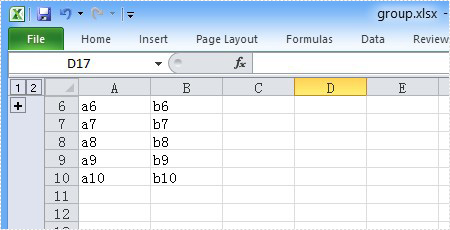
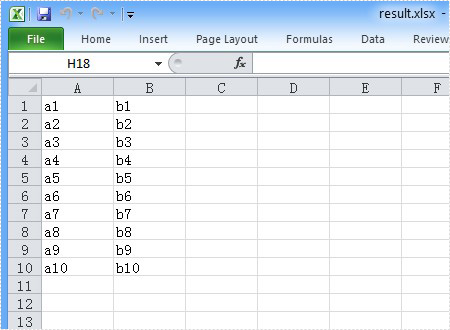
Step 4: Ungroup the first 5 row cells.
sheet.UngroupByRows(1, 5);
Step 5: Save as the generated file.
workbook.SaveToFile(@"result.xlsx", ExcelVersion.Version2010);
Full code:
using Spire.Xls;
namespace UngroupCell
{
    class Program
    {

        static void Main(string[] args)
        {

            Workbook workbook = new Workbook();
            workbook.LoadFromFile(@"group.xlsx");
            Worksheet sheet = workbook.Worksheets[0];
            sheet.UngroupByRows(1, 5);
            workbook.SaveToFile(@"..\..\result.xlsx", ExcelVersion.Version2010);

        }
    }
}
Please preview the original group effect screenshot:
And the generated ungroup effect screenshot:
Apply PDF Page Transitions in C#
Page transitions display a decorative effect such as a dissolve or wipe when you’re turning pages in a document that is exported to PDF format. Page transitions are especially useful when you create a slideshow in PDF format. And Spire.PDF, a powerful .NET component specially designed for developers enables you to apply page transitions to PDF file.
A solution is introduced here to show how to apply page transitions to PDF using Spire.PDF. Spire.PDF provides you a class called PdfSection. PdfSection has a property called PageSettings. And PageSettings has a property called Transition. You can use this property to apply page transitions.
Step 1: Create a new section.
PdfSection section = doc.Sections.Add();
section.PageSettings.Size = PdfPageSize.A4;
Step 2: Create a new PdfPageTransition instance.
section.PageSettings.Transition = new PdfPageTransition();
Step 3: Set the style of page transition.
section.PageSettings.Transition.Style = PdfTransitionStyle.Fade;
You can assign any value that is defined in PdfTransitionStyle to Style.
Step 4: Set the duration of transition effect in seconds.
section.PageSettings.Transition.Duration = 3;
Step 5: Set the page's display duration.
section.PageSettings.Transition.PageDuration = 2;
Step 6: Add more sections and apply more page transitions.
section = doc.Sections.Add();
section.PageSettings.Size = PdfPageSize.A4;
section.PageSettings.Transition = new PdfPageTransition();
section.PageSettings.Transition.Style = PdfTransitionStyle.Box;
section.PageSettings.Transition.Motion = PdfTransitionMotion.Outward;
section.PageSettings.Transition.Duration = 3;
section.PageSettings.Transition.PageDuration = 2;
You can combine the type of PdfPageTransition with the property Direction and the property Dimension of PdfPageTransition to create new and flexible page transition. For example, in this step, the Style of page transition is PdfTransitionStyle.Box and the Motion of page transition is PdfTransitionMotion.Outward.
At last, save the file.
doc.SaveToFile("result.pdf");
To see page transitions in the PDF, open the PDF file in Full Screen.



Here comes to the full code:
using Spire.Pdf;
using Spire.Pdf.Graphics;
using System.Drawing;


namespace PageTransitions
{
    class Program
    {
        static void Main(string[] args)
        {
            PdfDocument doc = new PdfDocument();

            PdfSection section = doc.Sections.Add();
            section.PageSettings.Size = PdfPageSize.A4;
            section.PageSettings.Transition = new PdfPageTransition();
            section.PageSettings.Transition.Style = PdfTransitionStyle.Fade;
            section.PageSettings.Transition.Duration = 3;
            section.PageSettings.Transition.PageDuration = 2;

            PdfNewPage page = section.Pages.Add();
            page.BackgroundColor = Color.Blue;
            page.Canvas.DrawString("This is Page One.", new PdfFont(PdfFontFamily.Helvetica, 20f), new PdfSolidBrush(Color.Black), 10, 10);

            page = section.Pages.Add();
            page.BackgroundColor = Color.Green;
            page.Canvas.DrawString("This is Page Two.", new PdfFont(PdfFontFamily.Helvetica, 20f), new PdfSolidBrush(Color.Black), 10, 10);

            section = doc.Sections.Add();
            section.PageSettings.Size = PdfPageSize.A4;
            section.PageSettings.Transition = new PdfPageTransition();
            section.PageSettings.Transition.Style = PdfTransitionStyle.Box;
            section.PageSettings.Transition.Motion = PdfTransitionMotion.Outward;
            section.PageSettings.Transition.Duration = 3;
            section.PageSettings.Transition.PageDuration = 2;

            page = section.Pages.Add();
            page.BackgroundColor = Color.Orange;
            page.Canvas.DrawString("This is Page Three.", new PdfFont(PdfFontFamily.Helvetica, 20f), new PdfSolidBrush(Color.Black), 10, 10);

            page = section.Pages.Add();
            page.BackgroundColor = Color.Brown;
            page.Canvas.DrawString("This is Page Four.", new PdfFont(PdfFontFamily.Helvetica, 20f), new PdfSolidBrush(Color.Black), 10, 10);

            section = doc.Sections.Add();
            section.PageSettings.Size = PdfPageSize.A4;
            section.PageSettings.Transition = new PdfPageTransition();
            section.PageSettings.Transition.Duration = 3;
            section.PageSettings.Transition.Style = PdfTransitionStyle.Dissolve;
            section.PageSettings.Transition.PageDuration = 2;

            page = section.Pages.Add();
            page.BackgroundColor = Color.Orange;
            page.Canvas.DrawString("This is Page Five.", new PdfFont(PdfFontFamily.Helvetica, 20f), new PdfSolidBrush(Color.Black), 10, 10);

            page = section.Pages.Add();
            page.BackgroundColor = Color.Navy;
            page.Canvas.DrawString("This is Page Six.", new PdfFont(PdfFontFamily.Helvetica, 20f), new PdfSolidBrush(Color.Black), 10, 10);

            doc.SaveToFile("result.pdf");
            doc.Close();
        }
    }
}
How to Add PDF Text Watermark in WPF
Watermark is a recognizable text or image that appears under document text. A watermark is useful in the examination of paper because it can be widely used for trademarks, locations and so on. This article aims at introducing how to add PDF text watermark for WPF through a simple WPF PDF API Spire.PDF for WPF. Also it can implement PDF watermark by image.
First we need to complete the preparatory work:
- Download the latest Spire.PDF and install it on your machine.
- Add the Spire.PDF.WPF.dll files as reference.
- Open bin folder and select the three dll files under .NET 4.0.
- Right click property and select properties in its menu.
- Set the target framework as .NET 4.
- Add Spire.PDF as namespace.
Here comes to the explanation of the code.
Step 1: Create an instance of Spire.PDF.Document
PdfDocument doc = new PdfDocument();
Step 2: Load the file base on a specified file path
doc.LoadFromFile(@"..\..\Sample1.pdf");
Step 3: Add the text watermark to the first page
PdfPageBase page = doc.Pages[0];
PdfTilingBrush brush = new PdfTilingBrush(new SizeF(page.Canvas.ClientSize.Width/2, page.Canvas.ClientSize.Height/3));
brush.Graphics.SetTransparency(0.3f);
brush.Graphics.Save();
brush.Graphics.TranslateTransform(brush.Size.Width / 2, brush.Size.Height / 2);
brush.Graphics.RotateTransform(-45);
brush.Graphics.DrawString("Spire.Pdf Demo",new PdfFont(PdfFontFamily.Helvetica, 24), PdfBrushes.Violet, 0, 0,new PdfStringFormat(PdfTextAlignment.Center));
brush.Graphics.Restore();
brush.Graphics.SetTransparency(1);
page.Canvas.DrawRectangle(brush, new RectangleF(new PointF(0, 0), page.Canvas.ClientSize));
Step 4: Save the PDF file
doc.SaveToFile("TextWaterMark.pdf");
Full code:
private void button1_Click(object sender, RoutedEventArgs e)
 {
  PdfDocument doc = new PdfDocument();
  doc.LoadFromFile(@"..\..\Sample1.pdf");
  PdfPageBase page = doc.Pages[0];
  PdfTilingBrush brush = new PdfTilingBrush(new SizeF(page.Canvas.ClientSize.Width/2, page.Canvas.ClientSize.Height/3));
  brush.Graphics.SetTransparency(0.3f);
  brush.Graphics.Save();
  brush.Graphics.TranslateTransform(brush.Size.Width / 2, brush.Size.Height / 2);
  brush.Graphics.RotateTransform(-45);
  brush.Graphics.DrawString("Spire.Pdf Demo",new PdfFont(PdfFontFamily.Helvetica, 24), PdfBrushes.Violet, 0, 0, new PdfStringFormat(PdfTextAlignment.Center));
  brush.Graphics.Restore();
  brush.Graphics.SetTransparency(1);
  page.Canvas.DrawRectangle(brush, new RectangleF(new PointF(0, 0), page.Canvas.ClientSize));
  doc.SaveToFile("TextWaterMark.pdf");
 }
Effect screenshot:

Fill Form Fields in PDF File in C#
We have already demonstrated how to create form fields in PDF file. This article mainly shows you how developers fill form field in PDF in C# only with 3 simple steps by using a standalone .NET PDF component Spire.PDF.
Make sure Spire.PDF for .NET has been installed correctly and then add Spire.Pdf.dll as reference in the downloaded Bin folder though the below path: "..\Spire.Pdf\Bin\NET4.0\ Spire.Pdf.dll". Here comes to the details of how developers Fill Form Fields by using Spire.PDF:
Step 1: Open the form that needs to fill the data
//Create a pdf document
PdfDocument doc = new PdfDocument();
//Load from file
doc.LoadFromFile(@"..\..\FormField.pdf");
Step 2: Update the data to the form
//Get form
PdfFormWidget formWidget = doc.Form as PdfFormWidget;
for (int i = 0; i < formWidget.FieldsWidget.List.Count; i++)
            {
                PdfField field = formWidget.FieldsWidget.List[i] as PdfField;


//Fill the data for textBoxField
if (field is PdfTextBoxFieldWidget)
   {
    PdfTextBoxFieldWidget textBoxField = field as PdfTextBoxFieldWidget;
    switch (textBoxField.Name)
     {

     case "email":
        textBoxField.Text = "support@e-iceblue.com";
    break;
     case "password":
        textBoxField.Password = true;
        textBoxField.Text = "e-iceblue";

//Fill the data for listBoxField
if (field is PdfListBoxWidgetFieldWidget)
  {
     PdfListBoxWidgetFieldWidget listBoxField = field as PdfListBoxWidgetFieldWidget;
     switch (listBoxField.Name)
       {

        case "email_format":
         int[] index = { 1 };
         listBoxField.SelectedIndex = index;
         break;


//Fill the data for comBoxField
if (field is PdfComboBoxWidgetFieldWidget)
  {
   PdfComboBoxWidgetFieldWidget comBoxField = field as PdfComboBoxWidgetFieldWidget;
   switch (comBoxField.Name)
    {

     case "title":
       int[] items = { 0 };
       comBoxField.SelectedIndex = items;
       break;


//Fill the data for checkBoxField
if (field is PdfCheckBoxWidgetFieldWidget)
  {
   PdfCheckBoxWidgetFieldWidget checkBoxField = field as PdfCheckBoxWidgetFieldWidget;
   switch (checkBoxField.Name)
    {

    case "agreement_of_terms":
      checkBoxField.Checked = true;
      break;
Step 3: Save and launch file
//Save the document to file in PDF format
doc.SaveToFile(@"../../FormFieldData.pdf.pdf");
//Launch the file
System.Diagnostics.Process.Start(@"../../FormFieldData.pdf.pdf");
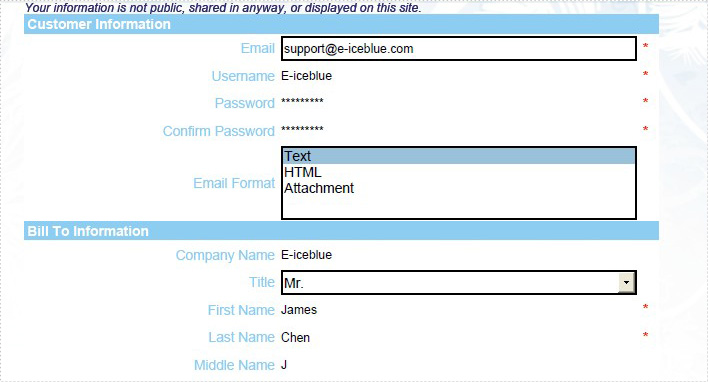
Effective Screenshot:
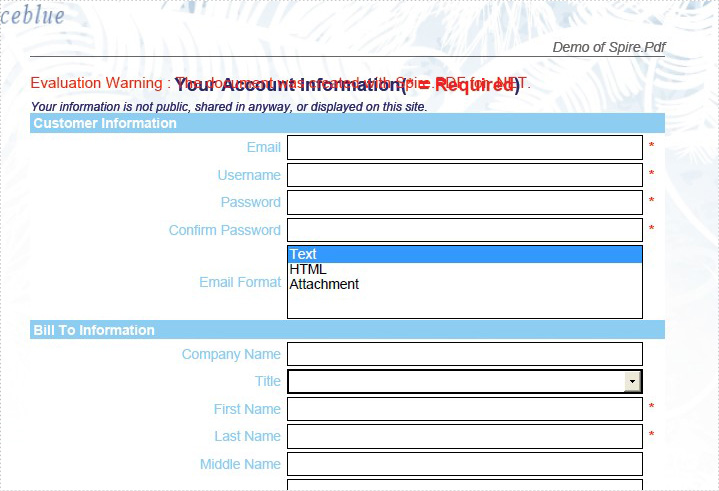
The original PDF with form fields:
After fill the form fields:
View the full code as below:
using Spire.Pdf;
using Spire.Pdf.Fields;
using Spire.Pdf.Widget;


namespace FillFormFields
{
    class Program
    {
        static void Main(string []args){
            PdfDocument doc = new PdfDocument();
            doc.LoadFromFile(@"..\..\FormField.pdf");
            PdfFormWidget formWidget = doc.Form as PdfFormWidget;
            for (int i = 0; i < formWidget.FieldsWidget.List.Count; i++)
            {
                PdfField field = formWidget.FieldsWidget.List[i] as PdfField;
                if (field is PdfTextBoxFieldWidget)
                {
                    PdfTextBoxFieldWidget textBoxField = field as PdfTextBoxFieldWidget;
                    switch (textBoxField.Name)
                    {
                        case "email":
                            textBoxField.Text = "support@e-iceblue.com";
                            break;
                        case "username":
                            textBoxField.Text = "E-iceblue";
                            break;
                        case "password":
                            textBoxField.Password = true;
                            textBoxField.Text = "e-iceblue";
                            break;
                        case "password2":
                            textBoxField.Password = true;
                            textBoxField.Text = "e-iceblue";
                            break;
                        case "company_name ":
                            textBoxField.Text = "E-iceblue";
                            break;
                        case "first_name":
                            textBoxField.Text = "James";
                            break;
                        case "last_name":
                            textBoxField.Text = "Chen";
                            break;
                        case "middle_name":
                            textBoxField.Text = "J";
                            break;
                        case "address1":
                            textBoxField.Text = "Chengdu";
                            break;
                        case "address2":
                            textBoxField.Text = "Beijing";
                            break;
                        case "city":
                            textBoxField.Text = "Shanghai";
                            break;
                        case "postal_code":
                            textBoxField.Text = "11111";
                            break;
                        case "state":
                            textBoxField.Text = "Shanghai";
                            break;
                        case "phone":
                            textBoxField.Text = "1234567901";
                            break;
                        case "mobile_phone":
                            textBoxField.Text = "123456789";
                            break;
                        case "fax":
                            textBoxField.Text = "12121212";
                            break;
                    }
                }
                if (field is PdfListBoxWidgetFieldWidget)
                {
                    PdfListBoxWidgetFieldWidget listBoxField = field as PdfListBoxWidgetFieldWidget;
                    switch (listBoxField.Name)
                    {
                        case "email_format":
                            int[] index = { 1 };
                            listBoxField.SelectedIndex = index;
                            break;
                    }
                }

                if (field is PdfComboBoxWidgetFieldWidget)
                {
                    PdfComboBoxWidgetFieldWidget comBoxField = field as PdfComboBoxWidgetFieldWidget;
                    switch (comBoxField.Name)
                    {
                        case "title":
                            int[] items = { 0 };
                            comBoxField.SelectedIndex = items;
                            break;
                    }
                }

                if (field is PdfRadioButtonListFieldWidget)
                {
                    PdfRadioButtonListFieldWidget radioBtnField = field as PdfRadioButtonListFieldWidget;
                    switch (radioBtnField.Name)
                    {
                        case "country":
                            radioBtnField.SelectedIndex = 1;
                            break;
                    }
                }

                if (field is PdfCheckBoxWidgetFieldWidget)
                {
                    PdfCheckBoxWidgetFieldWidget checkBoxField = field as PdfCheckBoxWidgetFieldWidget;
                    switch (checkBoxField.Name)
                    {
                        case "agreement_of_terms":
                            checkBoxField.Checked = true;
                            break;
                    }
                }
                if (field is PdfButtonWidgetFieldWidget)
                {
                    PdfButtonWidgetFieldWidget btnField = field as PdfButtonWidgetFieldWidget;
                    switch (btnField.Name)
                    {
                        case "submit":
                            btnField.Text = "Submit";
                            break;
                    }
                }
            }
            doc.SaveToFile(@"../../FormFieldData.pdf.pdf");
            System.Diagnostics.Process.Start(@"../../FormFieldData.pdf.pdf");
        }
    }
}
Imports Spire.Pdf
Imports Spire.Pdf.Fields
Imports Spire.Pdf.Widget


Namespace FillFormFields
	Class Program
		Private Shared Sub Main(args As String())
			Dim doc As New PdfDocument()
			doc.LoadFromFile("..\..\FormField.pdf")
			Dim formWidget As PdfFormWidget = TryCast(doc.Form, PdfFormWidget)
			For i As Integer = 0 To formWidget.FieldsWidget.List.Count - 1
				Dim field As PdfField = TryCast(formWidget.FieldsWidget.List(i), PdfField)
				If TypeOf field Is PdfTextBoxFieldWidget Then
					Dim textBoxField As PdfTextBoxFieldWidget = TryCast(field, PdfTextBoxFieldWidget)
					Select Case textBoxField.Name
						Case "email"
							textBoxField.Text = "support@e-iceblue.com"
							Exit Select
						Case "username"
							textBoxField.Text = "E-iceblue"
							Exit Select
						Case "password"
							textBoxField.Password = True
							textBoxField.Text = "e-iceblue"
							Exit Select
						Case "password2"
							textBoxField.Password = True
							textBoxField.Text = "e-iceblue"
							Exit Select
						Case "company_name "
							textBoxField.Text = "E-iceblue"
							Exit Select
						Case "first_name"
							textBoxField.Text = "James"
							Exit Select
						Case "last_name"
							textBoxField.Text = "Chen"
							Exit Select
						Case "middle_name"
							textBoxField.Text = "J"
							Exit Select
						Case "address1"
							textBoxField.Text = "Chengdu"
							Exit Select
						Case "address2"
							textBoxField.Text = "Beijing"
							Exit Select
						Case "city"
							textBoxField.Text = "Shanghai"
							Exit Select
						Case "postal_code"
							textBoxField.Text = "11111"
							Exit Select
						Case "state"
							textBoxField.Text = "Shanghai"
							Exit Select
						Case "phone"
							textBoxField.Text = "1234567901"
							Exit Select
						Case "mobile_phone"
							textBoxField.Text = "123456789"
							Exit Select
						Case "fax"
							textBoxField.Text = "12121212"
							Exit Select
					End Select
				End If
				If TypeOf field Is PdfListBoxWidgetFieldWidget Then
					Dim listBoxField As PdfListBoxWidgetFieldWidget = TryCast(field, PdfListBoxWidgetFieldWidget)
					Select Case listBoxField.Name
						Case "email_format"
							Dim index As Integer() = {1}
							listBoxField.SelectedIndex = index
							Exit Select
					End Select
				End If

				If TypeOf field Is PdfComboBoxWidgetFieldWidget Then
					Dim comBoxField As PdfComboBoxWidgetFieldWidget = TryCast(field, PdfComboBoxWidgetFieldWidget)
					Select Case comBoxField.Name
						Case "title"
							Dim items As Integer() = {0}
							comBoxField.SelectedIndex = items
							Exit Select
					End Select
				End If

				If TypeOf field Is PdfRadioButtonListFieldWidget Then
					Dim radioBtnField As PdfRadioButtonListFieldWidget = TryCast(field, PdfRadioButtonListFieldWidget)
					Select Case radioBtnField.Name
						Case "country"
							radioBtnField.SelectedIndex = 1
							Exit Select
					End Select
				End If

				If TypeOf field Is PdfCheckBoxWidgetFieldWidget Then
					Dim checkBoxField As PdfCheckBoxWidgetFieldWidget = TryCast(field, PdfCheckBoxWidgetFieldWidget)
					Select Case checkBoxField.Name
						Case "agreement_of_terms"
							checkBoxField.Checked = True
							Exit Select
					End Select
				End If
				If TypeOf field Is PdfButtonWidgetFieldWidget Then
					Dim btnField As PdfButtonWidgetFieldWidget = TryCast(field, PdfButtonWidgetFieldWidget)
					Select Case btnField.Name
						Case "submit"
							btnField.Text = "Submit"
							Exit Select
					End Select
				End If
			Next
			doc.SaveToFile("../../FormFieldData.pdf.pdf")
			System.Diagnostics.Process.Start("../../FormFieldData.pdf.pdf")
		End Sub
	End Class
End Namespace
Add Action Chain to PDF in C#
PDF supports actions. And Spire.PDF, a very powerful .NET component enables developers to add action chain to PDF file. Action chain means an action get executed automatically after another one.
In this article, a solution is introduced to add action chain to PDF file.
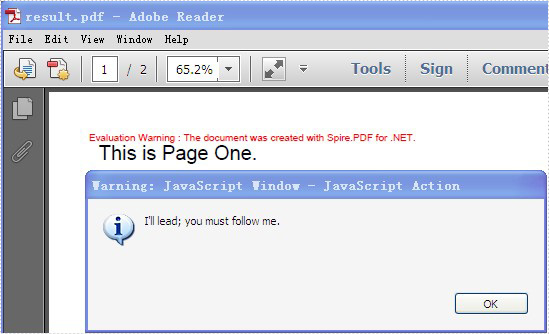
Step 1: Set the action that gets performed right after PDF document is opened
String script
                = "app.alert({"
                + "    cMsg: \"I'll lead; you must follow me.\","
                + "    nIcon: 3,"
                + "    cTitle: \"JavaScript Action\""
                + "});";
PdfJavaScriptAction action1 = new PdfJavaScriptAction(script);
document.AfterOpenAction = action1;
Spire.PDF provides you a class called PdfJavaScriptAction that executes JavaScript code. Create a PdfJavaScriptAction instance “action1” using JavaScript code. And set the property AfterOpenAction of “document” to action1.
Step 2: Set the action that gets performed after “action1” using the property NextAction
script
                = "app.alert({"
                + "    cMsg: \"The firt page!\","
                + "    nIcon: 3,"
                + "    cTitle: \"JavaScript Action\""
                + "});";
PdfJavaScriptAction action2 = new PdfJavaScriptAction(script);
action1.NextAction = action2;
Step 3: Set the action that gets performed after “action2”
PdfDestination dest = new PdfDestination(pagetwo);
dest.Zoom = 1;
PdfGoToAction action3 = new PdfGoToAction(dest);
action2.NextAction = action3;
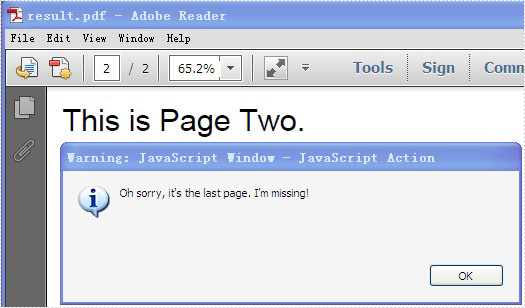
PdfDestination can mark a specified page or location in PDF. Create a PdfDestination instance “dest” using “pagetwo”. Then create a PdfGoToAction instance “action3” using “dest”.
Step 4: Set the action that gets performed after “action3”
script
                = "app.alert({"
                + "    cMsg: \"Oh sorry, it's the last page. I'm missing!\","
                + "    nIcon: 3,"
                + "    cTitle: \"JavaScript Action\""
                + "});";
PdfJavaScriptAction action4 = new PdfJavaScriptAction(script);
action3.NextAction = action4;
Step 5: Save the file
document.SaveToFile("result.pdf");
Full code:
using Spire.Pdf;
using Spire.Pdf.Actions;
using Spire.Pdf.General;
using Spire.Pdf.Graphics;
using System;
using System.Drawing;


namespace AddActionChain
{
    class Program
    {
        static void Main(string[] args)
        {
            PdfDocument document = new PdfDocument();

            PdfPageBase pageone = document.Pages.Add();
            pageone.Canvas.DrawString("This is Page One.",
                                   new PdfFont(PdfFontFamily.Helvetica, 20f),
                                   new PdfSolidBrush(Color.Black),
                                   10, 10);
            PdfPageBase pagetwo = document.Pages.Add();
            pagetwo.Canvas.DrawString("This is Page Two.",
                                   new PdfFont(PdfFontFamily.Helvetica, 20f),
                                   new PdfSolidBrush(Color.Black),
                                   10, 10);

            String script
                = "app.alert({"
                + "    cMsg: \"I'll lead; you must follow me.\","
                + "    nIcon: 3,"
                + "    cTitle: \"JavaScript Action\""
                + "});";
            PdfJavaScriptAction action1 = new PdfJavaScriptAction(script);
            document.AfterOpenAction = action1;

            script
                = "app.alert({"
                + "    cMsg: \"The first page!\","
                + "    nIcon: 3,"
                + "    cTitle: \"JavaScript Action\""
                + "});";
            PdfJavaScriptAction action2 = new PdfJavaScriptAction(script);
            action1.NextAction = action2;

            PdfDestination dest = new PdfDestination(pagetwo);
            dest.Zoom = 1;
            PdfGoToAction action3 = new PdfGoToAction(dest);
            action2.NextAction = action3;

            script
                = "app.alert({"
                + "    cMsg: \"Oh sorry, it's the last page. I'm missing!\","
                + "    nIcon: 3,"
                + "    cTitle: \"JavaScript Action\""
                + "});";
            PdfJavaScriptAction action4 = new PdfJavaScriptAction(script);
            action3.NextAction = action4;

            document.SaveToFile("result.pdf");

            System.Diagnostics.Process.Start("result.pdf");
        }
    }
}
Screenshot:
Draw Text in PDF Document in Silverlight
Draw text in PDF document is an important part and it is not easy to finish. With the help of Spire.PDF, a PDF component, you can not only draw text in PDF document easily for .NET and WPF, you can do this job easily for Silverlight.
We have introduced how to draw text for PDF .NET and PDF WPF. This article will give clear information of how to draw text with C# code for Silverlight.
Make sure Spire.PDF (or Spire.Office) has been installed correctly. Add Spire.PDF.dll as reference in the downloaded Bin folder though the below path: "..\Spire.PDF\Bin\Silverlight4\ Spire.PDF.dll".
Here comes to the steps:
Step 1: Create a PDF document and a page
//create a pdf document
PdfDocument document = new PdfDocument();
//create one page
PdfPageBase page = document.Pages.Add();
Step 2: Draw Text
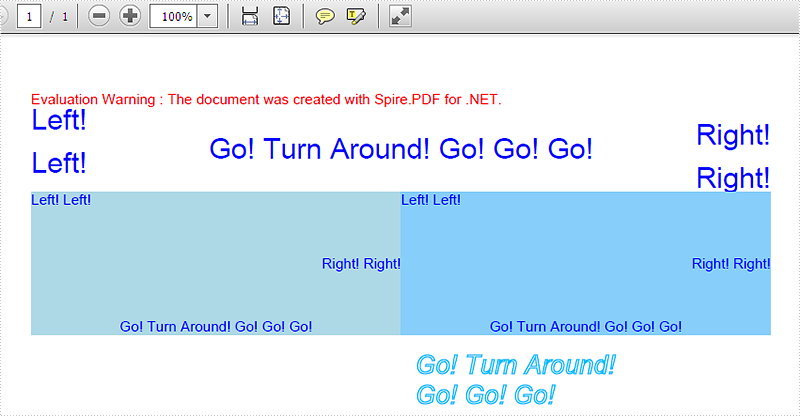
//Draw Text - alignment
PdfFont font = new PdfFont(PdfFontFamily.Helvetica, 20f);
PdfSolidBrush brush = new PdfSolidBrush(Color.FromArgb(10, 0, 255, 0));

PdfStringFormat leftAlignment = new PdfStringFormat(PdfTextAlignment.Left, PdfVerticalAlignment.Middle);
page.Canvas.DrawString("Left!", font, brush, 0, 20, leftAlignment);
page.Canvas.DrawString("Left!", font, brush, 0, 50, leftAlignment);

PdfStringFormat rightAlignment = new PdfStringFormat(PdfTextAlignment.Right, PdfVerticalAlignment.Middle);
page.Canvas.DrawString("Right!", font, brush, page.Canvas.ClientSize.Width, 30, rightAlignment);
page.Canvas.DrawString("Right!", font, brush, page.Canvas.ClientSize.Width, 60, rightAlignment);

PdfStringFormat centerAlignment = new PdfStringFormat(PdfTextAlignment.Center, PdfVerticalAlignment.Middle);
page.Canvas.DrawString("Go! Turn Around! Go! Go! Go!", font, brush, page.Canvas.ClientSize.Width / 2, 40, centerAlignment);

//Draw the text - align in rectangle
PdfFont font = new PdfFont(PdfFontFamily.Helvetica, 10f);
PdfSolidBrush brush = new PdfSolidBrush(Color.FromArgb(10, 0, 0, 255));
RectangleF rctg1 = new RectangleF(0, 70, page.Canvas.ClientSize.Width / 2, 100);
RectangleF rctg2 = new RectangleF(page.Canvas.ClientSize.Width / 2, 70, page.Canvas.ClientSize.Width / 2, 100);
page.Canvas.DrawRectangle(new PdfSolidBrush(Color.FromArgb(1, 0, 0, 100)), rctg1);
page.Canvas.DrawRectangle(new PdfSolidBrush(Color.FromArgb(1, 0, 0, 150)), rctg2);

PdfStringFormat leftAlignment = new PdfStringFormat(PdfTextAlignment.Left, PdfVerticalAlignment.Top);
page.Canvas.DrawString("Left! Left!", font, brush, rctg1, leftAlignment);
page.Canvas.DrawString("Left! Left!", font, brush, rctg2, leftAlignment);

PdfStringFormat rightAlignment = new PdfStringFormat(PdfTextAlignment.Right, PdfVerticalAlignment.Middle);
page.Canvas.DrawString("Right! Right!", font, brush, rctg1, rightAlignment);
page.Canvas.DrawString("Right! Right!", font, brush, rctg2, rightAlignment);

PdfStringFormat centerAlignment = new PdfStringFormat(PdfTextAlignment.Center, PdfVerticalAlignment.Bottom);
page.Canvas.DrawString("Go! Turn Around! Go! Go! Go!", font, brush, rctg1, centerAlignment);
page.Canvas.DrawString("Go! Turn Around! Go! Go! Go!", font, brush, rctg2, centerAlignment);

//Draw text - brush
String text = "Go! Turn Around! Go! Go! Go!";
PdfPen pen = PdfPens.DeepSkyBlue;
PdfSolidBrush brush = new PdfSolidBrush(Color.FromArgb(10, 0, 0, 0));
PdfStringFormat format = new PdfStringFormat();
PdfFont font = new PdfFont(PdfFontFamily.Helvetica, 18f, PdfFontStyle.Italic);
SizeF size = font.MeasureString(text, format);
RectangleF rctg= new RectangleF(page.Canvas.ClientSize.Width / 2 + 10, 180,
size.Width / 3 * 2, size.Height * 2);
page.Canvas.DrawString(text, font, pen, brush, rctg, format);
Step 3: Save the document to stream
using (Stream ms = saveFiledialog.OpenFile())
{
    document.SaveToStream(ms);

}
Now check the effective screenshot:
How to Unfreeze Excel Panes in C#, VB.NET
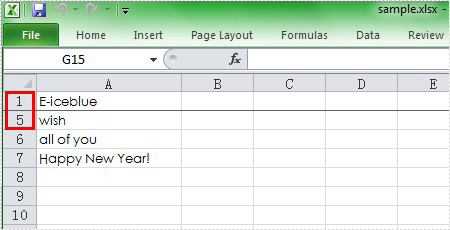
Excel Freeze Panes keeps rows and columns visible while the rest of the worksheet scrolls. Likewise, we need to unfreeze Excel panes due to work needs in some cases. This article aims at introducing the solution to unfreeze the Excel top row in c# and VB.NET through a utility Excel .NET library Spire.XLS.
First we need to complete the preparatory work:
- Download the latest Spire.XLS and install it on your machine.
- Add the Spire.XLS.dll files as reference.
- Open bin folder and select the three dll files under .NET 4.0.
- Right click property and select properties in its menu.
- Set the target framework as .NET 4.
- Add Spire.XLS as namespace.
Here comes to the explanation of the C# code:
Step 1: Create an instance of Spire.XLS.Workbook.
Workbook workbook = new Workbook();
Step 2: Load the file base on a specified file path.
workbook.LoadFromFile("sample.xls");
Step 3: Get the first worksheet.
Worksheet sheet = workbook.Worksheets[0];
Step 4: Unfreeze the top row.
sheet.RemovePanes();
Step 5: Save as the generated file.
workbook.SaveToFile("sample.xls",ExcelVersion.Version97to2003);
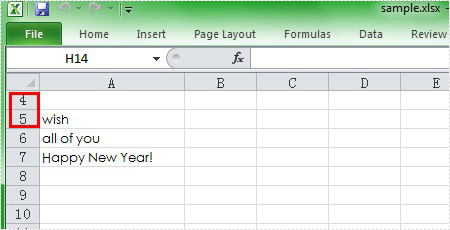
Please preview the freeze panes effect screenshot:
And the unfreeze panes effect screenshot:
Here is the full code in C# and VB.NET:
using Spire.Xls;
namespace UnfreezeExcelPane
{
    class Program
    {

        static void Main(string[] args)
        {
            Workbook workbook = new Workbook();
            workbook.LoadFromFile("Sample.xls");
            Worksheet sheet = workbook.Worksheets[0];
            sheet.RemovePanes();
            workbook.SaveToFile("sample.xls", ExcelVersion.Version97to2003);

        }
    }
}
Imports Spire.Xls
Namespace UnfreezeExcelPane
	Class Program

		Private Shared Sub Main(args As String())
			Dim workbook As New Workbook()
			workbook.LoadFromFile("Sample.xls")
			Dim sheet As Worksheet = workbook.Worksheets(0)
			sheet.RemovePanes()
			workbook.SaveToFile("sample.xls", ExcelVersion.Version97to2003)

		End Sub
	End Class
End Namespace