How to add report filter to Excel Pivot table in C#
To view the large amount of Excel data's easily, Spire.XLS for .NET supports create Pivot table and add excel table with filters. Spire.XLS also offers a method of pivotTable.ReportFilters.Add(); to enable developers to add the report filter to the pivot table.
This article will show you how to add a report filter to the Excel Pivot table in C#.
Note: Before Start, please download the latest version of Spire.XLS and add Spire.xls.dll in the bin folder as the reference of Visual Studio.
Firstly, please check the original screenshot of excel pivot table.
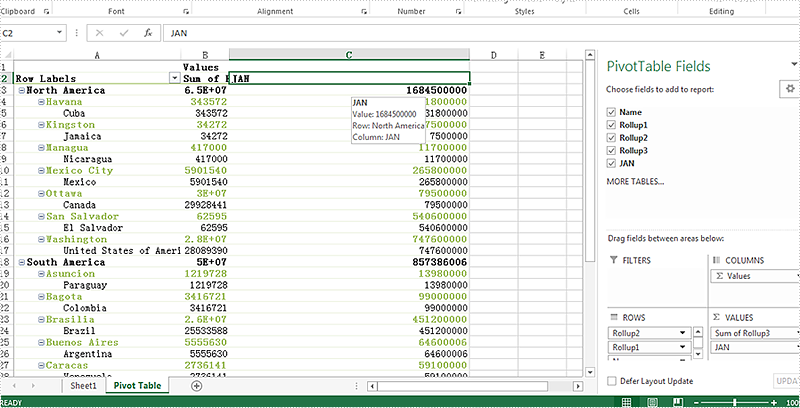
Step 1: Create a new workbook and load from file.
Workbook workbook = new Workbook();
workbook.LoadFromFile("Sample.xlsx");
Step 2: Get the PivotTable from the Excel worksheet.
Spire.Xls.Core.Spreadsheet.PivotTables.XlsPivotTable pivotTable = workbook.Worksheets["Pivot Table"].PivotTables[0] as Spire.Xls.Core.Spreadsheet.PivotTables.XlsPivotTable;
Step 3: Add a filter to the pivot table.
PivotReportFilter filter = new PivotReportFilter("JAN", true);
pivotTable.ReportFilters.Add(filter);
Step 4: Save the document to file and launch to preview it.
workbook.SaveToFile("Result.xlsx", ExcelVersion.Version2010);
System.Diagnostics.Process.Start("result.xlsx");
Effective screenshot after add a filter to the pivot table:
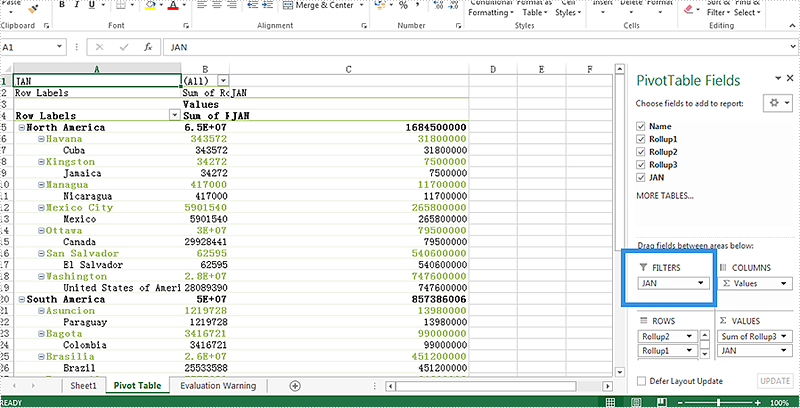
Full codes:
using Spire.Xls;
using Spire.Xls.Core.Spreadsheet.PivotTables;

namespace AddReportFilter
{
    class Program
    {
        static void Main(string[] args)
        {
            Workbook workbook = new Workbook();
            workbook.LoadFromFile("Sample.xlsx");

            Spire.Xls.Core.Spreadsheet.PivotTables.XlsPivotTable pivotTable = workbook.Worksheets["Pivot Table"].PivotTables[0] as Spire.Xls.Core.Spreadsheet.PivotTables.XlsPivotTable;

            PivotReportFilter filter = new PivotReportFilter("JAN", true);
            pivotTable.ReportFilters.Add(filter);

            workbook.SaveToFile("Result.xlsx", ExcelVersion.Version2010);
            System.Diagnostics.Process.Start("result.xlsx");
        }
    }
}
How to set the traffic lights icons in C# by Spire.XLS
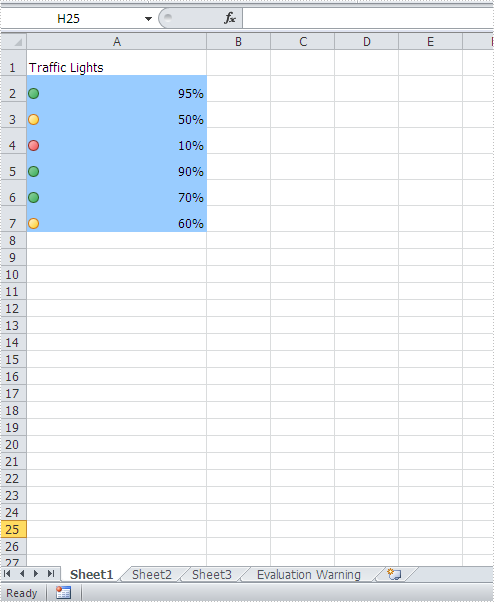
By using Spire.XLS, developers can easily set the IconSetType of conditional formatting. This article will demonstrate how to set the traffic lights icons in C# with the help of Spire.XLS.
Note: Before Start, please download the latest version of Spire.XLS and add Spire.xls.dll in the bin folder as the reference of Visual Studio.
Here comes to the code snippets:
Step 1: Create a new excel document instance and get the first worksheet.
Workbook wb = new Workbook();
Worksheet sheet = wb.Worksheets[0];
Step 2: Add some data to the Excel sheet cell range and set the format for them.
sheet.Range["A1"].Text = "Traffic Lights";
sheet.Range["A2"].NumberValue = 0.95;
sheet.Range["A2"].NumberFormat = "0%";
sheet.Range["A3"].NumberValue = 0.5;
sheet.Range["A3"].NumberFormat = "0%";
sheet.Range["A4"].NumberValue = 0.1;
sheet.Range["A4"].NumberFormat = "0%";
sheet.Range["A5"].NumberValue = 0.9;
sheet.Range["A5"].NumberFormat = "0%";
sheet.Range["A6"].NumberValue = 0.7;
sheet.Range["A6"].NumberFormat = "0%";
sheet.Range["A7"].NumberValue = 0.6;
sheet.Range["A7"].NumberFormat = "0%";
Step 3: Set the height of row and width of column for Excel cell range.
sheet.AllocatedRange.RowHeight = 20;
sheet.AllocatedRange.ColumnWidth = 25;
Step 4: Add a conditional formatting of cell range and set its type to CellValue.
XlsConditionalFormats xcfs1 = sheet.ConditionalFormats.Add();
xcfs1.AddRange(sheet.AllocatedRange);
IConditionalFormat cf1 = xcfs1.AddCondition();
cf1.FormatType= ConditionalFormatType.CellValue;
cf1.FirstFormula = "300";
cf1.Operator = ComparisonOperatorType.Less;
cf1.FontColor = Color.Black;
cf1.BackColor = Color.LightSkyBlue;
Step 5: Add a conditional formatting of cell range and set its type to IconSet.
IConditionalFormat cf2 = xcfs1.AddCondition();
cf2.FormatType = ConditionalFormatType.IconSet;
cf2.IconSet.IconSetType = IconSetType.ThreeTrafficLights1;
Step 6: Save the document to file.
wb.SaveToFile("Light.xlsx", ExcelVersion.Version2010);"
Effective screenshots of the traffic lights icons set by Spire.XLS.
Set XMP Metadata of a PDF Document in C#/VB.NET
XMP is a file labeling technology that lets you embed metadata into files themselves during the content creation process. With an XMP enabled application, your workgroup can capture meaningful information about a project (such as titles and descriptions, searchable keywords, and up-to-date author and copyright information) in a format that is easily understood by your team as well as by software applications, hardware devices, and even file formats.
In the Spire.PDF Version 3.6.135 and above, we add a new feature to read, set and load an existing XMP data from XML documents. This article presents how to set XMP Metadata while creating a PDF document.
Code Snippet:
Step 1: Initialize a new instance of PdfDocument class.
string input = "..\\..\\..\\..\\..\\..\\Data\\SetXMPMetadata.pdf";

// Open a PDF document.
PdfDocument doc = new PdfDocument();
doc.LoadFromFile(input);

// Set XMP metadata for the document.
doc.DocumentInformation.Author = "E-iceblue";
doc.DocumentInformation.Creator = "Spire.PDF";
doc.DocumentInformation.Keywords = "XMP";
doc.DocumentInformation.Producer = "E-icenlue Co,.Ltd";
doc.DocumentInformation.Subject = "XMP Metadata";
doc.DocumentInformation.Title = "Set XMP Metadata in PDF";

// Specify the output file name for the modified PDF.
string output = "SetXMPMetadata.pdf";

// Save the PDF document with the updated XMP metadata.
doc.SaveToFile(output);
Output:
To view metadata in a PDF document, open it with Acrobat or Acrobat Reader and select ‘Document Properties’ in the File menu.
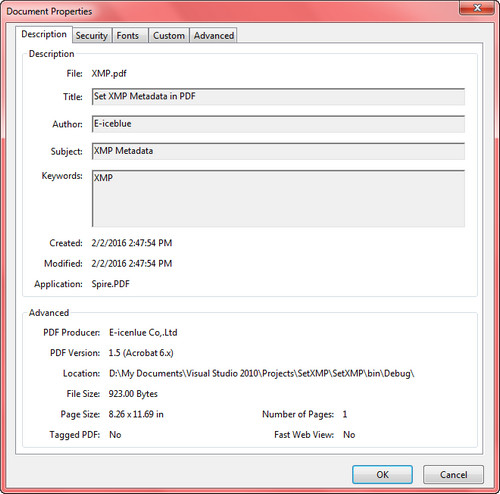
Full Code:
using Spire.Pdf;
using Spire.Pdf.Xmp;
using System;

namespace SetXMPMetadata
{
    class Program
    {
        static void Main(string[] args)
        {
            string input = "..\\..\\..\\..\\..\\..\\Data\\SetXMPMetadata.pdf";

            // Open a PDF document.
            PdfDocument doc = new PdfDocument();
            doc.LoadFromFile(input);

            // Set XMP metadata for the document.
            doc.DocumentInformation.Author = "E-iceblue";
            doc.DocumentInformation.Creator = "Spire.PDF";
            doc.DocumentInformation.Keywords = "XMP";
            doc.DocumentInformation.Producer = "E-icenlue Co,.Ltd";
            doc.DocumentInformation.Subject = "XMP Metadata";
            doc.DocumentInformation.Title = "Set XMP Metadata in PDF";

            // Specify the output file name for the modified PDF.
            string output = "SetXMPMetadata.pdf";

            // Save the PDF document with the updated XMP metadata.
            doc.SaveToFile(output);
        }
    }
}
Imports Spire.Pdf
Imports Spire.Pdf.Xmp

Namespace SetXMPMetadata
	Class Program
		Private Shared Sub Main(args As String())
            Load the input PDF file
            Dim input As String = "..\..\..\..\..\..\Data\SetXMPMetadata.pdf"

            ' Create a new PdfDocument object
            Dim doc As New PdfDocument()

            ' Load the PDF document from the input file
            doc.LoadFromFile(input)

            ' Set the author information in the document properties
            doc.DocumentInformation.Author = "E-iceblue"

            ' Set the creator information in the document properties
            doc.DocumentInformation.Creator = "Spire.PDF"

            ' Set the keywords information in the document properties
            doc.DocumentInformation.Keywords = "XMP"

            ' Set the producer information in the document properties
            doc.DocumentInformation.Producer = "E-icenlue Co,.Ltd"

            ' Set the subject information in the document properties
            doc.DocumentInformation.Subject = "XMP Metadata"

            ' Set the title information in the document properties
            doc.DocumentInformation.Title = "Set XMP Metadata in PDF"

            ' Specify the output file name
            Dim output As String = "SetXMPMetadata.pdf"

            ' Save the modified document to the output file
            doc.SaveToFile(output)
	   End Sub
	End Class
End Namespace
How to delete layer in PDF
With the help of Spire.PDF, we can add several kinds of layers such as line, image, string, ellipse, rectangle and pie to any page of a new or an existing pdf document. At the same time, it also supports us to delete specific layer from a pdf document.
In this section, we're going to demonstrate how to delete layer in PDF using Spire.PDF for .NET. To add layer to PDF, please check this article: How to add layers to PDF file in C#.
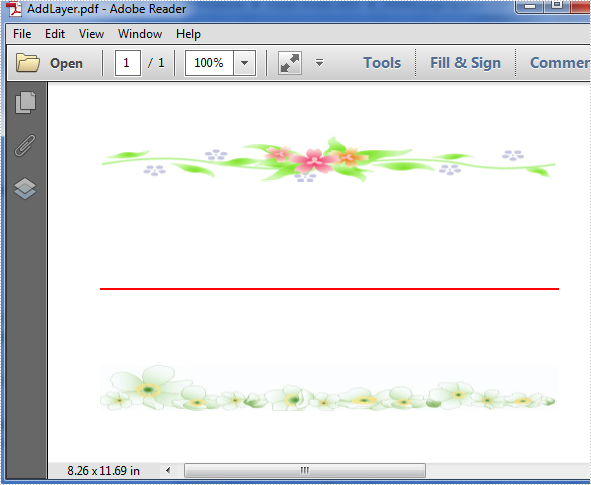
Below is the screenshot of the original PDF document which contains three layers: a red line layer and two image layers.
Before start, download Spire.PDF and install it correctly, next add the corresponding dll file from the installation folder as reference of your project.
Detail steps:
Step 1: Initialize a new instance of PdfDocument class and load the sample document from file.
PdfDocument doc = new PdfDocument();
doc.LoadFromFile("AddLayer.pdf");
Step 2: Get its first page and delete the specific layer by name from page one.
doc.Layers.RemoveLayer("red line");
Step 3: Save and launch the file.
doc.SaveToFile("delete.pdf");
System.Diagnostics.Process.Start("delete.pdf");
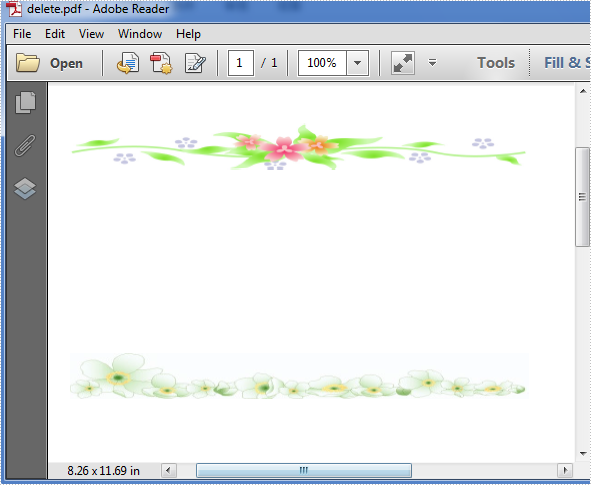
Effective screenshot after deleting:
Full codes:
using Spire.Pdf;

namespace Delete_page_layer_in_PDF
{
    class Program
    {
        static void Main(string[] args)
        {
            // Load the document from disk
            PdfDocument doc = new PdfDocument();
            doc.LoadFromFile(@"..\..\..\..\..\..\Data\DeleteLayer.pdf");

            // Remove the "red line" layer from the document
            doc.Layers.RemoveLayer("red line");

            // Save the modified document to a new file
            doc.SaveToFile("Output.pdf");

            // View the Pdf file
            PDFDocumentViewer("Output.pdf");
        }
    }
}
C#: Add a Stamp to a PDF Document
Adding a stamp to a PDF document can enhance its visual appeal and convey important information, such as approval, confidentiality, or urgency. This simple process allows users to mark documents with customized images or text, making it easier to communicate key messages. Whether for professional use or personal projects, stamping PDFs ensures clarity and adds a professional touch.
In this article, you will learn how to add a stamp to a PDF document using C# with Spire.PDF for .NET.
Install Spire.PDF for .NET
To begin with, you need to add the DLL files included in the Spire.PDF for .NET package as references in your .NET project. The DLL files can be either downloaded from this link or installed via NuGet.
PM> Install-Package Spire.PDF
Prerequisite Knowledge
In a PDF, a stamp is an annotation or graphical element that adds supplementary information to a document. Spire.PDF for .NET includes the PdfRubberStampAnnotation class, which represents a rubber stamp. To create the appearance for the rubber stamp, you can use the PdfTemplate class, which serves as a canvas for drawing text, images, shapes, and date/time elements.
Add a Dynamic Stamp to PDF in C#
A dynamic stamp is a customizable annotation added to a PDF document to convey specific statuses, approvals, or other information. Unlike static stamps, dynamic stamps include variables or fields that can be updated in real time, such as the current date, time, username, or other custom data.
Here are the steps to add a dynamic stamp to a PDF using Spire.PDF for .NET:
- Create a PdfDocument object.
- Load a PDF file using PdfDocument.LoadFromFile() method.
- Create a PdfTemplate object with the desired size.
- Draw strings, including dynamic information like date and time, on the template using PdfTemplate.Graphics.DrawString().
- Create a PdfRubberStampAnnotation object and set the template as its appearance.
- Add the stamp to a specific PDF page using PdfAnnotationCollection.Create(page).Add() method.
- Save the document to a different PDF file.
- C#
//Example 1: Add a dynamic stamp to a PDF document
using System.Drawing;
using Spire.Pdf;
using Spire.Pdf.Graphics;
using Spire.Pdf.Interactive.Annotations;

namespace AddDynamicStamp
{
    class Program
    {
        static void Main(string[] args)
        {
            // Create a PdfDocument object
            PdfDocument doc = new PdfDocument();

            // Load a PDF document
            doc.LoadFromFile("C:\\Users\\Administrator\\Desktop\\input.pdf");

            // Get a specific page
            PdfPageBase page = doc.Pages[1];

            // Create a PdfTemplate object
            PdfTemplate template = new PdfTemplate(220, 50);

            // Create two fonts
            PdfTrueTypeFont font1 = new PdfTrueTypeFont(new Font("Elephant", 16f, FontStyle.Bold), true);
            PdfTrueTypeFont font2 = new PdfTrueTypeFont(new Font("Times New Roman", 10f, FontStyle.Bold), true);

            // Create a solid brush and a gradient brush
            PdfSolidBrush solidBrush = new PdfSolidBrush(Color.Blue);
            RectangleF rectangle1 = new RectangleF(new PointF(0, 0), template.Size);
            PdfLinearGradientBrush linearGradientBrush = new PdfLinearGradientBrush(rectangle1, new PdfRGBColor(Color.White), new PdfRGBColor(Color.Blue), PdfLinearGradientMode.Horizontal);

            // Create a pen
            PdfPen pen = new PdfPen(solidBrush);

            // Create a rounded rectangle path
            int CornerRadius = 10;
            PdfPath path = new PdfPath();
            path.AddArc(template.GetBounds().X, template.GetBounds().Y, CornerRadius, CornerRadius, 180, 90);
            path.AddArc(template.GetBounds().X + template.Width - CornerRadius, template.GetBounds().Y, CornerRadius, CornerRadius, 270, 90);
            path.AddArc(template.GetBounds().X + template.Width - CornerRadius, template.GetBounds().Y + template.Height - CornerRadius, CornerRadius, CornerRadius, 0, 90);
            path.AddArc(template.GetBounds().X, template.GetBounds().Y + template.Height - CornerRadius, CornerRadius, CornerRadius, 90, 90);
            path.AddLine(template.GetBounds().X, template.GetBounds().Y + template.Height - CornerRadius, template.GetBounds().X, template.GetBounds().Y + CornerRadius / 2);

            // Draw path on the template
            template.Graphics.DrawPath(pen, path);
            template.Graphics.DrawPath(linearGradientBrush, path);

            // Draw text on the template
            String string1 = "APPROVED\n";
            String string2 = "By Marketing Manager at " + DateTime.Now.ToString("HH:mm, MMM dd, yyyy");
            template.Graphics.DrawString(string1, font1, solidBrush, new PointF(5, 5));
            template.Graphics.DrawString(string2, font2, solidBrush, new PointF(2, 28));

            // Create a rubber stamp, specifying its size and location
            RectangleF rectangle2 = new RectangleF(55, page.ActualSize.Height - 55 - 70, 240, 55);
            PdfRubberStampAnnotation stamp = new PdfRubberStampAnnotation(page, rectangle2);

            // Create a PdfAppearance object and set the template as its normal appearance
            PdfAppearance apprearance = new PdfAppearance(template);
            stamp.Appearances.SetNormalAppearance(apprearance);

            // Add the stamp annotation to the annotation collection
            PdfAnnotationCollection.Create(page).Add(stamp);

            // Save the file
            doc.SaveToFile("DynamicStamp.pdf", FileFormat.PDF);

            // Dispose resources
            doc.Dispose();
        }
    }
}

Add an Image Stamp to PDF in C#
An image stamp in a PDF is a graphical element that is added to a document as an annotation or overlay. This stamp typically consists of an image that can be positioned at a specific location on a PDF page.
Here are the steps to add an image stamp to a PDF using Spire.PDF for .NET:
- Create a PdfDocument object.
- Load a PDF file using PdfDocument.LoadFromFile() method.
- Create a PdfTemplate object with the desired size.
- Draw strings, including dynamic information like date and time, on the template using PdfTemplate.Graphics.DrawString().
- Create a PdfRubberStampAnnotation object and set the template as its appearance.
- Add the stamp to a specific PDF page using PdfAnnotationCollection.Create(page).Add() method.
- Save the document to a different PDF file.
- C#
//Example 2: Add an image stamp to a PDF document
using Spire.Pdf;
using Spire.Pdf.Interactive.Annotations;
using Spire.Pdf.Graphics;
using System.Drawing;

namespace AddImageStamp
{
    class Program
    {
        static void Main(string[] args)
        {
            // Create a PdfDocument object
            PdfDocument doc = new PdfDocument();

            // Load a PDF document
            doc.LoadFromFile("C:\\Users\\Administrator\\Desktop\\input.pdf");

            // Get a specific page
            PdfPageBase page = doc.Pages[1];

            // Load an image file
            PdfImage image = PdfImage.FromFile("C:\\Users\\Administrator\\Desktop\\confidential.png");

            // Get the width and height of the image
            int width = image.Width;
            int height = image.Height;

            // Create a PdfTemplate object based on the size of the image
            PdfTemplate template = new PdfTemplate(width, height, true);

            // Draw image on the template
            template.Graphics.DrawImage(image, 0, 0, width, height);

            // Create a rubber stamp annotation, specifying its location and position
            RectangleF rect = new RectangleF(page.ActualSize.Width - width - 50, page.ActualSize.Height - height - 50, width, height);
            PdfRubberStampAnnotation stamp = new PdfRubberStampAnnotation(page, rect);

            // Create a PdfAppearance object and set the template as its normal appearance
            PdfAppearance pdfAppearance = new PdfAppearance(template);
            stamp.Appearances.SetNormalAppearance(pdfAppearance);

            // Add the stamp annotation to the annotation collection
            PdfAnnotationCollection.Create(page).Add(stamp);

            // Save the file
            doc.SaveToFile("ImageStamp.pdf");

            // Dispose resources
            doc.Dispose();
        }
    }
}

Apply for a Temporary License
If you'd like to remove the evaluation message from the generated documents, or to get rid of the function limitations, please request a 30-day trial license for yourself.
How to add layers to PDF file in C#
Developers can use PDF layer to set some content to be visible and others to be invisible in the same PDF file. It makes the PDF Layer widely be used to deal with related contents within the same PDF. Now developers can easily add page layers by using class PdfPageLayer offered by Spire.PDF. This article will focus on showing how to add layers to a PDF file in C# with the help of Spire.PDF.
Note: Before Start, please download the latest version of Spire.PDF and add Spire.PDF.dll in the bin folder as the reference of Visual Studio.
Here comes to the details:
Step 1: Create a new PDF document
PdfDocument pdfdoc = new PdfDocument();
Step 2: Add a new page to the PDF document.
PdfPageBase page = pdfdoc.Pages.Add();
Step 3: Add a layer named "red line" to the PDF page.
PdfLayer layer = doc.Layers.AddLayer("red line", PdfVisibility.On);
Step 4: Draw a red line to the added layer.
// Create a graphics context for drawing on the specified page's canvas using the created layer
 PdfCanvas pcA = layer.CreateGraphics(page.Canvas);

 // Draw a red line on the graphics context using a pen with thickness 2, starting from (100, 350) to (300, 350)
 pcA.DrawLine(new PdfPen(PdfBrushes.Red, 2), new PointF(100, 350), new PointF(300, 350));
Step 5: Use the same method above to add the other two layers to the PDF page.
layer = doc.Layers.AddLayer("blue line");
PdfCanvas pcB = layer.CreateGraphics(doc.Pages[0].Canvas);
pcB.DrawLine(new PdfPen(PdfBrushes.Blue, 2), new PointF(100, 400), new PointF(300, 400));
layer = doc.Layers.AddLayer("green line");
PdfCanvas pcC = layer.CreateGraphics(doc.Pages[0].Canvas);
pcC.DrawLine(new PdfPen(PdfBrushes.Green, 2), new PointF(100, 450), new PointF(300, 450));
Step 6: Save the document to file.
pdfdoc.SaveToFile("AddLayers.pdf", FileFormat.PDF);
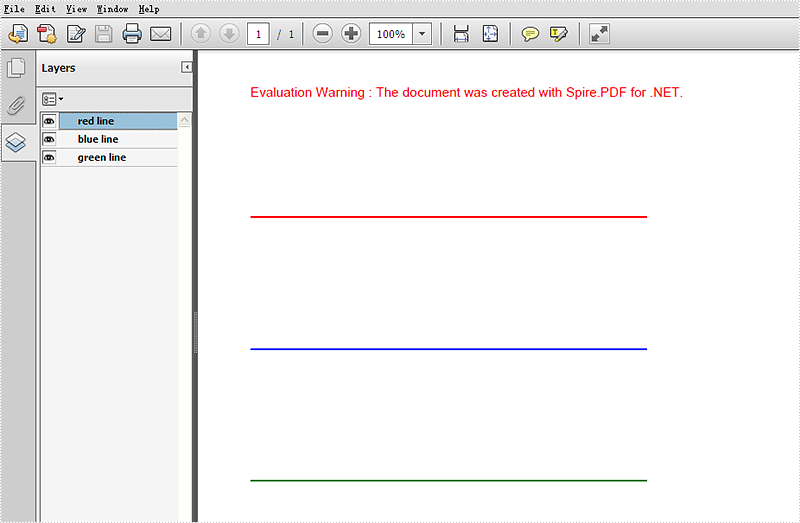
Effective screenshot:
Full codes:
using Spire.Pdf;
using Spire.Pdf.Graphics;
using System.Drawing;

namespace AddLayer
{
    class Program
    {
        static void Main(string[] args)
        {
  // Create a new PdfDocument object
  PdfDocument doc = new PdfDocument();

  // Load an existing PDF document from the specified file path
  doc.LoadFromFile(@"..\..\..\..\..\..\Data\AddLayers.pdf");

  // Get the first page of the loaded document
  PdfPageBase page = doc.Pages[0];

  // Create a new layer named "red line" with visibility set to "On"
  PdfLayer layer = doc.Layers.AddLayer("red line", PdfVisibility.On);

  // Create a graphics context for drawing on the specified page's canvas using the created layer
  PdfCanvas pcA = layer.CreateGraphics(page.Canvas);

  // Draw a red line on the graphics context using a pen with thickness 2, starting from (100, 350) to (300, 350)
  pcA.DrawLine(new PdfPen(PdfBrushes.Red, 2), new PointF(100, 350), new PointF(300, 350));

  // Create a new layer named "blue line" without specifying visibility (default is "Off")
  layer = doc.Layers.AddLayer("blue line");

  // Create a graphics context for drawing on the first page's canvas using the newly created layer
  PdfCanvas pcB = layer.CreateGraphics(doc.Pages[0].Canvas);

  // Draw a blue line on the graphics context using a pen with thickness 2, starting from (100, 400) to (300, 400)
  pcB.DrawLine(new PdfPen(PdfBrushes.Blue, 2), new PointF(100, 400), new PointF(300, 400));

  // Create a new layer named "green line" without specifying visibility (default is "Off")
  layer = doc.Layers.AddLayer("green line");

  // Create a graphics context for drawing on the first page's canvas using the newly created layer
  PdfCanvas pcC = layer.CreateGraphics(doc.Pages[0].Canvas);

  // Draw a green line on the graphics context using a pen with thickness 2, starting from (100, 450) to (300, 450)
  pcC.DrawLine(new PdfPen(PdfBrushes.Green, 2), new PointF(100, 450), new PointF(300, 450));

  // Specify the output file name for the modified PDF
  string output = "AddLayers.pdf";

  // Save the modified PDF document to the specified output file
  doc.SaveToFile(output);
        }
    }
}
How to set internal margin for Word text box in C#
In our tutorials, there are articles introducing the method to insert, remove, position text box and extract text from text box. This article is going to give the documentation of how to set the internal margin for textbox with the position and line style settings included using Spire.Doc.
Note: before start, please download the latest version of Spire.Doc and add the .dll in the bin folder as the reference of Visual Studio.
Step 1: Create a Word document and add a section.
Document document = new Document();
Section sec = document.AddSection();
Step 2: Add a text box and append sample text.
TextBox TB = document.Sections[0].AddParagraph().AppendTextBox(310, 90);
Paragraph para = TB.Body.AddParagraph();
TextRange TR = para.AppendText("Using Spire.Doc, developers will find a simple and effective method to endow their applications with rich MS Word features. ");
TR.CharacterFormat.FontName = "Cambria ";
TR.CharacterFormat.FontSize = 13;
Step 3: Set exact position for the text box.
TB.Format.HorizontalOrigin = HorizontalOrigin.Page;
TB.Format.HorizontalPosition = 80;
TB.Format.VerticalOrigin = VerticalOrigin.Page;
TB.Format.VerticalPosition = 100;
Step 4: Set line style for the text box.
TB.Format.LineStyle = TextBoxLineStyle.Double;
TB.Format.LineColor = Color.CornflowerBlue;
TB.Format.LineDashing = LineDashing.DashDotDot;
TB.Format.LineWidth = 5;
Step 5: Set internal margin for the text box:
TB.Format.InternalMargin.Top = 15;
TB.Format.InternalMargin.Bottom = 10;
TB.Format.InternalMargin.Left = 12;
TB.Format.InternalMargin.Right = 10;
Step 6: Save the document and launch to see effects.
document.SaveToFile("result.docx", FileFormat.Docx2013);
System.Diagnostics.Process.Start("result.docx");
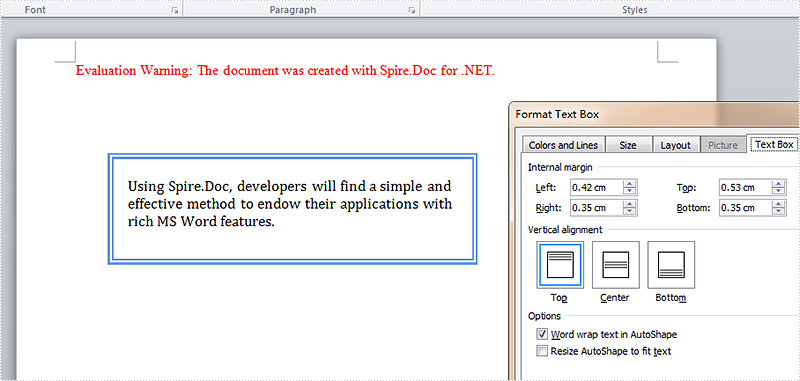
Effects:
Full Codes:
using System;
using System.Collections.Generic;
using System.Linq;
using System.Text;
using Spire.Doc;
using Spire.Doc.Documents;
using Spire.Doc.Fields;
using System.Drawing;

namespace Demo
{
    class Program
    {
        static void Main(string[] args)
        {

            Document document = new Document();
            Section sec = document.AddSection();

            TextBox TB = document.Sections[0].AddParagraph().AppendTextBox(310, 90);
            Paragraph para = TB.Body.AddParagraph();
            TextRange TR = para.AppendText("Using Spire.Doc, developers will find a simple and effective method to endow their applications with rich MS Word features. ");
            TR.CharacterFormat.FontName = "Cambria ";
            TR.CharacterFormat.FontSize = 13;

            TB.Format.HorizontalOrigin = HorizontalOrigin.Page;
            TB.Format.HorizontalPosition = 80;
            TB.Format.VerticalOrigin = VerticalOrigin.Page;
            TB.Format.VerticalPosition = 100;

            TB.Format.LineStyle = TextBoxLineStyle.Double;
            TB.Format.LineColor = Color.CornflowerBlue;
            TB.Format.LineDashing = LineDashing.DashDotDot;
            TB.Format.LineWidth = 5;

            TB.Format.InternalMargin.Top = 15;
            TB.Format.InternalMargin.Bottom = 10;
            TB.Format.InternalMargin.Left = 12;
            TB.Format.InternalMargin.Right = 10;

            document.SaveToFile("result.docx", FileFormat.Docx2013);
            System.Diagnostics.Process.Start("result.docx");
        }
    }
}
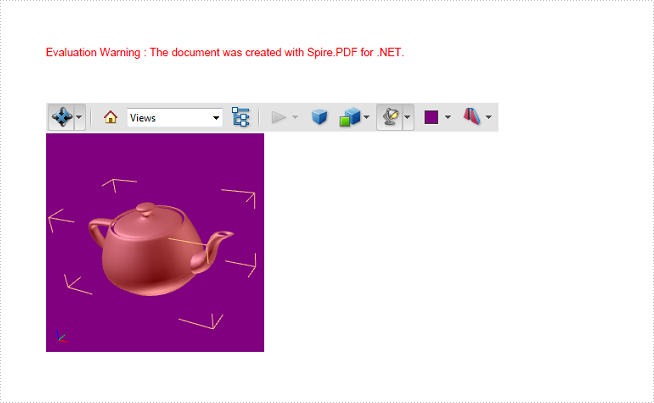
Embed 3D Interactive Graphics into PDF Document in C#/VB.NET
Universal 3D (U3D) is a compressed file format for 3D computer graphic data. 3D modules in U3D format can be inserted into PDF documents and interactively visualized by Acrobat Reader. This article presents how to embed a pre-created U3D file into a PDF document using Spire.PDF in C#, VB.NET.
Main Steps:
Step 1: Initialize a new object of PdfDocuemnt, and add a blank page to the PDF document.
PdfDocument doc = new PdfDocument();
PdfPageBase page = doc.Pages.Add();
Step 2: Draw a rectangle on the page to define the canvas area for the 3D file.
RectangleF rt = new RectangleF(0, 80, 200, 200);
Step 3: Initialize a new object of Pdf3DAnnotation, load the .u3d file as 3D annotation.
Pdf3DArtwork artwork = new Pdf3DArtwork("teapot.u3d", Pdf3DFileFormat.U3D);
Pdf3DAnnotation annotation = new Pdf3DAnnotation(page, rt, artwork);
annotation.Activation = new Pdf3DActivation();
annotation.Activation.ActivationMode = Pdf3DActivationMode.PageOpen;
Step 4: Define a 3D view mode.
Pdf3DView view = new Pdf3DView("test");
view.Background = new Pdf3DBackground(new PdfRGBColor(Color.Purple));
view.InternalName = "test";
view.RenderMode = new Pdf3DRenderMode(PdfRenderModeType.Solid);
view.LightingScheme = new Pdf3DLightingScheme(PdfLightingSchemeType.Day);
Step 5: Set the 3D view mode for the annotation.
annotation.Views.Add(view);
Step 6: Add the annotation to PDF.
PdfAnnotationCollection.Create(page).Add(annotation);
Step 7: Save the file.
doc.SaveToFile("Create3DPdf.pdf", FileFormat.PDF);
Output:
Full Code:
using Spire.Pdf;
using Spire.Pdf.Interactive.Annotations;
using Spire.Pdf.Multimedia._3DArtwork;
using Spire.Pdf.Graphics;
using System.Drawing;

namespace Embed3DInteractiveGraphics
{
    class Program
    {
        static void Main(string[] args)
        {
            PdfDocument doc = new PdfDocument();
            PdfPageBase page = doc.Pages.Add();

            RectangleF rt = new RectangleF(0, 80, 200, 200);
            Pdf3DArtwork artwork = new Pdf3DArtwork("teapot.u3d", Pdf3DFileFormat.U3D);
            Pdf3DAnnotation annotation = new Pdf3DAnnotation(page, rt, artwork);
            annotation.Activation = new Pdf3DActivation();
            annotation.Activation.ActivationMode = Pdf3DActivationMode.PageOpen;
            Pdf3DView view = new Pdf3DView("test");
            view.Background = new Pdf3DBackground(new PdfRGBColor(Color.Purple));
            view.InternalName = "test";
            view.RenderMode = new Pdf3DRenderMode(PdfRenderModeType.Solid);
            view.LightingScheme = new Pdf3DLightingScheme(PdfLightingSchemeType.Day);
            annotation.Views.Add(view);

            PdfAnnotationCollection.Create(page).Add(annotation);
            doc.SaveToFile("Create3DPdf.pdf", FileFormat.PDF);
        }
    }
}
Imports Spire.Pdf
Imports Spire.Pdf.Interactive.Annotations
Imports Spire.Pdf.Multimedia._3DArtwork
Imports Spire.Pdf.Graphics
Imports System.Drawing

Namespace Embed3DInteractiveGraphics
	Class Program
		Private Shared Sub Main(args As String())
			Dim doc As New PdfDocument()
			Dim page As PdfPageBase = doc.Pages.Add()

			Dim rt As New RectangleF(0, 80, 200, 200)
			Dim artwork As New Pdf3DArtwork("teapot.u3d", Pdf3DFileFormat.U3D)
			Dim annotation As New Pdf3DAnnotation(page, rt, artwork)
			annotation.Activation = New Pdf3DActivation()
			annotation.Activation.ActivationMode = Pdf3DActivationMode.PageOpen
			Dim view As New Pdf3DView("test")
			view.Background = New Pdf3DBackground(New PdfRGBColor(Color.Purple))
			view.InternalName = "test"
			view.RenderMode = New Pdf3DRenderMode(PdfRenderModeType.Solid)
			view.LightingScheme = New Pdf3DLightingScheme(PdfLightingSchemeType.Day)
			annotation.Views.Add(view)

			PdfAnnotationCollection.Create(page).Add(annotation)
			doc.SaveToFile("Create3DPdf.pdf", FileFormat.PDF)
		End Sub
	End Class
End Namespace
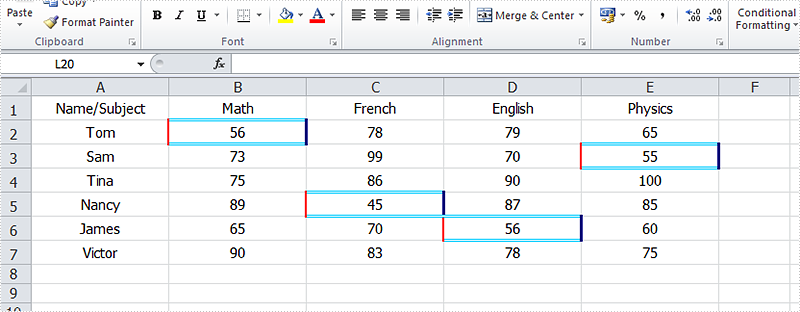
How to format cells with borders in conditional formatting
Using conditional formatting in Excel, we could highlight interesting cells, emphasize unusual values and visualize data with Data Bars, Color Scales and Icon Sets based on criteria. In the two articles Alternate Row Colors in Excel with Conditional Formatting and Apply Conditional Formatting to a Data Range, we have introduce the method to set fill, font, data bars, color scales and icon sets in conditional formatting using Spire.XLS. This article is going to introduce the method to format cells with borders in conditional formatting.
Note: before start, please download the latest version of Spire.XLS and add the .dll in the bin folder as the reference of Visual Studio.
Step 1: Create a new workbook and add sample data.
            Workbook workbook = new Workbook();
            Worksheet sheet = workbook.Worksheets[0];

            sheet.Range["A1"].Value = "Name/Subject";
            sheet.Range["A2"].Value = "Tom";
            sheet.Range["A3"].Value = "Sam";
            sheet.Range["A4"].Value = "Tina";
            sheet.Range["A5"].Value = "Nancy";
            sheet.Range["A6"].Value = "James";
            sheet.Range["A7"].Value = "Victor";
            sheet.Range["B1"].Value = "Math";
            sheet.Range["C1"].Value = "French";
            sheet.Range["D1"].Value = "English";
            sheet.Range["E1"].Value = "Physics";
            sheet.Range["B2"].NumberValue = 56;
            sheet.Range["B3"].NumberValue = 73;
            sheet.Range["B4"].NumberValue = 75;
            sheet.Range["B5"].NumberValue = 89;
            sheet.Range["B6"].NumberValue = 65;
            sheet.Range["B7"].NumberValue = 90;
            sheet.Range["C2"].NumberValue = 78;
            sheet.Range["C3"].NumberValue = 99;
            sheet.Range["C4"].NumberValue = 86;
            sheet.Range["C5"].NumberValue = 45;
            sheet.Range["C6"].NumberValue = 70;
            sheet.Range["C7"].NumberValue = 83;
            sheet.Range["D2"].NumberValue = 79;
            sheet.Range["D3"].NumberValue = 70;
            sheet.Range["D4"].NumberValue = 90;
            sheet.Range["D5"].NumberValue = 87;
            sheet.Range["D6"].NumberValue = 56;
            sheet.Range["D7"].NumberValue = 78;
            sheet.Range["E2"].NumberValue = 65;
            sheet.Range["E3"].NumberValue = 55;
            sheet.Range["E4"].NumberValue = 100;
            sheet.Range["E5"].NumberValue = 85;
            sheet.Range["E6"].NumberValue = 60;
            sheet.Range["E7"].NumberValue = 75;

            sheet.AllocatedRange.RowHeight = 17;
            sheet.AllocatedRange.ColumnWidth = 17;
            sheet.AllocatedRange.VerticalAlignment = VerticalAlignType.Center;
            sheet.AllocatedRange.HorizontalAlignment = HorizontalAlignType.Center;
Step 2: Set the formatting rule using formula. Here the rule is the number values less than 60.
XlsConditionalFormats xcfs1 = sheet.ConditionalFormats.Add();
xcfs1.AddRange(sheet.Range["B2:E7"]);
IConditionalFormat format1 = xcfs1.AddCondition();
format1.FormatType = ConditionalFormatType.CellValue;
format1.FirstFormula = "60";
format1.Operator = ComparisonOperatorType.Less;
Step 3: Set border colors and styles for cells that match the condition.
            format1.LeftBorderColor = Color.Red;
            format1.RightBorderColor = Color.DarkBlue;
            format1.TopBorderColor = Color.DeepSkyBlue;
            format1.BottomBorderColor = Color.DeepSkyBlue;

            format1.LeftBorderStyle = LineStyleType.Medium;
            format1.RightBorderStyle = LineStyleType.Thick;
            format1.TopBorderStyle = LineStyleType.Double;
            format1.BottomBorderStyle = LineStyleType.Double;
Step 4: Save the document and launch to see effects.
            workbook.SaveToFile("sample.xlsx", ExcelVersion.Version2010);
            System.Diagnostics.Process.Start("sample.xlsx");
Effects:
Full Codes:
using Spire.Xls;
using Spire.Xls.Core;
using Spire.Xls.Core.Spreadsheet.Collections;
using System.Drawing;

namespace ApplyConditionalFormatting
{
    class Program
    {
        static void Main(string[] args)
        {
            Workbook workbook = new Workbook();
            Worksheet sheet = workbook.Worksheets[0];

            sheet.Range["A1"].Value = "Name/Subject";
            sheet.Range["A2"].Value = "Tom";
            sheet.Range["A3"].Value = "Sam";
            sheet.Range["A4"].Value = "Tina";
            sheet.Range["A5"].Value = "Nancy";
            sheet.Range["A6"].Value = "James";
            sheet.Range["A7"].Value = "Victor";
            sheet.Range["B1"].Value = "Math";
            sheet.Range["C1"].Value = "French";
            sheet.Range["D1"].Value = "English";
            sheet.Range["E1"].Value = "Physics";
            sheet.Range["B2"].NumberValue = 56;
            sheet.Range["B3"].NumberValue = 73;
            sheet.Range["B4"].NumberValue = 75;
            sheet.Range["B5"].NumberValue = 89;
            sheet.Range["B6"].NumberValue = 65;
            sheet.Range["B7"].NumberValue = 90;
            sheet.Range["C2"].NumberValue = 78;
            sheet.Range["C3"].NumberValue = 99;
            sheet.Range["C4"].NumberValue = 86;
            sheet.Range["C5"].NumberValue = 45;
            sheet.Range["C6"].NumberValue = 70;
            sheet.Range["C7"].NumberValue = 83;
            sheet.Range["D2"].NumberValue = 79;
            sheet.Range["D3"].NumberValue = 70;
            sheet.Range["D4"].NumberValue = 90;
            sheet.Range["D5"].NumberValue = 87;
            sheet.Range["D6"].NumberValue = 56;
            sheet.Range["D7"].NumberValue = 78;
            sheet.Range["E2"].NumberValue = 65;
            sheet.Range["E3"].NumberValue = 55;
            sheet.Range["E4"].NumberValue = 100;
            sheet.Range["E5"].NumberValue = 85;
            sheet.Range["E6"].NumberValue = 60;
            sheet.Range["E7"].NumberValue = 75;

            sheet.AllocatedRange.RowHeight = 17;
            sheet.AllocatedRange.ColumnWidth = 17;
            sheet.AllocatedRange.VerticalAlignment = VerticalAlignType.Center;
            sheet.AllocatedRange.HorizontalAlignment = HorizontalAlignType.Center;

            // Apply conditional formatting to the score range (B2:E7)
            XlsConditionalFormats xcfs1 = sheet.ConditionalFormats.Add();
            xcfs1.AddRange(sheet.Range["B2:E7"]);

            // Highlight cells with scores less than 60 using custom borders
            IConditionalFormat format1 = xcfs1.AddCondition();
            format1.FormatType = ConditionalFormatType.CellValue; // Compare cell values
            format1.FirstFormula = "60";
            format1.Operator = ComparisonOperatorType.Less;

            // Set border colors
            format1.LeftBorderColor = Color.Red;
            format1.RightBorderColor = Color.DarkBlue;
            format1.TopBorderColor = Color.DeepSkyBlue;
            format1.BottomBorderColor = Color.DeepSkyBlue;

            // Set border styles
            format1.LeftBorderStyle = LineStyleType.Medium;
            format1.RightBorderStyle = LineStyleType.Thick;
            format1.TopBorderStyle = LineStyleType.Double;
            format1.BottomBorderStyle = LineStyleType.Double;

            workbook.SaveToFile("sample.xlsx", ExcelVersion.Version2010);
            System.Diagnostics.Process.Start("sample.xlsx");
        }
    }
}
Only convert visible or hidden worksheet to image in C#
Spire.XLS supports to convert the whole excel workbook into Image, PDF, HTML and other files formats; it also supports to hide or show the worksheet in C#. When we have hidden worksheet in the excel files, developers can also use Spire.XLS to only convert the visible or hidden excel worksheets to other file formats by judge the property of WorksheetVisibility. This article will show you how to only convert visible or hidden worksheet to image in C#.
Here comes to the steps:
Step 1: Create a new document and load from file.
Workbook book = new Workbook();
book.LoadFromFile("sample.xlsx", ExcelVersion.Version2010);
Step 2: Traverse every worksheet in the excel file.
foreach (Spire.Xls.Worksheet ws2 in book.Worksheets)
Step 3: Call the property of WorksheetVisibility to judge visible or hidden excel worksheet.
//only converts the visible sheet
if (ws2.Visibility == WorksheetVisibility.Visible)
//only converts the hidden sheet
if (ws2.Visibility == WorksheetVisibility.Hidden)
Step 4: Use SaveToImage to convert Excel worksheet to Image.
ws2.SaveToImage("result.jpg");
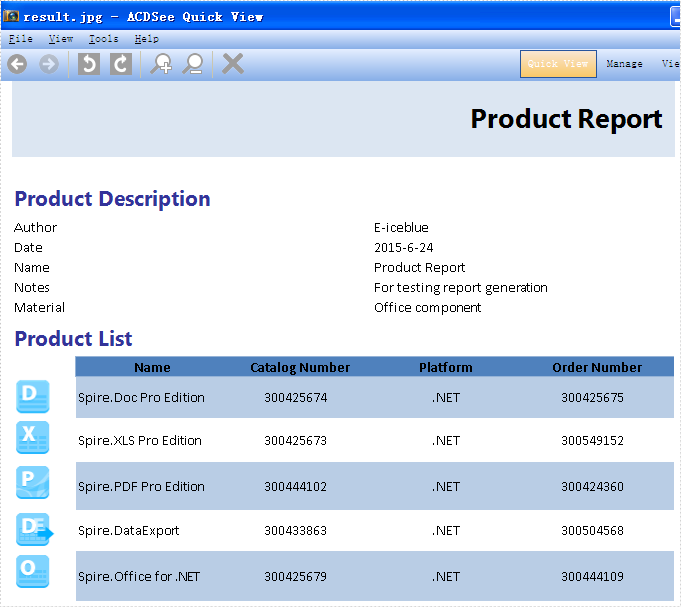
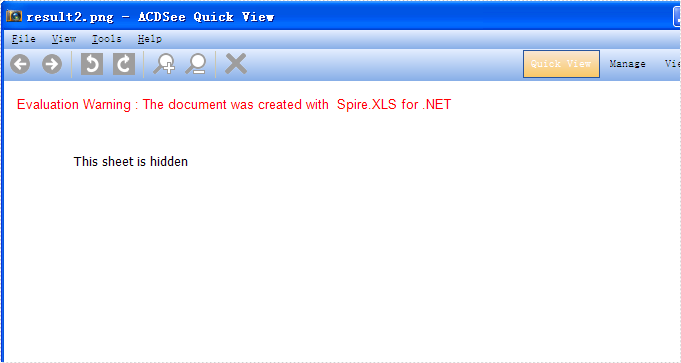
Effective screenshots:
Only convert the visible worksheet to Image in .jpg format.
Only convert the hidden worksheet to Image in .png format.
Full codes:
using Spire.Xls;

namespace ConsoleTest
{
    class Program
    {
        static void Main(string[] args)
        {
            Workbook book = new Workbook();
            book.LoadFromFile("sample.xlsx", ExcelVersion.Version2010);

            foreach (Spire.Xls.Worksheet ws2 in book.Worksheets)
            {
                //only convert the visible sheet
                if (ws2.Visibility == WorksheetVisibility.Visible)
                    ////only convert the hidden sheet
                    //if (ws2.Visibility == WorksheetVisibility.Hidden)
                    ws2.SaveToImage("result.jpg");
            }
        }
    }
}