Insert an existing Table by cloning in C#
In some case, we need make some modifications in an existing table but don't want destroy the original data, so we would like to copy the existing table then make some changes in the new table. How could we get the copied table? The easiest method is clone. There would introduce a solution to copy table and modify some data then insert the new table after original table via Spire.Doc.
Spire.Doc for .NET, a stand-alone .NET Word component, provides a method, Table.clone() to allow users to copy an existing table.
The main steps of the solution:
Firstly: load the word document with a table.
Document doc = new Document();
doc.LoadFromFile(@"CopyTable.doc");
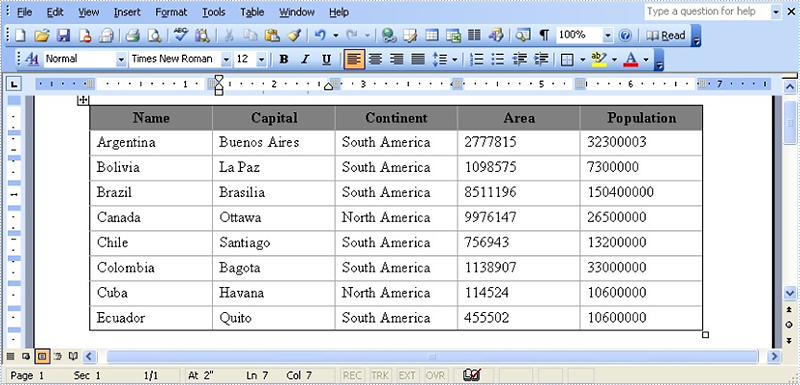
The original document effect screenshot:
Secondly: extract the existing table and call the table.clone () method to copy it.
Section se = doc.Sections[0];
Table original_Table =(Table) se.Tables[0];
Table copied_Table = original_Table.Clone();
Thirdly: extract the last row then traversal its cells to modify data.
string[] st = new string[] { "Guyana", "Georgetown", "South America", "214969", "800000" };
//get the last row of copied table
TableRow lastRow = copied_Table.Rows[copied_Table.Rows.Count - 1];
//change lastRow data.
lastRow.Cells[i].CellFormat.Shading.BackgroundPatternColor = Color.Gray;
for (int i = 0; i < lastRow.Cells.Count; i++)
    {
    lastRow.Cells[i].Paragraphs[0].Text = st[i];
     }
Finally: call Section. tables.add() method to add the copied table in section and save this document.
se.Tables.Add(copied_Table);
doc.SaveToFile("result.doc", FileFormat.Doc);
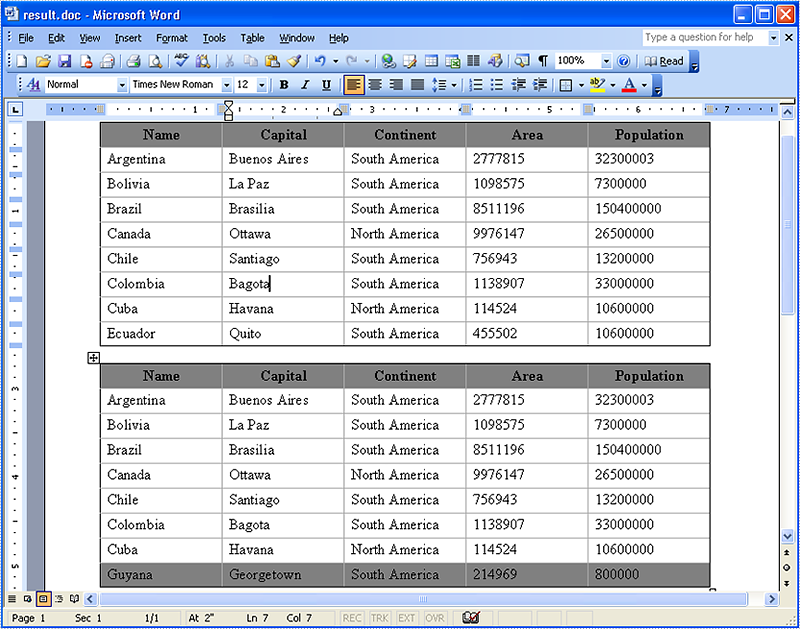
The result document effect screenshot:
Full code:
using Spire.Doc;
using System.Drawing;

namespace InsertingaAnExistingTable
{
    class Program
    {
        static void Main(string[] args)
        {
//load a word document
            Document doc = new Document();
            doc.LoadFromFile(@"CopyTable.doc");

// extract the existing table
            Section se = doc.Sections[0];
            Table original_Table =(Table) se.Tables[0];

// copy the existing table to copied_Table via Table.clone()
            Table copied_Table = original_Table.Clone();
string[] st = new string[] { "Guyana", "Georgetown", "South America", "214969", "800000" };
            //get the last row of table
            TableRow lastRow = copied_Table.Rows[copied_Table.Rows.Count - 1];
            //change last row data.
            lastRow.Cells[i].CellFormat.Shading.BackgroundPatternColor = Color.Gray;
            for (int i = 0; i < lastRow.Cells.Count; i++)
            {
                lastRow.Cells[i].Paragraphs[0].Text = st[i];
            }
// add copied_Table in section
            se.Tables.Add(copied_Table);
            doc.SaveToFile("result.doc", FileFormat.Doc);
        }
    }
}
Get information of pagination in Excel document
When we print Word and PDF documents which have regular page size, we can clearly know the pagination information for Word and PDF by delimiters. Excel document is different since Excel pagination is based on its content when we print Excel document or convert to Pdf. So get Excel pagination information is important to developer. Below would introduce a solution to get pagination information in Excel document.
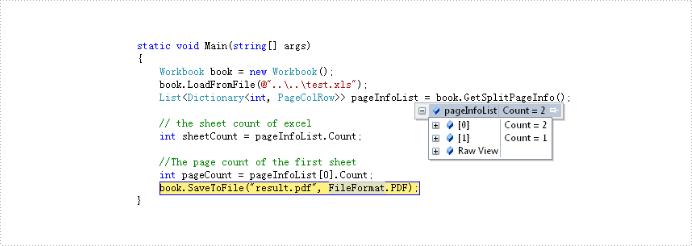
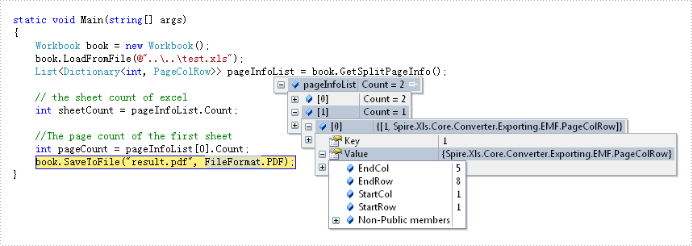
The solution call book.GetSplitPageInfo() method to obtain information of excel document and return this information to the List<Dictionary<int, PageColRow>> object via Spire.XLS. By the object we can get this information about: sheet count, page count and the start and end column and row of every page in excel document. Below is effect screenshots:
The main steps of the solution are:
Step 1: Create and load an excel document.
Workbook book = new Workbook();
book.LoadFromFile(@"test.xlsx");
Step 2: Call GetSplitPageInfo() method to Excel information.
List> pageInfoList = book.GetSplitPageInfo();
The full code:
using Spire.Xls;

namespace GetPageInformation
{
    class Program
    {
        static void Main(string[] args)
        {
            // create and load Excel document
            Workbook book = new Workbook();
            book.LoadFromFile(@"test.xlsx");
            // get the Excel document information and save in pageInfoList object
            var pageInfoList = book.GetSplitPageInfo();

            // the sheet count of excel
            int sheetCount = pageInfoList.Count;

            //The page count of the first sheet
            int pageCount = pageInfoList[0].Count;
            book.SaveToFile("result.pdf", FileFormat.PDF);
        }
    }
}
Imports Spire.Xls
Module Module1

    Sub Main()
        'create and load Excel document
        Dim book As New Workbook()
        book.LoadFromFile("test.xlsx")
        ' get the Excel document information and save in pageInfoList object
        Dim pageInfoList As List(Of Dictionary(Of Integer, PageColRow)) = book.GetSplitPageInfo()

        ' the sheet count of excel
        Dim sheetCount As Integer = pageInfoList.Count

        'The page count of the first sheet
        Dim pageCount As Integer = pageInfoList(0).Count
        book.SaveToFile("result.pdf", FileFormat.PDF)
    End Sub

End Module
Get alias, tag and id of content controls in a Word document in C#
Content controls provide a way for you to design documents. When you add a content control to a document, the control is identified by a border, a title, and temporary text that can provide instructions to the user. According to Microsoft, content controls mainly benefit from two features:
- Prevent users from editing or deleting protected sections of a document.
- Bind parts of a document or template to data. You can bind content controls to database fields, managed objects in the .NET Framework, XML elements that are stored in the document, and other data sources.
Therefore, it is necessary for developers to get the properties of content controls when dealing content controls at run time. This article illustrates how to get all controls and their properties including alias, id and tag via Spire.Doc.
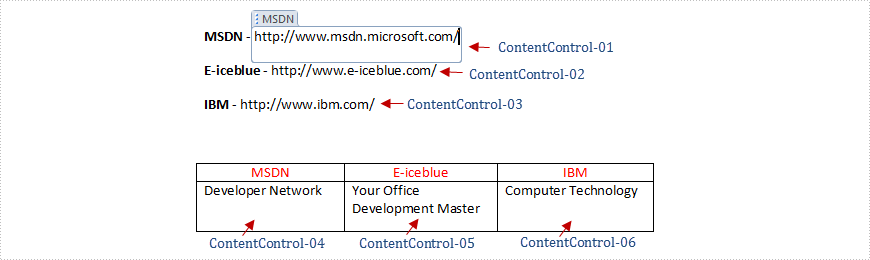
Firstly, check the test file that contains six content controls distributed in lines and a table. By default, the border and the title of the control do not appear if we don't click the protected section.
Test File:
Main Steps:
Step 1: Create a new Word document and load the test file.
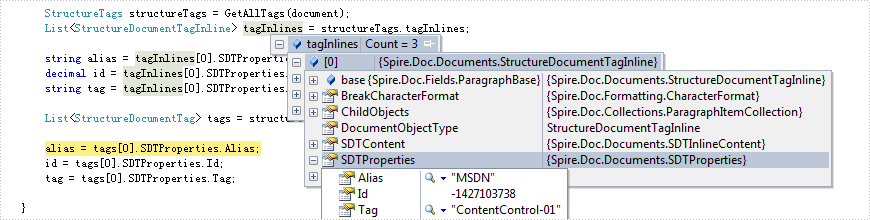
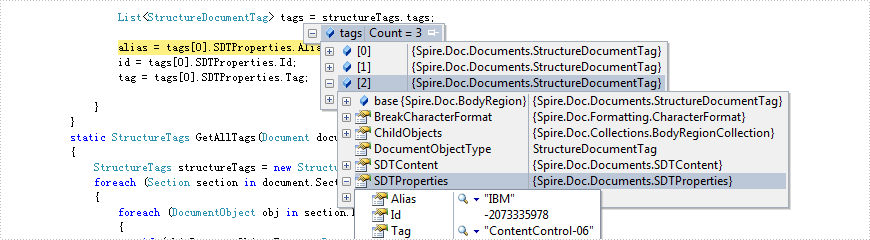
Step 2: Create two lists to store tags which are distributed in lines and a table separately. Here, each content control will be identified by tag.
Step 3: Use foreach sentence to get all tags in the Word document.
Full Code:
static void Main(string[] args)
        {
            using (Document document = new Document(@"..\..\TestData\test.docx"))
            {
                StructureTags structureTags = GetAllTags(document);
                List<StructureDocumentTagInline> tagInlines = structureTags.tagInlines;

                string alias = tagInlines[0].SDTProperties.Alias;
                decimal id = tagInlines[0].SDTProperties.Id;
                string tag = tagInlines[0].SDTProperties.Tag;

                List<StructureDocumentTag> tags = structureTags.tags;
                alias = tags[0].SDTProperties.Alias;
                id = tags[0].SDTProperties.Id;
                tag = tags[0].SDTProperties.Tag;

            }
        }
       static StructureTags GetAllTags(Document document)
        {
            StructureTags structureTags = new StructureTags();
            foreach (Section section in document.Sections)
            {
                foreach (DocumentObject obj in section.Body.ChildObjects)
                {
                    if (obj.DocumentObjectType == DocumentObjectType.Paragraph)
                    {
                        foreach (DocumentObject pobj in (obj as Paragraph).ChildObjects)
                        {
                            if (pobj.DocumentObjectType == DocumentObjectType.StructureDocumentTagInline)
                            {
                                structureTags.tagInlines.Add(pobj as StructureDocumentTagInline);
                            }
                        }
                    }
                    else if (obj.DocumentObjectType == DocumentObjectType.Table)
                    {
                        foreach (TableRow row in (obj as Table).Rows)
                        {
                            foreach (TableCell cell in row.Cells)
                            {
                                foreach (DocumentObject cellChild in cell.ChildObjects)
                                {
                                    if (cellChild.DocumentObjectType == DocumentObjectType.StructureDocumentTag)
                                    {
                                        structureTags.tags.Add(cellChild as StructureDocumentTag);
                                    }
                                    else if (cellChild.DocumentObjectType == DocumentObjectType.Paragraph)
                                    {
                                        foreach (DocumentObject pobj in (cellChild as Paragraph).ChildObjects)
                                        {
                                            if (pobj.DocumentObjectType == DocumentObjectType.StructureDocumentTagInline)
                                            {
                                                structureTags.tagInlines.Add(pobj as StructureDocumentTagInline);
                                            }
                                        }
                                    }
                                }
                            }
                        }
                    }
                }
            }
            return structureTags;
        }
        public class StructureTags
           {
               List<StructureDocumentTagInline> m_tagInlines;
               public List<StructureDocumentTagInline> tagInlines
               {
                   get
                   {
                       if (m_tagInlines == null)
                           m_tagInlines = new List<StructureDocumentTagInline>();
                       return m_tagInlines;
                   }
                   set
                   {
                       m_tagInlines = value;
                   }
               }
               List<StructureDocumentTag> m_tags;
               public List<StructureDocumentTag> tags
               {
                   get
                   {
                       if (m_tags == null)
                           m_tags = new List<StructureDocumentTag>();
                       return m_tags;
                   }
                   set
                   {
                       m_tags = value;
                   }
               }
           }
Effect Screenshot:
Content controls in lines
Content controls in table
Modify and Format Annotation in PDF in C#/VB.NET
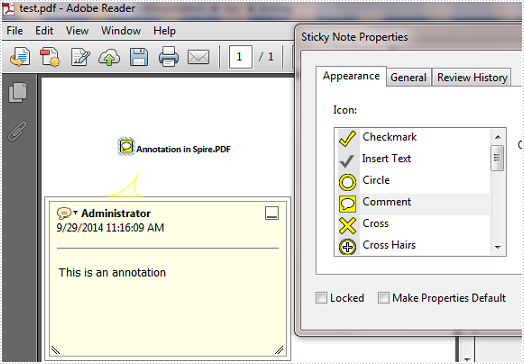
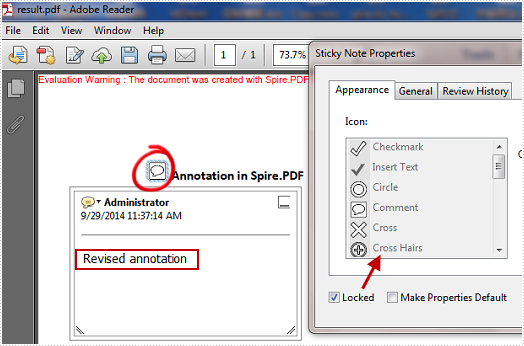
Text annotation is frequently used in PDF for creating a comment or explaining more about an item. Using Spire.PDF you can create a text mark-up annotation, edit an existing annotation and delete specified or all annotations. This article is aimed to demonstrate how to modify and format an existing text annotation in a PDF document.
Test File:
Changes we want to make:
- Modify the annotation text.
- Change the color of the annotation icon.
- Fix the annotation flag including its position, color, and type.
Code Snippet
Step 1: Create a new PDF document and load the test file.
PdfDocument pdf = new PdfDocument("test.pdf");
Step 2: Get the annotation from the document.
PdfAnnotation annotation = pdf.Pages[0].AnnotationsV2[0];
Step 3: Set the text, border, color of the annotation and lock the annotation flag.
annotation.Contents = "Revised annotation";
annotation.Border.Width = 0.75f;
annotation.Color = new PdfRGBColor(Color.White);
annotation.Flags = PdfAnnotationFlags.Locked;
Step 4: Save and launch the file.
pdf.SaveToFile("result.pdf");
Process.Start("result.pdf");
Target Effect:
Full Code:
using Spire.Pdf;
using Spire.Pdf.Interactive.Annotations;
using Spire.Pdf.Graphics;
using System.Diagnostics;
using System.Drawing;

namespace ModifyAndFormatAnnotation
{
    class Program
    {
        static void Main(string[] args)
        {
            PdfDocument pdf = new PdfDocument("test.pdf");

            //Get the first annotation on the first page
            PdfPageBase page = pdf.Pages[0];
            PdfAnnotation annotation = page.AnnotationsV2[0];

            //Modify the contents, the border width, the color of the annotation and lock the annotation flag
            annotation.Contents = "Revised annotation";
            annotation.Border.Width = 0.75f;
            annotation.Color = new PdfRGBColor(Color.White);
            annotation.Flags = PdfAnnotationFlags.Locked;

            pdf.SaveToFile("result.pdf");
            Process.Start("result.pdf");
        }
    }
}
Imports Spire.Pdf
Imports Spire.Pdf.Interactive.Annotations
Imports Spire.Pdf.Graphics
Imports System.Diagnostics
Imports System.Drawing

Namespace ModifyAndFormatAnnotation
    Class Program
        Private Shared Sub Main(args As String())
            Dim pdf As New PdfDocument("test.pdf")

            'Get the first annotation on the first page
            Dim page As PdfPageBase = pdf.Pages(0)
            Dim annotation As PdfAnnotation = page.AnnotationsV2(0)

            'Modify the contents, the border width, the color of the annotation and lock the annotation flag
            annotation.Contents = "Revised annotation"
            annotation.Border.Width = 0.75F
            annotation.Color = New PdfRGBColor(Color.White)
            annotation.Flags = PdfAnnotationFlags.Locked

            pdf.SaveToFile("result.pdf")
            Process.Start("result.pdf")
        End Sub
    End Class
End Namespace
Convert XLS to XLSM and Maintain Macro in C#, VB.NET
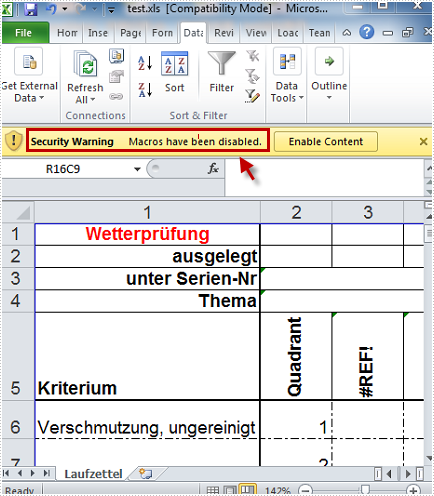
A file with the XLSM extension is an Excel Macro-Enabled Workbook file. For security reasons, XLS file or XLSX file does not enable macros by default. Thus, if you want to execute macros in Excel file, you need to convert XLS or XLSX to XLSM at the first place. In this article, I’ll introduce you how to convert XLS to XLSM with the macro maintained using Spire.XLS.
Here is the method:
Step 1: Create a new instance of Spire.Xls.Workbook class.
Workbook workbook = new Workbook();
Step 2: Load the test file and imports its data to workbook.
workbook.LoadFromFile("test.xls", ExcelVersion.Version97to2003);
Step 3: Save the workbook as a new XLSM file.
workbook.SaveToFile("result.xlsm", FileFormat.Version2007);
Full Code:
using Spire.Xls;
namespace Convert
{
    class Program
    {
        static void Main(string[] args)
        {
            Workbook workbook = new Workbook();
            workbook.LoadFromFile("test.xls", ExcelVersion.Version97to2003);
            workbook.SaveToFile("result.xlsm", FileFormat.Version2007);
        }
    }
}
Imports Spire.Xls
Namespace Convert
	Class Program
		Private Shared Sub Main(args As String())
			Dim workbook As New Workbook()
			workbook.LoadFromFile("test.xls", ExcelVersion.Version97to2003)
			workbook.SaveToFile("result.xlsm", FileFormat.Version2007)
		End Sub

	End Class
End Namespace
Test File:
As is shown in the picture, Excel automatically disables macro in XLS file.
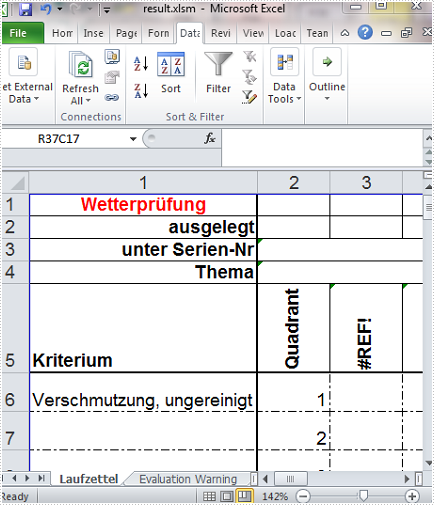
Result:
No security warning in the converted XLSM file.
Marker Designer
Data
| Name | Capital | Continent | Area | Population |
| Argentina | Buenos Aires | South America | 2777815 | 32300003 |
| Bolivia | La Paz | South America | 1098575 | 7300000 |
| Brazil | Brasilia | South America | 8511196 | 150400000 |
| Canada | Ottawa | North America | 9976147 | 26500000 |
| Chile | Santiago | South America | 756943 | 13200000 |
| Colombia | Bagota | South America | 1138907 | 33000000 |
| Cuba | Havana | North America | 114524 | 10600000 |
| Ecuador | Quito | South America | 455502 | 10600000 |
| El Salvador | San Salvador | North America | 20865 | 5300000 |
| Guyana | Georgetown | South America | 214969 | 800000 |
Option
| Excel Version: |
- Demo
- Java
- C# source
import com.spire.data.table.DataTable;
import com.spire.xls.FileFormat;
import com.spire.xls.Workbook;
import com.spire.xls.Worksheet;

public class MarkerDesignerDemo {

    public void markerDesignerDemo(String filePath, String dataFilePath, String resultFilePath){
        Workbook data_book = new Workbook();
        data_book.loadFromFile(dataFilePath);
        DataTable table = data_book.getWorksheets().get(0).exportDataTable();

        Workbook workbook = new Workbook();
        workbook.loadFromFile(filePath);
        Worksheet sheet = workbook.getWorksheets().get(0);
        Worksheet sheet2 = workbook.getWorksheets().get(1);

        sheet.setName( "Result");
        sheet2.setName("DataSource");
        sheet2.insertDataTable(table,true,1,1);

        workbook.getMarkerDesigner().addParameter("Variable1", 1234.5678);
        workbook.getMarkerDesigner().addDataTable("Country", table);
        workbook.getMarkerDesigner().apply();

        sheet.getAllocatedRange().autoFitRows();
        sheet.getAllocatedRange().autoFitColumns();

        workbook.saveToFile(resultFilePath, FileFormat.Version2013);


    }
}
Calculate Formulas
Mathematic Functions:
| Calculate symbol : | Calculate Data: |
Logic Function:
| Calculate symbol : | Calculate Data: |
Simple Expression:
| Calculate symbol : | Calculate Data: |
MID Functions:
| Text : | Start Number: |
| Number Charts: |
Option:
| Excel Version: |
- Demo
- Java
- C# source
import com.spire.xls.*;

public class CalculateFormulaDemo {
    public void CalculateFormulas(String resultFile){
        Workbook workbook = new Workbook();
        Worksheet sheet = workbook.getWorksheets().get(0);
        Calculate(workbook, sheet);
        workbook.saveToFile(resultFile, ExcelVersion.Version2010);
    }

    public void Calculate(Workbook workbook, Worksheet worksheet){
        int currentRow = 1;
        String currentFormula = null;
        Object formulaResult = null;
        String value = null;

        // Set width respectively of Column A ,Column B,Column C
        worksheet.setColumnWidth(1,32);
        worksheet.setColumnWidth(2,16);
        worksheet.setColumnWidth(3,16);

        //Set the value of Cell A1
        worksheet.getRange().get(currentRow++, 1).setValue("Examples of formulas :");

        // Set the value of Cell A2
        worksheet.getRange().get(++currentRow, 1).setValue("Test data:");

        // Set the style of Cell A1
        CellRange range = worksheet.getRange().get("A1");
        range.getStyle().getFont().isBold(true);
        range.getStyle().setFillPattern(ExcelPatternType.Solid);
        range.getStyle().setKnownColor(ExcelColors.LightGreen1);
        range.getStyle().getBorders().getByBordersLineType(BordersLineType.EdgeBottom).setLineStyle(LineStyleType.Medium);

        // Additive operation of mutiple cells

        worksheet.getRange().get(currentRow, 2).setNumberValue(7.3);
        worksheet.getRange().get(currentRow, 3).setNumberValue(5);
        worksheet.getRange().get(currentRow, 4).setNumberValue(8.2);
        worksheet.getRange().get(currentRow, 5).setNumberValue(4);
        worksheet.getRange().get(currentRow, 6).setNumberValue(3);
        worksheet.getRange().get(currentRow, 7).setNumberValue(11.3);

        // Create arithmetic expression string about cells
        currentFormula = "=Sheet1!$B$3 + Sheet1!$C$3+Sheet1!$D$3+Sheet1!$E$3+Sheet1!$F$3+Sheet1!$G$3";

        //Caculate arithmetic expression  about cells
        formulaResult = workbook.calculateFormulaValue(currentFormula);
        value = formulaResult.toString();
        worksheet.getRange().get(currentRow,2).setValue(value);

        // Set the value and format of two head cell
        worksheet.getRange().get(currentRow,1).setValue("Formulas");
        worksheet.getRange().get(currentRow,2).setValue("Results");
        worksheet.getRange().get(currentRow,2).setHorizontalAlignment(HorizontalAlignType.Right);
        range = worksheet.getRange().get(currentRow,1,currentRow,2);
        range.getStyle().getFont().isBold(true);
        range.getStyle().setKnownColor(ExcelColors.LightGreen1);
        range.getStyle().setFillPattern(ExcelPatternType.Solid);
        range.getStyle().getBorders().getByBordersLineType(BordersLineType.EdgeBottom).setLineStyle(LineStyleType.Medium);

        // Expression caculation
        // Create arithmetic tables enclosed type string
        currentFormula = "=33*3/4-2+10";
        worksheet.getRange().get(++currentRow,1).setText(currentFormula);

        // Caculate arithmetic expression
        formulaResult = workbook.calculateFormulaValue(currentFormula);

        value = formulaResult.toString();

        worksheet.getRange().get(currentRow,2).setValue(value);

        //Absolute value function
        // Create abosolute value function string
        currentFormula = "=ABS(-1.21)";
        worksheet.getRange().get(++currentRow,1).setText(currentFormula);

        // Caculate abosulte value function
        formulaResult = workbook.calculateFormulaValue(currentFormula);
        value = formulaResult.toString();
        worksheet.getRange().get(currentRow,2).setValue(value);

        // Sum function
        // Create sum function string
        currentFormula = "=SUM(18,29)";
        worksheet.getRange().get(++currentRow,1).setText(currentFormula);

        // Caculate sum function
        formulaResult = workbook.calculateFormulaValue(currentFormula);
        value = formulaResult.toString();
        worksheet.getRange().get(currentRow,2).setValue(value);

        //NOT function
        // Create NOT function string
        currentFormula = "=NOT(true)";
        worksheet.getRange().get(++currentRow,1).setText(currentFormula);

        //Caculate NOT function
        formulaResult = workbook.calculateFormulaValue(currentFormula);
        value = formulaResult.toString();
        worksheet.getRange().get(currentRow,2).setValue(value);
        worksheet.getRange().get(currentRow,2).setHorizontalAlignment(HorizontalAlignType.Right);

        //String Manipulation function
        //Get the substring
        // Build substring function
        currentFormula = "=MID(\"world\",4,2)";
        worksheet.getRange().get(++currentRow,1).setText(currentFormula);

        //Caculate substring function
        formulaResult = workbook.calculateFormulaValue(currentFormula);
        value = formulaResult.toString();
        worksheet.getRange().get(currentRow,2).setValue(value);

        worksheet.getRange().get(currentRow,2).setHorizontalAlignment(HorizontalAlignType.Right);

        // Random function

        // Create random function string.
        currentFormula = "=RAND()";
        worksheet.getRange().get(++currentRow,1).setText(currentFormula);

        //Caculate random function
        formulaResult = workbook.calculateFormulaValue(currentFormula);
        value = formulaResult.toString();
        worksheet.getRange().get(currentRow,2).setValue(value);


    }
}
Charts
- Demo
- Java
- C# source
import com.spire.xls.*;

public class ChartDemo {
    public void chartDemo(String excelFile, ExcelChartType chartType, String resultFileName){
        Workbook workbook = new Workbook();
		workbook.loadFromFile(excelFile);
        Worksheet worksheet = workbook.getWorksheets().get(0);

        setChart(worksheet,chartType);
        sheetStyle(workbook,worksheet);
        workbook.saveToFile(resultFileName+".xlsx",FileFormat.Version2013);

    }
    private void setChart(Worksheet sheet, ExcelChartType chartType){
        sheet.setName("Chart data");
        sheet.setGridLinesVisible(false);

        //Add a new  chart worsheet to workbook
        Chart chart = sheet.getCharts().add();
        chart.setChartType(chartType);

        //Set region of chart data
        chart.setDataRange(sheet.getCellRange("A1:C7"));
        chart.setSeriesDataFromRange(false);

        //Set position of chart
        chart.setLeftColumn(4);
        chart.setTopRow(2);
        chart.setRightColumn(12);
        chart.setBottomRow(22);

        //Chart title
        chart.setChartTitle("Sales market by country");
        chart.getChartTitleArea().isBold(true);
        chart.getChartTitleArea().setSize(12);

        chart.getPrimarySerieAxis().setTitle("Country");
        chart.getPrimarySerieAxis().getFont().isBold(true);
        chart.getPrimarySerieAxis().getTitleArea().isBold(true);

        chart.getPrimarySerieAxis().setTitle("Sales(in Dollars)");
        chart.getPrimarySerieAxis().hasMajorGridLines(false);
        chart.getPrimarySerieAxis().getTitleArea().setTextRotationAngle(90);
        chart.getPrimarySerieAxis().setMinValue(1000);
        chart.getPrimarySerieAxis().getTitleArea().isBold(true);

        chart.getPlotArea().getFill().setFillType(ShapeFillType.SolidColor);
        chart.getPlotArea().getFill().setForeKnownColor(ExcelColors.White);

        for (int i = 0; i < chart.getSeries().getCount(); i++){
            chart.getSeries().get(i).getFormat().getOptions().isVaryColor(true);
            chart.getSeries().get(i).getDataPoints().getDefaultDataPoint().getDataLabels().hasValue(true);
        }
        chart.getLegend().setPosition(LegendPositionType.Top);
    }

    public static void sheetStyle(Workbook workbook, Worksheet sheet){
        CellStyle oddStyle = workbook.getStyles().addStyle("oddStyle");
        oddStyle.getBorders().getByBordersLineType(BordersLineType.EdgeLeft).setLineStyle(LineStyleType.Thin);
        oddStyle.getBorders().getByBordersLineType(BordersLineType.EdgeTop).setLineStyle(LineStyleType.Thin);
        oddStyle.getBorders().getByBordersLineType(BordersLineType.EdgeBottom).setLineStyle(LineStyleType.Thin);
        oddStyle.setKnownColor(ExcelColors.LightGreen1);

        CellStyle evenStyle = workbook.getStyles().addStyle("evenStyle");
        evenStyle.getBorders().getByBordersLineType(BordersLineType.EdgeLeft).setLineStyle(LineStyleType.Thin);
        evenStyle.getBorders().getByBordersLineType(BordersLineType.EdgeRight).setLineStyle(LineStyleType.Thin);
        evenStyle.getBorders().getByBordersLineType(BordersLineType.EdgeTop).setLineStyle(LineStyleType.Thin);
        evenStyle.getBorders().getByBordersLineType(BordersLineType.EdgeBottom).setLineStyle(LineStyleType.Thin);
        evenStyle.setKnownColor(ExcelColors.LightTurquoise);

        for (int i = 0; i < sheet.getAllocatedRange().getRows().length; i++) {
            CellRange[] ranges = sheet.getAllocatedRange().getRows();
            if (ranges[i].getRow() != 0){
                if (ranges[i].getRow() % 2 == 0)
                {
                    ranges[i].setCellStyleName(evenStyle.getName());
                }
                else
                {
                    ranges[i].setCellStyleName(oddStyle.getName());
                }
            }
        }

        //Sets header style
        CellStyle styleHeader = workbook.getStyles().addStyle("headerStyle");
        styleHeader.getBorders().getByBordersLineType(BordersLineType.EdgeLeft).setLineStyle(LineStyleType.Thin);
        styleHeader.getBorders().getByBordersLineType(BordersLineType.EdgeRight).setLineStyle(LineStyleType.Thin);
        styleHeader.getBorders().getByBordersLineType(BordersLineType.EdgeTop).setLineStyle(LineStyleType.Thin);
        styleHeader.getBorders().getByBordersLineType(BordersLineType.EdgeBottom).setLineStyle(LineStyleType.Thin);
        styleHeader.setVerticalAlignment(VerticalAlignType.Center);
        styleHeader.setKnownColor(ExcelColors.Green);
        styleHeader.getFont().setKnownColor(ExcelColors.White);
        styleHeader.getFont().isBold(true);
        styleHeader.setHorizontalAlignment(HorizontalAlignType.Center);

        for (int i = 0; i < sheet.getRows()[0].getCount(); i++) {
            CellRange range = sheet.getRows()[0];
            range.setCellStyleName(styleHeader.getName());
        }

        sheet.getColumns()[sheet.getAllocatedRange().getLastColumn() -1].getStyle().setNumberFormat("\"$\"#,##0");
        sheet.getColumns()[sheet.getAllocatedRange().getLastColumn() -2].getStyle().setNumberFormat("\"$\"#,##0");
        sheet.getRows()[0].getStyle().setNumberFormat("General");

        sheet.getAllocatedRange().autoFitColumns();
        sheet.getAllocatedRange().autoFitRows();

        sheet.getRows()[0].setRowHeight(20);
    }
}
Conversion
Upload
 Click here to browse files.
Convert to
- Demo
- Java
- C# source
import com.spire.xls.FileFormat;
import com.spire.xls.Workbook;
import com.spire.xls.core.spreadsheet.HTMLOptions;

import javax.imageio.ImageIO;
import java.awt.*;
import java.awt.image.BufferedImage;
import java.io.File;
import java.io.IOException;


public class ConvertDemo {

   public void convertDemo(String filePath, String convertTo, String resultFileName) throws IOException {
       Workbook workbook = new Workbook();
       workbook.loadFromFile(filePath);
       ConvertFormat(workbook,convertTo,resultFileName);

   }
    private void ConvertFormat(Workbook workbook, String convertTo, String resultFileName) throws IOException {
        switch (convertTo){
            case "PDF":
                workbook.getConverterSetting().setSheetFitToPage(true);
                workbook.saveToFile(resultFileName + ".pdf", FileFormat.PDF);
                break;
            case "IMAGE":
                BufferedImage[] images = (BufferedImage[]) new Image[workbook.getWorksheets().size()];
                for (int i = 0; i < workbook.getWorksheets().size();i++){
                    images[i] = workbook.saveAsImage(i,300,300);
                }
                if (images != null && images.length > 0){
                    if (images.length == 1){
                        ImageIO.write(images[0],".PNG", new File(resultFileName+".png"));
                    }
                }else {
                    for (int j = 0; j < images.length;j++){
                        String fileName = String.format("image-{0}.png",j);
                        ImageIO.write(images[j],".PNG",new File(fileName));
                    }
                }
                    break;
            case "HTML":
                for (int i = 0; i < workbook.getWorksheets().size(); i++) {
                    HTMLOptions options = new HTMLOptions();
                    options.setImageEmbedded(true);
                    String htmlPath = String.format(resultFileName+"-{0}.html",i++);
                    workbook.getWorksheets().get(i).saveToHtml(htmlPath,options);
                }
                break;
            case "TIFF":
                workbook.saveToTiff(resultFileName+".tiff");
                break;
            case "XPS":
                workbook.saveToFile(resultFileName+".xps",FileFormat.XPS);
                break;
        }
    }
}