Conversion
Upload
 Click here to browse files.
Convert to
- Demo
- Java
- C# source
C#/VB.NET: Find and Remove Blank Pages from PDF
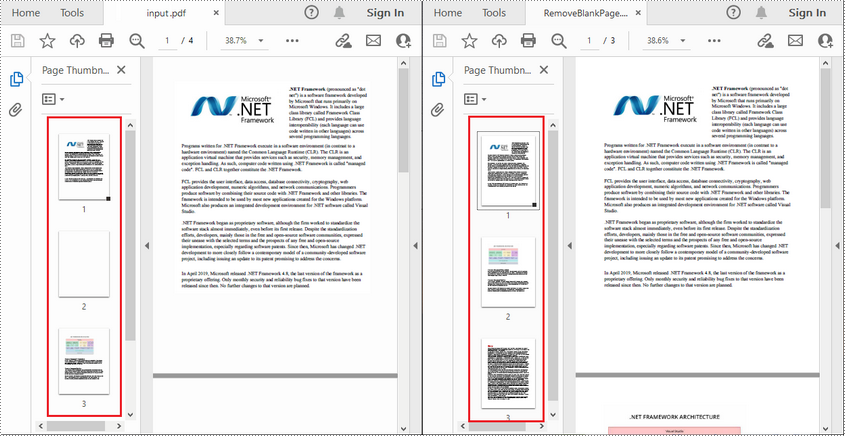
Blank pages in PDFs are not uncommon to find because they may have been left intentionally by the author or added accidentally when manipulating documents. These blank pages can be annoying when you are reading or printing the document, so it may be quite necessary to remove them. In this article you will learn how to programmatically find and remove blank pages from PDF documents using Spire.PDF for .NET.
Install Spire.PDF for .NET
To begin with, you need to add the DLL files included in the Spire.PDF for.NET package as references in your .NET project. The DLLs files can be either downloaded from this link or installed via NuGet.
PM> Install-Package Spire.PDF
Find and Delete Blank Pages from a PDF Document
Spire.PDF for .NET provides a method PdfPageBase.IsBlank() to detect if a PDF page is absolutely blank. But some pages that look blank actually contain white images, these pages won't be deemed as blank using the PdfPageBase.IsBlank() method. Therefore, it is necessary to create a custom method IsImageBlank() to be used in conjunction with PdfPageBase.IsBlank() method to detect these white but non-blank pages.
Note: This solution will convert PDF pages into images and detect if an image is blank. It is necessary to apply a license to remove the evaluation message in the converted images. Otherwise, this method won't work properly. If you do not have a license, contact sales@e-iceblue.com for a temporary one for evaluation purpose.
The detailed steps are as follows:
- Create a PdfDocument instance.
- Load a PDF document using PdfDocument.LoadFromFile() method.
- Loop through the pages in the PDF document to detect if the pages are blank using PdfPageBase.IsBlank() method.
- For absolutely blank pages, delete them using PdfDocument.Pages.RemoveAt() method.
- For pages that are not absolutely blank, save them as images using PdfDocument.SaveAsImage() method. Then detect if the converted images are blank using custom method IsImageBlank() and remove the pages that are "blank" using PdfDocument.Pages.RemoveAt() method.
- Save the result document using PdfDocument.SaveToFile() method.
- C#
- VB.NET
using Spire.Pdf;
using Spire.Pdf.Graphics;
using System.Drawing;

namespace DeleteBlankPage
{
    class Program
    {
        static void Main(string[] args)
        {
            //Apply license by license key
            Spire.Pdf.License.LicenseProvider.SetLicenseKey("your license key");

            //Create a PdfDocument instance
            PdfDocument document = new PdfDocument();

            //Load a sample PDF document
            document.LoadFromFile("input.pdf");

            //Loop through all pages in the PDF
            for (int i = document.Pages.Count - 1; i >= 0; i--)
            {
                //Detect if a page is blank
                if (document.Pages[i].IsBlank())
                {
                    //Remove the absolutely blank page
                    document.Pages.RemoveAt(i);
                }
                else
                {
                    //Save PDF page as image
                    Image image = document.SaveAsImage(i, PdfImageType.Bitmap);

                    //Detect if the converted image is blank
                    if (IsImageBlank(image))
                    {
                        //Remove the page
                        document.Pages.RemoveAt(i);
                    }
                }
            }

            //Save the result document
            document.SaveToFile("RemoveBlankPage.pdf", FileFormat.PDF);
        }

        //Detect if an image is blank
        public static bool IsImageBlank(Image image)
        {
            Bitmap bitmap = new Bitmap(image);
            for (int i = 0; i < bitmap.Width; i++)
            {
                for (int j = 0; j < bitmap.Height; j++)
                {
                    Color pixel = bitmap.GetPixel(i, j);
                    if (pixel.R < 240 || pixel.G < 240 || pixel.B < 240)
                    {
                        return false;
                    }
                }
            }
            return true;
        }
    }
}
Apply for a Temporary License
If you'd like to remove the evaluation message from the generated documents, or to get rid of the function limitations, please request a 30-day trial license for yourself.
Delete Annotation from PDF files in C#
Text annotation is often used in PDF file to show readers the extra information of the item. By using Spire.PDF you can not only add a new annotation, edit an existing annotation, but also delete annotations from PDF file. In this article, we will introduce you how to delete a particular annotation and delete all the annotation at one time.
First, check the PDF document with annotations.
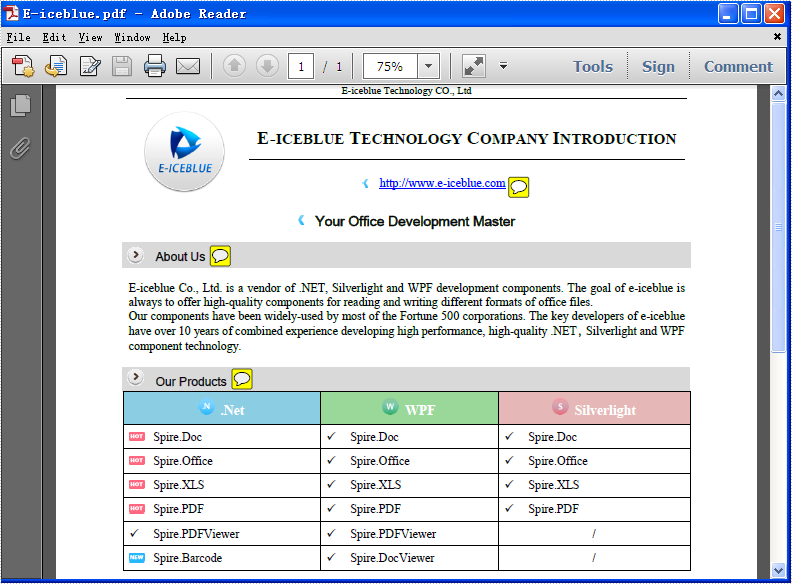
Here comes to the steps of how to remove the bookmarks in C#.
- Download Spire.PDF for .NET and install it correctly. The Spire.PDF installation is clean, professional and wrapped up in a MSI installer.
- Add Spire.Pdf.dll as reference in the downloaded Bin folder though the below path: "..\Spire.Pdf\Bin\NET4.0\ Spire.Pdf.dll".
- Check the code snippet of how to delete the annotations. With Spire.PDF.NET, we can remove both the particular annotation and remove all the annotations.
The code snippet of remove the first annotation from PDF file:
//Example 1: Remove the first annotation from the PDF file
PdfDocument document = new PdfDocument();
//load the pdf file
document.LoadFromFile("E-iceblue.pdf");

//remove the first annotation
document.Pages[0].AnnotationsV2.RemoveAt(1);

document.SaveToFile("result.pdf");
System.Diagnostics.Process.Start("result.pdf");
The effective screenshot of remove the first annotation:
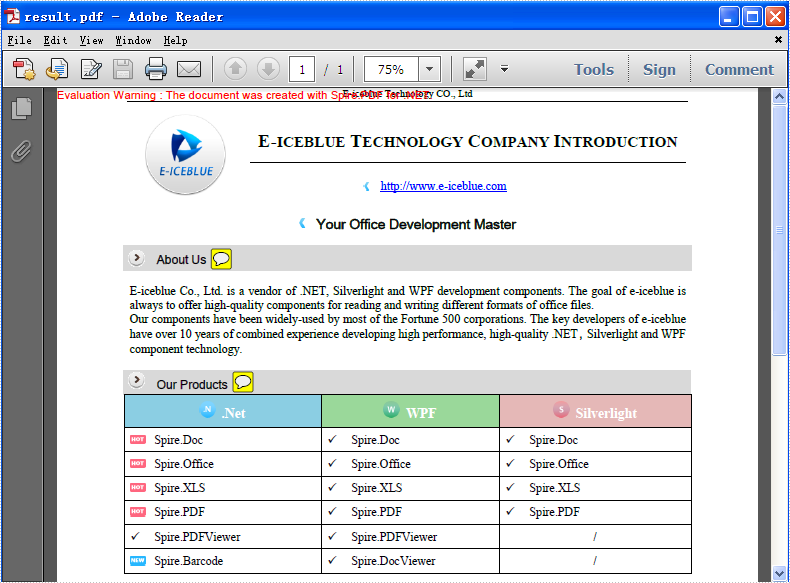
The code snippet of remove all annotations from PDF file:
//Example 2: Remove all annotations from the PDF file
PdfDocument document = new PdfDocument();
//load the pdf file
document.LoadFromFile("E-iceblue.pdf");

//remove all annotations
document.Pages[0].AnnotationsV2.Clear();

document.SaveToFile("result.pdf");
System.Diagnostics.Process.Start("result.pdf");
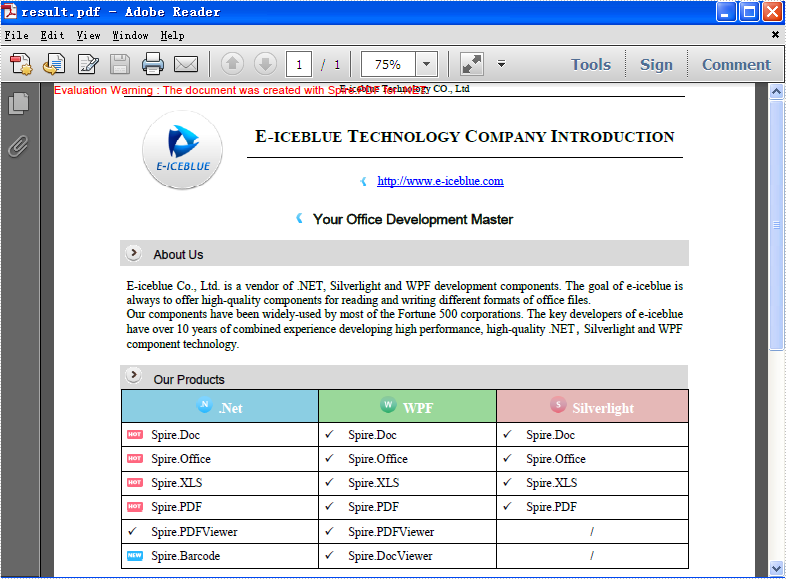
The effective screenshot of remove all the annotations:
Set border and shading in PowerPoint document in C#, VB.NET
Suppose you want your doc document more attract and prominent your content. You would use a kind of border and shading style to beatify your document and give prominence to the key points. AS well as doc document the PPT document also can set shape to as border and shading.
Spire.Presentation for .NET, a professional .NET PPT component to allow users to manipulate PPT documents without automation. It can set kinds of shape types which can help users to beatify their document as their expectation
Below demonstrate the effect by a screenshot which shows a shape type in PPT document with C#, VB.NET via Spire.Presentation for .NET.
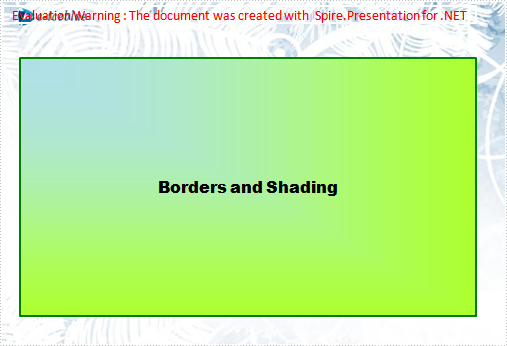
There is a guide to introduce a method to set shape type to achieve above screenshot with C#, VB.NET via Spire.Presentation for .NET.
This method is:
First, new a PPT document and set its slide. Then, new a shape and set its line color and gradient color. Last set the font and fill style for the paragraph. Now Download and install Spire.Presentation for .NET and use below code to experience this method to set shape type in PPT document.
The full code:
using System;
using System.Drawing;
using Spire.Presentation;
using Spire.Presentation.Drawing;

namespace BorderAndShading
{
    class Program
    {
        static void Main(string[] args)
        {
            Presentation presentation = new Presentation();

            //set background Image
            string ImageFile = @" bg.png";
            RectangleF rect = new RectangleF(0, 0, presentation.SlideSize.Size.Width, presentation.SlideSize.Size.Height);
            presentation.Slides[0].Shapes.AppendEmbedImage(ShapeType.Rectangle, ImageFile, rect);
            presentation.Slides[0].Shapes[0].Line.FillFormat.SolidFillColor.Color = Color.FloralWhite;

            //append new shape
            IAutoShape shape = presentation.Slides[0].Shapes.AppendShape(ShapeType.Rectangle,
                new RectangleF(120, 70, 450, 300));

            //set the LineColor
            shape.ShapeStyle.LineColor.Color = Color.Green;

            //set the gradient color of shape
            shape.Fill.FillType = Spire.Presentation.Drawing.FillFormatType.Gradient;
            shape.Fill.Gradient.GradientShape = Spire.Presentation.Drawing.GradientShapeType.Rectangle;
            shape.Fill.Gradient.GradientStyle = Spire.Presentation.Drawing.GradientStyle.FromTopLeftCorner;
            shape.Fill.Gradient.GradientStops.Append(1f, KnownColors.GreenYellow);
            shape.Fill.Gradient.GradientStops.Append(0, KnownColors.PowderBlue);
            shape.AppendTextFrame("Borders and Shading");

            //set the Font
            shape.TextFrame.Paragraphs[0].TextRanges[0].LatinFont = new TextFont("Arial Black");
            shape.TextFrame.Paragraphs[0].TextRanges[0].Fill.FillType = FillFormatType.Solid;
            shape.TextFrame.Paragraphs[0].TextRanges[0].Fill.SolidColor.Color = Color.Black;

            //save the document
            presentation.SaveToFile("BordersAndShading.pptx", FileFormat.Pptx2007);
            System.Diagnostics.Process.Start("BordersAndShading.pptx");
        }
    }
}
Imports System.Text
Imports System.Drawing
Imports Spire.Presentation
Imports Spire.Presentation.Drawing

Module Module1

    Sub Main()
        'create PPT document
        Dim presentation As New Presentation()

        'set background Image
        Dim ImageFile As String = "bg.png"
        Dim rect As New RectangleF(0, 0, presentation.SlideSize.Size.Width, presentation.SlideSize.Size.Height)
        presentation.Slides(0).Shapes.AppendEmbedImage(ShapeType.Rectangle, ImageFile, rect)
        presentation.Slides(0).Shapes(0).Line.FillFormat.SolidFillColor.Color = Color.FloralWhite

        'append new shape
        Dim shape As IAutoShape = presentation.Slides(0).Shapes.AppendShape(ShapeType.Rectangle, New RectangleF(30, 70, 550, 300))

        'set the LineColor
        shape.ShapeStyle.LineColor.Color = Color.Green

        'set the gradient color of shape
        shape.Fill.FillType = Spire.Presentation.Drawing.FillFormatType.Gradient
        shape.Fill.Gradient.GradientShape = Spire.Presentation.Drawing.GradientShapeType.Rectangle
        shape.Fill.Gradient.GradientStyle = Spire.Presentation.Drawing.GradientStyle.FromTopLeftCorner
        shape.Fill.Gradient.GradientStops.Append(1.0F, KnownColors.GreenYellow)

        shape.Fill.Gradient.GradientStops.Append(0, KnownColors.PowderBlue)
        shape.AppendTextFrame("Borders and Shading")

        'set the Font
        shape.TextFrame.Paragraphs(0).TextRanges(0).LatinFont = New TextFont("Arial Black")
        shape.TextFrame.Paragraphs(0).TextRanges(0).Fill.FillType = FillFormatType.Solid
        shape.TextFrame.Paragraphs(0).TextRanges(0).Fill.SolidColor.Color = Color.Black

        'save the document
        presentation.SaveToFile("BordersAndShading.pptx", FileFormat.Pptx2007)
        System.Diagnostics.Process.Start("BordersAndShading.pptx")

    End Sub

End Module
C#/VB.NET: Convert PowerPoint to Images (PNG, JPG, TIFF, EMF, SVG)
You may need to convert PowerPoint documents to images for various purposes, such as preventing other users from editing the contents of the PowerPoint documents, generating thumbnails for the PowerPoint documents, or sharing the PowerPoint documents on social media. In this article, you will learn how to convert PowerPoint documents to various image formats in C# and VB.NET using Spire.Presentation for .NET.
- Convert PowerPoint Documents to JPG or PNG Images
- Convert PowerPoint Documents to TIFF Images
- Convert PowerPoint Documents to EMF Images
- Convert PowerPoint Documents to SVG Images
Install Spire.Presentation for .NET
To begin with, you need to add the DLL files included in the Spire.Presentation for.NET package as references in your .NET project. The DLL files can be either downloaded from this link or installed via NuGet.
PM> Install-Package Spire.Presentation
Convert PowerPoint Documents to JPG or PNG Images in C# and VB.NET
The following are the main steps to convert a PowerPoint document to JPG or PNG image:
- Initialize an instance of Presentation class.
- Load a PowerPoint document using Presentation.LoadFromFile() method.
- Iterate through all slides in the PowerPoint document.
- Save each slide as System.Drawing.Image object using ISlide.SaveAsImage() method.
- Save the image object to PNG or JPG file using Image.Save() method.
- C#
- VB.NET
using Spire.Presentation;
using System.Drawing;

namespace ConvertPowerPointToJpgOrPngImage
{
    class Program
    {
        static void Main(string[] args)
        {
            //Create a Presentation instance
            Presentation presentation = new Presentation();
            //Load a PowerPoint document
            presentation.LoadFromFile(@"Sample.pptx");

            int i = 0;
            //Iterate through all slides in the PowerPoint document
            foreach(ISlide slide in presentation.Slides)
            {
                //Save each slide as PNG image
                Image image = slide.SaveAsImage();
                string fileName = string.Format("ToImage-img-{0}.png", i);
                image.Save(fileName, System.Drawing.Imaging.ImageFormat.Png);
                i++;
            }
        }
    }
}

Convert PowerPoint Documents to TIFF Images in C# and VB.NET
The following are the steps to convert a PowerPoint document to TIFF image:
- Initialize an instance of Presentation class.
- Load a PowerPoint document using Presentation.LoadFromFile() method.
- Convert the PowerPoint document to TIFF image using Presentation.SaveToFile(string, FileFormat) method.
- C#
- VB.NET
using Spire.Presentation;

namespace ConvertPowerPointToTiffImage
{
    class Program
    {
        static void Main(string[] args)
        {
            //Create a Presentation instance
            Presentation presentation = new Presentation();
            //Load a PowerPoint document
            presentation.LoadFromFile(@"Sample.pptx");

            //Convert the PowerPoint document to TIFF image
            presentation.SaveToFile("toTIFF.tiff", FileFormat.Tiff);
        }
    }
}

Convert PowerPoint Documents to EMF Images in C# and VB.NET
The following are the steps to convert a PowerPoint document to EMF image:
- Initialize an instance of Presentation class.
- Load a PowerPoint document using Presentation.LoadFromFile() method.
- Iterate through all slides in the PowerPoint document.
- Save each slide to EMF image using ISlide.SaveAsEMF() method.
- C#
- VB.NET
using Spire.Presentation;

namespace ConvertPowerPointToEmfImage
{
    class Program
    {
        static void Main(string[] args)
        {
            //Create a Presentation instance
            Presentation presentation = new Presentation();
            //Load a PowerPoint document
            presentation.LoadFromFile(@"Sample.pptx");

            int i = 0;
            //Iterate through all slides in the PowerPoint document
            foreach (ISlide slide in presentation.Slides)
            {
                string fileName = string.Format("ToEmf-{0}.emf", i);
                //Save each slide to EMF image
                slide.SaveAsEMF(fileName);
                //Save each slide to EMF image with specified width and height
                //slide.SaveAsEMF(fileName, 1075, 710);
                i++;
            }
        }
    }
}

Convert PowerPoint Documents to SVG Images in C# and VB.NET
The following are the steps to convert a PowerPoint document to SVG images:
- Initialize an instance of Presentation class.
- Load a PowerPoint document using Presentation.LoadFromFile() method.
- Convert the PowerPoint document to SVG and save the results into a queue of byte arrays using Presentation.SaveToSVG() method.
- Iterate through the byte arrays in the queue.
- At each iteration, remove and return the byte array at the beginning of the queue using Queue.Dequeue() method.
- Initialize an instance of FileStream class and save the byte array to an SVG file using FileStream.Write() method.
- C#
- VB.NET
using Spire.Presentation;
using System.Collections.Generic;
using System.IO;

namespace ConvertPowerPointToSvgImage
{
    class Program
    {
        static void Main(string[] args)
        {
            //Create a Presentation instance
            Presentation presentation = new Presentation();
            //Load a PowerPoint document
            presentation.LoadFromFile(@"Sample.pptx");

            //Convert the PowerPoint document to SVG and save the results into a queue of byte arrays
            Queue<byte[]> svgBytes = presentation.SaveToSVG();
            int count = svgBytes.Count;
            //Iterate through the byte arrays in the queue
            for (int i = 0; i < count; i++)
            {
                //Remove and return the byte array at the beginning of the queue
                byte[] bt = svgBytes.Dequeue();
                //Specify the output file name
                string fileName = string.Format("ToSVG-{0}.svg", i);
                //Create a FileStream instance
                FileStream fs = new FileStream(fileName, FileMode.Create);
                //Save the byte array to a SVG file
                fs.Write(bt, 0, bt.Length);
            }
        }
    }
}

Apply for a Temporary License
If you'd like to remove the evaluation message from the generated documents, or to get rid of the function limitations, please request a 30-day trial license for yourself.
Extract and Update link from a PDF file
Spire.PDF for .NET is a PDF library which enables users to handle the whole PDF document with wide range of tasks in C#, VB.NET. Spire.PDF supports to create PDF links, extract PDF links, update PDF links and remove PDF links from a PDF file. This article mainly shows how to extract and update link from a PDF file in C#.
Before the steps and codes, please check the original PDF file at first:
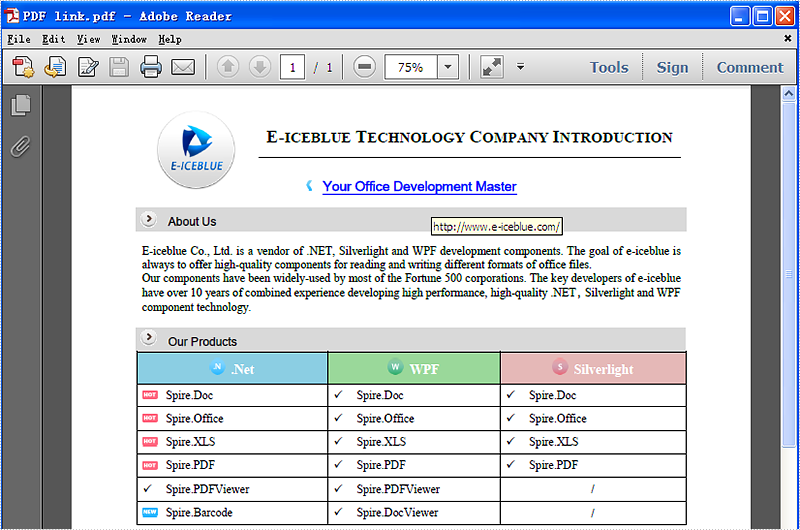
Firstly we need to create a new Document object and load a PDF file which needs to extract and update the links. The links are represented as annotations in a PDF file. Before extract and update the link from a PDF file, we need to get all the annotations from the annotation collection of the page through PdfPageBase.AnnotationsV2 property.
The following code snippet shows you how to extract links from the PDF file.
//Load an existing PDF file
PdfDocument document = new PdfDocument();
document.LoadFromFile(@"..\..\output.pdf");

//Get the first page
PdfPageBase page = document.Pages[0];

//Get the annotation collection
PdfAnnotationCollection annotations = page.AnnotationsV2;

//Verify whether annotations is not null or not
if (annotations.Count > 0)
{
    foreach (PdfAnnotation obj in annotations)
    {
        //Get the TextWebLink Annotation
        if (obj is PdfLinkAnnotation)
        {
            PdfLinkAnnotation link = obj as PdfLinkAnnotation;
The following code snippet shows you how to update the link in PDF file
//Change the url of the link annotation
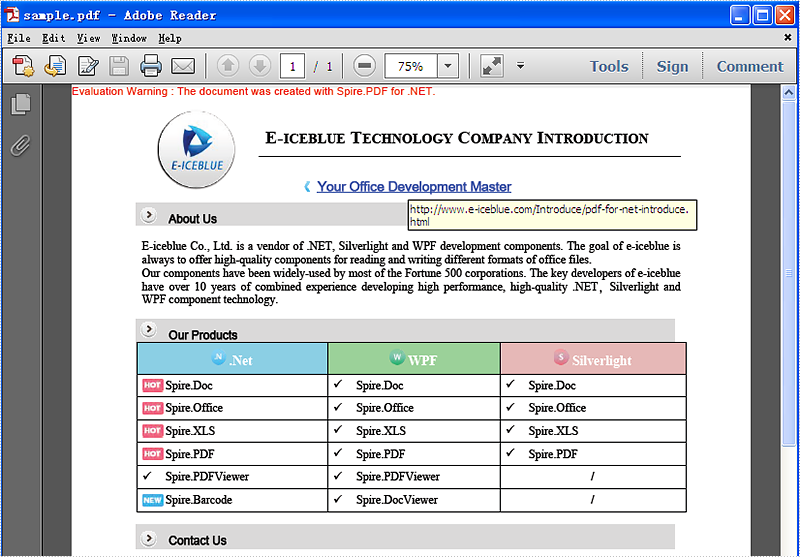
            (link.Action as PdfURIAction).URI = "http://www.e-iceblue.com/Introduce/pdf-for-net-introduce.html";
        }
    }
}

//Save the PDF document to file.
document.SaveToFile("sample.pdf");
This picture will show you the link has been updated in the PDF file.
Create PDF/A and insert hyperlink to image in C#
PDF/A is widely used for long term archiving for PDF format. By using Spire.PDF, you can create PDF/A file directly. This article mainly shows how to set up PDF/A file; it will also demonstrate how to add image and insert hyperlink to image in C#.
Make sure Spire.PDF for .NET (version 2.9.43 or above) has been installed correctly and then add Spire.Pdf.dll as reference in the downloaded Bin folder though the below path: "..\Spire.Pdf\Bin\NET4.0\ Spire.Pdf.dll".
Here comes to the steps:
Step 1: Create a PDF/A document.
// Create a PdfDocument instance
PdfDocument document = new PdfDocument();
PdfPageBase page = document.Pages.Add();
page.Canvas.DrawString("Hello World", new PdfFont(PdfFontFamily.Helvetica, 30f), new PdfSolidBrush(Color.Black), 10, 10);
Step 2: Load an image from file and insert to the PDF.
//insert an image
PdfImage image = PdfImage.FromFile(@"D:\PDF.png");
Step 3: Add a hyper link to the image.
//Add a link to image
PointF location = new PointF(100, 100);
RectangleF linkBounds = new RectangleF(location, new SizeF(image.Width, image.Height));
Spire.Pdf.Annotations.PdfUriAnnotation link = new Spire.Pdf.Annotations.PdfUriAnnotation(linkBounds, "http://www.e-iceblue.com/Introduce/pdf-for-net-introduce.html");
link.Border = new PdfAnnotationBorder(0);
page.Canvas.DrawImage(image, linkBounds);
page.Annotations.Add(link);
Step 4: Save the PDF document.
//Save the document to file in PDF format
String output1 = @"..\..\..\..\..\..\Data\ToPDF.pdf";
document.SaveToFile(output1);

// Create an instance of the PdfStandardsConverter class, passing the input PDF file path as a parameter.
PdfStandardsConverter converter = new PdfStandardsConverter(output1);

// Specify the desired file name for the resulting PDFA-1b compliant PDF.
String output2 = @"..\..\..\..\..\..\Data\ToPDFA.pdf";

// Convert the input PDF file to PDFA-1b format and save it using the specified output file name.
converter.ToPdfA1B(output2);
Effective screenshot:

Insert a footnote in a paragraph
This article shows how to place a footnote in a paragraph using Spire.Doc for .NET, for example, after the word "Spire.Doc" in the following example:
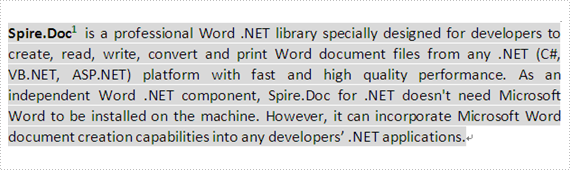

Step 1: Load a word document, Sample.docx.
Document document1 = new Document();
document1.LoadFromFile("D:\\Sample.docx",FileFormat.Docx2010);
Step 2: Get the first paragraph of the first section of Sample.docx.
Paragraph paragraph1 = document1.Sections[0].Paragraphs[0];
Step 3: Add a footnote for paragraph1.
Footnote footnote1 = paragraph1.AppendFootnote(FootnoteType.Footnote);
Step 4: Find the word "Spire.Doc" and insert footnote1 after it.
DocumentObject obj=null;
for (int i = 0; i < paragraph1.ChildObjects.Count; i++)
{
   obj=paragraph1.ChildObjects[i];
   if (obj.DocumentObjectType == DocumentObjectType.TextRange)
   {
      TextRange textRange = obj as TextRange;
// Find the word "Spire.Doc" in paragraph1
if (textRange.Text == "Spire.Doc")
{
//Set bold format for the word "Spire.Doc"
textRange.CharacterFormat.Bold = true;
//Insert footnote1 after the word "Spire.Doc"
paragraph1.ChildObjects.Insert(i + 1, footnote1);
break;
}
     }
 }
Step 5: Type the footnote1 text and set the text's FontName, FontSize and Color.
TextRange text = footnote1.TextBody.AddParagraph().AppendText("Welcome to evaluate Spire.Doc");
text.CharacterFormat.FontName = "Arial Black";
text.CharacterFormat.FontSize = 10;
text.CharacterFormat.TextColor = Color.DarkGray;
Step 6: Set FontName, FontSize, Bold and Color for the footnote1 number.
footnote1.MarkerCharacterFormat.FontName = "Calibri";
footnote1.MarkerCharacterFormat.FontSize = 12;
footnote1.MarkerCharacterFormat.Bold = true;
footnote1.MarkerCharacterFormat.TextColor = Color.DarkGreen;
Step 7: Save Sample.docx to a new document, Footnote.docx.
document1.SaveToFile("D:\\ Footnote.docx"", FileFormat.Docx2010);
Full code:
Document document1 = new Document();
document1.LoadFromFile("D:\\Sample.docx" ,FileFormat.Docx2010);
Paragraph paragraph1= document1.Sections[0].Paragraphs[0];
Footnote footnote1 = paragraph1.AppendFootnote(FootnoteType.Footnote);
DocumentObject obj=null;
for (int i = 0; i < paragraph1.ChildObjects.Count; i++)
{
obj=paragraph1.ChildObjects[i];
if (obj.DocumentObjectType == DocumentObjectType.TextRange)
{
TextRange textRange = obj as TextRange;
// Find the word "Spire.Doc" in paragraph1
if (textRange.Text == "Spire.Doc")
{
//Set bold format for the word "Spire.Doc"
textRange.CharacterFormat.Bold = true;
//Insert footnote1 after the word "Spire.Doc"
paragraph1.ChildObjects.Insert(i + 1, footnote1);
break;
}
}
}
TextRange text = footnote1.TextBody.AddParagraph().AppendText("Welcome to evaluate Spire.Doc");
text.CharacterFormat.FontName = "Arial Black";
text.CharacterFormat.FontSize = 10;
text.CharacterFormat.TextColor = Color.DarkGray;

footnote1.MarkerCharacterFormat.FontName = "Calibri";
footnote1.MarkerCharacterFormat.FontSize = 12;
footnote1.MarkerCharacterFormat.Bold = true;
footnote1.MarkerCharacterFormat.TextColor = Color.DarkGreen;
document1.SaveToFile("Footnote.docx",FileFormat.Docx2010);
Live Demo

Welcome to E-iceblue Live Demos!
Live Demo gives you something quite different; taking you through individual pieces of E-iceblue products' functionality. You can use your own documents and get to see the result straight away by alerting the tabs at the top of the page.
If you don't find the function you want, please request a free demo from us. Make sure the demo you want meets the following requirements:
- It is a small project that implements a particular scenario.
- It relates to our libraries stored on E-iceblue online store.
- It costs less than 2 hours for us to complete it.
- It is not a bug report.
- It is not a feature request.
Recently Updated
Most Viewed
C#: Extract or Update Text in Textbox in Word
Textboxes in Microsoft Word are versatile tools that enhance document layout and design. They allow users to position text independently of the main text flow, making it easier to create visually appealing documents. In some cases, you may need to extract text from textboxes for repurposing, or update the text inside a textbox to ensure clarity and relevance.
In this article, you will learn how to extract or update text in a textbox in a Word document using C# with Spire.Doc for .NET.
Install Spire.Doc for .NET
To begin with, you need to add the DLL files included in the Spire.Doc for .NET package as references in your .NET project. The DLL files can be either downloaded from this link or installed via NuGet.
PM> Install-Package Spire.Doc
Extract Text from Textbox in a Word Document
Using Spire.Doc for .NET, you can access a specific text box in a document with the Document.TextBoxes[index] property. Iterate through the text box's child objects to check if each one is a paragraph or a table. For paragraphs, retrieve the text using the Paragraph.Text property. For tables, loop through the cells to extract text from each cell.
The steps to extract text from a textbox in a Word document are as follows:
- Create a Document object.
- Load a Word file using Document.LoadFromFile() method.
- Get a specific textbox using Document.TextBoxes[index] property
- Iterate through the child objects of the textbox.
- Determine if a child object if a paragraph. If yes, get the text from the paragraph using Paragraph.Text property.
- Determine if a child object if a table. If yes, get the text from the table using ExtractTextFromTable() method.
- C#
using Spire.Doc;
using Spire.Doc.Documents;
using Spire.Doc.Fields;

namespace ExtractTextFromTextbox
{
    class Program
    {
        static void Main(string[] args)
        {
            // Create a Document object
            Document document = new Document();

            // Load a Word file
            document.LoadFromFile("C:\\Users\\Administrator\\Desktop\\Input.docx");

            // Get a specific textbox
            TextBox textBox = document.TextBoxes[0];

            // Create a StreamWriter to write extracted text to a txt file
            using (StreamWriter sw = File.CreateText("result.txt"))
            {
                // Iterate though child objects of the textbox
                foreach (DocumentObject objt in textBox.ChildObjects)
                {
                    // Determine if the child object is a paragraph
                    if (objt.DocumentObjectType == DocumentObjectType.Paragraph)
                    {
                        // Write paragraph text to the txt file
                        sw.Write((objt as Paragraph).Text);
                    }

                    // Determine if the child object is a table
                    if (objt.DocumentObjectType == DocumentObjectType.Table)
                    {
                        // Extract text from table to the txt file
                        ExtractTextFromTable(objt as Table, sw);
                    }
                }

            }

        }

        // Extract text from a table
        static void ExtractTextFromTable(Table table, StreamWriter sw)
        {
            for (int i = 0; i < table.Rows.Count; i++)
            {
                TableRow row = table.Rows[i];
                for (int j = 0; j < row.Cells.Count; j++)
                {
                    TableCell cell = row.Cells[j];
                    foreach (Paragraph paragraph in cell.Paragraphs)
                    {
                        sw.Write(paragraph.Text);
                    }
                }
            }
        }
    }
}

Update a Textbox in a Word Document
To update a text box, first clear its existing content using the TextBox.ChildObjects.Clear() method. Then, add a new paragraph and set its text.
The steps to update a textbox in a Word document are as follows:
- Create a Document object.
- Load a Word file using Document.LoadFromFile() method.
- Get a specific textbox using Document.TextBoxes[index] property
- Remove existing content of the textbox using TextBox.ChildObjects.Clear() method.
- Add a paragraph to the textbox using TextBox.Body.AddParagraph() method.
- Add text to the paragraph using Paragraph.AppendText() method.
- Save the document to a different Word file.
- C#
using Spire.Doc;
using Spire.Doc.Documents;
using Spire.Doc.Fields;

namespace UpdateTextbox
{
    class Program
    {
        static void Main(string[] args)
        {
            // Create a Document object
            Document document = new Document();

            // Load a Word file
            document.LoadFromFile("C:\\Users\\Administrator\\Desktop\\Input.docx");

            // Get a specific textbox
            TextBox textBox = document.TextBoxes[0];

            // Remove child objects of the textbox
            textBox.ChildObjects.Clear();

            // Add a new paragraph to the textbox
            Paragraph paragraph = textBox.Body.AddParagraph();

            // Set line spacing
            paragraph.Format.LineSpacing = 15f;

            // Add text to the paragraph
            TextRange textRange = paragraph.AppendText("The text in this textbox has been updated.");

            // Set font size
            textRange.CharacterFormat.FontSize = 15f;

            // Save the document to a different Word file
            document.SaveToFile("UpdateTextbox.docx", FileFormat.Docx2019);

            // Dispose resources
            document.Dispose();
        }

    }

}

Apply for a Temporary License
If you'd like to remove the evaluation message from the generated documents, or to get rid of the function limitations, please request a 30-day trial license for yourself.