PDF Security: Encrypt or Decrypt PDF Files in C# .NET
Before diving into the full tutorial, watch this short demonstration video to learn how PDF encryption and decryption works in C#:
In today's digital landscape, PDFs carry sensitive contracts, financial reports, and personal data. A single breach can lead to compliance violations or intellectual property theft. To protect your PDFs from unauthorized access, it’s necessary to encrypt them.
Spire.PDF for .NET provides enterprise-grade PDF security solution, enabling developers to easily implement PDF encryption/decryption workflows in .NET applications. This article will provide practical examples to show you how to use C# to encrypt PDF or decrypt PDF.
- .NET Library for PDF Security
- What is Involved in PDF Encryption?
- How to Encrypt a PDF in C# (Code Example)
- How to Decrypt a PDF in C# (Steps & Code)
- FAQs
.NET Library for PDF Security
Why Use Spire.PDF?
Spire.PDF is a robust, standalone .NET library designed to create, edit, convert and secure PDF documents without Adobe Acrobat. Speaking of its security features, it enables developers to:
- Apply AES/RC4 encryption with password protection
- Restrict printing/copying/editing permissions
- Support .NET Framework, ASP.NET Core, and .NET 5+
Installation Guide
Method 1: NuGet Package Manager (Recommended)
- Open your project in Visual Studio
- Go to “Tools -> NuGet Package Manager -> Package Manager Console”
- Run the following:
PM> Install-Package Spire.PDF
Method 2: Manual Installation
- Download DLL from Spire.PDF Official Site
- Right-click your project in Solution Explorer
- Go to “Add-> Reference -> Browse -> Select Spire.PDF.dll”.
What is Involved in PDF Encryption?
Spire.PDF allows developers to encrypt PDF with passwords, set encryption algorithm, and set permissions. Below is a comprehensive technical breakdown:
User & Owner Passwords
- User Password (Open Password): Required to open and view the PDF.
- Owner Password (Permissions Password): Controls security permissions (printing, copying, editing)
Critical Security Rule: The owner password overrides user password restrictions. If a PDF file is encrypted with both passwords, it can be opened with either one. 
Example code:
PdfSecurityPolicy securityPolicy = new PdfPasswordSecurityPolicy(
"user123",   // Open password
"e-iceblue"   // Permission password
);
Encryption Algorithms (RC4 and AES Encrypt)
Spire.PDF supports industry-standard encryption methods with varying key strengths:
| Algorithm | Key Length | Security Level | Use Case |
|---|---|---|---|
| AES | 128/256-bit | Military-grade | Sensitive documents (Default) |
| RC4 | 40/128-bit | Legacy | Backward compatibility |
Example code:
securityPolicy.EncryptionAlgorithm = PdfEncryptionAlgorithm.AES_256;
Permission Flags
Permission flags control user actions on encrypted PDF documents after opening. These flags are controlled via the properties of the PdfDocumentPrivilege class. Here are some common permission flags.
| Properties | Description |
|---|---|
| AllowContentCopying | Gets or sets the permission which allow copy contents or not. |
| AllowPrint | Gets or sets the permission which allow print or not. |
| AllowModifyContents | Gets or sets the permission which allow modify contents or not. |
| AllowFillFormFields | Gets or sets the permission which allow fill in form fields or not. |
| AllowAll | All allowed. |
| ForbidAll | All forbidden. |
Example code:
securityPolicy.DocumentPrivilege.AllowPrint = false;  // Disable printing
securityPolicy.DocumentPrivilege.AllowContentCopying = false;  // Disable copying
How to Encrypt a PDF in C# (Code Example)
The following C# code password protects a PDF file with AES-256 encryption and restrict permissions.
using Spire.Pdf;

namespace EncryptPDF
{
    class Program
    {
        static void Main(string[] args)
        {
            // Create a PdfDocument object
            PdfDocument pdf = new PdfDocument();

            // Load a sample PDF file
            pdf.LoadFromFile("sample.pdf");

            // Specify the user and owner passwords
            string userPassword = "user123";
            string ownerPassword = "e-iceblue";

            // Create a PdfSecurityPolicy object with the two passwords
            PdfSecurityPolicy securityPolicy = new PdfPasswordSecurityPolicy(userPassword, ownerPassword);

            // Set encryption algorithm
            securityPolicy.EncryptionAlgorithm = PdfEncryptionAlgorithm.AES_256;

            // Set document permissions (If you do not set, the default is ForbidAll)
            securityPolicy.DocumentPrivilege = PdfDocumentPrivilege.AllowAll;

            // Restrict printing and content copying
            securityPolicy.DocumentPrivilege.AllowPrint = false;
            securityPolicy.DocumentPrivilege.AllowContentCopying = false;

            // Encrypt the PDF file
            pdf.Encrypt(securityPolicy);

            // Save the result file
            pdf.SaveToFile("EncryptPDF.pdf", FileFormat.PDF);
        }
    }
}
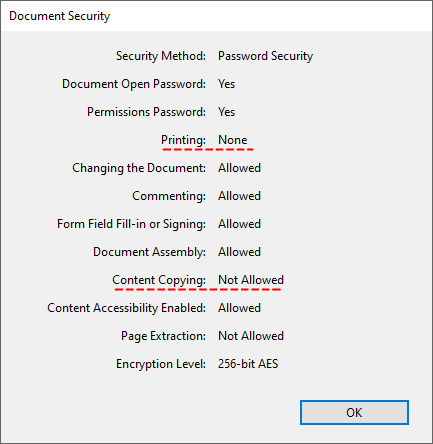
The encrypted PDF will:
- Require a password to open.

- Block printing and copying content. Retain all other permissions (editing, form filling, etc.).
How to Decrypt a PDF in C# (Steps & Code)
Decrypt PDF removes passwords and restrictions, allowing full access to the document. With Spire.PDF, you can decrypt a password-protected PDF file in C# with <5 lines of code.
Main Steps:
- Open Encrypted PDF: Load your encrypted PDF file with the owner password.
- Remove Encryption: Invoke the Decrypt() method to remove all security restrictions.
- Save Decrypted PDF: Call the SaveToFile() method to save the decrypted PDF to the specified file path.
Code Example:
The following C# code removes the PDF passwords and restores access.
using Spire.Pdf;

namespace DecryptPDF
{
    class Program
    {
        static void Main(string[] args)
        {
            // Create a PdfDocument object
            PdfDocument pdf = new PdfDocument();

            // Load a sample PDF file with owner password
            pdf.LoadFromFile("EncryptPDF.pdf", "e-iceblue");

            // Decrypt the PDF file
            pdf.Decrypt();

            // Save the Decrypted PDF
            pdf.SaveToFile("DecryptPDF.pdf");
        }
    }
}
Open the decrypted PDF:

Conclusion
Securing PDFs with encryption is essential for protecting sensitive data. With Spire.PDF for .NET, developers can effortlessly encrypt, decrypt, and manage permissions in PDF files using C#. The .NET PDF library’s comprehensive features and straightforward implementation make it an ideal choice for enhancing document security in enterprise applications.
Next Steps:
- Getting started with Spire.PDF and request a free 30-day trial license to fully evaluate it.
- Explore the Online Documentation for more PDF protection features such as adding digital signatures, adding watermarks, and more.
FAQs
Q1: Can I encrypt a PDF without a user password?
A: Yes. Set the user password to an empty string and use the owner password to control permissions.
Q2: What encryption standards are supported?
A: Spire.PDF supports:
- 40-bit RC4 (legacy)
- 128-bit RC4/AES (standard)
- 256-bit AES (highest security)
Recommend 256-bit AES for sensitive data compliance (e.g., HIPAA, GDPR).
Q3: How to handle incorrect passwords when decrypting?
A: Use try-catch blocks to handle exceptions:
try
{
    pdf.LoadFromFile("EncryptPDF.pdf", " wrongPassword");

}
catch (Exception ex)
{
    Console.WriteLine($"Error: {ex.Message}");
}
Q4. How to check if a PDF is encrypted?
A: Use the PdfDocument.IsPasswordProtected(string fileName) method. A comprehensive guide can be found at: Check Whether a PDF is Password Protected in C#
Convert PDF to SVG with Custom Width and Height in C#, VB.NET
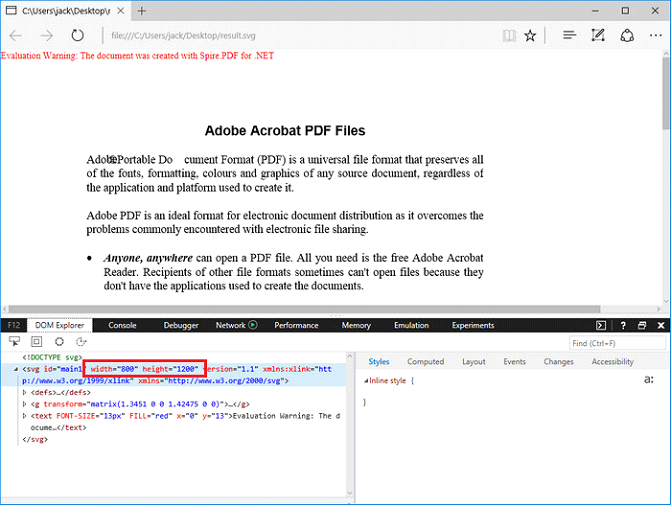
We've have demonstrated how to convert PDF page to SVG file format in the previous post. This guidance shows you how we can specify the width and height of output file using the latest version of Spire.PDF with C# and VB.NET.
Step 1: Load a sample PDF document to PdfDocument instance.
PdfDocument document = new PdfDocument();
document.LoadFromFile("pdf-sample.pdf");
Step 2: Specify the output file size through ConvertOptions.SetPdfToSvgOptions() method.
PdfToSvgConverter converter = new PdfToSvgConverter(inputFile);
    converter.SvgOptions.ScaleX = (float)0.5;
    converter.SvgOptions.ScaleY = (float)0.5;
    converter.Convert(outputFile);
Step 3: Save PDF to SVG file format.
document.SaveToFile("result.svg", FileFormat.SVG);
Output:
Full Code:
using Spire.Pdf;
using Spire.Pdf.Conversion;

namespace ConvertPDFtoSVG
{
    class Program
    {
        static void Main(string[] args)
        {
            PdfDocument document = new PdfDocument();
            PdfToSvgConverter converter = new PdfToSvgConverter(inputFile);
            converter.SvgOptions.ScaleX = (float)0.5;
            converter.SvgOptions.ScaleY = (float)0.5;
            converter.Convert(outputFile);
        }
    }
}
Imports Spire.Pdf
Imports Spire.Pdf.Conversion

Namespace ConvertPDFtoSVG
    Class Program
        Private Shared Sub Main(args As String())
            Dim document As New PdfDocument()
            document.LoadFromFile("pdf-sample.pdf")
            ' Specify the width And height of output SVG file
            Dim Converter As New PdfToSvgConverter(inputFile)
            Converter.SvgOptions.ScaleX = CSng(0.5)
            Converter.SvgOptions.ScaleY = CSng(0.5)
            Converter.Convert(outputFile)
            document.SaveToFile("result.svg", FileFormat.SVG)
        End Sub
    End Class
End Namespace
How to toggle the visibility of PDF layer in C#
We have already demonstrated how to use Spire.PDF to add multiple layers to PDF file and delete layer in PDF in C#. We can also toggle the visibility of a PDF layer while creating a new page layer with the help of Spire.PDF. In this section, we're going to demonstrate how to toggle the visibility of layers in new PDF document in C#.
Step 1: Create a new PDF document and add a new page to the PDF document.
PdfDocument pdf = new PdfDocument();
PdfPageBase page = pdf.Pages.Add();
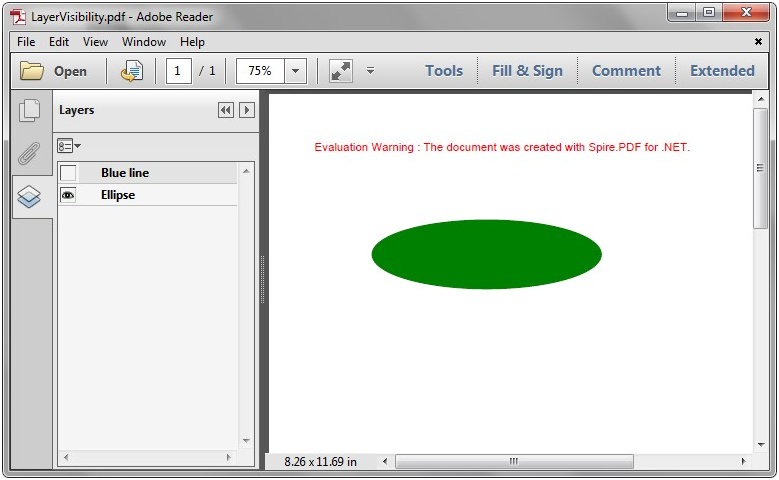
Step 2: Add a layer named "Blue line" to the PDF page and set the layer invisible.
PdfLayer layer = pdf.Layers.AddLayer(""Green line"", PdfVisibility.Off);
PdfPen pen = new PdfPen(Color.Green, 1f);
PdfCanvas pcA = layer.CreateGraphics(page.Canvas);
pcA.DrawLine(pen, new PointF(0, 30), new PointF(300, 30));
Step 3: Add a layer named "Ellipse" to the PDF page and set the layer visible.
layer = pdf.Layers.AddLayer(""Ellipse"", PdfVisibility.On);
 PdfPen pen2 = new PdfPen(Color.Green, 1f);
 PdfBrush brush2 = new PdfSolidBrush(Color.Green);
 PdfCanvas pcB = layer.CreateGraphics(page.Canvas);
 pcB.DrawEllipse(pen2, brush2, 50, 70, 200, 60);
Step 4: Save the document to file.
pdf.SaveToFile("LayerVisibility.pdf", FileFormat.PDF);
Effective screenshot after toggle the visibility of PDF layer:
Full codes:
using Spire.Pdf;
using Spire.Pdf.Graphics;
using System.Drawing;


namespace LayerVisibility
{
    class Program
    {
        static void Main(string[] args)
        {
            PdfDocument pdf = new PdfDocument();
            PdfPageBase page = pdf.Pages.Add();

            PdfLayer layer = pdf.Layers.AddLayer("Green line", PdfVisibility.Off);
            PdfPen pen = new PdfPen(Color.Green, 1f);
            PdfCanvas pcA = layer.CreateGraphics(page.Canvas);
            pcA.DrawLine(pen,new PointF(0, 30), new PointF(300, 30));

            layer = pdf.Layers.AddLayer("Ellipse", PdfVisibility.On);
            PdfPen pen2 = new PdfPen(Color.Green, 1f);
            PdfBrush brush2 = new PdfSolidBrush(Color.Green);
            PdfCanvas pcB = layer.CreateGraphics(page.Canvas);
            pcB.DrawEllipse(pen2, brush2, 50, 70, 200, 60);


            pdf.SaveToFile("LayerVisibility.pdf", FileFormat.PDF);
        }
    }
}
Remove conditional format from Excel in C#
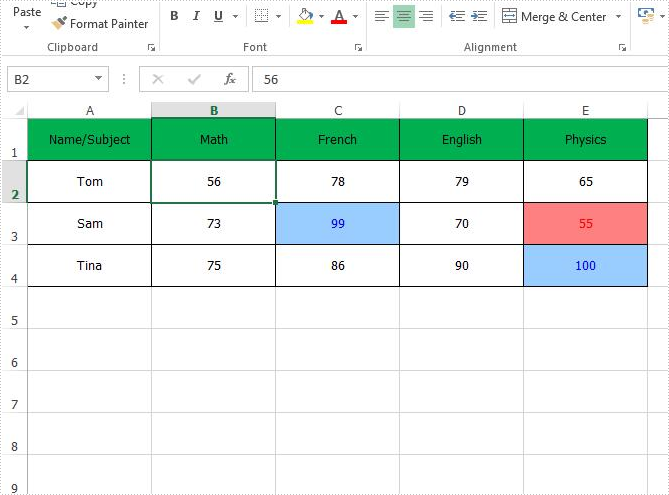
With the help of Spire.XLS, we can set the conditional format the Excel cell in C# and VB.NET. We can also use Spire.XLS to remove the conditional format from a specific cell or the entire Excel worksheet. This article will demonstrate how to remove conditional format from Excel in C#.
Firstly, view the original Excel worksheet with conditional formats:

Step 1: Create an instance of Excel workbook and load the document from file.
Workbook workbook = new Workbook();
workbook.LoadFromFile("Sample.xlsx");
Step 2: Get the first worksheet from the workbook.
Worksheet sheet = workbook.Worksheets[0];
Step 3: Remove the first conditional format.
sheet.ConditionalFormats.RemoveAt(0);
Step 4: Remove all the conditional formats from the whole Excel worksheet.
for (int i = sheet.ConditionalFormats.Count-1; i >= 0; i--)
{
sheet.ConditionalFormats.RemoveAt(i);
}
Step 5: Save the document to file.
workbook.SaveToFile("Result.xlsx", ExcelVersion.Version2010);
Remove the conditional format from a special Excel range B2:
Remove all the conditional formats from the entire Excel worksheet:

Full codes of how to remove the conditional formats from Excel worksheet:
using Spire.Xls;

namespace RemoveConditionalFormat
{
    class Program
    {
        static void Main(string[] args)
        {
            Workbook workbook = new Workbook();
            workbook.LoadFromFile("Sample.xlsx");

            Worksheet sheet = workbook.Worksheets[0];

            // Remove the first conditional format
            //sheet.ConditionalFormats.RemoveAt(0);

            // Remove all conditional formats
            for (int i = sheet.ConditionalFormats.Count-1; i >= 0; i--)
            {
                sheet.ConditionalFormats.RemoveAt(i);
            }

            workbook.SaveToFile("Result.xlsx", ExcelVersion.Version2010);
        }
    }
}
C#: Convert PDF to HTML
PDF documents have been a popular choice for sharing information due to their cross-platform compatibility and ability to preserve the original layout and formatting. However, as the web continues to evolve, there is an increasing demand for content that can be easily integrated into websites and other online platforms. In this context, converting PDF to HTML format has become highly valuable. By converting PDF files to more flexible and accessible HTML, users gain the ability to better utilize, share, and reuse PDF-based information within the web environment. In this article, we will demonstrate how to convert PDF files to HTML format in C# using Spire.PDF for .NET.
- Convert PDF to HTML in C#
- Set Conversion Options When Converting PDF to HTML in C#
- Convert PDF to HTML Stream in C#
Install Spire.PDF for .NET
To begin with, you need to add the DLL files included in the Spire.PDF for.NET package as references in your .NET project. The DLL files can be either downloaded from this link or installed via NuGet.
PM> Install-Package Spire.PDF
Convert PDF to HTML in C#
To convert a PDF document to HTML format, you can use the PdfDocument.SaveToFile(string fileName, FileFormat.HTML) method provided by Spire.PDF for .NET. The detailed steps are as follows.
- Create an instance of the PdfDocument class.
- Load a PDF document using the PdfDocument.LoadFromFile(string fileName) method.
- Save the PDF document to HTML format using the PdfDocument.SaveToFile(string fileName, FileFormat.HTML) method.
- C#
using Spire.Pdf;

namespace ConvertPdfToHtml
{
    internal class Program
    {
        static void Main(string[] args)
        {
            // Create an instance of the PdfDocument class
            PdfDocument doc = new PdfDocument();

            // Load a PDF document
            doc.LoadFromFile("Sample.pdf");

            // Save the PDF document to HTML format
            doc.SaveToFile("PdfToHtml.html", FileFormat.HTML);
            doc.Close();
        }
    }
}
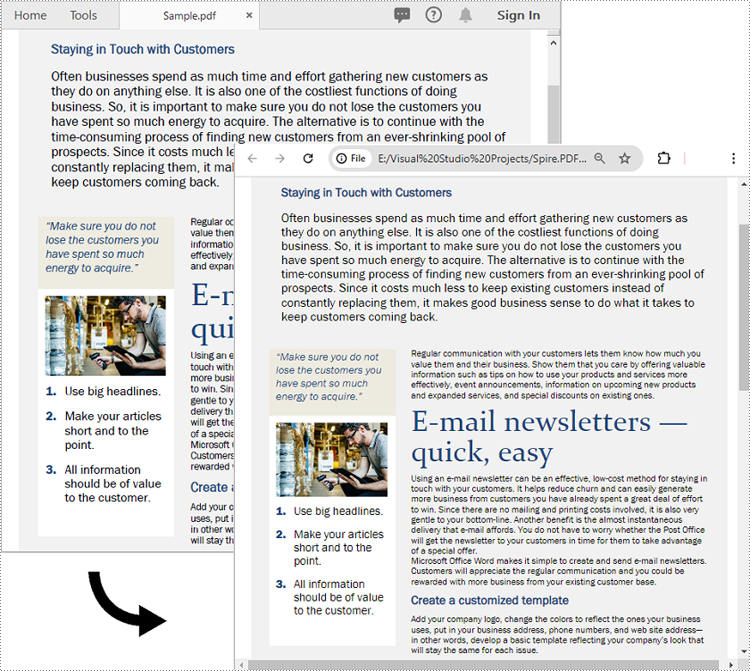
Set Conversion Options When Converting PDF to HTML in C#
The PdfConvertOptions.SetPdfToHtmlOptions() method allows you to customize the conversion options when transforming PDF files to HTML. This method takes several parameters that you can use to configure the conversion process, such as:
- useEmbeddedSvg (bool): Indicates whether to embed SVG in the resulting HTML file.
- useEmbeddedImg (bool): Indicates whether to embed images in the resulting HTML file. This option is applicable only when useEmbeddedSvg is set to false.
- maxPageOneFile (int): Specifies the maximum number of pages to be included per HTML file. This option is applicable only when useEmbeddedSvg is set to false.
- useHighQualityEmbeddedSvg (bool): Indicates whether to use high-quality embedded SVG in the resulting HTML file. This option is applicable when useEmbeddedSvg is set to true.
The following steps explain how to customize the conversion options when transforming a PDF to HTML using Spire.PDF for .NET.
- Create an instance of the PdfDocument class.
- Load a PDF document using the PdfDocument.LoadFromFile(string fileName) method.
- Get the PdfConvertOptions object using the PdfDocument.ConvertOptions property.
- Set the PDF to HTML conversion options using PdfConvertOptions.SetPdfToHtmlOptions(bool useEmbeddedSvg, bool useEmbeddedImg, int maxPageOneFile, bool useHighQualityEmbeddedSvg) method.
- Save the PDF document to HTML format using PdfDocument.SaveToFile(string fileName, FileFormat.HTML) method.
- C#
using Spire.Pdf;

namespace ConvertPdfToHtmlWithCustomOptions
{
    internal class Program
    {
        static void Main(string[] args)
        {
            // Create an instance of the PdfDocument class
            PdfDocument doc = new PdfDocument();

            // Load a PDF document
            doc.LoadFromFile("Sample.pdf");

            // Set the conversion options to embed images in the resulting HTML and limit one page per HTML file
            PdfConvertOptions pdfToHtmlOptions = doc.ConvertOptions;
            pdfToHtmlOptions.SetPdfToHtmlOptions(false, true, 1);

            // Save the PDF document to HTML format
            doc.SaveToFile("PdfToHtmlWithCustomOptions.html", FileFormat.HTML);
            doc.Close();
        }
    }
}
Convert PDF to HTML Stream in C#
Instead of saving a PDF document to an HTML file, you can save it to an HTML stream by using the PdfDocument.SaveToStream(Stream stream, FileFormat.HTML) method. The detailed steps are as follows.
- Create an instance of the PdfDocument class.
- Load a PDF document using the PdfDocument.LoadFromFile(string fileName) method.
- Create an instance of the MemoryStream class.
- Save the PDF document to an HTML stream using the PdfDocument.SaveToStream(Stream stream, FileFormat.HTML) method.
- C#
using Spire.Pdf;
using System.IO;

namespace ConvertPdfToHtmlStream
{
    internal class Program
    {
        static void Main(string[] args)
        {
            // Create an instance of the PdfDocument class
            PdfDocument doc = new PdfDocument();

            // Load a PDF document
            doc.LoadFromFile("Sample.pdf");

            // Save the PDF document to HTML stream
            using (var fileStream = new MemoryStream())
            {
                doc.SaveToStream(fileStream, FileFormat.HTML);

                // You can now do something with the HTML stream, such as Write it to a file
                using (var outputFile = new FileStream("PdfToHtmlStream.html", FileMode.Create))
                {
                    fileStream.Seek(0, SeekOrigin.Begin);
                    fileStream.CopyTo(outputFile);
                }
            }

            doc.Close();
        }
    }
}
Apply for a Temporary License
If you'd like to remove the evaluation message from the generated documents, or to get rid of the function limitations, please request a 30-day trial license for yourself.
Remove password from the encrypted PDF document
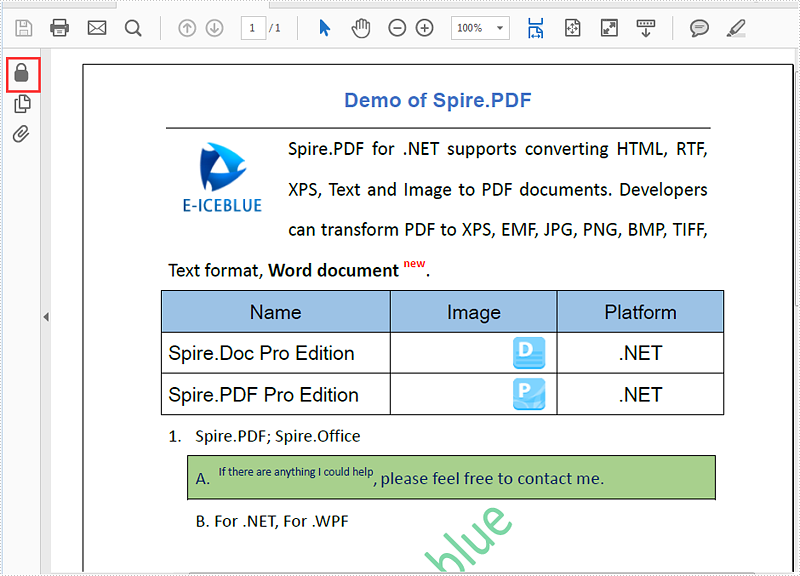
With Spire.PDF for .NET, we can easily set the password to encrypt the PDF document by password. We can also use Spire.PDF to remove the password from the encrypted PDF document in C# and VB.NET. We need to load the encrypted PDF file with password by calling the method PdfDocument.LoadFromFile (string filename, string password) and then set the password as empty to remove the password.
Firstly, view the PDF with user password:
Step 1: Load the password protected PDF document.
PdfDocument pdf = new PdfDocument();
pdf.LoadFromFile("Sample.pdf", "e-iceblue");
Step 2: Set the password as empty to remove the user password.
string UserPassword = string.Empty;
string OwnerPassword = string.Empty;
PdfSecurityPolicy securityPolicy = new PdfPasswordSecurityPolicy(UserPassword, OwnerPassword);
pdf.Encrypt(securityPolicy);
Step 3: Save the document to file.
pdf.SaveToFile("Decrypted.pdf");
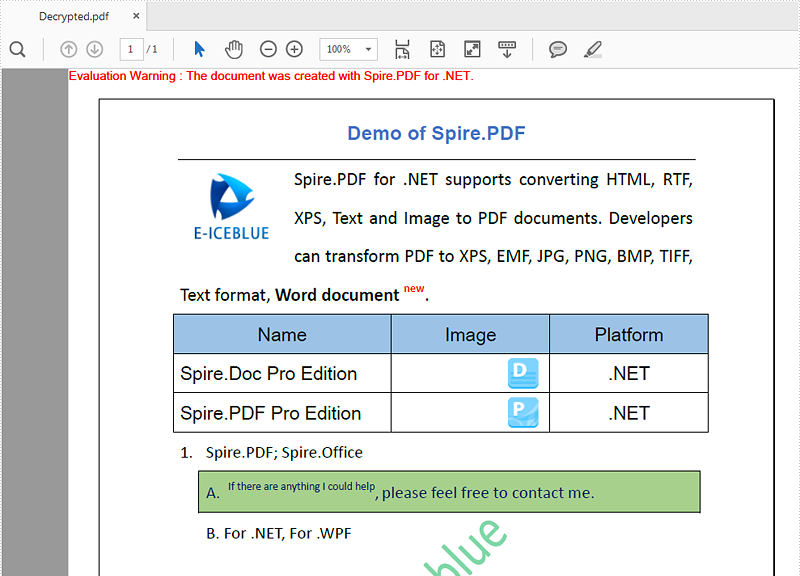
Effective screenshot after removing the password from the PDF document:
Full codes:
using Spire.Pdf;

namespace RemovePassword
{
    class Program
    {
        static void Main(string[] args)
        {
            PdfDocument pdf = new PdfDocument();
            pdf.LoadFromFile("Sample.pdf", "e-iceblue");

            string UserPassword = string.Empty;
            string OwnerPassword = string.Empty;
            PdfSecurityPolicy securityPolicy = new PdfPasswordSecurityPolicy(UserPassword, OwnerPassword);
            pdf.Encrypt(securityPolicy);
            pdf.Encrypt(securityPolicy);

            pdf.SaveToFile("Decrypted.pdf");
        }
    }
}
Imports Spire.Pdf

Namespace RemovePassword
	Class Program
		Private Shared Sub Main(args As String())
			Dim pdf As New PdfDocument()
			pdf.LoadFromFile("Sample.pdf", "e-iceblue")
			Dim UserPassword As String = String.Empty
			Dim OwnerPassword As String = String.Empty
			Dim securityPolicy As PdfSecurityPolicy = New PdfPasswordSecurityPolicy(UserPassword, OwnerPassword)
			pdf.Encrypt(securityPolicy)
			pdf.SaveToFile("Decrypted.pdf")
		End Sub
	End Class
End Namespace
How to Create a Nested Table in Word in C#
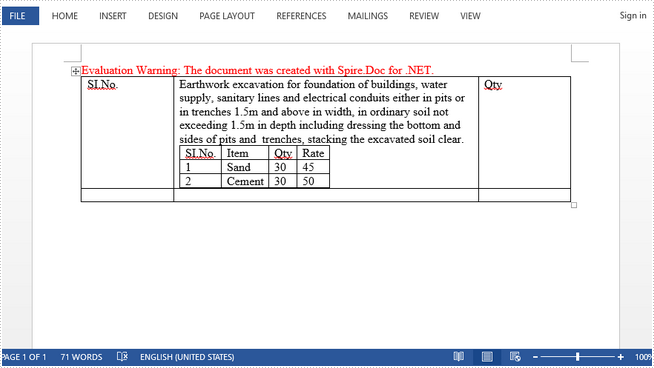
A nested table is one table placed inside of another, where the larger table functions as a container for the smaller one. Nested tables allow you to arrange different sets of data in groups to show clients.
This article presents how we can create a nested table using Spire.Doc in C#.
Step 1: Create a new PDF document and add a section to it.
Document doc = new Document();
Section section = doc.AddSection();
Step 2: Add a table to the section.
Table table = section.AddTable(true);
table.ResetCells(2, 3);
Step 3: Adjust the column with.
table.Rows[0].Cells[0].Width = table.Rows[0].Cells[2].Width = 50F;
table.Rows[1].Cells[0].Width = table.Rows[1].Cells[2].Width = 50F;
table.AutoFitBehavior(AutoFitBehaviorType.wdAutoFitWindow);
Step 4: Insert content to the cells of the table.
table[0, 0].AddParagraph().AppendText("SI.No.");
string text = "Earthwork excavation for foundation of buildings, water supply, "
             + "sanitary lines and electrical conduits either in pits or in "
             + "trenches 1.5m and above in width, in ordinary soil not exceeding "
             + "1.5m in depth including dressing the bottom and sides of pits and  "
             + "trenches, stacking the excavated soil clear.";
table[0, 1].AddParagraph().AppendText(text);
table[0, 2].AddParagraph().AppendText("Qty");
Step 5: Insert a nested table to the cell (first row, second column).
Table nestedTable= table[0, 1].AddTable(true);
nestedTable.ResetCells(3, 4);
nestedTable.AutoFitBehavior(AutoFitBehaviorType.wdAutoFitContents);
Step 6: Add content to nested cells.
nestedTable[0, 0].AddParagraph().AppendText("SI.No.");
nestedTable[0, 1].AddParagraph().AppendText("Item");
nestedTable[0, 2].AddParagraph().AppendText("Qty");
nestedTable[0, 3].AddParagraph().AppendText("Rate");
nestedTable[1, 0].AddParagraph().AppendText("1");
nestedTable[1, 1].AddParagraph().AppendText("Sand");
nestedTable[1, 2].AddParagraph().AppendText("30");
nestedTable[1, 3].AddParagraph().AppendText("45");
nestedTable[2, 0].AddParagraph().AppendText("2");
nestedTable[2, 1].AddParagraph().AppendText("Cement");
nestedTable[2, 2].AddParagraph().AppendText("30");
nestedTable[2, 3].AddParagraph().AppendText("50");
Step 7: Save the file.
doc.SaveToFile("Nested_Table.docx", FileFormat.Docx2013);
Output:
Full Code:
//create a new pdf document
Document doc = new Document();
Section section = doc.AddSection();

//add a table
Table table = section.AddTable(true);
table.ResetCells(2, 3);

//set column width
table.Rows[0].Cells[0].SetCellWidth(50F,CellWidthType.Point);
table.Rows[0].Cells[2].SetCellWidth(50F, CellWidthType.Point);
table.Rows[1].Cells[0].SetCellWidth(50F, CellWidthType.Point);
table.Rows[1].Cells[2].SetCellWidth(50F, CellWidthType.Point);
table.AutoFit(AutoFitBehaviorType.AutoFitToWindow);
nestedTable.AutoFit(AutoFitBehaviorType.AutoFitToContents);

//insert content to cells
table[0, 0].AddParagraph().AppendText("SI.No.");
string text = "Earthwork excavation for foundation of buildings, water supply, "
             + "sanitary lines and electrical conduits either in pits or in "
             + "trenches 1.5m and above in width, in ordinary soil not exceeding "
             + "1.5m in depth including dressing the bottom and sides of pits and  "
             + "trenches, stacking the excavated soil clear.";
table[0, 1].AddParagraph().AppendText(text);
table[0, 2].AddParagraph().AppendText("Qty");

//add a nested table to cell(first row, second column)
Table nestedTable= table[0, 1].AddTable(true);
nestedTable.ResetCells(3, 4);
nestedTable.AutoFitBehavior(AutoFitBehaviorType.wdAutoFitContents);

//add content to nested cells
nestedTable[0, 0].AddParagraph().AppendText("SI.No.");
nestedTable[0, 1].AddParagraph().AppendText("Item");
nestedTable[0, 2].AddParagraph().AppendText("Qty");
nestedTable[0, 3].AddParagraph().AppendText("Rate");
nestedTable[1, 0].AddParagraph().AppendText("1");
nestedTable[1, 1].AddParagraph().AppendText("Sand");
nestedTable[1, 2].AddParagraph().AppendText("30");
nestedTable[1, 3].AddParagraph().AppendText("45");
nestedTable[2, 0].AddParagraph().AppendText("2");
nestedTable[2, 1].AddParagraph().AppendText("Cement");
nestedTable[2, 2].AddParagraph().AppendText("30");
nestedTable[2, 3].AddParagraph().AppendText("50");

//save
doc.SaveToFile("Nested_Table.docx", FileFormat.Docx2013);
Lock Specified Sections of Word Documents in C#, VB.NET
Section protection allows users to be able to edit only the forms (if any) rather than any other content within it. When we protect a document, we can specify that the specific sections of the document be protected. This is useful in case we want to protect parts of a Word document.
Following code snippets demonstrate the same.
Step 1: Initialize an instance of Document class.
Document doc = new Document();
Step 2: Add two sections to the document.
Section s1 = doc.AddSection();
Section s2 = doc.AddSection();
Step 3: Append some text to section 1 and section 2.
s1.AddParagraph().AppendText("section 1");
s2.AddParagraph().AppendText("section 2");
Step 4: Protect the document with AllowOnlyFormFields protection type.
doc.Protect(ProtectionType.AllowOnlyFormFields, "123");
Step 5: Unprotect section 2.
s2.ProtectForm = false;
Step 6: Save the document.
doc.SaveToFile("Protect_Section.docx");
Result:
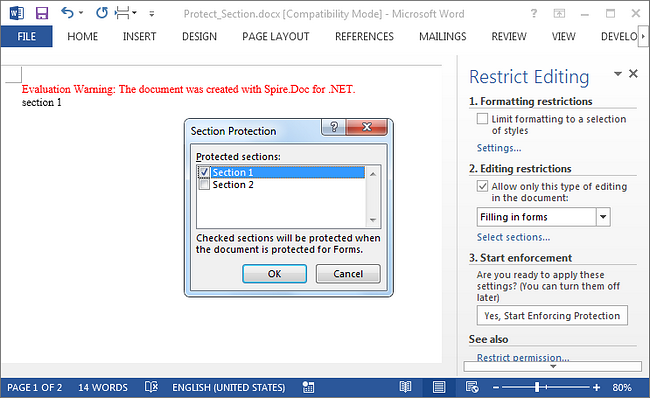
Run the program, we should get the file in which section 1 is protected to allow only editing in form fields while section 2 can be edited freely.
Full Code:
using Spire.Doc;
namespace LockSection
{
    class Program
    {
        static void Main(string[] args)
        {
            Document doc = new Document();
            Section s1 = doc.AddSection();
            Section s2 = doc.AddSection();

            s1.AddParagraph().AppendText("section 1");
            s2.AddParagraph().AppendText("section 2");

            //protect all sections
            doc.Protect(ProtectionType.AllowOnlyFormFields, "123");
            //unprotect section 2
            s2.ProtectForm = false;

            doc.SaveToFile("Protect_Section.docx");
        }
    }
}
Imports Spire.Doc
Namespace LockSection
	Class Program
		Private Shared Sub Main(args As String())
			Dim doc As New Document()
			Dim s1 As Section = doc.AddSection()
			Dim s2 As Section = doc.AddSection()

			s1.AddParagraph().AppendText("section 1")
			s2.AddParagraph().AppendText("section 2")

			'protect all sections
			doc.Protect(ProtectionType.AllowOnlyFormFields, "123")
			'unprotect section 2
			s2.ProtectForm = False

			doc.SaveToFile("Protect_Section.docx")
		End Sub
	End Class
End Namespace
Link to files with relative paths using PdfLaunchAction
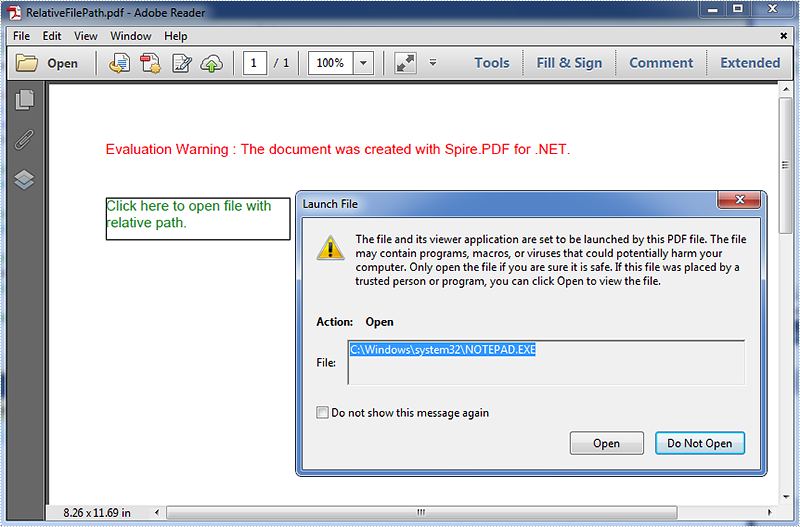
PDF actions can refer to external files by using either absolute or relative file paths. While using the relative path in action, the file can be moved into a different location. In Spire.PDF, we can use the PdfLaunchAction to link to files with relative paths.
Code snippet:
Step 1: Create a new PDF document and add a page to it.
PdfDocument document = new PdfDocument();
PdfPageBase page = document.Pages.Add();
Step 2: Create a PDF launch action that refers to an external file with relative path.
PdfLaunchAction launchAction = new PdfLaunchAction(@"..\..\test.txt", PdfFilePathType.Relative);
Step 3: Create a PDF action annotation with the launch action. Add the annotation to the page.
string text = "Click here to open file with relative path";
PdfTrueTypeFont font = new PdfTrueTypeFont(new Font("Arial", 13f));
RectangleF rect = new RectangleF(50, 50, 230, 15);
page.Canvas.DrawString(text, font, PdfBrushes.ForestGreen, rect);
PdfActionAnnotation annotation = new PdfActionAnnotation(rect, launchAction);
(page as PdfNewPage).Annotations.Add(annotation);
Step 4: Save the document.
document.SaveToFile("RelativeFilePath.pdf");
Screenshot:
Full code:
using System.Drawing;
using Spire.Pdf;
using Spire.Pdf.Actions;
using Spire.Pdf.Interactive.Annotations;
using Spire.Pdf.Graphics;

namespace Link_to_files_with_relative_paths
{
    class Program
    {
        static void Main(string[] args)
        {
            //Create a new PDF document and add a page to it
            PdfDocument document = new PdfDocument();
            PdfPageBase page = document.Pages.Add();

            //Create a PDF Launch Action
            PdfLaunchAction launchAction = new PdfLaunchAction(@"..\..\test.txt", PdfFilePathType.Relative);

            //Create a PDF Link Annotation with the PDF Launch Action
            string text = "Click here to open file with relative path";
            PdfTrueTypeFont font = new PdfTrueTypeFont(new Font("Arial", 13f));
            RectangleF rect = new RectangleF(50, 50, 230, 15);
            page.Canvas.DrawString(text, font, PdfBrushes.ForestGreen, rect);
            PdfLinkAnnotation annotation = new PdfLinkAnnotation(page, rect, launchAction);
            //Add the PDF Link Annotation to page
            (page as PdfNewPage).AnnotationsV2.Add(annotation);

            //Save and close the document
            document.SaveToFile("RelativeFilePath.pdf");
            document.Close();
        }
    }
}
Fill XFA Form Fields in C#/VB.NET
XFA forms are XML-based forms created by Adobe's LiveCycle Designer tool, which offer enhanced features over the old AcroForms, like changeable text fields and support for running JavaScript. Spire.PDF supports to access the XFA forms in an existing PDF file and fill the fields with data.
Step 1: Initialize an instance of PdfDocument class and load a sample PDF file containing dynamic XFA forms.
PdfDocument doc = new PdfDocument();
doc.LoadFromFile("DynamicXFA.pdf");
Step 2: Get all form widgets from the document.
PdfFormWidget formWidget = doc.Form as PdfFormWidget;
Step 3: Get a list of XFA Fields.
List<XfaField> xfafields = formWidget.XFAForm.XfaFields;
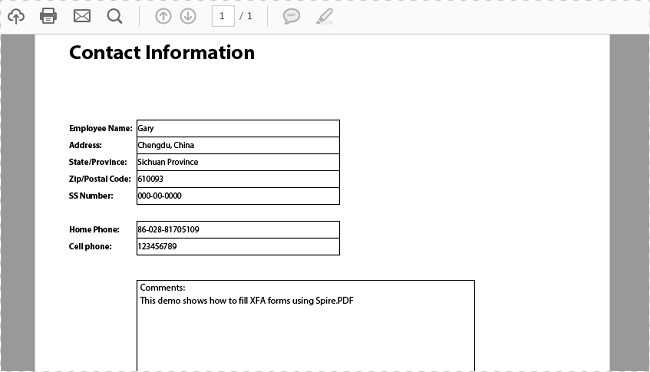
Step 4: Traverse each XfaField in the list and judge if it is an XfaTextField, if yes, convert the type of XfaField as an XfaTextField and then assign value to the field based on the field name.
foreach (XfaField xfaField in xfaFields)
{
    if (xfaField is XfaTextField)
    {
        XfaTextField xf = xfaField as XfaTextField;
        switch (xfaField.Name)
        {
            case "EmployeeName":
                xf.Value = "Gary";
                break;
            case "Address":
                xf.Value = "Chengdu, China";
                break;
            case "StateProv":
                xf.Value = "Sichuan Province";
                break;
            case "ZipCode":
                xf.Value = "610093";
                break;
            case "SSNumber":
                xf.Value = "000-00-0000";
                break;
            case "HomePhone":
                xf.Value = "86-028-81705109";
                break;
            case "CellPhone":
                xf.Value = "123456789";
                break;
            case "Comments":
                xf.Value = "This demo shows how to fill XFA forms using Spire.PDF";
                break;
            default:
                break;
        }
    }
}
Step 5: Save the file.
doc.SaveToFile("FillXfaField.pdf",FileFormat.PDF);
Output:
Full Code:
using Spire.Pdf;
using Spire.Pdf.Widget;
using System.Collections;
using System.Collections.Generic;

namespace FillXFAFormFields
{
    class Program
    {
        private static IEnumerable xfaFields;
        static void Main(string[] args)
        {
            PdfDocument doc = new PdfDocument();
            doc.LoadFromFile("DynamicXFA.pdf");

            PdfFormWidget formWidget = doc.Form as PdfFormWidget;
            List <xfafields> = formWidget.XFAForm.XfaFields;
            foreach (XfaField xfaField in xfafields)
            {
                if (xfaField is XfaTextField)
                {
                    XfaTextField xf = xfaField as XfaTextField;
                    switch (xfaField.Name)
                    {
                        case "EmployeeName":
                            xf.Value = "Gary";
                            break;
                        case "Address":
                            xf.Value = "Chengdu, China";
                            break;
                        case "StateProv":
                            xf.Value = "Sichuan Province";
                            break;
                        case "ZipCode":
                            xf.Value = "610093";
                            break;
                        case "SSNumber":
                            xf.Value = "000-00-0000";
                            break;
                        case "HomePhone":
                            xf.Value = "86-028-81705109";
                            break;
                        case "CellPhone":
                            xf.Value = "123456789";
                            break;
                        case "Comments":
                            xf.Value = "This demo shows how to fill XFA forms using Spire.PDF";
                            break;
                        default:
                            break;
                    }
                }
            }
            doc.SaveToFile("FillXfaField.pdf", FileFormat.PDF);
        }
    }
}
Imports Spire.Pdf
Imports Spire.Pdf.Widget
Imports System.Collections.Generic


Namespace FillXFAFormFields
	Class Program
		Private Shared xfaFields As IEnumerable(Of XfaField)
		Private Shared Sub Main(args As String())
			Dim doc As New PdfDocument()
			doc.LoadFromFile("DynamicXFA.pdf")

			Dim formWidget As PdfFormWidget = TryCast(doc.Form, PdfFormWidget)
			Dim xfafields__1 As List(Of XfaField) = formWidget.XFAForm.XfaFields
			For Each xfaField As XfaField In xfaFields
				If TypeOf xfaField Is XfaTextField Then
					Dim xf As XfaTextField = TryCast(xfaField, XfaTextField)
					Select Case xfaField.Name
						Case "EmployeeName"
							xf.Value = "Gary"
							Exit Select
						Case "Address"
							xf.Value = "Chengdu, China"
							Exit Select
						Case "StateProv"
							xf.Value = "Sichuan Province"
							Exit Select
						Case "ZipCode"
							xf.Value = "610093"
							Exit Select
						Case "SSNumber"
							xf.Value = "000-00-0000"
							Exit Select
						Case "HomePhone"
							xf.Value = "86-028-81705109"
							Exit Select
						Case "CellPhone"
							xf.Value = "123456789"
							Exit Select
						Case "Comments"
							xf.Value = "This demo shows how to fill XFA forms using Spire.PDF"
							Exit Select
						Case Else
							Exit Select
					End Select
				End If
			Next
			doc.SaveToFile("FillXfaField.pdf", FileFormat.PDF)
		End Sub
	End Class
End Namespace