Add, Fill, and Delete PDF Form Fields Using JavaScript in React
Registration forms, sign-up sheets, and questionnaires go out as blank PDFs and come back needing to be filled in by hand, one file at a time. The forms themselves change too — a missing text box, an extra checkbox nobody uses anymore — and every change means opening desktop software like Acrobat. That is endurable for one or two files; in bulk it is nothing but manual clicking.
This article shows how to add, fill, and delete PDF form fields with Spire.PDF for JavaScript. It is built on WebAssembly and loads, modifies, and saves PDF documents directly in the browser. The whole process runs locally and reads and writes files through a virtual file system (VFS), with no backend involved.
This article covers three core features:
For installation and project configuration, see Integrate Spire.PDF for JavaScript into a React Project. The examples below assume Spire.PDF is installed and the WebAssembly module is initialized.
Add Form Fields
Spire.PDF for JavaScript provides a complete set of form field classes covering text boxes, check boxes, radio buttons, combo boxes, list boxes, buttons, and signature fields. They all work the same way: create an instance on the page, position it with Bounds, and hand it to doc.Form.Fields.Add(). When you load an existing document, set doc.AllowCreateForm to true first.
| Class | Description |
|---|---|
PdfTextBoxField |
Text box field |
PdfCheckBoxField |
Check box field |
PdfRadioButtonListField |
Radio button field |
PdfComboBoxField |
Combo box field |
PdfListBoxField |
List box field |
PdfButtonField |
Button field |
PdfSignatureField |
Signature field |
Bounds, BorderWidth, BorderStyle, Required, ReadOnly, Visible, and ToolTip are shared by every field type.
function App() {
  const addFormFields = async () => {
    // Get the Spire.PDF WASM module
    const pdfModule = window.wasmModule?.spirepdf;

    // Check that the module is ready
    if (!pdfModule) {
      alert('Spire.PDF is not ready yet');
      return;
    }

    // Load the PDF file into the VFS
    const inputFileName = 'BlankRegistrationForm.pdf';
    await window.spire.FetchFileToVFS(inputFileName, "", `${process.env.PUBLIC_URL}/data/`);

    // Create a PdfDocument object and load the PDF
    let doc = new pdfModule.PdfDocument();
    doc.LoadFromFile(inputFileName);

    // Form creation must be enabled explicitly for an existing document
    doc.AllowCreateForm = true;

    let page = doc.Pages.get_Item(0);
    let uiFont = new pdfModule.PdfFont({
      fontFamily: pdfModule.PdfFontFamily.Helvetica,
      size: 10
    });
    const box = (x, y, width, height) => new pdfModule.RectangleF({ x, y, width, height });
    const border = 0.75;

    // 1. Text box: name
    let nameBox = new pdfModule.PdfTextBoxField(page, 'name');
    nameBox.Bounds = box(178, 168, 210, 20);
    nameBox.BorderWidth = border;
    nameBox.BorderStyle = pdfModule.PdfBorderStyle.Solid;
    nameBox.Font = uiFont;
    doc.Form.Fields.Add(nameBox);

    // 2. Text box: email
    let emailBox = new pdfModule.PdfTextBoxField(page, 'email');
    emailBox.Bounds = box(178, 206, 210, 20);
    emailBox.BorderWidth = border;
    emailBox.BorderStyle = pdfModule.PdfBorderStyle.Solid;
    emailBox.Font = uiFont;
    doc.Form.Fields.Add(emailBox);

    // 3. Combo box: department
    let departmentBox = new pdfModule.PdfComboBoxField(page, 'department');
    departmentBox.Bounds = box(178, 244, 210, 20);
    departmentBox.BorderWidth = border;
    departmentBox.Font = uiFont;
    ['Engineering', 'Marketing', 'Sales', 'Support'].forEach(function (item) {
      departmentBox.Items.Add(new pdfModule.PdfListFieldItem({ text: item, value: item.toLowerCase() }));
    });
    doc.Form.Fields.Add(departmentBox);

    // 4. Radio buttons: gender, each option is a PdfRadioButtonListItem
    let genderBox = new pdfModule.PdfRadioButtonListField(page, 'gender');
    ['male', 'female'].forEach(function (value, index) {
      let item = new pdfModule.PdfRadioButtonListItem();
      item.Bounds = box(185.5 + index * 110, 285.5, 13, 13);
      item.BorderWidth = border;
      item.Value = value;
      genderBox.Items.Add(item);
    });
    doc.Form.Fields.Add(genderBox);

    // 5. List box: education
    let educationBox = new pdfModule.PdfListBoxField(page, 'education');
    educationBox.Bounds = box(178, 320, 210, 52);
    educationBox.BorderWidth = border;
    educationBox.Font = uiFont;
    ['Bachelor', 'Master', 'Doctor'].forEach(function (item) {
      educationBox.Items.Add(new pdfModule.PdfListFieldItem({ text: item, value: item.toLowerCase() }));
    });
    doc.Form.Fields.Add(educationBox);

    // 6. Check box: agree to terms
    let agreeBox = new pdfModule.PdfCheckBoxField(page, 'agree_terms');
    agreeBox.Bounds = box(178, 392, 15, 15);
    agreeBox.BorderWidth = border;
    agreeBox.Style = pdfModule.PdfCheckBoxStyle.Check;
    agreeBox.Required = true;
    doc.Form.Fields.Add(agreeBox);

    // 7. Signature field: reserve a place to sign
    let signatureBox = new pdfModule.PdfSignatureField(page, 'signature');
    signatureBox.Bounds = box(178, 424, 210, 40);
    doc.Form.Fields.Add(signatureBox);

    // 8. Button: submit
    let submitButton = new pdfModule.PdfButtonField(page, 'submit');
    submitButton.Bounds = box(72, 478, 90, 26);
    submitButton.Text = 'Submit';
    submitButton.HighlightMode = pdfModule.PdfHighlightMode.Push;
    doc.Form.Fields.Add(submitButton);

    const outputFileName = 'AddFormFields.pdf';
    doc.SaveToFile(outputFileName);
    doc.Close();

    // Read the generated file from the VFS and trigger the download
    const fileArray = window.dotnetRuntime.Module.FS.readFile(outputFileName);
    const blob = new Blob([fileArray], { type: 'application/pdf' });
    const url = URL.createObjectURL(blob);
    const a = document.createElement('a');
    a.href = url;
    a.download = outputFileName;
    a.click();
    URL.revokeObjectURL(url);
  };

  return (
    <div style={{ textAlign: 'center', height: '300px' }}>
      <h1>Add Form Fields</h1>
      <button onClick={addFormFields}>
        Add fields
      </button>
    </div>
  );
}

export default App;
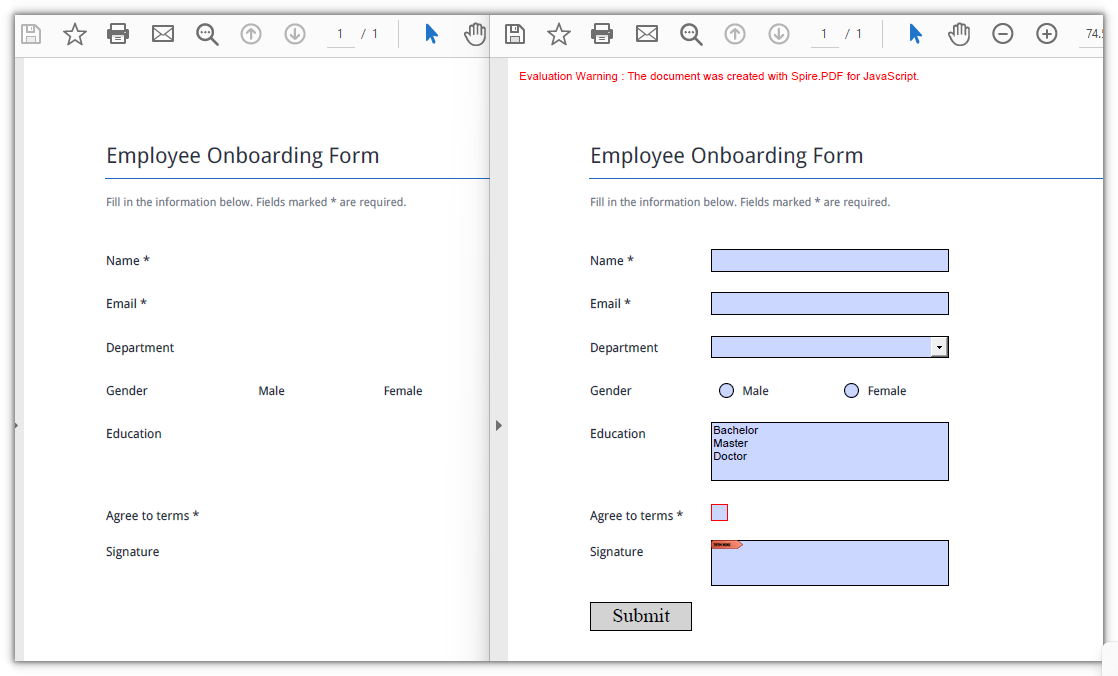
The blank registration form now carries a text box, check box, radio buttons, combo box, list box, button, and signature field:
Fill Form Fields
Filling an existing form means working from the widget side: PdfFormWidget wraps the document's form, FieldsWidget hands out the field instances one by one, and after checking the type you cast to the matching subclass to write a value — Text for text boxes, Checked for check boxes, SelectedIndex for combo boxes. Fields are told apart by Name, so a single pass fills the whole form.
function App() {
  const fillFormFields = async () => {
    // Get the Spire.PDF WASM module
    const pdfModule = window.wasmModule?.spirepdf;

    // Check that the module is ready
    if (!pdfModule) {
      alert('Spire.PDF is not ready yet');
      return;
    }

    // Load the PDF file to be filled into the VFS
    const inputFileName = 'EmployeeRegistrationForm.pdf';
    await window.spire.FetchFileToVFS(inputFileName, "", `${process.env.PUBLIC_URL}/data/`);

    // Create a PdfDocument object and load the PDF
    let doc = new pdfModule.PdfDocument();
    doc.LoadFromFile(inputFileName);

    // Get the widget collection from the form
    let formWidget = new pdfModule.PdfFormWidget(doc.Form.H);

    for (let i = 0; i < formWidget.FieldsWidget.Count; i++) {
      let field = formWidget.FieldsWidget.get_Item({ index: i });

      // Text box: assign Text directly
      if (field instanceof pdfModule.PdfTextBoxFieldWidget) {
        switch (field.Name) {
          case 'name':
            field.Text = 'Jane Doe';
            break;
          case 'email':
            field.Text = 'jane.doe@example.com';
            break;
        }
      }

      // Combo box: SelectedIndex takes an array of indices
      if (field instanceof pdfModule.PdfComboBoxWidgetFieldWidget) {
        if (field.Name === 'department') {
          field.SelectedIndex = [1];
        }
      }

      // Check box: set Checked to true to tick it
      if (field instanceof pdfModule.PdfCheckBoxWidgetFieldWidget) {
        if (field.Name === 'agree_terms') {
          field.Checked = true;
        }
      }
    }

    const outputFileName = 'FillFormFields.pdf';
    doc.SaveToFile(outputFileName);
    doc.Close();

    // Read the generated file from the VFS and trigger the download
    const fileArray = window.dotnetRuntime.Module.FS.readFile(outputFileName);
    const blob = new Blob([fileArray], { type: 'application/pdf' });
    const url = URL.createObjectURL(blob);
    const a = document.createElement('a');
    a.href = url;
    a.download = outputFileName;
    a.click();
    URL.revokeObjectURL(url);
  };

  return (
    <div style={{ textAlign: 'center', height: '300px' }}>
      <h1>Fill Form Fields</h1>
      <button onClick={fillFormFields}>
        Fill form
      </button>
    </div>
  );
}

export default App;
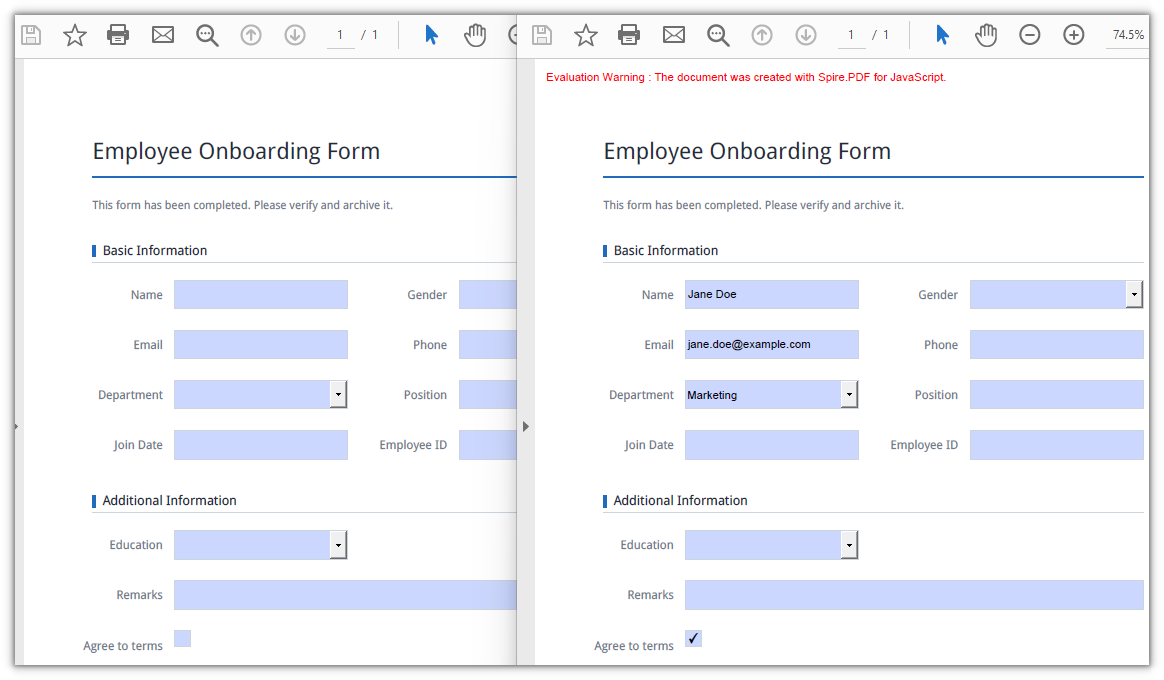
The text box, combo box, and check box have each been given their values:
Delete Form Fields
Deleting also starts from FieldsWidget: locate the target instance by Name, then call Remove() to take it out of the field collection. Locating by field name is safer than by index — a document whose layout has changed will not lose the wrong field.
function App() {
  const deleteFormField = async () => {
    // Get the Spire.PDF WASM module
    const pdfModule = window.wasmModule?.spirepdf;

    // Check that the module is ready
    if (!pdfModule) {
      alert('Spire.PDF is not ready yet');
      return;
    }

    // Load the PDF file into the VFS
    const inputFileName = 'EmployeeRegistrationForm.pdf';
    await window.spire.FetchFileToVFS(inputFileName, "", `${process.env.PUBLIC_URL}/data/`);

    // Create a PdfDocument object and load the PDF
    let doc = new pdfModule.PdfDocument();
    doc.LoadFromFile(inputFileName);

    let form = doc.Form;
    if (form != null) {
      let formWidget = new pdfModule.PdfFormWidget(form.H);

      // Locate the target field by name and remove it
      for (let i = 0; i < formWidget.FieldsWidget.Count; i++) {
        let field = formWidget.FieldsWidget.get_Item({ index: i });
        if (field.Name === 'name') {
          formWidget.FieldsWidget.Remove(field);
          break;
        }
      }
    }

    const outputFileName = 'DeleteFormField.pdf';
    doc.SaveToFile(outputFileName);
    doc.Close();

    // Read the generated file from the VFS and trigger the download
    const fileArray = window.dotnetRuntime.Module.FS.readFile(outputFileName);
    const blob = new Blob([fileArray], { type: 'application/pdf' });
    const url = URL.createObjectURL(blob);
    const a = document.createElement('a');
    a.href = url;
    a.download = outputFileName;
    a.click();
    URL.revokeObjectURL(url);
  };

  return (
    <div style={{ textAlign: 'center', height: '300px' }}>
      <h1>Delete Form Fields</h1>
      <button onClick={deleteFormField}>
        Delete field
      </button>
    </div>
  );
}

export default App;
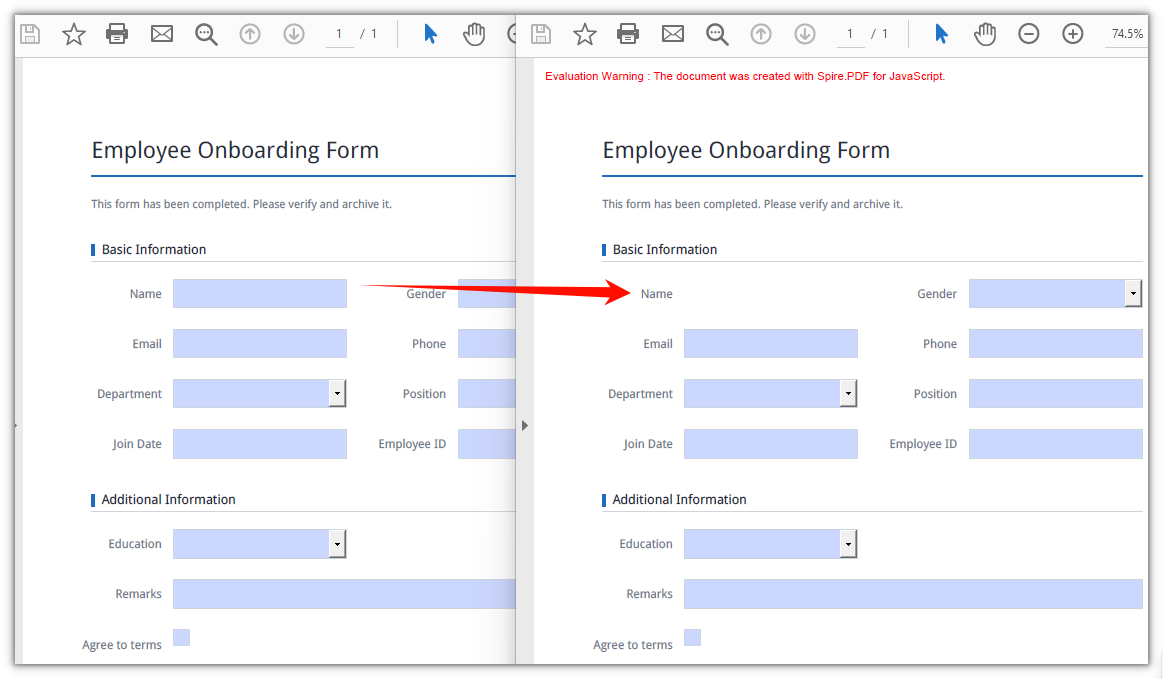
The Name text box has been removed from the form:
FAQ
New form fields cannot be clicked in the reader
Cause: AllowCreateForm defaults to false. When you open an existing document with LoadFromFile, Spire.PDF keeps the document's original form structure and does not allow fields to be appended, so doc.Form.Fields.Add() throws no error but the saved document has no new fields.
Fix: Turn the property on after loading the document and before adding fields:
doc.LoadFromFile(inputFileName);
doc.AllowCreateForm = true;
Fields are still empty after filling
Cause: The field name in the case branch is not character-for-character identical to the real name in the document. PDF field names are case-sensitive and keep leading and trailing spaces, so a name such as company_name (with a trailing space) never matches company_name written in code. Another common mistake is assigning values to objects taken from doc.Form.Fields — those fields have no widget properties such as Text.
Fix: Print every field name before filling and copy from the output. Assignments must land on the *FieldWidget instances that PdfFormWidget returns:
let formWidget = new pdfModule.PdfFormWidget(doc.Form.H);
for (let i = 0; i < formWidget.FieldsWidget.Count; i++) {
  console.log(formWidget.FieldsWidget.get_Item({ index: i }).Name);
}
Deleting one field makes the fields after it disappear too
Cause: Remove() changes FieldsWidget.Count immediately, and every field after the removed element shifts up by one position. If you iterate forward and remove inside the loop, the next iteration has already skipped past the element that moved into that slot.
Fix: break after a single removal; to delete several, collect the targets by name and process them one by one, or iterate backwards from the end:
// Iterate backwards and remove every field whose name starts with temp_
for (let i = formWidget.FieldsWidget.Count - 1; i >= 0; i--) {
  let field = formWidget.FieldsWidget.get_Item({ index: i });
  if (field.Name.startsWith('temp_')) {
    formWidget.FieldsWidget.Remove(field);
  }
}
Get a Free License
If you want to remove the evaluation message from the result documents, or to get rid of the feature limitations, contact sales for a temporary license valid for 30 days.
How to Flatten PDF Form Fields with JavaScript in React
Archiving is usually the next step after a form is filled in. PDF form fields are exactly where that falls apart: the file looks complete, but the controls are still live, so the recipient can edit an amount, a date or a signature box, and some viewers re-validate the form as it opens. Turning that file into something nobody can change means pressing the controls and their values into the page content.
This article uses Spire.PDF for JavaScript to flatten PDF form fields. It runs on WebAssembly, loading, modifying and saving documents in the browser, and reads and writes files through a virtual file system (VFS) with no backend involved.
This article covers two core features:
For installation and project configuration, see Integrate Spire.PDF for JavaScript into a React Project. The examples below assume Spire.PDF is installed and the WebAssembly module has been initialized.
Flatten the Whole Form
Spire.PDF for JavaScript provides the PdfForm.IsFlatten property to flatten an entire form in one pass. After it is set to true, every field in the document is converted into static page content together with its current value, and the saved PDF has no interactive controls left. The text stays in the text layer, so it can still be selected, copied and searched.
function App() {
  const flattenWholeForm = async () => {
    // Get the Spire.PDF WASM module
    const pdfModule = window.wasmModule?.spirepdf;

    // Check that the module is ready
    if (!pdfModule) {
      alert('Spire.PDF is not ready yet');
      return;
    }

    // Load the PDF file to be processed into the VFS
    const inputFileName = 'EmployeeRegistrationForm.pdf';
    await window.spire.FetchFileToVFS(inputFileName, "", `${process.env.PUBLIC_URL}/data/`);

    // Create a PdfDocument object and load the PDF document
    let doc = new pdfModule.PdfDocument();
    doc.LoadFromFile(inputFileName);

    // Flatten the entire form in one pass
    doc.Form.IsFlatten = true;

    const outputFileName = 'FlattenWholeForm.pdf';
    doc.SaveToFile(outputFileName);
    doc.Close();

    // Read the generated file from the VFS and trigger the download
    const fileArray = window.dotnetRuntime.Module.FS.readFile(outputFileName);
    const blob = new Blob([fileArray], { type: 'application/pdf' });
    const url = URL.createObjectURL(blob);
    const a = document.createElement('a');
    a.href = url;
    a.download = outputFileName;
    a.click();
    URL.revokeObjectURL(url);
  };

  return (
    <div style={{ textAlign: 'center', height: '300px' }}>
      <h1>Flatten the whole form</h1>
      <button onClick={flattenWholeForm}>
        Flatten now
      </button>
    </div>
  );
}

export default App;
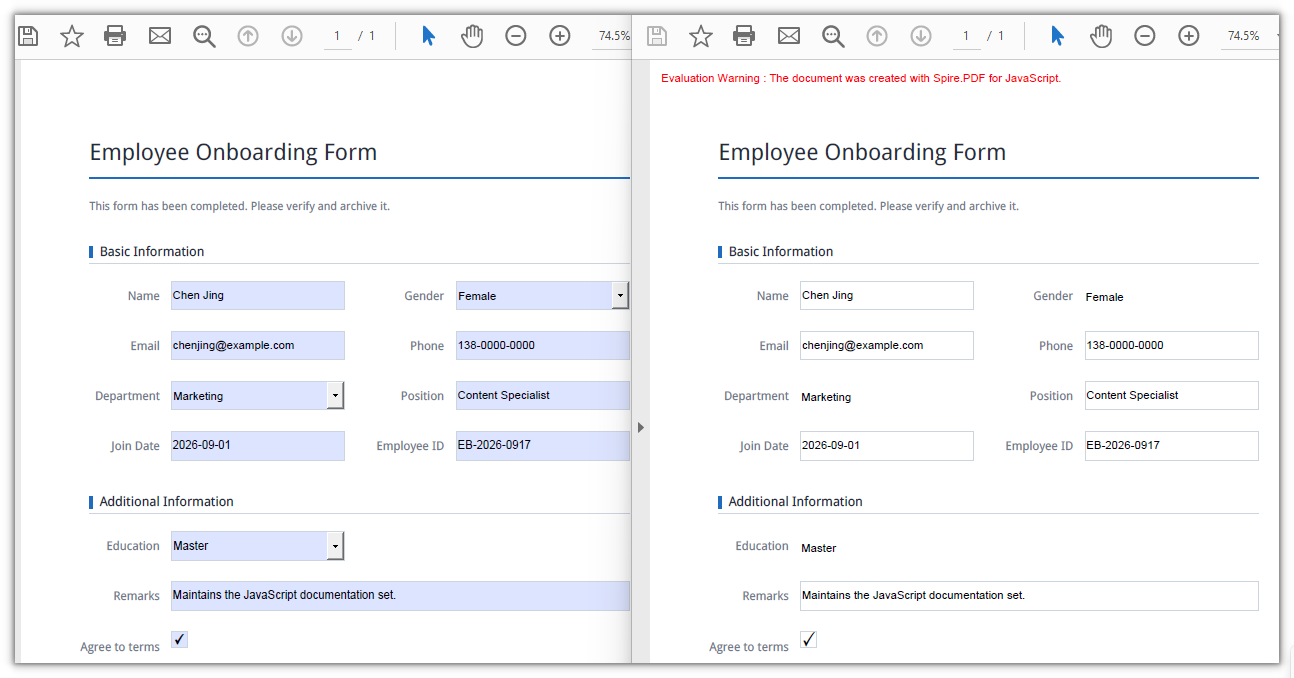
Every input box disappears and the values remain on the page as plain text:
Flatten a Selected Field
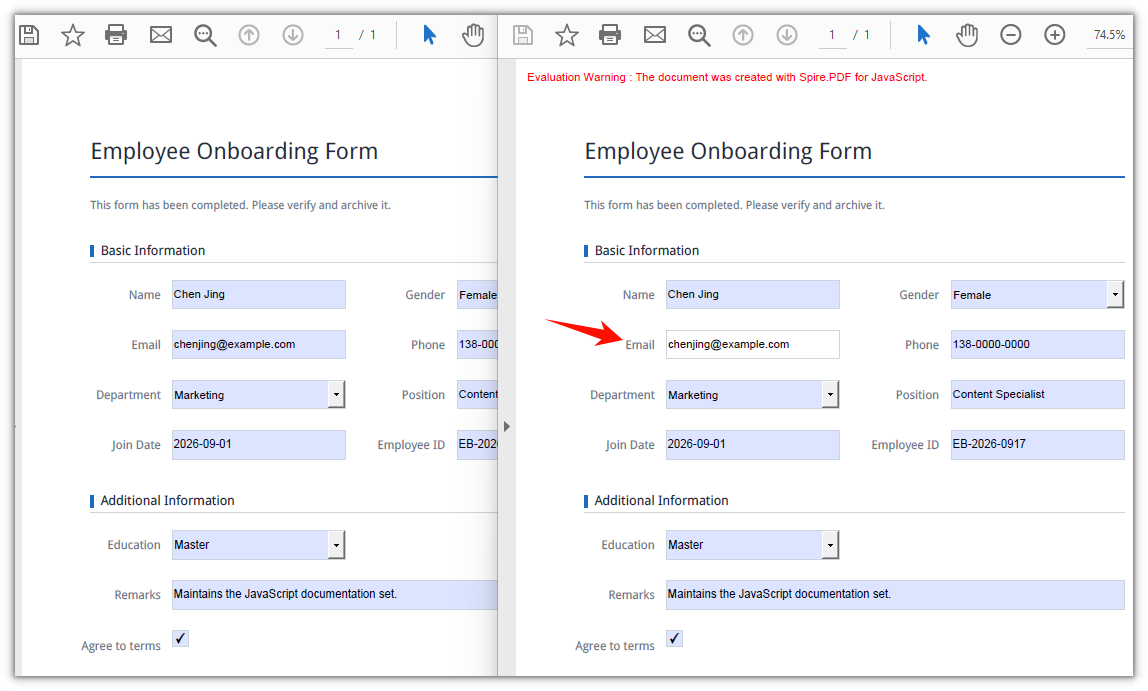
Spire.PDF for JavaScript also provides the PdfField.Flatten property for field-level flattening. Take the field instance by Name from the FieldsWidget collection of a PdfFormWidget; only the field you pick is fixed and the rest stay editable — freezing an email address that has already been verified, for example, while leaving the date column for the recipient to fill in.
function App() {
  const flattenSelectedField = async () => {
    // Get the Spire.PDF WASM module
    const pdfModule = window.wasmModule?.spirepdf;

    // Check that the module is ready
    if (!pdfModule) {
      alert('Spire.PDF is not ready yet');
      return;
    }

    // Load the PDF file to be processed into the VFS
    const inputFileName = 'EmployeeRegistrationForm.pdf';
    await window.spire.FetchFileToVFS(inputFileName, "", `${process.env.PUBLIC_URL}/data/`);

    // Create a PdfDocument object and load the PDF document
    let doc = new pdfModule.PdfDocument();
    doc.LoadFromFile(inputFileName);

    // Get the widget collection from the form
    let formWidget = new pdfModule.PdfFormWidget(doc.Form.H);

    // Pick the target field by name and flatten only that one
    for (let i = 0; i < formWidget.FieldsWidget.Count; i++) {
      let field = formWidget.FieldsWidget.get_Item({ index: i });
      if (field.Name === 'email') {
        field.Flatten = true;
      }
    }

    const outputFileName = 'FlattenSelectedField.pdf';
    doc.SaveToFile(outputFileName);
    doc.Close();

    // Read the generated file from the VFS and trigger the download
    const fileArray = window.dotnetRuntime.Module.FS.readFile(outputFileName);
    const blob = new Blob([fileArray], { type: 'application/pdf' });
    const url = URL.createObjectURL(blob);
    const a = document.createElement('a');
    a.href = url;
    a.download = outputFileName;
    a.click();
    URL.revokeObjectURL(url);
  };

  return (
    <div style={{ textAlign: 'center', height: '300px' }}>
      <h1>Flatten a selected field</h1>
      <button onClick={flattenSelectedField}>
        Flatten now
      </button>
    </div>
  );
}

export default App;
Only the email input box disappears; the remaining fields are still editable controls:
Frequently Asked Questions
The fields are still clickable in the viewer after setting IsFlatten
Reason: The code mixes up two field collections. For an AcroForm produced by another tool, doc.Form.Fields frequently reads back no fields at all — in this article's sample document Count reads 0, and calling get_Item() on it throws ArgumentOutOfRange_IndexMustBeLess. Even when it does return entries, those PdfField objects have no control properties such as Text or Checked, so changing them leaves the page untouched.
Solution: Use doc.Form.IsFlatten alone to flatten the whole form; it does not depend on any collection. As soon as you work field by field — selecting by name, writing a value, flattening one field — go through PdfFormWidget:
let formWidget = new pdfModule.PdfFormWidget(doc.Form.H);
for (let i = 0; i < formWidget.FieldsWidget.Count; i++) {
  console.log(formWidget.FieldsWidget.get_Item({ index: i }).Name);
}
How do I tell whether a PDF has already been flattened
Reason: PdfForm.IsFlatten is a write instruction, not a state flag. Reload the flattened output and doc.Form.IsFlatten still reads false — in testing the document already had 0 fields at that point.
Solution: Check the field count instead; a FieldsWidget.Count of 0 means no interactive controls are left:
let formWidget = new pdfModule.PdfFormWidget(doc.Form.H);
const hasFormFields = formWidget.FieldsWidget.Count > 0;
Only the selected field was flattened, but its value was not baked in
Reason: Name is compared character by character, so it is case-sensitive and keeps leading and trailing spaces. Write company_name when the document actually has company_name (with a trailing space) and the loop never matches — and it raises no error, it just saves the file unchanged.
Solution: Print every field name first and copy from that output. Both the comparison and the assignment have to run on the *FieldWidget instance that FieldsWidget returns:
for (let i = 0; i < formWidget.FieldsWidget.Count; i++) {
  console.log(formWidget.FieldsWidget.get_Item({ index: i }).Name);
}
Get a Free License
If you want to remove the evaluation message from the result document or lift the feature limits, contact our sales team for a temporary license valid for 30 days.
Draw Text in PDF Documents Using JavaScript in React
Adding text to a PDF usually sits at the end of a generation pipeline: document numbers, review comments, annotations, or a line of pale text laid over a chart. Typing it in by hand is fine for a few pages, but once the text has to follow the data — a number that changes per copy, a note angled into the page corner, pale text sitting on top of a chart — manual layout stops keeping up.
This article shows how to use Spire.PDF for JavaScript to draw text on PDF pages, including text filled with a gradient, text laid out inside a rectangle, and text that is rotated, transformed, or semi-transparent. It runs on WebAssembly to create and save PDF documents directly in the browser, doing all the work locally and reading and writing files through a virtual file system (VFS) with no backend involved.
This article covers four core features:
For installation and project configuration, see Integrate Spire.PDF for JavaScript into a React Project. The examples below assume Spire.PDF is installed and the WebAssembly module is initialized.
Draw Text with a Color Gradient
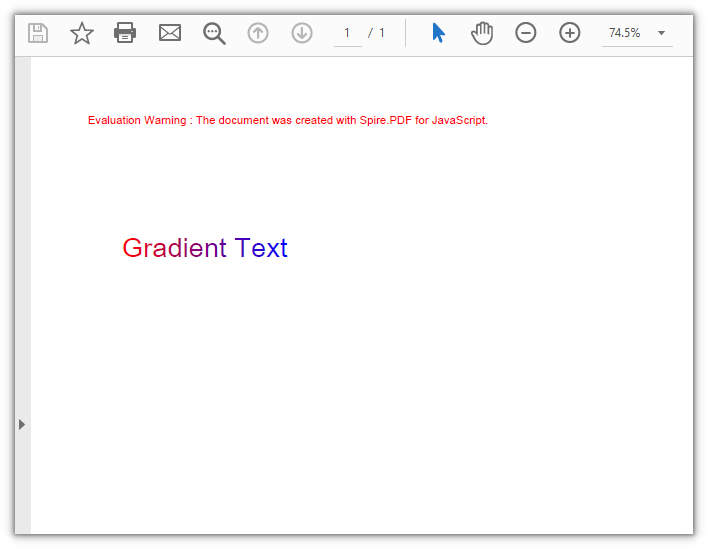
The color of text comes from the brush passed to DrawString. Swap in a gradient brush — PdfLinearGradientBrush — and the glyphs transition from one color to another along a given direction: mode sets the direction, and the rect on the brush bounds where the gradient starts and ends.
function App() {
  const drawGradientText = async () => {
    // Get the Spire.PDF WASM module
    const pdfModule = window.wasmModule?.spirepdf;

    // Check whether the module is ready
    if (!pdfModule) {
      alert('Spire.PDF is not ready yet');
      return;
    }

    // Load the font into the VFS
    await window.spire.FetchFileToVFS('ARIAL UNICODE MS.TTF', '/Library/Fonts/', `${process.env.PUBLIC_URL}/font/`);

    // Create a PDF document and add a blank page
    const doc = new pdfModule.PdfDocument();
    const page = doc.Pages.Add();

    const font = new pdfModule.PdfTrueTypeFont({ fontFile: '/Library/Fonts/ARIAL UNICODE MS.TTF', size: 24 });
    const text = 'Gradient Text';

    // Measure this line of text so the gradient spans exactly its width
    const textWidth = font.MeasureString({ text: text }).Width;

    // Horizontal gradient: from red to blue
    const gradient = new pdfModule.PdfLinearGradientBrush({
      rect: new pdfModule.RectangleF({ x: 40, y: 90, width: textWidth, height: 40 }),
      color1: new pdfModule.PdfRGBColor({ color: pdfModule.Color.get_Red() }),
      color2: new pdfModule.PdfRGBColor({ color: pdfModule.Color.get_Blue() }),
      mode: pdfModule.PdfLinearGradientMode.Horizontal,
    });

    // Align the text anchor with the left edge of the gradient rectangle so both colors sweep the whole line
    page.Canvas.DrawString({ s: text, font: font, brush: gradient, x: 40, y: 110 });

    // Define the output file name and save the document
    const outputFileName = 'GradientText.pdf';
    doc.SaveToFile(outputFileName);
    doc.Close();

    // Read the generated file from the VFS and trigger a download
    const fileArray = window.dotnetRuntime.Module.FS.readFile(outputFileName);
    const blob = new Blob([fileArray], { type: 'application/pdf' });
    const url = URL.createObjectURL(blob);
    const a = document.createElement('a');
    a.href = url;
    a.download = outputFileName;
    a.click();
    URL.revokeObjectURL(url);
  };

  return (
    <div style={{ textAlign: 'center', height: '300px' }}>
      <h1>Draw Text with a Color Gradient</h1>
      <button onClick={drawGradientText}>
        Draw
      </button>
    </div>
  );
}

export default App;
When the gradient rectangle matches the text width, red to blue sweeps across the entire line:
Draw Text Laid Out Inside a Rectangle
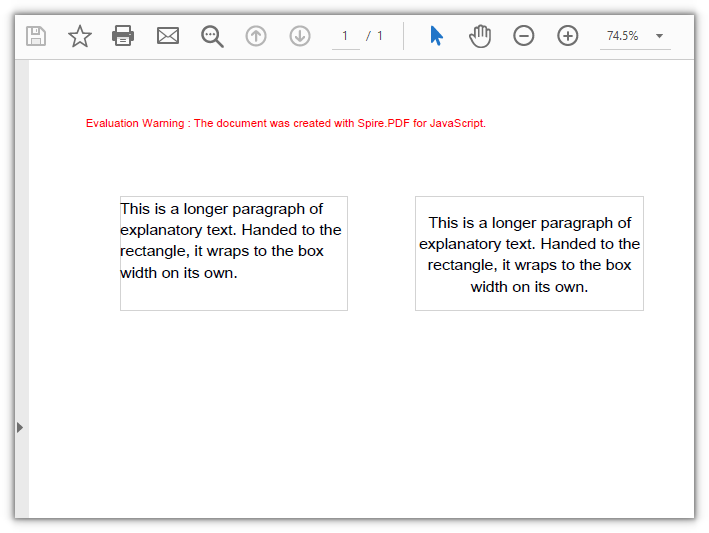
DrawString takes either a pair of coordinates or a layout rectangle, layoutRectangle. With a rectangle, the text wraps to the width of the box on its own, so you don't have to work out where each line breaks. Combined with alignment and lineAlignment from PdfStringFormat, you get more control over how the text is aligned.
function App() {
  const drawTextInRectangle = async () => {
    // Get the Spire.PDF WASM module
    const pdfModule = window.wasmModule?.spirepdf;

    // Check whether the module is ready
    if (!pdfModule) {
      alert('Spire.PDF is not ready yet');
      return;
    }

    // Load the font into the VFS for the page text
    await window.spire.FetchFileToVFS('ARIAL UNICODE MS.TTF', '/Library/Fonts/', `${process.env.PUBLIC_URL}/font/`);

    // Create a PDF document and add a blank page
    const doc = new pdfModule.PdfDocument();
    const page = doc.Pages.Add();

    const font = new pdfModule.PdfTrueTypeFont({ fontFile: '/Library/Fonts/ARIAL UNICODE MS.TTF', size: 14 });
    const brush = new pdfModule.PdfSolidBrush({ pdfRGBColor: new pdfModule.PdfRGBColor({ color: pdfModule.Color.get_Black() }) });
    const borderPen = new pdfModule.PdfPen({ pdfRGBColor: new pdfModule.PdfRGBColor({ color: pdfModule.Color.get_LightGray() }), width: 1 });

    const text = 'This is a longer paragraph of explanatory text. Handed to the rectangle, it wraps to the box width on its own.';

    // Left box: left-aligned wrapping by default, text starts at the top-left corner of the box
    const leftBox = new pdfModule.RectangleF({ x: 40, y: 80, width: 200, height: 100 });
    page.Canvas.DrawRectangle({ pen: borderPen, rectangle: leftBox });
    page.Canvas.DrawString({ s: text, font: font, brush: brush, layoutRectangle: leftBox });

    // Right box: the same text, centered horizontally and vertically inside the box
    const rightBox = new pdfModule.RectangleF({ x: 300, y: 80, width: 200, height: 100 });
    page.Canvas.DrawRectangle({ pen: borderPen, rectangle: rightBox });
    const center = new pdfModule.PdfStringFormat({
      alignment: pdfModule.PdfTextAlignment.Center,
      lineAlignment: pdfModule.PdfVerticalAlignment.Middle,
    });
    page.Canvas.DrawString({ s: text, font: font, brush: brush, layoutRectangle: rightBox, format: center });

    // Define the output file name and save the document
    const outputFileName = 'TextInRectangle.pdf';
    doc.SaveToFile(outputFileName);
    doc.Close();

    // Read the generated file from the VFS and trigger a download
    const fileArray = window.dotnetRuntime.Module.FS.readFile(outputFileName);
    const blob = new Blob([fileArray], { type: 'application/pdf' });
    const url = URL.createObjectURL(blob);
    const a = document.createElement('a');
    a.href = url;
    a.download = outputFileName;
    a.click();
    URL.revokeObjectURL(url);
  };

  return (
    <div style={{ textAlign: 'center', height: '300px' }}>
      <h1>Draw Text Laid Out Inside a Rectangle</h1>
      <button onClick={drawTextInRectangle}>
        Draw
      </button>
    </div>
  );
}

export default App;
The same paragraph wraps inside a 200-point-wide box, while the right box adds horizontal and vertical centering:
Draw Rotated and Transformed Text
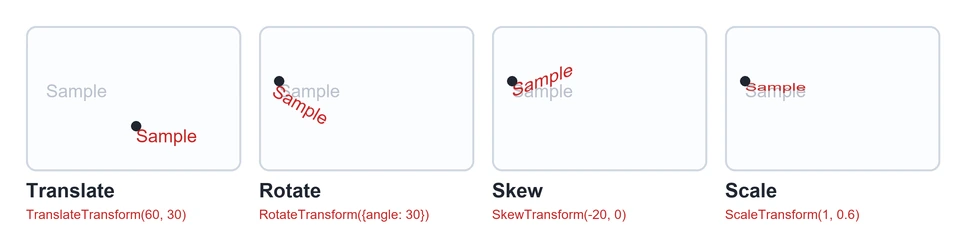
Rotation and deformation of text come from the canvas rather than from font parameters: you turn the canvas first, then draw on it. Four methods cover the common cases:
| API | Effect | Parameters and units |
|---|---|---|
TranslateTransform(dx, dy) |
Moves the canvas origin to the target position | Offset in points |
RotateTransform({ angle }) |
Rotates around the canvas origin | Angle; a positive value is clockwise on this canvas |
SkewTransform(angleX, angleY) |
Skews the axes so text runs along a slanted line | Skew angle; with (-20, 0) the right end of the line lifts |
ScaleTransform(scaleX, scaleY) |
Scales the canvas by a factor | Scale factors for both axes; (1, 0.6) compresses vertically to 0.6 |
The four transforms applied to the same sample line of text (gray is before the transform, red is after, and the dot marks the anchor point):
function App() {
  const drawTransformedText = async () => {
    // Get the Spire.PDF WASM module
    const pdfModule = window.wasmModule?.spirepdf;

    // Check whether the module is ready
    if (!pdfModule) {
      alert('Spire.PDF is not ready yet');
      return;
    }

    // Load the font into the VFS for the page text
    await window.spire.FetchFileToVFS('ARIAL UNICODE MS.TTF', '/Library/Fonts/', `${process.env.PUBLIC_URL}/font/`);

    // Create a PDF document and add a blank page
    const doc = new pdfModule.PdfDocument();
    const page = doc.Pages.Add();

    const font = new pdfModule.PdfTrueTypeFont({ fontFile: '/Library/Fonts/ARIAL UNICODE MS.TTF', size: 16 });
    const brush = new pdfModule.PdfSolidBrush({ pdfRGBColor: new pdfModule.PdfRGBColor({ color: pdfModule.Color.get_SteelBlue() }) });

    // Translation: move only the origin to the anchor point, shifting the text as a whole
    let state = page.Canvas.Save();
    page.Canvas.TranslateTransform(60, 110);
    page.Canvas.DrawString({ s: 'Translated text', font: font, brush: brush, x: 0, y: 0 });
    page.Canvas.Restore({ state: state });

    // Rotation: move the origin to the anchor point, then rotate 30°
    state = page.Canvas.Save();
    page.Canvas.TranslateTransform(120, 210);
    page.Canvas.RotateTransform({ angle: 30 });
    page.Canvas.DrawString({ s: 'Rotated 30° text', font: font, brush: brush, x: 0, y: 0 });
    page.Canvas.Restore({ state: state });

    // Skew: horizontal shear of -20°, lifting the right end of the line
    state = page.Canvas.Save();
    page.Canvas.TranslateTransform(60, 430);
    page.Canvas.SkewTransform(-20, 0);
    page.Canvas.DrawString({ s: 'Horizontally skewed text', font: font, brush: brush, x: 0, y: 0 });
    page.Canvas.Restore({ state: state });

    // Transform: compress vertically to 0.6, squashing the glyphs
    state = page.Canvas.Save();
    page.Canvas.TranslateTransform(60, 560);
    page.Canvas.ScaleTransform(1, 0.6);
    page.Canvas.DrawString({ s: 'Vertically compressed text', font: font, brush: brush, x: 0, y: 0 });
    page.Canvas.Restore({ state: state });

    // Define the output file name and save the document
    const outputFileName = 'TransformText.pdf';
    doc.SaveToFile(outputFileName);
    doc.Close();

    // Read the generated file from the VFS and trigger a download
    const fileArray = window.dotnetRuntime.Module.FS.readFile(outputFileName);
    const blob = new Blob([fileArray], { type: 'application/pdf' });
    const url = URL.createObjectURL(blob);
    const a = document.createElement('a');
    a.href = url;
    a.download = outputFileName;
    a.click();
    URL.revokeObjectURL(url);
  };

  return (
    <div style={{ textAlign: 'center', height: '300px' }}>
      <h1>Draw Rotated and Transformed Text</h1>
      <button onClick={drawTransformedText}>
        Transform
      </button>
    </div>
  );
}

export default App;
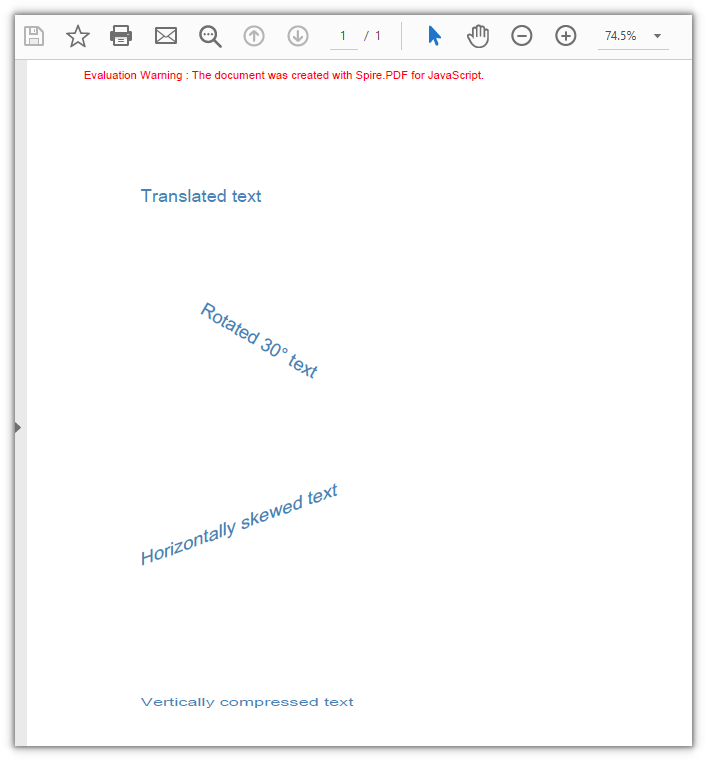
Text drawn with four canvas transforms: translation, rotation, horizontal skew, and vertical compression:
Draw Semi-Transparent Text
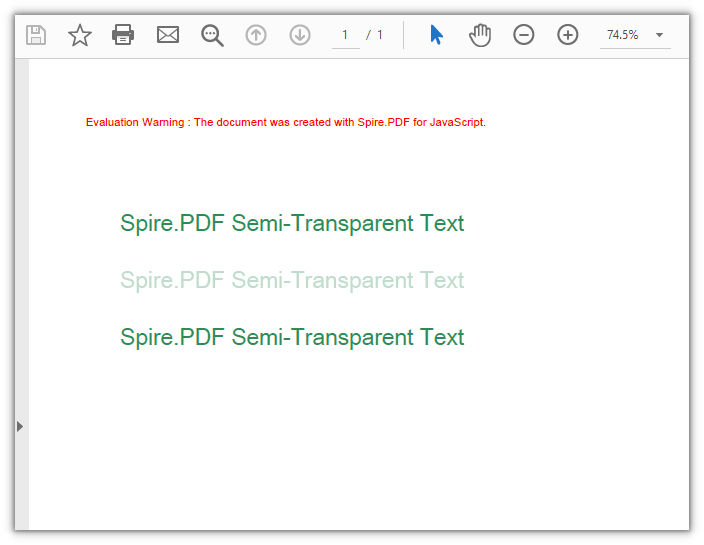
SetTransparency is set on the canvas: alphaBrush and alphaPen control how transparent the fill and the stroke are, taking a decimal between 0 and 1 (0 fully transparent, 1 opaque), and blendMode decides how the text composites with what lies underneath. It takes effect for everything drawn from the moment it is set, so wrap it in Save and Restore — otherwise the content that follows fades as well.
function App() {
  const drawTransparentText = async () => {
    // Get the Spire.PDF WASM module
    const pdfModule = window.wasmModule?.spirepdf;

    // Check whether the module is ready
    if (!pdfModule) {
      alert('Spire.PDF is not ready yet');
      return;
    }

    // Load the font into the VFS for the page text
    await window.spire.FetchFileToVFS('ARIAL UNICODE MS.TTF', '/Library/Fonts/', `${process.env.PUBLIC_URL}/font/`);

    // Create a PDF document and add a blank page
    const doc = new pdfModule.PdfDocument();
    const page = doc.Pages.Add();

    const font = new pdfModule.PdfTrueTypeFont({ fontFile: '/Library/Fonts/ARIAL UNICODE MS.TTF', size: 20 });
    const brush = new pdfModule.PdfSolidBrush({ pdfRGBColor: new pdfModule.PdfRGBColor({ color: pdfModule.Color.get_SeaGreen() }) });
    const text = 'Spire.PDF Semi-Transparent Text';

    // First line: opaque, as a reference
    page.Canvas.DrawString({ s: text, font: font, brush: brush, x: 40, y: 90 });

    // Turn on transparency: both the fill and the stroke alpha are set to 0.3
    const state = page.Canvas.Save();
    page.Canvas.SetTransparency({ alphaPen: 0.3, alphaBrush: 0.3, blendMode: pdfModule.PdfBlendMode.Normal });
    page.Canvas.DrawString({ s: text, font: font, brush: brush, x: 40, y: 140 });

    // Restore the canvas state so drawing outside this block goes back to opaque
    page.Canvas.Restore({ state: state });
    page.Canvas.DrawString({ s: text, font: font, brush: brush, x: 40, y: 190 });

    // Define the output file name and save the document
    const outputFileName = 'TransparentText.pdf';
    doc.SaveToFile(outputFileName);
    doc.Close();

    // Read the generated file from the VFS and trigger a download
    const fileArray = window.dotnetRuntime.Module.FS.readFile(outputFileName);
    const blob = new Blob([fileArray], { type: 'application/pdf' });
    const url = URL.createObjectURL(blob);
    const a = document.createElement('a');
    a.href = url;
    a.download = outputFileName;
    a.click();
    URL.revokeObjectURL(url);
  };

  return (
    <div style={{ textAlign: 'center', height: '300px' }}>
      <h1>Draw Semi-Transparent Text</h1>
      <button onClick={drawTransparentText}>
        Draw
      </button>
    </div>
  );
}

export default App;
The same line drawn three times: opaque, at alpha 0.3, and opaque again after Restore:
FAQ
Text lands outside the page, or its vertical position is reversed
Cause: The canvas origin sits at the top-left corner of the page (inset by the page margins), the y axis points down, and the unit is the point. The anchor marks the top-left corner of the line, not the text baseline. Working from the assumption that the origin is at the bottom-left with the y axis pointing up puts the text on the opposite side, or even outside the drawable area — the sample page is A4 with 40-point top and bottom margins, leaving a usable height of 762 points, and a line drawn below roughly y = 740 points is clipped.
Solution: Lay the text out from the top-left corner with y increasing downwards. To measure from the bottom of the page instead, subtract from the usable height:
// Height of the drawable area (762 points for A4 with 40-point margins)
const height = page.Canvas.ClientSize.Height;

// Draw 100 points above the bottom of the drawable area
page.Canvas.DrawString({ s: 'Text near the bottom of the page', font: font, brush: brush, x: 40, y: height - 100 });
Gradient text shows only a single color, or the transition is incomplete
Cause: The rect on a PdfLinearGradientBrush bounds where the gradient starts and ends, in absolute canvas coordinates, independent of the text anchor. When the rectangle does not cover the whole line, the text only lands on one segment of the gradient, which looks like a flat color. In a test with the rectangle starting at x = 0 and the text anchored at x = 40, the left edge of the text was already a third of the way through the gradient, and the red-to-blue transition was no longer complete.
Solution: Use MeasureString to get the text width, then make the rectangle the same width as the text and align its start with the anchor point, so the gradient sweeps across the whole line:
// Use the text width as the width of the gradient rectangle
const textWidth = font.MeasureString({ text: text }).Width;

const gradient = new pdfModule.PdfLinearGradientBrush({
  rect: new pdfModule.RectangleF({ x: 40, y: 90, width: textWidth, height: 40 }),
  color1: new pdfModule.PdfRGBColor({ color: pdfModule.Color.get_Red() }),
  color2: new pdfModule.PdfRGBColor({ color: pdfModule.Color.get_Blue() }),
  mode: pdfModule.PdfLinearGradientMode.Horizontal,
});

// Align the anchor with the left edge of the rectangle
page.Canvas.DrawString({ s: text, font: font, brush: gradient, x: 40, y: 110 });
Get a Free License
If you want to remove the evaluation message from the resulting documents, or lift the feature limits, contact sales for a temporary license valid for 30 days.
Find and Highlight Text in PDF Documents Using JavaScript in React
A contract or a report of a few dozen pages lands on your desk, and you need to confirm where a certain clause or amount appears and how many times. Going through it page by page by eye is easy to get wrong. Marking the hits is the least effort, but find-and-highlight in a desktop application is hard to fit into a web workflow, and screenshotting every page to annotate it is not realistic either.
Spire.PDF for JavaScript loads, processes and saves PDF documents in the browser on WebAssembly, so finding and highlighting happen entirely locally, reading and writing files through a virtual file system (VFS) with no backend involved. This article uses PdfTextFinder to implement three ways of finding and highlighting: the whole document, a given area, and a regular expression.
This article covers three core features:
- Find and Highlight All Matches
- Find and Highlight Within an Area
- Find and Highlight by Regular Expression
For installation and project configuration, see Integrate Spire.PDF for JavaScript into a React Project. The examples below assume Spire.PDF is installed and the WebAssembly module is initialized.
Find and Highlight All Matches
PdfTextFinder locates given text in the text layer of a page. It works page by page: build one finder for each page of the document and you can find every match across the whole file at once. Each hit is highlighted by calling HighLight(), which is yellow by default; pass a color when different keywords have to be told apart.
function App() {
  const findAndHighlightAll = async () => {
    // Get the Spire.PDF WASM module
    const pdfModule = window.wasmModule?.spirepdf;

    // Check whether the module is ready
    if (!pdfModule) {
      alert('Spire.PDF is not ready yet');
      return;
    }

    // Load the PDF file to be processed into the VFS
    const inputFileName = 'Flowers.pdf';
    await window.spire.FetchFileToVFS(inputFileName, "", `${process.env.PUBLIC_URL}/data/`);

    // Create a PdfDocument object and load the PDF document
    let doc = new pdfModule.PdfDocument();
    doc.LoadFromFile(inputFileName);

    // Search page by page and highlight every hit
    for (let i = 0; i < doc.Pages.Count; i++) {
      const finder = new pdfModule.PdfTextFinder(doc.Pages.get_Item(i));
      finder.Options.Parameter = pdfModule.TextFindParameter.IgnoreCase;
      const finds = finder.Find('Ornamental');
      for (let j = 0; j < finds.length; j++) {
        finds.get(j).HighLight();
      }
    }

    // Save the document
    const outputFileName = 'FindAndHighlight.pdf';
    doc.SaveToFile(outputFileName);
    doc.Close();

    // Read the generated file from the VFS and trigger the download
    const fileArray = window.dotnetRuntime.Module.FS.readFile(outputFileName);
    const blob = new Blob([fileArray], { type: 'application/pdf' });
    const url = URL.createObjectURL(blob);
    const a = document.createElement('a');
    a.href = url;
    a.download = outputFileName;
    a.click();
    URL.revokeObjectURL(url);
  };

  return (
    <div style={{ textAlign: 'center', height: '300px' }}>
      <h1>Find and Highlight All Matches</h1>
      <button onClick={findAndHighlightAll}>
        Find and Highlight
      </button>
    </div>
  );
}

export default App;
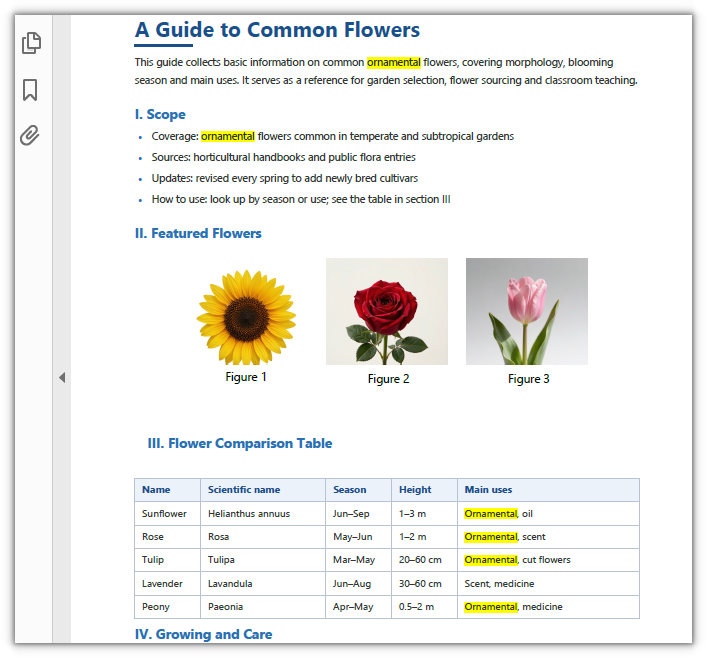
Every Ornamental in the document is highlighted:
Find and Highlight Within an Area
Text that reads the same on a page is often only partly worth marking. PdfTextFinder also provides Options.Area, which narrows the search to a rectangle; matches that fall outside it are not returned, and therefore not highlighted. The rectangle is described in page coordinates, with the origin at the top-left corner of the page and units in points.
function App() {
  const findAndHighlightInArea = async () => {
    // Get the Spire.PDF WASM module
    const pdfModule = window.wasmModule?.spirepdf;

    // Check whether the module is ready
    if (!pdfModule) {
      alert('Spire.PDF is not ready yet');
      return;
    }

    // Load the PDF file to be processed into the VFS
    const inputFileName = 'Flowers.pdf';
    await window.spire.FetchFileToVFS(inputFileName, "", `${process.env.PUBLIC_URL}/data/`);

    // Create a PdfDocument object and load the PDF document
    let doc = new pdfModule.PdfDocument();
    doc.LoadFromFile(inputFileName);

    // Set the search range: page coordinates, origin at the top-left, units in points
    const area = new pdfModule.RectangleF({ x: 60, y: 488, width: 420, height: 160 });

    const finder = new pdfModule.PdfTextFinder(doc.Pages.get_Item(0));
    finder.Options.Parameter = pdfModule.TextFindParameter.IgnoreCase;
    finder.Options.Area = area;

    // Only matches that fall inside the rectangle are returned
    const finds = finder.Find('Ornamental');
    for (let j = 0; j < finds.length; j++) {
      finds.get(j).HighLight();
    }

    // Save the document
    const outputFileName = 'HighlightInArea.pdf';
    doc.SaveToFile(outputFileName);
    doc.Close();

    // Read the generated file from the VFS and trigger the download
    const fileArray = window.dotnetRuntime.Module.FS.readFile(outputFileName);
    const blob = new Blob([fileArray], { type: 'application/pdf' });
    const url = URL.createObjectURL(blob);
    const a = document.createElement('a');
    a.href = url;
    a.download = outputFileName;
    a.click();
    URL.revokeObjectURL(url);
  };

  return (
    <div style={{ textAlign: 'center', height: '300px' }}>
      <h1>Find and Highlight Within an Area</h1>
      <button onClick={findAndHighlightInArea}>
        Find and Highlight
      </button>
    </div>
  );
}

export default App;
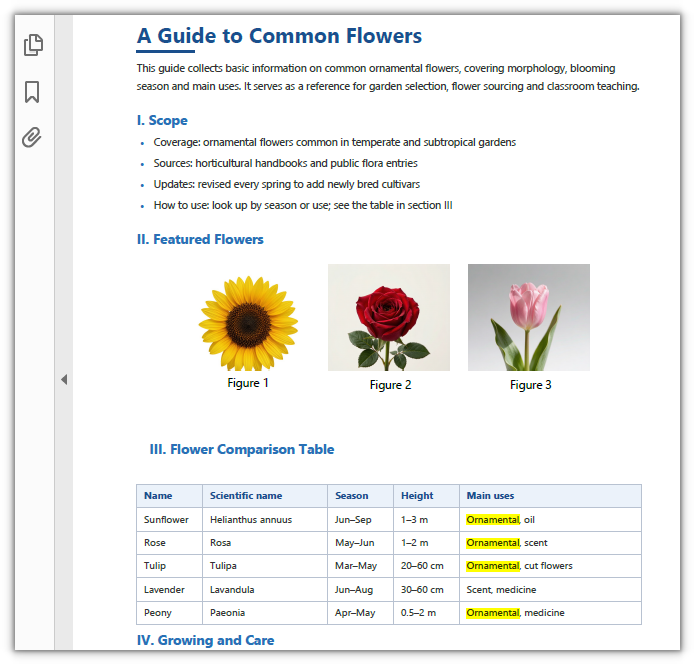
Only the Ornamental inside the comparison table is highlighted; the body text and the list stay as they are:
Find and Highlight by Regular Expression
The target is not necessarily a fixed set of characters. Options.Parameter decides the matching rule; set it to Regex and the argument to Find() becomes a regular expression, so targets that share a shape but differ in content can be circled in one pattern. The default value matches by substring, which is what the previous two sections do, and the same enumeration also offers IgnoreCase and WholeWord.
function App() {
  const findAndHighlightByRegex = async () => {
    // Get the Spire.PDF WASM module
    const pdfModule = window.wasmModule?.spirepdf;

    // Check whether the module is ready
    if (!pdfModule) {
      alert('Spire.PDF is not ready yet');
      return;
    }

    // Load the PDF file to be processed into the VFS
    const inputFileName = 'Flowers.pdf';
    await window.spire.FetchFileToVFS(inputFileName, "", `${process.env.PUBLIC_URL}/data/`);

    // Create a PdfDocument object and load the PDF document
    let doc = new pdfModule.PdfDocument();
    doc.LoadFromFile(inputFileName);

    // Match page by page with a regular expression and highlight every hit
    for (let i = 0; i < doc.Pages.Count; i++) {
      const finder = new pdfModule.PdfTextFinder(doc.Pages.get_Item(i));
      finder.Options.Parameter = pdfModule.TextFindParameter.Regex;
      const finds = finder.Find('Figure\\s*\\d');
      for (let j = 0; j < finds.length; j++) {
        finds.get(j).HighLight({ color: pdfModule.Color.get_Orange() });
      }
    }

    // Save the document
    const outputFileName = 'HighlightByRegex.pdf';
    doc.SaveToFile(outputFileName);
    doc.Close();

    // Read the generated file from the VFS and trigger the download
    const fileArray = window.dotnetRuntime.Module.FS.readFile(outputFileName);
    const blob = new Blob([fileArray], { type: 'application/pdf' });
    const url = URL.createObjectURL(blob);
    const a = document.createElement('a');
    a.href = url;
    a.download = outputFileName;
    a.click();
    URL.revokeObjectURL(url);
  };

  return (
    <div style={{ textAlign: 'center', height: '300px' }}>
      <h1>Find and Highlight by Regular Expression</h1>
      <button onClick={findAndHighlightByRegex}>
        Find and Highlight
      </button>
    </div>
  );
}

export default App;
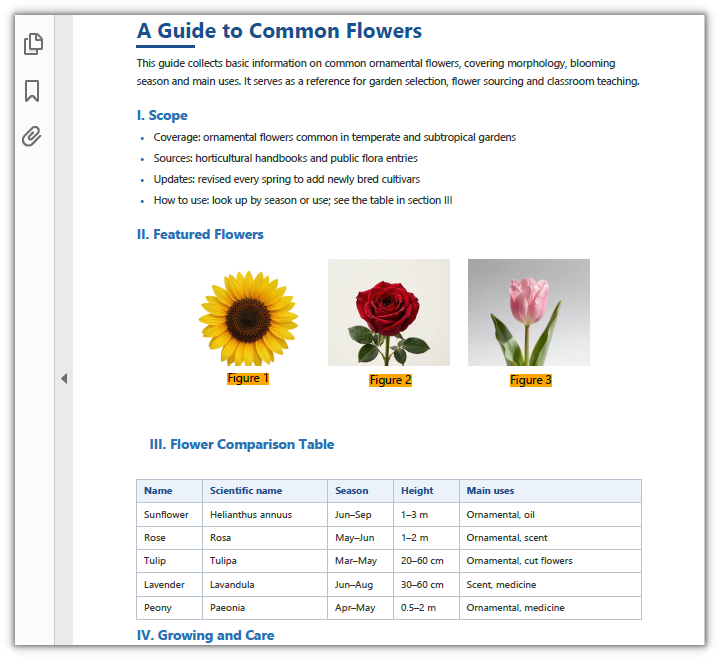
The three figure captions are matched by the pattern and highlighted in orange:
FAQ
The highlight works, but it is missing from the reader's comments panel
Cause: HighLight() writes into the page content, not into PDF annotations. The highlight block is written to the page's content stream when the document is saved, so the file grows by roughly 2 KB, and no annotation object is added to the output — reading it back with PyMuPDF gives an empty set from page.annots().
Fix: Treat the highlight as page graphics. It displays the same way as an annotation; it simply has no annotation identity, so it cannot be selected, deleted or recolored one by one in the reader. When highlights have to be managed as annotations, record the hit positions before saving and keep that list on the application side.
The search area is set, but nothing is highlighted
Cause: Options.Area uses page coordinates (origin at the top-left corner of the page, units in points). If the rectangle is too small or mispositioned, every match falls outside it. It also takes effect on the current page only — in a multi-page document, apply the same rectangle to the finder of the page you want.
Fix: Measure the target region in whole-page coordinates first, then narrow it down. In the sample below the comparison table falls within x≈60–480 and y≈488–648, so RectangleF({ x: 60, y: 488, width: 420, height: 160 }) frames it exactly, and the body text and list outside the rectangle are not matched:
// Search the current page only, and match inside this rectangle only
const finder = new pdfModule.PdfTextFinder(doc.Pages.get_Item(0));
finder.Options.Area = new pdfModule.RectangleF({ x: 60, y: 488, width: 420, height: 160 });
When the coordinates are uncertain, run the search once without Area and read the actual position from each hit's finds.get(i).Bounds[0] to work back to the rectangle.
The same regex matches a Chinese document but fails on a Japanese one
Cause: A regular expression matches the actual characters in the PDF text layer, not meanings. The dash that separates the ranges is not the same across the three samples: Chinese and English use – (U+2013), while Japanese uses the full-width tilde ~ (U+FF5E), so a pattern with only one of them hits only one kind of document.
Fix: Put the dashes in a character class so that both spellings work at once:
// Number ranges: 6–9 / 1–3 m / 6~9月 all match
finder.Options.Parameter = pdfModule.TextFindParameter.Regex;
const finds = finder.Find('[0-9]+\\s*[–-~]\\s*[0-9]+');
Get a Free License
If you want to remove the evaluation message from the result document, or get past the feature limits, contact sales for a 30-day temporary license.
Detect PDF Page Orientation and Rotation with JavaScript in React
Before printing, imposing or watermarking pages, you need to know whether each page is landscape or portrait: a document that mixes the two leaves blank edges when printed directly, and lands out of place when imposed. A page may also have been rotated as a whole, in which case the recorded page size no longer matches the direction you see. Picking those pages out before batch processing means flipping through them one at a time in desktop software.
This article shows how to detect PDF page rotation and display orientation with Spire.PDF for JavaScript. It is built on WebAssembly and loads and parses PDF documents directly in the browser, all locally, reading and writing files through a virtual file system (VFS) with no backend involved.
Two features are covered:
For installation and project setup, see Integrate Spire.PDF for JavaScript in a React project. The examples below assume Spire.PDF is installed and the WebAssembly module is initialized.
Detect page rotation
PdfPageBase.Rotation reads the angle a page has been rotated by; the value falls within the PdfPageRotateAngle enumeration of 0°, 90°, 180° and 270°.
function App() {
  const detectPageRotation = async () => {
    // Get the Spire.PDF WASM module
    const pdfModule = window.wasmModule?.spirepdf;

    // Check whether the module is ready
    if (!pdfModule) {
      alert('Spire.PDF is not ready yet');
      return;
    }

    // Load the PDF file to inspect into the VFS
    const inputFileName = 'PageOrientationSample.pdf';
    await window.spire.FetchFileToVFS(inputFileName, '', `${process.env.PUBLIC_URL}/data/`);

    // Create a PdfDocument object and load the PDF document
    const doc = new pdfModule.PdfDocument();
    doc.LoadFromFile(inputFileName);

    // The enumeration values are indices rather than angles, so map indices to degrees first
    const DEGREES = {
      [pdfModule.PdfPageRotateAngle.RotateAngle0.value]: 0,
      [pdfModule.PdfPageRotateAngle.RotateAngle90.value]: 90,
      [pdfModule.PdfPageRotateAngle.RotateAngle180.value]: 180,
      [pdfModule.PdfPageRotateAngle.RotateAngle270.value]: 270,
    };

    // Read the rotation angle page by page
    const lines = [];
    for (let i = 0; i < doc.Pages.Count; i++) {
      const page = doc.Pages.get_Item(i);
      lines.push(`Page ${i + 1}: rotation angle ${DEGREES[page.Rotation.value]}°`);
    }

    // Write the detection result into the VFS
    const outputFileName = 'PageRotationResult.txt';
    window.dotnetRuntime.Module.FS.writeFile(outputFileName, lines.join('\r\n'));
    doc.Close();

    // Read the generated file back from the VFS and trigger the download
    const fileArray = window.dotnetRuntime.Module.FS.readFile(outputFileName);
    const blob = new Blob([fileArray], { type: 'text/plain' });
    const url = URL.createObjectURL(blob);
    const a = document.createElement('a');
    a.href = url;
    a.download = outputFileName;
    a.click();
    URL.revokeObjectURL(url);
  };

  return (
    <div style={{ textAlign: 'center', height: '300px' }}>
      <h1>Detect Page Rotation</h1>
      <button onClick={detectPageRotation}>
        Start Detection
      </button>
    </div>
  );
}

export default App;
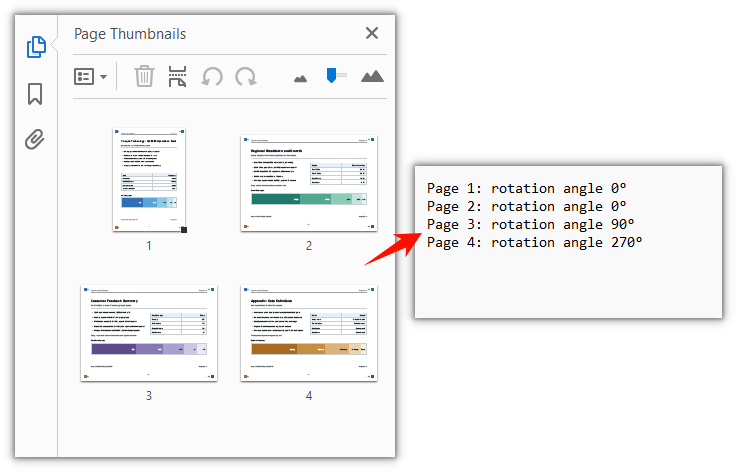
Detection result with the rotation angle recorded page by page:
Detect page orientation
Whether a page is landscape or portrait cannot be told from its size alone: PdfPageBase.Size gives the width and height of the visible page box and does not include the rotation; when a page is rotated by 90° or 270°, the width and height have to be swapped to get the direction the page actually shows.
function App() {
  const detectPageOrientation = async () => {
    // Get the Spire.PDF WASM module
    const pdfModule = window.wasmModule?.spirepdf;

    // Check whether the module is ready
    if (!pdfModule) {
      alert('Spire.PDF is not ready yet');
      return;
    }

    // Load the PDF file to inspect into the VFS
    const inputFileName = 'PageOrientationSample.pdf';
    await window.spire.FetchFileToVFS(inputFileName, '', `${process.env.PUBLIC_URL}/data/`);

    // Create a PdfDocument object and load the PDF document
    const doc = new pdfModule.PdfDocument();
    doc.LoadFromFile(inputFileName);

    const { RotateAngle90, RotateAngle270 } = pdfModule.PdfPageRotateAngle;

    // Judge the display orientation page by page
    const lines = [];
    for (let i = 0; i < doc.Pages.Count; i++) {
      const page = doc.Pages.get_Item(i);
      const pageSize = page.Size;

      // Size excludes rotation: at 90° or 270° the width and height swap to give the displayed size
      const quarterTurn = page.Rotation === RotateAngle90 || page.Rotation === RotateAngle270;
      const width = quarterTurn ? pageSize.Height : pageSize.Width;
      const height = quarterTurn ? pageSize.Width : pageSize.Height;
      const orientation = width >= height ? 'Landscape' : 'Portrait';

      lines.push(`Page ${i + 1}: ${orientation} (${width.toFixed(0)} × ${height.toFixed(0)} pt)`);
    }

    // Write the detection result into the VFS
    const outputFileName = 'PageOrientationResult.txt';
    window.dotnetRuntime.Module.FS.writeFile(outputFileName, lines.join('\r\n'));
    doc.Close();

    // Read the generated file back from the VFS and trigger the download
    const fileArray = window.dotnetRuntime.Module.FS.readFile(outputFileName);
    const blob = new Blob([fileArray], { type: 'text/plain' });
    const url = URL.createObjectURL(blob);
    const a = document.createElement('a');
    a.href = url;
    a.download = outputFileName;
    a.click();
    URL.revokeObjectURL(url);
  };

  return (
    <div style={{ textAlign: 'center', height: '300px' }}>
      <h1>Detect Page Display Orientation</h1>
      <button onClick={detectPageOrientation}>
        Start Detection
      </button>
    </div>
  );
}

export default App;
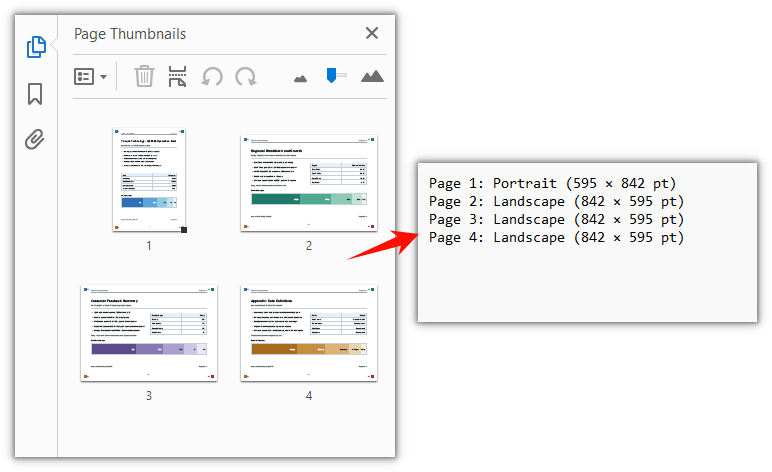
Detection result after judging each page by its display orientation:
FAQ
page.Rotation.value returns 0, 1, 2, 3 instead of 0, 90, 180, 270
Cause: The four members of PdfPageRotateAngle — RotateAngle0, RotateAngle90, RotateAngle180, RotateAngle270 — carry the values 0, 1, 2, 3 in the WebAssembly binding, and .value returns that index rather than the angle. Writing page.Rotation.value === 90 is always false.
Solution: Build an index-to-angle map before using the value. Rotation is corrected with an index too — page.Rotation takes an index, so passing 90 is read as index 2 and writes 180° into the document:
// Index → angle
const DEGREES = {
  [pdfModule.PdfPageRotateAngle.RotateAngle0.value]: 0,
  [pdfModule.PdfPageRotateAngle.RotateAngle90.value]: 90,
  [pdfModule.PdfPageRotateAngle.RotateAngle180.value]: 180,
  [pdfModule.PdfPageRotateAngle.RotateAngle270.value]: 270,
};

// Set the current page to 90° — .value is the index
page.Rotation = pdfModule.PdfPageRotateAngle.RotateAngle90.value;
page.Size returns portrait dimensions for a page that clearly shows as landscape
Cause: PdfPageBase.Size and ActualSize return the width and height of the page's visible box — the CropBox if one was set, otherwise the MediaBox — and that value does not follow /Rotate. Page 3 of the sample document has a page box of 595 × 842 pt with /Rotate at 90°, so it renders as an 842 × 595 landscape page while Size still returns 595 × 842.
Solution: After reading Rotation, swap the width and height yourself:
const { RotateAngle90, RotateAngle270 } = pdfModule.PdfPageRotateAngle;
const quarterTurn = page.Rotation === RotateAngle90 || page.Rotation === RotateAngle270;

const width = quarterTurn ? page.Size.Height : page.Size.Width;
const height = quarterTurn ? page.Size.Width : page.Size.Height;
doc.Sections is empty in a loaded PDF, and PageSettings.Orientation cannot be read
Cause: Sections holds page settings, and LoadFromFile does not rebuild sections for pages that already exist, so doc.Sections.Count is 0 and a following doc.Sections.get_Item(0) throws Arg_IndexOutOfRangeException. PageSettings.Orientation describes the layout intent for a newly created page, not the direction recorded in the file.
Solution: For existing pages, read page-level properties only — doc.Pages.get_Item(i) followed by Rotation and Size. Leave PageSettings.Orientation for new pages added through Sections.Add():
// Inspecting existing pages
const page = doc.Pages.get_Item(0);
const angle = DEGREES[page.Rotation.value];

// Orientation only comes into play when creating a new page
const section = doc.Sections.Add();
section.PageSettings.Orientation = pdfModule.PdfPageOrientation.Landscape;
Get a Free License
If you want to remove the evaluation message from the result documents, or lift the feature limits, contact sales for a 30-day temporary license.
Crop PDF Pages with JavaScript in React
Scanned pages, drawings and electronic invoices often carry a wide white margin while the page size stays at its original spec; the opposite also happens, where only a small block of a page matters and the rest does not need to appear. Removing the extra part used to mean framing each page by hand in desktop software, or sending the file to a server — the first is hard to fit into a web workflow, the second means the document leaves the user's device.
This article shows how to crop PDF pages with Spire.PDF for JavaScript. It is built on WebAssembly and loads, modifies and saves PDF documents directly in the browser, all locally, reading and writing files through a virtual file system (VFS) with no backend involved. The steps are demonstrated on a two-page sample document.
For installation and project setup, see Integrate Spire.PDF for JavaScript in a React project. The examples below assume Spire.PDF is installed and the WebAssembly module is initialized.
Crop a PDF Page
Cropping a page is done through page.CropBox, a RectangleF whose x and y are measured from the top-left corner of the page, while width and height decide how much is kept; content outside the box no longer shows up. Cropping the whole document by one uniform margin means walking doc.Pages and, for each page, giving up the distance on all four sides of its MediaBox.
function App() {
  const cropPdfPage = async () => {
    // Get the Spire.PDF WASM module
    const pdfModule = window.wasmModule?.spirepdf;

    // Check whether the module is ready
    if (!pdfModule) {
      alert('Spire.PDF is not ready yet');
      return;
    }

    // Load the PDF file to be cropped into the VFS
    const inputFileName = 'ToCrop.pdf';
    await window.spire.FetchFileToVFS(inputFileName, "", `${process.env.PUBLIC_URL}/data/`);

    // Create a PdfDocument object and load the PDF document
    let doc = new pdfModule.PdfDocument();
    doc.LoadFromFile(inputFileName);

    // Trim 60 points off every side
    const margin = 60;

    for (let i = 0; i < doc.Pages.Count; i++) {
      const page = doc.Pages.get_Item(i);

      // MediaBox gives the full extent of the page, from which the crop box is derived
      // (x and y are measured from the top-left corner of the page)
      const width = page.MediaBox.Width;
      const height = page.MediaBox.Height;

      page.CropBox = new pdfModule.RectangleF({
        x: margin,
        y: margin,
        width: width - margin * 2,
        height: height - margin * 2,
      });
    }

    const outputFileName = 'CropByMargins.pdf';
    doc.SaveToFile(outputFileName);
    doc.Close();

    // Read the generated file from the VFS and trigger the download
    const fileArray = window.dotnetRuntime.Module.FS.readFile(outputFileName);
    const blob = new Blob([fileArray], { type: 'application/pdf' });
    const url = URL.createObjectURL(blob);
    const a = document.createElement('a');
    a.href = url;
    a.download = outputFileName;
    a.click();
    URL.revokeObjectURL(url);
  };

  return (
    <div style={{ textAlign: 'center', height: '300px' }}>
      <h1>Crop PDF Pages</h1>
      <button onClick={cropPdfPage}>
        Crop PDF
      </button>
    </div>
  );
}

export default App;
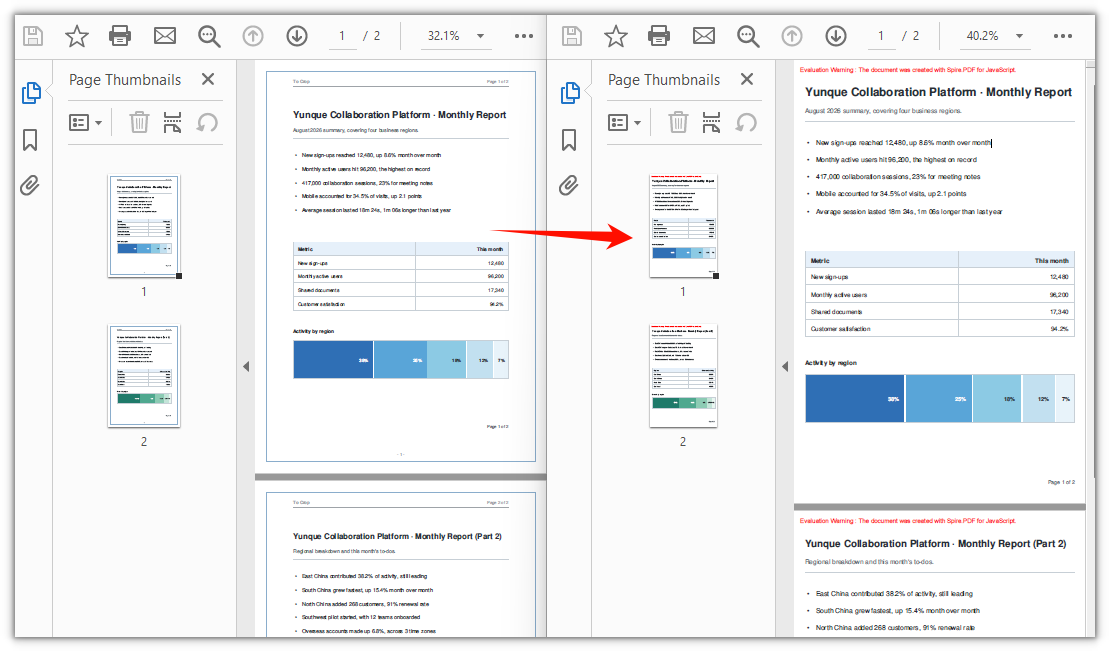
Both pages are cropped by a 60-point margin, so the white margin and the frame around the page are removed:
FAQ
Can I crop a single page instead of the whole document
Why: CropBox is a page-level property; there is no "whole document" interface. The loop above exists only so that every page gets the same margin.
Solution: To crop one page only, drop the loop and assign to the target page directly. x and y are likewise measured from the top-left corner of the page:
// Crop page 1 only: keep a 400 x 500 point block starting at (80, 80) from the top-left corner
const page = doc.Pages.get_Item(0);
page.CropBox = new pdfModule.RectangleF({ x: 80, y: 80, width: 400, height: 500 });
How do I undo a crop
Why: CropBox changes the page box in place, and the document keeps no record of the original one. The instinct is to assign page.MediaBox back, but that has no effect — the coordinates are applied on top of the origin of the current visible area, so only the size changes and the origin stays put. After a 60-point crop, assigning MediaBox back still leaves the visible area starting at (60, 60).
Solution: If the original document is still around, loading it again is the simplest route. When only the cropped file is left, offset the origin back to the top-left corner with negative values and give the full page size:
// Undo when the crop offset was (offsetX, offsetY)
page.CropBox = new pdfModule.RectangleF({
  x: -offsetX,
  y: -offsetY,
  width: page.MediaBox.Width,
  height: page.MediaBox.Height,
});
The file didn't get smaller and the cropped content is still searchable
Why: CropBox is a soft crop — it only changes the visible box of the page, while content outside it stays in the file and can still be picked up by text search or copy.
Solution: If the goal is to actually remove the content from the page, setting CropBox is not enough; the page has to be rebuilt — create a new document of the same size, take the content out with page.CreateTemplate(), draw it onto a new page, and save to a new file.
Get a Free License
If you want to remove the evaluation message from the result document, or lift the feature limitations, contact sales for a temporary license valid for 30 days.
Copy PDF Pages in React with JavaScript
Adding the cover of a product manual to the front of a project description, merging pages 2 and 3 of a quotation into a contract, combining several reports into one summary — all of it comes down to moving pages from one PDF into another. Desktop software means opening two windows and dragging back and forth, and one wrong drop means starting over; with more pages, the resulting order is easy to get wrong. A different kind of trouble is mismatched page sizes: the cover is A5 and the target document is A4, so moving the page across as-is leaves a band of white space around it.
Spire.PDF for JavaScript loads, modifies and saves PDF documents directly in the browser based on WebAssembly, so the whole copying process runs locally and reads and writes files through a virtual file system (VFS), with no backend service required.
This article covers four core features. The first three move whole pages, carrying the source page's size, rotation and margins over as they are; the fourth takes only the page content, and how large a page it is drawn onto is up to you.
Move whole pages
- Copy a Single Page to a Specific Position
- Copy a Range of Pages to the End of a Document
- Copy Every Page of a Whole Document
Copy content (templates)
For installation and project configuration, refer to Integrating Spire.PDF for JavaScript in a React Project. The following examples assume Spire.PDF is installed and the WebAssembly module has been initialized.
Copy a Single Page to a Specific Position
Spire.PDF for JavaScript provides the PdfDocument.InsertPage method, which copies a page from another document into the current one and lets you choose which position it lands at. Leave the target index out and the page is appended to the end.
function App() {
  const copyPageAtPosition = async () => {
    // Get the Spire.PDF WASM module
    const pdfModule = window.wasmModule?.spirepdf;

    // Check whether the module is ready
    if (!pdfModule) {
      alert('Spire.PDF is not ready yet');
      return;
    }

    // Load both the source and the target document into the VFS
    const sourceFileName = 'SourceDocument.pdf';
    const targetFileName = 'TargetDocument.pdf';
    await window.spire.FetchFileToVFS(sourceFileName, "", `${process.env.PUBLIC_URL}/data/`);
    await window.spire.FetchFileToVFS(targetFileName, "", `${process.env.PUBLIC_URL}/data/`);

    // Load the two documents
    const sourceDoc = new pdfModule.PdfDocument();
    sourceDoc.LoadFromFile(sourceFileName);
    const targetDoc = new pdfModule.PdfDocument();
    targetDoc.LoadFromFile(targetFileName);

    // Copy page 1 of the source document to the front of the target document
    // pageIndex comes from the source document, resultPageIndex is where the copy lands
    targetDoc.InsertPage({ ldDoc: sourceDoc, pageIndex: 0, resultPageIndex: 0 });

    // Save the result document
    const outputFileName = 'CopyPageAtPosition.pdf';
    targetDoc.SaveToFile(outputFileName);
    sourceDoc.Close();
    targetDoc.Close();

    // Read the generated file from the VFS and trigger the download
    const fileArray = window.dotnetRuntime.Module.FS.readFile(outputFileName);
    const blob = new Blob([fileArray], { type: 'application/pdf' });
    const url = URL.createObjectURL(blob);
    const a = document.createElement('a');
    a.href = url;
    a.download = outputFileName;
    a.click();
    URL.revokeObjectURL(url);
  };

  return (
    <div style={{ textAlign: 'center', height: '300px' }}>
      <h1>Copy Page at Position</h1>
      <button onClick={copyPageAtPosition}>
        Start
      </button>
    </div>
  );
}

export default App;
resultPageIndexis the only place among the four features where you control where the page lands: 0 puts it first, 1 puts it second, and passing the current page count is the same as appending it.
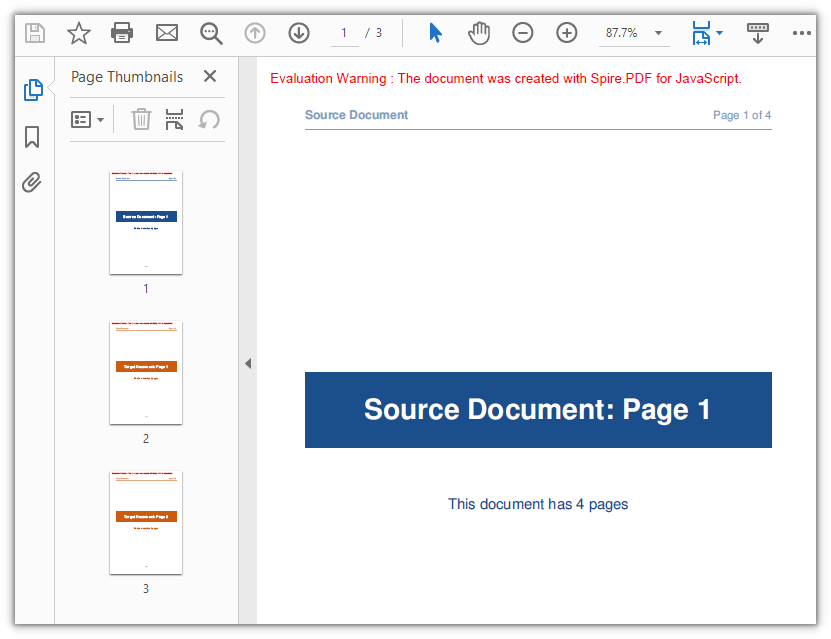
Page 1 of the source document now sits in front of the target document, which goes from 2 pages to 3:
Copy a Range of Pages to the End of a Document
Spire.PDF for JavaScript also provides the PdfDocument.InsertPageRange method, which copies a run of consecutive pages from the source document. It takes the source document plus a start and an end index, has no parameter for a target position, and always appends the result to the end of the current document.
function App() {
  const appendPageRange = async () => {
    // Get the Spire.PDF WASM module
    const pdfModule = window.wasmModule?.spirepdf;

    // Check whether the module is ready
    if (!pdfModule) {
      alert('Spire.PDF is not ready yet');
      return;
    }

    // Load both the source and the target document into the VFS
    const sourceFileName = 'SourceDocument.pdf';
    const targetFileName = 'TargetDocument.pdf';
    await window.spire.FetchFileToVFS(sourceFileName, "", `${process.env.PUBLIC_URL}/data/`);
    await window.spire.FetchFileToVFS(targetFileName, "", `${process.env.PUBLIC_URL}/data/`);

    // Load the two documents
    const sourceDoc = new pdfModule.PdfDocument();
    sourceDoc.LoadFromFile(sourceFileName);
    const targetDoc = new pdfModule.PdfDocument();
    targetDoc.LoadFromFile(targetFileName);

    // Append pages 2 to 3 of the source document to the end of the target document
    // Note: these are positional arguments, not an object; endIndex is inclusive
    targetDoc.InsertPageRange(sourceDoc, 1, 2);

    // Save the result document
    const outputFileName = 'CopyPageRange.pdf';
    targetDoc.SaveToFile(outputFileName);
    sourceDoc.Close();
    targetDoc.Close();

    // Read the generated file from the VFS and trigger the download
    const fileArray = window.dotnetRuntime.Module.FS.readFile(outputFileName);
    const blob = new Blob([fileArray], { type: 'application/pdf' });
    const url = URL.createObjectURL(blob);
    const a = document.createElement('a');
    a.href = url;
    a.download = outputFileName;
    a.click();
    URL.revokeObjectURL(url);
  };

  return (
    <div style={{ textAlign: 'center', height: '300px' }}>
      <h1>Copy Page Range</h1>
      <button onClick={appendPageRange}>
        Copy pages 2-3
      </button>
    </div>
  );
}

export default App;
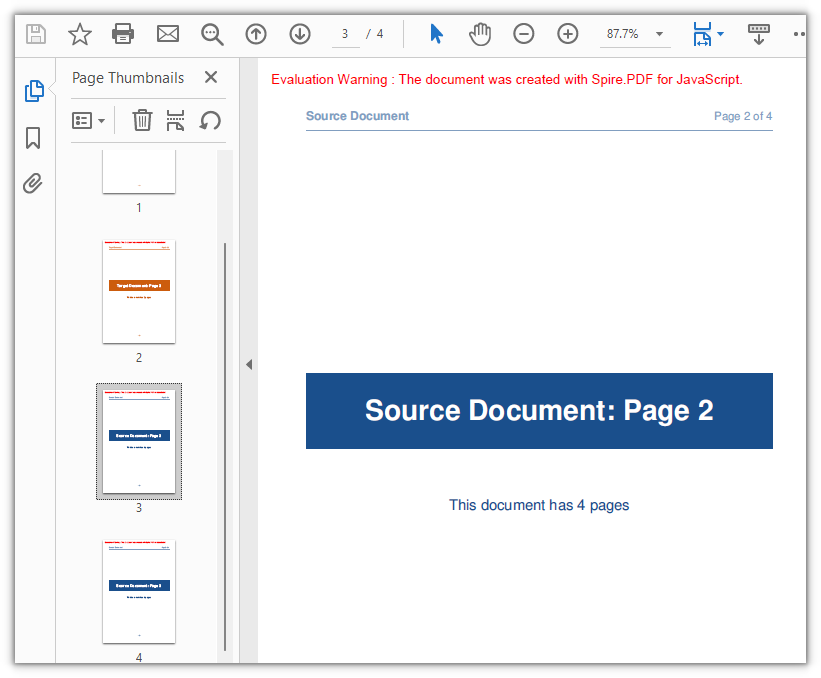
After pages 2 and 3 of the source document are appended, the document has 4 pages:
Copy Every Page of a Whole Document
When an entire document has to move, there is no need to work out the indices first: PdfDocument.AppendPage takes the source document object and appends all of its pages to the end of the current document in their original order. For merging several documents or attaching material to a report, just pass the documents in one after another.
function App() {
  const appendWholeDocument = async () => {
    // Get the Spire.PDF WASM module
    const pdfModule = window.wasmModule?.spirepdf;

    // Check whether the module is ready
    if (!pdfModule) {
      alert('Spire.PDF is not ready yet');
      return;
    }

    // Load both the source and the target document into the VFS
    const sourceFileName = 'SourceDocument.pdf';
    const targetFileName = 'TargetDocument.pdf';
    await window.spire.FetchFileToVFS(sourceFileName, "", `${process.env.PUBLIC_URL}/data/`);
    await window.spire.FetchFileToVFS(targetFileName, "", `${process.env.PUBLIC_URL}/data/`);

    // Load the two documents
    const sourceDoc = new pdfModule.PdfDocument();
    sourceDoc.LoadFromFile(sourceFileName);
    const targetDoc = new pdfModule.PdfDocument();
    targetDoc.LoadFromFile(targetFileName);

    // Use AppendPage when the whole document has to be copied; all pages are appended in order
    targetDoc.AppendPage({ doc: sourceDoc });

    // Save the result document
    const outputFileName = 'CopyAllPages.pdf';
    targetDoc.SaveToFile(outputFileName);
    sourceDoc.Close();
    targetDoc.Close();

    // Read the generated file from the VFS and trigger the download
    const fileArray = window.dotnetRuntime.Module.FS.readFile(outputFileName);
    const blob = new Blob([fileArray], { type: 'application/pdf' });
    const url = URL.createObjectURL(blob);
    const a = document.createElement('a');
    a.href = url;
    a.download = outputFileName;
    a.click();
    URL.revokeObjectURL(url);
  };

  return (
    <div style={{ textAlign: 'center', height: '300px' }}>
      <h1>Copy Whole Document</h1>
      <button onClick={appendWholeDocument}>
        Start
      </button>
    </div>
  );
}

export default App;
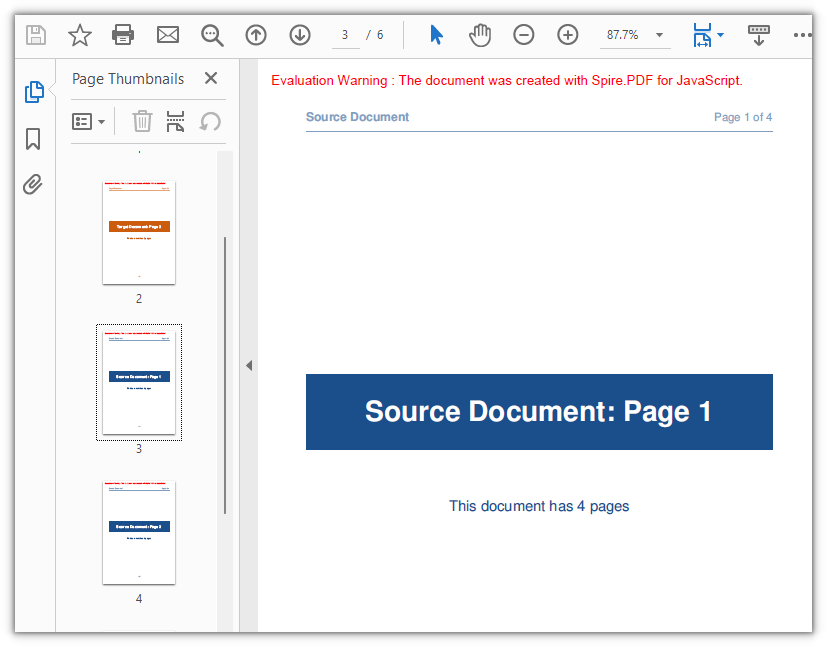
After all 4 pages of the source document are appended, the document has 6 pages:
Copy Page Content with a Page Template
Spire.PDF for JavaScript also provides the PdfPageBase.CreateTemplate method, which takes the content of one page as a PdfTemplate that Canvas.DrawTemplate then draws onto a newly created page. The first three methods move whole pages, so the new page inherits the source page's size; a template takes the content instead, leaving the page size, the drawing position and the number of times you draw it entirely up to you — the same template can be reused again and again.
function App() {
  const copyPageWithTemplate = async () => {
    // Get the Spire.PDF WASM module
    const pdfModule = window.wasmModule?.spirepdf;

    // Check whether the module is ready
    if (!pdfModule) {
      alert('Spire.PDF is not ready yet');
      return;
    }

    // Load the PDF file to work on into the VFS
    const inputFileName = 'SourceDocument.pdf';
    await window.spire.FetchFileToVFS(inputFileName, "", `${process.env.PUBLIC_URL}/data/`);

    // Load the document
    const doc = new pdfModule.PdfDocument();
    doc.LoadFromFile(inputFileName);

    // Take the page to be reused and turn it into a template: read the content once, draw it many times
    const sourcePage = doc.Pages.get_Item(0);
    const template = sourcePage.CreateTemplate();

    // First placement: insert an A4 page at position 2, a different size from the source,
    // and draw the content scaled to 297.6 x 421.6 at (80, 80)
    const page1 = doc.Pages.Insert(1, new pdfModule.SizeF(595.0, 842.0), new pdfModule.PdfMargins({ margin: 0.0 }));
    page1.Canvas.DrawTemplate(template, new pdfModule.PointF(80.0, 80.0), new pdfModule.SizeF(297.6, 421.6));

    // Second placement: insert another A4 page, drawing the same template smaller in the lower right
    const page2 = doc.Pages.Insert(2, new pdfModule.SizeF(595.0, 842.0), new pdfModule.PdfMargins({ margin: 0.0 }));
    page2.Canvas.DrawTemplate(template, new pdfModule.PointF(320.0, 460.0), new pdfModule.SizeF(200.0, 283.3));

    // Save the result document
    const outputFileName = 'CopyPageWithTemplate.pdf';
    doc.SaveToFile(outputFileName);
    doc.Close();

    // Read the generated file from the VFS and trigger the download
    const fileArray = window.dotnetRuntime.Module.FS.readFile(outputFileName);
    const blob = new Blob([fileArray], { type: 'application/pdf' });
    const url = URL.createObjectURL(blob);
    const a = document.createElement('a');
    a.href = url;
    a.download = outputFileName;
    a.click();
    URL.revokeObjectURL(url);
  };

  return (
    <div style={{ textAlign: 'center', height: '300px' }}>
      <h1>Copy Page with Template</h1>
      <button onClick={copyPageWithTemplate}>
        Start
      </button>
    </div>
  );
}

export default App;
When the third argument of DrawTemplate is omitted, the template is drawn at its original coordinates without scaling — the new page is larger than the source, so the content occupies only one corner of it. Both the size of the new page and its margins come from Pages.Insert; in the example the margins are 0 on all four sides, which is what makes the drawing origin the top-left corner of the page.
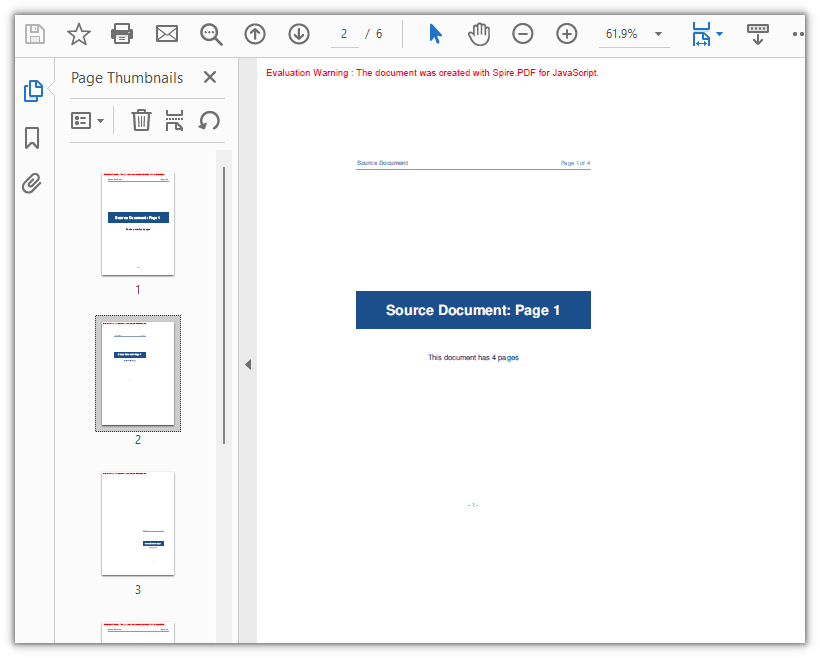
The content of page 1 in the source document is scaled onto two new A4 pages, taking the document from 4 pages to 6:
Frequently Asked Questions
Creating a page with new PdfMargins(0.0) throws Arg_NullReferenceException
Cause: The PdfMargins constructor treats a single numeric argument as an internal handle, so new pdfModule.PdfMargins(0.0) does not give you a margins object — reading its Left or Top throws Arg_NullReferenceException, and using it to create a page does not produce the margins you expect.
Solution: Pass the margins as an object; for 0 on all four sides write { margin: 0.0 }:
// Zero margins on all four sides
const margins = new pdfModule.PdfMargins({ margin: 0.0 });

// Or set each side separately
const custom = new pdfModule.PdfMargins({ left: 20.0, top: 20.0, right: 20.0, bottom: 20.0 });
An out-of-range or reversed-range error is thrown when copying pages
Cause: Page indices start at 0 and endIndex is inclusive, so the valid range is 0 to Pages.Count - 1. Going outside it throws Index out of range, and a startIndex greater than endIndex throws The start index is greater then the end index.
Solution: Clamp the upper bound with Pages.Count before passing it in:
// To copy pages 2 to 4: start = 1, end = 3, with the page count as the upper bound
const start = 1;
const end = Math.min(3, sourceDoc.Pages.Count - 1);
targetDoc.InsertPageRange(sourceDoc, start, end);
A rotated page comes out with the wrong orientation after copying
Cause: CreateTemplate() takes the page content, and the page's rotation angle (/Rotate) is not part of the template. When the source page is rotated, the template's coordinate system no longer lines up with the target page — drawing it straight onto a new page with DrawTemplate puts the content outside the visible area, and the copy's Rotation is 0.
Solution: When the source page is rotated, use a whole-page copy instead; the content and the rotation angle travel together:
// Whole-page copy: the rotation angle comes with the page
targetDoc.InsertPage({ ldDoc: sourceDoc, pageIndex: 0, resultPageIndex: 1 });
If the template approach is required, temporarily zero the source page's rotation before taking the template, then restore the angle on both the source page and the copy:
const rotation = sourcePage.Rotation.value;

// Zero it temporarily so the template exports at the page's real coordinates
sourcePage.Rotation = 0;
const newPage = doc.Pages.Insert(1, sourcePage.Size, new pdfModule.PdfMargins({ margin: 0.0 }));
newPage.Canvas.DrawTemplate(sourcePage.CreateTemplate(), new pdfModule.PointF(0.0, 0.0));

// Restore the source page and give the copy the same angle
sourcePage.Rotation = rotation;
newPage.Rotation = rotation;
Get a Free License
If you would like to remove the evaluation message from the result documents or lift the feature limits, contact sales for a temporary 30-day license.
Create Lists in PDF Documents Using JavaScript in React
Product catalogs, checklists, step-by-step instructions, and clause summaries all read most clearly in a PDF when they are laid out as lists. Typing them out one by one in an editor is workable, but once the entries have to follow the data — exporting a category table or a to-do list to PDF, for example — manual layout stops keeping up: the number of entries, the numbering order, and the indentation levels all have to come from the data.
This article shows how to use Spire.PDF for JavaScript to create unordered lists, ordered lists, and multilevel lists, where unordered lists come in two forms: built-in markers and image markers. It runs on WebAssembly to create and save PDF documents directly in the browser, doing all the work locally and reading and writing files through a virtual file system (VFS) with no backend involved.
This article covers four core features:
- Create an Unordered List in a PDF Page
- Create an Unordered List with Images in a PDF Page
- Create an Ordered List in a PDF Page
- Create a Multilevel List in a PDF Page
Different list types use different classes and marker objects. Pick from the table below:
| List type | List class | Marker configuration | Common values |
|---|---|---|---|
| Unordered list (built-in markers) | PdfList |
PdfMarker + PdfUnorderedMarkerStyle |
Disk, Square, Circle, Asterisk |
| Unordered list (image markers) | PdfList |
the image parameter of PdfMarker (the style becomes CustomImage automatically) |
Any image, scaled to the text line height |
| Ordered list (numbers) | PdfSortedList |
PdfOrderedMarker + PdfNumberStyle (Suffix changes the number suffix, StartNumber changes the starting number) |
Numeric, LowerLatin, UpperLatin, LowerRoman, UpperRoman |
| Multilevel list (nested) | PdfList / PdfSortedList + the list item's SubList |
each level's own Marker and Indent |
the top level and the sublevel can each use a different marker or number style |
For installation and project configuration, see Integrate Spire.PDF for JavaScript into a React Project. The examples below assume Spire.PDF is installed and the WebAssembly module is initialized.
Create an Unordered List in a PDF Page
Spire.PDF for JavaScript provides PdfList to create lists, switching the marker shape through the PdfUnorderedMarkerStyle enumeration.
function App() {
  const createBulletLists = async () => {
    // Get the Spire.PDF WASM module
    const pdfModule = window.wasmModule?.spirepdf;

    // Check whether the module is ready
    if (!pdfModule) {
      alert('Spire.PDF is not ready yet');
      return;
    }

    // Load the font into the VFS for the list text
    await window.spire.FetchFileToVFS('ARIAL UNICODE MS.TTF', '/Library/Fonts/', `${process.env.PUBLIC_URL}/font/`);

    // Create a PDF document and add a blank page
    const doc = new pdfModule.PdfDocument();
    const page = doc.Pages.Add();

    // Font and item content for the list
    const font = new pdfModule.PdfTrueTypeFont({ fontFile: '/Library/Fonts/ARIAL UNICODE MS.TTF', size: 12 });
    const items = ['Fruit Juice', 'Condiments', 'Confectionery', 'Dairy Products', 'Grains & Cereals', 'Meat & Poultry', 'Fruits & Vegetables', 'Seafood'];

    // First list: add items one by one, with Square markers
    const list = new pdfModule.PdfList({ font: font });
    for (const item of items) {
      list.Items.Add(item);
    }
    list.Marker = new pdfModule.PdfMarker({ style: pdfModule.PdfUnorderedMarkerStyle.Square });
    // Brush affects both the marker and the list text
    list.Brush = new pdfModule.PdfSolidBrush({ pdfRGBColor: new pdfModule.PdfRGBColor({ color: pdfModule.Color.get_Navy() }) });
    list.Indent = 10;
    list.TextIndent = 6;
    const first = list.Draw({ page: page, x: 0, y: 40 });

    // Second list drawn below the first one, with Circle markers
    const list2 = new pdfModule.PdfList({ font: font });
    for (const item of items) {
      list2.Items.Add(item);
    }
    list2.Marker = new pdfModule.PdfMarker({ style: pdfModule.PdfUnorderedMarkerStyle.Circle });
    list2.Brush = pdfModule.PdfBrushes.get_Black();
    list2.Indent = 10;
    list2.TextIndent = 6;
    list2.Draw({ page: page, x: 0, y: first.Bounds.Bottom + 20 });

    // Save and read back from the VFS to trigger the download
    const outputFileName = 'BulletList.pdf';
    doc.SaveToFile(outputFileName);
    doc.Close();

    const fileArray = window.dotnetRuntime.Module.FS.readFile(outputFileName);
    const blob = new Blob([fileArray], { type: 'application/pdf' });
    const url = URL.createObjectURL(blob);
    const a = document.createElement('a');
    a.href = url;
    a.download = outputFileName;
    a.click();
    URL.revokeObjectURL(url);
  };

  return (
    <div style={{ textAlign: 'center', height: '300px' }}>
      <h1>Create an Unordered List</h1>
      <button onClick={createBulletLists}>
        Create
      </button>
    </div>
  );
}

export default App;
Two unordered lists of the same content, using Square and Circle markers
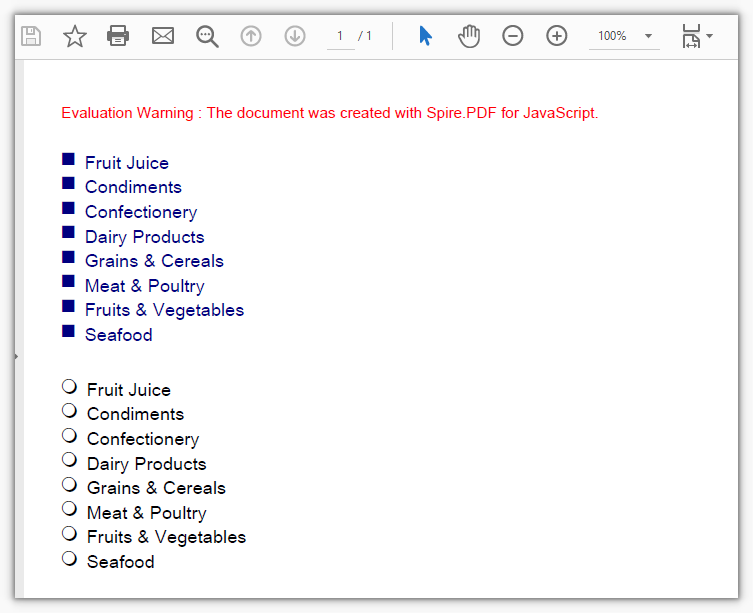
Create an Unordered List with Images in a PDF Page
Spire.PDF for JavaScript also provides PdfImage to read an image; hand it to PdfMarker and it becomes the bullet marker, with the style switching to CustomImage automatically.
function App() {
  const createImageBulletList = async () => {
    // Get the Spire.PDF WASM module
    const pdfModule = window.wasmModule?.spirepdf;

    // Check whether the module is ready
    if (!pdfModule) {
      alert('Spire.PDF is not ready yet');
      return;
    }

    // Load the font and the bullet image into the VFS
    await window.spire.FetchFileToVFS('ARIAL UNICODE MS.TTF', '/Library/Fonts/', `${process.env.PUBLIC_URL}/font/`);
    await window.spire.FetchFileToVFS('logo.png', '', `${process.env.PUBLIC_URL}/data/`);

    // Create a PDF document and add a blank page
    const doc = new pdfModule.PdfDocument();
    const page = doc.Pages.Add();

    // Font and item content for the list
    const font = new pdfModule.PdfTrueTypeFont({ fontFile: '/Library/Fonts/ARIAL UNICODE MS.TTF', size: 12 });
    const items = ['Fruit Juice', 'Condiments', 'Confectionery', 'Dairy Products', 'Grains & Cereals', 'Meat & Poultry', 'Fruits & Vegetables', 'Seafood'];

    // Read the image and hand it to PdfMarker as the marker; the style becomes CustomImage automatically
    const image = pdfModule.PdfImage.FromFile('logo.png');
    const marker = new pdfModule.PdfMarker({ image: image });

    // Add items one by one and apply the image marker
    const list = new pdfModule.PdfList({ font: font });
    for (const item of items) {
      list.Items.Add(item);
    }
    list.Marker = marker;
    list.Brush = pdfModule.PdfBrushes.get_Black();
    list.Indent = 10;
    list.TextIndent = 6;
    list.Draw({ page: page, x: 0, y: 40 });

    // Save and read back from the VFS to trigger the download
    const outputFileName = 'ImageBulletList.pdf';
    doc.SaveToFile(outputFileName);
    doc.Close();

    const fileArray = window.dotnetRuntime.Module.FS.readFile(outputFileName);
    const blob = new Blob([fileArray], { type: 'application/pdf' });
    const url = URL.createObjectURL(blob);
    const a = document.createElement('a');
    a.href = url;
    a.download = outputFileName;
    a.click();
    URL.revokeObjectURL(url);
  };

  return (
    <div style={{ textAlign: 'center', height: '300px' }}>
      <h1>Create an Unordered List with Images</h1>
      <button onClick={createImageBulletList}>
        Create
      </button>
    </div>
  );
}

export default App;
An unordered list using logo.png as the bullet marker
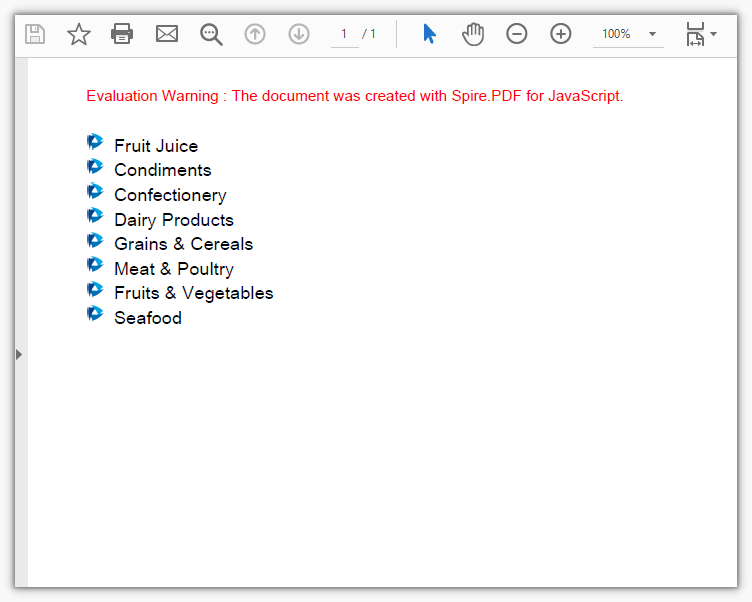
Create an Ordered List in a PDF Page
An ordered list is created by PdfSortedList, its numbers increment automatically with the items, and the number format is decided by the PdfNumberStyle enumeration on PdfOrderedMarker.
function App() {
  const createOrderedLists = async () => {
    // Get the Spire.PDF WASM module
    const pdfModule = window.wasmModule?.spirepdf;

    // Check whether the module is ready
    if (!pdfModule) {
      alert('Spire.PDF is not ready yet');
      return;
    }

    // Load the font into the VFS for the list text
    await window.spire.FetchFileToVFS('ARIAL UNICODE MS.TTF', '/Library/Fonts/', `${process.env.PUBLIC_URL}/font/`);

    // Create a PDF document and add a blank page
    const doc = new pdfModule.PdfDocument();
    const page = doc.Pages.Add();

    // Font and item content for the list
    const font = new pdfModule.PdfTrueTypeFont({ fontFile: '/Library/Fonts/ARIAL UNICODE MS.TTF', size: 12 });
    const items = ['Fruit Juice', 'Condiments', 'Confectionery', 'Dairy Products'];

    // First list: Arabic numerals, with "." as the default number suffix
    const list = new pdfModule.PdfSortedList({
      marker: new pdfModule.PdfOrderedMarker({ style: pdfModule.PdfNumberStyle.Numeric, font: font }),
    });
    list.Font = font;
    for (const item of items) {
      list.Items.Add(item);
    }
    list.Indent = 12;
    list.TextIndent = 6;
    list.Brush = pdfModule.PdfBrushes.get_Black();
    const first = list.Draw({ page: page, x: 0, y: 40 });

    // Second list: uppercase Roman numerals, with the suffix changed to ")"
    const marker = new pdfModule.PdfOrderedMarker({ style: pdfModule.PdfNumberStyle.UpperRoman, font: font });
    marker.Suffix = ')';
    const list2 = new pdfModule.PdfSortedList({ marker: marker });
    list2.Font = font;
    for (const item of items) {
      list2.Items.Add(item);
    }
    list2.Indent = 12;
    list2.TextIndent = 6;
    list2.Brush = pdfModule.PdfBrushes.get_Black();
    list2.Draw({ page: page, x: 0, y: first.Bounds.Bottom + 20 });

    // Save and read back from the VFS to trigger the download
    const outputFileName = 'NumberedList.pdf';
    doc.SaveToFile(outputFileName);
    doc.Close();

    const fileArray = window.dotnetRuntime.Module.FS.readFile(outputFileName);
    const blob = new Blob([fileArray], { type: 'application/pdf' });
    const url = URL.createObjectURL(blob);
    const a = document.createElement('a');
    a.href = url;
    a.download = outputFileName;
    a.click();
    URL.revokeObjectURL(url);
  };

  return (
    <div style={{ textAlign: 'center', height: '300px' }}>
      <h1>Create an Ordered List</h1>
      <button onClick={createOrderedLists}>
        Create
      </button>
    </div>
  );
}

export default App;
Ordered lists created with Arabic numerals and uppercase Roman numerals
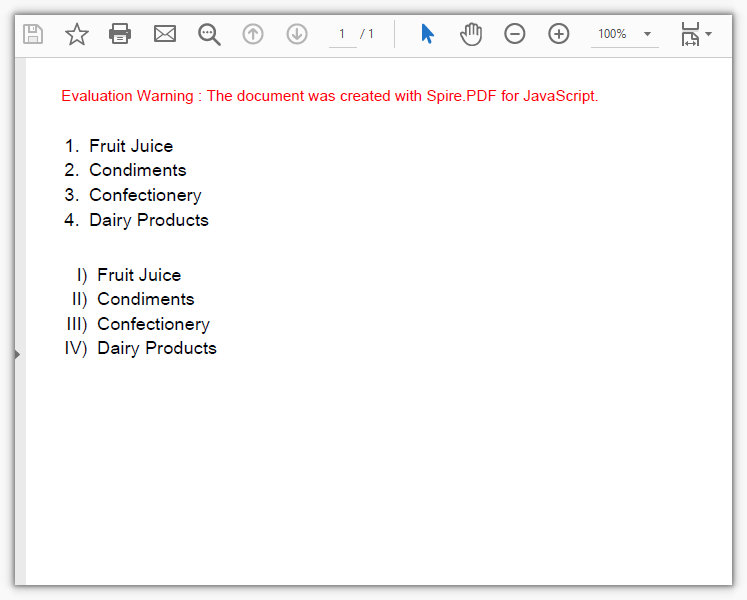
Create a Multilevel List in a PDF Page
A multilevel list is built on the SubList property of an item: attach a sublist to an item and it gains one more level, with the indentation decided by the sublist's own Indent.
function App() {
  const createMultilevelList = async () => {
    // Get the Spire.PDF WASM module
    const pdfModule = window.wasmModule?.spirepdf;

    // Check whether the module is ready
    if (!pdfModule) {
      alert('Spire.PDF is not ready yet');
      return;
    }

    // Load the font into the VFS for the list text
    await window.spire.FetchFileToVFS('ARIAL UNICODE MS.TTF', '/Library/Fonts/', `${process.env.PUBLIC_URL}/font/`);

    // Create a PDF document and add a blank page
    const doc = new pdfModule.PdfDocument();
    const page = doc.Pages.Add();

    // Font and grouped data for the list
    const font = new pdfModule.PdfTrueTypeFont({ fontFile: '/Library/Fonts/ARIAL UNICODE MS.TTF', size: 12 });
    const groups = [
      { title: 'Beverages & Dairy', children: ['Fruit Juice', 'Dairy Products'] },
      { title: 'Fresh Produce & Grains', children: ['Grains & Cereals', 'Fruits & Vegetables'] },
      { title: 'Meat & Seafood', children: ['Meat & Poultry', 'Seafood'] },
    ];

    // Top-level list: Arabic numerals
    const root = new pdfModule.PdfSortedList({
      marker: new pdfModule.PdfOrderedMarker({ style: pdfModule.PdfNumberStyle.Numeric, font: font }),
    });
    root.Font = font;
    root.Indent = 10;
    root.TextIndent = 6;
    root.Brush = pdfModule.PdfBrushes.get_Black();

    // Attach a sublist to each top-level item, with Disk markers indented by 18 points
    for (const group of groups) {
      const item = root.Items.Add(group.title);
      const sub = new pdfModule.PdfList({ font: font });
      for (const child of group.children) {
        sub.Items.Add(child);
      }
      sub.Marker = new pdfModule.PdfMarker({ style: pdfModule.PdfUnorderedMarkerStyle.Disk });
      sub.Indent = 18;
      sub.TextIndent = 6;
      sub.Brush = pdfModule.PdfBrushes.get_Black();
      item.SubList = sub;
    }

    // Draw the whole multilevel list starting from the top of the page
    root.Draw({ page: page, x: 0, y: 40 });

    // Save and read back from the VFS to trigger the download
    const outputFileName = 'MultilevelList.pdf';
    doc.SaveToFile(outputFileName);
    doc.Close();

    const fileArray = window.dotnetRuntime.Module.FS.readFile(outputFileName);
    const blob = new Blob([fileArray], { type: 'application/pdf' });
    const url = URL.createObjectURL(blob);
    const a = document.createElement('a');
    a.href = url;
    a.download = outputFileName;
    a.click();
    URL.revokeObjectURL(url);
  };

  return (
    <div style={{ textAlign: 'center', height: '300px' }}>
      <h1>Create a Multilevel List</h1>
      <button onClick={createMultilevelList}>
        Create
      </button>
    </div>
  );
}

export default App;
A two-level list made of numbered top-level items and bulleted sublists
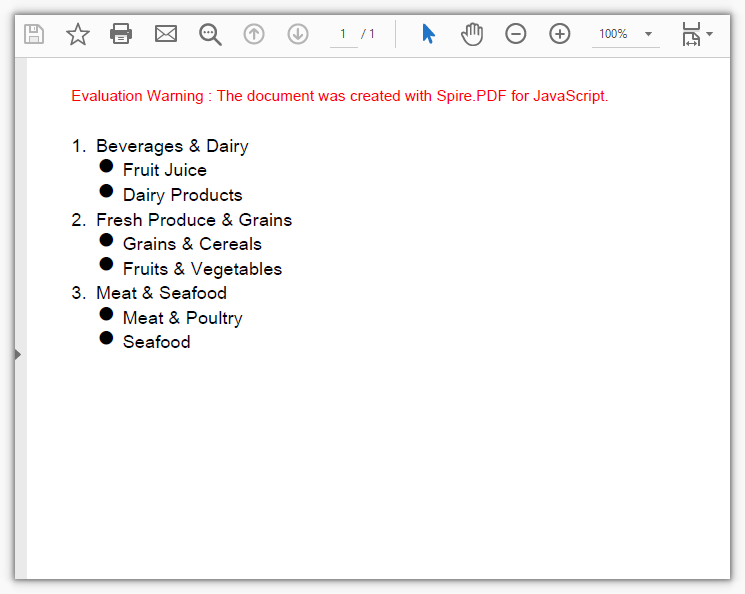
FAQ
The list item text does not show up
Cause: List items use the font on the Font property. If it is not set, or the font file has not been loaded into the virtual file system yet, only the bullet markers are left on the page and the text never appears.
Solution: Load the font file into /Library/Fonts/ first, then hand the font object to the list's Font:
// Load the font file into the virtual file system
await window.spire.FetchFileToVFS('ARIAL UNICODE MS.TTF', '/Library/Fonts/', `${process.env.PUBLIC_URL}/font/`);

// Create the font from that file and pass it in when constructing the list (assigning it to list.Font afterwards works the same way)
const font = new pdfModule.PdfTrueTypeFont({ fontFile: '/Library/Fonts/ARIAL UNICODE MS.TTF', size: 12 });
const list = new pdfModule.PdfList({ font: font });
"Ambiguous call" is thrown when creating a list
Cause: PdfList, PdfSortedList, and PdfMarker all have multiple overloads, so positional arguments leave the runtime unable to tell which one to use; it throws Ambiguous call: arguments (object) match multiple overloads. and lists the available key names in the error. Positional arguments in list.Draw(page, x, y) are rejected the same way.
Solution: Switch to object notation and spell out the parameter names:
// This throws: new pdfModule.PdfList(font)
const list = new pdfModule.PdfList({ font: font });
const sortedList = new pdfModule.PdfSortedList({ marker: marker });
const marker2 = new pdfModule.PdfMarker({ style: pdfModule.PdfUnorderedMarkerStyle.Disk });

// Drawing works the same way: list.Draw(page, 0, 40) throws, so write
list.Draw({ page: page, x: 0, y: 40 });
"IO_FileNotFound_FileName" is thrown when using an image as the bullet marker
Cause: PdfImage.FromFile reads a path inside the virtual file system, so it throws IO_FileNotFound_FileName when the image has not been loaded with FetchFileToVFS first — having the image on disk does not count.
Solution: Load the image into the virtual file system first, then read it with the same file name:
// Load the image into the virtual file system
await window.spire.FetchFileToVFS('logo.png', '', `${process.env.PUBLIC_URL}/data/`);

// Read it with the same file name
const image = pdfModule.PdfImage.FromFile('logo.png');
const marker = new pdfModule.PdfMarker({ image: image });
Get a Free License
If you want to remove the evaluation message from the resulting documents, or to get rid of the feature limitations, contact sales for a temporary license valid for 30 days.
Technical Bid Response Generation with Spire.Agent.Office
In tendering, the technical bid response is a step every bid must go through, and one of the easiest to get wrong. A tender document runs to dozens or hundreds of pages, and its "Technical Requirements" chapter holds anywhere from dozens to hundreds of clauses. A bidder has to respond to each clause and state the deviation, and a single unanswered clause can invalidate the bid. The responses must also line up with the bidder's own product parameters, test reports and project references — content that is too generic is scored as non-responsive, while inventing parameters or references to pad out a "fully compliant" answer creates far worse contractual and compliance risk if the bid wins. Traditionally a bidding specialist reads clause by clause, looks up the materials and fills in the table row by row. That takes days per bid, and the depth and wording of the responses vary widely between projects and between people.
Compared with the Traditional SDK API
| Traditional Spire.Office for .NET API | Spire.Agent.Office | |
|---|---|---|
| Driving method | Code handles every clause: load the tender document → split clauses with regex → match enterprise materials by keyword → fill the response table row by row, each step controlled in code | Describe the response requirements in natural language; the AI splits the clauses and matches responses clause by clause |
| Code volume | Substantial code to maintain clause-splitting rules, material-matching logic and table filling | Configuration code plus one natural language instruction |
| Clause splitting | Relies on clause numbers and ★▲ symbols as regex anchors; cross-page tables and multi-level numbering are easily split wrongly or dropped | The AI reads semantics together with numbering, so hierarchy and page breaks lose no clauses |
| Material matching | Keyword hits only; two different wordings of the same capability never match | Semantic matching; a capability description in the product manual maps onto a specific clause |
| Deviation assessment | Assessment rules must be hard-coded; better-than / equal / missing is hard to formalize | Each clause is judged against the criteria given in the instruction, and the AI downgrades when evidence is thin |
| Maintainability | A change in tender format or assessment criteria means code changes and a new release | Assessment criteria and chapter structure are adjusted in natural language at any time |
This article shows how to use the Word AI capability of Spire.Agent.Office to hand the tender document and your enterprise technical materials to the AI together and generate, in one pass, a complete technical bid response document containing the technical response table and the technical proposal body. Both single-lot and multi-lot batch usage are covered.
- Single lot: one tender document, one complete technical bid
- Multiple lots: batch output from several tender documents, one consistent standard
For product installation and SpireToken configuration, see Integrating Spire.Agent.Office into a .NET project. The examples below assume Spire.Agent.Office is installed and SpireToken is configured.
Technical Bid Response Generation
Technical bid response generation is the process of extracting the technical requirement clauses from a tender document, writing a response for each clause against the bidder's own technical materials, assessing the deviation, and organizing the result into a submittable technical bid document. The core approach: pass the tender document and the enterprise technical materials to the AI as attachments, have the AI generate a "technical response table" clause by clause under the tender document's original numbering, then continue into the technical proposal body based on those responses — producing the complete technical bid response document in one pass.
This addresses three difficulties the traditional approach cannot get around:
- Semantic correspondence: the tender says "supports deployment in a domestic xinchuang environment" while the enterprise materials say "adaptation for Kylin and UOS completed" — different wording for the same thing, and only semantic understanding maps the two. Keyword matching cannot.
- No omissions: the number of response clauses matches the technical requirements in the tender document exactly, with no merging and nothing dropped, which removes the risk of an invalid bid at the source.
- No fabrication: any clause without support in the enterprise materials is assessed as "Partially Compliant" with the missing items noted, instead of writing extra content to reach "Fully Compliant".
Single lot: one tender document, one complete technical bid
using Spire.Agent.Office.AI;
using Spire.Agent.Office.Extensions;
using Spire.Doc;

// Tender document and enterprise technical materials (data source files)
string[] attachmentPaths = new string[] {
    @"E:\Input\XX-Project-Tender-Document.docx",
    @"E:\Input\Enterprise-Technical-Materials.docx"
};
// Save path
string savePath = @"E:\Output\XX-Project-Technical-Bid-Response.docx";
// SpireToken key
string key = "**************************";
// Natural language instruction
string instruction =
    "Based on the attached tender document and enterprise technical materials, write a technical bid response document: generate a Technical Response Table clause by clause under the tender document's original numbering (No. | Tender Requirement | Our Response | Deviation | Notes), one to one with the requirements and with none omitted; " +
    "deviation takes only Fully Compliant / Partially Compliant / Non-Compliant, and the response must cite the matching model, parameters or project reference from the materials, while any clause without support is assessed Partially Compliant with the missing items noted and nothing invented; " +
    "after the table, continue with a five-chapter technical proposal body: project understanding, technical solution, implementation plan, quality assurance and after-sales service.";

// Call the Word document processing function
AIResult result = ExecuteDemoWord(instruction, savePath, key, attachmentPaths);


// Run the Word document AI processing
static AIResult ExecuteDemoWord(string instruction, string savePath, string key, string[] attachmentPaths)
{
    // Create the AIOptions configuration object
    AIOptions options = new AIOptions();
    // Set the single-call timeout budget (ms)
    options.TimeoutMs = 3600000;
    // Set the SpireToken key
    options.SpireToken = key;

    // Process the Word document with a Document object
    using (Document doc = new Document())
    {
        // Create the AI document processor
        AIDocumentProcessor processor = doc.AI(options);

        // Execute the AI instruction
        return processor.ExecuteInstruction(doc, instruction, savePath, attachmentPaths);
    }
}
The technical bid response document generated by the AI (technical response table + technical proposal body):
In the generated document the technical response table follows the tender document's original clause numbers one by one, and each row states the response and the deviation. Clauses with matching evidence cite specific product models and project references; the proposal body expands from the response table into the five chapters on project understanding, technical solution, implementation plan, quality assurance and after-sales service. The bidding specialist only has to check that the deviation assessments match reality and supply the materials that are missing, then move on to internal sign-off.
Multiple lots: batch output from several tender documents, one consistent standard
When a project is divided into several lots, each lot's tender document carries different technical requirements, but all lots use the same enterprise technical materials, which makes a single batch call a good fit. Set options.WorkDir to the output directory, pass null as savePath, and hand in every lot's tender document as an attachment — one call then produces several files, each named by the AI after its lot. Because all lots share the same materials and the same instruction, the assessment standard stays consistent by construction.
One caveat: a single call runs against a timeout budget (about 300 seconds by default), so a multi-lot batch should raise options.TimeoutMs; otherwise the call is cut off when the budget runs out.
using Spire.Agent.Office.AI;
using Spire.Agent.Office.Extensions;
using Spire.Doc;

// Tender documents for the lots (data source files)
string[] lotFiles = new string[] {
    @"E:\Input\Lot-1-Technical-Requirements.docx",  // Lot 1 tender document
    @"E:\Input\Lot-2-Technical-Requirements.docx"   // Lot 2 tender document
};
// All lots share the same enterprise technical materials
string materialPath = @"E:\Input\Enterprise-Technical-Materials.docx";
// Output directory
string OutDir = @"E:\Output";
// SpireToken key
string key = "**************************";
// Natural language instruction
string instruction =
    "Based on the attached tender documents and enterprise technical materials, generate a Technical Response Table clause by clause under that lot's original numbering (No. | Tender Requirement | Our Response | Deviation | Notes), one to one with that lot's requirements and with none omitted; " +
    "deviation takes only Fully Compliant / Partially Compliant / Non-Compliant, assessed as met or better → Fully Compliant, differences that do not affect use → Partially Compliant, cannot be met → Non-Compliant; " +
    "the response must cite the matching model, parameters or project reference from the materials, while any clause without support is assessed Partially Compliant with the missing items noted and nothing invented; " +
    "after the table, continue with a five-chapter technical proposal body: project understanding, technical solution, implementation plan, quality assurance and after-sales service; " +
    "the attachments hold two lots, so produce one document per lot, 2 files in total, each named with an 'output' prefix plus the lot and written directly into the working directory with no .csx script.";

// Attachments: two lot tender documents + the shared enterprise technical materials
string[] attachmentPaths = new string[] { lotFiles[0], lotFiles[1], materialPath };

// Call the Word document processing function
AIResult result = ExecuteDemoWordMultiLot(instruction, null, key, OutDir, attachmentPaths);


// Run the Word document AI processing
static AIResult ExecuteDemoWordMultiLot(string instruction, string? savePath, string key, string output, string[] attachmentPaths)
{
    // Create the AIOptions configuration object
    AIOptions options = new AIOptions();
    // Set the working directory to the output directory
    options.WorkDir = output;
    // Set the single-call timeout budget (ms)
    options.TimeoutMs = 3600000;
    // Set the SpireToken key
    options.SpireToken = key;

    // Process the Word document with a Document object
    using (Document doc = new Document())
    {
        // Create the AI document processor
        AIDocumentProcessor processor = doc.AI(options);

        // Execute the AI instruction
        return processor.ExecuteInstruction(doc, instruction, savePath, attachmentPaths);
    }
}
The technical bid response documents generated in batch by the AI (one per lot, named after the lot)
One call produces one independent response document per lot, named after the lot so that each can be submitted separately. Because all lots share the same deviation criteria and the same technical materials, the response standard stays consistent across lots — the same capability is not assessed "Fully Compliant" in one lot and "Partially Compliant" in another.
Common Questions
Response clauses are missing and the count does not match the tender document
Cause: the technical requirements in a tender document are often laid out as multi-level numbering, cross-page tables or even images, and the AI may merge adjacent clauses when splitting, or miss the entries that continue on the following page.
Solution: state in the instruction that each clause must be extracted individually and never merged or summarized, and require that the number of response clauses match the technical requirements in the tender document. For projects with many clauses, first have the AI output a clause list on its own (number + original text), check the count manually, and only then generate the responses — a two-step flow of "split first, respond second".
Responses are generic and do not reflect the company's actual capability
Cause: only the tender document was attached and no enterprise technical materials, so the AI can only write generic wording.
Solution: attach product manuals, test reports, qualification certificates and references for similar projects, and require in the instruction that "clauses with matching evidence must cite the specific product model, technical parameters or project reference".
Invented parameters, certificates or project references appear
Cause: when tender requirements and enterprise materials diverge, the AI tends to write extra content to fill the response table.
Solution: state in the instruction that "inventing parameters, certificates or project references to reach full compliance is forbidden; anything that cannot be confirmed is left blank and marked for manual confirmation", and write "any clause with no corresponding content in the materials is assessed as Partially Compliant" in as a hard rule.
Every deviation is assessed as "Fully Compliant"
Cause: no deviation criteria were given, so the AI sets its own standard, which usually leans lenient.
Solution: write the assessment standard into the instruction, for example "tender requirements fully met or better → Fully Compliant; differences that do not affect use → Partially Compliant; cannot be met → Non-Compliant". For stricter assessment, add "Fully Compliant may be assessed only when the enterprise materials provide explicit parameters or project references".
The response table layout breaks down and long clauses run together
Cause: a response table has many columns and long cell contents, so the AI may reorder columns or produce abnormal row heights when laying it out.
Solution: fix the column names and column order in the instruction (No. | Tender Requirement | Our Response | Deviation | Notes), and add layout requirements as needed (table centered, header row bold, body 12 pt, 1.5 line spacing); for very long clauses, require that "the Tender Requirement column keeps the original sentence, truncated at 80 characters with a trailing ellipsis".
Get the SpireToken Key
- Contact sales@e-iceblue.com or visit https://www.e-iceblue.com/TemLicense.html for a trial or commercial API key
Configure it in code:
AIOptions options = new AIOptions();
options.SpireToken = key;
Rearrange PDF Pages in React Using JavaScript
Documents are often assembled from pieces: the cover, the body and the appendix arrive from different stages, and only before delivery does it turn out that the cover ended up after Chapter 2, or that a few pages need to change places. Only the page order has to change — not a word of the content — but without a PDF editor at hand the job stalls right there, and sending the file to a server means it leaves the user's device. This article shows how to rearrange PDF pages in a specified order in the browser with Spire.PDF for JavaScript. It loads, modifies and saves PDF documents based on WebAssembly, so the page order is rewritten entirely on the local machine, reading and writing files through a virtual file system (VFS), with no backend service required.
For installation and project configuration, refer to Integrating Spire.PDF for JavaScript in a React Project. The following examples assume Spire.PDF is installed and the WebAssembly module has been initialized.
Rearrange the Page Order
The page order is rewritten in a single call to PdfPageCollection.ReArrange(). The array of indices decides both where each page goes and how many pages the document has — as many indices as you pass, as many pages you get — so to keep every page, all indices from 0 to the page count minus one have to appear.
function App() {
  const rearrangePages = async () => {
    // Get the Spire.PDF WASM module
    const pdfModule = window.wasmModule?.spirepdf;

    // Check whether the module is ready
    if (!pdfModule) {
      alert('Spire.PDF is not ready yet');
      return;
    }

    // Load the PDF file to be processed into the VFS
    const inputFileName = 'Number.pdf';
    await window.spire.FetchFileToVFS(inputFileName, "", `${process.env.PUBLIC_URL}/data/`);

    // Create a PdfDocument object and load the PDF document
    let doc = new pdfModule.PdfDocument();
    doc.LoadFromFile(inputFileName);

    // The new page order: move the third page to the front and shift the rest down; indices start at 0
    const newOrder = [2, 0, 1, 3, 4];
    doc.Pages.ReArrange(newOrder);

    const outputFileName = 'Rearranged_Pages.pdf';
    doc.SaveToFile(outputFileName);
    doc.Close();

    // Read the generated file from the VFS and trigger the download
    const fileArray = window.dotnetRuntime.Module.FS.readFile(outputFileName);
    const blob = new Blob([fileArray], { type: 'application/pdf' });
    const url = URL.createObjectURL(blob);
    const a = document.createElement('a');
    a.href = url;
    a.download = outputFileName;
    a.click();
    URL.revokeObjectURL(url);
  };

  return (
    <div style={{ textAlign: 'center', height: '300px' }}>
      <h1>Rearrange PDF Pages</h1>
      <button onClick={rearrangePages}>
        Start Rearranging
      </button>
    </div>
  );
}

export default App;
The document after the third page is moved to the front and the remaining pages shift down:
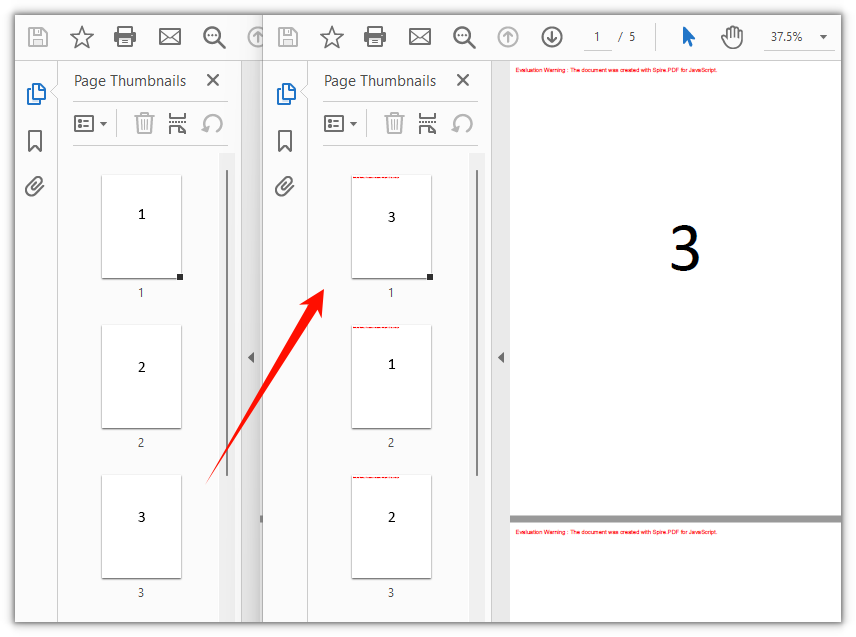
FAQ
The document has fewer pages after rearranging
Cause: ReArrange() rebuilds the page order from the array you pass, so a page whose index is missing from that array never makes it into the result document. Call ReArrange([1, 0]) on a five-page document and the output has two pages.
Solution: To keep the page count unchanged, the array length must equal doc.Pages.Count, with every index from 0 to doc.Pages.Count - 1 appearing exactly once:
// Indices start at 0: a five-page document uses 0, 1, 2, 3 and 4
const pageCount = doc.Pages.Count;
const fullOrder = Array.from({ length: pageCount }, (_, i) => i);
doc.Pages.ReArrange(fullOrder);
Calling ReArrange() reports "The page has existed."
Cause: The array contains a duplicate index, so the same original page is assigned to two positions. One page cannot occupy two positions at the same time, and Spire.PDF raises an error.
Solution: Make sure the array is a permutation of the original page indices — each index appears once and stays within range. For a five-page document the valid indices are 0 to 4.
How to swap only two pages
Cause: ReArrange() always works on the order of the whole document, and there is no shorter overload that swaps two pages on its own.
Solution: Still write the full order array, leaving the untouched positions at their original indices. The line below swaps the first and the second page:
// Swap the first two pages: 0 and 1 trade places, the rest stay put
const swappedOrder = [1, 0, 2, 3, 4];
doc.Pages.ReArrange(swappedOrder);
Get a Free License
If you wish to remove the evaluation message from the result document or remove feature limitations, please contact sales to obtain a temporary license valid for 30 days.