Add, Read, Modify, and Delete Excel Hyperlinks with JavaScript in React
Hyperlinks are a common element in Excel for quickly jumping to web pages, email addresses, or other resources, and they often appear in tables such as product websites, contact information, and reference materials. Spire.XLS for JavaScript uses WebAssembly to add, read, modify, and delete hyperlinks directly in the browser and manages input/output files through a virtual file system (VFS) without any backend support.
This article demonstrates the following common features:
For installation and project configuration, please refer to Integrating Spire.XLS for JavaScript in a React Project. The examples below assume that Spire.XLS is installed and the WebAssembly module has been initialized.
Add a Hyperlink to Text
For cells that contain text such as company names, website names, or email addresses, you can add hyperlinks to the text so that users can click to jump to a web page or send an email.
function App() {
  const addHyperlinkToText = async () => {
    // Get the Spire.XLS WASM module
    const xlsModule = window.wasmModule?.spirexls;

    // Check whether the module is ready
    if (!xlsModule) {
      alert('Spire.Xls is not ready yet');
      return;
    }

    // Load the font and the Excel file into the VFS
    await window.spire.FetchFileToVFS('ARIAL.TTF', '/Library/Fonts/', `${process.env.PUBLIC_URL}/font/`);
    const inputFileName = 'HyperlinksSample.xlsx';
    await window.spire.FetchFileToVFS(inputFileName, '', `${process.env.PUBLIC_URL}data/`);

    // Load the workbook
    const workbook = new xlsModule.Workbook();
    workbook.LoadFromFile({ fileName: inputFileName });

    // Get the first worksheet
    const sheet = workbook.Worksheets.get(0);

    // Add a web hyperlink to the text in cell D10
    const urlLink = sheet.HyperLinks.Add({ range: sheet.Range.get('D10') });
    urlLink.TextToDisplay = sheet.Range.get('D10').Text;
    urlLink.Type = xlsModule.HyperLinkType.Url;
    urlLink.Address = 'https://www.e-iceblue.com/';

    // Add an email hyperlink to the text in cell E10
    const mailLink = sheet.HyperLinks.Add({ range: sheet.Range.get('E10') });
    mailLink.TextToDisplay = sheet.Range.get('E10').Text;
    mailLink.Type = xlsModule.HyperLinkType.Url;
    mailLink.Address = 'mailto:support@e-iceblue.com';

    // Save the workbook
    const outputFileName = 'AddHyperlinkToText_output.xlsx';
    workbook.SaveToFile({ fileName: outputFileName, version: xlsModule.ExcelVersion.Version2010 });

    // Dispose of the workbook
    workbook.Dispose();

    // Read the generated file from the VFS and trigger the download
    const fileArray = window.dotnetRuntime.Module.FS.readFile(outputFileName);
    const blob = new Blob([fileArray], { type: 'application/vnd.openxmlformats-officedocument.spreadsheetml.sheet' });
    const url = URL.createObjectURL(blob);
    const a = document.createElement('a');
    a.href = url;
    a.download = outputFileName;
    a.click();
    URL.revokeObjectURL(url);
  };

  return (
    <div style={{ textAlign: 'center', height: '300px' }}>
      <h1>Add Hyperlink To Text</h1>
      <button onClick={addHyperlinkToText}>Start</button>
    </div>
  );
}

export default App;
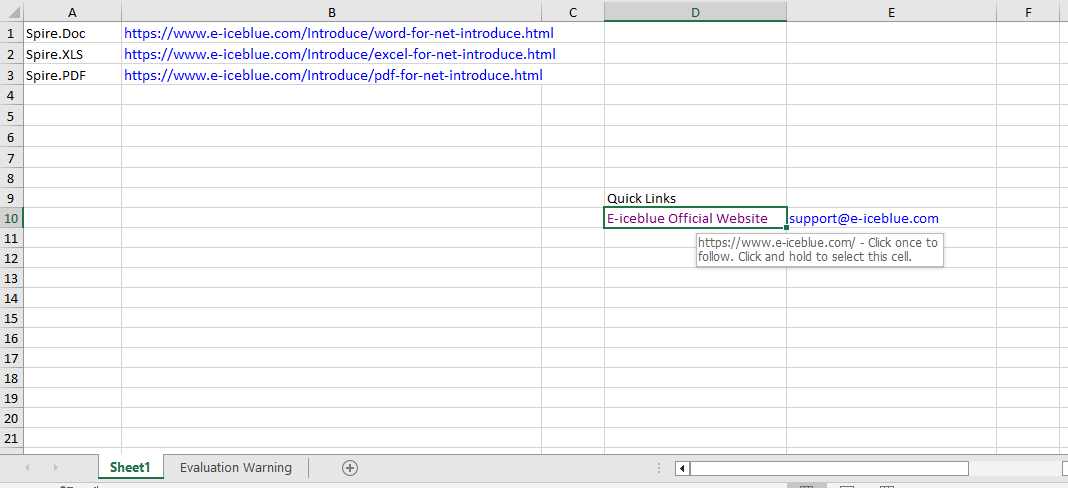
After running, the text in cell D10 becomes a clickable web link, and the email address in cell E10 becomes an email link that can be used to send an email.
Read Hyperlinks
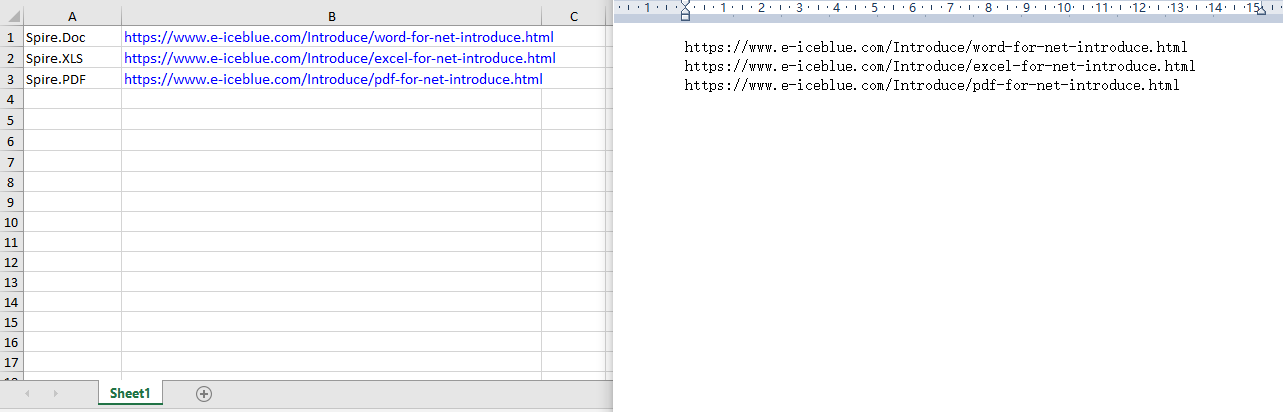
Through the Worksheet.HyperLinks collection, you can get all the hyperlinks in a worksheet and access the target address of each hyperlink by index.
function App() {
  const readHyperlinks = async () => {
    // Get the Spire.XLS WASM module
    const xlsModule = window.wasmModule?.spirexls;

    // Check whether the module is ready
    if (!xlsModule) {
      alert('Spire.Xls is not ready yet');
      return;
    }

    // Load the Excel file into the VFS
    const inputFileName = 'HyperlinksSample.xlsx';
    await window.spire.FetchFileToVFS(inputFileName, '', `${process.env.PUBLIC_URL}data/`);

    // Load the workbook
    const workbook = new xlsModule.Workbook();
    workbook.LoadFromFile({ fileName: inputFileName });

    // Get the first worksheet
    const sheet = workbook.Worksheets.get(0);

    // Read the target addresses of all hyperlinks
    const hyperlinkCount = sheet.HyperLinks.Count;
    let allAddresses = '';

    for (let i = 0; i < hyperlinkCount; i++) {
        const address = sheet.HyperLinks.get(i).Address;
        allAddresses += address + '\n';
    }

    // Save the hyperlink addresses as a txt file
    const outputFileName = 'ReadHyperlinks_output.txt';
    window.dotnetRuntime.Module.FS.writeFile(outputFileName, allAddresses);
    workbook.Dispose();

    // Read the generated file from the VFS and trigger the download
    const fileArray = window.dotnetRuntime.Module.FS.readFile(outputFileName);
    const blob = new Blob([fileArray], { type: 'text/plain' });
    const url = URL.createObjectURL(blob);
    const a = document.createElement('a');
    a.href = url;
    a.download = outputFileName;
    a.click();
    URL.revokeObjectURL(url);
  };

  return (
    <div style={{ textAlign: 'center', height: '300px' }}>
      <h1>Read Hyperlinks</h1>
      <button onClick={readHyperlinks}>Start</button>
    </div>
  );
}

export default App;
Use the HyperLinks.Count property to get the total number of hyperlinks in the worksheet.
Modify a Hyperlink
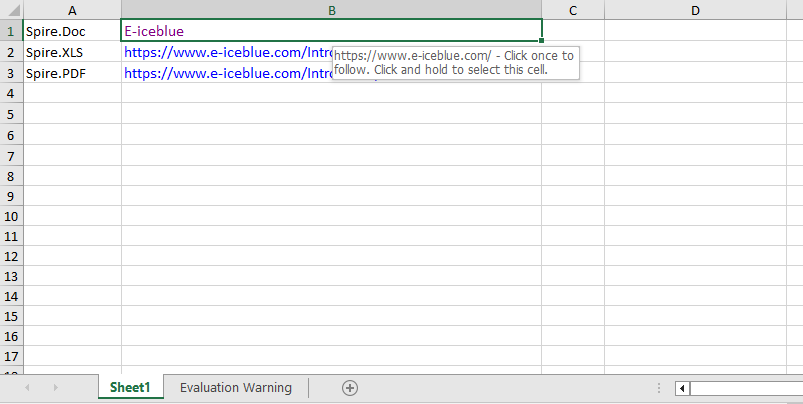
After getting a hyperlink by index with HyperLinks.get(0), you can reset its display text and target address to modify the hyperlink.
function App() {
  const modifyHyperlink = async () => {
    // Get the Spire.XLS WASM module
    const xlsModule = window.wasmModule?.spirexls;

    // Check whether the module is ready
    if (!xlsModule) {
      alert('Spire.Xls is not ready yet');
      return;
    }

    // Load the font and the Excel file into the VFS
    await window.spire.FetchFileToVFS('ARIAL.TTF', '/Library/Fonts/', `${process.env.PUBLIC_URL}/font/`);
    const inputFileName = 'HyperlinksSample.xlsx';
    await window.spire.FetchFileToVFS(inputFileName, '', `${process.env.PUBLIC_URL}data/`);

    // Load the workbook
    const workbook = new xlsModule.Workbook();
    workbook.LoadFromFile({ fileName: inputFileName });

    // Get the first worksheet
    const sheet = workbook.Worksheets.get(0);

    // Get all hyperlinks in the worksheet
    const links = sheet.HyperLinks;

    // Modify the display text and target address of the first hyperlink
    links.get(0).TextToDisplay = 'E-iceblue';
    links.get(0).Address = 'https://www.e-iceblue.com/';

    // Save the workbook
    const outputFileName = 'ModifyHyperlink_output.xlsx';
    workbook.SaveToFile({ fileName: outputFileName, version: xlsModule.ExcelVersion.Version2010 });

    // Dispose of the workbook
    workbook.Dispose();

    // Read the generated file from the VFS and trigger the download
    const fileArray = window.dotnetRuntime.Module.FS.readFile(outputFileName);
    const blob = new Blob([fileArray], { type: 'application/vnd.openxmlformats-officedocument.spreadsheetml.sheet' });
    const url = URL.createObjectURL(blob);
    const a = document.createElement('a');
    a.href = url;
    a.download = outputFileName;
    a.click();
    URL.revokeObjectURL(url);
  };

  return (
    <div style={{ textAlign: 'center', height: '300px' }}>
      <h1>Modify Hyperlink</h1>
      <button onClick={modifyHyperlink}>Start</button>
    </div>
  );
}

export default App;
After modification, both the display text and the target address of the first hyperlink are updated.
Remove Hyperlinks
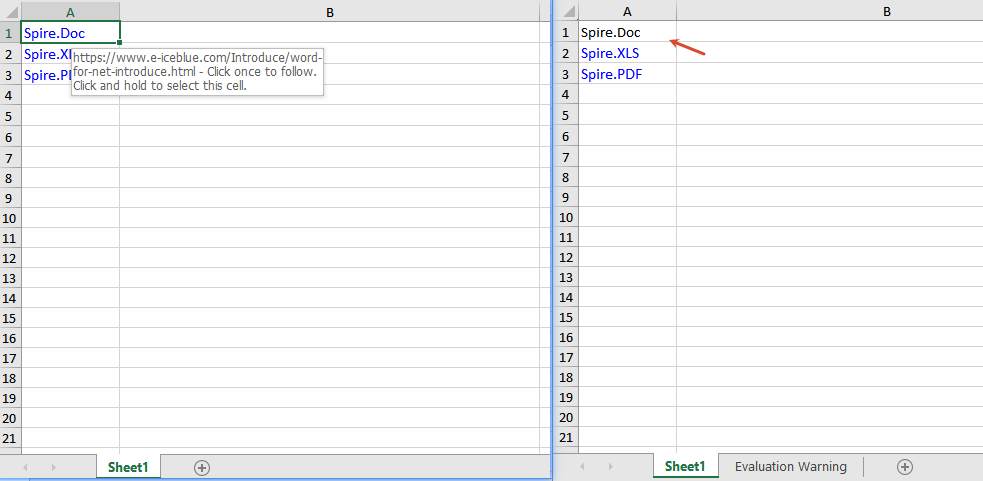
Use the HyperLinks.RemoveAt(index) method to only remove the hyperlink and keep the text, or use the Range.ClearAll() method to clear all content in the cell, including the hyperlink.
function App() {
  const removeHyperlinks = async () => {
    // Get the Spire.XLS WASM module
    const xlsModule = window.wasmModule?.spirexls;

    // Check whether the module is ready
    if (!xlsModule) {
      alert('Spire.Xls is not ready yet');
      return;
    }

    // Load the font and the Excel file into the VFS
    await window.spire.FetchFileToVFS('ARIAL.TTF', '/Library/Fonts/', `${process.env.PUBLIC_URL}/font/`);
    const inputFileName = 'HyperlinksSample.xlsx';
    await window.spire.FetchFileToVFS(inputFileName, '', `${process.env.PUBLIC_URL}data/`);

    // Load the workbook
    const workbook = new xlsModule.Workbook();
    workbook.LoadFromFile({ fileName: inputFileName });

    // Get the first worksheet
    const sheet = workbook.Worksheets.get(0);

    // Get all hyperlinks in the worksheet
    const links = sheet.HyperLinks;

    // Clear all content in the linked cells
    // sheet.Range.get('A1').ClearAll();
    // sheet.Range.get('A2').ClearAll();
    // sheet.Range.get('A3').ClearAll();

    // Only remove the hyperlink and keep the original text
    sheet.HyperLinks.RemoveAt(0);

    // Save the workbook
    const outputFileName = 'RemoveHyperlinks_output.xlsx';
    workbook.SaveToFile({ fileName: outputFileName, version: xlsModule.ExcelVersion.Version2010 });

    // Dispose of the workbook
    workbook.Dispose();

    // Read the generated file from the VFS and trigger the download
    const fileArray = window.dotnetRuntime.Module.FS.readFile(outputFileName);
    const blob = new Blob([fileArray], { type: 'application/vnd.openxmlformats-officedocument.spreadsheetml.sheet' });
    const url = URL.createObjectURL(blob);
    const a = document.createElement('a');
    a.href = url;
    a.download = outputFileName;
    a.click();
    URL.revokeObjectURL(url);
  };

  return (
    <div style={{ textAlign: 'center', height: '300px' }}>
      <h1>Remove Hyperlinks</h1>
      <button onClick={removeHyperlinks}>Start</button>
    </div>
  );
}

export default App;
Frequently Asked Questions
The target address is not updated after modifying the hyperlink
Reason: The wrong hyperlink index was modified, or there is no hyperlink on the target cell.
Solution: Make sure a hyperlink already exists in the worksheet, access it at the correct index such as sheet.HyperLinks.get(0), and then set its Address property.
Get a Free License
If you want to remove the evaluation message from the result documents or get rid of feature limitations, please contact sales to obtain a temporary license valid for 30 days.
How to Generate Government Documents with an AI Agent in C#
In the day-to-day work of government agencies and public institutions, drafting and formatting official documents—notices, directives, reports, and memoranda—is a frequent and highly standardized task. Before an official document is issued, it must be authoritative in tone, precise in wording, and rigorous in logic, and it must also follow a consistent, professional layout: the typeface and size of the title and body text, the hierarchy and formatting of section headings, margins, line spacing, and page numbers should all look uniform across the documents an agency produces. The traditional approach relies on clerical staff to draft documents manually, proofread them repeatedly, and typeset them item by item; a single notice can take more than half a day from draft to a clean, consistent layout, and the formatting details produced by different people often vary.
Comparison with Traditional SDK API Processing
| Traditional Spire.Office for .NET API | Spire.Agent.Office | |
|---|---|---|
| Driving approach | Write code to assemble the official document according to a template: load document → iterate paragraphs → map fields → apply the layout; every step requires code control | Describe the issuing elements in natural language, and AI automatically composes the document and typesets it according to the requested layout |
| Code volume | Requires a large amount of code to maintain official document templates, field mappings, and format rule libraries | Only configuration code + one natural language instruction |
| Style and wording | Can only replace placeholders, unable to handle formal government tone, official titles, and standard administrative expressions | AI generates an authoritative and formal official-document style based on semantics, automatically handling heading hierarchies and transitions |
| Layout rules | Font typefaces and sizes, margins, line spacing, and other formats must be hard-coded into the program, and any change requires a new release | A single phrase such as "format it in the standard official document layout" in the instruction applies the desired layout |
| Maintainability | Different document types and different agencies' requirements need to be developed and maintained with separate templates | Document types, elements, and layout requirements can be adjusted at any time in natural language |
This article explains how to use the Word AI capability of Spire.Agent.Office to achieve intelligent drafting and format standardization of official documents. Together, the two form a complete pipeline from drafting to finalization: first use AI to automatically generate a stylistically standardized, structurally complete first draft based on the issuing points, and then normalize the format of the draft or of existing official documents with one click, so documents from different sources all follow the same standard official document layout.
For product installation and SpireToken configuration, refer to Integrating Spire.Agent.Office in a .NET Project. The examples below assume Spire.Agent.Office is installed and SpireToken is configured.
Intelligent Generation of Official Document Drafts
Intelligent generation of official document drafts is the starting point of the drafting stage, suitable for quickly producing a first draft from scratch. The core idea is: describe in natural language the issuing agency, document type, main recipients, subject matter, and the key points of the body to the AI; the AI automatically composes the document in a formal official-document style with a clear structure, while simultaneously applying the requested standard official document layout, producing a draft that can go directly into the review process in one pass.
using Spire.Agent.Office.AI;
using Spire.Agent.Office.Extensions;
using Spire.Doc;

// Save path
string savePath = "E:\\Output\\output-AirQualityNotice.docx";
// SpireToken Key
string key = "**********************";
// Natural language instruction
string instruction =
    "Please draft a formal public notice in standard official document style. " +
    "1. Issuing authority: [City] Department of Environmental Protection. " +
    "2. Subject: 2026 Fall-Winter Air Quality Initiative. " +
    "3. Recipients: all residents and businesses in the city. " +
    "4. Body: General Requirements; Key Tasks (residential wood smoke and open burning restrictions, vehicle idling reduction, industrial emission compliance); Implementation Requirements. " +
    "Format the notice in a standard official document layout: 12 pt Times New Roman body text, 1-inch margins, double-spaced, justified; bold section headings (I./ II./ III.) and bold-italic subheadings (A./ B./ C.); include the issuing authority, the date, and a distribution list. Save as DOCX.";

// Call the Word document processing function
AIResult result = ExecuteDemoWord(instruction, savePath, key, null);

// Execute Word document AI processing
static AIResult ExecuteDemoWord(string instruction, string savePath, string key, string[] attachmentPaths)
{
    // Create an AIOptions configuration object
    AIOptions options = new AIOptions();
    // Set the SpireToken Key
    options.SpireToken = key;

    // Use the Document object to process the Word document
    using (Document doc = new Document())
    {
        // Create the AI document processor
        AIDocumentProcessor processor = doc.AI(options);

        // Execute the AI instruction
        return processor.ExecuteInstruction(doc, instruction, savePath, attachmentPaths);
    }
}
AI-generated official document draft 
The generated draft is formal in tone and clear in hierarchy; the font typefaces and sizes of the title, body text, and headings at all levels, as well as the margins and line spacing, all follow the requested standard official document layout. Clerical staff only need to verify the facts and figures and add the signer's name and the date before sending it for review, compressing the writing time from hours to a few minutes. For high-frequency document types of the same agency (notices, directives, reports, and memoranda), frequently used elements can also be fixed into a unified instruction to achieve one-click drafting of routine official documents.
Standardization of the Official Document Format
For existing official documents, drafts submitted by field offices, or AI-generated drafts, one-click format standardization can unify their layout to the standard official document format you specify. The core idea is: load an existing official document and let the AI standardize the title, body text, hierarchical headings, margins, line spacing, and page numbers item by item according to the layout rules you describe, while also correcting typos and grammatical errors, so that official documents from different sources present a consistent, professional layout.
using Spire.Agent.Office.AI;
using Spire.Agent.Office.Extensions;
using Spire.Doc;

// Path of the official document to be standardized
string inputPath = "E:\\Input\\Field_Office_Submission.docx";
// Save path
string savePath = "E:\\Output\\Field_Office_Submission-Standardized.docx";
// SpireToken Key
string key = "**********************";
// Natural language instruction
string instruction =
    "Please standardize the layout of the current document to the official document format described below. " +
    "1. Title: 16 pt Times New Roman Bold, centered. " +
    "2. Body: 12 pt Times New Roman, justified, double-spaced. " +
    "3. Section headings (I./ II./ III.): 12 pt Times New Roman Bold; subheadings (A./ B./ C.): 12 pt Times New Roman Bold Italic. " +
    "4. Page margins: 1 inch on all sides. " +
    "5. Page numbers: centered at the bottom of the page, 12 pt. " +
    "6. Correct typos and grammatical errors without altering the original meaning. " +
    "Save and output in DOCX format.";

// Call the Word document processing function
AIResult result = ExecuteDemoWord(instruction, inputPath, savePath, key, null);

// Execute Word document AI processing
static AIResult ExecuteDemoWord(string instruction, string inputPath, string savePath, string key, string[] attachmentPaths)
{
    // Create an AIOptions configuration object
    AIOptions options = new AIOptions();
    // Set the SpireToken Key
    options.SpireToken = key;

    // Use the Document object to process the Word document
    using (Document doc = new Document())
    {
        // Load the official document to be standardized
        if (!string.IsNullOrEmpty(inputPath) && File.Exists(inputPath))
        {
            doc.LoadFromFile(inputPath);
        }
        // Create the AI document processor
        AIDocumentProcessor processor = doc.AI(options);

        // Execute the AI instruction
        return processor.ExecuteInstruction(doc, instruction, savePath, attachmentPaths);
    }
}
Official document after format standardization 
After format standardization, the title, body text, hierarchical headings, margins, line spacing, and page numbers of the official document all conform to the specified official document layout, and the same instruction can be applied to multiple documents in batch. For drafts submitted by field offices, the appearance of official documents across an entire agency can be quickly unified; you can also ask the AI to correct obvious grammatical errors during standardization, reducing the burden of manual review.
FAQ
The generated official document style is nonstandard or too colloquial
Reason: AI's grasp of the official document style depends on the description of the document type, the issuing agency and recipients, and the intended tone in the instruction; when the description is too general, the wording may become colloquial.
Solution: Clearly specify the document type, issuing agency, and main recipients in the instruction, and add requirements such as "use a formal official-document style and tone, with precise and concise wording". If necessary, attach a sample document your agency has already issued as a reference attachment.
The layout is inconsistent with your agency's requirements after format standardization
Reason: Different agencies may have special layout requirements for their own official documents (such as the style of the letterhead, dedicated fonts, and the arrangement of the signature and date), which a general instruction does not fully cover.
Solution: Supplement the instruction with your own agency's detailed layout rules (margins, font typefaces and sizes, letterhead, and the position of the signature and date, etc.), or pass the agency's layout template as an attachment so that AI applies it according to the template.
The generated official document content contains fabricated information
Reason: The writing points are described too briefly, and AI supplements content such as dates and figures on its own to complete the structure.
Solution: Write key elements such as the basis for issuance, time frames, and any figures into the instruction, and explicitly require that "elements not provided should be marked as blank or placeholders and must not be fabricated".
Layouts are not uniform after processing multiple official documents
Reason: The details described differ between instructions, or documents from different sources differ greatly in their base styles, so the formats may diverge after individual processing.
Solution: Use exactly the same layout description for documents in the same batch, fix the rule that "all documents must be typeset strictly according to the same layout rules", and repeatedly emphasize the key formatting items (such as fixed line spacing and a first-line indent of 2 characters) in the instruction.
Get the SpireToken Key
- Contact sales@e-iceblue.com or visit https://www.e-iceblue.com/TemLicense.html to obtain a trial/commercial API key
Configure it in your code:
AIOptions options = new AIOptions();
options.SpireToken = key;
Add Image Watermarks to PDF with JavaScript in React
PDF has a fixed layout and is easy to distribute, but once its content has been generated, it is difficult to modify within the body text. For documents such as contracts, reports, and notices, you often need to indicate the confidentiality level, copyright ownership, or usage states such as "Draft" and "Sample" without affecting the reading of the body content. Besides the text watermarks mentioned above, image watermarks made from a company logo, seal, or warning image are also quite common: they float over the content as semi-transparent images, conveying the brand and status information clearly without harming the readability of the original.
Spire.PDF for JavaScript loads, draws, and saves PDFs directly in the browser via WebAssembly, managing input and output files through a virtual file system (VFS) without requiring a backend server. Image watermarking usually takes two forms: one places a single image watermark at a specified position on the page (such as the center of the page), which can be achieved directly by loading the image with PdfImage.FromFile and combining the transparency settings of the page canvas with the DrawImage method; the other repeats the image across the whole page, which can be done with the PdfTilingBrush tiling brush.
This article covers two core features:
For installation and project setup, refer to Integrating Spire.PDF for JavaScript in a React Project. The examples below assume Spire.PDF is installed and the WebAssembly module is initialized.
Add a Single Image Watermark to PDF
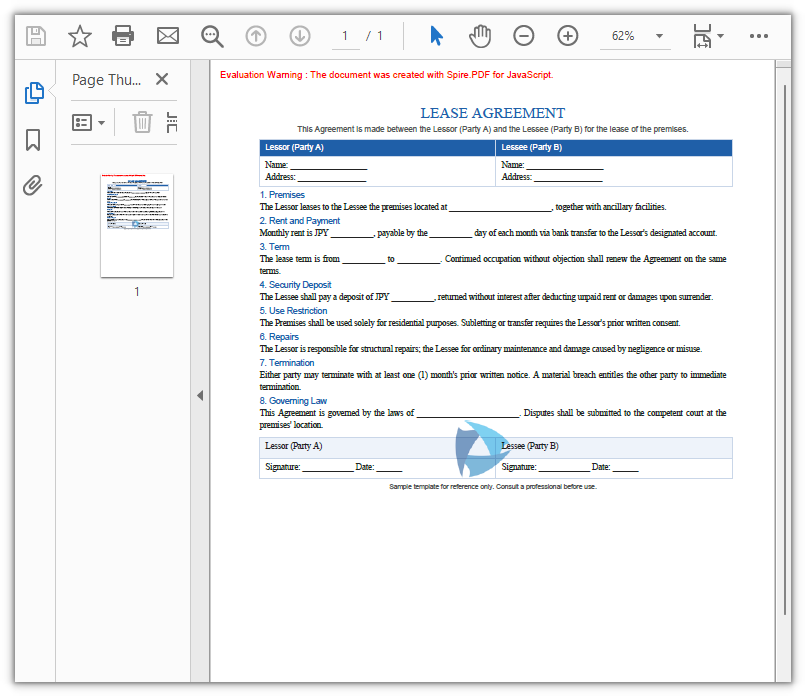
A single image watermark places a semi-transparent image at a specified position on the page (in this example, the center of each page), suitable for placing a company logo or warning sign in a prominent position of the document. The approach is as follows: load the image from a file with PdfImage.FromFile; then, on the canvas of each page, save the state with Save, set the transparency and blend mode with SetTransparency, draw the image at the centered position with DrawImage, and finally restore the canvas state with Restore.
function App() {
  const addSingleImageWatermark = async () => {
    // Get the Spire.PDF WASM module
    const pdfModule = window.wasmModule?.spirepdf;

    // Check whether the WASM module is ready
    if (!pdfModule) {
      alert('Spire.PDF is not ready yet');
      return;
    }

    // Load the PDF file to be watermarked into VFS
    const inputFileName = 'Lease_Agreement_EN.pdf';
    await window.spire.FetchFileToVFS(inputFileName, "", `${process.env.PUBLIC_URL}/data/`);

    // Load the watermark image into VFS
    const inputImageName = 'logo.png';
    await window.spire.FetchFileToVFS(inputImageName, "", `${process.env.PUBLIC_URL}/data/`);

    // Create a PdfDocument object and load the PDF document
    let doc = new pdfModule.PdfDocument();
    doc.LoadFromFile(inputFileName);

    // Load the watermark image from a file
    let image = pdfModule.PdfImage.FromFile(inputImageName);

    // Loop through all the pages in the document
    for (let i = 0; i < doc.Pages.Count; i++) {
      // Get the specified page
      let page = doc.Pages.get_Item(i);

      // Save the canvas state, and set the semi-transparency (alpha 0.5) with the Multiply blend mode
      page.Canvas.Save();
      page.Canvas.SetTransparency({ alphaPen: 0.5, alphaBrush: 0.5, blendMode: pdfModule.PdfBlendMode.Multiply });

      // Compute the centered drawing position: subtract the image size from the page size and halve the result
      let position = new pdfModule.PointF(
        (page.Canvas.Size.Width - image.Width) / 2,
        (page.Canvas.Size.Height - image.Height) / 2
      );

      // Draw the watermark image at the center of the page
      page.Canvas.DrawImage({ image: image, point: position });

      // Restore the previous state of the canvas
      page.Canvas.Restore();
    }

    // Define the output file name and save the document
    const outputFileName = 'SingleImageWatermark.pdf';
    doc.SaveToFile(outputFileName);
    doc.Close();

    // Read the generated file from VFS and trigger the download
    const fileArray = window.dotnetRuntime.Module.FS.readFile(outputFileName);
    const blob = new Blob([fileArray], { type: 'application/pdf' });
    const url = URL.createObjectURL(blob);
    const a = document.createElement('a');
    a.href = url;
    a.download = outputFileName;
    a.click();
    URL.revokeObjectURL(url);
  };

  return (
    <div style={{ textAlign: 'center', height: '300px' }}>
      <h1>Add Single Image Watermark To PDF</h1>
      <button onClick={addSingleImageWatermark}>
        Generate
      </button>
    </div>
  );
}

export default App;
PDF document after adding the single image watermark
Add a Tiled Image Watermark to PDF
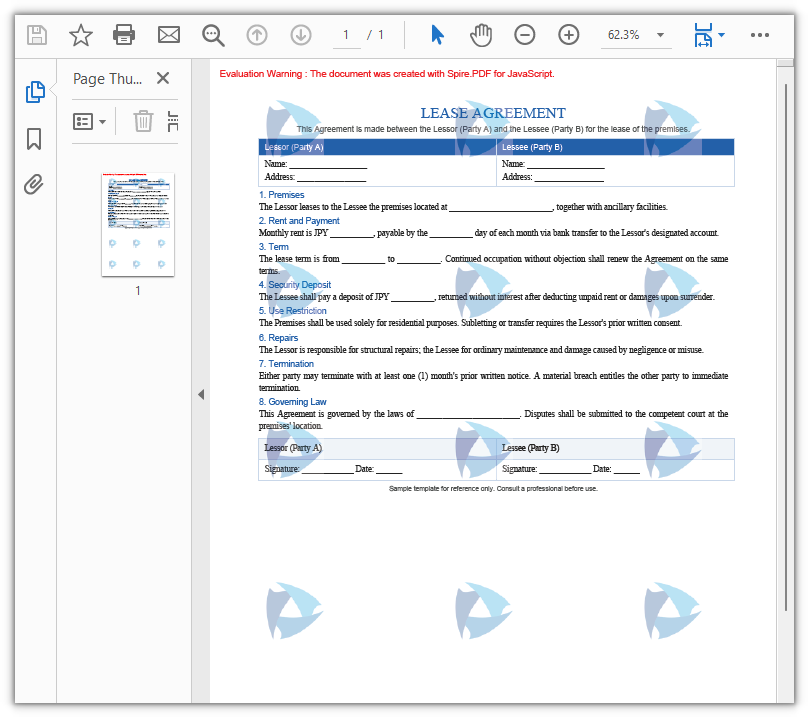
When you need the watermark to fill the whole page and form a faint background texture, use a tiled image watermark. The approach is as follows: load the image with PdfImage.FromFile; divide the page into tiling cells according to the page size with PdfTilingBrush; inside the graphics context of the brush, lower the transparency with SetTransparency and draw the image within the cell with DrawImage; finally fill the whole page with the brush using DrawRectangle so that the image repeats row by row and column by column, covering the entire page.
function App() {
  const addTiledImageWatermark = async () => {
    // Get the Spire.PDF WASM module
    const pdfModule = window.wasmModule?.spirepdf;

    // Check whether the WASM module is ready
    if (!pdfModule) {
      alert('Spire.PDF is not ready yet');
      return;
    }

    // Load the PDF file to be watermarked into VFS
    const inputFileName = 'Lease_Agreement_EN.pdf';
    await window.spire.FetchFileToVFS(inputFileName, "", `${process.env.PUBLIC_URL}/data/`);

    // Load the watermark image into VFS
    const inputImageName = 'logo.png';
    await window.spire.FetchFileToVFS(inputImageName, "", `${process.env.PUBLIC_URL}/data/`);

    // Create a PdfDocument object and load the PDF document
    let doc = new pdfModule.PdfDocument();
    doc.LoadFromFile(inputFileName);

    // Load the watermark image from a file
    let image = pdfModule.PdfImage.FromFile(inputImageName);

    // Loop through all the pages in the document
    for (let i = 0; i < doc.Pages.Count; i++) {
      // Get the specified page
      let page = doc.Pages.get_Item(i);

      // Create a tiling brush: use one third of the page width and one fifth of the page height as the tiling cell
      let size = new pdfModule.SizeF({
        width: page.Canvas.Size.Width / 3,
        height: page.Canvas.Size.Height / 5
      });
      let brush = new pdfModule.PdfTilingBrush({ size: size });

      // Set the watermark transparency to 30%
      brush.Graphics.SetTransparency({ alpha: 0.3 });

      // Draw the watermark image at the center of the tiling cell
      let point = new pdfModule.PointF(
        (brush.Size.Width - image.Width) / 2,
        (brush.Size.Height - image.Height) / 2
      );
      brush.Graphics.DrawImage({ image: image, point: point });

      // Fill a whole-page rectangle with the tiling brush so that the image watermark tiles across the entire page
      let rect = new pdfModule.RectangleF({
        location: new pdfModule.PointF(0, 0),
        size: page.Canvas.Size
      });
      page.Canvas.DrawRectangle({ brush: brush, rectangle: rect });
    }

    // Define the output file name and save the document
    const outputFileName = 'TiledImageWatermark.pdf';
    doc.SaveToFile(outputFileName);
    doc.Close();

    // Read the generated file from VFS and trigger the download
    const fileArray = window.dotnetRuntime.Module.FS.readFile(outputFileName);
    const blob = new Blob([fileArray], { type: 'application/pdf' });
    const url = URL.createObjectURL(blob);
    const a = document.createElement('a');
    a.href = url;
    a.download = outputFileName;
    a.click();
    URL.revokeObjectURL(url);
  };

  return (
    <div style={{ textAlign: 'center', height: '300px' }}>
      <h1>Add Tiled Image Watermark To PDF</h1>
      <button onClick={addTiledImageWatermark}>
        Generate
      </button>
    </div>
  );
}

export default App;
PDF document after adding the tiled image watermark
FAQ
How to control the transparency of an image watermark
Reason: An image watermark is layered over the body content as an image; if its transparency is not lowered, it will obscure the content underneath.
Solution: Before drawing, save the canvas state with Save, and then set the transparency with SetTransparency, whose value is specified by alphaPen and alphaBrush ranging from 0 (fully transparent) to 1 (opaque). To make the watermark blend naturally with the background, you can also specify a blend mode through blendMode, such as PdfBlendMode.Multiply. After drawing, restore the canvas state with Restore to avoid affecting subsequent drawing:
// Save the canvas state, set the semi-transparency and the Multiply blend mode, then draw the watermark image
page.Canvas.Save();
page.Canvas.SetTransparency({ alphaPen: 0.5, alphaBrush: 0.5, blendMode: pdfModule.PdfBlendMode.Multiply });
page.Canvas.DrawImage({ image: image, point: position });
page.Canvas.Restore();
How to specify the position of an image watermark
Reason: If no position is passed, DrawImage draws the image at the default coordinates, making it impossible to precisely control where the watermark lands.
Solution: DrawImage supports passing a PointF position or x, y coordinates. To center the image, subtract the image size from the page size and halve the result to get the centering coordinates:
// Compute the centered position: subtract the image size from the page size and halve the result
let point = new pdfModule.PointF(
  (page.Canvas.Size.Width - image.Width) / 2,
  (page.Canvas.Size.Height - image.Height) / 2
);

// Draw the watermark image at the specified position
page.Canvas.DrawImage({ image: image, point: point });
How to adjust the density of a tiled image watermark
Reason: The density of a tiled image watermark is determined by the size (tiling cell size) of the PdfTilingBrush tiling brush.
Solution: The smaller the tiling cell, the denser the repeated images; the larger the cell, the sparser they are. Set size to a certain ratio of the page width and height to tile the images row by row and column by column — for example, using one third of the page width and one fifth of the page height as one cell yields a moderately spaced watermark texture. To make it sparser, increase the divisor (such as Width / 4); to make it denser, decrease the divisor:
// Create a tiling brush: use one third of the page width and one fifth of the page height as the tiling cell
let size = new pdfModule.SizeF({
  width: page.Canvas.Size.Width / 3,
  height: page.Canvas.Size.Height / 5
});
let brush = new pdfModule.PdfTilingBrush({ size: size });
Get a Free License
If you want to remove the evaluation messages in the resulting documents or get rid of functional limitations, contact sales to obtain a 30-day temporary license.
Add Text Watermarks to PDF with JavaScript in React
PDF has a fixed layout and is easy to distribute, but once its content has been generated, it is difficult to modify within the body text. For documents such as contracts, reports, and notices, you often need to indicate the confidentiality level, copyright ownership, or usage states such as "Draft" and "Sample" without affecting the reading of the body content. A text watermark is a common solution to this problem: it floats over the content as semi-transparent text, conveying the information clearly without harming the readability of the original.
Spire.PDF for JavaScript loads, draws, and saves PDFs directly in the browser via WebAssembly, managing input and output files through a virtual file system (VFS) without requiring a backend server. Text watermarking usually takes two forms: one places a single line of watermark text diagonally across the center of each page, which can be achieved directly through the transparency settings and coordinate-system transformations of the page canvas; the other tiles text repeatedly across the whole page, which can be done with the PdfTilingBrush tiling brush.
This article covers two core features:
For installation and project setup, refer to Integrating Spire.PDF for JavaScript in a React Project. The examples below assume Spire.PDF is installed and the WebAssembly module is initialized.
Add a Single-Line Text Watermark to PDF
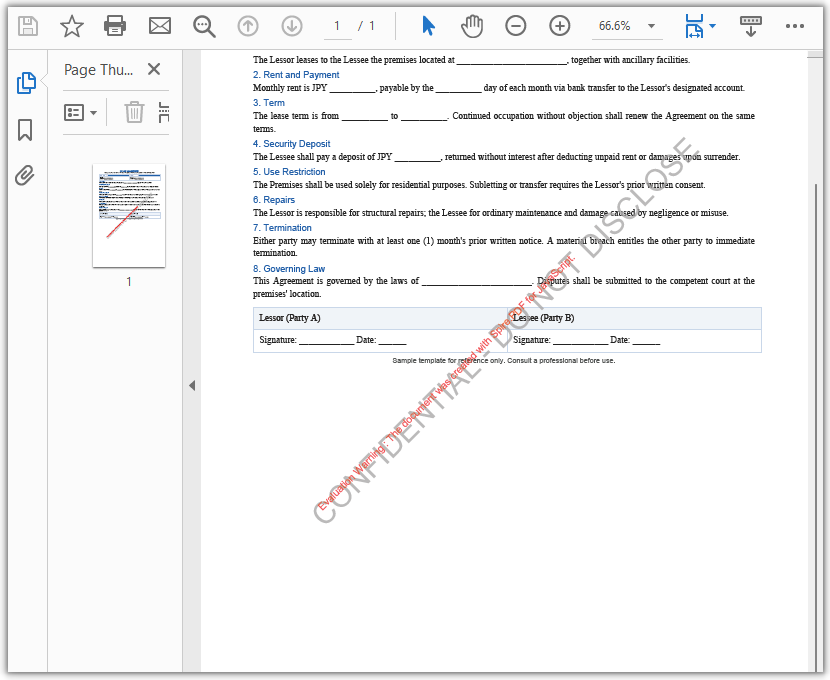
A single-line text watermark places a line of diagonal text at the center of each page, suitable for marking confidentiality levels or copyright ownership. The approach is as follows: use a PdfTrueTypeFont based on a font that supports the characters you need, together with MeasureString, to measure the text size and compute the centering offset; then, page by page, set the transparency and rotate the coordinate system through SetTransparency, TranslateTransform, and RotateTransform; and finally draw the watermark text with DrawString.
function App() {
  const addSingleLineTextWatermark = async () => {
    // Get the Spire.PDF WASM module
    const pdfModule = window.wasmModule?.spirepdf;

    // Check whether the WASM module is ready
    if (!pdfModule) {
      alert('Spire.PDF is not ready yet');
      return;
    }

    // Load a TrueType font into VFS
    await window.spire.FetchFileToVFS('ARIAL UNICODE MS.TTF', '/Library/Fonts/', `${process.env.PUBLIC_URL}/font/`);

    // Load the PDF file to be watermarked into VFS
    const inputFileName = 'Lease_Agreement_EN.pdf';
    await window.spire.FetchFileToVFS(inputFileName, "", `${process.env.PUBLIC_URL}/data/`);

    // Create a PdfDocument object and load the PDF document
    let doc = new pdfModule.PdfDocument();
    doc.LoadFromFile(inputFileName);

    // Create a TrueType font: bold, 30 point
    let trueTypeFont = new pdfModule.PdfTrueTypeFont({
      fontFamily: 'Arial Unicode MS',
      size: 30,
      style: pdfModule.PdfFontStyle.Bold,
      unicode: true
    });


    // Create the watermark brush and specify the watermark text
    let brush = pdfModule.PdfBrushes.get_DarkGray();
    const text = 'CONFIDENTIAL - DO NOT DISCLOSE';

    // Measure the size of the watermark text
    let textSize = trueTypeFont.MeasureString({ text: text });

    // Compute two offsets to determine the coordinate translation, so that the watermark is centered diagonally
    let offset1 = (textSize.Width * Math.sqrt(2)) / 4;
    let offset2 = (textSize.Height * Math.sqrt(2)) / 4;
    let format = new pdfModule.PdfStringFormat({ alignment: pdfModule.PdfTextAlignment.Left });

    // Loop through all the pages in the document
    for (let i = 0; i < doc.Pages.Count; i++) {
      // Get the specified page
      let page = doc.Pages.get_Item(i);

      // Set the page transparency
      page.Canvas.SetTransparency(0.8);

      // Translate the coordinate system to the center of the page and compensate for the offset caused by the text size
      page.Canvas.TranslateTransform(
        page.Canvas.ClientSize.Width / 2 - offset1 - offset2,
        page.Canvas.ClientSize.Height / 2 + offset1 - offset2
      );

      // Rotate the coordinate system counterclockwise by 45 degrees
      page.Canvas.RotateTransform({ angle: -45 });

      // Draw the watermark text on the page
      page.Canvas.DrawString({ s: text, font: trueTypeFont, brush: brush, x: 0, y: 0, format: format });
    }

    // Define the output file name and save the document
    const outputFileName = 'SingleLineTextWatermark.pdf';
    doc.SaveToFile(outputFileName);
    doc.Close();

    // Read the generated file from VFS and trigger the download
    const fileArray = window.dotnetRuntime.Module.FS.readFile(outputFileName);
    const blob = new Blob([fileArray], { type: 'application/pdf' });
    const url = URL.createObjectURL(blob);
    const a = document.createElement('a');
    a.href = url;
    a.download = outputFileName;
    a.click();
    URL.revokeObjectURL(url);
  };

  return (
    <div style={{ textAlign: 'center', height: '300px' }}>
      <h1>Add Single-line Text Watermark To PDF</h1>
      <button onClick={addSingleLineTextWatermark}>
        Generate
      </button>
    </div>
  );
}

export default App;
PDF document after adding the single-line text watermark
Add a Multiline Text Watermark to PDF
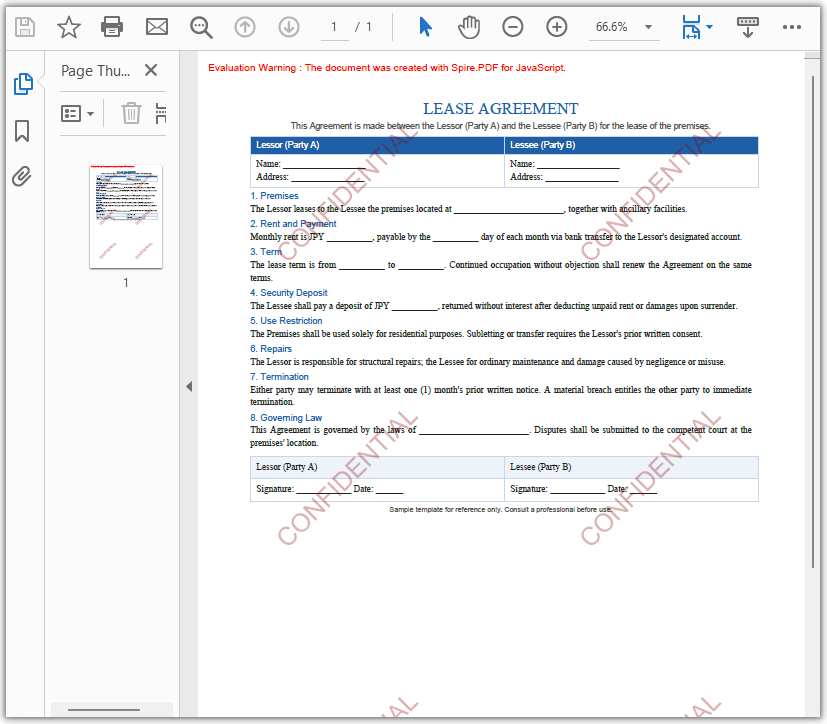
When you need the watermark to fill the entire page, use a multiline text watermark. The approach is as follows: use PdfTilingBrush to divide the page into tiling cells according to the page size; inside a cell, adjust the transparency and angle with SetTransparency and RotateTransform and draw the text with DrawString; finally fill the whole page with the brush using DrawRectangle.
function App() {
  const addMultilineTextWatermark = async () => {
    // Get the Spire.PDF WASM module
    const pdfModule = window.wasmModule?.spirepdf;

    // Check whether the WASM module is ready
    if (!pdfModule) {
      alert('Spire.PDF is not ready yet');
      return;
    }

    // Load the PDF file to be watermarked into VFS
    const inputFileName = 'Lease_Agreement_EN.pdf';
    await window.spire.FetchFileToVFS(inputFileName, "", `${process.env.PUBLIC_URL}/data/`);

    // Create a PdfDocument object and load the PDF document
    let doc = new pdfModule.PdfDocument();
    doc.LoadFromFile(inputFileName);

    // Get the first page of the document
    let page = doc.Pages.get_Item(0);

    // Create a tiling brush: use half the page width and one third of the page height as the tiling cell
    let size = new pdfModule.SizeF({
      width: page.Canvas.ClientSize.Width / 2,
      height: page.Canvas.ClientSize.Height / 3
    });
    let brush = new pdfModule.PdfTilingBrush({ size: size });

    // Set the watermark transparency to 30%
    brush.Graphics.SetTransparency(0.3);

    // Save the current state of the brush, then translate and rotate the coordinate system so that the watermark is arranged diagonally
    brush.Graphics.Save();
    brush.Graphics.TranslateTransform(brush.Size.Width / 2, brush.Size.Height / 2);
    brush.Graphics.RotateTransform({ angle: -45 });

    // Draw the tiled watermark
    let format = new pdfModule.PdfStringFormat({ alignment: pdfModule.PdfTextAlignment.Center });

    // Create font: bold, 25 point
    let font = new pdfModule.PdfFont({ fontFamily: pdfModule.PdfFontFamily.Helvetica, size: 25 });

    // Draw the watermark text
    brush.Graphics.DrawString({
      s: "CONFIDENTIAL",
      font: font,
      brush: pdfModule.PdfBrushes.get_DarkRed(),
      x: 0,
      y: -18,
      format: format
    });

    // Restore the previous state of the brush and set it back to opaque
    brush.Graphics.Restore();
    brush.Graphics.SetTransparency({ alpha: 1 });

    // Fill a whole-page rectangle with the tiling brush so that the watermark text tiles across the entire page
    let rect = new pdfModule.RectangleF({
      location: new pdfModule.PointF(0, 0),
      size: page.Canvas.ClientSize
    });
    page.Canvas.DrawRectangle({ brush: brush, rectangle: rect });

    // Define the output file name and save the document
    const outputFileName = 'MultilineTextWatermark.pdf';
    doc.SaveToFile(outputFileName);
    doc.Close();

    // Read the generated file from VFS and trigger the download
    const fileArray = window.dotnetRuntime.Module.FS.readFile(outputFileName);
    const blob = new Blob([fileArray], { type: 'application/pdf' });
    const url = URL.createObjectURL(blob);
    const a = document.createElement('a');
    a.href = url;
    a.download = outputFileName;
    a.click();
    URL.revokeObjectURL(url);
  };

  return (
    <div style={{ textAlign: 'center', height: '300px' }}>
      <h1>Add Multiline Text Watermark To PDF</h1>
      <button onClick={addMultilineTextWatermark}>
        Generate
      </button>
    </div>
  );
}

export default App;
PDF document after adding the multiline text watermark
FAQ
How to set the font, size, and color of the watermark text
Reason: DrawString requires you to explicitly specify the font and brush used to draw the text.
Solution: The font, size, and color of the watermark text are determined by the font and brush passed to DrawString. For Latin text, create a PdfFont based on a built-in PdfFontFamily such as Helvetica, and set the color through the brush:
// Create a built-in font: Helvetica, 24 point
let font = new pdfModule.PdfFont({
  fontFamily: pdfModule.PdfFontFamily.Helvetica,
  size: 24
});

// Set the watermark color through the brush
let brush = pdfModule.PdfBrushes.get_DarkRed();

// Draw the watermark text on the page canvas
page.Canvas.DrawString({ s: 'CONFIDENTIAL', font: font, brush: brush, x: 0, y: 0, format: format });
If you need a font that is not built in — for example, to display non-Latin scripts such as Chinese or Japanese, or to apply a specific typeface — load the corresponding TrueType font into VFS and use PdfTrueTypeFont instead, as shown in the single-line text watermark example.
How to add a watermark to every page of a PDF
Reason: In the single-line text watermark example, a page loop applies the watermark to every page, while the multiline text watermark example only targets the first page through doc.Pages.get_Item(0).
Solution: To make the multiline watermark cover the entire document as well, move the creation of the tiling brush and the page fill into the page loop:
for (let i = 0; i < doc.Pages.Count; i++) {
  let page = doc.Pages.get_Item(i);

  // Create a tiling brush and set the transparency, rotation, and text
  let size = new pdfModule.SizeF({
    width: page.Canvas.ClientSize.Width / 2,
    height: page.Canvas.ClientSize.Height / 3
  });
  let brush = new pdfModule.PdfTilingBrush({ size: size });
  // …… set transparency, rotate, and draw the watermark text ……

  // Fill the current page with the tiling brush
  page.Canvas.DrawRectangle({
    brush: brush,
    rectangle: new pdfModule.RectangleF({ location: new pdfModule.PointF(0, 0), size: page.Canvas.ClientSize })
  });
}
How to control the transparency and rotation angle of the watermark
Reason: Too high or too low transparency affects the appearance of the watermark, and the rotation angle determines the direction of the watermark text.
Solution: Use SetTransparency to set the transparency, whose value ranges from 0 (fully transparent) to 1 (opaque); use RotateTransform to control the coordinate-system rotation angle, where a negative value means counterclockwise rotation. The single-line example sets the transparency to 0.8 and rotates by -45 degrees, and the multiline tiling example makes the same settings within the graphics context of the tiling brush:
// Single-line watermark: set the page transparency and rotate the page canvas
page.Canvas.SetTransparency(0.8);
page.Canvas.RotateTransform({ angle: -45 });

// Multiline tiled watermark: set the transparency and rotation within the graphics context of the tiling brush
brush.Graphics.SetTransparency(0.3);
brush.Graphics.RotateTransform({ angle: -45 });
Get a Free License
If you want to remove the evaluation messages in the resulting documents or get rid of functional limitations, contact sales to obtain a 30-day temporary license.
Convert PDF to Excel with JavaScript in React
PDF has a fixed layout and is easy to distribute, but the tabular data within it is hard to edit and analyze directly; Excel (XLSX) is the common format in the spreadsheet domain, supporting formulas, sorting, filtering, and further processing. Real-world business often requires converting reports, invoices, and data tables in PDF to Excel for continued editing, summarization, or entry into systems. Because the underlying models of PDF and Excel differ significantly, the layout strategy during conversion has a notable impact on result quality.
Spire.PDF for JavaScript completes PDF-to-Excel conversion entirely in the browser via WebAssembly, managing input and output files through a virtual file system (VFS) with no backend server required. In addition to simple regular conversion, it also provides two types of conversion options, XlsxLineLayoutOptions and XlsxTextLayoutOptions, to help you control the row layout and text layout of the converted result.
This article covers three core features:
- Convert PDF to Excel Using the Regular Method
- Convert PDF to Excel Using XlsxLineLayoutOptions
- Convert PDF to Excel Using XlsxTextLayoutOptions
For installation and project setup, refer to Integrating Spire.PDF for JavaScript in a React Project. The examples below assume Spire.PDF is installed and the WebAssembly module is initialized.
Convert PDF to Excel Using the Regular Method
The regular conversion is the most direct way to convert PDF to Excel: after creating a PdfDocument object and loading the PDF, simply save it as an Excel document by specifying FileFormat.XLSX in the SaveToFile method, without setting any conversion options. Spire.PDF parses the text, table, and graphic content of the PDF using the default strategy, which suits most conversion needs for regular documents; when the default result cannot meet specific layout requirements, consider using XlsxLineLayoutOptions or XlsxTextLayoutOptions for fine-grained control.
function App() {
  const convertToExcel = async () => {
    // Get the Spire.PDF WASM module
    const pdfModule = window.wasmModule?.spirepdf;

    // Check if the WASM module is ready
    if (!pdfModule) {
      alert('Spire.PDF is not ready yet');
      return;
    }

    // Load the PDF file and fonts into VFS
    await window.spire.FetchFileToVFS('ARIAL.TTF', '/Library/Fonts/', `${process.env.PUBLIC_URL}/font/`);
    const inputFileName = 'FinancialStatement2025.pdf';
    await window.spire.FetchFileToVFS(inputFileName, "", `${process.env.PUBLIC_URL}/data/`);

    // Create PdfDocument object and load the PDF document
    let doc = new pdfModule.PdfDocument();
    doc.LoadFromFile(inputFileName);

    // Define the output file name in Excel format
    const outputFileName = 'OutputExcel.xlsx';

    // Save as Excel format
    doc.SaveToFile({ fileName: outputFileName, fileFormat: pdfModule.FileFormat.XLSX });
    doc.Close();

    // Read the converted file from VFS and trigger download
    const fileArray = window.dotnetRuntime.Module.FS.readFile(outputFileName);
    const blob = new Blob([fileArray], { type: 'application/vnd.openxmlformats-officedocument.spreadsheetml.sheet' });
    const url = URL.createObjectURL(blob);
    const a = document.createElement('a');
    a.href = url;
    a.download = outputFileName;
    a.click();
    URL.revokeObjectURL(url);
  };

  return (
    <div style={{ textAlign: 'center', height: '300px' }}>
      <h1>Convert PDF To Excel</h1>
      <button onClick={convertToExcel}>
        Generate
      </button>
    </div>
  );
}

export default App;
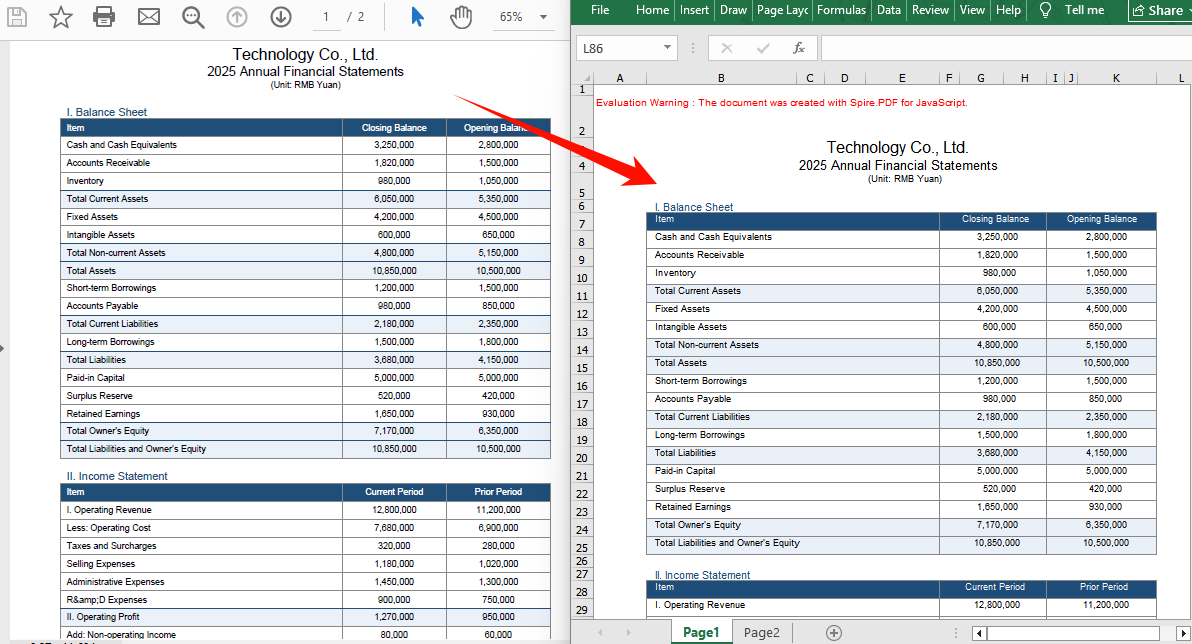
Excel document generated using the regular conversion method
Convert PDF to Excel Using XlsxLineLayoutOptions
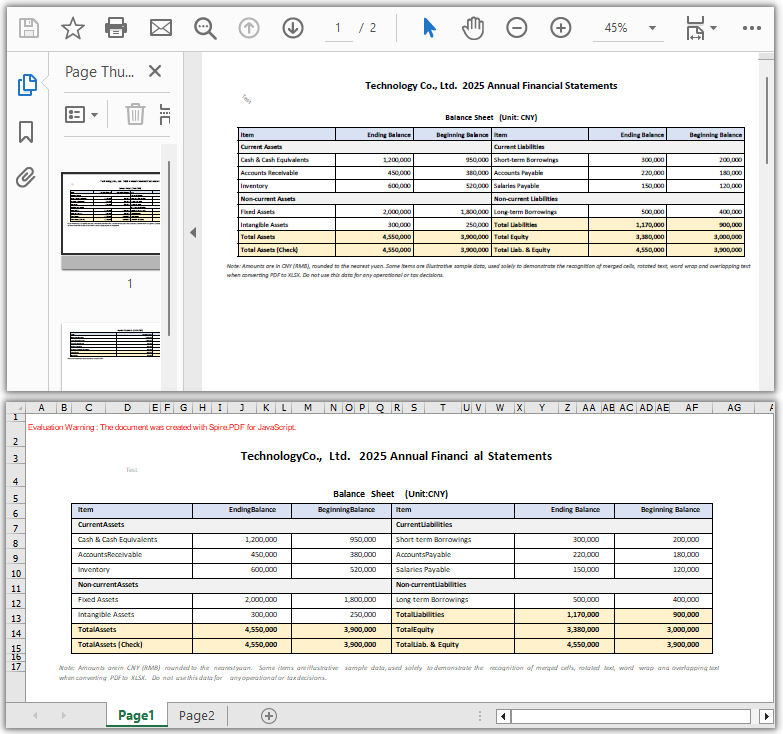
Line elements such as table borders, separator lines, and graphics need to be controlled through row layout options for their preservation during conversion to Excel. XlsxLineLayoutOptions provides several row layout parameters: whether to convert to multiple worksheets, whether to keep rotated text, whether to split cells containing multiple lines of text, whether to wrap text, and whether to keep overlapping text. Pass this option to the ConvertOptions SetPdfToXlsxOptions method, then save with SaveToFile specifying FileFormat.XLSX to complete the conversion.
function App() {
  const convertToExcel = async () => {
    // Get the Spire.PDF WASM module
    const pdfModule = window.wasmModule?.spirepdf;

    // Check if the WASM module is ready
    if (!pdfModule) {
      alert('Spire.PDF is not ready yet');
      return;
    }

    // Load the PDF file and fonts into VFS
    await window.spire.FetchFileToVFS('ARIAL.TTF', '/Library/Fonts/', `${process.env.PUBLIC_URL}/font/`);
    const inputFileName = 'FinancialStatement.pdf';
    await window.spire.FetchFileToVFS(inputFileName, "", `${process.env.PUBLIC_URL}/data/`);

    // Create PdfDocument object and load the PDF document
    let doc = new pdfModule.PdfDocument();
    doc.LoadFromFile(inputFileName);

    // Create row layout conversion options
    // Parameters: whether to convert to multiple worksheets, whether to keep rotated text, whether to split cells, whether to wrap text, whether to keep overlapping text
    let lineLayoutOptions = new pdfModule.XlsxLineLayoutOptions(true, true, false, true, true);
    doc.ConvertOptions.SetPdfToXlsxOptions(lineLayoutOptions);

    // Define the output file name in Excel format
    const outputFileName = 'LineLayoutOptions.xlsx';

    // Save as Excel format
    doc.SaveToFile({ fileName: outputFileName, fileFormat: pdfModule.FileFormat.XLSX });
    doc.Close();

    // Read the converted file from VFS and trigger download
    const fileArray = window.dotnetRuntime.Module.FS.readFile(outputFileName);
    const blob = new Blob([fileArray], { type: 'application/vnd.openxmlformats-officedocument.spreadsheetml.sheet' });
    const url = URL.createObjectURL(blob);
    const a = document.createElement('a');
    a.href = url;
    a.download = outputFileName;
    a.click();
    URL.revokeObjectURL(url);
  };

  return (
    <div style={{ textAlign: 'center', height: '300px' }}>
      <h1>Convert PDF To Excel using XlsxLineLayoutOptions</h1>
      <button onClick={convertToExcel}>
        Generate
      </button>
    </div>
  );
}

export default App;
Excel document generated using the XlsxLineLayoutOptions conversion option
Convert PDF to Excel Using XlsxTextLayoutOptions
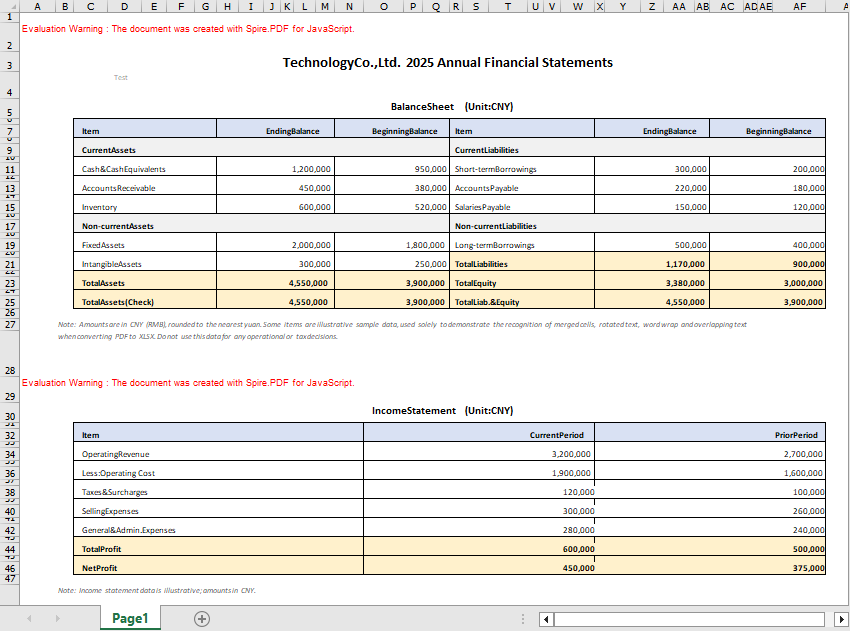
When the PDF content consists mainly of text and numeric values, you can switch to XlsxTextLayoutOptions to control text layout conversion parameters, such as whether to convert to multiple worksheets and whether to keep rotated text. Unlike the row layout option, this option focuses more on the arrangement of text content and is suitable for documents with few table lines and mainly text. The usage is the same: pass the option to the ConvertOptions SetPdfToXlsxOptions method, then save as XLSX.
function App() {
  const convertToExcel = async () => {
    // Get the Spire.PDF WASM module
    const pdfModule = window.wasmModule?.spirepdf;

    // Check if the WASM module is ready
    if (!pdfModule) {
      alert('Spire.PDF is not ready yet');
      return;
    }

    // Load the PDF file and fonts into VFS
    await window.spire.FetchFileToVFS('ARIAL.TTF', '/Library/Fonts/', `${process.env.PUBLIC_URL}/font/`);
    const inputFileName = 'Report.pdf';
    await window.spire.FetchFileToVFS(inputFileName, "", `${process.env.PUBLIC_URL}/data/`);

    // Create PdfDocument object and load the PDF document
    let doc = new pdfModule.PdfDocument();
    doc.LoadFromFile(inputFileName);

    // Create text layout conversion options
    // Parameters: whether to convert to multiple worksheets, whether to keep rotated text
    let textLayoutOptions = new pdfModule.XlsxTextLayoutOptions(false, true);
    doc.ConvertOptions.SetPdfToXlsxOptions(textLayoutOptions);

    // Define the output file name in Excel format
    const outputFileName = 'TextLayoutOptions.xlsx';

    // Save as Excel format
    doc.SaveToFile({ fileName: outputFileName, fileFormat: pdfModule.FileFormat.XLSX });
    doc.Close();

    // Read the converted file from VFS and trigger download
    const fileArray = window.dotnetRuntime.Module.FS.readFile(outputFileName);
    const blob = new Blob([fileArray], { type: 'application/vnd.openxmlformats-officedocument.spreadsheetml.sheet' });
    const url = URL.createObjectURL(blob);
    const a = document.createElement('a');
    a.href = url;
    a.download = outputFileName;
    a.click();
    URL.revokeObjectURL(url);
  };

  return (
    <div style={{ textAlign: 'center', height: '300px' }}>
      <h1>Convert PDF To Excel using XlsxTextLayoutOptions</h1>
      <button onClick={convertToExcel}>
        Generate
      </button>
    </div>
  );
}

export default App;
Excel document generated using the XlsxTextLayoutOptions conversion option
FAQ
What is the difference between regular conversion and conversion using the options?
Reason: When no conversion option is set, Spire.PDF converts the PDF content to Excel using the default layout strategy.
Solution: Regular conversion (without calling SetPdfToXlsxOptions) involves the fewest steps and suits documents with a simple content structure where the default layout is sufficient; when you need to control details such as multi-worksheet splitting, rotated text, cell splitting, and text wrapping, choose XlsxLineLayoutOptions (oriented toward graphics and lines) or XlsxTextLayoutOptions (oriented toward text) based on the document content.
What is the difference between XlsxLineLayoutOptions and XlsxTextLayoutOptions?
Reason: The two types of options control how different content is preserved during PDF-to-Excel conversion.
Solution: XlsxLineLayoutOptions targets graphic elements such as table borders and lines, controlling behaviors like multi-worksheet splitting, rotated text, cell splitting, text wrapping, and overlapping text; XlsxTextLayoutOptions targets text content, controlling whether to merge into a single worksheet and whether to keep rotated text. Choose the appropriate option based on whether the PDF content is graphics-oriented or text-oriented.
Can encrypted PDF files be converted to Excel?
Reason: Password-protected encrypted PDF files cannot be converted directly; the document needs to be decrypted first.
Solution: Pass the password as the second parameter of LoadFromFile when loading the PDF to decrypt it, then convert and save as Excel:
// Load the password-protected PDF document
let doc = new pdfModule.PdfDocument();
doc.LoadFromFile(inputFileName, "password");

// Save as Excel format
doc.SaveToFile({ fileName: outputFileName, fileFormat: pdfModule.FileFormat.XLSX });
doc.Close();
Get a Free License
If you want to remove the evaluation messages in the resulting documents or get rid of functional limitations, contact sales to obtain a 30-day temporary license.
Intelligent Textbook Analysis and Automated Word Lesson Plan Generation with Spire.Agent.Office
In teaching work, lesson preparation is the most time-consuming and skill-demanding task for every teacher. When you receive a textbook, you need to read through each chapter and section, distill core knowledge points, organize the knowledge logic, and then design teaching objectives, determine teaching key and difficult points, arrange the complete teaching process of introduction — new teaching — consolidation — summary, and finally compile it into a standardized lesson plan. A complete lesson plan often takes several hours, and different teachers vary greatly in analysis depth and lesson plan structure, making it difficult to ensure consistent quality.
Comparison with Traditional SDK API Processing
| Traditional Spire.Office for .NET API | Spire.Agent.Office | |
|---|---|---|
| Driving approach | Write code to parse the textbook paragraph by paragraph: load document → iterate paragraphs → extract keywords → manually assemble the lesson plan; every step requires code control | Describe the parsing and generation goals in natural language, and AI automatically understands the textbook and generates the lesson plan |
| Code volume | Requires a large amount of code to maintain the knowledge point library, paragraph classification rules, and lesson plan template logic | Only configuration code + 1 natural language instruction |
| Lesson plan structure | Teaching objectives, key/difficult points, and teaching process must each be hard-coded with a set of generation logic | AI automatically generates a structurally complete lesson plan according to subject standards |
| Textbook understanding | Can only match mechanically by keywords, unable to understand the relationships and hierarchy between knowledge points | AI understands the textbook based on semantics, extracting chapter themes, test points, and teaching suggestions |
| Maintainability | Different subjects and textbook versions require separate development and maintenance | The analysis scope and lesson plan style can be adjusted at any time in natural language |
This article explains how to use the Word AI capability of Spire.Agent.Office to analyze textbooks and automatically generate lesson plans. Together, they form a complete lesson preparation pipeline: first use AI to parse the textbook PDF, organize unit key points and key/difficult points, then generate a standardized, content-complete lesson plan based on the analysis results.
For product installation and SpireToken configuration, refer to Integrating Spire.Agent.Office in a .NET Project. The examples below assume Spire.Agent.Office is installed and SpireToken is configured.
Intelligent Textbook Analysis
Intelligent textbook analysis is the starting point of the entire lesson preparation workflow, suitable for quickly establishing an overall understanding of the textbook before reading the whole book. The core idea is: pass the electronic textbook PDF as an attachment, let AI parse the textbook content, organize the core knowledge, key and difficult points, learning suggestions, and the connections between chapters according to the chapters, and generate a Word unit textbook analysis document. Teachers can use it to complete unit teaching planning, and subsequent lesson plan generation is also based on it.
using Spire.Agent.Office.AI;
using Spire.Agent.Office.Extensions;
using Spire.Doc;

// Textbook PDF (multiple chapters can be passed in)
string[] attachments = new string[] {
    "E:\\Input\\Textbook-Rational_Numbers.pdf",
    "E:\\Input\\Textbook-Addition_and_Subtraction_of_Algebraic_Expressions.pdf",
    "E:\\Input\\Textbook-Linear_Equations_in_One_Variable.pdf"
};
// Save path
string savePath = "E:\\Output\\Textbook_Analysis.docx";
// SpireToken Key
string key = "**********************";
// Natural language instruction
string instruction =
    "Please analyze the textbook content in the attached PDFs, and from the perspective of a lesson-preparing teacher, help me organize a textbook analysis suitable for daily lesson preparation.\n" +
    "For each chapter, explain the chapter's core knowledge content, teaching key and difficult points, and recommended class hours.\n" +
    "Try to preserve the key concepts and typical example points of each section, and supplement the common difficulties and error-prone points students encounter when learning this chapter.\n" +
    "Also describe the connections between chapters. Please strictly analyze based on the actual content of the textbook in the PDFs and do not fabricate anything.\n" +
    "Generate a Word document with a clear structure so that I can arrange the unit teaching plan accordingly, and subsequent lesson plans will also be based on this analysis.";

// Call the Word document processing function
AIResult result = ExecuteDemoWord(instruction, savePath, key, attachments);

// Execute Word document AI processing
static AIResult ExecuteDemoWord(string instruction, string savePath, string key, string[] attachments)
{
    // Create an AIOptions configuration object
    AIOptions options = new AIOptions();
    // Set the SpireToken Key
    options.SpireToken = key;

    // Use the Document object to process the Word document
    using (Document doc = new Document())
    {
        // Create the AI document processor
        AIDocumentProcessor processor = doc.AI(options);

        // Execute the AI instruction
        return processor.ExecuteInstruction(doc, instruction, savePath, attachments);
    }
}
AI-generated Word textbook analysis document 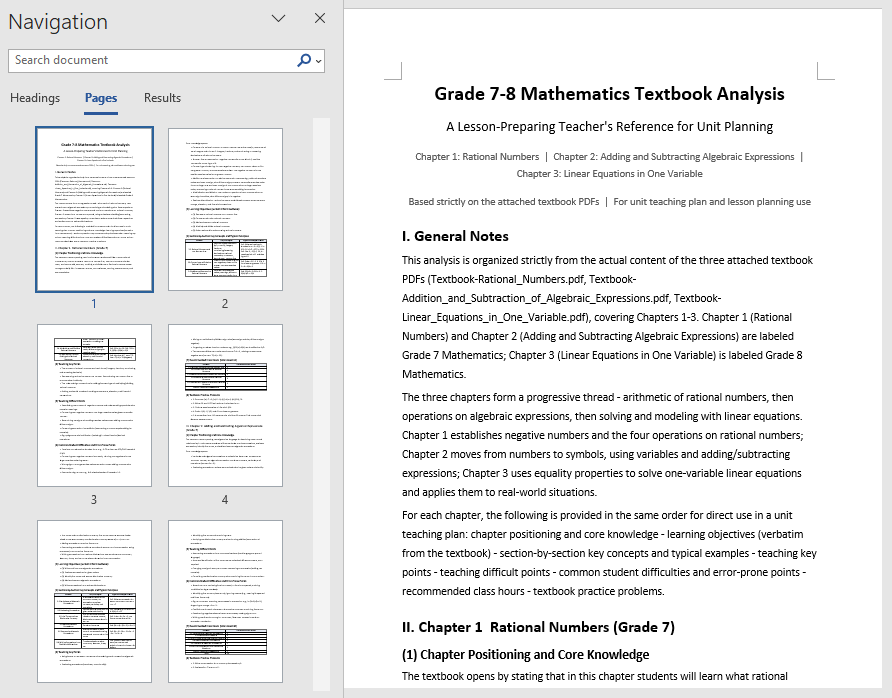
The analysis document unfolds by chapter, clearly explaining each chapter's core knowledge, key and difficult points, and recommended class hours, and also supplements students' common learning difficulties, error-prone points, and the connections between chapters. Teachers only need to provide the electronic PDF of the textbook to complete the whole-book analysis, quickly identify key chapters, and reasonably allocate class hours; this unit textbook analysis can also be directly used as background material for the subsequent lesson plan generation.
Automated Word Lesson Plan Generation
Fine-grained lesson preparation for a single class can be further advanced on the basis of the textbook analysis in the first section. The core idea is: directly use the unit textbook analysis generated in the first section as input, and let AI generate a structurally complete, ready-to-use lesson plan based on the analysis of the relevant section, including student analysis, teaching objectives, teaching key and difficult points, teaching preparation, teaching process, blackboard design, and tiered after-class assignments.
using Spire.Agent.Office.AI;
using Spire.Agent.Office.Extensions;
using Spire.Doc;

// The unit textbook analysis generated in the first section (already includes the analysis of the relevant section content)
string inputPath = "E:\\Input\\Textbook_Analysis.docx";
// Save path
string savePath = "E:\\Output\\Linear_Equations_in_One_Variable-Lesson_Plan.docx";
// SpireToken Key
string key = "**********************";
// Natural language instruction
string instruction =
    "Based on the content of the \"Linear Equations in One Variable\" section in the unit textbook analysis document, " +
    "help me write a complete lesson plan Word document. It is recommended to include: " +
    "student analysis, teaching objectives (knowledge and skills, process and methods, emotional attitude and values), teaching key and difficult points, teaching preparation, " +
    "teaching process (introduction, new teaching, consolidation practice, class summary), blackboard design, and tiered after-class assignments. " +
    "The teaching objectives and key/difficult points must closely match the textbook content, and the teaching process must be specific about how the teacher guides and how students learn in each segment. " +
    "The after-class assignments should be tiered into basic and advanced questions. Please format according to a standardized lesson plan layout, unify the heading levels and fonts, and finally save and output in DOCX format";

// Call the Word document processing function
AIResult result = ExecuteDemoWord(instruction, inputPath, savePath, key, null);

// Execute Word document AI processing
static AIResult ExecuteDemoWord(string instruction, string inputPath, string savePath, string key, string[] attachmentPaths)
{
    // Create an AIOptions configuration object
    AIOptions options = new AIOptions();
    // Set the SpireToken Key
    options.SpireToken = key;

    // Use the Document object to process the Word document
    using (Document doc = new Document())
    {
        // Load the unit textbook analysis document as the context for lesson plan generation
        if (!string.IsNullOrEmpty(inputPath) && File.Exists(inputPath))
        {
            doc.LoadFromFile(inputPath);
        }
        // Create the AI document processor
        AIDocumentProcessor processor = doc.AI(options);

        // Execute the AI instruction
        return processor.ExecuteInstruction(doc, instruction, savePath, attachmentPaths);
    }
}
AI-generated Word lesson plan document 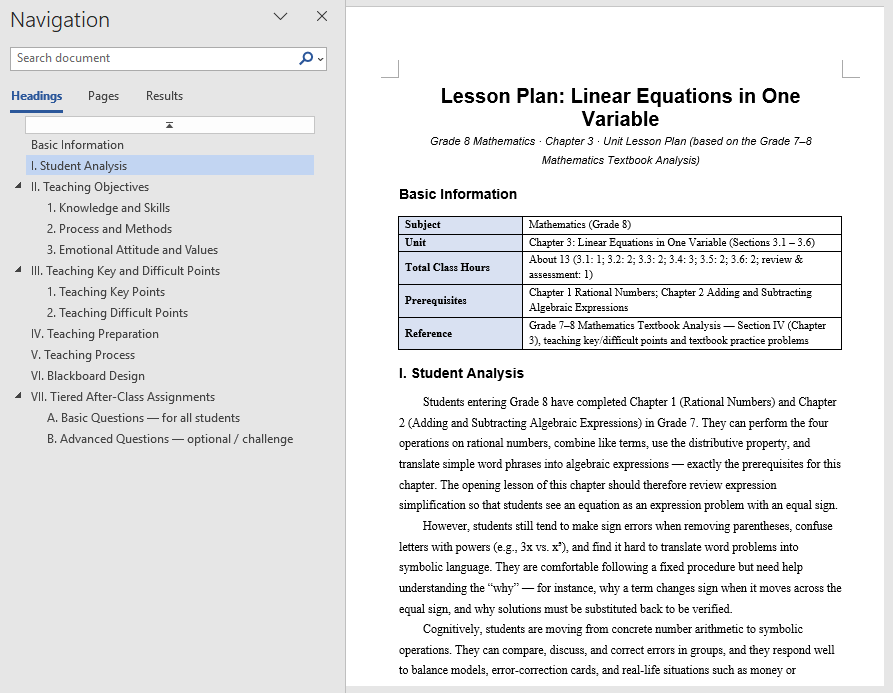
The generated lesson plan has a complete structure and content that closely matches the textbook, covering student analysis and tiered after-class assignments as well. Based directly on the unit textbook analysis, teachers can get a first draft of the lesson, then adjust and polish it, saving the time of writing from scratch. For multiple classes in the same unit, the same unit textbook analysis can be reused to generate lesson plans section by section and then proofread them uniformly, turning lesson preparation from "writing word by word" into "localized modification".
FAQ
Teaching objectives not matching the textbook content
Reason: AI's generation of teaching objectives depends on its understanding of the textbook theme. If the textbook content is too extensive or the instruction is too general, the objectives may diverge from the actual teaching content.
Solution: Limit the analysis scope in the instruction (such as specifying the chapter name), explicitly require the objectives to be developed from three dimensions, and bind the requirement "must be written based on the actual textbook content".
Lesson plan structure not standardized, missing sections
Reason: The section structure that the lesson plan should contain is not specified in the instruction, and the structure AI generates by default may not match the school template.
Solution: List the sections the lesson plan must include in order in the instruction (such as introduction, new teaching, consolidation, summary), and AI will output strictly according to this structure.
Analysis report missing test points or knowledge points
Reason: The textbook has too many chapters, or the same knowledge point is scattered across multiple chapters, making the analysis report incomplete.
Solution: Pass the complete textbook or the PDFs of relevant chapters as attachments, and specify the knowledge types to focus on in the instruction (such as "focus on frequently tested question types and examples").
Inconsistent formatting in the generated lesson plan
Reason: The layout requirements of the lesson plan are not specified in the instruction, and the heading levels, fonts, and paragraph styles output by AI may be inconsistent.
Solution: Add descriptions such as "format according to a standardized lesson plan layout and unify heading levels and fonts" to the instruction.
Get the SpireToken Key
- Contact sales@e-iceblue.com or visit https://www.e-iceblue.com/TemLicense.html to obtain a trial/commercial API key
Configure it in your code:
AIOptions options = new AIOptions();
options.SpireToken = key;
Legal Contract Clause Review and Annotation with Spire.Agent.Office
In corporate legal and compliance management scenarios, contract review is one of the most time-consuming and error-prone tasks. Every contract involves a large number of rights and obligations clauses — liquidated damages, payment terms, disclaimer clauses, breach liability, dispute resolution, and more. Any clause that is unfavorable to your side or ambiguously worded may lead to legal disputes or financial losses in the future. Traditional approaches rely on legal professionals reading and annotating each clause manually; a single contract of dozens of pages often takes hours, and review standards vary from person to person.
Comparison with Traditional SDK API Processing
| Traditional Spire.Office for .NET API | Spire.Agent.Office | |
|---|---|---|
| Driving approach | Write code to parse clauses one by one: load document → iterate paragraphs → regex match keywords → judge risk → highlight and annotate; every step requires code control | Describe the review goal in natural language, and AI automatically identifies and annotates risk clauses |
| Code volume | Requires a large amount of code to maintain the clause risk rule library, keyword matching, and annotation logic | Only configuration code + 1 natural language instruction |
| Risk rules | Risk judgment relies on hard-coded keywords; new risk types require code changes | AI understands clauses semantically and can identify new risks not covered by the rules |
| Review stance | Review logic for each contract type must be developed separately | A single phrase like "review from our side" in the instruction switches the review stance |
| Maintainability | The risk rule library requires continuous manual maintenance | Review scope and rules can be adjusted at any time in natural language |
This article explains how to use the Word AI capability of Spire.Agent.Office to review contract clauses and annotate risks. You can choose to highlight risk clauses on the original contract and add comments, or batch review and output a structured risk review report, meeting contract review needs of different scales and scenarios.
For product installation and SpireToken configuration, refer to Integrating Spire.Agent.Office in a .NET Project. The examples below assume Spire.Agent.Office is installed and SpireToken is configured.
Risk Clause Highlighting and Annotation
Risk clause highlighting and annotation suits in-depth review of important contracts. The core idea is: let AI review contract clauses one by one, identify clauses that are unfavorable to your side or carry legal risks, highlight them in yellow in place and add comments, so legal professionals can view the risk points directly on the contract.
using Spire.Agent.Office.AI;
using Spire.Agent.Office.Extensions;
using Spire.Doc;

// Path of the contract file to be reviewed
string inputPath = "E:\\Input\\Software_Contract.docx";
// Save path
string savePath = "E:\\Output\\Review.docx";
// Output directory
string OutDir = "E:\\Output";
// SpireToken Key
string key = "xxxxx";
// Natural language instruction
string instruction =
    "Review all clauses in the current contract document and identify clauses that are unfavorable to the purchaser or carry legal risks, including but not limited to: " +
    "excessively high liquidated damages, stringent payment terms, overly broad disclaimer clauses, missing breach liability provisions, unfavorable court jurisdiction agreements, unclear intellectual property ownership, etc. " +
    "For each risk clause, perform the following operations: 1. Highlight the risk clause text in yellow; 2. Add a comment in place, noting the risk point, risk level (high/medium/low), and modification suggestions. " +
    "After processing, keep the same layout, styles, and fonts as the original document, and finally save and output in DOCX format";

// Call the Word document processing function
AIResult result = ExecuteDemoWord(instruction, inputPath, savePath, key, OutDir, null);

// Execute Word document AI processing
static AIResult ExecuteDemoWord(string instruction, string inputPath, string savePath, string key, string output, string[] attachmentPaths)
{
    // Create an AIOptions configuration object
    AIOptions options = new AIOptions();
    // Set the working directory to the output directory
    options.WorkDir = output;
    // Set the SpireToken Key
    options.SpireToken = key;

    // Use the Document object to process the Word document
    using (Document doc = new Document())
    {
        // Load the contract document from file
        if (!string.IsNullOrEmpty(inputPath) && File.Exists(inputPath))
        {
            doc.LoadFromFile(inputPath);
        }
        // Create the AI document processor
        AIDocumentProcessor processor = doc.AI(options);

        // Execute the AI instruction
        return processor.ExecuteInstruction(doc, instruction, savePath, attachmentPaths);
    }
}
Contract after AI highlighting and annotation 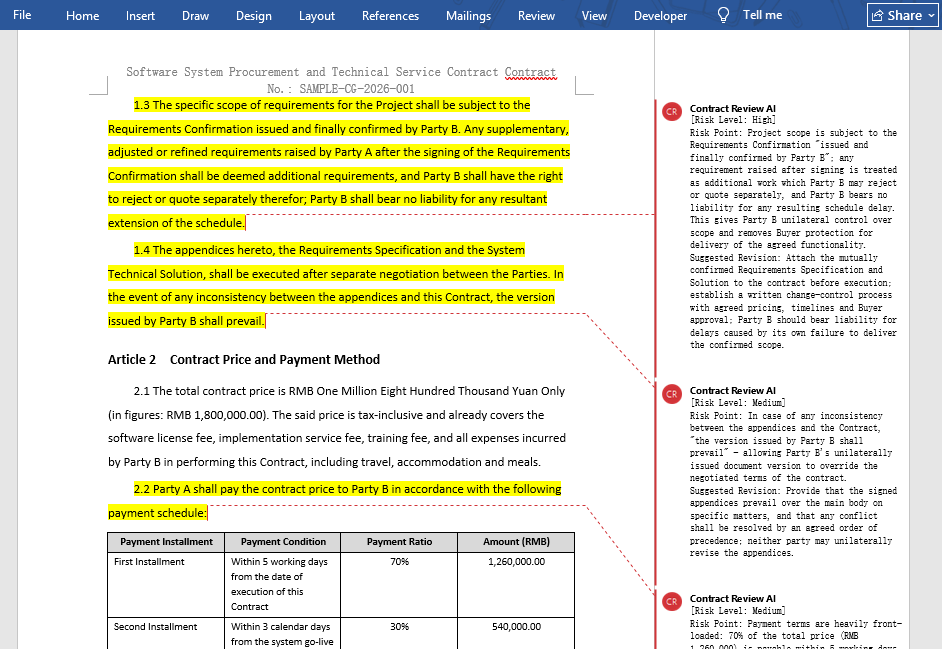
In the reviewed contract, risk clauses are highlighted in yellow, and the comments clearly state the risk points and modification suggestions. Legal professionals can quickly locate the highlighted positions without reading the original text line by line, and can directly discuss modification plans with the business side based on the comments.
Batch Review and Review Report
For quick screening of large batches of contracts (such as contract renewal or supplier qualification review), batch review with a structured review report is more suitable. The core idea is: let AI review multiple contracts one by one, consolidate the risk clauses of each contract into a risk list, and output it as an MD report for statistics, tracking, and tiered processing.
using Spire.Agent.Office.AI;
using Spire.Agent.Office.Extensions;
using Spire.Doc;

// Paths of multiple contract files to be reviewed
string[] attachments = new string[] {
    "E:\\Input\\Purchase_Contract_EN.docx",   // Purchase contract
    "E:\\Input\\Sales_Contract_EN.docx",   // Sales contract
    "E:\\Input\\Labor_Contract_EN.docx"    // Labor contract
};
// Save path (null here; the output folder path set below will be used)
string savePath = "E:\\Output\\Structural_Review_Output.md";
// Output directory
string OutDir = "E:\\Output";
// SpireToken Key
string key = "xxxxx";
// Natural language instruction
string instruction =
    "Review the contract documents in the attachments one by one, extract risk clauses, and output a Markdown review report: " +
    "The report contains a table with fixed columns: Contract Name | Clause Number | Clause Original Text | Risk Level (High/Medium/Low) | Risk Type | Risk Description | Modification Suggestion. " +
    "Sort by risk level from high to low; the clause original text must be quoted from the contract, truncated with … after 20 characters, and must not be fabricated.";

// Call the Word document processing function
AIResult result = ExecuteDemoWord(instruction, savePath, key, OutDir, attachments);

// Execute Word document AI processing
static AIResult ExecuteDemoWord(string instruction, string savePath, string key, string output, string[] attachments)
{
    // Create an AIOptions configuration object
    AIOptions options = new AIOptions();
    // Set the working directory to the output directory
    options.WorkDir = output;
    // Set the SpireToken Key
    options.SpireToken = key;

    // Use the Document object to process the Word document
    using (Document doc = new Document())
    {
        // Create the AI document processor
        AIDocumentProcessor processor = doc.AI(options);

        // Execute the AI instruction
        return processor.ExecuteInstruction(doc, instruction, savePath, attachments);
    }
}
Contract risk review report output by AI 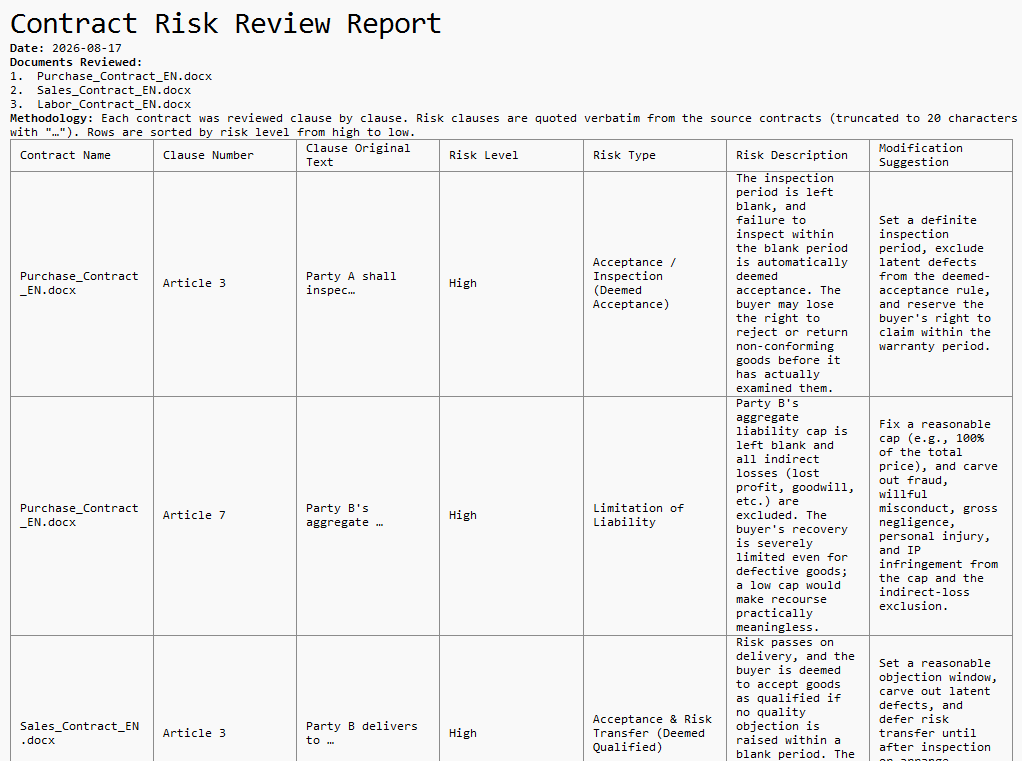
Each row in the review report corresponds to a risk clause and contains the clause original text, risk level, risk type, and modification suggestion. Legal professionals can sort by risk level to prioritize high-risk clauses, or export the report for risk ledger tracking in a contract management system.
FAQ
Risk clauses identified inaccurately
Reason: AI's judgment of "unfavorable clauses" depends on the review stance. From your side's perspective versus the counterparty's perspective, the risk judgment for the same clause may be completely opposite.
Solution: Specify the review stance clearly in the instruction, such as "review from the purchaser's perspective", and add a list of risk types to focus on. AI will strictly follow this stance and scope.
Document style changes after highlighting
Reason: The AI model automatically modified or added content during processing.
Solution: Add a description such as "keep the same layout, styles, and fonts as the original document" to the instruction.
Review report does not accurately correspond to contract clauses
Reason: Clause numbers are inconsistent, or the same clause is scattered across multiple places in the contract, causing the clause original text in the report to not match the contract.
Solution: In the instruction, require AI to quote the clause original text and note the source of the clause number, for easy manual verification and location.
Get the SpireToken Key
- Contact sales@e-iceblue.com or visit https://www.e-iceblue.com/TemLicense.html to obtain a trial/commercial API key
Configure it in your code:
AIOptions options = new AIOptions();
options.SpireToken = key;
Convert PDF to Images and Vice Versa with JavaScript in React
Images are one of the most intuitive forms of content presentation and distribution, while PDF documents preserve the original layout and are widely used for the storage and transmission of formal files. When displaying PDF content on web pages, mini programs, social platforms, or emails, distributing PDF files directly is often inconvenient — converting them to image formats such as PNG or JPEG first enables quick preview and sharing. Conversely, consolidating scanned documents or image assets into PDF makes batch archiving and cross-platform distribution easier. Real-world business often requires flexible switching between the two forms: converting PDF contracts to images for online preview and quick sharing, or converting scanned image assets to PDF for unified archiving and circulation.
Spire.PDF for JavaScript performs bidirectional conversion between PDF and images entirely in the browser via WebAssembly, managing input and output files through a virtual file system (VFS) with no backend server required.
This article covers two core features:
For installation and project setup, refer to Integrating Spire.PDF for JavaScript in a React Project. The examples below assume Spire.PDF is installed and the WebAssembly module is initialized.
Convert PDF to Image
The core of PDF-to-image conversion is to render the content, fonts, and graphics elements of every page in a PDF document into independent bitmap data. Spire.PDF for JavaScript generates an image stream for each page through the PdfDocument object's SaveAsImage method, loops through all Pages.Count pages and saves each page as a PNG image with stream.Save, then bundles the images into a ZIP file with JSZip for a one-click download, without needing to handle pixel and page coordinate mapping manually.
import JSZip from "jszip";

function App() {
  const convertToImage = async () => {
    // Get the Spire.PDF WASM module
    const pdfModule = window.wasmModule?.spirepdf;

    // Check if the WASM module is ready
    if (!pdfModule) {
      alert('Spire.PDF is not ready yet');
      return;
    }

    // Load the PDF file and fonts into VFS
    await window.spire.FetchFileToVFS('ARIAL.TTF', '/Library/Fonts/', `${process.env.PUBLIC_URL}/font/`);
    const inputFileName = 'Flowers.pdf';
    await window.spire.FetchFileToVFS(inputFileName, "", `${process.env.PUBLIC_URL}/data/`);

    // Create PdfDocument object and load the PDF document
    let doc = new pdfModule.PdfDocument();
    doc.LoadFromFile(inputFileName);

    // Create an output directory to hold the converted images
    let outputDirectoryName = "ImagesFolders/";
    window.dotnetRuntime.Module.FS.mkdirTree(outputDirectoryName);

    // Loop through each page and save it as an image
    for (let i = 0; i < doc.Pages.Count; i++) {
      const outputFileName = outputDirectoryName + "ConvertedImages_" + i + ".png";
      let stream = doc.SaveAsImage({ pageIndex: i });
      stream.Save(outputFileName);
      stream.Dispose();
    }

    doc.Dispose();

    // Read the converted files from VFS and trigger download
    const zip = new JSZip();
    let items = await window.dotnetRuntime.Module.FS.readdir(outputDirectoryName);
    items = items.filter((item) => item !== "."

      && item !== "..");
    for (const item of items) {
      const itemPath = `${outputDirectoryName}/${item}`;
      const fileData = await window.dotnetRuntime.Module.FS.readFile(itemPath);
      zip.file(item, fileData);
    }

    // Convert the ZIP to a Blob and trigger the browser download
    const zipBlob = await zip.generateAsync({ type: "blob" });
    const url = URL.createObjectURL(zipBlob);
    const a = document.createElement('a');
    a.href = url;
    a.download = 'ImagesFolders';
    a.click();
    URL.revokeObjectURL(url);
  };

  return (
    <div style={{ textAlign: 'center', height: '300px' }}>
      <h1>Convert PDF To Image</h1>
      <button onClick={convertToImage}>
        Generate
      </button>
    </div>
  );
}

export default App;
Each page of the PDF exported as a PNG image via SaveAsImage and bundled into a ZIP file for download
Adjust the DPI Resolution of Exported Images
When exporting images with the
SaveAsImagemethod, the default resolution is 96 DPI, which is suitable for screen preview, but text and lines may appear jagged or blurry when zoomed in. For sharper images, specify the resolution via thedpiXanddpiYparameters ofSaveAsImage, for example set it to 150 DPI:
// Export each page as an image at 150 DPI
for (let i = 0; i < doc.Pages.Count; i++) {
  let stream = doc.SaveAsImage({ pageIndex: i, dpiX: 150, dpiY: 150 });
  stream.Save(outputDirectoryName + "highres_" + i + ".png");
  stream.Dispose();
}
The higher the DPI value, the sharper the exported image, but the larger the file size. Choose a balance between clarity and file size based on your actual use case.
Convert Image to PDF
Image-to-PDF conversion is commonly used to consolidate scanned documents or design assets into PDF for archiving. Spire.PDF for JavaScript creates a new document with the PdfDocument object, loads the image with the PdfImage.FromFile method, adds a page via Pages.Add, draws the image onto the page at its original size with the Canvas.DrawImage method, and finally saves it as a standard PDF with the SaveToFile method using the FileFormat.PDF enum value.
function App() {
  const convertImageToPDF = async () => {
    // Get the Spire.PDF WASM module
    const pdfModule = window.wasmModule?.spirepdf;

    // Check if the WASM module is ready
    if (!pdfModule) {
      alert('Spire.PDF is not ready yet');
      return;
    }

    // Load the image file into VFS
    const inputFileName = 'Scenery.png';
    await window.spire.FetchFileToVFS(inputFileName, "", `${process.env.PUBLIC_URL}/data/`);

    // Create a PdfDocument object
    let doc = new pdfModule.PdfDocument();

    // Add a page
    let page = doc.Pages.Add();

    // Load the image
    let image = pdfModule.PdfImage.FromFile(inputFileName);

    // Calculate the scale ratio so the image fits the page completely
    let widthFitRate = image.PhysicalDimension.Width / page.Canvas.ClientSize.Width;
    let heightFitRate = image.PhysicalDimension.Height / page.Canvas.ClientSize.Height;
    let fitRate = Math.max(widthFitRate, heightFitRate);

    // Calculate the scaled dimensions of the image
    let fitWidth = image.PhysicalDimension.Width / fitRate;
    let fitHeight = image.PhysicalDimension.Height / fitRate;

    // Draw the image onto the page
    page.Canvas.DrawImage({ image: image, x: 0, y: 30, width: fitWidth, height: fitHeight });

    const outputFileName = 'ImageToPDF.pdf';

    // Save as PDF format
    doc.SaveToFile({ fileName: outputFileName, fileFormat: pdfModule.FileFormat.PDF });
    doc.Close();

    // Read the converted file from VFS and trigger download
    const fileArray = window.dotnetRuntime.Module.FS.readFile(outputFileName);
    const blob = new Blob([fileArray], { type: 'application/pdf' });
    const url = URL.createObjectURL(blob);
    const a = document.createElement('a');
    a.href = url;
    a.download = outputFileName;
    a.click();
    URL.revokeObjectURL(url);
  };

  return (
    <div style={{ textAlign: 'center', height: '300px' }}>
      <h1>Convert Image To PDF</h1>
      <button onClick={convertImageToPDF}>
        Generate
      </button>
    </div>
  );
}

export default App;
PDF document generated after loading an image via PdfImage.FromFile and drawing it with Canvas.DrawImage
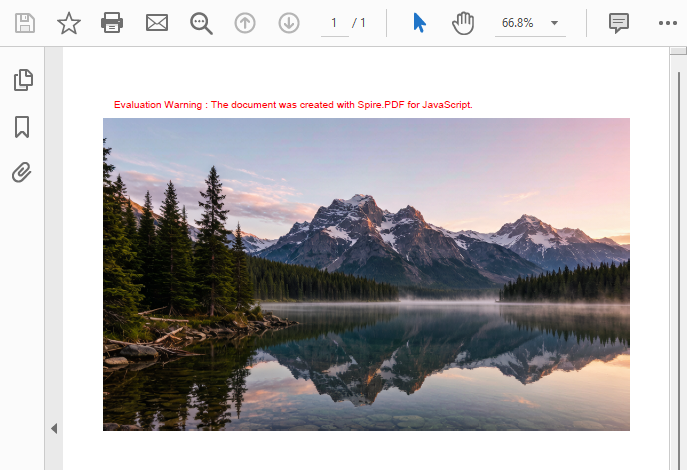
Load Images from a Memory Stream
Besides loading directly from a file with
PdfImage.FromFile, images can also be loaded from a memory stream via thePdfImage.FromStreammethod. This approach suits scenarios where the image data comes from an API response or a database field, or where bytes need to be read before processing. See the code below:
// Read image bytes from VFS and build a memory stream
let bytes = window.dotnetRuntime.Module.FS.readFile(inputFileName);
let stream = new pdfModule.Stream(bytes);

// Load the image from the memory stream
let image = pdfModule.PdfImage.FromStream(stream);
The image can then be drawn onto a PDF page with the page.Canvas.DrawImage method and saved as a standard PDF using SaveToFile.
FAQ
Garbled text in the converted image
Reason: PDF relies on font embedding to ensure consistent cross-platform rendering. If the input PDF uses non-embedded fonts and the corresponding font files are not loaded in the VFS, text may appear garbled after conversion.
Solution: Make sure the required TrueType font files (e.g., ARIALUNI.TTF) are loaded into the /Library/Fonts/ directory in VFS before calling the conversion. ARIALUNI.TTF covers common CJK characters and is the recommended font for ensuring conversion quality.
Which image formats are supported for conversion?
Reason: Different business scenarios require different bitmap formats. For example, PNG is commonly used for web preview and JPEG for photos.
Solution: Spire.PDF for JavaScript can render PDF pages to common bitmap formats such as PNG, JPEG, and BMP. After generating the image stream with SaveAsImage, simply replace the file extension of the output file name with the target format (e.g., .jpg, .bmp, .png) in stream.Save to output the corresponding image format.
Get a Free License
If you want to remove the evaluation messages in the resulting documents or get rid of functional limitations, contact sales to obtain a 30-day temporary license.
Convert PDF to XPS and Vice Versa with JavaScript in React
XPS (XML Paper Specification) is a fixed-layout document format introduced by Microsoft, widely used in electronic document printing, archiving, and distribution scenarios, with native support in the Windows platform ecosystem. XPS describes document structure based on XML, offering advantages such as clear structure, easy validation, and digital signing. Meanwhile, PDF remains indispensable as an internationally recognized document format for cross-platform distribution. Real-world business often requires flexible switching between the two formats: converting existing PDF contracts to XPS for printing and archiving in Windows environments, or converting XPS documents to PDF for cross-platform distribution and collaboration.
Spire.PDF for JavaScript performs bidirectional conversion between PDF and XPS entirely in the browser via WebAssembly, managing input and output files through a virtual file system (VFS) with no backend server required.
This article covers two core features:
For installation and project setup, refer to Integrating Spire.PDF for JavaScript in a React Project. The examples below assume Spire.PDF is installed and the WebAssembly module is initialized.
Convert PDF to XPS
The core of PDF-to-XPS conversion is to re-encode the page content, fonts, and graphics elements from a PDF document into an XML description structure compliant with the XPS standard. Spire.PDF for JavaScript accomplishes this in one step through the PdfDocument object's SaveToFile method with the FileFormat.XPS enum value, eliminating the need to handle underlying format differences manually.
function App() {
  const convertToXPS = async () => {
    // Get the Spire.PDF WASM module
    const pdfModule = window.wasmModule?.spirepdf;

    // Check if the WASM module is ready
    if (!pdfModule) {
      alert('Spire.PDF is not ready yet');
      return;
    }

    // Load fonts and PDF file into VFS
    await window.spire.FetchFileToVFS('ARIAL.TTF', '/Library/Fonts/', `${process.env.PUBLIC_URL}/font/`);
    const inputFileName = 'Reading_EN.pdf';
    await window.spire.FetchFileToVFS(inputFileName, "", `${process.env.PUBLIC_URL}/data/`);

    // Create PdfDocument object and load the PDF document
    let doc = new pdfModule.PdfDocument();
    doc.LoadFromFile(inputFileName);

    // Define the output file name for XPS format
    const outputFileName = 'OutputXPS.xps';

    // Save as XPS format
    doc.SaveToFile({ fileName: outputFileName, fileFormat: pdfModule.FileFormat.XPS });
    doc.Close();

    // Read the converted file from VFS and trigger download
    const fileArray = window.dotnetRuntime.Module.FS.readFile(outputFileName);
    const blob = new Blob([fileArray], { type: 'application/vnd.ms-xpsdocument' });
    const url = URL.createObjectURL(blob);
    const a = document.createElement('a');
    a.href = url;
    a.download = outputFileName;
    a.click();
    URL.revokeObjectURL(url);
  };

  return (
    <div style={{ textAlign: 'center', height: '300px' }}>
      <h1>Convert PDF To XPS</h1>
      <button onClick={convertToXPS}>
        Generate
      </button>
    </div>
  );
}

export default App;
XPS output generated after conversion via SaveToFile with FileFormat.XPS
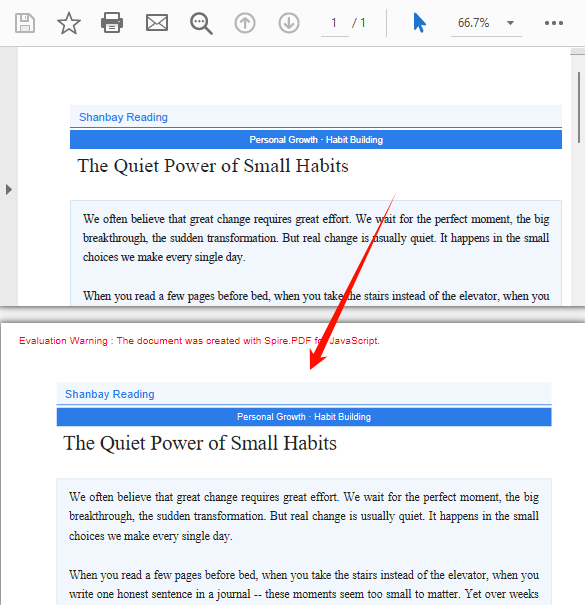
Convert XPS to PDF
XPS-to-PDF conversion is a common requirement in document cross-platform distribution scenarios. Spire.PDF for JavaScript loads XPS fixed-layout documents through the PdfDocument object's LoadFromXPS method and then exports them as standard PDF files via the SaveToFile method with the FileFormat.PDF enum value, preserving the original document's layout and visual appearance.
function App() {
  const convertXPSToPDF = async () => {
    // Get the Spire.PDF WASM module
    const pdfModule = window.wasmModule?.spirepdf;

    // Check if the WASM module is ready
    if (!pdfModule) {
      alert('Spire.PDF is not ready yet');
      return;
    }

    // Load the XPS file into VFS
    const inputFileName = 'Lease_Agreement_EN.xps';
    await window.spire.FetchFileToVFS(inputFileName, "", `${process.env.PUBLIC_URL}/data/`);

    // Create PdfDocument object and load the XPS document
    let doc = new pdfModule.PdfDocument();
    doc.LoadFromXPS(inputFileName);

    // Define the output file name for PDF format
    const outputFileName = 'OutputPDF.pdf';

    // Save as PDF format
    doc.SaveToFile({ fileName: outputFileName, fileFormat: pdfModule.FileFormat.PDF });
    doc.Close();

    // Read the converted file from VFS and trigger download
    const fileArray = window.dotnetRuntime.Module.FS.readFile(outputFileName);
    const blob = new Blob([fileArray], { type: 'application/pdf' });
    const url = URL.createObjectURL(blob);
    const a = document.createElement('a');
    a.href = url;
    a.download = outputFileName;
    a.click();
    URL.revokeObjectURL(url);
  };

  return (
    <div style={{ textAlign: 'center', height: '300px' }}>
      <h1>Convert XPS To PDF</h1>
      <button onClick={convertXPSToPDF}>
        Generate
      </button>
    </div>
  );
}

export default App;
PDF document generated after loading XPS via the PdfDocument LoadFromXPS method and converting
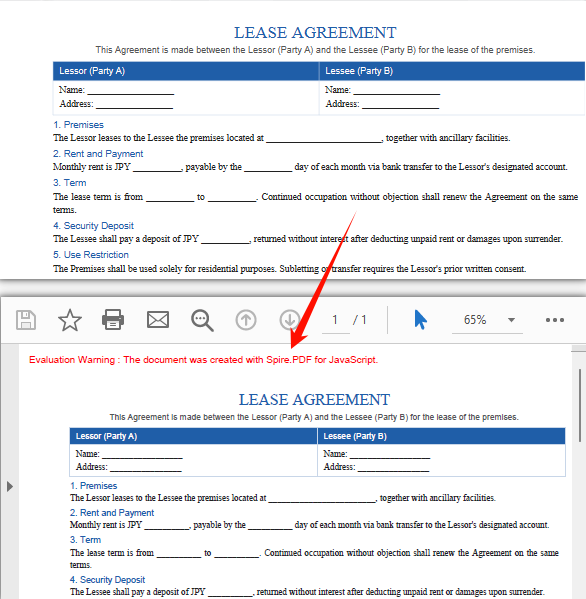
FAQ
Can encrypted PDFs be converted to XPS?
Password-protected encrypted PDFs cannot be saved as XPS directly via SaveToFile — the document must be decrypted first.
Solution: Provide the password when loading the PDF via the second parameter of LoadFromFile, then save as XPS:
// Load a password-protected PDF document
let doc = new pdfModule.PdfDocument();
doc.LoadFromFile(inputFileName, "password");

// Save as XPS format
doc.SaveToFile({ fileName: outputFileName, fileFormat: pdfModule.FileFormat.XPS });
doc.Close();
Get a Free License
If you want to remove the evaluation messages in the resulting documents or get rid of functional limitations, contact sales to obtain a 30-day temporary license.
Convert PDF to OFD and Vice Versa with JavaScript in React
OFD (Open Fixed-layout Document) is a national standard fixed-layout document format widely used in e-invoices, e-certificates, administrative approvals, and other government and financial scenarios. OFD describes document structure based on XML, offering advantages such as independent control and information security. Meanwhile, PDF remains indispensable as an internationally recognized document format for cross-platform distribution. Real-world business often requires flexible switching between the two formats: receiving OFD-format e-invoices and converting them to PDF for printing and distribution, or converting existing PDF contracts to OFD to meet government platform upload requirements.
Spire.PDF for JavaScript performs bidirectional conversion between PDF and OFD entirely in the browser via WebAssembly, managing input and output files through a virtual file system (VFS) with no backend server required.
This article covers two core features:
For installation and project setup, refer to Integrating Spire.PDF for JavaScript in a React Project. The examples below assume Spire.PDF is installed and the WebAssembly module is initialized.
Convert PDF to OFD
The core of PDF-to-OFD conversion is to re-encode the page content, fonts, and graphics elements from a PDF document into an XML description structure compliant with the OFD standard. Spire.PDF for JavaScript accomplishes this in one step through the PdfDocument object's SaveToFile method with the FileFormat.OFD enum value, eliminating the need to handle underlying format differences manually.
function App() {
  const convertToOFD = async () => {
    // Get the Spire.PDF WASM module
    const pdfModule = window.wasmModule?.spirepdf;

    // Check if the WASM module is ready
    if (!pdfModule) {
      alert('Spire.PDF is not ready yet');
      return;
    }

    // Load fonts and PDF file into VFS
    await window.spire.FetchFileToVFS('ARIAL.TTF', '/Library/Fonts/', `${process.env.PUBLIC_URL}/font/`);
    const inputFileName = 'TemplateIntroduction-en.pdf';
    await window.spire.FetchFileToVFS(inputFileName, "", `${process.env.PUBLIC_URL}/data/`);

    // Create PdfDocument object and load the PDF document
    let doc = new pdfModule.PdfDocument();
    doc.LoadFromFile(inputFileName);

    // Define the output file name for OFD format
    const outputFileName = 'OutputOFD.ofd';

    // Save as OFD format
    doc.SaveToFile({ fileName: outputFileName, fileFormat: pdfModule.FileFormat.OFD });
    doc.Close();

    // Read the converted file from VFS and trigger download
    const fileArray = window.dotnetRuntime.Module.FS.readFile(outputFileName);
    const blob = new Blob([fileArray], { type: 'application/ofd' });
    const url = URL.createObjectURL(blob);
    const a = document.createElement('a');
    a.href = url;
    a.download = outputFileName;
    a.click();
    URL.revokeObjectURL(url);
  };

  return (
    <div style={{ textAlign: 'center', height: '300px' }}>
      <h1>Convert PDF To OFD</h1>
      <button onClick={convertToOFD}>
        Generate
      </button>
    </div>
  );
}

export default App;
OFD output generated after conversion via SaveToFile with FileFormat.OFD
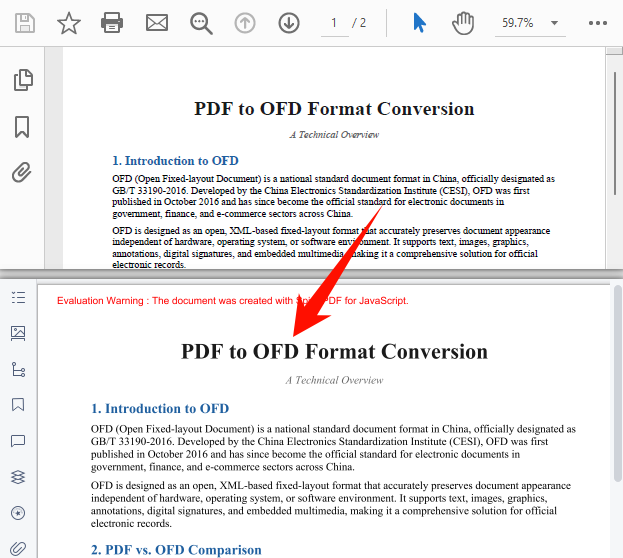
Convert OFD to PDF
OFD-to-PDF conversion is a common requirement in government electronic document distribution scenarios. Spire.PDF for JavaScript provides the OfdConverter component, which is specifically designed to parse OFD fixed-layout documents and export them as standard PDF files while preserving the original document's layout and visual appearance.
function App() {
  const convertOFDToPDF = async () => {
    // Get the Spire.PDF WASM module
    const pdfModule = window.wasmModule?.spirepdf;

    // Check if the WASM module is ready
    if (!pdfModule) {
      alert('Spire.PDF is not ready yet');
      return;
    }

    // Load fonts and OFD file into VFS
    await window.spire.FetchFileToVFS('Arial.TTF', '/Library/Fonts/', `${process.env.PUBLIC_URL}/font/`);
    const inputFileName = 'Invoice_EN.ofd';
    await window.spire.FetchFileToVFS(inputFileName, "", `${process.env.PUBLIC_URL}/data/`);

    // Create OfdConverter object and pass the OFD file path
    let converter = new pdfModule.OfdConverter(inputFileName);

    // Define the output file name for PDF format
    const outputFileName = 'OutputPDF.pdf';

    // Convert to PDF format
    converter.ToPdf(outputFileName);
    converter.Dispose();

    // Read the converted file from VFS and trigger download
    const fileArray = window.dotnetRuntime.Module.FS.readFile(outputFileName);
    const blob = new Blob([fileArray], { type: 'application/pdf' });
    const url = URL.createObjectURL(blob);
    const a = document.createElement('a');
    a.href = url;
    a.download = outputFileName;
    a.click();
    URL.revokeObjectURL(url);
  };

  return (
    <div style={{ textAlign: 'center', height: '300px' }}>
      <h1>Convert OFD To PDF</h1>
      <button onClick={convertOFDToPDF}>
        Generate
      </button>
    </div>
  );
}

export default App;
Standard PDF output generated after conversion via OfdConverter
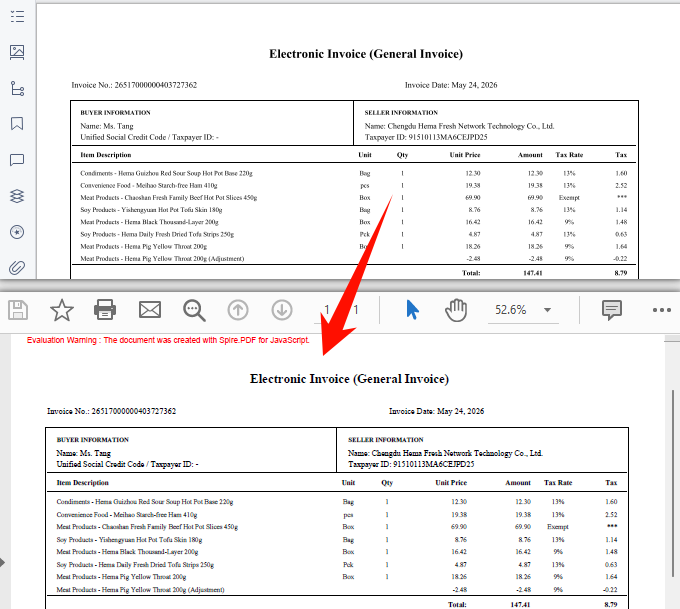
FAQ
Can encrypted PDFs be converted to OFD?
Password-protected encrypted PDFs cannot be saved as OFD directly via SaveToFile — the document must be decrypted first.
Solution: Provide the password when loading the PDF via the second parameter of LoadFromFile, then save as OFD:
// Load a password-protected PDF document
let doc = new pdfModule.PdfDocument();
doc.LoadFromFile(inputFileName, "password");

// Save as OFD format
doc.SaveToFile({ fileName: outputFileName, fileFormat: pdfModule.FileFormat.OFD });
doc.Close();
Garbled text in the converted OFD document
OFD relies on font embedding to ensure consistent cross-platform rendering. If the input PDF uses non-embedded fonts and the corresponding font files are not loaded in the VFS, text may appear garbled after conversion.
Solution: Make sure the required TrueType font files (e.g., ARIALUNI.TTF) are loaded into the /Library/Fonts/ directory in VFS before calling the conversion. ARIALUNI.TTF covers common CJK characters and is the recommended font for ensuring conversion quality.
Get a Free License
Spire.PDF for JavaScript offers a 30-day full-featured free trial license with no functional limitations. Apply here to evaluate before purchasing.