Adjust PDF Page Margins with JavaScript in React
Page margins decide how much blank space sits between the body and the edge of the paper. Too little and the content crowds the edge and looks cramped; too much and a page holds very little. Existing PDFs usually have their layout fixed already — adding a ring of white space, or trimming the excess away, used to mean re-laying out page after page in desktop software; and once documents are processed in bulk by a program, the margins have to follow the layout.
This article shows how to increase or decrease PDF page margins with Spire.PDF for JavaScript. It is built on WebAssembly and loads, modifies and saves PDF documents directly in the browser, all locally, reading and writing files through a virtual file system (VFS) with no backend involved.
This article covers two core features:
For installation and project setup, see How to Integrate Spire.PDF for JavaScript in a React Project. The examples below assume Spire.PDF is installed and the WebAssembly module is initialized.
Increase PDF Page Margins
Increasing the margins is like giving the document a larger sheet of paper: use CreateTemplate() to capture each page's content as a template and draw it onto a new page with a larger size, where PdfMargins reserves the blank space on all four sides — the content keeps its size, and a ring of white space appears around it.
function App() {
  const increasePdfMargins = async () => {
    // Get the Spire.PDF WASM module
    const pdfModule = window.wasmModule?.spirepdf;

    // Check whether the module is ready
    if (!pdfModule) {
      alert('Spire.PDF is not ready yet');
      return;
    }

    // Load the PDF to be adjusted into the VFS
    const inputFileName = 'SampleDocument.pdf';
    await window.spire.FetchFileToVFS(inputFileName, "", `${process.env.PUBLIC_URL}/data/`);

    // Load the original document and take its first page to compute the new page size
    const originalPdf = new pdfModule.PdfDocument();
    originalPdf.LoadFromFile(inputFileName);
    const firstPage = originalPdf.Pages.get_Item(0);

    // Add 40 points of padding on every side
    const marginsToAdd = new pdfModule.PdfMargins();
    marginsToAdd.Top = 40;
    marginsToAdd.Bottom = 40;
    marginsToAdd.Left = 40;
    marginsToAdd.Right = 40;

    // New page size = original size + the four margins, so the content area keeps its original size
    const newSize = new pdfModule.SizeF({
      width: firstPage.Size.Width + marginsToAdd.Left + marginsToAdd.Right,
      height: firstPage.Size.Height + marginsToAdd.Top + marginsToAdd.Bottom,
    });

    // Capture each page's content as a template and draw it onto a new page with margins
    const newPdf = new pdfModule.PdfDocument();
    for (let i = 0; i < originalPdf.Pages.Count; i++) {
      const template = originalPdf.Pages.get_Item(i).CreateTemplate();
      const page = newPdf.Pages.Add({ size: newSize, margins: marginsToAdd });
      page.Canvas.DrawTemplate({ template: template, location: new pdfModule.PointF(0, 0) });
    }

    const outputFileName = 'IncreaseMargins.pdf';
    newPdf.SaveToFile(outputFileName);
    newPdf.Close();
    originalPdf.Close();

    // Read the generated file from the VFS and trigger the download
    const fileArray = window.dotnetRuntime.Module.FS.readFile(outputFileName);
    const blob = new Blob([fileArray], { type: 'application/pdf' });
    const url = URL.createObjectURL(blob);
    const a = document.createElement('a');
    a.href = url;
    a.download = outputFileName;
    a.click();
    URL.revokeObjectURL(url);
  };

  return (
    <div style={{ textAlign: 'center', height: '300px' }}>
      <h1>Increase PDF Page Margins</h1>
      <button onClick={increasePdfMargins}>
        Start
      </button>
    </div>
  );
}

export default App;
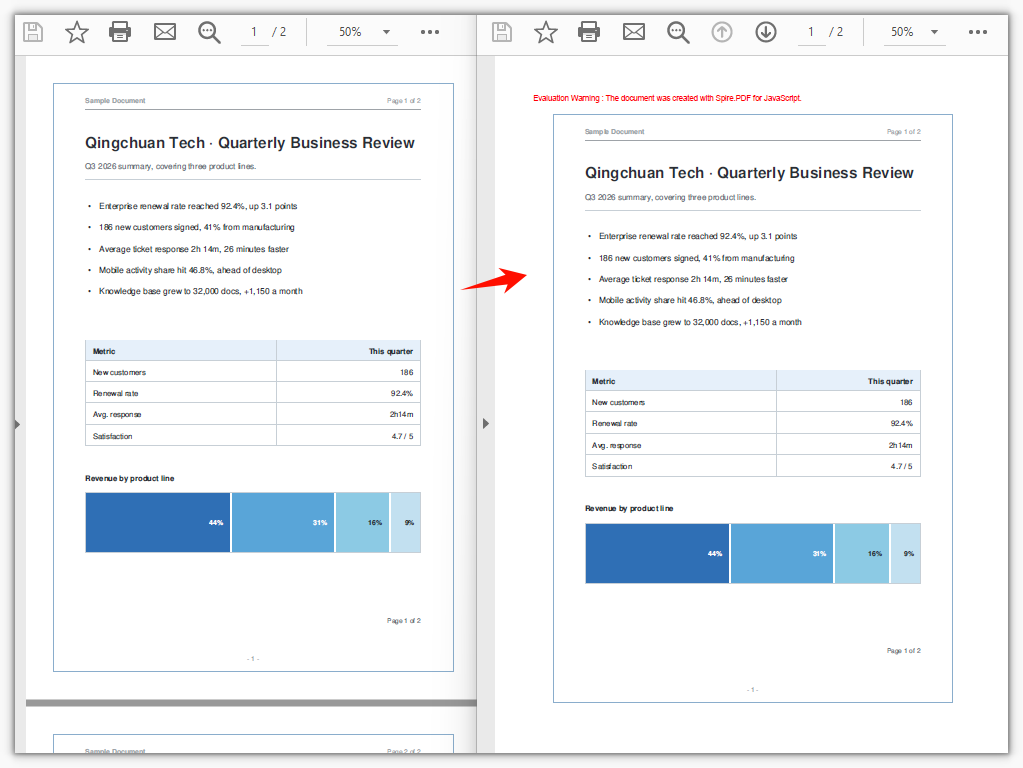
Each side is padded by 40 points, so the page grows and a ring of white space appears around the original content:
Decrease PDF Page Margins
Decreasing the margins is the reverse: the new page is smaller than the original, and the template is drawn shifted toward the top-left, trimming the excess white space on all four sides. Note that the amount trimmed per side must not exceed the blank space already present on that side of the original document, or the content will be cut off at the page boundary.
function App() {
  const decreasePdfMargins = async () => {
    // Get the Spire.PDF WASM module
    const pdfModule = window.wasmModule?.spirepdf;

    // Check whether the module is ready
    if (!pdfModule) {
      alert('Spire.PDF is not ready yet');
      return;
    }

    // Load the PDF to be adjusted into the VFS
    const inputFileName = 'SampleDocument.pdf';
    await window.spire.FetchFileToVFS(inputFileName, "", `${process.env.PUBLIC_URL}/data/`);

    // Load the original document and take its first page to compute the new page size
    const originalPdf = new pdfModule.PdfDocument();
    originalPdf.LoadFromFile(inputFileName);
    const firstPage = originalPdf.Pages.get_Item(0);

    // Trim 20 points of white space off every side; the value must not exceed the blank already on that side
    const trim = 20;

    // New page size = original size − the four trimmed values
    const newSize = new pdfModule.SizeF({
      width: firstPage.Size.Width - trim * 2,
      height: firstPage.Size.Height - trim * 2,
    });

    // The new page reserves no extra margins of its own
    const noMargins = new pdfModule.PdfMargins();
    noMargins.Top = 0;
    noMargins.Bottom = 0;
    noMargins.Left = 0;
    noMargins.Right = 0;

    // Capture each page as a template and draw it shifted toward the top-left, trimming the white space on all four sides
    const newPdf = new pdfModule.PdfDocument();
    for (let i = 0; i < originalPdf.Pages.Count; i++) {
      const template = originalPdf.Pages.get_Item(i).CreateTemplate();
      const page = newPdf.Pages.Add({ size: newSize, margins: noMargins });
      page.Canvas.DrawTemplate({ template: template, location: new pdfModule.PointF(-trim, -trim) });
    }

    const outputFileName = 'DecreaseMargins.pdf';
    newPdf.SaveToFile(outputFileName);
    newPdf.Close();
    originalPdf.Close();

    // Read the generated file from the VFS and trigger the download
    const fileArray = window.dotnetRuntime.Module.FS.readFile(outputFileName);
    const blob = new Blob([fileArray], { type: 'application/pdf' });
    const url = URL.createObjectURL(blob);
    const a = document.createElement('a');
    a.href = url;
    a.download = outputFileName;
    a.click();
    URL.revokeObjectURL(url);
  };

  return (
    <div style={{ textAlign: 'center', height: '300px' }}>
      <h1>Decrease PDF Page Margins</h1>
      <button onClick={decreasePdfMargins}>
        Start
      </button>
    </div>
  );
}

export default App;
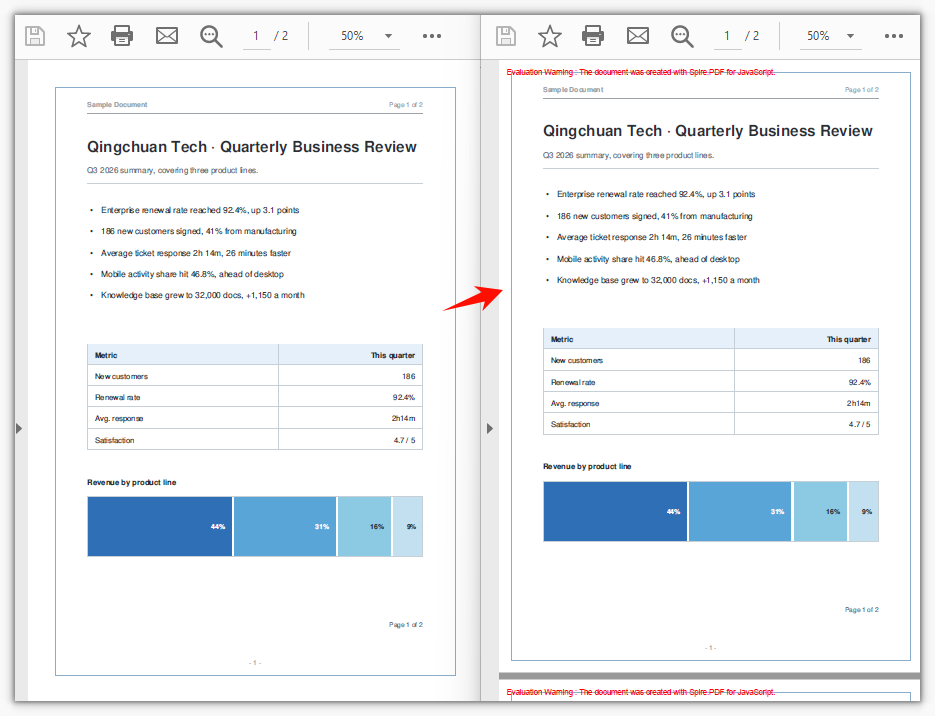
Each side is trimmed by 20 points of white space, so the page shrinks and the content moves closer to the paper's edge:
FAQ
Why not just change the page margins of the original document
Cause: Margins only decide where the content area begins, positioning content drawn afterward; content already drawn in the original document is fixed at absolute coordinates, and reassigning PageSettings.Margins does not move it.
Solution: Capture the original page's content as a template with CreateTemplate() and draw it onto a new page with margins — both examples above follow this approach.
The content gets cut off when decreasing the margins
Cause: The template is drawn starting at (-trim, -trim) while the page also shrinks by 2 × trim; once the amount trimmed exceeds the blank space already present on that side of the original document, the content crosses the page boundary and is clipped.
Solution: Set trim to no more than the blank space already present on that side. When the original document sits flush against the edge, widen it first with the increase approach, then consider narrowing it.
Why does the new page size have to include the margins
Cause: PdfMargins is the distance by which the canvas origin is inset; if the page size does not grow along with it, the content area ends up smaller than the original content and falls outside the page.
Solution: Compute the new page size as "original page size + the left and right (or top and bottom) margin sum" (when increasing), or "original page size − the left and right (or top and bottom) sum" (when decreasing), so the content area exactly fits the original content:
const newSize = new pdfModule.SizeF({
  width: firstPage.Size.Width + marginsToAdd.Left + marginsToAdd.Right,
  height: firstPage.Size.Height + marginsToAdd.Top + marginsToAdd.Bottom,
});
Get a Free License
If you want to remove the evaluation message from the result document, or lift the feature limitations, contact sales for a temporary license valid for 30 days.
Add Annotations to a PDF Document in React with JavaScript
Once a PDF reaches the review stage it becomes a file that gets passed back and forth: one page needs its key points marked, another needs a note on what to change, and the final copy needs an "Approved" stamp. Adding these marks by hand in a reader one at a time does not scale once there are many documents, and the next revision means doing it all over again. Build the marks into the generation flow and annotations come out together with the document.
Spire.PDF for JavaScript loads, modifies, and saves PDF documents in the browser with WebAssembly. Annotations are generated locally and files are read and written through a virtual file system (VFS), with no backend involved. This article uses PdfPage.Annotations to carry eight kinds of annotations: text markup, free text, popup, stamps, lines and polygons, plus web links, file links, and in-document jump links.
This article covers eight core features:
- Add a Text Markup Annotation
- Add a Free Text Annotation
- Add a Popup Annotation
- Add a Stamp Annotation
- Add a Shape Annotation
- Add a Web Link Annotation
- Add a File Link Annotation
- Add a Document Link Annotation
For installation and project setup, see How to Integrate Spire.PDF for JavaScript in a React Project. The examples below assume Spire.PDF is installed and the WebAssembly module is initialized.
Add a Text Markup Annotation
PdfTextMarkupAnnotation overlays a mark on existing text without changing the text itself. Set TextMarkupAnnotationType to Highlight and pick a color with TextMarkupColor to get the most common effect, a highlight that leaves the body text color untouched. The marked area is bounded by four corner points (QuadPoints) in absolute page coordinates, so clear the page margins first to make the canvas and the corner points line up. title and text are written into the annotation as its author and note; they are not drawn on the page and show up in the reader's comment panel.
function App() {
  const addTextMarkupAnnotation = async () => {
    // Get the Spire.PDF WASM module
    const pdfModule = window.wasmModule?.spirepdf;

    // Check that the module is ready
    if (!pdfModule) {
      alert('Spire.PDF is not ready yet');
      return;
    }

    // The sample text on the page needs a font; load it into the VFS first
    await window.spire.FetchFileToVFS('ARIALUNI.TTF', '/Library/Fonts/', `${process.env.PUBLIC_URL}/font/`);

    const doc = new pdfModule.PdfDocument();

    // Zero the page margins so the canvas coordinates line up with the annotation's corner points
    const margins = new pdfModule.PdfMargins();
    margins.Top = 0;
    margins.Bottom = 0;
    margins.Left = 0;
    margins.Right = 0;
    doc.PageSettings.Margins = margins;

    const page = doc.Pages.Add();

    const font = new pdfModule.PdfTrueTypeFont({
      fontFamily: 'Arial Unicode MS',
      size: 14,
      style: pdfModule.PdfFontStyle.Regular,
      unicode: true,
    });
    const brush = pdfModule.PdfBrushes.get_Black();

    const text = 'Highlight markup';

    // Draw the target text on the page first
    page.Canvas.DrawString({ s: text, font, brush, x: 80, y: 120 });

    // Measure the text so the markup covers it exactly
    const size = font.MeasureString({ text });
    const rect = new pdfModule.RectangleF({ x: 80, y: 120, width: size.Width, height: size.Height });

    const annotation = new pdfModule.PdfTextMarkupAnnotation({ title: 'Proofread', text: 'Needs review', rect, font });

    // Marked area: the four corner points of the text rectangle
    annotation.QuadPoints = [
      new pdfModule.PointF(rect.Left, rect.Top),
      new pdfModule.PointF(rect.Right, rect.Top),
      new pdfModule.PointF(rect.Left, rect.Bottom),
      new pdfModule.PointF(rect.Right, rect.Bottom),
    ];
    annotation.TextMarkupAnnotationType = pdfModule.PdfTextMarkupAnnotationType.Highlight;
    annotation.TextMarkupColor = new pdfModule.PdfRGBColor({ color: pdfModule.Color.get_LightSkyBlue() });

    page.Annotations.Add(annotation);

    const outputFileName = 'TextMarkupAnnotation.pdf';
    doc.SaveToFile(outputFileName);
    doc.Close();

    // Read the generated file from the VFS and trigger the download
    const fileArray = window.dotnetRuntime.Module.FS.readFile(outputFileName);
    const blob = new Blob([fileArray], { type: 'application/pdf' });
    const url = URL.createObjectURL(blob);
    const a = document.createElement('a');
    a.href = url;
    a.download = outputFileName;
    a.click();
    URL.revokeObjectURL(url);
  };

  return (
    <div style={{ textAlign: 'center', height: '300px' }}>
      <h1>Add a Text Markup Annotation</h1>
      <button onClick={addTextMarkupAnnotation}>Add Annotation</button>
    </div>
  );
}

export default App;
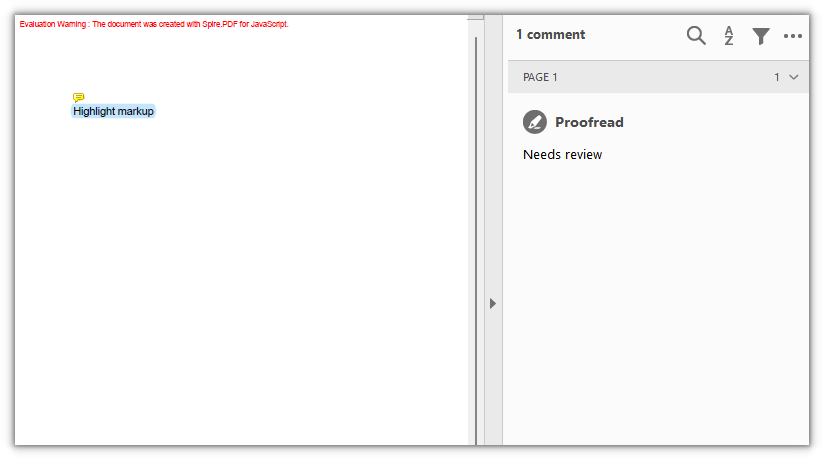
A piece of text on the page covered by a highlight markup:
Add a Free Text Annotation
PdfFreeTextAnnotation draws a block of text directly on the page as a text box, which is common for notes, comments, or fill-in fields. The box position and size come from the rectangle passed to the constructor, and the font, border, background, and opacity can all be set afterward.
function App() {
  const addFreeTextAnnotation = async () => {
    // Get the Spire.PDF WASM module
    const pdfModule = window.wasmModule?.spirepdf;

    // Check that the module is ready
    if (!pdfModule) {
      alert('Spire.PDF is not ready yet');
      return;
    }

    // The text box needs a font; load it into the VFS first
    await window.spire.FetchFileToVFS('ARIALUNI.TTF', '/Library/Fonts/', `${process.env.PUBLIC_URL}/font/`);

    const doc = new pdfModule.PdfDocument();
    const page = doc.Pages.Add();

    const rect = new pdfModule.RectangleF({ x: 80, y: 120, width: 220, height: 60 });

    // The rectangle is passed to the constructor, so it decides the annotation's position and size
    const annotation = new pdfModule.PdfFreeTextAnnotation(rect);
    annotation.Text = 'This is a free text annotation';
    annotation.Font = new pdfModule.PdfTrueTypeFont({
      fontFamily: 'Arial Unicode MS',
      size: 14,
      style: pdfModule.PdfFontStyle.Regular,
      unicode: true,
    });
    annotation.Border = new pdfModule.PdfAnnotationBorder({ borderWidth: 1 });
    annotation.BorderColor = new pdfModule.PdfRGBColor({ color: pdfModule.Color.get_Gray() });
    annotation.Color = new pdfModule.PdfRGBColor({ color: pdfModule.Color.get_LightGoldenrodYellow() });
    annotation.Opacity = 0.8;

    page.Annotations.Add(annotation);

    const outputFileName = 'FreeTextAnnotation.pdf';
    doc.SaveToFile(outputFileName);
    doc.Close();

    // Read the generated file from the VFS and trigger the download
    const fileArray = window.dotnetRuntime.Module.FS.readFile(outputFileName);
    const blob = new Blob([fileArray], { type: 'application/pdf' });
    const url = URL.createObjectURL(blob);
    const a = document.createElement('a');
    a.href = url;
    a.download = outputFileName;
    a.click();
    URL.revokeObjectURL(url);
  };

  return (
    <div style={{ textAlign: 'center', height: '300px' }}>
      <h1>Add a Free Text Annotation</h1>
      <button onClick={addFreeTextAnnotation}>Add Annotation</button>
    </div>
  );
}

export default App;
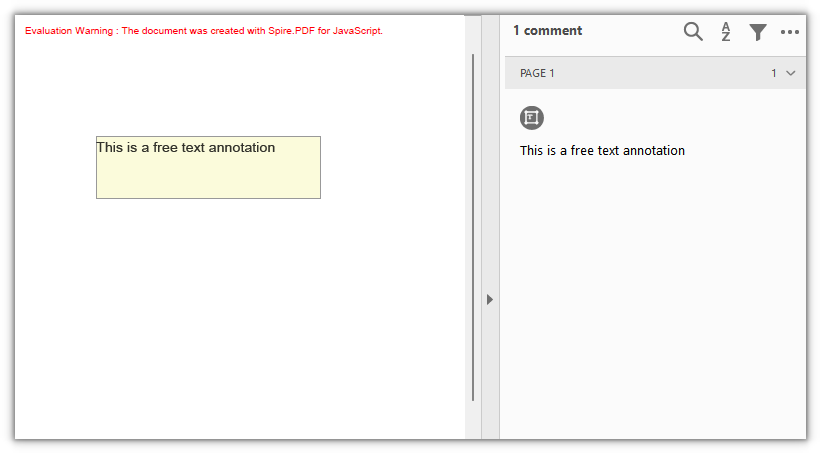
A block of free text with a border and a background on the page:
Add a Popup Annotation
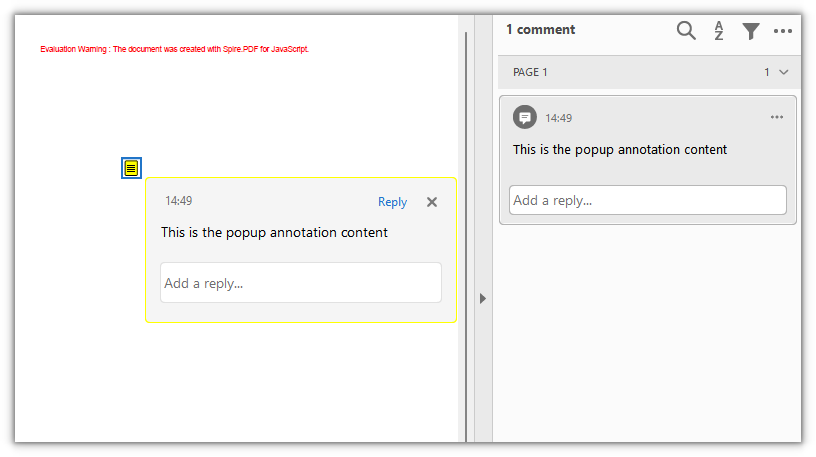
PdfPopupAnnotation places an expandable popup window that leaves only an icon when collapsed, which suits a longer note that should not take up page space. The icon style is set with Icon, whose values include Note, Comment, Help, Insert, Key, NewParagraph, and Paragraph.
function App() {
  const addPopupAnnotation = async () => {
    // Get the Spire.PDF WASM module
    const pdfModule = window.wasmModule?.spirepdf;

    // Check that the module is ready
    if (!pdfModule) {
      alert('Spire.PDF is not ready yet');
      return;
    }

    const doc = new pdfModule.PdfDocument();
    const page = doc.Pages.Add();

    // A collapsed popup annotation is just an icon, so a zero-size rectangle marks its spot
    const rect = new pdfModule.RectangleF({ x: 120, y: 160, width: 0, height: 0 });

    const annotation = new pdfModule.PdfPopupAnnotation({ rectangle: rect, text: 'This is the popup annotation content' });
    annotation.Icon = pdfModule.PdfPopupIcon.Note;
    annotation.Open = true;
    annotation.Color = new pdfModule.PdfRGBColor({ color: pdfModule.Color.get_Yellow() });

    page.Annotations.Add(annotation);

    const outputFileName = 'PopupAnnotation.pdf';
    doc.SaveToFile(outputFileName);
    doc.Close();

    // Read the generated file from the VFS and trigger the download
    const fileArray = window.dotnetRuntime.Module.FS.readFile(outputFileName);
    const blob = new Blob([fileArray], { type: 'application/pdf' });
    const url = URL.createObjectURL(blob);
    const a = document.createElement('a');
    a.href = url;
    a.download = outputFileName;
    a.click();
    URL.revokeObjectURL(url);
  };

  return (
    <div style={{ textAlign: 'center', height: '300px' }}>
      <h1>Add a Popup Annotation</h1>
      <button onClick={addPopupAnnotation}>Add Annotation</button>
    </div>
  );
}

export default App;
A popup annotation on the page, with its content expanded next to the icon:
Add a Stamp Annotation
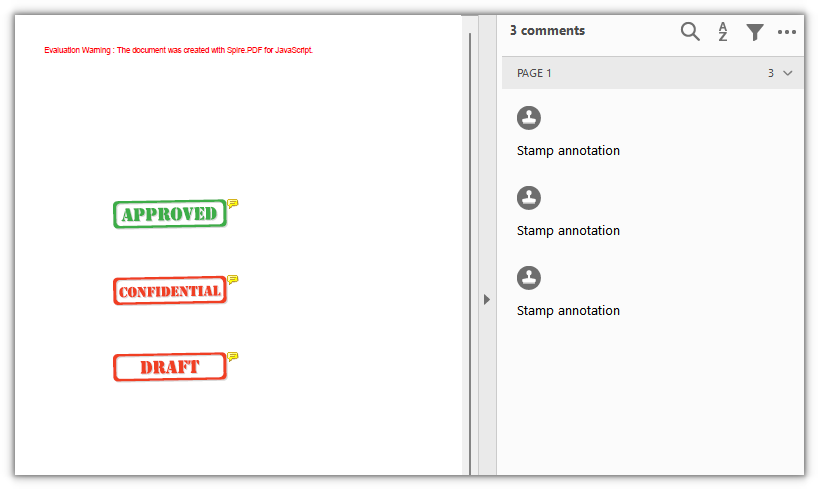
PdfRubberStampAnnotation is used to place a stamp. It ships with a set of ready-made icons, so setting Icon produces a stamped frame with text and no need to draw the appearance yourself. The available icons include Approved, Confidential, Draft, Final, Expired, Sold, TopSecret, NotForPublicRelease, and a dozen or so more.
function App() {
  const addStampAnnotations = async () => {
    // Get the Spire.PDF WASM module
    const pdfModule = window.wasmModule?.spirepdf;

    // Check that the module is ready
    if (!pdfModule) {
      alert('Spire.PDF is not ready yet');
      return;
    }

    const doc = new pdfModule.PdfDocument();
    const page = doc.Pages.Add();

    // Place three common stamps with built-in icons
    const stamps = [
      { icon: pdfModule.PdfRubberStampAnnotationIcon.Approved, y: 200, color: pdfModule.Color.get_LightGreen() },
      { icon: pdfModule.PdfRubberStampAnnotationIcon.Confidential, y: 300, color: pdfModule.Color.get_LightPink() },
      { icon: pdfModule.PdfRubberStampAnnotationIcon.Draft, y: 400, color: pdfModule.Color.get_LightBlue() },
    ];

    for (const stamp of stamps) {
      const rect = new pdfModule.RectangleF({ x: 100, y: stamp.y, width: 150, height: 60 });

      const annotation = new pdfModule.PdfRubberStampAnnotation({ rectangle: rect, text: 'Stamp annotation' });
      annotation.Icon = stamp.icon;
      annotation.Color = new pdfModule.PdfRGBColor({ color: stamp.color });

      page.Annotations.Add(annotation);
    }

    const outputFileName = 'StampAnnotation.pdf';
    doc.SaveToFile(outputFileName);
    doc.Close();

    // Read the generated file from the VFS and trigger the download
    const fileArray = window.dotnetRuntime.Module.FS.readFile(outputFileName);
    const blob = new Blob([fileArray], { type: 'application/pdf' });
    const url = URL.createObjectURL(blob);
    const a = document.createElement('a');
    a.href = url;
    a.download = outputFileName;
    a.click();
    URL.revokeObjectURL(url);
  };

  return (
    <div style={{ textAlign: 'center', height: '300px' }}>
      <h1>Add a Stamp Annotation</h1>
      <button onClick={addStampAnnotations}>Add Stamp</button>
    </div>
  );
}

export default App;
Three built-in icon stamps:
Add a Shape Annotation
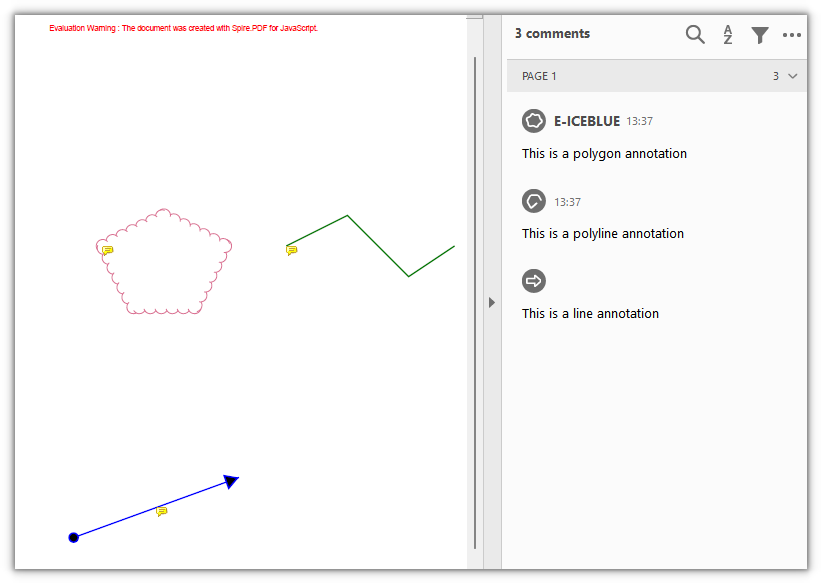
Shape annotations attach geometric figures to the page as independent objects, unlike drawing directly on the canvas: they carry their own properties and notes, and readers can recognize and select them individually. The three classes cover lines, polygons, and polylines:
| Class | Description |
|---|---|
PdfLineAnnotation |
A straight line, with configurable line endings and arrows |
PdfPolygonAnnotation |
A closed polygon bounded by several vertices |
PdfPolyLineAnnotation |
An open polyline connected by several vertices |
A polygon regenerates its appearance before it is added to the page, so set Author and Subject first; otherwise Add fails on a null reference.
function App() {
  const addShapeAnnotations = async () => {
    // Get the Spire.PDF WASM module
    const pdfModule = window.wasmModule?.spirepdf;

    // Check that the module is ready
    if (!pdfModule) {
      alert('Spire.PDF is not ready yet');
      return;
    }

    const doc = new pdfModule.PdfDocument();
    const page = doc.Pages.Add();

    // Line: given a start and an end point, with arrows at both ends
    const line = new pdfModule.PdfLineAnnotation({ linePoints: [80, 120, 300, 200], text: 'This is a line annotation' });
    line.lineBorder.BorderStyle = pdfModule.PdfLineBorderStyle.Solid;
    line.lineBorder.BorderWidth = 2;
    line.BeginLineStyle = pdfModule.PdfLineEndingStyle.Circle;
    line.EndLineStyle = pdfModule.PdfLineEndingStyle.ClosedArrow;
    line.BackColor = new pdfModule.PdfRGBColor({ color: pdfModule.Color.get_Blue() });
    page.Annotations.Add(line);

    // Polygon: vertices joined head to tail into a closed region
    const polygonPoints = [
      new pdfModule.PointF(80, 300),
      new pdfModule.PointF(160, 260),
      new pdfModule.PointF(240, 300),
      new pdfModule.PointF(200, 380),
      new pdfModule.PointF(120, 380),
      new pdfModule.PointF(80, 300),
    ];
    const polygon = new pdfModule.PdfPolygonAnnotation(page, polygonPoints);
    polygon.Color = new pdfModule.PdfRGBColor({ color: pdfModule.Color.get_PaleVioletRed() });
    polygon.Text = 'This is a polygon annotation';
    polygon.Author = 'E-ICEBLUE';
    polygon.Subject = 'polygon annotation demo';
    polygon.BorderEffect = pdfModule.PdfBorderEffect.BigCloud;
    polygon.ModifiedDate = new Date();
    page.Annotations.Add(polygon);

    // Polyline: vertices connected in order, not closed
    const polylinePoints = [
      new pdfModule.PointF(320, 300),
      new pdfModule.PointF(400, 260),
      new pdfModule.PointF(480, 340),
      new pdfModule.PointF(540, 300),
    ];
    const polyline = new pdfModule.PdfPolyLineAnnotation(page, polylinePoints);
    polyline.Color = new pdfModule.PdfRGBColor({ color: pdfModule.Color.get_Green() });
    polyline.Text = 'This is a polyline annotation';
    polyline.Border = new pdfModule.PdfAnnotationBorder({ borderWidth: 2 });
    page.Annotations.Add(polyline);

    const outputFileName = 'ShapeAnnotation.pdf';
    doc.SaveToFile(outputFileName);
    doc.Close();

    // Read the generated file from the VFS and trigger the download
    const fileArray = window.dotnetRuntime.Module.FS.readFile(outputFileName);
    const blob = new Blob([fileArray], { type: 'application/pdf' });
    const url = URL.createObjectURL(blob);
    const a = document.createElement('a');
    a.href = url;
    a.download = outputFileName;
    a.click();
    URL.revokeObjectURL(url);
  };

  return (
    <div style={{ textAlign: 'center', height: '300px' }}>
      <h1>Add a Shape Annotation</h1>
      <button onClick={addShapeAnnotations}>Add Shape</button>
    </div>
  );
}

export default App;
Line, polygon, and polyline annotations on the same page:
Add a Web Link Annotation
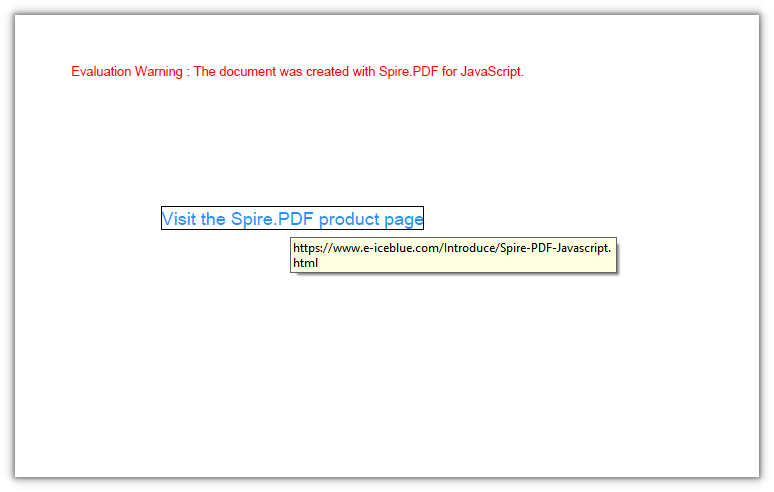
PdfUriAnnotation turns a rectangular area into a link to a URL; when clicked, the reader hands it to the browser to open.
function App() {
  const addWebLinkAnnotation = async () => {
    // Get the Spire.PDF WASM module
    const pdfModule = window.wasmModule?.spirepdf;

    // Check that the module is ready
    if (!pdfModule) {
      alert('Spire.PDF is not ready yet');
      return;
    }

    // The page needs a font; load it into the VFS first
    await window.spire.FetchFileToVFS('ARIALUNI.TTF', '/Library/Fonts/', `${process.env.PUBLIC_URL}/font/`);

    const doc = new pdfModule.PdfDocument();
    const page = doc.Pages.Add();

    const font = new pdfModule.PdfTrueTypeFont({ fontFamily: 'Arial Unicode MS', size: 14, style: pdfModule.PdfFontStyle.Regular, unicode: true });
    const text = 'Visit the Spire.PDF product page';

    // A link area is invisible, so draw some text first as the clickable entry
    page.Canvas.DrawString({ s: text, font, brush: pdfModule.PdfBrushes.get_DodgerBlue(), x: 80, y: 120 });
    const size = font.MeasureString({ text });

    const rect = new pdfModule.RectangleF({ x: 80, y: 120, width: size.Width, height: size.Height });
    const link = new pdfModule.PdfUriAnnotation({ rectangle: rect });
    link.Uri = 'https://www.e-iceblue.com/Introduce/Spire-PDF-Javascript.html';

    page.Annotations.Add(link);

    const outputFileName = 'WebLinkAnnotation.pdf';
    doc.SaveToFile(outputFileName);
    doc.Close();

    // Read the generated file from the VFS and trigger the download
    const fileArray = window.dotnetRuntime.Module.FS.readFile(outputFileName);
    const blob = new Blob([fileArray], { type: 'application/pdf' });
    const url = URL.createObjectURL(blob);
    const a = document.createElement('a');
    a.href = url;
    a.download = outputFileName;
    a.click();
    URL.revokeObjectURL(url);
  };

  return (
    <div style={{ textAlign: 'center', height: '300px' }}>
      <h1>Add a Web Link Annotation</h1>
      <button onClick={addWebLinkAnnotation}>Add Link</button>
    </div>
  );
}

export default App;
A web link annotation pointing to the product page, with the link area covering the text:
Add a File Link Annotation
PdfFileLinkAnnotation turns an area into a file link; when clicked, the reader opens the specified file through its system association.
function App() {
  const addFileLinkAnnotation = async () => {
    // Get the Spire.PDF WASM module
    const pdfModule = window.wasmModule?.spirepdf;

    // Check that the module is ready
    if (!pdfModule) {
      alert('Spire.PDF is not ready yet');
      return;
    }

    // The page needs a font; load it into the VFS first
    await window.spire.FetchFileToVFS('ARIALUNI.TTF', '/Library/Fonts/', `${process.env.PUBLIC_URL}/font/`);

    const doc = new pdfModule.PdfDocument();
    const page = doc.Pages.Add();

    const font = new pdfModule.PdfTrueTypeFont({ fontFamily: 'Arial Unicode MS', size: 14, style: pdfModule.PdfFontStyle.Regular, unicode: true });
    const text = 'Open Notepad';

    // Draw some text first as the clickable entry for the file link
    page.Canvas.DrawString({ s: text, font, brush: pdfModule.PdfBrushes.get_DodgerBlue(), x: 80, y: 120 });
    const size = font.MeasureString({ text });

    const rect = new pdfModule.RectangleF({ x: 80, y: 120, width: size.Width, height: size.Height });
    const link = new pdfModule.PdfFileLinkAnnotation(rect, 'C:\\Windows\\System32\\notepad.exe');

    page.Annotations.Add(link);

    const outputFileName = 'FileLinkAnnotation.pdf';
    doc.SaveToFile(outputFileName);
    doc.Close();

    // Read the generated file from the VFS and trigger the download
    const fileArray = window.dotnetRuntime.Module.FS.readFile(outputFileName);
    const blob = new Blob([fileArray], { type: 'application/pdf' });
    const url = URL.createObjectURL(blob);
    const a = document.createElement('a');
    a.href = url;
    a.download = outputFileName;
    a.click();
    URL.revokeObjectURL(url);
  };

  return (
    <div style={{ textAlign: 'center', height: '300px' }}>
      <h1>Add a File Link Annotation</h1>
      <button onClick={addFileLinkAnnotation}>Add Link</button>
    </div>
  );
}

export default App;
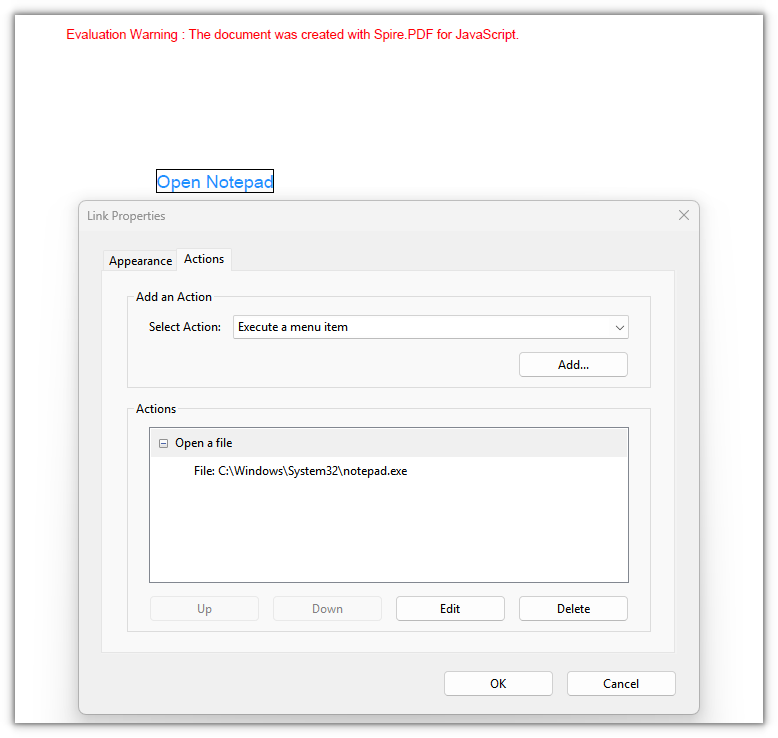
A file link annotation that opens the specified file through its system association when clicked:
Add a Document Link Annotation
PdfDocumentLinkAnnotation handles in-document jumps: when clicked, it moves to the page and position given by a PdfDestination.
function App() {
  const addDocumentLinkAnnotation = async () => {
    // Get the Spire.PDF WASM module
    const pdfModule = window.wasmModule?.spirepdf;

    // Check that the module is ready
    if (!pdfModule) {
      alert('Spire.PDF is not ready yet');
      return;
    }

    // The page needs a font; load it into the VFS first
    await window.spire.FetchFileToVFS('ARIALUNI.TTF', '/Library/Fonts/', `${process.env.PUBLIC_URL}/font/`);

    const doc = new pdfModule.PdfDocument();
    const page = doc.Pages.Add();

    // Append a second page as the jump target
    const target = doc.Pages.Add();

    const font = new pdfModule.PdfTrueTypeFont({ fontFamily: 'Arial Unicode MS', size: 14, style: pdfModule.PdfFontStyle.Regular, unicode: true });
    target.Canvas.DrawString({ s: 'This is the destination page', font, brush: pdfModule.PdfBrushes.get_Black(), x: 80, y: 120 });

    const text = 'Go to page 2';
    page.Canvas.DrawString({ s: text, font, brush: pdfModule.PdfBrushes.get_DodgerBlue(), x: 80, y: 120 });
    const size = font.MeasureString({ text });

    // Destination: 80 points down from the top of page 2, at 100% zoom
    const destination = new pdfModule.PdfDestination({ page: target });
    destination.Mode = pdfModule.PdfDestinationMode.Location;
    destination.Location = new pdfModule.PointF(0, 80);
    destination.Zoom = 1;

    const rect = new pdfModule.RectangleF({ x: 80, y: 120, width: size.Width, height: size.Height });
    const link = new pdfModule.PdfDocumentLinkAnnotation({ rectangle: rect, destination });

    page.Annotations.Add(link);

    const outputFileName = 'DocumentLinkAnnotation.pdf';
    doc.SaveToFile(outputFileName);
    doc.Close();

    // Read the generated file from the VFS and trigger the download
    const fileArray = window.dotnetRuntime.Module.FS.readFile(outputFileName);
    const blob = new Blob([fileArray], { type: 'application/pdf' });
    const url = URL.createObjectURL(blob);
    const a = document.createElement('a');
    a.href = url;
    a.download = outputFileName;
    a.click();
    URL.revokeObjectURL(url);
  };

  return (
    <div style={{ textAlign: 'center', height: '300px' }}>
      <h1>Add a Document Link Annotation</h1>
      <button onClick={addDocumentLinkAnnotation}>Add Link</button>
    </div>
  );
}

export default App;
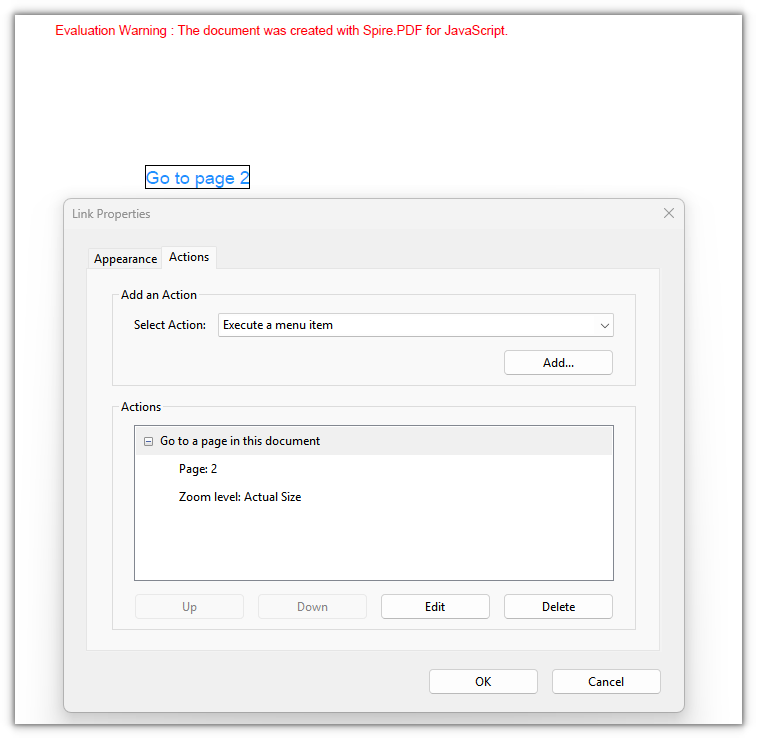
A link on page 1 pointing to a position on page 2:
FAQ
Text on the page renders as boxes or blank
Cause: The body text and the annotation text both need a Unicode TrueType font. If the font is not loaded into the VFS, or PdfTrueTypeFont is used without unicode: true, the glyphs cannot be resolved and the saved file shows boxes or nothing at all.
Solution: Load the font file into /Library/Fonts/ in the VFS first, then reference the same font name with unicode enabled:
// Load the font into the VFS
await window.spire.FetchFileToVFS('ARIALUNI.TTF', '/Library/Fonts/', `${process.env.PUBLIC_URL}/font/`);

// Use the same font name and enable unicode
const font = new pdfModule.PdfTrueTypeFont({ fontFamily: 'Arial Unicode MS', size: 14, style: pdfModule.PdfFontStyle.Regular, unicode: true });
Link annotations leave no visible trace on the page
Cause: Link annotations only define a clickable area and an action; they draw no appearance of their own. Most readers do not draw a border around links, so the page looks unchanged after saving — which does not mean the annotation was not written.
Solution: To make it visible, draw text or a shape at the same rectangle and lay the link on top:
// Draw visible text first, then build the link from a rectangle of the same size
page.Canvas.DrawString({ s: text, font, brush: pdfModule.PdfBrushes.get_DodgerBlue(), x: 80, y: 120 });
const size = font.MeasureString({ text });
const rect = new pdfModule.RectangleF({ x: 80, y: 120, width: size.Width, height: size.Height });
const link = new pdfModule.PdfUriAnnotation({ rectangle: rect });
link.Uri = 'https://www.e-iceblue.com/';
The text markup annotation does not cover the text
Cause: The marked area is decided by QuadPoints, which uses absolute page coordinates and does not follow the text and align itself, while the canvas origin is pushed aside by the page margins. When the two are out of step, the mark lands beside the text or over empty space.
Solution: Zero the page margins first so the canvas and the corner points share one coordinate system, then measure the text with MeasureString and derive the four corner points from it:
const margins = new pdfModule.PdfMargins();
margins.Top = 0; margins.Bottom = 0; margins.Left = 0; margins.Right = 0;
doc.PageSettings.Margins = margins;

const size = font.MeasureString({ text: 'Highlight markup' });
const rect = new pdfModule.RectangleF({ x: 80, y: 120, width: size.Width, height: size.Height });
annotation.QuadPoints = [
  new pdfModule.PointF(rect.Left, rect.Top),
  new pdfModule.PointF(rect.Right, rect.Top),
  new pdfModule.PointF(rect.Left, rect.Bottom),
  new pdfModule.PointF(rect.Right, rect.Bottom),
];
Get a Free License
If you want to remove the evaluation message from the resulting documents, or to get rid of the functional limitations, please contact sales for a temporary license valid for 30 days.
Delete Annotations from a PDF Document in React with JavaScript
A PDF moving through a workflow carries markup from the previous review round: a highlighted point, a change request, a sticky note that says "to confirm". Passing those traces on as-is invites misreading, and can leak internal discussion along with them. Deleting them one by one in a reader does not scale once there are many documents.
This article uses Spire.PDF for JavaScript to delete annotations from a PDF document. It loads, modifies, and saves PDF documents in the browser with WebAssembly; everything runs locally, files are read and written through a virtual file system (VFS), and no backend is involved. Deletion works on the PdfPage.Annotations collection: remove one entry by index, or clear a whole page in a single call.
This article covers two core features:
For installation and project setup, see How to Integrate Spire.PDF for JavaScript in a React Project. The examples below assume Spire.PDF is installed and the WebAssembly module is initialized.
Delete a Specific Annotation
Spire.PDF for JavaScript exposes the PdfPage.Annotations collection for managing a page's annotations. RemoveAt() removes one entry by index, starting at 0. the collection is ordered, so once an entry is removed the indices of the annotations after it shift down by one.
function App() {
  const deleteSpecificAnnotation = async () => {
    // Get the Spire.PDF WASM module
    const pdfModule = window.wasmModule?.spirepdf;

    // Check that the module is ready
    if (!pdfModule) {
      alert('Spire.PDF is not ready yet');
      return;
    }

    // Load the PDF with annotations into the VFS
    const inputFileName = 'DocumentWithAnnotations.pdf';
    await window.spire.FetchFileToVFS(inputFileName, "", `${process.env.PUBLIC_URL}/data/`);

    // Create a PdfDocument object and load the PDF document
    let doc = new pdfModule.PdfDocument();
    doc.LoadFromFile(inputFileName);

    // Delete the annotation at index 0 on page 1
    doc.Pages.get_Item(0).Annotations.RemoveAt(0);

    const outputFileName = 'DeleteSpecificAnnotation.pdf';
    doc.SaveToFile(outputFileName);
    doc.Close();

    // Read the generated file from the VFS and trigger the download
    const fileArray = window.dotnetRuntime.Module.FS.readFile(outputFileName);
    const blob = new Blob([fileArray], { type: 'application/pdf' });
    const url = URL.createObjectURL(blob);
    const a = document.createElement('a');
    a.href = url;
    a.download = outputFileName;
    a.click();
    URL.revokeObjectURL(url);
  };

  return (
    <div style={{ textAlign: 'center', height: '300px' }}>
      <h1>Delete a Specific Annotation</h1>
      <button onClick={deleteSpecificAnnotation} id="btn-1">
        Delete
      </button>
    </div>
  );
}

export default App;
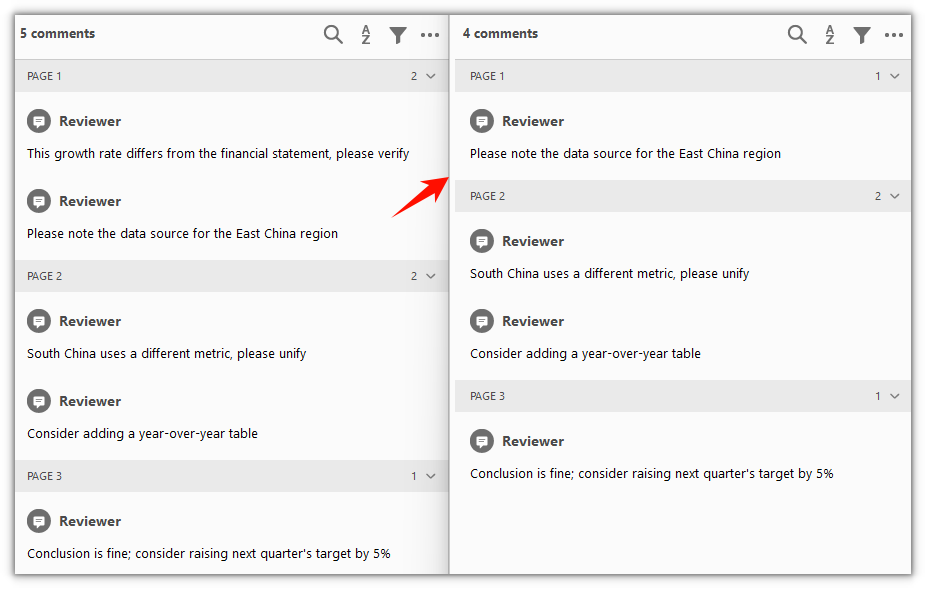
The annotation at index 0 on page 1 is removed and the remaining annotations are unchanged
Delete All Annotations from the Document
Spire.PDF for JavaScript also provides the PdfAnnotationCollection.Clear() method, which wipes every annotation on a page at once. It does not distinguish by type or count — the whole page is cleared together. To clear an entire document, walk doc.Pages and call it once per page.
function App() {
  const deleteAllAnnotations = async () => {
    // Get the Spire.PDF WASM module
    const pdfModule = window.wasmModule?.spirepdf;

    // Check that the module is ready
    if (!pdfModule) {
      alert('Spire.PDF is not ready yet');
      return;
    }

    // Load the PDF with annotations into the VFS
    const inputFileName = 'DocumentWithAnnotations.pdf';
    await window.spire.FetchFileToVFS(inputFileName, "", `${process.env.PUBLIC_URL}/data/`);

    // Create a PdfDocument object and load the PDF document
    let doc = new pdfModule.PdfDocument();
    doc.LoadFromFile(inputFileName);

    // Walk every page and clear all its annotations
    for (let i = 0; i < doc.Pages.Count; i++) {
      doc.Pages.get_Item(i).Annotations.Clear();
    }

    const outputFileName = 'DeleteAllAnnotations.pdf';
    doc.SaveToFile(outputFileName);
    doc.Close();

    // Read the generated file from the VFS and trigger the download
    const fileArray = window.dotnetRuntime.Module.FS.readFile(outputFileName);
    const blob = new Blob([fileArray], { type: 'application/pdf' });
    const url = URL.createObjectURL(blob);
    const a = document.createElement('a');
    a.href = url;
    a.download = outputFileName;
    a.click();
    URL.revokeObjectURL(url);
  };

  return (
    <div style={{ textAlign: 'center', height: '300px' }}>
      <h1>Delete All Annotations from the Document</h1>
      <button onClick={deleteAllAnnotations} id="btn-2">
        Clear
      </button>
    </div>
  );
}

export default App;
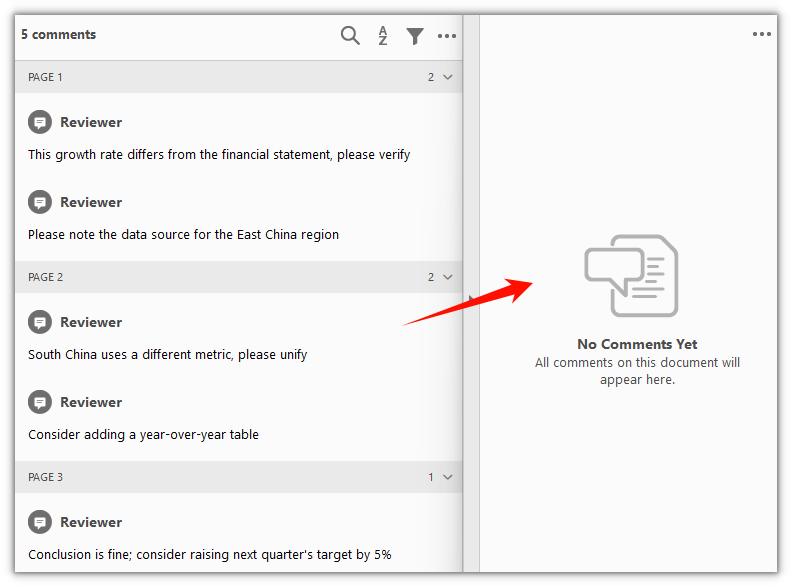
Annotations are cleared from every page and the body content is left untouched
FAQ
The wrong annotation got deleted
Cause: RemoveAt(index) locates an entry by index, and a text annotation or free-text annotation often generates a popup child annotation automatically. Both count in the Annotations collection, so the actual index does not line up with the number of notes you see on the page.
Solution: Walk the collection first, check each entry's index and type, then decide which one to remove. To remove only the text annotation itself, skip the popup child:
const annotations = doc.Pages.get_Item(0).Annotations;
for (let i = 0; i < annotations.Count; i++) {
  // A popup annotation is a child derived from a text annotation; skip it
  if (annotations.get_Item(i) instanceof pdfModule.PdfPopupAnnotationWidget) continue;
  annotations.RemoveAt(i);
  break;
}
Forward loop deletion skips half the annotations
Cause: After RemoveAt() removes one entry, the indices of every annotation after it drop by one. Deleting with a forward loop for (let i = 0; i < annotations.Count; i++) skips the entry right after each removed one.
Solution: Delete in reverse order, or just call Clear() on the page:
// Delete in reverse to avoid skipping entries as indices shift down
const annotations = doc.Pages.get_Item(0).Annotations;
for (let i = annotations.Count - 1; i >= 0; i--) {
  annotations.RemoveAt(i);
}
Does Clear() wipe the body content too
Cause: Clear() operates on the current page's Annotations collection, and that collection holds annotation objects only — no body text, images, or form fields.
Solution: Clear() removes annotations only and leaves the page body as it is. To clear just some pages, call it per page instead of walking the whole document:
// Clear annotations on page 2 (index 1) only
doc.Pages.get_Item(1).Annotations.Clear();
Get a Free License
If you want to remove the evaluation message from the resulting documents, or to get rid of the functional limitations, please contact sales for a temporary license valid for 30 days.
Extract Annotations from a PDF Document in React with JavaScript
When a PDF reaches the review stage, feedback rarely lands in the body text — it shows up as margin notes: change this, confirm that, something still in doubt. Pulling those notes into a list by opening a reader and copying each one does not scale once there are many documents.
This article uses Spire.PDF for JavaScript to extract a specific annotation and all annotations from a PDF document. It loads and reads PDF documents in the browser with WebAssembly; everything runs locally, files are read and written through a virtual file system (VFS), and no backend is involved.
This article covers two core features:
For installation and project setup, see How to Integrate Spire.PDF for JavaScript in a React Project. The examples below assume Spire.PDF is installed and the WebAssembly module is initialized.
Extract a Specific Annotation
Spire.PDF for JavaScript exposes the PdfPage.Annotations collection for reading existing annotations on a page. Take a single annotation by index, check its type with instanceof, and you can read that annotation's content, author, name, and modified date.
function App() {
  const extractSpecificAnnotation = async () => {
    // Get the Spire.PDF WASM module
    const pdfModule = window.wasmModule?.spirepdf;

    // Check that the module is ready
    if (!pdfModule) {
      alert('Spire.PDF is not ready yet');
      return;
    }

    // Load the PDF with annotations into the VFS
    const inputFileName = 'Annotated_Report.pdf';
    await window.spire.FetchFileToVFS(inputFileName, "", `${process.env.PUBLIC_URL}/data/`);

    // Create a PdfDocument object and load the PDF document
    const doc = new pdfModule.PdfDocument();
    doc.LoadFromFile(inputFileName);

    // Get the annotation collection of the first page
    const page = doc.Pages.get_Item(0);
    const annotations = page.Annotations;

    // Pick the annotation to read; here, the first one in the collection
    const index = 0;
    const target = annotations.get_Item(index);

    let content = `Reading annotation #${index + 1}\r\n`;

    // Check the annotation type: only a text annotation carries an author and a name
    if (target instanceof pdfModule.PdfTextAnnotationWidget) {
      const styled = new pdfModule.PdfStyledAnnotationWidget(target.H);
      content += `Content: ${styled.Text}\r\n`;

      const annot = new pdfModule.PdfAnnotation(target.H);
      content += `Modified date: ${annot.ModifiedDate.toString()}\r\n`;
      content += `Name: ${annot.Name}\r\n`;

      const markup = new pdfModule.PdfMarkUpAnnotationWidget(target.H);
      content += `Author: ${markup.Author}\r\n`;
    } else {
      content += 'This annotation is not a text annotation.\r\n';
    }

    // Define the output file name and release the document
    const outputFileName = 'SpecificAnnotationInfo.txt';
    doc.Close();

    // Write the content to the VFS and trigger the download
    window.dotnetRuntime.Module.FS.writeFile(outputFileName, content);
    const fileArray = window.dotnetRuntime.Module.FS.readFile(outputFileName);
    const blob = new Blob([fileArray], { type: 'text/plain' });
    const url = URL.createObjectURL(blob);
    const a = document.createElement('a');
    a.href = url;
    a.download = outputFileName;
    a.click();
    URL.revokeObjectURL(url);
  };

  return (
    <div style={{ textAlign: 'center', height: '300px' }}>
      <h1>Extract a Specific Annotation</h1>
      <button onClick={extractSpecificAnnotation}>
        Extract
      </button>
    </div>
  );
}

export default App;
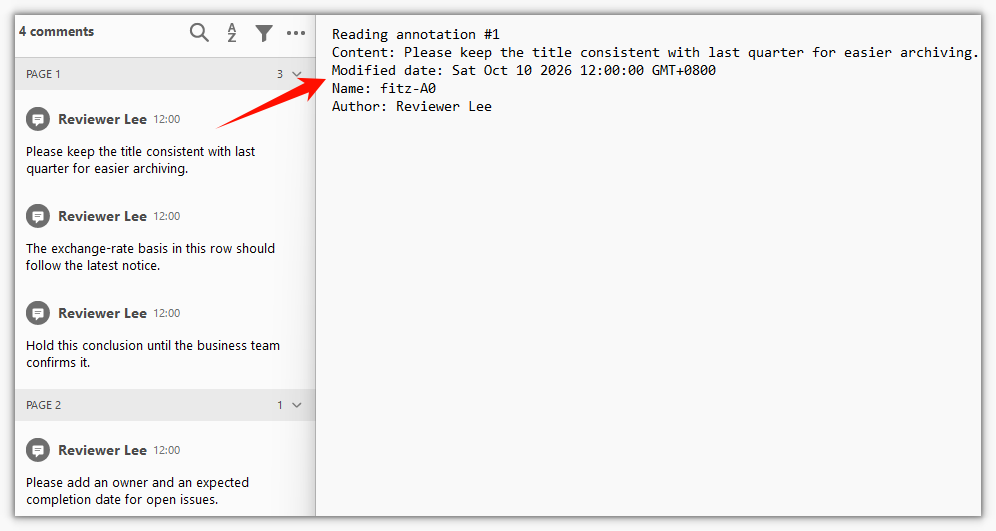
Content, author, name, and modified date read from a single annotation:
Extract All Annotations from the Document
Spire.PDF for JavaScript also lets you walk the annotation collection in order to export a page's annotations in one pass. A text annotation comes with a popup child annotation, and the content lives on the text annotation; skip popups by type while iterating so the same mark is not recorded twice.
function App() {
  const extractAllAnnotations = async () => {
    // Get the Spire.PDF WASM module
    const pdfModule = window.wasmModule?.spirepdf;

    // Check that the module is ready
    if (!pdfModule) {
      alert('Spire.PDF is not ready yet');
      return;
    }

    // Load the PDF with annotations into the VFS
    const inputFileName = 'Annotated_Report.pdf';
    await window.spire.FetchFileToVFS(inputFileName, "", `${process.env.PUBLIC_URL}/data/`);

    // Create a PdfDocument object and load the PDF document
    const doc = new pdfModule.PdfDocument();
    doc.LoadFromFile(inputFileName);

    let content = '';

    // Walk the annotations page by page
    for (let p = 0; p < doc.Pages.Count; p++) {
      const annotations = doc.Pages.get_Item(p).Annotations;

      for (let i = 0; i < annotations.Count; i++) {
        const item = annotations.get_Item(i);

        // A text annotation derives a popup child; the content is on the text annotation, so skip popups to avoid duplicates
        if (item instanceof pdfModule.PdfPopupAnnotationWidget) {
          continue;
        }

        const annot = new pdfModule.PdfAnnotation(item.H);
        content += `Content: ${annot.Text}\r\n`;
        content += `Modified date: ${annot.ModifiedDate.toString()}\r\n\r\n`;
      }
    }

    // Define the output file name and release the document
    const outputFileName = 'AllAnnotationsInfo.txt';
    doc.Close();

    // Write the content to the VFS and trigger the download
    window.dotnetRuntime.Module.FS.writeFile(outputFileName, content);
    const fileArray = window.dotnetRuntime.Module.FS.readFile(outputFileName);
    const blob = new Blob([fileArray], { type: 'text/plain' });
    const url = URL.createObjectURL(blob);
    const a = document.createElement('a');
    a.href = url;
    a.download = outputFileName;
    a.click();
    URL.revokeObjectURL(url);
  };

  return (
    <div style={{ textAlign: 'center', height: '300px' }}>
      <h1>Extract All Annotations from the Document</h1>
      <button onClick={extractAllAnnotations}>
        Extract
      </button>
    </div>
  );
}

export default App;
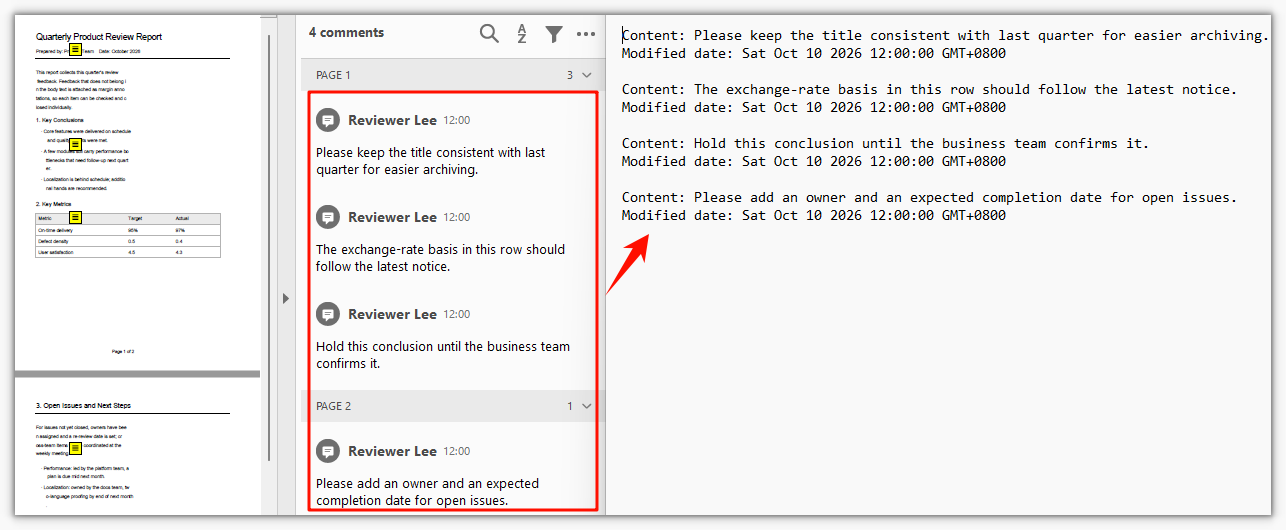
Content and modified date collected from every page, with popup child annotations skipped:
FAQ
Why the loop finds more annotations than you see on the page
Cause: Every text annotation (sticky note) is made of two objects in the PDF — the annotation itself and a popup child. They are a parent-child pair, and the content exists only on the parent. The Annotations collection lists both, so the same mark gets counted twice.
Solution: Check the type while iterating and skip popups:
// The popup child annotation has empty content; skipping it avoids duplicates
if (item instanceof pdfModule.PdfPopupAnnotationWidget) {
  continue;
}
Why the annotation at a given index has no content or author
Cause: The order in the collection does not have to match what you see in a reader. Index 0 may point at a popup child annotation, or the annotation may not be a text annotation at all (a link or a stamp, say), so fields such as Author and Name come back empty.
Solution: Confirm the type with instanceof before reading values. To locate one particular mark, iterate the collection and filter by content or author instead of hard-coding an index:
if (target instanceof pdfModule.PdfTextAnnotationWidget) {
  const markup = new pdfModule.PdfMarkUpAnnotationWidget(target.H);
  console.log(markup.Author);
}
The output is empty when the input document has no annotations
Cause: When the document itself has no annotations, Annotations.Count is 0, the loop never runs, and the exported txt is empty. That is not a read failure — there is simply nothing to extract.
Solution: Check whether the collection is empty before reading and give the caller a clear signal:
const annotations = doc.Pages.get_Item(0).Annotations;
if (annotations.Count === 0) {
  alert('This document has no annotations');
  return;
}
Get a Free License
If you want to remove the evaluation message from the resulting documents, or to get rid of the functional limitations, please contact sales for a temporary license valid for 30 days.
Create Actions in PDF Documents Using JavaScript in React
A PDF document is a static picture by default: readers can flip through and read it, but the document itself doesn't react to anything. To let a reader click an image to play a sound, or click an area to jump to a chosen page or open an embedded attachment, you attach an action to the document. Setting this up used to mean either a dedicated layout tool or generation on the server—the former asks a lot of the user, the latter means the file leaves the local machine.
Spire.PDF for JavaScript loads, modifies, and saves PDF documents in the browser via WebAssembly. Actions are generated entirely locally, reading and writing through a virtual file system (VFS), with no backend involved. This article uses PdfActionAnnotation to carry four actions: PdfGoToAction jumps to a page inside the document, PdfSoundAction plays audio when an image is clicked, PdfEmbeddedGoToAction opens an embedded attachment, and PdfLaunchAction opens a file outside the document.
This article covers four core features:
- Create a Go-To action
- Create a sound action
- Create an embedded file Go-To action
- Create a launch action
For installation and project setup, see Integrate Spire.PDF for JavaScript in a React project. The examples below assume Spire.PDF is installed and the WebAssembly module is initialized.
Create a Go-To action
A Go-To action carries the reading position from the current page to another spot in the document.
function App() {
  const addGoToAction = async () => {
    // Get the Spire.PDF WASM module
    const pdfModule = window.wasmModule?.spirepdf;

    // Check whether the module is ready
    if (!pdfModule) {
      alert('Spire.PDF is not ready yet');
      return;
    }

    // Load the font into the VFS font directory
    await window.spire.FetchFileToVFS('ARIAL.TTF', '/Library/Fonts/', `${process.env.PUBLIC_URL}/font/`);

    // Load the PDF to process into the VFS
    const inputFileName = 'SampleDocument.pdf';
    await window.spire.FetchFileToVFS(inputFileName, "", `${process.env.PUBLIC_URL}/data/`);

    // Create a PdfDocument object and load the document
    let doc = new pdfModule.PdfDocument();
    doc.LoadFromFile(inputFileName);

    // Put the jump entry on the first page, use the second page as the destination
    let firstPage = doc.Pages.get_Item(0);
    let secondPage = doc.Pages.get_Item(1);

    // Build the destination from the target page: top of the page, 100% zoom
    let destination = new pdfModule.PdfDestination({ page: secondPage });
    destination.Mode = pdfModule.PdfDestinationMode.Location;
    destination.Location = new pdfModule.PointF(0, 0);
    destination.Zoom = 1;

    // Wrap the destination in a Go-To action
    let action = new pdfModule.PdfGoToAction({ destination: destination });

    // Draw a button on the first page; the rectangle is the click hotspot
    let bounds = new pdfModule.RectangleF({ x: 72, y: 720, width: 200, height: 28 });
    let font = new pdfModule.PdfTrueTypeFont({ fontFile: '/Library/Fonts/ARIAL.TTF', size: 12 });
    let format = new pdfModule.PdfStringFormat({ alignment: pdfModule.PdfTextAlignment.Center, lineAlignment: pdfModule.PdfVerticalAlignment.Middle });
    firstPage.Canvas.DrawRectangle({ brush: pdfModule.PdfBrushes.get_LightGray(), rectangle: bounds });
    firstPage.Canvas.DrawString({ s: 'Go to page 2', font: font, brush: pdfModule.PdfBrushes.get_Black(), layoutRectangle: bounds, format: format });

    // The action annotation covers the button area; a click triggers the jump
    let annotation = new pdfModule.PdfActionAnnotation(bounds, action);
    firstPage.Annotations.Add(annotation);

    // Save the document
    const outputFileName = 'GoToAction.pdf';
    doc.SaveToFile(outputFileName);
    doc.Close();

    // Read the generated file from the VFS and trigger a download
    const fileArray = window.dotnetRuntime.Module.FS.readFile(outputFileName);
    const blob = new Blob([fileArray], { type: 'application/pdf' });
    const url = URL.createObjectURL(blob);
    const a = document.createElement('a');
    a.href = url;
    a.download = outputFileName;
    a.click();
    URL.revokeObjectURL(url);
  };

  return (
    <div style={{ textAlign: 'center', height: '300px' }}>
      <h1>Create a Go-To action</h1>
      <button onClick={addGoToAction}>
        Start
      </button>
    </div>
  );
}

export default App;
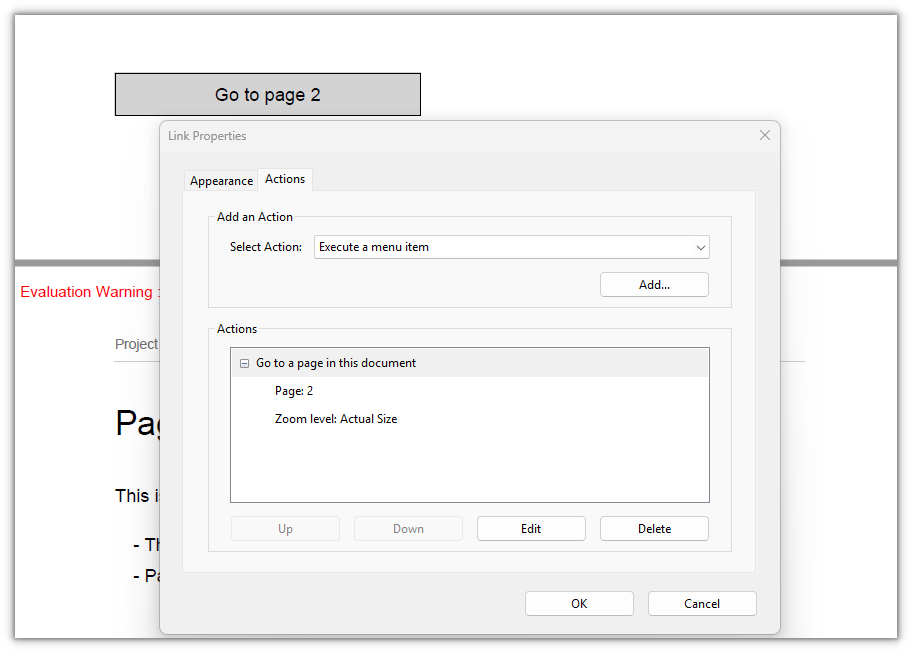
A "Go to page 2" button appears at the bottom of the first page; clicking it moves the reading position to the top of the second page:
Create a sound action
A sound action ships the audio with the document and plays it when you click an image on the page.
function App() {
  const addSoundAction = async () => {
    // Get the Spire.PDF WASM module
    const pdfModule = window.wasmModule?.spirepdf;

    // Check whether the module is ready
    if (!pdfModule) {
      alert('Spire.PDF is not ready yet');
      return;
    }

    // Load the PDF to process, the beep, and the icon into the VFS
    const inputFileName = 'SampleDocument.pdf';
    await window.spire.FetchFileToVFS(inputFileName, "", `${process.env.PUBLIC_URL}/data/`);
    const soundFileName = 'BeepSound.wav';
    await window.spire.FetchFileToVFS(soundFileName, "", `${process.env.PUBLIC_URL}/data/`);
    const iconFileName = 'SoundIcon.png';
    await window.spire.FetchFileToVFS(iconFileName, "", `${process.env.PUBLIC_URL}/data/`);

    // Create a PdfDocument object and load the document
    let doc = new pdfModule.PdfDocument();
    doc.LoadFromFile(inputFileName);

    // Get the first page
    let firstPage = doc.Pages.get_Item(0);

    // Build the sound action from the audio file
    let soundAction = new pdfModule.PdfSoundAction(soundFileName);

    // Sample format matching the audio: 16-bit, mono, signed PCM, 22050 Hz
    soundAction.Sound.Bits = 16;
    soundAction.Sound.Channels = pdfModule.PdfSoundChannels.Mono;
    soundAction.Sound.Encoding = pdfModule.PdfSoundEncoding.Signed;
    soundAction.Sound.Rate = 22050;

    // Playback: volume 0.5, loop, mix with other sounds, not synchronous
    soundAction.Volume = 0.5;
    soundAction.Repeat = true;
    soundAction.Mix = true;
    soundAction.Synchronous = false;

    // Draw the icon into a rectangle on the page; the rectangle is the click hotspot
    let icon = pdfModule.PdfImage.FromFile(iconFileName);
    let bounds = new pdfModule.RectangleF({ x: 72, y: 600, width: 160, height: 160 });
    firstPage.Canvas.DrawImage({ image: icon, rectangle: bounds });

    // The action annotation covers the icon; a click plays the audio
    let annotation = new pdfModule.PdfActionAnnotation(bounds, soundAction);
    firstPage.Annotations.Add(annotation);

    // Save the document
    const outputFileName = 'SoundAction.pdf';
    doc.SaveToFile(outputFileName);
    doc.Close();

    // Read the generated file from the VFS and trigger a download
    const fileArray = window.dotnetRuntime.Module.FS.readFile(outputFileName);
    const blob = new Blob([fileArray], { type: 'application/pdf' });
    const url = URL.createObjectURL(blob);
    const a = document.createElement('a');
    a.href = url;
    a.download = outputFileName;
    a.click();
    URL.revokeObjectURL(url);
  };

  return (
    <div style={{ textAlign: 'center', height: '300px' }}>
      <h1>Create a sound action</h1>
      <button onClick={addSoundAction}>
        Start
      </button>
    </div>
  );
}

export default App;
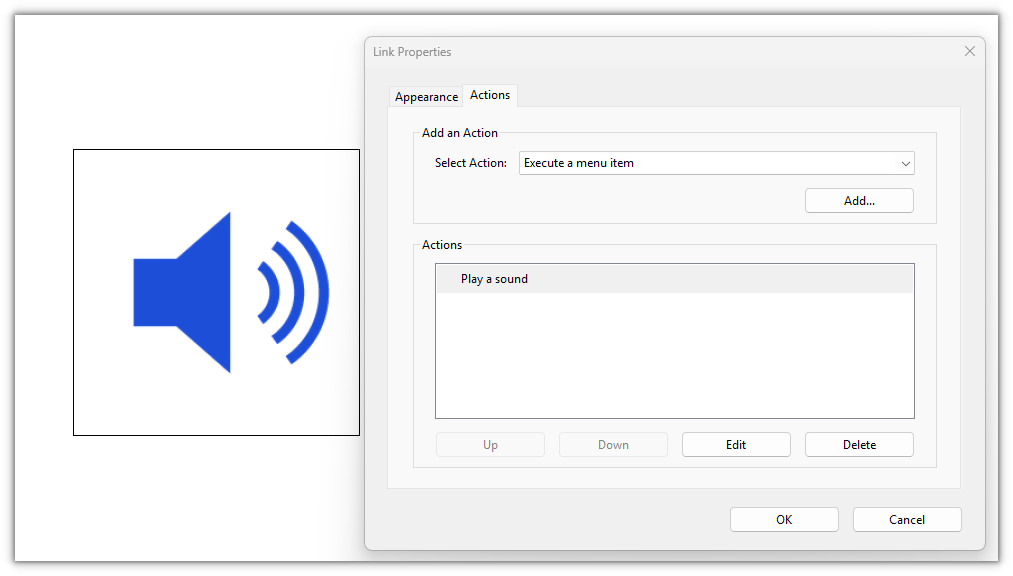
A speaker icon appears on the first page; clicking it plays the embedded audio. To play it automatically when the document opens instead, assign the same action to doc.AfterOpenAction—but whether it autoplays depends on the viewer, so click-to-play is usually more reliable:
Create an embedded file Go-To action
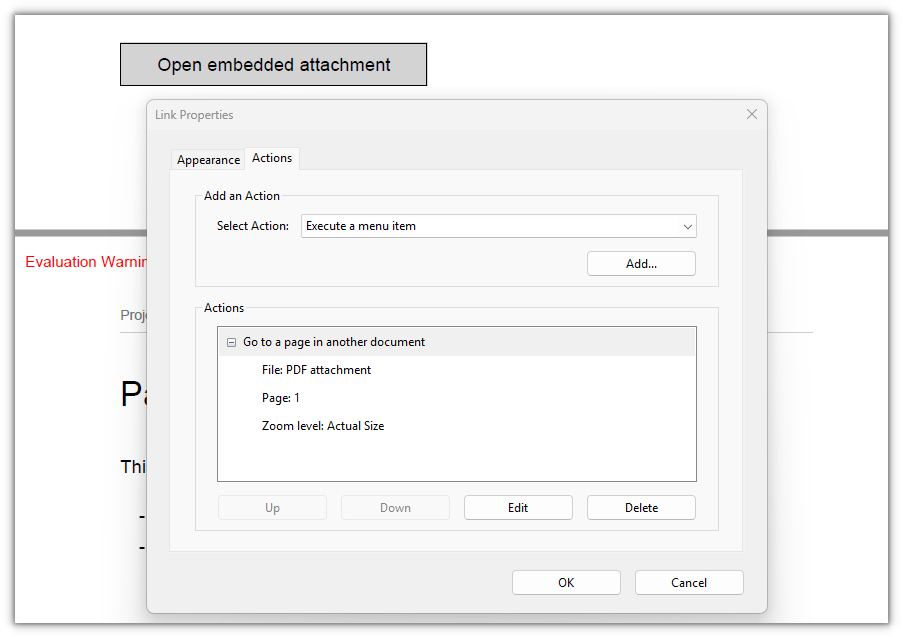
An embedded file Go-To action targets the "document with an attachment" case: add the attachment to the Attachments collection with PdfAttachment, then use PdfEmbeddedGoToAction to name which attachment to open and which page to land on.
function App() {
  const addEmbeddedGoToAction = async () => {
    // Get the Spire.PDF WASM module
    const pdfModule = window.wasmModule?.spirepdf;

    // Check whether the module is ready
    if (!pdfModule) {
      alert('Spire.PDF is not ready yet');
      return;
    }

    // Load the font into the VFS font directory
    await window.spire.FetchFileToVFS('ARIAL.TTF', '/Library/Fonts/', `${process.env.PUBLIC_URL}/font/`);

    // Load the main document and the attachment to embed into the VFS
    const inputFileName = 'SampleDocument.pdf';
    await window.spire.FetchFileToVFS(inputFileName, "", `${process.env.PUBLIC_URL}/data/`);
    const attachmentFileName = 'Attachment.pdf';
    await window.spire.FetchFileToVFS(attachmentFileName, "", `${process.env.PUBLIC_URL}/data/`);

    // Create a PdfDocument object and load the document
    let doc = new pdfModule.PdfDocument();
    doc.LoadFromFile(inputFileName);

    // Get the first page
    let firstPage = doc.Pages.get_Item(0);

    // Embed the attachment PDF into the document
    let attachment = new pdfModule.PdfAttachment(attachmentFileName);
    doc.Attachments.Add({ attachment: attachment });

    // Destination: the first page of the embedded file
    let destination = new pdfModule.PdfDestination({ page: firstPage });
    destination.Location = new pdfModule.PointF(0, 842);
    destination.Zoom = 1;

    // Build the embedded Go-To action from the attachment name and destination; true opens it in a new window
    let action = new pdfModule.PdfEmbeddedGoToAction(attachment.FileName, destination, true);

    // Draw a button on the first page; the rectangle is the click hotspot
    let bounds = new pdfModule.RectangleF({ x: 72, y: 720, width: 200, height: 28 });
    let font = new pdfModule.PdfTrueTypeFont({ fontFile: '/Library/Fonts/ARIAL.TTF', size: 12 });
    let format = new pdfModule.PdfStringFormat({ alignment: pdfModule.PdfTextAlignment.Center, lineAlignment: pdfModule.PdfVerticalAlignment.Middle });
    firstPage.Canvas.DrawRectangle({ brush: pdfModule.PdfBrushes.get_LightGray(), rectangle: bounds });
    firstPage.Canvas.DrawString({ s: 'Open embedded attachment', font: font, brush: pdfModule.PdfBrushes.get_Black(), layoutRectangle: bounds, format: format });

    // The action annotation covers the button area; a click opens the attachment
    let annotation = new pdfModule.PdfActionAnnotation(bounds, action);
    firstPage.Annotations.Add(annotation);

    // Save the document
    const outputFileName = 'EmbeddedGoToAction.pdf';
    doc.SaveToFile(outputFileName);
    doc.Close();

    // Read the generated file from the VFS and trigger a download
    const fileArray = window.dotnetRuntime.Module.FS.readFile(outputFileName);
    const blob = new Blob([fileArray], { type: 'application/pdf' });
    const url = URL.createObjectURL(blob);
    const a = document.createElement('a');
    a.href = url;
    a.download = outputFileName;
    a.click();
    URL.revokeObjectURL(url);
  };

  return (
    <div style={{ textAlign: 'center', height: '300px' }}>
      <h1>Create an embedded file Go-To action</h1>
      <button onClick={addEmbeddedGoToAction}>
        Start
      </button>
    </div>
  );
}

export default App;
An "Open embedded attachment" button appears on the first page; clicking it opens the embedded attachment PDF in a new window:
Create a launch action
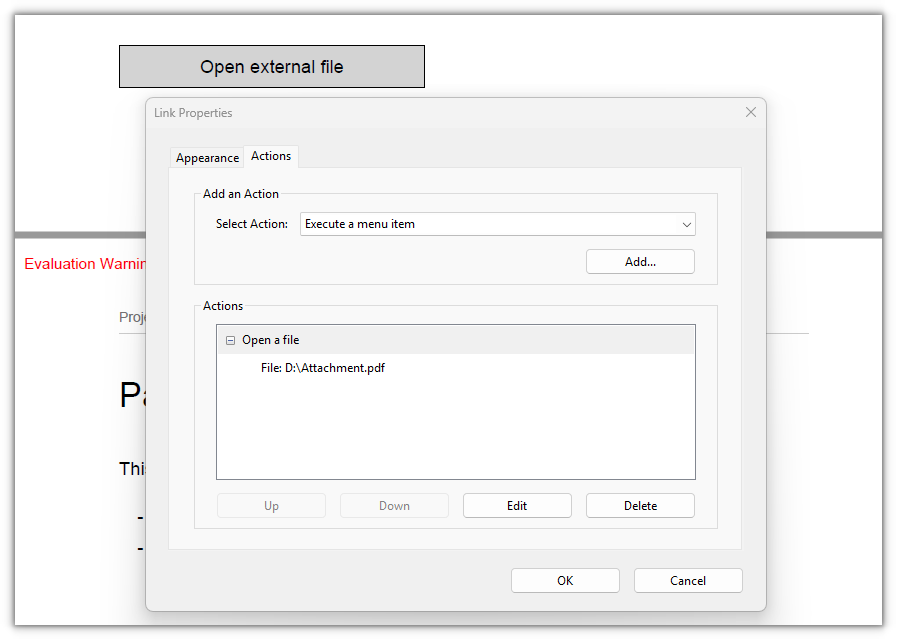
A launch action hands the click over to the operating system: the document records only a file path, and on click the OS opens that file with its associated application—the file itself is not in the PDF.
The key difference from the embedded file Go-To action in the previous section is where the file lives: the embedded one packs the file into the PDF and lands on a page inside it, so the file travels with the document; the launch action leaves only a path in the document and the PDF carries no such file, so nothing happens on click unless the target file sits in the same directory (or at a resolvable path). Many viewers also block launch actions outright for security.
function App() {
  const addLaunchAction = async () => {
    // Get the Spire.PDF WASM module
    const pdfModule = window.wasmModule?.spirepdf;

    // Check whether the module is ready
    if (!pdfModule) {
      alert('Spire.PDF is not ready yet');
      return;
    }

    // Load the font into the VFS font directory
    await window.spire.FetchFileToVFS('ARIAL.TTF', '/Library/Fonts/', `${process.env.PUBLIC_URL}/font/`);

    // Load the PDF to process into the VFS
    const inputFileName = 'SampleDocument.pdf';
    await window.spire.FetchFileToVFS(inputFileName, "", `${process.env.PUBLIC_URL}/data/`);

    // Create a PdfDocument object and load the document
    let doc = new pdfModule.PdfDocument();
    doc.LoadFromFile(inputFileName);

    // Get the first page
    let firstPage = doc.Pages.get_Item(0);

    // Build the launch action from an external file path. Relative means relative to the document's directory
    const targetFileName = 'Attachment.pdf';
    let action = new pdfModule.PdfLaunchAction(targetFileName, pdfModule.PdfFilePathType.Relative);
    action.IsNewWindow = true;

    // Draw a button on the first page; the rectangle is the click hotspot
    let bounds = new pdfModule.RectangleF({ x: 72, y: 720, width: 200, height: 28 });
    let font = new pdfModule.PdfTrueTypeFont({ fontFile: '/Library/Fonts/ARIAL.TTF', size: 12 });
    let format = new pdfModule.PdfStringFormat({ alignment: pdfModule.PdfTextAlignment.Center, lineAlignment: pdfModule.PdfVerticalAlignment.Middle });
    firstPage.Canvas.DrawRectangle({ brush: pdfModule.PdfBrushes.get_LightGray(), rectangle: bounds });
    firstPage.Canvas.DrawString({ s: 'Open external file', font: font, brush: pdfModule.PdfBrushes.get_Black(), layoutRectangle: bounds, format: format });

    // The action annotation covers the button area; a click hands the file to the OS
    let annotation = new pdfModule.PdfActionAnnotation(bounds, action);
    firstPage.Annotations.Add(annotation);

    // Save the document
    const outputFileName = 'LaunchAction.pdf';
    doc.SaveToFile(outputFileName);
    doc.Close();

    // Read the generated file from the VFS and trigger a download
    const fileArray = window.dotnetRuntime.Module.FS.readFile(outputFileName);
    const blob = new Blob([fileArray], { type: 'application/pdf' });
    const url = URL.createObjectURL(blob);
    const a = document.createElement('a');
    a.href = url;
    a.download = outputFileName;
    a.click();
    URL.revokeObjectURL(url);
  };

  return (
    <div style={{ textAlign: 'center', height: '300px' }}>
      <h1>Create a launch action</h1>
      <button onClick={addLaunchAction}>
        Start
      </button>
    </div>
  );
}

export default App;
An "Open external file" button appears on the first page; clicking it hands Attachment.pdf in the same directory to the OS (the file must sit next to the PDF):
FAQ
The action annotation doesn't look clickable on the page
Cause: Actions are carried by PdfActionAnnotation, which only defines a hotspot and draws no appearance—once saved, the annotation dictionary holds only /Rect and /A, with no /AP appearance stream. Page renderers won't draw a border or underline for it, so an annotation alone gives the reader no hint of where to click.
Solution: Put the hotspot over a shape you draw yourself, using Canvas for the background and the text, with the annotation and the shape sharing the same coordinates:
let bounds = new pdfModule.RectangleF({ x: 72, y: 720, width: 200, height: 28 });
firstPage.Canvas.DrawRectangle({ brush: pdfModule.PdfBrushes.get_LightGray(), rectangle: bounds });
firstPage.Canvas.DrawString({ s: 'Go to page 2', font: font, brush: pdfModule.PdfBrushes.get_Black(), layoutRectangle: bounds, format: format });
firstPage.Annotations.Add(new pdfModule.PdfActionAnnotation(bounds, action));
The sound action does nothing after clicking the image
Cause: Both the action and the audio are written into the document—the annotation dictionary carries /A /S /Sound, and the audio is embedded as a stream—but whether a viewer plays embedded sound is up to the viewer, and some (especially built-in browser PDF viewers) don't play embedded audio by default.
Solution: Switch to a viewer that supports sound actions (such as Adobe Acrobat), where clicking the image plays it. The audio always ships with the document and depends on no external file.
The Go-To destination lands upside down
Cause: PdfDestination.Location, like the annotation rectangle, uses a top-left origin with y pointing down, and is converted to PDF's native bottom-left coordinates when written. If you give the y value with the bottom-left convention in mind, the destination comes out reversed.
Solution: Always give the value with a top-left origin; Location = new PointF(0, 0) means the top of the page:
let destination = new pdfModule.PdfDestination({ page: secondPage });
destination.Mode = pdfModule.PdfDestinationMode.Location;
destination.Location = new pdfModule.PointF(0, 0);
destination.Zoom = 1;
The launch action does nothing on click
Cause: A launch action leaves only a file path in the document (written as /A << /S /Launch /F ... >>); the target file is not in the PDF. If the file isn't in the document's directory (for a relative path) or the path can't be resolved, clicking does nothing—and many viewers block launch actions outright for security.
Solution: Put the target file in the same directory as the PDF before opening it; if you want the file to ship with the document, use the embedded file Go-To action instead and pack the file into the PDF rather than referencing an external path.
Get a Free License
To remove the evaluation message from the result documents, or to lift functional limits, contact sales for a 30-day temporary license.
Add Stamps to a PDF Document in React with JavaScript
Once a contract or approval form is finalized, it often needs an "Approved" stamp or a timestamp in the corner to record who confirmed it and when. Doing this in desktop software means stamping each file by hand, which gets slow as the pile grows; sending the document to a server to process means the file leaves the local machine.
Spire.PDF for JavaScript loads, modifies, and saves PDF documents in the browser with WebAssembly. Stamps are generated locally and files are read and written through a virtual file system (VFS), with no backend involved. The library treats a stamp as a type of annotation: PdfRubberStampAnnotation sets the stamp's position and size on the page, while its appearance comes from a PdfTemplate assigned through PdfAppearance — draw an image on the template for an image stamp, or text for a text stamp.
This article covers three core features:
For installation and project setup, see How to Integrate Spire.PDF for JavaScript in a React Project. The examples below assume Spire.PDF is installed and the WebAssembly module is initialized.
Add an Image Stamp
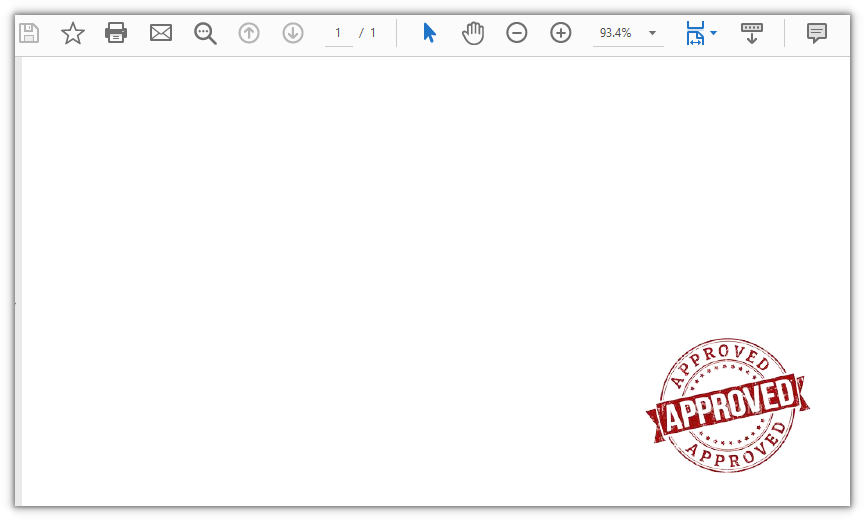
Spire.PDF for JavaScript provides the PdfRubberStampAnnotation class for placing a stamp at a given position on the page. It only defines the stamp's position and size; the appearance is set through PdfAppearance.
function App() {
  const addImageStamp = async () => {
    // Get the Spire.PDF WASM module
    const pdfModule = window.wasmModule?.spirepdf;

    // Check that the module is ready
    if (!pdfModule) {
      alert('Spire.PDF is not ready yet');
      return;
    }

    // Load the PDF and the stamp image into the VFS
    const inputFileName = 'SampleDocument.pdf';
    await window.spire.FetchFileToVFS(inputFileName, "", `${process.env.PUBLIC_URL}/data/`);
    const stampImageName = 'Seal.png';
    await window.spire.FetchFileToVFS(stampImageName, "", `${process.env.PUBLIC_URL}/data/`);

    // Create a PdfDocument object and load the document
    let doc = new pdfModule.PdfDocument();
    doc.LoadFromFile(inputFileName);

    // Get the first page
    let page = doc.Pages.get_Item(0);

    // Load the stamp image
    let image = pdfModule.PdfImage.FromFile(stampImageName);

    // Scale the image to fit within 120 points
    const maxSize = 120;
    const scale = Math.min(maxSize / image.Width, maxSize / image.Height, 1);
    const stampWidth = image.Width * scale;
    const stampHeight = image.Height * scale;

    // Create a template the same size as the stamp and fill it with the image
    let template = new pdfModule.PdfTemplate({ width: stampWidth, height: stampHeight });
    template.Graphics.DrawImage({ image: image, x: 0, y: 0, width: stampWidth, height: stampHeight });

    // Frame the stamp in the bottom-right corner; the rectangle matches the template
    let rect = new pdfModule.RectangleF({
      location: new pdfModule.PointF(page.ActualSize.Width - stampWidth - 40, page.ActualSize.Height - stampHeight - 40),
      size: new pdfModule.SizeF({ width: stampWidth, height: stampHeight })
    });

    // Create the stamp annotation and set the template as its appearance
    let stamp = new pdfModule.PdfRubberStampAnnotation({ rectangle: rect });
    let appearance = new pdfModule.PdfAppearance(stamp);
    appearance.Normal = template;
    stamp.Appearance = appearance;

    // Add the stamp annotation to the page's annotation collection
    page.AnnotationsWidget.Add(stamp);

    // Save the document
    const outputFileName = 'ImageStamp.pdf';
    doc.SaveToFile(outputFileName);
    doc.Close();

    // Read the generated file from the VFS and trigger the download
    const fileArray = window.dotnetRuntime.Module.FS.readFile(outputFileName);
    const blob = new Blob([fileArray], { type: 'application/pdf' });
    const url = URL.createObjectURL(blob);
    const a = document.createElement('a');
    a.href = url;
    a.download = outputFileName;
    a.click();
    URL.revokeObjectURL(url);
  };

  return (
    <div style={{ textAlign: 'center', height: '300px' }}>
      <h1>Add an Image Stamp</h1>
      <button onClick={addImageStamp}>
        Add Stamp
      </button>
    </div>
  );
}

export default App;
A PDF document with an image stamp in the bottom-right corner:
Add a Text Stamp
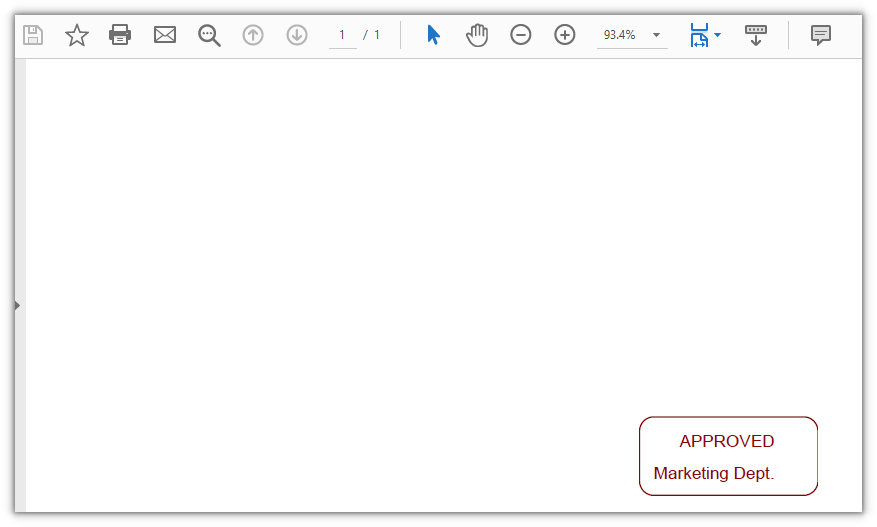
Spire.PDF for JavaScript also provides PdfPath, PdfPen, and PdfTrueTypeFont for drawing text as a stamp. PdfPath builds a rounded rectangle from four arcs, DrawPath strokes it into a border, and DrawString writes the text inside — a text stamp with a border.
function App() {
  const addTextStamp = async () => {
    // Get the Spire.PDF WASM module
    const pdfModule = window.wasmModule?.spirepdf;

    // Check that the module is ready
    if (!pdfModule) {
      alert('Spire.PDF is not ready yet');
      return;
    }

    // Load a font into the VFS font directory
    await window.spire.FetchFileToVFS('ARIAL.TTF', '/Library/Fonts/', `${process.env.PUBLIC_URL}/font/`);

    // Load the PDF into the VFS
    const inputFileName = 'SampleDocument.pdf';
    await window.spire.FetchFileToVFS(inputFileName, "", `${process.env.PUBLIC_URL}/data/`);

    // Create a PdfDocument object and load the document
    let doc = new pdfModule.PdfDocument();
    doc.LoadFromFile(inputFileName);

    // Get the first page
    let page = doc.Pages.get_Item(0);

    // Create the template that holds the stamp
    let template = new pdfModule.PdfTemplate({ width: 125, height: 55 });

    // Build the font from the file in the VFS and prepare the brush
    let font = new pdfModule.PdfTrueTypeFont({ fontFile: '/Library/Fonts/ARIAL.TTF', size: 12, style: pdfModule.PdfFontStyle.Bold });
    let brush = new pdfModule.PdfSolidBrush({ pdfRGBColor: new pdfModule.PdfRGBColor({ color: pdfModule.Color.get_DarkRed() }) });
    let pen = new pdfModule.PdfPen({ brush: brush });

    // Build a rounded-rectangle path from four arcs and a line
    const radius = 20;
    let path = new pdfModule.PdfPath();
    path.AddArc({ x: 0, y: 0, width: radius, height: radius, startAngle: 180, sweepAngle: 90 });
    path.AddArc({ x: template.Width - radius, y: 0, width: radius, height: radius, startAngle: 270, sweepAngle: 90 });
    path.AddArc({ x: template.Width - radius, y: template.Height - radius, width: radius, height: radius, startAngle: 0, sweepAngle: 90 });
    path.AddArc({ x: 0, y: template.Height - radius, width: radius, height: radius, startAngle: 90, sweepAngle: 90 });
    path.AddLine({ x1: 0, y1: template.Height - radius, x2: 0, y2: radius / 2 });

    // Stroke the path into the stamp border
    template.Graphics.DrawPath({ pen: pen, path: path });

    // Write two lines of text inside the border
    template.Graphics.DrawString({ s: 'APPROVED', font: font, brush: brush, point: new pdfModule.PointF(28, 10) });
    template.Graphics.DrawString({ s: 'Marketing Dept.', font: font, brush: brush, point: new pdfModule.PointF(10, 32) });

    // Frame the stamp in the bottom-right corner; the rectangle matches the template
    let rect = new pdfModule.RectangleF({
      location: new pdfModule.PointF(page.ActualSize.Width - template.Width - 40, page.ActualSize.Height - template.Height - 40),
      size: template.Size
    });

    // Create the stamp annotation and set the template as its appearance
    let stamp = new pdfModule.PdfRubberStampAnnotation({ rectangle: rect });
    let appearance = new pdfModule.PdfAppearance(stamp);
    appearance.Normal = template;
    stamp.Appearance = appearance;

    // Add the stamp annotation to the page's annotation collection
    page.AnnotationsWidget.Add(stamp);

    // Save the document
    const outputFileName = 'TextStamp.pdf';
    doc.SaveToFile(outputFileName);
    doc.Close();

    // Read the generated file from the VFS and trigger the download
    const fileArray = window.dotnetRuntime.Module.FS.readFile(outputFileName);
    const blob = new Blob([fileArray], { type: 'application/pdf' });
    const url = URL.createObjectURL(blob);
    const a = document.createElement('a');
    a.href = url;
    a.download = outputFileName;
    a.click();
    URL.revokeObjectURL(url);
  };

  return (
    <div style={{ textAlign: 'center', height: '300px' }}>
      <h1>Add a Text Stamp</h1>
      <button onClick={addTextStamp}>
        Add Stamp
      </button>
    </div>
  );
}

export default App;
A text stamp with a rounded border and the word APPROVED:
Add a Date and Time Stamp
Spire.PDF for JavaScript also provides PdfTemplate for rendering arbitrary content as a stamp appearance. The code below draws a single line of the current time on the template: the string is generated with the browser's native Date, and since DrawString draws any plain string, the stamp content changes with the moment it is generated.
function App() {
  const addDateTimeStamp = async () => {
    // Get the Spire.PDF WASM module
    const pdfModule = window.wasmModule?.spirepdf;

    // Check that the module is ready
    if (!pdfModule) {
      alert('Spire.PDF is not ready yet');
      return;
    }

    // Load a font into the VFS font directory
    await window.spire.FetchFileToVFS('ARIAL.TTF', '/Library/Fonts/', `${process.env.PUBLIC_URL}/font/`);

    // Load the PDF into the VFS
    const inputFileName = 'SampleDocument.pdf';
    await window.spire.FetchFileToVFS(inputFileName, "", `${process.env.PUBLIC_URL}/data/`);

    // Create a PdfDocument object and load the document
    let doc = new pdfModule.PdfDocument();
    doc.LoadFromFile(inputFileName);

    // Get the first page
    let page = doc.Pages.get_Item(0);

    // Get the current date and time
    const now = new Date();
    const pad = (value) => String(value).padStart(2, '0');
    let timeString = `${now.getFullYear()}-${pad(now.getMonth() + 1)}-${pad(now.getDate())} ${pad(now.getHours())}:${pad(now.getMinutes())}:${pad(now.getSeconds())}`;

    // Create a template sized for the text
    let template = new pdfModule.PdfTemplate({ width: 150, height: 16 });

    // Prepare the font and brush
    let font = new pdfModule.PdfTrueTypeFont({ fontFile: '/Library/Fonts/ARIAL.TTF', size: 12 });
    let brush = new pdfModule.PdfSolidBrush({ pdfRGBColor: new pdfModule.PdfRGBColor({ color: pdfModule.Color.get_Blue() }) });

    // Draw the time text onto the template
    template.Graphics.DrawString({ s: timeString, font: font, brush: brush, point: new pdfModule.PointF(0, 0) });

    // Frame the stamp in the bottom-right corner; the rectangle matches the template
    let rect = new pdfModule.RectangleF({
      location: new pdfModule.PointF(page.ActualSize.Width - template.Width - 20, page.ActualSize.Height - template.Height - 20),
      size: template.Size
    });

    // Create the stamp annotation and set the template as its appearance
    let stamp = new pdfModule.PdfRubberStampAnnotation({ rectangle: rect });
    let appearance = new pdfModule.PdfAppearance(stamp);
    appearance.Normal = template;
    stamp.Appearance = appearance;

    // Add the stamp annotation to the page's annotation collection
    page.AnnotationsWidget.Add(stamp);

    // Save the document
    const outputFileName = 'DateTimeStamp.pdf';
    doc.SaveToFile(outputFileName);
    doc.Close();

    // Read the generated file from the VFS and trigger the download
    const fileArray = window.dotnetRuntime.Module.FS.readFile(outputFileName);
    const blob = new Blob([fileArray], { type: 'application/pdf' });
    const url = URL.createObjectURL(blob);
    const a = document.createElement('a');
    a.href = url;
    a.download = outputFileName;
    a.click();
    URL.revokeObjectURL(url);
  };

  return (
    <div style={{ textAlign: 'center', height: '300px' }}>
      <h1>Add a Date and Time Stamp</h1>
      <button onClick={addDateTimeStamp}>
        Add Stamp
      </button>
    </div>
  );
}

export default App;
A stamp in the page corner recording the current date and time:
FAQ
The stamp is too large and its position is off
Cause: A stamp's position and size on the page come from the rectangle of PdfRubberStampAnnotation, and the appearance fills that rectangle. When the template size and the rectangle size differ, the appearance is stretched; when the rectangle uses the image's pixel dimensions without scaling, the stamp can cover the body text or run off the page.
Solution: Work out the target display size first, give the template and the rectangle the same width and height, then position them relative to the page size:
// Give the template and the rectangle the same width and height
let template = new pdfModule.PdfTemplate({ width: stampWidth, height: stampHeight });
let rect = new pdfModule.RectangleF({
  location: new pdfModule.PointF(page.ActualSize.Width - stampWidth - 40, page.ActualSize.Height - stampHeight - 40),
  size: template.Size
});
Text in the stamp renders as hollow boxes
Cause: PdfTrueTypeFont loads a font file through fontFile. If that file does not contain the glyphs for the text (for example, a Western font used with non-Latin characters), those characters have no glyph to draw and render as a row of boxes.
Solution: Use a font that contains the glyphs, and load the file into the VFS font directory /Library/Fonts/ first:
await window.spire.FetchFileToVFS('ARIAL.TTF', '/Library/Fonts/', `${process.env.PUBLIC_URL}/font/`);
const font = new pdfModule.PdfTrueTypeFont({ fontFile: '/Library/Fonts/ARIAL.TTF', size: 12 });
How to customize the date and time format
Cause: DrawString draws exactly the string you pass in, so the format is decided entirely by the code that builds the string. Methods such as toLocaleString depend on the browser's locale, so the output can differ from one environment to another.
Solution: For a fixed format, build the string from the Date getters:
const now = new Date();
const pad = (value) => String(value).padStart(2, '0');
const timeString = `${now.getFullYear()}-${pad(now.getMonth() + 1)}-${pad(now.getDate())} ${pad(now.getHours())}:${pad(now.getMinutes())}`;
Get a Free License
If you want to remove the evaluation message from the resulting documents, or to get rid of the functional limitations, please contact sales for a temporary license valid for 30 days.
Add a Header and Footer When Creating a New PDF in React with JavaScript
Laying out a report, a form or a set of notes and exporting it as a PDF often starts from a blank page. Headers and footers belong at the moment the document is built: going back to add them after the body is finished leaves positions and pagination awkward to manage. Doing it by hand page after page is tedious, and handing the job to a server means the data leaves the user's device.
This article uses Spire.PDF for JavaScript to create a PDF from scratch and add a header and a footer. The page margins are set to 0, and the surrounding white space comes from the Left, Top, Right and Bottom template elements of the document template (PdfDocumentTemplate) instead; the header and footer are drawn inside the top and bottom templates and appear on every new page at render time. The footer can fill in page numbers dynamically with PdfCompositeField. The library creates, draws and saves documents in the browser on top of WebAssembly, reading and writing files through a virtual file system (VFS), with no backend involved.
Two core features are covered:
For installation and project setup, see Integrating Spire.PDF for JavaScript into a React project. The examples below assume Spire.PDF is installed and the WebAssembly module is initialized.
Add a header when creating a new PDF
Spire.PDF for JavaScript provides PdfPageTemplateElement for reserving a content area on a page that you can draw into independently and that travels with the page. Assign it to PdfDocumentTemplate.Top and every new page carries this header template inside its top margin. The template element's height is the top margin; inside it, coordinates for lines, text and images start at the page's top-left corner, with x to the right and y downward.
function App() {
  const addHeaderToNewPdf = async () => {
    // Get the Spire.PDF WASM module
    const pdfModule = window.wasmModule?.spirepdf;

    // Check that the module is ready
    if (!pdfModule) {
      alert('Spire.PDF is not ready yet');
      return;
    }

    // Load the font and the header image into the VFS
    await window.spire.FetchFileToVFS('ARIAL.TTF', '/Library/Fonts/', `${process.env.PUBLIC_URL}/font/`);
    const imageFileName = 'E-iceblue.png';
    await window.spire.FetchFileToVFS(imageFileName, "", `${process.env.PUBLIC_URL}/data/`);

    // Create a new PDF document with an A4 page size
    const doc = new pdfModule.PdfDocument();
    const pageSize = pdfModule.PdfPageSize.A4();
    doc.PageSettings.Size = pageSize;

    // Set the page margins to 0; the white space comes from the document template's edge elements (50 points each)
    doc.PageSettings.Margins = new pdfModule.PdfMargins({ margin: 0 });
    const margins = new pdfModule.PdfMargins({ margin: 50 });

    // Reserve the left, right and bottom edges with blank templates so the body area is inset
    doc.Template.Left = new pdfModule.PdfPageTemplateElement({ width: margins.Left, height: pageSize.Height - margins.Top - margins.Bottom });
    doc.Template.Right = new pdfModule.PdfPageTemplateElement({ width: margins.Right, height: pageSize.Height - margins.Top - margins.Bottom });
    doc.Template.Bottom = new pdfModule.PdfPageTemplateElement({ width: pageSize.Width, height: margins.Bottom });

    // Header template: its height is the top margin; Foreground = true draws it above the body
    const headerSpace = new pdfModule.PdfPageTemplateElement({ width: pageSize.Width, height: margins.Top });
    headerSpace.Foreground = true;
    doc.Template.Top = headerSpace;

    // Font, brush, pen and alignment for the header
    const font = new pdfModule.PdfTrueTypeFont({ fontFile: '/Library/Fonts/ARIAL.TTF', size: 10, style: pdfModule.PdfFontStyle.Italic });
    const brush = pdfModule.PdfBrushes.get_Gray();
    const pen = new pdfModule.PdfPen({ brush: pdfModule.PdfBrushes.get_Gray(), width: 1.0 });
    const leftAlign = new pdfModule.PdfStringFormat({ alignment: pdfModule.PdfTextAlignment.Left });

    // Read the header image and convert its pixel size to points
    const headerImage = pdfModule.PdfImage.FromFile(imageFileName);
    const unitCvtr = new pdfModule.PdfUnitConvertor();
    const pointWidth = unitCvtr.ConvertUnits(headerImage.Width, pdfModule.PdfGraphicsUnit.Pixel, pdfModule.PdfGraphicsUnit.Point);
    const pointHeight = unitCvtr.ConvertUnits(headerImage.Height, pdfModule.PdfGraphicsUnit.Pixel, pdfModule.PdfGraphicsUnit.Point);

    // Put the logo on the right of the header, two lines of text on the left, and a divider line at the bottom
    headerSpace.Graphics.DrawImage({
      image: headerImage,
      x: headerSpace.Width - margins.Left - pointWidth,
      y: headerSpace.Height - pointHeight
    });
    headerSpace.Graphics.DrawString({
      s: 'E-iceblue Co., Ltd.\nwww.e-iceblue.com',
      font: font,
      brush: brush,
      x: margins.Left,
      y: headerSpace.Height - font.Height * 2,
      format: leftAlign
    });
    headerSpace.Graphics.DrawLine({
      pen: pen,
      x1: margins.Left,
      y1: margins.Top,
      x2: pageSize.Width - margins.Left,
      y2: margins.Top
    });

    // Add pages and write the body text; the header is applied by the template at render time
    const bodyFont = new pdfModule.PdfTrueTypeFont({ fontFile: '/Library/Fonts/ARIAL.TTF', size: 14 });
    const bodyBrush = pdfModule.PdfBrushes.get_Blue();
    const texts = ['Spire.PDF Header Example', 'Second page body text'];
    for (let i = 0; i < texts.length; i++) {
      const page = doc.Pages.Add();
      page.Canvas.DrawString({ s: texts[i], font: bodyFont, brush: bodyBrush, x: margins.Left, y: margins.Top + 30 });
    }

    const outputFileName = 'Header_Example.pdf';
    doc.SaveToFile(outputFileName);
    doc.Close();

    // Read the generated file from the VFS and trigger a download
    const fileArray = window.dotnetRuntime.Module.FS.readFile(outputFileName);
    const blob = new Blob([fileArray], { type: 'application/pdf' });
    const url = URL.createObjectURL(blob);
    const a = document.createElement('a');
    a.href = url;
    a.download = outputFileName;
    a.click();
    URL.revokeObjectURL(url);
  };

  return (
    <div style={{ textAlign: 'center', height: '300px' }}>
      <h1>Add a header when creating a new PDF</h1>
      <button onClick={addHeaderToNewPdf}>
        Generate
      </button>
    </div>
  );
}

export default App;
Every new page carries the header at the top:
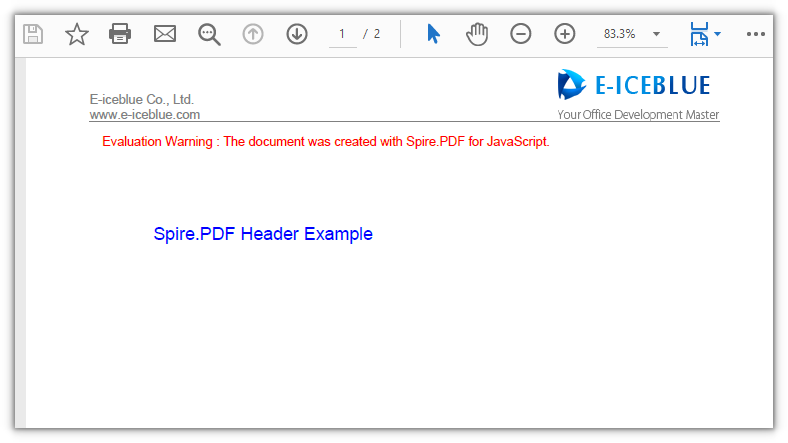
Add a footer when creating a new PDF
The footer hangs off PdfDocumentTemplate.Bottom; the approach matches the header, only the template height changes to the bottom margin. A footer often carries a page number: PdfPageNumberField and PdfPageCountField combine into a PdfCompositeField, and the number resolves to whichever page it is on.
function App() {
  const addFooterToNewPdf = async () => {
    // Get the Spire.PDF WASM module
    const pdfModule = window.wasmModule?.spirepdf;

    // Check that the module is ready
    if (!pdfModule) {
      alert('Spire.PDF is not ready yet');
      return;
    }

    // Load the font into the VFS for the footer text and page numbers
    await window.spire.FetchFileToVFS('ARIAL.TTF', '/Library/Fonts/', `${process.env.PUBLIC_URL}/font/`);

    // Create a new PDF document with an A4 page size
    const doc = new pdfModule.PdfDocument();
    const pageSize = pdfModule.PdfPageSize.A4();
    doc.PageSettings.Size = pageSize;

    // Set the page margins to 0; the white space comes from the document template's edge elements (50 points each)
    doc.PageSettings.Margins = new pdfModule.PdfMargins({ margin: 0 });
    const margins = new pdfModule.PdfMargins({ margin: 50 });

    // Reserve the left, right and top edges with blank templates so the body area is inset
    doc.Template.Left = new pdfModule.PdfPageTemplateElement({ width: margins.Left, height: pageSize.Height - margins.Top - margins.Bottom });
    doc.Template.Right = new pdfModule.PdfPageTemplateElement({ width: margins.Right, height: pageSize.Height - margins.Top - margins.Bottom });
    doc.Template.Top = new pdfModule.PdfPageTemplateElement({ width: pageSize.Width, height: margins.Top });

    // Footer template: its height is the bottom margin; Foreground = true draws it above the body
    const footerSpace = new pdfModule.PdfPageTemplateElement({ width: pageSize.Width, height: margins.Bottom });
    footerSpace.Foreground = true;
    doc.Template.Bottom = footerSpace;

    // Font, brush, pen and alignment for the footer
    const font = new pdfModule.PdfTrueTypeFont({ fontFile: '/Library/Fonts/ARIAL.TTF', size: 12, style: pdfModule.PdfFontStyle.Italic });
    const brush = pdfModule.PdfBrushes.get_Gray();
    const pen = new pdfModule.PdfPen({ brush: pdfModule.PdfBrushes.get_Gray(), width: 1.0 });
    const leftAlign = new pdfModule.PdfStringFormat({ alignment: pdfModule.PdfTextAlignment.Left });

    // Draw a divider line at the top of the footer, with two lines of contact details left-aligned below it
    footerSpace.Graphics.DrawLine({ pen: pen, x1: margins.Left, y1: 0, x2: pageSize.Width - margins.Left, y2: 0 });
    footerSpace.Graphics.DrawString({
      s: 'Email: sales@e-iceblue.com\nTel: 028-81705109',
      font: font,
      brush: brush,
      x: margins.Left,
      y: 2,
      format: leftAlign
    });

    // Two dynamic fields: the current page number and the total page count
    const number = new pdfModule.PdfPageNumberField();
    const count = new pdfModule.PdfPageCountField();

    // Combine them into "Page {0} of {1}" in placeholder order; the list order must match {0} and {1}
    const compositeField = new pdfModule.PdfCompositeField({
      font: font,
      brush: brush,
      text: 'Page {0} of {1}',
      list: [number, count]
    });
    compositeField.StringFormat = new pdfModule.PdfStringFormat({
      alignment: pdfModule.PdfTextAlignment.Right,
      lineAlignment: pdfModule.PdfVerticalAlignment.Top
    });

    // Measure the page-number text so it sits right-aligned at the end of the footer line
    const size = font.MeasureString({ text: compositeField.Text });
    compositeField.Bounds = new pdfModule.RectangleF({
      x: pageSize.Width - margins.Left - size.Width,
      y: 2,
      width: size.Width,
      height: size.Height
    });
    compositeField.Draw({ graphics: footerSpace.Graphics });

    // Add pages and write the body text; the footer is applied by the template at render time
    const bodyFont = new pdfModule.PdfTrueTypeFont({ fontFile: '/Library/Fonts/ARIAL.TTF', size: 14 });
    const bodyBrush = pdfModule.PdfBrushes.get_Blue();
    const texts = ['Spire.PDF Footer Example', 'Second page body text'];
    for (let i = 0; i < texts.length; i++) {
      const page = doc.Pages.Add();
      page.Canvas.DrawString({ s: texts[i], font: bodyFont, brush: bodyBrush, x: margins.Left, y: margins.Top + 30 });
    }

    const outputFileName = 'Footer_Example.pdf';
    doc.SaveToFile(outputFileName);
    doc.Close();

    // Read the generated file from the VFS and trigger a download
    const fileArray = window.dotnetRuntime.Module.FS.readFile(outputFileName);
    const blob = new Blob([fileArray], { type: 'application/pdf' });
    const url = URL.createObjectURL(blob);
    const a = document.createElement('a');
    a.href = url;
    a.download = outputFileName;
    a.click();
    URL.revokeObjectURL(url);
  };

  return (
    <div style={{ textAlign: 'center', height: '300px' }}>
      <h1>Add a footer when creating a new PDF</h1>
      <button onClick={addFooterToNewPdf}>
        Generate
      </button>
    </div>
  );
}

export default App;
Every new page carries the footer at the bottom:
FAQ
The body text touches the page edge and overlaps the header or footer
Cause: the page margins are set to 0, so the body area's white space comes entirely from the Left, Top, Right and Bottom template elements of doc.Template. Attach a template only on the header or footer side and leave the other sides empty, and the body runs right up to that page edge.
Solution: attach a template element on all four sides; use a blank template where there is no content to place:
doc.Template.Left = new pdfModule.PdfPageTemplateElement({ width: margins.Left, height: pageSize.Height - margins.Top - margins.Bottom });
doc.Template.Right = new pdfModule.PdfPageTemplateElement({ width: margins.Right, height: pageSize.Height - margins.Top - margins.Bottom });
doc.Template.Top = new pdfModule.PdfPageTemplateElement({ width: pageSize.Width, height: margins.Top });
doc.Template.Bottom = new pdfModule.PdfPageTemplateElement({ width: pageSize.Width, height: margins.Bottom });
Chinese characters in the header or footer show up as boxes
Cause: the template text uses a Western font without Chinese glyphs (such as ARIAL.TTF), so no matching glyph is found at render time and each character becomes a hollow box.
Solution: switch to a font that includes Chinese, and load it into the virtual file system's /Library/Fonts/ first:
// Load the Chinese font first, then hand it to PdfTrueTypeFont
await window.spire.FetchFileToVFS('SIMSUN.TTF', '/Library/Fonts/', `${process.env.PUBLIC_URL}/font/`);
const font = new pdfModule.PdfTrueTypeFont({ fontFile: '/Library/Fonts/SIMSUN.TTF', size: 10 });
The header or footer is hidden behind the body text
Cause: PdfPageTemplateElement.Foreground defaults to false, so the template is drawn beneath the body. If the body reaches the same position, it covers the header or footer.
Solution: set the template element's Foreground to true so it is drawn above the body:
const headerSpace = new pdfModule.PdfPageTemplateElement({ width: pageSize.Width, height: margins.Top });
headerSpace.Foreground = true;
doc.Template.Top = headerSpace;
Get a Free License
If you want to remove the evaluation message from the result document, or lift the feature limits, contact sales for a temporary license valid for 30 days.
Add Header and Footer to an Existing PDF with JavaScript in React
Contracts and reports that go out to others usually carry a header and a footer beyond the body: the header says whose document this is, and the footer holds the page number and a note like "Internal use only". Typing them in by hand is slow and easy to miss, and handing the job to a server means the document has to leave the user's device first.
This article shows how to use Spire.PDF for JavaScript to add a text header and footer, an image header and footer, and automatic page numbers to an existing PDF. It loads, modifies and saves PDF documents directly in the browser with WebAssembly, draws the header and footer inside the blank areas the page already has, and reads and writes files through the virtual file system (VFS), with no backend involved.
This article covers three core features:
- Add a text header and footer
- Add an image to the header and footer
- Add automatic page numbers and total page count
For installation and project setup, see Integrate Spire.PDF for JavaScript into a React project. The examples below assume Spire.PDF is installed and the WebAssembly module is initialized.
Coordinate system
On an existing PDF page, the coordinate system is set up as follows: the origin is at the top-left corner of the page, the X axis extends to the right, and the Y axis extends downward (as shown below). Values are in points, and the drawing coordinates in the three features below all follow this convention.
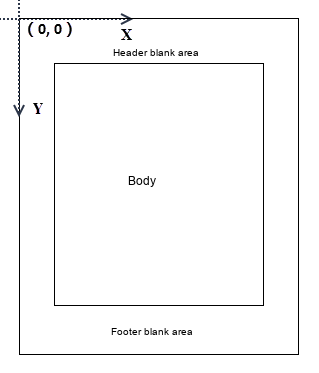
Add a text header and footer
To give every page a fixed header and footer, draw the text at the target coordinates with DrawString on PdfPageBase.Canvas.
function App() {
  const addTextHeaderFooter = async () => {
    // Get the Spire.PDF WASM module
    const pdfModule = window.wasmModule?.spirepdf;

    // Check whether the module is ready
    if (!pdfModule) {
      alert('Spire.PDF is not ready yet');
      return;
    }

    // Load the font into the VFS for the header and footer text
    await window.spire.FetchFileToVFS('ARIAL.TTF', '/Library/Fonts/', `${process.env.PUBLIC_URL}/font/`);

    // Load the input PDF into the VFS
    const inputFileName = 'Multipage_Document.pdf';
    await window.spire.FetchFileToVFS(inputFileName, "", `${process.env.PUBLIC_URL}/data/`);

    // Create a PdfDocument object and load the PDF document
    const doc = new pdfModule.PdfDocument();
    doc.LoadFromFile(inputFileName);

    // Page margins, plus the pen, font and alignment shared by header and footer
    const margin = doc.PageSettings.Margins;
    const pen = new pdfModule.PdfPen({ brush: pdfModule.PdfBrushes.get_Black(), width: 0.75 });
    const font = new pdfModule.PdfTrueTypeFont({ fontFile: '/Library/Fonts/ARIAL.TTF', size: 10 });
    const brush = pdfModule.PdfBrushes.get_Black();
    const rightAlign = new pdfModule.PdfStringFormat({ alignment: pdfModule.PdfTextAlignment.Right });
    rightAlign.MeasureTrailingSpaces = true;

    // Gap between the separator line and the text
    const space = font.Height * 0.75;

    // Draw the header and footer page by page
    for (let i = 0; i < doc.Pages.Count; i++) {
      const canvas = doc.Pages.get_Item(i).Canvas;
      const x = margin.Left;
      const width = canvas.ClientSize.Width - margin.Left - margin.Right;

      // Header: draw the separator above the content area, right-align the title above the line
      let y = margin.Top - space;
      canvas.DrawLine({ pen: pen, x1: x, y1: y, x2: x + width, y2: y });
      canvas.DrawString({
        s: 'E-iceblue',
        font: font,
        brush: brush,
        x: x + width,
        y: y - font.Height,
        format: rightAlign
      });

      // Footer: draw the separator below the content area, right-align the note below the line
      y = canvas.ClientSize.Height - margin.Bottom + space;
      canvas.DrawLine({ pen: pen, x1: x, y1: y, x2: x + width, y2: y });
      canvas.DrawString({
        s: 'Internal use only',
        font: font,
        brush: brush,
        x: x + width,
        y: y + 1,
        format: rightAlign
      });
    }

    const outputFileName = 'Text_Header_Footer.pdf';
    doc.SaveToFile(outputFileName);
    doc.Close();

    // Read the generated file from the VFS and trigger the download
    const fileArray = window.dotnetRuntime.Module.FS.readFile(outputFileName);
    const blob = new Blob([fileArray], { type: 'application/pdf' });
    const url = URL.createObjectURL(blob);
    const a = document.createElement('a');
    a.href = url;
    a.download = outputFileName;
    a.click();
    URL.revokeObjectURL(url);
  };

  return (
    <div style={{ textAlign: 'center', height: '300px' }}>
      <h1>Add a Text Header and Footer</h1>
      <button onClick={addTextHeaderFooter}>
        Start Adding
      </button>
    </div>
  );
}

export default App;
Every page carries a right-aligned header and footer, each separated from the body by a separator line:
Add an image to the header and footer
A company logo often goes into the header and footer too. PdfImage.FromFile reads the image from the virtual file system, and Canvas.DrawImage draws it by its top-left coordinates. The image size is in pixels, so convert it into points with PdfUnitConvertor first to line it up with the page coordinates.
function App() {
  const addImageHeaderFooter = async () => {
    // Get the Spire.PDF WASM module
    const pdfModule = window.wasmModule?.spirepdf;

    // Check whether the module is ready
    if (!pdfModule) {
      alert('Spire.PDF is not ready yet');
      return;
    }

    // Load the input PDF and the logo image into the VFS
    const inputFileName = 'Multipage_Document.pdf';
    const imageFileName = 'E-iceblue.png';
    await window.spire.FetchFileToVFS(inputFileName, "", `${process.env.PUBLIC_URL}/data/`);
    await window.spire.FetchFileToVFS(imageFileName, "", `${process.env.PUBLIC_URL}/data/`);

    // Create a PdfDocument object and load the PDF document
    const doc = new pdfModule.PdfDocument();
    doc.LoadFromFile(inputFileName);

    // Read the logo image and convert its pixel size into points
    const image = pdfModule.PdfImage.FromFile(imageFileName);
    const unitCvtr = new pdfModule.PdfUnitConvertor();
    const pointWidth = unitCvtr.ConvertUnits(image.Width, pdfModule.PdfGraphicsUnit.Pixel, pdfModule.PdfGraphicsUnit.Point);
    const pointHeight = unitCvtr.ConvertUnits(image.Height, pdfModule.PdfGraphicsUnit.Pixel, pdfModule.PdfGraphicsUnit.Point);

    // Draw the logo at the top-right of the header and the bottom-left of the footer, page by page
    for (let i = 0; i < doc.Pages.Count; i++) {
      const page = doc.Pages.get_Item(i);
      const canvas = page.Canvas;

      // Top-right of the header
      canvas.DrawImage({
        image: image,
        x: page.ActualSize.Width - pointWidth - 55,
        y: 20
      });

      // Bottom-left of the footer
      canvas.DrawImage({
        image: image,
        x: 55,
        y: page.ActualSize.Height - pointHeight - 20
      });
    }

    const outputFileName = 'Image_Header_Footer.pdf';
    doc.SaveToFile(outputFileName);
    doc.Close();

    // Read the generated file from the VFS and trigger the download
    const fileArray = window.dotnetRuntime.Module.FS.readFile(outputFileName);
    const blob = new Blob([fileArray], { type: 'application/pdf' });
    const url = URL.createObjectURL(blob);
    const a = document.createElement('a');
    a.href = url;
    a.download = outputFileName;
    a.click();
    URL.revokeObjectURL(url);
  };

  return (
    <div style={{ textAlign: 'center', height: '300px' }}>
      <h1>Add an Image to the Header and Footer</h1>
      <button onClick={addImageHeaderFooter}>
        Start Adding
      </button>
    </div>
  );
}

export default App;
The company logo lands at the top-right of the header and the bottom-left of the footer:
Add automatic page numbers and total page count
The product provides the PdfPageNumberField and PdfPageCountField classes to get the current page number and the total number of pages in a PDF document. They can be merged into a PdfCompositeField that formats the output as "Page X of Y", where X is the current page number and Y is the total page count.
function App() {
  const addPageNumbers = async () => {
    // Get the Spire.PDF WASM module
    const pdfModule = window.wasmModule?.spirepdf;

    // Check whether the module is ready
    if (!pdfModule) {
      alert('Spire.PDF is not ready yet');
      return;
    }

    // Load the font into the VFS for the page number text
    await window.spire.FetchFileToVFS('ARIAL.TTF', '/Library/Fonts/', `${process.env.PUBLIC_URL}/font/`);

    // Load the input PDF into the VFS
    const inputFileName = 'Multipage_Document.pdf';
    await window.spire.FetchFileToVFS(inputFileName, "", `${process.env.PUBLIC_URL}/data/`);

    // Create a PdfDocument object and load the PDF document
    const doc = new pdfModule.PdfDocument();
    doc.LoadFromFile(inputFileName);

    // Page margins, plus the pen, font and alignment for the page number text
    const margin = doc.PageSettings.Margins;
    const pen = new pdfModule.PdfPen({ brush: pdfModule.PdfBrushes.get_Black(), width: 0.75 });
    const font = new pdfModule.PdfTrueTypeFont({ fontFile: '/Library/Fonts/ARIAL.TTF', size: 10 });
    const brush = pdfModule.PdfBrushes.get_Black();
    const rightAlign = new pdfModule.PdfStringFormat({ alignment: pdfModule.PdfTextAlignment.Right });
    rightAlign.MeasureTrailingSpaces = true;
    const space = font.Height * 0.75;

    // Two dynamic fields: the current page number and the total page count
    const number = new pdfModule.PdfPageNumberField();
    const count = new pdfModule.PdfPageCountField();

    // Join them into "Page X of Y" by placeholder order; the list order matches {0} and {1}
    const compositeField = new pdfModule.PdfCompositeField({
      font: font,
      brush: brush,
      text: 'Page {0} of {1}',
      list: [number, count]
    });
    compositeField.StringFormat = rightAlign;

    // Draw the separator line and place the right-aligned page number, page by page
    for (let i = 0; i < doc.Pages.Count; i++) {
      const canvas = doc.Pages.get_Item(i).Canvas;
      const x = margin.Left;
      const width = canvas.ClientSize.Width - margin.Left - margin.Right;

      // Draw a separator line below the content area
      const y = canvas.ClientSize.Height - margin.Bottom + space;
      canvas.DrawLine({ pen: pen, x1: x, y1: y, x2: x + width, y2: y });

      // Measure the text and place the page number below the line, flush with the right edge
      const size = font.MeasureString({ text: 'Page 1 of 1' });
      compositeField.Bounds = new pdfModule.RectangleF({
        x: x + width - size.Width,
        y: y + 1,
        width: size.Width,
        height: size.Height
      });

      // Draw the dynamic field directly onto the canvas
      compositeField.Draw({ graphics: canvas });
    }

    const outputFileName = 'Page_Number_Footer.pdf';
    doc.SaveToFile(outputFileName);
    doc.Close();

    // Read the generated file from the VFS and trigger the download
    const fileArray = window.dotnetRuntime.Module.FS.readFile(outputFileName);
    const blob = new Blob([fileArray], { type: 'application/pdf' });
    const url = URL.createObjectURL(blob);
    const a = document.createElement('a');
    a.href = url;
    a.download = outputFileName;
    a.click();
    URL.revokeObjectURL(url);
  };

  return (
    <div style={{ textAlign: 'center', height: '300px' }}>
      <h1>Add Page Numbers</h1>
      <button onClick={addPageNumbers}>
        Start Adding
      </button>
    </div>
  );
}

export default App;
The footer shows "Page X of Y" right-aligned below the separator line:
Frequently Asked Questions
The header and footer are drawn on top of the body text
Cause: The header and footer are layered onto the page, and their position comes from the coordinates derived from PageSettings.Margins. If the loaded PDF has very little blank space at the top and bottom, that text overlaps the body.
Solution: Save the original page as a template first, and after drawing the header and footer, draw the original content back into place so the body and the header/footer each take their own layer. If you don't need layers, use a source file with enough blank space at the top and bottom:
// Save the current page content as a template
const template = page.CreateTemplate();

// After drawing the header and footer, lay the original content back over the full page
const graphicsWidget = new pdfModule.PdfGraphicsWidget(template.H);
graphicsWidget.Draw({ graphics: canvas, location: new pdfModule.PointF(0, 0) });
The header and footer text shows up as boxes
Cause: The font has no glyphs for those characters. Rendering CJK text with a Latin font such as ARIAL.TTF finds no matching glyph, so the page shows empty boxes.
Solution: Switch to a font file that includes those glyphs, and load it into /Library/Fonts/ in the virtual file system first:
// Load a CJK-capable font first, then hand it to PdfTrueTypeFont
await window.spire.FetchFileToVFS('SIMSUN.TTF', '/Library/Fonts/', `${process.env.PUBLIC_URL}/font/`);
const font = new pdfModule.PdfTrueTypeFont({ fontFile: '/Library/Fonts/SIMSUN.TTF', size: 10 });
The page number numbers don't match
Cause: The text of PdfCompositeField uses {0} and {1} as placeholders, filled in the order given by list. Putting PdfPageCountField before PdfPageNumberField, or swapping the two placeholders in text, makes the page number and the total page count trade places.
Solution: Keep the placeholder order consistent with list: page number first, total page count second:
const compositeField = new pdfModule.PdfCompositeField({
  font: font,
  brush: brush,
  text: 'Page {0} of {1}',
  list: [number, count]
});
Get a Free License
If you want to remove the evaluation message from the resulting document, or get past the feature limits, contact sales for a temporary 30-day license.
Convert TXT Text to PDF in React Using JavaScript
TXT files are everywhere — exported logs, body text pasted out of Word, reports a system generates in bulk. To hand one to someone else you usually convert it to PDF first: a TXT has no notion of layout or paper, it just runs on and on, and the same file looks different on every device and in every editor. In the past you either opened it in a desktop program and saved as, or uploaded it to a server to convert — the former doesn't fit into a web flow, and the latter means the document leaves the user's machine.
This article shows how to convert TXT text to PDF with Spire.PDF for JavaScript. It runs on WebAssembly to generate and save PDF documents directly in the browser; the whole conversion happens locally, reading and writing files through a virtual file system (VFS), with no backend involved.
For installation and project setup, see Integrate Spire.PDF for JavaScript in a React project. The example below assumes Spire.PDF is installed and the WebAssembly module has been initialized.
Convert TXT Text to PDF
Spire.PDF for JavaScript provides PdfTextWidget to place a whole block of plain text onto a PDF page. Font, line spacing and alignment go to PdfStringFormat; when the text fills the current page, PdfTextLayout wraps and starts a new page on its own, so a long TXT needs no manual pagination.
function App() {
  const convertTxtToPdf = async () => {
    // Get the Spire.PDF WASM module
    const pdfModule = window.wasmModule?.spirepdf;

    // Check that the module is ready
    if (!pdfModule) {
      alert('Spire.PDF is not ready yet');
      return;
    }

    // Load a TrueType font into the virtual file system for the body text
    await window.spire.FetchFileToVFS('ARIAL UNICODE MS.TTF', '/Library/Fonts/', `${process.env.PUBLIC_URL}/font/`);

    // Load the TXT file to convert into the VFS
    const inputFileName = 'Product_Introduction.txt';
    await window.spire.FetchFileToVFS(inputFileName, "", `${process.env.PUBLIC_URL}/data/`);

    // Read the TXT bytes from the VFS and decode them to a string
    const textBytes = window.dotnetRuntime.Module.FS.readFile(inputFileName);
    const text = new TextDecoder('utf-8').decode(textBytes);

    // Create the document, section and page
    let doc = new pdfModule.PdfDocument();
    let section = doc.Sections.Add();
    let page = section.Pages.Add();

    // Use the embedded TrueType font for the body, and set line spacing and left alignment
    let font = new pdfModule.PdfTrueTypeFont({ fontFile: '/Library/Fonts/ARIAL UNICODE MS.TTF', size: 12 });
    let format = new pdfModule.PdfStringFormat();
    format.LineSpacing = 20;
    format.Alignment = pdfModule.PdfTextAlignment.Left;

    // Break to a new page when the page is full, so the overflow flows onto new pages
    let textLayout = new pdfModule.PdfTextLayout();
    textLayout.Break = pdfModule.PdfLayoutBreakType.FitPage;
    textLayout.Layout = pdfModule.PdfLayoutType.Paginate;

    // Start the text at the top-left of the page, leaving 20 points of room at the top
    let bounds = new pdfModule.RectangleF({
      location: new pdfModule.PointF(0, 20),
      size: page.Canvas.ClientSize
    });

    // Hold the whole text in a PdfTextWidget and hand it to the layout engine
    let textWidget = new pdfModule.PdfTextWidget({
      text: text,
      font: font,
      brush: pdfModule.PdfBrushes.get_Black()
    });
    textWidget.StringFormat = format;

    let layoutWidget = new pdfModule.PdfLayoutWidget(textWidget.H);
    layoutWidget.Draw({ page: page, layoutRectangle: bounds, format: textLayout });

    // Save the document
    const outputFileName = 'Product_Introduction.pdf';
    doc.SaveToFile(outputFileName);
    doc.Close();

    // Read the generated file from the VFS and trigger the download
    const fileArray = window.dotnetRuntime.Module.FS.readFile(outputFileName);
    const blob = new Blob([fileArray], { type: 'application/pdf' });
    const url = URL.createObjectURL(blob);
    const a = document.createElement('a');
    a.href = url;
    a.download = outputFileName;
    a.click();
    URL.revokeObjectURL(url);
  };

  return (
    <div style={{ textAlign: 'center', height: '300px' }}>
      <h1>Convert TXT Text to PDF</h1>
      <button onClick={convertTxtToPdf}>
        Start
      </button>
    </div>
  );
}

export default App;
The generated PDF spreads the long TXT text across pages automatically:
FAQ
Chinese characters show up as boxes or blank after conversion
Cause: the Helvetica font PdfTextWidget uses by default is a PDF built-in Western font with Latin glyphs only. When it meets a Chinese character it has no glyph to use, and the character shows up blank or as a box on the page.
Solution: switch to PdfTrueTypeFont loaded from a font file that contains Chinese glyphs, and put that file into the VFS /Library/Fonts/ first:
// Read the font from the project's static directory into the VFS
await window.spire.FetchFileToVFS('ARIAL UNICODE MS.TTF', '/Library/Fonts/', `${process.env.PUBLIC_URL}/font/`);

// Point fontFile at the font path in the VFS
let font = new pdfModule.PdfTrueTypeFont({ fontFile: '/Library/Fonts/ARIAL UNICODE MS.TTF', size: 12 });
Long text doesn't paginate and only fills one page
Cause: PdfTextWidget only draws inside the rectangle you pass in, and content that overflows is not moved to the next page by itself — whether it paginates is decided by PdfTextLayout.Layout.
Solution: set PdfTextLayout.Layout to PdfLayoutType.Paginate and Break to PdfLayoutBreakType.FitPage, then pass that object as the format argument to Draw:
let textLayout = new pdfModule.PdfTextLayout();
textLayout.Break = pdfModule.PdfLayoutBreakType.FitPage;   // break as soon as a page is full
textLayout.Layout = pdfModule.PdfLayoutType.Paginate;      // paginate automatically

layoutWidget.Draw({ page: page, layoutRectangle: bounds, format: textLayout });
Tab indents in the TXT don't line up in the PDF
Cause: the text you read out is plain characters, and a tab is just a \t with no information about how many character widths it spans. During layout every \t is treated as the same width, so indentation that lined up through \t or extra spaces in the original no longer lines up in the PDF.
Solution: for table-like content that needs exact alignment, pad it out with spaces or draw it as a table instead; for plain prose meant to be read, output it as is.
Get a Free License
If you want to remove the evaluation message from the result document, or lift the feature limits, contact sales for a temporary license valid for 30 days.
How to Add, Get and Delete Custom Document Properties with JavaScript in React
Besides the fixed fields such as title and author, a PDF's properties panel keeps a column for custom properties: both the property name and its value are named by you, and internal markers such as department, secrecy level, or source template live there. Contracts, tenders, and project documents often rely on it to carry this information, but a reader only lets you fill them in one by one by hand — adding markers to a batch of documents, or checking which markers a given file carries, is out of reach; and sending the files to a server for batch processing means the content leaves the user's device.
This article uses Spire.PDF for JavaScript to add, get, and delete a PDF's custom document properties. It runs on WebAssembly to load, modify, and save PDFs directly in the browser, working through a virtual file system (VFS) with no backend required.
This article covers three core features:
For installation and project configuration, refer to Integrating Spire.PDF for JavaScript in a React Project. The examples below assume Spire.PDF is installed and the WebAssembly module has been initialized. They take a PDF without custom properties as input, and the last two sections read the Custom-Properties-Added.pdf produced by the first section, so run the code in the first section before the others.
Add Custom Document Properties
Spire.PDF for JavaScript provides DocumentInformation.SetCustomProperty() for writing custom document properties: the property name is up to you, the value is stored as a string, and a repeated name overwrites the previous entry.
function App() {
  const addCustomProperties = async () => {
    // Get the Spire.PDF WASM module
    const pdfModule = window.wasmModule?.spirepdf;

    // Check that the module is ready
    if (!pdfModule) {
      alert('Spire.PDF is not ready yet');
      return;
    }

    // Load the PDF to be processed into the VFS
    const inputFileName = 'ProductOverview.pdf';
    await window.spire.FetchFileToVFS(inputFileName, '', `${process.env.PUBLIC_URL}/data/`);

    // Create a PdfDocument and load the PDF
    const doc = new pdfModule.PdfDocument();
    doc.LoadFromFile(inputFileName);

    // Write the custom document properties; the names are up to you
    doc.DocumentInformation.SetCustomProperty('Department', 'Research & Development');
    doc.DocumentInformation.SetCustomProperty('SecrecyLevel', 'Internal');
    doc.DocumentInformation.SetCustomProperty('Company', 'Ice Blue Technology');

    const outputFileName = 'Custom-Properties-Added.pdf';
    doc.SaveToFile(outputFileName);
    doc.Close();

    // Read the generated file from the VFS and trigger the download
    const fileArray = window.dotnetRuntime.Module.FS.readFile(outputFileName);
    const blob = new Blob([fileArray], { type: 'application/pdf' });
    const url = URL.createObjectURL(blob);
    const a = document.createElement('a');
    a.href = url;
    a.download = outputFileName;
    a.click();
    URL.revokeObjectURL(url);
  };

  return (
    <div style={{ textAlign: 'center', height: '300px' }}>
      <h1>Add Custom Document Properties</h1>
      <button onClick={addCustomProperties}>
        Add Properties
      </button>
    </div>
  );
}

export default App;
The result shows three more properties — Department, SecrecyLevel, and Company — in the custom column of the reader's properties panel
Get Custom Document Properties
Reading goes through the same DocumentInformation: GetCustomProperty() returns the value for a given property name, and returns null rather than throwing when the key does not exist.
function App() {
  const getCustomProperties = async () => {
    // Get the Spire.PDF WASM module
    const pdfModule = window.wasmModule?.spirepdf;

    // Check that the module is ready
    if (!pdfModule) {
      alert('Spire.PDF is not ready yet');
      return;
    }

    // Read the document produced by the previous section, already in the VFS
    const inputFileName = 'Custom-Properties-Added.pdf';

    // Create a PdfDocument and load the PDF
    const doc = new pdfModule.PdfDocument();
    doc.LoadFromFile(inputFileName);

    const info = doc.DocumentInformation;

    // Read each property by name; a missing key returns null
    const lines = [
      `Department: ${info.GetCustomProperty('Department')}`,
      `SecrecyLevel: ${info.GetCustomProperty('SecrecyLevel')}`,
      `Company: ${info.GetCustomProperty('Company')}`,
      `Owner: ${info.GetCustomProperty('Owner') ?? '(not set)'}`,
    ];

    // Write the result to a text file
    const outputFileName = 'Custom-Properties.txt';
    window.dotnetRuntime.Module.FS.writeFile(outputFileName, lines.join('\n'));
    doc.Close();

    // Read the generated file from the VFS and trigger the download
    const fileArray = window.dotnetRuntime.Module.FS.readFile(outputFileName);
    const blob = new Blob([fileArray], { type: 'text/plain' });
    const url = URL.createObjectURL(blob);
    const a = document.createElement('a');
    a.href = url;
    a.download = outputFileName;
    a.click();
    URL.revokeObjectURL(url);
  };

  return (
    <div style={{ textAlign: 'center', height: '300px' }}>
      <h1>Get Custom Document Properties</h1>
      <button onClick={getCustomProperties}>
        Get Properties
      </button>
    </div>
  );
}

export default App;
The exported text file lists the property values that were read, one per line:
Delete Custom Document Properties
Deleting uses RemoveCustomProperty(), which removes a single key by property name.
function App() {
  const removeCustomProperties = async () => {
    // Get the Spire.PDF WASM module
    const pdfModule = window.wasmModule?.spirepdf;

    // Check that the module is ready
    if (!pdfModule) {
      alert('Spire.PDF is not ready yet');
      return;
    }

    // Read the document produced by the previous section, already in the VFS
    const inputFileName = 'Custom-Properties-Added.pdf';

    // Create a PdfDocument and load the PDF
    const doc = new pdfModule.PdfDocument();
    doc.LoadFromFile(inputFileName);

    // Remove single custom properties by name; the rest are unaffected
    doc.DocumentInformation.RemoveCustomProperty('SecrecyLevel');
    doc.DocumentInformation.RemoveCustomProperty('Company');

    const outputFileName = 'Custom-Properties-Removed.pdf';
    doc.SaveToFile(outputFileName);
    doc.Close();

    // Read the generated file from the VFS and trigger the download
    const fileArray = window.dotnetRuntime.Module.FS.readFile(outputFileName);
    const blob = new Blob([fileArray], { type: 'application/pdf' });
    const url = URL.createObjectURL(blob);
    const a = document.createElement('a');
    a.href = url;
    a.download = outputFileName;
    a.click();
    URL.revokeObjectURL(url);
  };

  return (
    <div style={{ textAlign: 'center', height: '300px' }}>
      <h1>Delete Custom Document Properties</h1>
      <button onClick={removeCustomProperties}>
        Delete Properties
      </button>
    </div>
  );
}

export default App;
The result keeps only one custom property, Department; the two that were removed are gone from the panel:
FAQ
How are custom properties different from fields like title and author
Reason: the PDF spec fixes the standard fields Title, Author, Subject, Keywords, Creator, and Producer; any key-value pair outside the spec counts as a custom property. Readers show them in two columns: the standard fields in the upper part, and the custom properties in a column of their own.
Solution: the two kinds take two different styles. Assign standard fields such as title and author to the same-named property, and route business markers through custom properties:
// Standard fields
doc.DocumentInformation.Title = '2026 Product Overview';
doc.DocumentInformation.Author = 'Marketing Department';

// Custom properties
doc.DocumentInformation.SetCustomProperty('Department', 'Marketing Department');
Reading splits the same way: standard fields are read as properties such as info.Title, while custom properties can only be read with info.GetCustomProperty('Department').
After deleting, what comes back when I read it, and what if I get the key name wrong
Reason: GetCustomProperty() returns null for any key that does not exist, so a deleted entry and one that was never written look the same; passing a key that does not exist to RemoveCustomProperty() neither throws nor changes the document.
Solution: after deleting, reopen the result and check once — null means it is gone, and you can confirm the other properties still read back. A wrong key name has no side effects; just delete again with the correct name:
doc.DocumentInformation.RemoveCustomProperty('SecrecyLevel');
doc.SaveToFile(outputFileName);

// Reopen the result to check: null means it was removed
const check = new pdfModule.PdfDocument();
check.LoadFromFile(outputFileName);
console.log(check.DocumentInformation.GetCustomProperty('SecrecyLevel'));
Get a Free License
If you want to remove the evaluation message from the result documents or get rid of feature limitations, please contact sales to obtain a free 30-day temporary license.