Como converter PDF para SVG (3 métodos fáceis)
Índice
- Entendendo o Básico: PDF vs. SVG
- Método 1: Usando Conversores Online Gratuitos de PDF para SVG
- Método 2: Usando o Software de Desktop Gratuito Inkscape
- Método 3: Usando Python para Automatizar a Conversão de PDF para SVG
- Melhores Práticas para a Conversão de PDF para SVG
- Perguntas Comuns sobre PDF para SVG

No cenário digital de hoje, os gráficos vetoriais escaláveis (SVG) tornaram-se o padrão ouro para gráficos da web, ilustrações digitais e design responsivo. Ao contrário dos PDFs, que podem conter elementos vetoriais e raster, os arquivos SVG são um formato vetorial puro, o que significa que eles escalam infinitamente sem perder a qualidade. Saber como converter PDF para SVG abre novas possibilidades para integração na web, animação e edição precisa em software de design.
Seja você um desenvolvedor web precisando de logotipos escaláveis, um designer reaproveitando materiais de impressão para plataformas digitais ou um criador de conteúdo procurando aprimorar os visuais do seu site, este guia o guiará pelos métodos mais eficazes para converter PDF para SVG, cobrindo ferramentas gratuitas, software profissional e scripts de automação, juntamente com dicas profissionais para garantir resultados impecáveis.
Conteúdo:
- Entendendo o Básico: PDF vs. SVG
- Método 1: Usando Conversores Online Gratuitos de PDF para SVG
- Método 2: Usando o Software de Desktop Gratuito Inkscape
- Método 3: Usando Python para Automatizar a Conversão de PDF para SVG
- Melhores Práticas para a Conversão de PDF para SVG
- Perguntas Comuns sobre PDF para SVG
Entendendo o Básico: PDF vs. SVG
Antes de mergulhar nos métodos de conversão, vamos esclarecer as principais diferenças entre esses dois formatos para ajudá-lo a tomar decisões informadas:
- PDF (Portable Document Format) pode conter texto, imagens, gráficos vetoriais e layouts complexos. É projetado principalmente para impressão consistente e compartilhamento de documentos.
- SVG (Scalable Vector Graphics) é um formato de imagem vetorial baseado em XML para logotipos, ícones, diagramas e ilustrações. É suportado nativamente por todos os navegadores modernos e é amigável para SEO (o texto é indexável).
Quando Mudar de PDF para SVG:
- Extrair logotipos ou ícones de documentos PDF
- Converter diagramas para apresentação na web
- Preparar ilustrações para animação
- Criar gráficos responsivos que escalam em todos os dispositivos
Método 1: Usando Conversores Online Gratuitos de PDF para SVG
Se você precisa de uma conversão rápida para arquivos não sensíveis, as ferramentas online são sua melhor aposta. Elas são gratuitas, não exigem instalação de software e funcionam em qualquer sistema operacional (Windows, Mac, Linux ou móvel). Aqui estão as duas opções mais confiáveis:
Opção A: CLOUDXDOCS (Gratuito, Sem Registro)
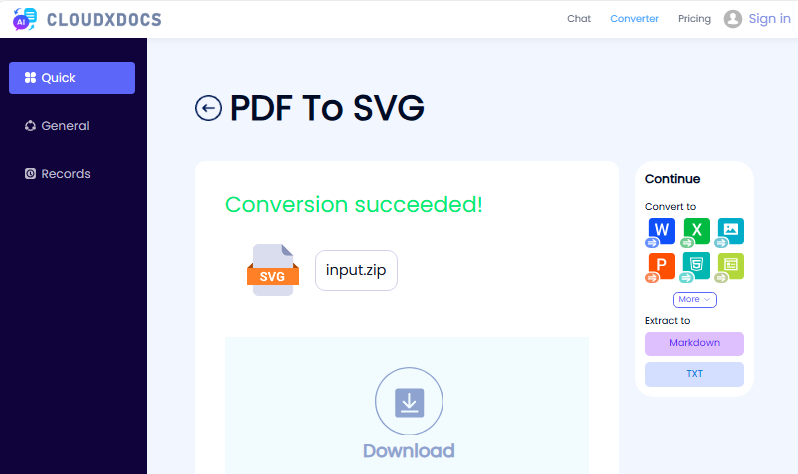
O CLOUDXDOCS é um conversor confiável e sem anúncios que suporta a conversão de PDF para SVG online. É ideal para arquivos de pequeno a médio porte e não requer inscrição.
- Acesse o conversor de PDF para SVG do CLOUDXDOCS.
- Carregue seu arquivo PDF ou arraste e solte o arquivo na área de upload.
- Aguarde a conclusão do processo de conversão.
- Baixe o arquivo SVG convertido.
Opção B: Convertio (Conversão em Lote)
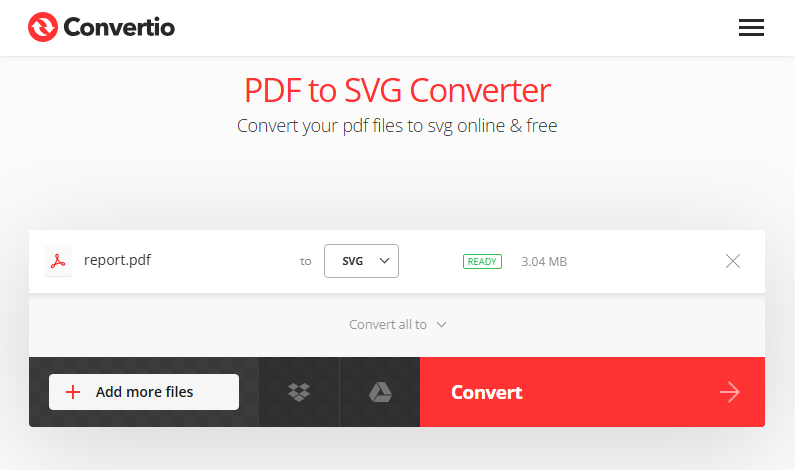
O conversor online Convertio é ótimo para processamento em lote e funciona em dispositivos móveis. Ele preserva os elementos vetoriais de forma eficaz.
- Visite o Conversor de PDF para SVG do Convertio.
- Clique em “Escolher Arquivos” para carregar seus arquivos PDF.
- Clique em “Converter” – não são necessárias configurações extras para uso básico.
- Baixe SVGs individuais ou uma pasta zip com todos os arquivos.
Dica Profissional: Para otimizar o tamanho final do arquivo SVG, você pode cortar as páginas do PDF antes da conversão para remover conteúdo irrelevante e focar nos elementos principais que você precisa.
Método 2: Usando o Software de Desktop Gratuito Inkscape
Para mais controle (e uso offline), o Inkscape é a melhor ferramenta gratuita. É de código aberto, suporta edição vetorial avançada e garante conversões de alta qualidade, perfeito para designers ou usuários avançados.
- Baixe e instale o Inkscape em inkscape.org.
- Abra o Inkscape, vá para “Arquivo > Importar” e selecione seu arquivo PDF.
- Na caixa de diálogo de importação, escolha suas opções preferidas para lidar com páginas e imagens do PDF e clique em “OK”.
- Opcional: Edite o arquivo (por exemplo, desagrupe elementos, remova partes indesejadas ou ajuste caminhos).
- Salvar como SVG: Vá para “Arquivo > Salvar Como”, selecione “SVG Simples (*.svg)” ou "SVG do Inkscape (*.svg)” no menu suspenso e clique em “Salvar”.
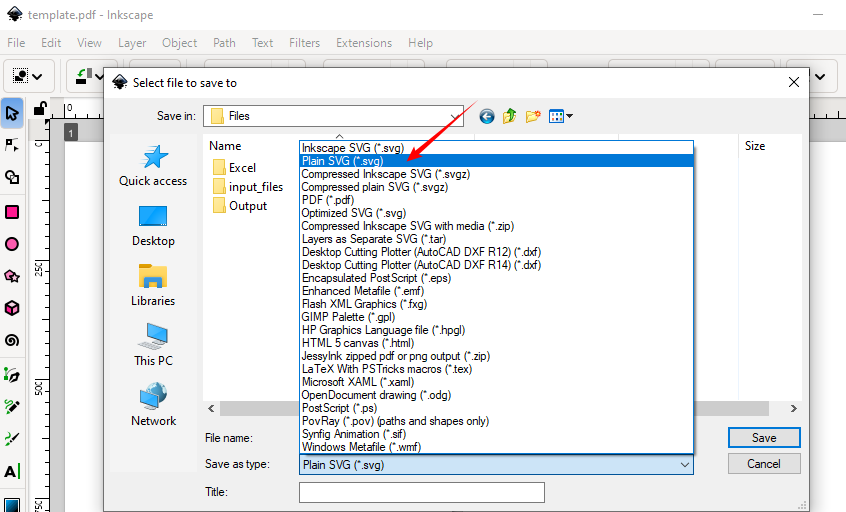
Vantagem: O Inkscape geralmente preserva os caminhos vetoriais com mais precisão do que algumas ferramentas online.
Você também pode gostar: Converter Imagens para PDF no Windows, Mac e Linux
Método 3: Usando Python para Automatizar a Conversão de PDF para SVG
Os desenvolvedores podem integrar a conversão de PDF para SVG em aplicativos, scripts ou pipelines usando o Spire.PDF for Python — uma biblioteca poderosa que suporta PDFs de várias páginas, processamento em lote e configurações personalizadas.
Guia Passo a Passo:
1. Instale a biblioteca de processamento de PDF do Python:
pip install Spire.PDF
2. Use este código para converter um PDF para SVG (suporta PDFs de várias páginas):
from spire.pdf import *

# Crie um objeto da classe PdfDocument
doc = PdfDocument()
# Carregue um arquivo PDF
doc.LoadFromFile("Sample.pdf")

# Salve cada página do arquivo em um arquivo SVG separado
doc.SaveToFile("PdfToSVG/converted.svg", FileFormat.SVG)

# Feche o objeto PdfDocument
doc.Close()
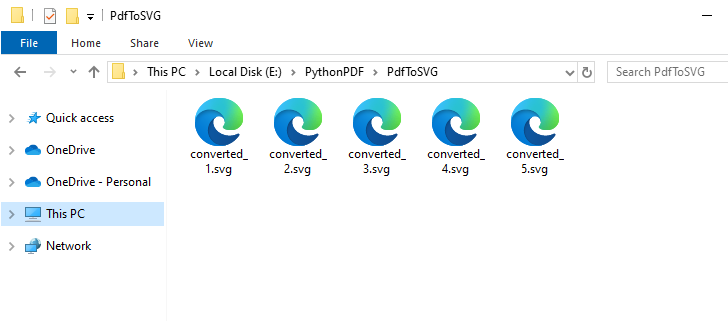
O método SaveToFile() converte cada página de um arquivo PDF em um arquivo SVG separado. Aqui está o resultado da conversão de um arquivo PDF de 5 páginas:
Além de gráficos vetoriais, o Spire.PDF for Python também suporta a conversão de PDF para imagens bitmap comuns, como PNG, JPG e BMP.
Melhores Práticas para a Conversão de PDF para SVG
Antes da Conversão:
- Verifique o tipo de PDF: PDFs baseados em vetores produzem os melhores resultados
- Extraia páginas específicas se necessário
- Verifique a resolução: Mínimo de 300 DPI para imagens incorporadas
- Simplifique documentos complexos quando possível
Após a Conversão:
- Comprima o tamanho do SVG com SVGOMG
- Valide a estrutura do SVG usando o Validador W3C
- Teste em vários navegadores (Chrome, Firefox, Safari)
- Adicione tags de acessibilidade (título, descrição, rótulos ARIA)
Conclusão
A conversão de PDF para SVG desbloqueia recursos poderosos para design web e digital. Para conversões rápidas, use ferramentas online como o CLOUDXDOCS. Para trabalho profissional, o Inkscape oferece edição gratuita e poderosa. Os desenvolvedores podem automatizar com Python para fluxos de trabalho escaláveis.
Seguindo este guia abrangente, você obterá conversões de SVG perfeitas sempre, prontas para qualquer aplicação web ou de design.
Perguntas Comuns sobre PDF para SVG
P: É possível converter um PDF para SVG gratuitamente?
R: Sim. Use ferramentas online como o CLOUDXDOCS ou software de desktop como o Inkscape (gratuito e de código aberto). Para uma solução em Python, experimente a biblioteca Free Spire.PDF for Python (com limitações).
P: A conversão preserva as camadas?
R: Isso depende do conversor. O Inkscape preserva as camadas se “Importar como Páginas” for selecionado, enquanto muitas ferramentas online achatam o documento.
P: Há perda de qualidade?
R: Elementos vetoriais puros devem ser convertidos sem perda de qualidade. No entanto, imagens raster incorporadas em PDFs permanecerão raster no SVG, a menos que sejam traçadas manualmente.
P: Posso converter vários PDFs para SVG em lote?
R: Sim. Use o conversor em lote online ou scripts Python para automatizar a conversão em massa.
Veja Também
PDF를 SVG로 변환하는 방법 (3가지 쉬운 방법)
오늘날의 디지털 환경에서 확장 가능한 벡터 그래픽(SVG)은 웹 그래픽, 디지털 일러스트레이션 및 반응형 디자인의 표준이 되었습니다. 벡터와 래스터 요소를 모두 포함할 수 있는 PDF와 달리 SVG 파일은 순수한 벡터 형식이므로 품질 저하 없이 무한히 확장할 수 있습니다. PDF를 SVG로 변환하는 방법을 알면 웹 통합, 애니메이션 및 디자인 소프트웨어에서의 정밀한 편집을 위한 새로운 가능성이 열립니다.
확장 가능한 로고가 필요한 웹 개발자, 인쇄물을 디지털 플랫폼용으로 용도를 변경하는 디자이너, 웹사이트의 시각적 효과를 향상시키려는 콘텐츠 제작자 등 누구에게나 이 가이드는 무료 도구, 전문 소프트웨어 및 자동화 스크립트를 다루면서 PDF를 SVG로 변환하는 가장 효과적인 방법을 안내하고 완벽한 결과를 보장하기 위한 전문가 팁을 제공합니다.
내용:
- 기본 사항 이해: PDF 대 SVG
- 방법 1: 온라인 무료 PDF를 SVG로 변환하는 변환기 사용
- 방법 2: 무료 데스크톱 소프트웨어 Inkscape 사용
- 방법 3: Python을 사용하여 PDF를 SVG로 변환 자동화
- PDF를 SVG로 변환하기 위한 모범 사례
- PDF를 SVG로 변환하는 것에 대한 일반적인 질문
기본 사항 이해: PDF 대 SVG
변환 방법을 살펴보기 전에 정보에 입각한 결정을 내리는 데 도움이 되도록 이 두 형식 간의 핵심적인 차이점을 명확히 해보겠습니다.
- PDF(Portable Document Format)는 텍스트, 이미지, 벡터 그래픽 및 복잡한 레이아웃을 포함할 수 있습니다. 주로 일관된 인쇄 및 문서 공유를 위해 설계되었습니다.
- SVG(Scalable Vector Graphics)는 로고, 아이콘, 다이어그램 및 일러스트레이션을 위한 XML 기반 벡터 이미지 형식입니다. 모든 최신 브라우저에서 기본적으로 지원되며 SEO 친화적입니다(텍스트 인덱싱 가능).
PDF를 SVG로 변경해야 하는 경우:
- PDF 문서에서 로고 또는 아이콘 추출
- 웹 프레젠테이션을 위한 다이어그램 변환
- 애니메이션을 위한 일러스트레이션 준비
- 여러 장치에서 확장되는 반응형 그래픽 만들기
방법 1: 온라인 무료 PDF를 SVG로 변환하는 변환기 사용
민감하지 않은 파일에 대한 빠른 변환이 필요한 경우 온라인 도구가 가장 좋습니다. 무료이며 소프트웨어 설정이 필요 없으며 모든 OS(Windows, Mac, Linux 또는 모바일)에서 작동합니다. 가장 신뢰할 수 있는 두 가지 옵션은 다음과 같습니다.
옵션 A: CLOUDXDOCS (무료, 등록 필요 없음)
CLOUDXDOCS는 온라인에서 PDF를 SVG로 변환하는 것을 지원하는 신뢰할 수 있는 광고 없는 변환기입니다. 중소 규모 파일에 이상적이며 가입이 필요하지 않습니다.
- CLOUDXDOCS PDF to SVG 변환기로 이동합니다.
- PDF 파일을 업로드하거나 파일을 업로드 영역으로 끌어다 놓습니다.
- 변환 프로세스가 완료될 때까지 기다립니다.
- 변환된 SVG 파일을 다운로드합니다.
옵션 B: Convertio (일괄 변환)
Convertio 온라인 변환기는 일괄 처리에 적합하며 모바일 장치에서 작동합니다. 벡터 요소를 효과적으로 보존합니다.
- Convertio PDF to SVG 변환기를 방문하십시오.
- PDF 파일을 업로드하려면 “파일 선택”을 클릭하십시오.
- 기본 사용에는 추가 설정이 필요 없는 “변환”을 클릭하십시오.
- 개별 SVG 또는 모든 파일의 zip 폴더를 다운로드하십시오.
전문가 팁: 최종 SVG 파일 크기를 최적화하려면 PDF 페이지를 잘라 변환 전에 관련 없는 콘텐츠를 제거하고 필요한 핵심 요소에 집중할 수 있습니다.
방법 2: 무료 데스크톱 소프트웨어 Inkscape 사용
더 많은 제어(및 오프라인 사용)를 위해 Inkscape는 최고의 무료 도구입니다. 오픈 소스이며 고급 벡터 편집을 지원하고 고품질 변환을 보장하므로 디자이너나 고급 사용자에게 적합합니다.
- inkscape.org에서 Inkscape를 다운로드하여 설치하십시오.
- Inkscape를 열고 “파일 > 가져오기”로 이동하여 PDF 파일을 선택하십시오.
- 가져오기 대화 상자에서 PDF 페이지 및 이미지를 처리하기 위한 기본 옵션을 선택한 다음 “확인”을 클릭하십시오.
- 선택 사항: 파일 편집(예: 요소 그룹 해제, 원하지 않는 부분 제거 또는 경로 조정).
- SVG로 저장: “파일 > 다른 이름으로 저장”으로 이동하여 드롭다운에서 “Plain SVG (*.svg)” 또는 “Inkscape SVG (*.svg)”를 선택하고 “저장”을 클릭하십시오.
장점: Inkscape는 일부 온라인 도구보다 벡터 경로를 더 정확하게 보존하는 경우가 많습니다.
관심 있을 만한 다른 글: Windows, Mac 및 Linux에서 이미지를 PDF로 변환
방법 3: Python을 사용하여 PDF를 SVG로 변환 자동화
개발자는 다중 페이지 PDF, 일괄 처리 및 사용자 지정 설정을 지원하는 강력한 라이브러리인 Spire.PDF for Python을 사용하여 PDF에서 SVG로의 변환을 앱, 스크립트 또는 파이프라인에 통합할 수 있습니다.
단계별 가이드:
1. Python PDF 처리 라이브러리를 설치합니다.
pip install Spire.PDF
2. 이 코드를 사용하여 PDF를 SVG로 변환합니다(다중 페이지 PDF 지원).
from spire.pdf import *

# Create an object of the PdfDocument class
doc = PdfDocument()
# Load a PDF file
doc.LoadFromFile("Sample.pdf")

# Save each page of the file to a separate SVG file
doc.SaveToFile("PdfToSVG/converted.svg", FileFormat.SVG)

# Close the PdfDocument object
doc.Close()
SaveToFile() 메서드는 PDF 파일의 각 페이지를 별도의 SVG 파일로 변환합니다. 5페이지 PDF 파일을 변환한 결과는 다음과 같습니다.
벡터 그래픽 외에도 Spire.PDF for Python은 PDF를 PNG, JPG 및 BMP와 같은 일반적인 비트맵 이미지로 변환하는 것도 지원합니다.
PDF를 SVG로 변환하기 위한 모범 사례
변환 전:
- PDF 유형 확인: 벡터 기반 PDF가 최상의 결과를 생성합니다.
- 필요한 경우 특정 페이지 추출
- 해상도 확인: 포함된 이미지의 경우 최소 300DPI
- 가능한 경우 복잡한 문서 단순화
변환 후:
- SVGOMG로 SVG 크기 압축
- W3C 유효성 검사기를 사용하여 SVG 구조 유효성 검사
- 여러 브라우저(Chrome, Firefox, Safari)에서 테스트
- 접근성 태그 추가(title, desc, ARIA 레이블)
결론
PDF를 SVG로 변환하면 웹 및 디지털 디자인을 위한 강력한 기능이 잠금 해제됩니다. 빠른 변환을 위해서는 CLOUDXDOCS와 같은 온라인 도구를 사용하십시오. 전문적인 작업을 위해 Inkscape는 무료이며 강력한 편집 기능을 제공합니다. 개발자는 확장 가능한 워크플로를 위해 Python으로 자동화할 수 있습니다.
이 포괄적인 가이드를 따르면 웹 또는 디자인 응용 프로그램에 사용할 수 있는 완벽한 SVG 변환을 매번 얻을 수 있습니다.
PDF를 SVG로 변환하는 것에 대한 일반적인 질문
Q: PDF를 SVG로 무료로 변환할 수 있습니까?
A: 예. CLOUDXDOCS와 같은 온라인 도구나 Inkscape(무료 및 오픈 소스)와 같은 데스크톱 소프트웨어를 사용하십시오. Python 솔루션의 경우 Free Spire.PDF for Python 라이브러리(제한 있음)를 사용해 보십시오.
Q: 변환 시 레이어가 보존됩니까?
A: 이것은 변환기에 따라 다릅니다. Inkscape는 “페이지로 가져오기”를 선택하면 레이어를 보존하지만 많은 온라인 도구는 문서를 평평하게 만듭니다.
Q: 품질 저하가 있습니까?
A: 순수 벡터 요소는 품질 저하 없이 변환되어야 합니다. 그러나 PDF에 포함된 래스터 이미지는 수동으로 추적하지 않는 한 SVG에서 래스터로 유지됩니다.
Q: 여러 PDF를 SVG로 일괄 변환할 수 있습니까?
A: 예. 온라인 일괄 변환기 또는 Python 스크립트를 사용하여 대량 변환을 자동화하십시오.
참고 항목
Come convertire PDF in SVG (3 metodi semplici)
Indice dei contenuti
- Comprendere le basi: PDF vs. SVG
- Metodo 1: Utilizzo di convertitori online gratuiti da PDF a SVG
- Metodo 2: Utilizzo del software desktop gratuito Inkscape
- Metodo 3: Utilizzo di Python per automatizzare la conversione da PDF a SVG
- Migliori pratiche per la conversione da PDF a SVG
- Domande comuni su PDF a SVG
Nel panorama digitale di oggi, la grafica vettoriale scalabile (SVG) è diventata lo standard di riferimento per la grafica web, le illustrazioni digitali e il design reattivo. A differenza dei PDF, che possono contenere sia elementi vettoriali che raster, i file SVG sono un formato puramente vettoriale, il che significa che si ridimensionano all'infinito senza perdere qualità. Sapere come convertire PDF in SVG apre nuove possibilità per l'integrazione web, l'animazione e la modifica precisa nel software di progettazione.
Che tu sia uno sviluppatore web che necessita di loghi scalabili, un designer che riutilizza materiali di stampa per piattaforme digitali o un creatore di contenuti che cerca di migliorare la grafica del proprio sito web, questa guida ti guiderà attraverso i metodi più efficaci per convertire PDF in SVG, coprendo strumenti gratuiti, software professionali e script di automazione, insieme a suggerimenti professionali per garantire risultati impeccabili.
Contenuti:
- Comprendere le basi: PDF vs. SVG
- Metodo 1: Utilizzo di convertitori online gratuiti da PDF a SVG
- Metodo 2: Utilizzo del software desktop gratuito Inkscape
- Metodo 3: Utilizzo di Python per automatizzare la conversione da PDF a SVG
- Migliori pratiche per la conversione da PDF a SVG
- Domande comuni su PDF a SVG
Comprendere le basi: PDF vs. SVG
Prima di immergerci nei metodi di conversione, chiariamo le differenze principali tra questi due formati per aiutarti a prendere decisioni informate:
- PDF (Portable Document Format) può contenere testo, immagini, grafica vettoriale e layout complessi. È progettato principalmente per la stampa coerente e la condivisione di documenti.
- SVG (Scalable Vector Graphics) è un formato di immagine vettoriale basato su XML per loghi, icone, diagrammi e illustrazioni. È supportato nativamente da tutti i browser moderni ed è SEO-friendly (il testo è indicizzabile).
Quando cambiare da PDF a SVG:
- Estrazione di loghi o icone da documenti PDF
- Conversione di diagrammi per la presentazione web
- Preparazione di illustrazioni per l'animazione
- Creazione di grafica reattiva che si adatta a tutti i dispositivi
Metodo 1: Utilizzo di convertitori online gratuiti da PDF a SVG
Se hai bisogno di una conversione rapida per file non sensibili, gli strumenti online sono la soluzione migliore. Sono gratuiti, non richiedono l'installazione di software e funzionano su qualsiasi sistema operativo (Windows, Mac, Linux o mobile). Ecco le due opzioni più affidabili:
Opzione A: CLOUDXDOCS (gratuito, senza registrazione)
CLOUDXDOCS è un convertitore affidabile e senza pubblicità che supporta la conversione online da PDF a SVG. È ideale per file di piccole e medie dimensioni e non richiede alcuna registrazione.
- Vai al convertitore da PDF a SVG di CLOUDXDOCS.
- Carica il tuo file PDF o trascina e rilascia il file nell'area di caricamento.
- Attendi il completamento del processo di conversione.
- Scarica il file SVG convertito.
Opzione B: Convertio (conversione batch)
Il convertitore online Convertio è ottimo per l'elaborazione batch e funziona su dispositivi mobili. Conserva efficacemente gli elementi vettoriali.
- Visita il convertitore da PDF a SVG di Convertio.
- Fai clic su "Scegli file" per caricare i tuoi file PDF.
- Fai clic su "Converti": non sono necessarie impostazioni aggiuntive per l'uso di base.
- Scarica i singoli SVG o una cartella zip di tutti i file.
Suggerimento professionale: per ottimizzare la dimensione finale del file SVG, puoi ritagliare le pagine PDF prima della conversione per rimuovere i contenuti irrilevanti e concentrarti sugli elementi principali di cui hai bisogno.
Metodo 2: Utilizzo del software desktop gratuito Inkscape
Per un maggiore controllo (e per l'uso offline), Inkscape è il miglior strumento gratuito. È open source, supporta l'editing vettoriale avanzato e garantisce conversioni di alta qualità, perfetto per designer o utenti esperti.
- Scarica e installa Inkscape da inkscape.org.
- Apri Inkscape, quindi vai su "File > Importa" e seleziona il tuo file PDF.
- Nella finestra di dialogo di importazione, scegli le opzioni preferite per gestire le pagine e le immagini PDF, quindi fai clic su "OK".
- Opzionale: modifica il file (ad es. separa gli elementi, rimuovi le parti indesiderate o regola i tracciati).
- Salva come SVG: vai su "File > Salva con nome", seleziona "SVG semplice (*.svg)" o "SVG Inkscape (*.svg)" dal menu a discesa e fai clic su "Salva".
Vantaggio: Inkscape spesso conserva i tracciati vettoriali in modo più accurato rispetto ad alcuni strumenti online.
Potrebbe piacerti anche: Converti immagini in PDF su Windows, Mac e Linux
Metodo 3: Utilizzo di Python per automatizzare la conversione da PDF a SVG
Gli sviluppatori possono integrare la conversione da PDF a SVG in app, script o pipeline utilizzando Spire.PDF for Python, una potente libreria che supporta PDF multipagina, elaborazione batch e impostazioni personalizzate.
Guida passo passo:
1. Installa la libreria di elaborazione PDF di Python:
pip install Spire.PDF
2. Utilizza questo codice per convertire un PDF in SVG (supporta PDF multipagina):
from spire.pdf import *

# Crea un oggetto della classe PdfDocument
doc = PdfDocument()
# Carica un file PDF
doc.LoadFromFile("Sample.pdf")

# Salva ogni pagina del file in un file SVG separato
doc.SaveToFile("PdfToSVG/converted.svg", FileFormat.SVG)

# Chiudi l'oggetto PdfDocument
doc.Close()
Il metodo SaveToFile() converte ogni pagina di un file PDF in un file SVG separato. Ecco il risultato della conversione di un file PDF di 5 pagine:
Oltre alla grafica vettoriale, Spire.PDF for Python supporta anche la conversione di PDF in immagini bitmap comuni come PNG, JPG e BMP.
Migliori pratiche per la conversione da PDF a SVG
Prima della conversione:
- Verifica il tipo di PDF: i PDF basati su vettori danno i migliori risultati
- Estrai pagine specifiche se necessario
- Controlla la risoluzione: minimo 300 DPI per le immagini incorporate
- Semplifica i documenti complessi quando possibile
Dopo la conversione:
- Comprimi le dimensioni dell'SVG con SVGOMG
- Convalida la struttura SVG utilizzando il validatore W3C
- Testa su tutti i browser (Chrome, Firefox, Safari)
- Aggiungi tag di accessibilità (titolo, descrizione, etichette ARIA)
Conclusione
La conversione da PDF a SVG sblocca potenti funzionalità per il web e il design digitale. Per conversioni rapide, utilizza strumenti online come CLOUDXDOCS. Per lavori professionali, Inkscape offre un editing potente e gratuito. Gli sviluppatori possono automatizzare con Python per flussi di lavoro scalabili.
Seguendo questa guida completa, otterrai conversioni SVG perfette ogni volta, pronte per qualsiasi applicazione web o di design.
Domande comuni su PDF a SVG
D: È possibile convertire un PDF in SVG gratuitamente?
R: Sì. Utilizza strumenti online come CLOUDXDOCS o software desktop come Inkscape (gratuito e open source). Per una soluzione Python, prova la libreria Free Spire.PDF for Python (con limitazioni).
D: La conversione conserva i livelli?
R: Dipende dal convertitore. Inkscape conserva i livelli se è selezionato "Importa come pagine", mentre molti strumenti online appiattiscono il documento.
D: C'è una perdita di qualità?
R: Gli elementi vettoriali puri dovrebbero essere convertiti senza perdita di qualità. Tuttavia, le immagini raster incorporate nei PDF rimarranno raster nell'SVG a meno che non vengano tracciate manualmente.
D: Posso convertire in batch più PDF in SVG?
R: Sì. Utilizza il convertitore batch online o gli script Python per automatizzare la conversione di massa.
Vedi anche
Comment convertir PDF en SVG (3 méthodes faciles)
Table des matières
- Comprendre les bases : PDF vs. SVG
- Méthode 1 : Utiliser des convertisseurs PDF vers SVG gratuits en ligne
- Méthode 2 : Utiliser le logiciel de bureau gratuit Inkscape
- Méthode 3 : Utiliser Python pour automatiser la conversion de PDF en SVG
- Meilleures pratiques pour la conversion de PDF en SVG
- Questions fréquentes sur la conversion de PDF en SVG
Dans le paysage numérique actuel, les graphiques vectoriels évolutifs (SVG) sont devenus la norme de référence pour les graphiques Web, les illustrations numériques et le design réactif. Contrairement aux PDF, qui peuvent contenir à la fois des éléments vectoriels et matriciels, les fichiers SVG sont un format purement vectoriel, ce qui signifie qu'ils peuvent être mis à l'échelle à l'infini sans perte de qualité. Savoir comment convertir un PDF en SVG ouvre de nouvelles possibilités pour l'intégration Web, l'animation et l'édition précise dans les logiciels de conception.
Que vous soyez un développeur Web ayant besoin de logos évolutifs, un concepteur réutilisant des supports d'impression pour des plateformes numériques ou un créateur de contenu cherchant à améliorer les visuels de votre site Web, ce guide vous présentera les méthodes les plus efficaces pour convertir un PDF en SVG, couvrant les outils gratuits, les logiciels professionnels et les scripts d'automatisation, ainsi que des conseils de pro pour garantir des résultats impeccables.
Contenu :
- Comprendre les bases : PDF vs. SVG
- Méthode 1 : Utiliser des convertisseurs PDF vers SVG gratuits en ligne
- Méthode 2 : Utiliser le logiciel de bureau gratuit Inkscape
- Méthode 3 : Utiliser Python pour automatiser la conversion de PDF en SVG
- Meilleures pratiques pour la conversion de PDF en SVG
- Questions fréquentes sur la conversion de PDF en SVG
Comprendre les bases : PDF vs. SVG
Avant de nous plonger dans les méthodes de conversion, clarifions les différences fondamentales entre ces deux formats pour vous aider à prendre des décisions éclairées :
- PDF (Portable Document Format) peut contenir du texte, des images, des graphiques vectoriels et des mises en page complexes. Il est principalement conçu pour une impression cohérente et le partage de documents.
- SVG (Scalable Vector Graphics) est un format d'image vectorielle basé sur XML pour les logos, les icônes, les diagrammes et les illustrations. Il est pris en charge nativement par tous les navigateurs modernes et est optimisé pour le référencement (le texte est indexable).
Quand passer du PDF au SVG :
- Extraire des logos ou des icônes de documents PDF
- Convertir des diagrammes pour une présentation Web
- Préparer des illustrations pour l'animation
- Créer des graphiques réactifs qui s'adaptent à tous les appareils
Méthode 1 : Utiliser des convertisseurs PDF vers SVG gratuits en ligne
Si vous avez besoin d'une conversion rapide pour des fichiers non sensibles, les outils en ligne sont votre meilleure option. Ils sont gratuits, ne nécessitent aucune installation de logiciel et fonctionnent sur n'importe quel système d'exploitation (Windows, Mac, Linux ou mobile). Voici les deux options les plus fiables :
Option A : CLOUDXDOCS (Gratuit, sans inscription)
CLOUDXDOCS est un convertisseur de confiance, sans publicité, qui prend en charge la conversion de PDF en SVG en ligne. Il est idéal pour les fichiers de petite à moyenne taille et ne nécessite aucune inscription.
- Allez sur le convertisseur PDF vers SVG de CLOUDXDOCS.
- Téléchargez votre fichier PDF ou faites-le glisser et déposez-le dans la zone de téléchargement.
- Attendez que le processus de conversion se termine.
- Téléchargez le fichier SVG converti.
Option B : Convertio (Conversion par lots)
Le convertisseur en ligne Convertio est idéal pour le traitement par lots et fonctionne sur les appareils mobiles. Il préserve efficacement les éléments vectoriels.
- Visitez le Convertisseur PDF vers SVG de Convertio.
- Cliquez sur « Choisir les fichiers » pour télécharger vos fichiers PDF.
- Cliquez sur « Convertir » – aucun paramètre supplémentaire n'est nécessaire pour une utilisation de base.
- Téléchargez les SVG individuels ou un dossier zip de tous les fichiers.
Conseil de pro : Pour optimiser la taille finale du fichier SVG, vous pouvez rogner les pages PDF avant la conversion pour supprimer le contenu non pertinent et vous concentrer sur les éléments essentiels dont vous avez besoin.
Méthode 2 : Utiliser le logiciel de bureau gratuit Inkscape
Pour plus de contrôle (et une utilisation hors ligne), Inkscape est le meilleur outil gratuit. Il est open-source, prend en charge l'édition vectorielle avancée et garantit des conversions de haute qualité, parfait pour les concepteurs ou les utilisateurs expérimentés.
- Téléchargez et installez Inkscape depuis inkscape.org.
- Ouvrez Inkscape, puis allez dans « Fichier > Importer » et sélectionnez votre fichier PDF.
- Dans la boîte de dialogue d'importation, choisissez vos options préférées pour gérer les pages et les images PDF, puis cliquez sur « OK ».
- Facultatif : modifiez le fichier (par exemple, dissociez des éléments, supprimez des parties indésirables ou ajustez des tracés).
- Enregistrer en tant que SVG : Allez dans « Fichier > Enregistrer sous », sélectionnez « SVG simple (*.svg) » ou « SVG Inkscape (*.svg) » dans le menu déroulant, et cliquez sur « Enregistrer ».
Avantage : Inkscape préserve souvent les tracés vectoriels avec plus de précision que certains outils en ligne.
Vous aimerez peut-être aussi : Convertir des images en PDF sur Windows, Mac et Linux
Méthode 3 : Utiliser Python pour automatiser la conversion de PDF en SVG
Les développeurs peuvent intégrer la conversion de PDF en SVG dans des applications, des scripts ou des pipelines à l'aide de Spire.PDF for Python — une bibliothèque puissante qui prend en charge les PDF de plusieurs pages, le traitement par lots et les paramètres personnalisés.
Guide étape par étape :
1. Installez la bibliothèque de traitement de PDF Python :
pip install Spire.PDF
2. Utilisez ce code pour convertir un PDF en SVG (prend en charge les PDF de plusieurs pages) :
from spire.pdf import *

# Créez un objet de la classe PdfDocument
doc = PdfDocument()
# Chargez un fichier PDF
doc.LoadFromFile("Sample.pdf")

# Enregistrez chaque page du fichier dans un fichier SVG distinct
doc.SaveToFile("PdfToSVG/converted.svg", FileFormat.SVG)

# Fermez l'objet PdfDocument
doc.Close()
La méthode SaveToFile() convertit chaque page d'un fichier PDF en un fichier SVG distinct. Voici le résultat de la conversion d'un fichier PDF de 5 pages :
En plus des graphiques vectoriels, Spire.PDF for Python prend également en charge la conversion de PDF en images bitmap courantes telles que PNG, JPG et BMP.
Meilleures pratiques pour la conversion de PDF en SVG
Avant la conversion :
- Vérifier le type de PDF : les PDF vectoriels donnent les meilleurs résultats
- Extraire des pages spécifiques si nécessaire
- Vérifier la résolution : 300 DPI minimum pour les images intégrées
- Simplifier les documents complexes lorsque cela est possible
Après la conversion :
- Compresser la taille du SVG avec SVGOMG
- Valider la structure SVG à l'aide du validateur W3C
- Tester sur différents navigateurs (Chrome, Firefox, Safari)
- Ajouter des balises d'accessibilité (titre, desc, étiquettes ARIA)
Conclusion
La conversion de PDF en SVG débloque de puissantes fonctionnalités pour la conception Web et numérique. Pour des conversions rapides, utilisez des outils en ligne comme CLOUDXDOCS. Pour un travail professionnel, Inkscape offre une édition gratuite et puissante. Les développeurs peuvent automatiser avec Python pour des flux de travail évolutifs.
En suivant ce guide complet, vous obtiendrez des conversions SVG parfaites à chaque fois, prêtes pour toute application Web ou de conception.
Questions fréquentes sur la conversion de PDF en SVG
Q : Est-il possible de convertir un PDF en SVG gratuitement ?
R : Oui. Utilisez des outils en ligne comme CLOUDXDOCS, ou des logiciels de bureau comme Inkscape (gratuit et open-source). Pour une solution Python, essayez la bibliothèque Free Spire.PDF for Python (avec des limitations).
Q : La conversion préserve-t-elle les calques ?
R : Cela dépend du convertisseur. Inkscape préserve les calques si « Importer en tant que pages » est sélectionné, tandis que de nombreux outils en ligne aplatissent le document.
Q : Y a-t-il une perte de qualité ?
R : Les éléments purement vectoriels devraient être convertis sans perte de qualité. Cependant, les images matricielles intégrées dans les PDF resteront matricielles dans le SVG, sauf si elles sont tracées manuellement.
Q : Puis-je convertir plusieurs PDF en SVG par lots ?
R : Oui. Utilisez le convertisseur par lots en ligne ou des scripts Python pour automatiser la conversion en masse.
Voir aussi
Cómo convertir PDF a SVG (3 métodos fáciles)
Tabla de Contenidos
- Entendiendo lo Básico: PDF vs. SVG
- Método 1: Usando Conversores Gratuitos en Línea de PDF a SVG
- Método 2: Usando el Software de Escritorio Gratuito Inkscape
- Método 3: Usando Python para Automatizar la Conversión de PDF a SVG
- Mejores Prácticas para la Conversión de PDF a SVG
- Preguntas Comunes sobre PDF a SVG
En el panorama digital actual, los gráficos vectoriales escalables (SVG) se han convertido en el estándar de oro para los gráficos web, las ilustraciones digitales y el diseño responsivo. A diferencia de los PDF, que pueden contener tanto elementos vectoriales como rasterizados, los archivos SVG son un formato vectorial puro, lo que significa que se escalan infinitamente sin perder calidad. Saber cómo convertir PDF a SVG abre nuevas posibilidades para la integración web, la animación y la edición precisa en software de diseño.
Ya sea que seas un desarrollador web que necesita logotipos escalables, un diseñador que reutiliza materiales impresos para plataformas digitales o un creador de contenido que busca mejorar los elementos visuales de su sitio web, esta guía te guiará a través de los métodos más efectivos para convertir PDF a SVG, cubriendo herramientas gratuitas, software profesional y scripts de automatización, junto con consejos profesionales para garantizar resultados impecables.
Contenidos:
- Entendiendo lo Básico: PDF vs. SVG
- Método 1: Usando Conversores Gratuitos en Línea de PDF a SVG
- Método 2: Usando el Software de Escritorio Gratuito Inkscape
- Método 3: Usando Python para Automatizar la Conversión de PDF a SVG
- Mejores Prácticas para la Conversión de PDF a SVG
- Preguntas Comunes sobre PDF a SVG
Entendiendo lo Básico: PDF vs. SVG
Antes de sumergirnos en los métodos de conversión, aclaremos las diferencias fundamentales entre estos dos formatos para ayudarte a tomar decisiones informadas:
- PDF (Formato de Documento Portátil) puede contener texto, imágenes, gráficos vectoriales y diseños complejos. Está diseñado principalmente para una impresión consistente y para compartir documentos.
- SVG (Gráficos Vectoriales Escalables) es un formato de imagen vectorial basado en XML para logotipos, iconos, diagramas e ilustraciones. Es compatible de forma nativa con todos los navegadores modernos y es amigable con el SEO (el texto es indexable).
Cuándo Cambiar de PDF a SVG:
- Extraer logotipos o iconos de documentos PDF
- Convertir diagramas para presentación web
- Preparar ilustraciones para animación
- Crear gráficos responsivos que se escalen en todos los dispositivos
Método 1: Usando Conversores Gratuitos en Línea de PDF a SVG
Si necesitas una conversión rápida para archivos no sensibles, las herramientas en línea son tu mejor opción. Son gratuitas, no requieren instalación de software y funcionan en cualquier sistema operativo (Windows, Mac, Linux o móvil). Aquí están las dos opciones más confiables:
Opción A: CLOUDXDOCS (Gratis, Sin Registro)
CLOUDXDOCS es un conversor confiable y sin publicidad que permite convertir PDF a SVG en línea. Es ideal para archivos de tamaño pequeño a mediano y no requiere registro.
- Ve al conversor de PDF a SVG de CLOUDXDOCS.
- Sube tu archivo PDF o arrástralo y suéltalo en el área de carga.
- Espera a que se complete el proceso de conversión.
- Descarga el archivo SVG convertido.
Opción B: Convertio (Conversión por Lotes)
El conversor en línea Convertio es excelente para el procesamiento por lotes y funciona en dispositivos móviles. Preserva los elementos vectoriales de manera efectiva.
- Visita el Conversor de PDF a SVG de Convertio.
- Haz clic en “Elegir Archivos” para subir tus archivos PDF.
- Haz clic en “Convertir” – no se necesitan configuraciones adicionales para un uso básico.
- Descarga los SVG individuales o una carpeta zip con todos los archivos.
Consejo Profesional: Para optimizar el tamaño final del archivo SVG, puedes recortar las páginas del PDF antes de la conversión para eliminar contenido irrelevante y centrarte en los elementos principales que necesitas.
Método 2: Usando el Software de Escritorio Gratuito Inkscape
Para un mayor control (y uso sin conexión), Inkscape es la mejor herramienta gratuita. Es de código abierto, admite edición vectorial avanzada y garantiza conversiones de alta calidad, perfecto para diseñadores o usuarios avanzados.
- Descarga e instala Inkscape desde inkscape.org.
- Abre Inkscape, luego ve a “Archivo > Importar” y selecciona tu archivo PDF.
- En el cuadro de diálogo de importación, elige tus opciones preferidas para manejar las páginas e imágenes del PDF, y luego haz clic en “Aceptar”.
- Opcional: Edita el archivo (por ejemplo, desagrupa elementos, elimina partes no deseadas o ajusta trazados).
- Guardar como SVG: Ve a “Archivo > Guardar como”, selecciona “SVG plano (*.svg)” o “SVG de Inkscape (*.svg)” en el menú desplegable y haz clic en “Guardar”.
Ventaja: Inkscape a menudo preserva los trazados vectoriales con más precisión que algunas herramientas en línea.
También te puede interesar: Convertir Imágenes a PDF en Windows, Mac y Linux
Método 3: Usando Python para Automatizar la Conversión de PDF a SVG
Los desarrolladores pueden integrar la conversión de PDF a SVG en aplicaciones, scripts o flujos de trabajo utilizando Spire.PDF for Python, una potente biblioteca que admite PDF de varias páginas, procesamiento por lotes y configuraciones personalizadas.
Guía Paso a Paso:
1. Instala la biblioteca de procesamiento de PDF de Python:
pip install Spire.PDF
2. Usa este código para convertir un PDF a SVG (admite PDF de varias páginas):
from spire.pdf import *

# Create an object of the PdfDocument class
doc = PdfDocument()
# Load a PDF file
doc.LoadFromFile("Sample.pdf")

# Save each page of the file to a separate SVG file
doc.SaveToFile("PdfToSVG/converted.svg", FileFormat.SVG)

# Close the PdfDocument object
doc.Close()
El método SaveToFile() convierte cada página de un archivo PDF en un archivo SVG separado. Aquí está el resultado de convertir un archivo PDF de 5 páginas:
Además de los gráficos vectoriales, Spire.PDF for Python también admite la conversión de PDF a imágenes de mapa de bits comunes como PNG, JPG y BMP.
Mejores Prácticas para la Conversión de PDF a SVG
Antes de la Conversión:
- Verifica el tipo de PDF: los PDF basados en vectores producen los mejores resultados
- Extrae páginas específicas si es necesario
- Comprueba la resolución: Mínimo 300 DPI para imágenes incrustadas
- Simplifica documentos complejos cuando sea posible
Después de la Conversión:
- Comprime el tamaño del SVG con SVGOMG
- Valida la estructura SVG usando el Validador W3C
- Prueba en diferentes navegadores (Chrome, Firefox, Safari)
- Añade etiquetas de accesibilidad (título, descripción, etiquetas ARIA)
Conclusión
Convertir PDF a SVG desbloquea potentes capacidades para el diseño web y digital. Para conversiones rápidas, utiliza herramientas en línea como CLOUDXDOCS. Para trabajos profesionales, Inkscape ofrece una edición potente y gratuita. Los desarrolladores pueden automatizar con Python para flujos de trabajo escalables.
Siguiendo esta guía completa, lograrás conversiones de SVG perfectas cada vez, listas para cualquier aplicación web o de diseño.
Preguntas Comunes sobre PDF a SVG
P: ¿Es posible convertir un PDF a SVG de forma gratuita?
R: Sí. Utiliza herramientas en línea como CLOUDXDOCS, o software de escritorio como Inkscape (gratuito y de código abierto). Para una solución con Python, prueba la biblioteca Free Spire.PDF for Python (con limitaciones).
P: ¿La conversión conserva las capas?
R: Esto depende del conversor. Inkscape conserva las capas si se selecciona “Importar como Páginas”, mientras que muchas herramientas en línea aplanan el documento.
P: ¿Hay pérdida de calidad?
R: Los elementos vectoriales puros deberían convertirse sin pérdida de calidad. Sin embargo, las imágenes rasterizadas incrustadas en los PDF seguirán siendo rasterizadas en el SVG a menos que se tracen manualmente.
P: ¿Puedo convertir varios PDF a SVG por lotes?
R: Sí. Utiliza el conversor por lotes en línea o scripts de Python para automatizar la conversión masiva.
Ver También
PDF in SVG umwandeln (3 einfache Methoden)
Inhaltsverzeichnis
- Die Grundlagen verstehen: PDF vs. SVG
- Methode 1: Verwendung von kostenlosen Online-PDF-zu-SVG-Konvertern
- Methode 2: Verwendung der kostenlosen Desktop-Software Inkscape
- Methode 3: Verwendung von Python zur Automatisierung der PDF-zu-SVG-Konvertierung
- Bewährte Verfahren für die PDF-zu-SVG-Konvertierung
- Häufig gestellte Fragen zu PDF zu SVG
In der heutigen digitalen Landschaft sind skalierbare Vektorgrafiken (SVG) zum Goldstandard für Webgrafiken, digitale Illustrationen und responsives Design geworden. Im Gegensatz zu PDFs, die sowohl Vektor- als auch Rasterelemente enthalten können, sind SVG-Dateien ein reines Vektorformat – das heißt, sie lassen sich unendlich skalieren, ohne an Qualität zu verlieren. Das Wissen, wie man PDF in SVG konvertiert, eröffnet neue Möglichkeiten für die Webintegration, Animation und präzise Bearbeitung in Design-Software.
Egal, ob Sie ein Webentwickler sind, der skalierbare Logos benötigt, ein Designer, der Druckmaterialien für digitale Plattformen wiederverwendet, oder ein Content-Ersteller, der die visuellen Elemente Ihrer Website verbessern möchte, dieser Leitfaden führt Sie durch die effektivsten Methoden zur Konvertierung von PDF in SVG und behandelt kostenlose Tools, professionelle Software und Automatisierungsskripte sowie Profi-Tipps, um einwandfreie Ergebnisse zu gewährleisten.
Inhalt:
- Die Grundlagen verstehen: PDF vs. SVG
- Methode 1: Verwendung von kostenlosen Online-PDF-zu-SVG-Konvertern
- Methode 2: Verwendung der kostenlosen Desktop-Software Inkscape
- Methode 3: Verwendung von Python zur Automatisierung der PDF-zu-SVG-Konvertierung
- Bewährte Verfahren für die PDF-zu-SVG-Konvertierung
- Häufig gestellte Fragen zu PDF zu SVG
Die Grundlagen verstehen: PDF vs. SVG
Bevor wir uns mit den Konvertierungsmethoden befassen, wollen wir die Kernunterschiede zwischen diesen beiden Formaten klären, um Ihnen zu helfen, fundierte Entscheidungen zu treffen:
- PDF (Portable Document Format) kann Text, Bilder, Vektorgrafiken und komplexe Layouts enthalten. Es ist hauptsächlich für den konsistenten Druck und die gemeinsame Nutzung von Dokumenten konzipiert.
- SVG (Scalable Vector Graphics) ist ein XML-basiertes Vektorbildformat für Logos, Symbole, Diagramme und Illustrationen. Es wird von allen modernen Browsern nativ unterstützt und ist SEO-freundlich (Text ist indizierbar).
Wann sollte man PDF in SVG ändern:
- Extrahieren von Logos oder Symbolen aus PDF-Dokumenten
- Konvertieren von Diagrammen für die Webpräsentation
- Vorbereiten von Illustrationen für die Animation
- Erstellen von responsiven Grafiken, die auf allen Geräten skalierbar sind
Methode 1: Verwendung von kostenlosen Online-PDF-zu-SVG-Konvertern
Wenn Sie eine schnelle Konvertierung für nicht vertrauliche Dateien benötigen, sind Online-Tools die beste Wahl. Sie sind kostenlos, erfordern keine Software-Einrichtung und funktionieren auf jedem Betriebssystem (Windows, Mac, Linux oder mobil). Hier sind die beiden zuverlässigsten Optionen:
Option A: CLOUDXDOCS (Kostenlos, keine Registrierung)
CLOUDXDOCS ist ein vertrauenswürdiger, werbefreier Konverter, der die Online-Konvertierung von PDF in SVG unterstützt. Er ist ideal für kleine bis mittelgroße Dateien und erfordert keine Anmeldung.
- Gehen Sie zum CLOUDXDOCS PDF-zu-SVG-Konverter.
- Laden Sie Ihre PDF-Datei hoch oder ziehen Sie die Datei per Drag-and-Drop in den Upload-Bereich.
- Warten Sie, bis der Konvertierungsprozess abgeschlossen ist.
- Laden Sie die konvertierte SVG-Datei herunter.
Option B: Convertio (Stapelkonvertierung)
Der Online-Konverter von Convertio eignet sich hervorragend für die Stapelverarbeitung und funktioniert auf mobilen Geräten. Er bewahrt Vektorelemente effektiv.
- Besuchen Sie den Convertio PDF-zu-SVG-Konverter.
- Klicken Sie auf „Dateien auswählen“, um Ihre PDF-Dateien hochzuladen.
- Klicken Sie auf „Konvertieren“ – für die grundlegende Verwendung sind keine zusätzlichen Einstellungen erforderlich.
- Laden Sie einzelne SVGs oder einen Zip-Ordner mit allen Dateien herunter.
Profi-Tipp: Um die endgültige SVG-Dateigröße zu optimieren, können Sie PDF-Seiten zuschneiden, bevor Sie die Konvertierung durchführen, um irrelevante Inhalte zu entfernen und sich auf die Kernelemente zu konzentrieren, die Sie benötigen.
Methode 2: Verwendung der kostenlosen Desktop-Software Inkscape
Für mehr Kontrolle (und Offline-Nutzung) ist Inkscape das beste kostenlose Werkzeug. Es ist Open-Source, unterstützt die erweiterte Vektorbearbeitung und gewährleistet qualitativ hochwertige Konvertierungen, perfekt für Designer oder Power-User.
- Laden Sie Inkscape von inkscape.org herunter und installieren Sie es.
- Öffnen Sie Inkscape, gehen Sie dann zu „Datei > Importieren“ und wählen Sie Ihre PDF-Datei aus.
- Wählen Sie im Importdialog Ihre bevorzugten Optionen für den Umgang mit PDF-Seiten und Bildern aus und klicken Sie dann auf „OK“.
- Optional: Bearbeiten Sie die Datei (z. B. Gruppierung von Elementen aufheben, unerwünschte Teile entfernen oder Pfade anpassen).
- Als SVG speichern: Gehen Sie zu „Datei > Speichern unter“, wählen Sie „Einfaches SVG (*.svg)“ oder „Inkscape SVG (*.svg)“ aus dem Dropdown-Menü und klicken Sie auf „Speichern“.
Vorteil: Inkscape bewahrt Vektorpfade oft genauer als einige Online-Tools.
Das könnte Ihnen auch gefallen: Bilder in PDF auf Windows, Mac und Linux konvertieren
Methode 3: Verwendung von Python zur Automatisierung der PDF-zu-SVG-Konvertierung
Entwickler können die PDF-zu-SVG-Konvertierung in Apps, Skripte oder Pipelines integrieren, indem sie Spire.PDF for Python verwenden – eine leistungsstarke Bibliothek, die mehrseitige PDFs, Stapelverarbeitung und benutzerdefinierte Einstellungen unterstützt.
Schritt-für-Schritt-Anleitung:
1. Installieren Sie die Python-PDF-Verarbeitungsbibliothek:
pip install Spire.PDF
2. Verwenden Sie diesen Code, um ein PDF in SVG zu konvertieren (unterstützt mehrseitige PDFs):
from spire.pdf import *

# Create an object of the PdfDocument class
doc = PdfDocument()
# Load a PDF file
doc.LoadFromFile("Sample.pdf")

# Save each page of the file to a separate SVG file
doc.SaveToFile("PdfToSVG/converted.svg", FileFormat.SVG)

# Close the PdfDocument object
doc.Close()
Die Methode SaveToFile() konvertiert jede Seite einer PDF-Datei in eine separate SVG-Datei. Hier ist das Ergebnis der Konvertierung einer 5-seitigen PDF-Datei:
Zusätzlich zu Vektorgrafiken unterstützt Spire.PDF for Python auch die Konvertierung von PDF in gängige Bitmap-Bilder wie PNG, JPG und BMP.
Bewährte Verfahren für die PDF-zu-SVG-Konvertierung
Vor der Konvertierung:
- PDF-Typ überprüfen: Vektorbasierte PDFs liefern die besten Ergebnisse
- Bestimmte Seiten extrahieren falls erforderlich
- Auflösung prüfen: Mindestens 300 DPI für eingebettete Bilder
- Komplexe Dokumente vereinfachen wenn möglich
Nach der Konvertierung:
- SVG-Größe komprimieren mit SVGOMG
- SVG-Struktur validieren mit dem W3C Validator
- In verschiedenen Browsern testen (Chrome, Firefox, Safari)
- Barrierefreiheits-Tags hinzufügen (Titel, Beschreibung, ARIA-Labels)
Fazit
Die Konvertierung von PDF in SVG eröffnet leistungsstarke Möglichkeiten für Web- und Digitaldesign. Für schnelle Konvertierungen verwenden Sie Online-Tools wie CLOUDXDOCS. Für professionelle Arbeiten bietet Inkscape eine kostenlose, leistungsstarke Bearbeitung. Entwickler können mit Python für skalierbare Arbeitsabläufe automatisieren.
Wenn Sie dieser umfassenden Anleitung folgen, erzielen Sie jedes Mal perfekte SVG-Konvertierungen, die für jede Web- oder Designanwendung bereit sind.
Häufig gestellte Fragen zu PDF zu SVG
F: Ist es möglich, ein PDF kostenlos in SVG zu konvertieren?
A: Ja. Verwenden Sie Online-Tools wie CLOUDXDOCS oder Desktop-Software wie Inkscape (kostenlos und Open-Source). Für eine Python-Lösung probieren Sie die kostenlose Spire.PDF for Python-Bibliothek (mit Einschränkungen).
F: Bleiben die Ebenen bei der Konvertierung erhalten?
A: Das hängt vom Konverter ab. Inkscape behält die Ebenen bei, wenn „Als Seiten importieren“ ausgewählt ist, während viele Online-Tools das Dokument abflachen.
F: Gibt es einen Qualitätsverlust?
A: Reine Vektorelemente sollten ohne Qualitätsverlust konvertiert werden. In PDFs eingebettete Rasterbilder bleiben jedoch im SVG als Raster erhalten, es sei denn, sie werden manuell nachgezeichnet.
F: Kann ich mehrere PDFs stapelweise in SVG konvertieren?
A: Ja. Verwenden Sie den Online-Stapelkonverter oder Python-Skripte, um die Massenkonvertierung zu automatisieren.
Siehe auch
Как конвертировать PDF в SVG (3 простых способа)
Содержание
- Понимание основ: PDF и SVG
- Метод 1: Использование бесплатных онлайн-конвертеров PDF в SVG
- Метод 2: Использование бесплатного настольного программного обеспечения Inkscape
- Метод 3: Использование Python для автоматизации преобразования PDF в SVG
- Лучшие практики преобразования PDF в SVG
- Часто задаваемые вопросы о преобразовании PDF в SVG
В современном цифровом мире масштабируемая векторная графика (SVG) стала золотым стандартом для веб-графики, цифровых иллюстраций и адаптивного дизайна. В отличие от PDF-файлов, которые могут содержать как векторные, так и растровые элементы, файлы SVG являются чисто векторным форматом, что означает, что они могут бесконечно масштабироваться без потери качества. Знание как конвертировать PDF в SVG открывает новые возможности для веб-интеграции, анимации и точного редактирования в дизайнерском программном обеспечении.
Независимо от того, являетесь ли вы веб-разработчиком, которому нужны масштабируемые логотипы, дизайнером, перепрофилирующим печатные материалы для цифровых платформ, или создателем контента, желающим улучшить визуальные эффекты своего веб-сайта, это руководство проведет вас через наиболее эффективные методы преобразования PDF в SVG, охватывая бесплатные инструменты, профессиональное программное обеспечение и сценарии автоматизации, а также советы профессионалов для обеспечения безупречных результатов.
Содержание:
- Понимание основ: PDF и SVG
- Метод 1: Использование бесплатных онлайн-конвертеров PDF в SVG
- Метод 2: Использование бесплатного настольного программного обеспечения Inkscape
- Метод 3: Использование Python для автоматизации преобразования PDF в SVG
- Лучшие практики преобразования PDF в SVG
- Часто задаваемые вопросы о преобразовании PDF в SVG
Понимание основ: PDF и SVG
Прежде чем углубляться в методы преобразования, давайте проясним основные различия между этими двумя форматами, чтобы помочь вам принять обоснованное решение:
- PDF (Portable Document Format) может содержать текст, изображения, векторную графику и сложные макеты. Он в первую очередь предназначен для единообразной печати и обмена документами.
- SVG (Scalable Vector Graphics) — это векторный формат изображений на основе XML для логотипов, значков, диаграмм и иллюстраций. Он нативно поддерживается всеми современными браузерами и является SEO-дружественным (текст индексируется).
Когда следует преобразовывать PDF в SVG:
- Извлечение логотипов или значков из документов PDF
- Преобразование диаграмм для веб-презентаций
- Подготовка иллюстраций для анимации
- Создание адаптивной графики, которая масштабируется на разных устройствах
Метод 1: Использование бесплатных онлайн-конвертеров PDF в SVG
Если вам нужно быстрое преобразование для неконфиденциальных файлов, онлайн-инструменты — ваш лучший выбор. Они бесплатны, не требуют установки программного обеспечения и работают на любой ОС (Windows, Mac, Linux или мобильных устройствах). Вот два самых надежных варианта:
Вариант A: CLOUDXDOCS (бесплатно, без регистрации)
CLOUDXDOCS — это надежный конвертер без рекламы, который поддерживает преобразование PDF в SVG онлайн. Он идеально подходит для файлов малого и среднего размера и не требует регистрации.
- Перейдите в конвертер CLOUDXDOCS PDF в SVG.
- Загрузите свой PDF-файл или перетащите его в область загрузки.
- Дождитесь завершения процесса преобразования.
- Загрузите преобразованный SVG-файл.
Вариант B: Convertio (пакетное преобразование)
Онлайн-конвертер Convertio отлично подходит для пакетной обработки и работает на мобильных устройствах. Он эффективно сохраняет векторные элементы.
- Посетите конвертер Convertio PDF в SVG.
- Нажмите «Выбрать файлы», чтобы загрузить ваши PDF-файлы.
- Нажмите «Конвертировать» — для базового использования не требуются дополнительные настройки.
- Загрузите отдельные SVG-файлы или zip-архив со всеми файлами.
Совет профессионала: чтобы оптимизировать конечный размер файла SVG, вы можете обрезать страницы PDF перед преобразованием, чтобы удалить ненужное содержимое и сосредоточиться на основных элементах, которые вам нужны.
Метод 2: Использование бесплатного настольного программного обеспечения Inkscape
Для большего контроля (и использования в автономном режиме) Inkscape — лучший бесплатный инструмент. Это программное обеспечение с открытым исходным кодом, оно поддерживает расширенное векторное редактирование и обеспечивает высококачественное преобразование, что идеально подходит для дизайнеров и опытных пользователей.
- Загрузите и установите Inkscape с inkscape.org.
- Откройте Inkscape, затем перейдите в «Файл > Импорт» и выберите свой PDF-файл.
- В диалоговом окне импорта выберите предпочтительные параметры для обработки страниц и изображений PDF, затем нажмите «ОК».
- Необязательно: отредактируйте файл (например, разгруппируйте элементы, удалите ненужные части или настройте контуры).
- Сохранить как SVG: перейдите в «Файл > Сохранить как», выберите «Простой SVG (*.svg)» или «Inkscape SVG (*.svg)» из выпадающего списка и нажмите «Сохранить».
Преимущество: Inkscape часто сохраняет векторные контуры точнее, чем некоторые онлайн-инструменты.
Вам также может понравиться: Преобразование изображений в PDF в Windows, Mac и Linux
Метод 3: Использование Python для автоматизации преобразования PDF в SVG
Разработчики могут интегрировать преобразование PDF в SVG в приложения, скрипты или конвейеры с помощью Spire.PDF for Python — мощной библиотеки, которая поддерживает многостраничные PDF-файлы, пакетную обработку и пользовательские настройки.
Пошаговое руководство:
1. Установите библиотеку обработки PDF для Python:
pip install Spire.PDF
2. Используйте этот код для преобразования PDF в SVG (поддерживает многостраничные PDF-файлы):
from spire.pdf import *

# Create an object of the PdfDocument class
doc = PdfDocument()
# Load a PDF file
doc.LoadFromFile("Sample.pdf")

# Save each page of the file to a separate SVG file
doc.SaveToFile("PdfToSVG/converted.svg", FileFormat.SVG)

# Close the PdfDocument object
doc.Close()
Метод SaveToFile() преобразует каждую страницу PDF-файла в отдельный SVG-файл. Вот результат преобразования 5-страничного PDF-файла:
Помимо векторной графики, Spire.PDF for Python также поддерживает преобразование PDF в распространенные растровые изображения, такие как PNG, JPG и BMP.
Лучшие практики преобразования PDF в SVG
Перед преобразованием:
- Проверьте тип PDF: PDF на основе векторов дают наилучшие результаты
- Извлеките определенные страницы, если необходимо
- Проверьте разрешение: минимум 300 DPI для встроенных изображений
- Упрощайте сложные документы, когда это возможно
После преобразования:
- Сожмите размер SVG с помощью SVGOMG
- Проверьте структуру SVG с помощью валидатора W3C
- Протестируйте в разных браузерах (Chrome, Firefox, Safari)
- Добавьте теги доступности (title, desc, ARIA labels)
Заключение
Преобразование PDF в SVG открывает мощные возможности для веб- и цифрового дизайна. Для быстрых преобразований используйте онлайн-инструменты, такие как CLOUDXDOCS. Для профессиональной работы Inkscape предоставляет бесплатное и мощное редактирование. Разработчики могут автоматизировать процессы с помощью Python для масштабируемых рабочих процессов.
Следуя этому подробному руководству, вы каждый раз будете добиваться идеальных преобразований SVG, готовых для любого веб-приложения или дизайнерского приложения.
Часто задаваемые вопросы о преобразовании PDF в SVG
В: Можно ли бесплатно преобразовать PDF в SVG?
О: Да. Используйте онлайн-инструменты, такие как CLOUDXDOCS, или настольное программное обеспечение, такое как Inkscape (бесплатное и с открытым исходным кодом). Для решения на Python попробуйте библиотеку Free Spire.PDF for Python (с ограничениями).
В: Сохраняются ли слои при преобразовании?
О: Это зависит от конвертера. Inkscape сохраняет слои, если выбрано «Импортировать как страницы», в то время как многие онлайн-инструменты объединяют документ.
В: Происходит ли потеря качества?
О: Чисто векторные элементы должны преобразовываться без потери качества. Однако растровые изображения, встроенные в PDF-файлы, останутся растровыми в SVG, если их не векторизовать вручную.
В: Могу ли я пакетно преобразовать несколько PDF в SVG?
О: Да. Используйте онлайн-конвертер для пакетной обработки или скрипты на Python для автоматизации массового преобразования.
Смотрите также
As 5 melhores maneiras de converter Excel para Word
Índice
- Método 1: Copiar e Colar Manualmente (O Mais Rápido para Dados Simples)
- Método 2: Inserir Excel como um Objeto (Para Dados Vinculados e Editáveis)
- Método 3: Conversor Online de Excel para Word (Para Uso Rápido e Único)
- Método 4: Automatizar com Macros VBA (Para Usuários Avançados)
- Método 5: Converter em Lote de Excel para Word via Python (Para Vários Arquivos)
- Melhores Práticas para uma Conversão Perfeita
- Qual Método de Excel para Word Você Deve Escolher?
- Perguntas Frequentes (FAQs)
No cenário profissional atual, orientado por dados, a capacidade de transferir informações de forma transparente entre os aplicativos do Microsoft Office é uma habilidade essencial. Esteja você compilando um relatório de negócios trimestral, integrando dados financeiros em uma proposta de cliente ou preparando um documento de pesquisa, a reinserção manual de dados é um processo tedioso e propenso a erros. Converter Excel para Word de forma eficaz pode economizar horas de trabalho, preservar a formatação crítica e otimizar todo o seu fluxo de trabalho de documentos.
Este guia abrangente apresentará 5 métodos comprovados para converter planilhas do Excel para o Word. Organizamos esses métodos do mais simples ao mais avançado, garantindo que haja uma solução perfeita para cada usuário — desde o usuário ocasional do Office até o profissional de TI que automatiza relatórios em lote.
- Método 1: Copiar e Colar Manualmente (O Mais Rápido para Dados Simples)
- Método 2: Inserir Excel como um Objeto (Para Dados Vinculados e Editáveis)
- Método 3: Conversor Online de Excel para Word (Para Uso Rápido e Único)
- Método 4: Automatizar com Macros VBA (Para Usuários Avançados)
- Método 5: Converter em Lote de Excel para Word via Python (Para Vários Arquivos)
- Melhores Práticas para uma Conversão Perfeita
- Qual Método de Excel para Word Você Deve Escolher?
- Perguntas Frequentes (FAQs)
Método 1: Copiar e Colar Manualmente (O Mais Rápido para Dados Simples)
Se você precisa apenas converter uma pequena tabela ou intervalo de dados, o método de copiar e colar é rápido e direto. Funciona tanto para Windows quanto para Mac e não requer ferramentas extras.
Como converter Excel para Word:
- Abra seu arquivo Excel e selecione os dados que deseja converter.
- Copie os dados: Clique com o botão direito e selecione “Copiar”, ou use o atalho "Ctrl+C" (Windows) / "Cmd+C" (Mac).
- Abra um documento do Word novo ou existente e posicione o cursor onde deseja que os dados apareçam.
- Colar com controle de formatação (clique com o botão direito para escolher):
- Manter Formatação Original: Preserva as fontes, cores e bordas de célula do Excel.
- Usar Estilos de Destino: Adapta os dados do Excel ao estilo do seu documento do Word.
- Vincular e Manter Formatação Original: Cria um vínculo dinâmico com o arquivo Excel.
- Imagem: Cola a seleção como uma imagem estática e não editável.
- Manter Apenas Texto: Cola os dados como texto simples, geralmente separado por tabulações.
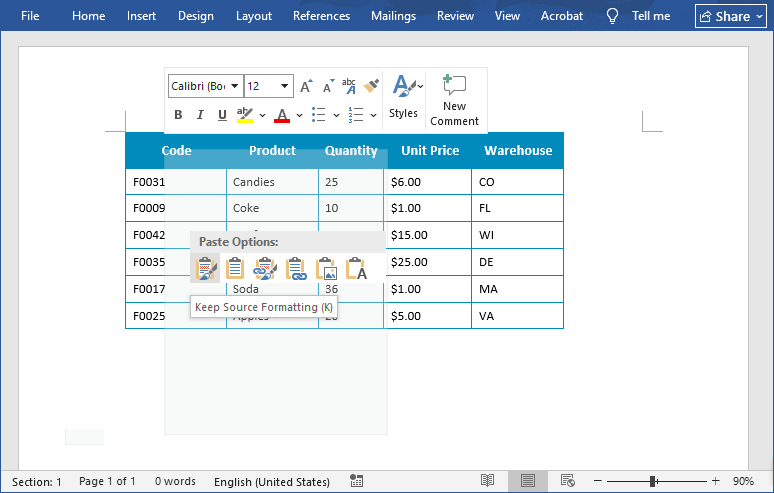
Dica Profissional: Para tabelas largas, use a opção Ajuste Automático à Janela do Word para evitar que as colunas sejam cortadas.
Método 2: Inserir Excel como um Objeto (Para Dados Vinculados e Editáveis)
Este método vai além de uma simples tabela; ele incorpora uma versão em miniatura e funcional de toda a planilha do Excel dentro do seu documento do Word. É a melhor escolha quando os dados precisam permanecer totalmente editáveis e calculáveis dentro do próprio arquivo do Word.
Passos para incorporar o Excel no Word:
- Abra seu documento do Word e vá para a guia “Inserir”.
- Clique em “Objeto” no grupo “Texto”.
- Na caixa de diálogo Objeto, vá para a guia “Criar do Arquivo”.
- Clique em “Procurar” para selecionar seu arquivo Excel e, em seguida, marque a caixa “Vincular ao arquivo” (opcional: vincula o documento do Word ao arquivo Excel original, para que as atualizações no Excel sejam sincronizadas automaticamente com o Word).
- Clique em “OK” e seus dados do Excel aparecerão no Word como um objeto editável.
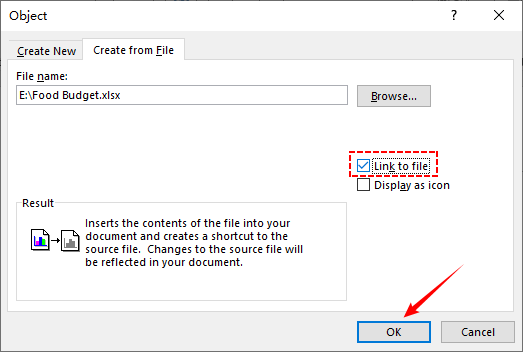
Ideal para: Relatórios que precisam de atualizações frequentes de dados (por exemplo, rastreadores de projetos, painéis de vendas mensais).
Você também pode se interessar por: Converter Tabela de PDF para Word – Métodos Precisos e Confiáveis
Método 3: Conversor Online de Excel para Word (Para Uso Rápido e Único)
Quando você precisa de uma conversão rápida em um computador onde não pode instalar software, os conversores online gratuitos são uma opção viável.
Top 3 Ferramentas Online Gratuitas:
- Zamzar: Suporta mais de 1200 formatos, incluindo Excel para Word. Não é necessário se inscrever para arquivos pequenos.
- OnlineConvertFree: Interface simples com suporte para arrastar e soltar. Converte arquivos em 30 segundos ou menos.
- Converter365: Suporta conversão em lote e funciona em todos os navegadores. Preserva gráficos e fórmulas.
Passos Gerais para converter Excel para Word online:
- Acesse o conversor escolhido (por exemplo, Zamzar.com).
- Selecione “Escolher Arquivos” para enviar seu arquivo Excel.
- Escolha “Doc” ou “Docx” como o formato de saída.
- Clique no botão “Converter” e baixe seu arquivo do Word.
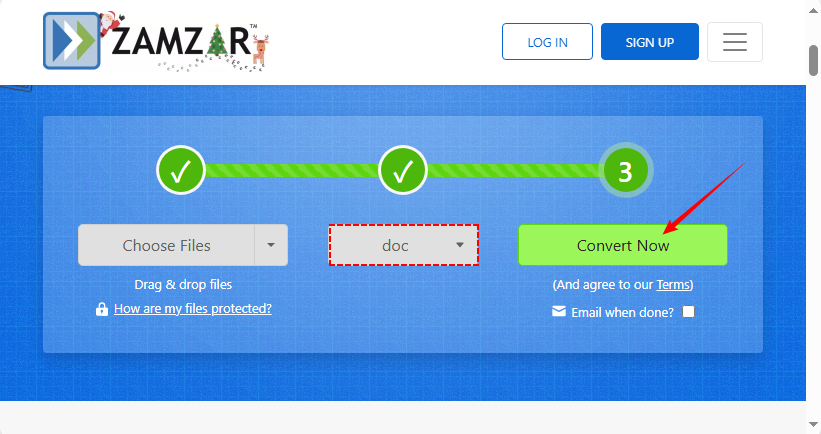
Nota de Segurança Importante: Nunca use conversores online para dados sensíveis ou confidenciais, pois você está enviando arquivos para um servidor de terceiros.
Método 4: Automatizar com Macros VBA (Para Usuários Avançados)
Se você converte frequentemente tabelas do Excel para o Word (por exemplo, relatórios diários), use uma macro VBA para automatizar o processo.
Passo a Passo:
- Abra seu arquivo Excel e pressione Alt+F11 para abrir o Editor VBA.
- Clique em “Inserir” → “Módulo” para criar um novo módulo.
- Cole o seguinte código de macro (personalize o intervalo e o caminho para salvar conforme necessário):
Sub ExcelToWord_Basic()
    Dim wdApp As Object
    Dim wdDoc As Object
    Dim ws As Worksheet
    Dim rng As Range

    ' Set your worksheet and range
    Set ws = ThisWorkbook.Worksheets("Sheet1")
    Set rng = ws.Range("A1:E7")

    ' Create a new instance of Word
    Set wdApp = CreateObject("Word.Application")
    wdApp.Visible = True ' Set to False for invisible processing

    ' Create a new document
    Set wdDoc = wdApp.Documents.Add

    ' Copy the range from Excel
    rng.Copy

    ' Paste into Word
    wdApp.Selection.Paste

    ' Save the document
    wdDoc.SaveAs2 "F:\Report.docx"

    ' Clean up
    Set wdDoc = Nothing
    Set wdApp = Nothing
    MsgBox "Conversion complete!"
End Sub
- Execute a macro (pressione F5) para converter um arquivo Excel para Word.
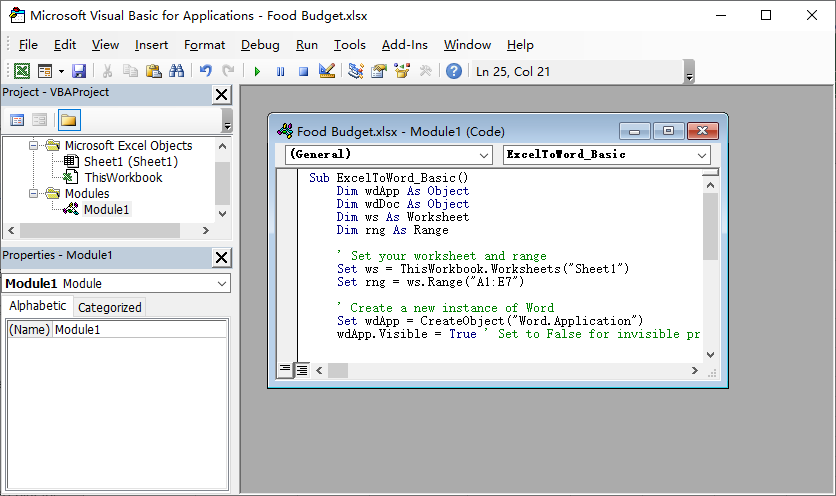
A limpeza dos dados do Excel é a base para uma conversão tranquila. Para evitar que linhas/colunas em branco criem lacunas desnecessárias nas tabelas do Word, siga o guia para removê-las eficientemente: Como Excluir Linhas em Branco no Excel: 5 Métodos Fáceis
Método 5: Converter em Lote de Excel para Word via Python (Para Vários Arquivos)
Para processar dezenas ou centenas de arquivos, ou para integrar a conversão de Excel para Word Doc ou Docx em um pipeline de dados automatizado maior, Python é a solução padrão da indústria. Abaixo estão os passos para realizar a conversão usando a biblioteca Free Spire.Office for Python:
- Carrega o livro de trabalho do Excel via LoadFromFile().
- Lê dados e formatação (fontes, cores, alinhamentos, células mescladas) de planilhas especificadas.
- Cria um novo documento do Word e constrói uma tabela dentro dele via AddTable().
- Mapeia os dados do Excel célula por célula na tabela do Word via AppendText().
- Aplica os estilos de formatação capturados às células da tabela do Word através dos métodos personalizados MergeCells() e CopyStyle().
- Salva o documento final do Word e limpa os recursos.
Código Python para converter dados do Excel para Tabela do Word
from spire.xls import *
from spire.doc import *

def MergeCells(sheet, table):
    """Merge cells in the Word table based on merged cells in the Excel sheet."""
    if sheet.HasMergedCells:
        ranges = sheet.MergedCells
        for i in range(len(ranges)):
            startRow = ranges[i].Row
            startColumn = ranges[i].Column
            rowCount = ranges[i].RowCount
            columnCount = ranges[i].ColumnCount

            if rowCount > 1 and columnCount > 1:
                for j in range(startRow, startRow + rowCount):
                    table.ApplyHorizontalMerge(j - 1, startColumn - 1, startColumn - 1 + columnCount - 1)
                table.ApplyVerticalMerge(startColumn - 1, startRow - 1, startRow - 1 + rowCount - 1)

            if rowCount > 1 and columnCount == 1:
                table.ApplyVerticalMerge(startColumn - 1, startRow - 1, startRow - 1 + rowCount - 1)

            if columnCount > 1 and rowCount == 1:
                table.ApplyHorizontalMerge(startRow - 1, startColumn - 1, startColumn - 1 + columnCount - 1)

def CopyStyle(wTextRange, xCell, wCell):
    """Copy cell styling from Excel to Word."""
    # Copy font style
    wTextRange.CharacterFormat.TextColor = Color.FromRgb(xCell.Style.Font.Color.R, xCell.Style.Font.Color.G, xCell.Style.Font.Color.B)
    wTextRange.CharacterFormat.FontSize = float(xCell.Style.Font.Size)
    wTextRange.CharacterFormat.FontName = xCell.Style.Font.FontName
    wTextRange.CharacterFormat.Bold = xCell.Style.Font.IsBold
    wTextRange.CharacterFormat.Italic = xCell.Style.Font.IsItalic

    # Copy background color
    if xCell.Style.FillPattern is not ExcelPatternType.none:
        wCell.CellFormat.BackColor = Color.FromRgb(xCell.Style.Color.R, xCell.Style.Color.G, xCell.Style.Color.B)

    # Copy horizontal alignment
    if xCell.HorizontalAlignment == HorizontalAlignType.Left:
        wTextRange.OwnerParagraph.Format.HorizontalAlignment = HorizontalAlignment.Left
    elif xCell.HorizontalAlignment == HorizontalAlignType.Center:
        wTextRange.OwnerParagraph.Format.HorizontalAlignment = HorizontalAlignment.Center
    elif xCell.HorizontalAlignment == HorizontalAlignType.Right:
        wTextRange.OwnerParagraph.Format.HorizontalAlignment = HorizontalAlignment.Right

    # Copy vertical alignment
    if xCell.VerticalAlignment == VerticalAlignType.Bottom:
        wCell.CellFormat.VerticalAlignment = VerticalAlignment.Bottom
    elif xCell.VerticalAlignment == VerticalAlignType.Center:
        wCell.CellFormat.VerticalAlignment = VerticalAlignment.Middle
    elif xCell.VerticalAlignment == VerticalAlignType.Top:
        wCell.CellFormat.VerticalAlignment = VerticalAlignment.Top

# Load an Excel file
workbook = Workbook()
workbook.LoadFromFile("sample.xlsx")

# Get the first worksheet
sheet = workbook.Worksheets[0]

# Create a Word document
doc = Document()
section = doc.AddSection()
section.PageSetup.Orientation = PageOrientation.Landscape

# Add a table
table = section.AddTable(True)
table.ResetCells(sheet.LastRow, sheet.LastColumn)

# Merge cells
MergeCells(sheet, table)

# Export data and styles from Excel to Word table
for r in range(1, sheet.LastRow + 1):
    table.Rows[r - 1].Height = float(sheet.Rows[r - 1].RowHeight)

    for c in range(1, sheet.LastColumn + 1):
        xCell = sheet.Range[r, c]
        wCell = table.Rows[r - 1].Cells[c - 1]

        # Add text from Excel to Word table cell
        textRange = wCell.AddParagraph().AppendText(xCell.NumberText)

        # Copy font and cell style
        CopyStyle(textRange, xCell, wCell)

# Save the document to a Word file
doc.SaveToFile("ExcelToWordTable.docx", FileFormat.Docx)
doc.Dispose()
Resultado da conversão:
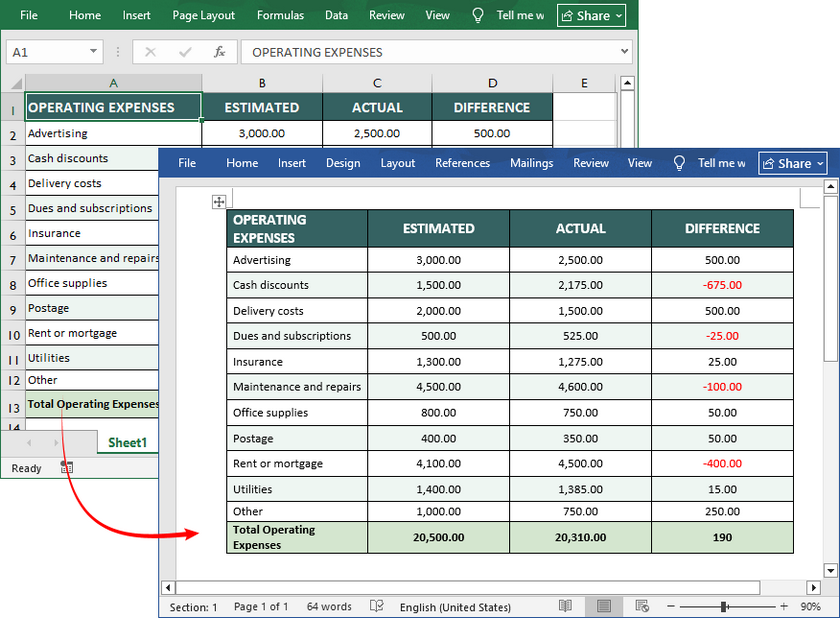
Se você precisa exportar dados de uma tabela do Word para uma planilha do Excel, verifique isto: Converter Word para Excel em Python.
Melhores Práticas para uma Conversão Perfeita
- Limpe Seus Dados Primeiro: Remova linhas/colunas em branco, garanta uma formatação consistente e verifique se há erros no Excel antes de converter.
- Atenção à Formatação: As tabelas do Excel são frequentemente mais largas que as margens da página do Word. Use as opções de Ajuste Automático do Word para redimensionar.
- Mantenha os Vínculos com Cuidado: Se você usar a vinculação (método 2), enviar o arquivo do Word para outras pessoas quebrará o vínculo, a menos que você também envie o arquivo do Excel e mantenha o caminho da pasta. Considere quebrar o vínculo antes de finalizar.
- Verifique o Layout da Página: Sempre revise o documento convertido na visualização de Layout de Impressão do Word para garantir que tabelas e gráficos sejam exibidos corretamente na página.
Qual Método de Excel para Word Você Deve Escolher?
Aqui está uma folha de dicas rápida para escolher o método certo:
| Cenário | Melhor Método | Prós | Contras |
|---|---|---|---|
| Tabela pequena, conversão rápida | Copiar e Colar (Método 1) | Rápido, sem ferramentas | Controle de formatação limitado para dados grandes |
| Dados editáveis, atualizações automáticas | Inserir Objeto (Método 2) | Sincroniza com o Excel, editável | Requer o Excel instalado |
| Sem instalação, uso único | Ferramentas Online (Método 3) | Conveniente, gratuito | Riscos de exposição de dados; ruim para dados complexos |
| Conversão automatizada frequente | Macro VBA (Método 4) | Economiza tempo, personalizável | Requer conhecimento de VBA |
| Formatação complexa/arquivos em lote | Script Python (Método 5) | Personalizável, integra-se a fluxos de trabalho | Requer habilidades de codificação |
Conclusão
Dominar a transferência de dados do Excel para o Word é uma competência fundamental no escritório moderno. Com os 5 métodos personalizados descritos aqui, há uma solução para cada usuário, nível de habilidade e cenário. Seja você um iniciante precisando de um rápido copiar e colar para uma pequena tabela, um profissional que requer dados editáveis e com atualização automática, ou um usuário experiente em tecnologia automatizando conversões em lote com VBA ou Python, essas abordagens eliminam o esforço manual tedioso e preservam a integridade de seus dados.
Perguntas Frequentes (FAQs)
P1: Posso converter um arquivo do Excel para o Word sem perder a formatação?
R: Sim, usar "Manter Formatação Original" ao colar ou incorporar a planilha como um objeto preserva a maior parte da formatação.
P2: Como converto Excel para Word gratuitamente?
R: Todos os métodos nativos do Microsoft Office (copiar/colar, inserir objeto) são gratuitos. Vários conversores online respeitáveis também oferecem níveis gratuitos. Para conversão em lote de alta qualidade, o método de script em Python é poderoso se você tiver a habilidade técnica.
P3: Posso converter Excel para Word e manter as fórmulas?
R: As fórmulas não são traduzidas diretamente. Quando coladas como uma tabela, apenas os resultados aparecem. A exceção é o Método 2 (Inserir Objeto). Se você clicar duas vezes no objeto Excel incorporado no Word, poderá ver e editar as fórmulas ao vivo na interface do Excel incorporada, e elas serão calculadas lá.
P4: Como converto várias planilhas do Excel para um único documento do Word?
R: Copie e cole cada planilha individualmente ou use o método "Inserir Objeto" para cada uma. Para automação, uma macro VBA ou um script Python pode ser programado para percorrer todas as planilhas de um livro de trabalho e compilá-las sequencialmente em um único arquivo do Word.
Veja Também
Excel을 Word로 변환하는 최고의 방법 5가지
오늘날의 데이터 중심 전문 환경에서 Microsoft Office 응용 프로그램 간에 정보를 원활하게 전송하는 능력은 필수적인 기술입니다. 분기별 비즈니스 보고서를 작성하든, 재무 데이터를 고객 제안서에 통합하든, 연구 문서를 준비하든, 수동 데이터 재입력은 지루하고 오류가 발생하기 쉬운 프로세스입니다. Excel을 Word로 효과적으로 변환하면 작업 시간을 절약하고 중요한 서식을 보존하며 전체 문서 워크플로우를 간소화할 수 있습니다.
이 포괄적인 가이드는 Excel 시트를 Word로 변환하는 5가지 입증된 방법을 안내합니다. 우리는 이러한 방법을 가장 간단한 것부터 가장 고급스러운 것까지 정리하여 가끔 Office를 사용하는 사용자부터 일괄 보고서를 자동화하는 IT 전문가에 이르기까지 모든 사용자에게 완벽한 솔루션이 있도록 했습니다.
- 방법 1: 수동 복사-붙여넣기 (간단한 데이터에 가장 빠름)
- 방법 2: Excel을 개체로 삽입 (연결되고 편집 가능한 데이터용)
- 방법 3: 온라인 Excel to Word 변환기 (빠른 일회성 사용)
- 방법 4: VBA 매크로로 자동화 (고급 사용자용)
- 방법 5: Python을 통한 Excel to Word 일괄 변환 (여러 파일용)
- 완벽한 변환을 위한 모범 사례
- 어떤 Excel to Word 방법을 선택해야 할까요?
- 자주 묻는 질문 (FAQs)
방법 1: 수동 복사-붙여넣기 (간단한 데이터에 가장 빠름)
작은 표나 데이터 범위만 변환해야 하는 경우 복사-붙여넣기 방법이 빠르고 간단합니다. Windows와 Mac 모두에서 작동하며 추가 도구가 필요하지 않습니다.
Excel을 Word로 변환하는 방법:
- Excel 파일을 열고 변환하려는 데이터를 선택합니다.
- 데이터 복사: 마우스 오른쪽 버튼을 클릭하고 “복사”를 선택하거나 단축키 "Ctrl+C"(Windows) / "Cmd+C"(Mac)를 사용합니다.
- 새 Word 문서나 기존 Word 문서를 열고 데이터를 표시할 위치에 커서를 놓습니다.
- 서식 제어하여 붙여넣기 (마우스 오른쪽 버튼을 클릭하여 선택):
- 원본 서식 유지: Excel의 글꼴, 색상 및 셀 테두리를 보존합니다.
- 대상 스타일 사용: Excel 데이터를 Word 문서의 스타일에 맞게 조정합니다.
- 연결 및 원본 서식 유지: Excel 파일에 대한 동적 링크를 만듭니다.
- 그림: 선택 항목을 정적이고 편집할 수 없는 이미지로 붙여넣습니다.
- 텍스트만 유지: 데이터를 일반 텍스트(주로 탭으로 구분됨)로 붙여넣습니다.
전문가 팁: 넓은 표의 경우 Word의 창에 자동 맞춤 옵션을 사용하여 열이 잘리지 않도록 하세요.
방법 2: Excel을 개체로 삽입 (연결되고 편집 가능한 데이터용)
이 방법은 단순한 표를 넘어 전체 Excel 워크시트의 축소되고 기능적인 버전을 Word 문서 내에 포함합니다. 데이터가 Word 파일 자체 내에서 완전히 편집 가능하고 계산 가능해야 할 때 가장 좋은 선택입니다.
Word에 Excel을 포함하는 단계:
- Word 문서를 열고 “삽입” 탭으로 이동합니다.
- “텍스트” 그룹에서 “개체”를 클릭합니다.
- 개체 대화 상자에서 “파일로부터 만들기” 탭으로 이동합니다.
- “찾아보기”를 클릭하여 Excel 파일을 선택한 다음 “파일에 연결” 확인란을 선택합니다(선택 사항: Word 문서를 원본 Excel 파일에 연결하여 Excel의 업데이트가 Word에 자동으로 동기화되도록 함).
- “확인”을 클릭하면 Excel 데이터가 Word에 편집 가능한 개체로 나타납니다.
가장 적합한 경우: 빈번한 데이터 업데이트가 필요한 보고서 (예: 프로젝트 추적기, 월간 판매 대시보드).
관심 있을 만한 다른 내용: PDF 표를 Word로 변환 – 정확하고 신뢰할 수 있는 방법
방법 3: 온라인 Excel to Word 변환기 (빠른 일회성 사용)
소프트웨어를 설치할 수 없는 컴퓨터에서 빠른 변환이 필요할 때 무료 온라인 변환기는 실행 가능한 옵션입니다.
상위 3개 무료 온라인 도구:
- Zamzar: Excel to Word를 포함하여 1200개 이상의 형식을 지원합니다. 작은 파일의 경우 가입이 필요하지 않습니다.
- OnlineConvertFree: 드래그 앤 드롭을 지원하는 간단한 인터페이스. 30초 이내에 파일을 변환합니다.
- Converter365: 일괄 변환을 지원하며 모든 브라우저에서 작동합니다. 차트와 수식을 보존합니다.
온라인에서 Excel을 Word로 변환하는 일반적인 단계:
- 선택한 변환기(예: Zamzar.com)로 이동합니다.
- “파일 선택”을 선택하여 Excel 파일을 업로드합니다.
- 출력 형식으로 “Doc” 또는 “Docx”를 선택합니다.
- “변환” 버튼을 클릭하고 Word 파일을 다운로드합니다.
중요 보안 참고 사항: 제3자 서버에 파일을 업로드하므로 민감하거나 기밀인 데이터에 온라인 변환기를 절대 사용하지 마세요.
방법 4: VBA 매크로로 자동화 (고급 사용자용)
Excel 표를 Word로 자주 변환하는 경우(예: 일일 보고서) VBA 매크로를 사용하여 프로세스를 자동화하세요.
단계별 안내:
- Excel 파일을 열고 Alt+F11을 눌러 VBA 편집기를 엽니다.
- “삽입” → “모듈”을 클릭하여 새 모듈을 만듭니다.
- 다음 매크로 코드를 붙여넣습니다(필요에 따라 범위와 저장 경로를 사용자 지정).
Sub ExcelToWord_Basic()
    Dim wdApp As Object
    Dim wdDoc As Object
    Dim ws As Worksheet
    Dim rng As Range

    ' 워크시트와 범위 설정
    Set ws = ThisWorkbook.Worksheets("Sheet1")
    Set rng = ws.Range("A1:E7")

    ' Word의 새 인스턴스 생성
    Set wdApp = CreateObject("Word.Application")
    wdApp.Visible = True ' 보이지 않는 처리를 위해 False로 설정

    ' 새 문서 생성
    Set wdDoc = wdApp.Documents.Add

    ' Excel에서 범위 복사
    rng.Copy

    ' Word에 붙여넣기
    wdApp.Selection.Paste

    ' 문서 저장
    wdDoc.SaveAs2 "F:\Report.docx"

    ' 정리
    Set wdDoc = Nothing
    Set wdApp = Nothing
    MsgBox "변환 완료!"
End Sub
- 매크로를 실행하여(F5 키 누름) Excel 파일을 Word로 변환합니다.
Excel 데이터 정리는 원활한 변환의 기초입니다. 빈 행/열이 Word 표에 불필요한 간격을 만드는 것을 방지하려면 가이드를 따라 효율적으로 제거하세요: Excel에서 빈 행을 삭제하는 방법: 5가지 쉬운 방법
방법 5: Python을 통한 Excel to Word 일괄 변환 (여러 파일용)
수십 또는 수백 개의 파일을 처리하거나 Excel to Word Doc 또는 Docx 변환을 더 큰 자동화된 데이터 파이프라인에 통합하려면 Python이 업계 표준 솔루션입니다. 다음은 Free Spire.Office for Python 라이브러리를 사용하여 변환을 수행하는 단계입니다.
- LoadFromFile()을 통해 Excel 통합 문서를 로드합니다.
- 지정된 워크시트에서 데이터와 서식(글꼴, 색상, 정렬, 병합된 셀)을 읽습니다.
- 새 Word 문서를 만들고 AddTable()을 통해 그 안에 표를 만듭니다.
- AppendText()를 통해 Excel 데이터를 Word 표에 셀 단위로 매핑합니다.
- 사용자 지정 메서드 MergeCells() 및 CopyStyle()을 통해 캡처된 서식 스타일을 Word 표 셀에 적용합니다.
- 최종 Word 문서를 저장하고 리소스를 정리합니다.
Excel 데이터를 Word 표로 변환하는 Python 코드
from spire.xls import *
from spire.doc import *

def MergeCells(sheet, table):
    """Excel 시트의 병합된 셀을 기반으로 Word 표의 셀을 병합합니다."""
    if sheet.HasMergedCells:
        ranges = sheet.MergedCells
        for i in range(len(ranges)):
            startRow = ranges[i].Row
            startColumn = ranges[i].Column
            rowCount = ranges[i].RowCount
            columnCount = ranges[i].ColumnCount

            if rowCount > 1 and columnCount > 1:
                for j in range(startRow, startRow + rowCount):
                    table.ApplyHorizontalMerge(j - 1, startColumn - 1, startColumn - 1 + columnCount - 1)
                table.ApplyVerticalMerge(startColumn - 1, startRow - 1, startRow - 1 + rowCount - 1)

            if rowCount > 1 and columnCount == 1:
                table.ApplyVerticalMerge(startColumn - 1, startRow - 1, startRow - 1 + rowCount - 1)

            if columnCount > 1 and rowCount == 1:
                table.ApplyHorizontalMerge(startRow - 1, startColumn - 1, startColumn - 1 + columnCount - 1)

def CopyStyle(wTextRange, xCell, wCell):
    """Excel에서 Word로 셀 스타일을 복사합니다."""
    # 글꼴 스타일 복사
    wTextRange.CharacterFormat.TextColor = Color.FromRgb(xCell.Style.Font.Color.R, xCell.Style.Font.Color.G, xCell.Style.Font.Color.B)
    wTextRange.CharacterFormat.FontSize = float(xCell.Style.Font.Size)
    wTextRange.CharacterFormat.FontName = xCell.Style.Font.FontName
    wTextRange.CharacterFormat.Bold = xCell.Style.Font.IsBold
    wTextRange.CharacterFormat.Italic = xCell.Style.Font.IsItalic

    # 배경색 복사
    if xCell.Style.FillPattern is not ExcelPatternType.none:
        wCell.CellFormat.BackColor = Color.FromRgb(xCell.Style.Color.R, xCell.Style.Color.G, xCell.Style.Color.B)

    # 가로 정렬 복사
    if xCell.HorizontalAlignment == HorizontalAlignType.Left:
        wTextRange.OwnerParagraph.Format.HorizontalAlignment = HorizontalAlignment.Left
    elif xCell.HorizontalAlignment == HorizontalAlignType.Center:
        wTextRange.OwnerParagraph.Format.HorizontalAlignment = HorizontalAlignment.Center
    elif xCell.HorizontalAlignment == HorizontalAlignType.Right:
        wTextRange.OwnerParagraph.Format.HorizontalAlignment = HorizontalAlignment.Right

    # 세로 정렬 복사
    if xCell.VerticalAlignment == VerticalAlignType.Bottom:
        wCell.CellFormat.VerticalAlignment = VerticalAlignment.Bottom
    elif xCell.VerticalAlignment == VerticalAlignType.Center:
        wCell.CellFormat.VerticalAlignment = VerticalAlignment.Middle
    elif xCell.VerticalAlignment == VerticalAlignType.Top:
        wCell.CellFormat.VerticalAlignment = VerticalAlignment.Top

# Excel 파일 로드
workbook = Workbook()
workbook.LoadFromFile("sample.xlsx")

# 첫 번째 워크시트 가져오기
sheet = workbook.Worksheets[0]

# Word 문서 생성
doc = Document()
section = doc.AddSection()
section.PageSetup.Orientation = PageOrientation.Landscape

# 표 추가
table = section.AddTable(True)
table.ResetCells(sheet.LastRow, sheet.LastColumn)

# 셀 병합
MergeCells(sheet, table)

# Excel에서 Word 표로 데이터 및 스타일 내보내기
for r in range(1, sheet.LastRow + 1):
    table.Rows[r - 1].Height = float(sheet.Rows[r - 1].RowHeight)

    for c in range(1, sheet.LastColumn + 1):
        xCell = sheet.Range[r, c]
        wCell = table.Rows[r - 1].Cells[c - 1]

        # Excel에서 Word 표 셀로 텍스트 추가
        textRange = wCell.AddParagraph().AppendText(xCell.NumberText)

        # 글꼴 및 셀 스타일 복사
        CopyStyle(textRange, xCell, wCell)

# 문서를 Word 파일로 저장
doc.SaveToFile("ExcelToWordTable.docx", FileFormat.Docx)
doc.Dispose()
변환 결과:
Word 표 데이터를 Excel 시트로 내보내야 하는 경우 다음을 확인하세요: Python에서 Word를 Excel로 변환.
완벽한 변환을 위한 모범 사례
- 먼저 데이터 정리: 변환하기 전에 Excel에서 빈 행/열을 제거하고, 일관된 서식을 확인하고, 오류를 확인하세요.
- 서식에 유의: Excel 표는 종종 Word의 페이지 여백보다 넓습니다. Word의 자동 맞춤 옵션을 사용하여 크기를 조정하세요.
- 링크를 신중하게 유지: 링크를 사용하는 경우(방법 2), Word 파일을 다른 사람에게 보내면 Excel 파일도 함께 보내고 폴더 경로를 유지하지 않는 한 링크가 끊어집니다. 최종 확정 전에 링크를 끊는 것을 고려하세요.
- 페이지 레이아웃 확인: 항상 Word의 인쇄 레이아웃 보기에서 변환된 문서를 검토하여 표와 차트가 페이지에 올바르게 표시되는지 확인하세요.
어떤 Excel to Word 방법을 선택해야 할까요?
올바른 방법을 선택하기 위한 빠른 치트 시트입니다:
| 시나리오 | 최적의 방법 | 장점 | 단점 |
|---|---|---|---|
| 작은 표, 빠른 변환 | 복사-붙여넣기 (방법 1) | 빠름, 도구 필요 없음 | 큰 데이터에 대한 서식 제어 제한 |
| 편집 가능한 데이터, 자동 업데이트 | 개체 삽입 (방법 2) | Excel과 동기화, 편집 가능 | Excel 설치 필요 |
| 설치 불필요, 일회성 사용 | 온라인 도구 (방법 3) | 편리함, 무료 | 데이터 노출 위험, 복잡한 데이터에 부적합 |
| 빈번한 자동 변환 | VBA 매크로 (방법 4) | 시간 절약, 사용자 지정 가능 | VBA 지식 필요 |
| 복잡한 서식/일괄 파일 | Python 스크립트 (방법 5) | 사용자 지정 가능, 워크플로우에 통합 | 코딩 기술 필요 |
결론
Excel에서 Word로 데이터를 전송하는 것을 마스터하는 것은 현대 사무 환경의 기본 역량입니다. 여기에 설명된 5가지 맞춤형 방법을 통해 모든 사용자, 기술 수준 및 시나리오에 맞는 솔루션이 있습니다. 작은 표를 위해 빠른 복사-붙여넣기가 필요한 초보자, 편집 가능하고 자동 업데이트되는 데이터가 필요한 전문가, 또는 VBA나 Python으로 일괄 변환을 자동화하는 기술에 정통한 사용자에 이르기까지, 이러한 접근 방식은 지루한 수동 작업을 없애고 데이터의 무결성을 보존합니다.
자주 묻는 질문 (FAQs)
Q1: 서식을 잃지 않고 Excel 파일을 Word로 변환할 수 있나요?
A: 네, 붙여넣기 시 "원본 서식 유지"를 사용하거나 워크시트를 개체로 포함하면 대부분의 서식이 보존됩니다.
Q2: Excel을 Word로 무료로 변환하려면 어떻게 해야 하나요?
A: 모든 기본 Microsoft Office 방법(복사/붙여넣기, 개체 삽입)은 무료입니다. 여러 평판 좋은 온라인 변환기도 무료 등급을 제공합니다. 고품질 일괄 변환의 경우 기술력이 있다면 Python 스크립팅 방법이 강력합니다.
Q3: 수식을 유지하면서 Excel을 Word로 변환할 수 있나요?
A: 수식은 직접 변환되지 않습니다. 표로 붙여넣으면 결과만 나타납니다. 예외는 방법 2(개체 삽입)입니다. Word 내에서 포함된 Excel 개체를 두 번 클릭하면 포함된 Excel 인터페이스에서 라이브 수식을 보고 편집할 수 있으며 거기서 계산됩니다.
Q4: 여러 Excel 시트를 하나의 Word 문서로 변환하려면 어떻게 해야 하나요?
A: 각 시트를 개별적으로 복사하여 붙여넣거나 각 시트에 대해 "개체 삽입" 방법을 사용하세요. 자동화를 위해 VBA 매크로나 Python 스크립트를 프로그래밍하여 통합 문서의 모든 시트를 반복하고 순차적으로 하나의 Word 파일로 컴파일할 수 있습니다.
참고 항목
I 5 migliori modi per convertire Excel in Word
Indice
- Metodo 1: Copia-Incolla Manuale (Il più Veloce per Dati Semplici)
- Metodo 2: Inserisci Excel come Oggetto (Per Dati Collegati e Modificabili)
- Metodo 3: Convertitore Online da Excel a Word (Per un Uso Rapido e Singolo)
- Metodo 4: Automatizza con Macro VBA (Per Utenti Esperti)
- Metodo 5: Converti in Blocco da Excel a Word tramite Python (Per File Multipli)
- Migliori Pratiche per una Conversione Perfetta
- Quale Metodo di Conversione da Excel a Word Scegliere?
- Domande Frequenti (FAQ)
Nel panorama professionale odierno basato sui dati, la capacità di trasferire senza problemi le informazioni tra le applicazioni di Microsoft Office è un'abilità essenziale. Che si tratti di compilare un rapporto aziendale trimestrale, integrare dati finanziari in una proposta per un cliente o preparare un documento di ricerca, la reinserzione manuale dei dati è un processo noioso e soggetto a errori. Convertire Excel in Word in modo efficace può far risparmiare ore di lavoro, preservare la formattazione critica e ottimizzare l'intero flusso di lavoro dei documenti.
Questa guida completa ti illustrerà 5 metodi collaudati per convertire fogli Excel in Word. Abbiamo organizzato questi metodi dal più semplice al più avanzato, assicurando che ci sia una soluzione perfetta per ogni utente, dall'utente occasionale di Office al professionista IT che automatizza i rapporti in blocco.
- Metodo 1: Copia-Incolla Manuale (Il più Veloce per Dati Semplici)
- Metodo 2: Inserisci Excel come Oggetto (Per Dati Collegati e Modificabili)
- Metodo 3: Convertitore Online da Excel a Word (Per un Uso Rapido e Singolo)
- Metodo 4: Automatizza con Macro VBA (Per Utenti Esperti)
- Metodo 5: Converti in Blocco da Excel a Word tramite Python (Per File Multipli)
- Migliori Pratiche per una Conversione Perfetta
- Quale Metodo di Conversione da Excel a Word Scegliere?
- Domande Frequenti (FAQ)
Metodo 1: Copia-Incolla Manuale (Il più Veloce per Dati Semplici)
Se hai solo bisogno di convertire una piccola tabella o un intervallo di dati, il metodo copia-incolla è veloce e diretto. Funziona sia su Windows che su Mac e non richiede strumenti aggiuntivi.
Come convertire Excel in Word:
- Apri il tuo file Excel e seleziona i dati che desideri convertire.
- Copia i dati: fai clic con il pulsante destro del mouse e seleziona “Copia”, oppure usa la scorciatoia "Ctrl+C" (Windows) / "Cmd+C" (Mac).
- Apri un documento Word nuovo o esistente e posiziona il cursore dove desideri che appaiano i dati.
- Incolla con controllo della formattazione (fai clic con il pulsante destro del mouse per scegliere):
- Mantieni formattazione originale: conserva i caratteri, i colori e i bordi delle celle di Excel.
- Usa stili di destinazione: adatta i dati di Excel allo stile del tuo documento Word.
- Collega e mantieni formattazione originale: crea un collegamento dinamico al file Excel.
- Immagine: incolla la selezione come un'immagine statica e non modificabile.
- Mantieni solo testo: incolla i dati come testo semplice, spesso separato da tabulazioni.
Consiglio Pro: per tabelle larghe, usa l'opzione Adatta alla finestra di Word per evitare che le colonne vengano tagliate.
Metodo 2: Inserisci Excel come Oggetto (Per Dati Collegati e Modificabili)
Questo metodo va oltre una semplice tabella; incorpora una versione in miniatura e funzionale dell'intero foglio di lavoro di Excel all'interno del tuo documento Word. È la scelta migliore quando i dati devono rimanere completamente modificabili e calcolabili all'interno del file Word stesso.
Passaggi per incorporare Excel in Word:
- Apri il tuo documento Word e vai alla scheda “Inserisci”.
- Fai clic su “Oggetto” nel gruppo “Testo”.
- Nella finestra di dialogo Oggetto, vai alla scheda “Crea da file”.
- Fai clic su “Sfoglia” per selezionare il tuo file Excel, quindi seleziona la casella “Collega al file” (opzionale: collega il documento Word al file Excel originale, in modo che gli aggiornamenti in Excel si sincronizzino automaticamente con Word).
- Fai clic su “OK” e i tuoi dati Excel appariranno in Word come un oggetto modificabile.
Ideale per: rapporti che necessitano di aggiornamenti frequenti dei dati (ad es. tracker di progetto, dashboard delle vendite mensili).
Potrebbe interessarti anche: Converti tabella PDF in Word – Metodi accurati e affidabili
Metodo 3: Convertitore Online da Excel a Word (Per un Uso Rapido e Singolo)
Quando hai bisogno di una conversione rapida su un computer dove non puoi installare software, i convertitori online gratuiti sono un'opzione praticabile.
I 3 migliori strumenti online gratuiti:
- Zamzar: supporta oltre 1200 formati, inclusa la conversione da Excel a Word. Nessuna registrazione richiesta per file di piccole dimensioni.
- OnlineConvertFree: interfaccia semplice con supporto drag-and-drop. Converte i file in 30 secondi o meno.
- Converter365: supporta la conversione in blocco e funziona su tutti i browser. Conserva grafici e formule.
Passaggi generali per convertire Excel in Word online:
- Vai al convertitore scelto (ad es. Zamzar.com).
- Seleziona “Scegli file” per caricare il tuo file Excel.
- Scegli “Doc” o “Docx” come formato di output.
- Fai clic sul pulsante “Converti” e scarica il tuo file Word.
Nota importante sulla sicurezza: non utilizzare mai convertitori online per dati sensibili o riservati, poiché si caricano i file su un server di terze parti.
Metodo 4: Automatizza con Macro VBA (Per Utenti Esperti)
Se converti frequentemente tabelle Excel in Word (ad es. rapporti giornalieri), usa una macro VBA per automatizzare il processo.
Passo dopo passo:
- Apri il tuo file Excel e premi Alt+F11 per aprire l'editor VBA.
- Fai clic su “Inserisci” → “Modulo” per creare un nuovo modulo.
- Incolla il seguente codice macro (personalizza l'intervallo e il percorso di salvataggio secondo necessità):
Sub ExcelToWord_Basic()
    Dim wdApp As Object
    Dim wdDoc As Object
    Dim ws As Worksheet
    Dim rng As Range

    ' Set your worksheet and range
    Set ws = ThisWorkbook.Worksheets("Sheet1")
    Set rng = ws.Range("A1:E7")

    ' Create a new instance of Word
    Set wdApp = CreateObject("Word.Application")
    wdApp.Visible = True ' Set to False for invisible processing

    ' Create a new document
    Set wdDoc = wdApp.Documents.Add

    ' Copy the range from Excel
    rng.Copy

    ' Paste into Word
    wdApp.Selection.Paste

    ' Save the document
    wdDoc.SaveAs2 "F:\Report.docx"

    ' Clean up
    Set wdDoc = Nothing
    Set wdApp = Nothing
    MsgBox "Conversion complete!"
End Sub
- Esegui la macro (premi F5) per convertire un file Excel in Word.
La pulizia dei dati di Excel è la base per una conversione senza problemi. Per evitare che righe/colonne vuote creino spazi inutili nelle tabelle di Word, segui la guida per rimuoverle in modo efficiente: Come eliminare le righe vuote in Excel: 5 metodi semplici
Metodo 5: Converti in Blocco da Excel a Word tramite Python (Per File Multipli)
Per l'elaborazione di dozzine o centinaia di file, o per integrare la conversione da Excel a Word Doc o Docx in una pipeline di dati automatizzata più ampia, Python è la soluzione standard del settore. Di seguito sono riportati i passaggi per eseguire la conversione utilizzando la libreria Free Spire.Office for Python:
- Carica la cartella di lavoro di Excel tramite LoadFromFile().
- Legge dati e formattazione (caratteri, colori, allineamenti, celle unite) da fogli di lavoro specificati.
- Crea un nuovo documento Word e costruisce una tabella al suo interno tramite AddTable().
- Mappa i dati di Excel cella per cella nella tabella di Word tramite AppendText().
- Applica gli stili di formattazione acquisiti alle celle della tabella di Word tramite i metodi personalizzati MergeCells() e CopyStyle().
- Salva il documento Word finale e ripulisce le risorse.
Codice Python per convertire i dati di Excel in una tabella di Word
from spire.xls import *
from spire.doc import *

def MergeCells(sheet, table):
    """Merge cells in the Word table based on merged cells in the Excel sheet."""
    if sheet.HasMergedCells:
        ranges = sheet.MergedCells
        for i in range(len(ranges)):
            startRow = ranges[i].Row
            startColumn = ranges[i].Column
            rowCount = ranges[i].RowCount
            columnCount = ranges[i].ColumnCount

            if rowCount > 1 and columnCount > 1:
                for j in range(startRow, startRow + rowCount):
                    table.ApplyHorizontalMerge(j - 1, startColumn - 1, startColumn - 1 + columnCount - 1)
                table.ApplyVerticalMerge(startColumn - 1, startRow - 1, startRow - 1 + rowCount - 1)

            if rowCount > 1 and columnCount == 1:
                table.ApplyVerticalMerge(startColumn - 1, startRow - 1, startRow - 1 + rowCount - 1)

            if columnCount > 1 and rowCount == 1:
                table.ApplyHorizontalMerge(startRow - 1, startColumn - 1, startColumn - 1 + columnCount - 1)

def CopyStyle(wTextRange, xCell, wCell):
    """Copy cell styling from Excel to Word."""
    # Copy font style
    wTextRange.CharacterFormat.TextColor = Color.FromRgb(xCell.Style.Font.Color.R, xCell.Style.Font.Color.G, xCell.Style.Font.Color.B)
    wTextRange.CharacterFormat.FontSize = float(xCell.Style.Font.Size)
    wTextRange.CharacterFormat.FontName = xCell.Style.Font.FontName
    wTextRange.CharacterFormat.Bold = xCell.Style.Font.IsBold
    wTextRange.CharacterFormat.Italic = xCell.Style.Font.IsItalic

    # Copy background color
    if xCell.Style.FillPattern is not ExcelPatternType.none:
        wCell.CellFormat.BackColor = Color.FromRgb(xCell.Style.Color.R, xCell.Style.Color.G, xCell.Style.Color.B)

    # Copy horizontal alignment
    if xCell.HorizontalAlignment == HorizontalAlignType.Left:
        wTextRange.OwnerParagraph.Format.HorizontalAlignment = HorizontalAlignment.Left
    elif xCell.HorizontalAlignment == HorizontalAlignType.Center:
        wTextRange.OwnerParagraph.Format.HorizontalAlignment = HorizontalAlignment.Center
    elif xCell.HorizontalAlignment == HorizontalAlignType.Right:
        wTextRange.OwnerParagraph.Format.HorizontalAlignment = HorizontalAlignment.Right

    # Copy vertical alignment
    if xCell.VerticalAlignment == VerticalAlignType.Bottom:
        wCell.CellFormat.VerticalAlignment = VerticalAlignment.Bottom
    elif xCell.VerticalAlignment == VerticalAlignType.Center:
        wCell.CellFormat.VerticalAlignment = VerticalAlignment.Middle
    elif xCell.VerticalAlignment == VerticalAlignType.Top:
        wCell.CellFormat.VerticalAlignment = VerticalAlignment.Top

# Load an Excel file
workbook = Workbook()
workbook.LoadFromFile("sample.xlsx")

# Get the first worksheet
sheet = workbook.Worksheets[0]

# Create a Word document
doc = Document()
section = doc.AddSection()
section.PageSetup.Orientation = PageOrientation.Landscape

# Add a table
table = section.AddTable(True)
table.ResetCells(sheet.LastRow, sheet.LastColumn)

# Merge cells
MergeCells(sheet, table)

# Export data and styles from Excel to Word table
for r in range(1, sheet.LastRow + 1):
    table.Rows[r - 1].Height = float(sheet.Rows[r - 1].RowHeight)

    for c in range(1, sheet.LastColumn + 1):
        xCell = sheet.Range[r, c]
        wCell = table.Rows[r - 1].Cells[c - 1]

        # Add text from Excel to Word table cell
        textRange = wCell.AddParagraph().AppendText(xCell.NumberText)

        # Copy font and cell style
        CopyStyle(textRange, xCell, wCell)

# Save the document to a Word file
doc.SaveToFile("ExcelToWordTable.docx", FileFormat.Docx)
doc.Dispose()
Risultato della conversione:
Se hai bisogno di esportare i dati di una tabella di Word in un foglio di Excel, controlla questo: Converti Word in Excel in Python.
Migliori Pratiche per una Conversione Perfetta
- Pulisci prima i tuoi dati: rimuovi righe/colonne vuote, assicurati una formattazione coerente e controlla la presenza di errori in Excel prima di convertire.
- Attenzione alla formattazione: le tabelle di Excel sono spesso più larghe dei margini di pagina di Word. Usa le opzioni Adatta di Word per ridimensionare.
- Mantieni i collegamenti con attenzione: se usi il collegamento (metodo 2), l'invio del file Word ad altri interromperà il collegamento a meno che non invii anche il file Excel e mantenga il percorso della cartella. Considera di interrompere il collegamento prima di finalizzare.
- Controlla il layout di pagina: controlla sempre il documento convertito nella visualizzazione Layout di stampa di Word per assicurarti che tabelle e grafici vengano visualizzati correttamente sulla pagina.
Quale Metodo di Conversione da Excel a Word Scegliere?
Ecco una rapida guida per scegliere il metodo giusto:
| Scenario | Metodo Migliore | Pro | Contro |
|---|---|---|---|
| Tabella piccola, conversione rapida | Copia-Incolla (Metodo 1) | Veloce, senza strumenti | Controllo limitato della formattazione per dati di grandi dimensioni |
| Dati modificabili, aggiornamenti automatici | Inserisci Oggetto (Metodo 2) | Sincronizza con Excel, modificabile | Richiede Excel installato |
| Senza installazione, uso singolo | Strumenti Online (Metodo 3) | Comodo, gratuito | Rischio di esposizione dei dati; scarso per dati complessi |
| Conversione automatizzata frequente | Macro VBA (Metodo 4) | Risparmia tempo, personalizzabile | Richiede conoscenza di VBA |
| Formattazione complessa/file in blocco | Script Python (Metodo 5) | Personalizzabile, si integra nei flussi di lavoro | Richiede competenze di programmazione |
Conclusione
Padroneggiare il trasferimento di dati da Excel a Word è una competenza fondamentale nell'ufficio moderno. Con i 5 metodi su misura qui delineati, c'è una soluzione per ogni utente, livello di abilità e scenario. Che tu sia un principiante che necessita di un rapido copia-incolla per una piccola tabella, un professionista che richiede dati modificabili e ad aggiornamento automatico, o un utente esperto di tecnologia che automatizza le conversioni in blocco con VBA o Python, questi approcci eliminano il noioso sforzo manuale e preservano l'integrità dei tuoi dati.
Domande Frequenti (FAQ)
D1: Posso convertire un file Excel in Word senza perdere la formattazione?
R: Sì, utilizzando "Mantieni formattazione originale" durante l'incolla o incorporando il foglio di lavoro come oggetto si preserva la maggior parte della formattazione.
D2: Come posso convertire Excel in Word gratuitamente?
R: Tutti i metodi nativi di Microsoft Office (copia/incolla, inserisci oggetto) sono gratuiti. Diversi convertitori online affidabili offrono anche piani gratuiti. Per la conversione in blocco di alta qualità, il metodo di scripting Python è potente se si possiedono le competenze tecniche.
D3: Posso convertire Excel in Word e mantenere le formule?
R: Le formule non si traducono direttamente. Quando incollate come tabella, appaiono solo i risultati. L'eccezione è il Metodo 2 (Inserisci Oggetto). Se fai doppio clic sull'oggetto Excel incorporato in Word, puoi vedere e modificare le formule attive nell'interfaccia di Excel incorporata, e verranno calcolate lì.
D4: Come posso convertire più fogli Excel in un unico documento Word?
R: Copia e incolla ogni foglio singolarmente, oppure usa il metodo "Inserisci Oggetto" per ciascuno. Per l'automazione, una macro VBA o uno script Python possono essere programmati per scorrere tutti i fogli di una cartella di lavoro e compilarli in sequenza in un unico file Word.