PPT 분할 방법: 3가지 쉬운 방법 (수동, 온라인 및 Python)
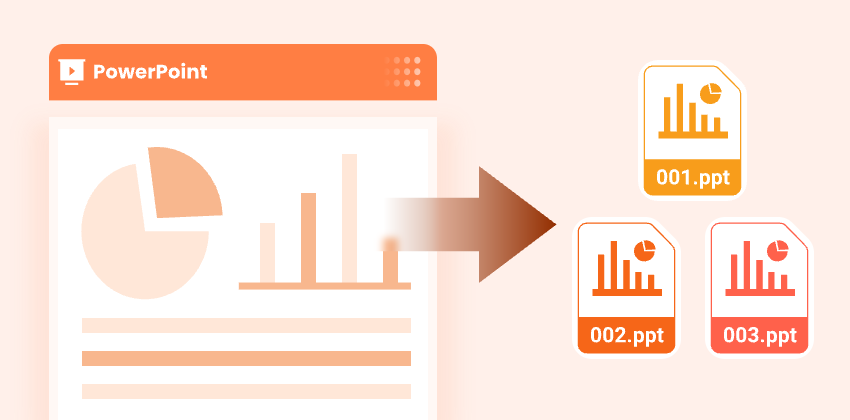
대용량 PowerPoint 프레젠테이션은 많은 슬라이드를 포함하거나 여러 주제를 다루는 경우 관리하기 어려울 수 있습니다. PPT를 분할하여 더 작고 관리하기 쉬운 파일로 만들면 편집, 공유 및 공동 작업이 더 쉬워집니다.
이 가이드에서는 PowerPoint의 수동 방법, 무료 온라인 도구 및 Python 자동화를 포함하여 서식을 유지하면서 PowerPoint 프레젠테이션을 분할하는 3가지 효과적인 방법을 다룹니다. 비즈니스 전문가, 교육자 또는 개발자이든 관계없이 필요에 맞는 실용적인 솔루션을 찾을 수 있습니다.
콘텐츠 개요
- PPT를 분할하는 이유
- 방법 1. PowerPoint에서 수동으로 PPT 분할
- 방법 2. 무료 온라인 도구를 사용하여 온라인으로 PPT 분할
- 방법 3. Python으로 PPT 자동 분할
- PPT 분할을 위한 모범 사례
- 결론
- 자주 묻는 질문: PowerPoint 프레젠테이션 분할
분할된 프레젠테이션을 다시 하나의 파일로 병합하고 싶으신가요? PowerPoint 프레젠테이션 병합 가이드를 참조하세요.
PPT를 분할하는 이유
PowerPoint 프레젠테이션을 분할하면 여러 가지 이점이 있습니다.
- 관련 슬라이드 공유 - 전체 프레젠테이션으로 수신자를 압도하지 않고 필요한 슬라이드만 보냅니다.
- 슬라이드 재사용 - 콘텐츠를 복제하지 않고 새 프레젠테이션에 슬라이드를 쉽게 통합합니다.
- 파일 크기 줄이기 - 대용량 PPT 파일을 이메일이나 클라우드 저장소에 적합한 더 작고 관리하기 쉬운 파일로 분할합니다.
- 팀 공동 작업 개선 - 여러 팀 구성원이 충돌 없이 별도의 섹션에서 동시에 작업할 수 있도록 합니다.
- 다중 주제 프레젠테이션 구성 - 더 나은 구성과 명확성을 위해 주제, 프로젝트 또는 부서별로 슬라이드를 분리합니다.
방법 1. PowerPoint에서 수동으로 PPT 분할
PowerPoint는 추가 소프트웨어를 사용하지 않고 프레젠테이션을 별도의 PPT 파일로 수동으로 분할하는 기본 제공 방법을 제공합니다. 다음은 두 가지 방법에 대한 단계별 가이드입니다.
옵션 1: 복사 및 붙여넣기 방법 사용
슬라이드를 복사하여 붙여넣는 것은 PowerPoint 프레젠테이션을 분할하는 가장 간단한 방법입니다. 이 방법은 가끔 분할하거나 작은 프레젠테이션에 가장 적합하지만 대용량 파일의 경우 시간이 많이 걸릴 수 있습니다.
복사 및 붙여넣기를 사용하여 PowerPoint 프레젠테이션을 분할하는 단계:
-
분할하려는 PowerPoint 프레젠테이션을 엽니다.
-
슬라이드 축소판 창에서 Ctrl(Mac의 경우 Cmd)을 누른 상태에서 추출할 슬라이드를 선택합니다.
-
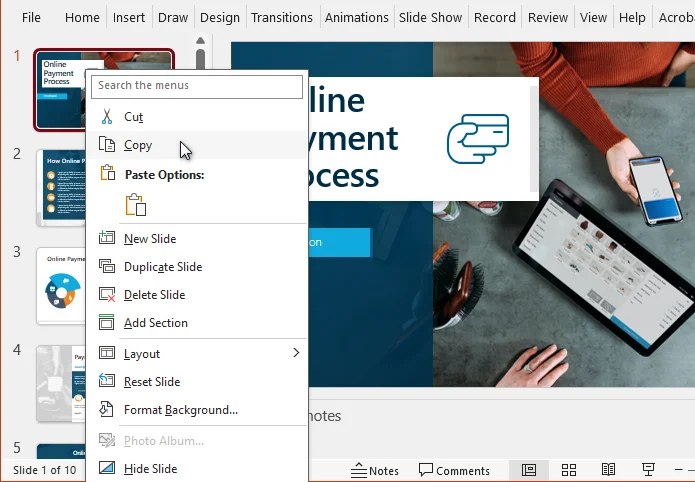
선택한 슬라이드 중 하나를 마우스 오른쪽 버튼으로 클릭하고 복사를 선택합니다.
-
파일 → 새로 만들기 → 빈 프레젠테이션을 클릭하여 새 프레젠테이션을 만듭니다.
-
새 프레젠테이션의 슬라이드 축소판 창을 마우스 오른쪽 버튼으로 클릭한 다음 붙여넣기 옵션 중 하나를 선택합니다.
- 대상 테마 사용 - 새 프레젠테이션의 테마를 적용합니다.
- 원본 서식 유지 - 원본 서식을 유지합니다.
-
새 프레젠테이션을 원하는 위치에 저장합니다.
옵션 2: 슬라이드 재사용 기능 사용
PowerPoint 프레젠테이션을 보다 효율적으로 분할하려면 PowerPoint의 슬라이드 재사용 기능이 더 나은 선택입니다. 원본 파일을 열지 않고도 서식을 그대로 유지하면서 새 프레젠테이션으로 슬라이드를 가져올 수 있습니다. 복사하여 붙여넣는 것과 비교할 때 특히 대규모 프레젠테이션으로 작업할 때 더 많은 시간을 절약할 수 있습니다.
슬라이드 재사용을 사용하여 PPT를 분할하는 단계:
-
새 PowerPoint 프레젠테이션을 엽니다.
-
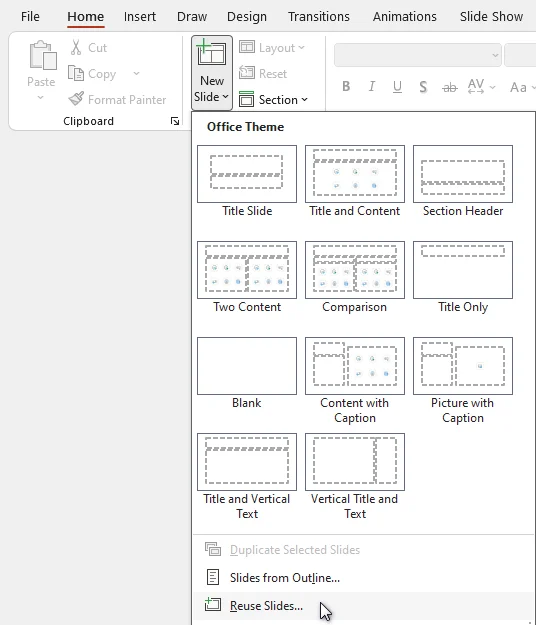
홈 > 새 슬라이드 > 슬라이드 재사용으로 이동합니다.
-
찾아보기를 클릭하고 원본 프레젠테이션을 선택합니다.
-
가져올 슬라이드를 선택하고 필요한 경우 원본 서식 유지를 선택합니다.
-
분할된 슬라이드로 새 프레젠테이션을 저장합니다.
또한 읽기: PowerPoint에서 이미지 추출 - 4가지 쉬운 방법
방법 2. 무료 온라인 도구를 사용하여 온라인으로 PPT 분할
Microsoft PowerPoint가 설치되지 않은 사용자의 경우 무료 온라인 PPT 분할기가 쉬운 대안입니다. Choladeck PPT Splitter와 같은 도구를 사용하면 소프트웨어 설치 없이 프레젠테이션을 분할할 수 있습니다.
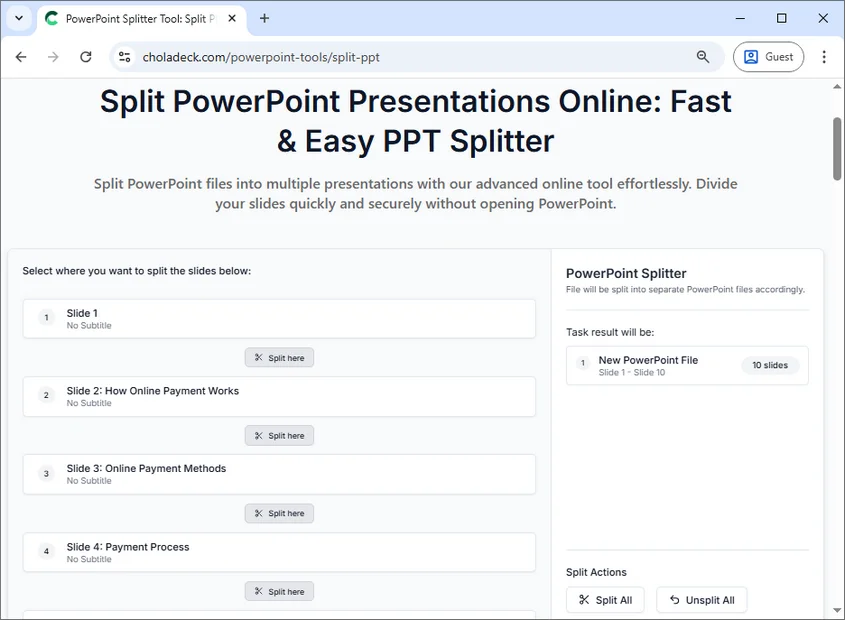
온라인으로 PPT를 분할하는 단계:
- Choladeck 온라인 PPT 분할기 웹사이트를 방문하십시오.
- 프레젠테이션을 업로드 영역으로 끌어다 놓거나 장치를 탐색하여 업로드하십시오.
- 프레젠테이션을 분할하는 방법을 선택하십시오.
- 개별 슬라이드로 분할하는 경우 모두 분할을 클릭합니다.
- 사용자 지정 그룹으로 분할하는 경우 원하는 슬라이드 아래의 여기에서 분할 아이콘을 클릭합니다.
- 파일 분할을 클릭하여 프레젠테이션을 처리합니다.
- 분할된 파일을 다운로드합니다.
참고: 온라인 도구에는 파일 업로드가 필요합니다. 일부 도구는 파일 크기를 제한할 수도 있습니다. 민감하거나 매우 큰 프레젠테이션에는 사용하지 마십시오.
방법 3. Python으로 PPT 자동 분할
여러 프레젠테이션을 다루는 개발자나 팀의 경우 Python 자동화는 PowerPoint 프레젠테이션을 분할하는 빠르고 반복 가능하며 신뢰할 수 있는 방법을 제공합니다. Spire.Presentation for Python과 같은 라이브러리를 사용하면 Microsoft PowerPoint가 설치되어 있지 않은 경우에도 프로그래밍 방식으로 슬라이드를 추출하고 분할할 수 있습니다.
Python을 사용하여 자동으로 PPT를 분할하는 단계:
-
PyPI에서 Spire.Presentation 라이브러리를 설치합니다:
pip install spire.presentation -
PPT를 여러 파일로 분할하는 Python 스크립트를 만듭니다.
from spire.presentation import * import os # Specify the input PowerPoint file input_file = "original_presentation.pptx" # Specify the output folder for split slides output_folder = "output/Presentations" # Create the output folder if it doesn't exist if not os.path.exists(output_folder): os.makedirs(output_folder) # Load the original PowerPoint presentation presentation = Presentation() presentation.LoadFromFile(input_file) # Loop through all slides in the presentation for i in range(presentation.Slides.Count): # Get the current slide slide = presentation.Slides[i] # Create a new PowerPoint presentation new_ppt = Presentation() # Remove the default slide in the new presentation new_ppt.Slides.RemoveAt(0) # Append the current slide to the new presentation new_ppt.Slides.AppendBySlide(slide) # Construct the output file path output_file = os.path.join(output_folder, f"slide-{i + 1}.pptx") # Save the new presentation new_ppt.SaveToFile(output_file, FileFormat.Pptx2013) # Dispose the new presentation to release memory new_ppt.Dispose() # Dispose the original presentation to release memory presentation.Dispose() -
스크립트를 실행하여 새 프레젠테이션을 자동으로 생성합니다.
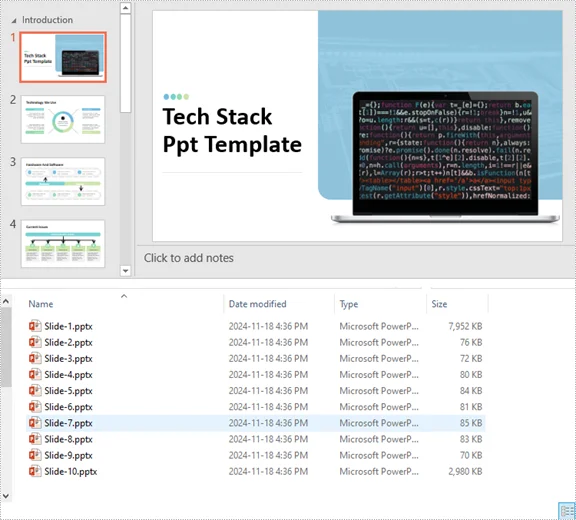
이점:
- 대용량 PowerPoint 프레젠테이션을 일괄 처리하는 데 이상적입니다.
- 수동 작업을 줄이고 오류를 최소화합니다.
- 원본 서식, 전환 및 애니메이션을 유지합니다.
팁: 이 Python 스크립트는 범위, 섹션, 주제 또는 기타 기준으로 슬라이드를 분할하도록 사용자 지정할 수 있습니다.
관련 기사: Python: PowerPoint 프레젠테이션 분할
PPT 분할을 위한 모범 사례
어떤 방법을 선택하든 몇 가지 모범 사례를 따르면 분할된 PowerPoint 프레젠테이션을 잘 정리하고 사용하기 쉽게 유지하는 데 도움이 될 수 있습니다.
- 원본 파일 백업 - 항상 전체 프레젠테이션의 복사본을 보관하십시오.
- 명확한 파일 이름 사용 - 혼동을 피하기 위해 주제, 날짜 또는 버전을 포함합니다.
- 테마 보존 - 원본 서식을 유지할지 아니면 새 테마를 적용할지 결정합니다.
- 슬라이드 종속성 확인 - 분할 후에도 애니메이션, 전환 및 하이퍼링크가 계속 작동하는지 확인합니다.
- 섹션 또는 주제별로 구성 - 가독성과 워크플로를 개선하기 위해 슬라이드를 논리적으로 그룹화합니다.
결론
PPT를 효율적으로 분할하는 방법을 배우면 프레젠테이션을 보다 효과적으로 관리하고, 콘텐츠를 선택적으로 공유하고, 파일 크기를 줄이는 데 도움이 됩니다.
가끔 프레젠테이션을 분할해야 하는 경우 PowerPoint의 수동 방법으로 충분합니다. PowerPoint가 설치되지 않은 빠른 작업의 경우 무료 온라인 분할 도구가 편리한 대안을 제공합니다. 파일을 일괄 처리하거나 프레젠테이션을 자주 분할해야 하는 경우 Python 자동화가 가장 효율적이고 확장 가능한 솔루션을 제공합니다.
워크플로, 파일 크기 및 사용 빈도에 따라 올바른 방법을 선택하면 PowerPoint 프레젠테이션이 체계적이고 읽기 쉬우며 공동 작업이나 프레젠테이션에 즉시 사용할 수 있도록 보장됩니다.
더 많은 고품질 PowerPoint 자습서를 찾고 계십니까? 무료 PPT 리소스를 확인하십시오.
자주 묻는 질문: PowerPoint 프레젠테이션 분할
Q1: PPT를 분할하는 가장 쉬운 방법은 무엇입니까?
A1: 몇 개의 슬라이드에 대한 가장 쉬운 방법은 PowerPoint의 복사 방법입니다. 더 큰 프레젠테이션의 경우 슬라이드 재사용 또는 Python 자동화를 사용하십시오.
Q2: 애니메이션이나 전환을 잃지 않고 PowerPoint 프레젠테이션을 분할할 수 있습니까?
A2: 예. PowerPoint의 슬라이드 재사용 기능이나 모든 서식과 애니메이션을 보존하는 Spire.Presentation과 같은 Python 라이브러리를 사용하십시오.
Q3: 무료 온라인 PPT 분할 도구가 있습니까?
A3: 예. Choladeck PPT Splitter와 같은 도구를 사용하면 PowerPoint 없이 프레젠테이션을 분할할 수 있습니다.
Q4: 대용량 PowerPoint 프레젠테이션을 효율적으로 분할하는 방법은 무엇입니까?
A4: 대용량 파일의 경우 Python 자동화 또는 슬라이드 재사용 방법을 권장합니다. 시간을 절약하고 서식을 유지하며 오류를 줄입니다.
Q5: 주제나 섹션별로 PPT를 분할할 수 있습니까?
A5: 예. Python 스크립트와 온라인 분할기는 종종 사용자 지정 슬라이드 범위나 섹션별로 분할할 수 있도록 허용합니다.
참고 항목
Come dividere un PPT: 3 metodi semplici (manuale, online e Python)
Indice
Le presentazioni PowerPoint di grandi dimensioni possono essere difficili da gestire, specialmente quando contengono molte diapositive o trattano più argomenti. Dividere i PPT in file più piccoli e gestibili rende più facile modificare, condividere e collaborare.
Questa guida illustra 3 modi efficaci per dividere una presentazione PowerPoint preservando la formattazione, inclusi metodi manuali in PowerPoint, strumenti online gratuiti e automazione con Python. Che tu sia un professionista, un educatore o uno sviluppatore, troverai una soluzione pratica adatta alle tue esigenze.
Panoramica dei Contenuti
- Perché Dividere i PPT
- Metodo 1. Dividere i PPT Manualmente in PowerPoint
- Metodo 2. Dividere i PPT Online con Strumenti Gratuiti
- Metodo 3. Dividere i PPT Automaticamente con Python
- Migliori Pratiche per Dividere i PPT
- Conclusione
- Domande Frequenti: Divisione della Presentazione PowerPoint
Vuoi unire di nuovo le presentazioni divise in un unico file? Consulta la nostra guida Unisci Presentazioni PowerPoint.
Perché Dividere i PPT
La divisione delle presentazioni PowerPoint offre molteplici vantaggi:
- Condividi Diapositive Rilevanti - Invia solo le diapositive necessarie senza sovraccaricare i destinatari con l'intera presentazione.
- Riutilizza Diapositive - Incorpora facilmente le diapositive in nuove presentazioni senza duplicare il contenuto.
- Riduci le Dimensioni del File - Dividi file PPT di grandi dimensioni in file più piccoli e gestibili, adatti per l'invio via email o l'archiviazione su cloud.
- Migliora la Collaborazione del Team - Consenti a diversi membri del team di lavorare su sezioni separate contemporaneamente senza conflitti.
- Organizza Presentazioni Multi-Argomento - Separa le diapositive per argomento, progetto o dipartimento per una migliore organizzazione e chiarezza.
Metodo 1. Dividere i PPT Manualmente in PowerPoint
PowerPoint fornisce metodi integrati per dividere manualmente una presentazione in file PPT separati senza utilizzare software aggiuntivo. Ecco una guida passo-passo per entrambi i metodi.
Opzione 1: Utilizzo del Metodo Copia e Incolla
Copiare e incollare le diapositive è il modo più semplice per dividere una presentazione PowerPoint. Questo metodo funziona meglio per divisioni occasionali o presentazioni più piccole, ma può richiedere molto tempo per file di grandi dimensioni.
Passaggi per Dividere una Presentazione PowerPoint Usando Copia e Incolla:
-
Apri la presentazione PowerPoint che desideri dividere.
-
Nel riquadro delle anteprime delle diapositive, tieni premuto Ctrl (o Cmd su Mac) e seleziona le diapositive da estrarre.
-
Fai clic con il pulsante destro del mouse su una delle diapositive selezionate e scegli Copia.
-
Fai clic su File → Nuovo → Presentazione vuota per creare una nuova presentazione.
-
Fai clic con il pulsante destro del mouse nel riquadro delle anteprime delle diapositive nella nuova presentazione, quindi scegli una delle Opzioni Incolla:
- Usa Tema di Destinazione - Applica il tema della nuova presentazione.
- Mantieni Formattazione Originale - Conserva la formattazione originale.
-
Salva la nuova presentazione nella posizione desiderata.
Opzione 2: Utilizzo della Funzione Riutilizza Diapositive
Se desideri dividere una presentazione PowerPoint in modo più efficiente, la funzione Riutilizza Diapositive di PowerPoint è una scelta migliore. Consente di importare diapositive in una nuova presentazione mantenendo intatta la formattazione, il tutto senza aprire il file originale. Rispetto al copia e incolla, consente di risparmiare più tempo, specialmente quando si lavora con presentazioni di grandi dimensioni.
Passaggi per Dividere PPT usando Riutilizza Diapositive:
-
Apri una nuova presentazione PowerPoint.
-
Vai a Home > Nuova diapositiva > Riutilizza diapositive.
-
Fai clic su Sfoglia e seleziona la presentazione originale.
-
Scegli le diapositive da importare e seleziona Mantieni formattazione originale se necessario.
-
Salva la nuova presentazione con le diapositive divise.
Leggi anche: Estrarre Immagini da PowerPoint - 4 Semplici Modi
Metodo 2. Dividere i PPT Online con Strumenti Gratuiti
Per gli utenti che non hanno installato Microsoft PowerPoint, gli splitter PPT online gratuiti sono un'alternativa semplice. Strumenti come Choladeck PPT Splitter ti consentono di dividere le presentazioni senza installare alcun software.
Passaggi per Dividere PPT Online:
- Visita il sito web dello splitter PPT online di Choladeck.
- Carica la tua presentazione trascinandola nell'area di caricamento o sfogliando il tuo dispositivo.
- Scegli come dividere la presentazione:
- Se vuoi dividere in diapositive singole, fai clic su Dividi Tutto.
- Se vuoi dividere in gruppi personalizzati, fai clic sull'icona Dividi qui sotto le diapositive desiderate.
- Fai clic su Dividi file per elaborare la presentazione.
- Scarica i file divisi.
Nota: gli strumenti online richiedono il caricamento di file. Alcuni strumenti potrebbero anche limitare le dimensioni dei file. Evita di usarli per presentazioni sensibili o molto grandi.
Metodo 3. Dividere i PPT Automaticamente con Python
Per sviluppatori o team che gestiscono più presentazioni, l'automazione con Python offre un modo rapido, ripetibile e affidabile per dividere le presentazioni PowerPoint. Librerie come Spire.Presentation for Python consentono di estrarre e dividere le diapositive programmaticamente, anche quando Microsoft PowerPoint non è installato.
Passaggi per Dividere PPT Automaticamente con Python:
-
Installa la libreria Spire.Presentation da PyPI:
pip install spire.presentation -
Crea uno script Python per dividere il tuo PPT in più file.
from spire.presentation import * import os # Specifica il file PowerPoint di input input_file = "original_presentation.pptx" # Specifica la cartella di output per le diapositive divise output_folder = "output/Presentations" # Crea la cartella di output se non esiste if not os.path.exists(output_folder): os.makedirs(output_folder) # Carica la presentazione PowerPoint originale presentation = Presentation() presentation.LoadFromFile(input_file) # Itera su tutte le diapositive della presentazione for i in range(presentation.Slides.Count): # Ottieni la diapositiva corrente slide = presentation.Slides[i] # Crea una nuova presentazione PowerPoint new_ppt = Presentation() # Rimuovi la diapositiva predefinita nella nuova presentazione new_ppt.Slides.RemoveAt(0) # Aggiungi la diapositiva corrente alla nuova presentazione new_ppt.Slides.AppendBySlide(slide) # Costruisci il percorso del file di output output_file = os.path.join(output_folder, f"slide-{i + 1}.pptx") # Salva la nuova presentazione new_ppt.SaveToFile(output_file, FileFormat.Pptx2013) # Rilascia la memoria della nuova presentazione new_ppt.Dispose() # Rilascia la memoria della presentazione originale presentation.Dispose() -
Esegui lo script per generare automaticamente nuove presentazioni.
Vantaggi:
- Ideale per l'elaborazione in batch di grandi presentazioni PowerPoint.
- Riduce lo sforzo manuale e minimizza gli errori.
- Conserva la formattazione originale, le transizioni e le animazioni.
Suggerimento: Questo script Python può essere personalizzato per dividere le diapositive per intervalli, sezioni, argomenti o altri criteri.
Articolo Correlato: Python: Dividere Presentazioni PowerPoint
Migliori Pratiche per Dividere i PPT
Indipendentemente dal metodo scelto, seguire alcune migliori pratiche può aiutare a garantire che le tue presentazioni PowerPoint divise rimangano ben organizzate e facili da usare.
- Esegui il Backup dei File Originali - Conserva sempre una copia della presentazione completa.
- Usa Nomi di File Chiari - Includi argomento, data o versione per evitare confusione.
- Conserva i Temi - Decidi se mantenere la formattazione originale o applicare un nuovo tema.
- Controlla le Dipendenze delle Diapositive - Verifica che animazioni, transizioni e collegamenti ipertestuali funzionino ancora dopo la divisione.
- Organizza per Sezione o Argomento - Raggruppa le diapositive in modo logico per migliorare la leggibilità e il flusso di lavoro.
Conclusione
Imparare a dividere i PPT in modo efficiente ti aiuta a gestire le presentazioni in modo più efficace, a condividere i contenuti in modo selettivo e a ridurre le dimensioni dei file.
Se hai solo bisogno di dividere una presentazione occasionalmente, i metodi manuali in PowerPoint sono solitamente sufficienti. Per attività rapide senza PowerPoint installato, gli strumenti di divisione online gratuiti offrono un'alternativa conveniente. Quando hai bisogno di elaborare file in batch o dividere presentazioni frequentemente, l'automazione con Python fornisce la soluzione più efficiente e scalabile.
Scegliere il metodo giusto in base al tuo flusso di lavoro, alle dimensioni del file e alla frequenza di utilizzo garantisce che le tue presentazioni PowerPoint rimangano organizzate, leggibili e pronte per la collaborazione o la presentazione.
Cerchi altri tutorial di alta qualità su PowerPoint? Dai un'occhiata alle nostre risorse PPT gratuite.
Domande Frequenti: Divisione della Presentazione PowerPoint
D1: Qual è il modo più semplice per dividere un PPT?
R1: Il modo più semplice per poche diapositive è il Metodo Copia in PowerPoint. Per presentazioni più grandi, usa Riutilizza Diapositive o l'automazione con Python.
D2: Posso dividere una presentazione PowerPoint senza perdere animazioni o transizioni?
R2: Sì. Usa la funzione Riutilizza Diapositive in PowerPoint o librerie Python come Spire.Presentation, che conservano tutta la formattazione e le animazioni.
D3: Esistono strumenti gratuiti online per dividere i PPT?
R3: Sì. Strumenti come Choladeck PPT Splitter ti consentono di dividere le presentazioni senza PowerPoint.
D4: Come dividere in modo efficiente una presentazione PowerPoint di grandi dimensioni?
R4: Per file di grandi dimensioni, si consiglia l'automazione con Python o il metodo Riutilizza Diapositive. Risparmiano tempo, mantengono la formattazione e riducono gli errori.
D5: Posso dividere un PPT per argomento o sezione?
R5: Sì. Sia gli script Python che gli splitter online consentono spesso di dividere per intervalli di diapositive o sezioni personalizzate.
Vedi Anche
Comment diviser un PPT : 3 méthodes faciles (manuelle, en ligne et Python)
Table des matières
Les présentations PowerPoint volumineuses peuvent être difficiles à gérer, surtout lorsqu'elles contiennent de nombreuses diapositives ou couvrent plusieurs sujets. Diviser un PPT en fichiers plus petits et plus faciles à gérer facilite l'édition, le partage et la collaboration.
Ce guide présente 3 méthodes efficaces pour diviser une présentation PowerPoint tout en préservant la mise en forme, y compris des méthodes manuelles dans PowerPoint, des outils en ligne gratuits et l'automatisation avec Python. Que vous soyez un professionnel, un enseignant ou un développeur, vous trouverez une solution pratique adaptée à vos besoins.
Aperçu du contenu
- Pourquoi diviser un PPT
- Méthode 1. Diviser un PPT manuellement dans PowerPoint
- Méthode 2. Diviser un PPT en ligne avec des outils gratuits
- Méthode 3. Diviser un PPT automatiquement avec Python
- Meilleures pratiques pour diviser un PPT
- Conclusion
- FAQ : Diviser une présentation PowerPoint
Vous voulez fusionner les présentations divisées en un seul fichier ? Consultez notre guide Fusionner des présentations PowerPoint.
Pourquoi diviser un PPT
Diviser les présentations PowerPoint offre de multiples avantages :
- Partager les diapositives pertinentes - Envoyez uniquement les diapositives nécessaires sans submerger les destinataires avec la présentation entière.
- Réutiliser les diapositives - Incorporez facilement des diapositives dans de nouvelles présentations sans dupliquer le contenu.
- Réduire la taille du fichier - Divisez les fichiers PPT volumineux en fichiers plus petits et plus faciles à gérer, adaptés à l'envoi par e-mail ou au stockage dans le cloud.
- Améliorer la collaboration d'équipe - Permettez à différents membres de l'équipe de travailler sur des sections distinctes simultanément sans conflits.
- Organiser les présentations multi-sujets - Séparez les diapositives par sujet, projet ou service pour une meilleure organisation et clarté.
Méthode 1. Diviser un PPT manuellement dans PowerPoint
PowerPoint fournit des méthodes intégrées pour diviser manuellement une présentation en fichiers PPT distincts sans utiliser de logiciel supplémentaire. Voici un guide étape par étape pour les deux méthodes.
Option 1 : Utiliser la méthode Copier-Coller
Copier et coller des diapositives est le moyen le plus simple de diviser une présentation PowerPoint. Cette méthode fonctionne mieux pour les divisions occasionnelles ou les petites présentations, mais peut prendre beaucoup de temps pour les fichiers volumineux.
Étapes pour diviser une présentation PowerPoint en utilisant Copier-Coller :
-
Ouvrez la présentation PowerPoint que vous souhaitez diviser.
-
Dans le volet des miniatures de diapositives, maintenez la touche Ctrl (ou Cmd sur Mac) enfoncée et sélectionnez les diapositives à extraire.
-
Faites un clic droit sur l'une des diapositives sélectionnées et choisissez Copier.
-
Cliquez sur Fichier → Nouveau → Présentation vierge pour créer une nouvelle présentation.
-
Faites un clic droit dans le volet des miniatures de diapositives de la nouvelle présentation, puis choisissez l'une des Options de collage :
- Utiliser le thème de destination - Applique le thème de la nouvelle présentation.
- Conserver la mise en forme source - Conserve la mise en forme d'origine.
-
Enregistrez la nouvelle présentation à l'emplacement souhaité.
Option 2 : Utiliser la fonctionnalité Réutiliser les diapositives
Si vous souhaitez diviser une présentation PowerPoint plus efficacement, la fonctionnalité Réutiliser les diapositives de PowerPoint est un meilleur choix. Elle permet d'importer des diapositives dans une nouvelle présentation tout en conservant la mise en forme, sans même ouvrir le fichier d'origine. Comparée au copier-coller, elle permet de gagner plus de temps, surtout lorsque vous travaillez avec de grandes présentations.
Étapes pour diviser un PPT en utilisant Réutiliser les diapositives :
-
Ouvrez une nouvelle présentation PowerPoint.
-
Allez dans Accueil > Nouvelle diapositive > Réutiliser les diapositives.
-
Cliquez sur Parcourir et sélectionnez la présentation d'origine.
-
Choisissez les diapositives à importer et cochez Conserver la mise en forme source si nécessaire.
-
Enregistrez la nouvelle présentation avec vos diapositives divisées.
À lire également : Extraire des images de PowerPoint - 4 méthodes faciles
Méthode 2. Diviser un PPT en ligne avec des outils gratuits
Pour les utilisateurs qui n'ont pas installé Microsoft PowerPoint, les diviseurs de PPT en ligne gratuits sont une alternative facile. Des outils comme Choladeck PPT Splitter vous permettent de diviser des présentations sans installation de logiciel.
Étapes pour diviser un PPT en ligne :
- Visitez le site web du diviseur de PPT en ligne de Choladeck.
- Téléchargez votre présentation en la faisant glisser dans la zone de téléchargement ou en parcourant votre appareil.
- Choisissez comment diviser la présentation :
- Si vous divisez en diapositives individuelles, cliquez sur Tout diviser.
- Si vous divisez en groupes personnalisés, cliquez sur l'icône Diviser ici sous les diapositives souhaitées.
- Cliquez sur Diviser les fichiers pour traiter la présentation.
- Téléchargez les fichiers divisés.
Remarque : Les outils en ligne nécessitent le téléchargement de fichiers. Certains outils peuvent également limiter la taille des fichiers. Évitez de les utiliser pour des présentations sensibles ou très volumineuses.
Méthode 3. Diviser un PPT automatiquement avec Python
Pour les développeurs ou les équipes qui traitent plusieurs présentations, l'automatisation avec Python offre un moyen rapide, reproductible et fiable de diviser les présentations PowerPoint. Des bibliothèques telles que Spire.Presentation for Python vous permettent d'extraire et de diviser des diapositives par programme, même si Microsoft PowerPoint n'est pas installé.
Étapes pour diviser un PPT automatiquement avec Python :
-
Installez la bibliothèque Spire.Presentation depuis PyPI :
pip install spire.presentation -
Créez un script Python pour diviser votre PPT en plusieurs fichiers.
from spire.presentation import * import os # Specify the input PowerPoint file input_file = "original_presentation.pptx" # Specify the output folder for split slides output_folder = "output/Presentations" # Create the output folder if it doesn't exist if not os.path.exists(output_folder): os.makedirs(output_folder) # Load the original PowerPoint presentation presentation = Presentation() presentation.LoadFromFile(input_file) # Loop through all slides in the presentation for i in range(presentation.Slides.Count): # Get the current slide slide = presentation.Slides[i] # Create a new PowerPoint presentation new_ppt = Presentation() # Remove the default slide in the new presentation new_ppt.Slides.RemoveAt(0) # Append the current slide to the new presentation new_ppt.Slides.AppendBySlide(slide) # Construct the output file path output_file = os.path.join(output_folder, f"slide-{i + 1}.pptx") # Save the new presentation new_ppt.SaveToFile(output_file, FileFormat.Pptx2013) # Dispose the new presentation to release memory new_ppt.Dispose() # Dispose the original presentation to release memory presentation.Dispose() -
Exécutez le script pour générer automatiquement de nouvelles présentations.
Avantages :
- Idéal pour le traitement par lots de grandes présentations PowerPoint.
- Réduit l'effort manuel et minimise les erreurs.
- Préserve la mise en forme, les transitions et les animations d'origine.
Conseil : Ce script Python peut être personnalisé pour diviser les diapositives par plages, sections, sujets ou autres critères.
Article connexe : Python : Diviser les présentations PowerPoint
Meilleures pratiques pour diviser un PPT
Quelle que soit la méthode que vous choisissez, suivre quelques meilleures pratiques peut aider à garantir que vos présentations PowerPoint divisées restent bien organisées et faciles à utiliser.
- Sauvegarder les fichiers originaux - Conservez toujours une copie de la présentation complète.
- Utiliser des noms de fichiers clairs - Incluez le sujet, la date ou la version pour éviter toute confusion.
- Préserver les thèmes - Décidez de conserver la mise en forme source ou d'appliquer un nouveau thème.
- Vérifier les dépendances des diapositives - Vérifiez que les animations, les transitions et les hyperliens fonctionnent toujours après la division.
- Organiser par section ou sujet - Regroupez les diapositives de manière logique pour améliorer la lisibilité et le flux de travail.
Conclusion
Apprendre à diviser efficacement un PPT vous aide à gérer les présentations plus efficacement, à partager le contenu de manière sélective et à réduire la taille des fichiers.
Si vous n'avez besoin de diviser une présentation qu'occasionnellement, les méthodes manuelles dans PowerPoint sont généralement suffisantes. Pour les tâches rapides sans PowerPoint installé, les outils de division en ligne gratuits offrent une alternative pratique. Lorsque vous devez traiter des fichiers par lots ou diviser fréquemment des présentations, l'automatisation avec Python fournit la solution la plus efficace et la plus évolutive.
Choisir la bonne méthode en fonction de votre flux de travail, de la taille du fichier et de la fréquence d'utilisation garantit que vos présentations PowerPoint restent organisées, lisibles et prêtes pour la collaboration ou la présentation.
Vous cherchez d'autres tutoriels PowerPoint de haute qualité ? Consultez nos ressources PPT gratuites.
FAQ : Diviser une présentation PowerPoint
Q1 : Quelle est la manière la plus simple de diviser un PPT ?
R1 : La manière la plus simple pour quelques diapositives est la Méthode Copier dans PowerPoint. Pour les présentations plus volumineuses, utilisez Réutiliser les diapositives ou l'automatisation avec Python.
Q2 : Puis-je diviser une présentation PowerPoint sans perdre les animations ou les transitions ?
R2 : Oui. Utilisez la fonctionnalité Réutiliser les diapositives dans PowerPoint ou des bibliothèques Python comme Spire.Presentation, qui préservent toute la mise en forme et les animations.
Q3 : Existe-t-il des outils gratuits en ligne pour diviser les PPT ?
R3 : Oui. Des outils comme Choladeck PPT Splitter vous permettent de diviser des présentations sans PowerPoint.
Q4 : Comment diviser efficacement une grande présentation PowerPoint ?
R4 : Pour les fichiers volumineux, l'automatisation avec Python ou la méthode Réutiliser les diapositives est recommandée. Elles permettent de gagner du temps, de conserver la mise en forme et de réduire les erreurs.
Q5 : Puis-je diviser un PPT par sujet ou par section ?
R5 : Oui. Les scripts Python et les diviseurs en ligne permettent souvent de diviser par plages de diapositives ou sections personnalisées.
Voir aussi
Cómo dividir un PPT: 3 métodos fáciles (manual, en línea y Python)
Tabla de Contenidos
Las presentaciones de PowerPoint grandes pueden ser difíciles de gestionar, especialmente cuando contienen muchas diapositivas o cubren múltiples temas. Dividir PPT en archivos más pequeños y manejables facilita la edición, el uso compartido y la colaboración.
Esta guía cubre 3 formas efectivas de dividir presentaciones de PowerPoint conservando el formato, incluyendo métodos manuales en PowerPoint, herramientas gratuitas en línea y automatización con Python. Ya sea que seas un profesional de negocios, educador o desarrollador, encontrarás una solución práctica que se adapte a tus necesidades.
Resumen de Contenidos
- Por Qué Dividir PPT
- Método 1. Dividir PPT Manualmente en PowerPoint
- Método 2. Dividir PPT en Línea Usando Herramientas Gratuitas
- Método 3. Dividir PPT Automáticamente con Python
- Mejores Prácticas para Dividir PPT
- Conclusión
- Preguntas Frecuentes: Dividir Presentaciones de PowerPoint
¿Quieres volver a unir las presentaciones divididas en un solo archivo? Consulta nuestra guía para Unir Presentaciones de PowerPoint.
Por Qué Dividir PPT
Dividir presentaciones de PowerPoint ofrece múltiples beneficios:
- Compartir Diapositivas Relevantes - Envía solo las diapositivas necesarias sin abrumar a los destinatarios con toda la presentación.
- Reutilizar Diapositivas - Incorpora fácilmente diapositivas en nuevas presentaciones sin duplicar contenido.
- Reducir el Tamaño del Archivo - Divide archivos PPT grandes en archivos más pequeños y manejables, adecuados para correo electrónico o almacenamiento en la nube.
- Mejorar la Colaboración en Equipo - Permite que diferentes miembros del equipo trabajen en secciones separadas simultáneamente sin conflictos.
- Organizar Presentaciones Multitemáticas - Separa las diapositivas por tema, proyecto o departamento para una mejor organización y claridad.
Método 1. Dividir PPT Manualmente en PowerPoint
PowerPoint proporciona métodos integrados para dividir manualmente una presentación en archivos PPT separados sin necesidad de software adicional. Aquí tienes una guía paso a paso para ambos métodos.
Opción 1: Usando el Método de Copiar y Pegar
Copiar y pegar diapositivas es la forma más sencilla de dividir una presentación de PowerPoint. Este método funciona mejor para divisiones ocasionales o presentaciones más pequeñas, pero puede llevar mucho tiempo para archivos grandes.
Pasos para Dividir una Presentación de PowerPoint Usando Copiar y Pegar:
-
Abre la presentación de PowerPoint que deseas dividir.
-
En el panel de miniaturas de diapositivas, mantén presionada la tecla Ctrl (o Cmd en Mac) y selecciona las diapositivas que deseas extraer.
-
Haz clic derecho en cualquiera de las diapositivas seleccionadas y elige Copiar.
-
Haz clic en Archivo → Nuevo → Presentación en Blanco para crear una nueva presentación.
-
Haz clic derecho en el panel de miniaturas de diapositivas en la nueva presentación y elige una de las Opciones de Pegado:
- Usar Tema de Destino - Aplica el tema de la nueva presentación.
- Mantener Formato de Origen - Conserva el formato original.
-
Guarda la nueva presentación en la ubicación deseada.
Opción 2: Usando la Función de Reutilizar Diapositivas
Si deseas dividir una presentación de PowerPoint de manera más eficiente, la función Reutilizar Diapositivas de PowerPoint es una mejor opción. Permite importar diapositivas a una nueva presentación manteniendo el formato intacto, todo sin abrir el archivo original. En comparación con copiar y pegar, ahorra más tiempo, especialmente al trabajar con presentaciones grandes.
Pasos para Dividir PPT usando Reutilizar Diapositivas:
-
Abre una nueva presentación de PowerPoint.
-
Ve a Inicio > Nueva Diapositiva > Reutilizar Diapositivas.
-
Haz clic en Examinar y selecciona la presentación original.
-
Elige las diapositivas a importar y marca Mantener formato de origen si es necesario.
-
Guarda la nueva presentación con tus diapositivas divididas.
También Leer: Extraer Imágenes de PowerPoint - 4 Formas Fáciles
Método 2. Dividir PPT en Línea Usando Herramientas Gratuitas
Para los usuarios que no tienen Microsoft PowerPoint instalado, los divisores de PPT en línea gratuitos son una alternativa fácil. Herramientas como Choladeck PPT Splitter te permiten dividir presentaciones sin necesidad de instalar software.
Pasos para Dividir PPT en Línea:
- Visita el sitio web del Divisor de PPT en línea de Choladeck.
- Sube tu presentación arrastrándola al área de carga o explorando tu dispositivo.
- Elige cómo dividir la presentación:
- Si divides en diapositivas individuales, haz clic en Dividir Todo.
- Si divides en grupos personalizados, haz clic en el icono Dividir aquí debajo de las diapositivas deseadas.
- Haz clic en Dividir archivos para procesar la presentación.
- Descarga los archivos divididos.
Nota: Las herramientas en línea requieren la carga de archivos. Algunas herramientas también pueden limitar el tamaño del archivo. Evita usarlas para presentaciones sensibles o muy grandes.
Método 3. Dividir PPT Automáticamente con Python
Para desarrolladores o equipos que manejan múltiples presentaciones, la automatización con Python proporciona una forma rápida, repetible y confiable de dividir presentaciones de PowerPoint. Bibliotecas como Spire.Presentation for Python te permiten extraer y dividir diapositivas programáticamente, incluso sin tener Microsoft PowerPoint instalado.
Pasos para Dividir PPT Automáticamente Usando Python:
-
Instala la biblioteca Spire.Presentation desde PyPI:
pip install spire.presentation -
Crea un script de Python para dividir tu PPT en múltiples archivos.
from spire.presentation import * import os # Especifica el archivo de PowerPoint de entrada input_file = "original_presentation.pptx" # Especifica la carpeta de salida para las diapositivas divididas output_folder = "output/Presentations" # Crea la carpeta de salida si no existe if not os.path.exists(output_folder): os.makedirs(output_folder) # Carga la presentación de PowerPoint original presentation = Presentation() presentation.LoadFromFile(input_file) # Recorre todas las diapositivas de la presentación for i in range(presentation.Slides.Count): # Obtén la diapositiva actual slide = presentation.Slides[i] # Crea una nueva presentación de PowerPoint new_ppt = Presentation() # Elimina la diapositiva predeterminada en la nueva presentación new_ppt.Slides.RemoveAt(0) # Añade la diapositiva actual a la nueva presentación new_ppt.Slides.AppendBySlide(slide) # Construye la ruta del archivo de salida output_file = os.path.join(output_folder, f"slide-{i + 1}.pptx") # Guarda la nueva presentación new_ppt.SaveToFile(output_file, FileFormat.Pptx2013) # Libera la memoria de la nueva presentación new_ppt.Dispose() # Libera la memoria de la presentación original presentation.Dispose() -
Ejecuta el script para generar nuevas presentaciones automáticamente.
Beneficios:
- Ideal para procesar por lotes grandes presentaciones de PowerPoint.
- Reduce el esfuerzo manual y minimiza los errores.
- Conserva el formato original, las transiciones y las animaciones.
Consejo: Este script de Python se puede personalizar para dividir diapositivas por rangos, secciones, temas u otros criterios.
Artículo Relacionado: Python: Dividir Presentaciones de PowerPoint
Mejores Prácticas para Dividir PPT
Independientemente del método que elijas, seguir algunas mejores prácticas puede ayudar a garantizar que tus presentaciones de PowerPoint divididas permanezcan bien organizadas y fáciles de usar.
- Hacer Copia de Seguridad de los Archivos Originales - Guarda siempre una copia de la presentación completa.
- Usar Nombres de Archivo Claros - Incluye el tema, la fecha o la versión para evitar confusiones.
- Conservar Temas - Decide si mantener el formato de origen o aplicar un nuevo tema.
- Verificar Dependencias de Diapositivas - Comprueba que las animaciones, transiciones e hipervínculos sigan funcionando después de la división.
- Organizar por Sección o Tema - Agrupa las diapositivas lógicamente para mejorar la legibilidad y el flujo de trabajo.
Conclusión
Aprender a dividir PPT de manera eficiente te ayuda a gestionar las presentaciones de forma más efectiva, compartir contenido de forma selectiva y reducir el tamaño del archivo.
Si solo necesitas dividir una presentación ocasionalmente, los métodos manuales en PowerPoint suelen ser suficientes. Para tareas rápidas sin tener PowerPoint instalado, las herramientas de división en línea gratuitas ofrecen una alternativa conveniente. Cuando necesitas procesar archivos por lotes o dividir presentaciones con frecuencia, la automatización con Python proporciona la solución más eficiente y escalable.
Elegir el método correcto según tu flujo de trabajo, el tamaño del archivo y la frecuencia de uso garantiza que tus presentaciones de PowerPoint permanezcan organizadas, legibles y listas para la colaboración o presentación.
¿Buscas más tutoriales de PowerPoint de alta calidad? Echa un vistazo a nuestros recursos gratuitos de PPT.
Preguntas Frecuentes: Dividir Presentaciones de PowerPoint
P1: ¿Cuál es la forma más fácil de dividir un PPT?
R1: La forma más fácil para unas pocas diapositivas es el Método de Copiar en PowerPoint. Para presentaciones más grandes, usa Reutilizar Diapositivas o la automatización con Python.
P2: ¿Puedo dividir una presentación de PowerPoint sin perder animaciones o transiciones?
R2: Sí. Usa la función Reutilizar Diapositivas en PowerPoint o bibliotecas de Python como Spire.Presentation, que conservan todo el formato y las animaciones.
P3: ¿Existen herramientas gratuitas en línea para dividir PPT?
R3: Sí. Herramientas como Choladeck PPT Splitter te permiten dividir presentaciones sin PowerPoint.
P4: ¿Cómo dividir una presentación de PowerPoint grande de manera eficiente?
R4: Para archivos grandes, se recomienda la automatización con Python o el método de Reutilizar Diapositivas. Ahorran tiempo, mantienen el formato y reducen errores.
P5: ¿Puedo dividir un PPT por tema o sección?
R5: Sí. Tanto los scripts de Python como los divisores en línea a menudo permiten dividir por rangos de diapositivas o secciones personalizadas.
Ver También
PPT aufteilen: 3 einfache Methoden (Manuell, Online & Python)
Inhaltsverzeichnis
Große PowerPoint-Präsentationen können schwer zu verwalten sein, insbesondere wenn sie viele Folien enthalten oder mehrere Themen abdecken. Das Aufteilen von PPT in kleinere, besser zu verwaltende Dateien erleichtert das Bearbeiten, Teilen und die Zusammenarbeit.
Diese Anleitung behandelt 3 effektive Möglichkeiten, eine PowerPoint-Präsentation unter Beibehaltung der Formatierung aufzuteilen, einschließlich manueller Methoden in PowerPoint, kostenloser Online-Tools und Python-Automatisierung. Ob Sie ein Geschäftsprofi, Pädagoge oder Entwickler sind, Sie werden eine praktische Lösung finden, die Ihren Bedürfnissen entspricht.
Inhaltsübersicht
- Warum PPT aufteilen
- Methode 1. PPT manuell in PowerPoint aufteilen
- Methode 2. PPT online mit kostenlosen Tools aufteilen
- Methode 3. PPT automatisch mit Python aufteilen
- Beste Vorgehensweisen zum Aufteilen von PPT
- Fazit
- FAQs: PowerPoint-Präsentation aufteilen
Möchten Sie die aufgeteilten Präsentationen wieder zu einer Datei zusammenführen? Sehen Sie sich unsere Anleitung zum Zusammenführen von PowerPoint-Präsentationen an.
Warum PPT aufteilen
Das Aufteilen von PowerPoint-Präsentationen bietet mehrere Vorteile:
- Relevante Folien teilen - Senden Sie nur die notwendigen Folien, ohne die Empfänger mit der gesamten Präsentation zu überfordern.
- Folien wiederverwenden - Integrieren Sie Folien einfach in neue Präsentationen, ohne Inhalte zu duplizieren.
- Dateigröße reduzieren - Teilen Sie große PPT-Dateien in kleinere, besser zu verwaltende Dateien auf, die für E-Mail oder Cloud-Speicher geeignet sind.
- Teamzusammenarbeit verbessern - Ermöglichen Sie verschiedenen Teammitgliedern, gleichzeitig an separaten Abschnitten ohne Konflikte zu arbeiten.
- Präsentationen mit mehreren Themen organisieren - Trennen Sie Folien nach Thema, Projekt oder Abteilung für eine bessere Organisation und Klarheit.
Methode 1. PPT manuell in PowerPoint aufteilen
PowerPoint bietet integrierte Methoden, um eine Präsentation manuell in separate PPT-Dateien aufzuteilen, ohne zusätzliche Software zu verwenden. Hier ist eine Schritt-für-Schritt-Anleitung für beide Methoden.
Option 1: Verwendung der Kopieren-und-Einfügen-Methode
Das Kopieren und Einfügen von Folien ist die einfachste Möglichkeit, eine PowerPoint-Präsentation aufzuteilen. Diese Methode eignet sich am besten für gelegentliche Aufteilungen oder kleinere Präsentationen, kann aber bei großen Dateien zeitaufwändig sein.
Schritte zum Aufteilen einer PowerPoint-Präsentation mit Kopieren & Einfügen:
-
Öffnen Sie die PowerPoint-Präsentation, die Sie aufteilen möchten.
-
Halten Sie im Folien-Miniaturansicht-Bereich Strg (oder Cmd auf dem Mac) gedrückt und wählen Sie die zu extrahierenden Folien aus.
-
Klicken Sie mit der rechten Maustaste auf eine der ausgewählten Folien und wählen Sie Kopieren.
-
Klicken Sie auf Datei → Neu → Leere Präsentation, um eine neue Präsentation zu erstellen.
-
Klicken Sie mit der rechten Maustaste auf den Folien-Miniaturansicht-Bereich in der neuen Präsentation und wählen Sie dann eine der Einfügeoptionen:
- Zieldesign verwenden - Das Design der neuen Präsentation anwenden.
- Ursprüngliche Formatierung beibehalten - Die ursprüngliche Formatierung beibehalten.
-
Speichern Sie die neue Präsentation an Ihrem gewünschten Ort.
Option 2: Verwendung der Funktion „Folien wiederverwenden“
Wenn Sie eine PowerPoint-Präsentation effizienter aufteilen möchten, ist die Funktion Folien wiederverwenden in PowerPoint eine bessere Wahl. Sie ermöglicht das Importieren von Folien in eine neue Präsentation unter Beibehaltung der Formatierung, ohne die Originaldatei öffnen zu müssen. Im Vergleich zum Kopieren und Einfügen spart dies mehr Zeit, insbesondere bei der Arbeit mit großen Präsentationen.
Schritte zum Aufteilen von PPT mit „Folien wiederverwenden“:
-
Öffnen Sie eine neue PowerPoint-Präsentation.
-
Navigieren Sie zu Start > Neue Folie > Folien wiederverwenden.
-
Klicken Sie auf Durchsuchen und wählen Sie die ursprüngliche Präsentation aus.
-
Wählen Sie die zu importierenden Folien aus und aktivieren Sie bei Bedarf Ursprüngliche Formatierung beibehalten.
-
Speichern Sie die neue Präsentation mit Ihren aufgeteilten Folien.
Lesen Sie auch: Bilder aus PowerPoint extrahieren - 4 einfache Wege
Methode 2. PPT online mit kostenlosen Tools aufteilen
Für Benutzer ohne installiertes Microsoft PowerPoint sind kostenlose Online-PPT-Splitter eine einfache Alternative. Tools wie der Choladeck PPT Splitter ermöglichen es Ihnen, Präsentationen ohne Softwareinstallation aufzuteilen.
Schritte zum Online-Aufteilen von PPT:
- Besuchen Sie die Website des Choladeck Online-PPT-Splitters.
- Laden Sie Ihre Präsentation hoch, indem Sie sie in den Upload-Bereich ziehen oder Ihr Gerät durchsuchen.
- Wählen Sie, wie die Präsentation aufgeteilt werden soll:
- Wenn Sie in einzelne Folien aufteilen, klicken Sie auf Alle aufteilen.
- Wenn Sie in benutzerdefinierte Gruppen aufteilen, klicken Sie auf das Symbol Hier aufteilen unter den gewünschten Folien.
- Klicken Sie auf Dateien aufteilen, um die Präsentation zu verarbeiten.
- Laden Sie die aufgeteilten Dateien herunter.
Hinweis: Online-Tools erfordern das Hochladen von Dateien. Einige Tools können auch die Dateigröße begrenzen. Vermeiden Sie die Verwendung für sensible oder sehr große Präsentationen.
Methode 3. PPT automatisch mit Python aufteilen
Für Entwickler oder Teams, die mit mehreren Präsentationen arbeiten, bietet die Python-Automatisierung eine schnelle, wiederholbare und zuverlässige Möglichkeit, PowerPoint-Präsentationen aufzuteilen. Bibliotheken wie Spire.Presentation for Python ermöglichen es Ihnen, Folien programmgesteuert zu extrahieren und aufzuteilen, auch wenn Microsoft PowerPoint nicht installiert ist.
Schritte zum automatischen Aufteilen von PPT mit Python:
-
Installieren Sie die Spire.Presentation-Bibliothek von PyPI:
pip install spire.presentation -
Erstellen Sie ein Python-Skript, um Ihre PPT in mehrere Dateien aufzuteilen.
from spire.presentation import * import os # Specify the input PowerPoint file input_file = "original_presentation.pptx" # Specify the output folder for split slides output_folder = "output/Presentations" # Create the output folder if it doesn't exist if not os.path.exists(output_folder): os.makedirs(output_folder) # Load the original PowerPoint presentation presentation = Presentation() presentation.LoadFromFile(input_file) # Loop through all slides in the presentation for i in range(presentation.Slides.Count): # Get the current slide slide = presentation.Slides[i] # Create a new PowerPoint presentation new_ppt = Presentation() # Remove the default slide in the new presentation new_ppt.Slides.RemoveAt(0) # Append the current slide to the new presentation new_ppt.Slides.AppendBySlide(slide) # Construct the output file path output_file = os.path.join(output_folder, f"slide-{i + 1}.pptx") # Save the new presentation new_ppt.SaveToFile(output_file, FileFormat.Pptx2013) # Dispose the new presentation to release memory new_ppt.Dispose() # Dispose the original presentation to release memory presentation.Dispose() -
Führen Sie das Skript aus, um neue Präsentationen automatisch zu generieren.
Vorteile:
- Ideal für die Stapelverarbeitung großer PowerPoint-Präsentationen.
- Reduziert den manuellen Aufwand und minimiert Fehler.
- Behält die ursprüngliche Formatierung, Übergänge und Animationen bei.
Tipp: Dieses Python-Skript kann angepasst werden, um Folien nach Bereichen, Abschnitten, Themen oder anderen Kriterien aufzuteilen.
Verwandter Artikel: Python: PowerPoint-Präsentationen aufteilen
Beste Vorgehensweisen zum Aufteilen von PPT
Unabhängig davon, für welche Methode Sie sich entscheiden, können einige bewährte Vorgehensweisen dazu beitragen, dass Ihre aufgeteilten PowerPoint-Präsentationen gut organisiert und einfach zu verwenden bleiben.
- Originaldateien sichern - Bewahren Sie immer eine Kopie der vollständigen Präsentation auf.
- Klare Dateinamen verwenden - Fügen Sie Thema, Datum oder Version hinzu, um Verwirrung zu vermeiden.
- Designs beibehalten - Entscheiden Sie, ob Sie die ursprüngliche Formatierung beibehalten oder ein neues Design anwenden möchten.
- Folienabhängigkeiten prüfen - Überprüfen Sie, ob Animationen, Übergänge und Hyperlinks nach dem Aufteilen noch funktionieren.
- Nach Abschnitt oder Thema organisieren - Gruppieren Sie Folien logisch, um die Lesbarkeit und den Arbeitsablauf zu verbessern.
Fazit
Zu lernen, wie man PPT effizient aufteilt, hilft Ihnen, Präsentationen effektiver zu verwalten, Inhalte selektiv zu teilen und die Dateigröße zu reduzieren.
Wenn Sie nur gelegentlich eine Präsentation aufteilen müssen, sind manuelle Methoden in PowerPoint in der Regel ausreichend. Für schnelle Aufgaben ohne installiertes PowerPoint bieten kostenlose Online-Split-Tools eine bequeme Alternative. Wenn Sie Dateien stapelweise verarbeiten oder Präsentationen häufig aufteilen müssen, bietet die Python-Automatisierung die effizienteste und skalierbarste Lösung.
Die Wahl der richtigen Methode basierend auf Ihrem Arbeitsablauf, der Dateigröße und der Nutzungshäufigkeit stellt sicher, dass Ihre PowerPoint-Präsentationen organisiert, lesbar und bereit für die Zusammenarbeit oder Präsentation bleiben.
Suchen Sie nach weiteren hochwertigen PowerPoint-Tutorials? Schauen Sie sich unsere kostenlosen PPT-Ressourcen an.
FAQs: PowerPoint-Präsentation aufteilen
F1: Was ist der einfachste Weg, PPT aufzuteilen?
A1: Der einfachste Weg für ein paar Folien ist die Kopiermethode in PowerPoint. Für größere Präsentationen verwenden Sie Folien wiederverwenden oder die Python-Automatisierung.
F2: Kann ich eine PowerPoint-Präsentation aufteilen, ohne Animationen oder Übergänge zu verlieren?
A2: Ja. Verwenden Sie die Funktion Folien wiederverwenden in PowerPoint oder Python-Bibliotheken wie Spire.Presentation, die alle Formatierungen und Animationen beibehalten.
F3: Gibt es kostenlose Online-PPT-Split-Tools?
A3: Ja. Tools wie der Choladeck PPT Splitter ermöglichen es Ihnen, Präsentationen ohne PowerPoint aufzuteilen.
F4: Wie teilt man eine große PowerPoint-Präsentation effizient auf?
A4: Für große Dateien wird die Python-Automatisierung oder die Methode „Folien wiederverwenden“ empfohlen. Sie sparen Zeit, erhalten die Formatierung und reduzieren Fehler.
F5: Kann ich PPT nach Thema oder Abschnitt aufteilen?
A5: Ja. Sowohl Python-Skripte als auch Online-Splitter ermöglichen oft das Aufteilen nach benutzerdefinierten Folienbereichen oder Abschnitten.
Siehe auch
Как разделить PPT: 3 простых способа (вручную, онлайн и Python)
Содержание
Большими презентациями PowerPoint может быть трудно управлять, особенно когда они содержат много слайдов или охватывают несколько тем. Разделение PPT на более мелкие и управляемые файлы упрощает редактирование, совместное использование и совместную работу.
В этом руководстве рассматриваются 3 эффективных способа разделения презентаций PowerPoint с сохранением форматирования, включая ручные методы в PowerPoint, бесплатные онлайн-инструменты и автоматизацию с помощью Python. Независимо от того, являетесь ли вы бизнес-профессионалом, преподавателем или разработчиком, вы найдете практическое решение, соответствующее вашим потребностям.
Обзор содержания
- Зачем разделять PPT
- Метод 1. Разделение PPT вручную в PowerPoint
- Метод 2. Разделение PPT онлайн с помощью бесплатных инструментов
- Метод 3. Автоматическое разделение PPT с помощью Python
- Лучшие практики по разделению PPT
- Заключение
- Часто задаваемые вопросы: разделение презентаций PowerPoint
Хотите объединить разделенные презентации обратно в один файл? Смотрите наше руководство по объединению презентаций PowerPoint.
Зачем разделять PPT
Разделение презентаций PowerPoint дает множество преимуществ:
- Делитесь только нужными слайдами - отправляйте только необходимые слайды, не перегружая получателей всей презентацией.
- Повторное использование слайдов - легко вставляйте слайды в новые презентации, не дублируя контент.
- Уменьшение размера файла - разделяйте большие файлы PPT на более мелкие и управляемые файлы, подходящие для отправки по электронной почте или хранения в облаке.
- Улучшение совместной работы в команде - позвольте разным членам команды работать над отдельными разделами одновременно без конфликтов.
- Организация многотемных презентаций - разделяйте слайды по темам, проектам или отделам для лучшей организации и наглядности.
Метод 1. Разделение PPT вручную в PowerPoint
PowerPoint предоставляет встроенные методы для ручного разделения презентации на отдельные файлы PPT без использования дополнительного программного обеспечения. Вот пошаговое руководство для обоих методов.
Вариант 1: Использование метода копирования и вставки
Копирование и вставка слайдов — это самый простой способ разделить презентацию PowerPoint. Этот метод лучше всего подходит для редких разделений или небольших презентаций, но может занимать много времени для больших файлов.
Шаги по разделению презентации PowerPoint с помощью копирования и вставки:
-
Откройте презентацию PowerPoint, которую хотите разделить.
-
В области эскизов слайдов удерживайте Ctrl (или Cmd на Mac) и выберите слайды для извлечения.
-
Щелкните правой кнопкой мыши любой из выбранных слайдов и выберите Копировать.
-
Нажмите Файл → Создать → Пустая презентация, чтобы создать новую презентацию.
-
Щелкните правой кнопкой мыши область эскизов слайдов в новой презентации, затем выберите один из Вариантов вставки:
- Использовать тему назначения - применить тему новой презентации.
- Сохранить исходное форматирование - сохранить исходное форматирование.
-
Сохраните новую презентацию в нужном месте.
Вариант 2: Использование функции повторного использования слайдов
Если вы хотите более эффективно разделить презентацию PowerPoint, функция Повторное использование слайдов в PowerPoint — лучший выбор. Она позволяет импортировать слайды в новую презентацию, сохраняя форматирование, и все это без открытия исходного файла. По сравнению с копированием и вставкой, это экономит больше времени, особенно при работе с большими презентациями.
Шаги по разделению PPT с помощью функции повторного использования слайдов:
-
Откройте новую презентацию PowerPoint.
-
Перейдите в Главная > Новый слайд > Повторное использование слайдов.
-
Нажмите Обзор и выберите исходную презентацию.
-
Выберите слайды для импорта и при необходимости установите флажок Сохранить исходное форматирование.
-
Сохраните новую презентацию с разделенными слайдами.
Также читайте: Извлечение изображений из PowerPoint - 4 простых способа
Метод 2. Разделение PPT онлайн с помощью бесплатных инструментов
Для пользователей, у которых не установлен Microsoft PowerPoint, бесплатные онлайн-разделители PPT являются простой альтернативой. Инструменты, такие как Choladeck PPT Splitter, позволяют разделять презентации без установки программного обеспечения.
Шаги по разделению PPT онлайн:
- Посетите веб-сайт онлайн-разделителя PPT Choladeck.
- Загрузите свою презентацию, перетащив ее в область загрузки или выбрав на своем устройстве.
- Выберите способ разделения презентации:
- Если нужно разделить на отдельные слайды, нажмите Разделить все.
- Если нужно разделить на пользовательские группы, щелкните значок Разделить здесь под нужными слайдами.
- Нажмите Разделить файлы, чтобы обработать презентацию.
- Загрузите разделенные файлы.
Примечание: онлайн-инструменты требуют загрузки файлов. Некоторые инструменты также могут ограничивать размер файла. Избегайте их использования для конфиденциальных или очень больших презентаций.
Метод 3. Автоматическое разделение PPT с помощью Python
Для разработчиков или команд, работающих с несколькими презентациями, автоматизация с помощью Python предоставляет быстрый, повторяемый и надежный способ разделения презентаций PowerPoint. Библиотеки, такие как Spire.Presentation for Python, позволяют извлекать и разделять слайды программно, даже если Microsoft PowerPoint не установлен.
Шаги по автоматическому разделению PPT с помощью Python:
-
Установите библиотеку Spire.Presentation из PyPI:
pip install spire.presentation -
Создайте скрипт Python для разделения вашего PPT на несколько файлов.
from spire.presentation import * import os # Specify the input PowerPoint file input_file = "original_presentation.pptx" # Specify the output folder for split slides output_folder = "output/Presentations" # Create the output folder if it doesn't exist if not os.path.exists(output_folder): os.makedirs(output_folder) # Load the original PowerPoint presentation presentation = Presentation() presentation.LoadFromFile(input_file) # Loop through all slides in the presentation for i in range(presentation.Slides.Count): # Get the current slide slide = presentation.Slides[i] # Create a new PowerPoint presentation new_ppt = Presentation() # Remove the default slide in the new presentation new_ppt.Slides.RemoveAt(0) # Append the current slide to the new presentation new_ppt.Slides.AppendBySlide(slide) # Construct the output file path output_file = os.path.join(output_folder, f"slide-{i + 1}.pptx") # Save the new presentation new_ppt.SaveToFile(output_file, FileFormat.Pptx2013) # Dispose the new presentation to release memory new_ppt.Dispose() # Dispose the original presentation to release memory presentation.Dispose() -
Запустите скрипт для автоматического создания новых презентаций.
Преимущества:
- Идеально подходит для пакетной обработки больших презентаций PowerPoint.
- Сокращает ручные усилия и минимизирует ошибки.
- Сохраняет исходное форматирование, переходы и анимацию.
Совет: этот скрипт Python можно настроить для разделения слайдов по диапазонам, разделам, темам или другим критериям.
Связанная статья: Python: разделение презентаций PowerPoint
Лучшие практики по разделению PPT
Независимо от выбранного метода, соблюдение нескольких лучших практик поможет гарантировать, что ваши разделенные презентации PowerPoint останутся хорошо организованными и простыми в использовании.
- Резервное копирование исходных файлов - всегда храните копию полной презентации.
- Используйте понятные имена файлов - включайте тему, дату или версию, чтобы избежать путаницы.
- Сохранение тем - решите, следует ли сохранять исходное форматирование или применять новую тему.
- Проверка зависимостей слайдов - убедитесь, что анимация, переходы и гиперссылки по-прежнему работают после разделения.
- Организация по разделам или темам - группируйте слайды логически для улучшения читаемости и рабочего процесса.
Заключение
Научившись эффективно разделять PPT, вы сможете более эффективно управлять презентациями, выборочно делиться контентом и уменьшать размер файла.
Если вам нужно лишь изредка разделять презентацию, ручных методов в PowerPoint обычно достаточно. Для быстрых задач без установленного PowerPoint бесплатные онлайн-инструменты для разделения предлагают удобную альтернативу. Когда вам нужно пакетно обрабатывать файлы или часто разделять презентации, автоматизация с помощью Python предоставляет наиболее эффективное и масштабируемое решение.
Выбор правильного метода в зависимости от вашего рабочего процесса, размера файла и частоты использования гарантирует, что ваши презентации PowerPoint останутся организованными, читаемыми и готовыми к совместной работе или презентации.
Ищете больше качественных руководств по PowerPoint? Ознакомьтесь с нашими бесплатными ресурсами по PPT.
Часто задаваемые вопросы: разделение презентаций PowerPoint
В1: Какой самый простой способ разделить PPT?
О1: Самый простой способ для нескольких слайдов — это метод копирования в PowerPoint. Для больших презентаций используйте Повторное использование слайдов или автоматизацию с помощью Python.
В2: Могу ли я разделить презентацию PowerPoint, не теряя анимацию или переходы?
О2: Да. Используйте функцию Повторное использование слайдов в PowerPoint или библиотеки Python, такие как Spire.Presentation, которые сохраняют все форматирование и анимацию.
В3: Существуют ли бесплатные онлайн-инструменты для разделения PPT?
О3: Да. Инструменты, такие как Choladeck PPT Splitter, позволяют разделять презентации без PowerPoint.
В4: Как эффективно разделить большую презентацию PowerPoint?
О4: Для больших файлов рекомендуется автоматизация с помощью Python или метод Повторное использование слайдов. Они экономят время, сохраняют форматирование и уменьшают количество ошибок.
В5: Могу ли я разделить PPT по теме или разделу?
О5: Да. И скрипты Python, и онлайн-разделители часто позволяют разделять по пользовательским диапазонам слайдов или разделам.
Смотрите также
Converter PDF para PowerPoint grátis: 3 métodos fáceis
Índice

No mundo digital acelerado de hoje, reutilizar conteúdo de forma eficiente é uma habilidade crítica para estudantes, educadores, profissionais de negócios e criadores de conteúdo. Os PDFs são excelentes para preservar a formatação de documentos para compartilhamento, mas carecem da editabilidade e da estrutura baseada em slides necessária para apresentações dinâmicas. Muitos usuários procuram soluções gratuitas para transformar documentos PDF estáticos em apresentações dinâmicas sem software caro. Neste guia abrangente, exploraremos várias ferramentas confiáveis para converter PDF para PowerPoint gratuitamente, forneceremos instruções passo a passo e ofereceremos dicas de especialistas para garantir conversões perfeitas e adaptadas a diferentes necessidades.
- O que Procurar em um Conversor Gratuito de PDF para PPT
- Conversor Gratuito Online de PDF para PPT
- Ferramenta Offline Gratuita para Converter PDF para PPT
- Converter PDF para PowerPoint com Python
- Dicas para uma Conversão Bem-sucedida de PDF para PowerPoint
- Perguntas Frequentes (FAQs)
O que Procurar em um Conversor Gratuito de PDF para PPT
Os PDFs são ótimos para compartilhar e preservar documentos, mas não são projetados para edição ou apresentação. Converter um PDF para PowerPoint permite que você ajuste texto, imagens, layouts e adicione animações — essencial para criar apresentações de slides envolventes. Ao escolher uma ferramenta gratuita de conversão de PDF para PPT, tenha em mente estes fatores:
- Preservação da Formatação: A ferramenta deve manter fontes, imagens, tabelas e espaçamento.
- Sem Marcas d'Água: Evite conversores que adicionam logotipos ou marcas d'água aos seus slides.
- Segurança de Arquivos: Para documentos confidenciais, escolha ferramentas que processem arquivos offline ou os excluam após a conversão.
- Editabilidade: A saída deve ser totalmente editável no PowerPoint, não apenas slides baseados em imagem.
Agora, vamos explorar as melhores maneiras gratuitas de transformar PDF em PowerPoint.
Conversor Gratuito Online de PDF para PPT
Conversores online são ideais se você não quer instalar software e precisa de uma conversão rápida. Aqui estão 3 das melhores ferramentas online gratuitas que oferecem resultados de alta qualidade:
- CLOUDXDOCS: Uma ferramenta online fácil de usar para converter PDF para PPTX. SEM anúncios, sem marca d'água.
- Smallpdf: Uma plataforma confiável com conversão de PDF para PPT confiável e alta precisão de formatação.
- ILovePDF: Outra opção robusta com uma interface limpa. Suporta conversão em lote e lida com reconhecimento de texto e layout de forma eficaz.
Como exportar PDF para PowerPoint online:
- Navegue até o site da ferramenta (por exemplo, página de PDF para PowerPoint do CLOUDXDOCS).
- Escolha ou arraste e solte seu arquivo PDF.
- Aguarde a conclusão do processo de upload e conversão.
- Baixe seu novo arquivo do PowerPoint (.PPTX).
Nota: Ferramentas online são convenientes, mas evite usá-las para documentos confidenciais.
Ferramenta Offline Gratuita para Converter PDF para PPT
Para arquivos confidenciais (por exemplo, relatórios de empresas, registros pessoais), as ferramentas offline eliminam o risco de exposição de dados. LibreOffice — uma suíte de escritório gratuita e de código aberto que inclui o Impress (sua alternativa ao PowerPoint) e pode transformar arquivos PDF em PPT de forma eficaz. Funciona em Windows, Mac e Linux.
Como converter PDF para slides offline:
- Baixe e instale o LibreOffice (é 100% gratuito, sem custos ocultos).
- Abra o LibreOffice Impress (o aplicativo de apresentação) e vá para “Arquivo > Abrir”.
- Na parte inferior da caixa de diálogo de seleção de arquivo, abra o menu suspenso “Tipo de Arquivo” e selecione manualmente "PDF - Portable Document Format (Impress) (*.pdf)".
- O LibreOffice converterá o PDF em uma apresentação. Você pode editar os slides conforme necessário.
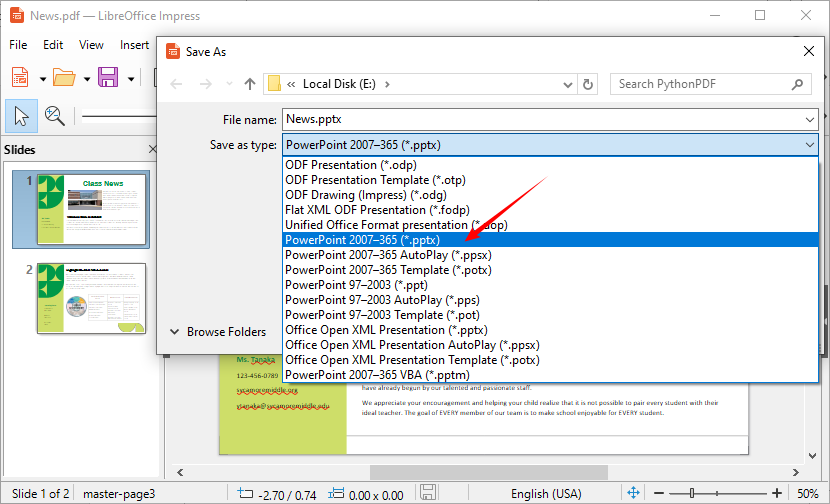
- Vá para “Arquivo > Salvar Como” e selecione o formato “PowerPoint 2007–365 (*.pptx)” para salvar o PDF como um arquivo do PowerPoint.
Dica profissional: O LibreOffice funciona melhor com PDFs que possuem texto selecionável. Para PDFs digitalizados, você pode consultar este guia: Como Converter Imagens em Texto: Melhores Ferramentas de OCR para Iniciantes
Converter PDF para PowerPoint com Python
Se você está familiarizado com Python ou deseja automatizar conversões de PDF para PPT (por exemplo, processamento em lote), Free Spire.PDF for Python é uma excelente escolha. É uma biblioteca leve e gratuita que suporta a conversão de arquivos PDF para formatos editáveis do PowerPoint (PPT/PPTX) sem perder a formatação.
Instalação
Primeiro, você precisa instalar a biblioteca via pip. Abra seu prompt de comando (Windows) ou terminal (Mac/Linux) e execute o seguinte comando:
pip install Spire.Pdf.Free
Escreva o Código de Conversão
Crie um novo arquivo Python e cole o seguinte código. Este código carrega um arquivo PDF, o converte para um arquivo PPTX e o salva na pasta desejada:
from spire.pdf.common import *
from spire.pdf import *

# Create an object of the PdfDocument class
pdf = PdfDocument()
# Load a sample PDF document
pdf.LoadFromFile("News.pdf")

# Save the PDF document as a PowerPoint PPTX file
pdf.SaveToFile("PdfToPowerPoint.pptx", FileFormat.PPTX)
pdf.Close()
Benefícios Deste Método:
- Automação: Converta múltiplos PDFs em lote
- Integração: Incorpore a conversão em fluxos de trabalho maiores
- Consistência: Resultados uniformes em todas as conversões
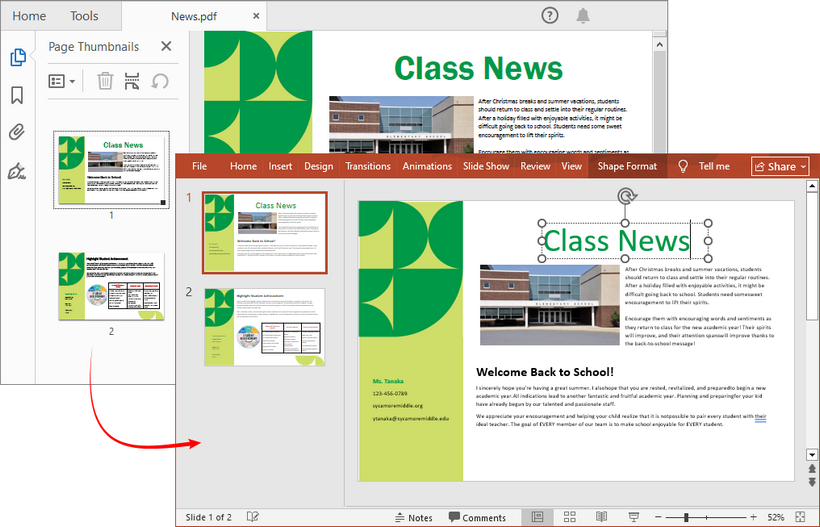
O resultado da conversão:
Dica Profissional: Para conversão em lote (convertendo vários PDFs de uma vez), adicione um loop para iterar sobre todos os arquivos PDF em uma pasta. Para tornar os arquivos de apresentação gerados mais profissionais, você pode usar o Free Spire.PDF for Python para ajustar as margens da página ou reordenar as páginas do PDF antes da conversão.
Dicas para uma Conversão Bem-sucedida de PDF para PowerPoint
- Comece com um PDF de Alta Qualidade: Quanto mais limpa a fonte (baseada em texto, não digitalizada), melhor o resultado.
- Verifique a formatação: Após a conversão, revise o arquivo PPT — ajuste fontes, tamanhos de imagem e espaçamento para corrigir quaisquer problemas.
- Evite arquivos grandes: Ferramentas online podem ter dificuldades com PDFs acima de 100MB. Comprima seu PDF primeiro, se necessário.
- Use ferramentas offline para dados sensíveis: Nunca envie arquivos confidenciais para conversores online — use ferramentas offline como o LibreOffice em vez disso.
- Teste com uma página de amostra: Se você está convertendo um PDF longo, teste com uma página primeiro para garantir que a ferramenta preserve a formatação.
Conclusão
Converter PDF para PowerPoint gratuitamente não só é possível, como também oferece múltiplas abordagens adequadas para diferentes necessidades. Para conversões ocasionais, as ferramentas online oferecem conveniência. Para usuários regulares preocupados com a privacidade, softwares de desktop gratuitos oferecem um bom equilíbrio. Para desenvolvedores e profissionais que precisam de automação e processamento em lote, o Python com Free Spire.PDF apresenta a solução mais poderosa e flexível.
Embora cada método tenha seus pontos fortes, a chave é escolher a abordagem que melhor corresponda aos seus requisitos específicos de frequência, volume, privacidade e necessidades de automação. Lembre-se sempre de revisar a apresentação final para garantir que ela atenda aos seus padrões de clareza e design.
Perguntas Frequentes (FAQs)
P1: Posso converter um PDF digitalizado para PowerPoint?
Sim, mas você precisará primeiro de uma ferramenta de OCR (Reconhecimento Óptico de Caracteres) para tornar o texto selecionável.
P2: Os conversores gratuitos são seguros para usar com documentos confidenciais?
Para arquivos confidenciais, use ferramentas offline como o LibreOffice ou métodos programáticos para evitar o upload de dados para a nuvem.
P3: Por que meu PowerPoint convertido parece diferente do PDF?
Layouts complexos, fontes personalizadas ou imagens incorporadas nem sempre são transferidos perfeitamente. Pode ser necessário algum ajuste manual no PowerPoint.
P4: Posso converter vários PDFs de uma vez gratuitamente?
Sim, usando Python com Free Spire.PDF ou ferramentas offline que oferecem um recurso de conversão em lote.
P5: O método Python é adequado para iniciantes?
Sim, a conversão básica requer apenas 5 a 10 linhas de código. Nenhum conhecimento avançado de Python é necessário, e a biblioteca é bem documentada.
Veja Também
PDF를 PowerPoint로 무료 변환: 3가지 쉬운 방법
오늘날 빠르게 변화하는 디지털 세상에서 콘텐츠를 효율적으로 용도 변경하는 것은 학생, 교육자, 비즈니스 전문가 및 콘텐츠 제작자 모두에게 중요한 기술입니다. PDF는 공유를 위해 문서 서식을 보존하는 데 탁월하지만 동적 프레젠테이션에 필요한 편집 기능과 슬라이드 기반 구조가 부족합니다. 많은 사용자가 비싼 소프트웨어 없이 정적 PDF 문서를 동적 프레젠테이션으로 변환할 수 있는 무료 솔루션을 찾고 있습니다. 이 종합 가이드에서는 PDF를 파워포인트로 무료로 변환하는 몇 가지 신뢰할 수 있는 도구를 살펴보고, 단계별 지침을 제공하며, 다양한 요구에 맞는 원활한 변환을 보장하기 위한 전문가 팁을 제공합니다.
- 무료 PDF-PPT 변환기에서 찾아야 할 사항
- 무료 온라인 PDF-PPT 변환기
- PDF를 PPT로 변환하는 무료 오프라인 도구
- Python으로 PDF를 파워포인트로 변환하기
- 성공적인 PDF-파워포인트 변환을 위한 팁
- 자주 묻는 질문(FAQ)
무료 PDF-PPT 변환기에서 찾아야 할 사항
PDF는 문서를 공유하고 보존하는 데 유용하지만 편집이나 발표용으로 설계되지 않았습니다. PDF를 파워포인트로 변환하면 텍스트, 이미지, 레이아웃을 수정하고 애니메이션을 추가할 수 있어 매력적인 슬라이드쇼를 만드는 데 중요합니다. 무료 PDF-PPT 변환 도구를 선택할 때 다음 요소를 염두에 두십시오.
- 서식 보존: 도구는 글꼴, 이미지, 표 및 간격을 유지해야 합니다.
- 워터마크 없음: 슬라이드에 로고나 워터마크를 추가하는 변환기는 피하십시오.
- 파일 보안: 민감한 문서의 경우 오프라인으로 파일을 처리하거나 변환 후 삭제하는 도구를 선택하십시오.
- 편집 가능성: 출력물은 이미지 기반 슬라이드가 아니라 파워포인트에서 완전히 편집할 수 있어야 합니다.
이제 PDF를 파워포인트로 바꾸는 가장 좋은 무료 방법을 살펴보겠습니다.
무료 온라인 PDF-PPT 변환기
온라인 변환기는 소프트웨어를 설치하고 싶지 않고 빠른 변환이 필요한 경우에 이상적입니다. 고품질 결과를 제공하는 3가지 최고의 무료 온라인 도구는 다음과 같습니다.
- CLOUDXDOCS: PDF를 PPTX로 변환하는 사용자 친화적인 온라인 도구입니다. 광고나 워터마크가 없습니다.
- Smallpdf: 신뢰할 수 있는 PDF-PPT 변환과 높은 서식 정확도를 갖춘 신뢰할 수 있는 플랫폼입니다.
- ILovePDF: 깔끔한 인터페이스를 갖춘 또 다른 강력한 옵션입니다. 일괄 변환을 지원하고 텍스트 및 레이아웃 인식을 효과적으로 처리합니다.
온라인에서 PDF를 파워포인트로 내보내는 방법:
- 도구의 웹사이트(예: CLOUDXDOCS PDF to PowerPoint 페이지)로 이동합니다.
- PDF 파일을 선택하거나 드래그 앤 드롭합니다.
- 업로드 및 변환 프로세스가 완료될 때까지 기다립니다.
- 새 파워포인트(.PPTX) 파일을 다운로드합니다.
참고: 온라인 도구는 편리하지만 기밀 문서에는 사용하지 마십시오.
PDF를 PPT로 변환하는 무료 오프라인 도구
민감한 파일(예: 회사 보고서, 개인 기록)의 경우 오프라인 도구를 사용하면 데이터 노출 위험을 제거할 수 있습니다. LibreOffice — Impress(파워포인트 대안)를 포함하고 PDF를 PPT 파일로 효과적으로 변환할 수 있는 무료 오픈 소스 오피스 제품군입니다. Windows, Mac 및 Linux에서 작동합니다.
오프라인에서 PDF를 슬라이드로 변환하는 방법:
- LibreOffice를 다운로드하여 설치합니다(100% 무료이며 숨겨진 비용 없음).
- LibreOffice Impress(프레젠테이션 앱)를 열고 “파일 > 열기”로 이동합니다.
- 파일 선택 대화 상자 하단에서 “파일 형식” 드롭다운 메뉴를 열고 수동으로 "PDF - Portable Document Format (Impress) (*.pdf)"를 선택합니다.
- LibreOffice가 PDF를 프레젠테이션으로 변환합니다. 필요에 따라 슬라이드를 편집할 수 있습니다.
- “파일 > 다른 이름으로 저장”으로 이동하여 “PowerPoint 2007–365 (*.pptx)” 형식을 선택하여 PDF를 파워포인트 파일로 저장합니다.
전문가 팁: LibreOffice는 선택 가능한 텍스트가 있는 PDF에서 가장 잘 작동합니다. 스캔한 PDF의 경우 다음 가이드를 참조할 수 있습니다. 이미지를 텍스트로 변환하는 방법: 초보자를 위한 최고의 OCR 도구
Python으로 PDF를 파워포인트로 변환하기
Python에 익숙하거나 PDF-PPT 변환(예: 일괄 처리)을 자동화하려는 경우 Free Spire.PDF for Python이 훌륭한 선택입니다. 서식 손실 없이 PDF 파일을 편집 가능한 파워포인트(PPT/PPTX) 형식으로 변환하는 것을 지원하는 가볍고 무료인 라이브러리입니다.
설치
먼저 pip를 통해 라이브러리를 설치해야 합니다. 명령 프롬프트(Windows) 또는 터미널(Mac/Linux)을 열고 다음 명령을 실행합니다.
pip install Spire.Pdf.Free
변환 코드 작성
새 Python 파일을 만들고 다음 코드를 붙여넣습니다. 이 코드는 PDF 파일을 로드하여 PPTX 파일로 변환하고 원하는 폴더에 저장합니다.
from spire.pdf.common import *
from spire.pdf import *

# Create an object of the PdfDocument class
pdf = PdfDocument()
# Load a sample PDF document
pdf.LoadFromFile("News.pdf")

# Save the PDF document as a PowerPoint PPTX file
pdf.SaveToFile("PdfToPowerPoint.pptx", FileFormat.PPTX)
pdf.Close()
이 방법의 이점:
- 자동화: 여러 PDF를 일괄 변환
- 통합: 더 큰 워크플로에 변환 포함
- 일관성: 모든 변환에서 균일한 결과
변환 결과:
전문가 팁: 일괄 변환(한 번에 여러 PDF 변환)의 경우 루프를 추가하여 폴더의 모든 PDF 파일을 반복합니다. 생성된 프레젠테이션 파일을 더 전문적으로 만들려면 Free Spire.PDF for Python을 사용하여 페이지 여백을 조정하거나 PDF 페이지 순서를 변경할 수 있습니다.
성공적인 PDF-파워포인트 변환을 위한 팁
- 고품질 PDF로 시작: 소스(스캔되지 않은 텍스트 기반)가 깨끗할수록 출력이 더 좋습니다.
- 서식 확인: 변환 후 PPT 파일을 검토하여 글꼴, 이미지 크기 및 간격을 조정하여 문제를 해결합니다.
- 큰 파일 피하기: 온라인 도구는 100MB가 넘는 PDF에 어려움을 겪을 수 있습니다. 필요한 경우 먼저 PDF를 압축하십시오.
- 민감한 데이터에는 오프라인 도구 사용: 기밀 파일을 온라인 변환기에 절대 업로드하지 말고 대신 LibreOffice와 같은 오프라인 도구를 사용하십시오.
- 샘플 페이지로 테스트: 긴 PDF를 변환하는 경우 먼저 한 페이지로 테스트하여 도구가 서식을 유지하는지 확인하십시오.
결론
PDF를 파워포인트로 무료로 변환하는 것은 가능할 뿐만 아니라 다양한 요구에 적합한 여러 접근 방식을 제공합니다. 가끔 변환하는 경우 온라인 도구가 편리합니다. 개인 정보 보호에 관심이 있는 일반 사용자의 경우 무료 데스크톱 소프트웨어가 좋은 균형을 제공합니다. 자동화 및 일괄 처리가 필요한 개발자 및 전문가에게는 Python과 Free Spire.PDF가 가장 강력하고 유연한 솔루션을 제공합니다.
각 방법에는 장점이 있지만 핵심은 빈도, 볼륨, 개인 정보 보호 및 자동화 요구 사항에 가장 적합한 접근 방식을 선택하는 것입니다. 명확성과 디자인에 대한 표준을 충족하는지 확인하기 위해 항상 최종 프레젠테이션을 검토하는 것을 잊지 마십시오.
자주 묻는 질문(FAQ)
Q1: 스캔한 PDF를 파워포인트로 변환할 수 있나요?
예, 하지만 텍스트를 선택할 수 있도록 하려면 먼저 OCR(광학 문자 인식) 도구가 필요합니다.
Q2: 무료 변환기는 민감한 문서에 사용해도 안전한가요?
기밀 파일의 경우 LibreOffice와 같은 오프라인 도구나 프로그래밍 방식을 사용하여 클라우드에 데이터를 업로드하지 마십시오.
Q3: 변환된 파워포인트가 PDF와 다르게 보이는 이유는 무엇인가요?
복잡한 레이아웃, 사용자 지정 글꼴 또는 포함된 이미지가 항상 완벽하게 전송되는 것은 아닙니다. 파워포인트에서 일부 수동 조정이 필요할 수 있습니다.
Q4: 여러 PDF를 한 번에 무료로 변환할 수 있나요?
예, Free Spire.PDF가 포함된 Python을 사용하거나 일괄 변환 기능을 제공하는 오프라인 도구를 사용합니다.
Q5: Python 방법은 초보자에게 적합한가요?
예, 기본 변환에는 5–10줄의 코드만 필요합니다. 고급 Python 지식이 필요하지 않으며 라이브러리가 잘 문서화되어 있습니다.
참고 항목
Convertire PDF in PowerPoint gratis: 3 metodi semplici
Indice dei Contenuti
Nel frenetico mondo digitale di oggi, riutilizzare i contenuti in modo efficiente è un'abilità fondamentale per studenti, educatori, professionisti aziendali e creatori di contenuti. I PDF eccellono nel preservare la formattazione dei documenti per la condivisione, ma mancano dell'editabilità e della struttura basata su diapositive necessarie per presentazioni dinamiche. Molti utenti cercano soluzioni gratuite per trasformare documenti PDF statici in presentazioni dinamiche senza software costosi. In questa guida completa, esploreremo diversi strumenti affidabili per convertire PDF in PowerPoint gratuitamente, forniremo istruzioni passo-passo e offriremo consigli esperti per garantire conversioni fluide adattate alle diverse esigenze.
- Cosa Cercare in un Convertitore Gratuito da PDF a PPT
- Convertitore Online Gratuito da PDF a PPT
- Strumento Offline Gratuito per Convertire PDF in PPT
- Convertire PDF in PowerPoint con Python
- Consigli per una Conversione di Successo da PDF a PowerPoint
- Domande Frequenti (FAQ)
Cosa Cercare in un Convertitore Gratuito da PDF a PPT
I PDF sono ottimi per la condivisione e la conservazione dei documenti, ma non sono progettati per l'editing o la presentazione. Convertire un PDF in PowerPoint ti consente di modificare testo, immagini, layout e aggiungere animazioni, elementi fondamentali per creare presentazioni coinvolgenti. Quando scegli uno strumento di conversione gratuito da PDF a PPT, tieni a mente questi fattori:
- Conservazione della Formattazione: Lo strumento dovrebbe mantenere font, immagini, tabelle e spaziatura.
- Nessuna Filigrana: Evita i convertitori che aggiungono loghi o filigrane alle tue diapositive.
- Sicurezza dei File: Per documenti sensibili, scegli strumenti che elaborano i file offline o li eliminano dopo la conversione.
- Modificabilità: L'output dovrebbe essere completamente modificabile in PowerPoint, non solo diapositive basate su immagini.
Ora, esploriamo i migliori modi gratuiti per trasformare PDF in PowerPoint.
Convertitore Online Gratuito da PDF a PPT
I convertitori online sono ideali se non vuoi installare software e hai bisogno di una conversione veloce. Ecco 3 dei migliori strumenti online gratuiti che offrono risultati di alta qualità:
- CLOUDXDOCS: Uno strumento online facile da usare per convertire PDF in PPTX. NESSUNA pubblicità, nessuna filigrana.
- Smallpdf: Una piattaforma affidabile con conversione PDF-to-PPT affidabile e alta precisione di formattazione.
- ILovePDF: Un'altra opzione robusta con un'interfaccia pulita. Supporta la conversione batch e gestisce efficacemente il riconoscimento di testo e layout.
Come esportare PDF in PowerPoint online:
- Naviga al sito web dello strumento (es. pagina CLOUDXDOCS PDF to PowerPoint).
- Scegli o trascina il tuo file PDF.
- Attendi il completamento del processo di caricamento e conversione.
- Scarica il tuo nuovo file PowerPoint (.PPTX).
Nota: Gli strumenti online sono convenienti, ma evita di usarli per documenti riservati.
Strumento Offline Gratuito per Convertire PDF in PPT
Per i file sensibili (es. rapporti aziendali, documenti personali), gli strumenti offline eliminano il rischio di esposizione dei dati. LibreOffice — una suite per ufficio gratuita e open-source che include Impress (la sua alternativa a PowerPoint) e può trasformare efficacemente i file PDF in PPT. Funziona su Windows, Mac e Linux.
Come convertire PDF in diapositive offline:
- Scarica e installa LibreOffice (è gratuito al 100%, senza costi nascosti).
- Apri LibreOffice Impress (l'applicazione di presentazione) e poi vai su “File > Apri”.
- Nella parte inferiore della finestra di dialogo di selezione file, apri il menu a discesa “Tipo di file” e seleziona manualmente "PDF - Portable Document Format (Impress) (*.pdf)".
- LibreOffice convertirà il PDF in una presentazione. Puoi modificare le diapositive secondo necessità.
- Vai su “File > Salva con nome” e seleziona il formato “PowerPoint 2007–365 (*.pptx)” per salvare il PDF come file PowerPoint.
Suggerimento Pro: LibreOffice funziona meglio con i PDF che hanno testo selezionabile. Per i PDF scansionati, puoi fare riferimento a questa guida: Come Convertire Immagini in Testo: I Migliori Strumenti OCR per Principianti
Convertire PDF in PowerPoint con Python
Se hai familiarità con Python o vuoi automatizzare le conversioni da PDF a PPT (es. elaborazione batch), Free Spire.PDF for Python è una scelta eccellente. È una libreria leggera e gratuita che supporta la conversione di file PDF in formati PowerPoint modificabili (PPT/PPTX) senza perdere la formattazione.
Installazione
Innanzitutto, devi installare la libreria tramite pip. Apri il tuo prompt dei comandi (Windows) o terminale (Mac/Linux) ed esegui il seguente comando:
pip install Spire.Pdf.Free
Scrivi il Codice di Conversione
Crea un nuovo file Python e incolla il seguente codice. Questo codice carica un file PDF, lo converte in un file PPTX e lo salva nella cartella desiderata:
from spire.pdf.common import *
from spire.pdf import *

# Create an object of the PdfDocument class
pdf = PdfDocument()
# Load a sample PDF document
pdf.LoadFromFile("News.pdf")

# Save the PDF document as a PowerPoint PPTX file
pdf.SaveToFile("PdfToPowerPoint.pptx", FileFormat.PPTX)
pdf.Close()
Vantaggi di Questo Metodo:
- Automazione: Converti più PDF in batch
- Integrazione: Incorpora la conversione in flussi di lavoro più ampi
- Coerenza: Risultati uniformi tra le conversioni
Il risultato della conversione:
Suggerimento Pro: Per la conversione batch (convertire più PDF contemporaneamente), aggiungi un ciclo per iterare su tutti i file PDF in una cartella. Per rendere i file di presentazione generati più professionali, puoi usare Free Spire.PDF for Python per regolare i margini della pagina o riordinare le pagine PDF prima della conversione.
Consigli per una Conversione di Successo da PDF a PowerPoint
- Inizia con un PDF di Alta Qualità: Più pulita è la sorgente (basata su testo, non scansionata), migliore sarà l'output.
- Controlla la formattazione: Dopo la conversione, rivedi il file PPT—regola font, dimensioni delle immagini e spaziatura per risolvere eventuali problemi.
- Evita file di grandi dimensioni: Gli strumenti online potrebbero avere difficoltà con PDF superiori a 100MB. Comprimi il tuo PDF prima, se necessario.
- Usa strumenti offline per dati sensibili: Non caricare mai file riservati su convertitori online—usa invece strumenti offline come LibreOffice.
- Testa con una pagina di esempio: Se stai convertendo un PDF lungo, testa prima con una pagina per assicurarti che lo strumento preservi la formattazione.
Conclusione
Convertire PDF in PowerPoint gratuitamente non è solo possibile, ma offre anche molteplici approcci adatti a diverse esigenze. Per conversioni occasionali, gli strumenti online offrono comodità. Per gli utenti abituali preoccupati per la privacy, il software desktop gratuito offre un buon equilibrio. Per sviluppatori e professionisti che necessitano di automazione ed elaborazione batch, Python con Free Spire.PDF presenta la soluzione più potente e flessibile.
Sebbene ogni metodo abbia i suoi punti di forza, la chiave è scegliere l'approccio che meglio si adatta alle tue esigenze specifiche di frequenza, volume, privacy e automazione. Ricorda sempre di rivedere la presentazione finale per assicurarti che soddisfi i tuoi standard di chiarezza e design.
Domande Frequenti (FAQ)
D1: Posso convertire un PDF scansionato in PowerPoint?
Sì, ma avrai prima bisogno di uno strumento OCR (Optical Character Recognition) per rendere il testo selezionabile.
D2: I convertitori gratuiti sono sicuri da usare con documenti sensibili?
Per i file riservati, usa strumenti offline come LibreOffice o metodi programmatici per evitare di caricare dati sul cloud.
D3: Perché il mio PowerPoint convertito appare diverso dal PDF?
Layout complessi, font personalizzati o immagini incorporate potrebbero non sempre trasferirsi perfettamente. Potrebbe essere necessaria qualche regolazione manuale in PowerPoint.
D4: Posso convertire più PDF contemporaneamente gratuitamente?
Sì, usando Python con Free Spire.PDF o strumenti offline che offrono una funzione di conversione batch.
D5: Il metodo Python è adatto ai principianti?
Sì, la conversione di base richiede solo 5-10 righe di codice. Non è necessaria alcuna conoscenza avanzata di Python e la libreria è ben documentata.
Vedi Anche
Convertir PDF en PowerPoint gratuitement : 3 méthodes faciles
Table des matières
Dans le monde numérique en évolution rapide d'aujourd'hui, la réutilisation efficace du contenu est une compétence essentielle pour les étudiants, les éducateurs, les professionnels et les créateurs de contenu. Les PDF excellent dans la préservation du formatage des documents pour le partage, mais ils manquent de la capacité d'édition et de la structure basée sur les diapositives nécessaires pour des présentations dynamiques. De nombreux utilisateurs recherchent des solutions gratuites pour transformer des documents PDF statiques en présentations dynamiques sans logiciel coûteux. Dans ce guide complet, nous explorerons plusieurs outils fiables pour convertir gratuitement un PDF en PowerPoint, fournirons des instructions étape par étape et offrirons des conseils d'experts pour garantir des conversions transparentes adaptées à différents besoins.
- Que rechercher dans un convertisseur PDF vers PPT gratuit
- Convertisseur PDF vers PPT en ligne gratuit
- Outil hors ligne gratuit pour convertir un PDF en PPT
- Convertir un PDF en PowerPoint avec Python
- Conseils pour une conversion PDF vers PowerPoint réussie
- Foire aux questions (FAQ)
Que rechercher dans un convertisseur PDF vers PPT gratuit
Les PDF sont parfaits pour partager et préserver des documents, mais ils ne sont pas conçus pour l'édition ou la présentation. La conversion d'un PDF en PowerPoint vous permet de modifier le texte, les images, les mises en page et d'ajouter des animations, ce qui est essentiel pour créer des diaporamas attrayants. Lors du choix d'un outil de conversion PDF vers PPT gratuit, tenez compte des facteurs suivants :
- Préservation du formatage : L'outil doit conserver les polices, les images, les tableaux et l'espacement.
- Pas de filigranes : Évitez les convertisseurs qui ajoutent des logos ou des filigranes à vos diapositives.
- Sécurité des fichiers : Pour les documents sensibles, choisissez des outils qui traitent les fichiers hors ligne ou les suppriment après la conversion.
- Modifiabilité : Le résultat doit être entièrement modifiable dans PowerPoint, et non pas seulement des diapositives basées sur des images.
Explorons maintenant les meilleures façons gratuites de transformer un PDF en PowerPoint.
Convertisseur PDF vers PPT en ligne gratuit
Les convertisseurs en ligne sont idéaux si vous ne souhaitez pas installer de logiciel et avez besoin d'une conversion rapide. Voici 3 des meilleurs outils en ligne gratuits qui offrent des résultats de haute qualité :
- CLOUDXDOCS : Un outil en ligne convivial pour convertir des PDF en PPTX. SANS publicité, sans filigrane.
- Smallpdf : Une plateforme de confiance avec une conversion PDF vers PPT fiable et une grande précision de formatage.
- ILovePDF : Une autre option robuste avec une interface claire. Prend en charge la conversion par lots et gère efficacement la reconnaissance du texte et de la mise en page.
Comment exporter un PDF vers PowerPoint en ligne :
- Accédez au site Web de l'outil (par exemple, la page PDF vers PowerPoint de CLOUDXDOCS).
- Choisissez ou glissez-déposez votre fichier PDF.
- Attendez que le processus de téléversement et de conversion soit terminé.
- Téléchargez votre nouveau fichier PowerPoint (.PPTX).
Remarque : Les outils en ligne sont pratiques, mais évitez de les utiliser pour des documents confidentiels.
Outil hors ligne gratuit pour convertir un PDF en PPT
Pour les fichiers sensibles (par exemple, les rapports d'entreprise, les dossiers personnels), les outils hors ligne éliminent le risque d'exposition des données. LibreOffice — une suite bureautique gratuite et open-source qui inclut Impress (son alternative à PowerPoint) et peut transformer efficacement les fichiers PDF en PPT. Il fonctionne sur Windows, Mac et Linux.
Comment convertir un PDF en diapositives hors ligne :
- Téléchargez et installez LibreOffice (c'est 100% gratuit, sans frais cachés).
- Ouvrez LibreOffice Impress (l'application de présentation), puis allez dans « Fichier > Ouvrir ».
- Au bas de la boîte de dialogue de sélection de fichier, ouvrez le menu déroulant « Type de fichier » et sélectionnez manuellement "PDF - Portable Document Format (Impress) (*.pdf)".
- LibreOffice convertira le PDF en présentation. Vous pouvez modifier les diapositives selon vos besoins.
- Allez dans « Fichier > Enregistrer sous » et sélectionnez le format « PowerPoint 2007–365 (*.pptx) » pour enregistrer le PDF en tant que fichier PowerPoint.
Conseil de pro : LibreOffice fonctionne mieux avec les PDF dont le texte est sélectionnable. Pour les PDF numérisés, vous pouvez vous référer à ce guide : Comment convertir des images en texte : les meilleurs outils d'OCR pour les débutants
Convertir un PDF en PowerPoint avec Python
Si vous êtes familier avec Python ou si vous souhaitez automatiser les conversions PDF vers PPT (par exemple, le traitement par lots), Free Spire.PDF for Python est un excellent choix. C'est une bibliothèque légère et gratuite qui prend en charge la conversion de fichiers PDF en formats PowerPoint (PPT/PPTX) modifiables sans perte de formatage.
Installation
Tout d'abord, vous devez installer la bibliothèque via pip. Ouvrez votre invite de commande (Windows) ou votre terminal (Mac/Linux) et exécutez la commande suivante :
pip install Spire.Pdf.Free
Écrire le code de conversion
Créez un nouveau fichier Python et collez le code suivant. Ce code charge un fichier PDF, le convertit en fichier PPTX et l'enregistre dans le dossier de votre choix :
from spire.pdf.common import *
from spire.pdf import *

# Create an object of the PdfDocument class
pdf = PdfDocument()
# Load a sample PDF document
pdf.LoadFromFile("News.pdf")

# Save the PDF document as a PowerPoint PPTX file
pdf.SaveToFile("PdfToPowerPoint.pptx", FileFormat.PPTX)
pdf.Close()
Avantages de cette méthode :
- Automatisation : Convertir plusieurs PDF par lots
- Intégration : Intégrer la conversion dans des flux de travail plus importants
- Cohérence : Résultats uniformes pour toutes les conversions
Le résultat de la conversion :
Conseil de pro : pour la conversion par lots (conversion de plusieurs PDF à la fois), ajoutez une boucle pour parcourir tous les fichiers PDF d'un dossier. Pour rendre les fichiers de présentation générés plus professionnels, vous pouvez utiliser Free Spire.PDF for Python pour ajuster les marges des pages ou réorganiser les pages PDF avant la conversion.
Conseils pour une conversion PDF vers PowerPoint réussie
- Commencez avec un PDF de haute qualité : Plus la source est propre (basée sur du texte, non numérisée), meilleur est le résultat.
- Vérifiez le formatage : après la conversion, examinez le fichier PPT — ajustez les polices, la taille des images et l'espacement pour corriger tout problème.
- Évitez les fichiers volumineux : les outils en ligne peuvent avoir des difficultés avec les PDF de plus de 100 Mo. Compressez votre PDF d'abord si nécessaire.
- Utilisez des outils hors ligne pour les données sensibles : ne téléversez jamais de fichiers confidentiels sur des convertisseurs en ligne — utilisez plutôt des outils hors ligne comme LibreOffice.
- Testez avec une page d'exemple : si vous convertissez un long PDF, testez d'abord avec une page pour vous assurer que l'outil préserve le formatage.
Conclusion
La conversion gratuite de PDF en PowerPoint est non seulement possible, mais offre également plusieurs approches adaptées à différents besoins. Pour les conversions occasionnelles, les outils en ligne sont pratiques. Pour les utilisateurs réguliers soucieux de la confidentialité, les logiciels de bureau gratuits offrent un bon équilibre. Pour les développeurs et les professionnels ayant besoin d'automatisation et de traitement par lots, Python avec Free Spire.PDF présente la solution la plus puissante et la plus flexible.
Bien que chaque méthode ait ses points forts, la clé est de choisir l'approche qui correspond le mieux à vos besoins spécifiques en matière de fréquence, de volume, de confidentialité et d'automatisation. N'oubliez jamais de revoir la présentation finale pour vous assurer qu'elle répond à vos normes de clarté et de conception.
Foire aux questions (FAQ)
Q1 : Puis-je convertir un PDF numérisé en PowerPoint ?
Oui, mais vous aurez d'abord besoin d'un outil d'OCR (reconnaissance optique de caractères) pour rendre le texte sélectionnable.
Q2 : Les convertisseurs gratuits sont-ils sûrs à utiliser avec des documents sensibles ?
Pour les fichiers confidentiels, utilisez des outils hors ligne comme LibreOffice ou des méthodes programmatiques pour éviter de téléverser des données sur le cloud.
Q3 : Pourquoi mon PowerPoint converti est-il différent du PDF ?
Les mises en page complexes, les polices personnalisées ou les images intégrées peuvent ne pas toujours être transférées parfaitement. Un ajustement manuel dans PowerPoint peut être nécessaire.
Q4 : Puis-je convertir plusieurs PDF à la fois gratuitement ?
Oui, en utilisant Python avec Free Spire.PDF ou des outils hors ligne qui offrent une fonction de conversion par lots.
Q5 : La méthode Python convient-elle aux débutants ?
Oui, la conversion de base ne nécessite que 5 à 10 lignes de code. Aucune connaissance avancée de Python n'est nécessaire et la bibliothèque est bien documentée.