Les 5 meilleures façons de convertir Excel en Word
Table des matières
- Méthode 1 : Copier-coller manuel (le plus rapide pour les données simples)
- Méthode 2 : Insérer Excel en tant qu'objet (pour les données liées et modifiables)
- Méthode 3 : Convertisseur Excel vers Word en ligne (pour une utilisation rapide et ponctuelle)
- Méthode 4 : Automatiser avec des macros VBA (pour les utilisateurs avancés)
- Méthode 5 : Conversion par lots d'Excel vers Word via Python (pour plusieurs fichiers)
- Meilleures pratiques pour une conversion sans faille
- Quelle méthode de conversion Excel vers Word devriez-vous choisir ?
- Foire aux questions (FAQ)
Dans le paysage professionnel actuel axé sur les données, la capacité de transférer de manière transparente des informations entre les applications Microsoft Office est une compétence essentielle. Que vous compiliez un rapport d'activité trimestriel, intégriez des données financières dans une proposition client ou prépariez un document de recherche, la saisie manuelle des données est un processus fastidieux et sujet aux erreurs. Convertir Excel en Word efficacement peut vous faire gagner des heures de travail, préserver une mise en forme essentielle et rationaliser l'ensemble de votre flux de travail documentaire.
Ce guide complet vous présentera 5 méthodes éprouvées pour convertir des feuilles Excel en Word. Nous avons organisé ces méthodes de la plus simple à la plus avancée, en veillant à ce qu'il existe une solution parfaite pour chaque utilisateur, de l'utilisateur occasionnel d'Office au professionnel de l'informatique automatisant les rapports par lots.
- Méthode 1 : Copier-coller manuel (le plus rapide pour les données simples)
- Méthode 2 : Insérer Excel en tant qu'objet (pour les données liées et modifiables)
- Méthode 3 : Convertisseur Excel vers Word en ligne (pour une utilisation rapide et ponctuelle)
- Méthode 4 : Automatiser avec des macros VBA (pour les utilisateurs avancés)
- Méthode 5 : Conversion par lots d'Excel vers Word via Python (pour plusieurs fichiers)
- Meilleures pratiques pour une conversion sans faille
- Quelle méthode de conversion Excel vers Word devriez-vous choisir ?
- Foire aux questions (FAQ)
Méthode 1 : Copier-coller manuel (le plus rapide pour les données simples)
Si vous n'avez besoin de convertir qu'un petit tableau ou une plage de données, la méthode du copier-coller est rapide et simple. Elle fonctionne à la fois pour Windows et Mac et ne nécessite aucun outil supplémentaire.
Comment convertir Excel en Word :
- Ouvrez votre fichier Excel et sélectionnez les données que vous souhaitez convertir.
- Copiez les données : faites un clic droit et sélectionnez « Copier », ou utilisez le raccourci « Ctrl+C » (Windows) / « Cmd+C » (Mac).
- Ouvrez un document Word nouveau ou existant et placez votre curseur à l'endroit où vous souhaitez que les données apparaissent.
- Coller avec contrôle de la mise en forme (clic droit pour choisir) :
- Conserver la mise en forme source : préserve les polices, les couleurs et les bordures de cellule d'Excel.
- Utiliser les styles de destination : adapte les données Excel au style de votre document Word.
- Lier et conserver la mise en forme source : crée un lien dynamique vers le fichier Excel.
- Image : colle la sélection sous forme d'image statique non modifiable.
- Conserver le texte uniquement : colle les données sous forme de texte brut, souvent séparé par des tabulations.
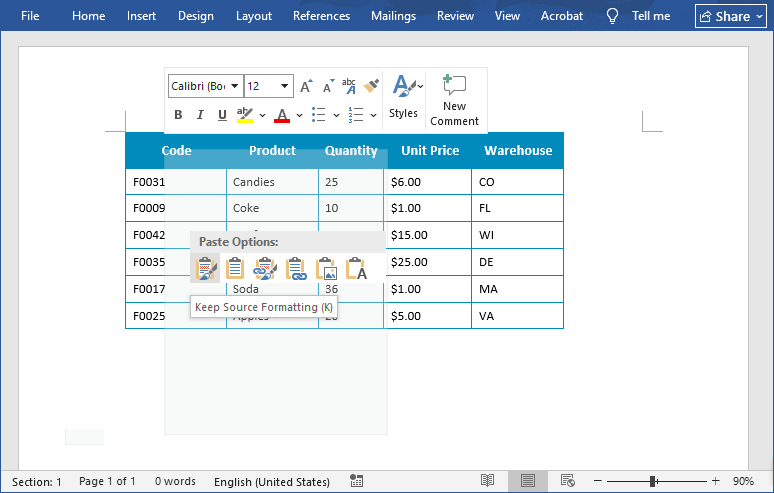
Conseil de pro : pour les tableaux larges, utilisez l'option Ajuster automatiquement à la fenêtre de Word pour éviter que les colonnes ne soient coupées.
Méthode 2 : Insérer Excel en tant qu'objet (pour les données liées et modifiables)
Cette méthode va au-delà d'un simple tableau ; elle intègre une version miniature et fonctionnelle de la feuille de calcul Excel entière dans votre document Word. C'est le meilleur choix lorsque les données doivent rester entièrement modifiables et calculables dans le fichier Word lui-même.
Étapes pour intégrer Excel dans Word :
- Ouvrez votre document Word et allez dans l'onglet « Insertion ».
- Cliquez sur « Objet » dans le groupe « Texte ».
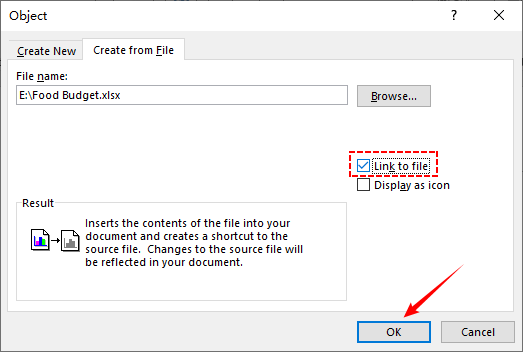
- Dans la boîte de dialogue Objet, allez dans l'onglet « Créer à partir du fichier ».
- Cliquez sur « Parcourir » pour sélectionner votre fichier Excel, puis cochez la case « Lier au fichier » (facultatif : lie le document Word au fichier Excel d'origine, de sorte que les mises à jour dans Excel se synchronisent automatiquement avec Word).
- Cliquez sur « OK » et vos données Excel apparaîtront dans Word en tant qu'objet modifiable.
Idéal pour : les rapports nécessitant des mises à jour fréquentes des données (par exemple, les suivis de projet, les tableaux de bord des ventes mensuelles).
Vous pourriez également être intéressé par : Convertir un tableau PDF en Word – Méthodes précises et fiables
Méthode 3 : Convertisseur Excel vers Word en ligne (pour une utilisation rapide et ponctuelle)
Lorsque vous avez besoin d'une conversion rapide sur un ordinateur où vous ne pouvez pas installer de logiciel, les convertisseurs en ligne gratuits sont une option viable.
Top 3 des outils en ligne gratuits :
- Zamzar : prend en charge plus de 1200 formats, y compris Excel vers Word. Aucune inscription requise pour les petits fichiers.
- OnlineConvertFree : interface simple avec prise en charge du glisser-déposer. Convertit les fichiers en 30 secondes ou moins.
- Converter365 : prend en charge la conversion par lots et fonctionne sur tous les navigateurs. Préserve les graphiques et les formules.
Étapes générales pour convertir Excel en Word en ligne :
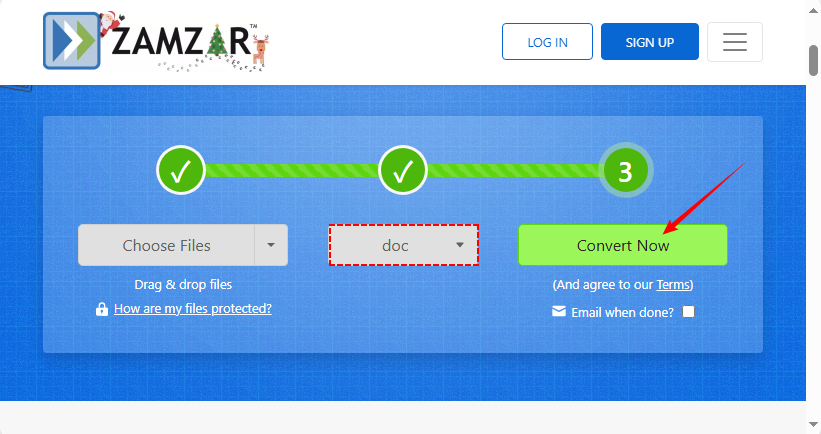
- Allez sur le convertisseur de votre choix (par exemple, Zamzar.com).
- Sélectionnez « Choisir les fichiers » pour télécharger votre fichier Excel.
- Choisissez « Doc » ou « Docx » comme format de sortie.
- Cliquez sur le bouton « Convertir » et téléchargez votre fichier Word.
Note de sécurité importante : n'utilisez jamais de convertisseurs en ligne pour des données sensibles ou confidentielles, car vous téléchargez des fichiers sur un serveur tiers.
Méthode 4 : Automatiser avec des macros VBA (pour les utilisateurs avancés)
Si vous convertissez fréquemment des tableaux Excel en Word (par exemple, des rapports quotidiens), utilisez une macro VBA pour automatiser le processus.
Étape par étape :
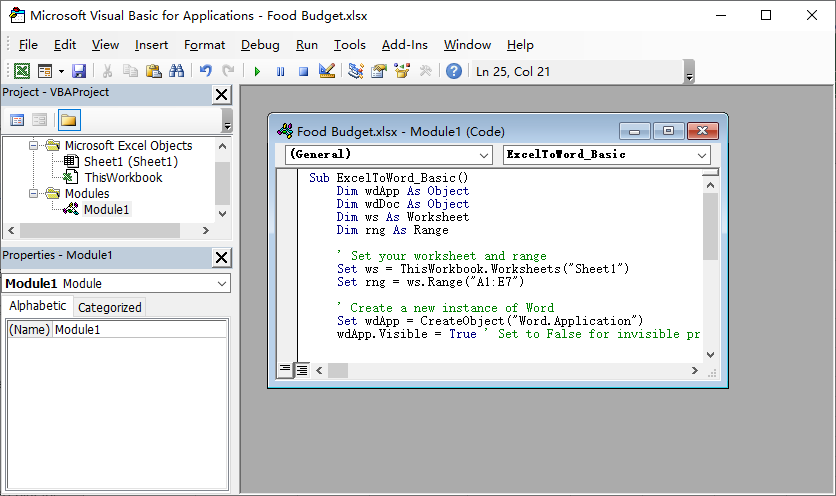
- Ouvrez votre fichier Excel et appuyez sur Alt+F11 pour ouvrir l'éditeur VBA.
- Cliquez sur « Insertion » → « Module » pour créer un nouveau module.
- Collez le code de macro suivant (personnalisez la plage et le chemin de sauvegarde si nécessaire) :
Sub ExcelToWord_Basic()
    Dim wdApp As Object
    Dim wdDoc As Object
    Dim ws As Worksheet
    Dim rng As Range

    ' Définissez votre feuille de calcul et votre plage
    Set ws = ThisWorkbook.Worksheets("Sheet1")
    Set rng = ws.Range("A1:E7")

    ' Créez une nouvelle instance de Word
    Set wdApp = CreateObject("Word.Application")
    wdApp.Visible = True ' Mettez à False pour un traitement invisible

    ' Créez un nouveau document
    Set wdDoc = wdApp.Documents.Add

    ' Copiez la plage d'Excel
    rng.Copy

    ' Collez dans Word
    wdApp.Selection.Paste

    ' Enregistrez le document
    wdDoc.SaveAs2 "F:\Report.docx"

    ' Nettoyez
    Set wdDoc = Nothing
    Set wdApp = Nothing
    MsgBox "Conversion terminée !"
End Sub
- Exécutez la macro (appuyez sur F5) pour convertir un fichier Excel en Word.
Le nettoyage des données Excel est la base d'une conversion en douceur. Pour éviter que les lignes/colonnes vides ne créent des espaces inutiles dans les tableaux Word, suivez le guide pour les supprimer efficacement : Comment supprimer les lignes vides dans Excel : 5 méthodes faciles
Méthode 5 : Conversion par lots d'Excel vers Word via Python (pour plusieurs fichiers)
Pour traiter des dizaines ou des centaines de fichiers, ou pour intégrer la conversion d'Excel en Doc ou Docx dans un pipeline de données automatisé plus large, Python est la solution standard de l'industrie. Voici les étapes pour effectuer la conversion à l'aide de la bibliothèque Free Spire.Office for Python :
- Charge le classeur Excel via LoadFromFile().
- Lit les données et la mise en forme (polices, couleurs, alignements, cellules fusionnées) à partir des feuilles de calcul spécifiées.
- Crée un nouveau document Word et y construit un tableau via AddTable().
- Mappe les données Excel cellule par cellule dans le tableau Word via AppendText().
- Applique les styles de mise en forme capturés aux cellules du tableau Word via les méthodes personnalisées MergeCells() et CopyStyle().
- Enregistre le document Word final et nettoie les ressources.
Code Python pour convertir les données Excel en tableau Word
from spire.xls import *
from spire.doc import *

def MergeCells(sheet, table):
    """Fusionner les cellules du tableau Word en fonction des cellules fusionnées de la feuille Excel."""
    if sheet.HasMergedCells:
        ranges = sheet.MergedCells
        for i in range(len(ranges)):
            startRow = ranges[i].Row
            startColumn = ranges[i].Column
            rowCount = ranges[i].RowCount
            columnCount = ranges[i].ColumnCount

            if rowCount > 1 and columnCount > 1:
                for j in range(startRow, startRow + rowCount):
                    table.ApplyHorizontalMerge(j - 1, startColumn - 1, startColumn - 1 + columnCount - 1)
                table.ApplyVerticalMerge(startColumn - 1, startRow - 1, startRow - 1 + rowCount - 1)

            if rowCount > 1 and columnCount == 1:
                table.ApplyVerticalMerge(startColumn - 1, startRow - 1, startRow - 1 + rowCount - 1)

            if columnCount > 1 and rowCount == 1:
                table.ApplyHorizontalMerge(startRow - 1, startColumn - 1, startColumn - 1 + columnCount - 1)

def CopyStyle(wTextRange, xCell, wCell):
    """Copier le style de cellule d'Excel vers Word."""
    # Copier le style de police
    wTextRange.CharacterFormat.TextColor = Color.FromRgb(xCell.Style.Font.Color.R, xCell.Style.Font.Color.G, xCell.Style.Font.Color.B)
    wTextRange.CharacterFormat.FontSize = float(xCell.Style.Font.Size)
    wTextRange.CharacterFormat.FontName = xCell.Style.Font.FontName
    wTextRange.CharacterFormat.Bold = xCell.Style.Font.IsBold
    wTextRange.CharacterFormat.Italic = xCell.Style.Font.IsItalic

    # Copier la couleur d'arrière-plan
    if xCell.Style.FillPattern is not ExcelPatternType.none:
        wCell.CellFormat.BackColor = Color.FromRgb(xCell.Style.Color.R, xCell.Style.Color.G, xCell.Style.Color.B)

    # Copier l'alignement horizontal
    if xCell.HorizontalAlignment == HorizontalAlignType.Left:
        wTextRange.OwnerParagraph.Format.HorizontalAlignment = HorizontalAlignment.Left
    elif xCell.HorizontalAlignment == HorizontalAlignType.Center:
        wTextRange.OwnerParagraph.Format.HorizontalAlignment = HorizontalAlignment.Center
    elif xCell.HorizontalAlignment == HorizontalAlignType.Right:
        wTextRange.OwnerParagraph.Format.HorizontalAlignment = HorizontalAlignment.Right

    # Copier l'alignement vertical
    if xCell.VerticalAlignment == VerticalAlignType.Bottom:
        wCell.CellFormat.VerticalAlignment = VerticalAlignment.Bottom
    elif xCell.VerticalAlignment == VerticalAlignType.Center:
        wCell.CellFormat.VerticalAlignment = VerticalAlignment.Middle
    elif xCell.VerticalAlignment == VerticalAlignType.Top:
        wCell.CellFormat.VerticalAlignment = VerticalAlignment.Top

# Charger un fichier Excel
workbook = Workbook()
workbook.LoadFromFile("sample.xlsx")

# Obtenir la première feuille de calcul
sheet = workbook.Worksheets[0]

# Créer un document Word
doc = Document()
section = doc.AddSection()
section.PageSetup.Orientation = PageOrientation.Landscape

# Ajouter un tableau
table = section.AddTable(True)
table.ResetCells(sheet.LastRow, sheet.LastColumn)

# Fusionner les cellules
MergeCells(sheet, table)

# Exporter les données et les styles d'Excel vers le tableau Word
for r in range(1, sheet.LastRow + 1):
    table.Rows[r - 1].Height = float(sheet.Rows[r - 1].RowHeight)

    for c in range(1, sheet.LastColumn + 1):
        xCell = sheet.Range[r, c]
        wCell = table.Rows[r - 1].Cells[c - 1]

        # Ajouter du texte d'Excel à la cellule du tableau Word
        textRange = wCell.AddParagraph().AppendText(xCell.NumberText)

        # Copier le style de police et de cellule
        CopyStyle(textRange, xCell, wCell)

# Enregistrer le document dans un fichier Word
doc.SaveToFile("ExcelToWordTable.docx", FileFormat.Docx)
doc.Dispose()
Résultat de la conversion :
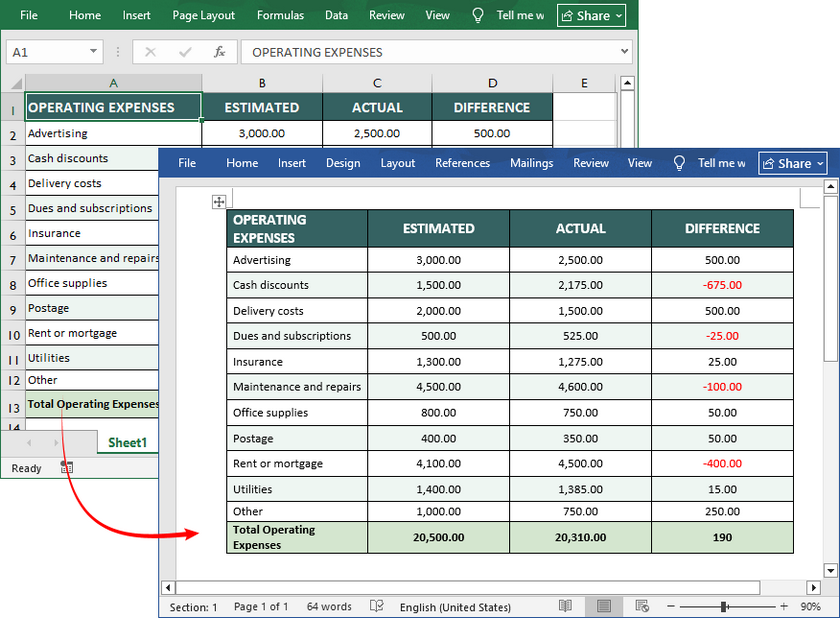
Si vous avez besoin d'exporter des données de tableau Word dans une feuille Excel, consultez ceci : Convertir Word en Excel en Python.
Meilleures pratiques pour une conversion sans faille
- Nettoyez d'abord vos données : supprimez les lignes/colonnes vides, assurez-vous d'une mise en forme cohérente et recherchez les erreurs dans Excel avant de convertir.
- Attention à la mise en forme : les tableaux Excel sont souvent plus larges que les marges de page de Word. Utilisez les options Ajuster automatiquement de Word pour redimensionner.
- Maintenez les liens avec soin : si vous utilisez la liaison (méthode 2), l'envoi du fichier Word à d'autres personnes rompra le lien, sauf si vous envoyez également le fichier Excel et conservez le chemin du dossier. Envisagez de rompre le lien avant de finaliser.
- Vérifiez la mise en page : examinez toujours le document converti en mode Mise en page de Word pour vous assurer que les tableaux et les graphiques s'affichent correctement sur la page.
Quelle méthode de conversion Excel vers Word devriez-vous choisir ?
Voici une aide-mémoire rapide pour choisir la bonne méthode :
| Scénario | Meilleure méthode | Avantages | Inconvénients |
|---|---|---|---|
| Petit tableau, conversion rapide | Copier-coller (méthode 1) | Rapide, sans outils | Contrôle limité de la mise en forme pour les données volumineuses |
| Données modifiables, mises à jour automatiques | Insérer un objet (méthode 2) | Se synchronise avec Excel, modifiable | Nécessite l'installation d'Excel |
| Sans installation, utilisation ponctuelle | Outils en ligne (méthode 3) | Pratique, gratuit | Risque d'exposition des données ; médiocre pour les données complexes |
| Conversion automatisée fréquente | Macro VBA (méthode 4) | Gain de temps, personnalisable | Nécessite des connaissances en VBA |
| Mise en forme complexe/fichiers par lots | Script Python (méthode 5) | Personnalisable, s'intègre aux flux de travail | Nécessite des compétences en codage |
Conclusion
Maîtriser le transfert de données d'Excel vers Word est une compétence fondamentale dans le bureau moderne. Avec les 5 méthodes sur mesure décrites ici, il existe une solution pour chaque utilisateur, niveau de compétence et scénario. Que vous soyez un débutant ayant besoin d'un copier-coller rapide pour un petit tableau, un professionnel nécessitant des données modifiables et à mise à jour automatique, ou un utilisateur averti automatisant les conversions par lots avec VBA ou Python, ces approches éliminent les efforts manuels fastidieux et préservent l'intégrité de vos données.
Foire aux questions (FAQ)
Q1 : Puis-je convertir un fichier Excel en Word sans perdre la mise en forme ?
R : Oui, l'utilisation de « Conserver la mise en forme source » lors du collage ou l'intégration de la feuille de calcul en tant qu'objet préserve la plupart de la mise en forme.
Q2 : Comment puis-je convertir Excel en Word gratuitement ?
R : Toutes les méthodes natives de Microsoft Office (copier/coller, insérer un objet) sont gratuites. Plusieurs convertisseurs en ligne réputés proposent également des niveaux gratuits. Pour une conversion par lots de haute qualité, la méthode de script Python est puissante si vous avez les compétences techniques.
Q3 : Puis-je convertir Excel en Word et conserver les formules ?
R : Les formules ne se traduisent pas directement. Lorsqu'elles sont collées sous forme de tableau, seuls les résultats apparaissent. L'exception est la méthode 2 (Insérer un objet). Si vous double-cliquez sur l'objet Excel intégré dans Word, vous pouvez voir et modifier les formules en direct dans l'interface Excel intégrée, et elles y seront calculées.
Q4 : Comment puis-je convertir plusieurs feuilles Excel en un seul document Word ?
R : Copiez et collez chaque feuille individuellement, ou utilisez la méthode « Insérer un objet » pour chacune. Pour l'automatisation, une macro VBA ou un script Python peut être programmé pour parcourir toutes les feuilles d'un classeur et les compiler séquentiellement dans un seul fichier Word.
Voir aussi
Las 5 mejores formas de convertir Excel a Word
Tabla de Contenidos
- Método 1: Copiar y Pegar Manualmente (El más rápido para datos simples)
- Método 2: Insertar Excel como un Objeto (Para datos vinculados y editables)
- Método 3: Convertidor de Excel a Word en Línea (Para uso rápido y único)
- Método 4: Automatizar con Macros de VBA (Para usuarios avanzados)
- Método 5: Convertir por Lotes de Excel a Word a través de Python (Para múltiples archivos)
- Mejores Prácticas para una Conversión Impecable
- ¿Qué Método de Excel a Word Deberías Elegir?
- Preguntas Frecuentes (FAQs)
En el panorama profesional actual, impulsado por los datos, la capacidad de transferir información sin problemas entre las aplicaciones de Microsoft Office es una habilidad esencial. Ya sea que esté compilando un informe comercial trimestral, integrando datos financieros en una propuesta para un cliente o preparando un documento de investigación, la reintroducción manual de datos es un proceso tedioso y propenso a errores. Convertir Excel a Word de manera efectiva puede ahorrar horas de trabajo, preservar el formato crítico y optimizar todo su flujo de trabajo de documentos.
Esta guía completa lo guiará a través de 5 métodos probados para convertir hojas de Excel a Word. Hemos organizado estos métodos desde el más simple hasta el más avanzado, asegurando que haya una solución perfecta para cada usuario, desde el usuario ocasional de Office hasta el profesional de TI que automatiza informes por lotes.
- Método 1: Copiar y Pegar Manualmente (El más rápido para datos simples)
- Método 2: Insertar Excel como un Objeto (Para datos vinculados y editables)
- Método 3: Convertidor de Excel a Word en Línea (Para uso rápido y único)
- Método 4: Automatizar con Macros de VBA (Para usuarios avanzados)
- Método 5: Convertir por Lotes de Excel a Word a través de Python (Para múltiples archivos)
- Mejores Prácticas para una Conversión Impecable
- ¿Qué Método de Excel a Word Deberías Elegir?
- Preguntas Frecuentes (FAQs)
Método 1: Copiar y Pegar Manualmente (El más rápido para datos simples)
Si solo necesita convertir una tabla pequeña o un rango de datos, el método de copiar y pegar es rápido y sencillo. Funciona tanto para Windows como para Mac y no requiere herramientas adicionales.
Cómo convertir Excel a Word:
- Abra su archivo de Excel y seleccione los datos que desea convertir.
- Copie los datos: Haga clic derecho y seleccione “Copiar”, o use el atajo "Ctrl+C" (Windows) / "Cmd+C" (Mac).
- Abra un documento de Word nuevo o existente y coloque el cursor donde desea que aparezcan los datos.
- Pegar con control de formato (haga clic derecho para elegir):
- Mantener Formato de Origen: Conserva las fuentes, colores y bordes de celda de Excel.
- Usar Estilos de Destino: Adapta los datos de Excel al estilo de su documento de Word.
- Vincular y Mantener Formato de Origen: Crea un vínculo dinámico al archivo de Excel.
- Imagen: Pega la selección como una imagen estática no editable.
- Mantener Solo Texto: Pega los datos como texto sin formato, a menudo separado por tabulaciones.
Consejo Profesional: Para tablas anchas, use la opción Autoajustar a la Ventana de Word para evitar que las columnas se corten.
Método 2: Insertar Excel como un Objeto (Para datos vinculados y editables)
Este método va más allá de una simple tabla; incrusta una versión en miniatura y funcional de toda la hoja de cálculo de Excel dentro de su documento de Word. Es la mejor opción cuando los datos deben permanecer completamente editables y calculables dentro del propio archivo de Word.
Pasos para incrustar Excel en Word:
- Abra su documento de Word y vaya a la pestaña “Insertar”.
- Haga clic en “Objeto” en el grupo “Texto”.
- En el cuadro de diálogo Objeto, vaya a la pestaña “Crear desde Archivo”.
- Haga clic en “Examinar” para seleccionar su archivo de Excel, luego marque la casilla “Vincular al archivo” (opcional: vincula el documento de Word al archivo de Excel original, para que las actualizaciones en Excel se sincronicen automáticamente con Word).
- Haga clic en “Aceptar” y sus datos de Excel aparecerán en Word como un objeto editable.
Ideal para: Informes que necesitan actualizaciones frecuentes de datos (por ejemplo, seguidores de proyectos, paneles de ventas mensuales).
También podría interesarle: Convertir Tabla de PDF a Word – Métodos Precisos y Confiables
Método 3: Convertidor de Excel a Word en Línea (Para uso rápido y único)
Cuando necesita una conversión rápida en una computadora donde no puede instalar software, los convertidores en línea gratuitos son una opción viable.
Las 3 Mejores Herramientas Gratuitas en Línea:
- Zamzar: Admite más de 1200 formatos, incluido Excel a Word. No se requiere registro para archivos pequeños.
- OnlineConvertFree: Interfaz simple con soporte para arrastrar y soltar. Convierte archivos en 30 segundos o menos.
- Converter365: Admite la conversión por lotes y funciona en todos los navegadores. Conserva gráficos y fórmulas.
Pasos Generales para convertir Excel a Word en línea:
- Vaya a su convertidor elegido (por ejemplo, Zamzar.com).
- Seleccione “Elegir Archivos” para cargar su archivo de Excel.
- Elija “Doc” o “Docx” como formato de salida.
- Haga clic en el botón “Convertir” y descargue su archivo de Word.
Nota de Seguridad Importante: Nunca use convertidores en línea para datos sensibles o confidenciales, ya que carga archivos a un servidor de terceros.
Método 4: Automatizar con Macros de VBA (Para usuarios avanzados)
Si convierte frecuentemente tablas de Excel a Word (por ejemplo, informes diarios), use una macro de VBA para automatizar el proceso.
Paso a Paso:
- Abra su archivo de Excel y presione Alt+F11 para abrir el Editor de VBA.
- Haga clic en “Insertar” → “Módulo” para crear un nuevo módulo.
- Pegue el siguiente código de macro (personalice el rango y la ruta de guardado según sea necesario):
Sub ExcelToWord_Basic()
    Dim wdApp As Object
    Dim wdDoc As Object
    Dim ws As Worksheet
    Dim rng As Range

    ' Set your worksheet and range
    Set ws = ThisWorkbook.Worksheets("Sheet1")
    Set rng = ws.Range("A1:E7")

    ' Create a new instance of Word
    Set wdApp = CreateObject("Word.Application")
    wdApp.Visible = True ' Set to False for invisible processing

    ' Create a new document
    Set wdDoc = wdApp.Documents.Add

    ' Copy the range from Excel
    rng.Copy

    ' Paste into Word
    wdApp.Selection.Paste

    ' Save the document
    wdDoc.SaveAs2 "F:\Report.docx"

    ' Clean up
    Set wdDoc = Nothing
    Set wdApp = Nothing
    MsgBox "Conversion complete!"
End Sub
- Ejecute la macro (presione F5) para convertir un archivo de Excel a Word.
Limpiar los datos de Excel es la base de una conversión fluida. Para evitar que las filas/columnas en blanco creen espacios innecesarios en las tablas de Word, siga la guía para eliminarlas de manera eficiente: Cómo Eliminar Filas en Blanco en Excel: 5 Métodos Fáciles
Método 5: Convertir por Lotes de Excel a Word a través de Python (Para múltiples archivos)
Para procesar docenas o cientos de archivos, o para integrar la conversión de Excel a Word Doc o Docx en un pipeline de datos automatizado más grande, Python es la solución estándar de la industria. A continuación se detallan los pasos para realizar la conversión utilizando la biblioteca Free Spire.Office for Python:
- Carga el libro de Excel a través de LoadFromFile().
- Lee datos y formato (fuentes, colores, alineaciones, celdas combinadas) de hojas de cálculo especificadas.
- Crea un nuevo documento de Word y construye una tabla dentro de él a través de AddTable().
- Mapea los datos de Excel celda por celda en la tabla de Word a través de AppendText().
- Aplica los estilos de formato capturados a las celdas de la tabla de Word a través del método personalizado MergeCells() y CopyStyle().
- Guarda el documento de Word final y limpia los recursos.
Código de Python para convertir datos de Excel a una tabla de Word
from spire.xls import *
from spire.doc import *

def MergeCells(sheet, table):
    """Merge cells in the Word table based on merged cells in the Excel sheet."""
    if sheet.HasMergedCells:
        ranges = sheet.MergedCells
        for i in range(len(ranges)):
            startRow = ranges[i].Row
            startColumn = ranges[i].Column
            rowCount = ranges[i].RowCount
            columnCount = ranges[i].ColumnCount

            if rowCount > 1 and columnCount > 1:
                for j in range(startRow, startRow + rowCount):
                    table.ApplyHorizontalMerge(j - 1, startColumn - 1, startColumn - 1 + columnCount - 1)
                table.ApplyVerticalMerge(startColumn - 1, startRow - 1, startRow - 1 + rowCount - 1)

            if rowCount > 1 and columnCount == 1:
                table.ApplyVerticalMerge(startColumn - 1, startRow - 1, startRow - 1 + rowCount - 1)

            if columnCount > 1 and rowCount == 1:
                table.ApplyHorizontalMerge(startRow - 1, startColumn - 1, startColumn - 1 + columnCount - 1)

def CopyStyle(wTextRange, xCell, wCell):
    """Copy cell styling from Excel to Word."""
    # Copy font style
    wTextRange.CharacterFormat.TextColor = Color.FromRgb(xCell.Style.Font.Color.R, xCell.Style.Font.Color.G, xCell.Style.Font.Color.B)
    wTextRange.CharacterFormat.FontSize = float(xCell.Style.Font.Size)
    wTextRange.CharacterFormat.FontName = xCell.Style.Font.FontName
    wTextRange.CharacterFormat.Bold = xCell.Style.Font.IsBold
    wTextRange.CharacterFormat.Italic = xCell.Style.Font.IsItalic

    # Copy background color
    if xCell.Style.FillPattern is not ExcelPatternType.none:
        wCell.CellFormat.BackColor = Color.FromRgb(xCell.Style.Color.R, xCell.Style.Color.G, xCell.Style.Color.B)

    # Copy horizontal alignment
    if xCell.HorizontalAlignment == HorizontalAlignType.Left:
        wTextRange.OwnerParagraph.Format.HorizontalAlignment = HorizontalAlignment.Left
    elif xCell.HorizontalAlignment == HorizontalAlignType.Center:
        wTextRange.OwnerParagraph.Format.HorizontalAlignment = HorizontalAlignment.Center
    elif xCell.HorizontalAlignment == HorizontalAlignType.Right:
        wTextRange.OwnerParagraph.Format.HorizontalAlignment = HorizontalAlignment.Right

    # Copy vertical alignment
    if xCell.VerticalAlignment == VerticalAlignType.Bottom:
        wCell.CellFormat.VerticalAlignment = VerticalAlignment.Bottom
    elif xCell.VerticalAlignment == VerticalAlignType.Center:
        wCell.CellFormat.VerticalAlignment = VerticalAlignment.Middle
    elif xCell.VerticalAlignment == VerticalAlignType.Top:
        wCell.CellFormat.VerticalAlignment = VerticalAlignment.Top

# Load an Excel file
workbook = Workbook()
workbook.LoadFromFile("sample.xlsx")

# Get the first worksheet
sheet = workbook.Worksheets[0]

# Create a Word document
doc = Document()
section = doc.AddSection()
section.PageSetup.Orientation = PageOrientation.Landscape

# Add a table
table = section.AddTable(True)
table.ResetCells(sheet.LastRow, sheet.LastColumn)

# Merge cells
MergeCells(sheet, table)

# Export data and styles from Excel to Word table
for r in range(1, sheet.LastRow + 1):
    table.Rows[r - 1].Height = float(sheet.Rows[r - 1].RowHeight)

    for c in range(1, sheet.LastColumn + 1):
        xCell = sheet.Range[r, c]
        wCell = table.Rows[r - 1].Cells[c - 1]

        # Add text from Excel to Word table cell
        textRange = wCell.AddParagraph().AppendText(xCell.NumberText)

        # Copy font and cell style
        CopyStyle(textRange, xCell, wCell)

# Save the document to a Word file
doc.SaveToFile("ExcelToWordTable.docx", FileFormat.Docx)
doc.Dispose()
Resultado de la conversión:
Si necesita exportar datos de una tabla de Word a una hoja de Excel, consulte esto: Convertir Word a Excel en Python.
Mejores Prácticas para una Conversión Impecable
- Limpie sus Datos Primero: Elimine filas/columnas en blanco, asegure un formato consistente y verifique si hay errores en Excel antes de convertir.
- Tenga en Cuenta el Formato: Las tablas de Excel suelen ser más anchas que los márgenes de página de Word. Use las opciones de Autoajuste de Word para cambiar el tamaño.
- Mantenga los Vínculos con Cuidado: Si usa la vinculación (método 2), enviar el archivo de Word a otros romperá el vínculo a menos que también envíe el archivo de Excel y mantenga la ruta de la carpeta. Considere romper el vínculo antes de finalizar.
- Verifique el Diseño de Página: Siempre revise el documento convertido en la vista de Diseño de Impresión de Word para asegurarse de que las tablas y los gráficos se muestren correctamente en la página.
¿Qué Método de Excel a Word Deberías Elegir?
Aquí hay una hoja de trucos rápida para elegir el método correcto:
| Escenario | Mejor Método | Pros | Contras |
|---|---|---|---|
| Tabla pequeña, conversión rápida | Copiar y Pegar (Método 1) | Rápido, sin herramientas | Control de formato limitado para datos grandes |
| Datos editables, actualizaciones automáticas | Insertar Objeto (Método 2) | Se sincroniza con Excel, editable | Requiere Excel instalado |
| Sin instalación, uso único | Herramientas en Línea (Método 3) | Conveniente, gratis | Riesgos de exposición de datos; pobre para datos complejos |
| Conversión automatizada frecuente | Macro de VBA (Método 4) | Ahorra tiempo, personalizable | Requiere conocimientos de VBA |
| Formato complejo/archivos por lotes | Script de Python (Método 5) | Personalizable, se integra en flujos de trabajo | Requiere habilidades de codificación |
Conclusión
Dominar la transferencia de datos de Excel a Word es una competencia fundamental en la oficina moderna. Con los 5 métodos personalizados que se describen aquí, hay una solución para cada usuario, nivel de habilidad y escenario. Ya sea que sea un principiante que necesita un copiado y pegado rápido para una tabla pequeña, un profesional que requiere datos editables y de actualización automática, o un usuario experto en tecnología que automatiza las conversiones por lotes con VBA o Python, estos enfoques eliminan el tedioso esfuerzo manual y preservan la integridad de sus datos.
Preguntas Frecuentes (FAQs)
P1: ¿Puedo convertir un archivo de Excel a Word sin perder el formato?
R: Sí, usar "Mantener Formato de Origen" durante el pegado o incrustar la hoja de cálculo como un objeto conserva la mayor parte del formato.
P2: ¿Cómo convierto Excel a Word de forma gratuita?
R: Todos los métodos nativos de Microsoft Office (copiar/pegar, insertar objeto) son gratuitos. Varios convertidores en línea de buena reputación también ofrecen niveles gratuitos. Para la conversión por lotes de alta calidad, el método de scripting de Python es poderoso si tiene la habilidad técnica.
P3: ¿Puedo convertir Excel a Word y mantener las fórmulas?
R: Las fórmulas no se traducen directamente. Cuando se pegan como una tabla, solo aparecen los resultados. La excepción es el Método 2 (Insertar Objeto). Si hace doble clic en el objeto de Excel incrustado dentro de Word, puede ver y editar las fórmulas en vivo en la interfaz de Excel incrustada, y se calcularán allí.
P4: ¿Cómo convierto varias hojas de Excel en un solo documento de Word?
R: Copie y pegue cada hoja individualmente, o use el método "Insertar Objeto" para cada una. Para la automatización, se puede programar una macro de VBA o un script de Python para recorrer todas las hojas de un libro de trabajo y compilarlas secuencialmente en un solo archivo de Word.
Ver También
Top 5 Wege, Excel in Word umzuwandeln
Inhaltsverzeichnis
- Methode 1: Manuelles Kopieren und Einfügen (am schnellsten für einfache Daten)
- Methode 2: Excel als Objekt einfügen (für verknüpfte, bearbeitbare Daten)
- Methode 3: Online-Konverter von Excel zu Word (für den schnellen, einmaligen Gebrauch)
- Methode 4: Automatisierung mit VBA-Makros (für fortgeschrittene Benutzer)
- Methode 5: Stapelkonvertierung von Excel in Word über Python (für mehrere Dateien)
- Bewährte Verfahren für eine fehlerfreie Konvertierung
- Welche Methode zur Konvertierung von Excel in Word sollten Sie wählen?
- Häufig gestellte Fragen (FAQs)
In der heutigen datengesteuerten Berufswelt ist die Fähigkeit, Informationen nahtlos zwischen Microsoft Office-Anwendungen zu übertragen, eine wesentliche Fähigkeit. Ob Sie einen vierteljährlichen Geschäftsbericht zusammenstellen, Finanzdaten in einen Kundenvorschlag integrieren oder ein Forschungsdokument vorbereiten, die manuelle Dateneingabe ist ein mühsamer und fehleranfälliger Prozess. Die effektive Konvertierung von Excel in Word kann Stunden an Arbeit sparen, wichtige Formatierungen beibehalten und Ihren gesamten Dokumenten-Workflow optimieren.
Dieser umfassende Leitfaden führt Sie durch 5 bewährte Methoden zur Konvertierung von Excel-Tabellen in Word. Wir haben diese Methoden von der einfachsten bis zur fortgeschrittensten geordnet, um sicherzustellen, dass es für jeden Benutzer eine perfekte Lösung gibt – vom gelegentlichen Office-Benutzer bis zum IT-Experten, der Stapelberichte automatisiert.
- Methode 1: Manuelles Kopieren und Einfügen (am schnellsten für einfache Daten)
- Methode 2: Excel als Objekt einfügen (für verknüpfte, bearbeitbare Daten)
- Methode 3: Online-Konverter von Excel zu Word (für den schnellen, einmaligen Gebrauch)
- Methode 4: Automatisierung mit VBA-Makros (für fortgeschrittene Benutzer)
- Methode 5: Stapelkonvertierung von Excel in Word über Python (für mehrere Dateien)
- Bewährte Verfahren für eine fehlerfreie Konvertierung
- Welche Methode zur Konvertierung von Excel in Word sollten Sie wählen?
- Häufig gestellte Fragen (FAQs)
Methode 1: Manuelles Kopieren und Einfügen (am schnellsten für einfache Daten)
Wenn Sie nur eine kleine Tabelle oder einen kleinen Datenbereich konvertieren müssen, ist die Methode des Kopierens und Einfügens schnell und unkompliziert. Sie funktioniert sowohl für Windows als auch für Mac und erfordert keine zusätzlichen Werkzeuge.
So konvertieren Sie Excel in Word:
- Öffnen Sie Ihre Excel-Datei und wählen Sie die Daten aus, die Sie konvertieren möchten.
- Kopieren Sie die Daten: Klicken Sie mit der rechten Maustaste und wählen Sie „Kopieren“ oder verwenden Sie die Tastenkombination „Strg+C“ (Windows) / „Cmd+C“ (Mac).
- Öffnen Sie ein neues oder vorhandenes Word-Dokument und platzieren Sie den Cursor an der Stelle, an der die Daten erscheinen sollen.
- Einfügen mit Formatierungssteuerung (Rechtsklick zur Auswahl):
- Ursprüngliche Formatierung beibehalten: Behält die Schriftarten, Farben und Zellränder von Excel bei.
- Zielformatvorlagen verwenden: Passt die Excel-Daten an den Stil Ihres Word-Dokuments an.
- Verknüpfen & Ursprüngliche Formatierung beibehalten: Erstellt einen dynamischen Link zur Excel-Datei.
- Bild: Fügt die Auswahl als statisches, nicht bearbeitbares Bild ein.
- Nur den Text übernehmen: Fügt Daten als reinen Text ein, oft durch Tabulatoren getrennt.
Profi-Tipp: Bei breiten Tabellen verwenden Sie die Option AutoAnpassen an Fenster von Word, um zu verhindern, dass Spalten abgeschnitten werden.
Methode 2: Excel als Objekt einfügen (für verknüpfte, bearbeitbare Daten)
Diese Methode geht über eine einfache Tabelle hinaus; sie bettet eine miniaturisierte, funktionale Version des gesamten Excel-Arbeitsblatts in Ihr Word-Dokument ein. Es ist die beste Wahl, wenn die Daten vollständig bearbeitbar und berechenbar innerhalb der Word-Datei selbst bleiben müssen.
Schritte zum Einbetten von Excel in Word:
- Öffnen Sie Ihr Word-Dokument und gehen Sie zum Tab „Einfügen“.
- Klicken Sie in der Gruppe „Text“ auf „Objekt“.
- Gehen Sie im Dialogfeld „Objekt“ zum Tab „Aus Datei erstellen“.
- Klicken Sie auf „Durchsuchen“, um Ihre Excel-Datei auszuwählen, und aktivieren Sie dann das Kontrollkästchen für „Mit Datei verknüpfen“ (optional: verknüpft das Word-Dokument mit der ursprünglichen Excel-Datei, sodass Aktualisierungen in Excel automatisch mit Word synchronisiert werden).
- Klicken Sie auf „OK“ und Ihre Excel-Daten werden in Word als bearbeitbares Objekt angezeigt.
Am besten geeignet für: Berichte, die häufige Datenaktualisierungen erfordern (z. B. Projekt-Tracker, monatliche Verkaufs-Dashboards).
Das könnte Sie auch interessieren: PDF-Tabelle in Word konvertieren – Genaue & zuverlässige Methoden
Methode 3: Online-Konverter von Excel zu Word (für den schnellen, einmaligen Gebrauch)
Wenn Sie eine schnelle Konvertierung auf einem Computer benötigen, auf dem Sie keine Software installieren können, sind kostenlose Online-Konverter eine praktikable Option.
Top 3 kostenlose Online-Tools:
- Zamzar: Unterstützt über 1200 Formate, einschließlich Excel zu Word. Keine Anmeldung für kleine Dateien erforderlich.
- OnlineConvertFree: Einfache Benutzeroberfläche mit Drag-and-Drop-Unterstützung. Konvertiert Dateien in 30 Sekunden oder weniger.
- Converter365: Unterstützt die Stapelkonvertierung und funktioniert in allen Browsern. Behält Diagramme und Formeln bei.
Allgemeine Schritte zur Online-Konvertierung von Excel in Word:
- Gehen Sie zu Ihrem gewählten Konverter (z. B. Zamzar.com).
- Wählen Sie „Dateien auswählen“, um Ihre Excel-Datei hochzuladen.
- Wählen Sie „Doc“ oder „Docx“ als Ausgabeformat.
- Klicken Sie auf die Schaltfläche „Konvertieren“ und laden Sie Ihre Word-Datei herunter.
Wichtiger Sicherheitshinweis: Verwenden Sie niemals Online-Konverter für sensible oder vertrauliche Daten, da Sie Dateien auf einen Server eines Drittanbieters hochladen.
Methode 4: Automatisierung mit VBA-Makros (für fortgeschrittene Benutzer)
Wenn Sie häufig Excel-Tabellen in Word konvertieren (z. B. tägliche Berichte), verwenden Sie ein VBA-Makro, um den Prozess zu automatisieren.
Schritt-für-Schritt:
- Öffnen Sie Ihre Excel-Datei und drücken Sie Alt+F11, um den VBA-Editor zu öffnen.
- Klicken Sie auf „Einfügen“ → „Modul“, um ein neues Modul zu erstellen.
- Fügen Sie den folgenden Makrocode ein (passen Sie den Bereich und den Speicherpfad nach Bedarf an):
Sub ExcelToWord_Basic()
    Dim wdApp As Object
    Dim wdDoc As Object
    Dim ws As Worksheet
    Dim rng As Range

    ' Set your worksheet and range
    Set ws = ThisWorkbook.Worksheets("Sheet1")
    Set rng = ws.Range("A1:E7")

    ' Create a new instance of Word
    Set wdApp = CreateObject("Word.Application")
    wdApp.Visible = True ' Set to False for invisible processing

    ' Create a new document
    Set wdDoc = wdApp.Documents.Add

    ' Copy the range from Excel
    rng.Copy

    ' Paste into Word
    wdApp.Selection.Paste

    ' Save the document
    wdDoc.SaveAs2 "F:\Report.docx"

    ' Clean up
    Set wdDoc = Nothing
    Set wdApp = Nothing
    MsgBox "Conversion complete!"
End Sub
- Führen Sie das Makro aus (drücken Sie F5), um eine Excel-Datei in Word zu konvertieren.
Die Bereinigung von Excel-Daten ist die Grundlage für eine reibungslose Konvertierung. Um zu vermeiden, dass leere Zeilen/Spalten unnötige Lücken in Word-Tabellen erzeugen, folgen Sie der Anleitung, um sie effizient zu entfernen: So löschen Sie leere Zeilen in Excel: 5 einfache Methoden
Methode 5: Stapelkonvertierung von Excel in Word über Python (für mehrere Dateien)
Für die Verarbeitung von Dutzenden oder Hunderten von Dateien oder für die Integration der Konvertierung von Excel in Word Doc oder Docx in eine größere automatisierte Datenpipeline ist Python die branchenübliche Lösung. Nachfolgend finden Sie die Schritte zur Durchführung der Konvertierung mit der Bibliothek Free Spire.Office for Python:
- Lädt die Excel-Arbeitsmappe über LoadFromFile().
- Liest Daten und Formatierungen (Schriftarten, Farben, Ausrichtungen, verbundene Zellen) aus angegebenen Arbeitsblättern.
- Erstellt ein neues Word-Dokument und baut darin eine Tabelle über AddTable() auf.
- Überträgt die Excel-Daten Zelle für Zelle in die Word-Tabelle über AppendText().
- Wendet die erfassten Formatierungsstile auf die Word-Tabellenzellen über die benutzerdefinierten Methoden MergeCells() und CopyStyle() an.
- Speichert das endgültige Word-Dokument und bereinigt die Ressourcen.
Python-Code zum Konvertieren von Excel-Daten in eine Word-Tabelle
from spire.xls import *
from spire.doc import *

def MergeCells(sheet, table):
    """Merge cells in the Word table based on merged cells in the Excel sheet."""
    if sheet.HasMergedCells:
        ranges = sheet.MergedCells
        for i in range(len(ranges)):
            startRow = ranges[i].Row
            startColumn = ranges[i].Column
            rowCount = ranges[i].RowCount
            columnCount = ranges[i].ColumnCount

            if rowCount > 1 and columnCount > 1:
                for j in range(startRow, startRow + rowCount):
                    table.ApplyHorizontalMerge(j - 1, startColumn - 1, startColumn - 1 + columnCount - 1)
                table.ApplyVerticalMerge(startColumn - 1, startRow - 1, startRow - 1 + rowCount - 1)

            if rowCount > 1 and columnCount == 1:
                table.ApplyVerticalMerge(startColumn - 1, startRow - 1, startRow - 1 + rowCount - 1)

            if columnCount > 1 and rowCount == 1:
                table.ApplyHorizontalMerge(startRow - 1, startColumn - 1, startColumn - 1 + columnCount - 1)

def CopyStyle(wTextRange, xCell, wCell):
    """Copy cell styling from Excel to Word."""
    # Copy font style
    wTextRange.CharacterFormat.TextColor = Color.FromRgb(xCell.Style.Font.Color.R, xCell.Style.Font.Color.G, xCell.Style.Font.Color.B)
    wTextRange.CharacterFormat.FontSize = float(xCell.Style.Font.Size)
    wTextRange.CharacterFormat.FontName = xCell.Style.Font.FontName
    wTextRange.CharacterFormat.Bold = xCell.Style.Font.IsBold
    wTextRange.CharacterFormat.Italic = xCell.Style.Font.IsItalic

    # Copy background color
    if xCell.Style.FillPattern is not ExcelPatternType.none:
        wCell.CellFormat.BackColor = Color.FromRgb(xCell.Style.Color.R, xCell.Style.Color.G, xCell.Style.Color.B)

    # Copy horizontal alignment
    if xCell.HorizontalAlignment == HorizontalAlignType.Left:
        wTextRange.OwnerParagraph.Format.HorizontalAlignment = HorizontalAlignment.Left
    elif xCell.HorizontalAlignment == HorizontalAlignType.Center:
        wTextRange.OwnerParagraph.Format.HorizontalAlignment = HorizontalAlignment.Center
    elif xCell.HorizontalAlignment == HorizontalAlignType.Right:
        wTextRange.OwnerParagraph.Format.HorizontalAlignment = HorizontalAlignment.Right

    # Copy vertical alignment
    if xCell.VerticalAlignment == VerticalAlignType.Bottom:
        wCell.CellFormat.VerticalAlignment = VerticalAlignment.Bottom
    elif xCell.VerticalAlignment == VerticalAlignType.Center:
        wCell.CellFormat.VerticalAlignment = VerticalAlignment.Middle
    elif xCell.VerticalAlignment == VerticalAlignType.Top:
        wCell.CellFormat.VerticalAlignment = VerticalAlignment.Top

# Load an Excel file
workbook = Workbook()
workbook.LoadFromFile("sample.xlsx")

# Get the first worksheet
sheet = workbook.Worksheets[0]

# Create a Word document
doc = Document()
section = doc.AddSection()
section.PageSetup.Orientation = PageOrientation.Landscape

# Add a table
table = section.AddTable(True)
table.ResetCells(sheet.LastRow, sheet.LastColumn)

# Merge cells
MergeCells(sheet, table)

# Export data and styles from Excel to Word table
for r in range(1, sheet.LastRow + 1):
    table.Rows[r - 1].Height = float(sheet.Rows[r - 1].RowHeight)

    for c in range(1, sheet.LastColumn + 1):
        xCell = sheet.Range[r, c]
        wCell = table.Rows[r - 1].Cells[c - 1]

        # Add text from Excel to Word table cell
        textRange = wCell.AddParagraph().AppendText(xCell.NumberText)

        # Copy font and cell style
        CopyStyle(textRange, xCell, wCell)

# Save the document to a Word file
doc.SaveToFile("ExcelToWordTable.docx", FileFormat.Docx)
doc.Dispose()
Konvertierungsergebnis:
Wenn Sie Word-Tabellendaten in ein Excel-Blatt exportieren müssen, lesen Sie hier weiter: Word in Excel in Python konvertieren.
Bewährte Verfahren für eine fehlerfreie Konvertierung
- Bereinigen Sie zuerst Ihre Daten: Entfernen Sie leere Zeilen/Spalten, stellen Sie eine konsistente Formatierung sicher und prüfen Sie auf Fehler in Excel, bevor Sie konvertieren.
- Achten Sie auf die Formatierung: Excel-Tabellen sind oft breiter als die Seitenränder von Word. Verwenden Sie die AutoAnpassen-Optionen von Word, um die Größe zu ändern.
- Verknüpfungen sorgfältig pflegen: Wenn Sie Verknüpfungen verwenden (Methode 2), wird das Senden der Word-Datei an andere die Verknüpfung unterbrechen, es sei denn, Sie senden auch die Excel-Datei und behalten den Ordnerpfad bei. Erwägen Sie, die Verknüpfung vor dem Abschluss zu unterbrechen.
- Seitenlayout überprüfen: Überprüfen Sie das konvertierte Dokument immer in der Drucklayout-Ansicht von Word, um sicherzustellen, dass Tabellen und Diagramme auf der Seite korrekt angezeigt werden.
Welche Methode zur Konvertierung von Excel in Word sollten Sie wählen?
Hier ist eine kurze Übersicht, um die richtige Methode auszuwählen:
| Szenario | Beste Methode | Vorteile | Nachteile |
|---|---|---|---|
| Kleine Tabelle, schnelle Konvertierung | Kopieren-Einfügen (Methode 1) | Schnell, keine Werkzeuge | Begrenzte Formatierungskontrolle für große Datenmengen |
| Bearbeitbare Daten, automatische Aktualisierungen | Objekt einfügen (Methode 2) | Synchronisiert mit Excel, bearbeitbar | Erfordert installiertes Excel |
| Keine Installation, einmalige Verwendung | Online-Tools (Methode 3) | Bequem, kostenlos | Risiko der Datenexposition; schlecht für komplexe Daten |
| Häufige automatisierte Konvertierung | VBA-Makro (Methode 4) | Spart Zeit, anpassbar | Erfordert VBA-Kenntnisse |
| Komplexe Formatierung/Stapeldateien | Python-Skript (Methode 5) | Anpassbar, integrierbar in Arbeitsabläufe | Erfordert Programmierkenntnisse |
Fazit
Die Beherrschung der Datenübertragung von Excel nach Word ist eine grundlegende Kompetenz im modernen Büro. Mit den hier beschriebenen 5 maßgeschneiderten Methoden gibt es eine Lösung für jeden Benutzer, jedes Kenntnisniveau und jedes Szenario. Ob Sie ein Anfänger sind, der eine schnelle Kopier-Einfüge-Aktion für eine kleine Tabelle benötigt, ein Profi, der bearbeitbare, sich automatisch aktualisierende Daten benötigt, oder ein technisch versierter Benutzer, der Stapelkonvertierungen mit VBA oder Python automatisiert – diese Ansätze eliminieren mühsame manuelle Arbeit und bewahren die Integrität Ihrer Daten.
Häufig gestellte Fragen (FAQs)
F1: Kann ich eine Excel-Datei in Word konvertieren, ohne die Formatierung zu verlieren?
A: Ja, die Verwendung von „Ursprüngliche Formatierung beibehalten“ beim Einfügen oder das Einbetten des Arbeitsblatts als Objekt bewahrt die meisten Formatierungen.
F2: Wie konvertiere ich Excel kostenlos in Word?
A: Alle nativen Microsoft Office-Methoden (Kopieren/Einfügen, Objekt einfügen) sind kostenlos. Mehrere seriöse Online-Konverter bieten ebenfalls kostenlose Stufen an. Für eine qualitativ hochwertige Stapelkonvertierung ist die Python-Skriptmethode leistungsstark, wenn Sie über die technischen Fähigkeiten verfügen.
F3: Kann ich Excel in Word konvertieren und die Formeln beibehalten?
A: Formeln werden nicht direkt übersetzt. Wenn sie als Tabelle eingefügt werden, erscheinen nur die Ergebnisse. Die Ausnahme ist Methode 2 (Objekt einfügen). Wenn Sie auf das eingebettete Excel-Objekt in Word doppelklicken, können Sie die Live-Formeln in der eingebetteten Excel-Oberfläche sehen und bearbeiten, und sie werden dort berechnet.
F4: Wie konvertiere ich mehrere Excel-Tabellen in ein Word-Dokument?
A: Kopieren und fügen Sie jedes Blatt einzeln ein oder verwenden Sie für jedes die Methode „Objekt einfügen“. Zur Automatisierung kann ein VBA-Makro oder ein Python-Skript so programmiert werden, dass es alle Blätter in einer Arbeitsmappe durchläuft und sie nacheinander in einer Word-Datei zusammenstellt.
Siehe auch
Топ-5 способов конвертировать Excel в Word
Содержание
- Способ 1: Копирование и вставка вручную (самый быстрый для простых данных)
- Способ 2: Вставка Excel как объекта (для связанных, редактируемых данных)
- Способ 3: Онлайн-конвертер Excel в Word (для быстрого одноразового использования)
- Способ 4: Автоматизация с помощью макросов VBA (для опытных пользователей)
- Способ 5: Пакетное преобразование Excel в Word с помощью Python (для нескольких файлов)
- Лучшие практики для безупречного преобразования
- Какой способ преобразования Excel в Word выбрать?
- Часто задаваемые вопросы (FAQ)
В современном профессиональном мире, управляемом данными, умение беспрепятственно передавать информацию между приложениями Microsoft Office является важным навыком. Независимо от того, составляете ли вы квартальный бизнес-отчет, интегрируете финансовые данные в предложение для клиента или готовите исследовательский документ, ручной ввод данных — это утомительный и чреватый ошибками процесс. Эффективное преобразование Excel в Word может сэкономить часы работы, сохранить важное форматирование и оптимизировать весь ваш рабочий процесс с документами.
Это подробное руководство познакомит вас с 5 проверенными методами преобразования листов Excel в Word. Мы расположили эти методы от самых простых до самых сложных, чтобы каждый пользователь нашел для себя идеальное решение — от обычного пользователя Office до ИТ-специалиста, автоматизирующего пакетные отчеты.
- Способ 1: Копирование и вставка вручную (самый быстрый для простых данных)
- Способ 2: Вставка Excel как объекта (для связанных, редактируемых данных)
- Способ 3: Онлайн-конвертер Excel в Word (для быстрого одноразового использования)
- Способ 4: Автоматизация с помощью макросов VBA (для опытных пользователей)
- Способ 5: Пакетное преобразование Excel в Word с помощью Python (для нескольких файлов)
- Лучшие практики для безупречного преобразования
- Какой способ преобразования Excel в Word выбрать?
- Часто задаваемые вопросы (FAQ)
Способ 1: Копирование и вставка вручную (самый быстрый для простых данных)
Если вам нужно преобразовать только небольшую таблицу или диапазон данных, метод копирования и вставки является быстрым и простым. Он работает как на Windows, так и на Mac и не требует дополнительных инструментов.
Как преобразовать Excel в Word:
- Откройте файл Excel и выделите данные, которые хотите преобразовать.
- Скопируйте данные: щелкните правой кнопкой мыши и выберите «Копировать» или используйте сочетание клавиш «Ctrl+C» (Windows) / «Cmd+C» (Mac).
- Откройте новый или существующий документ Word и поместите курсор туда, где вы хотите, чтобы появились данные.
- Вставить с контролем форматирования (щелкните правой кнопкой мыши, чтобы выбрать):
- Сохранить исходное форматирование: сохраняет шрифты, цвета и границы ячеек Excel.
- Использовать стили назначения: адаптирует данные Excel к стилю вашего документа Word.
- Связать и сохранить исходное форматирование: создает динамическую ссылку на файл Excel.
- Рисунок: вставляет выделение как статическое, нередактируемое изображение.
- Сохранить только текст: вставляет данные как обычный текст, часто с разделением табуляцией.
Совет профессионала: для широких таблиц используйте опцию Word Автоподбор по ширине окна, чтобы столбцы не обрезались.
Способ 2: Вставка Excel как объекта (для связанных, редактируемых данных)
Этот метод выходит за рамки простой таблицы; он встраивает миниатюрную, функциональную версию всего листа Excel в ваш документ Word. Это лучший выбор, когда данные должны оставаться полностью редактируемыми и вычисляемыми в самом файле Word.
Шаги по встраиванию Excel в Word:
- Откройте документ Word и перейдите на вкладку «Вставка».
- Нажмите «Объект» в группе «Текст».
- В диалоговом окне «Объект» перейдите на вкладку «Создать из файла».
- Нажмите «Обзор», чтобы выбрать файл Excel, затем установите флажок «Связать с файлом» (необязательно: связывает документ Word с исходным файлом Excel, поэтому обновления в Excel автоматически синхронизируются с Word).
- Нажмите «ОК», и ваши данные Excel появятся в Word как редактируемый объект.
Лучше всего подходит для: отчетов, требующих частых обновлений данных (например, трекеры проектов, ежемесячные дашборды продаж).
Вас также может заинтересовать: Преобразование таблицы PDF в Word – точные и надежные методы
Способ 3: Онлайн-конвертер Excel в Word (для быстрого одноразового использования)
Когда вам нужно быстрое преобразование на компьютере, где вы не можете установить программное обеспечение, бесплатные онлайн-конвертеры являются жизнеспособным вариантом.
Топ-3 бесплатных онлайн-инструментов:
- Zamzar: поддерживает более 1200 форматов, включая Excel в Word. Для небольших файлов регистрация не требуется.
- OnlineConvertFree: простой интерфейс с поддержкой перетаскивания. Конвертирует файлы за 30 секунд или меньше.
- Converter365: поддерживает пакетное преобразование и работает во всех браузерах. Сохраняет диаграммы и формулы.
Общие шаги для онлайн-конвертации Excel в Word:
- Перейдите к выбранному вами конвертеру (например, Zamzar.com).
- Выберите «Выбрать файлы», чтобы загрузить файл Excel.
- Выберите «Doc» или «Docx» в качестве выходного формата.
- Нажмите кнопку «Конвертировать» и загрузите файл Word.
Важное примечание по безопасности: никогда не используйте онлайн-конвертеры для конфиденциальных данных, так как вы загружаете файлы на сторонний сервер.
Способ 4: Автоматизация с помощью макросов VBA (для опытных пользователей)
Если вы часто преобразуете таблицы Excel в Word (например, ежедневные отчеты), используйте макрос VBA для автоматизации процесса.
Пошаговая инструкция:
- Откройте файл Excel и нажмите Alt+F11, чтобы открыть редактор VBA.
- Нажмите «Вставка» → «Модуль», чтобы создать новый модуль.
- Вставьте следующий код макроса (при необходимости настройте диапазон и путь сохранения):
Sub ExcelToWord_Basic()
    Dim wdApp As Object
    Dim wdDoc As Object
    Dim ws As Worksheet
    Dim rng As Range

    ' Установите свой рабочий лист и диапазон
    Set ws = ThisWorkbook.Worksheets("Sheet1")
    Set rng = ws.Range("A1:E7")

    ' Создайте новый экземпляр Word
    Set wdApp = CreateObject("Word.Application")
    wdApp.Visible = True ' Установите False для невидимой обработки

    ' Создайте новый документ
    Set wdDoc = wdApp.Documents.Add

    ' Скопируйте диапазон из Excel
    rng.Copy

    ' Вставьте в Word
    wdApp.Selection.Paste

    ' Сохраните документ
    wdDoc.SaveAs2 "F:\Report.docx"

    ' Очистка
    Set wdDoc = Nothing
    Set wdApp = Nothing
    MsgBox "Преобразование завершено!"
End Sub
- Запустите макрос (нажмите F5), чтобы преобразовать файл Excel в Word.
Очистка данных Excel — основа плавного преобразования. Чтобы избежать пустых строк/столбцов, создающих ненужные пробелы в таблицах Word, следуйте руководству по их эффективному удалению: Как удалить пустые строки в Excel: 5 простых способов
Способ 5: Пакетное преобразование Excel в Word с помощью Python (для нескольких файлов)
Для обработки десятков или сотен файлов, а также для интеграции преобразования Excel в Word Doc или Docx в более крупный автоматизированный конвейер данных, Python является отраслевым стандартом. Ниже приведены шаги для выполнения преобразования с использованием библиотеки Free Spire.Office for Python:
- Загружает рабочую книгу Excel с помощью LoadFromFile().
- Считывает данные и форматирование (шрифты, цвета, выравнивание, объединенные ячейки) с указанных листов.
- Создает новый документ Word и строит в нем таблицу с помощью AddTable().
- Переносит данные Excel ячейка за ячейкой в таблицу Word с помощью AppendText().
- Применяет захваченные стили форматирования к ячейкам таблицы Word с помощью пользовательских методов MergeCells() и CopyStyle().
- Сохраняет окончательный документ Word и очищает ресурсы.
Код Python для преобразования данных Excel в таблицу Word
from spire.xls import *
from spire.doc import *

def MergeCells(sheet, table):
    """Объединение ячеек в таблице Word на основе объединенных ячеек в листе Excel."""
    if sheet.HasMergedCells:
        ranges = sheet.MergedCells
        for i in range(len(ranges)):
            startRow = ranges[i].Row
            startColumn = ranges[i].Column
            rowCount = ranges[i].RowCount
            columnCount = ranges[i].ColumnCount

            if rowCount > 1 and columnCount > 1:
                for j in range(startRow, startRow + rowCount):
                    table.ApplyHorizontalMerge(j - 1, startColumn - 1, startColumn - 1 + columnCount - 1)
                table.ApplyVerticalMerge(startColumn - 1, startRow - 1, startRow - 1 + rowCount - 1)

            if rowCount > 1 and columnCount == 1:
                table.ApplyVerticalMerge(startColumn - 1, startRow - 1, startRow - 1 + rowCount - 1)

            if columnCount > 1 and rowCount == 1:
                table.ApplyHorizontalMerge(startRow - 1, startColumn - 1, startColumn - 1 + columnCount - 1)

def CopyStyle(wTextRange, xCell, wCell):
    """Копирование стиля ячейки из Excel в Word."""
    # Копирование стиля шрифта
    wTextRange.CharacterFormat.TextColor = Color.FromRgb(xCell.Style.Font.Color.R, xCell.Style.Font.Color.G, xCell.Style.Font.Color.B)
    wTextRange.CharacterFormat.FontSize = float(xCell.Style.Font.Size)
    wTextRange.CharacterFormat.FontName = xCell.Style.Font.FontName
    wTextRange.CharacterFormat.Bold = xCell.Style.Font.IsBold
    wTextRange.CharacterFormat.Italic = xCell.Style.Font.IsItalic

    # Копирование цвета фона
    if xCell.Style.FillPattern is not ExcelPatternType.none:
        wCell.CellFormat.BackColor = Color.FromRgb(xCell.Style.Color.R, xCell.Style.Color.G, xCell.Style.Color.B)

    # Копирование горизонтального выравнивания
    if xCell.HorizontalAlignment == HorizontalAlignType.Left:
        wTextRange.OwnerParagraph.Format.HorizontalAlignment = HorizontalAlignment.Left
    elif xCell.HorizontalAlignment == HorizontalAlignType.Center:
        wTextRange.OwnerParagraph.Format.HorizontalAlignment = HorizontalAlignment.Center
    elif xCell.HorizontalAlignment == HorizontalAlignType.Right:
        wTextRange.OwnerParagraph.Format.HorizontalAlignment = HorizontalAlignment.Right

    # Копирование вертикального выравнивания
    if xCell.VerticalAlignment == VerticalAlignType.Bottom:
        wCell.CellFormat.VerticalAlignment = VerticalAlignment.Bottom
    elif xCell.VerticalAlignment == VerticalAlignType.Center:
        wCell.CellFormat.VerticalAlignment = VerticalAlignment.Middle
    elif xCell.VerticalAlignment == VerticalAlignType.Top:
        wCell.CellFormat.VerticalAlignment = VerticalAlignment.Top

# Загрузка файла Excel
workbook = Workbook()
workbook.LoadFromFile("sample.xlsx")

# Получение первого рабочего листа
sheet = workbook.Worksheets[0]

# Создание документа Word
doc = Document()
section = doc.AddSection()
section.PageSetup.Orientation = PageOrientation.Landscape

# Добавление таблицы
table = section.AddTable(True)
table.ResetCells(sheet.LastRow, sheet.LastColumn)

# Объединение ячеек
MergeCells(sheet, table)

# Экспорт данных и стилей из Excel в таблицу Word
for r in range(1, sheet.LastRow + 1):
    table.Rows[r - 1].Height = float(sheet.Rows[r - 1].RowHeight)

    for c in range(1, sheet.LastColumn + 1):
        xCell = sheet.Range[r, c]
        wCell = table.Rows[r - 1].Cells[c - 1]

        # Добавление текста из Excel в ячейку таблицы Word
        textRange = wCell.AddParagraph().AppendText(xCell.NumberText)

        # Копирование стиля шрифта и ячейки
        CopyStyle(textRange, xCell, wCell)

# Сохранение документа в файл Word
doc.SaveToFile("ExcelToWordTable.docx", FileFormat.Docx)
doc.Dispose()
Результат преобразования:
Если вам нужно экспортировать данные таблицы Word в лист Excel, проверьте это: Преобразование Word в Excel на Python.
Лучшие практики для безупречного преобразования
- Сначала очистите данные: удалите пустые строки/столбцы, обеспечьте единообразное форматирование и проверьте на наличие ошибок в Excel перед преобразованием.
- Следите за форматированием: таблицы Excel часто шире полей страницы Word. Используйте опции Автоподбор в Word для изменения размера.
- Осторожно поддерживайте ссылки: если вы используете связывание (способ 2), отправка файла Word другим нарушит ссылку, если вы также не отправите файл Excel и не сохраните путь к папке. Рассмотрите возможность разрыва связи перед финализацией.
- Проверьте макет страницы: всегда просматривайте преобразованный документ в режиме Разметка страницы в Word, чтобы убедиться, что таблицы и диаграммы отображаются на странице правильно.
Какой способ преобразования Excel в Word выбрать?
Вот краткая шпаргалка для выбора правильного метода:
| Сценарий | Лучший метод | Плюсы | Минусы |
|---|---|---|---|
| Небольшая таблица, быстрое преобразование | Копирование-вставка (Способ 1) | Быстро, без инструментов | Ограниченный контроль форматирования для больших данных |
| Редактируемые данные, автообновления | Вставить объект (Способ 2) | Синхронизируется с Excel, редактируемый | Требуется установленный Excel |
| Без установки, одноразовое использование | Онлайн-инструменты (Способ 3) | Удобно, бесплатно | Риски утечки данных; плохо для сложных данных |
| Частое автоматизированное преобразование | Макрос VBA (Способ 4) | Экономит время, настраиваемый | Требуются знания VBA |
| Сложное форматирование/пакетные файлы | Скрипт Python (Способ 5) | Настраиваемый, интегрируется в рабочие процессы | Требуются навыки программирования |
Заключение
Освоение переноса данных из Excel в Word является фундаментальной компетенцией в современном офисе. С помощью 5 описанных здесь методов найдется решение для каждого пользователя, уровня квалификации и сценария. Независимо от того, являетесь ли вы новичком, которому нужно быстро скопировать и вставить небольшую таблицу, профессионалом, которому требуются редактируемые, автоматически обновляемые данные, или технически подкованным пользователем, автоматизирующим пакетные преобразования с помощью VBA или Python, эти подходы устраняют утомительную ручную работу и сохраняют целостность ваших данных.
Часто задаваемые вопросы (FAQ)
В1: Могу ли я преобразовать файл Excel в Word без потери форматирования?
О: Да, использование «Сохранить исходное форматирование» при вставке или встраивание листа как объекта сохраняет большую часть форматирования.
В2: Как бесплатно преобразовать Excel в Word?
О: Все встроенные методы Microsoft Office (копирование/вставка, вставка объекта) бесплатны. Несколько авторитетных онлайн-конвертеров также предлагают бесплатные тарифы. Для высококачественного пакетного преобразования метод скриптов на Python является мощным, если у вас есть технические навыки.
В3: Могу ли я преобразовать Excel в Word и сохранить формулы?
О: Формулы не переносятся напрямую. При вставке в виде таблицы появляются только результаты. Исключением является Способ 2 (Вставить объект). Если вы дважды щелкнете по встроенному объекту Excel в Word, вы сможете видеть и редактировать живые формулы во встроенном интерфейсе Excel, и они будут вычисляться там.
В4: Как преобразовать несколько листов Excel в один документ Word?
О: Скопируйте и вставьте каждый лист по отдельности или используйте метод «Вставить объект» для каждого. Для автоматизации можно запрограммировать макрос VBA или скрипт Python для перебора всех листов в рабочей книге и их последовательной компиляции в один файл Word.
Смотрите также
5 maneiras de quebrar texto no Excel: de um clique à automação com Python
Índice
- Método 1: O Botão da Faixa de Opções (A Maravilha de Um Clique)
- Método 2: A Caixa de Diálogo Formatar Células (Para Controle Preciso)
- Método 3: Atalhos de Teclado (Para Usuários Rápidos)
- Método 4: Quebras de Linha Manuais (Para Quebras de Linha Exatas)
- Método 5: Scripts Python (Para Processamento em Massa e Automação)
- Escolha o Método Certo
- Perguntas Frequentes
- Conclusão
Você já imprimiu um relatório do Excel e descobriu que seus dados foram cortados no meio da frase ou invadiram colunas adjacentes? Esse problema comum de formatação não só parece pouco profissional, mas também compromete a legibilidade e pode levar a mal-entendidos dos seus dados. A quebra de texto automática é a solução essencial, permitindo que o conteúdo permaneça organizado dentro de uma célula, quebrando-o em várias linhas.
Seja você um usuário casual formatando uma única planilha ou um profissional de dados processando centenas de arquivos, diferentes métodos de quebra de texto oferecem níveis variados de eficiência. Este guia fornece cinco abordagens distintas, desde o simples botão de um clique até a automação com Python, oferecendo a ferramenta certa para cada desafio de quebra de texto que você encontrará no Excel.
Visão geral do método:
- Método 1: O Botão da Faixa de Opções (A Maravilha de Um Clique)
- Método 2: A Caixa de Diálogo Formatar Células (Para Controle Preciso)
- Método 3: Atalhos de Teclado (Para Usuários Rápidos)
- Método 4: Quebras de Linha Manuais (Para Quebras de Linha Exatas)
- Método 5: Scripts Python (Para Processamento em Massa e Automação)
Método 1: O Botão da Faixa de Opções (A Maravilha de Um Clique)
Ideal para: Tarefas diárias de formatação e ajustes rápidos
Quando você precisa de resultados imediatos sem navegar por menus, o botão da faixa de opções do Excel oferece a solução mais rápida. Localizado de forma proeminente na guia Página Inicial, este único clique pode transformar dados caóticos em conteúdo organizado.
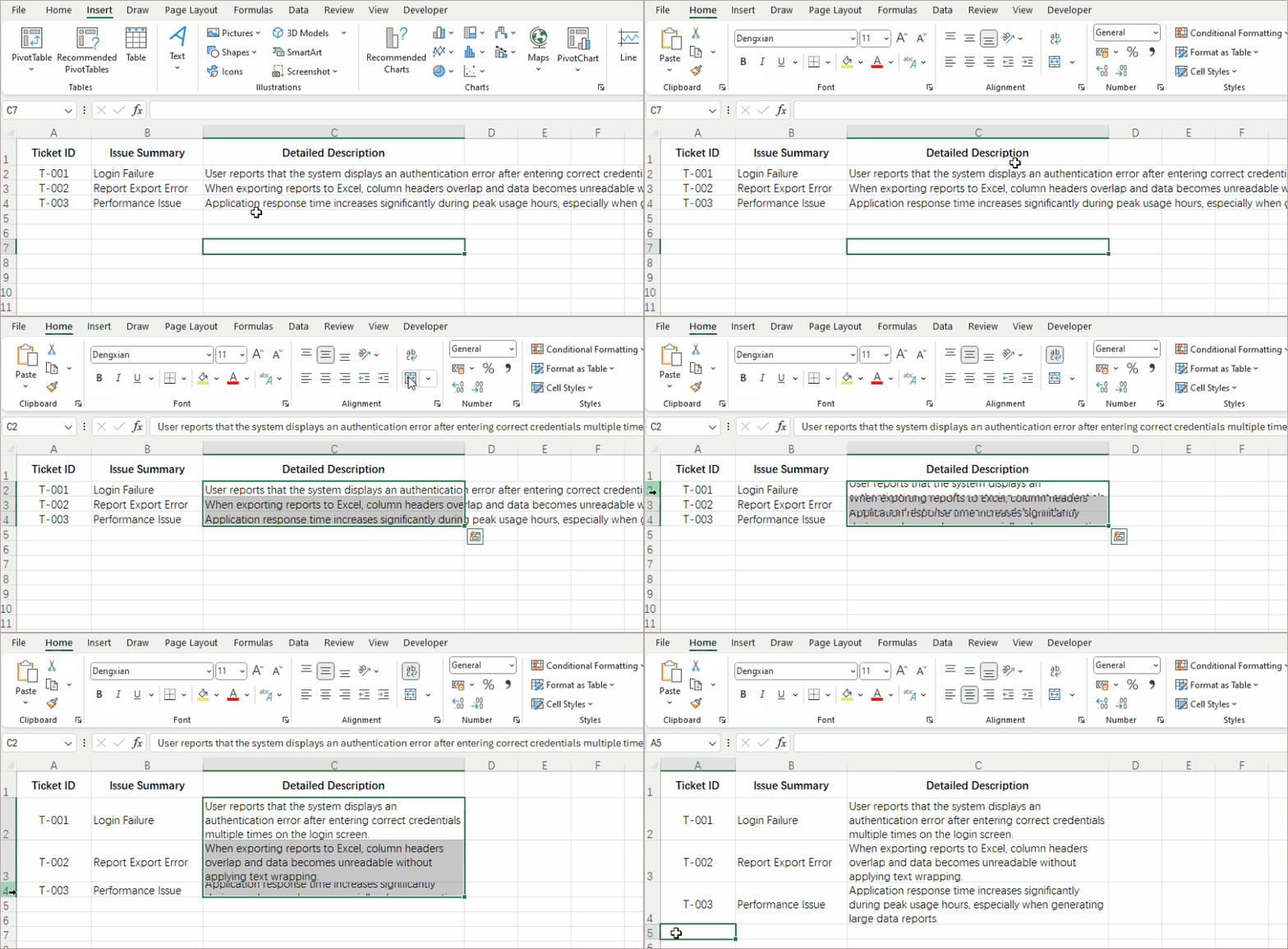
Instruções Passo a Passo:
- Selecione a(s) célula(s), linha ou coluna que deseja formatar.
- Vá para a guia Página Inicial na faixa de opções.
- No grupo Alinhamento, clique no botão Quebrar Texto Automaticamente (texto inclinado com seta curva).
- Se o texto continuar cortado, clique duas vezes abaixo do número da linha para ajustar automaticamente a altura da linha.
Dica Pro: Combine com o Pincel de Formatação (ícone de pincel) para copiar rapidamente a quebra de texto para outras células.
Método 2: A Caixa de Diálogo Formatar Células (Para Controle Preciso)
Ideal para: Sessões de formatação abrangentes e perfeição no alinhamento
Quando você precisa de mais do que apenas quebra de texto — quando deseja controlar simultaneamente o alinhamento vertical, a orientação do texto e outras propriedades — a caixa de diálogo Formatar Células oferece controle total.
Instruções Passo a Passo:
- Selecione as células de destino.
- Pressione Ctrl + 1 ou clique com o botão direito e escolha Formatar Células.
- Navegue até a guia Alinhamento.
- Em Controle de texto, marque a caixa de seleção Quebrar texto automaticamente.
- Defina opções complementares, como alinhamento vertical, e clique em OK.
- Ajuste a altura da linha ou ajuste automaticamente a altura da linha.

Vantagem Estratégica: Este método permite que você estabeleça um perfil de formatação completo em uma única operação, perfeito para criar modelos ou relatórios padronizados.
Método 3: Atalhos de Teclado (Para Usuários Rápidos)
Ideal para: Usuários avançados que priorizam a eficiência e o uso mínimo do mouse
Se você mede a produtividade em pressionamentos de tecla economizados, os atalhos de teclado do Excel se tornarão seus melhores amigos. Embora não haja um atalho de tecla única para a quebra de texto, uma sequência simples de três teclas realiza a tarefa mais rapidamente do que qualquer método baseado no mouse.
Instruções Passo a Passo:
- Selecione as células de destino usando a navegação por teclado, se preferir.
- Pressione e solte Alt para ativar a navegação da faixa de opções pelo teclado.
- Pressione H para selecionar a guia Página Inicial.
- Pressione W para ativar/desativar a Quebra de Texto Automática nas células selecionadas.
Ajuda de Memória: Pense "Página Inicial, Quebrar." Com um mínimo de prática, esta sequência se torna memória muscular.
Método 4: Quebras de Linha Manuais (Para Quebras de Linha Exatas)
Ideal para: Conteúdo onde frases específicas devem permanecer juntas ou quebrar em pontos lógicos
A quebra de texto automática segue os algoritmos do Excel, mas às vezes você precisa decidir exatamente onde as linhas quebram. Para endereços, nomes com várias partes ou listas dentro de uma única célula, o controle manual é indispensável.
Instruções Passo a Passo:
- Clique duas vezes na célula (ou pressione F2) para entrar no modo de edição.
- Clique com o cursor no local exato onde deseja a nova linha.
- Pressione Alt + Enter (Windows) ou Option + Command + Enter (Mac).
- Pressione Enter para sair da célula.
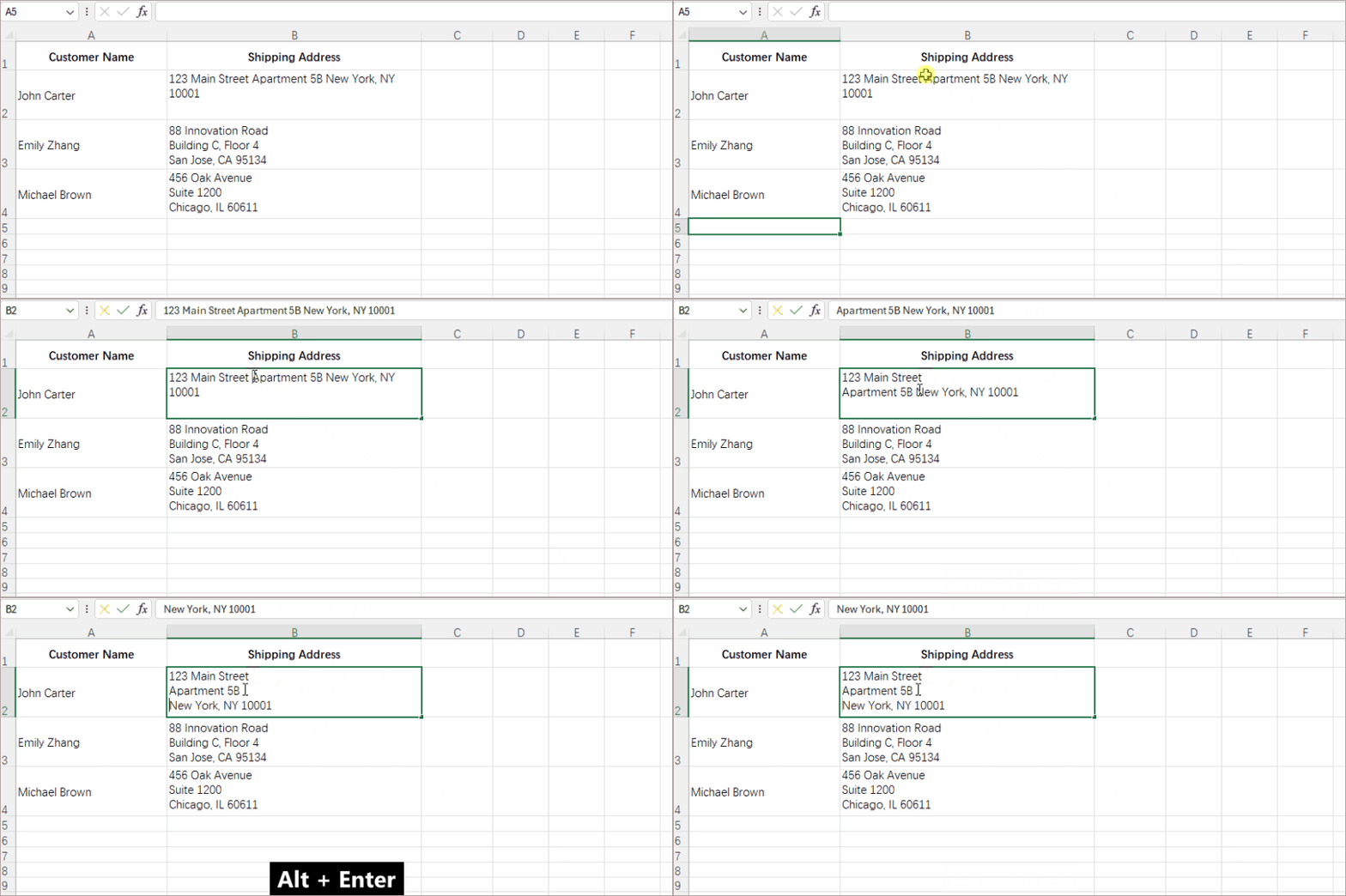
Aplicação Prática: Perfeito para formatar endereços (Rua Principal, 123 em uma linha, Springfield, IL 62704 na seguinte) ou criar listas dentro da célula.
Método 5: Scripts Python (Para Processamento em Massa e Automação)
Ideal para: Desenvolvedores, analistas de dados e qualquer pessoa que processe vários arquivos programaticamente
Quando você passa de planilhas individuais para o processamento em lote, os métodos manuais atingem seus limites. Python com a biblioteca Spire.XLS transforma esta tarefa tediosa em uma solução automatizada e escalável.
pip install spire.xls
- Crie um script Python com este código principal:
from spire.xls import *
workbook = Workbook()
workbook.LoadFromFile("input.xlsx")
sheet = workbook.Worksheets[0]
sheet.Range["B3"].Style.WrapText = True# Wrap specific cell
workbook.SaveToFile("output.xlsx", ExcelVersion.Version2016)
workbook.Dispose()
- Personalize o intervalo (por exemplo, "A1:C10" para um bloco) e execute o script.
Vantagem da Automação: Processe dezenas de arquivos em segundos com 100% de consistência. Adicione loops para vários intervalos ou condicionais para quebrar o texto apenas em células que atendem a critérios específicos.
Depois de dominar a quebra de texto com o Spire.XLS, você pode estender ainda mais sua automação ajustando automaticamente linhas e colunas ou aplicando regras de formatação condicional para criar relatórios do Excel polidos e totalmente automatizados.
Escolha o Método Certo
A escolha da abordagem correta para a quebra de texto depende de três fatores: volume, frequência e complexidade.
Guia de Decisão Rápida:
| Cenário | Método Recomendado | Estimativa de Tempo |
|---|---|---|
| Formatando 1-5 células ocasionalmente | Método 1 (Faixa de Opções) ou Método 3 (Atalho) | 10-30 segundos |
| Criando modelos com alinhamento preciso | Método 2 (Formatar Células) | 1-2 minutos |
| Inserindo endereços, listas ou conteúdo estruturado | Método 4 (Quebras Manuais) | 30-60 segundos por célula |
| Processando 10+ arquivos mensalmente | Método 5 (Python) | 2 horas de configuração inicial, depois segundos por arquivo |
| Relatórios dinâmicos com comprimentos de conteúdo variáveis | Método 5 (Python) com lógica condicional | 3-4 horas de configuração, automatizado depois |
Perguntas Frequentes
P1: Por que meu texto quebrado ainda não está totalmente visível após aplicar a quebra de texto?
R: Isso geralmente acontece porque a altura da linha não foi ajustada automaticamente. Simplesmente clique duas vezes na borda abaixo do número da linha para ajustar automaticamente a altura da linha. Em alguns casos, pode ser necessário arrastar manualmente a borda da linha para torná-la mais alta.
P2: Posso quebrar o texto em várias células de uma vez?
R: Com certeza. Selecione todas as células que deseja formatar (arrastando, segurando Ctrl para células não adjacentes ou clicando no botão de canto para selecionar a planilha inteira) e aplique qualquer um dos quatro primeiros métodos. Para processar pastas de trabalho inteiras ou vários arquivos, o Método 5 (Python) é o mais eficiente.
P3: Qual é a diferença entre quebra de texto e "Reduzir para Ajustar"?
R: A quebra de texto quebra o texto longo em várias linhas dentro da mesma célula, aumentando a altura da linha. "Reduzir para Ajustar" (encontrado em Formatar Células > Alinhamento) reduz o tamanho da fonte para fazer o texto caber em uma única linha sem alterar as dimensões da célula. Use a quebra de texto quando quiser manter a legibilidade; use a redução apenas em situações de espaço limitado.
P4:A quebra de texto funciona com o Excel Online ou o Google Sheets?
R: Sim, com pequenas variações. O Excel Online tem um botão Quebrar Texto Automaticamente na guia Página Inicial, semelhante ao Excel para desktop. O Google Sheets também tem um botão de quebra de texto (ícone com texto inclinado e seta) em sua barra de ferramentas. O atalho Alt+Enter para quebras manuais funciona em ambas as plataformas no Windows, e a automação com Python pode ser adaptada para o Google Sheets usando a API do Google Sheets.
Conclusão
Desde a simplicidade de um único clique até o poder da automação com Python, esses cinco métodos cobrem todas as necessidades de quebra de texto que você encontrará no Excel. Cada abordagem tem seu caso de uso ideal — seja para fazer edições rápidas, aperfeiçoar a apresentação de um relatório ou processar dados em escala. Dominar vários métodos garante que você nunca mais ficará preso com células transbordando.
Lembre-se de que a formatação de texto adequada é mais do que cosmética — é fundamental para uma comunicação de dados clara. Comece com o método que melhor se adapta à sua tarefa atual e expanda gradualmente seu conjunto de ferramentas à medida que suas necessidades no Excel evoluem. Com essas técnicas, você pode garantir que suas planilhas sempre apresentem informações com a máxima clareza e profissionalismo.
Você Também Pode se Interessar Por
엑셀 텍스트 줄 바꿈 5가지 방법: 원클릭부터 파이썬 자동화까지
Excel 보고서를 인쇄했는데 데이터가 문장 중간에 잘리거나 인접한 열로 넘어가는 것을 발견한 적이 있습니까? 이 일반적인 서식 문제는 비전문적으로 보일 뿐만 아니라 가독성을 떨어뜨리고 데이터에 대한 오해를 불러일으킬 수 있습니다. 텍스트 줄 바꿈은 내용을 여러 줄로 나누어 셀 안에 깔끔하게 유지할 수 있게 해주는 필수적인 해결책입니다.
단일 스프레드시트 서식을 지정하는 일반 사용자이든 수백 개의 파일을 처리하는 데이터 전문가이든, 다양한 줄 바꿈 방법은 다양한 수준의 효율성을 제공합니다. 이 가이드는 간단한 원클릭 버튼부터 파이썬 자동화에 이르기까지 다섯 가지 독특한 접근 방식을 제공하여 Excel에서 마주칠 모든 텍스트 줄 바꿈 문제에 대한 올바른 도구를 제공합니다.
방법 개요:
- 방법 1: 리본 버튼 (원클릭의 기적)
- 방법 2: 셀 서식 대화 상자 (정밀한 제어)
- 방법 3: 키보드 단축키 (빠른 사용자를 위해)
- 방법 4: 수동 줄 바꿈 (정확한 줄 바꿈을 위해)
- 방법 5: 파이썬 스크립트 (대량 처리 및 자동화)
방법 1: 리본 버튼 (원클릭의 기적)
적합한 경우: 일상적인 서식 작업 및 빠른 조정
메뉴를 탐색하지 않고 즉각적인 결과가 필요할 때, Excel의 리본 버튼은 가장 빠른 해결책을 제공합니다. 홈 탭에 눈에 띄게 위치한 이 단일 클릭으로 혼란스러운 데이터를 정리된 콘텐츠로 변환할 수 있습니다.
단계별 지침:
- 서식을 지정하려는 셀, 행 또는 열을 선택합니다.
- 리본의 홈 탭으로 이동합니다.
- 맞춤 그룹에서 텍스트 줄 바꿈 버튼(곡선 화살표가 있는 기울어진 텍스트)을 클릭합니다.
- 텍스트가 여전히 잘리면 행 번호 아래를 두 번 클릭하여 행 높이를 자동으로 맞춥니다.
전문가 팁: 서식 복사(페인트 브러시 아이콘)와 결합하여 다른 셀에 줄 바꿈을 빠르게 복사할 수 있습니다.
방법 2: 셀 서식 대화 상자 (정밀한 제어)
적합한 경우: 포괄적인 서식 세션 및 완벽한 정렬
단순한 텍스트 줄 바꿈 이상이 필요할 때—수직 정렬, 텍스트 방향 및 기타 속성을 동시에 제어하고 싶을 때—셀 서식 대화 상자는 완벽한 제어를 제공합니다.
단계별 지침:
- 대상 셀을 선택합니다.
- Ctrl + 1을 누르거나 마우스 오른쪽 버튼을 클릭하고 셀 서식을 선택합니다.
- 맞춤 탭으로 이동합니다.
- 텍스트 조정 아래에서 텍스트 줄 바꿈 확인란을 선택합니다.
- 수직 정렬과 같은 보완 옵션을 설정한 다음 확인을 클릭합니다.
- 행 높이를 조정하거나 행 높이를 자동으로 맞춥니다.
전략적 이점: 이 방법을 사용하면 한 번의 작업으로 완전한 서식 프로필을 설정할 수 있어 템플릿이나 표준화된 보고서를 만드는 데 적합합니다.
방법 3: 키보드 단축키 (빠른 사용자를 위해)
적합한 경우: 효율성과 최소한의 마우스 사용을 우선시하는 파워 유저
생산성을 키 입력 절약으로 측정한다면, Excel의 키보드 단축키는 최고의 친구가 될 것입니다. 텍스트 줄 바꿈을 위한 단일 키 단축키는 없지만, 간단한 세 키 시퀀스는 어떤 마우스 기반 방법보다 빠르게 작업을 완료합니다.
단계별 지침:
- 원하는 경우 키보드 탐색을 사용하여 대상 셀을 선택합니다.
- 리본 키보드 탐색을 활성화하려면 Alt 키를 눌렀다 뗍니다.
- 홈 탭을 선택하려면 H를 누릅니다.
- 선택한 셀에서 텍스트 줄 바꿈을 토글하려면 W를 누릅니다.
기억 보조: "홈, 줄 바꿈"이라고 생각하세요. 약간의 연습만으로 이 시퀀스는 근육 기억이 됩니다.
방법 4: 수동 줄 바꿈 (정확한 줄 바꿈을 위해)
적합한 경우: 특정 구문이 함께 유지되거나 논리적인 지점에서 줄 바꿈이 필요한 콘텐츠
자동 텍스트 줄 바꿈은 Excel의 알고리즘을 따르지만, 때로는 줄이 어디서 나뉘어야 할지 정확하게 결정해야 합니다. 주소, 여러 부분으로 된 이름 또는 단일 셀 내의 목록의 경우 수동 제어가 필수적입니다.
단계별 지침:
- 셀을 두 번 클릭하거나(또는 F2 키를 눌러) 편집 모드로 들어갑니다.
- 새 줄을 시작하려는 정확한 위치에 커서를 클릭합니다.
- Alt + Enter(Windows) 또는 Option + Command + Enter(Mac)를 누릅니다.
- Enter 키를 눌러 셀을 빠져나옵니다.
실용적인 적용: 주소 서식 지정(한 줄에 123 Main Street, 다음 줄에 Springfield, IL 62704) 또는 셀 내 목록 생성에 적합합니다.
방법 5: 파이썬 스크립트 (대량 처리 및 자동화)
적합한 경우: 개발자, 데이터 분석가 및 여러 파일을 프로그래밍 방식으로 처리하는 모든 사람
개별 스프레드시트에서 배치 처리로 넘어갈 때 수동 방법은 한계에 부딪힙니다. Spire.XLS 라이브러리와 함께하는 파이썬은 이 지루한 작업을 자동화되고 확장 가능한 솔루션으로 변환합니다.
pip install spire.xls
- 이 핵심 코드로 파이썬 스크립트를 만듭니다:
from spire.xls import *
workbook = Workbook()
workbook.LoadFromFile("input.xlsx")
sheet = workbook.Worksheets[0]
sheet.Range["B3"].Style.WrapText = True# 특정 셀 줄 바꿈
workbook.SaveToFile("output.xlsx", ExcelVersion.Version2016)
workbook.Dispose()
- 범위(예: 블록의 경우 "A1:C10")를 사용자 정의하고 스크립트를 실행합니다.
자동화 이점: 100% 일관성으로 수십 개의 파일을 몇 초 만에 처리합니다. 여러 범위에 대한 루프를 추가하거나 특정 기준을 충족하는 셀만 줄 바꿈하도록 조건을 추가할 수 있습니다.
Spire.XLS로 텍스트 줄 바꿈을 마스터했다면, 프로그래밍 방식으로 행과 열을 자동으로 맞추거나 조건부 서식 규칙을 적용하여 세련되고 완전히 자동화된 Excel 보고서를 구축함으로써 자동화를 더욱 확장할 수 있습니다.
올바른 방법 선택하기
올바른 텍스트 줄 바꿈 접근 방식을 선택하는 것은 양, 빈도, 복잡성의 세 가지 요소에 따라 달라집니다.
빠른 결정 가이드:
| 시나리오 | 권장 방법 | 예상 시간 |
|---|---|---|
| 가끔 1-5개 셀 서식 지정 | 방법 1 (리본) 또는 방법 3 (단축키) | 10-30초 |
| 정확한 정렬로 템플릿 만들기 | 방법 2 (셀 서식) | 1-2분 |
| 주소, 목록 또는 구조화된 콘텐츠 입력 | 방법 4 (수동 줄 바꿈) | 셀당 30-60초 |
| 매월 10개 이상의 파일 처리 | 방법 5 (파이썬) | 초기 설정 2시간, 이후 파일당 몇 초 |
| 가변적인 콘텐츠 길이를 가진 동적 보고서 | 방법 5 (파이썬) 조건부 로직 사용 | 설정 3-4시간, 이후 자동화 |
자주 묻는 질문
Q1: 텍스트 줄 바꿈을 적용한 후에도 줄 바꿈된 텍스트가 완전히 보이지 않는 이유는 무엇입니까?
A: 이것은 일반적으로 행 높이가 자동으로 조정되지 않았기 때문에 발생합니다. 간단히 행 번호 아래의 경계선을 두 번 클릭하여 행 높이를 자동으로 맞추십시오. 경우에 따라 행 경계선을 수동으로 드래그하여 더 높게 만들어야 할 수도 있습니다.
Q2: 여러 셀에서 한 번에 텍스트를 줄 바꿈할 수 있습니까?
A: 물론입니다. 서식을 지정하려는 모든 셀을 선택하고(드래그하거나, 인접하지 않은 셀의 경우 Ctrl 키를 누른 상태에서 선택하거나, 전체 시트를 선택하려면 모서리 버튼을 클릭) 처음 네 가지 방법 중 하나를 적용하십시오. 전체 통합 문서나 여러 파일을 처리하는 경우 방법 5(파이썬)가 가장 효율적입니다.
Q3: 텍스트 줄 바꿈과 "맞춤 축소"의 차이점은 무엇입니까?
A: 텍스트 줄 바꿈은 긴 텍스트를 동일한 셀 내에서 여러 줄로 나누어 행 높이를 증가시킵니다. "맞춤 축소"(셀 서식 > 맞춤에서 찾을 수 있음)는 셀 크기를 변경하지 않고 텍스트가 한 줄에 맞도록 글꼴 크기를 줄입니다. 가독성을 유지하고 싶을 때는 줄 바꿈을 사용하고, 공간이 제한된 경우에만 축소를 사용하십시오.
Q4: 텍스트 줄 바꿈이 Excel Online이나 Google Sheets에서도 작동합니까?
A: 예, 약간의 차이가 있습니다. Excel Online은 데스크톱 Excel과 유사하게 홈 탭에 텍스트 줄 바꿈 버튼이 있습니다. Google Sheets에도 도구 모음에 텍스트 줄 바꿈 버튼(기울어진 텍스트와 화살표 아이콘)이 있습니다. 수동 줄 바꿈을 위한 Alt+Enter 단축키는 Windows의 두 플랫폼 모두에서 작동하며, 파이썬 자동화는 Google Sheets API를 사용하여 Google Sheets에 맞게 조정할 수 있습니다.
결론
단일 클릭의 단순함에서 파이썬 자동화의 강력함에 이르기까지, 이 다섯 가지 방법은 Excel에서 마주칠 모든 텍스트 줄 바꿈 요구를 충족시킵니다. 각 접근 방식은 빠른 편집, 보고서의 프레젠테이션 완성, 또는 대규모 데이터 처리 등 이상적인 사용 사례를 가지고 있습니다. 여러 방법을 마스터하면 다시는 셀이 넘치는 문제에 시달리지 않을 것입니다.
적절한 텍스트 서식은 미용적인 것 이상으로 명확한 데이터 전달의 기본이라는 것을 기억하십시오. 현재 작업에 가장 적합한 방법으로 시작하여 Excel 요구 사항이 발전함에 따라 점차 도구 상자를 확장하십시오. 이러한 기술을 사용하면 스프레드시트가 항상 최대의 명확성과 전문성으로 정보를 제공하도록 할 수 있습니다.
관심 있을 만한 다른 내용
5 modi per andare a capo con il testo in Excel: da un clic all'automazione Python
Indice
- Metodo 1: Il pulsante della barra multifunzione (La meraviglia con un clic)
- Metodo 2: La finestra di dialogo Formato celle (Per un controllo preciso)
- Metodo 3: Scorciatoie da tastiera (Per utenti veloci)
- Metodo 4: Interruzioni di riga manuali (Per interruzioni di riga esatte)
- Metodo 5: Script Python (Per elaborazione massiva e automazione)
- Scegli il metodo giusto
- Domande frequenti
- Conclusione
Hai mai stampato un report di Excel solo per scoprire che i tuoi dati si interrompono a metà frase o si riversano nelle colonne adiacenti? Questo comune problema di formattazione non solo ha un aspetto poco professionale, ma compromette la leggibilità e può portare a fraintendimenti dei tuoi dati. Il Testo a capo è la soluzione essenziale, che consente al contenuto di rimanere ordinatamente contenuto in una cella dividendolo in più righe.
Che tu sia un utente occasionale che formatta un singolo foglio di calcolo o un professionista dei dati che elabora centinaia di file, diversi metodi per andare a capo offrono vari livelli di efficienza. Questa guida fornisce cinque approcci distinti, dal semplice pulsante con un clic all'automazione con Python, offrendoti lo strumento giusto per ogni sfida di testo a capo che incontrerai in Excel.
Panoramica dei metodi:
- Metodo 1: Il pulsante della barra multifunzione (La meraviglia con un clic)
- Metodo 2: La finestra di dialogo Formato celle (Per un controllo preciso)
- Metodo 3: Scorciatoie da tastiera (Per utenti veloci)
- Metodo 4: Interruzioni di riga manuali (Per interruzioni di riga esatte)
- Metodo 5: Script Python (Per elaborazione massiva e automazione)
Metodo 1: Il pulsante della barra multifunzione (La meraviglia con un clic)
Ideale per: Attività di formattazione quotidiane e regolazioni rapide
Quando hai bisogno di risultati immediati senza navigare tra i menu, il pulsante della barra multifunzione di Excel offre la soluzione più rapida. Situato in primo piano nella scheda Home, questo singolo clic può trasformare dati caotici in contenuto organizzato.
Istruzioni passo passo:
- Seleziona la cella o le celle, la riga o la colonna che desideri formattare.
- Vai alla scheda Home sulla barra multifunzione.
- Nel gruppo Allineamento, fai clic sul pulsante Testo a capo (testo inclinato con freccia curva).
- Se il testo rimane tagliato, fai doppio clic sotto il numero di riga per adattare automaticamente l'altezza della riga.
Suggerimento pro: Combina con il Copia formato (icona del pennello) per copiare rapidamente la formattazione a capo su altre celle.
Metodo 2: La finestra di dialogo Formato celle (Per un controllo preciso)
Ideale per: Sessioni di formattazione complete e perfezionamento dell'allineamento
Quando hai bisogno di più del semplice testo a capo, quando vuoi controllare contemporaneamente l'allineamento verticale, l'orientamento del testo e altre proprietà, la finestra di dialogo Formato celle offre un controllo completo.
Istruzioni passo passo:
- Seleziona le celle di destinazione.
- Premi Ctrl + 1 o fai clic con il pulsante destro del mouse e scegli Formato celle.
- Vai alla scheda Allineamento.
- Sotto Controllo testo, seleziona la casella di controllo Testo a capo.
- Imposta opzioni complementari come l'allineamento verticale, quindi fai clic su OK.
- Regola l'altezza della riga o adatta automaticamente l'altezza della riga.
Vantaggio strategico: Questo metodo ti consente di stabilire un profilo di formattazione completo in un'unica operazione, perfetto per creare modelli o report standardizzati.
Metodo 3: Scorciatoie da tastiera (Per utenti veloci)
Ideale per: Utenti esperti che danno priorità all'efficienza e all'uso minimo del mouse
Se misuri la produttività in battute di tasti risparmiate, le scorciatoie da tastiera di Excel diventeranno il tuo migliore amico. Sebbene non esista una scorciatoia a tasto singolo per il testo a capo, una semplice sequenza di tre tasti svolge l'attività più velocemente di qualsiasi metodo basato sul mouse.
Istruzioni passo passo:
- Seleziona le celle di destinazione utilizzando la navigazione da tastiera, se preferisci.
- Premi e rilascia Alt per attivare la navigazione da tastiera della barra multifunzione.
- Premi H per selezionare la scheda Home.
- Premi W per attivare/disattivare Testo a capo sulle celle selezionate.
Aiuto mnemonico: Pensa "Home, Wrap". Con una pratica minima, questa sequenza diventa memoria muscolare.
Metodo 4: Interruzioni di riga manuali (Per interruzioni di riga esatte)
Ideale per: Contenuti in cui frasi specifiche devono rimanere unite o interrompersi in punti logici
Il testo a capo automatico segue gli algoritmi di Excel, ma a volte è necessario decidere esattamente dove interrompere le righe. Per indirizzi, nomi composti da più parti o elenchi all'interno di una singola cella, il controllo manuale è indispensabile.
Istruzioni passo passo:
- Fai doppio clic sulla cella (o premi F2) per accedere alla modalità di modifica.
- Fai clic con il cursore nel punto esatto in cui desideri la nuova riga.
- Premi Alt + Invio (Windows) o Opzione + Comando + Invio (Mac).
- Premi Invio per uscire dalla cella.
Applicazione pratica: Perfetto per formattare indirizzi (123 Main Street su una riga, Springfield, IL 62704 sulla successiva) o creare elenchi all'interno della cella.
Metodo 5: Script Python (Per elaborazione massiva e automazione)
Ideale per: Sviluppatori, analisti di dati e chiunque elabori più file in modo programmatico
Quando passi dai singoli fogli di calcolo all'elaborazione batch, i metodi manuali raggiungono i loro limiti. Python con la libreria Spire.XLS trasforma questa noiosa attività in una soluzione automatizzata e scalabile.
pip install spire.xls
- Crea uno script Python con questo codice principale:
from spire.xls import *
workbook = Workbook()
workbook.LoadFromFile("input.xlsx")
sheet = workbook.Worksheets[0]
sheet.Range["B3"].Style.WrapText = True# Wrap specific cell
workbook.SaveToFile("output.xlsx", ExcelVersion.Version2016)
workbook.Dispose()
- Personalizza l'intervallo (ad es. "A1:C10" per un blocco) ed esegui lo script.
Vantaggio dell'automazione: Elabora dozzine di file in pochi secondi con una coerenza del 100%. Aggiungi cicli per più intervalli o condizionali per andare a capo solo nelle celle che soddisfano criteri specifici.
Una volta che hai imparato ad andare a capo con Spire.XLS, puoi estendere ulteriormente la tua automazione adattando automaticamente righe e colonne in modo programmatico o applicando regole di formattazione condizionale per creare report Excel rifiniti e completamente automatizzati.
Scegli il metodo giusto
La scelta del giusto approccio per il testo a capo dipende da tre fattori: volume, frequenza e complessità.
Guida rapida alla decisione:
| Scenario | Metodo consigliato | Stima del tempo |
|---|---|---|
| Formattazione occasionale di 1-5 celle | Metodo 1 (Barra multifunzione) o Metodo 3 (Scorciatoia) | 10-30 secondi |
| Creazione di modelli con allineamento preciso | Metodo 2 (Formato celle) | 1-2 minuti |
| Inserimento di indirizzi, elenchi o contenuti strutturati | Metodo 4 (Interruzioni manuali) | 30-60 secondi per cella |
| Elaborazione di oltre 10 file al mese | Metodo 5 (Python) | 2 ore di configurazione iniziale, poi secondi per file |
| Report dinamici con lunghezze di contenuto variabili | Metodo 5 (Python) con logica condizionale | 3-4 ore di configurazione, poi automatizzato |
Domande frequenti
D1: Perché il mio testo a capo non è ancora completamente visibile dopo aver applicato il testo a capo?
R: Di solito questo accade perché l'altezza della riga non si è regolata automaticamente. Fai semplicemente doppio clic sul bordo sotto il numero di riga per adattare automaticamente l'altezza della riga. In alcuni casi, potrebbe essere necessario trascinare manualmente il bordo della riga per renderla più alta.
D2: Posso mandare a capo il testo in più celle contemporaneamente?
R: Assolutamente. Seleziona tutte le celle che desideri formattare (trascinando, tenendo premuto Ctrl per le celle non adiacenti o facendo clic sul pulsante d'angolo per selezionare l'intero foglio), quindi applica uno dei primi quattro metodi. Per l'elaborazione di interi cartelle di lavoro o più file, il Metodo 5 (Python) è il più efficiente.
D3: Qual è la differenza tra testo a capo e "Adatta al formato"?
R: Il testo a capo divide il testo lungo in più righe all'interno della stessa cella, aumentando l'altezza della riga. "Adatta al formato" (che si trova in Formato celle > Allineamento) riduce la dimensione del carattere per far sì che il testo si adatti a una singola riga senza modificare le dimensioni della cella. Usa il testo a capo quando vuoi mantenere la leggibilità; usa la riduzione solo in situazioni di spazio limitato.
D4:Il testo a capo funziona con Excel Online o Fogli Google?
R: Sì, con lievi variazioni. Excel Online ha un pulsante Testo a capo nella sua scheda Home simile a Excel desktop. Anche Fogli Google ha un pulsante per il testo a capo (icona con testo inclinato e freccia) nella sua barra degli strumenti. La scorciatoia Alt+Invio per le interruzioni manuali funziona su entrambe le piattaforme su Windows e l'automazione Python può essere adattata per Fogli Google utilizzando l'API di Fogli Google.
Conclusione
Dalla semplicità di un singolo clic alla potenza dell'automazione Python, questi cinque metodi coprono ogni esigenza di testo a capo che incontrerai in Excel. Ogni approccio ha il suo caso d'uso ideale, che si tratti di apportare modifiche rapide, perfezionare la presentazione di un report o elaborare dati su larga scala. Padroneggiare più metodi ti assicura di non rimanere mai più bloccato con celle che traboccano.
Ricorda che una corretta formattazione del testo è più che estetica: è fondamentale per una chiara comunicazione dei dati. Inizia con il metodo che meglio si adatta al tuo compito attuale ed espandi gradualmente il tuo toolkit man mano che le tue esigenze di Excel si evolvono. Con queste tecniche, puoi assicurarti che i tuoi fogli di calcolo presentino sempre le informazioni con la massima chiarezza e professionalità.
Potrebbe interessarti anche
5 façons de renvoyer le texte à la ligne dans Excel : du simple clic à l'automatisation Python
Table des matières
- Méthode 1 : Le bouton du ruban (La merveille en un clic)
- Méthode 2 : La boîte de dialogue Format de cellule (Pour un contrôle précis)
- Méthode 3 : Raccourcis clavier (Pour les utilisateurs rapides)
- Méthode 4 : Sauts de ligne manuels (Pour des sauts de ligne exacts)
- Méthode 5 : Scripts Python (Pour le traitement en masse et l'automatisation)
- Choisissez la bonne méthode
- FAQ
- Conclusion
Avez-vous déjà imprimé un rapport Excel pour constater que vos données se coupent en milieu de phrase ou débordent dans les colonnes adjacentes ? Ce problème de formatage courant n'est pas seulement peu professionnel, il compromet la lisibilité et peut entraîner des malentendus sur vos données. L'habillage du texte est la solution essentielle, permettant au contenu de rester soigneusement contenu dans une cellule en le divisant en plusieurs lignes.
Que vous soyez un utilisateur occasionnel formatant une seule feuille de calcul ou un professionnel des données traitant des centaines de fichiers, différentes méthodes d'habillage offrent des niveaux d'efficacité variables. Ce guide propose cinq approches distinctes, du simple bouton en un clic à l'automatisation avec Python, vous donnant le bon outil pour chaque défi d'habillage de texte que vous rencontrerez dans Excel.
Aperçu des méthodes :
- Méthode 1 : Le bouton du ruban (La merveille en un clic)
- Méthode 2 : La boîte de dialogue Format de cellule (Pour un contrôle précis)
- Méthode 3 : Raccourcis clavier (Pour les utilisateurs rapides)
- Méthode 4 : Sauts de ligne manuels (Pour des sauts de ligne exacts)
- Méthode 5 : Scripts Python (Pour le traitement en masse et l'automatisation)
Méthode 1 : Le bouton du ruban (La merveille en un clic)
Idéal pour : Les tâches de formatage quotidiennes et les ajustements rapides
Lorsque vous avez besoin de résultats immédiats sans naviguer dans les menus, le bouton du ruban d'Excel offre la solution la plus rapide. Situé bien en vue dans l'onglet Accueil, ce simple clic peut transformer des données chaotiques en contenu organisé.
Instructions étape par étape :
- Sélectionnez la ou les cellules, la ligne ou la colonne que vous souhaitez formater.
- Allez dans l'onglet Accueil du ruban.
- Dans le groupe Alignement, cliquez sur le bouton Renvoyer à la ligne automatiquement (texte en biais avec une flèche incurvée).
- Si le texte reste coupé, double-cliquez sous le numéro de ligne pour ajuster automatiquement la hauteur de la ligne.
Conseil de pro : Combinez avec le Reproduire la mise en forme (icône de pinceau) pour copier rapidement l'habillage sur d'autres cellules.
Méthode 2 : La boîte de dialogue Format de cellule (Pour un contrôle précis)
Idéal pour : Les sessions de formatage complètes et la perfection de l'alignement
Lorsque vous avez besoin de plus qu'un simple habillage de texte — lorsque vous souhaitez contrôler simultanément l'alignement vertical, l'orientation du texte et d'autres propriétés — la boîte de dialogue Format de cellule offre un contrôle total.
Instructions étape par étape :
- Sélectionnez vos cellules cibles.
- Appuyez sur Ctrl + 1 ou faites un clic droit et choisissez Format de cellule.
- Naviguez jusqu'à l'onglet Alignement.
- Sous Contrôle du texte, cochez la case Renvoyer à la ligne automatiquement.
- Définissez des options complémentaires comme l'alignement vertical, puis cliquez sur OK.
- Ajustez la hauteur de la ligne ou ajustez automatiquement la hauteur de la ligne.
Avantage stratégique : Cette méthode vous permet d'établir un profil de formatage complet en une seule opération, parfait pour créer des modèles ou des rapports standardisés.
Méthode 3 : Raccourcis clavier (Pour les utilisateurs rapides)
Idéal pour : Les utilisateurs expérimentés qui privilégient l'efficacité et une utilisation minimale de la souris
Si vous mesurez la productivité en frappes de touches économisées, les raccourcis clavier d'Excel deviendront votre meilleur ami. Bien qu'il n'y ait pas de raccourci à une seule touche pour l'habillage du texte, une simple séquence de trois touches accomplit la tâche plus rapidement que n'importe quelle méthode basée sur la souris.
Instructions étape par étape :
- Sélectionnez vos cellules cibles en utilisant la navigation au clavier si vous préférez.
- Appuyez et relâchez Alt pour activer la navigation au clavier dans le ruban.
- Appuyez sur H pour sélectionner l'onglet Accueil.
- Appuyez sur W pour activer/désactiver le renvoi à la ligne automatique sur vos cellules sélectionnées.
Aide-mémoire : Pensez "Accueil, Renvoyer". Avec un minimum de pratique, cette séquence devient une mémoire musculaire.
Méthode 4 : Sauts de ligne manuels (Pour des sauts de ligne exacts)
Idéal pour : Le contenu où des formulations spécifiques doivent rester ensemble ou se couper à des points logiques
L'habillage automatique du texte suit les algorithmes d'Excel, mais parfois vous devez décider exactement où les lignes se coupent. Pour les adresses, les noms en plusieurs parties ou les listes dans une seule cellule, le contrôle manuel est indispensable.
Instructions étape par étape :
- Double-cliquez sur la cellule (ou appuyez sur F2) pour entrer en mode édition.
- Cliquez avec votre curseur à l'endroit exact où vous voulez la nouvelle ligne.
- Appuyez sur Alt + Entrée (Windows) ou Option + Commande + Entrée (Mac).
- Appuyez sur Entrée pour quitter la cellule.
Application pratique : Parfait pour formater des adresses (123 rue Principale sur une ligne, Springfield, IL 62704 sur la suivante) ou créer des listes à l'intérieur d'une cellule.
Méthode 5 : Scripts Python (Pour le traitement en masse et l'automatisation)
Idéal pour : Les développeurs, les analystes de données et toute personne traitant plusieurs fichiers par programmation
Lorsque vous passez des feuilles de calcul individuelles au traitement par lots, les méthodes manuelles atteignent leurs limites. Python avec la bibliothèque Spire.XLS transforme cette tâche fastidieuse en une solution automatisée et évolutive.
pip install spire.xls
- Créez un script Python avec ce code de base :
from spire.xls import *
workbook = Workbook()
workbook.LoadFromFile("input.xlsx")
sheet = workbook.Worksheets[0]
sheet.Range["B3"].Style.WrapText = True# Wrap specific cell
workbook.SaveToFile("output.xlsx", ExcelVersion.Version2016)
workbook.Dispose()
- Personnalisez la plage (par exemple, "A1:C10" pour un bloc) et exécutez le script.
Avantage de l'automatisation : Traitez des dizaines de fichiers en quelques secondes avec une cohérence de 100 %. Ajoutez des boucles pour plusieurs plages ou des conditions pour n'habiller que les cellules répondant à des critères spécifiques.
Une fois que vous maîtrisez l'habillage de texte avec Spire.XLS, vous pouvez étendre votre automatisation en ajustant automatiquement les lignes et les colonnes par programmation ou en appliquant des règles de mise en forme conditionnelle pour créer des rapports Excel soignés et entièrement automatisés.
Choisissez la bonne méthode
Le choix de la bonne approche d'habillage de texte dépend de trois facteurs : le volume, la fréquence et la complexité.
Guide de décision rapide :
| Scénario | Méthode recommandée | Estimation du temps |
|---|---|---|
| Formatage de 1 à 5 cellules occasionnellement | Méthode 1 (Ruban) ou Méthode 3 (Raccourci) | 10-30 secondes |
| Création de modèles avec un alignement précis | Méthode 2 (Format de cellule) | 1-2 minutes |
| Saisie d'adresses, de listes ou de contenu structuré | Méthode 4 (Sauts manuels) | 30-60 secondes par cellule |
| Traitement de 10+ fichiers par mois | Méthode 5 (Python) | 2 heures de configuration initiale, puis quelques secondes par fichier |
| Rapports dynamiques avec des longueurs de contenu variables | Méthode 5 (Python) avec logique conditionnelle | 3-4 heures de configuration, puis automatisé |
FAQ
Q1 : Pourquoi mon texte habillé n'est-il toujours pas entièrement visible après avoir appliqué l'habillage de texte ?
R : Cela se produit généralement parce que la hauteur de la ligne ne s'est pas ajustée automatiquement. Double-cliquez simplement sur la bordure sous le numéro de ligne pour ajuster automatiquement la hauteur de la ligne. Dans certains cas, vous devrez peut-être faire glisser manuellement la bordure de la ligne pour l'agrandir.
Q2 : Puis-je habiller le texte de plusieurs cellules à la fois ?
R : Absolument. Sélectionnez toutes les cellules que vous souhaitez formater (en faisant glisser, en maintenant la touche Ctrl pour les cellules non adjacentes, ou en cliquant sur le bouton d'angle pour sélectionner la feuille entière), puis appliquez l'une des quatre premières méthodes. Pour traiter des classeurs entiers ou plusieurs fichiers, la méthode 5 (Python) est la plus efficace.
Q3 : Quelle est la différence entre l'habillage de texte et "Ajuster au contenu" ?
R : L'habillage de texte divise le texte long en plusieurs lignes dans la même cellule, augmentant la hauteur de la ligne. "Ajuster au contenu" (disponible dans Format de cellule > Alignement) réduit la taille de la police pour que le texte tienne sur une seule ligne sans modifier les dimensions de la cellule. Utilisez l'habillage lorsque vous souhaitez maintenir la lisibilité ; n'utilisez la réduction que dans des situations d'espace limité.
Q4 : L'habillage de texte fonctionne-t-il avec Excel Online ou Google Sheets ?
R : Oui, avec de légères variations. Excel Online dispose d'un bouton Renvoyer à la ligne automatiquement dans son onglet Accueil, similaire à Excel de bureau. Google Sheets dispose également d'un bouton d'habillage de texte (icône avec du texte en biais et une flèche) dans sa barre d'outils. Le raccourci Alt+Entrée pour les sauts manuels fonctionne sur les deux plates-formes sous Windows, et l'automatisation Python peut être adaptée pour Google Sheets à l'aide de l'API Google Sheets.
Conclusion
De la simplicité d'un simple clic à la puissance de l'automatisation Python, ces cinq méthodes couvrent tous les besoins d'habillage de texte que vous rencontrerez dans Excel. Chaque approche a son cas d'utilisation idéal, que vous fassiez des modifications rapides, perfectionniez la présentation d'un rapport ou traitiez des données à grande échelle. La maîtrise de plusieurs méthodes vous assure de ne plus jamais être coincé avec des cellules qui débordent.
N'oubliez pas qu'un formatage de texte correct est plus que cosmétique, il est fondamental pour une communication claire des données. Commencez par la méthode qui correspond le mieux à votre tâche actuelle et élargissez progressivement votre boîte à outils à mesure que vos besoins sur Excel évoluent. Avec ces techniques, vous pouvez vous assurer que vos feuilles de calcul présentent toujours les informations avec un maximum de clarté et de professionnalisme.
Vous pourriez aussi être intéressé par
5 formas de ajustar texto en Excel: desde un clic hasta la automatización con Python
Tabla de Contenidos
- Método 1: El botón de la cinta de opciones (La maravilla de un solo clic)
- Método 2: El cuadro de diálogo Formato de celdas (Para un control preciso)
- Método 3: Atajos de teclado (Para usuarios rápidos)
- Método 4: Saltos de línea manuales (Para saltos de línea exactos)
- Método 5: Scripts de Python (Para procesamiento masivo y automatización)
- Elija el método correcto
- Preguntas frecuentes
- Conclusión
¿Alguna vez ha impreso un informe de Excel solo para encontrar que sus datos se cortan a mitad de la oración o se desbordan en las columnas adyacentes? Este problema común de formato no solo parece poco profesional, sino que compromete la legibilidad y puede llevar a malentendidos de sus datos. El ajuste de texto es la solución esencial, permitiendo que el contenido permanezca ordenadamente contenido dentro de una celda al dividirlo en múltiples líneas.
Ya sea que sea un usuario ocasional que formatea una sola hoja de cálculo o un profesional de datos que procesa cientos de archivos, los diferentes métodos de ajuste ofrecen diferentes niveles de eficiencia. Esta guía proporciona cinco enfoques distintos, desde el simple botón de un solo clic hasta la automatización con Python, brindándole la herramienta adecuada para cada desafío de ajuste de texto que encontrará en Excel.
Resumen de los métodos:
- Método 1: El botón de la cinta de opciones (La maravilla de un solo clic)
- Método 2: El cuadro de diálogo Formato de celdas (Para un control preciso)
- Método 3: Atajos de teclado (Para usuarios rápidos)
- Método 4: Saltos de línea manuales (Para saltos de línea exactos)
- Método 5: Scripts de Python (Para procesamiento masivo y automatización)
Método 1: El botón de la cinta de opciones (La maravilla de un solo clic)
Ideal para: Tareas de formato diarias y ajustes rápidos
Cuando necesita resultados inmediatos sin navegar por los menús, el botón de la cinta de opciones de Excel proporciona la solución más rápida. Ubicado de forma destacada en la pestaña Inicio, este único clic puede transformar datos caóticos en contenido organizado.
Instrucciones paso a paso:
- Seleccione la(s) celda(s), fila o columna que desea formatear.
- Vaya a la pestaña Inicio en la cinta de opciones.
- En el grupo Alineación, haga clic en el botón Ajustar texto (texto en ángulo con flecha curva).
- Si el texto sigue cortado, haga doble clic debajo del número de fila para autoajustar la altura de la fila.
Consejo profesional: Combine con Copiar formato (icono de pincel) para copiar rápidamente el ajuste a otras celdas.
Método 2: El cuadro de diálogo Formato de celdas (Para un control preciso)
Ideal para: Sesiones de formato completas y perfección en la alineación
Cuando necesita más que solo ajustar texto, cuando desea controlar simultáneamente la alineación vertical, la orientación del texto y otras propiedades, el cuadro de diálogo Formato de celdas ofrece un control completo.
Instrucciones paso a paso:
- Seleccione las celdas de destino.
- Presione Ctrl + 1 o haga clic con el botón derecho y elija Formato de celdas.
- Navegue a la pestaña Alineación.
- En Control de texto, marque la casilla de verificación Ajustar texto.
- Establezca opciones complementarias como la alineación vertical, luego haga clic en Aceptar.
- Ajuste la altura de la fila o autoajuste la altura de la fila.
Ventaja estratégica: Este método le permite establecer un perfil de formato completo en una sola operación, perfecto para crear plantillas o informes estandarizados.
Método 3: Atajos de teclado (Para usuarios rápidos)
Ideal para: Usuarios avanzados que priorizan la eficiencia y el uso mínimo del mouse
Si mide la productividad en pulsaciones de teclas ahorradas, los atajos de teclado de Excel se convertirán en su mejor amigo. Si bien no existe un atajo de una sola tecla para ajustar el texto, una simple secuencia de tres teclas realiza la tarea más rápido que cualquier método basado en el mouse.
Instrucciones paso a paso:
- Seleccione las celdas de destino utilizando la navegación por teclado si lo prefiere.
- Presione y suelte Alt para activar la navegación por teclado de la cinta de opciones.
- Presione H para seleccionar la pestaña Inicio.
- Presione W para activar/desactivar Ajustar texto en las celdas seleccionadas.
Ayuda de memoria: Piense "Inicio, Ajustar". Con una práctica mínima, esta secuencia se convierte en memoria muscular.
Método 4: Saltos de línea manuales (Para saltos de línea exactos)
Ideal para: Contenido donde frases específicas deben permanecer juntas o dividirse en puntos lógicos
El ajuste automático de texto sigue los algoritmos de Excel, pero a veces necesita decidir exactamente dónde se dividen las líneas. Para direcciones, nombres de varias partes o listas dentro de una sola celda, el control manual es indispensable.
Instrucciones paso a paso:
- Haga doble clic en la celda (o presione F2) para ingresar al modo de edición.
- Haga clic con el cursor en el lugar exacto donde desea la nueva línea.
- Presione Alt + Enter (Windows) u Opción + Comando + Enter (Mac).
- Presione Enter para salir de la celda.
Aplicación práctica: Perfecto para formatear direcciones (123 Main Street en una línea, Springfield, IL 62704 en la siguiente) o crear listas dentro de la celda.
Método 5: Scripts de Python (Para procesamiento masivo y automatización)
Ideal para: Desarrolladores, analistas de datos y cualquiera que procese múltiples archivos programáticamente
Cuando pasa de las hojas de cálculo individuales al procesamiento por lotes, los métodos manuales alcanzan sus límites. Python con la biblioteca Spire.XLS transforma esta tediosa tarea en una solución automatizada y escalable.
pip install spire.xls
- Cree un script de Python con este código principal:
from spire.xls import *
workbook = Workbook()
workbook.LoadFromFile("input.xlsx")
sheet = workbook.Worksheets[0]
sheet.Range["B3"].Style.WrapText = True# Wrap specific cell
workbook.SaveToFile("output.xlsx", ExcelVersion.Version2016)
workbook.Dispose()
- Personalice el rango (p. ej., "A1:C10" para un bloque) y ejecute el script.
Ventaja de la automatización: Procese docenas de archivos en segundos con una consistencia del 100%. Agregue bucles para múltiples rangos o condicionales para ajustar solo las celdas que cumplan con criterios específicos.
Una vez que haya dominado el ajuste de texto con Spire.XLS, puede ampliar aún más su automatización autoajustando filas y columnas mediante programación o aplicando reglas de formato condicional para crear informes de Excel pulidos y totalmente automatizados.
Elija el método correcto
La selección del enfoque de ajuste de texto correcto depende de tres factores: volumen, frecuencia y complejidad.
Guía de decisión rápida:
| Escenario | Método recomendado | Tiempo estimado |
|---|---|---|
| Formatear 1-5 celdas ocasionalmente | Método 1 (Cinta de opciones) o Método 3 (Atajo) | 10-30 segundos |
| Crear plantillas con alineación precisa | Método 2 (Formato de celdas) | 1-2 minutos |
| Ingresar direcciones, listas o contenido estructurado | Método 4 (Saltos manuales) | 30-60 segundos por celda |
| Procesar más de 10 archivos mensualmente | Método 5 (Python) | 2 horas de configuración inicial, luego segundos por archivo |
| Informes dinámicos con longitudes de contenido variables | Método 5 (Python) con lógica condicional | 3-4 horas de configuración, automatizado a partir de entonces |
Preguntas frecuentes
P1: ¿Por qué mi texto ajustado todavía no es completamente visible después de aplicar el ajuste de texto?
R: Esto suele ocurrir porque la altura de la fila no se ha ajustado automáticamente. Simplemente haga doble clic en el límite debajo del número de fila para autoajustar la altura de la fila. En algunos casos, es posible que deba arrastrar manualmente el borde de la fila para hacerla más alta.
P2: ¿Puedo ajustar texto en varias celdas a la vez?
R: Absolutamente. Seleccione todas las celdas que desea formatear (arrastrando, manteniendo presionada la tecla Ctrl para celdas no adyacentes o haciendo clic en el botón de la esquina para seleccionar toda la hoja), luego aplique cualquiera de los primeros cuatro métodos. Para procesar libros de trabajo completos o múltiples archivos, el Método 5 (Python) es el más eficiente.
P3: ¿Cuál es la diferencia entre ajustar texto y "Reducir hasta ajustar"?
R: El ajuste de texto divide el texto largo en varias líneas dentro de la misma celda, aumentando la altura de la fila. "Reducir hasta ajustar" (que se encuentra en Formato de celdas > Alineación) reduce el tamaño de la fuente para que el texto quepa en una sola línea sin cambiar las dimensiones de la celda. Use el ajuste cuando desee mantener la legibilidad; use la reducción solo en situaciones de espacio limitado.
P4:¿Funciona el ajuste de texto con Excel Online o Google Sheets?
R: Sí, con ligeras variaciones. Excel Online tiene un botón Ajustar texto en su pestaña Inicio similar al de Excel de escritorio. Google Sheets también tiene un botón de ajuste de texto (icono con texto en ángulo y flecha) en su barra de herramientas. El atajo Alt+Enter para saltos manuales funciona en ambas plataformas en Windows, y la automatización de Python se puede adaptar para Google Sheets utilizando la API de Google Sheets.
Conclusión
Desde la simplicidad de un solo clic hasta el poder de la automatización con Python, estos cinco métodos cubren todas las necesidades de ajuste de texto que encontrará en Excel. Cada enfoque tiene su caso de uso ideal, ya sea que esté haciendo ediciones rápidas, perfeccionando la presentación de un informe o procesando datos a gran escala. Dominar múltiples métodos garantiza que nunca más se quedará atascado con celdas desbordadas.
Recuerde que el formato de texto adecuado es más que cosmético: es fundamental para una comunicación de datos clara. Comience con el método que mejor se adapte a su tarea actual y amplíe gradualmente su conjunto de herramientas a medida que evolucionen sus necesidades de Excel. Con estas técnicas, puede asegurarse de que sus hojas de cálculo siempre presenten la información con la máxima claridad y profesionalismo.
También te puede interesar
5 Wege für den Textumbruch in Excel – Vom einfachen Klick bis zur Python-Automatisierung
Inhaltsverzeichnis
- Methode 1: Die Menüband-Schaltfläche (Das Ein-Klick-Wunder)
- Methode 2: Das Dialogfeld "Zellen formatieren" (Für präzise Steuerung)
- Methode 3: Tastenkombinationen (Für schnelle Benutzer)
- Methode 4: Manuelle Zeilenumbrüche (Für exakte Zeilenumbrüche)
- Methode 5: Python-Skripte (Für Massenverarbeitung & Automatisierung)
- Wählen Sie die richtige Methode
- Häufig gestellte Fragen
- Fazit
Haben Sie jemals einen Excel-Bericht gedruckt und festgestellt, dass Ihre Daten mitten im Satz abgeschnitten werden oder in benachbarte Spalten überlaufen? Dieses häufige Formatierungsproblem sieht nicht nur unprofessionell aus – es beeinträchtigt die Lesbarkeit und kann zu Missverständnissen Ihrer Daten führen. Zeilenumbruch ist die wesentliche Lösung, die es ermöglicht, dass der Inhalt sauber in einer Zelle bleibt, indem er in mehrere Zeilen umgebrochen wird.
Egal, ob Sie ein gelegentlicher Benutzer sind, der eine einzelne Tabelle formatiert, oder ein Datenprofi, der Hunderte von Dateien verarbeitet, verschiedene Umbruchmethoden bieten unterschiedliche Effizienzniveaus. Dieser Leitfaden bietet fünf verschiedene Ansätze, von der einfachen Ein-Klick-Schaltfläche bis zur Python-Automatisierung, und gibt Ihnen das richtige Werkzeug für jede Herausforderung beim Textumbruch, der Sie in Excel begegnen werden.
Methodenübersicht:
- Methode 1: Die Menüband-Schaltfläche (Das Ein-Klick-Wunder)
- Methode 2: Das Dialogfeld "Zellen formatieren" (Für präzise Steuerung)
- Methode 3: Tastenkombinationen (Für schnelle Benutzer)
- Methode 4: Manuelle Zeilenumbrüche (Für exakte Zeilenumbrüche)
- Methode 5: Python-Skripte (Für Massenverarbeitung & Automatisierung)
Methode 1: Die Menüband-Schaltfläche (Das Ein-Klick-Wunder)
Am besten für: Tägliche Formatierungsaufgaben und schnelle Anpassungen
Wenn Sie sofortige Ergebnisse benötigen, ohne durch Menüs zu navigieren, bietet die Menüband-Schaltfläche von Excel die schnellste Lösung. Prominent im Start-Tab platziert, kann dieser einzelne Klick chaotische Daten in organisierten Inhalt umwandeln.
Schritt-für-Schritt-Anleitung:
- Wählen Sie die Zelle(n), Zeile oder Spalte aus, die Sie formatieren möchten.
- Gehen Sie zum Start-Tab im Menüband.
- Klicken Sie in der Gruppe Ausrichtung auf die Schaltfläche Zeilenumbruch (abgewinkelter Text mit gebogenem Pfeil).
- Wenn der Text weiterhin abgeschnitten ist, doppelklicken Sie unterhalb der Zeilennummer, um die Zeilenhöhe automatisch anzupassen.
Profi-Tipp: Kombinieren Sie dies mit dem Format-Übertragen (Pinsel-Symbol), um den Umbruch schnell auf andere Zellen zu kopieren.
Methode 2: Das Dialogfeld "Zellen formatieren" (Für präzise Steuerung)
Am besten für: Umfassende Formatierungssitzungen und perfekte Ausrichtung
Wenn Sie mehr als nur einen Zeilenumbruch benötigen – wenn Sie gleichzeitig die vertikale Ausrichtung, die Textorientierung und andere Eigenschaften steuern möchten – bietet das Dialogfeld Zellen formatieren die vollständige Kontrolle.
Schritt-für-Schritt-Anleitung:
- Wählen Sie Ihre Zielzellen aus.
- Drücken Sie Strg + 1 oder klicken Sie mit der rechten Maustaste und wählen Sie Zellen formatieren.
- Navigieren Sie zum Tab Ausrichtung.
- Aktivieren Sie unter Textsteuerung das Kontrollkästchen Zeilenumbruch.
- Stellen Sie ergänzende Optionen wie die vertikale Ausrichtung ein und klicken Sie dann auf OK.
- Passen Sie die Zeilenhöhe an oder passen Sie die Zeilenhöhe automatisch an.
Strategischer Vorteil: Mit dieser Methode können Sie in einem einzigen Vorgang ein vollständiges Formatierungsprofil erstellen, ideal zum Erstellen von Vorlagen oder standardisierten Berichten.
Methode 3: Tastenkombinationen (Für schnelle Benutzer)
Am besten für: Power-User, die Effizienz und minimale Mausnutzung priorisieren
Wenn Sie die Produktivität in gesparten Tastenanschlägen messen, werden die Tastenkombinationen von Excel Ihr bester Freund. Obwohl es keine Einzeltastenkombination für den Zeilenumbruch gibt, erledigt eine einfache Drei-Tasten-Sequenz die Aufgabe schneller als jede mausbasierte Methode.
Schritt-für-Schritt-Anleitung:
- Wählen Sie Ihre Zielzellen bei Bedarf über die Tastaturnavigation aus.
- Drücken und lassen Sie Alt los, um die Menüband-Tastaturnavigation zu aktivieren.
- Drücken Sie H, um den Start-Tab auszuwählen.
- Drücken Sie W, um den Zeilenumbruch für Ihre ausgewählten Zellen umzuschalten.
Gedächtnisstütze: Denken Sie an "Start, Umbruch". Mit minimaler Übung wird diese Sequenz zum Muskelgedächtnis.
Methode 4: Manuelle Zeilenumbrüche (Für exakte Zeilenumbrüche)
Am besten für: Inhalte, bei denen bestimmte Formulierungen zusammenbleiben oder an logischen Punkten umgebrochen werden müssen
Der automatische Zeilenumbruch folgt den Algorithmen von Excel, aber manchmal müssen Sie genau entscheiden, wo die Zeilen umgebrochen werden. Bei Adressen, mehrteiligen Namen oder Listen innerhalb einer einzelnen Zelle ist die manuelle Steuerung unerlässlich.
Schritt-für-Schritt-Anleitung:
- Doppelklicken Sie auf die Zelle (oder drücken Sie F2), um in den Bearbeitungsmodus zu gelangen.
- Klicken Sie mit dem Cursor genau an die Stelle, an der Sie die neue Zeile wünschen.
- Drücken Sie Alt + Enter (Windows) oder Option + Command + Enter (Mac).
- Drücken Sie Enter, um die Zelle zu verlassen.
Praktische Anwendung: Perfekt zum Formatieren von Adressen (Hauptstraße 123 in einer Zeile, Springfield, IL 62704 in der nächsten) oder zum Erstellen von Listen innerhalb einer Zelle.
Methode 5: Python-Skripte (Für Massenverarbeitung & Automatisierung)
Am besten für: Entwickler, Datenanalysten und alle, die mehrere Dateien programmgesteuert verarbeiten
Wenn Sie von einzelnen Tabellenkalkulationen zur Stapelverarbeitung übergehen, stoßen manuelle Methoden an ihre Grenzen. Python mit der Spire.XLS-Bibliothek verwandelt diese mühsame Aufgabe in eine automatisierte, skalierbare Lösung.
pip install spire.xls
- Erstellen Sie ein Python-Skript mit diesem Kerncode:
from spire.xls import *
workbook = Workbook()
workbook.LoadFromFile("input.xlsx")
sheet = workbook.Worksheets[0]
sheet.Range["B3"].Style.WrapText = True# Wrap specific cell
workbook.SaveToFile("output.xlsx", ExcelVersion.Version2016)
workbook.Dispose()
- Passen Sie den Bereich an (z. B. "A1:C10" für einen Block) und führen Sie das Skript aus.
Automatisierungsvorteil: Verarbeiten Sie Dutzende von Dateien in Sekunden mit 100%iger Konsistenz. Fügen Sie Schleifen für mehrere Bereiche oder Bedingungen hinzu, um nur Zellen umzubrechen, die bestimmte Kriterien erfüllen.
Sobald Sie den Zeilenumbruch mit Spire.XLS beherrschen, können Sie Ihre Automatisierung weiter ausbauen, indem Sie programmgesteuert Zeilen und Spalten automatisch anpassen oder bedingte Formatierungsregeln anwenden, um ausgefeilte, vollständig automatisierte Excel-Berichte zu erstellen.
Wählen Sie die richtige Methode
Die Wahl des richtigen Ansatzes für den Zeilenumbruch hängt von drei Faktoren ab: Volumen, Häufigkeit und Komplexität.
Schnelle Entscheidungshilfe:
| Szenario | Empfohlene Methode | Zeitschätzung |
|---|---|---|
| Gelegentliches Formatieren von 1-5 Zellen | Methode 1 (Menüband) oder Methode 3 (Tastenkombination) | 10-30 Sekunden |
| Erstellen von Vorlagen mit präziser Ausrichtung | Methode 2 (Zellen formatieren) | 1-2 Minuten |
| Eingabe von Adressen, Listen oder strukturierten Inhalten | Methode 4 (Manuelle Umbrüche) | 30-60 Sekunden pro Zelle |
| Monatliche Verarbeitung von 10+ Dateien | Methode 5 (Python) | 2 Stunden Ersteinrichtung, dann Sekunden pro Datei |
| Dynamische Berichte mit variablen Inhaltslängen | Methode 5 (Python) mit bedingter Logik | 3-4 Stunden Einrichtung, danach automatisiert |
Häufig gestellte Fragen
F1: Warum ist mein umgebrochener Text nach dem Anwenden des Zeilenumbruchs immer noch nicht vollständig sichtbar?
A: Dies geschieht normalerweise, weil die Zeilenhöhe nicht automatisch angepasst wurde. Doppelklicken Sie einfach auf die Begrenzung unterhalb der Zeilennummer, um die Zeilenhöhe automatisch anzupassen. In einigen Fällen müssen Sie möglicherweise den Zeilenrand manuell ziehen, um ihn höher zu machen.
F2: Kann ich Text in mehreren Zellen gleichzeitig umbrechen?
A: Absolut. Wählen Sie alle Zellen aus, die Sie formatieren möchten (durch Ziehen, Halten von Strg für nicht benachbarte Zellen oder Klicken auf die Eckschaltfläche, um das gesamte Blatt auszuwählen), und wenden Sie dann eine der ersten vier Methoden an. Für die Verarbeitung ganzer Arbeitsmappen oder mehrerer Dateien ist Methode 5 (Python) am effizientesten.
F3: Was ist der Unterschied zwischen Zeilenumbruch und "An Zellgröße anpassen"?
A: Der Zeilenumbruch bricht langen Text in mehrere Zeilen innerhalb derselben Zelle um und erhöht die Zeilenhöhe. "An Zellgröße anpassen" (zu finden unter Zellen formatieren > Ausrichtung) reduziert die Schriftgröße, damit der Text in eine einzige Zeile passt, ohne die Zellabmessungen zu ändern. Verwenden Sie den Umbruch, wenn Sie die Lesbarkeit erhalten möchten; verwenden Sie die Verkleinerung nur bei begrenztem Platz.
F4: Funktioniert der Zeilenumbruch mit Excel Online oder Google Sheets?
A: Ja, mit leichten Abweichungen. Excel Online hat eine Schaltfläche "Zeilenumbruch" im Start-Tab, ähnlich wie Desktop-Excel. Google Sheets hat auch eine Schaltfläche für den Zeilenumbruch (Symbol mit abgewinkeltem Text und Pfeil) in seiner Symbolleiste. Die Tastenkombination Alt+Enter für manuelle Umbrüche funktioniert auf beiden Plattformen unter Windows, und die Python-Automatisierung kann mit der Google Sheets API für Google Sheets angepasst werden.
Fazit
Von der Einfachheit eines einzigen Klicks bis zur Leistungsfähigkeit der Python-Automatisierung decken diese fünf Methoden jeden Bedarf an Zeilenumbrüchen ab, dem Sie in Excel begegnen werden. Jeder Ansatz hat seinen idealen Anwendungsfall – ob Sie schnelle Änderungen vornehmen, die Präsentation eines Berichts perfektionieren oder Daten im großen Stil verarbeiten. Das Beherrschen mehrerer Methoden stellt sicher, dass Sie nie wieder mit überlaufenden Zellen festsitzen.
Denken Sie daran, dass die richtige Textformatierung mehr als nur kosmetisch ist – sie ist grundlegend für eine klare Datenkommunikation. Beginnen Sie mit der Methode, die am besten zu Ihrer aktuellen Aufgabe passt, und erweitern Sie Ihr Toolkit schrittweise, während sich Ihre Excel-Anforderungen entwickeln. Mit diesen Techniken können Sie sicherstellen, dass Ihre Tabellenkalkulationen Informationen immer mit maximaler Klarheit und Professionalität präsentieren.