PDF komprimieren: Die besten Tools, um PDFs kleiner zu machen
Inhaltsverzeichnis
- Warum sollten Sie eine PDF-Datei komprimieren?
- Schnelle Lösung: PDF-Dateien online komprimieren
- Offline-Tools: PDF mit Desktop-Software komprimieren
- Stapelautomatisierung: PDF programmgesteuert mit C# komprimieren
- Profi-Tipps zum Komprimieren von PDFs ohne Qualitätsverlust
- Häufig gestellte Fragen zur Reduzierung der PDF-Größe
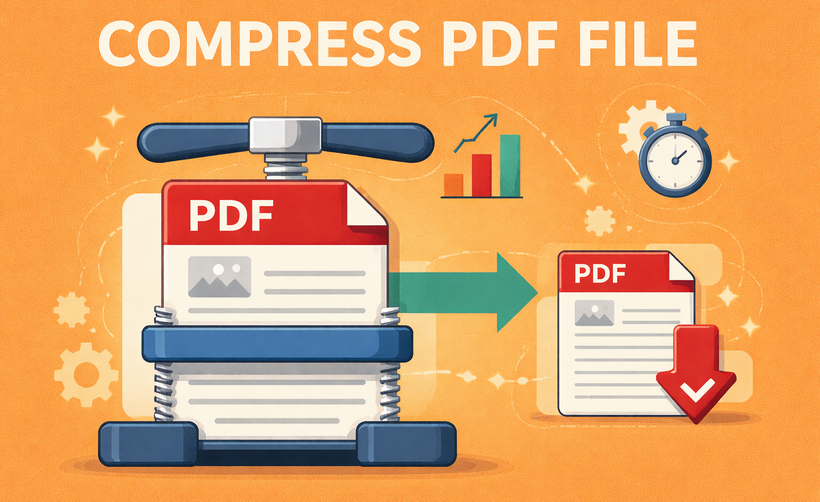
In der heutigen digitalen Welt sind PDFs der universelle Standard für den Austausch von Dokumenten. Große PDF-Dateien können jedoch zu einem großen Ärgernis werden – sie verstopfen E-Mail-Postfächer, überschreiten Upload-Limits und sind langsam zu übertragen. Zu lernen, wie man eine PDF-Datei komprimiert, ist eine wesentliche digitale Fähigkeit, egal ob Sie Student, Berufstätiger oder Gelegenheitsnutzer sind.
Dieser umfassende Leitfaden führt Sie durch die einfachsten und effektivsten Methoden zum Komprimieren von PDF-Dateien, einschließlich der Verwendung kostenloser Online-Tools, Desktop-Software und C#-Programmierung, sowie Profi-Tipps, um die Qualität hoch zu halten und gleichzeitig die Dateigröße zu reduzieren.
- Warum sollten Sie eine PDF-Datei komprimieren?
- Schnelle Lösung: PDF-Dateien online komprimieren
- Offline-Tools: PDF mit Desktop-Software komprimieren
- Stapelautomatisierung: PDF programmgesteuert mit C# komprimieren
- Profi-Tipps zum Komprimieren von PDFs ohne Qualitätsverlust
- Häufig gestellte Fragen zur Reduzierung der PDF-Größe
Warum sollten Sie eine PDF-Datei komprimieren?
Die Reduzierung der PDF-Größe bietet mehrere wichtige Vorteile:
- Einfache E-Mail-Anhänge: Bleiben Sie innerhalb der üblichen 25-MB-E-Mail-Limits.
- Schnellere Uploads & Downloads: Ideal für Portale, Bewerbungen oder Cloud-Speicher.
- Speicherplatz sparen: Geben Sie Speicherplatz auf Ihrer Festplatte und Ihren mobilen Geräten frei.
- Professionelles Teilen: Senden Sie Dateien schnell und effizient an Kunden oder Kollegen.
- Website-Optimierung: Kleinere Dateien werden auf Webseiten schneller geladen, was die Benutzererfahrung und das SEO verbessert.
Schnelle Lösung: PDF-Dateien online komprimieren
Viele Online-PDF-Kompressoren ermöglichen es Ihnen, die PDF-Größe kostenlos zu reduzieren. Sie erfordern keine Softwareinstallation und funktionieren auf jedem Gerät mit einem Browser.
Empfohlene Tools:
- Smallpdf: Eine benutzerfreundliche All-in-One-Suite für PDF-Aufgaben.
- iLovePDF: Eine zuverlässige Alternative mit Stapelverarbeitungsoptionen.
- PDF2Go: Bietet eine präzise Kontrolle über den Komprimierungsgrad.
Schritte zur Verringerung der PDF-Größe:
- Gehen Sie zur Website des von Ihnen gewählten Kompressors (z. B. SmallPDFs kostenloses PDF-Komprimierungstool).
- Klicken Sie auf „DATEIEN AUSWÄHLEN“ oder ziehen Sie Ihre Datei per Drag-and-Drop in das Browserfenster.
- Wählen Sie Ihren Komprimierungsgrad (z. B. „Basis“ für mittlere Dateigröße, Standardauflösung).
- Klicken Sie auf die Schaltfläche „Komprimieren“ oder „PDF verkleinern“.
- Laden Sie Ihre neue, kleinere PDF-Datei auf Ihr Gerät herunter.
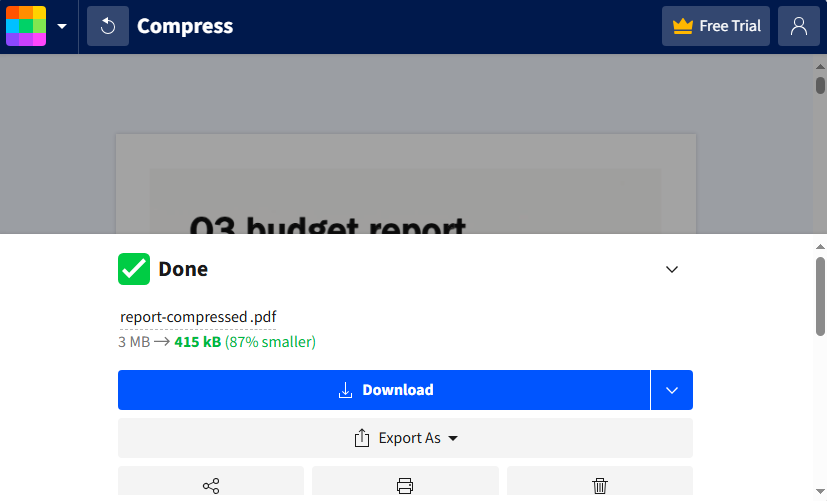
Das Komprimierungsergebnis:
Profi-Tipp: Bei sensiblen Dokumenten sollten Sie die Datenschutzrichtlinie des Tools überprüfen. Die meisten seriösen Websites löschen Ihre Dateien nach kurzer Zeit von ihren Servern.
Offline-Tools: PDF mit Desktop-Software komprimieren
Wenn Sie PDFs offline (ohne Internet) komprimieren oder regelmäßig große Stapel verarbeiten müssen, ist Desktop-Software besser geeignet. Hier sind die besten PDF-Kompressoren, um die PDF-Dateigröße zu verkleinern:
Adobe Acrobat Pro DC (Industriestandard)
Das native Tool von Adobe bietet die fortschrittlichsten Optimierungseinstellungen, um eine PDF-Datei zu verkleinern.
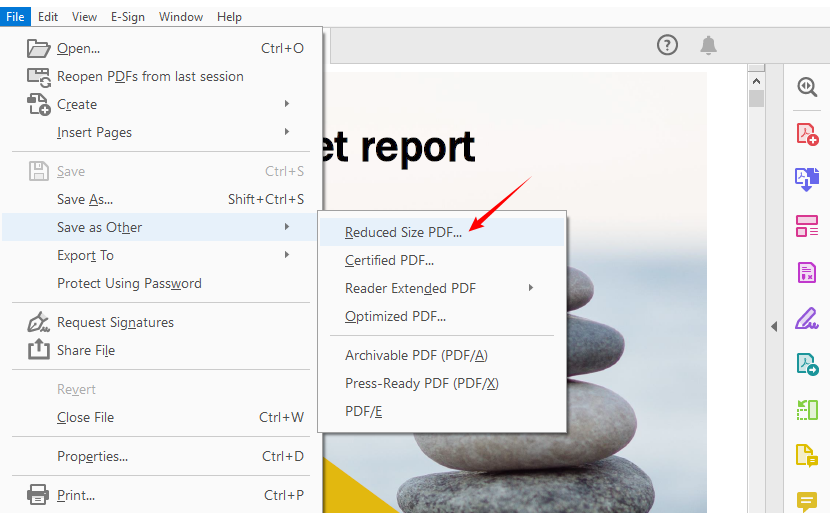
- Öffnen Sie Ihre PDF-Datei in Acrobat Pro DC.
- Gehen Sie zu „Datei” > „Speichern unter” und wählen Sie "Dateigröße reduzieren”.
- Wählen Sie eine Kompatibilitätsstufe und speichern Sie die komprimierte PDF-Datei.
PDF24 Creator Desktop Tool (Kostenlose Alternative)
Ein erstklassiges kostenloses Desktop-Tool, das vollständig offline funktioniert. Es bietet über 40 integrierte PDF-Tools und unterstützt die Stapelkomprimierung.
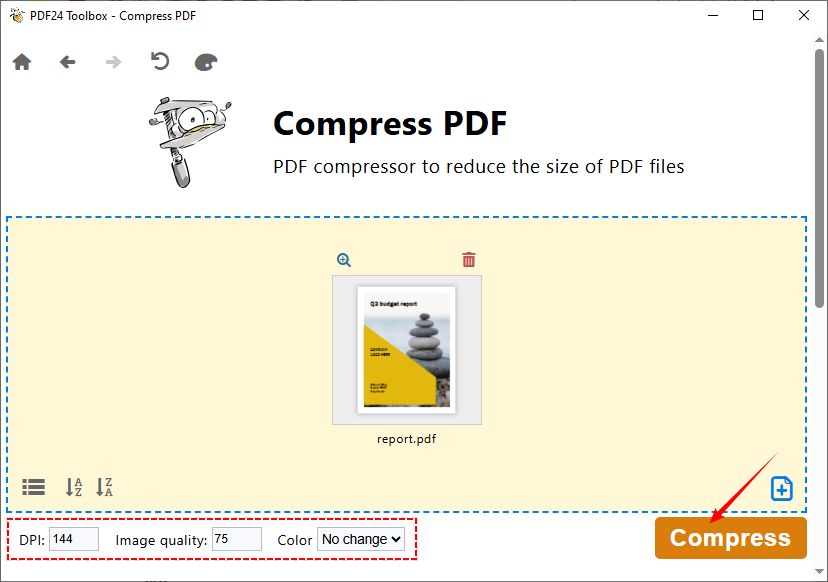
- Öffnen Sie die PDF24 Toolbox und wählen Sie das PDF komprimieren Werkzeug.
- Klicken Sie auf „Dateien auswählen” oder ziehen Sie Ihre PDF-Datei in das Fenster.
- Stellen Sie die Optionen „DPI”, „Bildqualität” und „Farbe” ein.
- Klicken Sie auf die Schaltfläche „Komprimieren” und speichern Sie die Datei.
LESEN SIE AUCH: So löschen Sie Seiten aus PDF ohne Acrobat (kostenlose Methoden)
Stapelautomatisierung: PDF programmgesteuert mit C# komprimieren
Für Entwickler, die Automatisierungstools, Stapelverarbeitungssysteme oder benutzerdefinierte PDF-Workflows erstellen, ist eine Bibliothek wie Spire.PDF for .NET eine ausgezeichnete Wahl. Spire.PDF bietet mehrere Komprimierungsmethoden, und wir werden die häufigsten Anwendungsfälle zur Reduzierung der PDF-Größe behandeln.
C#-Code zum Komprimieren von Bildern in PDF
Bilder sind die Hauptursache für große PDF-Dateien. Dieses Beispiel reduziert die Bildgröße und -qualität bei gleichbleibender Lesbarkeit.
using Spire.Pdf.Conversion.Compression;

namespace CompressImages
{
    class Program
    {
        static void Main(string[] args)
        {
            // Erstellen Sie ein PdfCompressor-Objekt und laden Sie die PDF-Datei
            PdfCompressor compressor = new PdfCompressor("Example.pdf");

            // Rufen Sie die Bildkomprimierungsoptionen ab
            ImageCompressionOptions imageCompression = compressor.Options.ImageCompressionOptions;

            // Aktivieren Sie die Bildgrößenänderung
            imageCompression.ResizeImages = true;

            // Aktivieren Sie die Bildkomprimierung
            imageCompression.CompressImage = true;

            // Legen Sie die Bildqualität fest (verfügbare Optionen: Niedrig, Mittel, Hoch)
            imageCompression.ImageQuality = ImageQuality.Medium;


            // Komprimieren Sie die PDF-Datei gemäß den Komprimierungsoptionen und speichern Sie sie in einer neuen Datei
            compressor.CompressToFile("Compressed.pdf");
        }
    }
}
In diesem Code fungiert die ImageCompressionOptions-Klasse als "Einstellungsfeld" dafür, wie eingebettete Bilder in einer PDF-Datei optimiert werden. Ihre Kerneigenschaften sind unten aufgeführt:
- CompressImage: Der Hauptschalter für die Bildkomprimierung. Wenn auf false gesetzt, werden alle anderen Bildkomprimierungseinstellungen vollständig ignoriert.
- ResizeImages: Legt fest, ob die Bildabmessungen automatisch verkleinert werden sollen.
- ImageQuality: Legt die Qualitätsstufe komprimierter Bilder fest (drei Optionen):
- Niedrig: Minimale Qualität, kleinste Dateigröße (deutlicher Verlust an Bildschärfe).
- Mittel: Ausgewogene Qualität und Dateigröße (empfohlen für die meisten Szenarien).
- Hoch: Höchste Qualität, minimale Komprimierung (nur geringfügige Reduzierung der Dateigröße).
C#-Code zur Optimierung von Schriftarten in PDF
Die Schriftverwaltung kann die Dateigröße erheblich beeinflussen, insbesondere bei textlastigen Dokumenten. Dieses Beispiel komprimiert oder entfernt eingebettete Schriftarten in der PDF-Datei, um die Dateigröße ohne Qualitätsverlust zu reduzieren:
using Spire.Pdf.Conversion.Compression;

namespace OptimizeFonts
{
    internal class Program
    {
        static void Main(string[] args)
        {
            // Erstellen Sie ein PdfCompressor-Objekt und laden Sie die PDF-Datei
            PdfCompressor compressor = new PdfCompressor("Example.pdf");

            // Rufen Sie die Textkomprimierungsoptionen ab
            TextCompressionOptions textCompression = compressor.Options.TextCompressionOptions;

            // Komprimieren Sie die Schriftarten
            textCompression.CompressFonts = true;

            // Entfernen Sie die Einbettung der Schriftarten
            // textCompression.UnembedFonts = true;

            // Komprimieren Sie die PDF-Datei gemäß den Komprimierungsoptionen und speichern Sie sie in einer neuen Datei
            compressor.CompressToFile("CompressFonts.pdf");
        }
    }
}
Die TextCompressionOptions-Klasse steuert die Optimierung für Text/Schriftarten in einer PDF-Datei (sie hat KEINEN Einfluss auf Bilder). Kerneigenschaften:
- CompressFonts: Hauptschalter für die Schriftkomprimierung. 100 % sicher, um Schriftartdaten zu verkleinern (Text sieht identisch aus, Dateigröße kleiner).
- UnembedFonts: Legt fest, ob eingebettete Schriftarten entfernt werden sollen (riskant: Text kann verstümmelt/unlesbar aussehen, wenn auf dem Gerät, das die PDF-Datei öffnet, die Schriftart fehlt).
Profi-Tipp: Für redundante oder ungenutzte Daten in einer PDF-Datei verwenden Sie Spire.PDF, um sie vor der Komprimierung zu entfernen (z. B. Metadaten bereinigen, eingebettete Anhänge entfernen).
Profi-Tipps zum Komprimieren von PDFs ohne Qualitätsverlust
Das Komprimieren einer PDF-Datei bedeutet nicht, dass Sie auf Qualität verzichten müssen.Befolgen Sie diese Tipps, um die kleinstmögliche Dateigröße zu erhalten und Ihr Dokument gleichzeitig nutzbar zu halten:
- Entfernen Sie unnötige Elemente: Löschen Sie redundante Seiten, Bilder oder Kommentare vor dem Komprimieren.
- Bilder optimieren: PDFs mit großen Bildern sind oft die größten Übeltäter. Ändern Sie die Größe der Bilder auf 72–150 DPI (ausreichend für die digitale Nutzung), bevor Sie sie der PDF-Datei hinzufügen.
- Vermeiden Sie das Einbetten von Schriftarten: Eingebettete Schriftarten erhöhen die Dateigröße. Verwenden Sie Standardschriftarten (Arial, Times New Roman), die die meisten Geräte bereits haben.
- Wählen Sie den richtigen Komprimierungsgrad: Für reine Text-PDFs (z. B. Lebensläufe, Berichte) verwenden Sie „Hohe Komprimierung“ (wenig bis kein Qualitätsverlust). Für bildlastige PDFs (z. B. Broschüren, Fotos) verwenden Sie „Ausgewogen“, um Unschärfe zu vermeiden.
- Vor dem Teilen testen: Öffnen Sie immer die komprimierte PDF-Datei, um die Lesbarkeit (z. B. Textklarheit, Bildschärfe) zu überprüfen, bevor Sie sie senden oder hochladen.
Fazit
Zu wissen, wie man eine PDF-Datei komprimiert, ist eine entscheidende Fähigkeit, die Ihren digitalen Arbeitsablauf optimiert. Ob Sie eine schnelle Online-Lösung, die erweiterte Steuerung von Desktop-Software oder die Leistungsfähigkeit der Automatisierung mit C# und Spire.PDF benötigen, es gibt für jedes Szenario das perfekte Werkzeug.
Für die meisten Benutzer bieten Online-Kompressoren Einfachheit, während Entwickler robuste, integrierte Lösungen mit programmierbaren Bibliotheken erstellen können. Bewerten Sie Ihre spezifischen Anforderungen an Sicherheit, Volumen und Qualität, um die beste Methode zu wählen, und lassen Sie sich nie wieder von sperrigen Dateien ausbremsen.
Häufig gestellte Fragen zur Reduzierung der PDF-Größe
F1. Verringert das Komprimieren einer PDF-Datei die Qualität?
Ja, wenn es nicht sorgfältig durchgeführt wird – insbesondere bei bildlastigen PDFs. Verwenden Sie verlustfreie Komprimierungseinstellungen oder eine moderate Reduzierung der Bildqualität, um Größe und Klarheit auszugleichen.
F2. Ist es sicher, Online-PDF-Kompressoren zu verwenden?
Die meisten seriösen Websites verschlüsseln Übertragungen und löschen Dateien nach der Verarbeitung. Vermeiden Sie das Hochladen sensibler Dokumente auf unbekannte Websites.
F3. Wie stark kann ich die Größe einer PDF-Datei reduzieren?
Das hängt vom Inhalt ab. Textbasierte PDFs können um 50–90 % verkleinert werden, während bildlastige Dateien um 20–50 % reduziert werden können.
F4. Kann ich mehrere PDFs auf einmal im Stapel komprimieren?
Ja, viele Tools unterstützen die Stapelverarbeitung. Desktop-Anwendungen wie Adobe Acrobat Pro bieten robuste Stapelfunktionen. Für die automatisierte Stapelkomprimierung verwenden Sie die Spire.PDF for .NET-Bibliothek.
Siehe auch
Как сжать PDF: лучшие инструменты для уменьшения размера PDF-файлов
Содержание
В современном цифровом мире PDF является универсальным стандартом для обмена документами. Однако большие PDF-файлы могут доставлять серьезные неудобства: они забивают почтовые ящики, превышают лимиты на загрузку и медленно передаются. Умение сжимать PDF — это важный цифровой навык, будь вы студент, профессионал или обычный пользователь.
Это подробное руководство познакомит вас с самыми простыми и эффективными методами сжатия PDF-файлов, включая использование бесплатных онлайн-инструментов, настольного программного обеспечения и программирования на C#, а также даст советы профессионалов, как сохранить высокое качество при уменьшении размера PDF-файла.
- Почему нужно сжимать PDF-файл?
- Быстрое решение: сжатие PDF-файлов онлайн
- Офлайн-инструменты: сжатие PDF с помощью настольного ПО
- Пакетная автоматизация: программное сжатие PDF с помощью C#
- Советы профессионалов по сжатию PDF без потери качества
- Часто задаваемые вопросы об уменьшении размера PDF
Почему нужно сжимать PDF-файл?
Уменьшение размера PDF дает несколько ключевых преимуществ:
- Простые вложения в электронную почту: оставайтесь в пределах обычных лимитов в 25 МБ.
- Более быстрая загрузка и скачивание: идеально подходит для порталов, заявлений о приеме на работу или облачных хранилищ.
- Экономия места на диске: освободите место на жестком диске и мобильных устройствах.
- Профессиональный обмен: быстрая и эффективная отправка файлов клиентам или коллегам.
- Оптимизация веб-сайта: файлы меньшего размера быстрее загружаются на веб-страницах, улучшая взаимодействие с пользователем и SEO.
Быстрое решение: сжатие PDF-файлов онлайн
Многие онлайн-компрессоры PDF позволяют бесплатно уменьшить размер PDF. Они не требуют установки программного обеспечения и работают на любом устройстве с браузером.
Рекомендуемые инструменты:
- Smallpdf: удобный универсальный набор для работы с PDF.
- iLovePDF: надежная альтернатива с возможностью пакетной обработки.
- PDF2Go: предлагает точный контроль над уровнем сжатия.
Шаги по уменьшению размера PDF:
- Перейдите на выбранный вами сайт-компрессор (например, бесплатный инструмент сжатия PDF от SmallPDF).
- Нажмите «ВЫБРАТЬ ФАЙЛЫ» или перетащите файл в окно браузера.
- Выберите уровень сжатия (например, «Базовый» для среднего размера файла и стандартного разрешения).
- Нажмите кнопку «Сжать» или «Уменьшить PDF».
- Загрузите новый, уменьшенный PDF-файл на свое устройство.
Результат сжатия:
Совет профессионала: для конфиденциальных документов ознакомьтесь с политикой конфиденциальности инструмента. Большинство авторитетных сайтов удаляют ваши файлы со своих серверов через короткий промежуток времени.
Офлайн-инструменты: сжатие PDF с помощью настольного ПО
Если вам нужно сжимать PDF-файлы в автономном режиме (без интернета) или регулярно обрабатывать большие партии, лучше использовать настольное программное обеспечение. Вот лучшие компрессоры PDF для уменьшения размера PDF-файла:
Adobe Acrobat Pro DC (отраслевой стандарт)
Собственный инструмент Adobe предлагает самые передовые настройки оптимизации для уменьшения размера PDF.
- Откройте PDF-файл в Acrobat Pro DC.
- Перейдите в меню «Файл» > «Сохранить как другой» и выберите «Уменьшить размер файла».
- Выберите уровень совместимости и сохраните сжатый PDF-файл.
Настольный инструмент PDF24 Creator (бесплатная альтернатива)
Первоклассный бесплатный настольный инструмент, работающий полностью в автономном режиме. Он предлагает более 40 встроенных инструментов для работы с PDF и поддерживает пакетное сжатие.
- Откройте PDF24 Toolbox и выберите инструмент Сжать PDF.
- Нажмите «Выбрать файлы» или перетащите PDF-файл в окно.
- Установите параметры «DPI», «Качество изображения» и «Цвет».
- Нажмите кнопку «Сжать» и сохраните файл.
ТАКЖЕ ЧИТАЙТЕ: Как удалить страницы из PDF без Acrobat (бесплатные методы)
Пакетная автоматизация: программное сжатие PDF с помощью C#
Для разработчиков, создающих инструменты автоматизации, системы пакетной обработки или пользовательские рабочие процессы с PDF, библиотека, такая как Spire.PDF for .NET, является отличным выбором. Spire.PDF предлагает несколько методов сжатия, и мы рассмотрим наиболее распространенные случаи использования для уменьшения размера PDF.
Код C# для сжатия изображений в PDF
Изображения являются основной причиной большого размера PDF. Этот пример уменьшает размер и качество изображений, сохраняя при этом читабельность.
using Spire.Pdf.Conversion.Compression;

namespace CompressImages
{
    class Program
    {
        static void Main(string[] args)
        {
            // Create a PdfCompressor object and load the PDF file
            PdfCompressor compressor = new PdfCompressor("Example.pdf");

            // Get the image compression options
            ImageCompressionOptions imageCompression = compressor.Options.ImageCompressionOptions;

            // Enable Image resizing
            imageCompression.ResizeImages = true;

            // Enable image compression
            imageCompression.CompressImage = true;

            // Set the image quality (available options: Low, Medium, High)
            imageCompression.ImageQuality = ImageQuality.Medium;


            // Compress the PDF file according to the compression options and save it to a new file
            compressor.CompressToFile("Compressed.pdf");
        }
    }
}
В этом коде класс ImageCompressionOptions действует как «панель настроек» для оптимизации встроенных изображений в PDF. Его основные свойства перечислены ниже:
- CompressImage: главный переключатель для сжатия изображений. Если установлено значение false, все остальные настройки сжатия изображений полностью игнорируются.
- ResizeImages: определяет, следует ли автоматически уменьшать размеры изображений.
- ImageQuality: устанавливает уровень качества сжатых изображений (три варианта):
- Низкое: минимальное качество, наименьший размер файла (значительная потеря четкости изображения).
- Среднее: сбалансированное качество и размер файла (рекомендуется для большинства сценариев).
- Высокое: высочайшее качество, минимальное сжатие (лишь незначительное уменьшение размера файла).
Код C# для оптимизации шрифтов в PDF
Управление шрифтами может значительно повлиять на размер файла, особенно в документах с большим количеством текста. Этот пример сжимает или отменяет встраивание шрифтов в PDF, чтобы уменьшить размер файла без потери качества:
using Spire.Pdf.Conversion.Compression;

namespace OptimizeFonts
{
    internal class Program
    {
        static void Main(string[] args)
        {
            // Create a PdfCompressor object and load the PDF file
            PdfCompressor compressor = new PdfCompressor("Example.pdf");

            // Get the text compression options
            TextCompressionOptions textCompression = compressor.Options.TextCompressionOptions;

            // Compress the fonts
            textCompression.CompressFonts = true;

            // Unembed the fonts
            // textCompression.UnembedFonts = true;

            // Compress the PDF file according to the compression options and save it to a new file
            compressor.CompressToFile("CompressFonts.pdf");
        }
    }
}
Класс TextCompressionOptions управляет оптимизацией текста/шрифтов в PDF (он НЕ влияет на изображения). Основные свойства:
- CompressFonts: главный переключатель для сжатия шрифтов. 100% безопасно для уменьшения данных шрифта (текст выглядит идентично, размер файла меньше).
- UnembedFonts: определяет, следует ли удалять встроенные шрифты (рискованно: текст может выглядеть искаженным/нечитаемым, если на устройстве, открывающем PDF, отсутствует шрифт).
Совет профессионала: для избыточных или неиспользуемых данных в PDF используйте Spire.PDF для их удаления перед сжатием (например, очистка метаданных, удаление встроенных вложений).
Советы профессионалов по сжатию PDF без потери качества
Сжатие PDF не означает жертвование качеством. Следуйте этим советам, чтобы получить минимально возможный размер файла, сохраняя при этом документ пригодным для использования:
- Удалите ненужные элементы: удалите лишние страницы, изображения или комментарии перед сжатием.
- Оптимизируйте изображения: PDF-файлы с большими изображениями часто являются самыми большими виновниками. Измените размер изображений до 72–150 DPI (достаточно для цифрового использования) перед добавлением их в PDF.
- Избегайте встраивания шрифтов: встроенные шрифты увеличивают размер файла. Используйте стандартные шрифты (Arial, Times New Roman), которые уже есть на большинстве устройств.
- Выберите правильный уровень сжатия: для PDF-файлов только с текстом (например, резюме, отчеты) используйте «Высокое сжатие» (незначительная или нулевая потеря качества). Для PDF-файлов с большим количеством изображений (например, брошюры, фотографии) используйте «Сбалансированное», чтобы избежать размытости.
- Проверьте перед отправкой: всегда открывайте сжатый PDF-файл, чтобы проверить читабельность (например, четкость текста, резкость изображения) перед отправкой или загрузкой.
Заключение
Знание того, как сжать PDF, является важным навыком, который оптимизирует ваш цифровой рабочий процесс. Независимо от того, нужно ли вам быстрое онлайн-решение, расширенный контроль настольного программного обеспечения или мощь автоматизации с помощью C# и Spire.PDF, для каждого сценария найдется идеальный инструмент.
Для большинства пользователей онлайн-компрессоры предлагают простоту, в то время как разработчики могут создавать надежные, интегрированные решения с помощью программируемых библиотек. Оцените свои конкретные потребности в безопасности, объеме и качестве, чтобы выбрать лучший метод, и никогда больше не позволяйте громоздким файлам замедлять вас.
Часто задаваемые вопросы об уменьшении размера PDF
В1. Снижает ли сжатие PDF качество?
Да, если делать это неосторожно, особенно для PDF-файлов с большим количеством изображений. Используйте настройки сжатия без потерь или умеренное снижение качества изображения, чтобы сбалансировать размер и четкость.
В2. Безопасно ли использовать онлайн-компрессоры PDF?
Большинство авторитетных сайтов шифруют передачу и удаляют файлы после обработки. Избегайте загрузки конфиденциальных документов на неизвестные веб-сайты.
В3. Насколько можно уменьшить размер PDF-файла?
Это зависит от содержимого. Текстовые PDF-файлы могут уменьшиться на 50–90%, в то время как файлы с большим количеством изображений могут уменьшиться на 20–50%.
В4. Можно ли сжимать несколько PDF-файлов одновременно?
Да, многие инструменты поддерживают пакетную обработку. Настольные приложения, такие как Adobe Acrobat Pro, предлагают надежные возможности пакетной обработки. Для автоматического пакетного сжатия используйте библиотеку Spire.PDF for .NET.
Смотрите также
Como excluir páginas em branco em PDF (Manual e Automático)
Índice
- O que é uma “Página em Branco” em um PDF?
- Parte 1: Excluir Manualmente Páginas em Branco de um PDF
- Parte 2: Excluir Automaticamente Páginas em Branco em PDF Usando Python
- Remoção Manual vs. Automatizada de Páginas em Branco
- Melhores Práticas para Remover Páginas em Branco de PDFs
- Considerações Finais
- Perguntas Frequentes
Páginas em branco são um problema comum em documentos PDF. Elas frequentemente aparecem ao exportar arquivos do Word ou Excel, escanear documentos em papel ou gerar relatórios programaticamente. Embora as páginas em branco possam parecer inofensivas, elas podem afetar negativamente a qualidade do documento, aumentar o tamanho do arquivo, desperdiçar recursos de impressão e fazer com que os documentos pareçam pouco profissionais.
Dependendo da sua situação, a remoção de páginas em branco de um PDF pode ser feita manualmente ou automaticamente. Métodos manuais são adequados para documentos pequenos e tarefas únicas, enquanto soluções automatizadas são mais eficientes para processamento em lote, fluxos de trabalho recorrentes ou integrações em nível de sistema.
Neste artigo, exploraremos ambas as abordagens em detalhes. Primeiro, veremos três métodos manuais para excluir páginas em branco de PDFs. Em seguida, demonstraremos como detectar e remover automaticamente páginas em branco usando Python, com uma solução completa e prática baseada no Spire.PDF for Python.
O que é uma “Página em Branco” em um PDF?
Uma “página em branco” em um PDF nem sempre está verdadeiramente vazia do ponto de vista técnico. Embora possa parecer em branco visualmente, ela ainda pode conter objetos invisíveis, contêineres vazios ou imagens brancas.
Na prática, uma página de PDF em branco pode:
- Não conter objetos de texto
- Não conter imagens
- Parecer visualmente em branco, mas ainda incluir elementos invisíveis
- Incluir artefatos de layout criados durante a conversão
Essa distinção é especialmente importante ao automatizar o processo de remoção, pois verificações simples baseadas em texto geralmente são insuficientes.
Parte 1: Excluir Manualmente Páginas em Branco de um PDF
Métodos manuais são mais adequados para arquivos pequenos, onde a precisão e a confirmação visual são importantes. Eles não exigem conhecimento de programação e permitem que os usuários removam páginas seletivamente após revisar o documento.
Método 1: Excluir Páginas em Branco Usando o Adobe Acrobat
Adobe Acrobat oferece uma maneira profissional e altamente precisa de gerenciar páginas de PDF. Sua interface baseada em miniaturas permite que os usuários inspecionem visualmente todas as páginas e removam as em branco com precisão.
Passos
-
Abra o arquivo PDF no Adobe Acrobat.
-
Abra o painel de Miniaturas de Página.
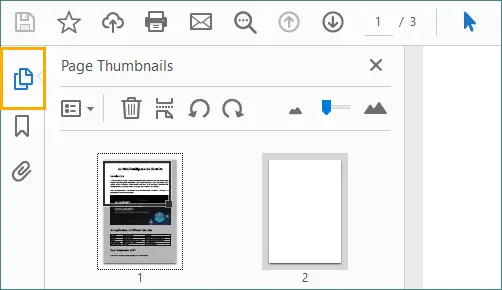
-
Selecione a página em branco que deseja remover e clique no ícone da “Lixeira”.
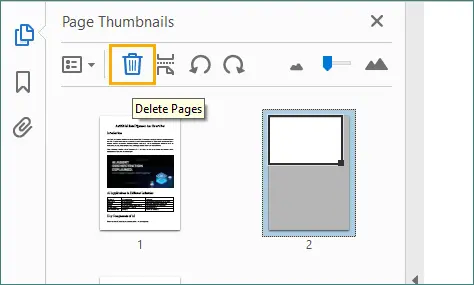 Alternativamente, clique com o botão direito na página selecionada e escolha “Excluir Páginas…”, o que permite excluir a página atual ou um intervalo de páginas consecutivas.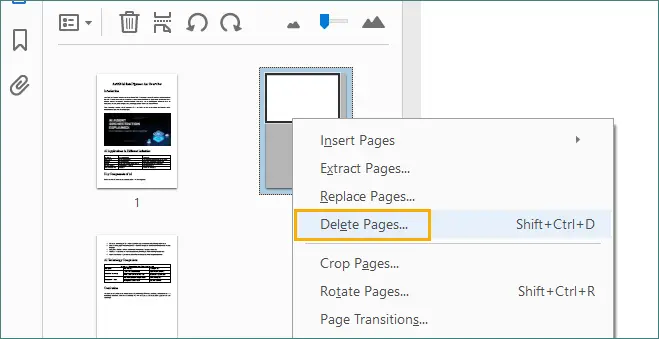
-
Salve o PDF atualizado.
Prós
- Alta precisão com confirmação visual.
- Lida bem com layouts complexos e PDFs grandes.
- Adequado para documentos profissionais e para clientes.
Contras
- Requer uma licença paga do Adobe Acrobat.
- Demorado para um grande número de arquivos.
Método 2: Excluir Páginas em Branco Usando Ferramentas de PDF Online
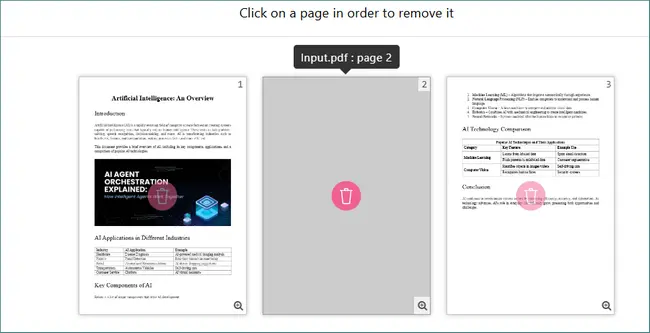
Ferramentas de PDF online oferecem uma solução rápida para excluir páginas em branco sem instalar software. A maioria das plataformas permite que os usuários carreguem um PDF, visualizem as páginas e removam as indesejadas diretamente no navegador.
Passos
-
Abra um site de edição de PDF online (por exemplo, PDF24).
-
Clique em “Escolher arquivos” ou arraste e solte seu arquivo PDF para carregá-lo.

-
Entre no modo de visualização ou gerenciamento de páginas, selecione e exclua as páginas em branco.
-
Aplique as alterações clicando em “Criar PDF” (ou um botão de confirmação semelhante).
-
Baixe o arquivo PDF limpo.
Prós
- Nenhuma instalação de software necessária.
- Funciona em qualquer sistema operacional.
- Conveniente para tarefas únicas ou ocasionais.
Contras
- Limitações de tamanho de arquivo e uso.
- Preocupações com privacidade e segurança.
- Não adequado para documentos confidenciais ou sensíveis.
Método 3: Excluir Páginas em Branco via Pré-Visualização de PDF (macOS)
O macOS inclui um aplicativo integrado chamado Pré-Visualização, que suporta recursos básicos de edição de PDF, como a exclusão de páginas. É uma opção simples e gratuita para usuários de macOS.
Passos
-
Abra o arquivo PDF com a Pré-Visualização.
-
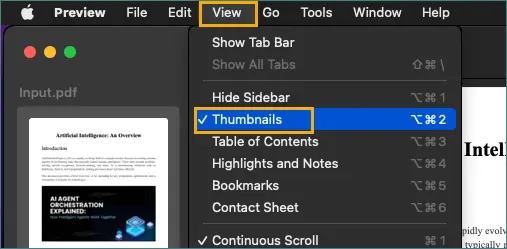
Ative a barra lateral de miniaturas selecionando Visualizar → Miniaturas.
-
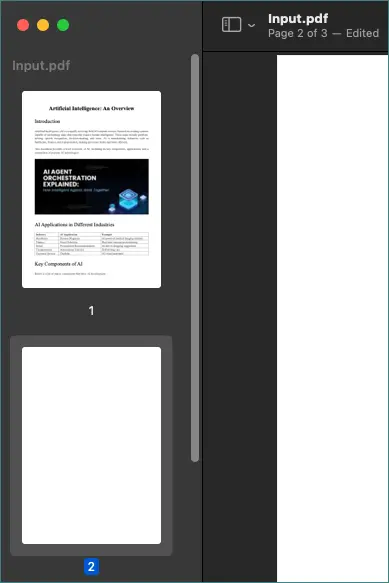
Selecione as páginas em branco no painel de miniaturas.
-
Pressione a tecla Delete.
-
Salve o PDF modificado.
Prós
- Gratuito e pré-instalado no macOS.
- Offline e fácil de usar.
- Nenhuma ferramenta de terceiros necessária.
Contras
- Solução apenas para macOS.
- Processo manual que não escala.
- Recursos avançados de PDF limitados.
Quando os Métodos Manuais Não São Suficientes
Os métodos manuais tornam-se ineficientes quando:
- Processando muitos arquivos PDF.
- Limpando relatórios gerados automaticamente.
- Realizando manutenção recorrente de documentos.
- Integrando a limpeza de PDF em aplicativos ou serviços.
Nesses cenários, a automação é a abordagem mais prática e confiável.
Parte 2: Excluir Automaticamente Páginas em Branco em PDF Usando Python
A automação permite remover páginas em branco de forma consistente e eficiente, sem intervenção humana. O Python é particularmente adequado para essa tarefa devido à sua simplicidade, suporte multiplataforma e extenso ecossistema de bibliotecas.
Por que Usar Python para Automação de PDF?
Com o Python, você pode:
- Processar PDFs programaticamente.
- Lidar com arquivos grandes e operações em lote.
- Integrar a limpeza de PDF em sistemas de backend.
- Garantir uma lógica de detecção consistente em todos os documentos.
A automação reduz significativamente o esforço manual e minimiza o risco de erro humano.
Introdução ao Spire.PDF for Python
Spire.PDF for Python é uma biblioteca robusta para criar, editar e processar documentos PDF. Ele fornece controle refinado sobre a estrutura e o conteúdo do PDF, tornando-o ideal para tarefas como detecção e remoção de páginas em branco.
Para esta solução, o Spire.PDF oferece:
- Acesso em nível de página
- Detecção de página em branco integrada
- Conversão de PDF para imagem
- Remoção segura de páginas
Código Python: Detectar e Remover Automaticamente Páginas em Branco de PDF
Abaixo está um exemplo completo de Python usando Spire.PDF for Python e Pillow (PIL).
import io
from spire.pdf import PdfDocument
from PIL import Image

# Função personalizada: Verifica se a imagem está em branco (todos os pixels são brancos)
def is_blank_image(image):
    # Converte a imagem para o modo RGB
    img = image.convert("RGB")
    # Define um pixel branco
    white_pixel = (255, 255, 255)
    # Verifica se todos os pixels são brancos
    return all(pixel == white_pixel for pixel in img.getdata())

# Carrega o documento PDF
doc = PdfDocument()
doc.LoadFromFile("Input.pdf")

# Itera pelas páginas em ordem inversa
# Isso evita problemas de deslocamento de índice ao excluir páginas
for i in range(doc.Pages.Count - 1, -1, -1):
    page = doc.Pages[i]

    # Primeira verificação: detecção de página em branco integrada
    if page.IsBlank():
        doc.Pages.RemoveAt(i)
    else:
        # Segunda verificação: converte a página em uma imagem
        with doc.SaveAsImage(i) as image_data:
            image_bytes = image_data.ToArray()
            pil_image = Image.open(io.BytesIO(image_bytes))

            # Verifica se a imagem está visualmente em branco
            if is_blank_image(pil_image):
                doc.Pages.RemoveAt(i)

# Salva o arquivo PDF limpo
doc.SaveToFile("RemoveBlankPages.pdf")
doc.Close()
Como a Detecção de Página em Branco Funciona Nesta Solução
Para melhorar a precisão, esta abordagem usa dois métodos de detecção complementares:
-
Detecção lógica: O script primeiro verifica se uma página está logicamente vazia usando page.IsBlank(). Isso detecta páginas sem objetos de texto ou imagem.
-
Detecção visual: Se uma página não estiver logicamente em branco, ela é convertida em uma imagem e analisada pixel por pixel. Se todos os pixels forem brancos, a página é considerada visualmente em branco.
Essa estratégia combinada garante que tanto as páginas tecnicamente vazias quanto as páginas visualmente em branco com conteúdo oculto sejam removidas.
Estendendo a Solução de Automação
Este script pode ser facilmente estendido para:
- Processar todos os PDFs em um diretório
- Executar como uma tarefa de limpeza agendada
- Integrar em sistemas de gerenciamento de documentos
- Registrar páginas removidas para auditoria ou depuração
Com pequenos ajustes, ele pode suportar fluxos de trabalho de PDF em escala empresarial. Para operações de PDF mais avançadas, consulte o Guia de Programação do Spire.PDF para expandir e personalizar ainda mais sua lógica de automação.
Remoção Manual vs. Automatizada de Páginas em Branco
| Aspecto | Métodos Manuais | Automação com Python |
|---|---|---|
| Facilidade de uso | Alta | Média |
| Precisão | Alta | Alta |
| Processamento em lote | x | √ |
| Escalabilidade | x | √ |
| Melhor caso de uso | PDFs pequenos | Tarefas grandes ou recorrentes |
Melhores Práticas para Remover Páginas em Branco de PDFs
- Sempre mantenha um backup dos arquivos originais.
- Teste a lógica de detecção em documentos de amostra.
- Tenha cuidado com PDFs digitalizados.
- Combine a automação com a revisão manual para arquivos críticos.
Considerações Finais
Remover páginas em branco de PDFs é um passo pequeno, mas importante, para produzir documentos limpos e profissionais. Os métodos manuais funcionam bem para edições rápidas e arquivos pequenos, mas não escalam eficientemente.
Para tarefas maiores ou recorrentes, a automação é a solução clara. Usando o Spire.PDF for Python e combinando técnicas de detecção lógica e visual, você pode remover de forma confiável tanto as páginas tecnicamente quanto as visualmente em branco. Essa abordagem economiza tempo, melhora a consistência e se integra perfeitamente aos fluxos de trabalho de documentos modernos.
Perguntas Frequentes
P1: Por que páginas em branco ou indesejadas aparecem em arquivos PDF?
Páginas em branco ou extras geralmente aparecem devido a problemas de formatação durante a conversão de documentos, quebras de página incorretas, artefatos de digitalização ou exportação de arquivos do Word, Excel ou ferramentas de relatório.
P2: Posso excluir páginas de um PDF sem usar software pago?
Sim. Você pode excluir páginas usando opções gratuitas, como ferramentas integradas como a Pré-Visualização do macOS, editores de PDF online ou leitores de PDF de desktop gratuitos que suportam o gerenciamento básico de páginas.
P3: A exclusão de páginas afetará o conteúdo ou o layout do PDF restante?
A exclusão de páginas não altera o layout ou a formatação das páginas restantes. No entanto, é recomendável revisar o documento final para garantir que a numeração de páginas, marcadores ou referências ainda façam sentido.
P4: É seguro excluir páginas de um PDF?
Sim, desde que você mantenha um backup do arquivo original. A exclusão de páginas é uma operação não destrutiva quando salva como um novo arquivo, facilitando a restauração do original, se necessário.
Você Também Pode se Interessar Por
PDF에서 빈 페이지 삭제하기 (수동 및 자동화 가이드)
빈 페이지는 PDF 문서에서 흔히 발생하는 문제입니다. Word나 Excel에서 파일을 내보내거나, 종이 문서를 스캔하거나, 프로그래밍 방식으로 보고서를 생성할 때 자주 나타납니다. 빈 페이지는 무해해 보일 수 있지만, 문서 품질에 부정적인 영향을 미치고, 파일 크기를 늘리며, 인쇄 리소스를 낭비하고, 문서를 비전문적으로 보이게 만들 수 있습니다.
상황에 따라 PDF에서 빈 페이지를 제거하는 작업은 수동 또는 자동으로 수행할 수 있습니다. 수동 방법은 작은 문서나 일회성 작업에 적합하며, 자동화된 솔루션은 일괄 처리, 반복적인 워크플로 또는 시스템 수준 통합에 더 효율적입니다.
이 기사에서는 두 가지 접근 방식을 자세히 살펴보겠습니다. 먼저 PDF에서 빈 페이지를 삭제하는 세 가지 수동 방법을 안내합니다. 그런 다음 Spire.PDF for Python을 기반으로 한 완전하고 실용적인 솔루션을 사용하여 Python으로 빈 페이지를 자동으로 감지하고 제거하는 방법을 시연합니다.
PDF의 "빈 페이지"란 무엇인가요?
PDF의 "빈 페이지"는 기술적인 관점에서 항상 완전히 비어 있는 것은 아닙니다. 시각적으로는 비어 보일 수 있지만 보이지 않는 개체, 빈 컨테이너 또는 흰색 이미지를 포함할 수 있습니다.
실제로 빈 PDF 페이지는 다음과 같을 수 있습니다.
- 텍스트 개체를 포함하지 않음
- 이미지를 포함하지 않음
- 시각적으로 비어 보이지만 보이지 않는 요소를 포함함
- 변환 중에 생성된 레이아웃 아티팩트를 포함함
이러한 구별은 제거 프로세스를 자동화할 때 특히 중요합니다. 간단한 텍스트 기반 검사만으로는 종종 불충분하기 때문입니다.
1부: PDF에서 빈 페이지를 수동으로 삭제하기
수동 방법은 정확성과 시각적 확인이 중요한 작은 파일에 가장 적합합니다. 프로그래밍 지식이 필요 없으며 사용자가 문서를 검토한 후 선택적으로 페이지를 제거할 수 있습니다.
방법 1: Adobe Acrobat을 사용하여 빈 페이지 삭제
Adobe Acrobat은 PDF 페이지를 관리하는 전문적이고 매우 정확한 방법을 제공합니다. 썸네일 기반 인터페이스를 통해 사용자는 모든 페이지를 시각적으로 검사하고 빈 페이지를 정밀하게 제거할 수 있습니다.
단계
-
Adobe Acrobat에서 PDF 파일을 엽니다.
-
페이지 축소판 패널을 엽니다.
-
제거하려는 빈 페이지를 선택한 다음 "휴지통" 아이콘을 클릭합니다.
또는 선택한 페이지를 마우스 오른쪽 버튼으로 클릭하고 "페이지 삭제..."를 선택하여 현재 페이지 또는 연속된 페이지 범위를 삭제할 수 있습니다. -
업데이트된 PDF를 저장합니다.
장점
- 시각적 확인으로 높은 정확도.
- 복잡한 레이아웃과 대용량 PDF를 잘 처리합니다.
- 전문가용 및 고객용 문서에 적합합니다.
단점
- 유료 Adobe Acrobat 라이선스가 필요합니다.
- 많은 수의 파일에 대해 시간이 많이 걸립니다.
방법 2: 온라인 PDF 도구를 사용하여 빈 페이지 삭제
온라인 PDF 도구는 소프트웨어를 설치하지 않고도 빈 페이지를 삭제할 수 있는 빠른 솔루션을 제공합니다. 대부분의 플랫폼에서는 사용자가 PDF를 업로드하고, 페이지를 미리 보고, 원치 않는 페이지를 브라우저에서 직접 제거할 수 있습니다.
단계
-
온라인 PDF 편집 웹사이트(예: PDF24)를 엽니다.
-
"파일 선택"을 클릭하거나 PDF 파일을 끌어다 놓아 업로드합니다.
-
미리보기 또는 페이지 관리 모드로 들어간 다음 빈 페이지를 선택하고 삭제합니다.
-
"PDF 생성"(또는 유사한 확인 버튼)을 클릭하여 변경 사항을 적용합니다.
-
정리된 PDF 파일을 다운로드합니다.
장점
- 소프트웨어 설치가 필요 없습니다.
- 모든 운영 체제에서 작동합니다.
- 일회성 또는 가끔씩 하는 작업에 편리합니다.
단점
- 파일 크기 및 사용량 제한.
- 개인 정보 보호 및 보안 문제.
- 기밀 또는 민감한 문서에는 적합하지 않습니다.
방법 3: PDF 미리보기(macOS)를 통해 빈 페이지 삭제
macOS에는 페이지 삭제와 같은 기본 PDF 편집 기능을 지원하는 미리보기라는 내장 응용 프로그램이 포함되어 있습니다. macOS 사용자를 위한 간단하고 무료인 옵션입니다.
단계
-
미리보기로 PDF 파일을 엽니다.
-
보기 → 축소판을 선택하여 축소판 사이드바를 활성화합니다.
-
축소판 패널에서 빈 페이지를 선택합니다.
-
삭제 키를 누릅니다.
-
수정된 PDF를 저장합니다.
장점
- macOS에 무료로 사전 설치되어 있습니다.
- 오프라인이며 사용하기 쉽습니다.
- 타사 도구가 필요 없습니다.
단점
- macOS 전용 솔루션입니다.
- 확장되지 않는 수동 프로세스입니다.
- 제한된 고급 PDF 기능.
수동 방법만으로는 충분하지 않을 때
다음과 같은 경우 수동 방법은 비효율적이 됩니다.
- 많은 PDF 파일 처리.
- 자동으로 생성된 보고서 정리.
- 반복적인 문서 유지 관리 수행.
- PDF 정리를 응용 프로그램이나 서비스에 통합.
이러한 시나리오에서는 자동화가 가장 실용적이고 신뢰할 수 있는 접근 방식입니다.
2부: Python을 사용하여 PDF에서 빈 페이지를 자동으로 삭제하기
자동화를 사용하면 사람의 개입 없이 일관되고 효율적으로 빈 페이지를 제거할 수 있습니다. Python은 단순성, 교차 플랫폼 지원 및 광범위한 라이브러리 생태계 덕분에 이 작업에 특히 적합합니다.
PDF 자동화에 Python을 사용하는 이유는 무엇인가요?
Python을 사용하면 다음을 수행할 수 있습니다.
- 프로그래밍 방식으로 PDF 처리.
- 대용량 파일 및 일괄 작업 처리.
- PDF 정리를 백엔드 시스템에 통합.
- 문서 전반에 걸쳐 일관된 감지 로직 보장.
자동화는 수동 작업을 크게 줄이고 인적 오류의 위험을 최소화합니다.
Spire.PDF for Python 소개
Spire.PDF for Python은 PDF 문서를 생성, 편집 및 처리하기 위한 강력한 라이브러리입니다. PDF 구조 및 내용에 대한 세분화된 제어를 제공하므로 빈 페이지 감지 및 제거와 같은 작업에 이상적입니다.
이 솔루션을 위해 Spire.PDF는 다음을 제공합니다.
- 페이지 수준 액세스
- 내장된 빈 페이지 감지
- PDF를 이미지로 변환
- 안전한 페이지 제거
Python 코드: PDF에서 빈 페이지 자동 감지 및 제거
아래는 Spire.PDF for Python과 Pillow(PIL)을 사용하는 완전한 Python 예제입니다.
import io
from spire.pdf import PdfDocument
from PIL import Image

# Custom function: Check if the image is blank (all pixels are white)
def is_blank_image(image):
    # Convert the image to RGB mode
    img = image.convert("RGB")
    # Define a white pixel
    white_pixel = (255, 255, 255)
    # Check whether all pixels are white
    return all(pixel == white_pixel for pixel in img.getdata())

# Load the PDF document
doc = PdfDocument()
doc.LoadFromFile("Input.pdf")

# Iterate through pages in reverse order
# This avoids index shifting issues when deleting pages
for i in range(doc.Pages.Count - 1, -1, -1):
    page = doc.Pages[i]

    # First check: built-in blank page detection
    if page.IsBlank():
        doc.Pages.RemoveAt(i)
    else:
        # Second check: convert the page to an image
        with doc.SaveAsImage(i) as image_data:
            image_bytes = image_data.ToArray()
            pil_image = Image.open(io.BytesIO(image_bytes))

            # Check whether the image is visually blank
            if is_blank_image(pil_image):
                doc.Pages.RemoveAt(i)

# Save the cleaned PDF file
doc.SaveToFile("RemoveBlankPages.pdf")
doc.Close()
이 솔루션에서 빈 페이지 감지가 작동하는 방식
정확도를 높이기 위해 이 접근 방식은 두 가지 보완적인 감지 방법을 사용합니다.
-
논리적 감지: 스크립트는 먼저 page.IsBlank()를 사용하여 페이지가 논리적으로 비어 있는지 확인합니다. 이것은 텍스트나 이미지 개체가 없는 페이지를 감지합니다.
-
시각적 감지: 페이지가 논리적으로 비어 있지 않으면 이미지로 변환되어 픽셀 단위로 분석됩니다. 모든 픽셀이 흰색이면 페이지는 시각적으로 비어 있는 것으로 간주됩니다.
이 결합된 전략은 기술적으로 비어 있는 페이지와 숨겨진 내용이 있는 시각적으로 비어 있는 페이지를 모두 제거하도록 보장합니다.
자동화 솔루션 확장
이 스크립트는 다음을 위해 쉽게 확장될 수 있습니다.
- 디렉토리의 모든 PDF 처리
- 예약된 정리 작업으로 실행
- 문서 관리 시스템에 통합
- 감사 또는 디버깅을 위해 제거된 페이지 기록
약간의 조정만으로 엔터프라이즈 규모의 PDF 워크플로를 지원할 수 있습니다. 더 고급 PDF 작업의 경우 Spire.PDF 프로그래밍 가이드를 참조하여 자동화 로직을 추가로 확장하고 사용자 정의하십시오.
수동과 자동 빈 페이지 제거 비교
| 측면 | 수동 방법 | Python 자동화 |
|---|---|---|
| 사용 용이성 | 높음 | 중간 |
| 정확도 | 높음 | 높음 |
| 일괄 처리 | x | √ |
| 확장성 | x | √ |
| 최적 사용 사례 | 작은 PDF | 대규모 또는 반복 작업 |
PDF에서 빈 페이지를 제거하기 위한 모범 사례
- 항상 원본 파일의 백업을 보관하십시오.
- 샘플 문서에서 감지 로직을 테스트하십시오.
- 스캔한 PDF에 주의하십시오.
- 중요한 파일의 경우 자동화와 수동 검토를 결합하십시오.
마지막 생각
PDF에서 빈 페이지를 제거하는 것은 깨끗하고 전문적인 문서를 만드는 데 있어 작지만 중요한 단계입니다. 수동 방법은 빠른 편집과 작은 파일에 효과적이지만 효율적으로 확장되지는 않습니다.
더 크거나 반복적인 작업의 경우 자동화가 명확한 해결책입니다. Spire.PDF for Python을 사용하고 논리적 및 시각적 감지 기술을 결합하면 기술적으로나 시각적으로 빈 페이지를 모두 안정적으로 제거할 수 있습니다. 이 접근 방식은 시간을 절약하고 일관성을 개선하며 최신 문서 워크플로에 원활하게 통합됩니다.
자주 묻는 질문
Q1: PDF 파일에 빈 페이지나 원치 않는 페이지가 나타나는 이유는 무엇인가요?
빈 페이지나 추가 페이지는 문서 변환 중 서식 문제, 잘못된 페이지 나누기, 스캔 아티팩트 또는 Word, Excel 또는 보고 도구에서 파일을 내보낼 때 자주 나타납니다.
Q2: 유료 소프트웨어를 사용하지 않고 PDF에서 페이지를 삭제할 수 있나요?
예. macOS 미리보기와 같은 내장 도구, 온라인 PDF 편집기 또는 기본 페이지 관리를 지원하는 무료 데스크톱 PDF 리더와 같은 무료 옵션을 사용하여 페이지를 삭제할 수 있습니다.
Q3: 페이지를 삭제하면 나머지 PDF의 내용이나 레이아웃에 영향을 미치나요?
페이지를 삭제해도 나머지 페이지의 레이아웃이나 서식이 변경되지 않습니다. 그러나 페이지 번호 매기기, 책갈피 또는 참조가 여전히 의미가 있는지 확인하기 위해 최종 문서를 검토하는 것이 좋습니다.
Q4: PDF에서 페이지를 삭제하는 것이 안전한가요?
예, 원본 파일의 백업을 보관하는 한 안전합니다. 페이지 삭제는 새 파일로 저장할 때 비파괴적인 작업이므로 필요한 경우 원본을 쉽게 복원할 수 있습니다.
관심 있을 만한 다른 문서
Come eliminare le pagine vuote in un PDF (Manuale e Automatico)
Indice
- Cos'è una "pagina bianca" in un PDF?
- Parte 1: Eliminare manualmente le pagine bianche da un PDF
- Parte 2: Eliminare automaticamente le pagine bianche in un PDF usando Python
- Rimozione manuale e automatica delle pagine bianche a confronto
- Migliori pratiche per la rimozione di pagine bianche dai PDF
- Considerazioni finali
- Domande frequenti
Le pagine bianche sono un problema comune nei documenti PDF. Spesso compaiono durante l'esportazione di file da Word o Excel, la scansione di documenti cartacei o la generazione di report in modo programmatico. Sebbene le pagine bianche possano sembrare innocue, possono influire negativamente sulla qualità del documento, aumentare le dimensioni del file, sprecare risorse di stampa e rendere i documenti poco professionali.
A seconda della situazione, la rimozione delle pagine bianche da un PDF può essere eseguita manualmente o automaticamente. I metodi manuali sono adatti per documenti di piccole dimensioni e attività occasionali, mentre le soluzioni automatizzate sono più efficienti per l'elaborazione in batch, i flussi di lavoro ricorrenti o le integrazioni a livello di sistema.
In questo articolo, esploreremo entrambi gli approcci in dettaglio. Per prima cosa, illustreremo tre metodi manuali per eliminare le pagine bianche dai PDF. Successivamente, dimostreremo come rilevare e rimuovere automaticamente le pagine bianche utilizzando Python, con una soluzione completa e pratica basata su Spire.PDF per Python.
Cos'è una "pagina bianca" in un PDF?
Una "pagina bianca" in un PDF non è sempre veramente vuota dal punto di vista tecnico. Sebbene possa apparire bianca visivamente, può comunque contenere oggetti invisibili, contenitori vuoti o immagini bianche.
In pratica, una pagina PDF bianca può:
- Non contenere oggetti di testo
- Non contenere immagini
- Apparire visivamente bianca ma includere comunque elementi invisibili
- Includere artefatti di layout creati durante la conversione
Questa distinzione è particolarmente importante quando si automatizza il processo di rimozione, poiché i semplici controlli basati sul testo sono spesso insufficienti.
Parte 1: Eliminare manualmente le pagine bianche da un PDF
I metodi manuali sono più adatti per file di piccole dimensioni in cui l'accuratezza e la conferma visiva sono importanti. Non richiedono conoscenze di programmazione e consentono agli utenti di rimuovere selettivamente le pagine dopo aver esaminato il documento.
Metodo 1: Eliminare le pagine bianche usando Adobe Acrobat
Adobe Acrobat offre un modo professionale e molto preciso per gestire le pagine PDF. La sua interfaccia basata su miniature consente agli utenti di ispezionare visivamente tutte le pagine e rimuovere quelle bianche con precisione.
Passaggi
-
Apri il file PDF in Adobe Acrobat.
-
Apri il pannello Miniature di pagina.
-
Seleziona la pagina bianca che desideri rimuovere, quindi fai clic sull'icona del "Cestino".
In alternativa, fai clic con il pulsante destro del mouse sulla pagina selezionata e scegli "Elimina pagine...", che ti consente di eliminare la pagina corrente o un intervallo di pagine consecutive. -
Salva il PDF aggiornato.
Vantaggi
- Alta precisione con conferma visiva.
- Gestisce bene layout complessi e PDF di grandi dimensioni.
- Adatto per documenti professionali e rivolti ai clienti.
Svantaggi
- Richiede una licenza a pagamento di Adobe Acrobat.
- Richiede molto tempo per un gran numero di file.
Metodo 2: Eliminare le pagine bianche utilizzando strumenti PDF online
Gli strumenti PDF online offrono una soluzione rapida per eliminare le pagine bianche senza installare software. La maggior parte delle piattaforme consente agli utenti di caricare un PDF, visualizzare in anteprima le pagine e rimuovere quelle indesiderate direttamente nel browser.
Passaggi
-
Apri un sito web di modifica PDF online (ad esempio, PDF24).
-
Fai clic su "Scegli file" o trascina e rilascia il tuo file PDF per caricarlo.
-
Entra in modalità anteprima o gestione pagine, quindi seleziona ed elimina le pagine bianche.
-
Applica le modifiche facendo clic su "Crea PDF" (o un pulsante di conferma simile).
-
Scarica il file PDF pulito.
Vantaggi
- Nessuna installazione di software richiesta.
- Funziona su qualsiasi sistema operativo.
- Comodo per attività occasionali o una tantum.
Svantaggi
- Limitazioni di dimensione e utilizzo del file.
- Preoccupazioni per la privacy e la sicurezza.
- Non adatto per documenti riservati o sensibili.
Metodo 3: Eliminare le pagine bianche tramite Anteprima PDF (macOS)
macOS include un'applicazione integrata chiamata Anteprima, che supporta funzionalità di modifica PDF di base come l'eliminazione di pagine. È un'opzione semplice e gratuita per gli utenti macOS.
Passaggi
-
Apri il file PDF con Anteprima.
-
Abilita la barra laterale delle miniature selezionando Vista → Miniature.
-
Seleziona le pagine bianche nel pannello delle miniature.
-
Premi il tasto Canc.
-
Salva il PDF modificato.
Vantaggi
- Gratuito e preinstallato su macOS.
- Offline e facile da usare.
- Nessuno strumento di terze parti richiesto.
Svantaggi
- Soluzione solo per macOS.
- Processo manuale che non è scalabile.
- Funzionalità PDF avanzate limitate.
Quando i metodi manuali non sono sufficienti
I metodi manuali diventano inefficienti quando:
- Si elaborano molti file PDF.
- Si puliscono report generati automaticamente.
- Si esegue la manutenzione ricorrente dei documenti.
- Si integra la pulizia dei PDF in applicazioni o servizi.
In questi scenari, l'automazione è l'approccio più pratico e affidabile.
Parte 2: Eliminare automaticamente le pagine bianche in un PDF usando Python
L'automazione consente di rimuovere le pagine bianche in modo coerente ed efficiente senza intervento umano. Python è particolarmente adatto a questo compito grazie alla sua semplicità, al supporto multipiattaforma e al vasto ecosistema di librerie.
Perché usare Python per l'automazione dei PDF?
Con Python, puoi:
- Elaborare i PDF in modo programmatico.
- Gestire file di grandi dimensioni e operazioni in batch.
- Integrare la pulizia dei PDF nei sistemi backend.
- Garantire una logica di rilevamento coerente tra i documenti.
L'automazione riduce significativamente lo sforzo manuale e minimizza il rischio di errore umano.
Introduzione a Spire.PDF per Python
Spire.PDF per Python è una libreria robusta per la creazione, la modifica e l'elaborazione di documenti PDF. Fornisce un controllo granulare sulla struttura e sul contenuto dei PDF, rendendola ideale per attività come il rilevamento e la rimozione di pagine bianche.
Per questa soluzione, Spire.PDF offre:
- Accesso a livello di pagina
- Rilevamento di pagine bianche integrato
- Conversione da PDF a immagine
- Rimozione sicura delle pagine
Codice Python: Rilevare e rimuovere automaticamente le pagine bianche da un PDF
Di seguito è riportato un esempio completo di Python che utilizza Spire.PDF per Python e Pillow (PIL).
import io
from spire.pdf import PdfDocument
from PIL import Image

# Custom function: Check if the image is blank (all pixels are white)
def is_blank_image(image):
    # Convert the image to RGB mode
    img = image.convert("RGB")
    # Define a white pixel
    white_pixel = (255, 255, 255)
    # Check whether all pixels are white
    return all(pixel == white_pixel for pixel in img.getdata())

# Load the PDF document
doc = PdfDocument()
doc.LoadFromFile("Input.pdf")

# Iterate through pages in reverse order
# This avoids index shifting issues when deleting pages
for i in range(doc.Pages.Count - 1, -1, -1):
    page = doc.Pages[i]

    # First check: built-in blank page detection
    if page.IsBlank():
        doc.Pages.RemoveAt(i)
    else:
        # Second check: convert the page to an image
        with doc.SaveAsImage(i) as image_data:
            image_bytes = image_data.ToArray()
            pil_image = Image.open(io.BytesIO(image_bytes))

            # Check whether the image is visually blank
            if is_blank_image(pil_image):
                doc.Pages.RemoveAt(i)

# Save the cleaned PDF file
doc.SaveToFile("RemoveBlankPages.pdf")
doc.Close()
Come funziona il rilevamento di pagine bianche in questa soluzione
Per migliorare la precisione, questo approccio utilizza due metodi di rilevamento complementari:
-
Rilevamento logico: lo script controlla innanzitutto se una pagina è logicamente vuota utilizzando page.IsBlank(). Questo rileva le pagine senza oggetti di testo o immagine.
-
Rilevamento visivo: se una pagina non è logicamente bianca, viene convertita in un'immagine e analizzata pixel per pixel. Se tutti i pixel sono bianchi, la pagina è considerata visivamente bianca.
Questa strategia combinata garantisce la rimozione sia delle pagine tecnicamente vuote sia delle pagine visivamente bianche con contenuto nascosto.
Estendere la soluzione di automazione
Questo script può essere facilmente esteso per:
- Elaborare tutti i PDF in una directory
- Eseguire come attività di pulizia pianificata
- Integrare nei sistemi di gestione dei documenti
- Registrare le pagine rimosse per l'auditing o il debug
Con piccole modifiche, può supportare flussi di lavoro PDF su scala aziendale. Per operazioni PDF più avanzate, fare riferimento alla Guida alla programmazione di Spire.PDF per espandere e personalizzare ulteriormente la logica di automazione.
Rimozione manuale e automatica delle pagine bianche a confronto
| Aspetto | Metodi manuali | Automazione con Python |
|---|---|---|
| Facilità d'uso | Alta | Media |
| Precisione | Alta | Alta |
| Elaborazione in batch | x | √ |
| Scalabilità | x | √ |
| Caso d'uso migliore | PDF di piccole dimensioni | Attività grandi o ricorrenti |
Migliori pratiche per la rimozione di pagine bianche dai PDF
- Conservare sempre un backup dei file originali.
- Testare la logica di rilevamento su documenti di esempio.
- Fare attenzione con i PDF scansionati.
- Combinare l'automazione con la revisione manuale per i file critici.
Considerazioni finali
La rimozione delle pagine bianche dai PDF è un passo piccolo ma importante verso la produzione di documenti puliti e professionali. I metodi manuali funzionano bene per modifiche rapide e file di piccole dimensioni, ma non sono efficienti su larga scala.
Per attività più grandi o ricorrenti, l'automazione è la soluzione più ovvia. Utilizzando Spire.PDF per Python e combinando tecniche di rilevamento logico e visivo, è possibile rimuovere in modo affidabile sia le pagine tecnicamente vuote che quelle visivamente bianche. Questo approccio consente di risparmiare tempo, migliorare la coerenza e si integra perfettamente nei moderni flussi di lavoro documentali.
Domande frequenti
D1: Perché compaiono pagine bianche o indesiderate nei file PDF?
Pagine bianche o extra compaiono spesso a causa di problemi di formattazione durante la conversione del documento, interruzioni di pagina errate, artefatti di scansione o esportazione di file da Word, Excel o strumenti di reporting.
D2: Posso eliminare pagine da un PDF senza utilizzare software a pagamento?
Sì. È possibile eliminare pagine utilizzando opzioni gratuite come strumenti integrati come Anteprima di macOS, editor PDF online o lettori PDF desktop gratuiti che supportano la gestione di base delle pagine.
D3: L'eliminazione di pagine influirà sul contenuto o sul layout del PDF rimanente?
L'eliminazione di pagine non modifica il layout o la formattazione delle pagine rimanenti. Tuttavia, si consiglia di rivedere il documento finale per assicurarsi che la numerazione delle pagine, i segnalibri o i riferimenti abbiano ancora senso.
D4: È sicuro eliminare pagine da un PDF?
Sì, a condizione di conservare un backup del file originale. L'eliminazione di pagine è un'operazione non distruttiva se salvata come nuovo file, rendendo facile il ripristino dell'originale se necessario.
Potrebbe interessarti anche
Comment supprimer les pages blanches dans un PDF (Manuel et Automatique)
Table des matières
- Qu'est-ce qu'une "page blanche" dans un PDF ?
- Partie 1 : Supprimer manuellement les pages blanches d'un PDF
- Partie 2 : Supprimer automatiquement les pages blanches d'un PDF en utilisant Python
- Suppression manuelle ou automatisée des pages blanches
- Meilleures pratiques pour la suppression des pages blanches des PDF
- Réflexions finales
- FAQ
Les pages blanches sont un problème courant dans les documents PDF. Elles apparaissent souvent lors de l'exportation de fichiers depuis Word ou Excel, de la numérisation de documents papier ou de la génération de rapports par programmation. Bien que les pages blanches puissent sembler inoffensives, elles peuvent nuire à la qualité du document, augmenter la taille du fichier, gaspiller des ressources d'impression et donner aux documents une apparence non professionnelle.
Selon votre situation, la suppression des pages blanches d'un PDF peut se faire soit manuellement, soit automatiquement. Les méthodes manuelles conviennent aux petits documents et aux tâches ponctuelles, tandis que les solutions automatisées sont plus efficaces pour le traitement par lots, les flux de travail récurrents ou les intégrations au niveau du système.
Dans cet article, nous explorerons les deux approches en détail. Tout d'abord, nous passerons en revue trois méthodes manuelles pour supprimer les pages blanches des PDF. Ensuite, nous montrerons comment détecter et supprimer automatiquement les pages blanches en utilisant Python, avec une solution complète et pratique basée sur Spire.PDF for Python.
Qu'est-ce qu'une "page blanche" dans un PDF ?
Une "page blanche" dans un PDF n'est pas toujours vraiment vide d'un point de vue technique. Bien qu'elle puisse paraître blanche visuellement, elle peut tout de même contenir des objets invisibles, des conteneurs vides ou des images blanches.
En pratique, une page PDF blanche peut :
- Ne contenir aucun objet texte
- Ne contenir aucune image
- Paraître visuellement blanche mais contenir tout de même des éléments invisibles
- Inclure des artefacts de mise en page créés lors de la conversion
Cette distinction est particulièrement importante lors de l'automatisation du processus de suppression, car de simples vérifications basées sur le texte sont souvent insuffisantes.
Partie 1 : Supprimer manuellement les pages blanches d'un PDF
Les méthodes manuelles sont les mieux adaptées aux petits fichiers où la précision et la confirmation visuelle sont importantes. Elles ne nécessitent aucune connaissance en programmation et permettent aux utilisateurs de supprimer sélectivement des pages après avoir examiné le document.
Méthode 1 : Supprimer les pages blanches avec Adobe Acrobat
Adobe Acrobat offre un moyen professionnel et très précis de gérer les pages PDF. Son interface basée sur des vignettes permet aux utilisateurs d'inspecter visuellement toutes les pages et de supprimer les pages blanches avec précision.
Étapes
-
Ouvrez le fichier PDF dans Adobe Acrobat.
-
Ouvrez le panneau Vignettes de page.
-
Sélectionnez la page blanche que vous souhaitez supprimer, puis cliquez sur l'icône "Corbeille".
Alternativement, faites un clic droit sur la page sélectionnée et choisissez "Supprimer des pages...", ce qui vous permet de supprimer la page actuelle ou une plage de pages consécutives. -
Enregistrez le PDF mis à jour.
Avantages
- Haute précision avec confirmation visuelle.
- Gère bien les mises en page complexes et les gros PDF.
- Convient aux documents professionnels et destinés aux clients.
Inconvénients
- Nécessite une licence payante d'Adobe Acrobat.
- Prend beaucoup de temps pour un grand nombre de fichiers.
Méthode 2 : Supprimer les pages blanches à l'aide d'outils PDF en ligne
Les outils PDF en ligne offrent une solution rapide pour supprimer les pages blanches sans installer de logiciel. La plupart des plateformes permettent aux utilisateurs de télécharger un PDF, de prévisualiser les pages et de supprimer celles qui sont indésirables directement dans le navigateur.
Étapes
-
Ouvrez un site web d'édition de PDF en ligne (par exemple, PDF24).
-
Cliquez sur "Choisir des fichiers" ou glissez-déposez votre fichier PDF pour le télécharger.
-
Passez en mode de prévisualisation ou de gestion des pages, puis sélectionnez et supprimez les pages blanches.
-
Appliquez les modifications en cliquant sur "Créer un PDF" (ou un bouton de confirmation similaire).
-
Téléchargez le fichier PDF nettoyé.
Avantages
- Aucune installation de logiciel requise.
- Fonctionne sur n'importe quel système d'exploitation.
- Pratique pour les tâches ponctuelles ou occasionnelles.
Inconvénients
- Limitations de taille de fichier et d'utilisation.
- Préoccupations en matière de confidentialité et de sécurité.
- Ne convient pas aux documents confidentiels ou sensibles.
Méthode 3 : Supprimer les pages blanches via l'Aperçu PDF (macOS)
macOS inclut une application intégrée appelée Aperçu, qui prend en charge les fonctionnalités d'édition PDF de base telles que la suppression de pages. C'est une option simple et gratuite pour les utilisateurs de macOS.
Étapes
-
Ouvrez le fichier PDF avec Aperçu.
-
Activez la barre latérale des vignettes en sélectionnant Présentation → Vignettes.
-
Sélectionnez les pages blanches dans le panneau des vignettes.
-
Appuyez sur la touche Supprimer.
-
Enregistrez le PDF modifié.
Avantages
- Gratuit et pré-installé sur macOS.
- Hors ligne et facile à utiliser.
- Aucun outil tiers requis.
Inconvénients
- Solution uniquement pour macOS.
- Processus manuel qui n'est pas évolutif.
- Fonctionnalités PDF avancées limitées.
Quand les méthodes manuelles ne suffisent pas
Les méthodes manuelles deviennent inefficaces lorsque :
- Traitement de nombreux fichiers PDF.
- Nettoyage de rapports générés automatiquement.
- Exécution d'une maintenance récurrente des documents.
- Intégration du nettoyage de PDF dans des applications ou des services.
Dans ces scénarios, l'automatisation est l'approche la plus pratique et la plus fiable.
Partie 2 : Supprimer automatiquement les pages blanches d'un PDF en utilisant Python
L'automatisation vous permet de supprimer les pages blanches de manière cohérente et efficace sans intervention humaine. Python est particulièrement bien adapté à cette tâche en raison de sa simplicité, de sa prise en charge multiplateforme et de son vaste écosystème de bibliothèques.
Pourquoi utiliser Python pour l'automatisation des PDF ?
Avec Python, vous pouvez :
- Traiter les PDF par programmation.
- Gérer de gros fichiers et des opérations par lots.
- Intégrer le nettoyage de PDF dans les systèmes backend.
- Assurer une logique de détection cohérente entre les documents.
L'automatisation réduit considérablement l'effort manuel et minimise le risque d'erreur humaine.
Introduction à Spire.PDF for Python
Spire.PDF for Python est une bibliothèque robuste pour créer, éditer et traiter des documents PDF. Elle offre un contrôle précis sur la structure et le contenu des PDF, ce qui la rend idéale pour des tâches telles que la détection et la suppression de pages blanches.
Pour cette solution, Spire.PDF offre :
- Accès au niveau de la page
- Détection intégrée des pages blanches
- Conversion de PDF en image
- Suppression sécurisée des pages
Code Python : Détecter et supprimer automatiquement les pages blanches d'un PDF
Vous trouverez ci-dessous un exemple Python complet utilisant Spire.PDF for Python et Pillow (PIL).
import io
from spire.pdf import PdfDocument
from PIL import Image

# Custom function: Check if the image is blank (all pixels are white)
def is_blank_image(image):
    # Convert the image to RGB mode
    img = image.convert("RGB")
    # Define a white pixel
    white_pixel = (255, 255, 255)
    # Check whether all pixels are white
    return all(pixel == white_pixel for pixel in img.getdata())

# Load the PDF document
doc = PdfDocument()
doc.LoadFromFile("Input.pdf")

# Iterate through pages in reverse order
# This avoids index shifting issues when deleting pages
for i in range(doc.Pages.Count - 1, -1, -1):
    page = doc.Pages[i]

    # First check: built-in blank page detection
    if page.IsBlank():
        doc.Pages.RemoveAt(i)
    else:
        # Second check: convert the page to an image
        with doc.SaveAsImage(i) as image_data:
            image_bytes = image_data.ToArray()
            pil_image = Image.open(io.BytesIO(image_bytes))

            # Check whether the image is visually blank
            if is_blank_image(pil_image):
                doc.Pages.RemoveAt(i)

# Save the cleaned PDF file
doc.SaveToFile("RemoveBlankPages.pdf")
doc.Close()
Comment fonctionne la détection des pages blanches dans cette solution
Pour améliorer la précision, cette approche utilise deux méthodes de détection complémentaires :
-
Détection logique : Le script vérifie d'abord si une page est logiquement vide en utilisant page.IsBlank(). Cela détecte les pages sans objets texte ou image.
-
Détection visuelle : Si une page n'est pas logiquement blanche, elle est convertie en image et analysée pixel par pixel. Si tous les pixels sont blancs, la page est considérée comme visuellement blanche.
Cette stratégie combinée garantit que les pages techniquement vides et les pages visuellement blanches avec du contenu caché sont supprimées.
Extension de la solution d'automatisation
Ce script peut être facilement étendu pour :
- Traiter tous les PDF d'un répertoire
- S'exécuter en tant que tâche de nettoyage planifiée
- S'intégrer dans les systèmes de gestion de documents
- Journaliser les pages supprimées pour audit ou débogage
Avec des ajustements mineurs, il peut prendre en charge les flux de travail PDF à l'échelle de l'entreprise. Pour des opérations PDF plus avancées, consultez le Guide de programmation de Spire.PDF pour étendre et personnaliser davantage votre logique d'automatisation.
Suppression manuelle ou automatisée des pages blanches
| Aspect | Méthodes manuelles | Automatisation Python |
|---|---|---|
| Facilité d'utilisation | Élevée | Moyenne |
| Précision | Élevée | Élevée |
| Traitement par lots | x | √ |
| Évolutivité | x | √ |
| Meilleur cas d'utilisation | Petits PDF | Tâches volumineuses ou récurrentes |
Meilleures pratiques pour la suppression des pages blanches des PDF
- Conservez toujours une sauvegarde des fichiers originaux.
- Testez la logique de détection sur des exemples de documents.
- Soyez prudent avec les PDF numérisés.
- Combinez l'automatisation avec une révision manuelle pour les fichiers critiques.
Réflexions finales
La suppression des pages blanches des PDF est une étape petite mais importante vers la production de documents propres et professionnels. Les méthodes manuelles fonctionnent bien pour les modifications rapides et les petits fichiers, mais elles ne sont pas évolutives.
Pour les tâches plus volumineuses ou récurrentes, l'automatisation est la solution évidente. En utilisant Spire.PDF for Python et en combinant des techniques de détection logique et visuelle, vous pouvez supprimer de manière fiable les pages blanches, qu'elles soient techniquement ou visuellement vides. Cette approche permet de gagner du temps, d'améliorer la cohérence et de s'intégrer de manière transparente dans les flux de travail documentaires modernes.
FAQ
Q1 : Pourquoi des pages blanches ou indésirables apparaissent-elles dans les fichiers PDF ?
Des pages blanches ou supplémentaires apparaissent souvent en raison de problèmes de formatage lors de la conversion de documents, de sauts de page incorrects, d'artefacts de numérisation ou de l'exportation de fichiers depuis Word, Excel ou des outils de reporting.
Q2 : Puis-je supprimer des pages d'un PDF sans utiliser de logiciel payant ?
Oui. Vous pouvez supprimer des pages en utilisant des options gratuites telles que des outils intégrés comme l'Aperçu de macOS, des éditeurs de PDF en ligne ou des lecteurs de PDF de bureau gratuits qui prennent en charge la gestion de base des pages.
Q3 : La suppression de pages affectera-t-elle le contenu ou la mise en page du reste du PDF ?
La suppression de pages ne modifie pas la mise en page ou le formatage des pages restantes. Cependant, il est recommandé de vérifier le document final pour s'assurer que la numérotation des pages, les signets ou les références sont toujours cohérents.
Q4 : Est-il sûr de supprimer des pages d'un PDF ?
Oui, tant que vous conservez une sauvegarde du fichier original. La suppression de pages est une opération non destructive lorsqu'elle est enregistrée en tant que nouveau fichier, ce qui facilite la restauration de l'original si nécessaire.
Vous pourriez aussi être intéressé par
Cómo eliminar páginas en blanco en un PDF (Manual y Automático)
Tabla de Contenidos
- ¿Qué es una “Página en Blanco” en un PDF?
- Parte 1: Eliminar Manualmente Páginas en Blanco de un PDF
- Parte 2: Eliminar Automáticamente Páginas en Blanco en un PDF Usando Python
- Eliminación Manual vs. Automatizada de Páginas en Blanco
- Mejores Prácticas para Eliminar Páginas en Blanco de PDFs
- Conclusiones Finales
- Preguntas Frecuentes
Las páginas en blanco son un problema común en los documentos PDF. A menudo aparecen al exportar archivos desde Word o Excel, escanear documentos en papel o generar informes de forma programática. Aunque las páginas en blanco pueden parecer inofensivas, pueden afectar negativamente la calidad del documento, aumentar el tamaño del archivo, desperdiciar recursos de impresión y hacer que los documentos parezcan poco profesionales.
Dependiendo de su situación, eliminar páginas en blanco de un PDF se puede hacer de forma manual o automática. Los métodos manuales son adecuados para documentos pequeños y tareas únicas, mientras que las soluciones automatizadas son más eficientes para el procesamiento por lotes, flujos de trabajo recurrentes o integraciones a nivel de sistema.
En este artículo, exploraremos ambos enfoques en detalle. Primero, repasaremos tres métodos manuales para eliminar páginas en blanco de los PDF. Luego, demostraremos cómo detectar y eliminar automáticamente páginas en blanco usando Python, con una solución completa y práctica basada en Spire.PDF for Python.
¿Qué es una “Página en Blanco” en un PDF?
Una “página en blanco” en un PDF no siempre está realmente vacía desde un punto de vista técnico. Aunque pueda parecer en blanco visualmente, todavía puede contener objetos invisibles, contenedores vacíos o imágenes en blanco.
En la práctica, una página PDF en blanco puede:
- No contener objetos de texto
- No contener imágenes
- Parecer visualmente en blanco pero aun así incluir elementos invisibles
- Incluir artefactos de diseño creados durante la conversión
Esta distinción es especialmente importante al automatizar el proceso de eliminación, ya que las simples comprobaciones basadas en texto a menudo son insuficientes.
Parte 1: Eliminar Manualmente Páginas en Blanco de un PDF
Los métodos manuales son más adecuados para archivos pequeños donde la precisión y la confirmación visual son importantes. No requieren conocimientos de programación y permiten a los usuarios eliminar páginas de forma selectiva después de revisar el documento.
Método 1: Eliminar Páginas en Blanco Usando Adobe Acrobat
Adobe Acrobat proporciona una forma profesional y muy precisa de gestionar las páginas de un PDF. Su interfaz basada en miniaturas permite a los usuarios inspeccionar visualmente todas las páginas y eliminar las que están en blanco con precisión.
Pasos
-
Abra el archivo PDF en Adobe Acrobat.
-
Abra el panel de Miniaturas de página.
-
Seleccione la página en blanco que desea eliminar, luego haga clic en el icono de la “Papelera”.
Alternativamente, haga clic derecho en la página seleccionada y elija “Eliminar páginas…” , lo que le permite eliminar la página actual o un rango de páginas consecutivas. -
Guarde el PDF actualizado.
Ventajas
- Alta precisión con confirmación visual.
- Maneja bien diseños complejos y PDFs grandes.
- Adecuado para documentos profesionales y de cara al cliente.
Desventajas
- Requiere una licencia de pago de Adobe Acrobat.
- Consume mucho tiempo para un gran número de archivos.
Método 2: Eliminar Páginas en Blanco Usando Herramientas de PDF en Línea
Las herramientas de PDF en línea ofrecen una solución rápida para eliminar páginas en blanco sin necesidad de instalar software. La mayoría de las plataformas permiten a los usuarios cargar un PDF, previsualizar las páginas y eliminar las no deseadas directamente en el navegador.
Pasos
-
Abra un sitio web de edición de PDF en línea (por ejemplo, PDF24).
-
Haga clic en “Elegir archivos” o arrastre y suelte su archivo PDF para cargarlo.
-
Entre en el modo de vista previa o de gestión de páginas, luego seleccione y elimine las páginas en blanco.
-
Aplique los cambios haciendo clic en “Crear PDF” (o un botón de confirmación similar).
-
Descargue el archivo PDF limpio.
Ventajas
- No se requiere instalación de software.
- Funciona en cualquier sistema operativo.
- Conveniente para tareas únicas u ocasionales.
Desventajas
- Limitaciones de tamaño de archivo y uso.
- Preocupaciones de privacidad y seguridad.
- No es adecuado para documentos confidenciales o sensibles.
Método 3: Eliminar Páginas en Blanco a través de la Vista Previa de PDF (macOS)
macOS incluye una aplicación integrada llamada Vista Previa, que admite funciones básicas de edición de PDF como la eliminación de páginas. Es una opción simple y gratuita para los usuarios de macOS.
Pasos
-
Abra el archivo PDF con Vista Previa.
-
Habilite la barra lateral de miniaturas seleccionando Visualización → Miniaturas.
-
Seleccione las páginas en blanco en el panel de miniaturas.
-
Presione la tecla Eliminar.
-
Guarde el PDF modificado.
Ventajas
- Gratis y preinstalado en macOS.
- Sin conexión y fácil de usar.
- No se requieren herramientas de terceros.
Desventajas
- Solución solo para macOS.
- Proceso manual que no escala.
- Funciones avanzadas de PDF limitadas.
Cuándo los Métodos Manuales No Son Suficientes
Los métodos manuales se vuelven ineficientes cuando:
- Se procesan muchos archivos PDF.
- Se limpian informes generados automáticamente.
- Se realiza un mantenimiento recurrente de documentos.
- Se integra la limpieza de PDF en aplicaciones o servicios.
En estos escenarios, la automatización es el enfoque más práctico y fiable.
Parte 2: Eliminar Automáticamente Páginas en Blanco en un PDF Usando Python
La automatización le permite eliminar páginas en blanco de manera consistente y eficiente sin intervención humana. Python es particularmente adecuado para esta tarea debido a su simplicidad, soporte multiplataforma y extenso ecosistema de bibliotecas.
¿Por Qué Usar Python para la Automatización de PDF?
Con Python, puede:
- Procesar PDFs de forma programática.
- Manejar archivos grandes y operaciones por lotes.
- Integrar la limpieza de PDF en sistemas de backend.
- Asegurar una lógica de detección consistente en todos los documentos.
La automatización reduce significativamente el esfuerzo manual y minimiza el riesgo de error humano.
Introducción a Spire.PDF for Python
Spire.PDF for Python es una biblioteca robusta para crear, editar y procesar documentos PDF. Proporciona un control detallado sobre la estructura y el contenido del PDF, lo que la hace ideal para tareas como la detección y eliminación de páginas en blanco.
Para esta solución, Spire.PDF ofrece:
- Acceso a nivel de página
- Detección de páginas en blanco incorporada
- Conversión de PDF a imagen
- Eliminación segura de páginas
Código Python: Detectar y Eliminar Automáticamente Páginas en Blanco de un PDF
A continuación se muestra un ejemplo completo de Python utilizando Spire.PDF for Python y Pillow (PIL).
import io
from spire.pdf import PdfDocument
from PIL import Image

# Función personalizada: Comprobar si la imagen está en blanco (todos los píxeles son blancos)
def is_blank_image(image):
    # Convertir la imagen a modo RGB
    img = image.convert("RGB")
    # Definir un píxel blanco
    white_pixel = (255, 255, 255)
    # Comprobar si todos los píxeles son blancos
    return all(pixel == white_pixel for pixel in img.getdata())

# Cargar el documento PDF
doc = PdfDocument()
doc.LoadFromFile("Input.pdf")

# Iterar a través de las páginas en orden inverso
# Esto evita problemas de cambio de índice al eliminar páginas
for i in range(doc.Pages.Count - 1, -1, -1):
    page = doc.Pages[i]

    # Primera comprobación: detección de páginas en blanco incorporada
    if page.IsBlank():
        doc.Pages.RemoveAt(i)
    else:
        # Segunda comprobación: convertir la página en una imagen
        with doc.SaveAsImage(i) as image_data:
            image_bytes = image_data.ToArray()
            pil_image = Image.open(io.BytesIO(image_bytes))

            # Comprobar si la imagen está visualmente en blanco
            if is_blank_image(pil_image):
                doc.Pages.RemoveAt(i)

# Guardar el archivo PDF limpio
doc.SaveToFile("RemoveBlankPages.pdf")
doc.Close()
Cómo Funciona la Detección de Páginas en Blanco en Esta Solución
Para mejorar la precisión, este enfoque utiliza dos métodos de detección complementarios:
-
Detección lógica: El script primero comprueba si una página está lógicamente vacía usando page.IsBlank(). Esto detecta páginas sin objetos de texto o imagen.
-
Detección visual: Si una página no está lógicamente en blanco, se convierte en una imagen y se analiza píxel por píxel. Si todos los píxeles son blancos, la página se considera visualmente en blanco.
Esta estrategia combinada asegura que se eliminen tanto las páginas técnicamente vacías como las páginas visualmente en blanco con contenido oculto.
Ampliación de la Solución de Automatización
Este script se puede ampliar fácilmente para:
- Procesar todos los PDF en un directorio
- Ejecutarse como una tarea de limpieza programada
- Integrarse en sistemas de gestión de documentos
- Registrar las páginas eliminadas para auditoría o depuración
Con ajustes menores, puede admitir flujos de trabajo de PDF a escala empresarial. Para operaciones de PDF más avanzadas, consulte la Guía de Programación de Spire.PDF para ampliar y personalizar aún más su lógica de automatización.
Eliminación Manual vs. Automatizada de Páginas en Blanco
| Aspecto | Métodos Manuales | Automatización con Python |
|---|---|---|
| Facilidad de uso | Alta | Media |
| Precisión | Alta | Alta |
| Procesamiento por lotes | x | √ |
| Escalabilidad | x | √ |
| Mejor caso de uso | PDFs pequeños | Tareas grandes o recurrentes |
Mejores Prácticas para Eliminar Páginas en Blanco de PDFs
- Siempre guarde una copia de seguridad de los archivos originales.
- Pruebe la lógica de detección en documentos de muestra.
- Tenga cuidado con los PDF escaneados.
- Combine la automatización con la revisión manual para archivos críticos.
Conclusiones Finales
Eliminar páginas en blanco de los PDF es un paso pequeño pero importante para producir documentos limpios y profesionales. Los métodos manuales funcionan bien para ediciones rápidas y archivos pequeños, pero no escalan de manera eficiente.
Para tareas más grandes o recurrentes, la automatización es la solución clara. Al usar Spire.PDF for Python y combinar técnicas de detección lógica y visual, puede eliminar de manera fiable tanto las páginas en blanco técnica como visualmente. Este enfoque ahorra tiempo, mejora la consistencia y se integra perfectamente en los flujos de trabajo de documentos modernos.
Preguntas Frecuentes
P1: ¿Por qué aparecen páginas en blanco o no deseadas en los archivos PDF?
Las páginas en blanco o adicionales a menudo aparecen debido a problemas de formato durante la conversión de documentos, saltos de página incorrectos, artefactos de escaneo o al exportar archivos desde Word, Excel o herramientas de informes.
P2: ¿Puedo eliminar páginas de un PDF sin usar software de pago?
Sí. Puede eliminar páginas utilizando opciones gratuitas como herramientas integradas como Vista Previa de macOS, editores de PDF en línea o lectores de PDF de escritorio gratuitos que admiten la gestión básica de páginas.
P3: ¿La eliminación de páginas afectará el contenido o el diseño del PDF restante?
La eliminación de páginas no cambia el diseño ni el formato de las páginas restantes. Sin embargo, se recomienda revisar el documento final para asegurarse de que la numeración de páginas, los marcadores o las referencias sigan teniendo sentido.
P4: ¿Es seguro eliminar páginas de un PDF?
Sí, siempre y cuando guarde una copia de seguridad del archivo original. La eliminación de páginas es una operación no destructiva cuando se guarda como un archivo nuevo, lo que facilita la restauración del original si es necesario.
También le Puede Interesar
Leere Seiten in PDF löschen: Manuelle & automatische Anleitung
Inhaltsverzeichnis
- Was ist eine „leere Seite“ in einem PDF?
- Teil 1: Leere Seiten manuell aus einem PDF löschen
- Teil 2: Leere Seiten in PDF automatisch mit Python löschen
- Manuelle vs. automatische Entfernung leerer Seiten
- Best Practices zum Entfernen leerer Seiten aus PDFs
- Abschließende Gedanken
- Häufig gestellte Fragen
Leere Seiten sind ein häufiges Problem in PDF-Dokumenten. Sie treten oft beim Exportieren von Dateien aus Word oder Excel, beim Scannen von Papierdokumenten oder beim programmgesteuerten Erstellen von Berichten auf. Obwohl leere Seiten harmlos erscheinen mögen, können sie die Dokumentqualität negativ beeinflussen, die Dateigröße erhöhen, Druckressourcen verschwenden und Dokumente unprofessionell aussehen lassen.
Je nach Situation können leere Seiten aus einem PDF entweder manuell oder automatisch entfernt werden. Manuelle Methoden eignen sich für kleine Dokumente und einmalige Aufgaben, während automatisierte Lösungen für die Stapelverarbeitung, wiederkehrende Arbeitsabläufe oder systemweite Integrationen effizienter sind.
In diesem Artikel werden wir beide Ansätze im Detail untersuchen. Zuerst werden wir drei manuelle Methoden zum Löschen leerer Seiten aus PDFs durchgehen. Anschließend zeigen wir, wie man leere Seiten automatisch mit Python erkennt und entfernt, mit einer vollständigen und praktischen Lösung, die auf Spire.PDF for Python basiert.
Was ist eine „leere Seite“ in einem PDF?
Eine „leere Seite“ in einem PDF ist aus technischer Sicht nicht immer wirklich leer. Obwohl sie visuell leer aussehen mag, kann sie dennoch unsichtbare Objekte, leere Container oder weiße Bilder enthalten.
In der Praxis kann eine leere PDF-Seite:
- Keine Textobjekte enthalten
- Keine Bilder enthalten
- Visuell leer erscheinen, aber dennoch unsichtbare Elemente enthalten
- Layout-Artefakte enthalten, die bei der Konvertierung entstanden sind
Diese Unterscheidung ist besonders wichtig bei der Automatisierung des Entfernungsprozesses, da einfache textbasierte Prüfungen oft nicht ausreichen.
Teil 1: Leere Seiten manuell aus einem PDF löschen
Manuelle Methoden eignen sich am besten für kleine Dateien, bei denen Genauigkeit und visuelle Bestätigung wichtig sind. Sie erfordern keine Programmierkenntnisse und ermöglichen es den Benutzern, Seiten nach Überprüfung des Dokuments selektiv zu entfernen.
Methode 1: Leere Seiten mit Adobe Acrobat löschen
Adobe Acrobat bietet eine professionelle und hochpräzise Möglichkeit, PDF-Seiten zu verwalten. Die auf Miniaturansichten basierende Benutzeroberfläche ermöglicht es den Benutzern, alle Seiten visuell zu überprüfen und leere Seiten präzise zu entfernen.
Schritte
-
Öffnen Sie die PDF-Datei in Adobe Acrobat.
-
Öffnen Sie das Seitenminiaturen-Panel.
-
Wählen Sie die leere Seite aus, die Sie entfernen möchten, und klicken Sie dann auf das „Papierkorb“-Symbol.
Alternativ können Sie mit der rechten Maustaste auf die ausgewählte Seite klicken und „Seiten löschen…“ wählen, wodurch Sie die aktuelle Seite oder einen Bereich von aufeinanderfolgenden Seiten löschen können. -
Speichern Sie das aktualisierte PDF.
Vorteile
- Hohe Genauigkeit mit visueller Bestätigung.
- Bewältigt komplexe Layouts und große PDFs gut.
- Geeignet für professionelle und kundenorientierte Dokumente.
Nachteile
- Erfordert eine kostenpflichtige Adobe Acrobat-Lizenz.
- Zeitaufwändig bei einer großen Anzahl von Dateien.
Methode 2: Leere Seiten mit Online-PDF-Tools löschen
Online-PDF-Tools bieten eine schnelle Lösung zum Löschen leerer Seiten, ohne Software installieren zu müssen. Die meisten Plattformen ermöglichen es den Benutzern, ein PDF hochzuladen, Seiten in der Vorschau anzuzeigen und unerwünschte Seiten direkt im Browser zu entfernen.
Schritte
-
Öffnen Sie eine Online-PDF-Bearbeitungswebsite (zum Beispiel, PDF24).
-
Klicken Sie auf „Dateien auswählen“ oder ziehen Sie Ihre PDF-Datei per Drag & Drop, um sie hochzuladen.
-
Wechseln Sie in den Vorschau- oder Seitenverwaltungsmodus, wählen Sie dann die leeren Seiten aus und löschen Sie sie.
-
Wenden Sie die Änderungen an, indem Sie auf „PDF erstellen“ (oder eine ähnliche Bestätigungsschaltfläche) klicken.
-
Laden Sie die bereinigte PDF-Datei herunter.
Vorteile
- Keine Softwareinstallation erforderlich.
- Funktioniert auf jedem Betriebssystem.
- Praktisch für einmalige oder gelegentliche Aufgaben.
Nachteile
- Beschränkungen bei Dateigröße und Nutzung.
- Datenschutz- und Sicherheitsbedenken.
- Nicht geeignet für vertrauliche oder sensible Dokumente.
Methode 3: Leere Seiten über die PDF-Vorschau (macOS) löschen
macOS enthält eine integrierte Anwendung namens Vorschau, die grundlegende PDF-Bearbeitungsfunktionen wie das Löschen von Seiten unterstützt. Es ist eine einfache und kostenlose Option für macOS-Benutzer.
Schritte
-
Öffnen Sie die PDF-Datei mit der Vorschau.
-
Aktivieren Sie die Miniaturansichten-Seitenleiste, indem Sie Darstellung → Miniaturen auswählen.
-
Wählen Sie die leeren Seiten im Miniaturansichten-Panel aus.
-
Drücken Sie die Entfernen-Taste.
-
Speichern Sie das geänderte PDF.
Vorteile
- Kostenlos und auf macOS vorinstalliert.
- Offline und einfach zu bedienen.
- Keine Tools von Drittanbietern erforderlich.
Nachteile
- Nur für macOS verfügbare Lösung.
- Manueller Prozess, der nicht skaliert.
- Begrenzte erweiterte PDF-Funktionen.
Wenn manuelle Methoden nicht ausreichen
Manuelle Methoden werden ineffizient, wenn:
- Viele PDF-Dateien verarbeitet werden.
- Automatisch generierte Berichte bereinigt werden.
- Wiederkehrende Dokumentenwartung durchgeführt wird.
- Die PDF-Bereinigung in Anwendungen oder Dienste integriert wird.
In diesen Szenarien ist die Automatisierung der praktischste und zuverlässigste Ansatz.
Teil 2: Leere Seiten in PDF automatisch mit Python löschen
Die Automatisierung ermöglicht es Ihnen, leere Seiten konsistent und effizient ohne menschliches Eingreifen zu entfernen. Python eignet sich aufgrund seiner Einfachheit, plattformübergreifenden Unterstützung und seines umfangreichen Bibliotheks-Ökosystems besonders gut für diese Aufgabe.
Warum Python für die PDF-Automatisierung verwenden?
Mit Python können Sie:
- PDFs programmgesteuert verarbeiten.
- Große Dateien und Stapelverarbeitungen handhaben.
- Die PDF-Bereinigung in Backend-Systeme integrieren.
- Eine konsistente Erkennungslogik über Dokumente hinweg sicherstellen.
Die Automatisierung reduziert den manuellen Aufwand erheblich und minimiert das Risiko menschlicher Fehler.
Einführung in Spire.PDF for Python
Spire.PDF for Python ist eine robuste Bibliothek zum Erstellen, Bearbeiten und Verarbeiten von PDF-Dokumenten. Sie bietet eine feingranulare Kontrolle über die PDF-Struktur und den Inhalt und ist daher ideal für Aufgaben wie die Erkennung und Entfernung leerer Seiten.
Für diese Lösung bietet Spire.PDF:
- Zugriff auf Seitenebene
- Integrierte Erkennung leerer Seiten
- PDF-zu-Bild-Konvertierung
- Sicheres Entfernen von Seiten
Python-Code: Leere Seiten aus PDF automatisch erkennen und entfernen
Unten finden Sie ein vollständiges Python-Beispiel mit Spire.PDF for Python und Pillow (PIL).
import io
from spire.pdf import PdfDocument
from PIL import Image

# Custom function: Check if the image is blank (all pixels are white)
def is_blank_image(image):
    # Convert the image to RGB mode
    img = image.convert("RGB")
    # Define a white pixel
    white_pixel = (255, 255, 255)
    # Check whether all pixels are white
    return all(pixel == white_pixel for pixel in img.getdata())

# Load the PDF document
doc = PdfDocument()
doc.LoadFromFile("Input.pdf")

# Iterate through pages in reverse order
# This avoids index shifting issues when deleting pages
for i in range(doc.Pages.Count - 1, -1, -1):
    page = doc.Pages[i]

    # First check: built-in blank page detection
    if page.IsBlank():
        doc.Pages.RemoveAt(i)
    else:
        # Second check: convert the page to an image
        with doc.SaveAsImage(i) as image_data:
            image_bytes = image_data.ToArray()
            pil_image = Image.open(io.BytesIO(image_bytes))

            # Check whether the image is visually blank
            if is_blank_image(pil_image):
                doc.Pages.RemoveAt(i)

# Save the cleaned PDF file
doc.SaveToFile("RemoveBlankPages.pdf")
doc.Close()
Wie die Erkennung leerer Seiten in dieser Lösung funktioniert
Um die Genauigkeit zu verbessern, verwendet dieser Ansatz zwei komplementäre Erkennungsmethoden:
-
Logische Erkennung: Das Skript prüft zunächst mit page.IsBlank(), ob eine Seite logisch leer ist. Dies erkennt Seiten ohne Text- oder Bildobjekte.
-
Visuelle Erkennung: Wenn eine Seite nicht logisch leer ist, wird sie in ein Bild konvertiert und Pixel für Pixel analysiert. Wenn alle Pixel weiß sind, wird die Seite als visuell leer betrachtet.
Diese kombinierte Strategie stellt sicher, dass sowohl technisch leere Seiten als auch visuell leere Seiten mit verstecktem Inhalt entfernt werden.
Erweiterung der Automatisierungslösung
Dieses Skript kann leicht erweitert werden, um:
- Alle PDFs in einem Verzeichnis zu verarbeiten
- Als geplante Bereinigungsaufgabe auszuführen
- In Dokumentenmanagementsysteme zu integrieren
- Entfernte Seiten für Auditing oder Debugging zu protokollieren
Mit geringfügigen Anpassungen kann es PDF-Workflows im Unternehmensmaßstab unterstützen. Für fortgeschrittenere PDF-Operationen verweisen wir auf den Spire.PDF-Programmierleitfaden, um Ihre Automatisierungslogik weiter auszubauen und anzupassen.
Manuelle vs. automatische Entfernung leerer Seiten
| Aspekt | Manuelle Methoden | Python-Automatisierung |
|---|---|---|
| Benutzerfreundlichkeit | Hoch | Mittel |
| Genauigkeit | Hoch | Hoch |
| Stapelverarbeitung | x | √ |
| Skalierbarkeit | x | √ |
| Bester Anwendungsfall | Kleine PDFs | Große oder wiederkehrende Aufgaben |
Best Practices zum Entfernen leerer Seiten aus PDFs
- Bewahren Sie immer eine Sicherungskopie der Originaldateien auf.
- Testen Sie die Erkennungslogik an Beispieldokumenten.
- Seien Sie vorsichtig bei gescannten PDFs.
- Kombinieren Sie Automatisierung mit manueller Überprüfung bei kritischen Dateien.
Abschließende Gedanken
Das Entfernen leerer Seiten aus PDFs ist ein kleiner, aber wichtiger Schritt zur Erstellung sauberer, professioneller Dokumente. Manuelle Methoden eignen sich gut für schnelle Bearbeitungen und kleine Dateien, skalieren aber nicht effizient.
Für größere oder wiederkehrende Aufgaben ist die Automatisierung die klare Lösung. Durch die Verwendung von Spire.PDF for Python und die Kombination von logischen und visuellen Erkennungstechniken können Sie sowohl technisch als auch visuell leere Seiten zuverlässig entfernen. Dieser Ansatz spart Zeit, verbessert die Konsistenz und lässt sich nahtlos in moderne Dokumenten-Workflows integrieren.
Häufig gestellte Fragen
F1: Warum erscheinen leere oder unerwünschte Seiten in PDF-Dateien?
Leere oder zusätzliche Seiten entstehen oft durch Formatierungsprobleme bei der Dokumentenkonvertierung, falsche Seitenumbrüche, Scan-Artefakte oder beim Exportieren von Dateien aus Word, Excel oder Berichtstools.
F2: Kann ich Seiten aus einem PDF löschen, ohne kostenpflichtige Software zu verwenden?
Ja. Sie können Seiten mit kostenlosen Optionen wie integrierten Tools wie der macOS-Vorschau, Online-PDF-Editoren oder kostenlosen Desktop-PDF-Readern, die eine grundlegende Seitenverwaltung unterstützen, löschen.
F3: Beeinflusst das Löschen von Seiten den Inhalt oder das Layout des restlichen PDFs?
Das Löschen von Seiten ändert nichts am Layout oder der Formatierung der verbleibenden Seiten. Es wird jedoch empfohlen, das endgültige Dokument zu überprüfen, um sicherzustellen, dass Seitennummerierung, Lesezeichen oder Verweise noch sinnvoll sind.
F4: Ist es sicher, Seiten aus einem PDF zu löschen?
Ja, solange Sie eine Sicherungskopie der Originaldatei aufbewahren. Das Löschen von Seiten ist ein nicht-destruktiver Vorgang, wenn es als neue Datei gespeichert wird, sodass das Original bei Bedarf leicht wiederhergestellt werden kann.
Das könnte Sie auch interessieren
Как удалить пустые страницы в PDF (вручную и автоматически)
Содержание
Пустые страницы — распространенная проблема в PDF-документах. Они часто появляются при экспорте файлов из Word или Excel, сканировании бумажных документов или программном создании отчетов. Хотя пустые страницы могут показаться безвредными, они могут негативно сказаться на качестве документа, увеличить размер файла, привести к лишнему расходу ресурсов при печати и сделать документы непрофессиональными.
В зависимости от вашей ситуации, удаление пустых страниц из PDF можно выполнять вручную или автоматически. Ручные методы подходят для небольших документов и разовых задач, в то время как автоматизированные решения более эффективны для пакетной обработки, повторяющихся рабочих процессов или интеграции на уровне системы.
В этой статье мы подробно рассмотрим оба подхода. Сначала мы разберем три ручных метода удаления пустых страниц из PDF. Затем мы продемонстрируем, как автоматически обнаруживать и удалять пустые страницы с помощью Python, используя готовое и практичное решение на основе Spire.PDF for Python.
Что такое «пустая страница» в PDF?
«Пустая страница» в PDF не всегда действительно пуста с технической точки зрения. Хотя визуально она может выглядеть пустой, она все равно может содержать невидимые объекты, пустые контейнеры или белые изображения.
На практике пустая страница PDF может:
- Не содержать текстовых объектов
- Не содержать изображений
- Выглядеть визуально пустой, но при этом содержать невидимые элементы
- Включать артефакты макета, созданные при конвертации
Это различие особенно важно при автоматизации процесса удаления, так как простых проверок на основе текста часто бывает недостаточно.
Часть 1: Удаление пустых страниц из PDF вручную
Ручные методы лучше всего подходят для небольших файлов, где важны точность и визуальное подтверждение. Они не требуют знаний в области программирования и позволяют пользователям выборочно удалять страницы после просмотра документа.
Метод 1: Удаление пустых страниц с помощью Adobe Acrobat
Adobe Acrobat предоставляет профессиональный и очень точный способ управления страницами PDF. Его интерфейс на основе миниатюр позволяет пользователям визуально проверять все страницы и точно удалять пустые.
Шаги
-
Откройте PDF-файл в Adobe Acrobat.
-
Откройте панель «Миниатюры страниц».
-
Выберите пустую страницу, которую хотите удалить, затем нажмите на значок «Корзина».
Кроме того, можно щелкнуть правой кнопкой мыши по выбранной странице и выбрать «Удалить страницы…», что позволяет удалить текущую страницу или диапазон последовательных страниц. -
Сохраните обновленный PDF.
Плюсы
- Высокая точность с визуальным подтверждением.
- Хорошо справляется со сложными макетами и большими PDF-файлами.
- Подходит для профессиональных и клиентских документов.
Минусы
- Требуется платная лицензия Adobe Acrobat.
- Занимает много времени при большом количестве файлов.
Метод 2: Удаление пустых страниц с помощью онлайн-инструментов для PDF
Онлайн-инструменты для PDF предлагают быстрое решение для удаления пустых страниц без установки программного обеспечения. Большинство платформ позволяют пользователям загружать PDF, просматривать страницы и удалять ненужные прямо в браузере.
Шаги
-
Откройте веб-сайт для редактирования PDF онлайн (например, PDF24).
-
Нажмите «Выберите файлы» или перетащите ваш PDF-файл, чтобы загрузить его.
-
Войдите в режим предварительного просмотра или управления страницами, затем выберите и удалите пустые страницы.
-
Примените изменения, нажав «Создать PDF» (или аналогичную кнопку подтверждения).
-
Загрузите очищенный PDF-файл.
Плюсы
- Не требуется установка программного обеспечения.
- Работает на любой операционной системе.
- Удобно для разовых или редких задач.
Минусы
- Ограничения по размеру файла и использованию.
- Проблемы с конфиденциальностью и безопасностью.
- Не подходит для конфиденциальных или чувствительных документов.
Метод 3: Удаление пустых страниц через предварительный просмотр PDF (macOS)
В macOS есть встроенное приложение под названием «Просмотр», которое поддерживает основные функции редактирования PDF, такие как удаление страниц. Это простой и бесплатный вариант для пользователей macOS.
Шаги
-
Откройте PDF-файл с помощью «Просмотра».
-
Включите боковую панель с миниатюрами, выбрав «Вид» → «Миниатюры».
-
Выберите пустые страницы на панели миниатюр.
-
Нажмите клавишу Delete.
-
Сохраните измененный PDF.
Плюсы
- Бесплатно и предустановлено на macOS.
- Работает в автономном режиме и прост в использовании.
- Не требуются сторонние инструменты.
Минусы
- Решение только для macOS.
- Ручной процесс, который не масштабируется.
- Ограниченные расширенные функции PDF.
Когда ручных методов недостаточно
Ручные методы становятся неэффективными, когда:
- Обработка большого количества PDF-файлов.
- Очистка автоматически сгенерированных отчетов.
- Выполнение регулярного обслуживания документов.
- Интеграция очистки PDF в приложения или сервисы.
В этих сценариях автоматизация является наиболее практичным и надежным подходом.
Часть 2: Автоматическое удаление пустых страниц в PDF с помощью Python
Автоматизация позволяет последовательно и эффективно удалять пустые страницы без вмешательства человека. Python особенно хорошо подходит для этой задачи благодаря своей простоте, кроссплатформенной поддержке и обширной экосистеме библиотек.
Зачем использовать Python для автоматизации PDF?
С помощью Python вы можете:
- Обрабатывать PDF программно.
- Обрабатывать большие файлы и выполнять пакетные операции.
- Интегрировать очистку PDF в бэкенд-системы.
- Обеспечить последовательную логику обнаружения для всех документов.
Автоматизация значительно сокращает ручные усилия и минимизирует риск человеческой ошибки.
Знакомство со Spire.PDF for Python
Spire.PDF for Python — это надежная библиотека для создания, редактирования и обработки PDF-документов. Она обеспечивает детальный контроль над структурой и содержимым PDF, что делает ее идеальной для таких задач, как обнаружение и удаление пустых страниц.
Для этого решения Spire.PDF предлагает:
- Доступ на уровне страниц
- Встроенное обнаружение пустых страниц
- Преобразование PDF в изображение
- Безопасное удаление страниц
Код на Python: Автоматическое обнаружение и удаление пустых страниц из PDF
Ниже приведен полный пример на Python с использованием Spire.PDF for Python и Pillow (PIL).
import io
from spire.pdf import PdfDocument
from PIL import Image

# Custom function: Check if the image is blank (all pixels are white)
def is_blank_image(image):
    # Convert the image to RGB mode
    img = image.convert("RGB")
    # Define a white pixel
    white_pixel = (255, 255, 255)
    # Check whether all pixels are white
    return all(pixel == white_pixel for pixel in img.getdata())

# Load the PDF document
doc = PdfDocument()
doc.LoadFromFile("Input.pdf")

# Iterate through pages in reverse order
# This avoids index shifting issues when deleting pages
for i in range(doc.Pages.Count - 1, -1, -1):
    page = doc.Pages[i]

    # First check: built-in blank page detection
    if page.IsBlank():
        doc.Pages.RemoveAt(i)
    else:
        # Second check: convert the page to an image
        with doc.SaveAsImage(i) as image_data:
            image_bytes = image_data.ToArray()
            pil_image = Image.open(io.BytesIO(image_bytes))

            # Check whether the image is visually blank
            if is_blank_image(pil_image):
                doc.Pages.RemoveAt(i)

# Save the cleaned PDF file
doc.SaveToFile("RemoveBlankPages.pdf")
doc.Close()
Как работает обнаружение пустых страниц в этом решении
Для повышения точности этот подход использует два взаимодополняющих метода обнаружения:
-
Логическое обнаружение: Скрипт сначала проверяет, является ли страница логически пустой, используя page.IsBlank(). Это позволяет обнаружить страницы без текстовых или графических объектов.
-
Визуальное обнаружение: Если страница не является логически пустой, она преобразуется в изображение и анализируется попиксельно. Если все пиксели белые, страница считается визуально пустой.
Эта комбинированная стратегия гарантирует удаление как технически пустых страниц, так и визуально пустых страниц со скрытым содержимым.
Расширение решения для автоматизации
Этот скрипт можно легко расширить для:
- Обработки всех PDF в каталоге
- Запуска в качестве запланированной задачи очистки
- Интеграции в системы управления документами
- Ведения журнала удаленных страниц для аудита или отладки
С небольшими изменениями он может поддерживать рабочие процессы с PDF на уровне предприятия. Для более сложных операций с PDF обратитесь к Руководству по программированию Spire.PDF, чтобы дополнительно расширить и настроить вашу логику автоматизации.
Сравнение ручного и автоматического удаления пустых страниц
| Аспект | Ручные методы | Автоматизация на Python |
|---|---|---|
| Простота использования | Высокая | Средняя |
| Точность | Высокая | Высокая |
| Пакетная обработка | x | √ |
| Масштабируемость | x | √ |
| Лучший вариант использования | Небольшие PDF | Большие или повторяющиеся задачи |
Лучшие практики по удалению пустых страниц из PDF
- Всегда сохраняйте резервную копию исходных файлов.
- Тестируйте логику обнаружения на образцах документов.
- Будьте осторожны со сканированными PDF.
- Сочетайте автоматизацию с ручной проверкой для критически важных файлов.
Заключение
Удаление пустых страниц из PDF — это небольшой, но важный шаг к созданию чистых, профессиональных документов. Ручные методы хорошо подходят для быстрых правок и небольших файлов, но они неэффективны при масштабировании.
Для более крупных или повторяющихся задач автоматизация является очевидным решением. Используя Spire.PDF for Python и сочетая методы логического и визуального обнаружения, вы можете надежно удалять как технически, так и визуально пустые страницы. Этот подход экономит время, повышает согласованность и легко интегрируется в современные рабочие процессы с документами.
Часто задаваемые вопросы
В1: Почему в PDF-файлах появляются пустые или ненужные страницы?
Пустые или лишние страницы часто появляются из-за проблем с форматированием во время преобразования документов, неправильных разрывов страниц, артефактов сканирования или экспорта файлов из Word, Excel или инструментов отчетности.
В2: Могу ли я удалить страницы из PDF без использования платного программного обеспечения?
Да. Вы можете удалять страницы, используя бесплатные опции, такие как встроенные инструменты, например, «Просмотр» в macOS, онлайн-редакторы PDF или бесплатные настольные программы для чтения PDF, которые поддерживают базовое управление страницами.
В3: Повлияет ли удаление страниц на содержимое или макет оставшейся части PDF?
Удаление страниц не изменяет макет или форматирование оставшихся страниц. Однако рекомендуется просмотреть окончательный документ, чтобы убедиться, что нумерация страниц, закладки или ссылки по-прежнему имеют смысл.
В4: Безопасно ли удалять страницы из PDF?
Да, если вы сохраняете резервную копию исходного файла. Удаление страниц является неразрушающей операцией при сохранении в новый файл, что позволяет легко восстановить оригинал при необходимости.
Вам также может быть интересно
Como ocultar planilhas no Excel (Manual, VBA e Python)
Índice
À medida que as pastas de trabalho do Excel aumentam de tamanho, o gerenciamento de planilhas pode se tornar desafiador. Planilhas desnecessárias podem poluir a navegação, confundir os usuários ou expor dados confidenciais. Ocultar planilhas no Excel é uma maneira simples, mas eficaz, de manter as pastas de trabalho organizadas e controladas.
Este guia aborda todas as maneiras práticas de ocultar planilhas do Excel, incluindo métodos manuais, planilhas Muito Ocultas usando VBA, ocultação avançada no nível da pasta de trabalho e ocultação automatizada em lote com Python.
Por que Ocultar Planilhas no Excel
Ocultar planilhas no Excel não é apenas uma questão de limpeza visual - desempenha um papel importante na usabilidade, proteção de dados e controle do fluxo de trabalho.
Os principais benefícios incluem:
-
Simplificar a navegação
Oculte planilhas irrelevantes ou intermediárias para ajudar os usuários a se concentrarem nos dados e relatórios principais.
-
Proteger dados confidenciais
Mantenha cálculos internos, dados brutos ou tabelas de suporte fora de vista.
-
Evitar edições acidentais
Reduza o risco de usuários modificarem fórmulas, referências ou lógica de back-end.
-
Melhorar a eficiência do fluxo de trabalho
Apresente um layout de pasta de trabalho limpo e orientado a um propósito para painéis e arquivos compartilhados.
Como Ocultar Planilhas no Excel
Com esses benefícios em mente, vamos dar uma olhada mais de perto nas diferentes maneiras de ocultar planilhas no Excel.
Ocultar uma Única Planilha no Excel
Você pode ocultar uma única planilha quando desejar removê-la temporariamente da exibição sem afetar outras planilhas na pasta de trabalho. O Excel oferece várias maneiras rápidas de fazer isso.
Ocultar uma Planilha Clicando com o Botão Direito
Este é o método mais rápido e comumente usado para ocultar uma planilha durante o trabalho diário.
Passos:
-
Selecione a guia da planilha que você deseja ocultar.
-
Clique com o botão direito na guia e escolha Ocultar.
A planilha é imediatamente removida da barra de guias, mas pode ser facilmente restaurada posteriormente clicando com o botão direito em qualquer planilha visível e selecionando Reexibir.
Leia Também: Copiar uma Planilha no Excel (Manual, VBA e Python)
Ocultar uma Planilha Usando a Faixa de Opções
Se você prefere uma abordagem orientada por menus ou precisa de orientação visual mais clara, pode ocultar uma planilha usando a Faixa de Opções.
Passos:
-
Selecione a guia da planilha que você deseja ocultar.
-
Vá para a guia Página Inicial.
-
No grupo Células, clique em Formatar, e escolha Ocultar e Reexibir em Visibilidade.
-
Selecione Ocultar Planilha no menu de contexto.
Este método produz o mesmo resultado que a ocultação com o botão direito e é útil em fluxos de trabalho estruturados ou instrucionais.
Ocultar uma Planilha Usando um Atalho de Teclado
Para usuários que preferem a navegação pelo teclado, o Excel oferece um atalho integrado que permite ocultar a planilha ativa instantaneamente, sem abrir nenhum menu.
Passos:
-
Selecione a guia da planilha que você deseja ocultar.
-
Pressione as seguintes teclas em sequência: Alt → C → O → U → L.

Observação: Este atalho oculta apenas a planilha ativa no Excel. Certifique-se de que a planilha que você deseja ocultar esteja ativa antes de usá-lo.
Ocultar Várias Planilhas no Excel de Uma Vez
Você pode ocultar várias planilhas ao mesmo tempo ao organizar grandes pastas de trabalho ou preparar arquivos para compartilhamento.
Passos:
- Selecione as guias das planilhas que você deseja ocultar:
- Planilhas adjacentes: Clique na primeira guia, segure Shift, then click the last tab.
- Planilhas não adjacentes: Segure Ctrl e clique em cada guia.
- Clique com o botão direito em uma das guias selecionadas e escolha Ocultar.
Observação: Pelo menos uma planilha deve permanecer visível na pasta de trabalho, pois o Excel não permite que todas as planilhas sejam ocultadas ao mesmo tempo.
Tornar uma Planilha Muito Oculta no Excel com VBA
Quando a ocultação padrão não é suficiente, você pode tornar uma planilha Muito Oculta usando VBA. Uma planilha Muito Oculta não aparece na caixa de diálogo Reexibir do Excel e só pode ser tornada visível novamente através de VBA ou código.
Passos:
-
Pressione Alt + F11 para abrir o Editor do VBA.
-
No Project Explorer, selecione a planilha que você deseja ocultar.
-
Abra a janela Propriedades (F4).
-
Defina Visible como xlSheetVeryHidden.
Observação: As planilhas Muito Ocultas ainda podem ser referenciadas por fórmulas e macros do Excel. Para restaurar a planilha, altere a propriedade Visible de volta para xlSheetVisible.
Este método é comumente usado para modelos, cálculos internos e dados de suporte que não devem ser expostos aos usuários finais.
Ocultar a Janela da Pasta de Trabalho no Excel
Em cenários avançados, você pode querer ocultar a janela inteira da pasta de trabalho, mantendo-a aberta em segundo plano.
Passos:
-
Abra a pasta de trabalho que você deseja ocultar.
-
Vá para a guia Exibir.
-
No grupo Janela, clique em Ocultar.
Dica: Pastas de trabalho ocultas podem ser reexibidas através de Exibir > Reexibir.
Ocultar Planilhas Automaticamente com Python
Quando você precisa ocultar planilhas em vários arquivos do Excel, fazer isso manualmente pode ser demorado e propenso a erros. Usando Python com o Spire.XLS for Python, você pode gerenciar planilhas de forma eficiente, incluindo a automação da visibilidade da planilha, em um grande número de pastas de trabalho.

Passos para Ocultar Planilhas do Excel em Lote com Python:
-
Instalar o Spire.XLS for Python
Instale a biblioteca do PyPI usando o seguinte comando:
pip install spire.xls -
Ocultar Planilhas Automaticamente com Python
O exemplo a seguir oculta todas as planilhas, exceto as especificadas, em todos os arquivos do Excel dentro de uma pasta:
from spire.xls import *
import os

# Define input and output folders
input_folder = "input_excels"
output_folder = "output_excels"

# Iterate through all Excel files in the input folder
for file_name in os.listdir(input_folder):
    if file_name.endswith((".xlsx", ".xls")):
        workbook = Workbook()
        workbook.LoadFromFile(os.path.join(input_folder, file_name))

        # Loop through worksheets in each file
        for sheet in workbook.Worksheets:
            # Hide all worksheets except the specified ones
            if sheet.Name not in ["Dashboard", "Summary"]:
                sheet.Visibility = WorksheetVisibility.Hidden

        # Save the updated workbook
        workbook.SaveToFile(os.path.join(output_folder, file_name), ExcelVersion.Version2013)

        # Release resources
        workbook.Dispose()
Dica: Se você precisar impedir que os usuários reexibam planilhas pela interface do Excel, use WorksheetVisibility.StrongHidden para criar planilhas Muito Ocultas.
Artigo Relacionado: Python: Ocultar ou Reexibir Planilhas do Excel
Conclusão
Ocultar planilhas no Excel mantém as pastas de trabalho organizadas, protege dados confidenciais e reduz a confusão do usuário. A escolha do método certo depende de suas necessidades de controle, da frequência com que a tarefa é executada e da escala de sua pasta de trabalho:
- Para ocultação rápida e temporária de planilhas individuais, os métodos manuais são suficientes.
- Para planilhas que nunca devem ser reexibidas pela interface do Excel, use planilhas Muito Ocultas com VBA.
- Para restringir a interação do usuário enquanto mantém uma pasta de trabalho aberta, ocultar a janela da pasta de trabalho é o ideal.
- Para regras consistentes em vários arquivos do Excel, a automação com Python oferece a solução mais eficiente.
Procurando por mais tutoriais de Excel de alta qualidade? Confira nossos recursos gratuitos de Excel.
Perguntas Frequentes
P1: Qual é a diferença entre planilhas Ocultas e Muito Ocultas no Excel?
R1: Planilhas ocultas podem ser reexibidas através do Excel, enquanto planilhas Muito Ocultas só podem ser tornadas visíveis novamente usando VBA ou automação.
P2: Os usuários podem reexibir planilhas ocultas no Excel?
R2: Sim. Planilhas ocultadas usando métodos padrão podem ser reexibidas através da opção Reexibir do Excel.
P3: Posso ocultar uma pasta de trabalho inteira do Excel sem fechá-la?
R3: Sim. Vá para a guia Exibir e clique em Ocultar no grupo Janela para ocultar a janela da pasta de trabalho, mantendo-a aberta.
P4: Como posso ocultar planilhas em vários arquivos do Excel em lote?
R4: Usando Python com bibliotecas como o Spire.XLS for Python, você pode aplicar as mesmas regras de visibilidade de planilha em vários arquivos do Excel em uma pasta e ocultar planilhas em massa.