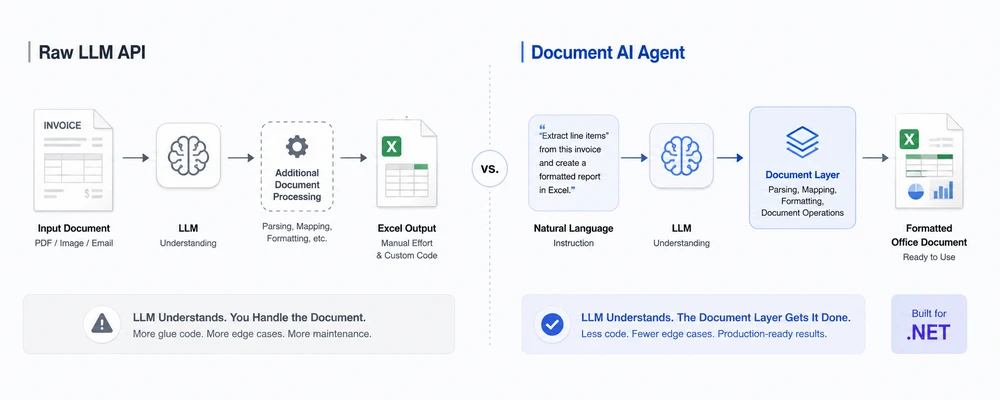
A user uploads an invoice PDF and asks:
"Extract the line items, calculate the total, and create a formatted Excel report."
A modern LLM can understand the invoice and identify the information you need. But that is only half of the problem. Your application still has to turn that understanding into a real, formatted .xlsx file with the required document structure.
This is the gap between understanding a document and operating on a document. A raw LLM API provides language and reasoning capabilities, but it does not by itself provide a complete Office document manipulation workflow. A document AI agent connects the LLM to a deterministic document-processing SDK, so the LLM determines what should happen and the document layer performs the file operations.
Quick Navigation
- The Problem: Raw LLM APIs and Document Files
- What a Document AI Agent Adds
- Side-by-Side Comparison
- When to Use Each Approach
- A Minimal Example in C#
- Why Spire.Agent.Office for .NET Teams
- FAQ
1. The Problem: Raw LLM APIs and Document Files
Calling gpt-4 or claude directly to "process this document" fails in three ways that matter in production. These concerns become important as soon as a document workflow moves beyond simple text extraction and requires reliable file manipulation, validation, and formatting.
1.1 LLMs Cannot Reliably Read or Write Office Files
Large language models can understand document content when the model and API support the relevant file or multimodal input, but that does not provide deterministic document manipulation. A model may be able to analyze the text, tables, or visual content of a PDF, but that does not mean it can deterministically modify a workbook, preserve every Office-specific property, and save the result as a production-ready .xlsx file through the LLM API itself. When an Office file is provided to a raw LLM API, the model may receive extracted or transformed content rather than a native, editable workbook object. Even when the model can understand the workbook's content, the API does not by itself provide deterministic operations for preserving and modifying the workbook's native structure (sheets, named ranges, formulas, conditional formatting, merged cells, number formats).
Raw LLM document parsing can extract useful semantic information, but semantic parsing is different from preserving and manipulating the native document structure.
Writing is the same problem in reverse. A raw LLM API does not, by itself, provide a deterministic Office document manipulation layer. An LLM can describe what a report should contain, but producing a valid .docx or .xlsx file requires additional tooling. To produce real Office output from a raw LLM, you have to build a reconstruction pipeline: parse the model's text response, map fields to cells or paragraphs, apply formatting, and write the file yourself. That pipeline is non-trivial — and it is the part that breaks in production.
1.2 Formatting Is Not Guaranteed
Document workflows carry formatting that matters: column headers in an invoice report, number formats in a financial spreadsheet, conditional fills that flag discrepancies, table styles in a management report. A raw LLM API returns model-generated content, such as text, JSON, or tool calls; it does not inherently provide a formatted Office document as the output. Formatting can be difficult to preserve when the model's response must be reconstructed into an Office file — an Excel sheet without number formats is a sheet someone has to fix by hand before it can go to accounting.
Even when the LLM produces structured output (JSON, Markdown tables), structured output is not structured document output. JSON gives you structured data, not a structured Office document. A JSON response can describe cells, paragraphs, tables, or formatting instructions, but an additional document-processing layer is still required to apply those instructions to a real .xlsx, .docx, .pptx, or .pdf file. You are now maintaining a formatter, a field mapper, and a style applier — none of which the LLM helps with.
1.3 You Reimplement the Entire Orchestration
A raw-LLM document pipeline is not one API call. It is a stack:
- Prompt design — templated prompts that break when the document layout changes
- Extraction — additional document-processing tools may be required to extract structured content from PDF, Word, and Excel files before the LLM sees it
- Parsing — JSON parsing logic to turn the LLM's response into structured data
- Retry logic — handling hallucinated outputs, rate limits, and content-filter rejections
- File I/O — reading inputs, writing outputs, managing temp files
- Output validation — checking that the produced file is valid and well-formed before returning it to the user
At that point, you are building a document-processing solution — with an LLM as one component, not the solution itself. Every new document type, schema change, or output format means re-tuning prompts and re-testing model-specific quirks. The maintenance burden grows linearly with the number of document types you support.
2. What a Document AI Agent Adds
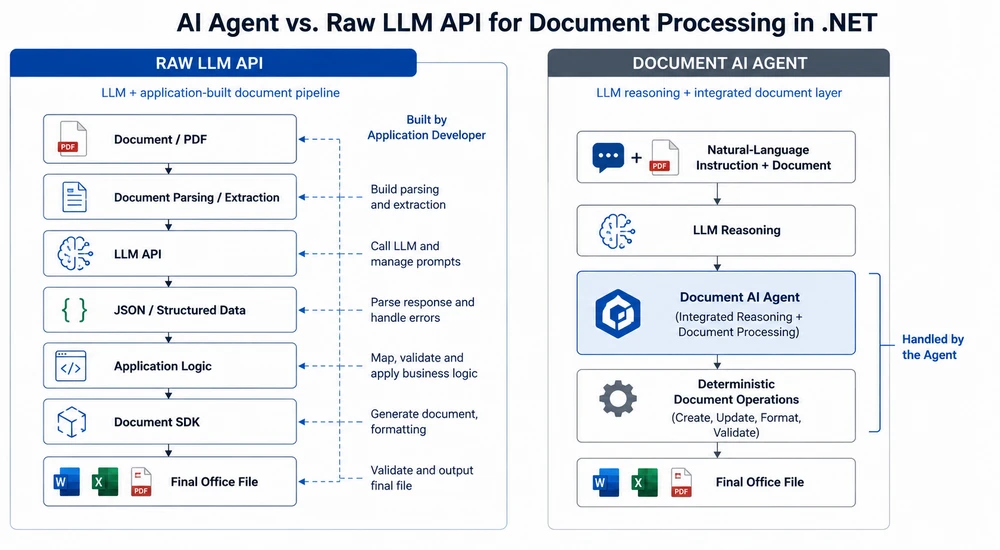
A document AI agent solves the three problems above by pairing the LLM with a deterministic document-processing layer. The division of labor is clean:
- The LLM handles understanding. It reads the natural-language instruction, decides what to extract or generate, and determines the structure of the output.
- The document layer handles execution. It reads and writes real Office and PDF files, preserves formatting, applies styles, and uses deterministic document operations to produce a structurally valid file.
Instead of asking the LLM to "figure out" document structure, the agent invokes deterministic document operations. The model does not need to construct the Office file format itself; it produces the intent, and the document layer performs the corresponding file operations.
The two architectures side by side:
What This Looks Like in Practice
| Problem with raw LLM | How the agent solves it |
|---|---|
No native .xlsx manipulation |
Document layer reads and manipulates the workbook natively |
| No deterministic Office file generation | Document layer creates the output file |
| Formatting may be lost during reconstruction | Document layer handles styles and number formats |
| Model-generated structure may be inconsistent | Document operations are deterministic |
| You build the surrounding pipeline | Agent SDK provides the document-processing workflow |
The key insight: the LLM is the brain, the document layer is the hands. A raw LLM API gives you the brain and expects you to build the hands. A document AI agent gives you both, integrated, in one SDK call.
A document SDK alone can manipulate files, but it does not understand natural-language intent. An AI agent combines that deterministic document layer with an LLM so users can describe the desired workflow instead of implementing every document operation manually. The value is not "document SDK + AI" — it is the pipeline: natural-language instruction → LLM reasoning → deterministic document operations.
Recommended reading: AI Agent for Document Processing: What It Is and How It Works — the document AI agent concept explained.
3. Side-by-Side Comparison
| Dimension | Raw LLM API | Document AI Agent |
|---|---|---|
| File understanding | Depends on model/API and file type | Document layer provides native document access |
| File manipulation | Requires tools or additional document libraries | Built into the document-processing layer |
| Format fidelity | Depends on reconstruction logic | Handled by deterministic document APIs |
| Output handling | LLM response must be parsed and converted into a file | Document layer performs deterministic file creation |
| Code volume | More application-side orchestration | Natural-language instruction + SDK setup |
| Maintenance | Prompts, parsers, mappings and file logic | More workflow behavior can be expressed in instructions |
| Multi-format processing | Requires format-specific support | Unified document-processing workflow |
| Semantic accuracy | Depends on the model and prompt | Still depends on the model and instruction |
| File validation | Application responsibility | SDK reports processing success/failure |
| .NET integration | .NET SDK or HTTP integration, plus document-processing libraries as needed | Native C# SDK with document processing |
| Best for | Text-centric AI tasks | AI-driven document workflows |
4. When to Use Each Approach
The comparison is not "agent is always better." Raw LLM APIs and document AI agents serve different intents, and choosing the right tool depends on what the workflow produces.
Use a Raw LLM API When
- The output is text, not a file. Summarization, question answering, classification, and drafting are text-in, text-out tasks. No document layer is needed.
- You already have an LLM stack. If your team has invested in prompt engineering, RAG, and orchestration infrastructure, adding a document SDK may be unnecessary for text-only workflows.
-
The input is plain text or Markdown. If the source material is already text — not
.pdfor.xlsx— the extraction problem disappears, and a raw LLM call is the simplest path.
Use a Document AI Agent When
-
The output must be a real Office or PDF file. If the deliverable is an
.xlsxworkbook for accounting, a.docxreport for management, or a.pdffor distribution, a document-processing layer becomes important when the workflow must produce a valid, formatted Office file reliably. - The input spans multiple formats. PDFs, Word documents, Excel files, and scanned images arriving in the same workflow. A raw LLM needs a separate extraction library per format; an agent handles all of them in one instruction.
- Formatting matters. Column headers, number formats, conditional fills, table styles, fonts — if the business team cares about how the file looks, the document layer is what preserves it.
- You are in .NET. A native C# SDK that combines AI orchestration with document processing can reduce the amount of application-side integration compared with combining an LLM SDK with separate document-processing libraries.
- The workflow changes often. New suppliers, new report layouts, new validation rules — when the bottleneck is re-coding per change, editing an instruction is faster and cheaper.
Decision Summary
| Question | Raw LLM API | Document AI Agent |
|---|---|---|
| Is the output a real file (Excel, Word, PDF)? | Requires additional tooling | Yes |
| Does formatting need to survive? | Depends on your reconstruction pipeline | Handled by the document layer |
| Are inputs in multiple Office formats? | Requires format-specific extraction | Yes |
| Is this a text-only task (summarize, Q&A)? | Yes | Possible, but unnecessary |
| Do you need native document manipulation in .NET? | Requires an additional document library | Built into the workflow |
| Will the workflow rules change frequently? | Prompts and parsers need re-tuning | Change behavior by editing the instruction |
5. A Minimal Example in C#
The difference is clearest in code. Below is the same task — extract data from a PDF invoice and produce a formatted Excel report — implemented both ways.
Raw LLM API Approach
// Simplified raw LLM pipeline — illustrative architecture, not production code.

// 1. Obtain document content using a document-processing tool
//    (This example uses extracted text to illustrate one common raw-LLM architecture;
//    some modern LLM APIs can also accept PDFs directly.)
string documentText = ExtractTextFromPdf(@"C:\invoices\supplier-a.pdf");

// 2. Send the extracted content to the LLM
string json = await CallLlmAsync(
    "Extract vendor, invoice date, line items, and total as JSON.",
    documentText);

// 3. Deserialize and validate the model response
InvoiceData data = JsonSerializer.Deserialize<InvoiceData>(json)
    ?? throw new InvalidOperationException("Invalid LLM response.");

// 4. Create the Excel file using a document library
using var workbook = new Workbook();
var sheet = workbook.AddWorksheet("Invoice");

// ... map data to cells and apply formatting
workbook.SaveToFile(@"C:\output\report.xlsx");
Illustrative pipeline: API and document-library calls are simplified to focus on the architecture rather than a specific vendor SDK.
Document AI Agent Approach
// Document AI agent: one instruction, real file output
using Spire.Agent.Office.AI;
using Spire.Agent.Office.Extensions;
using Spire.Xls;

string? spireToken = Environment.GetEnvironmentVariable("SPIRE_TOKEN");
if (string.IsNullOrEmpty(spireToken))
    throw new InvalidOperationException("SPIRE_TOKEN is not set.");

AIOptions agentOptions = new AIOptions();
agentOptions.WorkDir = @"C:\output";
agentOptions.SpireToken = spireToken;

string instruction =
    "Read the attached invoice PDF, extract vendor name, invoice date, " +
    "line items (description, quantity, unit price, amount), and total. " +
    "Create a workbook with formatted headers, number formats for currency " +
    "columns, and a summary row. Save as a .xlsx file.";

string[] attachments = { @"C:\invoices\supplier-a.pdf" };

using (Workbook wb = new Workbook())
{
    AIResult result = wb.AI(agentOptions).ExecuteInstruction(
        wb,
        instruction,
        @"C:\output\report.xlsx",
        attachments);

    if (result == null || !result.Success)
        throw new InvalidOperationException(
            $"Processing failed: {result?.ErrorMessage}");
}
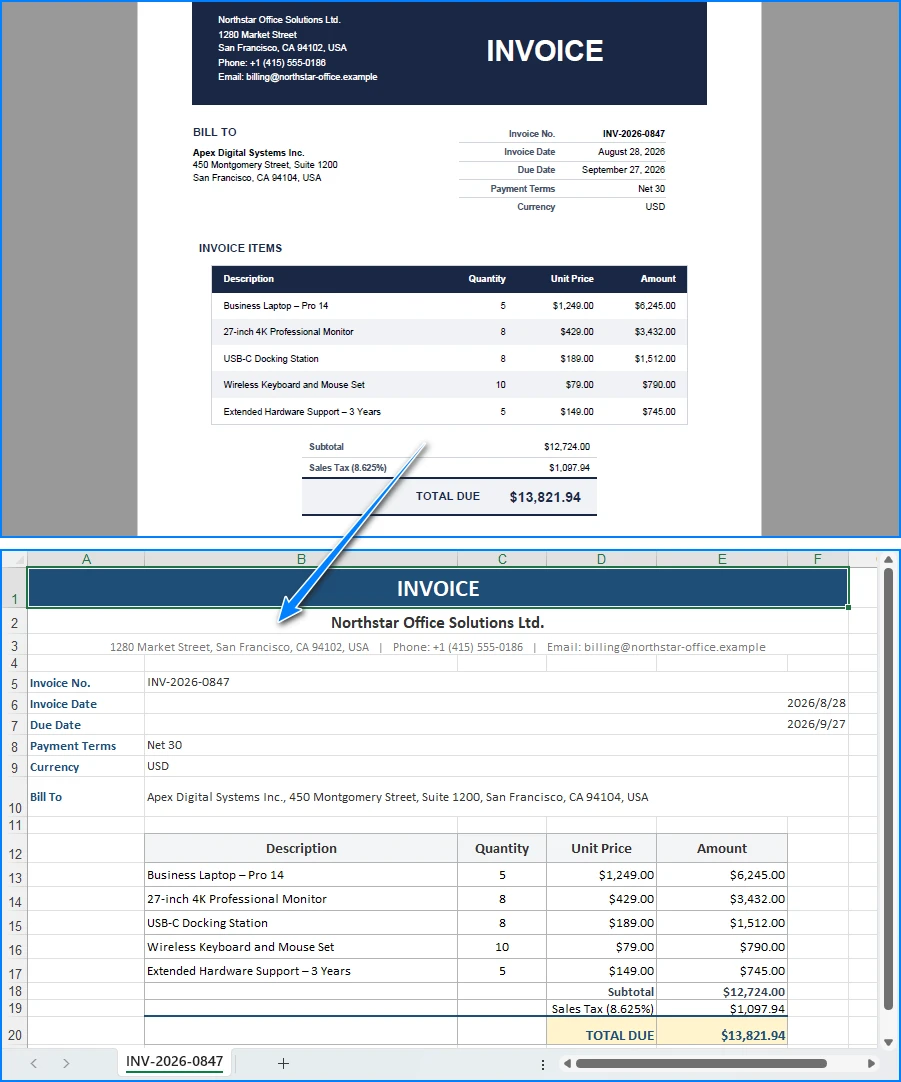
The agent reads the PDF invoice and produces a formatted Excel report:
Key API Calls
-
Workbook.AI(agentOptions)— attaches the AI document processor to a workbook object -
ExecuteInstruction(doc, instruction, savePath, attachments)— runs the instruction and writes the output file -
AIResult.Success/AIResult.ErrorMessage— verifies the result and surfaces errors
The raw LLM approach is four separate problems (extraction, prompting, parsing, file writing) stitched together. The agent approach is one instruction and one result check. Both approaches can ultimately produce an .xlsx file, but the raw LLM approach requires you to build and maintain the document-generation layer yourself. The agent integrates that document-processing layer into the workflow, so the LLM focuses on interpreting the instruction while the SDK handles document operations.
You may also like: Automate Invoice Processing with an AI Agent in .NET — a full extraction, validation, and reporting workflow.
6. Why Spire.Agent.Office for .NET Teams
The comparison above is deliberately product-neutral; the same architecture (LLM + document layer) works with any capable model and any document SDK. Where Spire.Agent.Office earns its place for .NET teams is in three specific areas:
-
Native multi-format processing. PDFs, Word documents, Excel files, and image-based document workflows can be incorporated into the agent workflow. The agent reads, extracts, and generates across these formats in a single instruction — no per-format extraction library, no per-format output formatter.
-
Document formatting can be preserved through deterministic document operations. The document layer keeps column headers, number formats, conditional fills, table styles, and fonts intact. When working from an existing template, explicitly instruct the agent to preserve the original layout and styling, and the output stays true to the template without extra code.
-
Native .NET integration. It is a C# SDK that drops into an existing .NET application. No separate document-processing service to build or maintain, no cross-service plumbing, no HTTP orchestration layer. The example above captures the core integration surface: SDK setup, one instruction, and one result check.
If you already run Spire.Office for document processing, the agent is the natural next layer: the same Workbook object gains an AI() processor that turns instructions into executed workflows. The deterministic SDK you already know becomes the document layer the agent calls.
7. FAQ
Can't I just send the PDF directly to the LLM API?
You can. Modern LLM APIs can accept some document types directly, including PDFs. The important distinction is that file input gives the model access to document content; it does not automatically give your application a deterministic API for modifying the original Office structure and saving a production-ready output file. For example, a model may correctly identify invoice tables in a PDF, but turning that understanding into a formatted .xlsx still requires document-generation logic.
What exactly is a "document layer"?
A document layer is a deterministic SDK that reads and writes Office and PDF files while working with their native document structures. It handles the operations an LLM cannot: opening a .xlsx and preserving its sheets and formulas, writing a .docx with correct styles and headers, merging cells, applying conditional formatting, and creating structurally valid Office/PDF output through deterministic document APIs. In Spire.Agent.Office, the document layer is the Spire.Office SDK; the LLM decides what to do, and the document layer does it.
Is this just RAG with extra steps?
No. RAG (retrieval-augmented generation) primarily focuses on retrieving relevant information to ground model responses. A document AI agent adds another responsibility: executing document operations and producing or modifying actual files. A document agent reads and writes real files, preserves formatting, and produces structured output that is a valid Office document, not a text response.
Which AI models does Spire.Agent.Office support?
Spire.Agent.Office connects to a large language model behind a SpireToken key and supports hosted model APIs as well as custom model endpoints. For questions about which providers and model protocols are supported in your deployment, contact sales.
Does my data stay inside my environment?
The SDK, templates, and document processing run inside your application — files are not uploaded to a third-party document service for storage or conversion. To analyze content, the AI needs the relevant text, and it is sent to the model for processing. If the model endpoint is deployed within your own network and your configuration does not send document content externally, document content can remain within your infrastructure. If you connect through a hosted model API such as OpenAI or Azure OpenAI, the relevant content is transmitted to that provider per your configuration.
When is a raw LLM API the right choice?
For text-only tasks where no file output is needed: summarizing a document, answering questions about its content, classifying it into a category, or drafting an email response. If the input is already plain text and the output is plain text, a document layer adds complexity without value. The agent earns its place when the workflow produces real files that must be valid and formatted.
Ready to Add a Document Layer to Your LLM Workflows?
If your application processes invoices, contracts, reports, or any Office document workflow, a document AI agent turns one natural-language instruction into a real, formatted file — without building an extraction-and-reconstruction pipeline. Follow the Getting Started tutorial to run your first workflow in .NET.
Further Reading
- Generate Word Documents from Excel Data in C# -- data-driven document generation with the deterministic SDK
- Build an AI-Powered Excel Report Assistant in C# -- automated report generation and analysis
- Spire.Agent.Office product overview -- AI agent SDKs for every Office document format