Turning a PNG image into an editable Word document sounds simple, but many people quickly discover that it’s not as straightforward as expected. Whether you’re dealing with scanned contracts, screenshots of reports, or image-based invoices, directly copying content from a PNG file rarely works.
This article compares five popular PNG to Word converters and explains how to use them. You’ll see how each of them works in real scenarios, what their limitations are, and which option is best for different needs.
- Why Converting PNG to Word is Hard
- Using Online PNG to Word Converters
- Using Microsoft Word’s Built-in OCR
- Automate Conversion with Spire.OCR and Spire.Doc
Why Converting PNG to Word Is Not That Simple
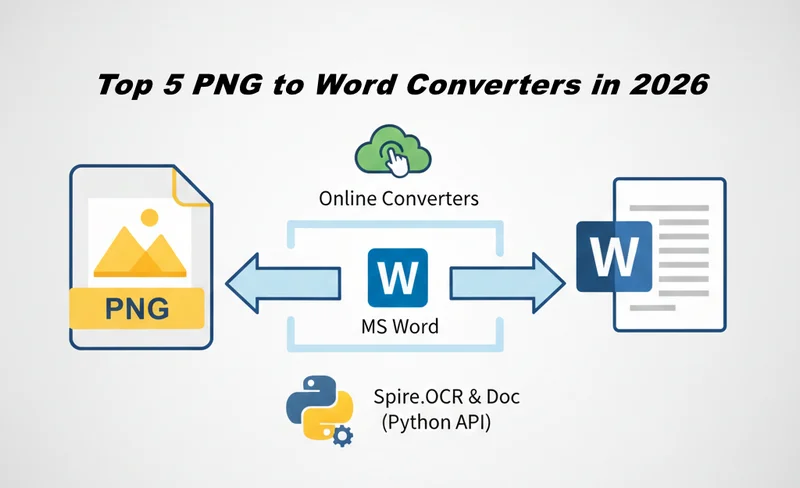
A PNG file stores information as pixels rather than structured text. This means Word cannot directly interpret its content unless the image is first processed using OCR (Optical Character Recognition) technology. OCR analyzes visual patterns, identifies characters, and converts them into machine-readable text.
The real challenge in converting PNG to Word is how accurate and usable that Word file is. Layout complexity, tables, mixed fonts, line breaks, and multi-language text can all affect the final result. Different tools handle these elements very differently, which is why the output quality varies significantly even when all of them technically support PNG to Word conversion.
Method 1: Using Online PNG to Word Converters
Online PNG to Word converter tools are usually the fastest way to get editable content from images. They run entirely in the browser and rely on cloud-based OCR engines to recognize text and export Word files. However, different tools vary significantly in accuracy, workflow, and data handling.
Below are three commonly used online tools, each suited to slightly different scenarios.
1. OnlineOCR.net — A Simple Free PNG to Word Converter
OnlineOCR.net is a classic free PNG-to-Word converter option that focuses on simplicity. It has a minimal interface and supports basic OCR for multiple languages, making it suitable for quick text extraction from clear images.
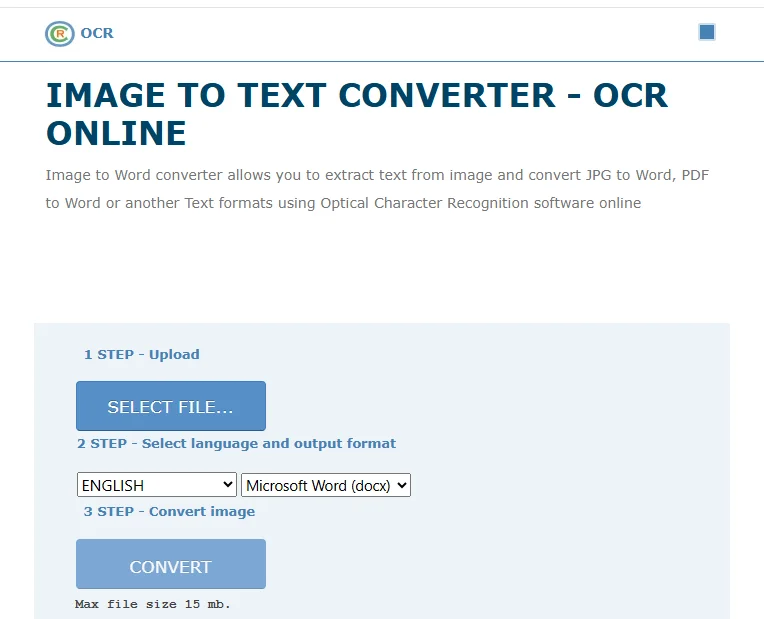
How to convert PNG to Word for free with OnlineOCR.net
- Open the OnlineOCR.net website.
- Upload your PNG file from your local device.
- Select the language of the content on PNG and choose Microsoft Word (DOCX) as the output format.
- Click CONVERT and download the Word file.
Pros
- Free for small files
- No account required
- Straightforward workflow
Cons
- File size and page limits
- Basic formatting only
- Not suitable for batch processing
Best For:
Quick, one-off PNG-to-Word conversions where formatting accuracy is not critical.
2. Smallpdf — A Modern Way to Convert from PNG to Word
Smallpdf offers a more polished user experience and integrates cloud storage platforms such as Google Drive and Dropbox. Unlike simpler tools, it uses a multi-step workflow: image to PDF, then OCR-based export to Word.
How to convert PNG to Word with Smallpdf
- Open the JPG to PDF tool on Smallpdf.
- Drag and drop your PNG file into the upload area. You may also upload from Google Drive, Dropbox, or OneDrive.
- Click Convert to turn the PNG into a PDF.
- Once processing finishes, click Export As and choose Word.
- Enable OCR when prompted to extract editable text.
- Download the generated DOCX file or save it to a cloud service.
Pros
- Clean, beginner-friendly interface
- Cloud storage integration
- Better OCR accuracy than basic tools
Cons
- OCR is limited for free users
- Requires internet upload
- No automation or batch APIs
- Requires multiple steps
Best For:
Users who prioritize a polished online experience and don’t mind a multi-step workflow when converting PNG to Word occasionally, especially when cloud storage integration is needed.
3. Adobe Acrobat Online — A Trusted Brand for Image-to-Word Conversion
Adobe Acrobat Online leverages Adobe’s OCR technology and is often perceived as more reliable for structured documents. It is commonly used when users have already applied Adobe for PDF workflows.

How to Convert PNG File to Word with Adobe Acrobat Online
- Open Adobe Acrobat Online and choose PNG to PDF.
- Upload your PNG image and convert it to a PDF file.
- Download the generated PDF to your device.
- Go back to the Convert section and select PDF to Word.
- Upload the PDF file you just created.
- Convert the file and download the resulting Word document.
Pros
- Strong OCR engine
- Good for business-style documents
Cons
- Requires signing in to download the Word file
- Limited free usage
- Files are processed in the cloud
Best For:
Professional users handling standard documents who value brand reliability.
Method 2: Using Microsoft Word’s Built-in OCR
Many users don’t realize that Microsoft Word includes a basic OCR engine. While Word doesn’t directly open PNG files as editable documents, there is a way that allows you to convert from PNG to Word without extra tools.
Step-by-Step: Convert PNG to Word Using MS Word
- Convert your PNG image to PDF (using Print to PDF or any image-to-PDF tool).
- Open Microsoft Word.
- Use File → Open and select the PDF.
- Word automatically runs OCR and converts the content into an editable document.
- Save the file as a .docx document.
Best For
- Users with Microsoft 365
- Occasional desktop conversions
- No-cost solutions
Limitations
- Manual and time-consuming
- Inconsistent layout for tables and complex formatting
- Not suitable for automation or large volumes
Method 3: Professional Automation with Spire.OCR and Spire.Doc
If you need to process large numbers of images reliably and repeatedly, a professional solution becomes essential. This is when Spire.OCR and Spire.Doc differentiate themselves from the other tools.
Spire.OCR is an OCR API for converting text from PNG images, and Spire.Doc is a Word document API for generating and formatting DOCX files programmatically. Used together, they enable a fully automated PNG-to-Word workflow that scales well for batch processing and system integration.

How the Conversion Workflow Works
- Use Spire.OCR to extract text from PNG images.
- Generate a Word document using Spire.Doc based on text extracted.
- Save the result as a Word file.
Python Code Example: Convert PNG to Word
import os
from spire.ocr import *

# Create an instance of the OCR scanner
scanner = OcrScanner()
configureOptions = ConfigureOptions()

# Set the path to the OCR runtime models
configureOptions.ModelPath = r'E:\DownloadsNew\win-x64'
# Set the target recognition language
configureOptions.Language = 'English'
scanner.ConfigureDependencies(configureOptions)

# Specify the path of the source image
image_path = r'E:/DownloadsNew/pic.png'
# Perform the OCR scan on the image file
scanner.Scan(image_path)
# Get the recognized text content
extracted_text = scanner.Text.ToString()

print("OCR Step Completed. Text Length:", len(extracted_text))

# Import and Use Spire.Doc
if extracted_text.strip():
    from spire.doc import Document, FileFormat

    # Create a new Word Document instance
    doc = Document()
    # Add a section to the document
    section = doc.AddSection()
    # Add a paragraph and append the extracted text
    para = section.AddParagraph()
    para.AppendText(extracted_text)

    # Define the output path for the Word file
    output_file = r'E:/DownloadsNew/Output.docx'
    # Save the document as a standard .docx file
    doc.SaveToFile(output_file, FileFormat.Docx2013)
    # Close the document to release resources
    doc.Close()
Pros
- Fully automated batch conversion for large volumes of PNG files
- Local processing ensures data privacy and security
- Easily integrates into backend systems or enterprise workflows
Cons
- Requires programming knowledge to use (SDK/API-based)
- Initial setup may take longer than manual tools
- Advanced features require a paid license for full functionality
Best For:
Developers and enterprises that need automated, batch PNG-to-Word conversion as part of systems or document processing workflows.
Conclusion
Online PNG to Word converters are ideal for quick tasks where speed and convenience matter most, while Microsoft Word works well for users who prefer a familiar desktop environment and occasional manual conversions. For developers and businesses dealing with massive images, Spire.OCR and Spire.Doc offer an automated approach for batch processing and system integration. Each method has its own strengths and limitations, and the best choice ultimately depends on your workflow, scale, and long-term needs.