Converting HTML to image format like JPG or PNG has become an essential task for developers, designers, and content creators. Whether you need to generate social media previews, capture data dashboards for reports, create website thumbnails, or automate screenshot workflows, knowing the right HTML to JPG or HTML to PNG conversion method is key to delivering high‑quality results efficiently.
This comprehensive guide covers everything you need to know about HTML to image conversion, including:
- Why you might need to convert HTML to an image – from archiving web pages to creating automated social media cards.
- JPG vs. PNG: which format to choose – detailed comparison of compression, transparency, and file size, etc.
-
3 proven methods to convert HTML to JPG or PNG:
- Online converters – quick solutions for one‑off conversions.
- Browser built‑in screenshot tools – leverage Chrome, Edge, or Firefox for high fidelity captures.
- C# with Free Spire.Doc for .NET – a reliable free library for server‑side automation.
- Pro tips for high‑quality conversions – optimizing HTML, setting resolution, handling fonts, and compressing final images.
By the end of this guide, you’ll have a clear understanding of how to choose the right approach based on your technical skill level, infrastructure, and automation needs.
Why Convert HTML to an Image?
HTML (HyperText Markup Language) is the backbone of web pages, but it’s not always the most portable or shareable format. Converting HTML file to JPG or PNG solves several common pain points:
- Preserve Layout & Design: Browsers render HTML differently, and converting to an image locks in the layout, ensuring your content looks the same everywhere.
- Easy Sharing: Images are universally supported across social media, email, presentations, and documents—no need for recipients to open a browser or have access to the original HTML file.
- Archiving & Documentation: Web pages change or disappear over time. Converting a webpage to an image creates a permanent snapshot of the content for records.
- Design & Mockups: Web designers often convert HTML prototypes to JPG/PNG to share with clients, showcase work in portfolios, or integrate into design systems.
- Performance Optimization: For simple content (e.g., infographics, static widgets), images load faster than HTML, especially on low-bandwidth devices.
JPG vs. PNG: Which Format Should You Choose?
Choosing the correct output format directly affects file size, quality, and transparency support. Here’s a quick comparison:
| Feature | PNG | JPG |
|---|---|---|
| Compression | Lossless | Lossy |
| File size | Larger | Smaller |
| Transparency | Supports alpha channel (transparent areas) | No transparency (fills with white or black) |
| Best for | Logos, icons, text‑heavy UIs, screenshots | Photographs, banners, large images |
Rule of thumb: Use PNG when you need sharp text, fine details, or a transparent background. Use JPG when you prioritize small file size and the content is photographic.
3 Methods to Convert HTML to Images (For All Skill Levels)
Whether you’re a beginner with no coding experience or a developer looking for automated solutions, there’s a method to fit your needs. We’ll cover the most reliable tools and techniques, from simple online converters to code-based solutions.
1. Online HTML to JPG/PNG Converters
Online converters are the simplest way to change HTML to JPG or HTML to PNG without any software or coding. They work directly in your browser and support HTML files or URLs. Top tools like Convertio and CloudxDocs deliver fast and reliable conversion results.
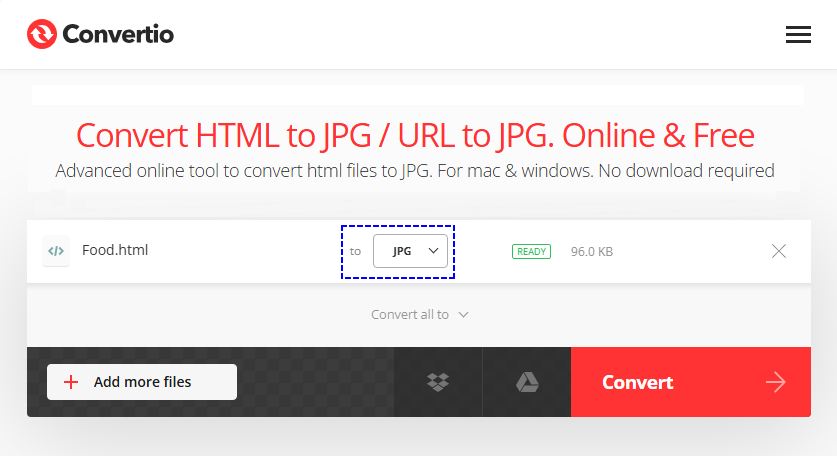
Step-by-Step with Convertio:
- Go to Convertio’s HTML to JPG/PNG tool.
- Upload your HTML/ URL file.
- Select the output format (JPG, JPEG, or PNG) from the dropdown menu.
- Click "Convert" and wait for the process to finish.
- Download the converted image to your device.
Pros: Zero setup, easy to use.
Cons: Require internet connection; free tiers may have file size limits.
Converting HTML to images preserves the visual layout, but sometimes you only need the underlying content. Learn how to extract plain text from HTML documents with our step‑by‑step guide, perfect for data mining, content migration, or search indexing.
2. Browser Built-in Screenshot Tools (Quick & Free)
All modern browsers (Chrome, Firefox, Safari, Edge) have built-in screenshot tools that can convert HTML to PNG. This is ideal for capturing web pages or specific HTML elements without third-party tools.
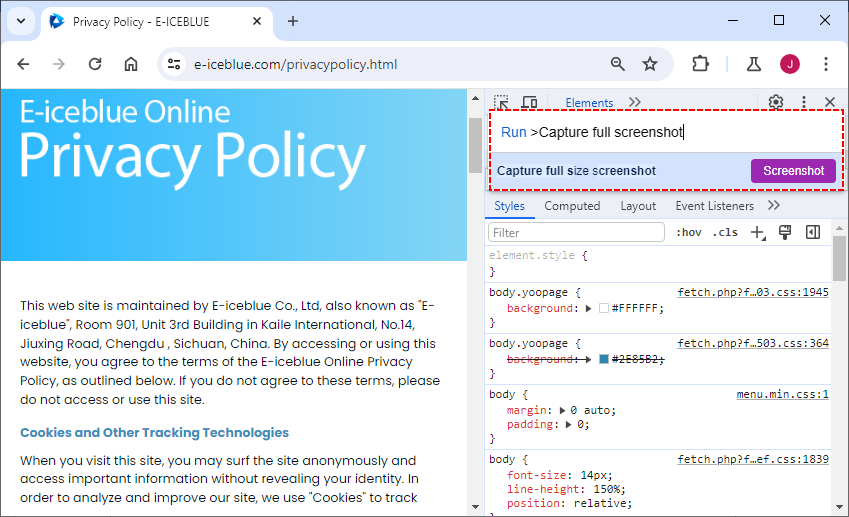
Example of Chrome HTML to PNG Conversion (steps are similar for other browsers):
- Open the HTML page in your browser (local file or URL).
- Press "F12" to open DevTools.
- In DevTools, press "Ctrl + Shift + P" (Windows) or "Cmd + Shift + P" (Mac) to open the command palette.
- Type "Capture full screenshot" (or "Capture full size screenshot") and press "Enter".
- The screenshot will automatically download as a PNG. To convert to JPG, use an image editor to save the PNG as JPG.
Pros: Perfect visual fidelity, zero setup, great for debugging/UI checks, 100% free.
Cons: Manual process (not automatable), only outputs PNG natively.
Pro Tip: While images are ideal for sharing visuals, converting HTML to PDF preserves both layout and text for documents, reports, and archiving, offering a complementary output format.
3. C# with Free Spire.Doc for .NET
For .NET developers building server-side applications, Free Spire.Doc for .NET is a reliable, free library that supports converting HTML to JPG, PNG, and other image formats. It handles complex HTML content (including CSS styles, tables, and images) without relying on a browser, making it ideal for automated .NET workflows.
Installation via NuGet:
The easiest way to install Free Spire.Doc is through NuGet Package Manager in Visual Studio:
Install-Package FreeSpire.Doc
C# Code to Convert HTML to PNG
This code converts a local HTML file to PNG (swap ImageFormat.Png for ImageFormat.Jpeg to output JPG) and customizes page margins for optimal rendering:
using Spire.Doc;
using Spire.Doc.Documents;
using System.Drawing;
using System.Drawing.Imaging;

namespace ConvertHtmlFileToPng
{
    class Program
    {
        static void Main(string[] args)
        {
            // Create a Document object
            Document document = new Document();

            // Load an HTML file
            document.LoadFromFile("input.html", FileFormat.Html, XHTMLValidationType.None);

            // Get the first section
            Section section = document.Sections[0];

            // Set the page margins
            section.PageSetup.Margins.All = 2;

            // Convert the document to an array of bitmap images
            Image[] images = document.SaveToImages(ImageType.Bitmap);

            // Iterate through the images
            for (int index = 0; index < images.Length; index++)
            {
                // Specify the output file name
                string fileName = string.Format(@"Output\image_{0}.png", index);

                // Save each image as a PNG file
                images[index].Save(fileName, ImageFormat.Png);

            }

            // Dispose resources
            document.Dispose();
        }
    }
}
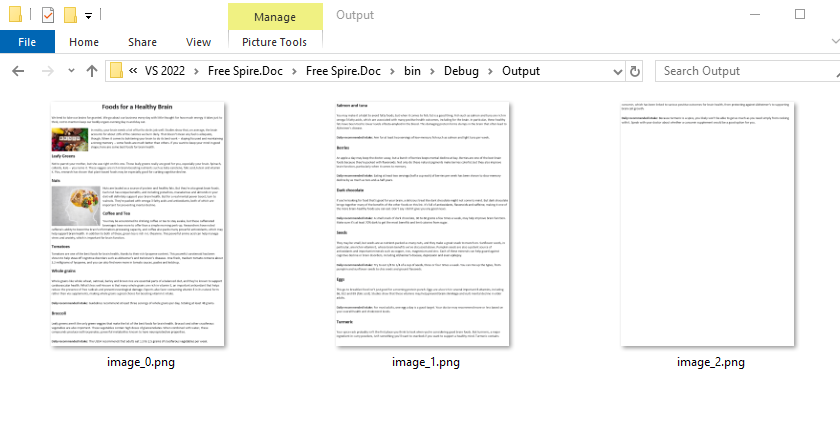
Conversion result: The library aligns HTML layout with the standard page model of a Word document. Accordingly, lengthy HTML content will be paginated and exported as multiple images.
Pros: High scalability, server-friendly, full control over rendering, supports bulk conversion.
Cons: Requires .NET coding knowledge.
Reference: Convert HTML File or HTML String to Image in C#
Pro Tips for High-Quality HTML to Image Conversions
To ensure your converted images are crisp, clear, and professional, follow these tips:
- Optimize HTML First: Remove unnecessary code, compress images, and ensure styles are consistent.
- Use High Resolution: When converting, set the resolution to at least 1920x1080 (Full HD) to avoid blurriness.
- Test for Responsiveness: If the source HTML is responsive, test different screen sizes to ensure the layout doesn’t break in the image.
- Handle Fonts Carefully: Embed custom fonts in your HTML; missing fonts cause distorted text and inconsistent rendering.
- Compress Final Images: Use tools like TinyPNG or Squoosh to reduce JPG/PNG file sizes without losing quality.
Final Thoughts
Converting HTML to JPG or PNG bridges the gap between dynamic web content and static, universally shareable media. Whether you’re a beginner using online tools, a designer using browser screenshots, or a developer automating conversions with code, the methods in this guide cover every use case.
Remember to choose the right format (JPG for photos, PNG for transparency), and follow the pro tips to optimize HTML and post-conversion images for quality and performance.
Frequently Asked Questions (FAQs)
Q1. Can I convert HTML to JPG/PNG without losing quality?
Yes. Use PNG for lossless quality or JPG with high quality (90–100%) for photos and full pages. Avoid repeated JPG conversions, as each edit degrades quality slightly.
Q2. Is there a way to batch convert multiple HTML files to JPG/PNG?
Yes. Use online tools like Convertio with batch uploads support. For developers, write a script to loop through HTML files and convert them automatically.
Q3. Can I convert HTML emails to JPG/PNG?
Yes. Open the HTML email in a browser, then use the browser’s screenshot tool or an online converter to capture the email as an image. This is useful for testing email rendering across devices.
Q4. Can I convert only a specific HTML element (not the full page) without cropping the image later?
Yes. Chrome/Firefox DevTools are designed for this:
- In DevTools (F12), use the Element Selector (arrow icon in the top-left) to click the specific HTML element (e.g., a div, table, or banner).
- Open the command palette (Ctrl/Cmd + Shift + P) and select Capture node screenshot—the tool will capture only the selected element as a PNG, no cropping needed.