Exporting PHP source code to PDF is useful for documentation, code reviews, compliance archives, tutorials, and client delivery. A well-formatted PDF makes code easier to read, share, and print — especially when syntax highlighting and line numbers are preserved.
This guide walks you through four practical methods, from the quickest manual option to a fully automated developer pipeline.
Quick Navigation
- Method 1 — Print PHP Code to PDF in a Browser
- Method 2 — Export PHP Code to PDF with VS Code
- Method 3 — Convert PHP to PDF Using Online Tools
- Method 4 — Convert PHP to PDF with Python
Why Convert PHP Code to PDF?
Developers and teams convert PHP code to PDF for several common reasons:
- Documentation — Include readable code in technical manuals
- Code Reviews — Share snapshots without exposing repositories
- Client Delivery — Provide non-editable reference materials
- Training & Tutorials — Print-friendly learning resources
- Archival & Compliance — Long-term, tamper-resistant storage
If visual clarity matters, syntax highlighting and clean layout are essential.
Method 1 — Print PHP Code to PDF Using a Browser (No Syntax Highlighting)
This is the quickest way to turn PHP code into a PDF using tools you already have. It works by printing the file directly from your browser, making it ideal for simple sharing and temporary documentation. However, since browsers treat the file as plain text, visual formatting is very limited.
Best for: Fastest possible export
Skill level: Beginner
Syntax highlighting: No

Steps
- Open your .php file in a web browser (e.g. Google Chrome).
- Press Ctrl + P (Print).
- Choose Save as PDF as the printer.
- Click Save.
Pros
- No installation required.
- Works on any operating system.
- Fastest workflow.
Cons
- No syntax highlighting.
- Plain formatting.
- Harder to read for large files.
This is a quick “good enough” option when formatting does not matter.
Method 2 — Export PHP Code to PDF with VS Code (High Visual Quality)
If presentation quality matters, exporting from a modern code editor is a great choice. VS Code can generate polished PDFs that closely match what you see in the editor, including themes, fonts, and spacing. This makes it especially suitable for tutorials, documentation, and code samples.
Best for: Clean, beautiful code PDFs
Skill level: Beginner → Intermediate
Syntax highlighting: Yes
Using VS Code with the PrintCode extension produces professional, IDE style PDFs with excellent readability.
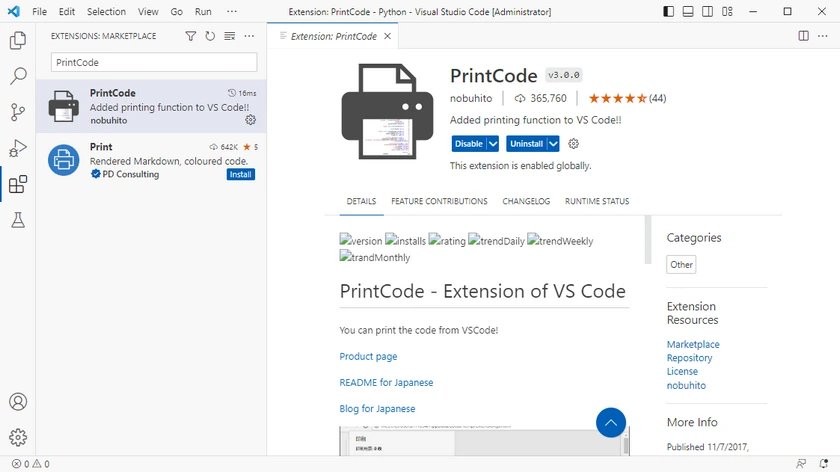
Step 1 — Install PrintCode
- Open VS Code.
- Go to Extensions (Ctrl + Shift + X).
- Search for PrintCode.
- Click Install.
Step 2 — Open Your PHP File
Open the PHP file you want to export.
Step 3 — Open Print Preview
- Press F1 to open the Command Palette.
- Type PrintCode.
- Click the PrintCode command.
- The print preview window will appear.
Step 4 — Save as PDF
In the preview window:
- Choose Save as PDF as the default printer.
- Adjust page margins (optional).
- Include headers and footers (optional).
- Click Save.
Pros
- Excellent syntax highlighting.
- WYSIWYG layout.
- Very readable output.
- No coding required.
Cons
- Manual workflow.
- Not suitable for batch conversion.
Ideal for documentation, tutorials, and sharing polished code samples.
Method 3 — Convert PHP to PDF Using Online Tools (No Installation)
Online converters let you generate PDFs without installing any software locally. You simply upload your PHP file, configure formatting options, and download the result. This convenience makes them ideal for quick, occasional tasks and users on restricted devices.
Best for: One-time conversions on any device
Skill level: Beginner
Syntax highlighting: Usually supported
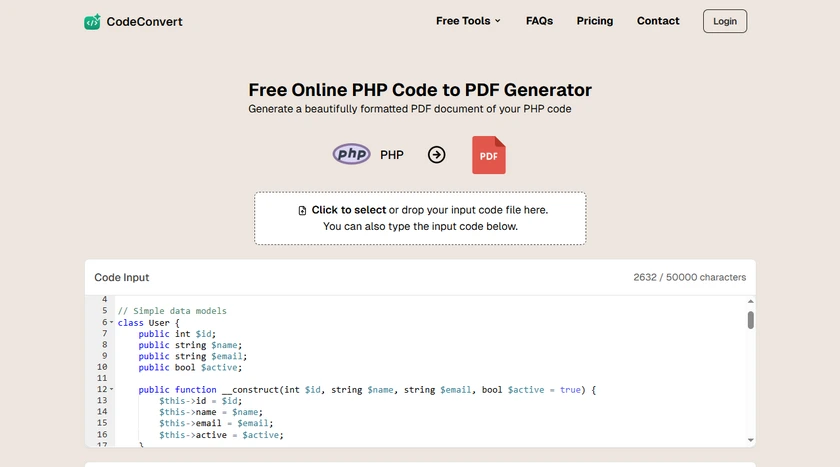
Steps
- Open an online code-to-PDF converter.
- Upload your PHP file.
- Adjust formatting options under PDF Options, including font, line numbers, and theme.
- Download the generated PDF.
Pros
- No software installation.
- Works on mobile devices.
- Very fast for small files.
Cons
- Privacy concerns (code uploaded to third party).
- File size limits.
- Limited customization.
- Not ideal for sensitive projects.
Best for quick, non-confidential tasks.
Method 4 — Convert PHP to PDF with Python (Full Control & Automation)
For developers who need automation and precise formatting control, a programmatic solution is the most powerful option. This method converts source code through a customizable pipeline, making it perfect for batch processing, report generation, and engineering workflows. It requires some setup but delivers the most flexibility and scalability.
Best for: Automation, batch processing, custom styling
Skill level: Intermediate → Advanced
Syntax highlighting: Yes (professional quality)
This method gives you full control over formatting and is ideal for developer workflows and report systems.
What This Pipeline Does
PHP source code → Syntax highlighting → Structured document → PDF
Step 1 — Install Required Libraries
pip install pygments spire.doc
- Pygments: A powerful syntax highlighter for over 300 programming languages that enhances code readability by applying color-coding to snippets.
- Spire.Doc for Python: A comprehensive library for creating and manipulating Word documents, allowing seamless export to PDF with precise formatting for professional-quality results.
Step 2 — Convert PHP Code to PDF
The script below:
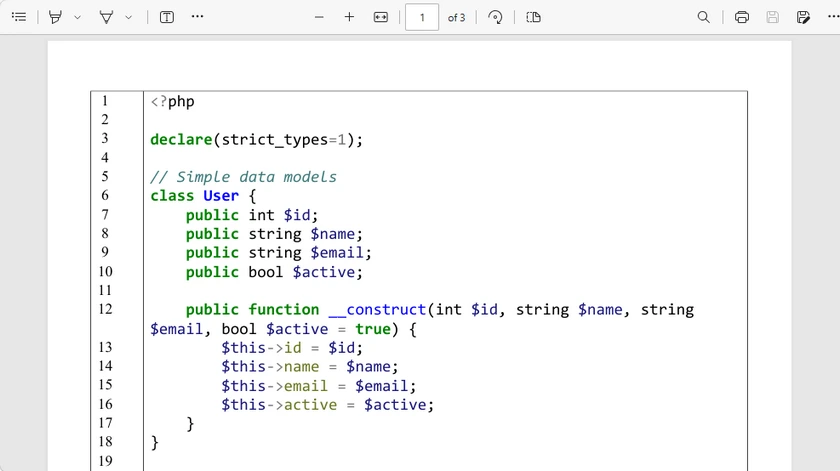
- Preserves original line breaks.
- Adds line numbers.
- Applies syntax highlighting.
- Produces a clean two-column layout.
- Uses a customizable monospaced developer font with adjustable size.
- Supports configurable page size (e.g., A4, Letter) and adjustable margins.
- Exports directly to PDF.
from pathlib import Path
from pygments import highlight
from pygments.lexers import PhpLexer
from pygments.formatters import RtfFormatter
from spire.doc import *

# ==============================
# Read PHP file
# ==============================
code = Path(r"C:\Users\Administrator\Desktop\Demo.php").read_text(encoding="utf-8-sig")
lines = code.split("\n")  # preserve real lines

# ==============================
# Create Word document
# ==============================
doc = Document()
section = doc.AddSection()
section.PageSetup.PageSize = PageSize.A4()
section.PageSetup.Margins.All = 40

# ==============================
# Create table
# ==============================
table = section.AddTable(True)
table.ResetCells(len(lines), 2)

table.PreferredWidth = PreferredWidth(WidthType.Percentage, 100)

for i in range(table.Rows.Count):
    row = table.Rows[i]
    row.Cells[0].SetCellWidth(8, CellWidthType.Percentage)
    row.Cells[1].SetCellWidth(92, CellWidthType.Percentage)

# ==============================
# Syntax highlighter
# ==============================
formatter = RtfFormatter(fontface="Consolas")
lexer = PhpLexer(startinline=True)

# ==============================
# Fill table
# ==============================
line_no_width = len(str(len(lines)))

for i, line in enumerate(lines):
    # Line number
    num_para = table.Rows[i].Cells[0].AddParagraph()
    num_para.AppendText(str(i + 1).rjust(line_no_width))

    # Highlight PHP
    rtf = highlight(line if line.strip() else " ", lexer, formatter).rstrip()
    rtf = rtf.replace(r"\f0", r"\f0\fs26") # font size

    code_para = table.Rows[i].Cells[1].AddParagraph()
    code_para.AppendRTF(rtf)

# ==============================
# Border styling
# ==============================
table.TableFormat.Borders.Horizontal.BorderType = BorderStyle.none

# ==============================
# Save
# ==============================
doc.SaveToFile("PHP_Code.pdf", FileFormat.PDF)
doc.Dispose()
Pros
- Fully automated workflow.
- Batch-convert entire projects.
- Professional developer layout.
- Precise formatting control.
- Easy to integrate into pipelines.
Cons
- Requires environment setup.
- More technical than other methods.
Perfect for engineering teams and documentation systems.
You May Also Like: Convert Python Code to Word (Plain or Syntax-Highlighted)
Compare the Methods — Choosing the Right Way
| Feature | Browser Print | VS Code + PrintCode | Online Converters | Python Pipeline |
|---|---|---|---|---|
| Ease of use | ★★★★★ | ★★★★☆ | ★★★★★ | ★★★☆☆ |
| Setup required | None | Install extension | None | Install libraries |
| Syntax highlighting | No | Yes | Yes (varies by tool) | Yes (full control) |
| Visual quality | Basic | High | High | Excellent (customizable) |
| Line numbers | No | Yes | Yes | Yes |
| Batch conversion | No | No | No | Yes |
| Automation friendly | No | No | No | Yes |
| Custom styling | No | No | Limited | Full control |
| Privacy / security | High (local) | High (local) | Low–Medium (upload required) | High (local) |
| Best for | Quick exports | Polished documentation | One-off quick tasks | Dev workflows & reports |
Final Thoughts
There’s no single “best” way to convert PHP to PDF — the right method depends on your workflow and goals. For quick, occasional exports, the browser method is sufficient. If presentation quality and readability are important, VS Code with PrintCode offers a polished solution. Online converters provide convenience for users on restricted devices or when no software installation is possible. For teams, automation, or large projects, Python pipelines give full control and flexibility.
By understanding your needs — speed, visual quality, automation, and security — you can select the method that best fits your workflow and ensures your code is presented clearly and professionally.
PHP to PDF FAQs
Q1. Does converting PHP to PDF preserve syntax highlighting?
Only tools that support code rendering (editors, converters, or libraries) preserve syntax highlighting. Browser printing does not.
Q2. Can I batch convert multiple PHP files to PDF?
Yes. Programmatic solutions like Python pipelines can process entire folders automatically.
Q3. Is it safe to use online converters?
They are convenient but not recommended for confidential or proprietary code.
Q4. What’s the best method for documentation?
VS Code exports are ideal for small sets of files. Automated pipelines are better for large documentation projects.
Q5. Can I add line numbers to code PDFs?
Yes. Many tools and libraries support line numbering, especially editor extensions and programmatic solutions.