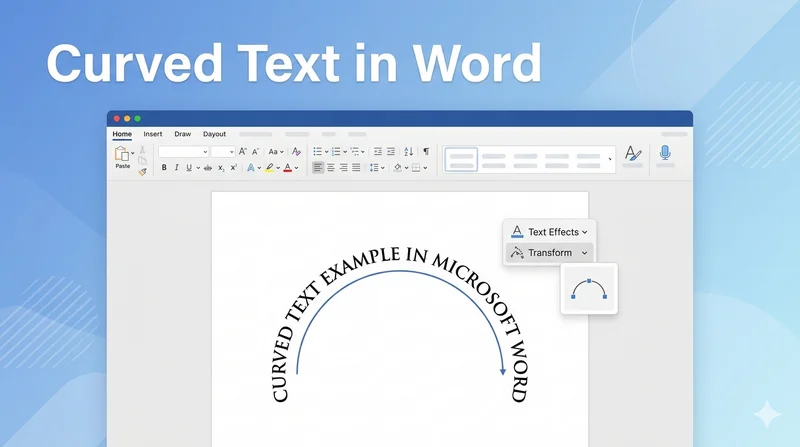
Curving text is a powerful way to enhance the visual appeal of your documents, whether you are designing a professional company seal, a creative logo, or an official certificate. Many users search for how to curve text in Word because the option isn't directly presented in the standard font settings. In this guide, we will explore manual techniques to create curved text in Word and provide a programmatic solution for developers using Python.
- Using WordArt to Curve Text in Word
- Make Text Curve in Word via Text Box
- Fine-Tuning Your Curved Text
- Create Curved Text in Word using Free Spire.Doc
- FAQs
Using WordArt to Curve Text in Word
The most traditional method involves using the WordArt gallery in Microsoft Word. This tool treats your text as a graphic object, allowing for complex geometric distortions that standard paragraph text cannot support. If you're looking for how to curve words in Word documents with stylized effects like shadows or gradients, this is the best starting point.
Step 1: Go to the Insert tab, click the WordArt button, and select a style that fits your design.
Step 2: Type the content you wish to bend into the placeholder box that appears.
Step 3: With the WordArt object selected, navigate to the Shape Format tab, click Text Effects, hover over Transform, and choose an option under the Follow Path section.
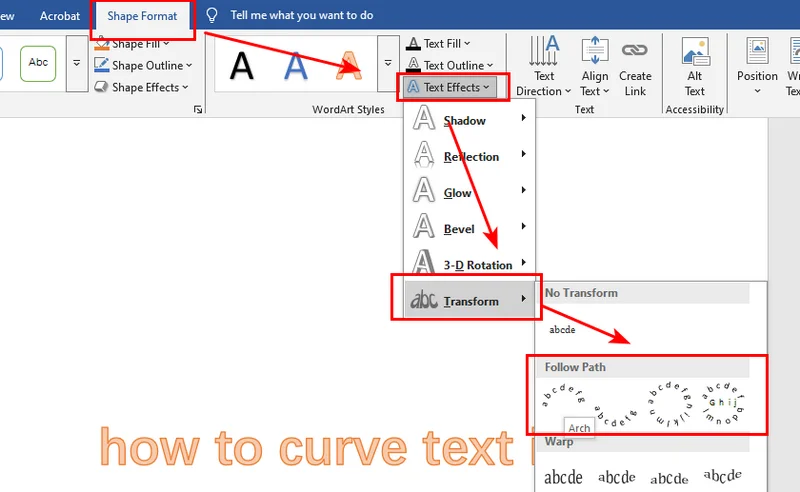
Step 4: Drag the small yellow circle (control handle) on the text box border to increase or decrease the intensity of the curve.

How to Curve Text in Word 365
Microsoft Word 365 uses the same WordArt transformation engine as modern desktop versions of Word, which means the steps for creating curved text are almost identical.
Step 1: Go to the Insert tab and select WordArt.
Step 2: Type your text inside the WordArt box.
Step 3: Open the Shape Format (or Drawing Format) tab.
Step 4: Click Text Effects → Transform → Follow Path, then choose an arc style such as Arch Up or Circle.
Word 365 also offers several additional transformation presets, allowing you to create more advanced curved text effects compared with older versions of Microsoft Word.
How to Curve Text in Word Using a Text Box
If you prefer a cleaner, more minimalist look without the pre-defined styles of WordArt, using a standard text box is a clever alternative. This method is ideal when you need to curve words in Word files while maintaining a professional and simple aesthetic. It also allows you to bend text on Word layouts without worrying about complex text fills.
Step 1: Go to the Insert tab, click Text Box, and select Simple Text Box to place it in your document.
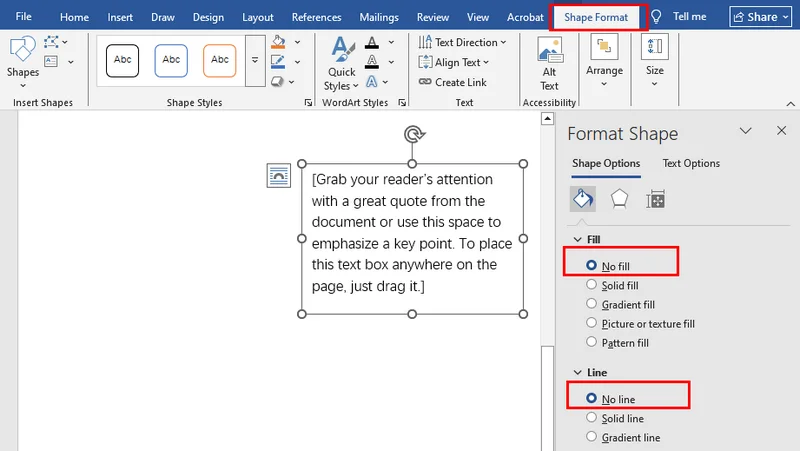
Step 2: Right-click the edge of the text box, select Format Shape, and set both Fill and Line to "No fill" and "No line" to make the container invisible.
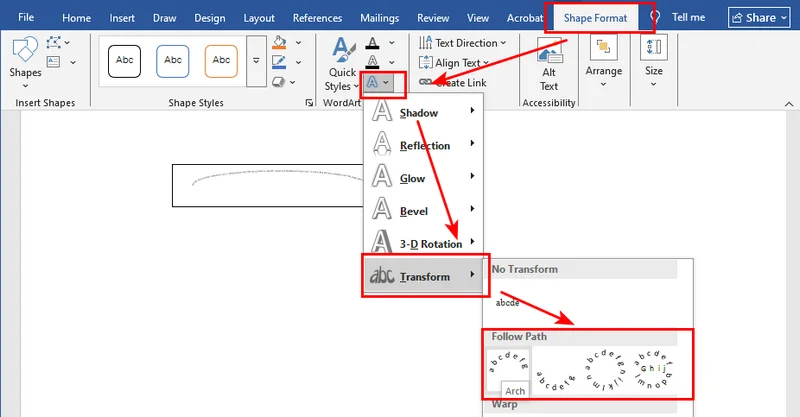
Step 3: Select the text box, go to the Shape Format tab, click Text Effects, and choose your desired arc style under Transform.
Note: While using text boxes offers great flexibility for curving text in Word documents, managing multiple floating objects can sometimes clutter your layout. If you need to clean up your document later, check out our guide on how to delete text boxes in Word manually or via code.
Fine-Tuning Your Curved Text in Microsoft Word
Once you have applied the basic transformation, you might find that the alignment isn't quite perfect. Fine-tuning the appearance of curved text in Microsoft Word requires a basic understanding of how Word handles object bounding boxes.
To ensure your text in Word curves exactly how you envisioned, pay attention to the aspect ratio of the text box. Stretching the box horizontally will flatten the arc, while narrowing it will sharpen the curve. You can also use the "Rotate" handle at the top of the box to position the arc at a specific angle, which is particularly useful for circular stamps where text needs to wrap around the bottom.
To further enhance your document's security and branding, you might also want to learn how to add watermarks in Word to protect your creative designs.
Programmatically Create Curved Text in Word using Free Spire.Doc
For developers who need to automate document generation, manual clicking is not efficient enough for large-scale document generation. You can programmatically create curved text in Word documents using the Free Spire.Doc library, which provides deep control over Shape objects and WordArt attributes.
Using code is highly efficient for automated workflows, ensuring that every curved text element maintains perfect alignment and styling across all your generated files.
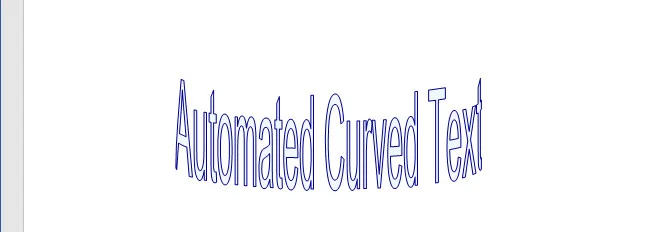
The following code snippet demonstrates how to use Free Spire.Doc for Python to create a Word document and programmatically add a text shape with a curved effect.
from spire.doc import *
from spire.doc.common import *

# Create a new Word document
doc = Document()

# Add a section
section = doc.AddSection()

# Add a paragraph
para = section.AddParagraph()

# Add a shape and set its size and type to TextCurve
# Parameters: Width, Height, ShapeType
shape = para.AppendShape(200, 100, ShapeType.TextCurve)

# Set the vertical and horizontal position of the shape on the page
shape.VerticalPosition = 50
shape.HorizontalPosition = 50

# Set the content of the WordArt
shape.WordArt.Text = "Automated Curved Text"

# Set the fill color and stroke color
shape.FillColor = Color.get_AliceBlue()
shape.StrokeColor = Color.get_DarkBlue()

# Save the document to the specified path
doc.SaveToFile("/output/CurvedText.docx", FileFormat.Docx2016)
doc.Close()
Here's the preview of the output file:
Frequently Asked Questions
Q1: Can I curve an existing paragraph directly?
No, Microsoft Word requires the text to be inside a Shape or WordArt container. To make text in Word curve, you need to copy your existing text and paste it into a WordArt object or a transformed text box.
Q2: Will the curve remain if I export to PDF?
Yes, as long as you use a high-quality conversion tool like Free Spire.Doc, the curved text will be rendered as a vector object when converted to PDF, ensuring it remains sharp and professional.
Conclusion
Mastering how to curve text in Word allows you to move beyond basic document editing into the realm of professional layout design. Whether you choose the intuitive UI methods or the robust automation provided by Spire.Doc, creating dynamic, non-linear text is essential for modern documentation. We encourage you to download the trial version of Spire.Doc to experiment with these advanced formatting features in your own projects today.