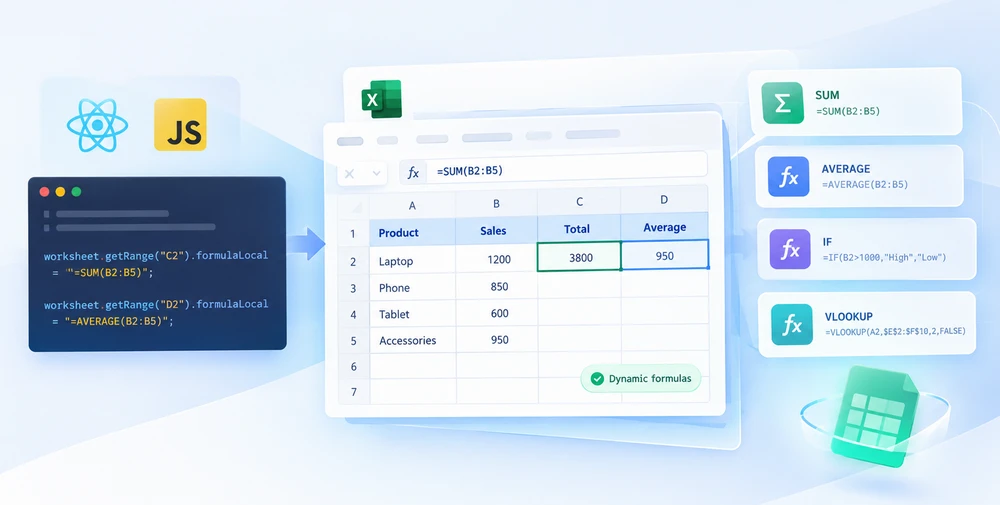
A generated spreadsheet full of pre-computed numbers is a snapshot. It looks right the moment it is produced and starts aging immediately: the data behind it moves on, the numbers inside it do not, and once the file has left your application nobody can tell which cells they are allowed to change. A workbook that carries its formulas instead stays a live document — edit an input, and the totals follow.
Spire.XLS for JavaScript is a spreadsheet engine compiled to WebAssembly, so a React app can build workbooks in the browser without a server. Files are read and written through a virtual file system (VFS), and formulas are written the same way values are: through a cell's Range object. Only the property name changes.
That last point is the whole trick. The interesting question is not how to write a formula but which of the four available properties to write it with, because three of them will quietly store your formula as plain text.
For project setup, see Integrating Spire.XLS for JavaScript in a React Project. The examples below assume the package is installed and the WebAssembly module has been initialized.
Why generated workbooks should carry formulas
Generating a file with the answers already filled in is easier to write and worse to receive. The cases where it actually breaks:
- Templates with placeholders. The recipient is expected to replace the inputs. If the totals are hard-coded, replacing an input leaves the totals wrong and nothing warns them.
- Models handed to an analyst. They will want to test a different assumption. A sheet that cannot be re-derived is a sheet they have to rebuild.
- Reports that must be traceable. A number with no visible rule behind it cannot be checked. A formula can be.
- Worksheets that feed other worksheets. Other cells reference these; if the value never recalculates, everything downstream inherits the staleness.
In all four, the formula is the point of the file. The values are a by-product.
Prerequisites
You need a React project with Spire.XLS for JavaScript installed and the WebAssembly module initialized, reachable at window.wasmModule.spirexls. The sample below also loads a font into the VFS before formatting any text, and saves with the Excel 2010 version flag so the output opens cleanly in current Excel and in older versions alike.
Choosing the property that writes a formula
Every cell you write to is a Range object, and it exposes four properties that accept something. They are not interchangeable:
| Property | What you hand it | What the cell ends up holding |
|---|---|---|
Value |
Text or a value, with the type inferred | The value, as data |
NumberValue |
A number | A number — data, not a rule |
Text |
A display string | A literal string, never evaluated |
Formula |
A formula string beginning with =
|
The rule itself, which the engine evaluates |
Text is the one to be careful with, and it is worth understanding why before the code below. Assign =SUM(B1:F1) to Text and the cell stores those characters — it will display the formula forever, because nothing is ever going to evaluate it.
That behaviour is not a defect. It is exactly what the sample uses deliberately, so that each row can show the formula on the left and its result on the right: the left cell uses Text because it is meant to display the rule, and the right cell uses Formula because it is meant to apply it.
Writing formulas into cells
The flow is short:
- Create a
Workbookobject. - Get a worksheet with the
Workbook.Worksheets.get()method. - Write the input data into cells and set the cell formatting.
- Assign formulas to the cells that should calculate, through the
Range.Formulaproperty. - Save the workbook with
Workbook.SaveToFile().
The example builds a small sheet with a row of input numbers, then writes five formulas beneath it — an arithmetic expression, a date function, a trigonometric function, an average, and a sum:
function App() {
  const insertFormulasAndFunctions = async () => {
    // Get the Spire.XLS WASM module
    const xlsModule = window.wasmModule?.spirexls;

    // Check whether the module is ready
    if (!xlsModule) {
      alert('Spire.Xls is not ready yet');
      return;
    }

    // Load the font into the VFS
    await window.spire.FetchFileToVFS('ARIAL.TTF', '/Library/Fonts/', `${process.env.PUBLIC_URL}/font/`);

    // Create a Workbook object
    const workbook = new xlsModule.Workbook();

    // Get the first worksheet
    const sheet = workbook.Worksheets.get(0);

    // Declare two variables: currentRow and currentFormula
    let currentRow = 1;
    let currentFormula = "";

    // Set the column width
    sheet.SetColumnWidth(1, 32);
    sheet.SetColumnWidth(2, 16);

    // Write data into cells
    sheet.Range.get({ row: currentRow, column: 1 }).Value = "Test Data";
    sheet.Range.get({ row: currentRow, column: 2 }).NumberValue = 1;
    sheet.Range.get({ row: currentRow, column: 3 }).NumberValue = 2;
    sheet.Range.get({ row: currentRow, column: 4 }).NumberValue = 3;
    sheet.Range.get({ row: currentRow, column: 5 }).NumberValue = 4;
    sheet.Range.get({ row: currentRow, column: 6 }).NumberValue = 5;
    currentRow += 2;
    sheet.Range.get({ row: currentRow, column: 1 }).Value = "Formula or Function";
    sheet.Range.get({ row: currentRow, column: 2 }).Value = "Result";

    // Set the cell formatting
    let range = sheet.Range.get({ row: currentRow, column: 1, lastRow: currentRow, lastColumn: 2 });
    range.Style.Font.FontName = "Arial";
    range.Style.KnownColor = xlsModule.ExcelColors.LightGreen;
    range.Style.FillPattern = xlsModule.ExcelPatternType.Solid;
    range.Style.Borders.get(xlsModule.BordersLineType.EdgeBottom).LineStyle = xlsModule.LineStyleType.Medium;
    range.Style.Font.IsBold = true;

    // Mathematical operation
    currentFormula = "=1/2+3*4";
    currentRow += 1;
    sheet.Range.get({ row: currentRow, column: 1 }).NumberFormat = "@";
    sheet.Range.get({ row: currentRow, column: 1 }).Text = currentFormula;
    sheet.Range.get({ row: currentRow, column: 2 }).Formula = currentFormula;

    // Date function
    currentFormula = "=TODAY()";
    currentRow += 1;
    sheet.Range.get({ row: currentRow, column: 1 }).NumberFormat = "@";
    sheet.Range.get({ row: currentRow, column: 1 }).Text = currentFormula;
    sheet.Range.get({ row: currentRow, column: 2 }).Formula = currentFormula;
    sheet.Range.get({ row: currentRow, column: 2 }).Style.NumberFormat = "YYYY/MM/DD";

    // Trigonometric function
    currentFormula = "=SIN(PI()/6)";
    currentRow += 1;
    sheet.Range.get({ row: currentRow, column: 1 }).NumberFormat = "@";
    sheet.Range.get({ row: currentRow, column: 1 }).Text = currentFormula;
    sheet.Range.get({ row: currentRow, column: 2 }).Formula = currentFormula;

    // Average function
    currentFormula = "=AVERAGE(B1:F1)";
    currentRow += 1;
    sheet.Range.get({ row: currentRow, column: 1 }).NumberFormat = "@";
    sheet.Range.get({ row: currentRow, column: 1 }).Text = currentFormula;
    sheet.Range.get({ row: currentRow, column: 2 }).Formula = currentFormula;

    // Sum function
    currentFormula = "=SUM(B1:F1)";
    currentRow += 1;
    sheet.Range.get({ row: currentRow, column: 1 }).NumberFormat = "@";
    sheet.Range.get({ row: currentRow, column: 1 }).Text = currentFormula;
    sheet.Range.get({ row: currentRow, column: 2 }).Formula = currentFormula;

    // Save the workbook
    const outputFileName = 'InsertFormulasAndFunctions_output.xlsx';
    workbook.SaveToFile({ fileName: outputFileName, version: xlsModule.ExcelVersion.Version2010 });

    // Release resources
    workbook.Dispose();

    // Read the converted file from the VFS and trigger a download
    const fileArray = window.dotnetRuntime.Module.FS.readFile(outputFileName);
    const blob = new Blob([fileArray], { type: 'application/vnd.openxmlformats-officedocument.spreadsheetml.sheet' });
    const url = URL.createObjectURL(blob);
    const a = document.createElement('a');
    a.href = url;
    a.download = outputFileName;
    a.click();
    URL.revokeObjectURL(url);
  };

  return (
    <div style={{ textAlign: 'center', height: '300px' }}>
      <h1>Insert Formulas and Functions</h1>
      <button onClick={insertFormulasAndFunctions}>
        Start
      </button>
    </div>
  );
}

export default App;
Insert formulas and function results into Excel worksheets
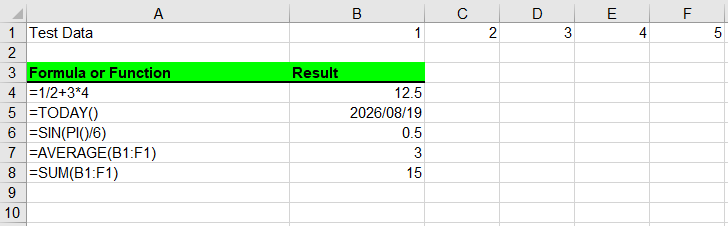
Note the formatting call before the formulas. Range.get() accepts lastRow and lastColumn, so a header block can be styled in one call instead of cell by cell — the same object you use to write a formula also carries the style.
Functions by category
The five formulas in the sample are not five different techniques. They are one technique applied to five kinds of expression:
| Formula | Kind | Worth knowing |
|---|---|---|
=1/2+3*4 |
Arithmetic expression | Operator precedence applies exactly as it does in Excel |
=TODAY() |
Date function | Volatile — it changes on every recalculation, and needs a date format to display as a date |
=SIN(PI()/6) |
Trigonometric | Angles are in radians; write PI()/6 rather than a rounded decimal |
=AVERAGE(B1:F1) |
Statistical over a range | Range syntax is identical to what you would type in Excel |
=SUM(B1:F1) |
Aggregation | Same range syntax, different function |
There is no separate API for "functions". A function is a formula — Range.Formula receives the string, and the engine decides what to do with it. That is why the catalog of things you can write is as large as the spreadsheet engine's function list, with no wrapper to maintain per function.
Showing the formula text beside its result
One of the more useful habits in a generated worksheet is keeping the rule visible next to its output. The sample does that by putting the formula string in column A as literal text and the evaluated value in column B:
// Column A displays the rule; column B applies it
sheet.Range.get({ row: currentRow, column: 1 }).NumberFormat = "@";
sheet.Range.get({ row: currentRow, column: 1 }).Text = currentFormula;
sheet.Range.get({ row: currentRow, column: 2 }).Formula = currentFormula;
Assigning "@" as the number format first is what keeps the label column from trying to interpret the string — the cell is declared text before anything is written into it. The result column needs no such care, but it may need a display format of its own: the date row sets .Style.NumberFormat = "YYYY/MM/DD", without which the value renders as a serial number rather than a date.
A sheet that carries its own rules like this survives every round trip, because the labels are plain text that no engine will touch.
One formula across a range
Real worksheets rarely need one formula; they need the same rule down a column. Since you are building the string, you control the references explicitly:
// One rule, many rows: the row number in the reference shifts with each cell
for (let row = 2; row <= 11; row += 1) {
  sheet.Range.get({ row: row, column: 3 }).Formula = `=A${row}*B${row}`;
}
That is the same relative-reference behaviour you would get by dragging a formula down in Excel, written out longhand. If the rule should always point at one fixed input instead, pin it — $A$1 does not shift when the formula moves, while A1 does.
Formula syntax that trips people up
-
The leading equals sign. A formula string without
=is not a formula. It will be stored as text and never evaluated. -
Relative versus absolute references.
A1shifts;$A$1does not. Choose deliberately when you generate formulas in a loop. -
Cross-sheet references. Name the sheet inside the string —
Sheet2!A1. If the sheet name contains spaces, quote it:'Q1 Sales'!A1. - Argument separators across locales. The string is stored as you write it. Keep the comma-separated form used above if the file will be opened in a mix of locales, where some display semicolons instead.
-
Volatile functions.
TODAY()andNOW()change whenever the workbook recalculates, so a value read back later will not match the one you saw. That gap between a rule and its last computed value is worth knowing about in its own right — it is what Reading and Extracting Excel Formulas in JavaScript (React) deals with.
Common issues
The cell shows the formula instead of a result.
It was written through Text rather than Formula. Reassign it with Formula — the cell needs the rule, not the characters.
A date shows up as a five-digit number.
That is the serial value with no date format applied. Set .Style.NumberFormat on the cell, as the sample does for the TODAY() row.
Formatting lands on cells I did not mean to touch.
Check the range you passed to Range.get(). Supplying lastRow and lastColumn applies the change to a block, which is convenient for a header and easy to mis-scope.
The formula is stored but the cell looks empty when read back. Results appear once the workbook has been calculated. Save after writing the formulas so the calculated values travel with the file.
FAQ
Do I need Excel or Office installed to write formulas?
No. The spreadsheet engine ships with the package and runs as WebAssembly in the browser. Nothing is automated and nothing is required on the user's machine.
Can a formula reference a different worksheet in the same workbook?
Yes, and you write it exactly as you would in Excel — include the sheet name in the formula string.
Can I mix formulas and plain values in one sheet?
Yes, and you usually will. The properties are independent: some cells receive data through NumberValue or Value, others receive rules through Formula.
What happens to the results when the recipient opens the file?
The formulas are stored, and Excel recalculates when the workbook is opened. That is the point of writing rules rather than results — the file stays correct even if the inputs are edited afterwards.
Does writing formulas require a backend?
No. The workbook is built in the browser and returned as bytes you turn into a Blob for download. Nothing is uploaded.