Adding stamps to a PDF is a common task in document review, approval, and distribution workflows. Stamps are often used to mark files as Approved, Draft, or Confidential, or to apply visual elements such as company logos and official seals.
In practice, PDF stamps are usually added either manually through desktop software or programmatically as part of an automated workflow. While many tools can place text or images on a PDF, only a few create stamps that remain movable and editable when the document is reopened in PDF editors such as Adobe Acrobat.
This article introduces two reliable and widely used approaches for adding stamps to PDF files:
- Adobe Acrobat, which is well-suited for manual and visual editing
- Python (Spire.PDF) , which is ideal for automation and batch processing
Each method demonstrates how to add both text stamps and image stamps, helping you choose the best approach for your workflow.
What Is a PDF Stamp?
A PDF stamp is implemented as a Rubber Stamp Annotation, defined in the PDF specification. Compared with ordinary text or images, stamps:
- Can be moved freely in Adobe Acrobat.
- Appear in the Comments / Stamps panel.
- Can be reused across documents.
- Are clearly identified as annotations, not page content.
This distinction is critical when documents are reviewed, revised, or audited later.
Method 1: Add Text and Image Stamps Using Adobe Acrobat
Adobe Acrobat offers built-in support for PDF stamping and is one of the most commonly used tools for manual, visual document review and approval. It allows you to add both text-based and image-based stamps and adjust their appearance directly on the page.
Add a Text Stamp in Adobe Acrobat
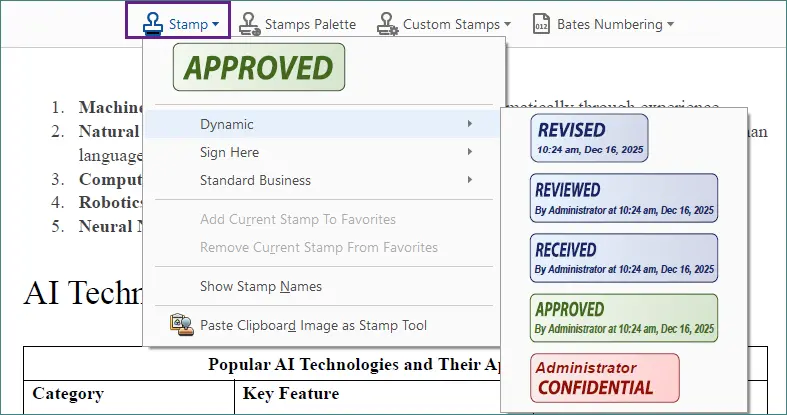
Adobe Acrobat includes several predefined text stamps—such as Approved, Draft, and Confidential—and also lets you create and customize your own stamps.
Steps:
-
Open the PDF in Adobe Acrobat.
-
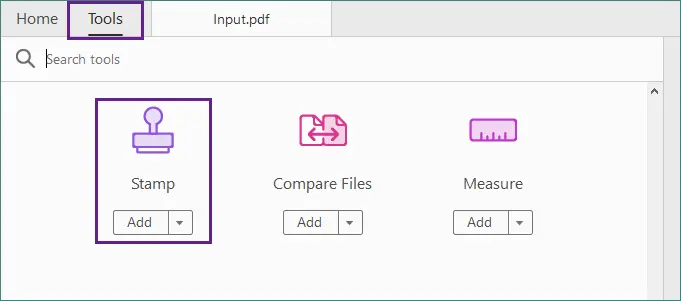
Go to Tools → Stamp .
-
Select a built-in text stamp.
-
Click anywhere on the page to place the stamp.

-
Resize or reposition the stamp as needed.
-
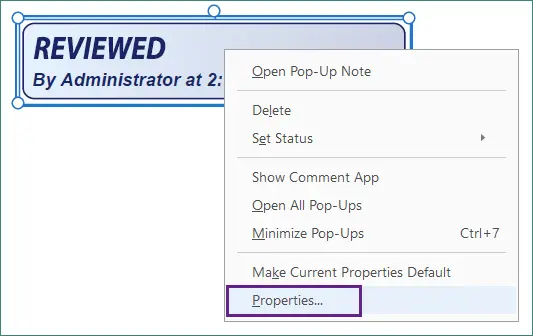
Right-click the stamp and choose Properties to further customize its appearance (such as color and opacity) and stamp details like the author or subject.
-
Save the document.
Once added, the stamp remains movable and editable, making it easy to adjust placement or update its properties later.
Add an Image Stamp in Adobe Acrobat
Image stamps are typically used for company logos, official seals, or scanned signatures. Acrobat allows you to convert image files into reusable custom stamps.
Steps:
-
Prepare an image file in PNG or JPG format.
-
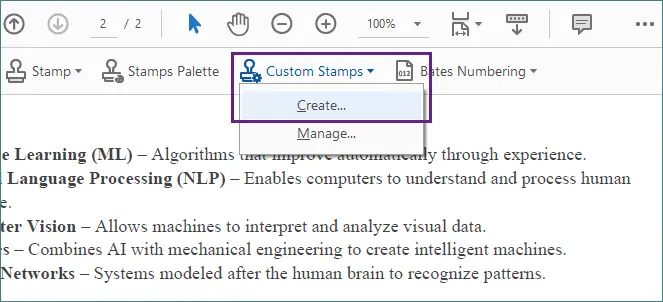
In Acrobat, navigate to Tools → Stamp → Custom Stamps → Create .
-
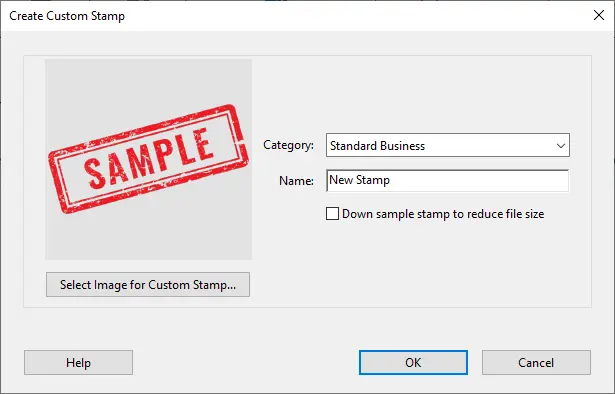
Import the image and save it as a custom stamp.

-
Assign the stamp to a selected category for easier reuse.
-
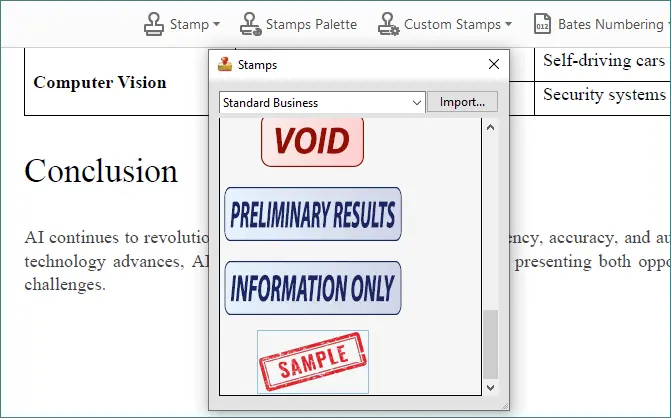
Open the Stamp tool or Stamps palette, select the newly created stamp, and click to place it on the page.
-
Adjust the stamp’s size and position visually.
-
Save the document.
Image stamps created this way behave the same as text stamps—they can be moved, reused across documents, and managed directly within Acrobat.
Pros and Limitations of Adobe Acrobat
Advantages
- Comprehensive support for text and image stamps.
- Precise visual control over placement and appearance.
- Well-suited for one-off edits and small document sets.
Limitations
- Fully manual workflow.
- Not designed for batch processing or automation.
Method 2: Add Text and Image Stamps Using Python (Spire.PDF)
For developers and automated workflows, adding stamps programmatically is often the most efficient and scalable solution. Instead of manually placing stamps on each document, you can define the stamp’s appearance once and apply it consistently across one or many PDF files.
Spire.PDF for Python provides APIs for creating and applying stamp annotations directly, giving you precise control over layout, styling, and positioning. This approach is particularly useful for:
- Batch processing large numbers of PDF files.
- Automated approval or review workflows.
- Backend or server-side document generation.
Add a Text Stamp to a PDF Using Python
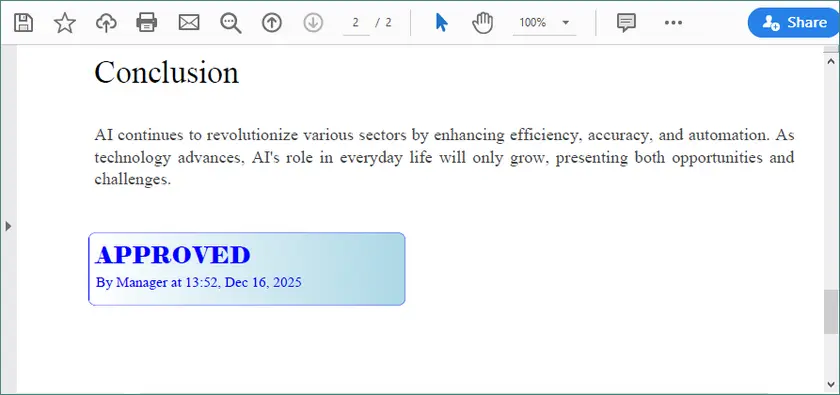
The following example demonstrates how to create a custom text stamp with a styled background and apply it to a specific page. The stamp content, fonts, colors, and placement can all be adjusted programmatically.
from spire.pdf import *
from spire.pdf.common import *

# Load the PDF document
doc = PdfDocument()
doc.LoadFromFile(r"C:\Users\Administrator\Desktop\input.pdf")

# Get the target page (zero-based index)
page = doc.Pages.get_Item(1)

# Create a template for the stamp
w, h, r = 220.0, 50.0, 10.0
template = PdfTemplate(w, h, True)
bounds = template.GetBounds()

# Fonts and brush
title_font = PdfTrueTypeFont("Elephant", 16.0, 0, True)
info_font = PdfTrueTypeFont("Times New Roman", 10.0, 0, True)
brush = PdfSolidBrush(PdfRGBColor(Color.get_Blue()))
linearGradientBrush = PdfLinearGradientBrush(
    bounds,
    PdfRGBColor(Color.get_White()),
    PdfRGBColor(Color.get_LightBlue()),
    PdfLinearGradientMode.Horizontal)

# Draw the stamp background
path = PdfPath()
path.AddArc(bounds.X, bounds.Y, r, r, 180.0, 90.0)
path.AddArc(bounds.X + w - r, bounds.Y, r, r, 270.0, 90.0)
path.AddArc(bounds.X + w - r, bounds.Y + h - r, r, r, 0.0, 90.0)
path.AddArc(bounds.X, bounds.Y + h - r, r, r, 90.0, 90.0)
path.AddLine(bounds.X, bounds.Y + h - r, bounds.X, bounds.Y + r / 2)
template.Graphics.DrawPath(PdfPen(brush), path)
template.Graphics.DrawPath(linearGradientBrush, path)

# Draw text
template.Graphics.DrawString("APPROVED", title_font, brush, PointF(5.0, 5.0))
template.Graphics.DrawString(
f"By Manager at {DateTime.get_Now().ToString('HH:mm, MMM dd, yyyy')}",
    info_font, brush, PointF(5.0, 28.0)
)

# Create and apply the stamp
rect = RectangleF(50.0, 500.0, w, h)
stamp = PdfRubberStampAnnotation(rect)
appearance = PdfAppearance(stamp)
appearance.Normal = template
stamp.Appearance = appearance
page.AnnotationsWidget.Add(stamp)

# Save the result
doc.SaveToFile("output/TextStamp.pdf", FileFormat.PDF)
doc.Dispose()
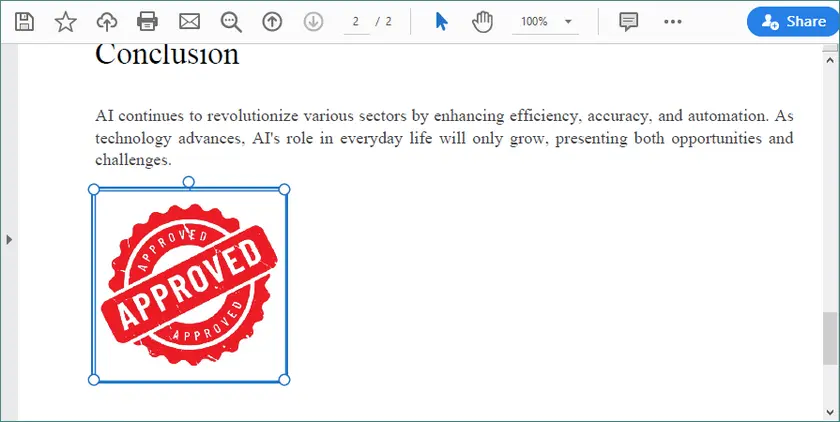
When the output file is opened in Adobe Acrobat, the stamp can be moved, resized, and managed just like a stamp added manually.
Add an Image Stamp to a PDF Using Python
Image stamps are commonly used for logos, seals, or visual approval marks. The process is similar to text stamping, but the template is built from an image instead of drawn graphics.
from spire.pdf import *
from spire.pdf.common import *

# Load the PDF document
doc = PdfDocument()
doc.LoadFromFile(r"C:\Users\Administrator\Desktop\input.pdf")

# Get the target page
page = doc.Pages.get_Item(1)

# Load the image
image = PdfImage.FromFile(r"C:\Users\Administrator\Desktop\approved-stamp.png")
w, h = float(image.Width), float(image.Height)

# Create a template and draw the image
template = PdfTemplate(w, h, True)
template.Graphics.DrawImage(image, 0.0, 0.0, w, h)

# Define the stamp position
rect = RectangleF(50.0, 500.0, w, h)

# Create and apply the image stamp
stamp = PdfRubberStampAnnotation(rect)
appearance = PdfAppearance(stamp)
appearance.Normal = template
stamp.Appearance = appearance
page.AnnotationsWidget.Add(stamp)

# Save and close
doc.SaveToFile("output/ImageStamp.pdf", FileFormat.PDF)
doc.Dispose()
The image stamp can be repositioned or resized in Adobe Acrobat and behaves consistently with stamps created through the Acrobat interface.
When to Choose Python Over Adobe Acrobat
A Python-based approach is the better option when:
- The same stamp must be applied to multiple PDF files.
- Stamp content needs to be generated dynamically (for example, dates, user names, or status values).
- PDF processing is part of an automated or backend workflow.
Adobe Acrobat is ideal for visual, one-off edits, while Python excels when stamping needs to scale.
To explore more advanced PDF processing scenarios, you can also refer to other Spire.PDF programming resources, such as tutorials on adding headers and footers, watermarking PDF pages, or annotating and signing documents programmatically. These topics can help you extend your PDF workflows further.
Feature Comparison
| Feature | Adobe Acrobat | Python (Spire.PDF) |
|---|---|---|
| Text stamps | Yes | Yes |
| Image stamps | Yes | Yes |
| Rubber Stamp Annotation | Yes | Yes |
| Movable in Acrobat | Yes | Yes |
| Batch processing | No | Yes |
| Automation | No | Yes |
Final Thoughts
Adding stamps to a PDF can be handled in different ways depending on how often you work with documents and how much control you need.
- Adobe Acrobat is a solid choice for manual tasks where visual accuracy matters. It works well for occasional stamping, reviews, and approvals that require direct interaction with the document.
- Python with Spire.PDF is better suited for automated workflows. It allows you to apply text and image stamps programmatically, making it ideal for batch processing or integrating stamping into existing systems.
Both approaches support common stamping needs, including status labels and image-based marks such as logos or seals. By choosing the method that fits your workflow, you can keep PDF stamping efficient, consistent, and easy to manage.
FAQs
Q1. What’s the difference between adding text or images and adding a stamp annotation?
Text or images are usually added as fixed page content. Stamp annotations are interactive elements that can be moved, resized, and managed in PDF editors like Adobe Acrobat.
Q2. Why aren’t stamps from some PDF tools editable in Adobe Acrobat?
Many tools flatten content onto the page instead of creating annotations. Flattened content becomes static and can’t be repositioned or reused as a stamp.
Q3. Can stamps added with Python be edited in Adobe Acrobat later?
Yes. When a stamp annotation is created programmatically, it behaves the same as one added in Acrobat and remains fully editable.
Q4. When should I use programmatic stamping instead of a PDF editor?
Use programmatic stamping for automation, batch processing, or dynamic content. PDF editors are better for quick, manual edits.