A PDF with narrow margins leaves little room for handwritten notes, review comments, or binding. Too much white space creates the opposite problem: the content occupies less of the page than it needs to, making the document less comfortable to read.
Adjusting PDF page margins can help prepare a report for printing, create annotation space beside lecture notes, or clean up scanned pages with oversized borders.
You can do this with a desktop editor, an online tool, or a short C# program. This guide covers all three approaches, including how to add space around existing pages and trim unwanted borders.
Quick Navigation:
- Method 1. Adjust PDF Margins with Adobe Acrobat
- Method 2. Adjust PDF Margins Online with Sejda
- Method 3. Adjust PDF Margins Programmatically in C#
Before You Start: Adding Space vs. Cropping
Unlike Word, a PDF generally does not reflow its paragraphs when you change the page boundaries. Its text and graphics remain positioned on the page.
The methods below work by changing the space around that existing content:
| Operation | What changes | What happens to the content |
|---|---|---|
| Increase margins | The page becomes larger | Text and images remain at their original size |
| Decrease margins | The visible page area becomes smaller | Content near the edges may be cropped |
Also, distinguish additional space from final margins . Adding half an inch around a page that already has white borders increases the existing margins by half an inch; it does not set them to half an inch.
Before making changes, save a copy of the original. If the document contains different page sizes or layouts, check whether one adjustment will work throughout.
Method 1. Adjust PDF Margins with Adobe Acrobat
Adobe Acrobat provides page cropping and page size controls in the Set Page Boxes dialog. The following workflow uses Acrobat Pro.
Increase Margins
- Open the PDF and select Edit PDF → Crop Pages.
- Draw a rectangle, then double-click inside it to open Set Page Boxes.
- Select CropBox under Apply to and click Set To Zero to clear the crop selection.
- Under Change Page Size, choose Custom and enter larger page dimensions.
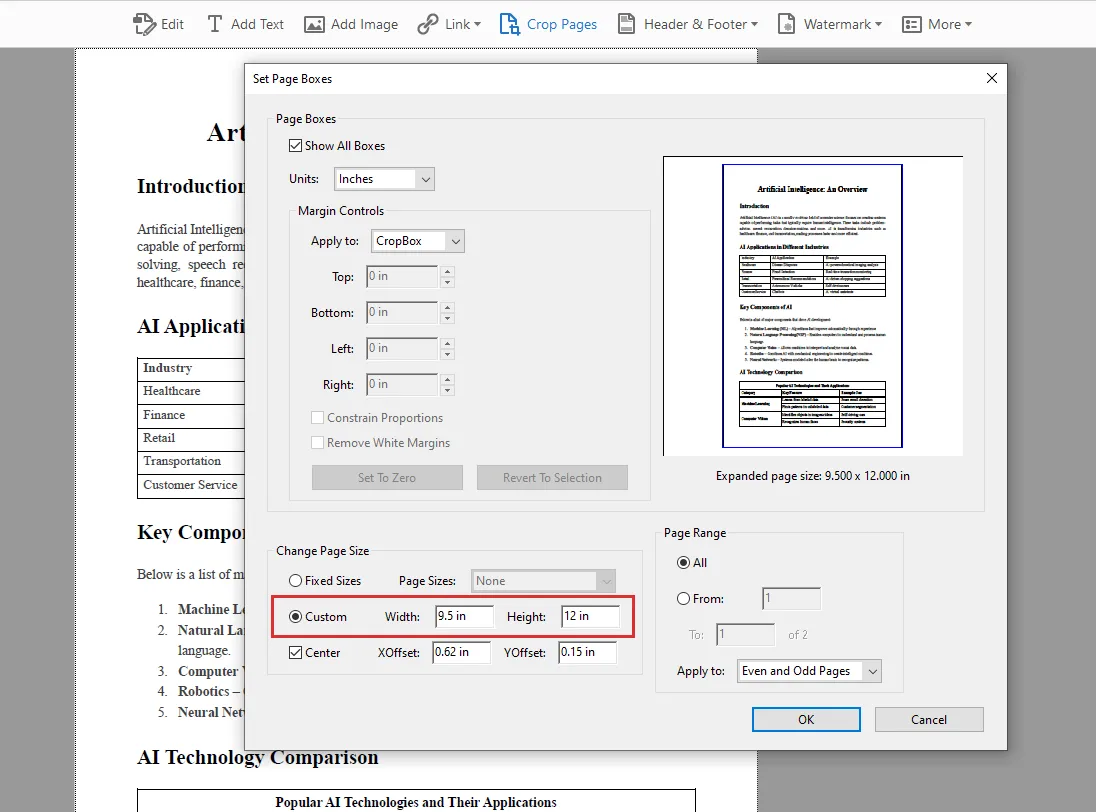
- Select Center, choose the page range, and click OK.
- Save a new copy.
For example, enlarging an 8.5 × 11-inch page to 9.5 × 12 inches , with the content centered, adds half an inch on each side. This preserves the content size while providing annotation space.
Decrease Margins
- Select Edit PDF → Crop Pages and draw around the area to retain.
- Double-click the selection.
- Select CropBox and adjust the four values under Margin Controls.
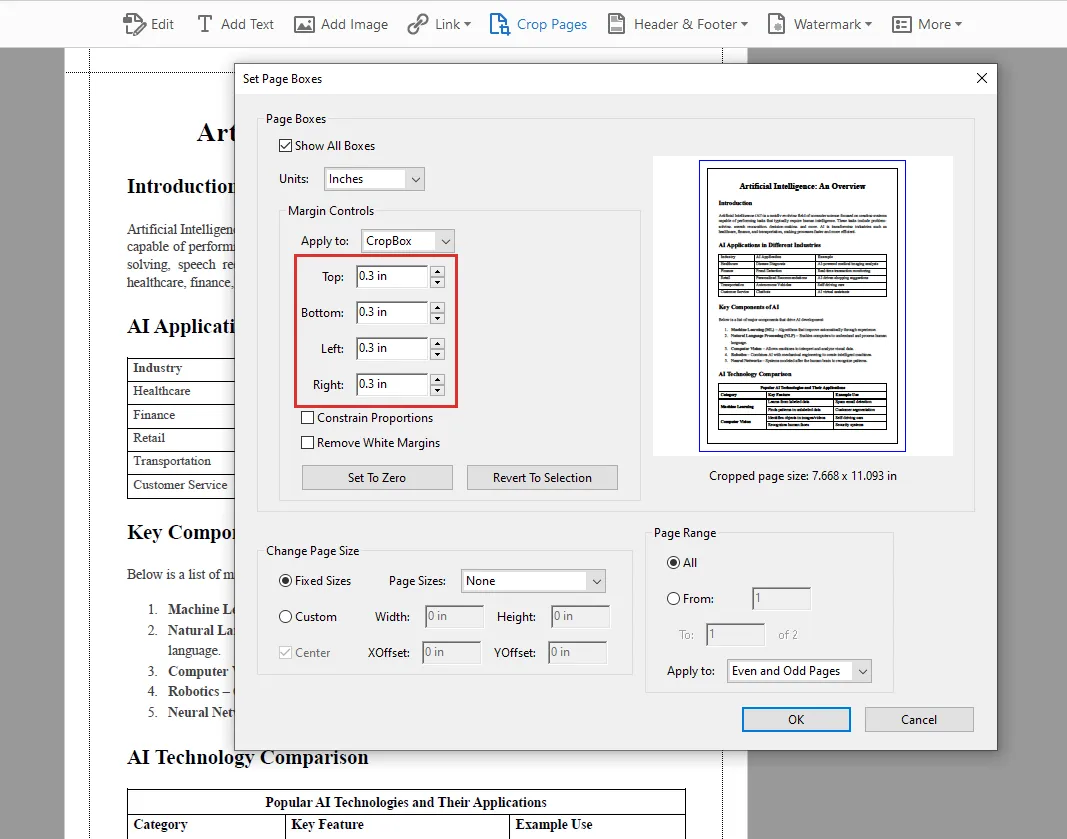
- Check the preview and page range, then click OK.
- Save the result.
Remove White Margins offers an automatic alternative. Crop values describe how much to trim, rather than the final gap around the text.
Cropping hides the excluded area; it does not permanently erase the underlying content.
Method 2. Adjust PDF Margins Online with Sejda
Sejda separates the two operations into different tools: Resize PDF adds space, while Crop PDF trims it.
Increase Margins with Resize PDF
- Open Sejda Resize PDF and upload your file.
- Choose Add margins and padding .
- Enter the additional space for the top, bottom, left, and right sides.
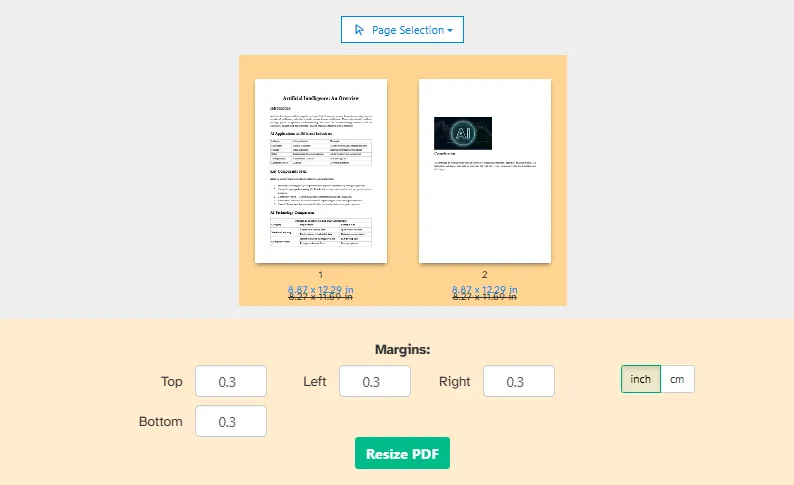
- Choose inches or centimeters and select the pages to process.
- Click Resize PDF and download the result.
The preview shows the extra space around the page. Adding 1 cm on every side increases both its width and height by 2 cm.
Decrease Margins with Crop PDF
- Open Sejda Crop PDF and upload the document.
- Choose automatic cropping or Preview pages & select for manual control.
- Adjust the selection or enter exact crop amounts for each edge.

- Apply the crop to the required pages.
- Click Crop PDF and download the file.
Sejda supports both a shared crop area and different areas for individual pages. This is useful for scans with inconsistent borders. Its crop tool hides content beyond the boundary rather than completely removing it.
Method 3. Adjust PDF Margins Programmatically in C#
Manual tools are convenient for occasional edits. A program is more useful when you need to repeat the same adjustment across documents or integrate it into an application.
The following examples use Spire.PDF for .NET. They create a new document, draw each original page onto a new page, and change the surrounding space without intentionally scaling the page content.
This approach also makes the adjustment reproducible: the same measurements can be reused without selecting areas or entering settings manually each time.
Install the package through NuGet:
dotnet add package Spire.PDF
Increase PDF Margins in C#
To add space, create a larger page and draw the original page at an offset matching the added left and top margins.
using Spire.Pdf;
using Spire.Pdf.Graphics;
using System;
using System.Drawing;
using System.IO;

string inputPath = @"E:\Documents\input\sample.pdf";
string outputPath = @"E:\Documents\output\increased-margins.pdf";

Directory.CreateDirectory(Path.GetDirectoryName(outputPath)!);

PdfDocument originalPdf = new PdfDocument(inputPath);
PdfDocument newPdf = new PdfDocument();

// Additional space, in points.
float left = 40;
float right = 40;
float top = 40;
float bottom = 40;

for (int i = 0; i < originalPdf.Pages.Count; i++)
{
    PdfPageBase originalPage = originalPdf.Pages[i];

    SizeF newSize = new SizeF(
        originalPage.Size.Width + left + right,
        originalPage.Size.Height + top + bottom
    );

    PdfPageBase newPage = newPdf.Pages.Add(
        newSize, new PdfMargins(0)
    );

    PdfTemplate template = originalPage.CreateTemplate();
    template.Draw(newPage, left, top);
}

newPdf.SaveToFile(outputPath, FileFormat.PDF);

originalPdf.Close();
newPdf.Close();

Console.WriteLine({BODY_CONTENT}quot;Saved: {outputPath}");
This example adds 40 points around each page. PDF measurements use points, where 72 points equal one inch , so 40 points is approximately 0.56 inches .
The new page has zero drawing margins because the code positions the template explicitly using left and top. This keeps the placement logic in one place.
Page dimensions are calculated inside the loop, allowing differently sized pages to receive the same amount of additional space.
You can also use unequal values. For example, increasing only left creates extra room along that edge for binding or notes, without adding unnecessary space to the other sides.
Decrease PDF Margins in C#
To trim the edges, create a smaller page and shift the original content left and upward.
using Spire.Pdf;
using Spire.Pdf.Graphics;
using System;
using System.Drawing;
using System.IO;

string inputPath = @"E:\Documents\input\sample.pdf";
string outputPath = @"E:\Documents\output\decreased-margins.pdf";

Directory.CreateDirectory(Path.GetDirectoryName(outputPath)!);

PdfDocument originalPdf = new PdfDocument(inputPath);
PdfDocument newPdf = new PdfDocument();

// Amount to trim from each edge, in points.
float left = 20;
float right = 20;
float top = 20;
float bottom = 20;

for (int i = 0; i < originalPdf.Pages.Count; i++)
{
    PdfPageBase originalPage = originalPdf.Pages[i];

    float width = originalPage.Size.Width - left - right;
    float height = originalPage.Size.Height - top - bottom;

    if (width <= 0 || height <= 0)
        throw new ArgumentException(
            {BODY_CONTENT}quot;Crop values are too large for page {i + 1}."
        );

    PdfPageBase newPage = newPdf.Pages.Add(
        new SizeF(width, height), new PdfMargins(0)
    );

    PdfTemplate template = originalPage.CreateTemplate();
    template.Draw(newPage, -left, -top);
}

newPdf.SaveToFile(outputPath, FileFormat.PDF);

originalPdf.Close();
newPdf.Close();

Console.WriteLine({BODY_CONTENT}quot;Saved: {outputPath}");
Here, the new page is 40 points narrower and shorter than the original. The negative drawing coordinates move the content so that 20 points fall outside each edge.
This code trims fixed amounts; it does not detect white space. Review the output to ensure that page numbers, headers, and other edge content remain visible.
For documents with inconsistent layouts, start with conservative values. A setting that works on a text-heavy page might cut into a full-width table or a diagram elsewhere.
These examples rebuild page appearances through templates. If your documents contain interactive forms, annotations, links, or bookmarks, verify those features separately before adopting this approach.
Which Method Should You Choose?
| Method | Best suited to | Main consideration |
|---|---|---|
| Adobe Acrobat | Manual adjustments with visual controls | Requires access to the relevant editing tools |
| Sejda | Occasional edits without installing software | Online processing involves uploading the document |
| C# with Spire.PDF | Repeatable processing and application integration | Requires development and output validation |
For a single file, a visual tool makes it easy to inspect the result before saving. For a recurring task, the C# approach gives you consistent measurements and a workflow you can extend to process a folder of PDFs.
Whichever method you choose, check several pages after applying the adjustment—especially when page layouts or sizes vary.
If the PDF must remain A4 or Letter for printing, remember that adding space by enlarging the page changes that paper size. Consider whether scaling the content within a fixed-size page would better suit the intended output.
Frequently Asked Questions
Can I adjust PDF margins without changing the page size?
Yes, but that requires a different approach, such as scaling or repositioning the content within the existing page. The examples in this guide enlarge or crop page boundaries.
Will adding margins make the text smaller?
Not with the enlargement methods described here. They add space around the original content rather than shrinking it.
Can I adjust the margins of a scanned PDF?
Yes. You can add space around a scanned page or crop its borders without OCR. However, text included in the scanned image can be cut off if the crop extends too far.
Can I apply the same margin settings to every page in a PDF?
Yes. Acrobat and Sejda let you apply changes to all pages, while the C# examples loop through the entire document. However, if page sizes or layouts vary, preview the results carefully—a crop that works on one page may cut off content on another.