Sometimes you only need one page from a large PDF file, whether you are submitting a single invoice, sharing a specific chart from a 100-page report, or organizing digital archives. Learning how to save one page of a PDF efficiently can save you time and effort. This guide explains four practical methods. Each method works for different skill levels.
- Using Print to PDF on Windows & Browsers
- Save One Page of a PDF on a Mac Using Preview
- Using Online PDF Editors
- Automatically Saving PDF Page with Python
- Comparison Table of 4 Methods
Save One Page of a PDF Using Print to PDF on Windows & Browsers
The most accessible way to extract a page is through the printing feature built into almost every modern operating system and browser. This technique essentially prints PDF pages of your choice into a new, smaller digital file. Depending on the software you are using, the steps to save just one page of a PDF document vary slightly in their interface.
Option A: Using Google Chrome or Microsoft Edge
Browsers are the quickest tools for this task because they require no installation. This is the go-to solution for anyone wondering how to save only one page of a PDF while browsing the web or working with local files.
- Step 1: Drag your PDF file directly into a Chrome or Edge tab.
- Step 2: Press Ctrl + P to open the print menu.
- Step 3: In the Destination dropdown, ensure Save as PDF is selected.
- Step 4: Under Pages, select Custom and type the single page number you wish to keep.
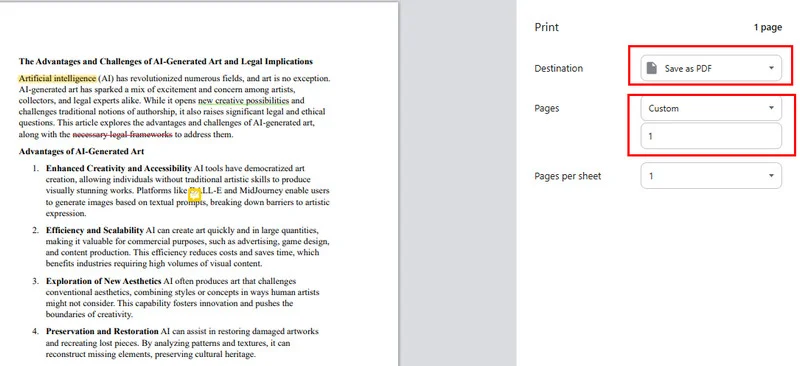
- Step 5: Click the blue Save button and choose your destination folder.
Option B: Using Adobe Acrobat Reader
Adobe Acrobat is one of the most widely used PDF tools, offering professional tools for almost any task. When you need to save a single page of a PDF within this powerful tool, the most efficient method is using its built-in print engine, which utilizes a specialized dialog layout for precision.
- Step 1: Open your document in Adobe Acrobat or Reader.
- Step 2: Click the Printer icon or press Ctrl + P to open the print dialog.
- Step 3: From the Printer menu at the top, select Adobe PDF or Microsoft Print to PDF.
- Step 4: Under the "Pages to Print" section, select the Pages radio button and enter your target page number.
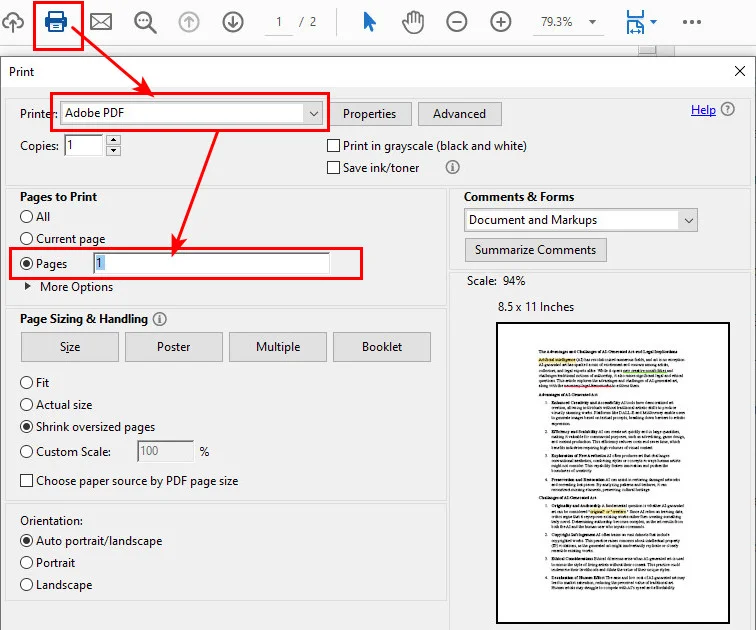
- Step 5: Click Print and, when the Save As window pops up, name your file and save it.
Note: If you find it easier to remove unwanted content rather than extracting a single page, check out this guide on how to delete pages from PDF with Acrobat.
Save One Page of a PDF on a Mac Using Preview
If you are an Apple user, saving only one page of a PDF on a Mac is an intuitive process. macOS includes a powerful built-in tool called Preview that handles PDF manipulation natively without needing a virtual printer altogether. You can quickly extract a page using simple drag-and-drop actions.
- Step 1: Double-click your PDF file to open it in Preview by default.
- Step 2: If you don't see the page previews on the left, navigate to View > Thumbnails.
- Step 3: Locate the target page in the sidebar, then simply click and drag that thumbnail directly onto your desktop.
- Step 4: Alternatively, select the thumbnail, go to File > Export as PDF, and ensure the Selected Pages option is checked before saving.
Save One Page of a PDF Document with Online PDF Editors
Sometimes you may be working on a mobile device or need to save one page of a PDF document separately while performing other edits like merging or compressing. Online PDF suites offer specialized split or extract tools designed for these specific tasks. These platforms are ideal for those who prefer a simple drag-and-drop interface over complex system menus.
- Step 1: Visit a trusted site like Smallpdf, iLovePDF, or Adobe’s online PDF services. For this guide, we will use Smallpdf as an example.
- Step 2: Click Choose Files or drag your document into the Extract PDF Pages tool of Smallpdf.
- Step 3: Scroll through the document and check the box on the specific page you want to save.
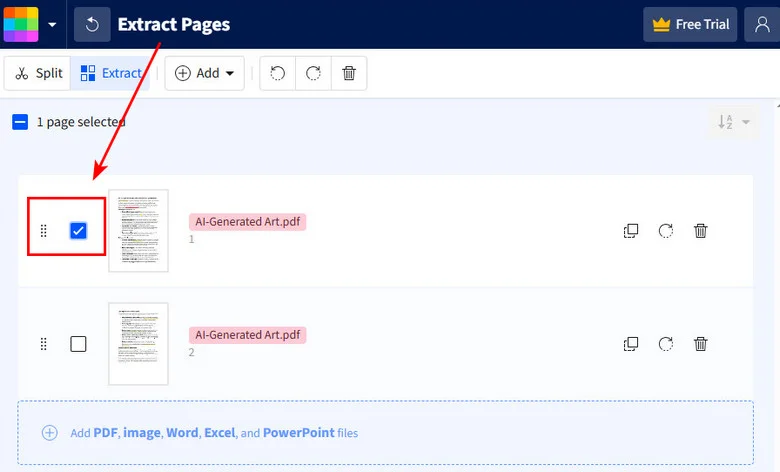
- Step 4: Click the Finish button to start the extraction process.
- Step 5: After the processing is complete, click the Download button to save the new file directly to your device.
Save One Page in a PDF Automatically with Python
For developers who process large numbers of PDFs, automation is more efficient. Using a code script allows you to automate the process of saving only one page of a PDF across hundreds of files in seconds. For this purpose, we recommend Free Spire.PDF for Python, a robust and independent library that enables developers to create, read, and manipulate PDF documents without Adobe Acrobat.
It saves a single page of a PDF by cloning the specific page to a new PdfDocument and then saving it. In most cases, the original layout and content are preserved, unlike printing, which flattens these elements.
Here's how to install Free Spire.PDF and initiate the PDF page saving:
- Step 1: Install the library via terminal using pip install Spire.Pdf.Free.
- Step 2: Load your source document and initialize a new, empty PDF object to act as the single-page container.
- Step 3: Use the PdfDocument.InsertPage() method to copy the target page into the new file.
- Step 4: Save the new PDF using the PdfDocument.SaveToFile() method.
Below is a simple Python example showing how to save the first page of a PDF document:
from spire.pdf import *

# Load the source PDF document
input_pdf = PdfDocument()
input_pdf.LoadFromFile("/input/sample.pdf")

# Create a new PDF document for the output
output_pdf = PdfDocument()

# Save only the first page
output_pdf.InsertPage(input_pdf, 0)

# Save the extracted page as a new document
output_pdf.SaveToFile("/output/extracted_single_page.pdf")
output_pdf.Close()
input_pdf.Close()
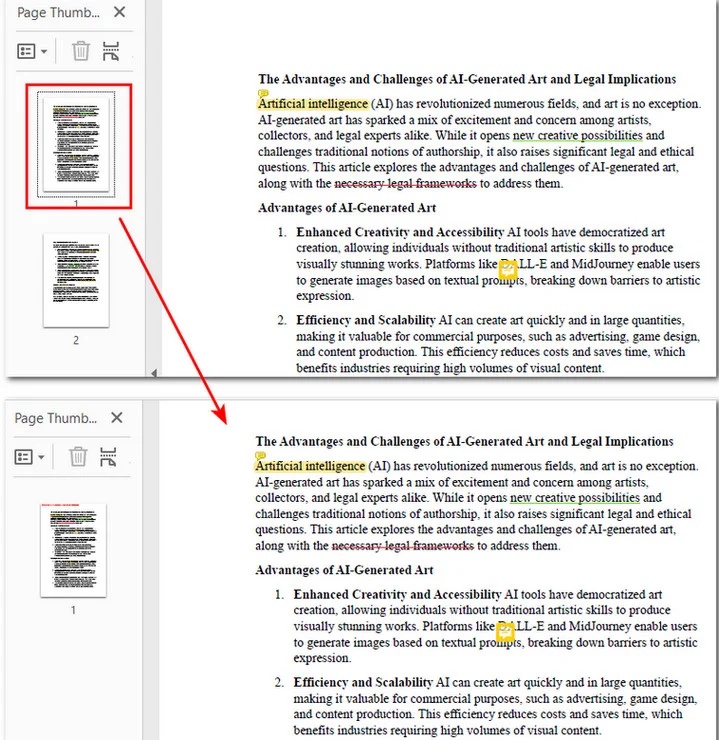
The preview of the original file and the output PDF document:
Which Method Should You Choose?
In today's tutorial, we have covered four distinct methods. To help you quickly identify the most suitable option for your tasks, the following table compares these methods based on accessibility, platform, and scale.
| Scenario | Recommended Method | Primary Benefit |
|---|---|---|
| Quick one-off tasks (Windows/PC) | Print to PDF (Browser or Adobe) | Universal & free; no new software required. |
| Working on a macOS device | Mac Preview | Native system tool with seamless drag-and-drop. |
| On-the-go or mobile editing | Online PDF Editors | No local storage used; accessible from any device. |
| Bulk or repetitive processing | Python Scripting | High-speed automation with 100% precision. |
Conclusion
Saving a single page from a PDF is actually easier than many people expect. If you need a quick solution, the print-to-PDF method works on almost any computer. Mac users can use Preview, while online tools are convenient when you don’t want to install software.
If you need to extract PDF pages in bulk, using Python with Free Spire.PDF is the most efficient approach. Choose the method that fits your workflow, and you’ll be able to save one page of a PDF quickly whenever you need it.