If you've ever worked with presentations, you've probably encountered ODP files-the OpenDocument Presentation format commonly used in open-source office suites like LibreOffice and OpenOffice. While ODP files are perfect for editing in these platforms, they aren't always compatible with Microsoft PowerPoint, which relies on the PPTX format. Converting ODP to PPTX ensures that your slides retain their formatting, while making them fully compatible with PowerPoint for smooth collaboration and professional presentation delivery.
In this step-by-step guide, we'll show you 4 easy ways to convert ODP to PPTX, from offline software to online tools and Python automation, so you can choose the best method for your workflow.
Methods Overview
- Method 1: Convert ODP to PPTX Using LibreOffice Impress
- Method 2: Transform ODP to PPTX Using Microsoft PowerPoint
- Method 3: Use Online ODP to PPTX Converters
- Method 4: Use Python for Batch ODP to PPTX Conversion
Understanding the Formats: ODP vs. PPTX
Before converting, it's helpful to know the key differences between ODP and PPTX:
- ODP (OpenDocument Presentation): An open-standard format used mainly in LibreOffice Impress and OpenOffice. Supports slides, text, images, charts, tables, and basic animations.
- PPTX (PowerPoint Presentation): Microsoft PowerPoint's standard format. Widely supported and offers advanced features like SmartArt, transitions, multimedia, and full compatibility with the Microsoft 365 ecosystem.
Converting ODP to PPTX is essential when collaborating in environments where PowerPoint is the standard, ensuring presentations stay accessible while preserving formatting and functionality.
Method 1: Convert ODP to PPTX Using LibreOffice Impress
LibreOffice Impress natively supports ODP files and includes a built-in Save As function that allows conversion from ODP to PPTX. This method is ideal for users who prefer offline solutions without relying on Microsoft Office.
Step-by-Step Instructions:
-
Launch LibreOffice Impress.
-
Click File > Open and select your .odp file.
-
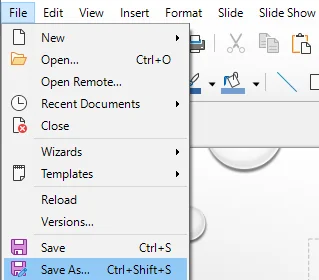
Navigate to File > Save As… or press Ctrl + Shift + S.
-
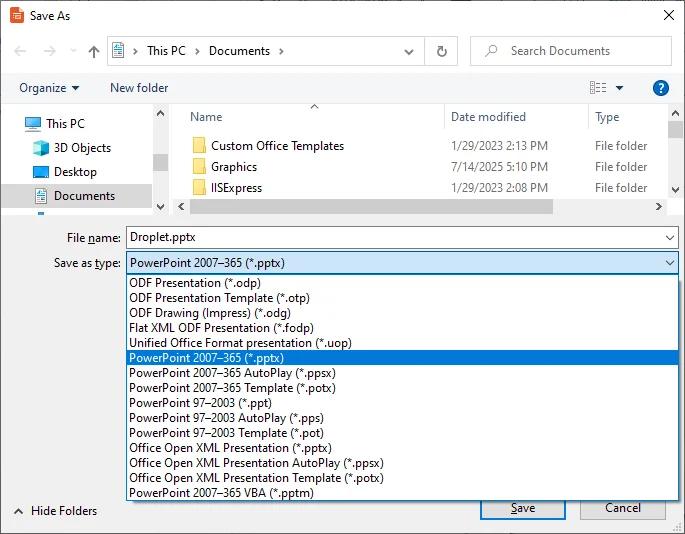
In the Save as type dropdown, select PowerPoint 2007-365 (.pptx).
-
Choose a destination folder, name your file, and click Save.
-
LibreOffice may warn you that some formatting or content may not be fully compatible in the selected format. Click Use PowerPoint 2007-365 (.pptx) to proceed.
Pros:
- Free and offline, no internet needed.
- Preserves most formatting, including images, tables, and slide layout.
Cons:
- Complex animations or SmartArt may not transfer perfectly.
- Batch conversion requires scripting or manual effort.
Method 2: Transform ODP to PPTX Using Microsoft PowerPoint
Modern versions of Microsoft PowerPoint (2013+) can open ODP files directly and save them as PPTX format. This method is ideal for users who already use PowerPoint for editing and presenting slides.
Step-by-Step Instructions:
-
Open Microsoft PowerPoint.
-
Click File > Open, then select your .odp file. PowerPoint will load your slides automatically.
-
Review your slides for any formatting or multimedia issues.
-
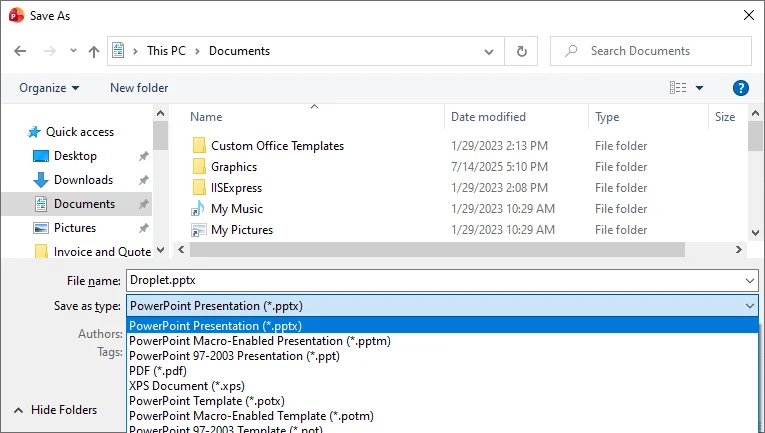
Click File > Save As, select PowerPoint Presentation (*.pptx), and save.
Pros:
- Native PowerPoint support ensures high compatibility.
- Allows immediate editing before saving.
Cons:
- Requires a licensed version of Microsoft PowerPoint.
- Certain ODP features may not render exactly in PowerPoint.
Method 3: Use Online ODP to PPTX Converters
For users seeking a quick, platform-agnostic solution without the hassle of software installation, online ODP to PPTX converters offer a free and efficient alternative. These tools are particularly useful for one-off conversions on shared computers or mobile devices.
Reputable services in this space include Convertio, Zamzar, and OnlineConvert, which are known for their reliability and broad format support.
Steps to Convert ODP to PPTX Online:
-
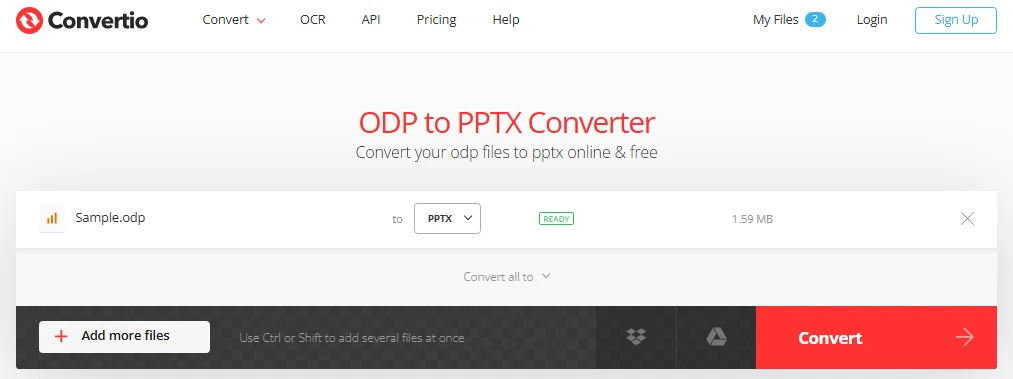
Open your chosen online free ODP to PPTX converter website, e.g., Convertio.
-
Upload your .odp file.
-
Select PPTX as the target format.
-
Click Convert, then download the resulting .pptx file.
Note: Always verify the website's privacy policy. For confidential business presentations, it is safer to use offline desktop software (like LibreOffice or Microsoft PowerPoint) to ensure data remains on your local machine.
Pros:
- No installation required, works across devices.
- Quick for single-file conversion.
Cons:
- Requires a stable internet connection to function.
- Free tiers often restrict file size (e.g., max 50MB) or daily usage.
- Sensitive or confidential files may raise privacy concerns.
Method 4: Use Python for Batch ODP to PPTX Conversion
For developers or teams handling multiple presentations, Python provides a powerful and automated solution. Using libraries like Spire.Presentation for Python, you can perform batch conversion from ODP to PPTX efficiently, saving hours of manual work. This method is ideal for enterprise workflows or recurring conversion tasks.
What is Spire.Presentation and Why Choose It?
Spire.Presentation is a Python library that allows developers to create, read, and convert presentation files programmatically. Its advantages for ODP to PPTX conversion include:
- Batch processing: Convert multiple ODP files at once with minimal code.
- Preserves formatting: Retains slides, images, tables, and basic animations.
- Cross-platform: Works on Windows, Linux, or macOS.
- Automation-friendly: Can be integrated into scripts, scheduled tasks, or CI/CD pipelines.
- No dependency: Works independently without requiring MS Office, LibreOffice, or similar software to be installed.
Installation Requirements
To use Spire.Presentation in Python, install it via pip:
pip install spire-presentation
Ensure that Python 3.7 + is installed on your system.
Python Example for Batch Convert ODP to PPTX
Once the library is installed, add the following code to batch convert multiple ODP files to PPTX:
from spire.presentation import *
import os

def BatchConvertOdpToPptx(InputFolder, OutputFolder):
    """
    Batch converts all ODP files in the InputFolder to PPTX format in OutputFolder.
    Uses Spire.Presentation for Python.
    """
    # Create the output folder if it doesn't exist
    if not os.path.exists(OutputFolder):
        os.makedirs(OutputFolder)

    # Iterate over all files in the input folder
    for file in os.listdir(InputFolder):
        # Check if the file has an ODP extension (case-insensitive)
        if file.lower().endswith(".odp"):
            # Build the full input path
            InputPath = os.path.join(InputFolder, file)

            # Build the output path by replacing the file extension with .pptx
            OutputPath = os.path.join(OutputFolder, os.path.splitext(file)[0] + ".pptx")

            # Create a Presentation instance
            presentation = Presentation()

            # Load the ODP file
            presentation.LoadFromFile(InputPath, FileFormat.ODP)

            # Convert and save as PPTX
            presentation.SaveToFile(OutputPath, FileFormat.PPTX)

            print(f"Converted '{file}' to PPTX successfully.")

# Example usage
BatchConvertOdpToPptx("C:/ODP_Files", "C:/PPTX_Output")
Tip: After conversion, you can further customize the output PPTX files, such as adjusting its slide size and applying animations.
Pros:
- Ideal for batch conversions.
- Fully automated, reduces manual effort.
Cons:
- Requires Python setup and some scripting knowledge.
- Initial configuration can be technical for beginners.
Comparison: Which ODP to PPTX Method Should You Choose
Here is a quick comparison of the 4 ODP to PPTX methods:
| Method | Quality | Speed | Privacy | Best For |
|---|---|---|---|---|
| LibreOffice Impress | Excellent | Fast | High | Free offline conversion |
| Microsoft PowerPoint | Excellent | Fast | High | Editing & native conversion |
| Online Converters | Good | Depends on the Internet | Low | Quick single-file conversion |
| Python Script | Excellent | Very Fast (Batch) | High | Batch conversion & automation |
Troubleshooting Common ODP to PPTX Issues
Although converting ODP to PPTX is usually straightforward, some complex files can still cause issues. Here are the most common problems and how to address them:
- Formatting Loss: Complex animations, charts, or SmartArt may not convert perfectly. Review your slides and adjust content as needed.
- Missing Fonts: Make sure all fonts used in the ODP file are installed on your system to avoid layout changes.
- Corrupted Files: Check that the ODP files are not corrupted or partially downloaded before conversion.
- Unsupported Media: Videos or audio may not carry over. Re-embed or add media directly in PowerPoint if necessary.
Conclusion
You now have a complete toolkit for converting ODP to PPTX. The best method depends on your needs:
- For occasional offline conversions: Use LibreOffice or Microsoft PowerPoint for reliable results that preserve most formatting.
- For quick, one-off conversions: Online converters are convenient when you don't want to install any software.
- For batch or enterprise workflows: Python automation is the fastest and most scalable solution for handling multiple files consistently.
Pick the method that suits your workflow and ensure your presentations remain professional, compatible, and ready to share.
FAQs about ODP to PPTX
Q1: Can I convert ODP to PPTX without losing animations?
A1: Simple animations usually transfer, but complex or custom animations may require manual adjustment.
Q2: Are online ODP to PPTX converters safe for sensitive presentations?
A2: Not always. For confidential files, offline tools like LibreOffice or PowerPoint are recommended.
Q3: Can I batch convert multiple ODP files to PPTX?
A3: Yes, Python with Spire.Presentation enables automated batch conversion.
Q4: Will the converted PPTX open on all PowerPoint versions?
A4: PPTX files are compatible with PowerPoint 2007 and later, though some advanced features may differ on older versions.