Cluttered or distracting backgrounds in PowerPoint can sometimes make your presentations look unprofessional, hard to read, and reduce audience engagement. Learning how to remove background in PowerPoint helps you quickly clean up slides, improve readability, and maintain a consistent, professional look.
In this guide, we'll show you 5 practical methods to remove background in PowerPoint - covering single slides, images, entire presentations, and even multiple files-so you can create clean, polished slides more efficiently.
Contents Overview
- Quick Answer: How to Remove Background in PowerPoint
- Method 1. Remove Background from PowerPoint Slide (Format Background)
- Method 2. Delete Background from All PowerPoint Slides Quickly (Slide Master)
- Method 3. Remove Image Background in PowerPoint (Remove Background Tool)
- Method 4. Clear Background in PowerPoint Automatically with VBA
- Method 5. Batch Remove Background in PowerPoint with Python
- Comparison: Which Method Should You Choose?
- Why Remove Background in PowerPoint
- Common Background Removal Issues and Solutions
- FAQs: How to Remove Background in PowerPoint
Quick Answer: How to Remove Background in PowerPoint
If you want to remove background in PowerPoint quickly, here are the easiest methods:
- Use Format Background - best for single slides.
- Use Slide Master - best for all slides.
- Use Remove Background - best for images.
Keep reading for step-by-step instructions and advanced methods like VBA and Python.
Method 1. Remove Background from PowerPoint Slide (Format Background)
If you want to remove the background from a slide quickly, the Format Background feature is the most straightforward option. It allows you to clear the existing background without affecting text or other elements. This method works best when you need to clean up one or a few slides.
Steps:
-
Select the slide you want to remove background from.
-
Go to the Design tab and click Format Background (or right-click the slide and choose Format Background).

-
In the Format Background pane, select Solid fill.
-
Click the Color button and choose white color from the dropdown. The background is now removed from the selected slides.
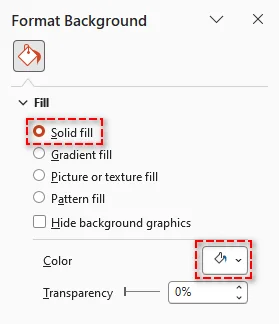
Pro Tip: If you want this change to apply to all slides in your presentation, click Apply to All at the bottom of the Format Background pane.
When to use: Use it when you only need to clean up individual slides without affecting the rest of the presentation.
If you want to change or customize backgrounds instead of removing them, see our guide on changing PowerPoint slide backgrounds.
Method 2. Delete Background from All PowerPoint Slides Quickly (Slide Master)
When you need to remove background from all slides in PowerPoint, using Slide Master is the most efficient approach. It lets you clear background settings across multiple slides at once from a single place. This method is ideal for eliminating unwanted backgrounds while keeping slides consistent without editing them one by one.
Steps:
-
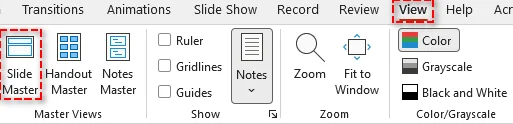
Navigate to the View tab and select Slide Master in the Master Views group.
-
In the left pane, choose the master slide or specific layout you want to edit.
-
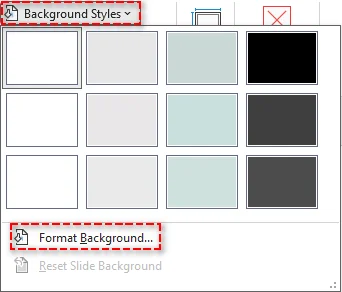
In the Background group, click Background Styles > Format Background.
-
In the Format Background pane, select Solid fill and choose white color from the color picker.
-
Click Close Slide Master to apply the changes to all related slides.
Tip: If you have multiple layouts using the same background, be sure to update each layout in the Slide Master.
When to use: Use it for applying consistent background removal across an entire presentation.
Troubleshooting Stubborn Backgrounds
If background elements still appear after removal, they are usually part of the slide theme or stored in the Slide Master. Use the methods below to hide or remove them.
1. Hide Theme Background Graphics
-
Open the Format Background pane.
-
Check the Hide background graphics box to hide theme-based elements such as decorative lines, shapes, or logos.
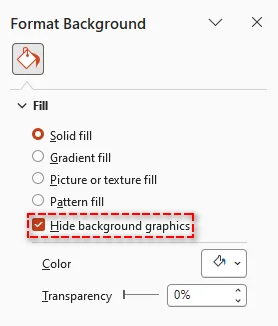
Note: This only hides elements inherited from the Slide Master. It does not remove images or objects that were manually added to the slide.
2. Remove Background Elements via Slide Master
- Go to the View tab and select Slide Master.
- In the left pane, select the top (parent) master slide or specific layout.
- Click the background graphic or logo you want to remove and press Delete.
- Click Close Master View to apply the changes.
Method 3. Remove Image Background in PowerPoint (Remove Background Tool)
If you need to remove background from an image in PowerPoint, the built-in Remove Background tool provides a quick and effective solution. It automatically detects the main subject and removes unwanted areas with minimal manual adjustment. This method is ideal for cleaning up images directly in your slides without using external tools.
Steps:
-
Select the image you want to remove the background from.
-
Go to the Picture Format tab.
-
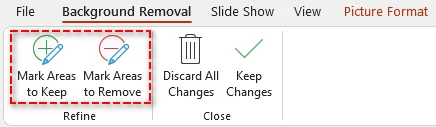
Select Remove Background. PowerPoint will highlight the background in purple.

-
Adjust the selection using Mark Areas to Keep or Mark Areas to Remove if needed.
-
Click Keep Changes to apply the background removal.
Tips and Notes:
- This method works best when there is a clear contrast between the subject and the background.
- The Remove Background feature is available in recent desktop versions, like PowerPoint for Microsoft 365, 2024, and 2021, but may not be supported in some web versions.
- For images with a solid color background, go to Picture Format > Color > Set Transparent Color, then click the background to make it transparent quickly.
When to use: Use it for removing backgrounds from images while keeping the main subject.
Method 4. Clear Background in PowerPoint Automatically with VBA
If you need to perform repetitive background removal tasks, VBA offers a way to automate the process inside PowerPoint. By running a simple macro, you can update multiple slides without manual work. This method is useful for users familiar with basic scripting.
VBA Macro to Remove Backgrounds from All Slides
This script loops through each slide in the active presentation, disables the master background, and clears background elements automatically.
Sub RemoveAllBackgrounds()
    Dim sld As Slide

    ' Loop through each slide in the presentation
    For Each sld In ActivePresentation.Slides
        ' Follow Master Background: Set to False to customize
        sld.FollowMasterBackground = msoFalse

        ' Set the background fill to visible = false (Transparent/No Fill)
        sld.Background.Fill.Visible = msoFalse

        ' Alternatively, hide background graphics (like logos/themes)
        sld.DisplayMasterShapes = msoFalse
    Next sld

    MsgBox "All slide backgrounds have been removed!", vbInformation
End Sub
Key Properties Explained:
- FollowMasterBackground: Set to msoFalse to override the Slide Master background.
- DisplayMasterShapes: Hides background elements like logos or design shapes from the Slide Master.
- Background.Fill.Visible: Controls whether the background fill is visible.
How to use the script:
- Press Alt + F11 to open the VBA Editor.
- Go to Insert > Module.
- Paste the code into the module window.
- Press F5 or click the Run button to execute the macro.
Notes:
- This method does not remove images inserted as shapes. If your background is a picture object, you'll need a separate script to delete those shapes.
- Always save a copy of your presentation before running macros, as VBA actions cannot be undone.
- If macros are disabled, go to File > Options > Trust Center > Trust Center Settings > Macro Settings to enable them.
When to Use: Ideal for automating repetitive background removal tasks within PowerPoint.
Method 5. Batch Remove Background in PowerPoint with Python
For large-scale tasks involving multiple PowerPoint files, using Python can significantly improve efficiency. With the right library like Spire.Presentation for Python, you can automate background removal across presentations without opening PowerPoint manually. This method is ideal for batch processing and backend workflows.
Step-by-Step Guide:
-
Install the library via pip:
pip install spire.presentation -
Write Python Script:
The following example shows how to batch remove slide background from multiple PowerPoint .pptx files:
from spire.presentation import *
import os

# Folder containing the PPTX files to process
input_folder = "presentations"      # Folder with all the PPTX files
output_folder = "processed"         # Folder to save processed files

# Create output folder if it doesn't exist
if not os.path.exists(output_folder):
    os.makedirs(output_folder)

# Loop through all PPTX files in the input folder
for filename in os.listdir(input_folder):
    if filename.lower().endswith(".pptx"):
        input_path = os.path.join(input_folder, filename)
        output_path = os.path.join(output_folder, f"RemoveBackground_{filename}")

        # Load the presentation
        presentation = Presentation()
        presentation.LoadFromFile(input_path)

        # Loop through each slide and remove background
        for slide in presentation.Slides:
            slide.SlideBackground.Type = BackgroundType.none

        # Save the modified presentation
        presentation.SaveToFile(output_path, FileFormat.Pptx2010)
        presentation.Dispose()

        print(f"Processed: {filename} → {output_path}")

print("All presentations have been processed successfully.")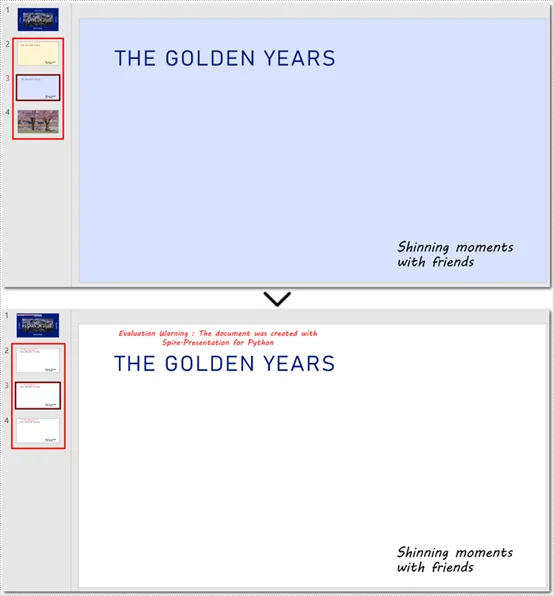
Tip: In addition to removing background from slides, you can also remove background from slide masters.
When to use: Ideal for batch processing multiple PowerPoint files efficiently.
Comparison: Which Method Should You Choose?
Choosing the right way to remove background in PowerPoint depends on how many slides you're working with and whether you need automation.
Here's a quick comparison of the five methods:
| Method | Best for | Scope | Skill Level |
|---|---|---|---|
| Format Background | Quick slide cleanup | Single / few slides | Beginner |
| Slide Master | Presentation-wide consistency | Entire presentation | Beginner |
| Remove Background (Image) | Image editing | Individual images | Beginner |
| VBA | Repetitive tasks inside PowerPoint | Multiple slides | Intermediate |
| Python | Batch processing | Multiple presentations | Advanced |
Quick Recommendation:
- For most users, Format Background and Slide Master are enough for everyday tasks.
- Use VBA if you need to automate repeated actions within PowerPoint.
- Choose Python if you need to process multiple files or build automated workflows.
Why Remove Background in PowerPoint
Removing backgrounds in PowerPoint is not just about visual cleanup-it can significantly improve how your presentation looks and performs. Here are the main benefits:
- Enhanced Visual Clarity: Remove distracting elements that compete with your content.
- Brand Consistency: Eliminate inconsistent or unwanted backgrounds.
- Improved Readability: Clear backgrounds help text stand out more clearly.
- Simplified Design: Strip away unnecessary visuals and focus on key information.
- Professional Quality: Create clean, distraction-free presentations.
Common Background Removal Issues and Solutions
- Background graphics or logos still visible - These elements are often part of the Slide Master. To remove them, go to View > Slide Master, select the parent slide or affected layouts, delete the elements, and then close Master View.
- Cannot remove background - The presentation may be protected or restricted. Check the file's editing permissions and enable editing if needed before making changes.
- Changes do not apply to all slides - Removing the background on one slide does not affect others. Use Apply to All in the Format Background pane or update the Slide Master to apply changes across the entire presentation.
FAQs: How to Remove Background in PowerPoint
Q1: Can I remove backgrounds from all slides at once?
A1: Yes, using Slide Master, VBA, or Python automation, you can remove backgrounds across an entire presentation or multiple files.
Q2: Can I remove backgrounds without PowerPoint?
A2: Yes, Python libraries like Spire.Presentation allows removal of backgrounds without Microsoft PowerPoint installed.
Q3: Will removing the background affect images or text on my slides?
A3: No, removing the slide background typically does not affect other slide content like text boxes or images. However, always create a backup before using automated tools like VBA or Python scripts to prevent accidental changes.
Q4: Is VBA safe to use for PowerPoint background removal?
A4: Yes, as long as you enable macros only from trusted sources and save a backup before running the script.