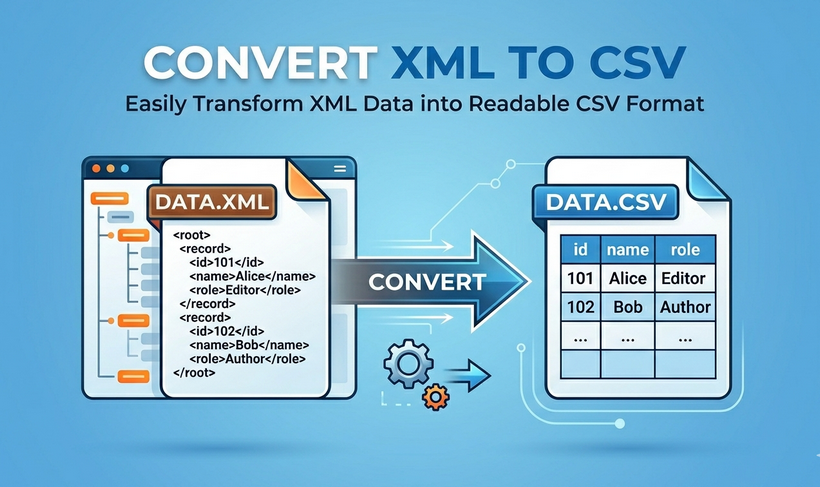
In the world of data, transforming XML to CSV is a frequent necessity for analysts, developers, and business professionals. Whether you're migrating data, building a report, or feeding structured information into a legacy system, knowing how to flatten hierarchical XML into a clean, tabular CSV is an essential skill.
This guide breaks down four practical, scalable methods to convert XML to CSV - from no‑code online tools and Excel’s built‑in features to Python scripting and command‑line automation. Whatever your file size, technical skill, or workflow demand, you’ll get step‑by‑step instructions, ready‑to‑use code examples, and solutions to common pitfalls to keep your data accurate, secure, and ready to use.
- Key Differences: XML vs. CSV
- Method 1: Using Free Online XML to CSV Converters
- Method 2: Converting XML to CSV in Excel
- Method 3: Automating the Conversion with Python
- Method 4: Using Command-Line Tools
- Common XML to CSV Conversion Pitfalls & Fixes
Key Differences: XML vs. CSV
XML and CSV serve distinct data needs, and understanding their differences helps you choose the right conversion approach. Here's a quick comparison table:
| Feature | XML | CSV |
|---|---|---|
| Data Structure | Hierarchical / tree-like. Perfect for nested data. | Tabular / flat. A simple two-dimensional table. |
| File Size | Large. The descriptive tags add significant overhead. | Small. Very compact, with minimal data redundancy. |
| Readability | Readable, but cluttered with tags. | Extremely easy for humans and machines to read in a table format. |
| Use Case | Ideal for data exchange between complex systems, web services, and configuration files. | Ideal for data analysis, business reporting, and importing/exporting to databases and spreadsheets. |
In short: you change XML to CSV to flatten hierarchical data into a simple table for analysis.
Method 1: Using Free Online XML to CSV Converters
If you have a small XML file (under 10MB) and no coding experience, online converters are the fastest, simplest option. They require no installation, and most are free to use.
Steps to convert XML to CSV online:
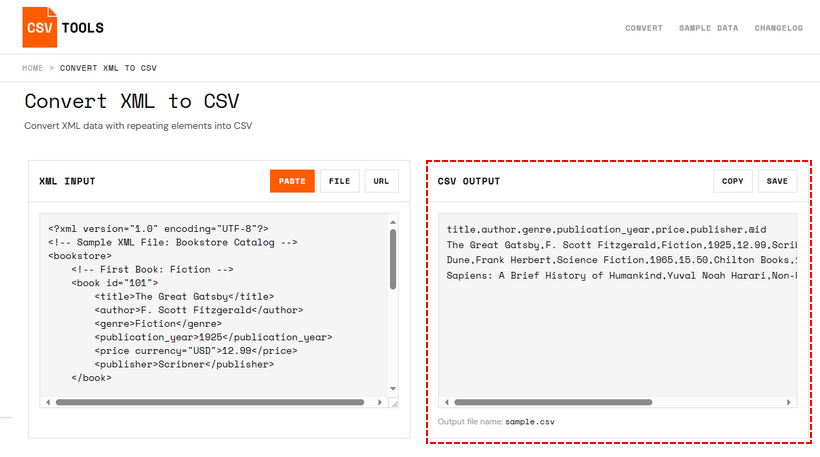
- Search for “XML to CSV online converters” and select a trusted free tool (e.g., CSVTools.com’s XML to CSV tool)
- Upload your XML file or paste your XML code into the input box.
- The tool automatically detects XML elements and maps them to CSV columns.
- Preview the CSV output on the right.
- Copy the result or click “Save” to download the file to your computer.
✅ When to use this method:
- You have a one‑time conversion need, and the XML file is small.
- The XML structure is relatively simple (two or three levels deep) and contains no sensitive information.
- You want to quickly test what the flattened data looks like before committing to a more robust method.
Data professionals working with modern web APIs or NoSQL databases often deal with JSON rather than XML. Here’s a guide to convert JSON to CSV — a valuable complementary skill for data transformation.
Method 2: Converting XML to CSV in Excel
If you already use Microsoft Excel, you can convert XML to CSV format directly without any extra tools. This method is great for small to medium XML files and works well if you need to edit the data before saving as CSV.
Basic Excel Method (Simple XML)
- Open Microsoft Excel.
- Go to File > Open and locate your XML file.
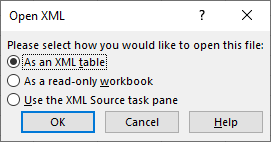
- Excel will prompt you to open the file. In the dialog box, select "As an XML table".
- If Excel warns that the XML schema cannot be inferred, it will create one automatically. Click OK.
- Excel renders the hierarchical XML into a table. Review the columns. For simple, flat XML, this is your final table.
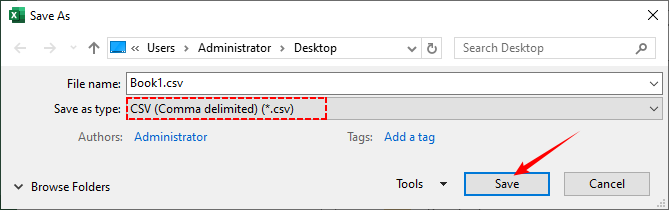
- To save as CSV, go to File > Save As.
- In the "Save as type" dropdown, select CSV (Comma delimited) (*.csv) , choose a location, and click Save.
Advanced Power Query Method (Nested XML)
To convert nested XML to CSV, follow these steps:
- Go to Data > Get Data > From File > From XML.
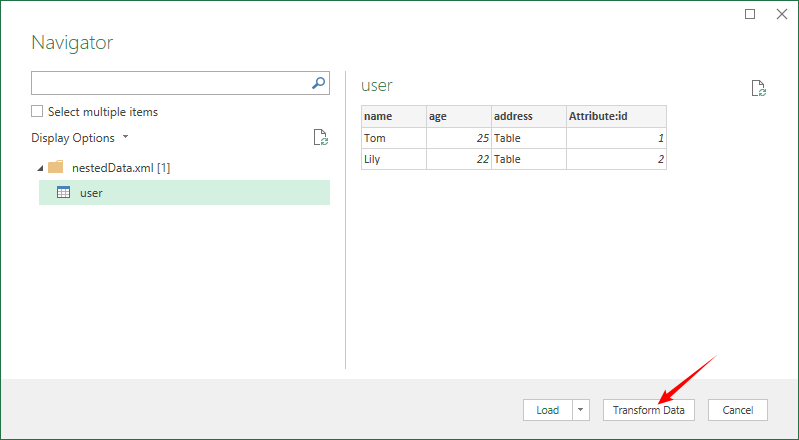
- Select your XML file. The Power Query Navigator window opens, showing a tree view of the XML structure.
- Select the repeating parent element and you’ll see a preview table. Click Transform Data.
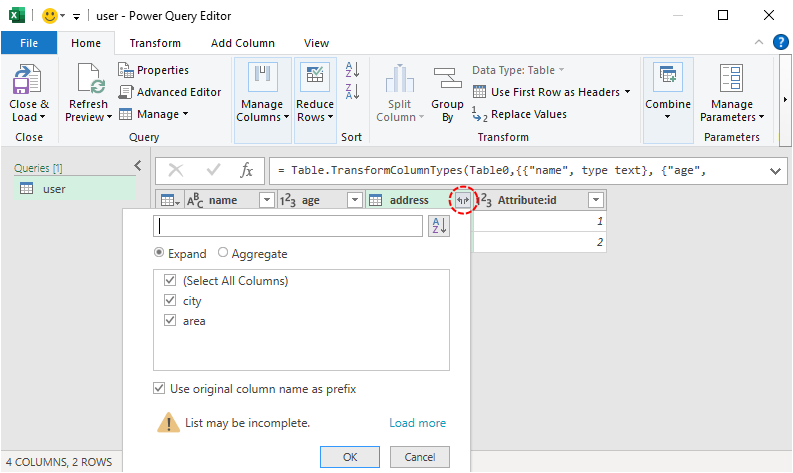
- In the Power Query Editor, for columns labeled Table/Record (nested data), click the expand icon (double arrow) and select fields to flatten (e.g.,
address.city,address.area). - Clean data (replace null/missing values) → click Close & Load.
- Save the final table as CSV (follow basic conversion steps 6–7).
Bonus tip: While CSV works well for simple data sharing and lightweight analysis, converting XML directly to Excel XLSX empowers you to build professional reports enriched with formulas, pivot tables, and dynamic charts.
Method 3: Automating the Conversion with Python
For developers and data professionals, Python is the gold standard for XML-to-CSV conversion. It offers an unrivaled balance of power and control, allowing you to handle complex nesting, custom logic, and automate the process for many files.
You'll use two libraries:
- xml.etree.ElementTree (included with Python) for parsing and extracting the XML data.
- Free Spire.XLS for Python (a third-party library) for writing the data to a CSV file.
Basic Example: Convert XML to CSV in Python
Let’s convert a simple XML file (e.g., products.xml) to CSV. Here’s the sample XML:
<products>
  <product>
    <id>1</id>
    <name>Wireless Headphones</name>
    <price>99.99</price>
    <category>Electronics</category>
  </product>
  <product>
    <id>2</id>
    <name>Stainless Steel Water Bottle</name>
    <price>24.99</price>
    <category>Home Goods</category>
  </product>
</products>
Here’s the Python code to convert XML file to CSV:
from spire.xls import *
from spire.xls.common import *
import xml.etree.ElementTree as ET

# 1. Create a Workbook object
workbook = Workbook()

# 2. Remove the default worksheet and add a new one
workbook.Worksheets.Clear()
worksheet = workbook.Worksheets.Add("Products")

# 3. Load and parse the XML file
xml_tree = ET.parse("C:\\Users\\Administrator\\Desktop\\products.xml")
root = xml_tree.getroot()

# 4. Get the first <product> to define column headers
first_product = root.find("product")
headers = [elem.tag for elem in first_product]

# 5. Write headers to the first row (row index 1, column index starting at 1)
for col_idx, header in enumerate(headers, start=1):
    worksheet.SetValue(1, col_idx, header)

# 6. Write data rows
row_idx = 2
for product in root.findall("product"):
    for col_idx, header in enumerate(headers, start=1):
        # Get element text, default to empty string if missing
        elem = product.find(header)
        value = elem.text if elem is not None else ""
        worksheet.SetValue(row_idx, col_idx, value)
    row_idx += 1

# 7. Save the worksheet as a CSV file (comma delimiter, UTF-8 encoding)
worksheet.SaveToFile("XmlToCsv.csv", ",", Encoding.get_UTF8())

# 8. Clean up
workbook.Dispose()
What the code does?
- Create a blank workbook and prepare a worksheet for storing XML data.
-
ET.parse()loads the XML file. -
worksheet.SetValue()writes data to a specific cell. Rows and columns are 1‑indexed. - Loop through each
<product>, then loop through each header, extract the text, and write to the corresponding cell. -
worksheet.SaveToFile()exports the worksheet as a CSV file. -
workbook.Dispose()releases resources.
The above parsing workflow applies only to flat XML structures with single-level elements and no hierarchical nesting. If your XML contains nested structures, you must flatten the data first. For further details, refer to our guide on handling nested XML during CSV conversion.
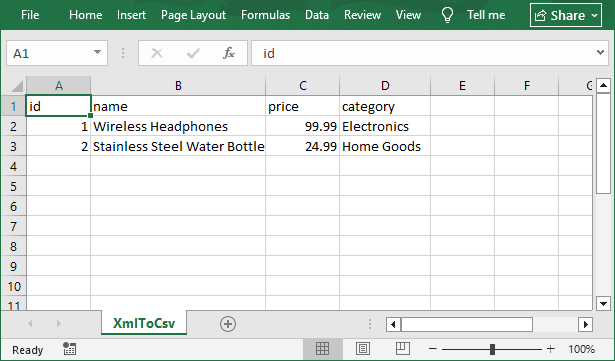
Open the result CSV file in Excel:
When to Choose Free Spire.XLS Over Python’s Built‑in Library
Python’s built‑in csv module is lightweight and perfect for simple, CSV‑only tasks. Consider Free Spire.XLS when:
- You need both CSV and Excel output from the same conversion – no separate conversion step required.
- Your end users expect an Excel file (.xlsx) for manual editing, reporting, or formatting.
- You prefer the Excel object model (Workbook → Worksheet → Cell) – intuitive if you’re familiar with spreadsheets.
- You already use Free Spire.XLS for other reporting or document generation tasks in the same project.
Bottom line: For pure CSV, stick with the built‑in csv module. For mixed‑format output (CSV + Excel + PDF) or Excel‑centric workflows, Free Spire.XLS saves time and code.
Method 4: Using Command-Line Tools
For users comfortable with a terminal, XMLStarlet is a powerful tool for exporting XML to CSV directly from the command line, making it ideal for integration into shell scripts.
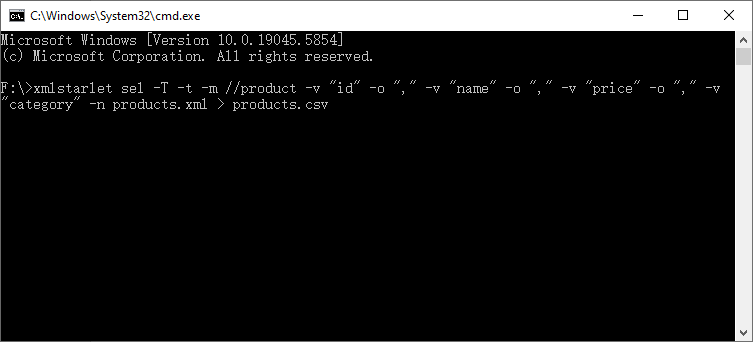
How to Use: Download from xmlstar.sourceforge.net (Windows), and then convert XML to CSV with this command (replace products.xml with your file):
xmlstarlet sel -T -t -m //product -v "id" -o "," -v "name" -o "," -v "price" -o "," -v "category" -n products.xml > products.csv
Command Breakdown:
-
sel -T: Select data and output as text -
-t -m "//product": Match all <product> elements -
-v: Extract element value -
-o ",": Add comma delimiter -
-n: New line for each row
Note: This works well for flat, predictable structures. For nested data, you’ll need more complex XPath expressions.
Common XML to CSV Conversion Pitfalls & Fixes
Here are the most common issues and how to resolve them:
1. Nested XML Elements Not Converting Properly
Problem: CSV is a flat format, so nested XML elements like <address><city>New York</city></address> don’t map naturally.
Solution: Flatten nested elements before conversion. Use Power Query’s expand feature, Python’s dot notation (e.g., address.city), or XPath in XMLStarlet.
2. Missing Data in CSV Output
Problem: Some XML elements are missing from the CSV, especially if the XML has optional elements (e.g., some products don’t have a <category> tag).
Solution: Handle missing values explicitly. In Python: product.findtext('category', ''). In Excel/Power Query, use “Replace Values”. In online tools, look for a “handle missing values” option.
3. Special Characters Causing Errors
Problem: Special characters (e.g., commas, quotes, accents) in XML data can break the CSV format (e.g., a product name like “Wireless Headphones, Black” will split into two columns).
Solution:
- Always use UTF‑8 encoding.
- Ensure fields containing commas or quotes are quoted.
- In Excel, when saving as CSV, choose “Quote all text fields” or use Power Query’s “Quote style” option.
4. Converting large XML to CSV causing memory errors
Problem: Loading a 1 GB XML file into memory with ET.parse() may crash your script or application.
Solution:
- Use streaming parsers (e.g.,
ET.iterparse()in Python). - Use command‑line tools like xmlstarlet (streams by default).
- Consider splitting the XML into smaller chunks if possible.
Final Thoughts
Converting XML to CSV bridges the gap between complex, structured data exchange and simple, actionable data analysis. Whether you use a quick online tool, a visual desktop application like Excel, or a powerful, programmable solution with Python, the right method depends on your data volume, technical comfort, and need for control.
For most business users, Excel + Power Query provides a perfect balance. For developers, Python with ElementTree and Free Spire.XLS is an indispensable tool. Now that you've learned the core concepts and methods, you're ready to choose the best approach and start converting your XML data into clean, powerful CSV files.