XLSB files work well in Microsoft Excel, but some spreadsheet applications and data-processing tools do not fully support the format. If you need to share an XLSB workbook or use it in another application, converting it to XLSX is often a practical solution.
This guide covers four methods: Excel's built-in Save As feature and an online converter for individual files, VBA for automating a single conversion, and C# for batch processing.
Which XLSB to XLSX Conversion Method Should You Use?
| Method | Best For | Pros | Cons |
|---|---|---|---|
| Microsoft Excel | Converting individual XLSB files | Native format support; easy to review results | Requires desktop Excel; manual process |
| Online converter | Quick, occasional conversions | No installation; easy to use | File uploads required; possible compatibility issues |
| VBA macro | Automating individual conversions in Excel | Reusable macro; runs directly in Excel | Requires Excel for Windows and basic VBA setup |
| C# | Batch conversion in .NET applications | Processes multiple files without Excel | Requires a .NET environment and a compatible library |
Important: XLSX cannot retain VBA macros or Excel 4.0 macro sheets, as explained in Microsoft's guide to supported Excel file formats. If your XLSB workbook contains macros you need to preserve, consider saving it as XLSM instead.
Method 1: Excel's Built-in Save As Feature
For a single XLSB file, Microsoft Excel's built-in Save As feature offers a straightforward way to convert it to XLSX. You can review the workbook before saving it. No third-party software or data uploading is required.
Step-by-Step Guide
-
In desktop Excel, select File > Open > Browse, then choose your
.xlsbfile. If it opens in Protected View, click Enable Editing only if you trust its source. -
Check that important worksheets, formulas, charts, and other content appear as expected.
-
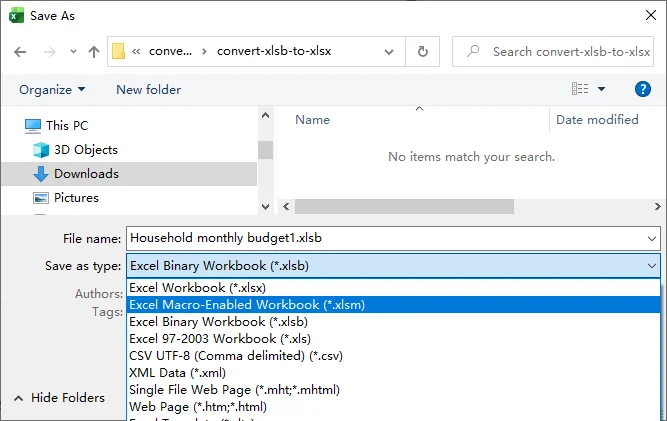
Go to File > Save As > Browse, or press F12 in Excel for Windows.
-
Under Save as type, select Excel Workbook (*.xlsx) and enter a file name.
-
Click Save, review any compatibility warnings, then reopen the XLSX file to check the result.
Method 2: Free Online XLSB to XLSX Converter
If you don't have Microsoft Excel installed or need to convert XLSB files on Linux, ChromeOS, or a mobile device, an online converter offers a convenient alternative. The following steps use Vertopal as an example.
Step-by-Step Guide
-
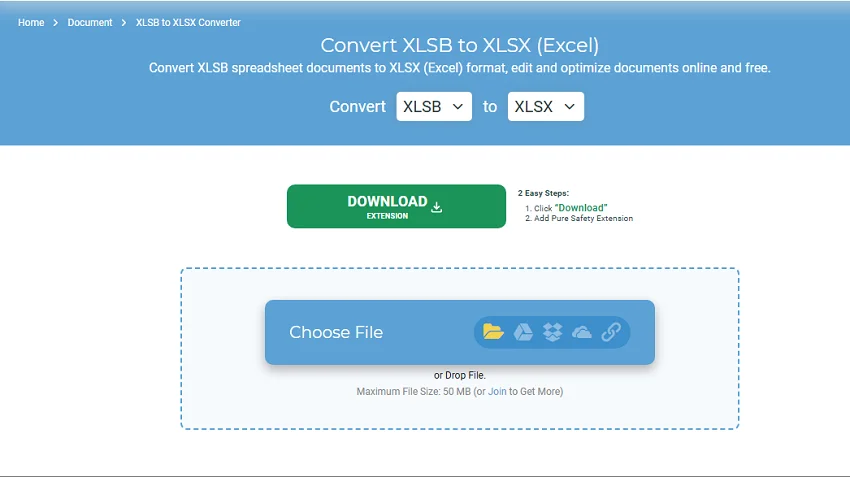
Visit the Vertopal XLSB to XLSX converter.
-
Click Choose File and select your workbook (maximum file size is 50 MB).
-
Click Continue, then Convert to start the conversion.
-
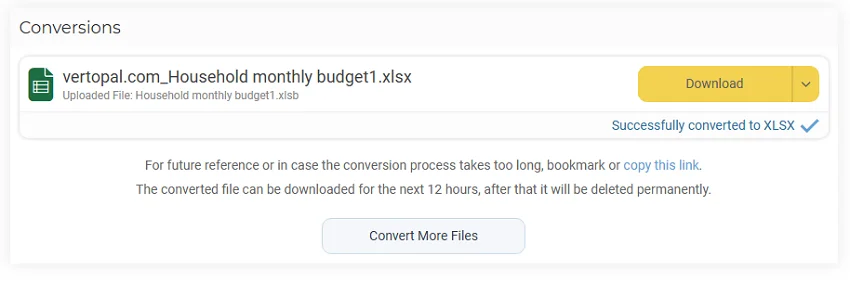
Download the converted XLSX file and open it to check the contents.
Before uploading: Online converters typically require sending files to a third-party service. Avoid uploading confidential or sensitive workbooks unless the service meets your data-handling requirements. File-size limits and available options vary, and complex Excel features may not be preserved exactly.
Method 3: Automated Conversion with VBA
If you need to repeat the same conversion in Excel, a VBA macro can automate the process without using Save As manually each time. The example below converts one XLSB workbook to XLSX.
VBA Code for XLSB to XLSX Conversion
The macro script below uses Excel's Workbook.SaveAs method to save an XLSX copy, leaving the original file unchanged.
Update the file paths to match your workbook before running it.
Sub ConvertXlsbToXlsx()
    Dim sourcePath As String, outputPath As String
    Dim wb As Workbook
    Dim oldAlerts As Boolean
    Dim oldSecurity As MsoAutomationSecurity

    sourcePath = "C:\XLSB\Report.xlsb"
    outputPath = "C:\XLSB\Report.xlsx"

    oldAlerts = Application.DisplayAlerts
    oldSecurity = Application.AutomationSecurity
    On Error GoTo Failed

    ' Avoid overwriting an existing XLSX file
    If Dir(outputPath) <> "" Then
        MsgBox "Output file already exists: " & outputPath, vbExclamation
        Exit Sub
    End If

    Application.DisplayAlerts = False
    Application.AutomationSecurity = msoAutomationSecurityForceDisable

    ' Open XLSB and save as XLSX
    Set wb = Workbooks.Open(Filename:=sourcePath, UpdateLinks:=0, ReadOnly:=True)
    wb.SaveAs Filename:=outputPath, FileFormat:=xlOpenXMLWorkbook
    MsgBox "Converted: " & outputPath, vbInformation

CleanUp:
    On Error Resume Next
    If Not wb Is Nothing Then wb.Close SaveChanges:=False
    Application.DisplayAlerts = oldAlerts
    Application.AutomationSecurity = oldSecurity
    Exit Sub

Failed:
    MsgBox "Conversion failed: " & Err.Description, vbExclamation
    Resume CleanUp
End Sub
How to Run the VBA Macro
- Open Excel for Windows and create a blank workbook.
- Press Alt + F11 to open the VBA Editor. Select Insert > Module and paste the code.
- Create
C:\XLSBand place a file namedReport.xlsbin it. Alternatively, updatesourcePathandoutputPathin the code to match your own file paths. - Return to Excel, press Alt + F8, select
ConvertXlsbToXlsx, and click Run. Run macros only from sources you trust. - Open
C:\XLSB\Report.xlsxto review the converted file.
If you need to reuse the macro later, save the workbook containing the VBA code as a separate Excel Macro-Enabled Workbook (*.xlsm) file.
Note: The macro uses Excel's AutomationSecurity setting to disable VBA macros when opening the source workbook, but Excel 4.0 macro prompts may still appear. Standard compatibility alerts are suppressed, so review the converted file before using it.
Method 4: Batch Conversion with C#
For .NET applications or recurring file-processing tasks, C# can convert multiple XLSB workbooks without requiring Microsoft Excel to be installed. The following example uses Spire.XLS for .NET.
Step 1: Install Spire.XLS for .NET
Open Tools > NuGet Package Manager > Package Manager Console in Visual Studio, then run the following command:
Install-Package Spire.XLS
Step 2: Batch Convert XLSB Files to XLSX
Place the source XLSB files in C:\XLSB. The program creates C:\XLSX, skips existing outputs, and reports errors while continuing with the remaining files.
using System;
using System.IO;
using Spire.Xls;

class Program
{
    static void Main()
    {
        string inputFolder = @"C:\XLSB";
        string outputFolder = @"C:\XLSX";

        if (!Directory.Exists(inputFolder))
        {
            Console.WriteLine("Source folder not found: " + inputFolder);
            return;
        }

        Directory.CreateDirectory(outputFolder);

        foreach (string inputFile in Directory.EnumerateFiles(inputFolder))
        {
            if (!string.Equals(Path.GetExtension(inputFile), ".xlsb",
                               StringComparison.OrdinalIgnoreCase))
                continue;

            string outputFile = Path.Combine(
                outputFolder,
                Path.GetFileNameWithoutExtension(inputFile) + ".xlsx");

            if (File.Exists(outputFile))
            {
                Console.WriteLine("Skipped (already exists): " + outputFile);
                continue;
            }

            Workbook workbook = null;
            try
            {
                workbook = new Workbook();
                workbook.LoadFromFile(inputFile);
                workbook.SaveToFile(outputFile, ExcelVersion.Version2016);
                Console.WriteLine("Converted: " + Path.GetFileName(inputFile));
            }
            catch (Exception ex)
            {
                Console.WriteLine("Failed: " + Path.GetFileName(inputFile)
                                  + " - " + ex.Message);
            }
            finally
            {
                if (workbook != null)
                    workbook.Dispose();
            }
        }
    }
}
Workbook.LoadFromFile() loads each source workbook, while SaveToFile() saves it as XLSX. ExcelVersion.Version2016 specifies the file version; it does not require Excel 2016 to be installed. For other workbook-saving scenarios in .NET, see how to save Excel files in C#.
Note: The evaluation version of Spire.XLS may impose limitations or add evaluation notices. You can request a temporary license to explore the library without those restrictions.
Understanding the Difference: XLSB vs. XLSX
XLSB and XLSX both support worksheets, formulas, charts, and formatting, but they store workbook data differently:
- XLSB (Excel Binary Workbook): Stores workbook data in a binary format. It can offer smaller file sizes and faster opening or saving times, especially for large or complex workbooks.
- XLSX (Excel Workbook): Uses a compressed XML-based format and is Excel's default workbook format. It is more widely supported by third-party spreadsheet applications and data-processing tools.
If compatibility is your main concern, XLSX is usually the better choice. If you mainly work with large workbooks in Excel and do not need wider compatibility, keeping the original XLSB may be more practical. Simply renaming .xlsb to .xlsx does not convert the file's internal format.
What to Check After Converting XLSB to XLSX
A converted workbook may open successfully and still contain unexpected changes, especially when a third-party converter is used. Before sharing or importing it, check what matters for your workflow:
-
Formulas and results. Check key calculations and cross-sheet references for errors such as
#REF!or#VALUE!. If needed, view formulas in Excel to inspect the underlying expressions. - Workbook structure. Verify sheet names, hidden sheets, and important named ranges.
- Charts and other features. Inspect charts, PivotTables, conditional formatting, and data connections if your workbook uses them.
- File size and compatibility. The XLSX file may be larger than the XLSB source. Confirm that the intended application can open and use it correctly.
Frequently Asked Questions
Can I convert a password-protected XLSB file to XLSX?
Yes, if you have the password needed to open it. Enter the password in Excel, then use Save As to create an XLSX file. Check the new file's protection settings before sharing it. Online converters may not support encrypted workbooks. See Microsoft's guidance on Excel file protection.
Can I convert only one worksheet from an XLSB workbook?
Yes. In Excel, right-click the worksheet tab, select Move or Copy, choose (new book), and check Create a copy. Save the new workbook as XLSX. Check any formulas or charts that depend on other worksheets, since copying a sheet into a separate workbook can affect references. See Microsoft's instructions for copying worksheets.
Will other workbooks linked to the original XLSB automatically use the new XLSX file?
No. Saving a new XLSX copy does not automatically update references stored in other workbooks. If another workbook still links to the original XLSB, open that workbook and go to Data > Queries & Connections > Workbook Links. Click More Commands (...) next to the linked workbook, select Change source, and choose the new XLSX file. See Microsoft's workbook link guide.
Conclusion
For a single workbook, Excel's Save As is usually the simplest method. An online converter can help when Excel is unavailable, while VBA can automate a single conversion and C# can process an entire folder in batches. Keep the original XLSB until you have verified the converted file.