Sorting rows in Excel is a simple way to organize data and make it easier to read, compare, and analyze. Whether you need to arrange records by value, put entries in alphabetical order, or sort dates from oldest to newest, Excel provides built-in tools for the job. The key is to sort entire rows rather than individual cells, so related data stays together. This guide explains how to sort rows in Excel by one or more columns, sort data from left to right, and automate row sorting with Python.
How to Sort Entire Rows in Excel by a Column
Sorting rows in Excel by a single column is useful when you need to arrange records in a specific order. Excel lets you sort data in ascending or descending order while keeping related values in each row together. You can use the quick sorting commands for simple tasks or the Sort dialog to specify the sorting column and order.
Sort Rows in Ascending or Descending Order
If you only need to sort by one column, the quickest approach is to use the sorting commands on the Data tab. Excel can arrange numbers, text, and dates in ascending or descending order, depending on the type of data.
- Step 1: Open your Excel worksheet and select a cell in the column you want to sort by. For example, click a cell in the revenue column to sort products by sales revenue.
-
Step 2: Go to Data and choose one of the following options:
- Sort A to Z: Sort numbers from smallest to largest, text alphabetically, or dates from oldest to newest.
- Sort Z to A: Sort numbers from largest to smallest, text in reverse alphabetical order, or dates from newest to oldest.
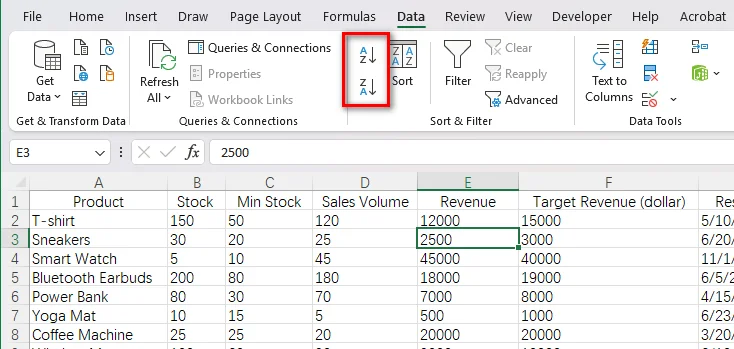
- Step 3: If Excel displays a Sort Warning dialog, select Expand the selection and click Sort. This option moves the entire row with the selected value instead of sorting only one column.
After sorting, all values in a row remain associated with the same record. You can use the same process to sort rows by other criteria, such as quantity, name, sales figures, or date.
Sort Rows by a Specific Column Using the Sort Dialog
For more precise sorting, you can use Excel's Sort dialog to specify the data range, the column to sort by, and the sort order. This is especially useful when you need to sort a particular range or define the sorting criteria explicitly.
- Step 1: Select the entire data range you want to sort, including the relevant columns. If your worksheet contains a header row, include it in the selection.
- Step 2: Go to Data → Sort to open the Sort dialog.
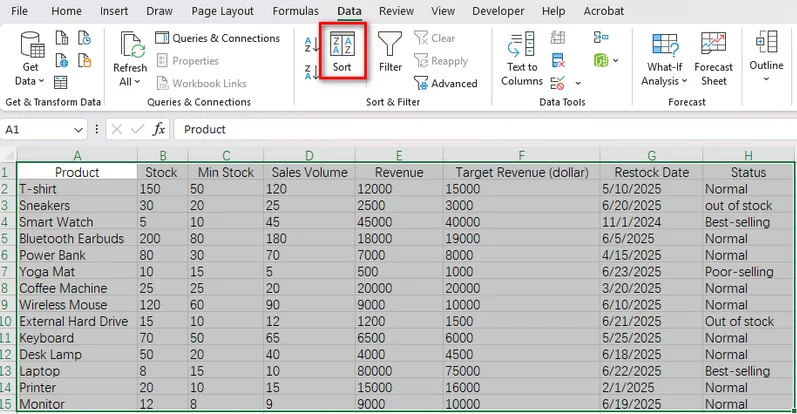
- Step 3: If your selected range has column headers, check My data has headers. This helps Excel recognize the header row and keep it out of the sorted records.
-
Step 4: Configure the sorting options:
- Column: Select the column to sort by, such as revenue.
- Sort On: Choose Cell Values for a standard value-based sort.
- Order: Select Smallest to Largest, Largest to Smallest, A to Z, or another suitable order, depending on the data type.
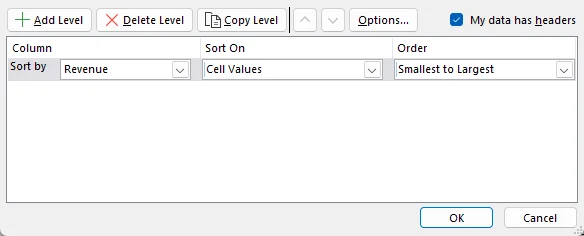
- Step 5: Click OK to apply the sort.
Also Read: Clear or Remove Filters in Excel: 6 Ways (Manual & Automated)
How to Sort Rows by Multiple Columns in Excel
When sorting by a single column, records with the same value remain tied under that sorting criterion. To organize these records further, Excel lets you define multiple sorting levels, so you can sort by one column first and then arrange records with matching values according to another column.
- Step 1: Select your data range and go to Data → Sort.
- Step 2: Configure the primary sorting condition. For example, choose Status under Column and select A to Z under Order.
- Step 3: Click Add Level to create a second sorting condition.
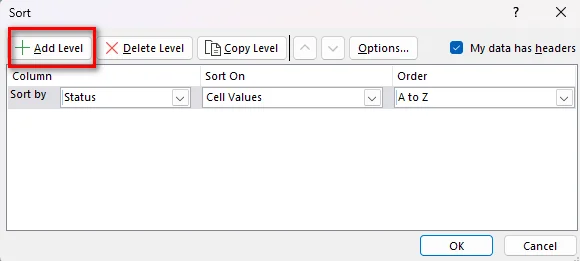
- Step 4: Set the second level to Revenue, then choose Largest to Smallest.
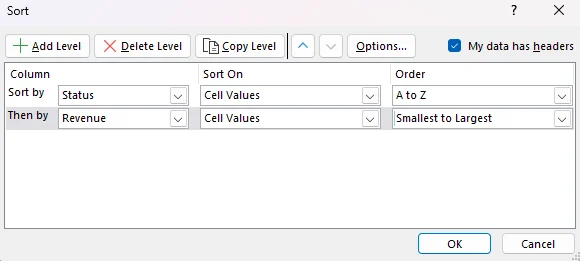
- Step 5: Click OK to sort the data.
After applying the sort, rows are grouped by status and sorted by revenue within each group. All related values remain together, making it easier to compare records with the same status.
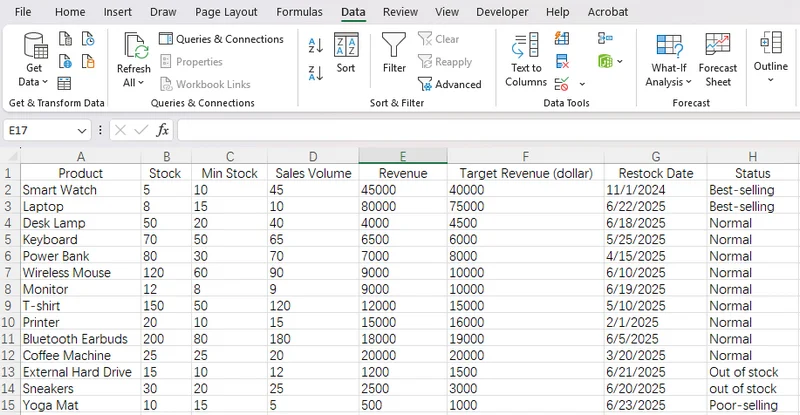
How to Sort Rows from Left to Right in Excel
Sometimes, the data is arranged horizontally rather than vertically. For example, a worksheet might list months across columns and sales figures in a single row. In this case, you may need to sort columns based on the values in a row instead of sorting entire rows by a column.
- Step 1: Select the data range you want to sort horizontally.
- Step 2: Go to Data → Sort to open the Sort dialog.
- Step 3: Click Options and select Sort left to right, then click OK.
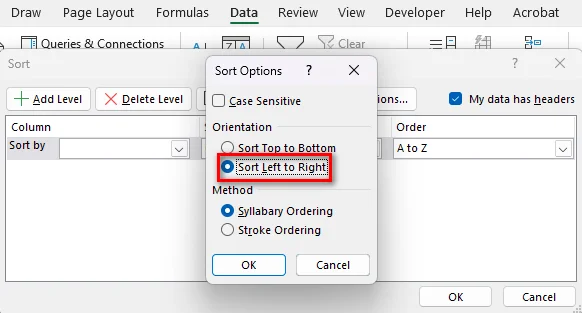
- Step 4: In the Sort by dropdown, choose the row containing the values you want to use as the sorting key.
- Step 5: Select the desired order, and click OK.
How to Automatically Sort Rows in Excel Using Python
Excel's built-in sorting features work well for manual tasks, but they can be less convenient when the same operation needs to be repeated across multiple files. Free Spire.XLS for Python provides a way to automate Excel row sorting through code, making it easier to apply consistent sorting rules to workbook data.
Sort Rows by Revenue in Descending Order
In this example, we'll use Free Spire.XLS for Python to sort a product inventory worksheet by revenue, from highest to lowest. The worksheet contains eight columns, and the code sorts the data in A2:H15, keeping the header row out of the sorting range.
Before running the code, install Free Spire.XLS in your Python environment using pip install Spire.Xls.Free, and prepare an Excel workbook containing the data you want to sort.
The complete Python code example:
from spire.xls.common import *
from spire.xls import *

# Create a Workbook object
workbook = Workbook()

# Load the Excel file
workbook.LoadFromFile("/input/sample.xlsx")

# Get the first worksheet
sheet = workbook.Worksheets[0]

# Clear existing sort criteria
workbook.DataSorter.SortColumns.Clear()

# Sort by Revenue (column E) in descending order
workbook.DataSorter.SortColumns.Add(
    4, SortComparisonType.Values, OrderBy.Descending
)

# Sort the entire data range, excluding the header row
workbook.DataSorter.Sort(sheet.Range["A2:H15"])

# Save the sorted workbook
workbook.SaveToFile(
    "/output/Sorted.xlsx",
    ExcelVersion.Version2016
)

# Release resources
workbook.Dispose()
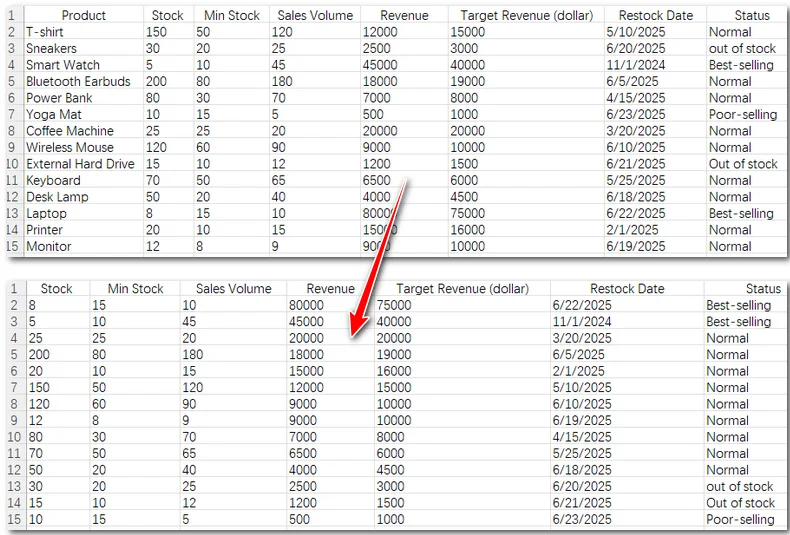
The code uses the following steps to sort the data:
- Step 1: Create a Workbook object and load the source Excel file with LoadFromFile().
- Step 2: Access the first worksheet and clear any existing sort criteria.
- Step 3: Call SortColumns.Add() to specify column E, which contains revenue, as the sort key. The index 4 identifies the fifth column because the column index is zero-based. SortComparisonType.Values tells the sorter to compare cell values, while OrderBy.Descending places higher values first.
- Step 4: Call DataSorter.Sort() on A2:H15. The range includes all eight columns and excludes row 1, so the header stays in place while the product records are sorted together.
- Step 5: Save the result to a new workbook with SaveToFile().
Conclusion
Sorting rows in Excel helps you organize data by revenue, stock levels, dates, or other values while keeping related information together. For a quick sort, use Excel’s built-in sorting options. When you need to sort by multiple columns or arrange horizontal data, the Sort dialog gives you more control. If you regularly process Excel files or need to automate sorting in Python, Spire.XLS for Python offers a way to automate the task with code. Try the method that best fits your workflow to make sorting Excel data simpler and more efficient.