Excel normally displays formula results rather than the formulas themselves. This makes worksheets clean and easy to read, but it can be inconvenient when you need to check calculations, troubleshoot errors, or understand how an unfamiliar workbook works.
There are several ways to view formulas in Excel, whether you want to inspect a single cell, review an entire worksheet, compare formulas with their results, or extract formulas from multiple worksheets or workbooks in bulk. The table below will help you choose the right method.
| What you need | Best method |
|---|---|
| View a formula in a cell | Formula Bar or Edit Mode |
| Show all formulas in a worksheet | Show Formulas or Ctrl + ` |
| Find cells that contain formulas | Go To Special |
| View formulas alongside their results | FORMULATEXT function |
| Extract formulas from multiple worksheets or workbooks | Python automation |
When Should You View Formulas in Excel?
Viewing formulas is especially useful when:
- Auditing financial spreadsheets
- Debugging calculation errors
- Reviewing formulas created by other users
- Checking whether copied formulas reference the correct cells
- Preparing spreadsheets for compliance reviews
View a Formula in a Single Cell
If you want to check how a value in a particular cell was calculated, you can view its formula directly in the Formula Bar or Edit Mode without changing the worksheet.
Option 1: Using the Formula Bar
- Select the cell containing the formula.
- Look at the Formula Bar above the worksheet to see the formula.
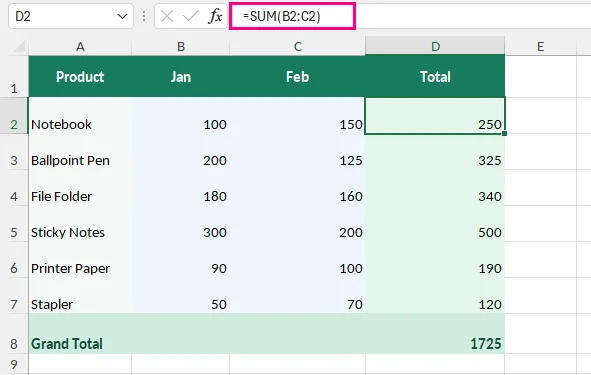
For example, suppose B2 and C2 contain 100 and 150, respectively. Cell D2 uses the formula =SUM(B2:C2) to calculate the result 250. When you select D2, the formula appears in the Formula Bar.
Option 2: Using Edit Mode
To inspect the formula and its referenced cells directly in the worksheet:
-
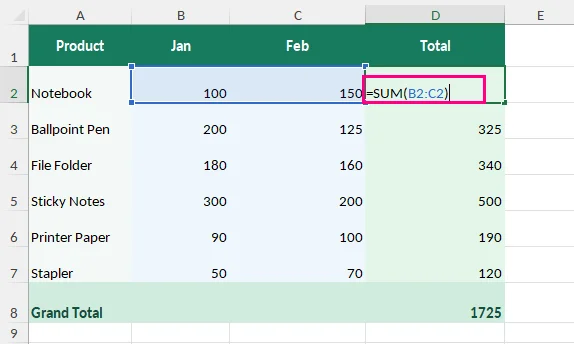
Double-click the formula cell or press F2 on Windows.
-
Excel displays the formula inside the cell and highlights its references.
-
Press Esc to exit without making changes.
Tip: If the Formula Bar is hidden, enable it under:
View > Show > Formula Bar.
Show All Formulas in an Excel Worksheet
When reviewing large financial models or reporting templates with many calculations, checking cells one by one can be time-consuming. Excel provides built-in options to display all formulas simultaneously.
Option 1: Using the Show Formulas Button
-
Open the worksheet you want to inspect.
-
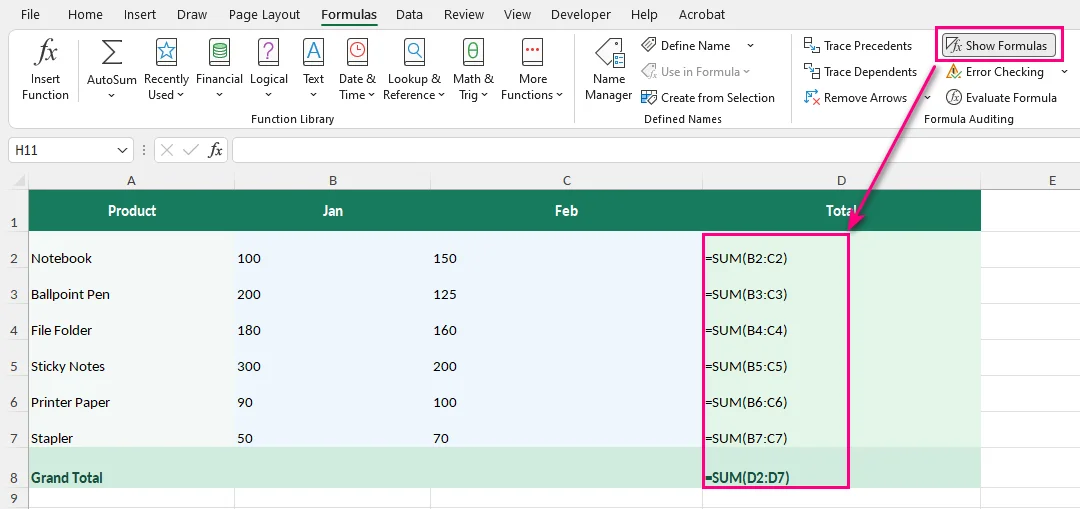
Go to Formulas > Show Formulas in the Formula Auditing group.
-
Excel displays formulas in place of their calculated results.
Tip: You can click Show Formulas again to return to the normal view.
Option 2: Using a Keyboard Shortcut
Press Ctrl + ` (the grave accent key, usually located below Esc) on Windows to toggle between formulas and calculated values.
Note: This feature applies to the active worksheet and only changes how formulas are displayed. The underlying calculations remain unchanged.
If you need a static copy of the results instead, you can remove formulas in Excel while keeping the calculated values.
Find Cells That Contain Formulas in Excel
If you do not want to display every formula but need to locate formula cells quickly, use Excel's Go To Special feature. This method is useful when you need to review formulas before editing, copying, or converting spreadsheet data.
-
Select the worksheet or range you want to search.
-
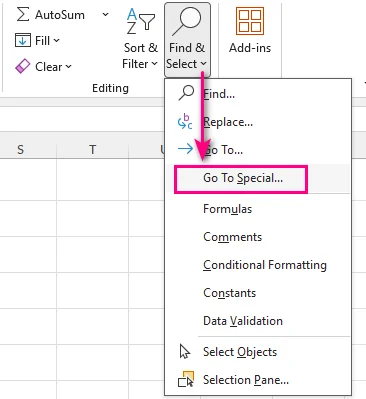
Go to Home > Find & Select > Go To Special.
-
Select Formulas.
-
Click OK.
Excel highlights cells containing formulas. You can also use the options under Formulas in the Go To Special dialog box to select formulas based on their result types. For more details, see Microsoft's guide on finding cells that contain formulas.
View Formulas and Results Side by Side
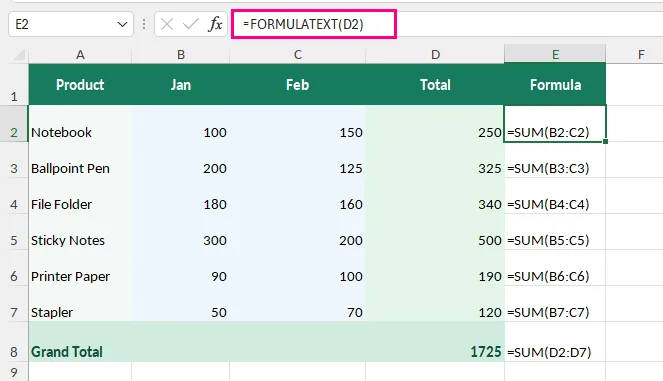
If you need to compare formulas with their calculated results, use the FORMULATEXT function. It displays the formula from one cell as text in another, without affecting the original calculation.
For example, suppose cell D2 displays 250, calculated using the formula =SUM(B2:C2).
To display the formula next to its result:
-
Select an empty cell next to it, such as E2.
-
Enter the following formula:
=FORMULATEXT(D2) -
Press Enter. Cell E2 displays =SUM(B2:C2), while D2 continues showing 250.
-
Drag the fill handle down to view formulas for additional rows.
The result looks like this:
This is particularly useful for checking financial calculations, reviewing reports, or documenting spreadsheet formulas.
Note: According to Microsoft's FORMULATEXT documentation, the function returns #N/A if the referenced cell does not contain a formula, the formula exceeds 8,192 characters, the formula cannot be displayed due to worksheet protection, or the referenced external workbook is closed.
To leave cells blank when FORMULATEXT returns an error, use:
=IFERROR(FORMULATEXT(D2),"")
Because IFERROR catches all errors, not just #N/A, use this option only when a blank result is preferable to seeing an error message.
Why Can't I See Formulas in Excel?
If formulas aren't displayed as expected, check these common issues:
- Formula Bar is missing: Go to View > Show > Formula Bar to enable it.
- Formulas are hidden: The worksheet may be protected, preventing hidden formulas from appearing in the Formula Bar. If you have permission, go to Review > Unprotect Sheet. To keep formulas visible when the sheet is protected again, select the affected cells, open Format Cells > Protection, and clear the Hidden checkbox.
- Formula appears as text instead of a result: First, check whether Show Formulas is enabled under the Formulas tab. If only certain cells display formulas as text, check whether they are formatted as Text or contain a leading apostrophe. Change the cell format to General if necessary, remove any unintended leading apostrophe, and re-enter the formula by pressing F2 and then Enter.
- FORMULATEXT returns #N/A: Check whether the referenced cell contains a formula. References to cells in closed external workbooks can also cause this error.
Advanced: Extract Excel Formulas Programmatically with Python
For developers or users working with multiple Excel files, manually inspecting formulas across worksheets can be time-consuming. Python can automate this process by extracting formula expressions and cell addresses from multiple workbooks without manually opening each file.
The following example uses Free Spire.XLS for Python to extract formulas in multiple Excel workbooks and save them to a text file. Microsoft Excel does not need to be installed.
Step 1: Install Free Spire.XLS
Run the following pip command in your terminal:
pip install spire.xls.free
Step 2: Extract Formulas from Multiple Excel Workbooks
Create a folder named Excel Files and place the .xlsx workbooks you want to process inside it.
The following script scans each workbook, identifies cells containing formulas, and exports their locations and expressions to a text file.
from pathlib import Path
from spire.xls import Workbook

# Input folder and output file
input_dir = Path("Excel Files")
output_file = Path("Extracted Formulas.txt")

# Check the input folder
if not input_dir.is_dir():
    raise FileNotFoundError(f"Input folder not found: {input_dir}")

# Get all Excel files in the folder
excel_files = sorted(
    file for file in input_dir.glob("*.xlsx")
    if file.is_file() and not file.name.startswith("~{BODY_CONTENT}quot;)
)

if not excel_files:
    raise FileNotFoundError(f"No XLSX files found in: {input_dir}")

formula_count = 0

# Extract formulas from all workbooks
with output_file.open("w", encoding="utf-8") as output:
    for input_file in excel_files:

        # Load the Excel workbook
        workbook = Workbook()
        try:
            workbook.LoadFromFile(str(input_file))

            # Loop through all worksheets
            for i in range(workbook.Worksheets.Count):
                sheet = workbook.Worksheets[i]

                # Get the used range
                used_range = sheet.AllocatedRange

                # Find and extract formulas
                for cell in used_range:
                    if cell.HasFormula:
                        cell_address = cell.RangeAddressLocal.replace("{BODY_CONTENT}quot;, "")
                        formula = cell.Formula

                        # Write formula information to the text file
                        output.write(f"{input_file.name} | {sheet.Name}!{cell_address}: {formula}\n")
                        formula_count += 1
        finally:
            workbook.Dispose()
Step 3: Check the Extracted Formulas
After running the script, open Extracted Formulas.txt. The output will look similar to this:
Budget.xlsx | Forecast!E2: =IF(D2>1000,D2*0.1,0)
Sales Report.xlsx | Summary!D2: =SUM(B2:C2)
Sales Report.xlsx | Summary!D3: =SUM(B3:C3)
Each line identifies the source workbook, worksheet, cell location, and formula, making it easier to search, review, or document calculations across multiple files.
Note: The script reads formula expressions without modifying the original workbooks. It does not explicitly recalculate formulas. Free Spire.XLS has worksheet and row limits for older .xls files, but these limits do not apply to .xlsx files.
Wrap Up
For one formula, use the Formula Bar or Edit Mode. To display formulas across a worksheet, use Show Formulas. To locate formula cells, choose Go To Special; to compare expressions and results, use FORMULATEXT. If you need formula expressions from many .xlsx workbooks, the Python method can automate the extraction.
Frequently Asked Questions
Can I show formulas and values at the same time in Excel?
Yes. You can show formulas and values together by using the FORMULATEXT function. For example, if D2 contains a formula, enter =FORMULATEXT(D2) in another cell to display the formula while keeping the calculated value visible.
How do I see formulas instead of values in Excel?
Select a formula cell and check the Formula Bar, or enable Show Formulas from the Formulas tab to display all formulas in the worksheet.
Why is Excel showing formulas instead of results?
If formulas appear throughout the worksheet, Show Formulas may be enabled. Press Ctrl + ` or disable Formulas > Show Formulas. If only certain cells display formulas as text, check whether they are formatted as Text or contain a leading apostrophe.
Can I extract Excel formulas without opening Microsoft Excel?
Yes. Python libraries such as Free Spire.XLS can load Excel workbooks and extract formulas without launching Microsoft Excel.