
Java (486)
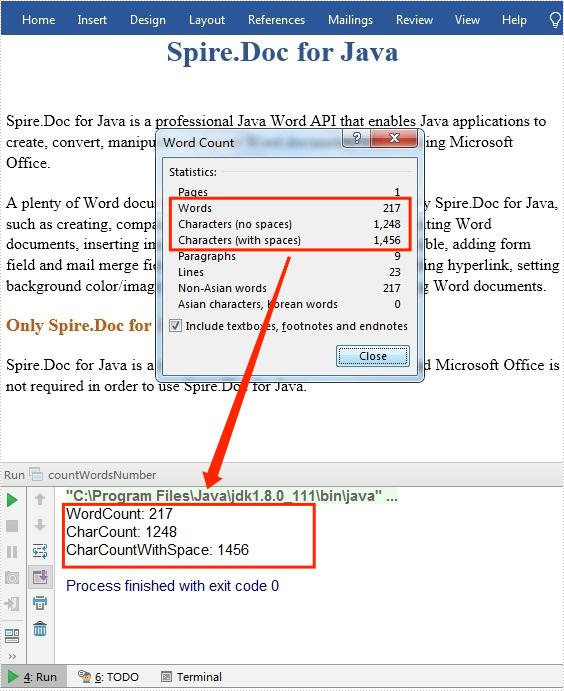
Microsoft Word provides a real-time word counter that counts the number of words in a document when you type. Beyond that, Microsoft Word also counts the number of pages, paragraphs and characters with or without spaces. In this article, you will learn how to programmatically count the number of words or characters in an existing Word document using Spire.Doc for Java.
Install Spire.Doc for Java
First of all, you're required to add the Spire.Doc.jar file as a dependency in your Java program. The JAR file can be downloaded from this link. If you use Maven, you can easily import the JAR file in your application by adding the following code to your project's pom.xml file.
<repositories>
    <repository>
        <id>com.e-iceblue</id>
        <name>e-iceblue</name>
        <url>https://repo.e-iceblue.com/nexus/content/groups/public/</url>
    </repository>
</repositories>
<dependencies>
    <dependency>
        <groupId>e-iceblue</groupId>
        <artifactId>spire.doc</artifactId>
        <version>14.10.6</version>
    </dependency>
</dependencies>
Count the Number of Words in a Word Document
The detailed steps are as follows:
- Create a Document instance.
- Load a sample Word document using Document.loadFromFile() method.
- Count the number of words using Document.getBuiltinDocumentProperties().getWordCount() method.
- Count the number of characters without spaces using Document.getBuiltinDocumentProperties().getCharCount() method.
- Count the number of characters with spaces using Document.getBuiltinDocumentProperties().getCharCountWithSpace() method.
- Java
import com.spire.doc.*;
public class countWordsNumber {
    public static void main(String[] args) {
        //Create a Document instance
        Document document = new Document();

        //Load a sample Word document
        document.loadFromFile("Demo.docx");

        //Count the number of words
        System.out.println("WordCount: " + document.getBuiltinDocumentProperties().getWordCount());

        //Count the number of characters without spaces
        System.out.println("CharCount: " + document.getBuiltinDocumentProperties().getCharCount());

        //Count the number of characters with spaces
        System.out.println("CharCountWithSpace: " + document.getBuiltinDocumentProperties().getCharCountWithSpace());
    }
}
Apply for a Temporary License
If you'd like to remove the evaluation message from the generated documents, or to get rid of the function limitations, please request a 30-day trial license for yourself.
Spire.XLS for Java offers the Workbook.addDigitalSignature() method and the Workbook.removeAllDigitalSignatures() method to add and remove the Excel digital signatures. This article will show you how to detect if an Excel document has been signed or not, and retrieve information about digital signatures in Java applications.
Install Spire.XLS for Java
First of all, you're required to add the Spire.Xls.jar file as a dependency in your Java program. The JAR file can be downloaded from this link. If you use Maven, you can easily import the JAR file in your application by adding the following code to your project's pom.xml file.
<repositories>
    <repository>
        <id>com.e-iceblue</id>
        <name>e-iceblue</name>
        <url>https://repo.e-iceblue.com/nexus/content/groups/public/</url>
    </repository>
</repositories>
<dependencies>
    <dependency>
        <groupId>e-iceblue</groupId>
        <artifactId>spire.xls</artifactId>
        <version>16.10.1</version>
    </dependency>
</dependencies>
Detect if an Excel is Digitally Signed or Not
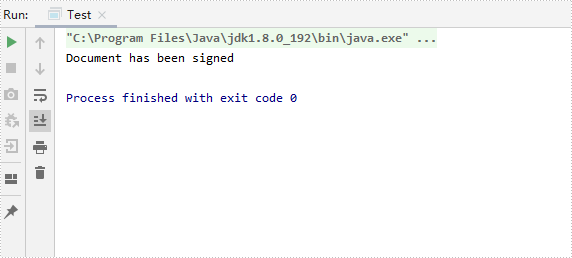
Spire.XLS for Java offers the Workbook.isDigitallySigned() method to check whether an Excel document is digitally signed or not.
- Create a Workbook instance and load a sample Excel document using Workbook.loadFromFile() method.
- Determine if the workbook is digitally signed by Workbook.isDigitallySigned() method.
- Print out the results.
- Java
import com.spire.xls.*;

public class Test {
    public static void main(String[] args) throws Exception {

        //Create a Workbook instance
        Workbook workbook = new Workbook();

        //Load an Excel document
        workbook.loadFromFile("Sample.xlsx");

        //Detect if an Excel Document is digitally signed or not
        Boolean signature = workbook.isDigitallySigned();

       //Print the results
       if (signature) {
            System.out.println("Document has been signed");
        }
         else
        {
            System.out.println("Document has not been signed");
        }

    }
}
Get the Digital Signature Details in Excel
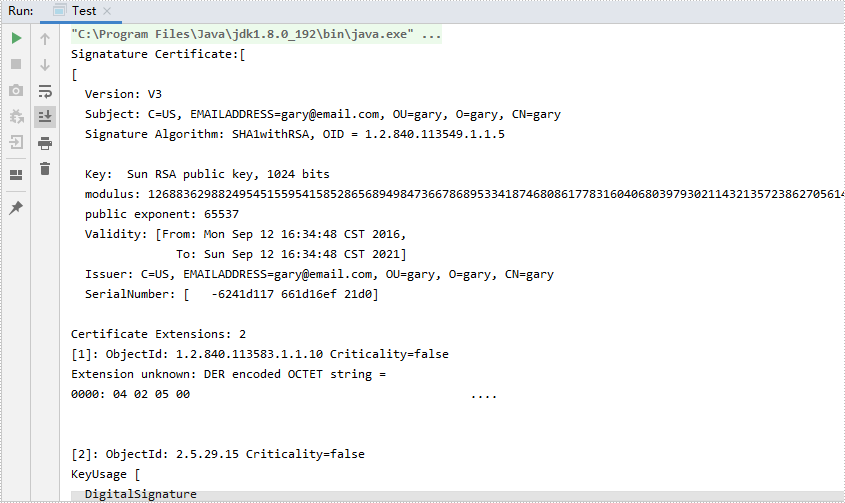
The following are the steps to get the details of the digital signatures in an Excel document.
- Create a Workbook instance and load a sample Excel document using Workbook.loadFromFile() method.
- Get the collection of digital signatures using Workbook.getDigitalSignatures() method.
- Get the details of a specific digital signature using the methods under IDigitalSignature object.
- Java
import com.spire.xls.*;
import com.spire.xls.core.interfaces.IDigitalSignature;
import com.spire.xls.core.interfaces.IDigitalSignatures;

import java.security.PrivateKey;
import java.security.cert.X509Certificate;
import java.util.Date;

public class Test {
    public static void main(String[] args) throws Exception {

        //Create a Workbook instance
        Workbook workbook = new Workbook();

        //Load an Excel document
        workbook.loadFromFile("Sample01.xlsx");

        //Get the collection of digital signatures
        IDigitalSignatures signatures = workbook.getDigitalSignatures();

        //Get the details of digital signatures
        for (IDigitalSignature digitalSignature : (Iterable) signatures) {
            X509Certificate info = digitalSignature.getX509Certificate();
            PrivateKey privateKey = digitalSignature.getPrivateKey();
            String comment = digitalSignature.getComments();
            Date date = digitalSignature.getSignTime();

            //Print out the results of the Excel digital signature
            System.out.println("Signatature Certificate:" + info + "\n" +
                    "Signature Comment:" + comment + "\n" +
                    "Sign Date:" + date + "\n" +
                    "PrivateKey:" + privateKey + "\n");
        }
    }
}
Apply for a Temporary License
If you'd like to remove the evaluation message from the generated documents, or to get rid of the function limitations, please request a 30-day trial license for yourself.
HTML files are Hypertext Markup Language files designed for displaying information in web browsers. In some cases, you might need to convert your Excel document to HTML in order to view it on the web. This article will demonstrate how to achieve this task programmatically in Java using Spire.XLS for Java.
Install Spire.XLS for Java
First of all, you're required to add the Spire.Xls.jar file as a dependency in your Java program. The JAR file can be downloaded from this link. If you use Maven, you can easily import the JAR file in your application by adding the following code to your project's pom.xml file.
<repositories>
    <repository>
        <id>com.e-iceblue</id>
        <name>e-iceblue</name>
        <url>https://repo.e-iceblue.com/nexus/content/groups/public/</url>
    </repository>
</repositories>
<dependencies>
    <dependency>
        <groupId>e-iceblue</groupId>
        <artifactId>spire.xls</artifactId>
        <version>16.10.1</version>
    </dependency>
</dependencies>
Convert Excel to HTML
The following are the steps to convert an Excel file to HTML:
- Create a Workbook instance.
- Load an Excel file using Workbook.loadFromFile() method.
- Save the file to HTML using Workbook.saveToFile() method.
- Java
import com.spire.xls.FileFormat;
import com.spire.xls.Workbook;

public class ConvertExcelToHTML {
    public static void main(String []args){
        //Create a Workbook instance
        Workbook workbook = new Workbook();
        //Load an Excel file
        workbook.loadFromFile("Sample1.xlsx");

        //Save the file to HTML
        workbook.saveToFile("ToHtml.html", FileFormat.HTML);
    }
}

Convert Excel to HTML with Image Embedded
The following are the steps to convert an Excel worksheet to HTML with image embedded:
- Create a Workbook instance.
- Load an Excel file using Workbook.loadFromFile() method.
- Get the first worksheet using Workbook.getWorksheets().get() method.
- Create a HTMLOptions instance and enable image embedding using HTMLOptions.setImageEmbedded() method.
- Save the worksheet to HTML with image embedded using Worksheet.saveToHtml(String, HTMLOptions) method.
- Java
import com.spire.xls.Workbook;
import com.spire.xls.Worksheet;
import com.spire.xls.core.spreadsheet.HTMLOptions;

public class ConvertExcelToHtmlWithImageEmbeded {
    public static void main(String []args){
        //Create a Workbook instance
        Workbook workbook = new Workbook();
        //Load an excel file
        workbook.loadFromFile("Sample2.xlsx");

        //Get the first worksheet
        Worksheet sheet = workbook.getWorksheets().get(0);

        //Set embedded image as true
        HTMLOptions options = new HTMLOptions();
        options.setImageEmbedded(true);

        //Save the worksheet to HTML
        sheet.saveToHtml("ToHtmlWithImageEmbeded.html", options);
    }
}

Apply for a Temporary License
If you'd like to remove the evaluation message from the generated documents, or to get rid of the function limitations, please request a 30-day trial license for yourself.
