
Program Guide (137)
Children categories
HTML parsing is a critical task in Java development, enabling developers to extract structured data, analyze content, and interact with web-based information. Whether you’re building a web scraper, validating HTML content, or extracting text and attributes from web pages, having a reliable tool simplifies the process. In this guide, we’ll explore how to parse HTML in Java using Spire.Doc for Java - a powerful library that combines robust HTML parsing with seamless document processing capabilities.
- Why Use Spire.Doc for Java for HTML Parsing
- Environment Setup & Installation
- Core Guide: Parsing HTML to Extract Elements in Java
- Advanced Scenarios: Parse HTML Files & URLs in Java
- FAQ About Parsing HTML
Why Use Spire.Doc for Java for HTML Parsing
While there are multiple Java libraries for HTML parsing (e.g., Jsoup), Spire.Doc stands out for its seamless integration with document processing and low-code workflow, which is critical for developers prioritizing efficiency. Here’s why it’s ideal for Java HTML parsing tasks:
- Intuitive Object Model: Converts HTML into a navigable document structure (e.g., Section, Paragraph, Table), eliminating the need to manually parse raw HTML tags.
- Comprehensive Data Extraction: Easily retrieve text, attributes, table rows/cells, and even styles (e.g., headings) without extra dependencies.
- Low-Code Workflow: Minimal code is required to load HTML content and process it—reducing development time for common tasks.
- Lightweight Integration: Simple to add to Java projects via Maven/Gradle, with minimal dependencies.
Environment Setup & Installation
To start reading HTML in Java, ensure your environment meets these requirements:
- Java Development Kit (JDK): Version 8 or higher (JDK 11+ recommended for HttpClient support in URL parsing).
- Spire.Doc for Java Library: Latest version (integrated via Maven or manual download).
- HTML Source: A sample HTML string, local file, or URL (for testing extraction).
Install Spire.Doc for Java
Maven Setup: Add the Spire.Doc repository and dependency to your project’s pom.xml file. This automatically downloads the library and its dependencies:
<repositories>
    <repository>
        <id>com.e-iceblue</id>
        <name>e-iceblue</name>
        <url>https://repo.e-iceblue.com/nexus/content/groups/public/</url>
    </repository>
</repositories>
<dependencies>
    <dependency>
        <groupId>e-iceblue</groupId>
        <artifactId>spire.doc</artifactId>
        <version>14.8.4</version>
    </dependency>
</dependencies>
For manual installation, download the JAR from the official website and add it to your project.
Get a Temporary License (Optional)
By default, Spire.Doc adds an evaluation watermark to output. To remove it and unlock full features, you can request a free 30-day trial license.
Core Guide: Parsing HTML to Extract Elements in Java
Spire.Doc parses HTML into a structured object model, where elements like paragraphs, tables, and fields are accessible as Java objects. Below are practical examples to extract key HTML components.
1. Extract Text from HTML in Java
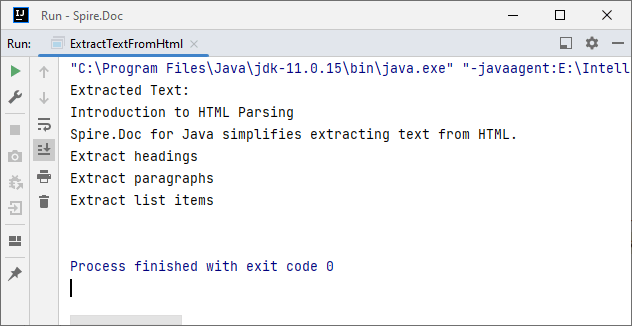
Extracting text (without HTML tags or formatting) is essential for scenarios like content indexing or data analysis. This example parses an HTML string and extracts text from all paragraphs.
Java Code: Extract Text from an HTML String
import com.spire.doc.*;
import com.spire.doc.documents.*;

public class ExtractTextFromHtml {
    public static void main(String[] args) {
        // Define HTML content to parse
        String htmlContent = "<html>" +
                "<body>" +
                "<h1>Introduction to HTML Parsing</h1>" +
                "<p>Spire.Doc for Java simplifies extracting text from HTML.</p>" +
                "<ul>" +
                "<li>Extract headings</li>" +
                "<li>Extract paragraphs</li>" +
                "<li>Extract list items</li>" +
                "</ul>" +
                "</body>" +
                "</html>";

        // Create a Document object to hold parsed HTML
        Document doc = new Document();
        // Parse the HTML string into the document
        doc.addSection().addParagraph().appendHTML(htmlContent);

        // Extract text from all paragraphs
        StringBuilder extractedText = new StringBuilder();
        for (Section section : (Iterable<Section>) doc.getSections()) {
            for (Paragraph paragraph : (Iterable<Paragraph>) section.getParagraphs()) {
                extractedText.append(paragraph.getText()).append("\n");
            }
        }

        // Print or process the extracted text
        System.out.println("Extracted Text:\n" + extractedText);
    }
}
Output:
2. Extract Table Data from HTML in Java
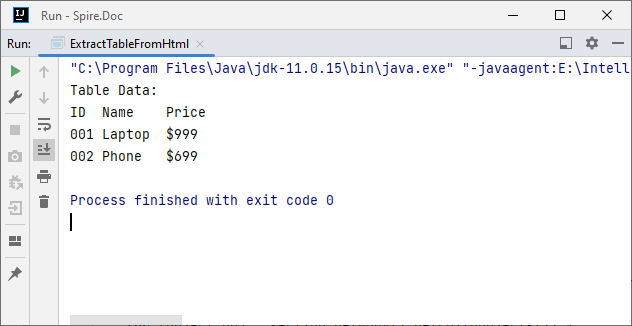
HTML tables store structured data (e.g., product lists, reports). Spire.Doc parses <table> tags into Table objects, making it easy to extract rows and columns.
Java Code: Extract HTML Table Rows & Cells
import com.spire.doc.*;
import com.spire.doc.documents.*;

public class ExtractTableFromHtml {
    public static void main(String[] args) {
        // HTML content with a table
        String htmlWithTable = "<html>" +
                "<body>" +
                "<table border='1'>" +
                "<tr><th>ID</th><th>Name</th><th>Price</th></tr>" +
                "<tr><td>001</td><td>Laptop</td><td>$999</td></tr>" +
                "<tr><td>002</td><td>Phone</td><td>$699</td></tr>" +
                "</table>" +
                "</body>" +
                "</html>";

        // Parse HTML into Document
        Document doc = new Document();
        doc.addSection().addParagraph().appendHTML(htmlWithTable);

        // Extract table data
        for (Section section : (Iterable<Section>) doc.getSections()) {
            // Iterate through all objects in the section's body
            for (Object obj : section.getBody().getChildObjects()) {
                if (obj instanceof Table) { // Check if the object is a table
                    Table table = (Table) obj;
                    System.out.println("Table Data:");
                    // Loop through rows
                    for (TableRow row : (Iterable<TableRow>) table.getRows()) {
                        // Loop through cells in the row
                        for (TableCell cell : (Iterable<TableCell>) row.getCells()) {
                            // Extract text from each cell's paragraphs
                            for (Paragraph para : (Iterable<Paragraph>) cell.getParagraphs()) {
                                System.out.print(para.getText() + "\t");
                            }
                        }
                        System.out.println(); // New line after each row
                    }
                }
            }
        }
    }
}
Output:
After parsing the HTML string into a Word document via the appendHTML() method, you can leverage Spire.Doc’s APIs to extract hyperlinks as well.
Advanced Scenarios: Parse HTML Files & URLs in Java
Spire.Doc for Java also offers flexibility to parse local HTML files and web URLs, making it versatile for real-world applications.
1. Read an HTML File in Java
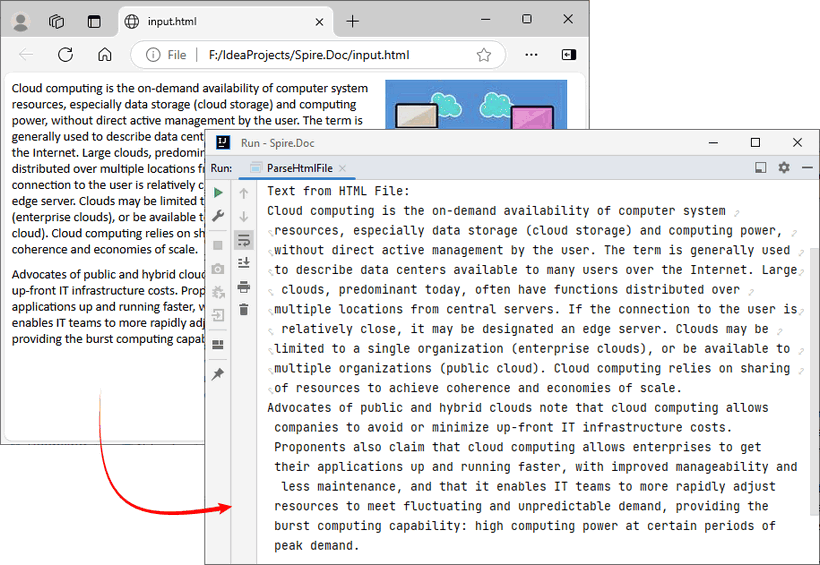
To parse a local HTML file using Spire.Doc for Java, simply load it via the loadFromFile(String filename, FileFormat.Html) method for processing.
Java Code: Read & Parse Local HTML Files
import com.spire.doc.*;
import com.spire.doc.documents.*;

public class ParseHtmlFile {
    public static void main(String[] args) {
        // Create a Document object
        Document doc = new Document();
        // Load an HTML file
        doc.loadFromFile("input.html", FileFormat.Html);

        // Extract and print text
        StringBuilder text = new StringBuilder();
        for (Section section : (Iterable<Section>) doc.getSections()) {
            for (Paragraph para : (Iterable<Paragraph>) section.getParagraphs()) {
                text.append(para.getText()).append("\n");
            }
        }
        System.out.println("Text from HTML File:\n" + text);
    }
}
The example extracts text content from the loaded HTML file. If you need to extract the paragraph style (e.g., "Heading1", "Normal") simultaneously, use the Paragraph.getStyleName() method.
Output:
You may also need: Convert HTML to Word in Java
2. Parse a URL in Java
For real-world web scraping, you'll need to parse HTML from live web pages. Spire.Doc can work with Java’s built-in HttpClient (JDK 11+) to fetch HTML content from URLs, then parse it.
Java Code: Fetch & Parse a Web URL
import com.spire.doc.*;
import com.spire.doc.documents.*;
import java.net.URI;
import java.net.http.HttpClient;
import java.net.http.HttpRequest;
import java.net.http.HttpResponse;
import java.time.Duration;

public class ParseHtmlFromUrl {
    // Reusable HttpClient (configures timeout to avoid hanging)
    private static final HttpClient httpClient = HttpClient.newBuilder()
            .connectTimeout(Duration.ofSeconds(10))
            .build();

    public static void main(String[] args) {
        String url = "https://www.e-iceblue.com/privacypolicy.html";

        try {
            // Fetch HTML content from the URL
            System.out.println("Fetching from: " + url);
            String html = fetchHtml(url);

            // Parse HTML with Spire.Doc
            Document doc = new Document();
            Section section = doc.addSection();
            section.addParagraph().appendHTML(html);

            System.out.println("--- Headings ---");

            // Extract headings
            for (Paragraph para : (Iterable<Paragraph>) section.getParagraphs()) {
                // Check if the paragraph style is a heading (e.g., "Heading1", "Heading2")

                if (para.getStyleName() != null && para.getStyleName().startsWith("Heading")) {
                    System.out.println(para.getText());
                }
            }

        } catch (Exception e) {
            System.err.println("Error: " + e.getMessage());
        }
    }

    // Helper method: Fetches HTML content from a given URL
    private static String fetchHtml(String url) throws Exception {
        // Create HTTP request with User-Agent header (to avoid blocks)
        HttpRequest request = HttpRequest.newBuilder()
                .uri(URI.create(url))
                .header("User-Agent", "Mozilla/5.0")
                .timeout(Duration.ofSeconds(10))
                .GET()
                .build();
        // Send request and get response
        HttpResponse<String> response = httpClient.send(request, HttpResponse.BodyHandlers.ofString());

        // Check if the request succeeded (HTTP 200 = OK)
        if (response.statusCode() != 200) {
            throw new Exception("HTTP error: " + response.statusCode());
        }

        return response.body(); // Return the raw HTML content
    }
}
Key Steps:
- HTTP Fetching: Uses HttpClient to fetch HTML from the URL, with a User-Agent header to mimic a browser (avoids being blocked).
- HTML Parsing: Creates a Document, adds a Section and Paragraph, then uses appendHTML() to load the fetched HTML.
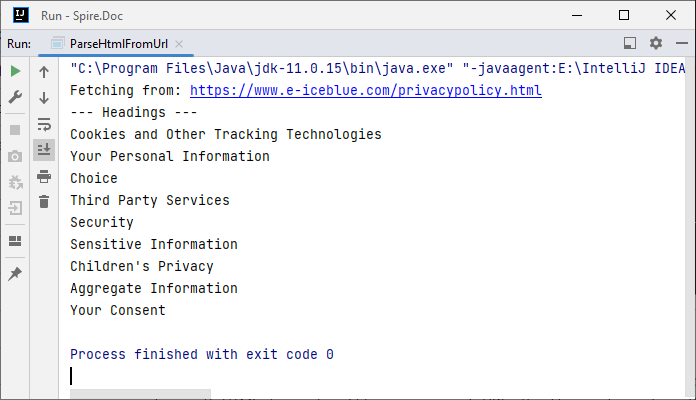
- Content Extraction: Extracts headings by checking if paragraph styles start with "Heading".
Output:
Conclusion
Parsing HTML in Java is simplified with the Spire.Doc for Java library. Using it, you can extract text, tables, and data from HTML strings, local files, or URLs with minimal code—no need to manually handle raw HTML tags or manage heavy dependencies.
Whether you’re building a web scraper, analyzing web content, or converting HTML to other formats (e.g., HTML to PDF), Spire.Doc streamlines the workflow. By following the step-by-step examples in this guide, you’ll be able to integrate robust HTML parsing into your Java projects to unlock actionable insights from HTML content.
FAQs About Parsing HTML
Q1: Which library is best for parsing HTML in Java?
A: It depends on your needs:
- Use Spire.Doc if you need to extract text/tables and integrate with document processing (e.g., convert HTML to PDF).
- Use Jsoup if you only need basic HTML parsing (but it requires more code for table/text extraction).
Q2: How does Spire.Doc handle malformed or poorly structured HTML?
A: Spire.Doc for Java provides a dedicated approach using the loadFromFile method with XHTMLValidationType.None parameter. This configuration disables strict XHTML validation, allowing the parser to handle non-compliant HTML structures gracefully.
// Load and parse the malformed HTML file
// Parameters: file path, file format (HTML), validation type (None)
doc.loadFromFile("input.html", FileFormat.Html, XHTMLValidationType.None);
However, severely malformed HTML may still cause parsing issues.
Q3: Can I modify parsed HTML content and save it back as HTML?
A: Yes. Spire.Doc lets you manipulate parsed content (e.g., edit paragraph text, delete table rows, or add new elements) and then save the modified document back as HTML:
// After parsing HTML into a Document object:
Section section = doc.getSections().get(0);
Paragraph firstPara = section.getParagraphs().get(0);
firstPara.setText("Updated heading!"); // Modify text

// Save back as HTML
doc.saveToFile("modified.html", FileFormat.Html);
Q4: Is an internet connection required to parse HTML with Spire.Doc?
A: No, unless you’re loading HTML directly from a URL. Spire.Doc can parse HTML from local files or strings without an internet connection. If fetching HTML from a URL, you’ll need an internet connection to retrieve the content first, but parsing itself works offline.

Plain text (.txt) files are simple and widely used, but they lack formatting and structure. If you need to enhance a TXT file with headings, fonts, tables, or images, converting it to a Word (.docx) file is a great solution.
In this tutorial, you'll learn how to convert a .txt file to a .docx Word document in Java using Spire.Doc for Java — a powerful library for Word document processing.
Why choose Spire.Doc for Java:
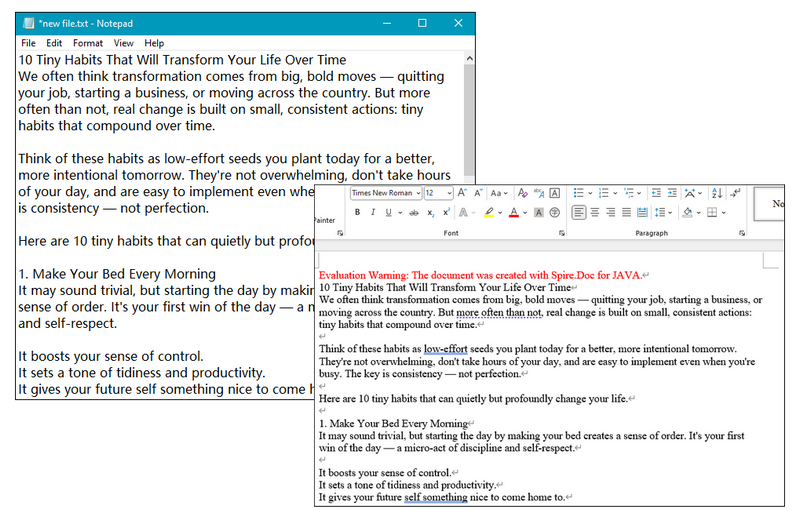
- The converted Word document preserves the line breaks and content from the TXT file.
- You can further modify fonts, add styles, or insert images using Spire.Doc's rich formatting APIs.
- Supported various output formats, including converting Word to PDF, Excel, TIFF, PostScript, etc.
Prerequisites
To convert TXT to Word with Spire.Doc for Java smoothly, you should download it from its official download page and add the Spire.Doc.jar file as a dependency in your Java program.
If you are using Maven, you can easily import the JAR file by adding the following code to your project's pom.xml file:
<repositories>
    <repository>
        <id>com.e-iceblue</id>
        <name>e-iceblue</name>
        <url>https://repo.e-iceblue.com/nexus/content/groups/public/</url>
    </repository>
</repositories>
<dependencies>
    <dependency>
        <groupId>e-iceblue</groupId>
        <artifactId>spire.doc</artifactId>
        <version>13.6.2</version>
    </dependency>
</dependencies>
Steps to Convert TXT to Word in Java
Now let's take a look at how to implement it in code. With Spire.Doc for Java, the process is straightforward. You can complete the conversion with just a few lines — no need for manual formatting or additional dependencies.
To help you better understand the code:
- Document is the core class that acts as an in-memory representation of a Word document.
- loadFromFile() uses internal parsers to read .txt content and wrap it into a single Word section with default font and margins.
- When saveToFile() is called, Spire.Doc automatically converts the plain text into a .docx file by generating a structured Word document in the OpenXML format.
Below is a step-by-step code example to help you get started quickly:
import com.spire.doc.Document;
import com.spire.doc.FileFormat;

public class ConvertTextToWord {

    public static void main(String[] args) {

        // Create a Text object
        Document txt = new Document();

        // Load a Word document
        txt.loadFromFile("C:\\Users\\Administrator\\Desktop\\Input.txt");

        // Save the document to Word
        txt.saveToFile("ToWord.docx", FileFormat.Docx);

        // Dispose resources
        doc.dispose();
    }
}
RESULT:
Tip:
After converting TXT files to DOC/DOCX, you can further customize the document's formatting as needed. To simplify this process, Spire.Doc for Java provides built-in support for editing text properties such as changing font color, inserting footnote, adding text and image watermark, etc.
How to Convert Word to TXT with Java
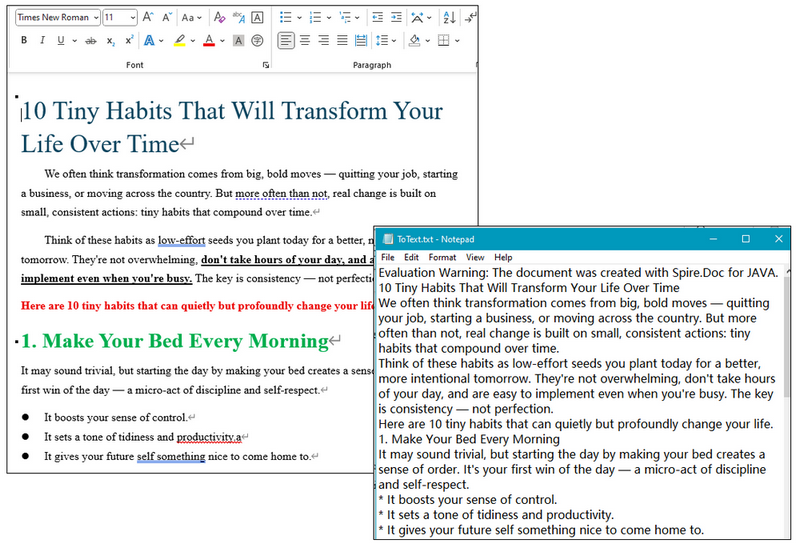
Except for TXT to Word conversion, Spire.Doc for Java also supports converting DOC/DOCX files to TXT format, making it easy to extract plain text from richly formatted Word documents. This functionality is especially useful when you need to strip out styling and layout to work with clean, raw content — such as for text analysis, search indexing, archiving, or importing into other systems that only support plain text.
Simply copy the code below and run the code to manage conversion:
import com.spire.doc.Document;
import com.spire.doc.FileFormat;

public class ConvertWordtoText {

    public static void main(String[] args) {

        // Create a Doc object
        Document doc = new Document();

        // Load a Word document
        doc.loadFromFile("C:\\Users\\Administrator\\Desktop\\Input.doc");

        // Save the document to Word
        doc.saveToFile("ToText.txt", FileFormat.Txt);

        // Dispose resources
        doc.dispose();
    }
}
RESULT:
Get a Free License
To remove evaluation watermarks and unlock full features, you can request a free 30-day license.
Conclusion
With Spire.Doc for Java, converting TXT to Word is fast, accurate, and doesn't require Microsoft Word to be installed. This is especially useful for Java developers working on reporting, document generation, or file conversion tools. Don't hesitate and give it a try now.
In modern software development, generating dynamic Word documents from templates is a common requirement for applications that produce reports, contracts, invoices, or other business documents. Java developers seeking efficient solutions for document automation can leverage Spire.Doc for Java, a robust library for processing Word files without requiring Microsoft Office.
This guide explores how to use Spire.Doc for Java to create Word documents from templates. We will cover two key approaches: replacing text placeholders and modifying bookmark content.
- Java Libray for Creating Word Documents
- Generate a Word Document by Replacing Text Placeholders
- Generate a Word Document by Modifying Bookmark Content
- Conclusion
- FAQs
Java Library for Generating Word Documents
Spire.Doc for Java is a powerful library that enables developers to create, manipulate, and convert Word documents. It provides an intuitive API that allows for various operations, including the modification of text, images, and bookmarks in existing documents.
To get started, download the library from our official website and import it into your Java project. If you're using Maven, include the following dependency in your pom.xml file:
<repositories>
    <repository>
        <id>com.e-iceblue</id>
        <name>e-iceblue</name>
        <url>https://repo.e-iceblue.com/nexus/content/groups/public/</url>
    </repository>
</repositories>
<dependencies>
    <dependency>
        <groupId>e-iceblue</groupId>
        <artifactId>spire.doc</artifactId>
        <version>14.8.4</version>
    </dependency>
</dependencies>
Generate a Word Document by Replacing Text Placeholders
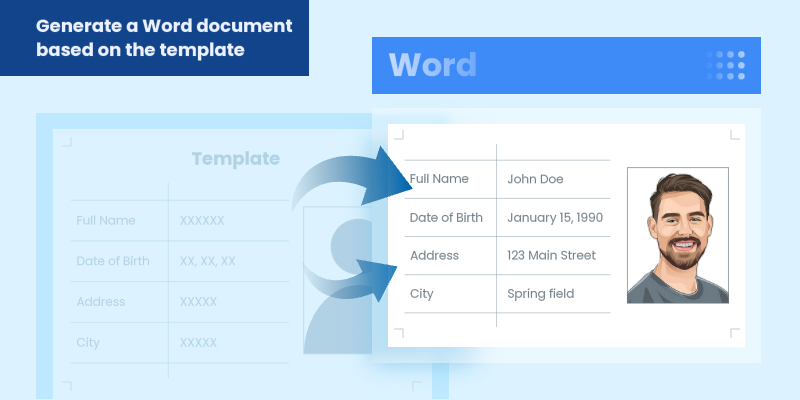
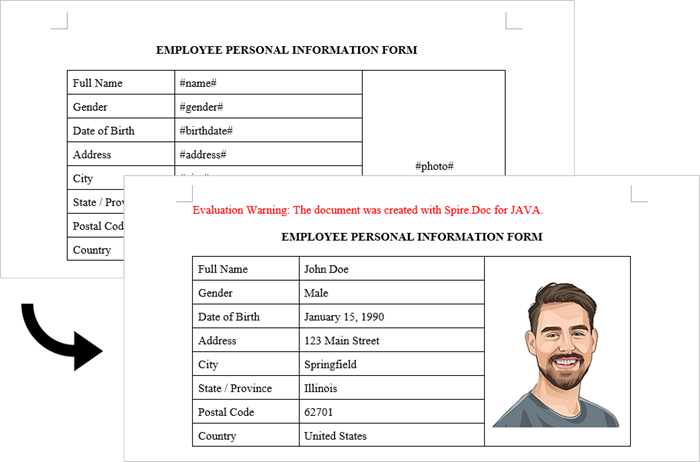
This method uses a template document containing marked placeholders (e.g., #name#, #date#) that are dynamically replaced with real data. Spire.Doc's Document.replace() method handles text substitutions efficiently, while additional APIs enable advanced replacements like inserting images at specified locations.
Steps to generate Word documents from templates by replacing text placeholders:
- Initialize Document: A new Document object is created to work with the Word file.
- Load the template: The template document with placeholders is loaded.
- Create replacement mappings: A HashMap is created to store placeholder-replacement pairs.
- Perform text replacement: The replace() method finds and replaces all instances of each placeholder.
- Handle image insertion: The custom replaceTextWithImage() method replaces a text placeholder with an image.
- Save the result: The modified document is saved to a specified path.
- Java
import com.spire.doc.Document;
import com.spire.doc.FileFormat;
import com.spire.doc.documents.TextSelection;
import com.spire.doc.fields.DocPicture;
import com.spire.doc.fields.TextRange;

import java.util.HashMap;
import java.util.Map;

public class ReplaceTextPlaceholders {

    public static void main(String[] args) {

        // Initialize a new Document object
        Document document = new Document();

        // Load the template Word file
        document.loadFromFile("C:\\Users\\Administrator\\Desktop\\template.docx");

        // Map to hold text placeholders and their replacements
        Map<String, String> replaceDict = new HashMap<>();
        replaceDict.put("#name#", "John Doe");
        replaceDict.put("#gender#", "Male");
        replaceDict.put("#birthdate#", "January 15, 1990");
        replaceDict.put("#address#", "123 Main Street");
        replaceDict.put("#city#", "Springfield");
        replaceDict.put("#state#", "Illinois");
        replaceDict.put("#postal#", "62701");
        replaceDict.put("#country#", "United States");

        // Replace placeholders in the document with corresponding values
        for (Map.Entry<String, String> entry : replaceDict.entrySet()) {
            document.replace(entry.getKey(), entry.getValue(), true, true);
        }

        // Path to the image file
        String imagePath = "C:\\Users\\Administrator\\Desktop\\portrait.png";

        // Replace the placeholder “#photo#” with an image
        replaceTextWithImage(document, "#photo#", imagePath);

        // Save the modified document
        document.saveToFile("output/ReplacePlaceholders.docx", FileFormat.Docx);

        // Release resources
        document.dispose();
    }

    // Method to replace a placeholder in the document with an image
    static void replaceTextWithImage(Document document, String stringToReplace, String imagePath) {

        // Load the image from the specified path
        DocPicture pic = new DocPicture(document);
        pic.loadImage(imagePath);

        // Find the placeholder in the document
        TextSelection selection = document.findString(stringToReplace, false, true);

        // Get the range of the found text
        TextRange range = selection.getAsOneRange();
        int index = range.getOwnerParagraph().getChildObjects().indexOf(range);

        // Insert the image and remove the placeholder text
        range.getOwnerParagraph().getChildObjects().insert(index, pic);
        range.getOwnerParagraph().getChildObjects().remove(range);
    }
}
Output:
Generate a Word Document by Modifying Bookmark Content
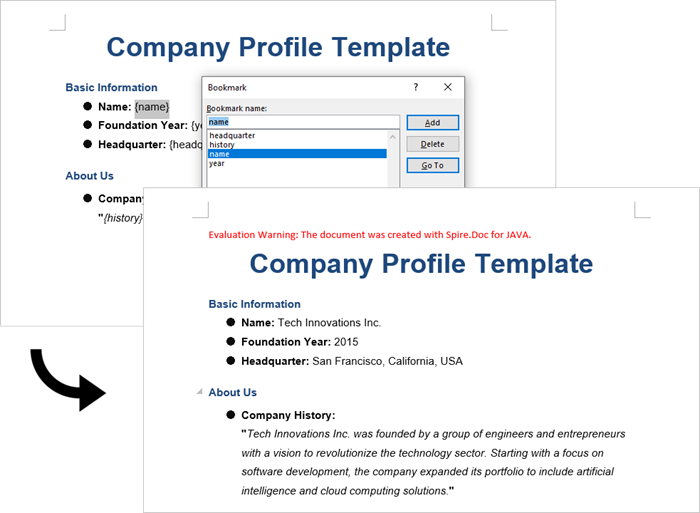
This approach uses Word bookmarks to identify locations in the document where content should be inserted or modified. The BookmarksNavigator class in Spire.Doc streamlines the process by enabling direct access to bookmarks, allowing targeted content replacement while automatically preserving the document's original structure and formatting.
Steps to generate Word documents from templates by modifying bookmark content:
- Initialize Document: A new Document object is initialized.
- Load the template: The template document with predefined bookmarks is loaded.
- Set up replacements: A HashMap is created to map bookmark names to their replacement values.
- Navigate to bookmarks: A BookmarksNavigator is instantiated to navigate through bookmarks in the document.
- Replace content: The replaceBookmarkContent() method updates the bookmark's content.
- Save the result: The modified document is saved to a specified path.
- Java
import com.spire.doc.*;
import com.spire.doc.documents.*;
import java.util.HashMap;
import java.util.Map;

public class ModifyBookmarkContent {

    public static void main(String[] args) {

        // Initialize a new Document object
        Document document = new Document();

        // Load the template Word file
        document.loadFromFile("C:\\Users\\Administrator\\Desktop\\template.docx");

        // Define bookmark names and their replacement values
        Map<String, String> replaceDict = new HashMap<>();
        replaceDict.put("name", "Tech Innovations Inc.");
        replaceDict.put("year", "2015");
        replaceDict.put("headquarter", "San Francisco, California, USA");
        replaceDict.put("history", "Tech Innovations Inc. was founded by a group of engineers and " +
                "entrepreneurs with a vision to revolutionize the technology sector. Starting " +
                "with a focus on software development, the company expanded its portfolio to " +
                "include artificial intelligence and cloud computing solutions.");

        // Create a BookmarksNavigator to manage bookmarks in the document
        BookmarksNavigator bookmarkNavigator = new BookmarksNavigator(document);

        // Iterate through the bookmarks
        for (Map.Entry<String, String> entry : replaceDict.entrySet()) {

            // Navigate to a specific bookmark
            bookmarkNavigator.moveToBookmark(entry.getKey());

            // Replace content
            bookmarkNavigator.replaceBookmarkContent(entry.getValue(), true);
        }

        // Save the modified document
        document.saveToFile("output/ReplaceBookmarkContent.docx", FileFormat.Docx);

        // Release resources
        document.dispose();
    }
}
Output:
Conclusion
Both methods provide effective ways to generate documents from templates, but they suit different scenarios:
Text Replacement Method is best when:
- You need simple text substitutions
- You need to insert images at specific locations
- You want to replace text anywhere in the document (not just specific locations)
Bookmark Method is preferable when:
- You're working with complex documents where precise location matters
- You need to replace larger sections of content or paragraphs
- You want to preserve bookmarks for future updates
Spire.Doc also offers Mail Merge capabilities, enabling high-volume document generation from templates. This feature excels at producing personalized documents like mass letters or reports by merging template fields with external data sources like databases.
FAQs
Q1: Can I convert the generated Word document to PDF?
A: Yes, Spire.Doc for Java supports converting documents to PDF and other formats. Simply use saveToFile() with FileFormat.PDF.
Q2: How can I handle complex formatting in generated documents?
A: Prepare your template with all required formatting in Word, then use placeholders or bookmarks in locations where dynamic content should appear. The formatting around these markers will be preserved.
Q3: What's the difference between mail merge and text replacement?
A: Mail merge is specifically designed for merging database-like data with documents and supports features like repeating sections for records. Text replacement is simpler but doesn't handle tabular data as elegantly.
Get a Free License
To fully experience the capabilities of Spire.Doc for Java without any evaluation limitations, you can request a free 30-day trial license.

Converting HTML to Word in Java is essential for developers building reporting tools, content management systems, and enterprise applications. While HTML powers web content, Word documents offer professional formatting, offline accessibility, and easy editing, making them ideal for reports, invoices, contracts, and formal submissions.
This comprehensive guide demonstrates how to use Java and Spire.Doc for Java to convert HTML to Word. It covers everything from converting HTML files and strings, batch processing multiple files, and preserving formatting and images.
Table of Contents
- Why Convert HTML to Word in Java
- Set Up Spire.Doc for Java
- Convert HTML File to Word in Java
- Convert HTML String to Word in Java
- Batch Conversion of Multiple HTML Files to Word in Java
- Best Practices for HTML to Word Conversion
- Conclusion
- FAQs
Why Convert HTML to Word in Java?
Converting HTML to Word offers several advantages:
- Flexible editing – Add comments, track changes, and review content easily.
- Consistent formatting – Preserve layouts, fonts, and styles across documents.
- Professional appearance – DOCX files look polished and ready to share.
- Offline access – Word files can be opened without an internet connection.
- Integration – Word is widely supported across tools and industries.
Common use cases: exporting HTML reports from web apps, archiving dynamic content in editable formats, and generating formal reports, invoices, or contracts.
Set Up Spire.Doc for Java
Spire.Doc for Java is a robust library that enables developers to create Word documents, edit existing Word documents, and read and convert Word documents in Java without requiring Microsoft Word to be installed.
Before you can convert HTML content into Word documents, it’s essential to properly install and configure Spire.Doc for Java in your development environment.
1. Java Version Requirement
Ensure that your development environment is running Java 6 (JDK 1.6) or a higher version.
2. Installation
Option 1: Using Maven
For projects managed with Maven, you can add the repository and dependency to your pom.xml:
<repositories>
    <repository>
        <id>com.e-iceblue</id>
        <name>e-iceblue</name>
        <url>https://repo.e-iceblue.com/nexus/content/groups/public/</url>
    </repository>
</repositories>
<dependencies>
    <dependency>
        <groupId>e-iceblue</groupId>
        <artifactId>spire.doc</artifactId>
        <version>14.8.4</version>
    </dependency>
</dependencies>
For a step-by-step guide on Maven installation and configuration, refer to our article**:** How to Install Spire Series Products for Java from Maven Repository.
Option 2. Manual JAR Installation
For projects without Maven, you can manually add the library:
- Download Spire.Doc.jar from the official website.
- Add it to your project classpath.
Convert HTML File to Word in Java
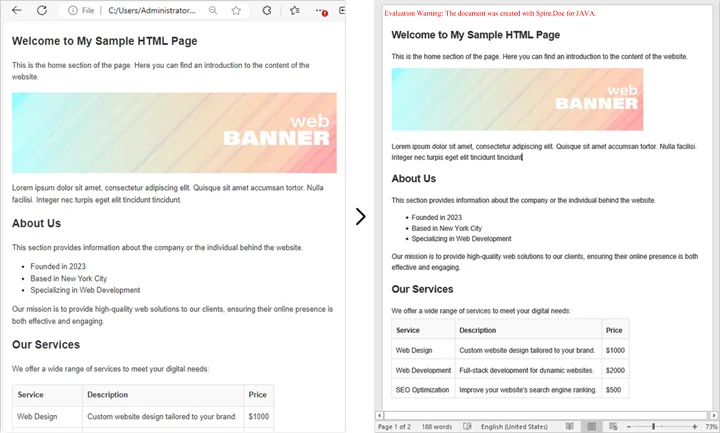
If you already have an existing HTML file, converting it into a Word document is straightforward and efficient. This method is ideal for situations where HTML reports, templates, or web content need to be transformed into professionally formatted, editable Word files.
By using Spire.Doc for Java, you can preserve the original layout, text formatting, tables, lists, images, and hyperlinks, ensuring that the converted document remains faithful to the source. The process is simple, requiring only a few lines of code while giving you full control over page settings and document structure.
Conversion Steps:
- Create a new Document object.
- Load the HTML file with loadFromFile().
- Adjust settings like page margins.
- Save the output as a Word document with saveToFile().
Example:
import com.spire.doc.Document;
import com.spire.doc.FileFormat;
import com.spire.doc.Section;
import com.spire.doc.documents.XHTMLValidationType;

public class ConvertHtmlFileToWord {
    public static void main(String[] args) {
        // Create a Document object
        Document document = new Document();

        // Load an HTML file
        document.loadFromFile("C:\\Users\\Administrator\\Desktop\\sample.html",
                FileFormat.Html,
                XHTMLValidationType.None);

        // Adjust margins
        Section section = document.getSections().get(0);
        section.getPageSetup().getMargins().setAll(2);

        // Save as Word file
        document.saveToFile("output/FromHtmlFile.docx", FileFormat.Docx);

        // Release resources
        document.dispose();

        System.out.println("HTML file successfully converted to Word!");
    }
}
You may also be interested in: Java: Convert Word to HTML
Convert HTML String to Word in Java
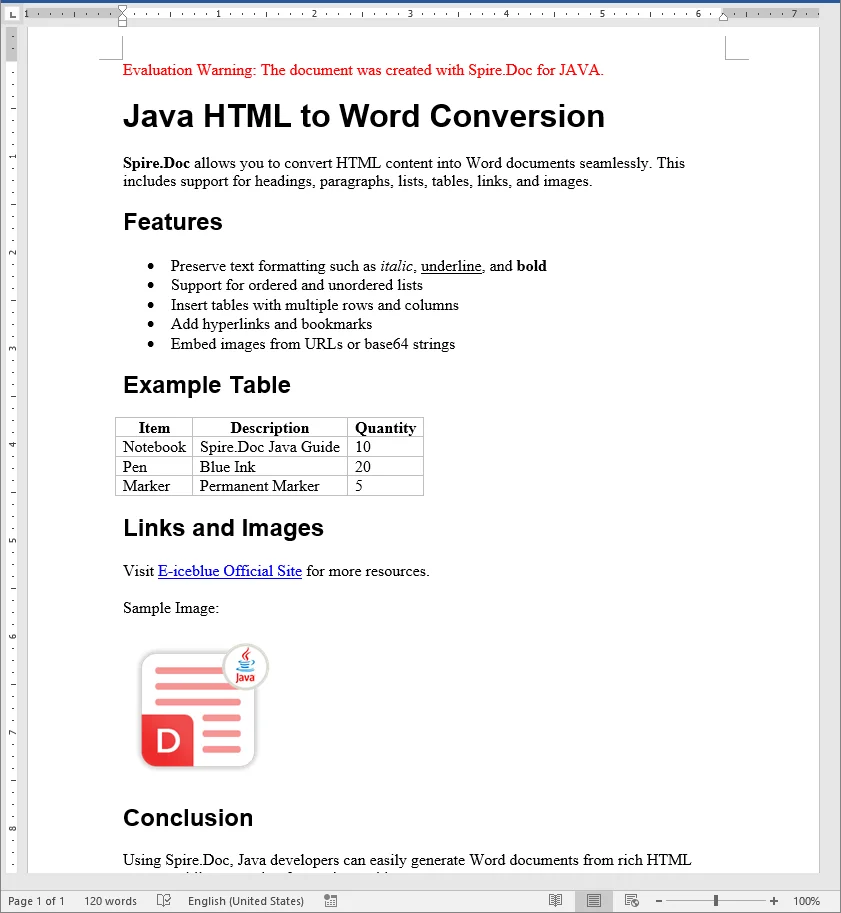
In many real-world applications, HTML content is generated dynamically - whether it comes from user input, database records, or template engines. Converting these HTML strings directly into Word documents allows developers to create professional, editable reports, invoices, or documents on the fly without relying on pre-existing HTML files.
Using Spire.Doc for Java, you can render rich HTML content, including headings, lists, tables, images, hyperlinks, and more, directly into a Word document while preserving formatting and layout.
Conversion Steps:
- Create a new Document object.
- Add a section and adjust settings like page margins.
- Add a paragraph.
- Add the HTML string to the paragraph using appendHTML().
- Save the output as a Word document with saveToFile().
Example:
import com.spire.doc.Document;
import com.spire.doc.FileFormat;
import com.spire.doc.Section;
import com.spire.doc.documents.Paragraph;

public class ConvertHtmlStringToWord {
    public static void main(String[] args) {
        // Sample HTML string
        String htmlString = "<h1>Java HTML to Word Conversion</h1>" +
                "<p><b>Spire.Doc</b> allows you to convert HTML content into Word documents seamlessly. " +
                "This includes support for headings, paragraphs, lists, tables, links, and images.</p>" +
                "<h2>Features</h2>" +
                "<ul>" +
                "<li>Preserve text formatting such as <i>italic</i>, <u>underline</u>, and <b>bold</b></li>" +
                "<li>Support for ordered and unordered lists</li>" +
                "<li>Insert tables with multiple rows and columns</li>" +
                "<li>Add hyperlinks and bookmarks</li>" +
                "<li>Embed images from URLs or base64 strings</li>" +
                "</ul>" +
                "<h2>Example Table</h2>" +
                "<table border='1' style='border-collapse:collapse;'>" +
                "<tr><th>Item</th><th>Description</th><th>Quantity</th></tr>" +
                "<tr><td>Notebook</td><td>Spire.Doc Java Guide</td><td>10</td></tr>" +
                "<tr><td>Pen</td><td>Blue Ink</td><td>20</td></tr>" +
                "<tr><td>Marker</td><td>Permanent Marker</td><td>5</td></tr>" +
                "</table>" +
                "<h2>Links and Images</h2>" +
                "<p>Visit <a href='https://www.e-iceblue.com/'>E-iceblue Official Site</a> for more resources.</p>" +
                "<p>Sample Image:</p>" +
                "<img src='https://www.e-iceblue.com/images/intro_pic/Product_Logo/doc-j.png' alt='Product Logo' width='150' height='150'/>" +
                "<h2>Conclusion</h2>" +
                "<p>Using Spire.Doc, Java developers can easily generate Word documents from rich HTML content while preserving formatting and layout.</p>";

        // Create a Document
        Document document = new Document();

        // Add section and paragraph
        Section section = document.addSection();
        section.getPageSetup().getMargins().setAll(72);

        Paragraph paragraph = section.addParagraph();

        // Render HTML string
        paragraph.appendHTML(htmlString);

        // Save as Word
        document.saveToFile("output/FromHtmlString.docx", FileFormat.Docx);

        document.dispose();

        System.out.println("HTML string successfully converted to Word!");
    }
}
Batch Conversion of Multiple HTML Files to Word in Java
Sometimes you may need to convert hundreds of HTML files into Word documents. Here’s how to batch process them in Java.
import com.spire.doc.Document;
import com.spire.doc.FileFormat;
import com.spire.doc.documents.XHTMLValidationType;
import java.io.File;

public class BatchConvertHtmlToWord {
    public static void main(String[] args) {
        File folder = new File("C:\\Users\\Administrator\\Desktop\\HtmlFiles");

        for (File file : folder.listFiles()) {
            if (file.getName().endsWith(".html") || file.getName().endsWith(".htm")) {
                Document document = new Document();
                document.loadFromFile(file.getAbsolutePath(), FileFormat.Html, XHTMLValidationType.None);

                String outputPath = "output/" + file.getName().replace(".html", ".docx");
                document.saveToFile(outputPath, FileFormat.Docx);
                document.dispose();

                System.out.println(file.getName() + " converted to Word!");
            }
        }
    }
}
This approach is great for reporting systems where multiple HTML reports are generated daily.
Best Practices for HTML to Word Conversion
- Use Inline CSS for Reliable Styling
Inline CSS ensures that fonts, colors, and spacing are preserved during conversion. External stylesheets may not always render correctly, especially if they are not accessible at runtime. - Validate HTML Structure
Well-formed HTML with proper nesting and closed tags helps render tables, lists, and headings accurately. - Optimize Images
Use absolute URLs or embed images as base64. Resize large images to fit Word layouts and reduce file size. - Manage Resources in Batch Conversion
When processing multiple files, convert them one by one and call dispose() after each document to prevent memory issues. - Preserve Page Layouts
Set page margins, orientation, and paper size to ensure the Word document looks professional, especially for reports and formal documents.
Conclusion
Converting HTML to Word in Java is an essential feature for many enterprise applications. Using Spire.Doc for Java, you can:
- Convert HTML files into Word documents.
- Render HTML strings directly into DOCX.
- Handle batch processing for multiple files.
- Preserve images, tables, and styles with ease.
By following the examples and best practices above, you can integrate HTML to Word conversion seamlessly into your Java applications.
FAQs (Frequently Asked Questions)
Q1. Can Java convert multiple HTML files into one Word document?
A1: Yes. Instead of saving each file separately, you can load multiple HTML contents into the same Document and then save it once.
Q2. How to preserve CSS styles during HTML to Word conversion?
A2: Inline CSS will be preserved; external stylesheets can also be applied if they’re accessible at run time.
Q3. Can I generate a Word document directly from a web page?
A3: Yes. You can fetch the HTML using an HTTP client in Java, then pass it into the conversion method.
Q4. What Word formats are supported for saving the converted document?
A4: You can save as DOCX, DOC, or other Word-compatible formats supported by Spire.Doc. DOCX is recommended for modern applications due to its compatibility and smaller file size.
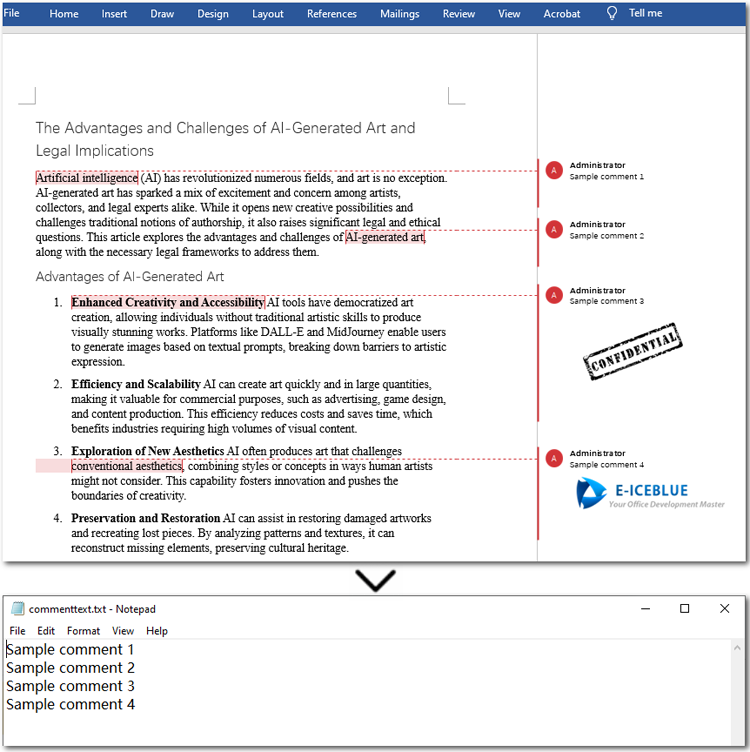
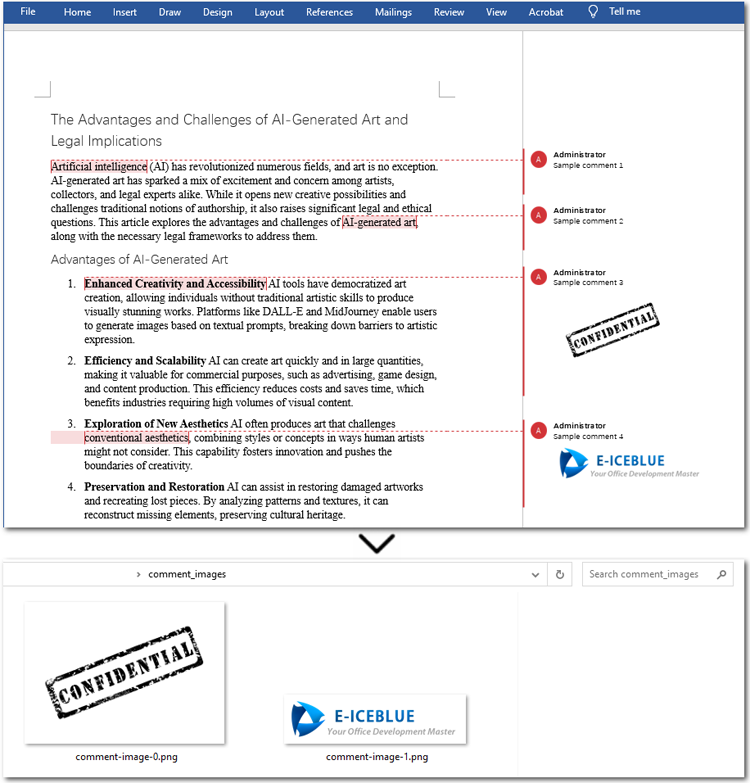
Comments in Word documents often hold valuable information, such as feedback, suggestions, and notes. Unfortunately, editors like Microsoft Word lack a built-in feature for batch-extracting comments, leaving users to rely on cumbersome methods like copying and pasting or using VBA macros. To simplify this process, this article demonstrates how to use Java to extract comments from Word documents with Spire.Doc for Java. With a streamlined approach, you can easily retrieve all comment text and images in a single operation—quickly, efficiently, and error-free. Let's explore how it’s done.
- Extract Comments Text from Word Documents in Java
- Extract Comment Images from Word Documents in Java
Install Spire.Doc for Java
First of all, you're required to add the Spire.Doc.jar file as a dependency in your Java program. The JAR file can be downloaded from this link. If you use Maven, you can easily import the JAR file in your application by adding the following code to your project's pom.xml file.
<repositories>
    <repository>
        <id>com.e-iceblue</id>
        <name>e-iceblue</name>
        <url>https://repo.e-iceblue.com/nexus/content/groups/public/</url>
    </repository>
</repositories>
<dependencies>
    <dependency>
        <groupId>e-iceblue</groupId>
        <artifactId>spire.doc</artifactId>
        <version>14.8.4</version>
    </dependency>
</dependencies>
Extract Comments Text from Word Documents in Java
Using Java to extract all comment text is easy and quick. Firstly, loop through all comments in the Word file and get the current comment using the Document.getComments().get() method offered by Spire.Doc for Java. Then iterate through all paragraphs in the comment body and get the current paragraph. Finally, text from comment paragraphs will be extracted using the Paragraph.getText() method. Let's dive into the detailed steps.
Steps to extract comment text from Word files:
- Create an object of Document class.
- Load a Word document from files using Document.loadFromFile() method.
- Iterate through all comments in the Word file.
- Get the current comment with Document.getComments().get() method.
- Loop through paragraphs in the comment and access the current paragraph through Comment.getBody().getParagraphs().get() method.
- Extract the text of the paragraphs in comments by calling Paragraph.getText() method.
- Get the current comment with Document.getComments().get() method.
- Save the extracted comments.
The code example below demonstrates how to extract all comment text from a Word document:
- Java
import com.spire.doc.*;
import com.spire.doc.documents.*;
import com.spire.doc.fields.*;
import java.io.*;

public class ExtractComments {
   public static void main(String[] args) throws IOException {

// Create a new Document instance
Document doc = new Document();

// Load the document from the specified input file
       doc.loadFromFile("/comments.docx");

// Iterate over each comment in the document
       for (int i = 0; i < doc.getComments().getCount(); i++) {
// Get the comment at the current index
Comment comment = doc.getComments().get(i);

// Iterate over each paragraph in the comment's body
           for (int j = 0; j < comment.getBody().getParagraphs().getCount(); j++) {
// Get the paragraph at the current index
Paragraph para = comment.getBody().getParagraphs().get(j);

// Get the text of the paragraph and append a line break
String result = para.getText() + "\r\n";

// Write the extracted comment a text file
writeStringToTxt(result, "/commenttext.txt");
           }
                   }

                   // Dispose of the document resources
                   doc.dispose();
   }

// Custom method to write a string to a text file
public static void writeStringToTxt(String content, String txtFileName) throws IOException {
   FileWriter fWriter = new FileWriter(txtFileName, true);
   try {
       // Write the content to the text file
       fWriter.write(content);
   } catch (IOException ex) {
       ex.printStackTrace();
   } finally {
       try {
           // Flush and close the FileWriter
           fWriter.flush();
           fWriter.close();
       } catch (IOException ex) {
           ex.printStackTrace();
       }
   }
}
}
Extract Comments Images from Word Documents with Java
Sometimes, comments in a document may contain not only text but also images. With the methods provided by Spire.Doc for Java, you can easily extract all images from comments in bulk. The process is similar to extracting text: you need to iterate through each comment, the paragraphs in the comment body, and the child objects of each paragraph. Then, check if the object is a DocPicture. If it is, use the DocPicture.getImageBytes() method to extract the image.
Steps to extract comment images from Word documents:
- Create an instance of Document class.
- Specify the file path to load a source Word file through Document.loadFromFile() method.
- Create a list to store extracted data.
- Loop through comments in the Word file and get the current comment using Document.getComments().get() method.
- Loop through all paragraphs in a comment, and get the current paragraph with Comment.getBody().getParagraphs().get() method.
- Iterate through each child object of a paragraph, and access a child object through Paragraph.getChildObjects().get() method.
- Check if the child object is DocPicture, if it is, get the image data using DocPicture.getImageBytes() method.
- Loop through all paragraphs in a comment, and get the current paragraph with Comment.getBody().getParagraphs().get() method.
- Add the image data to the list and save it as image files.
Here is the code example of extracting all comment images from a Word file:
- Java
import com.spire.doc.*;
import com.spire.doc.documents.*;
import com.spire.doc.fields.*;
import java.io.*;
import java.nio.file.*;
import java.util.ArrayList;
import java.util.List;

public class ExtractCommentImages {
   public static void main(String[] args) {
       // Create an object of the Document class
       Document document = new Document();

       // Load a Word document with comments
       document.loadFromFile("/comments.docx");

       // Create a list to store the extracted image data
       List<byte[]> images = new ArrayList<>();

       // Loop through the comments in the document
       for (int i = 0; i < document.getComments().getCount(); i++) {
           Comment comment = document.getComments().get(i);

           // Iterate through the paragraphs in the comment body
           for (int j = 0; j < comment.getBody().getParagraphs().getCount(); j++) {
               Paragraph paragraph = comment.getBody().getParagraphs().get(j);

               // Loop through the child objects in the paragraph
               for (int k = 0; k < paragraph.getChildObjects().getCount(); k++) {
                   DocumentObject obj = paragraph.getChildObjects().get(k);

                   // Check if it is a picture
                   if (obj instanceof DocPicture) {
                       DocPicture picture = (DocPicture) obj;

                       // Get the image date and add it to the list
                       images.add(picture.getImageBytes());
                   }
               }
           }
       }

       // Specify the output file path
       String outputDir = "/comment_images/";
       new File(outputDir).mkdirs();

       // Save the image data as image files
       for (int i = 0; i < images.size(); i++) {
           String fileName = String.format("comment-image-%d.png", i);
           Path filePath = Paths.get(outputDir, fileName);
           try (FileOutputStream fos = new FileOutputStream(filePath.toFile())) {
               fos.write(images.get(i));
           } catch (IOException e) {
               e.printStackTrace();
           }
       }
   }
}
Apply for a Temporary License
If you'd like to remove the evaluation message from the generated documents, or to get rid of the function limitations, please request a 30-day trial license for yourself.
Retrieving and replacing fonts in Word documents is a key aspect of document design. This process enables users to refresh their text with modern typography, improving both appearance and readability. Mastering font adjustments can enhance the overall impact of your documents, making them more engaging and accessible.
In this article, you will learn how to retrieve and replace fonts in a Word document using Spire.Doc for Java.
Install Spire.Doc for Java
First of all, you're required to add the Spire.Doc.jar file as a dependency in your Java program. The JAR file can be downloaded from this link. If you use Maven, you can easily import the JAR file in your application by adding the following code to your project's pom.xml file.
<repositories>
    <repository>
        <id>com.e-iceblue</id>
        <name>e-iceblue</name>
        <url>https://repo.e-iceblue.com/nexus/content/groups/public/</url>
    </repository>
</repositories>
<dependencies>
    <dependency>
        <groupId>e-iceblue</groupId>
        <artifactId>spire.doc</artifactId>
        <version>14.8.4</version>
    </dependency>
</dependencies>
Retrieve Fonts Used in a Word Document
To retrieve font information from a Word document, you'll need to navigate through the document's sections, paragraphs, and their child objects. For each child object, check if it is an instance of TextRange. If a TextRange is detected, you can extract the font details, including the font name and size, using the methods under the TextRange class.
Here are the steps to retrieve font information from a Word document using Java:
- Create a Document object.
- Load the Word document using the Document.loadFromFile() method.
- Iterate through each section, paragraph, and child object.
- For each child object, check if it is an instance of TextRange class.
- If it is, retrieve the font name and size using the TextRange.getCharacterFormat().getFontName() and TextRange.getCharacterFormat().getFontSize() methods.
- Java
import com.spire.doc.*;
import com.spire.doc.documents.*;
import com.spire.doc.fields.TextRange;
import java.io.BufferedWriter;
import java.io.FileWriter;
import java.io.IOException;
import java.util.ArrayList;
import java.util.Arrays;
import java.util.List;

// Customize a FontInfo class to help store font information
class FontInfo {
    private String name;
    private Float size;

    public FontInfo() {
        this.name = "";
        this.size = null;
    }

    public String getName() {
        return name;
    }

    public void setName(String name) {
        this.name = name;
    }

    public Float getSize() {
        return size;
    }

    public void setSize(Float size) {
        this.size = size;
    }

    @Override
    public boolean equals(Object obj) {
        if (this == obj) return true;
        if (!(obj instanceof FontInfo)) return false;
        FontInfo other = (FontInfo) obj;
        return name.equals(other.getName()) && size.equals(other.getSize());
    }
}

public class RetrieveFonts {

    // Function to write string to a txt file
    public static void writeAllText(String filename, List<String> text) {
        try (BufferedWriter writer = new BufferedWriter(new FileWriter(filename))) {
            for (String s : text) {
                writer.write(s);
            }
        } catch (IOException e) {
            e.printStackTrace();
        }
    }

    public static void main(String[] args) {

        List<FontInfo> fontInfos = new ArrayList<>();
        StringBuilder fontInformations = new StringBuilder();

        // Create a Document instance
        Document document = new Document();

        // Load a Word document
        document.loadFromFile("C:\\Users\\Administrator\\Desktop\\input.docx");

        // Iterate through the sections
        for (int i = 0; i < document.getSections().getCount(); i++) {
            Section section = document.getSections().get(i);

            // Iterate through the paragraphs
            for (int j = 0; j < section.getBody().getParagraphs().getCount(); j++) {
                Paragraph paragraph = section.getBody().getParagraphs().get(j);

                // Iterate through the child objects
                for (int k = 0; k < paragraph.getChildObjects().getCount(); k++) {
                    DocumentObject obj = paragraph.getChildObjects().get(k);

                    if (obj instanceof TextRange) {
                        TextRange txtRange = (TextRange) obj;

                        // Get the font name and size
                        String fontName = txtRange.getCharacterFormat().getFontName();
                        Float fontSize = txtRange.getCharacterFormat().getFontSize();
                        String textColor = txtRange.getCharacterFormat().getTextColor().toString();

                        // Store the font information
                        FontInfo fontInfo = new FontInfo();
                        fontInfo.setName(fontName);
                        fontInfo.setSize(fontSize);

                        if (!fontInfos.contains(fontInfo)) {
                            fontInfos.add(fontInfo);
                            String str = String.format("Font Name: %s, Size: %.2f, Color: %s%n", fontInfo.getName(), fontInfo.getSize(), textColor);
                            fontInformations.append(str);
                        }
                    }
                }
            }
        }

        // Write font information to a txt file
        writeAllText("output/GetFonts.txt", Arrays.asList(fontInformations.toString().split("\n")));

        // Dispose resources
        document.dispose();
    }
}

Replace a Specific Font with Another in Word
Once you obtain the font name of a specific text range, you can easily replace it with a different font, by using the TextRange.getCharacterFormat().setFontName() method. Additionally, you can adjust the font size and text color using the appropriate methods in the TextRange class.
Here are the steps to replace a specific font in a Word document using Java:
- Create a Document object.
- Load the Word document using the Document.loadFromFile() method.
- Iterate through each section, paragraph, and child object.
- For each child object, check if it is an instance of TextRange class.
- If it is, get the font name using the TextRange.getCharacterFormat().getFontName() method.
- Check if the font name is the specified font.
- If it is, set a new font name for the text range using the TextRange.getCharacterFormat().setFontName() method.
- Save the document to a different Word file using the Document.saveToFile() method.
- Java
import com.spire.doc.*;
import com.spire.doc.documents.*;
import com.spire.doc.fields.TextRange;

public class ReplaceFont {

    public static void main(String[] args) {

        // Create a Document instance
        Document document = new Document();

        // Load a Word document
        document.loadFromFile("C:\\Users\\Administrator\\Desktop\\input.docx");

        // Iterate through the sections
        for (int i = 0; i < document.getSections().getCount(); i++) {

            // Get a specific section
            Section section = document.getSections().get(i);

            // Iterate through the paragraphs
            for (int j = 0; j < section.getBody().getParagraphs().getCount(); j++) {

                // Get a specific paragraph
                Paragraph paragraph = section.getBody().getParagraphs().get(j);

                // Iterate through the child objects
                for (int k = 0; k < paragraph.getChildObjects().getCount(); k++) {

                    // Get a specific child object
                    DocumentObject obj = paragraph.getChildObjects().get(k);

                    // Determine if a child object is a TextRange
                    if (obj instanceof TextRange) {

                        // Get a specific text range
                        TextRange txtRange = (TextRange) obj;

                        // Get the font name
                        String fontName = txtRange.getCharacterFormat().getFontName();

                        // Determine if the font name is Microsoft JhengHei
                        if ("Microsoft JhengHei".equals(fontName)) {

                            // Replace the font with another font
                            txtRange.getCharacterFormat().setFontName("Segoe Print");
                        }
                    }
                }
            }
        }

        // Save the document to a different file
        document.saveToFile("output/ReplaceFonts.docx", FileFormat.Docx);

        // Dispose resources
        document.dispose();
    }
}

Apply for a Temporary License
If you'd like to remove the evaluation message from the generated documents, or to get rid of the function limitations, please request a 30-day trial license for yourself.
Extracting tables from Word documents is essential for many applications, as they often contain critical data for analysis, reporting, or system integration. By automating this process with Java, developers can create robust applications that seamlessly access this structured data, enabling efficient conversion into alternative formats suitable for databases, spreadsheets, or web-based visualizations. This article will demonstrate how to use Spire.Doc for Java to efficiently extract tables from Word documents in Java programs.
Install Spire.Doc for Java
First of all, you're required to add the Spire.Doc.jar file as a dependency in your Java program. The JAR file can be downloaded from this link. If you use Maven, you can easily import the JAR file in your application by adding the following code to your project's pom.xml file.
<repositories>
    <repository>
        <id>com.e-iceblue</id>
        <name>e-iceblue</name>
        <url>https://repo.e-iceblue.com/nexus/content/groups/public/</url>
    </repository>
</repositories>
<dependencies>
    <dependency>
        <groupId>e-iceblue</groupId>
        <artifactId>spire.doc</artifactId>
        <version>14.8.4</version>
    </dependency>
</dependencies>
Extract Tables from Word Documents with Java
With Spire.Doc for Java, developers can extract tables from Word documents using the Section.getTables() method. Table data can be accessed by iterating through rows and cells. The process for extracting tables is detailed below:
- Create a Document object.
- Load a Word document using the Document.loadFromFile() method.
- Access the sections in the document using the Document.getSections() method and iterate through them.
- Access the tables in each section using the Section.getTables() method and iterate through them.
- Access the rows in each table using the Table.getRows() method and iterate through them.
- Access the cells in each row using the TableRow.getCells() method and iterate through them.
- Retrieve text from each cell by iterating through its paragraphs using the TableCell.getParagraphs() and Paragraph.getText() methods.
- Add the extracted table data to a StringBuilder object.
- Write the StringBuilder object to a text file or use it as needed.
- Java
import com.spire.doc.*;
import com.spire.doc.documents.Paragraph;

import java.io.FileWriter;
import java.io.IOException;

public class ExtractWordTable {
    public static void main(String[] args) {
        // Create a Document object
        Document doc = new Document();

        try {
            // Load a Word document
            doc.loadFromFile("Sample.docx");

            // Iterate the sections in the document
            for (int i = 0; i < doc.getSections().getCount(); i++) {
                // Get a section
                Section section = doc.getSections().get(i);
                // Iterate the tables in the section
                for (int j = 0; j < section.getTables().getCount(); j++) {
                    // Get a table
                    Table table = section.getTables().get(j);
                    // Collect all table content
                    StringBuilder tableText = new StringBuilder();
                    for (int k = 0; k < table.getRows().getCount(); k++) {
                        // Get a row
                        TableRow row = table.getRows().get(k);
                        // Iterate the cells in the row
                        StringBuilder rowText = new StringBuilder();
                        for (int l = 0; l < row.getCells().getCount(); l++) {
                            // Get a cell
                            TableCell cell = row.getCells().get(l);
                            // Iterate the paragraphs to get the text in the cell
                            String cellText = "";
                            for (int m = 0; m < cell.getParagraphs().getCount(); m++) {
                                Paragraph paragraph = cell.getParagraphs().get(m);
                                cellText += paragraph.getText() + " ";
                            }
                            if (l < row.getCells().getCount() - 1) {
                                rowText.append(cellText).append("\t");
                            } else {
                                rowText.append(cellText).append("\n");
                            }
                        }
                        tableText.append(rowText);
                    }

                    // Write the table text to a file using try-with-resources
                    try (FileWriter writer = new FileWriter("output/Tables/Section-" + (i + 1) + "-Table-" + (j + 1) + ".txt")) {
                        writer.write(tableText.toString());
                    }
                }
            }
        } catch (IOException e) {
            e.printStackTrace();
        }
    }
}

Extract Tables from Word Documents to Excel Worksheets
Developers can use Spire.Doc for Java with Spire.XLS for Java to extract table data from Word documents and write it to Excel worksheets. To get started, download Spire.XLS for Java or add the following Maven configuration:
<repositories>
    <repository>
        <id>com.e-iceblue</id>
        <name>e-iceblue</name>
        <url>https://repo.e-iceblue.com/nexus/content/groups/public/</url>
    </repository>
</repositories>
<dependencies>
    <dependency>
        <groupId>e-iceblue</groupId>
        <artifactId>spire.xls</artifactId>
        <version>16.8.4</version>
    </dependency>
</dependencies>
The detailed steps for extracting tables from Word documents to Excel workbooks are as follows:
- Create a Document object.
- Create a Workbook object and remove the default worksheets using the Workbook.getWorksheets().clear() method.
- Load a Word document using the Document.loadFromFile() method.
- Access the sections in the document using the Document.getSections() method and iterate through them.
- Access the tables in each section using the Section.getTables() method and iterate through them.
- Create a worksheet for each table using the Workbook.getWorksheets().add() method.
- Access the rows in each table using the Table.getRows() method and iterate through them.
- Access the cells in each row using the TableRow.getCells() method and iterate through them.
- Retrieve text from each cell by iterating through its paragraphs using the TableCell.getParagraphs() and Paragraph.getText() methods.
- Write the extracted cell text to the corresponding cell in the worksheet using the Worksheet.getRange().get(row, column).setValue() method.
- Format the worksheet as needed.
- Save the workbook to an Excel file using the Workbook.saveToFile() method.
- Java
import com.spire.doc.*;
import com.spire.doc.documents.Paragraph;
import com.spire.xls.FileFormat;
import com.spire.xls.Workbook;
import com.spire.xls.Worksheet;

public class ExtractWordTableToExcel {
    public static void main(String[] args) {
        // Create a Document object
        Document doc = new Document();

        // Create a Workbook object
        Workbook workbook = new Workbook();
        // Remove the default worksheets
        workbook.getWorksheets().clear();

        try {
            // Load a Word document
            doc.loadFromFile("Sample.docx");

            // Iterate the sections in the document
            for (int i = 0; i < doc.getSections().getCount(); i++) {
                // Get a section
                Section section = doc.getSections().get(i);
                // Iterate the tables in the section
                for (int j = 0; j < section.getTables().getCount(); j++) {
                    // Get a table
                    Table table = section.getTables().get(j);
                    // Create a worksheet for each table
                    Worksheet sheet = workbook.getWorksheets().add("Section-" + (i + 1) + "-Table-" + (j + 1));
                    for (int k = 0; k < table.getRows().getCount(); k++) {
                        // Get a row
                        TableRow row = table.getRows().get(k);
                        for (int l = 0; l < row.getCells().getCount(); l++) {
                            // Get a cell
                            TableCell cell = row.getCells().get(l);
                            // Iterate the paragraphs to get the text in the cell
                            String cellText = "";
                            for (int m = 0; m < cell.getParagraphs().getCount(); m++) {
                                Paragraph paragraph = cell.getParagraphs().get(m);
                                if (m > 0 && m < cell.getParagraphs().getCount() - 1) {
                                    cellText += paragraph.getText() + "\n";
                                }
                                else {
                                    cellText += paragraph.getText();
                                }
                                // Write the cell text to the corresponding cell in the worksheet
                                sheet.getRange().get(k + 1, l + 1).setValue(cellText);
                            }
                            // Auto-fit columns
                            sheet.autoFitColumn(l + 1);
                        }
                    }
                }
            }
        } catch (Exception e) {
            throw new RuntimeException(e);
        }
        workbook.saveToFile("output/WordTableToExcel.xlsx", FileFormat.Version2016);
    }
}

Apply for a Temporary License
If you'd like to remove the evaluation message from the generated documents, or to get rid of the function limitations, please request a 30-day trial license for yourself.
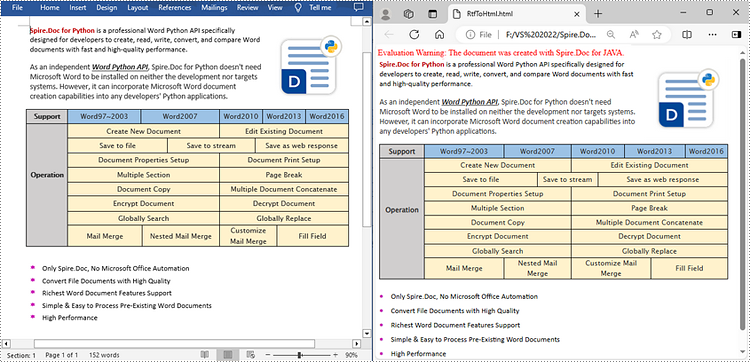
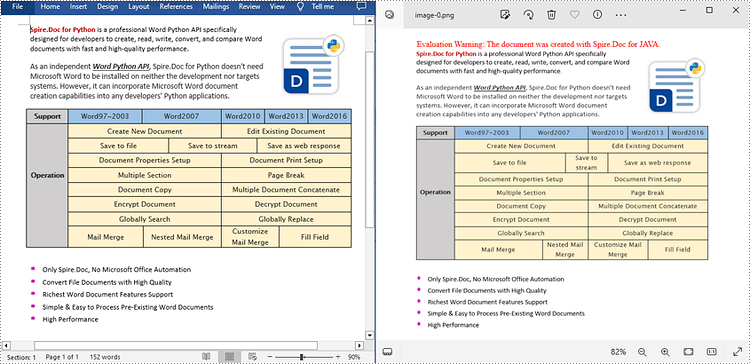
Converting RTF to HTML helps improve accessibility as HTML documents can be easily displayed in web browsers, making them accessible to a global audience. While converting RTF to images can help preserve document layout as images can accurately represent the original document, including fonts, colors, and graphics. In this article, you will learn how to convert RTF to HTML or images in Java using Spire.Doc for Java.
Install Spire.Doc for Java
First of all, you're required to add the Spire.Doc.jar file as a dependency in your Java program. The JAR file can be downloaded from this link. If you use Maven, you can easily import the JAR file in your application by adding the following code to your project's pom.xml file.
<repositories>
    <repository>
        <id>com.e-iceblue</id>
        <name>e-iceblue</name>
        <url>https://repo.e-iceblue.com/nexus/content/groups/public/</url>
    </repository>
</repositories>
<dependencies>
    <dependency>
        <groupId>e-iceblue</groupId>
        <artifactId>spire.doc</artifactId>
        <version>14.8.4</version>
    </dependency>
</dependencies>
Convert RTF to HTML in Java
Converting RTF to HTML ensures that the document can be easily viewed and edited in any modern web browser without requiring any additional software.
With Spire.Doc for Java, you can achieve RTF to HTML conversion through the Document.saveToFile(String fileName, FileFormat.Html) method. The following are the detailed steps.
- Create a Document instance.
- Load an RTF document using Document.loadFromFile() method.
- Save the RTF document in HTML format using Document.saveToFile(String fileName, FileFormat.Html) method.
- Java
import com.spire.doc.*;

public class RTFToHTML {
    public static void main(String[] args) {
        // Create a Document instance
        Document document = new Document();

        // Load an RTF document
        document.loadFromFile("input.rtf", FileFormat.Rtf);

        // Save as HTML format
        document.saveToFile("RtfToHtml.html", FileFormat.Html);
        document.dispose();
    }
}
Convert RTF to Image in Java
To convert RTF to images, you can use the Document.saveToImages() method to convert an RTF file into individual Bitmap or Metafile images. Then, the Bitmap or Metafile images can be saved as a BMP, EMF, JPEG, PNG, GIF, or WMF format files. The following are the detailed steps.
- Create a Document object.
- Load an RTF document using Document.loadFromFile() method.
- Convert the document to images using Document.saveToImages() method.
- Iterate through the converted image, and then save each as a PNG file.
- Java
import com.spire.doc.*;
import com.spire.doc.documents.*;

import javax.imageio.ImageIO;
import java.awt.image.BufferedImage;
import java.io.File;

public class RTFtoImage {
    public static void main(String[] args) throws Exception{
        // Create a Document instance
        Document document = new Document();

        // Load an RTF document
        document.loadFromFile("input.rtf", FileFormat.Rtf);

        // Convert the RTF document to images
        BufferedImage[] images = document.saveToImages(ImageType.Bitmap);

        // Iterate through the image collection
        for (int i = 0; i < images.length; i++) {

            // Get the specific image
            BufferedImage image = images[i];

            // Save the image as png format
            File file = new File("Images\\" + String.format(("Image-%d.png"), i));
            ImageIO.write(image, "PNG", file);
        }
    }
}
Apply for a Temporary License
If you'd like to remove the evaluation message from the generated documents, or to get rid of the function limitations, please request a 30-day trial license for yourself.
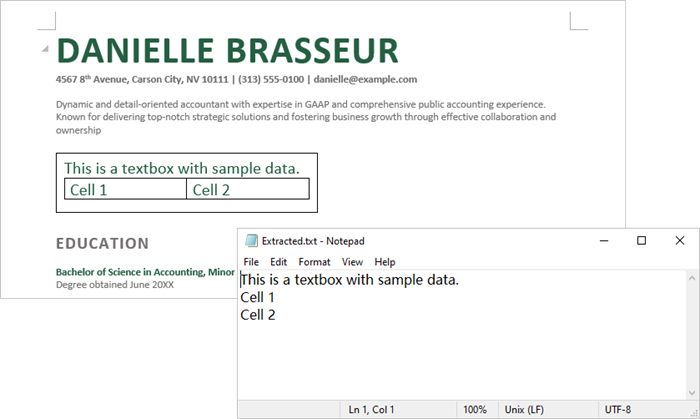
Text boxes in Microsoft Word are flexible elements that improve the layout and design of documents. They enable users to place text separately from the main text flow, facilitating the creation of visually attractive documents. At times, you might need to extract text from these text boxes for reuse, or update the content within them to maintain clarity and relevance. This article demonstrates how to extract or update textboxes in a Word document using Java with Spire.Doc for Java.
Install Spire.Doc for Java
First of all, you're required to add the Spire.Doc.jar file as a dependency in your Java program. The JAR file can be downloaded from this link. If you use Maven, you can easily import the JAR file in your application by adding the following code to your project's pom.xml file.
<repositories>
    <repository>
        <id>com.e-iceblue</id>
        <name>e-iceblue</name>
        <url>https://repo.e-iceblue.com/nexus/content/groups/public/</url>
    </repository>
</repositories>
<dependencies>
    <dependency>
        <groupId>e-iceblue</groupId>
        <artifactId>spire.doc</artifactId>
        <version>14.8.4</version>
    </dependency>
</dependencies>
Extract Text from a Textbox in Word in Java
With Spire.Doc for Java, you can access a specific text box in a document using the Document.getTextBoxes().get() method. You can then iterate through the child objects of the text box to check if each one is a paragraph or a table. For paragraphs, retrieve the text using the Paragraph.getText() method. For tables, loop through the cells to extract text from each cell.
Here are the steps to extract text from a text box in a Word document:
- Create a Document object.
- Load a Word file using Document.loadFromFile() method.
- Access a specific text box using Document.getTextBoxes().get() method.
- Iterate through the child objects of the text box.
- Check if a child object is a paragraph. If so, use Paragraph.getText() method to get the text.
- Check if a child object is a table. If so, use extractTextFromTable() method to retrieve the text from the table.
- Java
import com.spire.doc.*;
import com.spire.doc.documents.DocumentObjectType;
import com.spire.doc.documents.Paragraph;
import com.spire.doc.fields.TextBox;

import java.io.FileWriter;
import java.io.IOException;

public class ExtractTextFromTextbox {

    public static void main(String[] args) throws IOException {

        // Create a Document object
        Document document = new Document();

        // Load a Word file
        document.loadFromFile("C:\\Users\\Administrator\\Desktop\\Input.docx");

        // Get a specific textbox
        TextBox textBox = document.getTextBoxes().get(0);

        // Create a FileWriter to write extracted text to a txt file
        FileWriter fileWriter = new FileWriter("Extracted.txt");

        // Iterate though child objects of the textbox
        for (Object object: textBox.getChildObjects()) {

            // Determine if the child object is a paragraph
            if (((DocumentObject) object).getDocumentObjectType() == DocumentObjectType.Paragraph) {

                // Write paragraph text to the txt file
                fileWriter.write(((Paragraph)object).getText() + "\n");
            }

            // Determine if the child object is a table
            if (((DocumentObject) object).getDocumentObjectType() == DocumentObjectType.Table) {

                // Extract text from table to the txt file
                extractTextFromTable((Table)object, fileWriter);
            }
        }

        // Close the stream
        fileWriter.close();
    }

    // Extract text from a table
    static void extractTextFromTable(Table table, FileWriter fileWriter) throws IOException {
        for (int i = 0; i < table.getRows().getCount(); i++) {
            TableRow row = table.getRows().get(i);
            for (int j = 0; j < row.getCells().getCount(); j++) {
                TableCell cell = row.getCells().get(j);
                for (Object paragraph: cell.getParagraphs()) {
                    fileWriter.write(((Paragraph) paragraph).getText() + "\n");
                }
            }
        }
    }
}
Update a Textbox in Word in Java
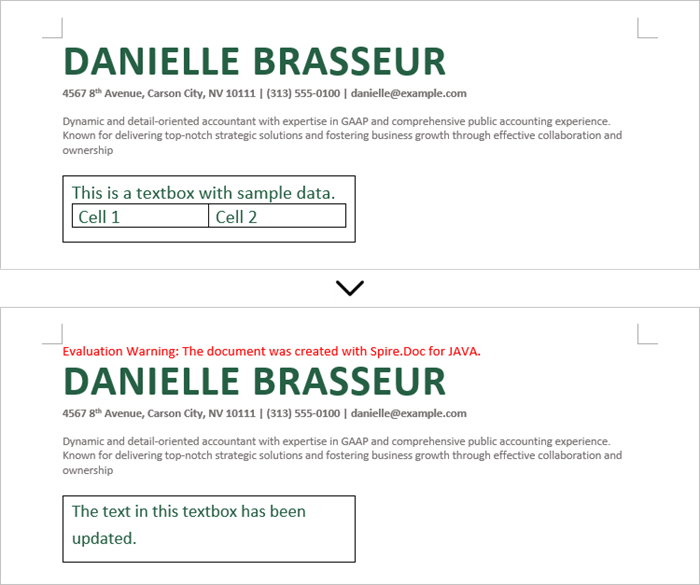
To modify a text box, first remove its existing content using TextBox.getChildObjects.clear() method. Then, create a new paragraph and assign the desired text to it.
Here are the steps to update a text box in a Word document:
- Create a Document object.
- Load a Word file using Document.loadFromFile() method.
- Get a specific textbox using Document.getTextBoxes().get() method.
- Remove existing content of the textbox using TextBox.getChildObjects().clear() method.
- Add a paragraph to the textbox using TextBox.getBody().addParagraph() method.
- Add text to the paragraph using Paragraph.appendText() method.
- Save the document to a different Word file.
- Java
import com.spire.doc.Document;
import com.spire.doc.FileFormat;
import com.spire.doc.documents.Paragraph;
import com.spire.doc.fields.TextBox;
import com.spire.doc.fields.TextRange;

public class UpdateTextbox {

    public static void main(String[] args) {

        // Create a Document object
        Document document = new Document();

        // Load a Word file
        document.loadFromFile("C:\\Users\\Administrator\\Desktop\\Input.docx");

        // Get a specific textbox
        TextBox textBox = document.getTextBoxes().get(0);

        // Remove child objects of the textbox
        textBox.getChildObjects().clear();

        // Add a new paragraph to the textbox
        Paragraph paragraph = textBox.getBody().addParagraph();

        // Set line spacing
        paragraph.getFormat().setLineSpacing(15f);

        // Add text to the paragraph
        TextRange textRange = paragraph.appendText("The text in this textbox has been updated.");

        // Set font size
        textRange.getCharacterFormat().setFontSize(15f);

        // Save the document to a different Word file
        document.saveToFile("UpdateTextbox.docx", FileFormat.Docx_2019);

        // Dispose resources
        document.dispose();
    }
}
Apply for a Temporary License
If you'd like to remove the evaluation message from the generated documents, or to get rid of the function limitations, please request a 30-day trial license for yourself.
Transferring content between Microsoft Word documents is a frequent task for many users. Whether you need to consolidate information spread across multiple files or quickly reuse existing text and other elements, the ability to effectively copy and paste between documents can save you time and effort.
In this article, you will learn how to copy content from one Word document to another using Java and Spire.Doc for Java.
- Copy Specified Paragraphs from One Word Document to Another
- Copy a Section from One Word Document to Another
- Copy the Entire Document and Append it to Another
- Create a Copy of a Word Document
Install Spire.Doc for Java
First of all, you're required to add the Spire.Doc.jar file as a dependency in your Java program. The JAR file can be downloaded from this link. If you use Maven, you can easily import the JAR file in your application by adding the following code to your project's pom.xml file.
<repositories>
    <repository>
        <id>com.e-iceblue</id>
        <name>e-iceblue</name>
        <url>https://repo.e-iceblue.com/nexus/content/groups/public/</url>
    </repository>
</repositories>
<dependencies>
    <dependency>
        <groupId>e-iceblue</groupId>
        <artifactId>spire.doc</artifactId>
        <version>14.8.4</version>
    </dependency>
</dependencies>
Copy Specified Paragraphs from One Word Document to Another in Java
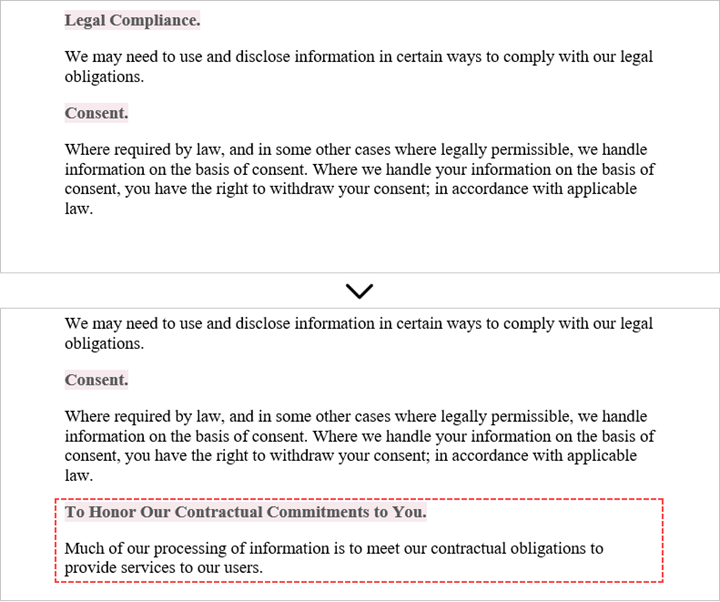
Spire.Doc for Java provides a flexible way to copy content between Microsoft Word documents. This is achieved by cloning individual paragraphs and then adding those cloned paragraphs to a different document.
To copy specific paragraphs from one Word document to another, you can follow these steps:
- Load the source document into a Document object.
- Load the target document into a separate Document object.
- Identify the paragraphs you want to copy from the source document.
- Create copies of those selected paragraphs using Paragraph.deepClone() method
- Add the cloned paragraphs to the target document using ParagraphCollection.add() method.
- Save the updated target document to a new Word file.
- Java
import com.spire.doc.Document;
import com.spire.doc.FileFormat;
import com.spire.doc.Section;
import com.spire.doc.documents.Paragraph;

public class CopyParagraphs {

    public static void main(String[] args) {

        // Create a Document object
        Document sourceDoc = new Document();

        // Load the source file
        sourceDoc.loadFromFile("C:\\Users\\Administrator\\Desktop\\source.docx");

        // Get a specific section
        Section section = sourceDoc.getSections().get(0);

        // Get the specified paragraphs from the source file
        Paragraph p1 = section.getParagraphs().get(2);
        Paragraph p2 = section.getParagraphs().get(3);

        // Create another Document object
        Document targetDoc = new Document();

        // Load the target file
        targetDoc.loadFromFile("C:\\Users\\Administrator\\Desktop\\target.docx");

        // Get the last section
        Section lastSection = targetDoc.getLastSection();

        // Add the paragraphs from the source file to the target file
        lastSection.getParagraphs().add((Paragraph)p1.deepClone());
        lastSection.getParagraphs().add((Paragraph)p2.deepClone());

        // Save the target file to a different Word file
        targetDoc.saveToFile("CopyParagraphs.docx", FileFormat.Docx_2019);

        // Dispose resources
        sourceDoc.dispose();
        targetDoc.dispose();
    }
}
Copy a Section from One Word Document to Another in Java
When copying content between Microsoft Word documents, it's important to consider that a section can contain not only paragraphs, but also other elements like tables. To successfully transfer an entire section from one document to another, you need to iterate through all the child objects within the section and add them individually to a specific section in the target document.
The steps to copy a section between different Word documents are as follows:
- Create Document objects to load the source file and the target file, respectively.
- Get the specified section from the source document.
- Iterate through the child objects within the section.
- Clone a specific child object using DocumentObject.deepClone() method.
- Add the cloned child objects to a designated section in the target document using DocumentObjectCollection.add() method.
- Save the updated target document to a new file.
- Java
import com.spire.doc.Document;
import com.spire.doc.DocumentObject;
import com.spire.doc.FileFormat;
import com.spire.doc.Section;

public class CopySection {

    public static void main(String[] args) {

        // Create a Document object
        Document sourceDoc = new Document();

        // Load the source file
        sourceDoc.loadFromFile("C:\\Users\\Administrator\\Desktop\\source.docx");

        // Get the specified section from the source file
        Section section = sourceDoc.getSections().get(0);

        // Create another Document object
        Document targetDoc = new Document();

        // Load the target file
        targetDoc.loadFromFile("C:\\Users\\Administrator\\Desktop\\target.docx");

        // Get the last section of the target file
        Section lastSection = targetDoc.getLastSection();

        // Iterate through the child objects in the selected section
        for (int i = 0; i < section.getBody().getChildObjects().getCount(); i++) {

            // Get a specific child object
            DocumentObject childObject = section.getBody().getChildObjects().get(i);

            // Add the child object to the last section of the target file
            lastSection.getBody().getChildObjects().add(childObject.deepClone());
        }

        // Save the target file to a different Word file
        targetDoc.saveToFile("CopySection.docx", FileFormat.Docx_2019);

        // Dispose resources
        sourceDoc.dispose();
        targetDoc.dispose();
    }
}
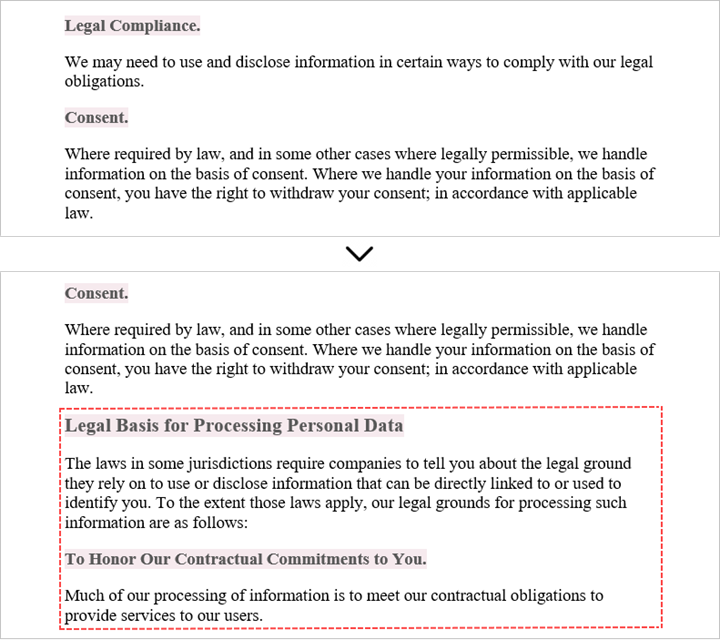
Copy the Entire Document and Append it to Another in Java
Copying the full contents from one Microsoft Word document into another can be achieved using the Document.insertTextFromFile() method. This method enables you to seamlessly append the contents of a source document to a target document.
The steps to copy an entire document and append it to another are as follows:
- Create a Document object to represent the target file.
- Load the target file from the given file path.
- Insert the content of a different Word document into the target file using Document.insertTextFromFile() method.
- Save the updated target file to a new Word document.
- Java
import com.spire.doc.Document;
import com.spire.doc.FileFormat;

public class CopyEntireDocument {

    public static void main(String[] args) {

        // Specify the path of the source document
        String sourceFile = "C:\\Users\\Administrator\\Desktop\\source.docx";

        // Create a Document object
        Document targetDoc = new Document();

        // Load the target file
        targetDoc.loadFromFile("C:\\Users\\Administrator\\Desktop\\target.docx");

        // Insert content of the source file to the target file
        targetDoc.insertTextFromFile(sourceFile, FileFormat.Docx);

        // Save the target file to a different Word file
        targetDoc.saveToFile("CopyEntireDocument.docx", FileFormat.Docx_2019);

        // Dispose resources
        targetDoc.dispose();
    }
}
Create a Copy of a Word Document in Java
Spire.Doc for Java provides a straightforward way to create a duplicate of a Microsoft Word document by using the Document.deepClone() method.
To make a copy of a Word document, follow these steps:
- Create a Document object to relisent the source document.
- Load a Word file from the given file path.
- Create a copy of the document using Document.deepClone() method.
- Save the cloned document to a new Word file.
- Java
import com.spire.doc.Document;
import com.spire.doc.FileFormat;

public class DuplicateDocument {

    public static void main(String[] args) {

        // Create a new document object
        Document sourceDoc = new Document();

        // Load a Word file
        sourceDoc.loadFromFile("C:\\Users\\Administrator\\Desktop\\target.docx");

        // Clone the document
        Document newDoc = sourceDoc.deepClone();

        // Save the cloned document as a docx file
        newDoc.saveToFile("Copy.docx", FileFormat.Docx);

        // Dispose resources
        sourceDoc.dispose();
        newDoc.dispose();
    }
}
Apply for a Temporary License
If you'd like to remove the evaluation message from the generated documents, or to get rid of the function limitations, please request a 30-day trial license for yourself.
