
.NET (1327)
Children categories
Open XML is an XML-based file format developed by Microsoft that allows users to store and exchange various types of files such as word processing documents, spreadsheets, presentations, charts, and diagrams. It is widely recognized and supported by various applications, making it a reliable choice for long-term data preservation.
In some cases, it may be necessary to convert Excel files to Open XML format to ensure that these files can be opened and read by other software. On the other hand, there may be situations where users need to convert Open XML files to Excel format to take advantage of the data analysis tools available in Excel, such as pivot tables and charts. In this article, we will introduce how to convert Excel to Open XML or Open XML to Excel in C# and VB.NET using Spire.XLS for .NET.
Install Spire.XLS for .NET
To begin with, you need to add the DLL files included in the Spire.XLS for .NET package as references in your .NET project. The DLL files can be either downloaded from this link or installed via NuGet.
PM> Install-Package Spire.XLS
Convert Excel to Open XML in C# and VB.NET
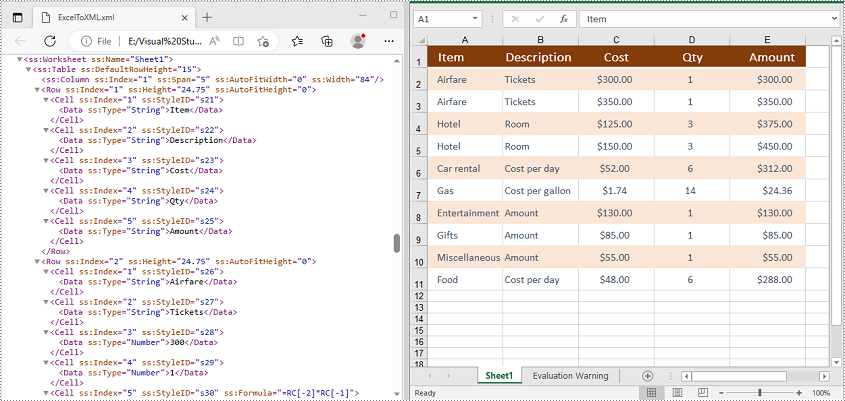
To convert an Excel file to Open XML, you need to load the Excel file using the Workbook.LoadFromFile(string fileName) method, then call the Workbook.SaveAsXml(string fileName) method to save it in Open XML format.
The following steps demonstrate how to convert an Excel file to Open XML:
- Initialize an instance of the Workbook class.
- Load an Excel file using the Workbook.LoadFromFile(string fileName) method.
- Call the Workbook.SaveAsXml(string fileName) method to save the Excel file in Open XML format.
- C#
- VB.NET
using Spire.Xls;

namespace ConvertExcelToOpenXML
{
    internal class Program
    {
        static void Main(string[] args)
        {
            //Initialize an instance of the Workbook class
            Workbook workbook = new Workbook();
            //Load an Excel file
            workbook.LoadFromFile("Sample.xlsx");

            //Save the Excel file in Open XML file format
            workbook.SaveAsXml("ExcelToXML.xml");
        }
    }
}

Convert Open XML to Excel in C# and VB.NET
To convert an Open XML file to Excel, you need to load the Open XML file using the Workbook.LoadFromXml(string fileName) method, then call the Workbook.SaveToFile(string fileName, ExcelVersion version) method to save it in Excel format.
The following are the steps to convert an Open XML file to Excel:
- Initialize an instance of the Workbook class.
- Load an Open XML file using the Workbook.LoadFromXml(string fileName) method.
- Call the Workbook.SaveToFile(string fileName, ExcelVersion version) method to save the Open XML file in Excel format.
- C#
- VB.NET
using Spire.Xls;

namespace ConvertOpenXMLToExcel
{
    internal class Program
    {
        static void Main(string[] args)
        {
            //Initialize an instance of the Workbook class
            Workbook workbook = new Workbook();
            //Load an Open XML file
            workbook.LoadFromXml("ExcelToXML.xml");

            //Save the Open XML file in Excel XLSX file format
            workbook.SaveToFile("XMLToExcel.xlsx", ExcelVersion.Version2016);
        }
    }
}
Apply for a Temporary License
If you'd like to remove the evaluation message from the generated documents, or to get rid of the function limitations, please request a 30-day trial license for yourself.
When you create an Excel table and want to publish it online as a web page, the simplest way is to convert it to an HTML file. This article will demonstrate how to convert Excel to HTML programmatically from the following two aspects using Spire.XLS for .NET.
Install Spire.XLS for .NET
To begin with, you need to add the DLL files included in the Spire.XLS for .NET package as references in your .NET project. The DLL files can be either downloaded from this link or installed via NuGet.
PM> Install-Package Spire.XLS
Convert Excel to HTML
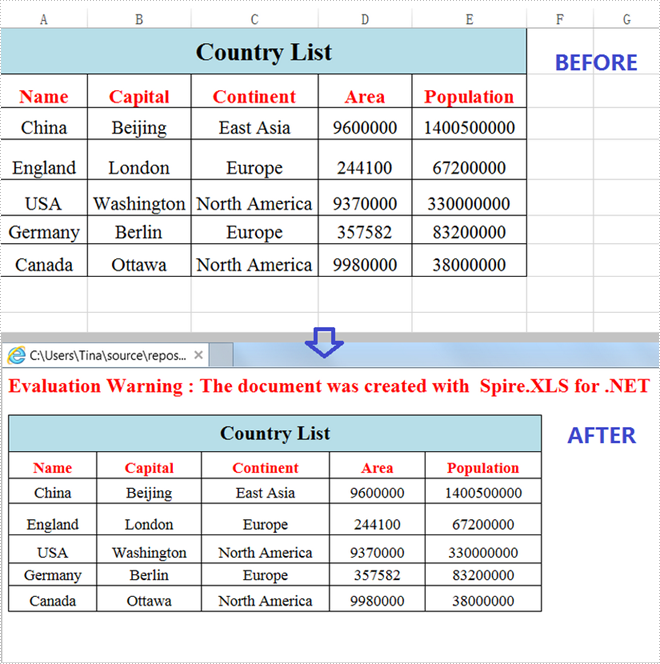
Spire.XLS for .NET supports converting a specific Excel worksheet to HTML using Worksheet.SaveToHtml() method. Detailed steps are listed below.
- Create a Workbook instance.
- Load an Excel sample document using Workbook.LoadFromFile() method.
- Get a specific worksheet using Workbook.Worksheets[] property
- Save the worksheet as an HTML file using Worksheet.SaveToHtml() method.
- C#
- VB.NET
using Spire.Xls;

namespace XLSToHTML

{
    class Program
    {
        static void Main(string[] args)
        {
            //Create a Workbook instance
            Workbook workbook = new Workbook();

            //Load an Excel sample document
            workbook.LoadFromFile(@"sample.xlsx");

            //Get the first worksheet of the document
            Worksheet sheet = workbook.Worksheets[0];

            //Save the worksheet to HTML
            sheet.SaveToHtml("ExcelToHTML.html");
        }
    }
}
Convert Excel to HTML with Images Embedded
The following are steps to convert an Excel worksheet to HTML with images embedded.
- Create a Workbook instance.
- Load an Excel sample document using Workbook.LoadFromFile() method.
- Get a specific worksheet using Workbook.Worksheets[] property.
- Create an HTMLOptions instance.
- Set the ImageEmbedded as true to embed images to HTML.
- Save the worksheet as an HTML file using Worksheet.SaveToHtml() method.
- C#
- VB.NET
using Spire.Xls;
using Spire.Xls.Core.Spreadsheet;

namespace XLSToHTML

{
    class Program
    {
        static void Main(string[] args)
        {
            //Create a Workbook instance
            Workbook workbook = new Workbook();

            //Load an Excel sample document
            workbook.LoadFromFile(@"sample.xlsx");

            //Get the first worksheet of the document
            Worksheet sheet = workbook.Worksheets[0];

            //Create an HTMLOptions instance
            HTMLOptions options = new HTMLOptions();

            //Embed images to HTML
            options.ImageEmbedded = true;

            //Save the worksheet to HTML
            sheet.SaveToHtml("XLS2HTML.html", options);
        }
    }
}

Apply for a Temporary License
If you'd like to remove the evaluation message from the generated documents, or to get rid of the function limitations, please request a 30-day trial license for yourself.
Spire.DataExport supports exporting data from DataTable into HTML. HTML (HyperText Markup Language) is a language for describing web pages. HTML documents are also called web pages which contain HTML tags and plain text. Use Spire.DataExport exporting DataTable to HTML to share your data on internet.
Download Spire.DataExport (or Spire.Office) with .NET Framework together. Only 2 Simple steps you can finish the whole datatable to HTML exporting process.
Step 1: Load Data Information
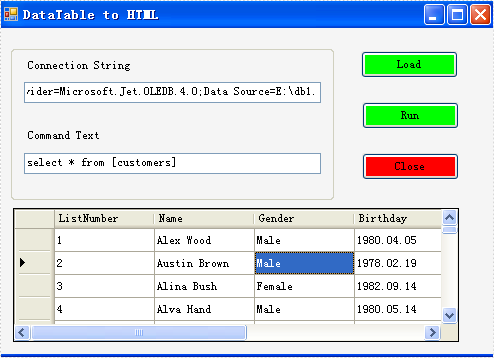
Before exporting data from DataTable, we should load data information from data source. And select which information we need export. Through DataGridVew, we even can preview and modify data information. So, in this step, our job is to prepare data which are about to be exported out.
        private void btnLoad_Click(object sender, EventArgs e)
        {
            using (OleDbConnection oleDbConnection = new OleDbConnection())
            {
                oleDbConnection.ConnectionString = this.tbCS.Text;
                System.Data.OleDb.OleDbCommand oleDbCommand = new OleDbCommand();
                oleDbCommand.CommandText = this.tbCT.Text;
                oleDbCommand.Connection = oleDbConnection;
                using (OleDbDataAdapter da = new OleDbDataAdapter(oleDbCommand))
                {
                    DataTable dt = new DataTable();
                    da.Fill(dt);
                    dataGridView1.DataSource = dt;
                }
            }
        }
Effect Screenshot
Step 2: Set Export into HTML
Spire.DataExport allows user to export data into most popular file formats including MS Excel, MS Word, HTML, PDF, XML, CSV, DBF, DIF, etc. Here we need set it as HTML format. Spire.DataExport will create a new HTML file and through DataGridView export data into HTML file. You also can rename the file as you like.
        private void btnRun_Click(object sender, EventArgs e)
        {
            Spire.DataExport.HTML.HTMLExport HTMLExport = new Spire.DataExport.HTML.HTMLExport();
            HTMLExport.DataSource = Spire.DataExport.Common.ExportSource.DataTable;
            HTMLExport.DataTable = this.dataGridView1.DataSource as DataTable;
            HTMLExport.ActionAfterExport = Spire.DataExport.Common.ActionType.OpenView;
            HTMLExport.SaveToFile("20110223.html");
        }
Effect Screenshot

Export DataTable to Excel can be very easy through Spire.DataExport (or Spire.Office). Furthermore, Spire.DataExport enables user to Export data to Excel through DataGridView. Through DataGridView users can preview and modify data information before exporting.
Download Spire.DataExport (or Spire.Office) with .NET Framework together. Only 2 Simple steps you can finish the whole datatable to Excel exporting process.
Step 1: Load Data Information
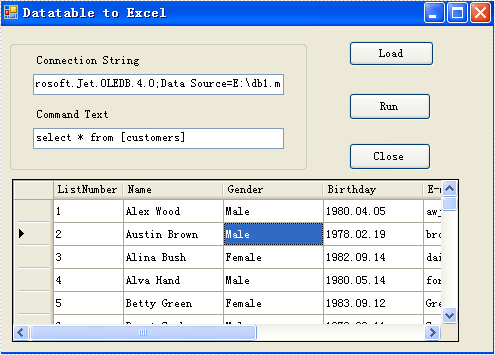
In this step, Spire.DataExport will help you load Data information from your datatable. After you put in your data source and SQL command, you can preview and modify data information in DataGridView area.
        private void btnLoad_Click(object sender, EventArgs e)
        {
            using(OleDbConnection oleDbConnection = new OleDbConnection())
            {
                oleDbConnection.ConnectionString = this.textBox1.Text;
                OleDbCommand oleDbCommand = new OleDbCommand();
                oleDbCommand.CommandText = this.textBox2.Text;
                oleDbCommand.Connection = oleDbConnection;
                using(OleDbDataAdapter da = new OleDbDataAdapter(oleDbCommand))
                {
                    DataTable dt = new DataTable();
                    da.Fill(dt);
                    dataGridView1.DataSource = dt;
                }
            }
        }
Effect Screenshot
Step 2: Set Export into Excel
Spire.DataExport allows user to export data into most popular file formats including MS Excel, MS Word, HTML, PDF, XML, CSV, DBF, DIF, etc. Now, in this step you should give an order to Export Data into Excel file format. Spire.DataExport will create a new MS Excel Worksheet for storing Data which exported out. You can rename the excel file in this step either.
        private void btnRun_Click(object sender, EventArgs e)
        {
            Spire.DataExport.XLS.CellExport cellExport = new Spire.DataExport.XLS.CellExport();
            Spire.DataExport.XLS.WorkSheet worksheet1 = new Spire.DataExport.XLS.WorkSheet();
            worksheet1.DataSource = Spire.DataExport.Common.ExportSource.DataTable;
            worksheet1.DataTable = this.dataGridView1.DataSource as DataTable;
            worksheet1.StartDataCol = ((System.Byte)(0));
            cellExport.Sheets.Add(worksheet1);
            cellExport.ActionAfterExport = Spire.DataExport.Common.ActionType.OpenView;
            cellExport.SaveToFile("20110223.xls");
        }
Effect Screenshot


Spire.DataExport for .NET is a professional .NET DataExport library, enables users to export data from database, datatable and other datasoure to MS Excel, MS Word, PDF, MS Access, DBF, SQL Script, SYLK, DIF, CSV and MS Clipboard without MS Office, Adobe Acrobat and other third-party installed on system. With Spire.DataExport, developer can create any WinForm and Web applications to export data.
Spire.DataExport is fantastic on formatting when exporting, especially for Excel. Users can format data, import formula, insert objects (image, hyperlinks etc.) and create chart when export a large amount of data to multiple worksheets. The following sections will present how to quickly export data in details.


Rich Text Format (RTF) is a proprietary text file format which can serve as an exchange format between word processing programs from different manufacturers on different operating systems. Rich text documents include page formatting options, such as custom page margins, line spacing, and tab widths. With rich text, it's easy to create columns, add tables, and format your documents in a way that makes them easier to read. This article will demonstrate how to convert Word Doc/Docx to RTF files and convert RTF to Word Doc/Docx with the help of Spire.Doc for .NET.
Install Spire.Doc for .NET
To begin with, you need to add the DLL files included in the Spire.Doc for.NET package as references in your .NET project. The DLLs files can be either downloaded from this link or installed via NuGet.
PM> Install-Package Spire.Doc
Convert Word Doc/Docx to RTF
The following steps show you how to convert Word to RTF using Spire.Doc for .NET.
- Create a Document instance.
- Load a Word sample document using Document.LoadFromFile() method.
- Save the document as an RTF file using Document.SaveToFile() method.
- C#
- VB.NET
using Spire.Doc;

namespace ConvertToRtf
{
    class Program
    {
        static void Main(string[] args)
        {
            //Create a Word document instance
            Document document = new Document();

            //Load a Word sample document
            document.LoadFromFile("sample.docx");

            // Save the document to RTF
            document.SaveToFile("Result.rtf", FileFormat.Rtf);
        }

    }
}
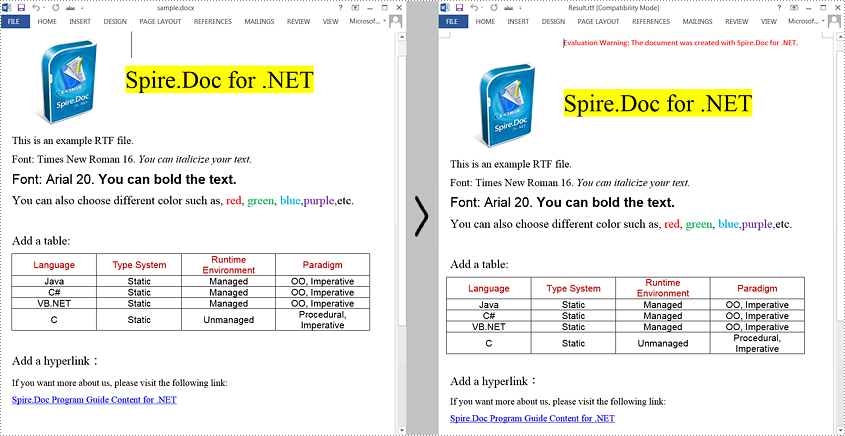
Convert RTF to Word Doc/Docx
The steps to convert an RTF document to Word Doc/Docx is very similar with that of the above example:
- Create a Document instance.
- Load an RTF document using Document.LoadFromFile() method.
- Save the RTF document to Doc/Docx format using Document.SaveToFile() method.
- C#
- VB.NET
using Spire.Doc;
using System;

public class RtfToDocDocx
{

    public static void Main(String[] args)
    {
        // Create a Document instance
        Document document = new Document();
        // Load an RTF document
        document.LoadFromFile("input.rtf", FileFormat.Rtf);
        // Save the document to Doc
        document.SaveToFile("toDoc.doc", FileFormat.Doc);
        // Save the document to Docx
        document.SaveToFile("toDocx.docx", FileFormat.Docx2013);
    }
}

Apply for a Temporary License
If you'd like to remove the evaluation message from the generated documents, or to get rid of the function limitations, please request a 30-day trial license for yourself.
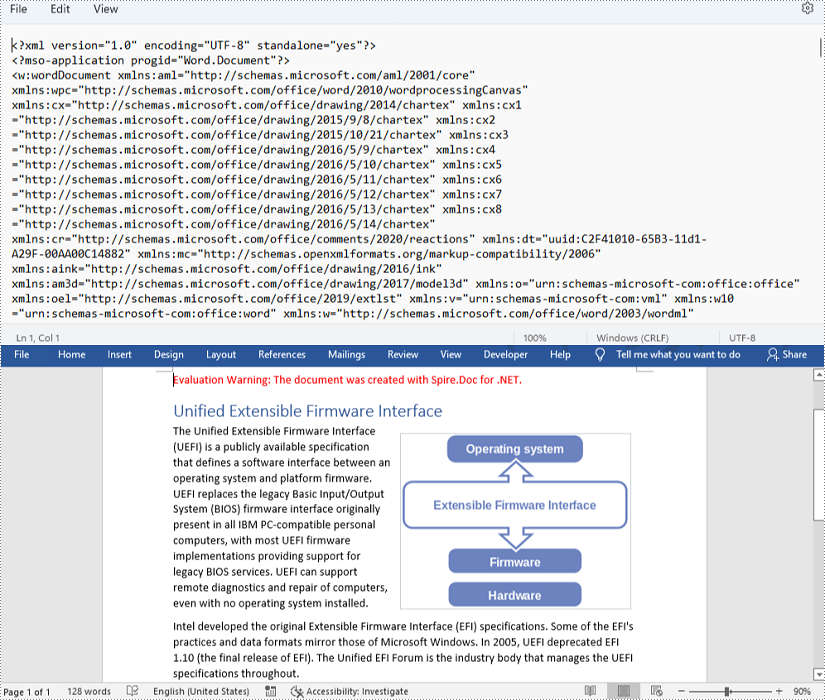
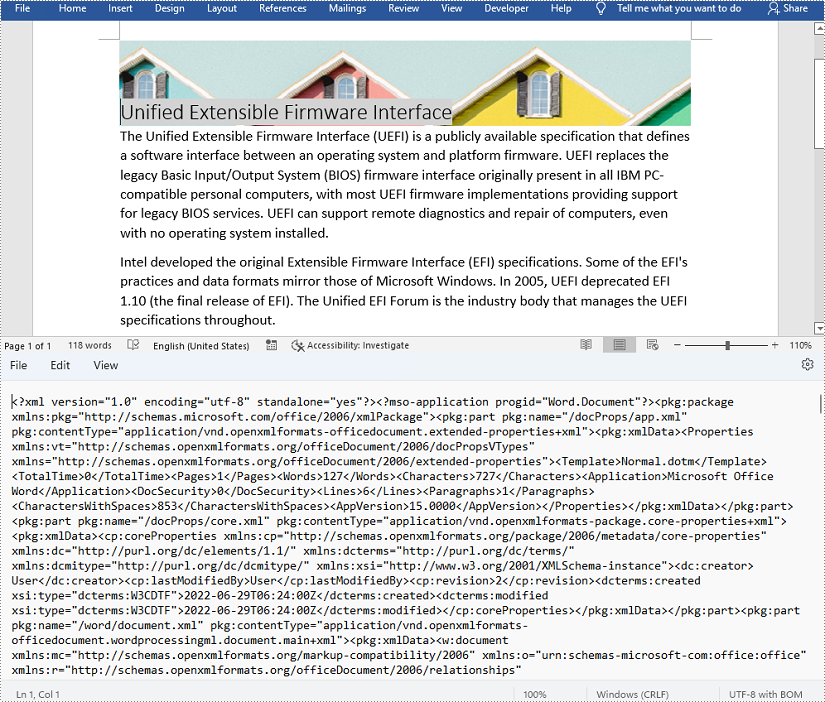
OpenXML is an XML-based file format for MS Office documents. OpenXML is popular among developers as it allows creating and editing Office documents, such Word documents, with no need for MS Office. But when presented to ordinary users, OpenXML files usually need to be converted to Word documents to facilitate reading and editing. In this article, you can learn how to convert XML files to Word documents or Word documents to XML files with the help of Spire.Doc for .NET.
Install Spire.Doc for .NET
To begin with, you need to add the DLL files included in the Spire.Doc for .NET package as references in your .NET project. The DLL files can be either downloaded from this link or installed via NuGet.
PM> Install-Package Spire.Doc
Convert an OpenXML File to a Word Document
The detailed steps of the conversion are as follows:
- Create an object of Document class.
- Load an OpenXML file from disk using Document.LoadFromFile() method.
- Convert the OpenXML file to a Word document and save it using Document.SaveToFile() method.
- C#
- VB.NET
using Spire.Doc;
using System;

namespace DocExample
{
    internal class Program
    {
        static void Main(string[] args)
        {
            //Create a Document class instance
            Document document = new Document();

            //Load an OpenXML file from disk
            document.LoadFromFile(@"C:\Samples\Sample.xml", FileFormat.Xml);

            //Convert the OpenXML file to a Word document and save it
            document.SaveToFile("OpenXMLToWord.docx", FileFormat.Docx2013);
        }
    }
}
Convert a Word Document to an OpenXML File
The detailed steps of the conversion are as follows:
- Create an object of Document class.
- Load a Word document from disk using Document.LoadFromFile() method.
- Convert the Word document to an OpenXML file and save it using Document.SaveToFile() method.
- C#
- VB.NET
using Spire.Doc;
using System;

namespace DocExample
{
    internal class Program
    {
        static void Main(string[] args)
        {
            //Create a Document class instance
            Document document = new Document();

            //Load a Word document from disk
            document.LoadFromFile(@"C:\Samples\Sample.docx");

            //Convert the Word document to an OpenXML file and save it
            //Change WordXML to WordML to convert to ML file
            document.SaveToFile("WordToOpenXMl.xml", FileFormat.WordXml);
        }
    }
}
Apply for a Temporary License
If you'd like to remove the evaluation message from the generated documents, or to get rid of the function limitations, please request a 30-day trial license for yourself.

Microsoft Word and HTML (Hypertext Markup Language) are two of the most widely used formats worldwide. Microsoft Word is the go-to solution for crafting rich, feature-packed documents such as reports, proposals, and print-ready files, while HTML is the foundational language that powers content on the web. Understanding how to effectively convert between these formats can enhance document usability and accessibility.
In this article, we will provide a detailed step-by-step guide on converting HTML to Word and Word to HTML in .NET using C#. It covers the following topics:
- Why Convert Between Word and HTML
- .NET Word Library Installation
- How to Convert HTML to Word Using C#
- How to Convert Word to HTML Using C#
- Conclusion
- FAQs
Why Convert Between Word and HTML?
Before diving into the technical details, let's understand why you might need to convert between Word and HTML:
- Cross-Platform Accessibility: HTML is the backbone of web pages, while Word documents are industry-standard for creating, sharing and editing content. Converting between them enables content to be accessible and editable across different platforms.
- Rich Formatting: Word documents support complex formatting and elements; converting HTML to Word lets users retain formatting when exporting web content.
- Document Archiving and Data Exchange: Archive HTML content as Word or publish Word-based reports to the web.
.NET Word Library Installation
The .NET framework does not natively support HTML or Word conversions. To bridge this gap, Spire.Doc for .NET provides a powerful, developer-friendly API for document creation, manipulation, and conversion—without requiring Microsoft Office or Interop libraries.
Install Spire.Doc for .NET
Before getting started with the conversion, you need to install Spire.Doc for .NET through one of the following methods:
Method 1: Install via NuGet
Run the following command in the NuGet Package Manager Console:
Install-Package Spire.Doc
Method 2: Manually Add the DLLs
You can also download the Spire.Doc for .NET package, extract the files, and then reference Spire.Doc.dll manually in your Visual Studio project.
How to Convert HTML to Word Using C#
Spire.Doc enables you to load HTML files or HTML strings and save them as Word documents. Let’s see how to implement these conversions.
Convert HTML String to Word
To convert an HTML string to Word format, follow these steps:
- Create a Document Object: Instantiate a new Document object.
- Add a Section and Paragraph: Create a section in the document and add a paragraph.
- Append HTML String: Use the Paragraph.AppendHTML() method to include the HTML content.
- Save the Document: Save the document using Document.SaveToFile() with the desired format (e.g., Docx).
Example code
using Spire.Doc;
using Spire.Doc.Documents;
using System.IO;

namespace ConvertHtmlStringToWord
{
    class Program
    {
        static void Main(string[] args)
        {
            // Create a Document object
            Document document = new Document();

            // Add a section to the document
            Section section = document.AddSection();

            // Set the page margins
            section.PageSetup.Margins.All = 2;

            // Add a paragraph to the section
            Paragraph paragraph = section.AddParagraph();

            // Read HTML string from a file
            string htmlFilePath = @"C:\Users\Administrator\Desktop\Html.html";
            string htmlString = File.ReadAllText(htmlFilePath, System.Text.Encoding.UTF8);

            // Append the HTML string to the paragraph
            paragraph.AppendHTML(htmlString);

            // Save the document to a Word file
            document.SaveToFile("AddHtmlStringToWord.docx", FileFormat.Docx);

            // Dispose resources
            document.Dispose();
        }
    }
}
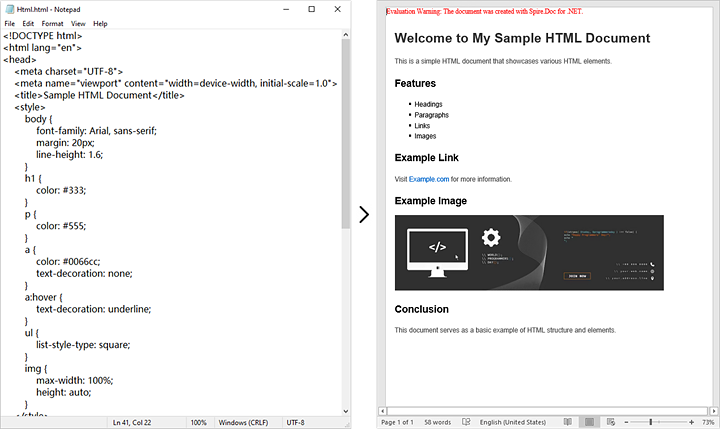
Convert HTML File to Word
If you have existing HTML files, converting them to Word is straightforward. Here’s how to do that:
- Create a Document Object: Instantiate a new Document object.
- Load the HTML File: Use Document.LoadFromFile() to load the HTML file.
- Save as Word Format: Save the document using Document.SaveToFile() with the desired format (e.g., Docx).
Example Code
using Spire.Doc;

namespace ConvertHtmlToWord
{
    class Program
    {
        static void Main(string[] args)
        {
            // Create a Document object
            Document document = new Document();
            // Load the HTML file
            document.LoadFromFile(@"C:\Users\Administrator\Desktop\MyHtml.html", FileFormat.Html);

            // Save the file as a Word document
            document.SaveToFile("HtmlToWord.docx", FileFormat.Docx);

            // Dispose resources
            document.Dispose();
        }
    }
}

How to Convert Word to HTML Using C#
Spire.Doc also supports exporting Word documents (such as .docx and .doc) to HTML format. You can perform basic conversion with default behavior, or customize the output using advanced settings.
Basic Word to HTML Conversion
To convert a Word document to an HTML file using default settings, follow these steps:
- Create a Document Object: Instantiate a new Document object.
- Load the Word Document: Use Document.LoadFromFile() to load the Word document.
- Save as HTML File: Save the document using Document.SaveToFile() with HTML as the format.
Example Code
using Spire.Doc;

namespace BasicWordToHtmlConversion
{
    class Program
    {
        static void Main(string[] args)
        {
            // Create a Document object
            Document document = new Document();
            // Load the Word document
            document.LoadFromFile("input.docx");

            // Save the document as an HTML file
            document.SaveToFile("BasicWordToHtmlConversion.html", FileFormat.Html);

            // Dispose resources
            document.Dispose();
        }
    }
}
Advanced Word to HTML Conversion Settings
To tailor the conversion process, use the HtmlExportOptions class, which allows you to adjust a variety of settings, including:
- Whether to export the document's styles.
- Whether to embed images in the converted HTML.
- Whether to export headers and footers.
- Whether to export form fields as text.
Follow these steps to convert a Word document to HTML with customized options:
- Create a Document Object: Instantiate a new Document object.
- Load the Word Document: Use Document.LoadFromFile() to load the Word document.
- Get HtmlExportOptions: Access the HtmlExportOptions through Document.HtmlExportOptions.
- Customize Conversion Settings: Modify the properties of HtmlExportOptions to customize the conversion.
- Save as HTML File: Save the document using Document.SaveToFile() with HTML as the format.
Example Code
using Spire.Doc;

namespace AdvancedWordToHtmlConversion
{
    class Program
    {
        static void Main(string[] args)
        {
            //Create a Document object
            Document doc = new Document();

            //Load a Word document
            doc.LoadFromFile("sample.docx");

            HtmlExportOptions htmlExportOptions = doc.HtmlExportOptions;
            // Set whether to export the document styles
            htmlExportOptions.IsExportDocumentStyles = true;
            // Set whether to embed the images in the HTML
            htmlExportOptions.ImageEmbedded = true;
            // Set the type of the CSS style sheet
            htmlExportOptions.CssStyleSheetType = CssStyleSheetType.Internal;
            // Set whether to export headers and footers
            htmlExportOptions.HasHeadersFooters = true;
            // Set whether to export form fields as text
            htmlExportOptions.IsTextInputFormFieldAsText = false;

            // Save the document as an HTML file
            doc.SaveToFile("AdvancedWordToHtmlConversion.html", FileFormat.Html);
            doc.Close();
        }
    }
}
Conclusion
Converting HTML to Word and Word to HTML using C# and the Spire.Doc library is a seamless process that enhances document management and accessibility. By following the detailed steps outlined in this tutorial, developers can easily implement these conversions in their applications, improving workflow and productivity.
FAQs
Q1: Is it possible to batch convert multiple Word files to HTML using C#?
A1: Yes, you can loop through a list of Word files and apply the conversion logic in your C# code.
Q2: What types of HTML elements are supported during conversion to Word?
A2: Spire.Doc supports a wide range of HTML elements, including text, tables, images, lists, and more. However, certain elements not supported by Microsoft Word may also not be rendered correctly in Spire.Doc.
Q3: Can I convert formats other than HTML and Word?
A3: Yes. Spire.Doc supports various file format conversions, such as Word to PDF, Markdown to Word, Word to Markdown, RTF to Word, RTF to PDF.
Q4: Is Spire.Doc free to use?
A4: Spire.Doc offers a free version for lightweight use, but for extensive features and commercial use, a licensed version is recommended.
Get a Free License
To fully experience the capabilities of Spire.Doc for .NET without any evaluation limitations, you can request a free 30-day trial license.
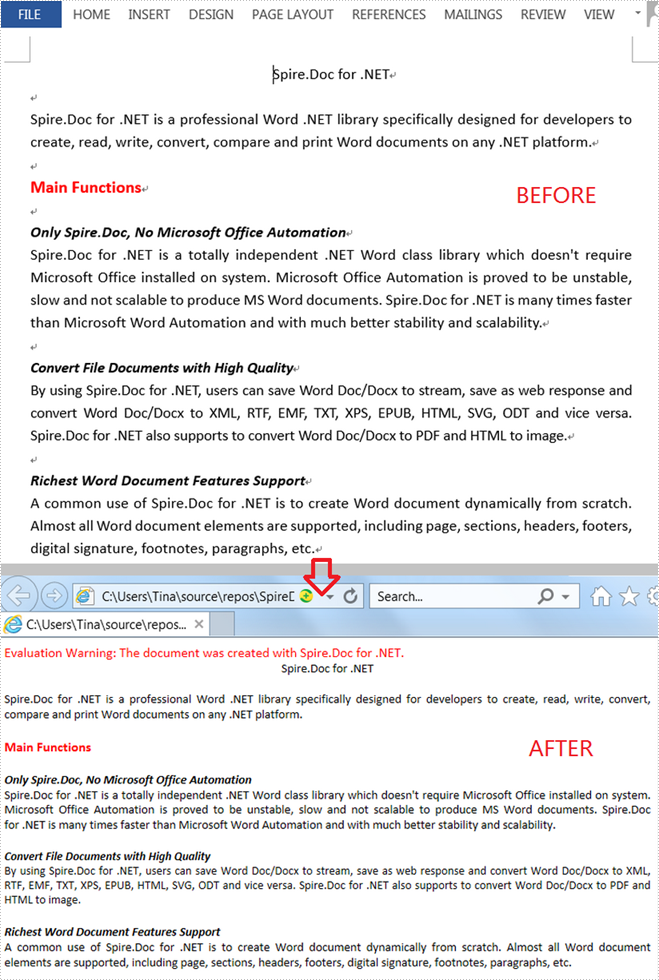
When you'd like to put a Word document on the web, it's recommended that you should convert the document to HTML in order to make it accessible via a web page. This article will demonstrate how to convert Word to HTML programmatically in C# and VB.NET using Spire.Doc for .NET.
Install Spire.Doc for .NET
To begin with, you need to add the DLL files included in the Spire.Doc for .NET package as references in your .NET project. The DLL files can be either downloaded from this link or installed via NuGet.
PM> Install-Package Spire.Doc
Convert Word to HTML
The following steps show you how to convert Word to HTML using Spire.Doc for .NET.
- Create a Document instance.
- Load a Word sample document using Document.LoadFromFile() method.
- Save the document as an HTML file using Document.SaveToFile() method.
- C#
- VB.NET
using Spire.Doc;

namespace WordToHTML
{
    class Program
    {
        static void Main(string[] args)
        {
            //Create a Document instance
            Document mydoc = new Document();

            //Load a Word document
            mydoc.LoadFromFile("sample.docx");

            //Save to HTML
            mydoc.SaveToFile("WordToHTML.html", FileFormat.Html);
        }
    }
}
Apply for a Temporary License
If you'd like to remove the evaluation message from the generated documents, or to get rid of the function limitations, please request a 30-day trial license for yourself.
Text files are simple and versatile, but they don't support formatting options and advanced features like headers, footers, page numbers, and styles, and cannot include multimedia content like images or tables. Additionally, spell-checking and grammar-checking features are also not available in plain text editors.
If you need to add formatting, multimedia content, or advanced features to a text document, you'll need to convert it to a more advanced format like Word. Similarly, if you need to simplify the formatting of a Word document, reduce its file size, or work with its content using basic tools, you might need to convert it to a plain text format. In this article, we will explain how to convert text files to Word format and convert Word files to text format in C# and VB.NET using Spire.Doc for .NET library.
- Convert a Text File to Word Format in C# and VB.NET
- Convert a Word File to Text Format in C# and VB.NET
Install Spire.Doc for .NET
To begin with, you need to add the DLL files included in the Spire.Doc for .NET package as references in your .NET project. The DLL files can be either downloaded from this link or installed via NuGet.
PM> Install-Package Spire.Doc
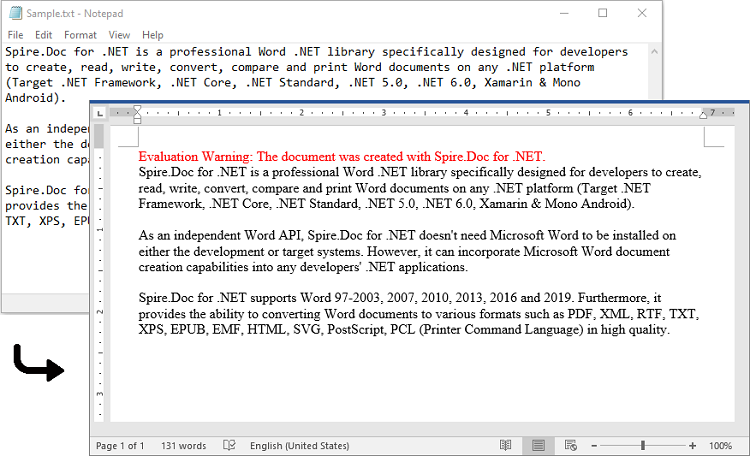
Convert a Text File to Word Format in C# and VB.NET
Spire.Doc for .NET offers the Document.LoadText(string fileName) method which enables you to load a text file. After the text file is loaded, you can easily save it in Word format by using the Document.SaveToFile(string fileName, FileFormat fileFormat) method. The detailed steps are as follows:
- Initialize an instance of the Document class.
- Load a text file using the Document.LoadText(string fileName) method.
- Save the text file in Word format using the Document.SaveToFile(string fileName, FileFormat fileFormat) method.
- C#
- VB.NET
using Spire.Doc;

namespace ConvertTextToWord
{
    internal class Program
    {
        static void Main(string[] args)
        {
            //Initialize an instance of the Document class
            Document doc = new Document();
            //Load a text file
            doc.LoadText("Sample.txt");

            //Save the text file in Word format
            doc.SaveToFile("TextToWord.docx", FileFormat.Docx2016);
            doc.Close();
        }
    }
}
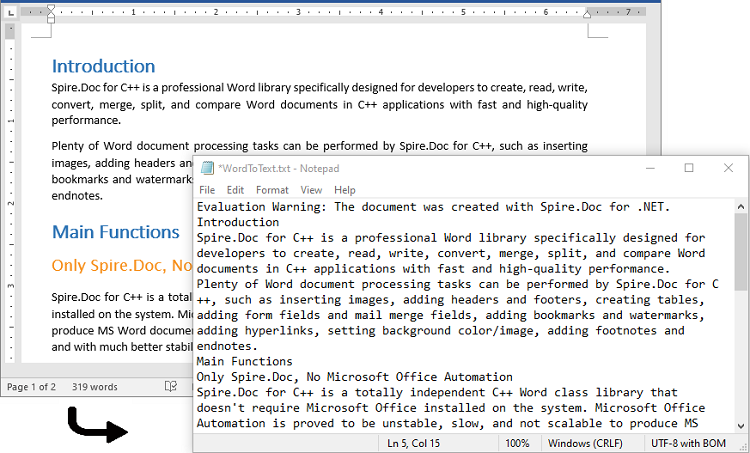
Convert a Word File to Text Format in C# and VB.NET
To convert a Word file to text format, you just need to load the Word file using the Document.LoadFromFile(string fileName) method, and then call the Document.SaveToFile(string fileName, FileFormat fileFormat) method to save it in text format. The detailed steps are as follows:
- Initialize an instance of the Document class.
- Load a Word file using the Document.LoadFromFile(string fileName) method.
- Save the Word file in text format using the Document.SaveToFile(string fileName, FileFormat fileFormat) method.
- C#
- VB.NET
using Spire.Doc;

namespace ConvertWordToText
{
    internal class Program
    {
        static void Main(string[] args)
        {
            //Initialize an instance of the Document class
            Document doc = new Document();
            //Load a Word file
            doc.LoadFromFile(@"Sample.docx");

            //Save the Word file in text format
            doc.SaveToFile("WordToText.txt", FileFormat.Txt);
            doc.Close();
        }
    }
}
Apply for a Temporary License
If you'd like to remove the evaluation message from the generated documents, or to get rid of the function limitations, please request a 30-day trial license for yourself.
