
.NET (1327)
Children categories
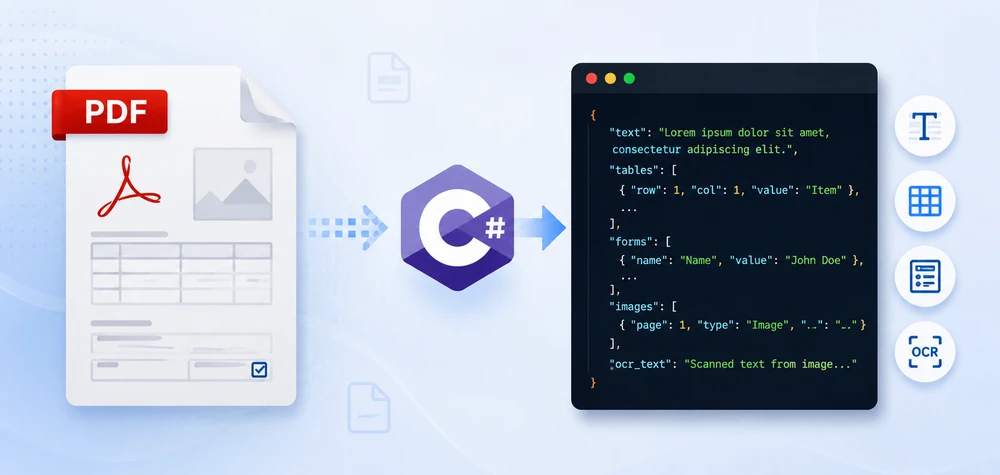
Your application receives a PDF invoice. You need the invoice number, vendor name, and line items — not as text on a page, but as structured JSON your API can consume. That is the real problem behind PDF to JSON conversion.
Unlike CSV or XML, a PDF file has no inherent data structure — no fields, no rows, no schema. Extracting usable JSON requires different approaches depending on what the document actually contains: plain text with key-value patterns, tables with rows and columns, fillable form fields, or scanned images that need OCR.
This article covers all four scenarios with runnable C# code using Spire.PDF for .NET. We build a real invoice-to-JSON converter, handle common table extraction problems like merged cells and missing headers, and package everything into a reusable PdfToJsonConverter class you can drop into any .NET project.
Quick Navigation
- What "PDF to JSON" Actually Means
- Install Spire.PDF for .NET
- Convert PDF Text to JSON in C#
- Convert PDF Tables to JSON in C#
- Convert PDF Form Fields to JSON
- Invoice PDF to JSON: A Real-World Example
- Convert Multiple PDFs to JSON in Batch
- Build a PDF to JSON Converter in C#
- Convert OCR Output to JSON in C#
- Performance Considerations
- FAQ
1. What "PDF to JSON" Actually Means
There is no built-in "PDF to JSON" conversion in the way you might convert a CSV to JSON. A PDF has no JSON structure. What developers actually need is: extract content from a PDF, then shape that content into a JSON format that matches their use case.
Depending on the PDF type and business requirement, the target JSON falls into one of three categories.
Raw Text JSON
Pull all text from each page and wrap it in a JSON envelope. Works for search indexing, RAG pipelines, and document archival.
{
  "sourceFile": "Contract.pdf",
  "pages": [
    { "pageNumber": 1, "text": "SERVICE AGREEMENT\nBetween Contoso Ltd and..." }
  ]
}
Key-Value JSON
Many PDFs follow a Label: Value pattern — employee records, registration forms, simple invoices. The goal here is to parse those pairs into a flat JSON object:
{
  "name": "John Smith",
  "email": "john@contoso.com",
  "department": "Engineering",
  "employeeId": "EMP-2026-0142"
}
Structured Business JSON
Real business documents have nested data: an invoice has a header, line items, tax breakdowns, and payment terms. The JSON output needs to mirror that structure:
{
  "invoiceNumber": "INV-2026-0042",
  "vendor": "Contoso Ltd",
  "date": "2026-06-15",
  "lineItems": [
    { "description": "Widget A", "quantity": 150, "unitPrice": 24.50, "total": 3675.00 }
  ],
  "subtotal": 3675.00,
  "tax": 294.00,
  "total": 3969.00
}
This distinction matters. When you search for "convert PDF to JSON," you need to decide which output format your application requires. The rest of this article shows how to build each one using Spire.PDF in C#.
2. Install Spire.PDF for .NET
Install via NuGet Package Manager Console:
Install-Package Spire.PDF
Or add to your .csproj:
<PackageReference Include="Spire.PDF" Version="*" />
Include these namespaces in your project:
using Spire.Pdf;
using Spire.Pdf.Texts;
using Spire.Pdf.Utilities;
using Spire.Pdf.Fields;
using Spire.Pdf.Widget;
using System.Text.Json;
using System.Text.Json.Serialization;
Spire.PDF supports .NET Framework, .NET Core, and .NET 6/7/8/9+.
3. Convert PDF Text to JSON in C#
The most common starting point: extract text from a PDF and produce JSON output.
Extract Text from PDF
using Spire.Pdf;
using Spire.Pdf.Texts;
using System.Collections.Generic;

using (PdfDocument pdf = new PdfDocument())
{
    pdf.LoadFromFile("EmployeeRecord.pdf");

    var pages = new List<Dictionary<string, string>>();

    for (int i = 0; i < pdf.Pages.Count; i++)
    {
        PdfPageBase page = pdf.Pages[i];

        PdfTextExtractOptions options = new PdfTextExtractOptions();
        options.IsExtractAllText = true;

        PdfTextExtractor extractor = new PdfTextExtractor(page);
        string pageText = extractor.ExtractText(options);

        pages.Add(new Dictionary<string, string>
        {
            { "pageNumber", (i + 1).ToString() },
            { "text", pageText.Trim() }
        });
    }
}
Parse Key-Value Pairs into JSON
If your PDF follows a Label: Value pattern, parse the extracted text into structured fields:
using System.Text.Json;

var parsedFields = new Dictionary<string, string>();

foreach (var page in pages)
{
    string[] lines = page["text"].Split('\n');
    foreach (string line in lines)
    {
        int colonIndex = line.IndexOf(':');
        if (colonIndex > 0)
        {
            string key = line.Substring(0, colonIndex).Trim();
            string value = line.Substring(colonIndex + 1).Trim();
            parsedFields[key] = value;
        }
    }
}

var jsonOptions = new JsonSerializerOptions
{
    WriteIndented = true,
    PropertyNamingPolicy = JsonNamingPolicy.CamelCase
};

string jsonOutput = JsonSerializer.Serialize(parsedFields, jsonOptions);
File.WriteAllText("EmployeeRecord.json", jsonOutput);
Key API Calls
PdfDocument.LoadFromFile()— opens the PDF filePdfTextExtractor.ExtractText()— extracts text content from a pagePdfTextExtractOptions.IsExtractAllText— preserves whitespace and formatting
Output
The following example shows the structured JSON generated from the extracted employee record.
{
  "name": "John Smith",
  "email": "john.smith@contoso.com",
  "department": "Engineering",
  "employeeId": "EMP-2026-0142",
  "startDate": "2024-03-15"
}
The following screenshot shows the actual JSON file generated after running the example.
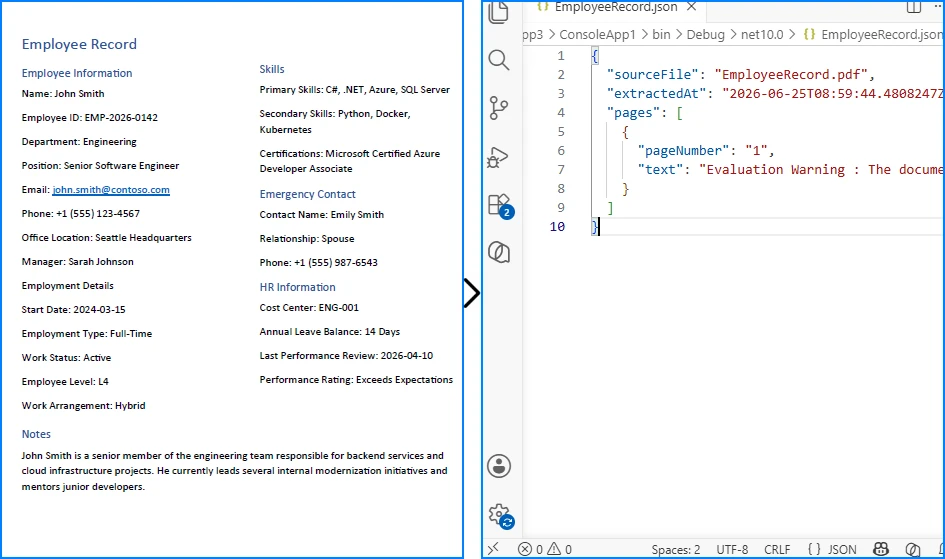
This approach works well for forms, records, and documents with consistent key-value layouts. For unstructured text, skip the parsing step and serialize the raw pages directly.
If you need a deeper look at PDF text extraction, see our dedicated guide on extracting text from PDFs in C# using Spire.PDF for .NET.
4. Convert PDF Tables to JSON in C#
The previous section focused on extracting plain text from PDFs. While that works well for paragraphs and simple records, many business documents organize their most valuable information in tables, such as invoice line items, sales reports, and financial statements. To preserve rows, columns, and relationships between cells, table data must be extracted differently before it can be converted into structured JSON.
Why Table Extraction Is Different from Text Extraction
Text extraction returns a flat stream of characters in reading order. Although a table may appear perfectly organized on the page, the extracted text often loses its row-and-column structure, making it difficult to identify which values belong together.
To preserve the table layout, you need a dedicated table extraction engine. PdfTableExtractor analyzes the page layout, detects table boundaries, and returns PdfTable objects that you can iterate row by row and cell by cell. Instead of producing a flat string such as:
Widget A 150 $24.50 $3,675.00
it enables you to generate structured JSON like:
{
  "Product": "Widget A",
  "Quantity": "150",
  "Unit Price": "$24.50",
  "Total": "$3,675.00"
}
The following example demonstrates how to extract tables from a PDF and serialize them into JSON.
Extract Tables from PDF
using Spire.Pdf;
using Spire.Pdf.Utilities;
using System.Collections.Generic;

using (PdfDocument pdf = new PdfDocument())
{
    pdf.LoadFromFile("SalesReport.pdf");

    PdfTableExtractor tableExtractor = new PdfTableExtractor(pdf);
    var allTables = new List<List<List<string>>>();

    for (int pageIndex = 0; pageIndex < pdf.Pages.Count; pageIndex++)
    {
        PdfTable[] tables = tableExtractor.ExtractTable(pageIndex);

        if (tables != null && tables.Length > 0)
        {
            foreach (PdfTable table in tables)
            {
                int rowCount = table.GetRowCount();
                int colCount = table.GetColumnCount();
                var tableData = new List<List<string>>();

                for (int row = 0; row < rowCount; row++)
                {
                    var rowData = new List<string>();
                    for (int col = 0; col < colCount; col++)
                    {
                        rowData.Add(table.GetText(row, col).Trim());
                    }
                    tableData.Add(rowData);
                }

                allTables.Add(tableData);
            }
        }
    }
}
Serialize Table Data to JSON
var jsonTables = new List<object>();

foreach (var tableData in allTables)
{
    if (tableData.Count < 2) continue;

    var headers = tableData[0];
    var rows = new List<Dictionary<string, string>>();

    for (int i = 1; i < tableData.Count; i++)
    {
        var rowObj = new Dictionary<string, string>();
        for (int j = 0; j < headers.Count && j < tableData[i].Count; j++)
        {
            rowObj[headers[j]] = tableData[i][j];
        }
        rows.Add(rowObj);
    }

    jsonTables.Add(new
    {
        tableIndex = allTables.IndexOf(tableData) + 1,
        headers = headers,
        data = rows
    });
}

string tableJson = JsonSerializer.Serialize(new
{
    sourceFile = "SalesReport.pdf",
    tables = jsonTables
}, new JsonSerializerOptions { WriteIndented = true });

File.WriteAllText("SalesReport_Tables.json", tableJson);
Key API Calls
PdfTableExtractor(PdfDocument)— initializes the table extraction enginePdfTableExtractor.ExtractTable(pageIndex)— detects and extracts tables from a pagePdfTable.GetRowCount()/GetColumnCount()— returns table dimensionsPdfTable.GetText(row, col)— reads cell content
Sample JSON Output
The resulting JSON preserves the original table structure by organizing each row into key-value pairs based on the detected column headers.
{
  "sourceFile": "SalesReport.pdf",
  "tables": [
    {
      "tableIndex": 1,
      "headers": ["Product", "Quantity", "Unit Price", "Total"],
      "data": [
        { "Product": "Widget A", "Quantity": "150", "Unit Price": "$24.50", "Total": "$3,675.00" },
        { "Product": "Widget B", "Quantity": "80", "Unit Price": "$39.90", "Total": "$3,192.00" }
      ]
    }
  ]
}
The following screenshot shows the actual JSON file generated after running the example.
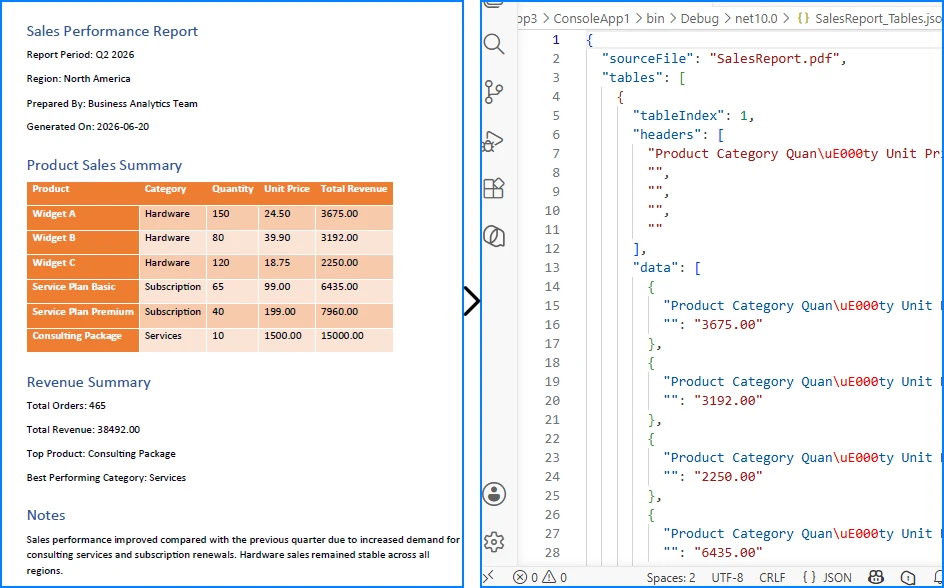
This approach works well for invoices, reports, and other PDFs with well-defined table structures. For documents containing merged cells, missing headers, or multi-page tables, additional post-processing may be required.
If you need a deeper look at PDF table extraction, see our dedicated guide on extracting tables from PDFs in C# using Spire.PDF for .NET.
Common Table Extraction Problems
Real-world PDF tables are messy. Here are the three problems you will hit most often, and how to handle them.
Problem 1: Missing Headers
Many invoices and reports have tables without explicit header rows. The data starts immediately:
Apple      10    $2.99    $29.90
Orange     5     $1.50    $7.50
When the first row is data rather than headers, assign column names manually based on your known schema:
// Define headers when the PDF table has no header row
string[] defaultHeaders = { "Product", "Quantity", "UnitPrice", "Total" };

var rows = new List<Dictionary<string, string>>();
for (int i = 0; i < tableData.Count; i++)  // Start from 0, not 1
{
    var rowObj = new Dictionary<string, string>();
    for (int j = 0; j < defaultHeaders.Length && j < tableData[i].Count; j++)
    {
        rowObj[defaultHeaders[j]] = tableData[i][j];
    }
    rows.Add(rowObj);
}
Problem 2: Merged Cells
Tables in financial reports often have merged cells for grouping:
Quarter    Revenue     Expenses
Q1         $120,000    $95,000
           $115,000    $88,000
Q2         $140,000    $102,000
The extractor returns empty strings for merged cells. Fill them forward from the last non-empty value:
// Fill merged cells with the previous row's value
for (int col = 0; col < headers.Count; col++)
{
    string lastValue = "";
    for (int row = 1; row < tableData.Count; row++)
    {
        if (col < tableData[row].Count && !string.IsNullOrWhiteSpace(tableData[row][col]))
        {
            lastValue = tableData[row][col];
        }
        else if (col < tableData[row].Count)
        {
            tableData[row][col] = lastValue;
        }
    }
}
Problem 3: Multi-Page Tables
Enterprise reports often have a single table spanning multiple pages, with the header row repeated on each page. Handle this by deduplicating headers during serialization:
var combinedRows = new List<Dictionary<string, string>>();
string[] expectedHeaders = null;

for (int pageIndex = 0; pageIndex < pdf.Pages.Count; pageIndex++)
{
    PdfTable[] tables = tableExtractor.ExtractTable(pageIndex);
    if (tables == null) continue;

    foreach (PdfTable table in tables)
    {
        for (int r = 0; r < table.GetRowCount(); r++)
        {
            var cells = new List<string>();
            for (int c = 0; c < table.GetColumnCount(); c++)
            {
                cells.Add(table.GetText(r, c).Trim());
            }

            // First row of first page becomes the headers
            if (expectedHeaders == null && r == 0)
            {
                expectedHeaders = cells.ToArray();
                continue;
            }

            // Skip repeated header rows on subsequent pages
            if (r == 0 && cells.SequenceEqual(expectedHeaders))
                continue;

            var rowDict = new Dictionary<string, string>();
            for (int c = 0; c < expectedHeaders.Length && c < cells.Count; c++)
            {
                rowDict[expectedHeaders[c]] = cells[c];
            }
            combinedRows.Add(rowDict);
        }
    }
}
5. Convert PDF Form Fields to JSON
Unlike plain text or tables, fillable PDF forms already store data as named fields. Applications, surveys, and registration forms contain field names and values that can be mapped directly to JSON key-value pairs, making form data one of the easiest types of PDF content to serialize.
Read and Export Form Fields
using Spire.Pdf;
using Spire.Pdf.Fields;
using Spire.Pdf.Widget;
using System.Collections.Generic;

using (PdfDocument pdf = new PdfDocument())
{
    pdf.LoadFromFile("RegistrationForm.pdf");

    PdfFormWidget formWidget = pdf.Form as PdfFormWidget;
    var formData = new Dictionary<string, object>();

    if (formWidget != null)
    {
        for (int i = 0; i < formWidget.FieldsWidget.List.Count; i++)
        {
            PdfField field = formWidget.FieldsWidget.List[i] as PdfField;

            if (field is PdfTextBoxFieldWidget textBox)
                formData[textBox.Name] = textBox.Text;
            else if (field is PdfCheckBoxWidgetFieldWidget checkBox)
                formData[checkBox.Name] = checkBox.Checked;
            else if (field is PdfRadioButtonListFieldWidget radioButton)
                formData[radioButton.Name] = radioButton.Value;
            else if (field is PdfComboBoxWidgetFieldWidget comboBox)
                formData[comboBox.Name] = comboBox.SelectedValue;
            else if (field is PdfListBoxWidgetFieldWidget listBox)
            {
                var selectedItems = new List<string>();
                foreach (PdfListWidgetItem item in listBox.Values)
                    selectedItems.Add(item.Value);
                formData[listBox.Name] = selectedItems;
            }
        }
    }

    var formOutput = new
    {
        sourceFile = "RegistrationForm.pdf",
        fieldCount = formData.Count,
        fields = formData
    };

    string json = JsonSerializer.Serialize(formOutput, new JsonSerializerOptions
    {
        WriteIndented = true
    });

    File.WriteAllText("RegistrationForm_Data.json", json);
}
Key API Calls
PdfFormWidget— provides access to the document's interactive formPdfTextBoxFieldWidget.Text— reads text input valuesPdfCheckBoxWidgetFieldWidget.Checked— reads checkbox statePdfRadioButtonListFieldWidget.Value— reads selected radio buttonPdfComboBoxWidgetFieldWidget.SelectedValue— reads combo box selection
Output
The following example shows how the extracted form fields are represented as structured JSON.
{
  "sourceFile": "RegistrationForm.pdf",
  "fieldCount": 6,
  "fields": {
    "FullName": "John Smith",
    "Email": "john.smith@contoso.com",
    "Department": "Sales",
    "AgreeTerms": true,
    "SubscriptionPlan": "Enterprise",
    "Skills": ["C#", "SQL", "Azure"]
  }
}
The following screenshot shows the actual JSON file generated after exporting the form data.
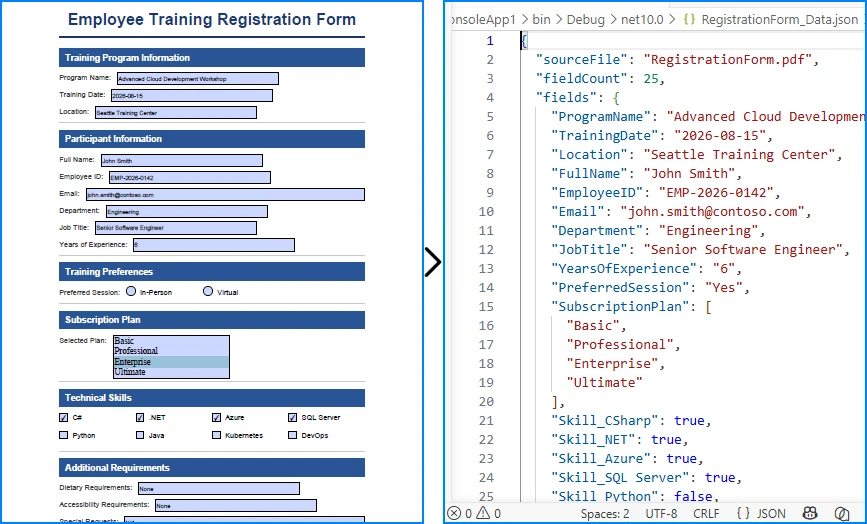
This approach works well for interactive PDF forms that contain structured fields such as text boxes, check boxes, radio buttons, and drop-down lists. Because each field already has a unique name, the extracted data can be serialized directly into JSON without additional parsing.
If you need a deeper look at importing and exporting PDF form field data in C#, see our dedicated guide on working with PDF form fields using Spire.PDF for .NET.
6. Invoice PDF to JSON: A Real-World Example
Invoice processing is one of the most common business use cases for PDF to JSON conversion. Instead of presenting a full parser implementation, this section demonstrates how the extraction techniques from Sections 3 and 4 come together to solve a real problem.
Target JSON Structure
Before writing any extraction code, define your target schema. For a typical invoice, the JSON output might look like this:
{
  "invoiceNumber": "INV-2026-0042",
  "date": "2026-06-15",
  "vendor": "Contoso Ltd",
  "paymentTerms": "Net 30",
  "lineItems": [
    { "description": "Widget A", "quantity": 150, "unitPrice": 24.50, "total": 3675.00 },
    { "description": "Widget B", "quantity": 80, "unitPrice": 39.90, "total": 3192.00 }
  ],
  "subtotal": 8367.00,
  "tax": 669.36,
  "total": 9036.36
}
Extraction Pattern
Use text extraction (Section 3) to parse header fields via regex, and table extraction (Section 4) to pull line items:
// Parse header fields from extracted text using regex
invoice["invoiceNumber"] = Regex.Match(fullText, @"Invoice Number:\s*(\S+)").Groups[1].Value;
invoice["date"] = Regex.Match(fullText, @"Date:\s*(\S+)").Groups[1].Value;
invoice["vendor"] = Regex.Match(fullText, @"Vendor:\s*(.+)").Groups[1].Value;

// Extract line items from table data (Section 4 pattern)
for (int r = 1; r < table.GetRowCount(); r++)
{
    lineItems.Add(new
    {
        description = table.GetText(r, 0).Trim(),
        quantity = int.Parse(table.GetText(r, 1).Trim()),
        unitPrice = ParseCurrency(table.GetText(r, 2)),
        total = ParseCurrency(table.GetText(r, 3))
    });
}
The implementation combines the text extraction introduced in Section 3 with the table extraction introduced in Section 4. Regex is used only for simple field matching — the core PDF processing relies entirely on Spire.PDF APIs.
Handling Different Invoice Layouts
In production, you rarely deal with a single invoice format:
- Fixed template + regex — works when you control the source or process invoices from a known vendor
- Template matching — maintain a set of regex patterns, one per vendor
- AI-assisted extraction — for unknown or highly variable layouts, combine OCR output with an LLM
Regex-based parsing is fast and reliable for known formats. For a production-ready implementation, extend the PdfToJsonConverter class from Section 8 to build a dedicated invoice parser that reuses the same extraction patterns.
7. Convert Multiple PDFs to JSON in Batch
Production workflows process hundreds or thousands of PDFs at once. This batch processor handles errors gracefully and logs results:
using Spire.Pdf;
using Spire.Pdf.Texts;
using System.Collections.Generic;
using System.IO;
using System.Text.Json;

string inputDir = @"C:\PDFs\Invoices";
string outputDir = @"C:\Output\JSON";
Directory.CreateDirectory(outputDir);

string[] pdfFiles = Directory.GetFiles(inputDir, "*.pdf");
var results = new List<object>();

foreach (string pdfPath in pdfFiles)
{
    string fileName = Path.GetFileNameWithoutExtension(pdfPath);
    string outputPath = Path.Combine(outputDir, $"{fileName}.json");

    try
    {
        using (PdfDocument pdf = new PdfDocument())
        {
            pdf.LoadFromFile(pdfPath);
            var pageTexts = new List<string>();

            for (int i = 0; i < pdf.Pages.Count; i++)
            {
                var extractor = new PdfTextExtractor(pdf.Pages[i]);
                var options = new PdfTextExtractOptions { IsExtractAllText = true };
                pageTexts.Add(extractor.ExtractText(options).Trim());
            }

            var doc = new
            {
                sourceFile = Path.GetFileName(pdfPath),
                pageCount = pdf.Pages.Count,
                processedAt = DateTime.UtcNow,
                content = pageTexts
            };

            File.WriteAllText(outputPath, JsonSerializer.Serialize(doc,
                new JsonSerializerOptions { WriteIndented = true }));

            results.Add(new { file = fileName, status = "success" });
        }
    }
    catch (Exception ex)
    {
        results.Add(new { file = fileName, status = "error", error = ex.Message });
    }
}

File.WriteAllText(Path.Combine(outputDir, "_log.json"),
    JsonSerializer.Serialize(results, new JsonSerializerOptions { WriteIndented = true }));
Swap the text-only extraction with the invoice JSON extraction pattern from Section 6 if your batch consists of invoices, or with the PdfToJsonConverter class from Section 8 for general-purpose conversion.
8. Build a PDF to JSON Converter in C#
For production applications, encapsulate all extraction logic into a single class. The PdfToJsonConverter below combines text, table, and form field extraction into one reusable PDF to JSON converter:
using Spire.Pdf;
using Spire.Pdf.Texts;
using Spire.Pdf.Utilities;
using Spire.Pdf.Fields;
using Spire.Pdf.Widget;
using System;
using System.Collections.Generic;
using System.IO;
using System.Text.Json;

public class PdfToJsonConverter
{
    private readonly JsonSerializerOptions _jsonOptions = new()
    {
        WriteIndented = true,
        PropertyNamingPolicy = JsonNamingPolicy.CamelCase,
        DefaultIgnoreCondition = System.Text.Json.Serialization.JsonIgnoreCondition.WhenWritingNull
    };

    public string ConvertToJson(string pdfPath)
    {
        using (PdfDocument pdf = new PdfDocument())
        {
            pdf.LoadFromFile(pdfPath);

            var result = new
            {
                sourceFile = Path.GetFileName(pdfPath),
                processedAt = DateTime.UtcNow,
                text = ExtractText(pdf),
                tables = ExtractTables(pdf),
                formFields = ExtractFormFields(pdf)
            };

            return JsonSerializer.Serialize(result, _jsonOptions);
        }
    }

    public void ConvertAndSave(string pdfPath, string outputPath)
    {
        File.WriteAllText(outputPath, ConvertToJson(pdfPath));
    }

    // Reuses the text extraction technique from Section 3 (PdfTextExtractor + PdfTextExtractOptions)
    private List<PageText> ExtractText(PdfDocument pdf) { return new List<PageText>(); }

    // Reuses the table extraction technique from Section 4 (PdfTableExtractor + ExtractTable)
    private List<TableData> ExtractTables(PdfDocument pdf) { return new List<TableData>(); }

    // Reuses the form field extraction technique from Section 5 (PdfFormWidget + field type checking)
    private Dictionary<string, object> ExtractFormFields(PdfDocument pdf) { return new Dictionary<string, object>(); }
}

public class PageText
{
    public int PageNumber { get; set; }
    public string Text { get; set; }
}

public class TableData
{
    public int PageNumber { get; set; }
    public int RowCount { get; set; }
    public List<List<string>> Rows { get; set; }
}
Usage
var converter = new PdfToJsonConverter();

// Single file
converter.ConvertAndSave("InvoiceReport.pdf", "InvoiceReport.json");

// Use inside an ASP.NET controller
[HttpPost("api/pdf-to-json")]
public IActionResult ConvertPdf(IFormFile file)
{
    var tempPath = Path.GetTempFileName();
    file.CopyTo(new FileStream(tempPath, FileMode.Create));
    var converter = new PdfToJsonConverter();
    string json = converter.ConvertToJson(tempPath);
    return Content(json, "application/json");
}
The helper methods (ExtractText, ExtractTables, ExtractFormFields) reuse the extraction techniques introduced in Sections 3–5. Refer to those sections for the full implementations.
Best Practices for Production Pipelines
When building PDF to JSON conversion into a production system:
- Define your JSON schema first. Map each PDF element to a target field before writing extraction code.
- Validate extracted data. Currency strings, dates, and IDs should be parsed and verified before serialization.
- Handle missing values. Use
JsonIgnoreCondition.WhenWritingNullto omit null fields from output. - Include metadata. Always record source file name, page numbers, and extraction timestamp for auditing.
- Clean text artifacts. Trim whitespace, normalize line breaks, and handle encoding issues in extracted strings.
9. Convert OCR Output to JSON in C#
Scanned PDFs contain images rather than selectable text, so they must be processed with an OCR engine before they can be converted to JSON. Spire.PDF handles PDF rendering and page processing, while text recognition should be performed by an OCR solution such as Tesseract or Azure AI Vision.
For a complete walkthrough, see How to Extract Text from Scanned PDFs in C#.
Once OCR returns the recognized text, you can parse it using the same techniques shown earlier in this article.
Parse OCR Text into JSON
string recognizedText = ocrEngine.Recognize(imagePath);

// Parse recognized text using the same helper methods demonstrated in previous examples.
var parsedData = ParseRecognizedText(recognizedText);

string json = JsonSerializer.Serialize(parsedData, new JsonSerializerOptions
{
    WriteIndented = true
});
Best Practices
- Scan documents at 300 DPI or higher for better OCR accuracy.
- Validate important fields such as invoice numbers, dates, and currency values before serialization.
- Reuse the parsing patterns introduced earlier in this article to build consistent JSON structures.
10. Performance Considerations
PDF to JSON conversion works fine for a single 5-page document. In production, you are processing hundreds of files with hundreds of pages each. These are the issues you will actually hit.
Large PDFs (100+ Pages)
Avoid loading all page text into a List<string> before serialization. Process and write each page incrementally:
using (var stream = File.Create("output.json"))
using (var writer = new Utf8JsonWriter(stream, new JsonWriterOptions { Indented = true }))
{
    writer.WriteStartObject();
    writer.WriteString("sourceFile", Path.GetFileName(pdfPath));
    writer.WriteStartArray("pages");

    for (int i = 0; i < pdf.Pages.Count; i++)
    {
        var extractor = new PdfTextExtractor(pdf.Pages[i]);
        var options = new PdfTextExtractOptions { IsExtractAllText = true };
        string text = extractor.ExtractText(options).Trim();

        writer.WriteStartObject();
        writer.WriteNumber("pageNumber", i + 1);
        writer.WriteString("text", text);
        writer.WriteEndObject();
    }

    writer.WriteEndArray();
    writer.WriteEndObject();
}
Utf8JsonWriter writes directly to the stream instead of building a string in memory. For a 500-page document, this can cut peak memory usage by 60-70% compared to JsonSerializer.Serialize().
Memory Usage
PdfDocument holds parsed page trees, fonts, and image references in memory. Two rules:
- Always wrap
PdfDocumentinusing— it releases unmanaged resources on dispose - Process one document at a time — do not keep multiple
PdfDocumentinstances open simultaneously unless you have the RAM for it
For batch jobs processing 1000+ files, the using pattern inside the loop ensures each document is fully released before the next one loads.
Parallel Processing
Batch conversion is CPU-bound and parallelizes well:
var pdfFiles = Directory.GetFiles(inputDir, "*.pdf");

Parallel.ForEach(pdfFiles,
    new ParallelOptions { MaxDegreeOfParallelism = Environment.ProcessorCount },
    pdfPath =>
{
    string outputPath = Path.Combine(outputDir,
        Path.GetFileNameWithoutExtension(pdfPath) + ".json");
    var converter = new PdfToJsonConverter();
    converter.ConvertAndSave(pdfPath, outputPath);
});
Each thread creates its own PdfToJsonConverter and PdfDocument instance. PdfDocument is not thread-safe — never share a single instance across threads.
When to Use Streaming JSON
Use Utf8JsonWriter over JsonSerializer.Serialize() when:
- Output JSON exceeds 50 MB
- You are processing PDFs with 200+ pages
- Running in a memory-constrained environment (container with 512 MB limit)
For smaller documents, JsonSerializer is simpler and the memory difference is negligible.
11. FAQ
Can I convert PDF to JSON in C# for free?
Spire.PDF for .NET offers a free evaluation version with a page limit. For production use, you can apply for a 30-day free license or purchase a commercial license. The System.Text.Json serializer is built into .NET and free.
Can scanned PDFs be converted to JSON?
Yes, but you need an external OCR engine. Spire.PDF renders PDF pages as images via SaveAsImage(), which you then pass to Tesseract, Azure Computer Vision, or Amazon Textract for text recognition. The recognized text is then parsed and serialized to JSON. See Section 9 for the integration pattern.
Can I convert PDF tables to JSON automatically?
Yes. PdfTableExtractor automatically detects table structures on each page without manual configuration. It handles both properly structured tables (created in Word or Excel) and visual tables (text aligned to look like rows and columns). For multi-page tables or tables without headers, see the handling patterns in Section 4.
Can I batch convert multiple PDFs to JSON?
Yes. Iterate through a directory using Directory.GetFiles(), process each PDF with Spire.PDF extraction APIs, and save individual JSON files. Include error handling so one failed file does not stop the batch. See Section 7 for a complete example.
How can I convert large PDF files to JSON in C#?
Process the PDF page-by-page rather than loading all content into memory at once. For very large files (100+ pages), use Utf8JsonWriter to write JSON incrementally to a stream instead of building the entire output in memory. See Section 10 for the streaming JSON pattern and parallel processing approach.
Can I convert PDF to JSON using an API?
Yes. You can wrap the PdfToJsonConverter class from this article in an ASP.NET Web API endpoint. Accept a PDF upload, run the extraction, and return the JSON response. Spire.PDF works in any .NET hosting environment — ASP.NET Core, Azure Functions, AWS Lambda, or a self-hosted console app. See the ASP.NET controller example in Section 8.
Conclusion
PDF to JSON is not a single operation. Depending on your document, you are solving one of three different problems: wrapping raw text in a JSON envelope, parsing key-value patterns into flat objects, or building structured business JSON from text and table extraction.
This article covered all three, plus the complications that break naive implementations: tables without headers, merged cells, multi-page tables, fillable form fields, varying invoice layouts, batch processing, memory management for large documents, and OCR integration boundaries.
The PdfToJsonConverter class is a starting point you can adapt to your document types. The invoice extraction pattern shown in Section 6 demonstrates how to combine these techniques for real business documents. Both use Spire.PDF for .NET, which handles all PDF reading locally without external dependencies.
To get started:
- Install via NuGet:
Install-Package Spire.PDF - Apply for a 30-day free license to evaluate without page limits
- Explore the Spire.PDF documentation for additional extraction scenarios
Formatting plays an important role in making Excel spreadsheets easier to read, analyze, and present. Whether you are generating reports, invoices, financial statements, or dashboards, raw data often needs proper styling before it can be shared with end users.
In C#, Excel formatting tasks may include changing fonts, applying colors, aligning content, formatting numbers and dates, adding borders, creating tables, and configuring page layouts. Performing these tasks manually can be time-consuming, especially when dealing with large volumes of spreadsheets.
Spire.XLS for .NET provides a comprehensive set of APIs for creating, editing, formatting, and converting Excel documents without requiring Microsoft Excel to be installed. In this article, you will learn how to apply various types of formatting to Excel files in C# using Spire.XLS for .NET.
Table of Contents:
- Prepare Your C# Project for Excel Formatting
- Part 1. Format Cell Appearance
- Part 2. Format Cell Values
- Part 3. Format Ranges and Layout
- Part 4. Apply Advanced Formatting
- Part 5. Format Excel Tables and Worksheets
- Part 6. Create a Professional Report Example
- Conclusion
- FAQs
Prepare Your C# Project for Excel Formatting
Spire.XLS for .NET is a powerful Excel library that enables developers to work with XLS, XLSX, XLSM, CSV, and other spreadsheet formats programmatically. Besides formatting operations, it also supports formula calculation, chart creation, pivot tables, worksheet management, printing, and file conversion.
To install Spire.XLS for .NET, run the following NuGet command:
Install-Package Spire.XLS
Before applying formatting, load an existing Excel workbook (or create a new one) and access the worksheet you want to modify. Once all formatting operations are complete, save the result to a new Excel file using the SaveToFile() method.
using Spire.Xls;
using System.Drawing;

// Create a workbook object
Workbook workbook = new Workbook();

// Load an existing Excel file
workbook.LoadFromFile("input.xlsx");

// Get a specific worksheet
Worksheet sheet = workbook.Worksheets[0];

// Apply formatting
...

// Save the result
workbook.SaveToFile("output.xlsx", ExcelVersion.Version2016);
Note: The following examples assume that the workbook has already been loaded and the worksheet object has been obtained.
Part 1. Format Cell Appearance
Cell appearance settings control how data looks inside a worksheet. Proper formatting can significantly improve readability and help users quickly identify important information.
Format Cell Fonts
Font formatting allows you to customize the visual style of cell content. Common options include font family, font size, bold, italic, underline, and font color. These settings are frequently used for report titles, section headers, and highlighted values.
CellStyle style = workbook.Styles.Add("FontStyle");

style.Font.FontName = "Calibri";
style.Font.Size = 14;
style.Font.IsBold = true;
style.Font.IsItalic = true;
style.Font.Underline = FontUnderlineType.Single;
style.Font.Color = Color.Blue;

sheet.Range["A1"].Text = "Formatted Text";
sheet.Range["A1"].Style = style;
Set Cell Background Colors
Background colors help distinguish different sections of a worksheet and draw attention to key cells. For example, you may use a colored header row or highlight summary data with a contrasting fill color.
sheet.Range["A2"].Text = "Background Color";
sheet.Range["A2"].Style.Color = Color.LightSkyBlue;
Align Cell Content
Excel provides horizontal alignment, vertical alignment, indentation, and text rotation options. Proper alignment improves the overall layout of a worksheet and makes tabular data easier to scan.
sheet.Range["B2"].Text = "Centered Text";
CellStyle style = sheet.Range["B2"].Style;

style.HorizontalAlignment = HorizontalAlignType.Center;
style.VerticalAlignment = VerticalAlignType.Center;
style.Rotation = 45;

sheet.SetRowHeight(2, 40);
sheet.SetColumnWidth(2, 20);
Add Cell Borders
Borders are useful for separating rows and columns and defining table structures. Depending on the scenario, you can apply borders to individual cells or entire ranges and customize their styles and colors.
CellRange range = sheet.Range["A4:D6"];
range.Text = "Border";

range.Style.Borders[BordersLineType.EdgeTop].LineStyle = LineStyleType.Thin;
range.Style.Borders[BordersLineType.EdgeBottom].LineStyle = LineStyleType.Thin;
range.Style.Borders[BordersLineType.EdgeLeft].LineStyle = LineStyleType.Thin;
range.Style.Borders[BordersLineType.EdgeRight].LineStyle = LineStyleType.Thin;
range.Style.Borders[BordersLineType.EdgeTop].Color = Color.Black;
Wrap Text
When cell content exceeds the available column width, wrapping text allows multiple lines to be displayed within the same cell, preventing important information from being truncated.
sheet.Range["A8"].Text = "This is a very long sentence that will automatically wrap within the cell.";

sheet.Range["A8"].Style.WrapText = true;

sheet.SetColumnWidth(1, 20);
sheet.SetRowHeight(8, 60);
Part 2. Format Cell Values
Value formatting changes how data is displayed without modifying the underlying values. This is particularly important for business and financial spreadsheets.
Format Numbers
Numeric formats can control decimal places, thousands separators, scientific notation, and other display rules. Choosing the right format improves accuracy and readability.
sheet.Range["A10"].NumberValue = 1234567.891;
sheet.Range["A10"].NumberFormat = "#,##0.00";
Format Currency
Currency formatting automatically displays monetary symbols and decimal precision according to your requirements. This is commonly used in invoices, budgets, and financial reports.
sheet.Range["A11"].NumberValue = 5999.95;
sheet.Range["A11"].NumberFormat = "$#,##0.00";
Format Dates
Date formatting allows the same date value to be displayed in different styles, such as short dates, long dates, or custom patterns. Consistent date formats make reports easier to interpret.
sheet.Range["A12"].DateTimeValue = DateTime.Now;
sheet.Range["A12"].NumberFormat = "yyyy-MM-dd";
Part 3. Format Ranges and Layout
Instead of formatting cells one by one, you can apply styles to larger worksheet areas to improve efficiency and maintain consistency.
Format Ranges
A range may contain multiple rows and columns. Applying formatting to a range ensures that all cells share the same appearance and reduces repetitive code.
CellRange range = sheet.Range["A14:D18"];

range.Style.Color = Color.LightYellow;
range.Style.Font.IsBold = true;
range.Style.HorizontalAlignment = HorizontalAlignType.Center;
Merge Cells
Merged cells are often used for report titles and section headers. After merging, the content can be centered and styled to create a more professional appearance.
sheet.Range["A20:D20"].Merge();

sheet.Range["A20"].Text = "Monthly Sales Report";
sheet.Range["A20"].Style.Font.Size = 18;
sheet.Range["A20"].Style.Font.IsBold = true;
sheet.Range["A20"].Style.HorizontalAlignment = HorizontalAlignType.Center;
Format Rows and Columns
Formatting entire rows or columns is useful when all cells in a specific area should follow the same style, such as a header row or a currency column.
sheet.Rows[21].Style.Font.IsBold = true;
sheet.Rows[21].Style.Color = Color.LightGray;

sheet.Columns[1].Style.NumberFormat = "$#,##0.00";
AutoFit Rows and Columns
AutoFit automatically adjusts row heights and column widths based on cell content. This helps prevent clipped text and improves the presentation of generated spreadsheets.
sheet.AllocatedRange.AutoFitColumns();
sheet.AllocatedRange.AutoFitRows();
Part 4. Apply Advanced Formatting
Conditional formatting enables Excel to apply styles automatically based on cell values. Instead of manually highlighting data, rules can be configured to identify trends, exceptions, or important values.
For example, you can highlight numbers above a threshold, display data bars, apply color scales, or use icon sets to visualize performance indicators. These features make large datasets easier to analyze and understand.
sheet.Range["A25"].NumberValue = 1200;
sheet.Range["A26"].NumberValue = 800;
sheet.Range["A27"].NumberValue = 1500;

XlsConditionalFormats formats = sheet.ConditionalFormats.Add();
formats.AddRange(sheet.Range["A25:A27"]);
IConditionalFormat format = formats.AddCondition();
format.FormatType = ConditionalFormatType.CellValue;
format.FirstFormula = "1000";
format.Operator = ComparisonOperatorType.Greater;
format.BackColor = Color.LightGreen;
Part 5. Format Excel Tables and Worksheets
Formatting can also be applied at the worksheet level to improve the overall structure and appearance of a workbook.
Format Excel Tables
Excel tables provide built-in styling options such as header formatting, alternating row colors, and predefined themes. Converting a data range into a table can instantly enhance readability and organization.
sheet.Range["A30"].Text = "Product";
sheet.Range["B30"].Text = "Sales";
sheet.Range["A31"].Text = "Laptop";
sheet.Range["B31"].NumberValue = 5000;
sheet.Range["A32"].Text = "Monitor";
sheet.Range["B32"].NumberValue = 2000;

IListObject table = sheet.ListObjects.Create("SalesTable", sheet.Range["A30:B32"]);
table.BuiltInTableStyle = TableBuiltInStyles.TableStyleMedium2;
Configure Page Layout
Page layout settings determine how worksheets appear when printed or exported. Common options include page orientation, margins, print areas, scaling, and repeating header rows.
Proper page setup ensures that reports look professional both on screen and on paper.
sheet.PageSetup.Orientation = PageOrientationType.Landscape;
sheet.PageSetup.LeftMargin = 0.5;
sheet.PageSetup.RightMargin = 0.5;
sheet.PageSetup.TopMargin = 0.75;
sheet.PageSetup.BottomMargin = 0.75;
sheet.PageSetup.FitToPagesWide = 1;
sheet.PageSetup.FitToPagesTall = 1;
Part 6. Create a Professional Report Example
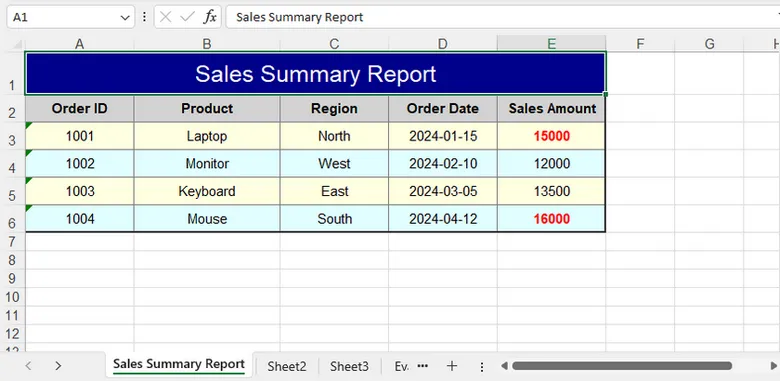
In real-world scenarios, multiple formatting techniques are often used together. A typical report may include a merged title, custom fonts, colored headers, borders, number formats, conditional formatting, and optimized page settings.
By combining these features, you can generate polished Excel documents that are ready for distribution without requiring manual editing.
using Spire.Xls;
using Spire.Xls.Core.Spreadsheet.Collections;
using Spire.Xls.Core;
using System.Drawing;

class Program
{
    static void Main()
    {
        // Create a new workbook
        Workbook workbook = new Workbook();
        Worksheet sheet = workbook.Worksheets[0];

        sheet.Name = "Sales Summary Report";

        // Title Row
        CellRange title = sheet.Range["A1:E1"];
        title.Merge();
        title.Text = "Sales Summary Report";

        title.Style.Font.FontName = "Arial";
        title.Style.Font.Size = 16;
        title.Style.Font.Color = Color.White;
        title.Style.Color = Color.DarkBlue;

        title.Style.HorizontalAlignment = HorizontalAlignType.Center;
        title.Style.VerticalAlignment = VerticalAlignType.Center;

        sheet.Rows[0].RowHeight = 30;

        // Headers
        string[] headers = { "Order ID", "Product", "Region", "Order Date", "Sales Amount" };

        for (int i = 0; i < headers.Length; i++)
        {
            CellRange cell = sheet.Range[2, i + 1];

            cell.Text = headers[i];
            cell.Style.Font.IsBold = true;
            cell.Style.Color = Color.LightGray;

            cell.Style.Borders[BordersLineType.EdgeBottom].LineStyle = LineStyleType.Medium;
            cell.Style.Borders[BordersLineType.EdgeBottom].Color = Color.DarkBlue;
        }

        // Data
        object[][] data =
        {
            new object[] { 1001, "Laptop", "North", "2024-01-15", 15000 },
            new object[] { 1002, "Monitor", "West", "2024-02-10", 12000 },
            new object[] { 1003, "Keyboard", "East", "2024-03-05", 13500 },
            new object[] { 1004, "Mouse", "South", "2024-04-12", 16000 }
        };

        for (int r = 0; r < data.Length; r++)
        {
            for (int c = 0; c < data[r].Length; c++)
            {
                CellRange cell = sheet.Range[r + 3, c + 1];
                var value = data[r][c];

                if (c == 3) // Order Date
                {
                    cell.DateTimeValue = DateTime.Parse(value.ToString());
                    cell.NumberFormat = "yyyy-MM-dd";
                }
                else if (c == 4) // Sales Amount
                {
                    cell.NumberValue = Convert.ToDouble(value);
                    cell.NumberFormat = "$#,##0.00";
                }
                else
                {
                    cell.Text = value.ToString();
                }

                // Alternate row colors
                cell.Style.Color = (r % 2 == 0)
                    ? Color.LightYellow
                    : Color.LightCyan;
            }
        }

        // Borders
        CellRange range = sheet.Range["A2:E6"];

        range.BorderAround(LineStyleType.Medium, Color.Black);
        range.BorderInside(LineStyleType.Thin, Color.Gray);

        // Auto Fit Columns
        for (int i = 1; i <= 5; i++)
        {
            sheet.AutoFitColumn(i);
        }

        // Conditional Formatting
        XlsConditionalFormats formats = sheet.ConditionalFormats.Add();
        formats.AddRange(sheet.Range["E3:E6"]);

        IConditionalFormat condition = formats.AddCondition();
        condition.FormatType = ConditionalFormatType.CellValue;
        condition.Operator = ComparisonOperatorType.Greater;
        condition.FirstFormula = "14000";

        condition.FontColor = Color.Red;
        condition.IsBold = true;

        // Align + Layout Formatting
        CellRange all = sheet.AllocatedRange;

        for (int r = 1; r < all.RowCount; r++)
        {
            all.Rows[r].HorizontalAlignment = HorizontalAlignType.Center;
           // all.Rows[r].VerticalAlignment = VerticalAlignType.Center;
            all.Rows[r].RowHeight = 20;
        }

        for (int c = 0; c < all.ColumnCount; c++)
        {
            all.Columns[c].ColumnWidth = (c == 1) ? 19 : 14;
        }

        // Save
        workbook.SaveToFile("SalesSummaryReport.xlsx", ExcelVersion.Version2016);
        workbook.Dispose();
    }
}
Output:
Conclusion
Formatting is an essential step in creating professional Excel documents. With Spire.XLS for .NET, you can efficiently customize cell appearance, control number and date formats, manage worksheet layouts, apply conditional formatting, and build visually appealing reports entirely in C#.
By using the techniques covered in this guide, you can automate Excel formatting tasks and generate polished spreadsheets suitable for business, reporting, and data analysis scenarios.
FAQs
Can I format Excel files without Microsoft Excel installed?
Yes. Spire.XLS for .NET works independently of Microsoft Excel and can create, edit, and format spreadsheets directly through code.
Does formatting change the actual cell values?
No. Most formatting operations only affect how data is displayed. The underlying values remain unchanged unless explicitly modified.
Can I apply the same style to multiple cells at once?
Yes. Styles can be applied to ranges, rows, columns, or entire worksheets, making it easy to maintain consistent formatting.
Does Spire.XLS support conditional formatting?
Yes. The library supports common conditional formatting features, including highlighting rules, data bars, color scales, and icon sets.
Which Excel formats are supported?
Spire.XLS supports XLS, XLSX, XLSM, CSV, and several other spreadsheet formats for both reading and writing.
How to Convert HTML to Markdown in C# (File, String & Stream)
2026-05-29 09:55:41 Written by alice yang
HTML is widely used for web pages, online articles, and rich text content, while Markdown (.md) is often preferred for documentation, technical writing, and text-based publishing. If you need to reuse HTML content in a Markdown-based workflow, converting it manually can be time-consuming and error-prone.
In this tutorial, we’ll show you how to convert HTML to Markdown in C# step-by-step using Spire.Doc for .NET. You’ll learn how to convert HTML files, HTML strings, streams, and multiple HTML files in batch.
Table of Contents
- When Do You Need to Convert HTML to Markdown?
- Install C# HTML to Markdown Library
- Convert an HTML File to Markdown in C#
- Convert HTML Strings to Markdown in C#
- Convert HTML Stream to Markdown in C#
- Batch Convert Multiple HTML Files
- What HTML Elements Can Be Converted to Markdown?
- Troubleshooting Common HTML to Markdown Issues
When Do You Need to Convert HTML to Markdown?
Converting HTML to Markdown is useful when you want to reuse web-based or rich-text content in a cleaner, text-friendly format. Common scenarios include:
- Moving HTML articles or CMS content into Markdown-based documentation systems.
- Preparing content for GitHub, static site generators, or developer portals.
- Converting rich text editor output into editable Markdown files.
- Simplifying HTML pages for version control, review, or long-term maintenance.
- Exporting help center articles, product descriptions, or blog content as .md files.
Install C# HTML to Markdown Library
To convert HTML to Markdown programmatically, you need to add Spire.Doc for .NET to your project. This standalone document processing library allows you to parse HTML and export it to clean Markdown without requiring Microsoft Word or Microsoft Office interop assemblies on your server.
Method 1: Install via NuGet Package Manager
Run this command in your NuGet Package Manager Console:
Install-Package Spire.Doc
Method 2: Download and Reference DLLs Manually
If your development environment is offline or you prefer not to use NuGet, you can manually download and reference the library:
- Download & Unzip: Get the Spire.Doc for .NET package from the official download page and extract it.
- Add Reference: In the Solution Explorer of Visual Studio, right-click Dependencies (or References) > Add Project Reference (or Add Reference) > Browse and select the
Spire.Doc.dllthat matches your target .NET Framework or .NET Core version.
Note: Markdown support is available in Spire.Doc for .NET version 12.3.12 or later.
Convert an HTML File to Markdown in C#
If your HTML content is stored as a local .html or .htm file, you can convert it directly using the Document object. This approach is ideal for processing static web pages, documentation exports, or offline help articles.
C# Code Example
using Spire.Doc;
using Spire.Doc.Documents;

namespace ConvertHtmlFileToMarkdown
{
    class Program
    {
        static void Main(string[] args)
        {
            // Initialize a Document instance within a using statement
            using (Document document = new Document())
            {
                // Load the local HTML file
                document.LoadFromFile("input.html", FileFormat.Html, XHTMLValidationType.None);

                // Export the HTML file to a Markdown file
                document.SaveToFile("output.md", FileFormat.Markdown);
            }
        }
    }
}
How the Code Works:
using (Document document = new Document()): Ensures theDocumentobject is properly disposed of after conversion.LoadFromFile("input.html", FileFormat.Html, XHTMLValidationType.None): Reads the source HTML file without strict XHTML validation, allowing the library to parse the HTML even if it doesn’t fully comply with XHTML rules.SaveToFile("output.md", FileFormat.Markdown): Maps the supported HTML elements such as headings, bold text, lists, images, and links into Markdown syntax, and generate the .md file.
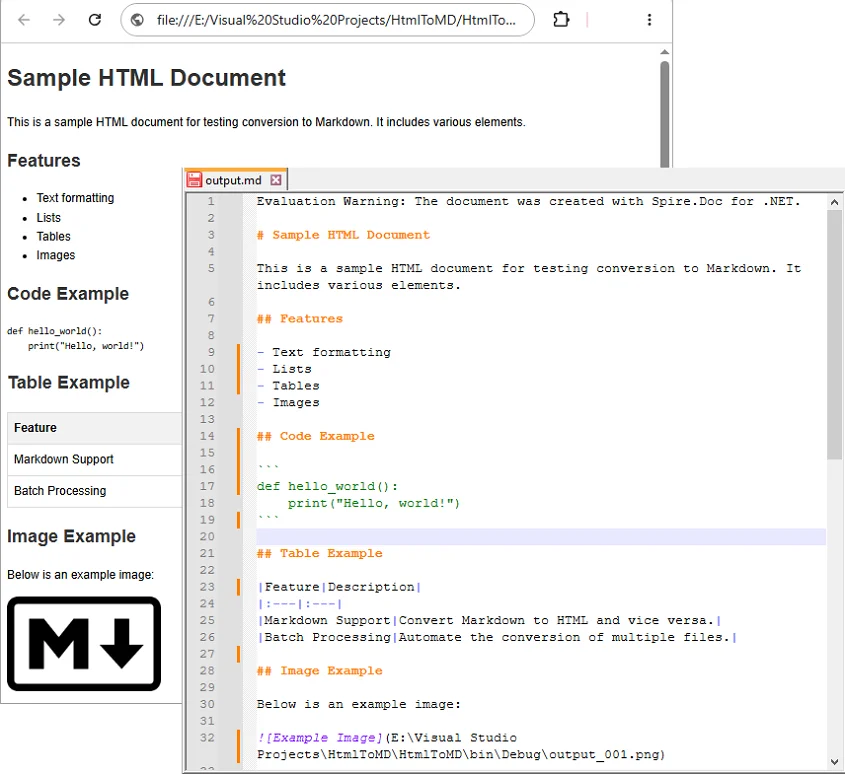
Output:
Convert HTML Strings to Markdown in C#
When dealing with dynamic web data—such as content fetched from a database, API responses, or CMS rich-text inputs—you can convert raw HTML strings directly to Markdown without saving them as physical files first.
C# Code Example
using Spire.Doc;
using Spire.Doc.Documents;

namespace ConvertHtmlStringToMarkdown
{
    class Program
    {
        static void Main(string[] args)
        {
            // Initialize a Document instance
            using (Document document = new Document())
            {
                // Add a section and paragraph to host the dynamic html content
                Section section = document.AddSection();
                Paragraph paragraph = section.AddParagraph();

                // Define the source HTML string
                string htmlString = @"
                    <h1>HTML to Markdown Conversion</h1>
                    <p>This is a sample paragraph with a <a href='https://www.example.com'>link</a>.</p>
                    <ul>
                        <li>First item</li>
                        <li>Second item</li>
                        <li>Third item</li>
                    </ul>";

                // Parse and append the HTML string directly into the text paragraph
                paragraph.AppendHTML(htmlString);

                // Save the fully compiled document model as Markdown
                document.SaveToFile("html-string-output.md", FileFormat.Markdown);
            }
        }
    }
}
Key Methods Explanation:
document.AddSection()§ion.AddParagraph(): An emptyDocumentobject does not contain structural layouts. You must explicitly create a parent section and a text paragraph to serve as the container before injecting raw HTML string content.paragraph.AppendHTML(htmlString): Parses the HTML string and inserts supported HTML elements into the document structure.
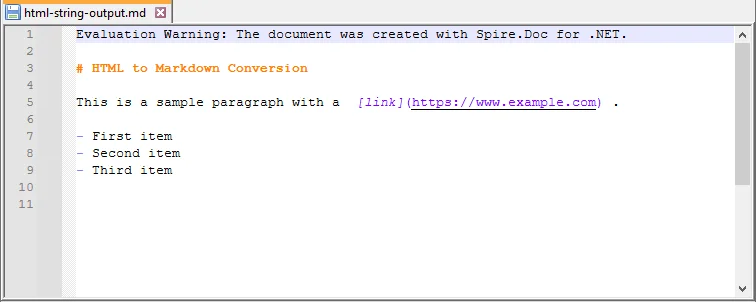
Output:
Convert HTML Stream to Markdown in C#
In cloud-ready or backend enterprise applications, HTML content is often processed in memory as a stream rather than being read from a fixed physical path. Using LoadFromStream() and SaveToStream(), you can convert in-memory HTML content directly to a Markdown stream.
This approach is useful for web services, ASP.NET applications, background processing tasks, or conversion APIs where files are uploaded, converted, and returned without permanent disk storage.
C# Code Example
using System.IO;
using System.Text;
using Spire.Doc;
using Spire.Doc.Documents;

namespace ConvertHtmlStreamToMarkdown
{
    class Program
    {
        static void Main(string[] args)
        {
            // Define a sample HTML string to simulate an in-memory input source
            string htmlContent = "<h1>HTML Stream to Markdown Stream</h1><p>This process happens entirely in memory.</p>";
            byte[] htmlBytes = Encoding.UTF8.GetBytes(htmlContent);

            // Create an input stream from the HTML bytes
            using (MemoryStream inputStream = new MemoryStream(htmlBytes))
            {
                // Create an empty memory stream to receive the converted Markdown data
                using (MemoryStream outputStream = new MemoryStream())
                {
                    // Initialize the Document instance
                    using (Document document = new Document())
                    {
                        // Load the HTML content directly from the input stream
                        document.LoadFromStream(inputStream, FileFormat.Html, XHTMLValidationType.None);

                        // Save the converted content directly into the output stream as Markdown
                        document.SaveToStream(outputStream, FileFormat.Markdown);
                    }

                    // Crucial: Reset the output stream position to the beginning before reading it
                    outputStream.Position = 0;

                    // Optional: Convert the output stream back to a string to verify the result (you can also save it as a .md file)
                    using (StreamReader reader = new StreamReader(outputStream, Encoding.UTF8))
                    {
                        string markdownResult = reader.ReadToEnd();
                        System.Console.WriteLine(markdownResult);
                    }
                }
            }
        }
    }
}
Batch Convert Multiple HTML Files
For large-scale publishing workflows, you can automate the conversion of multiple HTML files to Markdown using a loop.
C# Code Example
The following example converts all .html files in a source folder to .md files in an output folder.
using Spire.Doc;
using Spire.Doc.Documents;
using System;
using System.IO;

namespace BatchConvertHtmlToMarkdown
{
    internal class Program
    {
        static void Main(string[] args)
        {
            string inputFolder = @"C:\HtmlFiles";
            string outputFolder = @"C:\MarkdownFiles";

            // Create output folder if it does not exist
            Directory.CreateDirectory(outputFolder);

            // Get all HTML files
            string[] htmlFiles = Directory.GetFiles(inputFolder, "*.html");

            foreach (string htmlFile in htmlFiles)
            {
                try
                {
                    string fileName = Path.GetFileNameWithoutExtension(htmlFile);
                    string outputPath = Path.Combine(outputFolder, fileName + ".md");

                    using (Document document = new Document())
                    {
                        document.LoadFromFile(htmlFile, FileFormat.Html, XHTMLValidationType.None);
                        document.SaveToFile(outputPath, FileFormat.Markdown);
                    }

                    Console.WriteLine($"Converted: {Path.GetFileName(htmlFile)}");
                }
                catch (Exception ex)
                {
                    Console.WriteLine($"Failed to convert {Path.GetFileName(htmlFile)}");
                    Console.WriteLine($"Error: {ex.Message}");
                }
            }

            Console.WriteLine("HTML to Markdown batch conversion completed.");
        }
    }
}
What HTML Elements Can Be Converted to Markdown?
HTML has many elements, but Markdown supports only a smaller set of document structures. During conversion, content-focused elements are usually easier to preserve than layout-focused or style-heavy elements. For instance, standard Markdown tables only support basic rows and columns. If your source contains complex tables, you might want to convert HTML to Excel in C# instead.
The following table summarizes common HTML elements and how they may appear in Markdown.
| HTML Element | Markdown Syntax |
|---|---|
<h1> to <h6> |
# to ###### (Headings) |
<p> |
Plain paragraph |
<strong>, <b> |
**bold** |
<em>, <i> |
*italic* |
<ul>, <ol>, <li> |
Bulleted or numbered lists |
<a> |
[Link Text](URL) |
<img> |
 |
<table> |
Markdown table |
<code> |
Inline code |
<pre> |
Code block |
<br> |
Line break |
<div>, <section> |
Usually simplified |
| CSS styles | Limited or removed |
| JavaScript | Not supported |
Tip: Actual output may vary depending on the source HTML structure and the Markdown features supported by the target editor or platform.
Troubleshooting Common HTML to Markdown Issues
- Images not showing: Verify that all image paths are still valid after conversion; relative paths may need adjustment.
- Tables look different: Markdown supports only basic tables. For complex tables with merged cells, nested layouts, or custom styling, simplify the HTML table before conversion or manually adjust the generated Markdown table afterward.
- Special characters appear incorrectly: This is usually an encoding issue. Make sure the source HTML file uses UTF-8 encoding and open the generated Markdown file in an editor that supports UTF-8.
- Extra blank lines: Remove unnecessary empty tags, nested
divelements, or redundantbrtags from the source HTML before conversion. You can also clean the generated Markdown file afterward by opening it in a text editor like Notepad++ and then performing a find & replace.
Conclusion
With Spire.Doc for .NET, converting HTML to Markdown in C# can be implemented in just a few lines of code. This guide covered the core approaches needed for various development scenarios:
- Converting local HTML files and streams to Markdown.
- Inserting and converting dynamic HTML strings.
- Batch converting multiple HTML files simultaneously.
If your workflow also requires the reverse process, see this tutorial on how to convert Markdown to HTML in C#.
Frequently Asked Questions
Q1: Will images be preserved during HTML to Markdown conversion?
A1: Yes. Standard HTML <img> tags can be converted into Markdown image syntax (). Just ensure your source HTML links use valid URLs or correct file paths so the images can load.
Q2: Can I convert an HTML string or stream to Markdown without saving files?
A2: Yes. You can load an HTML string using AppendHTML() or a stream via LoadFromStream(), then export it entirely in memory using SaveToStream() without hitting the local disk.
Q3: Can I convert multiple HTML files to Markdown at once in C#?
A3: Yes. You can use a foreach loop in C# to scan a folder for *.html files, process each file through the converter, and output them to a destination folder in bulk.
Q4: Is Microsoft Word required for HTML to Markdown conversion?
A4: No. Spire.Doc for .NET is a standalone library, so Microsoft Word does not need to be installed.
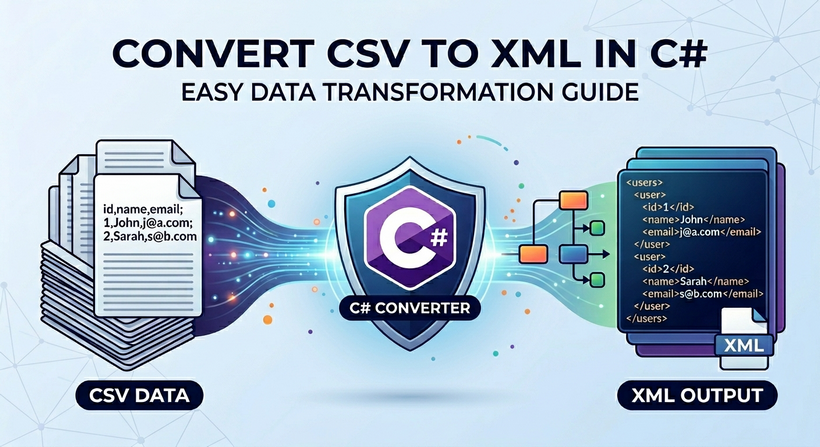
CSV (Comma-Separated Values) and XML (Extensible Markup Language) are two mainstream data exchange formats in modern software development. CSV excels at lightweight storage and transmission of tabular data, while XML is widely used for cross-system data interaction due to its hierarchical structure and strict validation rules. Converting CSV to XML is a common demand in scenarios such as configuration file generation, database record export, and third-party API integration.
Manual CSV parsing and XML generation are error-prone, inefficient, and difficult to maintain for large datasets. For C# developers, Spire.XLS for .NET provides a lightweight, high-performance solution for CSV-to-XML conversion.
This article will guide you through two core methods to convert CSV to XML in C# using Spire.XLS, covering basic conversion and customized XML output with complete code examples.
- Understanding the Two XML Output Types
- Method 1: Convert CSV to Excel XML in C#
- Method 2: Convert CSV to Custom XML in C#
- Handling Real World CSV Scenarios
- FAQs About CSV to XML Conversion
Prerequisites
Install Spire.XLS via NuGet
The quickest way to add Spire.XLS to your project is through the NuGet Package Manager. In Visual Studio, run the following command in the Package Manager Console:
Install-Package Spire.XLS
Alternatively, search for “Spire.XLS” in the NuGet UI and install the latest version.
Prepare a Sample CSV Data (For Testing)
Create a Products.csv file in your project’s output folder with this sample tabular data (includes headers and rows):
ID,ProductName,Category,Price,StockQuantity,ReleaseDate
1,Laptop,Electronics,999.99,50,2023-01-15
2,Wireless Mouse,Electronics,25.50,200,2023-02-20
3,Cotton T-Shirt,Apparel,19.99,150,2022-11-05
4,Coffee Mug,Home Goods,12.99,300,2022-09-10
5,Desk Chair,Furniture,150.00,75,2023-03-01
Understanding the Two XML Output Types
When converting CSV file to XML using Spire.XLS for .NET, you can produce two distinct types of XML output:
1. Excel XML (SpreadsheetML)
A standardized XML format based on Microsoft's Open XML specification. It retains the original table layout, cell formatting and overall structure of the CSV file. This is an ideal choice if you need to open, edit or process the generated XML with Excel and other spreadsheet-compatible tools.
2. Custom XML Structure
A user-defined XML schema enables free mapping of CSV columns to custom element tags, nested hierarchies, and adjustable presentation rules. This is ideal for integrating with third-party APIs, legacy systems, and business platforms that require specific fixed XML node structures.
Both approaches are covered in detail with C# code examples in the following sections. For developers working in Python, refer to our separate guide: Convert CSV to XML in Python
Method 1: Convert CSV to Excel XML in C#
This is the simplest approach that requires only a few lines of code. The CSV is loaded into a Workbook, then saved directly as Excel XML (SpreadsheetML) format. Suitable for cases where the target system accepts Excel's native XML format.
CSV to XML C# Code Example:
using Spire.Xls;

namespace CsvToExcelXmlConverter
{
    class Program
    {
        static void Main(string[] args)
        {
            // Create a Workbook instance
            Workbook workbook = new Workbook();

            // Load CSV into the first worksheet
            workbook.LoadFromFile("Products.csv", ",", 1, 1);

            // Save as Excel SpreadsheetML format
            workbook.SaveAsXml("output.xml");

            // Clean up resources
            workbook.Dispose();
        }
    }
}
Core Methods:
- LoadFromFile() – Spire.XLS automatically parses the CSV content into the first worksheet of the workbook.
- SaveAsXml() – Export the loaded CSV data as an Excel XML file.
The core data parts looks like:

Beyond converting CSV files, Spire.XLS for .NET also enables seamless conversion of Excel (XLS / XLSX) to XML using the same robust Workbook.SaveAsXml() method.
Method 2: Convert CSV to Custom XML in C#
When the target system expects a specific XML schema, you’ll need to build a custom XML document. Spire.XLS, together with the built-in .NET XmlWriter class, makes this straightforward: simply iterate over worksheet rows and columns, then generate well-structured XML efficiently.
Custom XML Code Example:
using Spire.Xls;
using System.Xml;

namespace CSVtoXMLConverter
{
    class program
    {
        static void Main(string[] args)
        {

            // Initialize workbook and load CSV
            Workbook workbook = new Workbook();
            workbook.LoadFromFile("Products.csv", ",", 1, 1);
            Worksheet worksheet = workbook.Worksheets[0];

            // Create custom XML settings (indentation for readability)
            XmlWriterSettings settings = new XmlWriterSettings
            {
                Indent = true,
                IndentChars = "\t",
                OmitXmlDeclaration = false,
                Encoding = System.Text.Encoding.UTF8
            };

            // Save CSV to XML with CUSTOM ROOT NODE and FORMATTING
            XmlWriter writer = XmlWriter.Create("Custom_Output.xml", settings);

            writer.WriteStartDocument();
            // Custom root element: <ProductInventory>
            writer.WriteStartElement("ProductInventory");


            // Loop through CSV rows (skip header row: start at 2)
            for (int row = 2; row <= worksheet.LastRow; row++)
            {
                // Custom data node: <Product>
                writer.WriteStartElement("Product");

                // Loop through CSV columns and write custom elements
                for (int col = 1; col <= worksheet.LastColumn; col++)
                {
                    string header = worksheet.Range[1, col].Text;
                    string value = worksheet.Range[row, col].Text;
                    writer.WriteElementString(header, value);
                }

                writer.WriteEndElement(); // Close <Product>
            }

            writer.WriteEndElement(); // Close <ProductInventory>
            writer.WriteEndDocument();

            writer.Close();
            workbook.Dispose();
        }

    }
}
How the code works:
- Load the CSV file into a Workbook.
- Access the worksheet – Retrieve the first worksheet containing the imported data.
- Create an XmlWriter – Configure it with indentation, encoding, and other formatting preferences.
- Write the XML document – Start the document, write the custom root element, then loop through rows (skipping the header row) and columns, writing an element per column using the header text as the tag name.
- Close resources – Close the XmlWriter and dispose of the Workbook.
Output:
The generated XML uses <ProductInventory> as the root node and <Product> as the data node, with child nodes named after CSV headers, fully matching custom business requirements.
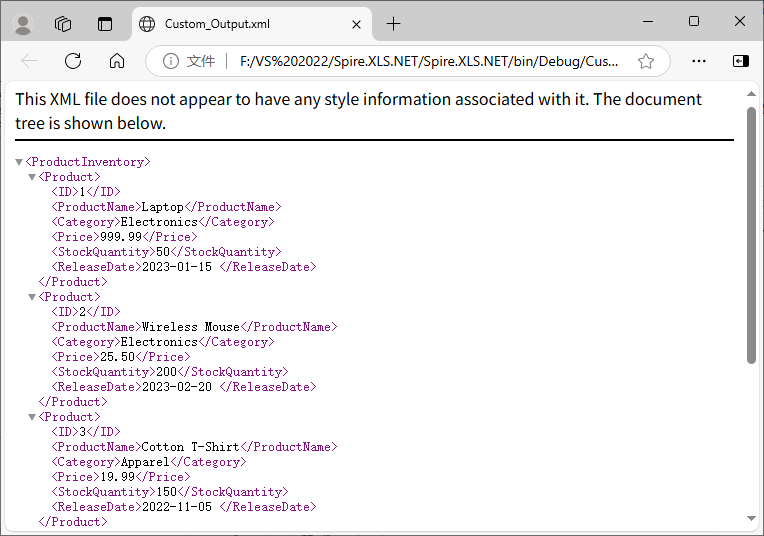
Bonus Tip: For scenarios requiring formal document delivery, you can also use Spire.XLS for .NET to convert XML files to PDF in C# effortlessly.
Handling Real‑World CSV Scenarios
Real-world CSV files often have non-standard delimiters, empty values, redundant rows/columns, or missing headers. The following solutions solve these common problems:
Different Delimiters
CSV files may use tabs (\t), semicolons (;), or pipes (|). Spire.XLS supports specifying custom delimiters when loading CSV files:
// Tab-separated
workbook.LoadFromFile("data.tsv", "\t", 1, 1);

// Semicolon-separated (common in European locales)
workbook.LoadFromFile("data.csv", ";", 1, 1);

// Pipe-separated
workbook.LoadFromFile("data.psv", "|", 1, 1);
Skipping Rows and Columns
If the CSV contains metadata rows or empty columns, adjust your loop bounds:
// start from row 3
for (int row = 3; row <= worksheet.LastRow; row++)
//start from column 3
for (int col = 3; col <= worksheet.LastColumn; col++)
Handling Missing Values and Empty Cells
Empty cells in CSV files appear as empty strings. You can handle them by writing a default value or omitting the elements:
// Option 1: Fill empty values with "N/A"
string value = worksheet.Range[row, col].Text;
if (string.IsNullOrEmpty(value))
    value = "N/A";
writer.WriteElementString(header, value);

// Option 2: Omit empty nodes
string value = worksheet.Range[row, col].Text;
if (!string.IsNullOrEmpty(value))
    writer.WriteElementString(header, value);
Missing Header Row
If your CSV has no header row, you can pass an array of custom names, or generate generic column names such as:
for (int col = 1; col <= worksheet.LastColumn; col++)
{
    string header = $"Column{col}";
    string value = worksheet.Range[row, col].Text;
    writer.WriteElementString(header, value);
}
Conclusion
Converting CSV to XML in C# with Spire.XLS for .NET eliminates manual parsing and reduces code complexity. Whether you need a simple one-line conversion to Excel XML or a fully customized XML structure, the code examples in this guide let you seamlessly integrate CSV-to-XML conversion into your C# applications.
For more Excel or CSV-related tasks in .NET development, visit the online documentation.
FAQs About CSV to XML Conversion
Q1: Can I convert only a specific range of cells (e.g., A1:C10)?
Yes. Instead of looping to worksheet.LastRow and LastColumn, set custom bounds (e.g., loop rows 2 to 11 for A1:C10) or directly access a range via worksheet.Range.
Q2: Does Spire.XLS require Microsoft Excel to be installed?
No, it is an independent .NET component and does not rely on Microsoft Excel, Office interop, or any third-party Office software.
Q3: Can I batch convert multiple CSV files to XML at once?
Yes. You can loop through all CSV files in a folder, load each one with Spire.XLS, and export them to corresponding XML files in batches with the same logic in the tutorial.
Q4: Can I add custom attributes and namespaces to generated XML elements?
Absolutely. Use XmlWriter.WriteAttributeString() to add custom attributes to nodes, and WriteStartElement with namespace parameters to define XML namespaces for enterprise-standard XML schemas.

PowerPoint presentations are widely used for training materials, product demos, online courses, and business reporting. However, sharing raw PPT or PPTX files can be problematic—recipients may not have PowerPoint installed, animations may not play correctly, and manual exporting becomes inefficient for bulk processing.
Converting PowerPoint to video formats like MP4 or WMV solves these challenges by creating universally playable content that preserves formatting and animations. With Spire.Presentation from e-iceblue, developers can automate PowerPoint-to-video conversion programmatically without requiring Microsoft PowerPoint installation.
This article demonstrates how to convert PowerPoint presentations to MP4 and WMV video in C# using Spire.Presentation for .NET, including configuration options for frame rate, slide duration, and transition preservation.
1. Why Convert PowerPoint to Video Programmatically?
Developers often need to convert PowerPoint presentations to video as part of larger business workflows. Compared with manually exporting files in Microsoft PowerPoint, programmatic conversion offers more flexibility and scalability.
Common scenarios include:
- Automatically converting uploaded PPT/PPTX files into MP4 videos in web applications
- Batch-processing training presentations for LMS platforms
- Generating product demo videos from presentation templates
- Converting presentations on servers where Microsoft PowerPoint is not installed
- Standardizing presentation delivery across different devices
Programmatic conversion is especially useful when you need repeatable workflows, server-side processing, or integration with existing document automation systems.
2. Set Up the Environment
Before converting PowerPoint presentations to video, you need to prepare two components:
- Spire.Presentation for .NET – used to load and process PPT/PPTX files
- FFmpeg – used to encode slide frames into MP4 or WMV video files
Spire handles presentation rendering, while FFmpeg generates the final video output. Both are required for successful conversion.
Install Spire.Presentation for .NET
Install the library from NuGet:
Install-Package Spire.Presentation
You can also download Spire.Presentation for .NET package and install it manually.
This package allows your C# application to open PowerPoint presentations, access slides, and export them programmatically.
Install FFmpeg
Spire.Presentation relies on FFmpeg to combine rendered slide frames into a playable video file. If FFmpeg is not installed or the path is configured incorrectly, the export process will fail.
- On Windows
Follow these steps to install FFmpeg:
-
Download the FFmpeg essentials build
-
Extract the package to your local machine
-
Locate the bin folder path
Example:
D:\tools\ffmpeg\bin
This path will be used later when configuring SaveToVideoOption.
- On Linux (CentOS)
Install FFmpeg using the following commands:
sudo yum install epel-release
sudo yum localinstall --nogpgcheck https://download1.rpmfusion.org/free/el/rpmfusion-free-release-7.noarch.rpm
sudo yum install ffmpeg ffmpeg-devel
After installation, you can run the following command to locate the FFmpeg path:
which ffmpeg
Note: Older FFmpeg versions may not fully support certain slide transition effects.
3. Convert PowerPoint to MP4 in C#
Once the environment is configured, you can convert PowerPoint presentations to MP4 using just a few lines of code.
The basic workflow includes:
- Load the PowerPoint file
- Configure video export settings
- Export the presentation as MP4
Basic Conversion Example
The following example converts a PPTX file into an MP4 video:
using Spire.Presentation;

namespace PowerPointToVideo
{
    class Program
    {
        static void Main(string[] args)
        {
            string inputFile = "ProductDemo.pptx";
            string outputFile = "ProductDemo.mp4";

            Presentation presentation = new Presentation();
            presentation.LoadFromFile(inputFile);

            presentation.SaveToVideoOption = new SaveToVideoOption(
                @"D:\tools\ffmpeg\bin"
            );

            presentation.SaveToVideoOption.Fps = 30;
            presentation.SaveToVideoOption.DurationForEachSlide = 2;

            presentation.SaveToFile(outputFile, FileFormat.MP4);

            presentation.Dispose();
        }
    }
}
After running the code:
- The PPTX file is loaded into memory
- Each slide is rendered as individual video frames
- FFmpeg combines the frames into a final MP4 file
- Supported animations, transitions, and embedded videos are preserved during export
Below is a sample PowerPoint presentation along with its converted video output.
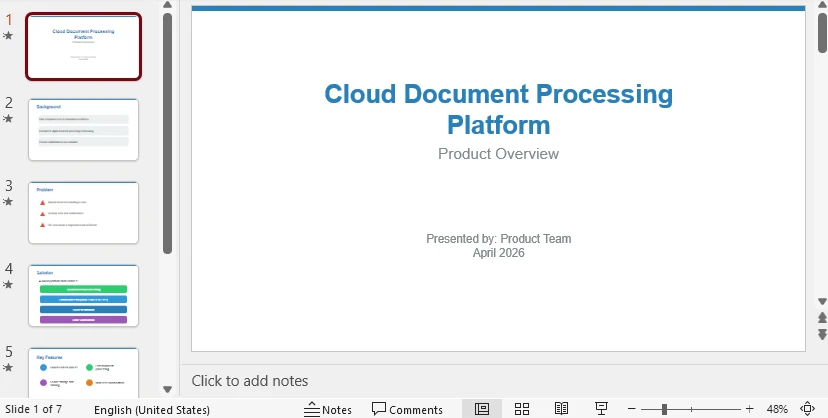
Input: PowerPoint Presentation
Output: Converted MP4 Video
Click the preview above to watch how PowerPoint slides are converted into an MP4 video while preserving transitions and animations.
How the Core API Works
This example uses several key API methods:
- LoadFromFile() loads the PowerPoint presentation into memory
- SaveToVideoOption configures the FFmpeg path and playback settings
- Fps controls video smoothness
- DurationForEachSlide controls how long each slide appears
- SaveToFile() exports the final video file
- Dispose() releases system resources after conversion
This basic workflow is enough for most standard PowerPoint-to-video conversion tasks. If you need additional formats or customization options, continue to the advanced scenarios below.
If you need a static sharing format, you can also convert PowerPoint presentations to images (JPG/PNG) in C# for easier distribution and web display.
4. More PowerPoint to Video Options in C#
The basic example works for most scenarios, but some applications may require different output formats, custom playback settings, or bulk conversion workflows.
Convert PowerPoint to WMV
While MP4 is the most widely used video format, some legacy enterprise systems and Windows-based environments may still require WMV output.
To export a PowerPoint file as WMV, simply change the output file extension:
using Spire.Presentation;

Presentation presentation = new Presentation();
presentation.LoadFromFile("TrainingSlides.pptx");

presentation.SaveToVideoOption = new SaveToVideoOption(
    @"D:\tools\ffmpeg\bin"
);

presentation.SaveToFile("TrainingVideo.wmv", FileFormat.WMV);

presentation.Dispose();
Customize Video Settings
If your presentation contains complex animations or requires specific playback timing, you can adjust frame rate and slide duration settings.
using Spire.Presentation;

Presentation presentation = new Presentation();
presentation.LoadFromFile("MarketingPitch.pptx");

presentation.SaveToVideoOption = new SaveToVideoOption(
    @"D:\tools\ffmpeg\bin"
);

// Higher FPS for smoother playback
presentation.SaveToVideoOption.Fps = 60;

// Longer display time per slide
presentation.SaveToVideoOption.DurationForEachSlide = 10;

presentation.SaveToFile("MarketingPitch_HD.mp4", FileFormat.MP4);

presentation.Dispose();
Video Settings Reference
| Setting | Default | Maximum | Purpose |
|---|---|---|---|
| Fps | 30 | 60 | Controls playback smoothness |
| DurationForEachSlide | 5 seconds | 5 minutes | Controls slide display duration |
Higher values may increase processing time and temporary storage usage.
Batch Convert Multiple PPTX Files
Batch conversion is useful for LMS platforms, enterprise reporting systems, and document automation workflows that need to process multiple presentations automatically.
using Spire.Presentation;
using System.IO;

string ffmpegPath = @"D:\tools\ffmpeg\bin";
string inputFolder = @"C:\Presentations\";
string outputFolder = @"C:\Videos\";

string[] pptxFiles = Directory.GetFiles(inputFolder, "*.pptx");

foreach (string inputFile in pptxFiles)
{
    string fileName = Path.GetFileNameWithoutExtension(inputFile);
    string outputFile = Path.Combine(outputFolder, fileName + ".mp4");

    Presentation presentation = new Presentation();
    presentation.LoadFromFile(inputFile);

    presentation.SaveToVideoOption = new SaveToVideoOption(ffmpegPath);
    presentation.SaveToVideoOption.Fps = 30;
    presentation.SaveToVideoOption.DurationForEachSlide = 3;

    presentation.SaveToFile(outputFile, FileFormat.MP4);
    presentation.Dispose();
}
This approach helps automate large-scale PowerPoint-to-video conversion workflows without requiring manual exports in Microsoft PowerPoint.
You can edit the PowerPoint presentation in C# before conversion to ensure the resulting video has better layout and animation effects.
5. Supported Transitions and Animations
During PowerPoint-to-video conversion, Spire.Presentation preserves key visual effects to ensure the output video closely matches the original presentation experience.
Slide Transitions
PowerPoint slide transitions are rendered during video generation to maintain smooth visual flow between slides.
The following transitions are supported:
- Fade
- Push
- Wipe (up, down, left, right)
- Reveal
- Cover
- Split
- Dissolve
- Clockwise Clock
These transitions are applied during frame rendering to simulate natural slide progression in the final video.
Animation Effects
Animations are processed and rendered during video generation to simulate PowerPoint playback behavior.
Entrance Animations:
- Fly In
- Float In
- Appear
- Fade
- Split
- Wipe
Exit Animations:
- Fly Out
- Float Out
- Disappear
- Fade
- Split
- Wipe
Animation sequences are processed as a single playback unit to ensure consistent rendering in the final video.
Additional Features
- Embedded Videos
Embedded media inside PowerPoint slides is included in the exported video, making it suitable for presentations with multimedia content.
- Automatic Duration Handling
Slide timing and animation durations are automatically interpreted during conversion to ensure accurate playback in the final video output.
- Cross-Platform Support
The conversion process can run on both Windows and Linux environments, making it suitable for server-side automation and enterprise workflows.
For more information on supported features, refer to the Spire.Presentation for .NET API documentation.
6. Common Pitfalls
When converting PowerPoint presentations to video, there are a few common issues that may affect output quality or runtime execution. Being aware of these helps ensure a smoother conversion process in production environments.
FFmpeg Path Not Found
The video export process depends on FFmpeg for encoding the final MP4 or WMV file.
Ensure that the FFmpeg path is correctly configured and points to the bin directory containing the FFmpeg executable.
On Windows, this typically looks like:
D:\tools\ffmpeg\bin
If the FFmpeg path is incorrect or not accessible, the video export process will fail at runtime.
Insufficient Disk Space
PowerPoint-to-video conversion involves rendering slides into intermediate frames before encoding them into a final video file.
As a result, disk usage may increase significantly depending on:
- Number of slides
- Slide duration
- Frame rate (FPS)
- Presentation resolution and content complexity
For high-quality or long-duration presentations, temporary disk usage can become substantial. It is recommended to ensure sufficient free disk space before processing large batch conversions.
Unsupported or Inconsistent Transitions
Most common PowerPoint transitions are supported during conversion. However, some complex or advanced transition effects may not be rendered exactly the same as in Microsoft PowerPoint.
In such cases, the final video will still preserve slide flow, but the visual effect may appear simplified compared to the original presentation.
It is recommended to test presentations with advanced transitions before using them in production workflows.
Font Rendering Differences
PowerPoint presentations rely on system-installed fonts. If a required font is missing on the environment where conversion is executed, the layout or text appearance in the final video may change.
To ensure consistent rendering:
- Install required fonts on the system
- Use widely available standard fonts when possible
- Verify output on target deployment environments
This is especially important for multilingual presentations or server-side conversion scenarios.
Conclusion
In this article, we demonstrated how to convert PowerPoint presentations to MP4 and WMV video in C# using Spire.Presentation. By leveraging the Spire API, developers can automate video generation with customizable frame rates, slide durations, and transition preservation.
Beyond video conversion, Spire.Presentation can also be used for tasks such as slide editing, media extraction, and presentation generation, making it useful for broader document automation workflows.
If you would like to evaluate the full functionality without limitations, you can apply for a temporary license.
FAQ
Can I convert PowerPoint to MP4 without Microsoft PowerPoint?
Yes. Spire.Presentation performs conversion independently and does not require Microsoft PowerPoint installation.
Are animations preserved in the video?
Yes, many common slide transitions and entrance/exit animations are preserved during conversion.
What video formats are supported?
Currently, MP4 and WMV formats are supported for video export.
Is Spire.Presentation suitable for server-side applications?
Yes. Spire.Presentation supports server environments and is widely used in automated document processing workflows.
How much disk space does video conversion require?
Video generation creates temporary image frames. A presentation with 5 slides at 60 FPS and 5-minute duration may require approximately 25GB of temporary storage.
Exporting database query results to PDF is a common requirement in applications such as reporting, data archiving, and document generation. In these scenarios, SQL query results need to be transformed into structured, readable documents that can be easily shared or printed.
Because database data is inherently tabular, preserving its structure during the export process is essential for maintaining clarity and usability. Without proper layout control, the resulting document can quickly become difficult to read, especially when dealing with large datasets.
This article demonstrates how to convert databases to PDF in C# using Spire.XLS for .NET, including examples on retrieving query results, organizing them into a structured table, and exporting them as a formatted PDF document.
Table of Contents
- Understanding the Task
- Convert Database to PDF Using C# (Step-by-Step)
- Complete C# Example for Database to PDF Conversion
- Advanced Scenarios
- Common Pitfalls
- Conclusion
- FAQ
1. Understanding the Task
Converting database content to PDF typically involves several key steps:
- Data retrieval: Execute SQL queries and load results into memory
- Data structuring: Organize query results into a consistent tabular format
- PDF export: Generate a document that preserves layout and readability
In practice, this workflow is commonly used for generating reports, creating invoices, or archiving query results, where maintaining a clear and structured presentation of data is essential.
2. Convert Database to PDF Using C# (Step-by-Step)
This section provides a complete workflow for converting database query results into a PDF document, including data retrieval, table structuring, formatting, and export.
2.1 Environment Setup
Before implementing the solution, make sure your development environment is ready:
-
.NET environment
Install Visual Studio or use the .NET CLI with a compatible .NET version (e.g., .NET 6 or later). -
Database access
Prepare a SQL Server database (or any relational database) and ensure you have a valid connection string. For modern .NET applications, use the recommended SQL client library:dotnet add package Microsoft.Data.SqlClientThis package provides the ADO.NET implementation for SQL Server and replaces the legacy
System.Data.SqlClient. -
Spire.XLS for .NET Install Spire.XLS via NuGet to handle table formatting and PDF export:
dotnet add package Spire.XLSYou can also download the Spire.XLS for .NET package and add it to your project manually.
Once configured, you can retrieve data from the database and use Spire.XLS to generate and export PDF documents.
2.2 Read Data from Database
The first step is to execute a SQL query and load the results into a DataTable. This structure preserves the schema and data types of the query result, making it suitable for further transformation.
using System.Data;
using Microsoft.Data.SqlClient;

string connectionString = "Server=localhost\\SQLEXPRESS;Database=SalesDB;User ID=demouser;Password=YourPassword;Encrypt=true;TrustServerCertificate=true;";
string query = @"
    SELECT o.OrderID, c.CustomerName, o.OrderDate, o.TotalAmount
    FROM Orders o
    JOIN Customers c ON o.CustomerID = c.CustomerID
    WHERE YEAR(o.OrderDate) = 2026;
";

DataTable dataTable = new DataTable();

using (SqlConnection conn = new SqlConnection(connectionString))
{
    SqlDataAdapter adapter = new SqlDataAdapter(query, conn);
    adapter.Fill(dataTable);
}
This example uses Microsoft.Data.SqlClient, the modern SQL client library for .NET, which is recommended over the legacy System.Data.SqlClient.
The SqlDataAdapter acts as a bridge between the database and in-memory data. It executes the query and fills the DataTable without requiring explicit connection management for reading operations.
In practical scenarios, this step can be extended to include:
- Parameterized queries to avoid SQL injection
- Stored procedures for complex data retrieval
- Data filtering and aggregation directly in SQL
By preparing clean and structured data at this stage, you reduce the complexity of downstream formatting and improve overall performance.
For a similar scenario involving exporting database query results to Excel instead of PDF, you can also refer to this guide: Export Database to Excel in C#.
2.3 Import Data and Export to PDF with Formatting
After retrieving the data, the next step is to map it into a worksheet, apply formatting, and export it as a PDF document. This approach leverages worksheet-based layout control to ensure the output remains structured and readable.
using Spire.Xls;
using System.Drawing;

// Create workbook and worksheet
Workbook workbook = new Workbook();
Worksheet sheet = workbook.Worksheets[0];

// Import DataTable with headers
sheet.InsertDataTable(dataTable, true, 1, 1);

// Format header row
CellRange headerRange = sheet.Range[1, 1, 1, dataTable.Columns.Count];
headerRange.Style.Font.IsBold = true;
headerRange.Style.Font.Size = 11;
headerRange.Style.Color = Color.LightGray;

// Apply borders to enhance table structure
CellRange dataRange = sheet.AllocatedRange;
dataRange.BorderAround(LineStyleType.Thin);
dataRange.BorderInside(LineStyleType.Thin);

// Align content for consistency
dataRange.Style.HorizontalAlignment = HorizontalAlignType.Center;
dataRange.Style.VerticalAlignment = VerticalAlignType.Center;

// Auto-fit columns for better layout
sheet.AllocatedRange.AutoFitColumns();

// Center the content horizontally in the page
sheet.PageSetup.CenterHorizontally = true;

// Export to PDF
workbook.SaveToFile("SalesReport_2026.pdf", FileFormat.PDF);
This step combines layout control and PDF generation into a single workflow.
Key points to note:
-
Worksheet as layout engine The worksheet acts as a structured canvas where database data is arranged into rows and columns. This ensures the original tabular structure is preserved in the final document.
-
Formatting directly impacts PDF output Adjustments such as column width, font style, and borders are not just visual improvements—they determine how the content is rendered in the PDF. Poor formatting can lead to truncated text or unreadable layouts.
-
Automatic pagination When exporting, the worksheet content is automatically split across pages based on layout and paper size, which is particularly useful for large datasets.
For further layout optimization, you can enhance the table formatting by:
- Enabling text wrapping for long fields
- Applying number/date formats for better readability
If your project requires more flexible PDF structure control, you can also explore converting DataTable to PDF in C# directly using Spire.PDF for .NET, which provides more advanced document-level layout capabilities for complex reporting needs.
3. Complete C# Example for Converting Databases to PDF
Below is the complete implementation that combines database retrieval, data formatting, and PDF export into a single workflow.
using System;
using System.Data;
using Microsoft.Data.SqlClient;
using Spire.Xls;
using System.Drawing;

class Program
{
    static void Main()
    {
        // Step 1: Retrieve data from database
        string connectionString = "Server=localhost\\SQLEXPRESS;Database=SalesDB;User ID=demouser;Password=YourPassword;Encrypt=true;TrustServerCertificate=true;";
        string query = @"
            SELECT o.OrderID, c.CustomerName, o.OrderDate, o.TotalAmount
            FROM Orders o
            JOIN Customers c ON o.CustomerID = c.CustomerID
            WHERE YEAR(o.OrderDate) = 2026;
        ";

        DataTable dataTable = new DataTable();

        using (SqlConnection conn = new SqlConnection(connectionString))
        {
            SqlDataAdapter adapter = new SqlDataAdapter(query, conn);
            adapter.Fill(dataTable);
        }

        // Step 2: Create workbook and import data
        Workbook workbook = new Workbook();
        Worksheet sheet = workbook.Worksheets[0];
        sheet.InsertDataTable(dataTable, true, 1, 1);

        // Step 3: Apply professional formatting
        // Format header row
        CellRange headerRange = sheet.Range[1, 1, 1, dataTable.Columns.Count];
        headerRange.Style.Font.IsBold = true;
        headerRange.Style.Font.Size = 11;
        headerRange.Style.Color = Color.LightGray;

        // Apply borders
        CellRange dataRange = sheet.AllocatedRange;
        dataRange.BorderAround(LineStyleType.Thin);
        dataRange.BorderInside(LineStyleType.Thin);

        // Set alignment
        dataRange.Style.HorizontalAlignment = HorizontalAlignType.Center;
        dataRange.Style.VerticalAlignment = VerticalAlignType.Center;

        // Auto-fit columns
        sheet.AllocatedRange.AutoFitColumns();

        // Center the content horizontally in the pages
        sheet.PageSetup.CenterHorizontally = true;

        // Step 4: Export to PDF
        workbook.SaveToFile("SalesReport_2026.pdf", FileFormat.PDF);

        Console.WriteLine("Database query results successfully exported to PDF.");
    }
}
Below is a preview of the generated PDF:
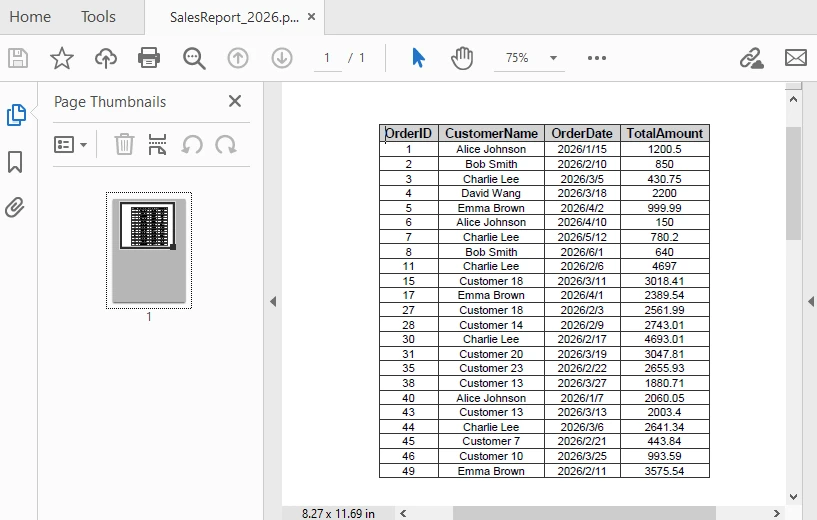
This example demonstrates an end-to-end workflow from SQL query execution to PDF generation.
4. Advanced Scenarios
In real-world applications, exporting database data to PDF often requires more than just basic conversion. You may need to handle batch exports, improve document readability, or adjust layout settings for better presentation. The following examples demonstrate common enhancements for real-world usage.
Export Multiple Query Results
For scenarios such as batch report generation or scheduled tasks, you may need to execute multiple queries and export each result as a separate PDF document:
string[] queries = {
    "SELECT * FROM Orders WHERE Status = 'Pending'",
    "SELECT * FROM Customers WHERE Region = 'North'"
};

for (int i = 0; i < queries.Length; i++)
{
    DataTable dt = ExecuteQuery(queries[i]);
    Workbook wb = new Workbook();
    Worksheet ws = wb.Worksheets[0];
    ws.InsertDataTable(dt, true, 1, 1);
    ws.AllocatedRange.AutoFitColumns();
    wb.SaveToFile($"Report_{i + 1}.pdf", FileFormat.PDF);
}
This approach is useful for automating report generation where multiple datasets need to be exported independently.
Add Title and Metadata
To improve readability and provide context, you can add a title row above the data before exporting to PDF:
// Insert title row
sheet.InsertRow(1);
sheet.Range[1, 1].Text = "Sales Report - 2026";
sheet.Range[1, 1].Style.Font.IsBold = true;
sheet.Range[1, 1].Style.Font.Size = 14;

// Merge title cells
sheet.Range[1, 1, 1, dataTable.Columns.Count].Merge();

// Auto-fit the title row
sheet.AutoFitRow(1);
The following image shows the generated PDF with the title row applied:

Adding a title helps users quickly understand the context of the document, especially when sharing or printing reports.
Set Page Size, Orientation, and Margins
To ensure the PDF layout fits your data properly, you can configure page size, orientation, and margins before exporting:
// Set the page size and orientation
sheet.PageSetup.PaperSize = PaperSizeType.PaperA4;
sheet.PageSetup.Orientation = PageOrientationType.Portrait;

// Set the page margins
sheet.PageSetup.TopMargin = 0.5f;
sheet.PageSetup.BottomMargin = 0.2f;
sheet.PageSetup.LeftMargin = 0.2f;
sheet.PageSetup.RightMargin = 0.2f;
Adjusting these settings helps prevent content overflow and ensures consistent layout across different reports.
Control Page Layout and Scaling
When working with large tables, you may need to control how content is distributed across pages. By default, content is split automatically, but you can adjust scaling behavior to fit more data within a page.
// Fit content to page width
workbook.ConverterSetting.SheetFitToWidth = true;

// Fit entire sheet into a single page (may reduce readability)
workbook.ConverterSetting.SheetFitToPage = true;
SheetFitToWidthensures the table fits within the page width while allowing vertical paginationSheetFitToPagescales the entire worksheet to fit into a single page
These settings are useful when generating compact reports, but should be used carefully to avoid making text too small.
Add Headers and Footers
Headers and footers are useful for adding contextual information such as report titles, timestamps, or page numbers:
sheet.PageSetup.LeftHeader = "&\"Arial,Bold\"&16 Sales Report - 2026";
sheet.PageSetup.RightHeader = "&\"Arial,Italic\"&10 Generated on &D";
sheet.PageSetup.CenterFooter = "&\"Arial,Regular\"&16 Page &P of &N";
The following image shows the generated PDF with headers and footers applied:

These elements improve document navigation and are especially valuable for multi-page reports.
Encrypt PDFs
To protect sensitive data, you can apply encryption to the exported PDF:
workbook.ConverterSetting.PdfSecurity.Encrypt("openpsd");
Encryption ensures that only authorized users can access the document, which is important for reports containing confidential or business-critical data.
For more related scenarios involving document export and PDF customization, you can also explore Excel to PDF conversion in C#.
5. Common Pitfalls
Database Connection Issues
Ensure the connection string is correct and the database server is accessible. Verify authentication settings (e.g., SQL authentication or integrated security) and confirm that encryption-related parameters match your environment configuration.
Empty Query Results
Check whether the DataTable contains data before proceeding. Empty result sets may lead to blank PDFs or unexpected formatting behavior.
if (dataTable.Rows.Count == 0)
{
    Console.WriteLine("No data found for the specified query.");
    return;
}
In production scenarios, you may also choose to generate a placeholder PDF or log the issue instead of exiting the process.
Column Width Overflow
When working with long text fields, AutoFitColumns() may produce excessively wide columns, which can negatively affect PDF layout.
To improve readability, consider:
- Setting a maximum column width
- Enabling text wrapping for long content
- Manually adjusting key columns based on data type
This is especially important when exporting large datasets with variable-length text.
Missing Font Support
If the exported PDF contains special characters (e.g., non-Latin text) or custom fonts, ensure the required fonts are installed and accessible at runtime.
Missing fonts may cause text rendering issues or fallback substitutions, which can affect document appearance and readability.
Unexpected PDF Layout
If the exported PDF layout appears compressed or improperly scaled, check page setup and scaling options such as SheetFitToWidth or SheetFitToPage.
Improper scaling may cause content to appear too small or distort the original table structure.
Conclusion
This article demonstrated a practical approach to converting database query results to PDF in C#. By combining structured data retrieval with worksheet-based formatting, you can generate clear and professional documents directly from SQL data.
This method is particularly effective for report generation and data presentation scenarios where maintaining table structure and readability is essential.
If you are evaluating Spire.XLS, you can request a free temporary license to remove evaluation limitations during development.
FAQ
Can Spire.XLS export database data to PDF without third-party tools?
Yes. Spire.XLS performs all operations independently and does not require Microsoft Office or any other external tools.
How do I handle large datasets when exporting to PDF?
For large datasets, consider paginating the results or filtering the query to retrieve only necessary data. You can also adjust PDF page settings to optimize output size.
Can I customize the PDF page layout?
Yes. Spire.XLS allows you to configure page settings including orientation, margins, and paper size before exporting to PDF.
Does this method work with databases other than SQL Server?
Yes. The approach works with any database that supports ADO.NET data providers, including MySQL, PostgreSQL, and Oracle. Simply use the appropriate connection class and data adapter.
Should I use Microsoft.Data.SqlClient or System.Data.SqlClient?
For modern .NET applications, it is recommended to use Microsoft.Data.SqlClient. It is actively maintained and provides better support for newer SQL Server features, while System.Data.SqlClient is considered legacy and no longer receives major updates.
VBA macros provide a convenient way to automate data processing, formatting, and business logic within Excel, especially for repetitive or rule-based tasks. However, managing macros manually inside Excel becomes inefficient when you need to generate, update, or maintain files at scale.
For .NET developers, a more scalable approach is to programmatically add macros to Excel using C#. By working with Excel VBA in C#, you can write Excel macros, read existing macro code, and modify VBA logic across multiple files without opening Excel and manually editing the VBA code.
In this article, you'll learn how to add, read, and edit Excel VBA macros in C# for automated workflows. Using Spire.XLS for .NET, you can directly manipulate VBA projects embedded in Excel files without requiring Microsoft Excel installation.
Quick Navigation
- How C# Works with Excel Macros
- Environment Setup
- How to Add a Macro to Excel in C#
- Read, Edit, and Remove Macros from Excel in C#
- Common Pitfalls When Working with Excel Macros
- Conclusion
- Frequently Asked Questions
Understanding Excel Macros and How C# Works with Them
An Excel macro is essentially VBA (Visual Basic for Applications) code stored inside a workbook. In macro-enabled files (such as .xlsm), this code is organized within a VBA project, which contains modules and procedures.
In practice, most programmatic macro operations focus on standard modules, which are simple containers for VBA procedures (Sub or Function). When working with C#, you typically do not interact with Excel UI elements like buttons or events. Instead, you directly create modules and inject VBA code.
From a technical perspective, macros are not just executable scripts—they are part of the file structure. This means they can be accessed and modified programmatically, provided that your tool supports VBA project manipulation.
In C#, there are two main approaches to working with Excel macros:
- Using Microsoft Excel Interop to automate Excel
- Using standalone libraries such as Spire.XLS for .NET to manipulate the file directly
The first approach depends on Excel being installed and is typically used to execute macros. The second approach allows you to create, read, edit, and delete VBA code directly inside Excel files, making it more suitable for backend services and automated workflows.
In the following sections, we'll focus on the second approach and demonstrate how to manage Excel macros entirely in C#.
Environment Setup: Install Spire.XLS for .NET
Before working with Excel macros in C#, you need to install Spire.XLS for .NET, which allows you to manage Excel files and manipulate VBA projects without requiring Microsoft Excel.
Install via NuGet
You can install Spire.XLS for .NET using NuGet Package Manager:
Install-Package Spire.XLS
Or via the .NET CLI:
dotnet add package Spire.XLS
You can also download the Spire.XLS for .NET package and add it to your project manually.
Project Requirements
- .NET Framework, .NET Core, .NET Standard, or .NET 5+
- No Microsoft Excel installation required
- Supports Windows, Linux, and macOS environments
The library is runtime-agnostic and can be used in any .NET-supported environment, including web, desktop, and cross-platform applications.
Namespace to Import
After installation, include the following namespaces in your project:
using Spire.Xls;
Once the setup is complete, you can start creating, reading, and modifying Excel VBA macros programmatically.
How to Add a Macro to Excel in C# (Complete Example)
Before writing macro code, it's important to understand how Spire.XLS exposes the VBA structure in Excel:
- Workbook.VbaProject represents the VBA project embedded in the workbook
- IVbaProject.Modules provides access to all VBA modules
- IVbaModule represents an individual module that stores macro code
In addition to modules, the VBA project also supports project-level configuration, such as name, description, password protection, and conditional compilation settings.
The following example shows how to create a VBA project, configure its properties, add a module, and write a macro into an Excel file programmatically.
using Spire.Xls;

Workbook workbook = new Workbook();

// Create VBA project
IVbaProject vbaProject = workbook.VbaProject;

// Configure project-level properties (optional but important in real scenarios)
vbaProject.Name = "ReportGenerator";
vbaProject.Description = "VBA project for generating quarterly reports";
vbaProject.Password = "securepassword";
vbaProject.LockProjectView = false;
vbaProject.HelpFileName = "ReportGeneratorHelp.chm";
vbaProject.ConditionalCompilation = "DEBUG_MODE=1"; // External compile-time flag

// Add a VBA module
IVbaModule vbaModule = vbaProject.Modules.Add("ReportModule", VbaModuleType.Module);

// Write VBA macro code
vbaModule.SourceCode = @"
Sub GenerateQuarterlyReport()
    Dim ws As Worksheet
    Dim i As Integer
    Dim quarter As String

    Set ws = ActiveSheet
    ws.Cells.Clear

    ' Prompt user input
    quarter = InputBox(""Enter quarter (e.g., Q1 2026):"", ""Report Generation"")

    With ws
        .Range(""A1:E1"").Value = Array(""Date"", ""Product"", ""Region"", ""Sales"", ""Status"")

        For i = 1 To 50
            .Cells(i + 1, 1).Value = DateSerial(2026, 1 + Int((i - 1) / 17), 1 + ((i - 1) Mod 17))
            .Cells(i + 1, 2).Value = ""Product "" & (1 + Int((i - 1) / 10))
            .Cells(i + 1, 3).Value = Choose((i Mod 5) + 1, ""North"", ""South"", ""East"", ""West"", ""Central"")
            .Cells(i + 1, 4).Value = Round(Rnd() * 10000, 2)
            .Cells(i + 1, 5).Value = IIf(.Cells(i + 1, 4).Value > 5000, ""Target Met"", ""Below Target"")
        Next i

        .Columns(""A:E"").AutoFit

        ' Conditional compilation example
        #If DEBUG_MODE = 1 Then
            MsgBox ""DEBUG: Report generated (50 rows)"", vbInformation, ""Debug Info""
        #End If
    End With

    MsgBox ""Quarterly report for "" & quarter & "" generated successfully!"", vbInformation, ""Report Status""
End Sub";

// Save as macro-enabled Excel file
workbook.SaveToFile("QuarterlyReportGenerator.xlsm", FileFormat.Version2016);
workbook.Dispose();
Below is a preview of the generated Macro in Excel:
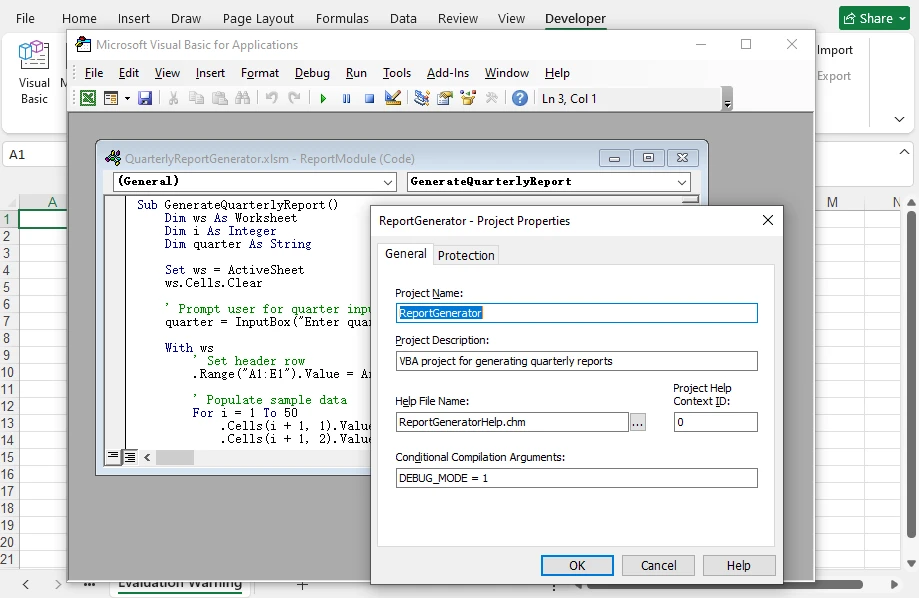
In this workflow, Spire.XLS allows you to construct the full VBA structure—not only modules and macro code, but also project-level metadata and compilation behavior—directly in code. This is conceptually similar to configuring a VBA project in the editor, but fully automated and independent of Excel.
Key API Breakdown
-
workbook.VbaProject
Initializes or retrieves the VBA project within the workbook.
-
vbaProject.Modules.Add(name, type)
Adds a new module to the project as a container for macro code.
-
vbaModule.SourceCode
Defines the full VBA script inside the module.
-
vbaProject.Description
Adds a description to the VBA project.
-
vbaProject.CodePage
Defines the character encoding used in the VBA project.
-
vbaProject.Password / LockProjectView
Controls access and visibility of the VBA project.
-
vbaProject.ConditionalCompilation
Enables compile-time flags (e.g., debug logic) inside VBA using #If.
Workbooks containing macros must be saved in macro-enabled formats such as .xls, .xlsm, .xltm, or .xlsb, as other formats (e.g., .xlsx) do not support VBA. Refer to the FileFormat enumeration to correctly set the output format when saving.
Reading, Editing, and Removing Excel Macros in C#
Once a VBA project exists, you can use Spire.XLS to inspect and modify its contents programmatically, including both module code and project-level metadata.
In real-world scenarios, this allows you to analyze existing macros, update business logic, enforce security settings, or remove legacy VBA code without opening Excel. Whether you're maintaining automated reporting systems or processing third-party Excel files, having full control over VBA projects in code is essential.
Read Macro Code and Project-Level Metadata
To read macros from an Excel file, load the workbook and iterate through all modules in the VBA project.
using Spire.Xls;

Workbook workbook = new Workbook();
workbook.LoadFromFile("QuarterlyReportGenerator.xlsm");

IVbaProject vbaProject = workbook.VbaProject;

string macroInfo = "VBA Project Name: " + vbaProject.Name + Environment.NewLine;
macroInfo += "Code Page: " + vbaProject.CodePage + Environment.NewLine;
macroInfo += "Is Protected: " + vbaProject.IsProtected + Environment.NewLine;

foreach (IVbaModule module in vbaProject.Modules)
{
    macroInfo += Environment.NewLine + "Module: " + module.Name + Environment.NewLine;
    macroInfo += "Source Code:" + Environment.NewLine;
    macroInfo += module.SourceCode + Environment.NewLine;
}

Console.WriteLine(macroInfo);

System.IO.File.WriteAllText("MacroAnalysis.txt", macroInfo);
workbook.Dispose();
Below is a preview of the console output:
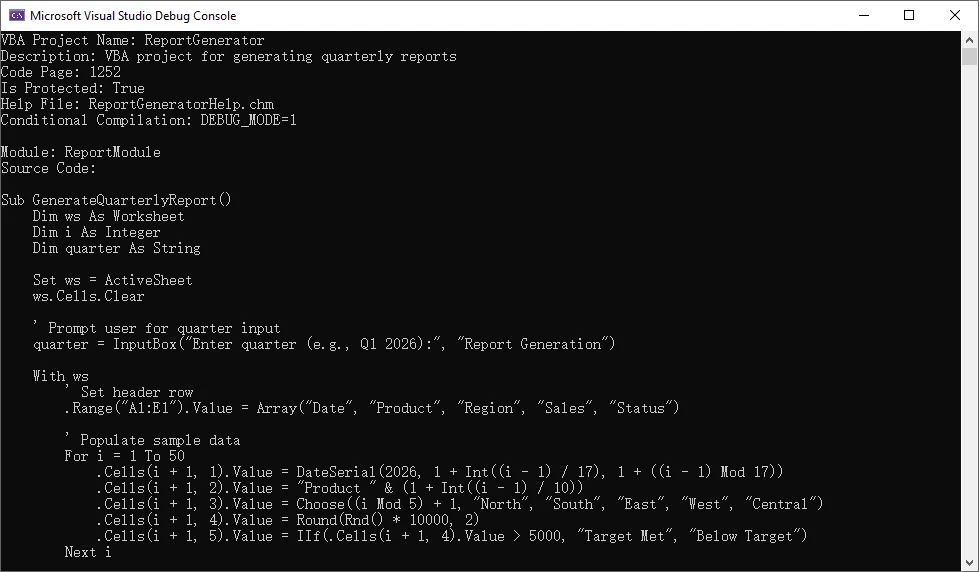
Here, each module exposes its VBA code through the SourceCode property, while the VBA project itself provides metadata such as name, encoding, and protection status.
The property vbaProject.IsProtected in this example indicates whether the VBA project is protected (locked for viewing or editing).
Edit Macro Code and Project-Level Metadata
To edit a macro, access a specific module and update its SourceCode. You can also modify project-level properties if needed. If the VBA project is protected, the correct password must be provided through vbaProject.Password before making such changes.
using Spire.Xls;

Workbook workbook = new Workbook();
workbook.LoadFromFile("QuarterlyReportGenerator.xlsm");

IVbaProject vbaProject = workbook.VbaProject;

// Update macro logic
IVbaModule module = vbaProject.Modules["ReportModule"];  // Or use index if name is unknown
module.SourceCode = module.SourceCode.Replace(
    "\"North\", \"South\", \"East\", \"West\", \"Central\"",
    "\"North America\", \"Europe\", \"Asia Pacific\", \"Latin America\", \"Middle East\"");

// Update project metadata
// For protected VBA projects, passwords are required to modify the project-level metadata
vbaProject.Password = "securepassword";
vbaProject.Description = "Updated report logic with global regions";
vbaProject.Name = "UpdatedReportGenerator";

workbook.SaveToFile("UpdatedReportGenerator.xlsm", FileFormat.Version2016);
workbook.Dispose();
Below is a preview of the updated macro code:

Spire.XLS treats macro code as editable text within a module, so updates are typically done by modifying the existing source and saving the workbook.
If you need to convert legacy .xls files to .xlsm format while preserving macros, see How to Convert XLS to XLSM and Maintain Macros Using C#.
Remove Macros
To remove macros, delete modules from the VBA project. This effectively removes all macro logic from the workbook.
using Spire.Xls;
using Spire.Xls.Core.Spreadsheet;

Workbook workbook = new Workbook();
workbook.LoadFromFile("LegacyReport.xlsm");

IVbaProject vbaProject = workbook.VbaProject;

// Remove specific module by its name
vbaProject.Modules.Remove("ReportModule");

// Or remove a module by its index
vbaProject.Modules.RemoveAt(0);

// Remove all modules
vbaProject.Modules.Clear();

workbook.SaveToFile("CleanReport.xlsm", FileFormat.Version2016);
workbook.Dispose();
After removing all modules, the workbook no longer contains executable VBA code, making it equivalent to a macro-free Excel file.
Alternatively, converting a macro-enabled Excel file to .xlsx will remove all macros, since the .xlsx format does not support VBA code.
Common Pitfalls When Working with Excel Macros
File Format Requirements
Macros require macro-enabled formats such as .xlsm, .xls, or .xlsb. The .xlsx format does not support VBA code. Always save files with the appropriate extension.
Encoding Issues
VBA code uses specific encoding (typically CodePage 1252 for Western languages). When working with international characters, ensure the CodePage is set correctly before writing macro code.
Common CodePage values include:
- 1252 – English / Western European (default in many environments)
- 936 – Simplified Chinese (GBK)
- 950 – Traditional Chinese (Big5)
- 932 – Japanese (Shift-JIS)
- 65001 – UTF-8 (⚠️ limited support in VBA, may cause compatibility issues)
Macro Security Settings
Excel macro security settings may prevent macros from running. When distributing macro-enabled files, consider adding instructions for enabling macros or digitally signing the VBA project.
Excel Version Compatibility
VBA code written for newer Excel versions may not work correctly in older versions. Test macros across target Excel versions to ensure compatibility.
Conclusion
C# provides robust capabilities for managing Excel macros programmatically. By using Spire.XLS for .NET, developers can add, read, edit, and remove VBA code directly inside Excel files without requiring Excel installation.
This approach focuses on managing macro code rather than executing it, making it ideal for automated workflows, backend services, and large-scale document processing.
To test these features without limitations, you can apply for a free temporary license of Spire.XLS for .NET.
Frequently Asked Questions (FAQ)
Can C# add VBA macros without Microsoft Excel?
Yes. Libraries such as Spire.XLS for .NET allow you to manipulate VBA projects directly without requiring Excel installation.
What format is required for Excel macros?
Macros require macro-enabled formats such as .xlsm, .xls, .xlsb, or .xltm (for templates). The .xlsx format does not support VBA code.
Can I edit existing macros in Excel using C#?
Yes. You can access VBA modules and modify their source code programmatically to update business logic or fix issues across multiple files.
Is this approach suitable for server environments?
Yes. Since it does not rely on Microsoft Excel, this approach is ideal for backend services, automated systems, and cloud-based applications.
Can I read macro code from password-protected Excel files?
It depends on the type of protection applied to the Excel file.
- Workbook protection (file password): You must provide the password (e.g., via Workbook.OpenPassword) when loading the file before accessing its contents.
- VBA project protection: Reading macro code is generally allowed, but modifying project-level properties (such as name or description) requires the VBA project password.
Additionally, if the Excel file is digitally signed, any modification to the document (including macros or metadata) will invalidate the signature.
Exporting list data to Excel with C# is a common requirement in modern .NET applications. Whether you are building a desktop application, a web system, or a background service, developers often need to convert in-memory collections—especially List<T>—into well-structured Excel files that users can download, analyze, or share.
This tutorial demonstrates how to export a list of objects to Excel in C# without using Excel Interop, using Spire.XLS for .NET. The solution is fully compatible with .NET Core and modern .NET versions, works with typical business data models, and does not require Microsoft Excel to be installed.
Table of Contents
- Why Export a List to Excel in C# Without Interop?
- Export a List of Objects to Excel in C#
- Formatting the Exported Excel Worksheet
- .NET Core and Server-Side Compatibility
- Conclusion
- Frequently Asked Questions
Why Export a List to Excel in C# Without Interop?
Exporting list data to Excel is a practical way to present structured information in a familiar and widely accepted format. In real-world applications, this requirement commonly appears in scenarios such as:
- Generating operational or financial reports
- Allowing users to download query results from web applications
- Sharing structured data with non-technical stakeholders
- Performing offline analysis or audits using Excel
Traditionally, many developers rely on Excel Interop to generate Excel files. While Interop can work in certain desktop environments, it also introduces several limitations:
- Microsoft Excel must be installed on the machine
- It is not recommended for server-side or ASP.NET Core applications
- It adds unnecessary dependencies for simple export tasks
As a result, exporting Excel files without Interop has become the preferred approach for modern .NET applications. Libraries such as Spire.XLS for .NET provide a clean, reliable, and server-friendly way to export a List<T> directly to Excel—without requiring Microsoft Office.
Export a List of Objects to Excel in C#
In most real-world applications, data is stored as a list of business objects rather than simple values. This section focuses on exporting a List<T> that represents a realistic reporting scenario, using a reusable and Interop-free approach.
Prerequisites
Before exporting a list to Excel, make sure Spire.XLS for .NET is installed in your project.
You can install it via NuGet:
Install-Package Spire.XLS
Once installed, you can start exporting List<T> data to Excel without any additional configuration.
Core Export Workflow
The overall process of exporting a list of objects to Excel can be summarized as follows:
- Prepare business-ready data in a
List<T> - Create an Excel workbook and worksheet
- Generate column headers dynamically from object properties
- Write list data into worksheet rows
- Save the Excel file
The following example demonstrates the complete implementation.
Complete Example: Export List to Excel
using Spire.Xls;
using System;
using System.Collections.Generic;
using System.Reflection;

public class OrderReport
{
    public int OrderId { get; set; }
    public string CustomerName { get; set; }
    public DateTime OrderDate { get; set; }
    public decimal TotalAmount { get; set; }
    public string Status { get; set; }
}

class Program
{
    static void Main()
    {
        // Prepare sample business data
        List<OrderReport> orders = new List<OrderReport>
        {
            new OrderReport { OrderId = 1001, CustomerName = "Alice", OrderDate = DateTime.Today.AddDays(-2), TotalAmount = 1200.50m, Status = "Completed" },
            new OrderReport { OrderId = 1002, CustomerName = "Bob", OrderDate = DateTime.Today.AddDays(-1), TotalAmount = 850.00m, Status = "Pending" },
            new OrderReport { OrderId = 1003, CustomerName = "Charlie", OrderDate = DateTime.Today, TotalAmount = 430.75m, Status = "Cancelled" }
        };

        // Create workbook and worksheet
        Workbook workbook = new Workbook();
        Worksheet sheet = workbook.Worksheets[0];

        // Read object properties dynamically
        PropertyInfo[] properties = typeof(OrderReport).GetProperties();

        // Write column headers
        for (int i = 0; i < properties.Length; i++)
        {
            sheet.Range[1, i + 1].Text = properties[i].Name;
        }

        // Write data rows
        for (int row = 0; row < orders.Count; row++)
        {
            for (int col = 0; col < properties.Length; col++)
            {
                object value = properties[col].GetValue(orders[row]);
                sheet.Range[row + 2, col + 1].Value2 = value;
            }
        }

        // Save Excel file
        workbook.SaveToFile("OrderReport.xlsx", ExcelVersion.Version2016);
    }
}
Below is a preview of the generated Excel file:
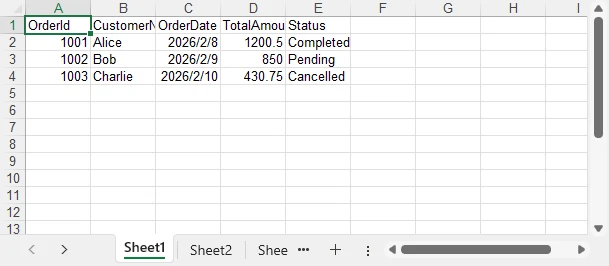
Technical Notes and Implementation Details
- An Excel file is created by instantiating
Workbook, with the first worksheet accessed viaworkbook.Worksheets[0] - Column headers are generated dynamically using reflection (
Type.GetProperties) to avoid hardcoded mappings - Header cells are written using
Range.Text, ensuring clear string output in the first row - Object values are written row by row using
Range.Value2to preserve native Excel data types - The final Excel document is generated with
Workbook.SaveToFile, without requiring Microsoft Excel or Interop
This pattern is ideal for building reusable export utilities and report-generation modules.
In scenarios where data is retrieved as a DataTable instead of a List, Spire.XLS also provides an efficient export approach. Refer to How to Export a DataTable to Excel in C# for detailed instructions.
Formatting the Exported Excel Worksheet
Beyond basic data export, Spire.XLS for .NET allows you to apply formatting to improve readability and usability of the generated Excel file.
Common formatting tasks include:
- Styling header rows
- Formatting dates and numeric values
- Adjusting column widths automatically
- Highlighting key fields
Example: Apply Basic Formatting
using System.Drawing;

// Format header row
CellStyle headerStyle = workbook.Styles.Add("HeaderStyle");
headerStyle.Font.FontName = "Arial";
headerStyle.Font.Size = 12f;
headerStyle.Font.IsBold = true;
headerStyle.Color = Color.LightGray;  // Set cell background color
headerStyle.HorizontalAlignment = HorizontalAlignType.Center;

sheet.Range[1, 1, 1, sheet.LastColumn].Style = headerStyle;

// Format date and amount columns
sheet.Range[2, 3, orders.Count + 1, 3].NumberFormat = "yyyy-mm-dd";
sheet.Range[2, 4, orders.Count + 1, 4].NumberFormat = "#,##0.00";

// Auto-fit row height and column width
sheet.AllocatedRange.AutoFitRows();
sheet.AllocatedRange.AutoFitColumns();
Below is a preview of the formatted Excel sheet:
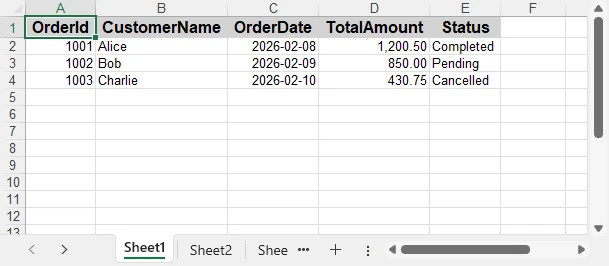
Applying formatting makes the exported Excel file more professional and suitable for direct business use.
For more advanced worksheet formatting—such as styles, merged cells, conditional formatting, and formulas—see How to Create and Format Excel Worksheets in C#.
.NET Core and Server-Side Compatibility
Spire.XLS for .NET is fully compatible with .NET Core and modern .NET versions, making it suitable for:
- ASP.NET Core web applications
- Web APIs
- Cloud and containerized environments
- Background services and scheduled jobs
Because it does not rely on Excel Interop, the export logic is safe to use in server-side and production environments.
If you are working in an ASP.NET Core or Web API project, this guide shows how to generate and format Excel files and return them to the client: Export Excel Files in ASP.NET Core Using C#.
Conclusion
Exporting a list to Excel in C# does not have to rely on Excel Interop. With Spire.XLS for .NET, you can efficiently convert a List<T> into a well-structured and formatted Excel file that works seamlessly across .NET Framework and .NET Core environments.
By adopting an Interop-free approach, you reduce deployment complexity, improve application stability, and gain greater flexibility when exporting business data.
Whether you need to export complex reports or simple lists, Spire.XLS provides a reliable and scalable solution for modern C# applications. For evaluation purposes or to remove trial limitations, a 30-day temporary license is available.
Frequently Asked Questions
Q1. Can this approach export large lists efficiently?
Yes. Spire.XLS for .NET is designed for server-side usage and can handle large List datasets efficiently. For very large exports, batching or streaming strategies can further improve performance.
Q2. Does this solution require Microsoft Excel to be installed?
No. Spire.XLS for .NET works independently of Microsoft Excel and does not rely on Excel Interop, making it suitable for server and cloud environments.
Q3. Can I customize column headers or formats?
Yes. Column headers can be customized manually, and cell formats such as dates, numbers, and styles can be applied programmatically. For advanced formatting scenarios, refer to the C# Excel formatting guide.
Q4. Is this compatible with ASP.NET Core and Web APIs?
Yes. The export logic works seamlessly in ASP.NET Core applications, Web APIs, background services, and other server-side .NET environments.
Export DataGrid and GridView to Excel in C# (Without Interop)
2026-02-03 08:05:39 Written by jie zou
Exporting tabular data from UI controls to Excel is a common requirement in C# applications. In both WinForms and ASP.NET projects, users often need to take the data currently displayed in a DataGrid, DataGridView, or GridView and export it to an Excel file for reporting, sharing, or further processing.
In real-world scenarios, exported Excel files are rarely used as raw data only. Readable layouts, header styles, column widths, and number formats are usually expected as part of the export result.
This article demonstrates how to export DataGridView and GridView/DataGrid data to Excel in C# using Spire.XLS for .NET, without relying on Microsoft Office Interop. The solution focuses on exporting displayed data accurately, keeping the implementation clean, and applying Excel formatting in a consistent and reusable way.
Table of Contents
- Advantages of Programmatic Excel Export in C#
- Core Concept: Export Displayed Data via a DataTable
- Step 1: Extract Displayed Data into a DataTable
- Step 2: Export DataTable to Excel in C#
- Step 3: Apply Formatting to the Exported Excel File
- Performance and Practical Considerations
- Summary
- FAQ
Advantages of Programmatic Excel Export in C#
While Microsoft Office Interop can generate Excel files, using a programmatic approach in C# provides clear benefits for exporting data from DataGrid, DataGridView, or GridView:
- Does not require Microsoft Excel to be installed on the machine
- Suitable for server-side or cloud environments
- Maintains high performance even with large datasets
- Simplifies automation and background export scenarios
By exporting data directly via code, developers can create reliable, maintainable, and scalable Excel exports that work consistently across different application types.
Core Concept: Export Displayed Data via a DataTable
Although DataGrid, DataGridView, and GridView are UI controls, they serve the same fundamental purpose: displaying structured data in rows and columns. Attempting to export these controls directly often leads to UI-dependent logic and maintenance challenges.
A more reliable and reusable workflow is:
Displayed UI data → DataTable → Excel file
In this design:
- The DataTable represents exactly what the user sees
- The Excel export logic remains independent of the UI layer
- The same approach works for WinForms and ASP.NET applications
- Formatting and layout can be applied at the Excel level
The DataTable acts as a clean intermediate structure rather than the final export target, and using Spire.XLS for .NET, DataTable can be easily exported to a well-formatted Excel file.
Step 1: Extract Displayed Data into a DataTable
The first step is to extract the currently displayed data from the UI control into a DataTable. This step focuses on capturing visible rows and columns, not on reconstructing the original data source.
Export Displayed Data from DataGridView (WinForms)
In WinForms applications, users typically expect the DataGridView content to be exported as it appears on screen. The following method converts the displayed DataGridView data into a DataTable:
DataTable ConvertDataGridViewToDataTable(DataGridView dgv)
{
    DataTable dt = new DataTable();

    foreach (DataGridViewColumn column in dgv.Columns)
    {
        dt.Columns.Add(column.HeaderText, column.ValueType ?? typeof(string));
    }

    foreach (DataGridViewRow row in dgv.Rows)
    {
        if (row.IsNewRow) continue;

        DataRow dr = dt.NewRow();
        for (int i = 0; i < dgv.Columns.Count; i++)
        {
            dr[i] = row.Cells[i].Value ?? DBNull.Value;
        }
        dt.Rows.Add(dr);
    }

    return dt;
}
This approach preserves column headers, column order, and displayed values when exporting DataGridView data to Excel in C#.
Export Displayed Data from GridView (ASP.NET)
In ASP.NET applications, GridView controls render tabular data for users to view and interact with. To export the displayed GridView data, the rendered rows can be converted into a DataTable as shown below:
DataTable ConvertGridViewToDataTable(GridView gv)
{
    DataTable dt = new DataTable();

    foreach (TableCell cell in gv.HeaderRow.Cells)
    {
        dt.Columns.Add(cell.Text);
    }

    foreach (GridViewRow row in gv.Rows)
    {
        DataRow dr = dt.NewRow();
        for (int i = 0; i < row.Cells.Count; i++)
        {
            dr[i] = row.Cells[i].Text;
        }
        dt.Rows.Add(dr);
    }

    return dt;
}
This method provides a consistent data structure that can be reused for exporting GridView data to Excel in C#, without introducing UI-specific export logic.
If you need to export data directly from a database to an Excel file, you can refer to this guide: Export Database to Excel in C#.
Step 2: Export DataTable to Excel in C#
Once the displayed data has been extracted into a DataTable, exporting it to Excel becomes a UI-independent operation.
In this example, Spire.XLS for .NET is used to generate Excel files programmatically, without requiring Microsoft Excel to be installed.
Install Spire.XLS for .NET
Spire.XLS for .NET can be installed via NuGet:
Install-Package Spire.XLS
You can also download Spire.XLS for .NET and add it to your project manually.
Basic Excel Export Example
using Spire.Xls;

Workbook workbook = new Workbook();
Worksheet worksheet = workbook.Worksheets[0];

// Import DataTable into Excel, including column headers
worksheet.InsertDataTable(exportTable, true, 1, 1);

// Save the Excel file
workbook.SaveToFile("ExportedData.xlsx", ExcelVersion.Version2016);
Below is a preview of the exported Excel file:
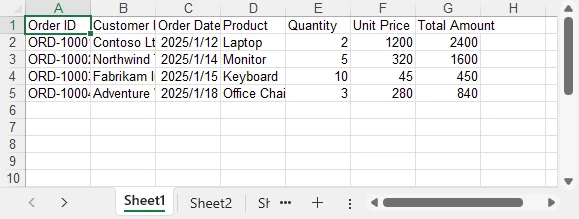
This export logic can be reused for DataGrid, DataGridView, and GridView scenarios without modification.
Step 3: Apply Formatting to the Exported Excel File
Formatting is a common requirement for Excel exports, regardless of how the data was sourced. Applying styles, adjusting column widths, and setting number formats significantly improves the usability of the exported file.
The following example demonstrates common formatting operations that can be applied to any exported Excel worksheet:
CellStyle headerStyle = workbook.Styles.Add("HeaderStyle");
headerStyle.Font.IsBold = true;
headerStyle.Font.Size = 13;
headerStyle.HorizontalAlignment = HorizontalAlignType.Center;
headerStyle.VerticalAlignment = VerticalAlignType.Center;
headerStyle.Color = Color.LightGray;

// Apply header style
CellRange headerRange = worksheet.Range[1, 1, 1, worksheet.AllocatedRange.Rows[0].CellsCount];
headerRange.Style = headerStyle;

// Auto-fit columns
worksheet.AllocatedRange.AutoFitColumns();

// Format date and currency columns
worksheet.Range[$"C2:C{worksheet.AllocatedRange.RowCount}"].NumberFormat = "yyyy-mm-dd";
worksheet.Range[$"F2:G{worksheet.AllocatedRange.RowCount}"].NumberFormat = "$#,##0.00";
Below is a preview of the Excel file after applying formatting:
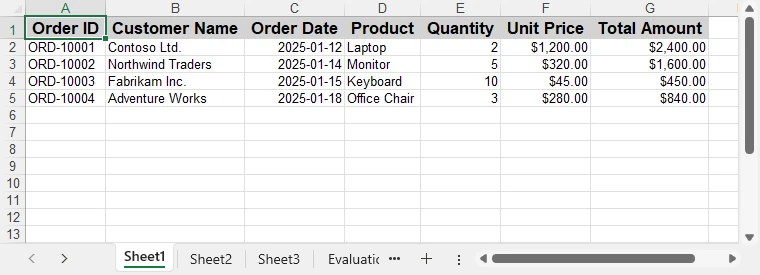
These formatting steps can be combined or extended based on reporting requirements, without changing the data extraction logic.
Spire.XLS for .NET also supports more Excel formatting features, such as conditional formatting, charts, and more. You can check How to Create Excel Files in C# for more formating options.
Performance and Practical Considerations
When exporting large DataGrid or GridView datasets:
- Run export operations asynchronously in desktop applications
- Avoid blocking the UI thread during Excel generation
- Export only necessary or visible columns
- Generate Excel files server-side in ASP.NET applications
Because the export process operates on a DataTable rather than UI elements, it remains maintainable and scalable as data volume increases.
Summary
Exporting DataGrid, DataGridView, or GridView data to Excel in C# does not require Microsoft Office Interop. By extracting the displayed data into a DataTable and generating Excel files programmatically, developers can implement reliable and reusable Excel export functionality.
With consistent formatting support and a clear separation between UI and export logic, this approach works well for real-world reporting scenarios in both desktop and web applications. For evaluating the library or testing export functionality, you can apply for a temporary license.
FAQ
Q1: How can I export DataGridView data to Excel in C#?
A1: You can extract the displayed data from a DataGridView into a DataTable and then use Spire.XLS for .NET to generate an Excel file programmatically, without relying on Microsoft Excel.
Q2: Can I apply formatting when exporting GridView to Excel in C#?
A2: Yes, Spire.XLS allows you to apply styles, adjust column widths, and set number formats to any exported Excel worksheet, ensuring readable and professional-looking reports.
Q3: Do I need Microsoft Excel installed to export DataGrid or GridView data in C#?
A3: No. By using a programmatic library like Spire.XLS, Excel files can be generated directly from DataTable objects without requiring Excel on the machine, making it suitable for server-side and cloud applications.
Transform DataTables into Professional PDF Reports with C#
2026-01-23 02:56:48 Written by Allen Yang
In many .NET-based business systems, structured data is often represented as a DataTable. When this data needs to be distributed, archived, or delivered as a read-only report, exporting a DataTable to PDF using C# becomes a common and practical requirement.
Compared with formats such as Excel or CSV, PDF is typically chosen when layout stability, visual consistency, and document integrity are more important than data editability. This makes PDF especially suitable for reports, invoices, audit records, and system-generated documents.
This tutorial takes a code-first approach to converting a DataTable to PDF in C#, focusing on the technical implementation rather than conceptual explanations. The solution is based on Spire.PDF for .NET, using its PdfGrid component to render DataTable content as a structured table inside a PDF document.
Table of Contents
- 1. Overview: DataTable to PDF Export in C#
- 2. Environment Setup
- 3. Core Workflow and Code Implementation
- 4. Controlling Table Layout, Page Flow, and Pagination
- 5. Customizing Table Appearance
- 6. PDF File and Stream Output
- 7. Practical Tips and Common Issues
1. Overview: DataTable to PDF Export in C#
Exporting a DataTable to PDF is fundamentally a data-binding and rendering task, not a low-level drawing problem.
Instead of manually calculating row positions, column widths, or page breaks, the recommended approach is to bind an existing DataTable to a PDF table component and let the rendering engine handle layout and pagination automatically.
In Spire.PDF for .NET, this role is fulfilled by the PdfGrid class.
Why PdfGrid Is the Right Abstraction
PdfGrid is a Spire.PDF for .NET component designed specifically for rendering structured, tabular data in PDF documents. It treats rows, columns, headers, and pagination as first-class concepts rather than graphical primitives.
From a technical standpoint, PdfGrid provides:
- Direct binding via the DataSource property, which accepts a DataTable
- Automatic column generation based on the DataTable schema
- Built-in header and row rendering
- Automatic page breaking when content exceeds page bounds
As a result, exporting a DataTable to PDF becomes a declarative operation: you describe what data should be rendered, and the PDF engine determines how it is laid out across pages.
The following sections focus on the concrete implementation and practical refinements of this approach.
2. Environment Setup
All examples in this article apply to both .NET Framework and modern .NET (6+) projects. The implementation is based entirely on managed code and does not require platform-specific configuration.
Installing Spire.PDF for .NET
Spire.PDF for .NET can be installed via NuGet:
Install-Package Spire.PDF
You can also download Spire.PDF for .NET and include it in your project manually.
Once installed, the library provides APIs for PDF document creation, page management, table rendering, and style control.
3. DataTable to PDF in C#: Core Workflow and Code Implementation
With the environment prepared, exporting a DataTable to PDF becomes a linear, implementation-driven process.
At its core, the workflow relies on binding an existing DataTable to PdfGrid and delegating layout, pagination, and table rendering to the PDF engine. There is no need to manually draw rows, columns, or borders.
From an implementation perspective, the process consists of the following steps:
- Prepare a populated DataTable
- Create a PDF document and page
- Bind the DataTable to a PdfGrid
- Render the grid onto the page
- Save the PDF output
These steps are typically executed together as a single, continuous code path in real-world applications. The following example demonstrates the complete workflow in one place.
Complete Example: Exporting a DataTable to PDF
The example below uses a business-oriented DataTable schema to reflect a typical reporting scenario. The source of the DataTable (database, API, or in-memory processing) does not affect the export logic.
DataTable dataTable = new DataTable();
dataTable.Columns.Add("OrderId", typeof(int));
dataTable.Columns.Add("CustomerName", typeof(string));
dataTable.Columns.Add("OrderDate", typeof(DateTime));
dataTable.Columns.Add("TotalAmount", typeof(decimal));

dataTable.Rows.Add(1001, "Contoso Ltd.", DateTime.Today, 1280.50m);
dataTable.Rows.Add(1002, "Northwind Co.", DateTime.Today, 760.00m);
dataTable.Rows.Add(1003, "Adventure Works", DateTime.Today, 2145.75m);
dataTable.Rows.Add(1004, "Wingtip Toys", DateTime.Today, 1230.00m);
dataTable.Rows.Add(1005, "Bike World", DateTime.Today, 1230.00m);
dataTable.Rows.Add(1006, "Woodgrove Bank", DateTime.Today, 1230.00m);

PdfDocument document = new PdfDocument();
PdfPageBase page = document.Pages.Add();

PdfGrid grid = new PdfGrid();
grid.DataSource = dataTable;

grid.Draw(page, new PointF(40f, 0));

document.SaveToFile("DataTableToPDF.pdf");
document.Close();
This single code block completes the entire DataTable-to-PDF export process. Below is a preview of the generated PDF:
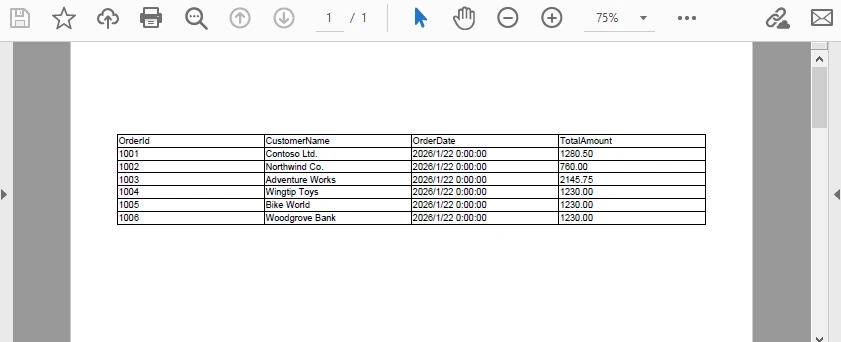
Key technical characteristics of this implementation:
- PdfGrid.DataSource accepts a DataTable directly, with no manual row or column mapping
- Column headers are generated automatically from DataColumn.ColumnName
- Row data is populated from each DataRow
- Pagination and page breaks are handled internally during rendering
- No coordinate-level table layout logic is required
The result is a structured, paginated PDF table that accurately reflects the DataTable’s schema and data. This method is already a fully functional and production-ready solution for exporting a DataTable to PDF in C#.
In practical applications, however, additional control is often required for layout positioning, page size, orientation, and visual styling. The following sections focus on refining table placement, appearance, and pagination behavior without altering the core export logic.
4. Controlling Table Layout, Page Flow, and Pagination
In real-world documents, table rendering is part of a larger page composition. Page geometry, table start position, and pagination behavior together determine how tabular data flows across one or more pages.
In PdfGrid, these concerns are resolved during rendering. The grid itself does not manage absolute layout or page transitions; instead, layout and pagination are governed by page configuration and the parameters supplied when calling Draw.
The following example demonstrates a typical layout and pagination configuration used in production reports.
Layout and Pagination Example
PdfDocument document = new PdfDocument();

// Create an A4 page with margins
PdfPageBase page = document.Pages.Add(
    PdfPageSize.A4,
    new PdfMargins(40),
    PdfPageRotateAngle.RotateAngle0,  // Rotates the page coordinate system
    PdfPageOrientation.Landscape  // Sets the page orientation
);

PdfGrid grid = new PdfGrid();
grid.DataSource = dataTable;

// Enable header repetition across pages
grid.RepeatHeader = true;

// Define table start position
float startX = 40f;
float startY = 80f;

// Render the table
grid.Draw(page, new PointF(startX, startY));
Below is a preview of the generated PDF with page configuration applied:
Technical Explanation
The rendering behavior illustrated above can be understood as a sequence of layout and flow decisions applied at draw time:
-
PdfPageBase
- Pages.Add creates a new page with configurable size, margins, rotation, and orientation.
-
RepeatHeader
- Boolean property controlling whether column headers are rendered on each page. When enabled, headers repeat automatically during multi-page rendering.
-
Draw method
- Accepts a PointF defining the starting position on the page.
- Responsible for rendering the grid and automatically handling pagination.
By configuring page geometry, table start position, and pagination behavior together, PdfGrid enables predictable multi-page table rendering without manual page management or row-level layout control.
Page numbers are also important for PDF reports. Refer to How to Add Pages Numbers to PDF with C# to learn page numbering techniques.
5. Customizing Table Appearance
Once layout is stable, appearance becomes the primary concern. PdfGrid provides a centralized styling model that allows table-wide, column-level, and row-level customization without interfering with data binding or pagination.
The example below consolidates common styling configurations typically applied in reporting scenarios.
Styling Example: Headers, Rows, and Columns
PdfDocument document = new PdfDocument();
PdfPageBase page = document.AppendPage();

PdfGrid grid = new PdfGrid();
grid.DataSource = dataTable;

// Create and apply the header style
PdfGridCellStyle headerStyle = new PdfGridCellStyle();
headerStyle.Font =
    new PdfFont(PdfFontFamily.Helvetica, 10f, PdfFontStyle.Bold);
headerStyle.BackgroundBrush =
    new PdfSolidBrush(Color.FromArgb(60, 120, 200));
headerStyle.TextBrush = PdfBrushes.White;
grid.Headers.ApplyStyle(headerStyle);


// Create row styles
PdfGridCellStyle defaultStyle = new PdfGridCellStyle();
defaultStyle.Font = new PdfFont(PdfFontFamily.Helvetica, 9f);
PdfGridCellStyle alternateStyle = new PdfGridCellStyle();
alternateStyle.BackgroundBrush = new PdfSolidBrush(Color.LightSkyBlue);
// Apply row styles
for (int rowIndex = 0; rowIndex < grid.Rows.Count; rowIndex++)
{
    if (rowIndex % 2 == 0)
    {
        grid.Rows[rowIndex].ApplyStyle(defaultStyle);
    }
    else
    {
        grid.Rows[rowIndex].ApplyStyle(alternateStyle);
    }
}

// Explicit column widths
grid.Columns[0].Width = 60f;    // OrderId
grid.Columns[1].Width = 140f;   // CustomerName
grid.Columns[2].Width = 90f;    // OrderDate
grid.Columns[3].Width = 90f;    // TotalAmount

// Render the table
grid.Draw(page, new PointF(40f, 80f));
Below is a preview of the generated PDF with the above styling applied:
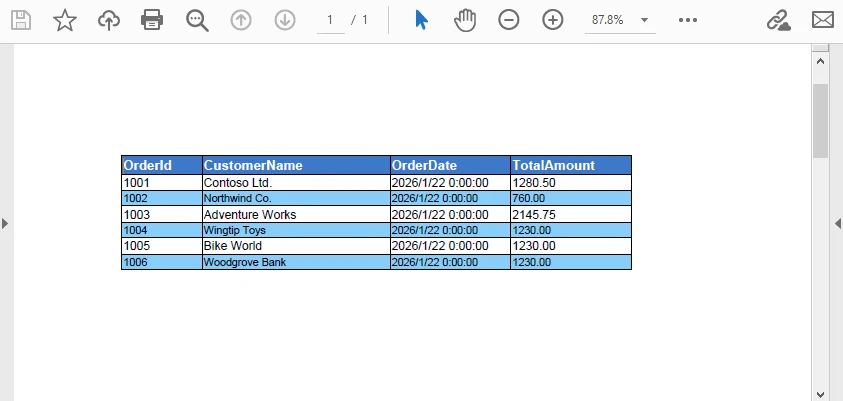
Styling Behavior Notes
-
Header styling
- Header appearance is defined through a dedicated PdfGridCellStyle and applied using grid.Headers.ApplyStyle(...).
- This ensures all header cells share the same font, background color, text color, and alignment across pages.
-
Row styling
- Data rows are styled explicitly via grid.Rows[i].ApplyStyle(...).
- Alternating row appearance is controlled by the row index, making the behavior predictable and easy to extend with additional conditions if needed.
-
Column width control
- Column widths are assigned directly through grid.Columns[index].Width.
- Explicit widths avoid layout shifts caused by content length and produce consistent results in report-style documents.
Make sure to bind the styles before applying styles.
All styles (header, rows, and columns) are resolved before calling grid.Draw(...). The rendering process applies these styles without affecting pagination or data binding.
For more complex styling scenarios, check out How to Create and Style Tables in PDF with C#.
6. Output Options: File vs Stream
Once the table has been rendered, the final step is exporting the PDF output.
The rendering logic remains identical regardless of the output destination.
Saving to a File
Saving directly to a file is suitable for desktop applications, background jobs, and batch exports.
document.SaveToFile("DataTableReport.pdf");
document.Close();
This approach is typically used in:
- Windows desktop applications
- Scheduled report generation
- Offline or server-side batch processing
Writing to a Stream (Web and API Scenarios)
In web-based systems, saving to disk is often unnecessary or undesirable. Instead, the PDF can be written directly to a stream.
using (MemoryStream stream = new MemoryStream())
{
    document.SaveToStream(stream);
    document.Close();

    byte[] pdfBytes = stream.ToArray();
    // return pdfBytes as HTTP response
}
Stream output integrates cleanly with ASP.NET controllers or minimal APIs, without the need for temporary file storage.
For a complete example of returning a generated PDF from an ASP.NET application, see how to create and return PDF documents in ASP.NET.
7. Practical Tips and Common Issues
This section focuses on issues commonly encountered in real-world projects when exporting DataTables to PDF.
7.1 Formatting Dates and Numeric Values
PdfGrid renders values using their string representation. To ensure consistent formatting, values should be normalized before binding.
Typical examples include:
- Formatting DateTime values using a fixed culture
- Standardizing currency precision
- Avoiding locale-dependent formats in multi-region systems
This preparation step belongs in the data layer, not the rendering layer.
7.2 Handling Null and Empty Values
DBNull.Value may result in empty cells or inconsistent alignment. Normalizing values before binding avoids layout surprises.
row["TotalAmount"] =
    row["TotalAmount"] == DBNull.Value ? 0m : row["TotalAmount"];
This approach keeps rendering logic simple and predictable.
7.3 Preventing Table Width Overflow
Wide DataTables can exceed page width if left unconfigured.
Common mitigation strategies include:
- Explicit column width configuration
- Slight font size reduction
- Switching to landscape orientation
- Increasing page margins selectively
These adjustments should be applied at the layout level rather than modifying the underlying data.
7.4 Large DataTables and Performance Considerations
When exporting DataTables with hundreds or thousands of rows, performance characteristics become more visible.
Practical recommendations:
- Avoid per-cell or per-row styling in large tables.
- Prefer table-level or column-level styles
- Use standard fonts instead of custom embedded fonts
- Keep layout calculations simple and consistent
For example, applying styles using grid.Rows[rowIndex].ApplyStyle(...) inside a loop can introduce unnecessary overhead for large datasets. In such cases, prefer applying a unified style at the row or column collection level (e.g., grid.Rows.ApplyStyle(...)) when individual row differentiation is not required.
In addition to rendering efficiency, in web environments, PDF generation should be performed outside the request thread when possible to avoid blocking.
8. Conclusion
Exporting a DataTable to PDF in C# can be handled directly through PdfGrid without manual table construction or low-level drawing. By binding an existing DataTable, you can generate paginated PDF tables while keeping layout and appearance fully under control.
This article focused on a practical, code-first approach, covering layout positioning, styling, and data preparation as they apply in real-world export scenarios. With these patterns in place, the same workflow scales cleanly from simple reports to large, multi-page documents.
If you plan to evaluate this workflow in a real project, you can apply for a temporary license from E-ICEBLUE to test the full functionality without limitations.
FAQ: DataTable to PDF in C#
When is PdfGrid the right choice for exporting DataTables to PDF?
PdfGrid is most suitable when you need structured, paginated tables with consistent layout. It handles column generation, headers, and page breaks automatically, making it a better choice than manual drawing for reports, invoices, and audit documents.
Should formatting be handled in the DataTable or in PdfGrid?
Data normalization (such as date formats, numeric precision, and null handling) should be done before binding. PdfGrid is best used for layout and visual styling, not for value transformation.
Can PdfGrid handle large DataTables efficiently?
Yes. PdfGrid supports automatic pagination and header repetition. For large datasets, applying table-level or column-level styles instead of per-cell styling helps maintain stable performance.
