
Knowledgebase (2370)
Children categories
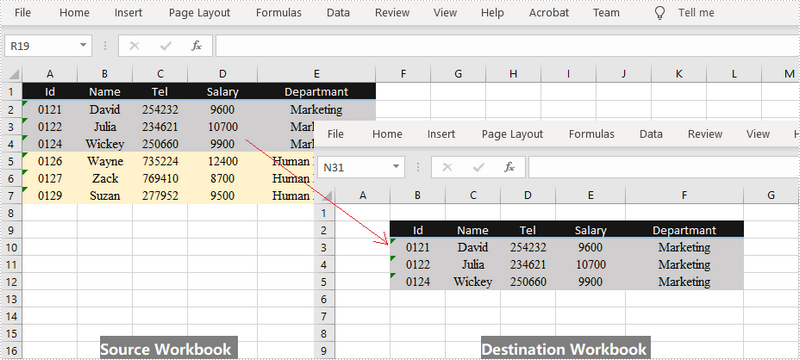
When you're dealing Excel documents, it is a common task that you may need to copy data from a main workbook and paste into a separate workbook. You can copy either a selected cell range or an entire worksheet between different workbooks. This article demonstrates how to copy a selected cell range from one workbook to another by using Spire.XLS for .NET.
Install Spire.XLS for .NET
To begin with, you need to add the DLL files included in the Spire.XLS for.NET package as references in your .NET project. The DLLs files can be either downloaded from this link or installed via NuGet.
- Package Manager
PM> Install-Package Spire.XLS
Copy a Cell Range Between Different Workbooks
Spire.XLS offers the Worksheet.Copy() method to copy data from a source range to a destination range. The destination range can be a cell range inside the same workbook or from a different workbook. The following are the steps to copy a cell range from a workbook to another.
- Create a Workbook object to load the source Excel document.
- Get the source worksheet and the source cell range using Workbook.Worksheets property and Worksheet.Range property respectively.
- Create another Workbook object to load the destination Excel document.
- Get the destination worksheet and cell range.
- Copy the data from the source range to the destination range using Worksheet.Copy(CellRange source, CellRange destRange).
- Copy the column widths from the source range to the destination range, so that the data can display properly in the destination workbook.
- Save the destination workbook to an Excel file using Workbook.SaveToFile() method.
- C#
- VB.NET
using Spire.Xls;

namespace CopyCellRange
{
    class Program
    {
        static void Main(string[] args)
        {
            //Create a Workbook object
            Workbook sourceBook = new Workbook();

            //Load the source workbook
            sourceBook.LoadFromFile(@"C:\Users\Administrator\Desktop\source.xlsx");

            //Get the source worksheet
            Worksheet sourceSheet = sourceBook.Worksheets[0];

            //Get the source cell range
            CellRange sourceRange = sourceSheet.Range["A1:E4"];

            //Create another Workbook objecy
            Workbook destBook = new Workbook();

            //Load the destination workbook
            destBook.LoadFromFile(@"C:\Users\Administrator\Desktop\destination.xlsx");

            //Get the destination worksheet
            Worksheet destSheet = destBook.Worksheets[0];

            //Get the destination cell range
            CellRange destRange = destSheet.Range["B2:F5"];

            //Copy data from the source range to the destination range
            sourceSheet.Copy(sourceRange, destRange);

            //Loop through the columns in the source range
            for (int i = 0; i < sourceRange.Columns.Length; i++)
            {
                //Copy the column widths also from the source range to destination range
                destRange.Columns[i].ColumnWidth = sourceRange.Columns[i].ColumnWidth;
            }

            //Save the destination workbook to an Excel file
            destBook.SaveToFile("CopyRange.xlsx");
        }
    }
}
Imports Spire.Xls

Namespace CopyCellRange
    Class Program
        Shared  Sub Main(ByVal args() As String)
            'Create a Workbook object
            Dim sourceBook As Workbook =  New Workbook()

            'Load the source workbook
            sourceBook.LoadFromFile("C:\Users\Administrator\Desktop\source.xlsx")

            'Get the source worksheet
            Dim sourceSheet As Worksheet =  sourceBook.Worksheets(0)

            'Get the source cell range
            Dim sourceRange As CellRange =  sourceSheet.Range("A1:E4")

            'Create another Workbook objecy
            Dim destBook As Workbook =  New Workbook()

            'Load the destination workbook
            destBook.LoadFromFile("C:\Users\Administrator\Desktop\destination.xlsx")

            'Get the destination worksheet
            Dim destSheet As Worksheet =  destBook.Worksheets(0)

            'Get the destination cell range
            Dim destRange As CellRange =  destSheet.Range("B2:F5")

            'Copy data from the source range to the destination range
            sourceSheet.Copy(sourceRange, destRange)

            'Loop through the columns in the source range
            Dim i As Integer
            For  i = 0 To  sourceRange.Columns.Length- 1  Step  i + 1
                'Copy the column widths also from the source range to destination range
                destRange.Columns(i).ColumnWidth = sourceRange.Columns(i).ColumnWidth
            Next

            'Save the destination workbook to an Excel file
            destBook.SaveToFile("CopyRange.xlsx")
        End Sub
    End Class
End Namespace
Apply for a Temporary License
If you'd like to remove the evaluation message from the generated documents, or to get rid of the function limitations, please request a 30-day trial license for yourself.
In daily work, converting a Word document to other formats can be extremely frequent. For example, sometimes you may need to convert a Word document to XML to store and organize data; on some occasions, you may also need to convert Word to SVG for sharing graphics contents on the Internet. In this article, you will learn how to convert Word to XPS, XML, RTF, TXT and SVG using Spire.Doc for Java.
Install Spire.Doc for Java
First of all, you're required to add the Spire.Doc.jar file as a dependency in your Java program. The JAR file can be downloaded from this link. If you use Maven, you can easily import the JAR file in your application by adding the following code to your project's pom.xml file.
<repositories>
    <repository>
        <id>com.e-iceblue</id>
        <name>e-iceblue</name>
        <url>https://repo.e-iceblue.com/nexus/content/groups/public/</url>
    </repository>
</repositories>
<dependencies>
    <dependency>
        <groupId>e-iceblue</groupId>
        <artifactId>spire.doc</artifactId>
        <version>14.7.0</version>
    </dependency>
</dependencies>
Convert Word to XPS, XML, RTF, TXT and SVG
The following are the main steps to convert Word to XPS, XML, RTF, TXT and SVG.
- Create a Document object.
- Load the document using Document.loadFromFile() method.
- Use Document.saveToFile() method to save the document as SVG, RTF, XPS, XML and TXT respectively.
- Java
import com.spire.doc.Document;
import com.spire.doc.FileFormat;
import com.spire.doc.documents.ImageType;

import javax.imageio.ImageIO;
import java.awt.image.BufferedImage;
import java.io.File;
import java.io.IOException;

public class ConvertWordToOtherFormats {

    public static void main(String[] args) throws IOException {

        //Create a Document object.
        Document doc = new Document();

        //Load the Word document.
        doc.loadFromFile("C:\\Users\\Administrator\\Desktop\\sample.docx");

        //Save Word as SVG.
        doc.saveToFile("output/ToSVG.svg",FileFormat.SVG);

        //Save Word as RTF.
        doc.saveToFile("output/ToRTF.rtf",FileFormat.Rtf);

        //Save Word as XPS.
        doc.saveToFile("output/ToXPS.xps",FileFormat.XPS);

        //Save Word as XML.
        doc.saveToFile("output/ToXML.xml",FileFormat.Xml);

        //Save Word as TXT.
        doc.saveToFile("output/ToTXT.txt",FileFormat.Txt);
    }
}
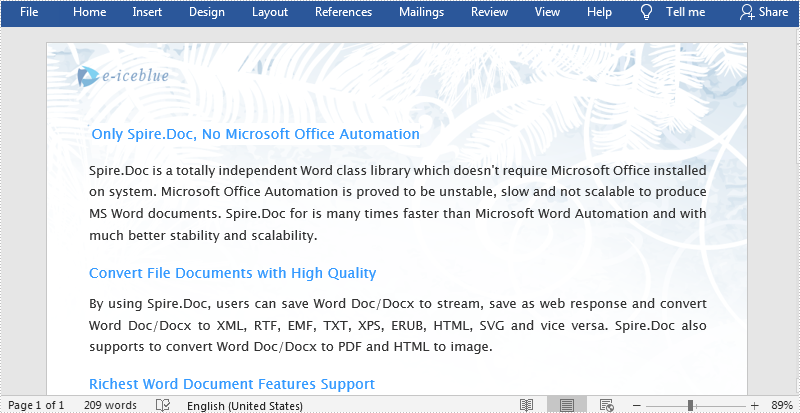
The original Word file:
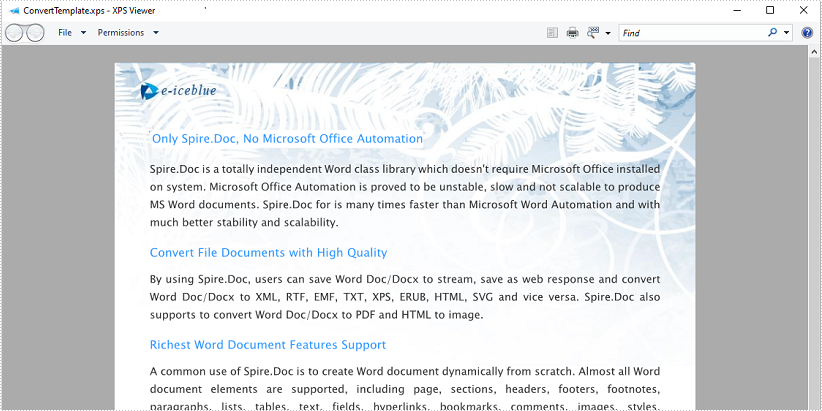
The generated XPS file:
Apply for a Temporary License
If you'd like to remove the evaluation message from the generated documents, or to get rid of the function limitations, please request a 30-day trial license for yourself.
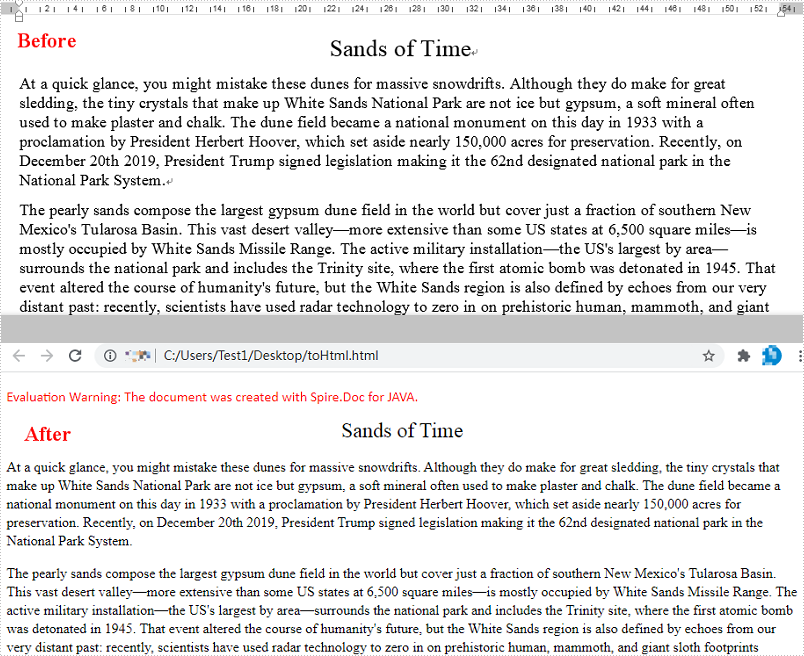
An HTML (Hyper Text Markup Language) file is a webpage coded in HTML that can be displayed in a Web browser. It is widely used on the Web as most static webpages have an .html extension. In some cases, you need to convert some document formats (such as Word) to HTML. This tutorial will demonstrate how to convert Word to HTML using Spire.Doc for Java.
Install Spire.Doc for Java
First of all, you're required to add the Spire.Doc.jar file as a dependency in your Java program. The JAR file can be downloaded from this link. If you use Maven, you can easily import the JAR file in your application by adding the following code to your project's pom.xml file.
<repositories>
    <repository>
        <id>com.e-iceblue</id>
        <name>e-iceblue</name>
        <url>https://repo.e-iceblue.com/nexus/content/groups/public/</url>
    </repository>
</repositories>
<dependencies>
    <dependency>
        <groupId>e-iceblue</groupId>
        <artifactId>spire.doc</artifactId>
        <version>14.7.0</version>
    </dependency>
</dependencies>
Convert Word to HTML
Spire.Doc for Java can easily convert Word to HTML using Document.saveToFile() method. You can find the steps as blow.
- Create a Document instance.
- Load a Word document using Document.loadFromFile() method.
- Save the document as an HTML file using Document.saveToFile() method.
- Java
import com.spire.doc.*;

public class WordToHtml {
    public static void main(String[] args) {
        //Create a Document instance
        Document document = new Document();
        //Load a Word document
        document.loadFromFile("C:\\Users\\Test1\\Desktop\\sample.docx");

        //Save the document as HTML
        document.saveToFile("output/toHtml.html", FileFormat.Html);
    }
}
Apply for a Temporary License
If you'd like to remove the evaluation message from the generated documents, or to get rid of the function limitations, please request a 30-day trial license for yourself.
