
Knowledgebase (2370)
Children categories
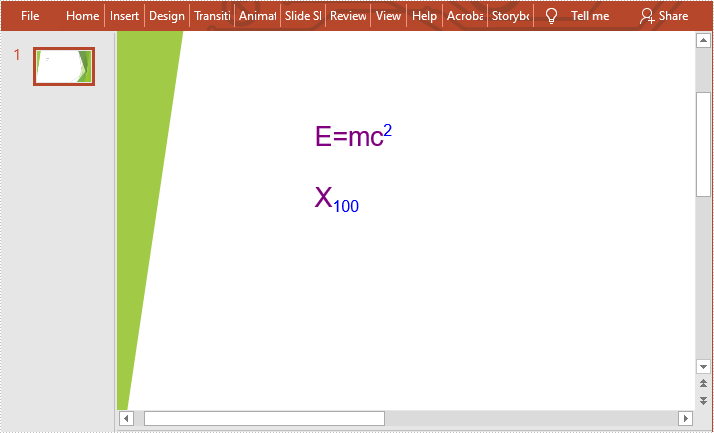
When we add a trademark, copyright or other symbol to our presentation, we might want the symbol to appear slightly above or below a certain text. In Microsoft PowerPoint, we can implement this effect simply by applying superscript or subscript formatting to the symbol. In this article, we will demonstrate how to achieve this task programmatically in Java using Spire.Presentation for Java.
Install Spire.Presentation for Java
First of all, you're required to add the Spire.Presentation.jar file as a dependency in your Java program. The JAR file can be downloaded from this link. If you use Maven, you can easily import the JAR file in your application by adding the following code to your project's pom.xml file.
<repositories>
    <repository>
        <id>com.e-iceblue</id>
        <name>e-iceblue</name>
        <url>https://repo.e-iceblue.com/nexus/content/groups/public/</url>
    </repository>
</repositories>
<dependencies>
    <dependency>
        <groupId>e-iceblue</groupId>
        <artifactId>spire.presentation</artifactId>
        <version>11.7.2</version>
    </dependency>
</dependencies>
Add Superscript and Subscript
Spire.Presentation for Java provides the PortionEx.getFormat().setScriptDistance(float value) method for applying superscript or subscript formatting to text. The value can be set as positive or negative. The bigger the positive value, the higher the superscript will appear above your text. The smaller the negative value, the lower the subscript will appear below your text.
The following are the steps to add superscript or subscript to a PowerPoint document:
- Create a Presentation instance and load a PowerPoint document using Presentation.loadFromFile() method.
- Get the desired slide using Presentation.getSlides().get() method.
- Add a shape to the slide using ISlide.getShapes().appendShape() method and set shape fill type and line color.
- Access the text frame of the shape using IAutoShape.getTextFrame() method, then clear the default paragraph in the text frame using ITextFrameProperties.getParagraphs().clear() method.
- Create a paragraph using ParagraphEx class, and add normal text to the paragraph using ParagraphEx.setText() method.
- Create a portion with text using PortionEx class, and then apply superscript or subscript formatting to the text using PortionEx.getFormat().setScriptDistance(float value) method.
- Set text color, font and font size for the normal text and the superscript or subscript text.
- Append the paragraph to the text frame of the shape using ITextFrameProperties.getParagraphs().append() method.
- Save the result document using Presentation.saveToFile() method.
- Java
import com.spire.presentation.*;
import com.spire.presentation.drawing.*;

import java.awt.*;

public class AddSuperscriptAndSubscript {
    public static void main(String []args) throws Exception {

        //Load a PowerPoint document
        Presentation presentation = new Presentation();
        presentation.loadFromFile("template.pptx");

        //Get the first slide
        ISlide slide = presentation.getSlides().get(0);

        //Add a shape to the slide
        IAutoShape shape = slide.getShapes().appendShape(ShapeType.RECTANGLE, new Rectangle(150, 100, 200, 50));
        shape.getFill().setFillType(FillFormatType.NONE);
        shape.getShapeStyle().getLineColor().setColor(Color.white);

        //Access the text frame of the shape
        ITextFrameProperties textFrame = shape.getTextFrame();
        //Clear the default paragraph in the text frame
        textFrame.getParagraphs().clear();

        //Create a paragraph with normal text
        ParagraphEx para = new ParagraphEx();
        para.setText("E=mc");

        //Create a portion with superscript text
        PortionEx tr = new PortionEx("2");
        tr.getFormat().setScriptDistance(40);

        //Append the portion to the paragraph
        para.getTextRanges().append(tr);

        para.getTextRanges().append(new PortionEx("\n"));

        //Set text color, font and font size for the normal text
        tr = para.getTextRanges().get(0);
        tr.getFill().setFillType(FillFormatType.SOLID);
        tr.getFill().getSolidColor().setColor(new Color(128,0,128));
        tr.setFontHeight(20);
        tr.setLatinFont(new TextFont("Arial"));

        //Set text color and font for the superscript text
        tr = para.getTextRanges().get(1);
        tr.getFill().setFillType(FillFormatType.SOLID);
        tr.getFill().getSolidColor().setColor(Color.BLUE);
        tr.setLatinFont(new TextFont("Arial"));

        //Append the paragraph to the text frame of the shape
        textFrame.getParagraphs().append(para);

        //Create another paragraph with normal text
        para = new ParagraphEx();
        para.setText("X");

        //Create a portion with subscript text
        tr = new PortionEx("100");
        tr.getFormat().setScriptDistance(-25);

        //Append the portion to the paragraph
        para.getTextRanges().append(tr);

        //Set text color, font and font size for the normal text
        tr = para.getTextRanges().get(0);
        tr.getFill().setFillType(FillFormatType.SOLID);
        tr.getFill().getSolidColor().setColor(new Color(128,0,128));
        tr.setFontHeight(20);
        tr.setLatinFont(new TextFont("Arial"));

        //Set text color and font for the subscript text
        tr = para.getTextRanges().get(1);
        tr.getFill().setFillType(FillFormatType.SOLID);
        tr.getFill().getSolidColor().setColor(Color.BLUE);
        tr.setLatinFont(new TextFont("Arial"));

        //Append the paragraph to the text frame of the shape
        textFrame.getParagraphs().append(para);

        //Save the result document
        presentation.saveToFile("AddSuperscriptAndSubscript.pptx", FileFormat.PPTX_2013);
    }
}
Output:
Apply for a Temporary License
If you'd like to remove the evaluation message from the generated documents, or to get rid of the function limitations, please request a 30-day trial license for yourself.
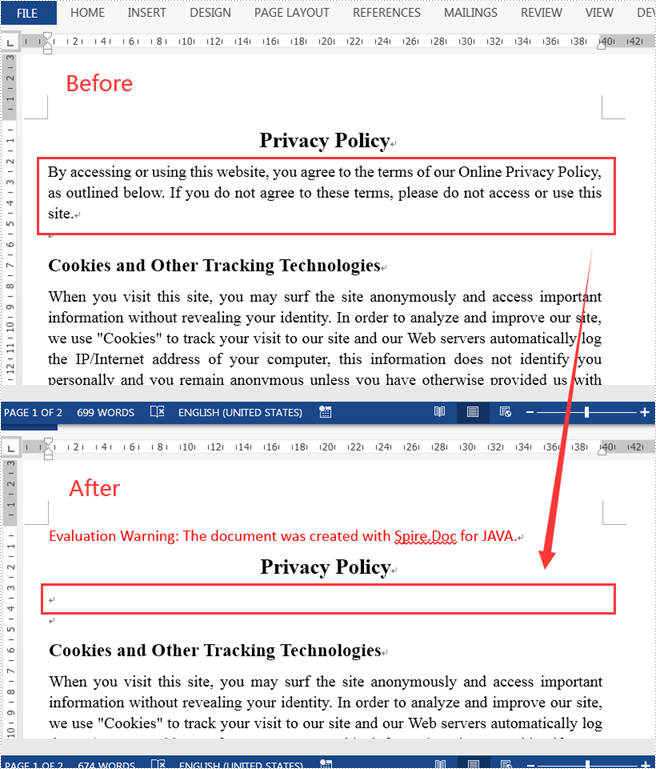
In the process of manipulating Word documents, it is sometimes necessary to keep some important information from others. For this reason, we can hide them to ensure confidentiality. This article shows how to hide a specific paragraph in a Word document using Spire.Doc for Java.
Install Spire.Doc for Java
First of all, you're required to add the Spire.Doc.jar file as a dependency in your Java program. The JAR file can be downloaded from this link. If you use Maven, you can easily import the JAR file in your application by adding the following code to your project's pom.xml file.
<repositories>
    <repository>
        <id>com.e-iceblue</id>
        <name>e-iceblue</name>
        <url>https://repo.e-iceblue.com/nexus/content/groups/public/</url>
    </repository>
</repositories>
<dependencies>
    <dependency>
        <groupId>e-iceblue</groupId>
        <artifactId>spire.doc</artifactId>
        <version>14.7.0</version>
    </dependency>
</dependencies>
Hide a Specific Paragraph in Word
Spire.Doc for Java supports hiding a specific paragraph in Word by using TextRange.getCharacterFormat().setHidden(boolean value) method. Here are detailed steps to follow.
- Create a Document instance.
- Load a sample Word document using Document.loadFromFile() method.
- Get a specific section of the Word document using Document.getSections().get() method.
- Get a specific paragraph of the section using Section.getParagraphs().get() method.
- Loop through the child objects of the paragraph, and convert each child object as a text range if it is plain text. Then hide the text range using TextRange.getCharacterFormat().setHidden(boolean value) method.
- Save the document to another file using Document.saveToFile() method.
- Java
import com.spire.doc.*;
import com.spire.doc.documents.*;
import com.spire.doc.fields.*;

public class HideParagraph {
    public static void main(String[] args) {
        //Create a Document instance
        Document document = new Document();

        //Load a sample Word document
        document.loadFromFile("C:\\Users\\Test1\\Desktop\\sample.docx");

        //Get a specific section of Word
        Section sec = document.getSections().get(0);

        //Get a specific paragraph of the section
        Paragraph para = sec.getParagraphs().get(1);

        //Loop through the child objects
        for (Object docObj : para.getChildObjects()) {
            DocumentObject obj = (DocumentObject)docObj;

            //Determine if a child object is an instance of TextRange
            if ((obj instanceof TextRange)) {
                TextRange range = ((TextRange)(obj));

                //Hide the text range
                range.getCharacterFormat().setHidden(true);
            }
        }

        //Save the document to another file
        document.saveToFile("output/hideParagraph.docx", FileFormat.Docx_2013);
    }
}
Apply for a Temporary License
If you'd like to remove the evaluation message from the generated documents, or to get rid of the function limitations, please request a 30-day trial license for yourself.
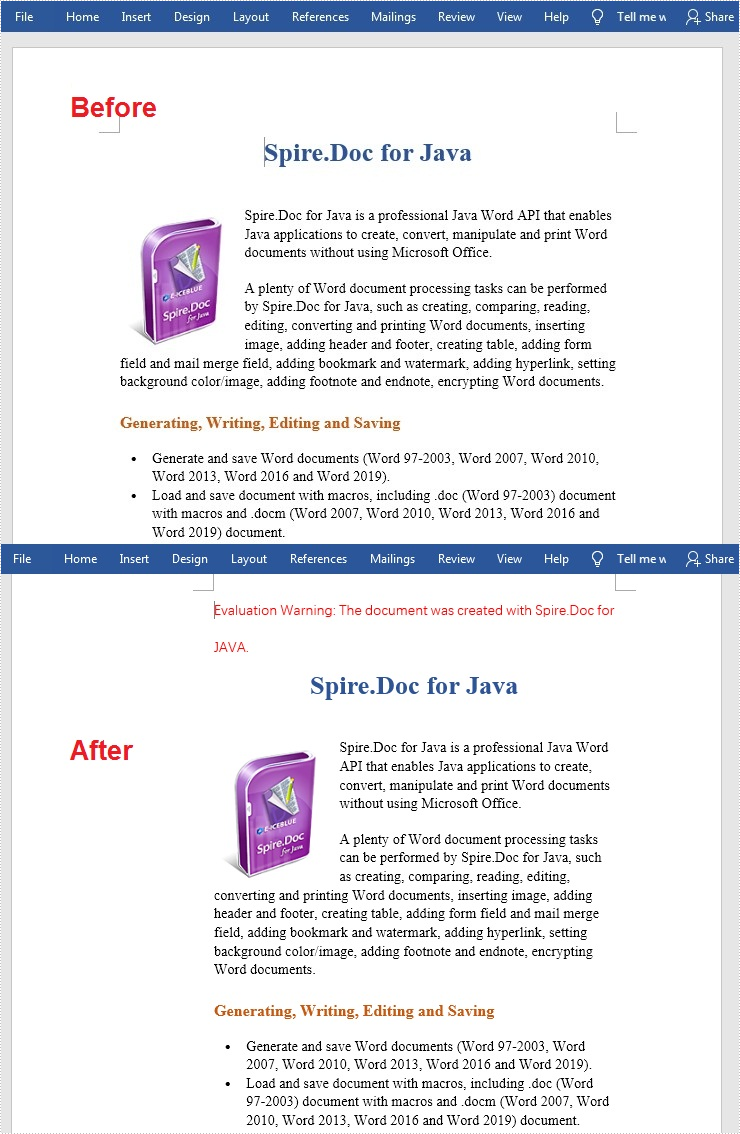
Gutter margins are designed to add extra space to the existing margins of a document, which ensures that the text of the document will not be obscured when binding. This is very useful when you need to bind some important official documents, books, or examination papers. This article will introduce how to set gutter margins on the left edges of the pages in a Word document using Spire.Doc for Java.
Install Spire.Doc for Java
First of all, you're required to add the Spire.Doc.jar file as a dependency in your Java program. The JAR file can be downloaded from this link. If you use Maven, you can easily import the JAR file in your application by adding the following code to your project's pom.xml file.
<repositories>
    <repository>
        <id>com.e-iceblue</id>
        <name>e-iceblue</name>
        <url>https://repo.e-iceblue.com/nexus/content/groups/public/</url>
    </repository>
</repositories>
<dependencies>
    <dependency>
        <groupId>e-iceblue</groupId>
        <artifactId>spire.doc</artifactId>
        <version>14.7.0</version>
    </dependency>
</dependencies>
Set Gutter Margins in Word
Although you can adjust the normal margins to add more space for document binding, setting gutter margins is a more efficient way to achieve the same function. The following are the steps to set gutter margins in a Word document:
- Create a Document instance.
- Load a Word document using Document.loadFromFile() method.
- Get a specific section using Document.getSections().get() method.
- Set gutter margin for that specified section using Section.getPageSetup().setGutter() method.
- Save the document to file using Document.saveToFile() method.
- Java
import com.spire.doc.*;
import java.io.IOException;

public class addGutter {
    public static void main(String[] args) throws IOException {
        //Create a Document instance
        Document document = new Document();

        //Load a sample Word document
        document.loadFromFile("input.docx");

        //Get the first section
        Section section = document.getSections().get(0);

        //Set gutter margin
        section.getPageSetup().setGutter(100f);

        //Save the file
        document.saveToFile("addGutter_output.docx", FileFormat.Docx);
    }
}
Apply for a Temporary License
If you'd like to remove the evaluation message from the generated documents, or to get rid of the function limitations, please request a 30-day trial license for yourself.
