
Knowledgebase (2370)
Children categories
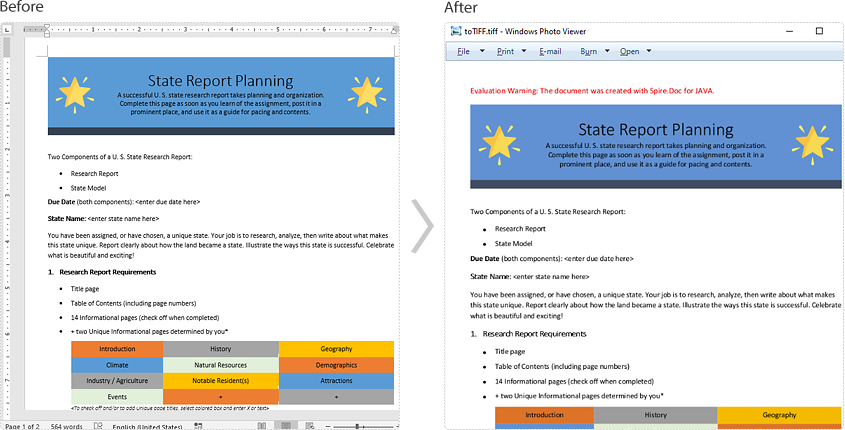
TIFF (Tagged Image File Format) is a flexible file format for storing raster graphics images. It's popular and widely supported by image-manipulation, scanning, faxing and word processing applications etc. The ability to store image data in a lossless format makes a TIFF file to be a useful image archive. In some cases, developers may need to convert documents in other format like Word to TIFF. In this article, we will describe how to achieve this task in Java using Spire.Doc for Java.
Install Spire.Doc for Java
First of all, you're required to add the Spire.Doc.jar file as a dependency in your Java program. The JAR file can be downloaded from this link. If you use Maven, you can easily import the JAR file in your application by adding the following code to your project's pom.xml file.
<repositories>
    <repository>
        <id>com.e-iceblue</id>
        <name>e-iceblue</name>
        <url>https://repo.e-iceblue.com/nexus/content/groups/public/</url>
    </repository>
</repositories>
<dependencies>
    <dependency>
        <groupId>e-iceblue</groupId>
        <artifactId>spire.doc</artifactId>
        <version>14.7.0</version>
    </dependency>
</dependencies>
Convert Word to TIFF
Spire.Doc for Java provides the Document.saveToTiff() method for converting Word to TIFF. This method accepts a String parameter which specifies the file path of the converted TIFF.
You can follow the steps below to convert a Word document to TIFF format:
- Create a Document instance.
- Load a Word document using Document.loadFromFile() method.
- Save the document to TIFF using Document.saveToTiff() method.
- Java
import com.spire.doc.Document;

public class ConvertWordToTiff {
    public static void main(String[] args){

        //Create a Document instance
        Document document = new Document();
        //Load a Word document
        document.loadFromFile("Sample.docx");

        //Save the document as multi-page TIFF
        document.saveToTiff("toTIFF.tiff");
    }
}
Apply for a Temporary License
If you'd like to remove the evaluation message from the generated documents, or to get rid of the function limitations, please request a 30-day trial license for yourself.
Sometimes you may want to print Word documents in accordance with your own preferences, for instance, print your files on custom paper sizes to make them more personalized. In this article, you will learn how to achieve this function using Spire.Doc for .NET.
Install Spire.Doc for .NET
To begin with, you need to add the DLL files included in the Spire.Doc for .NET package as references in your .NET project. The DLLs files can be either downloaded from this link or installed via NuGet.
- Package Manager
PM> Install-Package Spire.Doc
Print Word on a Custom Paper Size
The table below shows a list of core classes, methods and properties utilized in this scenario.
| Name | Description |
| Document Class | Represents a document model for Word. |
| PaperSize Class | Specifies the size of a piece of paper. |
| PrintDocument Class | Defines a reusable object that sends output to a printer, when printing from a Windows Forms application. |
| PrintDocument.DefaultPageSettings Property | Gets or sets page settings that are used as defaults for all pages to be printed. |
| Document.PrintDocument Property | Gets the PrintDocument object. |
| DefaultPageSettings.PaperSize Property | Sets the custom paper size. |
| Document.LoadFromFile() Method | Loads the sample document. |
| PrintDocument.Print() Method | Prints the document. |
The following are the steps to print Word on a custom paper size.
- Instantiate a Document object
- Load the sample document using Document.LoadFromFile() method.
- Get the PrintDocument object using Document.PrintDocument property.
- Set the custom paper size using DefaultPageSettings.PaperSize Property.
- Print the document using PrintDocument.Print() method.
- C#
- VB.NET
using Spire.Doc;
using System.Drawing.Printing;

namespace PrintWord
{
    class Program
    {
        static void Main(string[] args)
        {
             //Instantiate a Document object.
            Document doc = new Document();

            //Load the document
            doc.LoadFromFile(@"Sample.docx");

            //Get the PrintDocument object
            PrintDocument printDoc = doc.PrintDocument;

            //Customize the paper size
            printDoc.DefaultPageSettings.PaperSize = new PaperSize("custom", 900, 800);

            //Print the document
            printDoc.Print();

        }
    }
}
Imports Spire.Doc
Imports System.Drawing.Printing

Namespace PrintWord
	Class Program
		Private Shared Sub Main(args As String())
			'Instantiate a Document object.
			Dim doc As New Document()

			'Load the document
			doc.LoadFromFile("Sample.docx")

			'Get the PrintDocument object
			Dim printDoc As PrintDocument = doc.PrintDocument

			'Customize the paper size
			printDoc.DefaultPageSettings.PaperSize = New PaperSize("custom", 900, 800)

			'Print the document
			printDoc.Print()

		End Sub
	End Class
End Namespace
Apply for a Temporary License
If you'd like to remove the evaluation message from the generated documents, or to get rid of the function limitations, please request a 30-day trial license for yourself.
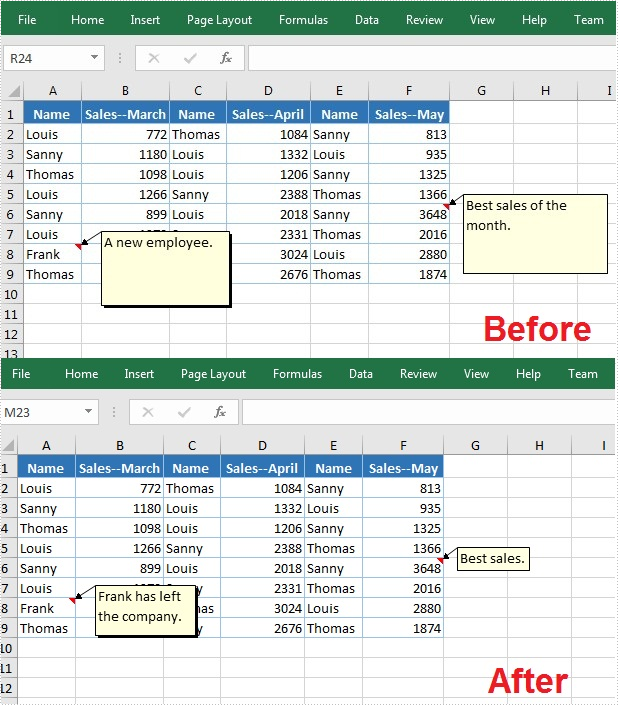
Comments in Excel are used to explain the contents in cells, or to offer reminders/notes to other users. Once a comment’s been added, Microsoft Excel allows users to show, hide, edit and delete the comments easily in a worksheet. This article will introduce how to edit existing comments as well as remove comments programmatically using Spire.XLS for Java.
Install Spire.XLS for Java
First of all, you're required to add the Spire.Xls.jar file as a dependency in your Java program. The JAR file can be downloaded from this link. If you use Maven, you can easily import the JAR file in your application by adding the following code to your project's pom.xml file.
<repositories>
    <repository>
        <id>com.e-iceblue</id>
        <name>e-iceblue</name>
        <url>https://repo.e-iceblue.com/nexus/content/groups/public/</url>
    </repository>
</repositories>
<dependencies>
    <dependency>
        <groupId>e-iceblue</groupId>
        <artifactId>spire.xls</artifactId>
        <version>16.7.3</version>
    </dependency>
</dependencies>
Edit Comments in Excel
After adding comments to your Excel workbook, you may want to make changes to the added comments. The below table lists some of the core classes and methods used to get the existing comments and then set new text as well as formatting for the comments.
| Name | Description |
| ExcelCommentObject Class | Represents a comment in an Excel document. |
| CellRange.getComment() Method | Returns a comment object that represents a comment in a specific cell range. |
| ExcelCommentObject.setText() Method | Sets the comment text. |
| ExcelCommentObject.setHeight() Method | Sets height of a comment. |
| ExcelCommentObject.setWidth() Method | Sets width of a comment. |
| ExcelCommentObject.setAutoSize() Method | Sets whether the size of the specified object is changed automatically to fit text within its boundaries. |
The following are steps to edit comments in Excel:
- Create a Workbook instance.
- Load an Excel file using Workbook.loadFromFile() method.
- Get the first worksheet of the Excel file using WorksheetsCollection.get() method.
- Get a comment in a specific cell range using CellRange.getComment() method and then set new text and height/width or auto size for the existing comment using the methods offered by ExcelCommentObject class.
- Save the document to another file using Workbook.saveToFile() method.
- Java
import com.spire.xls.*;

public class ModifyComment {
    public static void main(String[] args) {

        //Create a Workbook instance
        Workbook wb = new Workbook();

        //Load an Excel file
        wb.loadFromFile("Comments.xlsx");

        //Get the first worksheet
        Worksheet sheet = wb.getWorksheets().get(0);

        //Get comments in specific cells and set new comments
        sheet.getRange().get("A8").getComment().setText("Frank has left the company.");
        sheet.getRange().get("F6").getComment().setText("Best sales.");

        //Set the height and width of the new comments
        sheet.getRange().get("A8").getComment().setHeight(50);
        sheet.getRange().get("A8").getComment().setWidth(100);
        sheet.getRange().get("F6").getComment().setAutoSize(true);

        //Save to file.
        wb.saveToFile("ModifyComment.xlsx",ExcelVersion.Version2013);
        wb.dispose();
    }
}
Remove Comments in Excel
The following are steps to remove a comment in Excel:
- Create a Workbook instance.
- Load an Excel file using Workbook.loadFromFile() method.
- Get the first worksheet of the Excel file using WorksheetsCollection.get() method.
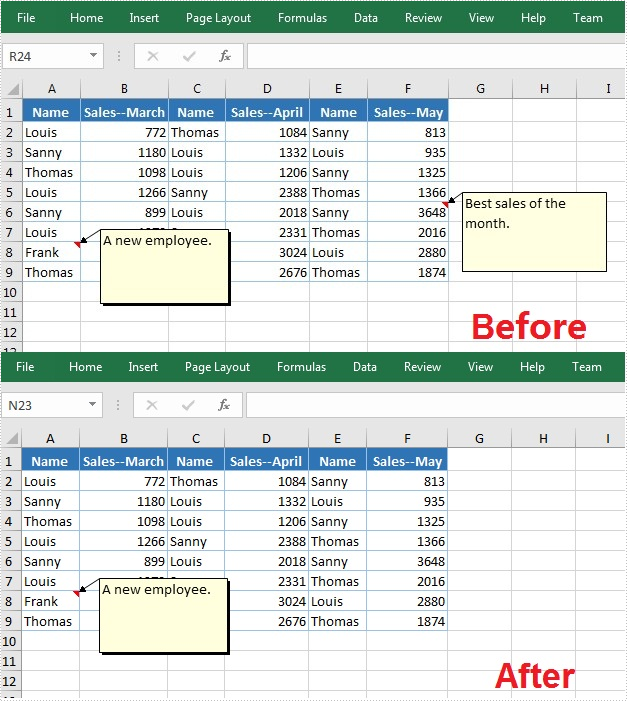
- Get a comment in a specific cell range using CellRange.getComment() method and then delete the comment using ExcelCommentObject.remove() method.
- Save the document to another file using Workbook.saveToFile() method.
- Java
import com.spire.xls.*;

public class DeleteComment {
    public static void main(String[] args) {

        //Create a Workbook instance
        Workbook wb = new Workbook();

        //Load an Excel file
        wb.loadFromFile("Comments.xlsx");

        //Get the first worksheet
        Worksheet sheet = wb.getWorksheets().get(0);

        //Get the comment in a specific cell and remove it
        sheet.getRange().get("F6").getComment().remove();

        //Save to file.
        wb.saveToFile("DeleteComment.xlsx", ExcelVersion.Version2013);
        wb.dispose();
    }
}
Apply for a Temporary License
If you'd like to remove the evaluation message from the generated documents, or to get rid of the function limitations, please request a 30-day trial license for yourself.
