Knowledgebase (2370)
Children categories
Hyperlinks in PDF documents provide convenient navigation and access to external resources. However, there are scenarios where you may need to remove or update these hyperlinks to maintain document integrity or reflect changes in the linked content. In this article, we will explore how to efficiently update or remove hyperlinks in PDF using Spire.PDF for Java.
Install Spire.PDF for Java
First of all, you're required to add the Spire.Pdf.jar file as a dependency in your Java program. The JAR file can be downloaded from this link. If you use Maven, you can easily import the JAR file in your application by adding the following code to your project's pom.xml file.
<repositories>
    <repository>
        <id>com.e-iceblue</id>
        <name>e-iceblue</name>
        <url>https://repo.e-iceblue.com/nexus/content/groups/public/</url>
    </repository>
</repositories>
<dependencies>
    <dependency>
        <groupId>e-iceblue</groupId>
        <artifactId>spire.pdf</artifactId>
        <version>12.7.0</version>
    </dependency>
</dependencies>
Update Hyperlinks in PDF in Java
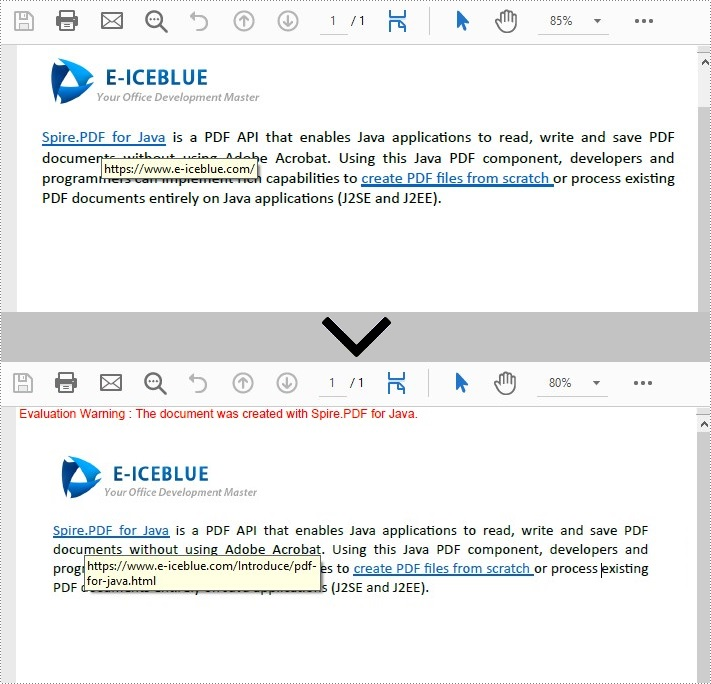
Spire.PDF for Java provides the PdfUriAnnotationWidget.setUri() method to assist you in resetting the URL. The following are the detailed steps.
- Create a PdfDocument object.
- Load the sample PDF file using PdfDocument.loadFromFile() method.
- Get the first page of the document using PdfDocument.getPages().get() method.
- Get annotation collection using PdfPageBase.getAnnotationsWidget() method.
- Get the first url annotation widget using PdfAnnotationCollection.get() method and reset the url using PdfUriAnnotationWidget.setUri() method.
- Save the document using PdfDocument.saveToFile() method.
- Java
import com.spire.pdf.PdfDocument;
import com.spire.pdf.PdfPageBase;
import com.spire.pdf.annotations.PdfAnnotationCollection;
import com.spire.pdf.annotations.PdfUriAnnotationWidget;

public class UpdateHyperlinks {
    public static void main(String[] args) throws Exception {

        //Create a PdfDocument object
        PdfDocument document = new PdfDocument();

        //Load the sample PDF file
        document.loadFromFile("C:\\Users\\Administrator\\Desktop\\Sample.pdf");

        //Get the first page
        PdfPageBase page = document.getPages().get(0);

        //Get annotation collection
        PdfAnnotationCollection widgetCollection = page.getAnnotationsWidget();

        //Get the first url annotation widget
        PdfUriAnnotationWidget uriWidget = (PdfUriAnnotationWidget)widgetCollection.get(0);

        //Reset the url
        uriWidget.setUri("https://www.e-iceblue.com/Introduce/pdf-for-java.html");

        //Save to file
        document.saveToFile("output.pdf");
        document.close();
    }
}
Remove Hyperlinks in PDF in Java
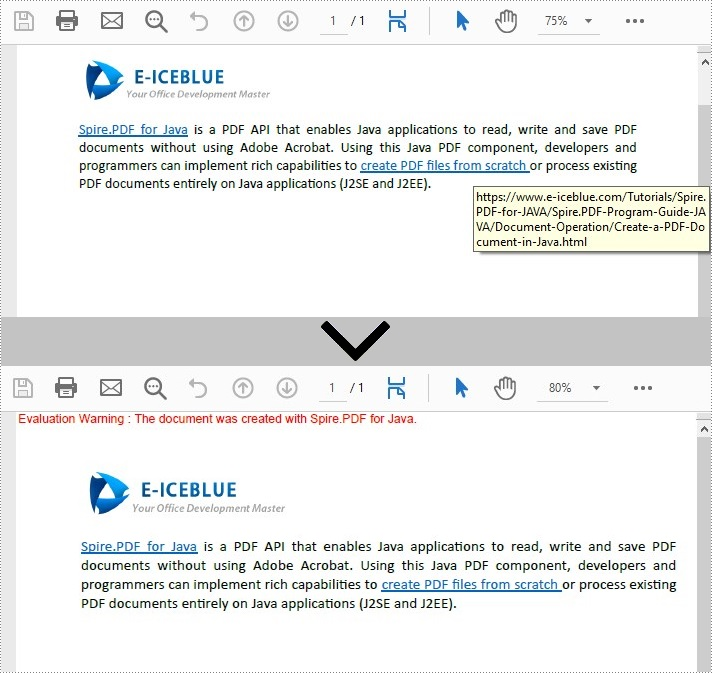
Spire.PDF for Java also offers the PdfAnnotationCollection.removeAt() method, which allows users to delete hyperlinks. When you use this method to remove a hyperlink, the visual appearance of the hyperlink will remain unchanged, but the underlying link will be deleted. The following steps demonstrate how to delete hyperlinks in a PDF.
- Create a PdfDocument object.
- Load the sample PDF file using PdfDocument.loadFromFile() method.
- Get the first page of the document using PdfDocument.getPages().get() method.
- Get annotation collection using PdfPageBase.getAnnotationsWidget() method.
- Remove the second annotation which is a hyperlink in the document using PdfAnnotationCollection.removeAt() method.
- Save the document using PdfDocument.saveToFile() method.
- Java
import com.spire.pdf.PdfDocument;
import com.spire.pdf.PdfPageBase;
import com.spire.pdf.annotations.PdfAnnotationCollection;


public class RemoveHyperlinks {
    public static void main(String[] args) throws Exception {

        //Create a PdfDocument object
        PdfDocument document = new PdfDocument();

        //Load the sample PDF file
        document.loadFromFile("C:\\Users\\Administrator\\Desktop\\Sample.pdf");

        //Get the first page
        PdfPageBase page = document.getPages().get(0);

        //Get annotation collection
        PdfAnnotationCollection widgetCollection = page.getAnnotationsWidget();

        //Remove the second annotation which is a hyperlink in the document
        widgetCollection.removeAt(1);

        //Save to file
        document.saveToFile("Result.pdf");
        document.close();
    }
}
Apply for a Temporary License
If you'd like to remove the evaluation message from the generated documents, or to get rid of the function limitations, please request a 30-day trial license for yourself.
Comments are used to provide additional information or draw attention to something in the document. Sometimes, the text being commented is also useful, and you may want to extract it for other purposes. In this article, you will learn how to extract the text between two comment marks in a Word document using Spire.Doc for Java.
Install Spire.Doc for Java
First of all, you're required to add the Spire.Doc.jar file as a dependency in your Java program. The JAR file can be downloaded from this link. If you use Maven, you can easily import the JAR file in your application by adding the following code to your project's pom.xml file.
<repositories>
    <repository>
        <id>com.e-iceblue</id>
        <name>e-iceblue</name>
        <url>https://repo.e-iceblue.com/nexus/content/groups/public/</url>
    </repository>
</repositories>
<dependencies>
    <dependency>
        <groupId>e-iceblue</groupId>
        <artifactId>spire.doc</artifactId>
        <version>14.7.0</version>
    </dependency>
</dependencies>
Get Text Between Two Comment Marks in Word
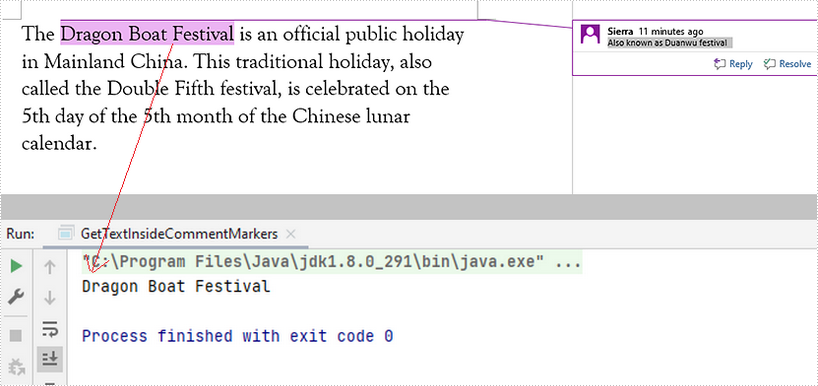
To get the text between the start mark (represented by CommentMarkStart class) and the end mark (represented by CommentMarkEnd class), you’ll need to get the indexes of the comment marks. These indexes specify the position of the text being marked in a paragraph. The following are the detailed steps to get text inside two comment marks in a Word document.
- Create a Document object, and load a sample Word document using Document.loadFromFile() method.
- Get the first comment using Document.getComments().get() method.
- Get the start mark and end mark of the comment.
- Get the start mark's index and the end mark's index in the owner paragraph.
- Get the text range between the indexes, and then get the text of the text range using TextRage.getText() method.
- Java
import com.spire.doc.Document;
import com.spire.doc.documents.CommentMark;
import com.spire.doc.documents.Paragraph;
import com.spire.doc.fields.Comment;
import com.spire.doc.fields.TextRange;

public class GetTextInsideCommentMarkers {

    public static void main(String[] args) {

        //Create a Document object
        Document doc = new Document();

        //Load the sample Word document
        doc.loadFromFile("C:\\Users\\Administrator\\Desktop\\Input.docx");

        //Get the first comment
        Comment comment = doc.getComments().get(0);

        //Get the start mark and end mark of the comment
        Paragraph para = comment.getOwnerParagraph();
        CommentMark start = comment.getCommentMarkStart();
        CommentMark end = comment.getCommentMarkEnd();

        //Get the start mark’s index and the end mark’s index respectively
        int indexOfStart = para.getChildObjects().indexOf(start);
        int indexOfEnd = para.getChildObjects().indexOf(end);

        //Declare a String variable
        String textMarked = "";

        //Loop through the numbers between two indexes
        for (int i = indexOfStart + 1; i < indexOfEnd; i++) {
            if (para.getChildObjects().get(i) instanceof TextRange) {

                //Get the text range specified by the index
                TextRange range = (TextRange) para.getChildObjects().get(i);

                //Get text from the text range
                textMarked += range.getText();
            }
        }

        //Print out the text being marked
        System.out.println(textMarked);
    }
}
Apply for a Temporary License
If you'd like to remove the evaluation message from the generated documents, or to get rid of the function limitations, please request a 30-day trial license for yourself.
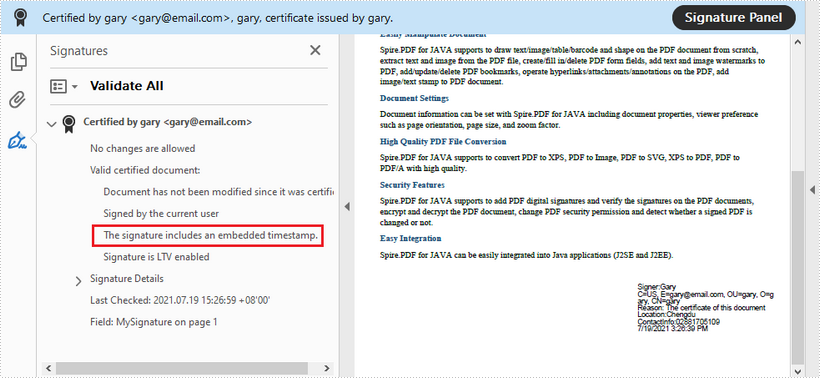
This article demonstrates how to embed a timestamp when digitally signing PDF documents using Spire.PDF for Java.
import com.spire.pdf.PdfDocument;
import com.spire.pdf.graphics.*;
import com.spire.pdf.security.GraphicMode;
import com.spire.pdf.security.PdfCertificate;
import com.spire.pdf.security.PdfCertificationFlags;
import com.spire.pdf.security.PdfSignature;

import java.awt.*;
import java.awt.geom.Point2D;
import java.awt.geom.Rectangle2D;

public class SignWithTimestamp {
    public static void main(String[] args) {

        //Load a pdf document
        PdfDocument doc = new PdfDocument();
        doc.loadFromFile("C:\\Users\\Administrator\\Desktop\\Introduction.pdf");

        //Load the certificate
        PdfCertificate cert = new PdfCertificate("C:\\Users\\Administrator\\Desktop\\gary.pfx", "e-iceblue");

        //Create a PdfSignature object and specify its position and size
        PdfSignature signature = new PdfSignature(doc, doc.getPages().get(0), cert, "MySignature");
        Rectangle2D rect = new Rectangle2D.Float();
        rect.setFrame(new Point2D.Float((float) doc.getPages().get(0).getActualSize().getWidth() - 220, (float) doc.getPages().get(0).getActualSize().getHeight() - 140), new Dimension(200, 100));
        signature.setBounds(rect);

        //Set the graphics mode
        signature.setGraphicMode(GraphicMode.Sign_Detail);

        //Set the signature content
        signature.setNameLabel("Signer:");
        signature.setName("Gary");
        signature.setContactInfoLabel("ContactInfo:");
        signature.setContactInfo("02881705109");
        signature.setLocationInfoLabel("Location:");
        signature.setLocationInfo("Chengdu");
        signature.setReasonLabel("Reason: ");
        signature.setReason("The certificate of this document");

        //Set the signature font
        signature.setSignDetailsFont(new PdfFont(PdfFontFamily.Helvetica, 10f, PdfFontStyle.Regular));

        //Set the document permission
        signature.setDocumentPermissions(PdfCertificationFlags.Forbid_Changes);
        signature.setCertificated(true);

        //Configure a time stamp server
        String timestampServerUrl = "http://timestamp.digicert.com";
        signature.configureTimestamp(timestampServerUrl);

        //Save to file
        doc.saveToFile("Timestamp.pdf");
        doc.close();
    }
}