
Knowledgebase (2370)
Children categories
Subtotal is a built-in function in Microsoft Excel that enables you to quickly calculate a range of data using a summary function, such as SUM, AVERAGE, COUNT, or MIN. This article will demonstrate how to add subtotals to a data range in Excel in Java using Spire.XLS for Java.
Install Spire.XLS for Java
First of all, you're required to add the Spire.Xls.jar file as a dependency in your Java program. The JAR file can be downloaded from this link. If you use Maven, you can easily import the JAR file in your application by adding the following code to your project's pom.xml file.
<repositories>
    <repository>
        <id>com.e-iceblue</id>
        <name>e-iceblue</name>
        <url>https://repo.e-iceblue.com/nexus/content/groups/public/</url>
    </repository>
</repositories>
<dependencies>
    <dependency>
        <groupId>e-iceblue</groupId>
        <artifactId>spire.xls</artifactId>
        <version>16.7.3</version>
    </dependency>
</dependencies>
Add Subtotals to a Data Range
The XlsWorksheet.subtotal() method is used to add subtotals to a data range. It accepts the following parameters:
- IXLSRange: the specific data range.
- int: the column index (zero-based) that you want to base the subtotals on.
- int[]: an array of column indexes (zero-based) on which the subtotals are calculated.
- SubtotalTypes: the function (SUM, AVERAGE etc.) used to calculate the subtotals.
- boolean: Indicates whether to replace existing subtotals.
- boolean: Indicates whether to insert page breaks between groups.
- boolean: Indicates whether to add summary rows below data.
The following are the steps to add subtotals to a data range:
- Create an instance of Workbook class.
- Load an Excel file using Workbook.loadFromFile() method.
- Get the desired worksheet using Workbook.getWorksheets().get() method.
- Access the range that you wish to subtotal using Worksheet.getCellRange() method.
- Add subtotals to the range using XlsWorksheet.subtotal() method.
- Save the result file using Workbook.saveToFile() method.
- Java
import com.spire.xls.*;

public class AddSubtotalsToDataRange {
    public static void main(String []args){

        //Create a Workbook instance
        Workbook workbook = new Workbook();
        //Load an Excel file
        workbook.loadFromFile("Report.xlsx");

        //Get the first worksheet
        Worksheet sheet = workbook.getWorksheets().get(0);

        //Access the range that contains data you wish to subtotal
        CellRange range = sheet.getCellRange("A2:C11");

        //Add subtotals to the range, the function is Sum and it will be applied to the 3rd column in the range
        sheet.subtotal(range, 0, new int[] { 2 }, SubtotalTypes.Sum, true, false, true);

        //Save the result file
        workbook.saveToFile("AddSubtotal.xlsx", ExcelVersion.Version2016);
        workbook.dispose();
    }
}

Apply for a Temporary License
If you'd like to remove the evaluation message from the generated documents, or to get rid of the function limitations, please request a 30-day trial license for yourself.
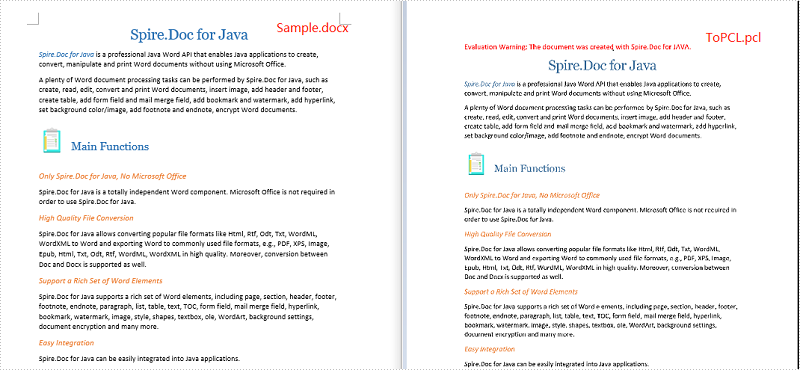
A PCL file is a digital printed document created in the Printer Command Language. It can be printed to HP LaserJet printers directly without having to be opened in an application. At some point, you might need to convert Word document to PCL. This article will introduce how to implement the conversion programmatically in Java using Spire.Doc for Java.
Install Spire.Doc for Java
First of all, you're required to add the Spire.Doc.jar file as a dependency in your Java program. The JAR file can be downloaded from this link. If you use Maven, you can easily import the JAR file in your application by adding the following code to your project's pom.xml file.
<repositories>
    <repository>
        <id>com.e-iceblue</id>
        <name>e-iceblue</name>
        <url>https://repo.e-iceblue.com/nexus/content/groups/public/</url>
    </repository>
</repositories>
<dependencies>
    <dependency>
        <groupId>e-iceblue</groupId>
        <artifactId>spire.doc</artifactId>
        <version>14.7.0</version>
    </dependency>
</dependencies>
Convert Word to PCL
The following are the steps to convert a Word document to PCL:
- Create an instance of Document class.
- Load a Word document using Document.loadFromFile() method.
- Save the document to PCL using Document.saveToFile() method.
- Java
import com.spire.doc.Document;
import com.spire.doc.FileFormat;

public class ConvertWordToPCL {
    public static void main(String[] args){
        //Create a Document instance
        Document document= new Document();
        //Load a Word document
        document.loadFromFile("Sample.docx");

        //Save the document to PCL
        document.saveToFile("ToPCL.pcl", FileFormat.PCL);
    }
}
Apply for a Temporary License
If you'd like to remove the evaluation message from the generated documents, or to get rid of the function limitations, please request a 30-day trial license for yourself.
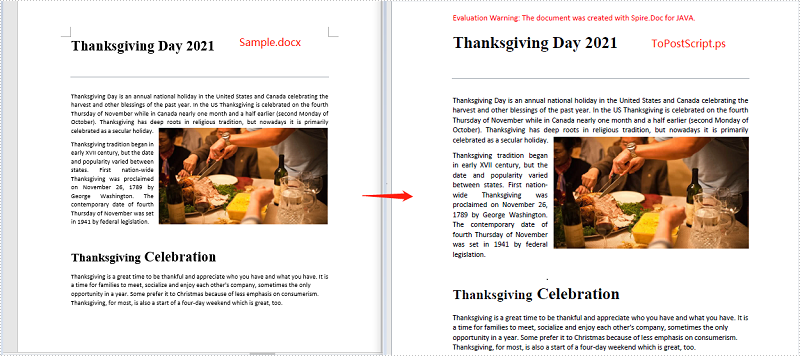
PostScript is a page description language designed by Adobe in 1984 for the purpose of printing. A file described in PostScript language may contain text, raster/vector graphics and can be printed by any printer that supports PostScript without being opened in an application. In some cases, you might need to convert your Word document to PostScript. This article will show you how to achieve this task programmatically in Java using Spire.Doc for Java.
Install Spire.Doc for Java
First of all, you're required to add the Spire.Doc.jar file as a dependency in your Java program. The JAR file can be downloaded from this link. If you use Maven, you can easily import the JAR file in your application by adding the following code to your project's pom.xml file.
<repositories>
    <repository>
        <id>com.e-iceblue</id>
        <name>e-iceblue</name>
        <url>https://repo.e-iceblue.com/nexus/content/groups/public/</url>
    </repository>
</repositories>
<dependencies>
    <dependency>
        <groupId>e-iceblue</groupId>
        <artifactId>spire.doc</artifactId>
        <version>14.7.0</version>
    </dependency>
</dependencies>
Convert Word to PostScript
The following are the steps to convert a Word document to PostScript:
- Create an instance of Document class.
- Load a Word document using Document.loadFromFile() method.
- Save the document to PostScript using Document.saveToFile() method.
- Java
import com.spire.doc.Document;
import com.spire.doc.FileFormat;

public class ConvertWordToPostScript {
    public static void main(String[] args){
        //Create a Document instance
        Document document= new Document();
        //Load a Word document
        document.loadFromFile("Sample.docx");

        //Save the document to PostScript
        document.saveToFile("ToPostScript.ps", FileFormat.Post_Script);
    }
}
Apply for a Temporary License
If you'd like to remove the evaluation message from the generated documents, or to get rid of the function limitations, please request a 30-day trial license for yourself.
